
Converting AIFF files to MP3 sounds simple until you hit the usual friction points: large file sizes, quality concerns, metadata issues, and tools that feel more complicated than they should. If you work with audio for podcasts, voice notes, client deliverables, product demos, or archived recordings, choosing the right way to turn an AIFF file into an MP3 can save time and prevent avoidable quality loss.
For small business owners, freelancers, developers, and productivity-focused users, the goal is rarely just conversion for its own sake. It is about making audio easier to store, share, upload, and use across devices. That is where understanding the difference between AIFF and MP3 matters. Once you know what each format is good at, converting AIFF files to MP3 becomes a practical workflow decision rather than a technical guessing game.
What converting AIFF files to MP3 means
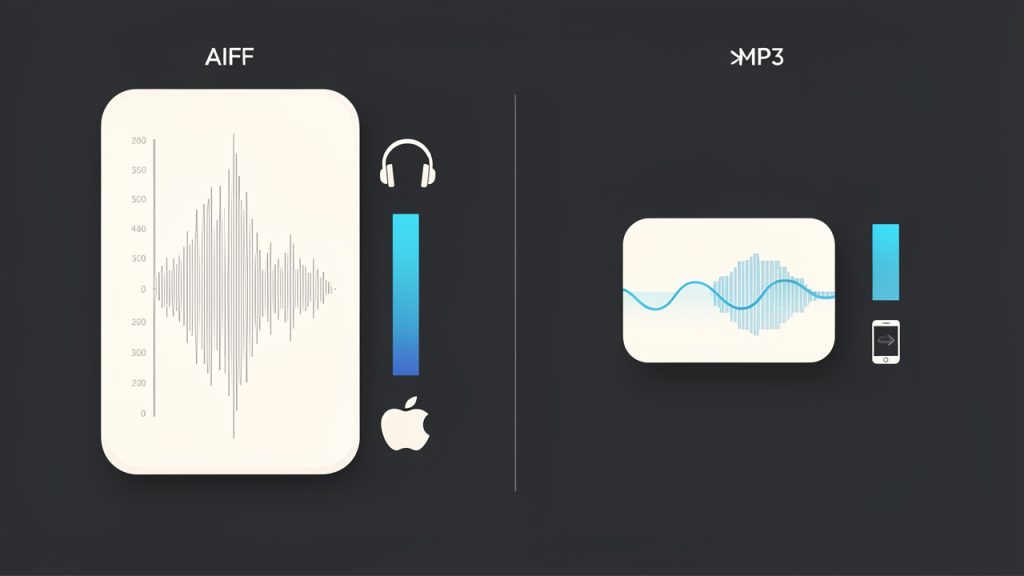
AIFF, short for Audio Interchange File Format, is a high-quality audio format originally developed by Apple. It is often used for uncompressed audio, which means it preserves a lot of sound detail. That makes it useful in recording, editing, and professional production environments where audio fidelity matters.
MP3, by contrast, is a compressed audio format designed to reduce file size significantly. It removes some audio data in ways that are usually acceptable for casual listening, web use, and everyday sharing. This is why MP3 became the standard for portable music players, email attachments, web uploads, and general distribution.
When people search for a way to convert AIFF to MP3, they are usually trying to solve one of a few common problems. Their AIFF files may be too large to upload, too heavy to store efficiently, or not ideal for playback on all devices and platforms. In other words, the conversion is less about changing the sound itself and more about improving compatibility and convenience.
That said, there is a trade-off. AIFF is commonly uncompressed, while MP3 uses lossy compression. When you convert an AIFF file into MP3 format, you are almost always reducing file size at the cost of some audio detail. For many business and productivity use cases, that trade is completely reasonable. For mastering, archival work, or professional post-production, it may not be.
Key aspects of converting AIFF files to MP3
File Size vs Audio Quality
The most important concept in converting AIFF files to MP3 is the balance between size and sound quality. AIFF files are large because they store audio with minimal or no compression. MP3 files are far smaller because they compress that audio data.
Think of it like sending an image. A full-resolution photo is ideal for editing, but a compressed version is easier to email or post online. Audio works in much the same way. If your priority is fast sharing, lower storage use, and broad compatibility, MP3 makes sense. If your priority is preserving every possible sonic detail, AIFF remains the better source format.
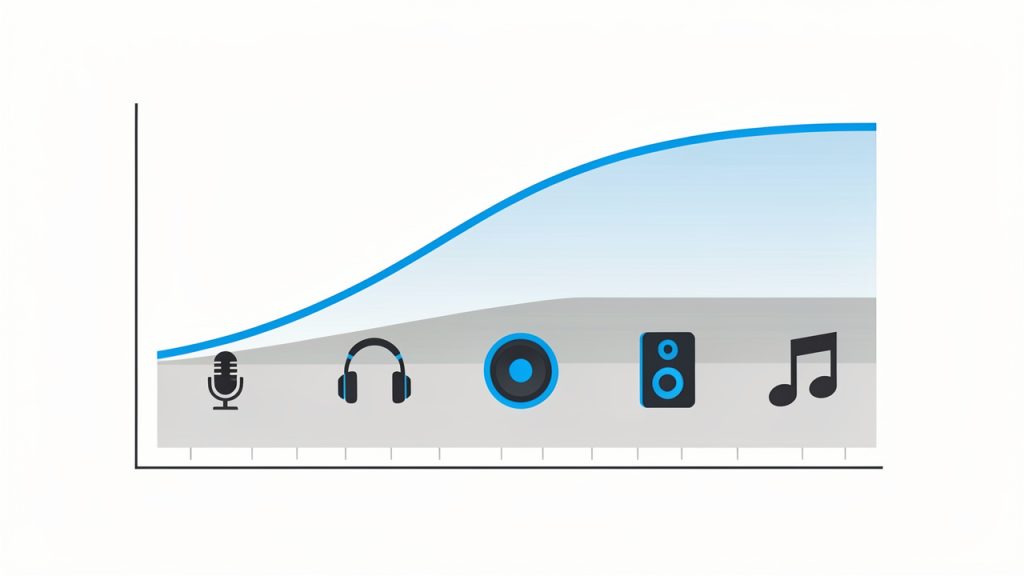
Bitrate plays a major role here. A higher MP3 bitrate usually means better sound quality and a larger file. A lower bitrate creates smaller files, but can introduce audible artifacts, especially in music, layered sound, or recordings with lots of dynamics.
Here is a simple comparison:
| Format | Typical Quality | File Size | Best Use Case | Compatibility |
|---|---|---|---|---|
| AIFF | Very high, often uncompressed | Large | Editing, archiving, studio work | Good, especially in Apple ecosystems |
| MP3 320 kbps | High for most listeners | Medium | Music distribution, presentations, high-quality sharing | Excellent |
| MP3 192 kbps | Good | Smaller | Podcasts, business audio, general listening | Excellent |
| MP3 128 kbps | Acceptable for basic use | Small | Voice notes, lightweight uploads | Excellent |
For spoken-word files such as interviews, internal training clips, or voice memos, lower bitrates may still sound perfectly fine. For music, branded sound assets, or polished media, a higher bitrate is usually worth the extra space.
Why people convert AIFF files
The reason to convert AIFF files to MP3 is often practical rather than technical. AIFF is excellent as a working or master file, but it is not always efficient for everyday use. If you need to send audio to clients, upload it to a website, add it to a course platform, or keep a lightweight library on your phone or laptop, MP3 is usually more manageable.
Freelancers often run into this when delivering voiceover previews or draft podcast edits. Small business owners face it when uploading product explainers or customer support recordings. Developers and productivity-minded users care because smaller files move faster through systems, sync more easily, and take up less space in cloud storage.
This is also a cross-platform issue. AIFF has strong roots in Apple workflows, but MP3 remains the more universally convenient format. If your audio needs to work almost anywhere, from browsers to Android devices to legacy systems, MP3 is still one of the safest choices.
Metadata, tags, and naming
A detail that gets overlooked when you convert AIFF files to MP3 is metadata. This includes the track title, artist name, album, year, genre, and sometimes embedded artwork. If you are converting one file for personal use, missing metadata may not matter. If you are handling dozens or hundreds of files, it matters a lot.
Poorly managed metadata creates messy libraries, confusing client deliveries, and extra cleanup work. A good conversion process preserves or lets you edit tags during export. That is especially useful for podcasters, course creators, agencies, and anyone organizing audio assets at scale.
File naming matters too. A converted file called “audio_final_new2_revised.mp3” may technically work, but it does not help your workflow. Clear naming conventions save time later, especially when files are reused, shared, or archived.
One-time conversion vs batch processing
If you only need to convert a single AIFF file to MP3, almost any decent tool will do the job. But if you are working with large sets of recordings, interviews, tracks, or exported audio assets, batch conversion becomes more important than any flashy interface.
The real productivity gain comes from consistency. You want the same bitrate, the same naming pattern, and the same output location across all files. Otherwise, conversion becomes a repetitive chore rather than a streamlined step in your workflow.
For freelancers handling recurring media tasks, this can make a surprising difference. A process that saves even a few minutes per project adds up quickly over weeks and months.
How to get started converting AIFF files to MP3
Choose the right type of tool
Most people have three realistic options when converting AIFF files to MP3: an online converter, a desktop media app, or an audio editing program. The right choice depends on how often you do this, how large your files are, and how much control you need.
Online tools are popular because they are fast and accessible. You upload the AIFF file, choose MP3, and download the result. This works well for occasional use, especially when convenience matters more than advanced settings. However, online tools may have file size limits, slower upload times, privacy concerns, or fewer export controls.
Desktop tools tend to be better for larger files, repeated use, and more reliable performance. They also avoid the need to upload sensitive recordings to a third-party server. If you regularly handle client audio, internal communications, or unpublished media, local conversion is often the safer option.
Audio editing software is best when conversion is only part of a larger workflow. If you already edit, trim, normalize, or clean up audio before export, it makes sense to convert within the same environment rather than using a separate tool.
Use a simple conversion workflow
A clean conversion workflow does not need to be complicated. In most cases, it follows the same basic pattern:
- Import the AIFF file into your chosen tool.
- Select MP3 as the output format.
- Choose the bitrate based on your use case.
- Export and review the final file before sharing or publishing.
The review step matters more than many people realize. A file may convert successfully but still have issues such as clipped audio, missing tags, unexpected volume differences, or the wrong bitrate. A quick test on your computer or phone helps catch mistakes before the file goes to a client, customer, or public channel.
Pick the right bitrate for the job
Bitrate selection should reflect how the audio will actually be used. For voice-heavy recordings, you often do not need the highest possible setting. For music, branded audio, or anything public-facing, quality deserves more attention.
Here is a practical guide:
| Use Case | Recommended MP3 Bitrate | Why It Works |
|---|---|---|
| Voice notes and internal recordings | 96 to 128 kbps | Keeps files small while preserving clear speech |
| Podcasts and spoken tutorials | 128 to 192 kbps | Good balance of clarity and efficiency |
| Client presentations and demos | 192 kbps | Strong quality with manageable size |
| Music and polished media | 256 to 320 kbps | Better detail and fewer compression artifacts |
If you are unsure, 192 kbps is a safe middle ground for many business and general-purpose audio needs. It usually sounds solid without producing unnecessarily large files.
Watch for quality loss and re-encoding
One important rule is easy to remember: convert from the best source file you have, and avoid repeated conversions. If you start with AIFF, export once to the MP3 quality you need. Do not convert that MP3 again and again into new MP3 versions if you can help it.
Every lossy re-encoding step can chip away at audio quality. It is a bit like making a photocopy of a photocopy. The first result may look fine, but repeated copies gradually lose clarity. For audio, this shows up as muddiness, harshness, or strange compression artifacts.
The safest approach is to keep the original AIFF file archived, then create MP3 versions for distribution. That way, if you ever need a different bitrate or output setting, you can return to the source.
Consider privacy and security
This matters more than it used to. If your AIFF files contain customer calls, internal meetings, unreleased media, legal discussions, or paid content, be careful with web-based conversion tools. Convenience is attractive, but uploaded audio may pass through third-party servers you do not control.
For sensitive files, desktop conversion is usually the better option. You reduce exposure, maintain local control, and avoid uncertainty around retention policies or data handling practices. For businesses and freelancers, that is not just a technical preference, it is part of good operational hygiene.
Build a repeatable process
If converting AIFF files to MP3 is something you do more than once in a while, treat it like a mini system. Decide in advance which bitrate you use for voice, which for music, where converted files are stored, and how files are named.
That kind of standardization is especially valuable for productivity-minded users. It removes micro-decisions, reduces mistakes, and makes handoffs cleaner. What starts as a simple file conversion task can become surprisingly efficient when the process is consistent.
Conclusion
Converting AIFF files to MP3 is really about making audio more usable. AIFF offers excellent source quality, but MP3 is often the smarter format for sharing, uploading, storing, and everyday playback. The key is understanding the trade-off so you choose the right settings for the job rather than defaulting blindly to the smallest file or the highest bitrate.
If you are getting started, begin with a single file, choose a bitrate that matches your use case, and test the result on the device or platform where it will actually be used. Keep the original AIFF file as your master, use MP3 for distribution, and build a simple repeatable workflow from there. That gives you the best of both worlds: quality where it counts, convenience where it matters.