
JNTZN

Tag: base64

  • Base64 Encoder & Decoder Online — Fast, Private Conversion

    Base64 Encoder & Decoder Online — Fast, Private Conversion

    You do not need to be a developer to run into Base64. It shows up when you paste API credentials, inspect email content, move image data between tools, or troubleshoot odd-looking strings that seem unreadable at first glance. In those moments, a Base64 encoder decoder online tool can save time immediately.

    For small business owners, freelancers, and developers, the appeal is simple. You want a fast way to convert plain text or binary-related content into Base64, then reverse it back without installing software or digging through technical documentation. A good online tool removes friction, helps you verify data quickly, and reduces the chance of mistakes when working across systems.

    What is Base64 encoder decoder online?

    A Base64 encoder decoder online tool is a web-based utility that converts data into Base64 format and decodes Base64 back into readable content.

    Base64 itself is a method for representing data using a limited set of text characters. Instead of sending raw bytes directly, the data is transformed into a text-friendly format that can travel more easily through systems built for text handling.

    This matters because many digital workflows were originally designed around text rather than arbitrary binary data. If you need to embed an image in HTML, include data inside JSON, move content through email, or work with API payloads, Base64 often appears as the bridge. If you need to embed an image in HTML, include data inside JSON, move content through email, or work with API payloads, Base64 often appears as the bridge. It is not a form of encryption, and that distinction is important. Base64 is encoding, not security. It makes data transportable, not protected.

    An online Base64 tool simplifies that process. You paste text, a token, or encoded data into a field, click encode or decode, and get the converted output instantly. The best tools also support UTF-8 text, URL-safe variants, file input, copy-to-clipboard convenience, and local browser processing for better privacy.

    Why Base64 appears so often

    Base64 is common because it solves a practical compatibility problem. Some systems do not handle raw binary cleanly, but they do handle plain text reliably. By converting data into a text-only structure, developers and non-technical users alike can move content between platforms with fewer formatting issues.

    You may see Base64 in email attachments, basic authentication headers, embedded images, signed tokens, API responses, configuration values, and browser-based data URLs. Even if you never write code, you may still need to recognize it. A long string containing letters, numbers, plus signs, slashes, and equal signs at the end is often a clue.

    A multi-scene illustration (grid of small icons) showing common places Base64 appears: an email with an attachment, an HTTP header labeled 'Authorization: Basic ...', a web page with an embedded image data URL, a JSON config snippet, and a signed token. Each scene includes a short label like 'Email', 'API', 'Image embed', 'Config', 'Token'.

    Encoding vs decoding, the simple difference

    When you encode, you turn readable input or raw data into Base64 text. When you decode, you reverse that process and restore the original content. Think of it like putting a document into a shipping-friendly container, then unpacking it on arrival. The contents stay the same in meaning, but the format changes so other systems can handle it predictably.

    That is why a Base64 encoder and decoder are usually paired in one online tool. Most users need both directions. You may encode text before sending it to another application, then decode a returned value to confirm that everything worked correctly.
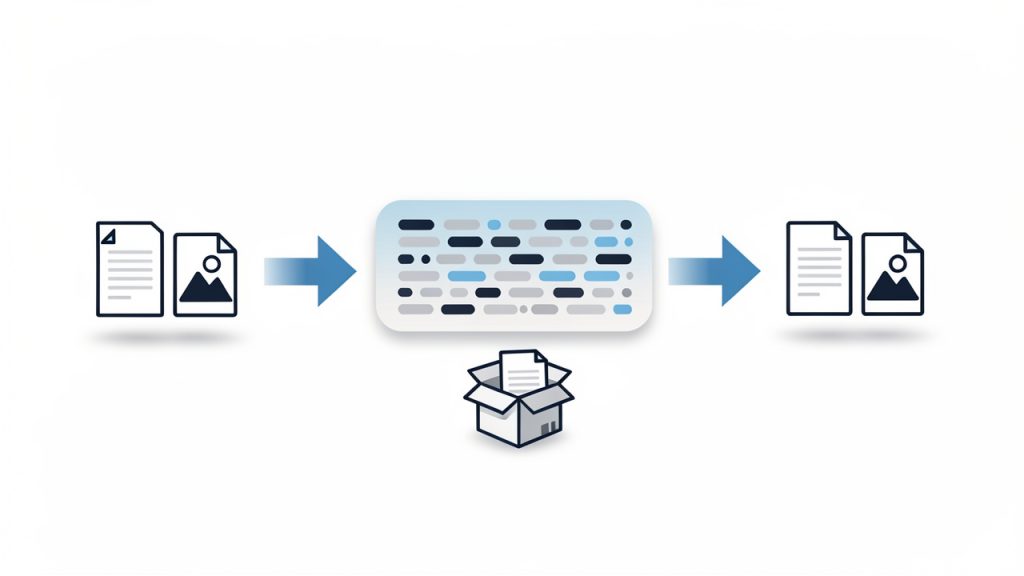
    A clear pipeline diagram showing: left — readable input (text file, image icon) labeled 'Input'; middle — an arrow labeled 'Encode →' leading to a long Base64 string box with characters like 'TWFu...' ; right — an arrow labeled 'Decode →' back to the original readable input. Include a small caption: 'Encoding = format change, not encryption.'

    Key Aspects of Base64 encoder decoder online

    The value of an online Base64 tool is not just convenience. It is also about speed, compatibility, accuracy, and privacy. Those four factors determine whether the tool is useful for casual tasks or trustworthy enough for regular professional work.

    Speed and ease of use

    The biggest advantage of a Base64 encoder decoder online utility is immediate access. There is no software installation, no command line requirement, and no setup. You open the page, paste your content, and get results in seconds. For busy freelancers and small teams, that matters more than it might seem. Tiny interruptions compound over time.

    Ease of use also reduces errors. A clean interface with separate input and output fields, a visible encode/decode toggle, and one-click copy buttons helps prevent accidental misuse. If you are checking a webhook payload or converting text for a CMS field, clarity is productivity.

    Browser-based privacy

    Privacy is one of the first concerns users should have when using any online conversion tool. Some Base64 strings contain harmless sample data. Others may include customer details, internal URLs, API information, or authentication-related values. Because of that, it is wise to prefer tools that process data locally in your browser rather than uploading it to a server.

    A trustworthy tool usually makes this clear. If a site explains that encoding and decoding happen on the client side, you gain a meaningful privacy benefit. It does not replace your own judgment, but it lowers the risk of exposing sensitive information during routine work.

    Accuracy with text and special characters

    Not all online tools handle input equally well. Plain English text is easy. Real-world data is not. You may be working with accented characters, symbols, emoji, line breaks, JSON fragments, or URL parameters. A strong Base64 decoder online should handle character encoding correctly, especially UTF-8, so the decoded output matches the original input without corruption.

    This becomes especially important in multilingual environments or when copying content between business systems. One wrong character in a payment note, customer name, or API secret can create a confusing problem. Reliable tools preserve the exact content.

    Support for common use cases

    Base64 is used in more places than many people realize. An online tool becomes more valuable when it supports the kinds of tasks people actually perform. Text encoding is the baseline, but some users need file support, URL-safe Base64 options, or easy handling of data URLs.

    The table below shows how Base64 often appears in practical workflows:

    Use Case How Base64 Is Used Why an Online Tool Helps
    API testing Encodes credentials, payload fragments, or tokens Quickly verify whether data is formatted correctly
    Email troubleshooting Helps inspect encoded message parts or attachments Makes unreadable segments understandable
    Image embedding Converts image data into text for inline usage Useful for quick experiments and debugging
    Configuration work Encodes values stored in app settings or environment workflows Helps confirm values before deployment
    Web development Decodes tokens, strings, or browser-generated data Speeds up debugging without extra software

    Understanding the limits of Base64

    One of the most common misunderstandings is treating Base64 as if it were a security feature. It is not. Anyone with a decoder can reverse it instantly. If you encode a password in Base64, you have not protected it. You have only changed its appearance.

    That matters for business users who may see encoded values and assume they are safe to expose publicly. They are not. Sensitive data still needs proper encryption, secure storage, and access control. A Base64 encoder decoder online tool is for formatting and inspection, not confidentiality.

    Another practical limit is file size. Base64 increases data size by roughly a third. That makes it convenient for compatibility, but inefficient for large assets. If you embed big files in Base64 unnecessarily, pages and payloads can become heavier and slower.

    How to Get Started with Base64 encoder decoder online

    Using a Base64 tool is straightforward, but a few good habits make the process smoother and safer. The goal is not just to convert data, but to do it correctly and with confidence.

    A simple workflow that works

    For most tasks, the process follows the same pattern:

    1. Paste your input into the text area or upload the file if the tool supports it.
    2. Choose encode or decode based on what you need.
    3. Review the output carefully, then copy or export it for your next step.

    That simplicity is exactly why online tools are so useful. You can move from confusion to clarity in under a minute, whether you are validating a token string or checking if a value in a settings panel decodes into plain text.

    How to tell if a string is probably Base64

    Users often ask whether a strange string is definitely Base64. There is no perfect visual test, but there are clues. Standard Base64 often includes uppercase and lowercase letters, numbers, plus signs, and slashes. It may end with one or two equal signs used as padding. URL-safe Base64 replaces some of those symbols, usually with hyphens and underscores.

    Even so, appearance alone is not enough. Some plain strings can resemble Base64, and some Base64 strings omit padding. A practical approach is to try decoding with a reliable online tool and see whether the result is meaningful and error-free. If the decoded output is readable text, structured JSON, or recognizable binary metadata, you likely have a match.

    Choosing the right online tool

    Not every free utility is equally useful. If you plan to use a Base64 encoder decoder online tool regularly, look for a few practical qualities.

    • Local processing: Keeps data in your browser when possible.
    • UTF-8 support: Preserves non-English text and special characters accurately.
    • Clear interface: Reduces mistakes during quick tasks.
    • Copy and reset options: Saves time when handling repeated conversions.

    Those features sound small, but they make a big difference in daily use. A cluttered tool creates friction. A fast, transparent one becomes part of your normal workflow.

    Common mistakes to avoid

    A frequent mistake is decoding content and assuming the output is safe or trustworthy just because it is readable. Decoded data can still contain harmful scripts, malformed text, or confidential information. Treat unknown content carefully, especially if it comes from external systems.

    Another common issue is mixing up standard Base64 with URL-safe Base64. They are similar, but not identical. If a token fails to decode in one mode, it may simply be using the other variant. Good tools either detect this automatically or make it easy to switch.

    A third issue is losing formatting during copy and paste. Line breaks, hidden spaces, or accidental truncation can break the conversion. If the result looks wrong, check the input first. In many cases, the tool is fine and the pasted data is the real problem.

    Real-world examples for business and development users

    A freelancer managing client websites may encounter Base64 when inspecting a plugin setting, email header, or API response. An online decoder helps reveal what is actually inside the encoded string without requiring technical setup. That speeds up communication with clients and support teams because you can verify facts quickly.

    A small business owner using no-code or low-code tools may see Base64 in automation platforms, webhook logs, or file transfer workflows. In that context, an online encoder decoder becomes a practical troubleshooting companion. It turns mysterious machine-looking text into something understandable.

    Developers, of course, use these tools constantly for testing. But the benefit is not limited to engineers. Anyone working across modern web systems can gain from understanding what Base64 does and how to reverse it safely.

    Conclusion

    A Base64 encoder decoder online tool is one of those deceptively simple utilities that becomes indispensable once you start working with digital systems more often. It helps you convert, inspect, troubleshoot, and verify data quickly, whether you are handling API values, embedded content, email fragments, or configuration strings.

    The key is to use it with the right expectations. Base64 improves compatibility, not security. Choose a tool that is accurate, easy to use, and privacy-conscious, especially if it processes data locally in your browser. If you regularly work with encoded strings, your next step is simple, keep a reliable online Base64 encoder decoder handy and use it as part of your everyday workflow.


  • How to Convert Base64 to Image Files (Quick Guide)

    How to Convert Base64 to Image Files (Quick Guide)

    A Base64 image string looks harmless until you need to turn it into a real file, display it in a browser, or debug why it refuses to render. That is where most people get stuck. You might have a string from an API, an HTML email, a database export, or a frontend app, and all you really want is a usable image.

    The good news is that Base64 to image conversion is simple once you know what format you are holding, how to clean it, and which tool fits your workflow. Whether you are a developer saving files on a server, a freelancer testing API responses, or a small business owner using an online tool for a one-off job, the same rules apply.

    This guide explains what Base64 does, why images are encoded this way, how to convert Base64 to image files in multiple languages, and how to avoid the common mistakes that waste time. It also covers the parts many tutorials skip, including image type detection, security checks, performance tradeoffs, and troubleshooting.

    What is Base64 and why it’s used for images

    What Base64 encoding does

    Base64 is a way to represent binary data, such as an image, using plain text characters. Computers store images as raw bytes, but many systems are designed to safely move text. Base64 acts like a translator, converting binary content into a text-friendly form made from letters, numbers, +, /, and sometimes = for padding.

    That text is not an image by itself. It is an encoded version of the image data. To turn Base64 to image, you decode the string back into the original bytes and then save or display those bytes as a PNG, JPEG, GIF, WebP, or another image format.

    A useful mental model is this: Base64 is like packing a product into a shipping box that fits the transport system better. The box adds bulk, but it helps the item travel through channels that prefer text.

    Visual metaphor showing raw image bytes being 'packed' into a Base64 text string and then unpacked back into bytes — include a simple conveyor: bytes (binary) -> Base64 characters (A–Z, a–z, 0–9, +, /, =) boxed for transport -> decoded bytes (image file).

    Why images are embedded as Base64

    Images are often embedded as Base64 because it makes transfer and embedding easier in certain contexts. One of the most common examples is a data URI, which looks like data:image/png;base64,.... This lets a browser render an image directly from a string, without requesting a separate file URL.

    That is useful for inline images in HTML or CSS, especially for very small assets like icons, placeholders, or tiny logos. Email templates also use embedded images in some cases, because external image loading may be blocked or delayed by the email client. Some APIs return Base64 image data because it can be bundled into a JSON response without needing separate file storage or signed URLs.

    There is convenience here, but it comes with tradeoffs. Base64 makes it easy to move image data around, but it is not always the most efficient format for storage or delivery.

    Diagram of a data URI embedded in HTML: show a browser window rendering an <img> whose src is a long data:image/png;base64,... string — include a highlighted snippet of the data URI and an arrow to the rendered inline image (no separate network request).

    Pros and cons of using Base64 for images

    The biggest downside is size. Base64 adds roughly 33% overhead compared with the original binary file. A 300 KB image can become around 400 KB or more once encoded. That affects bandwidth, API payload size, page weight, and memory use.

    Caching is another important factor. If an image is embedded directly into HTML or CSS as a data URI, the browser cannot cache it separately from that file. If the page changes, the image may be downloaded again as part of the document. By contrast, an external image file can be cached independently and reused across multiple pages.

    The upside is fewer HTTP requests for tiny assets, simpler packaging in APIs, and easier portability in systems that only handle text. For small icons or one-off embedded images, Base64 can be practical. For large photos, product galleries, or repeated assets, external files are usually better.

    How to convert Base64 string to an image, quick examples

    Online converters and when to use them

    If you just need a quick result and you are not handling sensitive data, an online Base64 to image converter is the fastest option. You paste the string, the tool decodes it, and you preview or download the image.

    This works well for debugging API responses, checking if a string is valid, or converting a one-time asset. It is less suitable for private customer files, internal documents, or anything security-sensitive. In those cases, local conversion is safer.

    A reliable tool should let you preview the decoded image, identify the file type, and alert you if the Base64 is malformed.

    Convert Base64 to image using JavaScript in the browser

    In the browser, the easiest case is when you already have a full data URI. You can assign it directly to an image element.

    <img id="preview" alt="Preview" />
    <script>
      const base64 = "data:image/png;base64,iVBORw0KGgoAAAANSUhEUgAA...";
      document.getElementById("preview").src = base64;
    </script>
    

    If you want to turn a raw Base64 string into a downloadable file, first strip any prefix, decode it, and build a Blob.

    const input = "data:image/png;base64,iVBORw0KGgoAAAANSUhEUgAA...";
    const match = input.match(/^data:(image/[a-zA-Z0-9.+-]+);base64,(.+)$/);
    const mimeType = match ? match[1] : "image/png";
    const base64Data = match ? match[2] : input;
    const byteCharacters = atob(base64Data);
    const byteNumbers = new Array(byteCharacters.length);
    for (let i = 0; i < byteCharacters.length; i++) {
      byteNumbers[i] = byteCharacters.charCodeAt(i);
    }
    const byteArray = new Uint8Array(byteNumbers);
    const blob = new Blob([byteArray], { type: mimeType });
    const url = URL.createObjectURL(blob);
    const a = document.createElement("a");
    a.href = url;
    a.download = "image.png";
    a.click();
    URL.revokeObjectURL(url);
    

    This approach is useful for frontend tools and browser-based image previews. For very large payloads, though, it can use a lot of memory because the whole string is decoded in one go.

    Convert Base64 to image using Node.js

    Node.js makes this straightforward with Buffer. If the string includes a data URI prefix, remove it first.

    const fs = require("fs");
    const input = "data:image/png;base64,iVBORw0KGgoAAAANSUhEUgAA...";
    const base64Data = input.replace(/^data:image/[a-zA-Z0-9.+-]+;base64,/, "");
    const buffer = Buffer.from(base64Data, "base64");
    fs.writeFileSync("output.png", buffer);
    console.log("Image saved as output.png");
    

    If you do not know the file type in advance, detect it before choosing the extension. That is especially important in production systems that receive images from users or third-party APIs.

    Convert Base64 to image using Python

    Python’s built-in base64 module handles decoding cleanly.

    import base64
    import re
    input_data = "data:image/png;base64,iVBORw0KGgoAAAANSUhEUgAA..."
    base64_data = re.sub(r"^data:image/[a-zA-Z0-9.+-]+;base64,", "", input_data)
    image_bytes = base64.b64decode(base64_data)
    with open("output.png", "wb") as f:
        f.write(image_bytes)
    print("Image saved as output.png")
    

    For stricter validation, use base64.b64decode(base64_data, validate=True) so invalid characters trigger an error instead of being silently ignored.

    Convert Base64 to image using PHP

    PHP includes base64_decode(), which is enough for most cases.

    <?php
    $input = "data:image/png;base64,iVBORw0KGgoAAAANSUhEUgAA...";
    $base64 = preg_replace('/^data:image/[a-zA-Z0-9.+-]+;base64,/', '', $input);
    $data = base64_decode($base64, true);
    if ($data === false) {
        die("Invalid Base64 data");
    }
    file_put_contents("output.png", $data);
    echo "Image saved as output.png";
    ?>
    

    The second argument to base64_decode enables strict mode, which helps catch malformed input early.

    Convert Base64 to image using command-line tools

    On Linux or macOS, command-line decoding is fast and practical for debugging.

    echo 'iVBORw0KGgoAAAANSUhEUgAA...' | base64 -d > output.png
    

    If your system uses a different flag:

    echo 'iVBORw0KGgoAAAANSUhEUgAA...' | base64 --decode > output.png
    

    If the data is hex-encoded after another processing step, xxd can help, but for standard Base64 to image conversion, base64 -d is the usual tool.

    Handling common Base64 variants and pitfalls

    Recognizing and stripping the data URI prefix

    A lot of conversion failures happen because the input is not just Base64. It includes a prefix like data:image/jpeg;base64,. That header is useful because it tells you the MIME type, but most decoders need only the content after the comma.

    The safe pattern is to detect whether the string starts with data: and split on the first comma. Everything after that is the actual Base64 payload. If you forget this step, your decoder may error out or produce a corrupt file.

    URL-safe Base64 vs standard Base64

    Not all Base64 strings use the same alphabet. URL-safe Base64 replaces + with - and / with _. This variant appears in web tokens, query strings, and some APIs because it avoids characters that can cause issues in URLs.

    If you try to decode URL-safe Base64 with a standard decoder, it may fail unless you first normalize those characters back to the standard form. Many libraries support URL-safe decoding explicitly, but it is worth checking documentation instead of assuming all Base64 is identical.

    Padding characters and when they matter

    The = character at the end of a Base64 string is padding. It helps ensure the encoded length fits Base64’s block structure. Some systems omit padding, especially in URL-safe variants.

    Missing padding does not always break decoding, but some decoders require it. A simple fix is to add = characters until the string length is divisible by 4. If the payload still fails after that, the issue is probably not padding alone.

    Invalid characters and error handling

    Whitespace, line breaks, transport errors, or accidental copy-paste changes can break a Base64 string. The result might be an exception, a corrupt image, or an output file that exists but will not open.

    Good practice is to validate before decoding and wrap the decode step in error handling. In Python, use strict validation. In PHP, use strict mode. In JavaScript and Node.js, check the input format and fail gracefully if the decoded bytes do not match an expected image signature.

    Large payloads and memory considerations

    A very large Base64 string can stress memory because the text version is already bigger than the binary file, and decoding often creates additional copies in memory. That is one reason browser-based conversion can freeze tabs when the payload is large.

    On servers, avoid full-buffer decoding for very large files when possible. Stream the input, decode in chunks, and write directly to disk or object storage. This matters in image-heavy apps, upload services, and automation pipelines.

    Detecting image type from Base64

    Using the data URI MIME type if present

    If your Base64 string begins with something like data:image/webp;base64, you already have the simplest clue about the image type. In many workflows, that is enough to choose the file extension and set the correct Content-Type.

    Still, do not trust it blindly. A malicious or buggy source can label a payload as PNG when it is actually something else. For anything security-sensitive, compare the declared MIME type with the actual decoded bytes.

    Magic bytes approach

    Most image formats have recognizable magic bytes at the beginning of the file. After decoding a small portion of the Base64 string, you can inspect the first few bytes and identify the type.

    Here are common signatures:

    FormatMagic bytes (hex)Notes
    PNG89 50 4E 47Starts with .PNG signature
    JPEGFF D8 FFCommon for .jpg and .jpeg
    GIF47 49 46ASCII GIF
    WebP52 49 46 46 + 57 45 42 50RIFF container with WEBP marker

    This technique is more reliable than trusting a filename or a MIME prefix alone. It is a smart check when saving user uploads or processing third-party API content.

    Libraries and tools to detect format automatically

    If you do this often, use a library. In Node.js, file-type can inspect buffers and detect the format. In Python, python-magic and Pillow are common choices. In PHP, finfo, GD, or Imagick can help verify the actual file type and whether the image can be opened safely.

    Automation is especially useful when the Base64 string has no prefix and the extension is unknown.

    Security considerations

    Malicious payloads hidden in Base64

    Base64 does not make content safe. It only changes the representation. A harmful file can still be encoded as Base64 and passed through APIs, forms, or databases.

    That includes malformed files, oversized payloads, polyglot files that pretend to be images, and hidden content techniques such as steganography. If your system accepts Base64 image uploads, treat them like any untrusted file upload.

    Validating image content before displaying or saving

    The best defense is to decode the data, verify the actual image format, and then open it with a trusted image library. In many cases, the safest pattern is to re-encode the image into a known-good format like PNG or JPEG using a library such as Pillow, GD, or Imagick.

    That strips unexpected metadata, normalizes structure, and reduces the risk of passing through malformed or disguised content. It also lets you enforce size limits, dimensions, and file type restrictions.

    Rate limiting and resource exhaustion attacks

    Because Base64 strings are text, they are easy to send in huge quantities. Attackers can abuse this to consume CPU, memory, disk space, or bandwidth. Even legitimate users can unintentionally trigger issues by uploading extremely large inline images.

    Set strict maximum payload sizes, limit decode time where possible, and rate-limit endpoints that accept Base64 image data. Reject requests before decode if the string length already exceeds your policy threshold.

    Serving decoded images safely

    If you save and serve decoded images, send the correct Content-Type header and avoid content sniffing issues. If you render Base64 data directly into a page, review your Content-Security-Policy rules to ensure data: URLs are allowed only where appropriate.

    If image data is user-generated, sanitize any related metadata and do not mix untrusted strings directly into HTML without context-aware escaping. The risk is not just the image bytes, but also how surrounding content is handled.

    Performance best practices and alternatives

    When to use Base64 vs external image files

    A practical rule of thumb is simple. Use Base64 for tiny assets where reducing requests matters more than efficient caching. Use external files for anything medium or large, especially photos, product images, user uploads, and repeated UI assets.

    For example, a 1 KB icon embedded inline may be fine. A 200 KB product image embedded in JSON is usually a bad trade.

    Impact on page speed and caching

    Base64 can reduce the number of requests, but it increases document size. That matters on slower networks and mobile devices. If images are embedded in HTML, CSS, or JavaScript bundles, the browser must download that entire file before it can reuse the image.

    An external image file can be cached separately, lazy-loaded, served from a CDN, and reused across pages. That often leads to better real-world performance than inlining everything.

    Techniques to reduce size

    If you must move images as Base64, optimize the underlying image first. Compress it, resize it, and choose a modern format. Converting large PNGs or JPEGs to WebP or AVIF can reduce the file dramatically before any Base64 encoding happens.

    Server-side compression can help surrounding payloads, but remember that Base64 itself is still overhead. The best savings usually come from image optimization, not from trying to make the encoded text smaller.

    CDNs and data URI tradeoffs

    A CDN shines when images are separate files. It can cache near the user, apply optimized delivery, and reduce load on your origin server. Data URIs bypass those benefits because the image is tied to the parent file.

    If your workflow needs compact inline graphics, consider inline SVG for simple vector icons or traditional sprite strategies for tightly controlled assets. These options can be more efficient than Base64 for certain UI elements.

    Advanced scenarios and tools

    Embedding images in emails

    Email is one of the classic places where Base64 images appear, but client support is inconsistent. Some clients block images, some strip certain constructs, and large email bodies can hurt deliverability.

    For tiny logos or icons, inline embedding can work. For larger images, linked hosted files are often more manageable. Keep total email size low and test across major clients before relying on embedded images heavily.

    Storing Base64 images in databases

    Storing Base64 directly in a database is convenient, but usually inefficient. You pay the 33% size overhead, increase row size, and make backups heavier. Queries can also become slower and more memory-intensive.

    A better pattern is to store the image as binary in object storage or a file system, then save only metadata and a URL or key in the database. If you must accept Base64 at the API layer, decode it immediately and store the binary result instead of the original encoded string.

    Streaming decode for very large images

    For very large inputs, streaming is the right architecture. In Node.js, you can process incoming data with streams rather than buffering the entire payload. In Python, chunked processing or upload handlers can reduce memory pressure.

    This matters less for occasional small files and much more for batch systems, media pipelines, or services accepting user-generated content at scale.

    Automated conversion pipelines and tooling

    If your workflow repeatedly handles Base64 images, build a pipeline. Decode, detect type, validate dimensions, re-encode into a standard format, optimize, and store.

    Useful tools include Node packages like file-type and native Buffer, Python libraries such as Pillow and python-magic, and PHP image libraries like GD or Imagick. Command-line tools can also fit into scripts and CI pipelines for quick checks.

    Step-by-step troubleshooting checklist

    If your Base64 to image conversion fails, check these in order:

    1. Confirm the prefix: If the string starts with data:image/...;base64,, strip everything before the comma before decoding.
    2. Verify the variant: If it contains - and _, it may be URL-safe Base64 and needs normalization.
    3. Fix padding: If the length is not divisible by 4, add = until it is.
    4. Inspect the bytes: After decoding, check the first bytes for PNG, JPEG, GIF, or WebP signatures.
    5. Validate the MIME type: Make sure declared type and actual content match.
    6. Check memory limits: Large strings can crash browser tabs or exhaust server memory. Use streaming for big files.
    7. Review CSP rules: If a browser will not display an inline data URI, your Content-Security-Policy may block data: sources.

    A simple command-line check can help quickly:

    echo 'YOUR_BASE64_STRING' | base64 -d > test_image.bin
    file test_image.bin
    

    If file reports a valid image format, your Base64 is probably fine and the issue is elsewhere, such as MIME type or frontend rendering.

    Examples and common use-cases

    Inline avatars in single-page apps

    A single-page app might embed tiny default avatars as Base64 to avoid extra requests during initial render. That can be acceptable for a few very small placeholders.

    But once users upload real profile photos, external file storage becomes better. The photos can be resized, cached independently, and delivered through a CDN instead of bloating API responses.

    Small icon sprites embedded in emails

    An email template with a few tiny monochrome icons may use embedded image data to reduce dependence on remote loading. This can make branding more consistent in some clients.

    Still, the total message size matters. What works for a 500-byte icon becomes a problem when a marketing email embeds multiple large images directly in the HTML.

    APIs that return Base64 images vs returning URLs

    Some internal APIs return Base64 because it simplifies a single JSON response. That is fine for signatures, QR codes, or generated thumbnails. For larger assets, returning a URL is usually better because it keeps API responses smaller and lets the client fetch only what it needs.

    This is one of the most common design decisions teams revisit as an app grows. What feels simple early on can become expensive later.

    Converting legacy Base64 storage to modern workflows

    A legacy system might store customer images as Base64 text in a database. Migrating that setup usually means decoding each record, detecting the real type, re-encoding where needed, storing the file in object storage, and replacing the text field with a reference.

    Teams often see immediate benefits: smaller databases, faster backups, easier CDN delivery, and simpler frontend rendering.

    Resources, libraries and online tools

    Recommended libraries by language

    The following tools are widely used and practical:

    LanguageLibraries / ToolsBest use
    Node.jsBuffer, file-typeDecode Base64, detect image type
    Pythonbase64, Pillow, python-magicDecode, validate, re-encode
    PHPbase64_decode, GD, Imagick, finfoDecode and verify image content
    CLIbase64, file, xxdQuick validation and debugging

    Online Base64 to image converters and validators

    For one-off jobs, online tools can save time. The best ones offer preview, MIME detection, and validation. Use them for non-sensitive content only, or self-host an internal version if privacy matters.

    If you work with client data, financial documents, or user uploads, local or server-side conversion is the safer choice.

    Further reading and official docs

    Official language documentation is the best source for edge cases and strict decoding behavior. For production systems, also review your image library docs, storage platform guidance, and security recommendations for file uploads and content validation.

    Conclusion and quick reference

    Base64 to image conversion is easy once you separate the actual payload from any data URI prefix, decode it with the right tool, and verify the resulting bytes. The biggest mistakes usually come from trusting the MIME type blindly, ignoring URL-safe variants, or using Base64 where normal image files would perform better.

    Your next step depends on your use case. For a quick one-off, use an online converter. For app development, decode locally in JavaScript, Node.js, Python, or PHP. For production systems, add validation, file type detection, size limits, and a storage strategy that avoids unnecessary Base64 bloat.

    Cheat sheet: common commands and snippets

    TaskSnippet
    Browser preview<img src="data:image/png;base64,..." />
    Node.js save filefs.writeFileSync("output.png", Buffer.from(base64Data, "base64"))
    Python save fileopen("output.png", "wb").write(base64.b64decode(base64_data))
    PHP save filefile_put_contents("output.png", base64_decode($base64, true))
    Linux decode`echo ‘BASE64’
    Strip data URI prefixRemove data:image/...;base64, before decoding
    Fix missing paddingAdd = until length is divisible by 4
    Detect PNG bytes89 50 4E 47
    Detect JPEG bytesFF D8 FF
    Detect GIF bytes47 49 46

    If you are building a workflow around Base64 images, the smartest move is simple: decode early, validate carefully, optimize the real image, and store files in a format built for delivery.