

A long string ending in = can look like nonsense, but it often hides something very ordinary, a message, a config value, a file header, or plain readable text. If you have a Base64 string and need to turn it back into text, the good news is that the process is usually simple. The challenge is knowing which tool to use, how to spot the right variant, and how to avoid privacy mistakes along the way.
This guide explains Base64 to text conversion in plain language first, then gives you practical methods for browsers, terminals, and common programming languages. It also covers the parts many quick converter pages skip, including URL-safe Base64, data URI cleanup, character encoding issues, JWT payloads, and secure handling of sensitive data.
What is Base64 and why you encounter it
Definition: Base64 encoding in simple terms
Base64 is a way to represent binary data as text. Instead of sending raw bytes directly, Base64 transforms them into a limited set of characters that are easier to transport through systems built for text.
That is why a Base64 string often looks like a block of letters, numbers, slashes, plus signs, and sometimes one or two = characters at the end. It is not meant for humans to read directly. It is meant for computers to pass around safely.
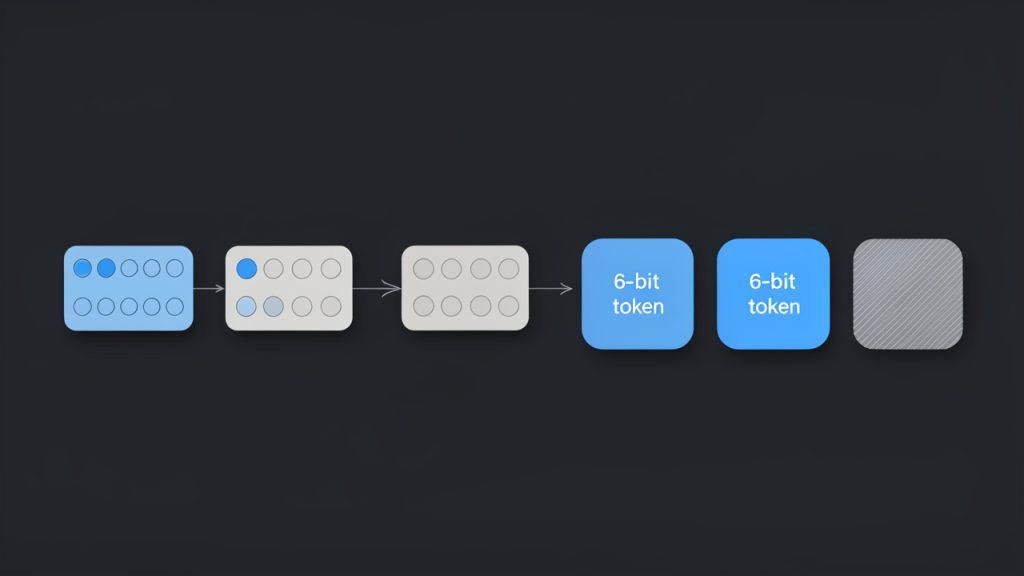
A quick technical note helps here. Base64 takes data and splits it into 6-bit chunks, then maps each chunk to a character from a 64-character alphabet. If the original data length does not divide evenly, Base64 uses padding, usually =, to complete the output.
Why Base64 exists: binary-to-text transport and common use-cases
Many older and modern systems handle text more reliably than raw binary. Base64 solves that compatibility problem. It lets images, attachments, tokens, and other binary content travel through channels that expect text.
That is why you see Base64 in APIs, HTML data URIs, email attachments, certificate files, and authentication tokens. It is not encryption, and it is not compression. It is simply an encoding format.
The trade-off is size. Base64 makes data about 33% larger than the original. That sounds inefficient, and it is, but the benefit is portability and predictable transport.
Where you commonly see Base64
You will often run into Base64 in places where systems need to embed or move data without worrying about binary corruption. A common example is an image embedded directly into HTML or CSS using a data URI, such as data:image/png;base64,....
Developers also see Base64 in API payloads, particularly when binary files are sent in JSON. Security-related tools use it in JWT tokens, though those use the URL-safe variant. Email systems use Base64 for attachments and MIME parts, and certificate-related formats may contain Base64-encoded blocks inside text files.
If a string is long, contains only letters, digits, +, /, _, -, and maybe =, there is a fair chance you are looking at Base64 or one of its close variants.
How Base64 encoding works (brief technical overview)
The algorithm in steps: grouping, 6-bit chunks, mapping to alphabet, padding
The process is easier to understand if you think in layers. Original text is first stored as bytes. Those bytes are grouped in sets of 3, which gives 24 bits. Base64 then splits those 24 bits into 4 groups of 6 bits each.
Each 6-bit value maps to one Base64 character. That is how 3 bytes become 4 text characters.
For example, the text Hi becomes the Base64 string SGk=. The trailing = appears because Hi is only 2 bytes, not 3, so the output needs padding to complete the final block.
Base64 alphabet and variants
Standard Base64 uses this character set: uppercase letters, lowercase letters, digits, +, and /. Padding is done with =.
A very common variant is Base64URL, used in URLs and JWTs. It replaces + with - and / with _. It also often omits padding. That small change matters, because a standard decoder may reject URL-safe input unless you normalize it first.
Another variation appears in MIME email content, where line breaks may be inserted every 76 characters. If you copy encoded data from an email, those line breaks usually need to be removed before decoding.

Common pitfalls: padding, line breaks, character set assumptions
Many Base64 decoding errors come from tiny formatting issues. Missing padding is common in JWTs and URL-safe strings. Embedded whitespace or line breaks are common in emails and certificates. Data URI prefixes are common in web contexts.
Another frequent issue is not Base64 itself, but the character encoding of the decoded bytes. You may decode the Base64 correctly and still see gibberish if the output is not UTF-8 text. It could be Latin-1, UTF-16, compressed data, or even a binary file.
That is why Base64 to text conversion is really a two-step interpretation. First decode the Base64. Then determine what the resulting bytes actually represent.
How to convert Base64 to text: quick methods
Online tools and one-click converters
For non-sensitive data, a browser-based converter is the fastest route. Paste the Base64 string, decode it, and inspect the result.
Tools on domains such as base64.guru, www.base64decode.org, and www.utilities-online.info are commonly used for quick checks. They are convenient, but convenience comes with a warning. If the string may contain tokens, personal data, customer records, API secrets, or private messages, avoid random online tools and decode locally instead.
If your input begins with a data URI prefix like data:text/plain;base64,, remove everything before the comma first. Most good tools handle this automatically, but not all do.
Browser devtools and console
If you want a local method in the browser, open developer tools and use JavaScript in the console. This works well for short text strings.
const input = "SGVsbG8gd29ybGQ=";
const cleaned = input.replace(/^data:[^,]+,/, "").replace(/s+/g, "");
const text = decodeURIComponent(
  Array.from(atob(cleaned), c => "%" + c.charCodeAt(0).toString(16).padStart(2, "0")).join("")
);
console.log(text);
For a URL-safe string, normalize it first.
const input = "SGVsbG8td29ybGQ";
const normalized = input
  .replace(/-/g, "+")
  .replace(/_/g, "/")
  .padEnd(Math.ceil(input.length / 4) * 4, "=");

console.log(atob(normalized));
The first example handles UTF-8 text more reliably than a plain atob() call. That matters when the decoded text includes non-English characters.
Command-line options on Linux and macOS
On Unix-like systems, the built-in base64 command is often enough.
echo 'SGVsbG8gd29ybGQ=' | base64 --decode
If the input may contain whitespace or a data URI prefix, clean it first.
echo 'data:text/plain;base64,SGVsbG8gd29ybGQ=' | sed 's/^data:[^,]*,//' | tr -d 'nrt ' | base64 --decode
To normalize a URL-safe string:
s='SGVsbG8td29ybGQ'
s=$(printf "%s" "$s" | tr '_-' '/+')
pad=$(( (4 - ${#s} % 4) % 4 ))
s="${s}$(printf '=%.0s' $(seq 1 $pad))"
printf "%s" "$s" | base64 --decode
If base64 behaves differently on your system, openssl is another option.
echo 'SGVsbG8gd29ybGQ=' | openssl base64 -d -A
The -A flag helps when line breaks are involved.
Windows PowerShell
PowerShell makes Base64 decoding straightforward for text.
$input = "SGVsbG8gd29ybGQ="
$bytes = [Convert]::FromBase64String($input)
$text = [System.Text.Encoding]::UTF8.GetString($bytes)
### $text
To handle a URL-safe string and missing padding:
$input = "SGVsbG8td29ybGQ"
$normalized = $input.Replace('-', '+').Replace('_', '/')
switch ($normalized.Length % 4) {
  2 { $normalized += "==" }
  3 { $normalized += "=" }
}
$bytes = [Convert]::FromBase64String($normalized)
[System.Text.Encoding]::UTF8.GetString($bytes)
To remove a data URI prefix:
$input = "data:text/plain;base64,SGVsbG8gd29ybGQ="
$cleaned = $input -replace '^data:[^,]+,', ''
[System.Text.Encoding]::UTF8.GetString([Convert]::FromBase64String($cleaned))
Programming examples: Python, JavaScript, Java, C#
If you are building the conversion into an app or script, use the language’s standard library where possible.
Python:
import base64

s = "SGVsbG8gd29ybGQ="
cleaned = s.split(",", 1)[-1].strip()
decoded = base64.b64decode(cleaned)
print(decoded.decode("utf-8"))
Python with URL-safe Base64:
import base64

s = "SGVsbG8td29ybGQ"
cleaned = s.split(",", 1)[-1].strip()
padding = "=" * (-len(cleaned) % 4)
decoded = base64.urlsafe_b64decode(cleaned + padding)
print(decoded.decode("utf-8"))
JavaScript in Node.js:
const input = "SGVsbG8gd29ybGQ=";
const cleaned = input.replace(/^data:[^,]+,/, "").replace(/s+/g, "");
const text = Buffer.from(cleaned, "base64").toString("utf8");
console.log(text);
Java:
import java.nio.charset.StandardCharsets;
import java.util.Base64;

String input = "SGVsbG8gd29ybGQ=";
String cleaned = input.replaceFirst("^data:[^,]+,", "").replaceAll("\s+", "");
byte[] decoded = Base64.getDecoder().decode(cleaned);
String text = new String(decoded, StandardCharsets.UTF_8);
System.out.println(text);
C#:
using System;
using System.Text;

string input = "SGVsbG8gd29ybGQ=";
string cleaned = System.Text.RegularExpressions.Regex.Replace(input, @"^data:[^,]+,", "");
byte[] bytes = Convert.FromBase64String(cleaned);
string text = Encoding.UTF8.GetString(bytes);
Console.WriteLine(text);
Step-by-step: Decode Base64 to readable text securely
Step 1: Identify if string is Base64
A Base64 string often has a recognizable pattern. It usually contains only letters, digits, +, /, _, -, and optional = padding. It may be very long and may not contain obvious words.
A quick heuristic is useful, but not perfect. Some ordinary strings can accidentally match the Base64 character set. The best test is to try decoding with a strict decoder and see whether the result makes sense.
Step 2: Clean the input
Before decoding, remove anything that does not belong to the encoded payload. That includes data URI prefixes, line breaks, spaces, tabs, and sometimes enclosing quotes.
If you are dealing with JWTs or URL parameters, convert - back to + and _ back to /. Then restore missing = padding if needed so the length becomes a multiple of 4.
Step 3: Choose a safe tool
If the string may contain credentials, customer records, signed tokens, internal logs, or confidential documents, decode it offline using your terminal or a local script.
Online converters are fine for test strings and harmless samples. They are not a good home for secrets. The same principle applies to screenshots, browser sync, and clipboard history. Sensitive data has a way of traveling farther than expected.
Step 4: Decode and interpret the result
Once decoded, inspect the output carefully. If it is readable text, you are done. If it looks scrambled, the issue may be the text encoding rather than the Base64.
UTF-8 is the most common encoding, but not the only one. Tools like file on Linux or libraries such as chardet in Python can help identify likely encodings.
echo 'SGVsbG8gd29ybGQ=' | base64 --decode | file -
import chardet, base64
data = base64.b64decode("SGVsbG8gd29ybGQ=")
print(chardet.detect(data))
Step 5: Troubleshooting common errors
If you see invalid character errors, the input may contain whitespace, a data URI prefix, or URL-safe characters that were not normalized.
If decoding succeeds but the output looks like random symbols, the data may not be text at all. It could be an image, a PDF, compressed bytes, or another encoded layer. In some cases, it is text in a different character set, such as UTF-16 or ISO-8859-1.
Examples: Real-world Base64-to-text conversions
Decoding a data URI
Suppose you have this input:
data:text/plain;base64,SGVsbG8sIHdvcmxkIQ==
Remove the prefix and decode the rest. The result is:
Hello, world!
If the data URI says image/png instead of text/plain, the decoded output is binary image data, not readable text. That distinction matters.
Extracting a message from a Base64 email part
An email body or attachment section may include:
VGhhbmsgeW91IGZvciB5b3VyIG9yZGVyLg==
That decodes to:
Thank you for your order.
In real emails, line breaks are often inserted automatically. Remove them before decoding.
Decoding a JWT payload
JWTs are split into three parts separated by dots. The middle part is the payload and usually uses Base64URL, not standard Base64.
A payload like:
eyJzdWIiOiIxMjM0NTY3ODkwIiwibmFtZSI6IkpvaG4gRG9lIiwiaWF0IjoxNTE2MjM5MDIyfQ
decodes to JSON text like:
{"sub":"1234567890","name":"John Doe","iat":1516239022}
This is useful for inspection, but decoding a JWT is not the same as validating it. Anyone can decode it. Trust requires signature verification.
Recovering text from logs or config files
You might find a config value like:
YXBpX2tleT1kZW1vMTIz
Decoded, this becomes:
api_key=demo123
That can be helpful in troubleshooting, but it also shows why Base64 should never be treated as a security feature. It only obscures content, it does not protect it.
Security, privacy, and integrity considerations
Never paste secrets into untrusted online tools
This is the most important practical rule. A Base64 string may contain passwords, private tokens, invoices, identity data, or full file contents. If you paste it into an online converter, you may be sharing that information with a third party.
Use browser tools, local scripts, or terminal commands whenever the data matters. For businesses and freelancers, that small habit reduces avoidable risk.
Malicious payloads and why decoding may be risky
Decoded content is not always harmless text. It could be JavaScript, a macro-enabled document, an executable, or compressed malware. Decoding alone does not execute content, but opening the resulting file might.
If the decoded output is not clearly text, treat it like an unknown file. Save it carefully, inspect it in a controlled environment, and scan it before opening.
Verifying integrity
Base64 does not prove authenticity or integrity. It only changes representation.
If you need to know whether decoded data is genuine, look for checksums, digital signatures, or protocol-level verification. With JWTs, that means validating the signature using the correct key and algorithm. Reading the payload is easy. Trusting it is a separate step.
Handling encoded files safely
When Base64 wraps a file, decode it to disk only if necessary. Then use antivirus or sandbox tools if the origin is uncertain.
For teams handling customer uploads, logs, or attachments, a simple policy helps: decode locally, inspect file type, scan, then open.
Advanced topics and troubleshooting
When decoding yields gibberish
If the result is unreadable, several things may be happening. The decoded bytes may use the wrong character set. The content may be compressed. Or the string may be encoded more than once.
A classic clue for gzip-compressed data is the magic byte sequence 1f 8b after decoding. In that case, you must decompress after Base64 decoding.
echo 'H4sIAAAAA...' | base64 --decode | gunzip
Detecting and handling double-encoded data
Sometimes Base64 is applied twice. After the first decode, you get another Base64-looking string instead of meaningful text.
If the first decoded result still matches Base64 patterns and decodes cleanly again, you may be dealing with double-encoded data. This shows up in logs, migrations, and systems where multiple layers try to “safely” wrap the same value.
Base64 vs other encodings
Base64 is not the only text-friendly encoding. Hex is simpler and easier to debug by eye, but it doubles size. Base32 is useful in some interoperability contexts. Base58 avoids visually confusing characters and is popular in blockchain-related systems.
For general binary-to-text transport, Base64 remains the default because it balances efficiency and compatibility well.
Performance and size considerations
Base64 increases storage and transfer size by roughly one-third. For occasional values, that is minor. For large attachments or high-volume APIs, it matters.
Encoding and decoding are fast, but moving oversized payloads through JSON or email still adds cost. If performance is important, prefer direct binary transfer where the system supports it.
Tools and resources: recommended utilities and references
The best tools are usually the ones already on your machine. Terminal utilities such as base64, openssl, and PowerShell’s [Convert]::FromBase64String() are reliable and private. For application code, use the standard libraries in Python, Node.js, Java, and .NET rather than hand-rolled decoders.
If you need an online converter for harmless sample data, choose well-known sites and avoid anything that asks for sign-in, permissions, or uploads unrelated metadata. Examples people commonly use include base64.guru and base64decode.org, but local decoding is still the safer default.
For authoritative references, start with RFC 4648 for Base64 and Base64URL rules. For JWT behavior, consult RFC 7519. For email-related line wrapping and content transfer details, MIME standards remain the key reference point.
FAQ: quick answers to common reader questions
Is Base64 encryption?
No. Base64 is encoding, not encryption. Anyone can decode it with basic tools.
Why does decoding sometimes produce strange characters?
Usually because the decoded bytes are not UTF-8 text, or because the content is binary, compressed, or encoded again. The Base64 decode may be correct even if the displayed text is not.
Can I safely share Base64-encoded strings?
Only if you would also be comfortable sharing the underlying content. Base64 does not meaningfully protect sensitive information.
How do I detect if a string is Base64 programmatically?
The most dependable method is to try decoding with validation enabled, then inspect whether the result is expected. Pattern matching helps, but it is only a heuristic.
Conclusion and best-practices checklist
Base64 to text conversion is easy once you know what to look for. Clean the input, identify the right variant, decode with a trusted local tool, and then interpret the output using the correct text encoding. If something looks wrong, the issue is often padding, URL-safe characters, MIME line breaks, or non-UTF-8 output.
Use online converters only for non-sensitive samples. For everything else, decode locally and inspect carefully. If your next step is practical, start with the method that matches your environment: browser console, terminal, PowerShell, or a short script in your preferred language.