

If you have ever copied a Base64 string out of an API response, a certificate file, or a debugging log and then needed it in hexadecimal form, you already know how awkward that conversion can feel.
The data is there, but it is wrapped in a different encoding, and one wrong assumption can turn a valid byte sequence into nonsense.
That is where Base64 to hex conversion becomes useful. It is a practical, everyday task for developers, security professionals, freelancers working with integrations, and even non-technical users handling encoded assets.
Once you understand what is actually being converted, the process becomes simple, reliable, and much easier to troubleshoot.
What is Base64 to hex?
At a basic level, Base64 to hex means taking data that has been represented using Base64 encoding and converting it into a hexadecimal representation of the same underlying bytes.
The important phrase here is the same underlying bytes. You are not changing the meaning of the data. You are only changing how that data is displayed.
Base64 is a text-based encoding that uses letters, numbers, and a few symbols to represent binary data in a compact ASCII-friendly format.
It is commonly used when binary content needs to travel through systems that prefer text, such as email, JSON payloads, or web APIs. A Base64 string might look like SGVsbG8=.
Hex, short for hexadecimal, represents the same data using base-16 notation. Each byte is usually shown as two hex characters, such as 48 65 6c 6c 6f.
If the Base64 string above decodes to the bytes for the word “Hello,” the hex output would be 48656c6c6f.
Why this conversion matters
This conversion is common because different tools and workflows expect different formats.
A cryptography library may display a hash in hex. A browser or API may send a payload in Base64. A debugging tool may ask for raw bytes or hex values. In each case, the actual information is identical, but the representation changes.
For small business owners or freelancers using automation tools, this may show up when connecting services, validating webhook payloads, or checking token data.
For developers, it often appears in backend services, security work, binary protocols, and file inspection.
For productivity-minded users, an online Base64 to hex converter can save time when quick validation is all that is needed.
Base64 and hex are not interchangeable
A common misunderstanding is thinking Base64 and hex are competing storage formats. They are not. Both are encodings of binary data, but they serve different purposes.
Base64 is more compact than hex when representing binary as text. Hex is more readable at the byte level and often easier to inspect manually.
If you are comparing byte patterns, checking magic numbers in files, or reading cryptographic values, hex is often the better view. If you are transporting data through text-only systems, Base64 is usually more convenient.
Key Aspects of Base64 to hex
Understanding a few core ideas makes Base64 to hex conversion much easier and helps you avoid the most common mistakes.
The conversion happens in two steps
The process is conceptually simple. First, you decode the Base64 string into raw bytes. Then, you render those bytes as hexadecimal. That is all.
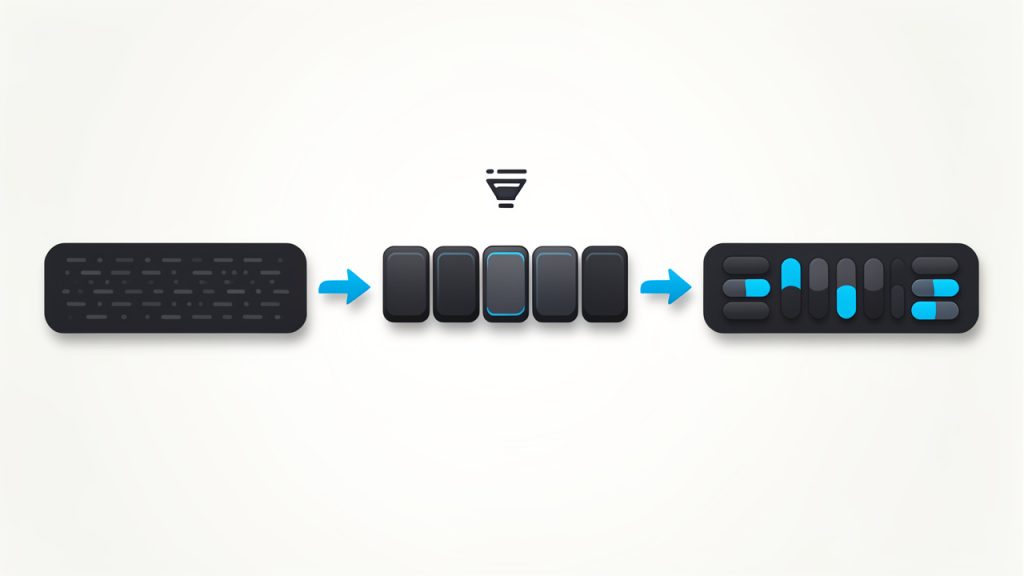
What often causes confusion is skipping the byte layer mentally. People sometimes try to “translate” Base64 characters directly into hex characters, but that is not how it works.
Base64 and hex are both views of bytes, so the bytes have to remain the reference point.
A useful analogy is file compression and file naming. If you rename a .zip file to .txt, the content does not become plain text. Likewise, if you look at bytes through Base64 or through hex, the bytes remain unchanged. Only the notation changes.
Padding and valid Base64 input
Many Base64 strings end with one or two equals signs, such as = or ==. These are padding characters.
They help make the encoded output align correctly. Some systems include them, while others omit them, especially in URL-safe contexts.
A good Base64 to hex tool should handle standard Base64 correctly and should clearly indicate if the input is malformed. If the input length is off, or if invalid characters appear, the converter may fail or produce misleading output. This is why validation matters, especially in security or API work.
Standard Base64 vs URL-safe Base64
Not all Base64 strings look exactly the same. Standard Base64 uses characters like + and /, while URL-safe Base64 replaces them with - and _.
This small difference matters.
If you try to decode a URL-safe Base64 string with a strict standard decoder, it may fail unless the tool supports both forms. This is especially relevant when dealing with JWT segments, OAuth tokens, and web application payloads.
If your converter supports automatic normalization, the job becomes much easier.
Hex output styles vary
Hex output is not always shown in one universal style. Some tools output lowercase letters, such as 48656c6c6f, while others use uppercase, such as 48656C6C6F.
Some insert spaces between bytes, and some prefix values with 0x.
These differences usually do not affect the underlying data, but they matter when you compare values across tools or paste results into a script. If you are troubleshooting, it helps to know whether formatting differences are cosmetic or meaningful.
| Format Style | Example | Typical Use |
|---|---|---|
| Lowercase hex | 48656c6c6f |
Common in many developer tools |
| Uppercase hex | 48656C6C6F |
Seen in documentation and some security tools |
| Spaced bytes | 48 65 6c 6c 6f |
Easier manual inspection |
| Prefixed hex | 0x48 0x65 0x6c |
Low-level or educational contexts |
Character encoding can complicate interpretation
The conversion itself is about bytes, not text. That distinction matters.
Once you decode Base64, the result might be text, a file fragment, compressed data, an image header, encrypted bytes, or something else entirely.
If the bytes represent UTF-8 text, the hex output may correspond to familiar characters. If the bytes represent a binary file, the hex may look random. This does not mean the conversion failed. It simply means the original content was not plain text.
That is why a Base64 to hex converter is often used as a diagnostic step. It reveals what bytes are actually present, even when the decoded content is not human-readable.
Practical use cases
In real workflows, Base64 to hex shows up more often than many people expect.
Security analysts use it to inspect keys, tokens, and binary signatures. Developers use it to validate API payloads and compare byte-level values across systems. Automation users may rely on it when transforming data between services that expect different formats.
Imagine you receive a Base64-encoded webhook signature from one service, but your verification library logs the expected bytes in hex. You need a clean conversion path to compare them accurately.
Or consider a binary attachment embedded in JSON. Converting Base64 to hex can help confirm whether the file starts with the correct header bytes before you save or process it.
How to Get Started with Base64 to hex
The easiest way to start is with a trusted online tool or a quick script in your preferred language.
The right choice depends on whether you need a one-time conversion or a repeatable part of your workflow.
If you only need to inspect a value occasionally, an online Base64 to hex converter is ideal. Paste the Base64 string, run the conversion, and review the hex output. This is fast, especially when debugging integrations or checking encoded values from logs or browser tools.
If you work with encoded data regularly, a script gives you more control. It also makes it easier to automate repetitive tasks, validate input, and handle URL-safe variants consistently.
A simple example
Suppose your input is SGVsbG8=.
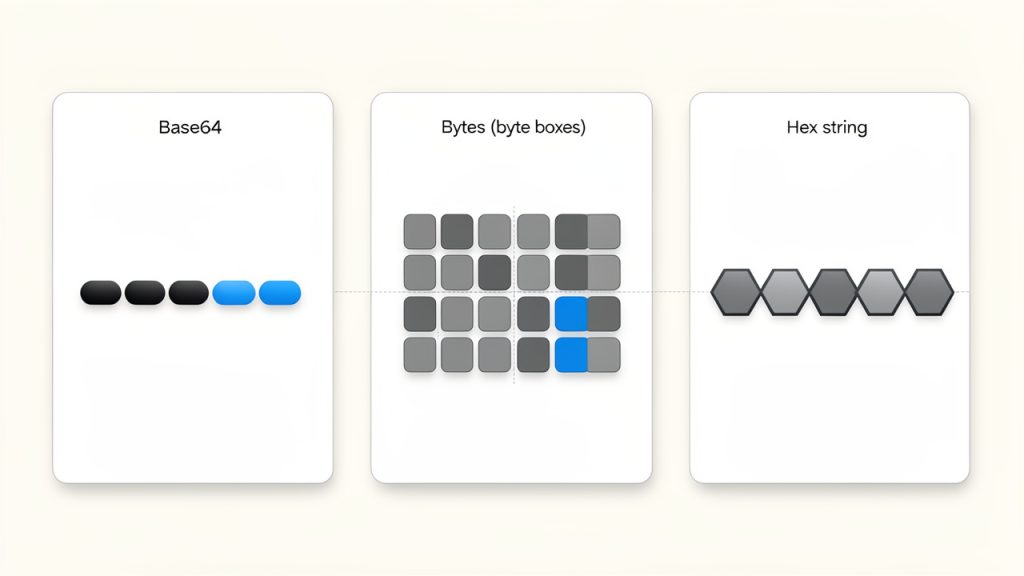
That Base64 string decodes to the bytes of the word “Hello”. When shown in hex, the output becomes 48656c6c6f.
This is a small example, but it illustrates the pattern clearly. The Base64 string is not converted into letters. It is decoded into bytes, and those bytes are displayed in hexadecimal notation.
Quick ways to convert Base64 to hex in code
If you want to handle this in a script or application, here are straightforward examples.
import base64

b64 = "SGVsbG8="
raw_bytes = base64.b64decode(b64)
hex_output = raw_bytes.hex()

print(hex_output)  # 48656c6c6f
In Python, the process is very clean. You decode the Base64 string into bytes, then call .hex() on those bytes. This is one of the easiest ways to test values locally.
const b64 = "SGVsbG8=";
const buffer = Buffer.from(b64, "base64");
const hexOutput = buffer.toString("hex");

console.log(hexOutput); // 48656c6c6f
In Node.js, Buffer handles both parts of the conversion. This is especially useful in backend development and API debugging.
echo "SGVsbG8=" | base64 --decode | xxd -p
On many Unix-like systems, command-line tools can do the job quickly. This approach is handy for terminal-based debugging, though exact command behavior may vary by platform.
What to check before converting
Before running any Base64 to hex conversion, it helps to verify a few basics.
Confirm the string is actually Base64 and not plain text or another encoding.
Check whether it is standard Base64 or URL-safe Base64.
See whether missing = characters need to be restored.
Decide whether you want compact hex, spaced bytes, or uppercase formatting.
These checks prevent most conversion errors. They also save time when the issue is not the converter, but the input itself.
Common mistakes to avoid
One of the most frequent errors is converting the Base64 text characters to hex rather than decoding the Base64 first.
For example, turning the ASCII characters S, G, V, s into hex is not the same as converting the encoded payload into hex bytes. That mistake produces the hex of the string itself, not the original data.
Another common issue is pasting in a value that includes line breaks, extra spaces, or metadata such as a data URI prefix. For instance, a string like data:image/png;base64,... needs to be stripped down to the actual Base64 payload before conversion.
A third issue is assuming the result should always be readable. If the original data is compressed or encrypted, the hex output will look opaque. That is expected. Hex is faithful, not necessarily friendly.
Online tool versus local conversion
For convenience, online tools are hard to beat. They are fast, accessible, and useful when you need a quick answer without opening an editor or terminal.
They are particularly helpful for freelancers, operations teams, and users who do not want to write code for a one-off task.
For sensitive data, local conversion is usually the better choice. If the Base64 string contains credentials, tokens, internal payloads, or private keys, handling the conversion on your own machine reduces risk.
This is simple but important.
| Method | Best For | Main Advantage | Main Consideration |
|---|---|---|---|
| Online converter | Quick, one-off tasks | Fast and easy | Avoid for sensitive data |
| Local script | Repeatable workflows | Flexible and automatable | Requires basic setup |
| Command line | Developer debugging | Very fast in terminal | Platform syntax may vary |
Conclusion
Base64 to hex is a straightforward conversion once you focus on the byte layer.
Base64 is one textual encoding of binary data, and hex is another. The job is not to translate characters directly, but to decode the Base64 into raw bytes, and then display those bytes as hexadecimal.
That simple understanding unlocks a lot of practical value. You can inspect API payloads more accurately, compare cryptographic data across tools, debug integrations with confidence, and avoid the common pitfalls that waste time.
The next step is simple: take a real Base64 value you work with, convert it to hex using a trusted tool or a small script, and verify the output against your workflow. Once you do it a couple of times, the process becomes second nature.