
JNTZN

Tag: data-uri

  • Base64 to Text: Decode Base64 Safely and Easily

    Base64 to Text: Decode Base64 Safely and Easily

    A long string ending in = can look like nonsense, but it often hides something very ordinary, a message, a config value, a file header, or plain readable text. If you have a Base64 string and need to turn it back into text, the good news is that the process is usually simple. The challenge is knowing which tool to use, how to spot the right variant, and how to avoid privacy mistakes along the way.

    This guide explains Base64 to text conversion in plain language first, then gives you practical methods for browsers, terminals, and common programming languages. It also covers the parts many quick converter pages skip, including URL-safe Base64, data URI cleanup, character encoding issues, JWT payloads, and secure handling of sensitive data.

    What is Base64 and why you encounter it

    Definition: Base64 encoding in simple terms

    Base64 is a way to represent binary data as text. Instead of sending raw bytes directly, Base64 transforms them into a limited set of characters that are easier to transport through systems built for text.

    That is why a Base64 string often looks like a block of letters, numbers, slashes, plus signs, and sometimes one or two = characters at the end. It is not meant for humans to read directly. It is meant for computers to pass around safely.

    A quick technical note helps here. Base64 takes data and splits it into 6-bit chunks, then maps each chunk to a character from a 64-character alphabet. If the original data length does not divide evenly, Base64 uses padding, usually =, to complete the output.

    Why Base64 exists: binary-to-text transport and common use-cases

    Many older and modern systems handle text more reliably than raw binary. Base64 solves that compatibility problem. It lets images, attachments, tokens, and other binary content travel through channels that expect text.

    That is why you see Base64 in APIs, HTML data URIs, email attachments, certificate files, and authentication tokens. It is not encryption, and it is not compression. It is simply an encoding format.

    The trade-off is size. Base64 makes data about 33% larger than the original. That sounds inefficient, and it is, but the benefit is portability and predictable transport.

    Where you commonly see Base64

    You will often run into Base64 in places where systems need to embed or move data without worrying about binary corruption. A common example is an image embedded directly into HTML or CSS using a data URI, such as data:image/png;base64,....

    Developers also see Base64 in API payloads, particularly when binary files are sent in JSON. Security-related tools use it in JWT tokens, though those use the URL-safe variant. Email systems use Base64 for attachments and MIME parts, and certificate-related formats may contain Base64-encoded blocks inside text files.

    If a string is long, contains only letters, digits, +, /, _, -, and maybe =, there is a fair chance you are looking at Base64 or one of its close variants.

    How Base64 encoding works (brief technical overview)

    The algorithm in steps: grouping, 6-bit chunks, mapping to alphabet, padding

    The process is easier to understand if you think in layers. Original text is first stored as bytes. Those bytes are grouped in sets of 3, which gives 24 bits. Base64 then splits those 24 bits into 4 groups of 6 bits each.

    Each 6-bit value maps to one Base64 character. That is how 3 bytes become 4 text characters.

    For example, the text Hi becomes the Base64 string SGk=. The trailing = appears because Hi is only 2 bytes, not 3, so the output needs padding to complete the final block.
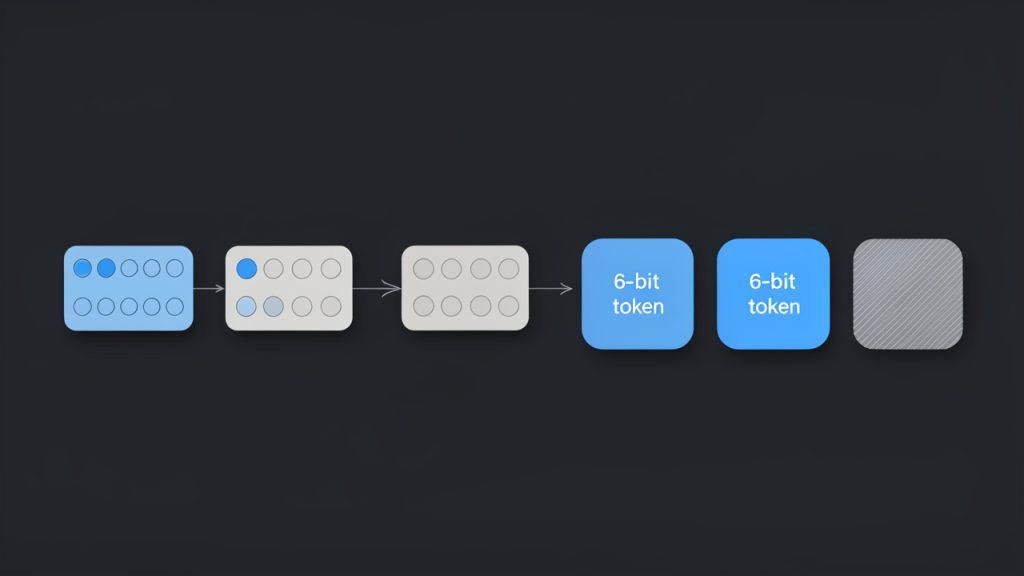
    Diagram showing the Base64 encoding process: 3 input bytes (24 bits) grouped together, split into four 6-bit chunks, each mapped to a Base64 character. Include an example: ASCII for 'Hi' (0x48 0x69) shown as bytes, padded with zeros to make 24 bits, resulting 6-bit values, mapped to characters 'S', 'G', 'k', '=' with the '=' shown as padding. Annotate '3 bytes -> 4 chars', '6-bit chunks', and 'padding when input length ≠ multiple of 3'.

    Base64 alphabet and variants

    Standard Base64 uses this character set: uppercase letters, lowercase letters, digits, +, and /. Padding is done with =.

    A very common variant is Base64URL, used in URLs and JWTs. It replaces + with - and / with _. It also often omits padding. That small change matters, because a standard decoder may reject URL-safe input unless you normalize it first.

    Another variation appears in MIME email content, where line breaks may be inserted every 76 characters. If you copy encoded data from an email, those line breaks usually need to be removed before decoding.

    Side-by-side comparison of Base64 alphabets/variants: left column labeled 'Standard Base64' showing characters A–Z a–z 0–9 + / and '=' padding; right column labeled 'Base64URL' replacing '+' with '-' and '/' with '_' and noting 'padding often omitted'. Include a small note/arrow showing how to normalize URL-safe to standard (+/ and add padding) before decoding.

    Common pitfalls: padding, line breaks, character set assumptions

    Many Base64 decoding errors come from tiny formatting issues. Missing padding is common in JWTs and URL-safe strings. Embedded whitespace or line breaks are common in emails and certificates. Data URI prefixes are common in web contexts.

    Another frequent issue is not Base64 itself, but the character encoding of the decoded bytes. You may decode the Base64 correctly and still see gibberish if the output is not UTF-8 text. It could be Latin-1, UTF-16, compressed data, or even a binary file.

    That is why Base64 to text conversion is really a two-step interpretation. First decode the Base64. Then determine what the resulting bytes actually represent.

    How to convert Base64 to text: quick methods

    Online tools and one-click converters

    For non-sensitive data, a browser-based converter is the fastest route. Paste the Base64 string, decode it, and inspect the result.

    Tools on domains such as base64.guru, www.base64decode.org, and www.utilities-online.info are commonly used for quick checks. They are convenient, but convenience comes with a warning. If the string may contain tokens, personal data, customer records, API secrets, or private messages, avoid random online tools and decode locally instead.

    If your input begins with a data URI prefix like data:text/plain;base64,, remove everything before the comma first. Most good tools handle this automatically, but not all do.

    Browser devtools and console

    If you want a local method in the browser, open developer tools and use JavaScript in the console. This works well for short text strings.

    const input = "SGVsbG8gd29ybGQ=";
    const cleaned = input.replace(/^data:[^,]+,/, "").replace(/s+/g, "");
    const text = decodeURIComponent(
      Array.from(atob(cleaned), c => "%" + c.charCodeAt(0).toString(16).padStart(2, "0")).join("")
    );
    console.log(text);
    

    For a URL-safe string, normalize it first.

    const input = "SGVsbG8td29ybGQ";
    const normalized = input
      .replace(/-/g, "+")
      .replace(/_/g, "/")
      .padEnd(Math.ceil(input.length / 4) * 4, "=");
    
    console.log(atob(normalized));
    

    The first example handles UTF-8 text more reliably than a plain atob() call. That matters when the decoded text includes non-English characters.

    Command-line options on Linux and macOS

    On Unix-like systems, the built-in base64 command is often enough.

    echo 'SGVsbG8gd29ybGQ=' | base64 --decode
    

    If the input may contain whitespace or a data URI prefix, clean it first.

    echo 'data:text/plain;base64,SGVsbG8gd29ybGQ=' | sed 's/^data:[^,]*,//' | tr -d 'nrt ' | base64 --decode
    

    To normalize a URL-safe string:

    s='SGVsbG8td29ybGQ'
    s=$(printf "%s" "$s" | tr '_-' '/+')
    pad=$(( (4 - ${#s} % 4) % 4 ))
    s="${s}$(printf '=%.0s' $(seq 1 $pad))"
    printf "%s" "$s" | base64 --decode
    

    If base64 behaves differently on your system, openssl is another option.

    echo 'SGVsbG8gd29ybGQ=' | openssl base64 -d -A
    

    The -A flag helps when line breaks are involved.

    Windows PowerShell

    PowerShell makes Base64 decoding straightforward for text.

    $input = "SGVsbG8gd29ybGQ="
    $bytes = [Convert]::FromBase64String($input)
    $text = [System.Text.Encoding]::UTF8.GetString($bytes)
    ### $text
    

    To handle a URL-safe string and missing padding:

    $input = "SGVsbG8td29ybGQ"
    $normalized = $input.Replace('-', '+').Replace('_', '/')
    switch ($normalized.Length % 4) {
      2 { $normalized += "==" }
      3 { $normalized += "=" }
    }
    $bytes = [Convert]::FromBase64String($normalized)
    [System.Text.Encoding]::UTF8.GetString($bytes)
    

    To remove a data URI prefix:

    $input = "data:text/plain;base64,SGVsbG8gd29ybGQ="
    $cleaned = $input -replace '^data:[^,]+,', ''
    [System.Text.Encoding]::UTF8.GetString([Convert]::FromBase64String($cleaned))
    

    Programming examples: Python, JavaScript, Java, C#

    If you are building the conversion into an app or script, use the language’s standard library where possible.

    Python:

    import base64
    
    s = "SGVsbG8gd29ybGQ="
    cleaned = s.split(",", 1)[-1].strip()
    decoded = base64.b64decode(cleaned)
    print(decoded.decode("utf-8"))
    

    Python with URL-safe Base64:

    import base64
    
    s = "SGVsbG8td29ybGQ"
    cleaned = s.split(",", 1)[-1].strip()
    padding = "=" * (-len(cleaned) % 4)
    decoded = base64.urlsafe_b64decode(cleaned + padding)
    print(decoded.decode("utf-8"))
    

    JavaScript in Node.js:

    const input = "SGVsbG8gd29ybGQ=";
    const cleaned = input.replace(/^data:[^,]+,/, "").replace(/s+/g, "");
    const text = Buffer.from(cleaned, "base64").toString("utf8");
    console.log(text);
    

    Java:

    import java.nio.charset.StandardCharsets;
    import java.util.Base64;
    
    String input = "SGVsbG8gd29ybGQ=";
    String cleaned = input.replaceFirst("^data:[^,]+,", "").replaceAll("\s+", "");
    byte[] decoded = Base64.getDecoder().decode(cleaned);
    String text = new String(decoded, StandardCharsets.UTF_8);
    System.out.println(text);
    

    C#:

    using System;
    using System.Text;
    
    string input = "SGVsbG8gd29ybGQ=";
    string cleaned = System.Text.RegularExpressions.Regex.Replace(input, @"^data:[^,]+,", "");
    byte[] bytes = Convert.FromBase64String(cleaned);
    string text = Encoding.UTF8.GetString(bytes);
    Console.WriteLine(text);
    

    Step-by-step: Decode Base64 to readable text securely

    Step 1: Identify if string is Base64

    A Base64 string often has a recognizable pattern. It usually contains only letters, digits, +, /, _, -, and optional = padding. It may be very long and may not contain obvious words.

    A quick heuristic is useful, but not perfect. Some ordinary strings can accidentally match the Base64 character set. The best test is to try decoding with a strict decoder and see whether the result makes sense.

    Step 2: Clean the input

    Before decoding, remove anything that does not belong to the encoded payload. That includes data URI prefixes, line breaks, spaces, tabs, and sometimes enclosing quotes.

    If you are dealing with JWTs or URL parameters, convert - back to + and _ back to /. Then restore missing = padding if needed so the length becomes a multiple of 4.

    Step 3: Choose a safe tool

    If the string may contain credentials, customer records, signed tokens, internal logs, or confidential documents, decode it offline using your terminal or a local script.

    Online converters are fine for test strings and harmless samples. They are not a good home for secrets. The same principle applies to screenshots, browser sync, and clipboard history. Sensitive data has a way of traveling farther than expected.

    Step 4: Decode and interpret the result

    Once decoded, inspect the output carefully. If it is readable text, you are done. If it looks scrambled, the issue may be the text encoding rather than the Base64.

    UTF-8 is the most common encoding, but not the only one. Tools like file on Linux or libraries such as chardet in Python can help identify likely encodings.

    echo 'SGVsbG8gd29ybGQ=' | base64 --decode | file -
    
    import chardet, base64
    data = base64.b64decode("SGVsbG8gd29ybGQ=")
    print(chardet.detect(data))
    

    Step 5: Troubleshooting common errors

    If you see invalid character errors, the input may contain whitespace, a data URI prefix, or URL-safe characters that were not normalized.

    If decoding succeeds but the output looks like random symbols, the data may not be text at all. It could be an image, a PDF, compressed bytes, or another encoded layer. In some cases, it is text in a different character set, such as UTF-16 or ISO-8859-1.

    Examples: Real-world Base64-to-text conversions

    Decoding a data URI

    Suppose you have this input:

    data:text/plain;base64,SGVsbG8sIHdvcmxkIQ==

    Remove the prefix and decode the rest. The result is:

    Hello, world!

    If the data URI says image/png instead of text/plain, the decoded output is binary image data, not readable text. That distinction matters.

    Extracting a message from a Base64 email part

    An email body or attachment section may include:

    VGhhbmsgeW91IGZvciB5b3VyIG9yZGVyLg==

    That decodes to:

    Thank you for your order.

    In real emails, line breaks are often inserted automatically. Remove them before decoding.

    Decoding a JWT payload

    JWTs are split into three parts separated by dots. The middle part is the payload and usually uses Base64URL, not standard Base64.

    A payload like:

    eyJzdWIiOiIxMjM0NTY3ODkwIiwibmFtZSI6IkpvaG4gRG9lIiwiaWF0IjoxNTE2MjM5MDIyfQ

    decodes to JSON text like:

    {"sub":"1234567890","name":"John Doe","iat":1516239022}

    This is useful for inspection, but decoding a JWT is not the same as validating it. Anyone can decode it. Trust requires signature verification.

    Recovering text from logs or config files

    You might find a config value like:

    YXBpX2tleT1kZW1vMTIz

    Decoded, this becomes:

    api_key=demo123

    That can be helpful in troubleshooting, but it also shows why Base64 should never be treated as a security feature. It only obscures content, it does not protect it.

    Security, privacy, and integrity considerations

    Never paste secrets into untrusted online tools

    This is the most important practical rule. A Base64 string may contain passwords, private tokens, invoices, identity data, or full file contents. If you paste it into an online converter, you may be sharing that information with a third party.

    Use browser tools, local scripts, or terminal commands whenever the data matters. For businesses and freelancers, that small habit reduces avoidable risk.

    Malicious payloads and why decoding may be risky

    Decoded content is not always harmless text. It could be JavaScript, a macro-enabled document, an executable, or compressed malware. Decoding alone does not execute content, but opening the resulting file might.

    If the decoded output is not clearly text, treat it like an unknown file. Save it carefully, inspect it in a controlled environment, and scan it before opening.

    Verifying integrity

    Base64 does not prove authenticity or integrity. It only changes representation.

    If you need to know whether decoded data is genuine, look for checksums, digital signatures, or protocol-level verification. With JWTs, that means validating the signature using the correct key and algorithm. Reading the payload is easy. Trusting it is a separate step.

    Handling encoded files safely

    When Base64 wraps a file, decode it to disk only if necessary. Then use antivirus or sandbox tools if the origin is uncertain.

    For teams handling customer uploads, logs, or attachments, a simple policy helps: decode locally, inspect file type, scan, then open.

    Advanced topics and troubleshooting

    When decoding yields gibberish

    If the result is unreadable, several things may be happening. The decoded bytes may use the wrong character set. The content may be compressed. Or the string may be encoded more than once.

    A classic clue for gzip-compressed data is the magic byte sequence 1f 8b after decoding. In that case, you must decompress after Base64 decoding.

    echo 'H4sIAAAAA...' | base64 --decode | gunzip
    

    Detecting and handling double-encoded data

    Sometimes Base64 is applied twice. After the first decode, you get another Base64-looking string instead of meaningful text.

    If the first decoded result still matches Base64 patterns and decodes cleanly again, you may be dealing with double-encoded data. This shows up in logs, migrations, and systems where multiple layers try to “safely” wrap the same value.

    Base64 vs other encodings

    Base64 is not the only text-friendly encoding. Hex is simpler and easier to debug by eye, but it doubles size. Base32 is useful in some interoperability contexts. Base58 avoids visually confusing characters and is popular in blockchain-related systems.

    For general binary-to-text transport, Base64 remains the default because it balances efficiency and compatibility well.

    Performance and size considerations

    Base64 increases storage and transfer size by roughly one-third. For occasional values, that is minor. For large attachments or high-volume APIs, it matters.

    Encoding and decoding are fast, but moving oversized payloads through JSON or email still adds cost. If performance is important, prefer direct binary transfer where the system supports it.

    Tools and resources: recommended utilities and references

    The best tools are usually the ones already on your machine. Terminal utilities such as base64, openssl, and PowerShell’s [Convert]::FromBase64String() are reliable and private. For application code, use the standard libraries in Python, Node.js, Java, and .NET rather than hand-rolled decoders.

    If you need an online converter for harmless sample data, choose well-known sites and avoid anything that asks for sign-in, permissions, or uploads unrelated metadata. Examples people commonly use include base64.guru and base64decode.org, but local decoding is still the safer default.

    For authoritative references, start with RFC 4648 for Base64 and Base64URL rules. For JWT behavior, consult RFC 7519. For email-related line wrapping and content transfer details, MIME standards remain the key reference point.

    FAQ: quick answers to common reader questions

    Is Base64 encryption?

    No. Base64 is encoding, not encryption. Anyone can decode it with basic tools.

    Why does decoding sometimes produce strange characters?

    Usually because the decoded bytes are not UTF-8 text, or because the content is binary, compressed, or encoded again. The Base64 decode may be correct even if the displayed text is not.

    Can I safely share Base64-encoded strings?

    Only if you would also be comfortable sharing the underlying content. Base64 does not meaningfully protect sensitive information.

    How do I detect if a string is Base64 programmatically?

    The most dependable method is to try decoding with validation enabled, then inspect whether the result is expected. Pattern matching helps, but it is only a heuristic.

    Conclusion and best-practices checklist

    Base64 to text conversion is easy once you know what to look for. Clean the input, identify the right variant, decode with a trusted local tool, and then interpret the output using the correct text encoding. If something looks wrong, the issue is often padding, URL-safe characters, MIME line breaks, or non-UTF-8 output.

    Use online converters only for non-sensitive samples. For everything else, decode locally and inspect carefully. If your next step is practical, start with the method that matches your environment: browser console, terminal, PowerShell, or a short script in your preferred language.


  • How to Convert Base64 to Image Files (Quick Guide)

    How to Convert Base64 to Image Files (Quick Guide)

    A Base64 image string looks harmless until you need to turn it into a real file, display it in a browser, or debug why it refuses to render. That is where most people get stuck. You might have a string from an API, an HTML email, a database export, or a frontend app, and all you really want is a usable image.

    The good news is that Base64 to image conversion is simple once you know what format you are holding, how to clean it, and which tool fits your workflow. Whether you are a developer saving files on a server, a freelancer testing API responses, or a small business owner using an online tool for a one-off job, the same rules apply.

    This guide explains what Base64 does, why images are encoded this way, how to convert Base64 to image files in multiple languages, and how to avoid the common mistakes that waste time. It also covers the parts many tutorials skip, including image type detection, security checks, performance tradeoffs, and troubleshooting.

    What is Base64 and why it’s used for images

    What Base64 encoding does

    Base64 is a way to represent binary data, such as an image, using plain text characters. Computers store images as raw bytes, but many systems are designed to safely move text. Base64 acts like a translator, converting binary content into a text-friendly form made from letters, numbers, +, /, and sometimes = for padding.

    That text is not an image by itself. It is an encoded version of the image data. To turn Base64 to image, you decode the string back into the original bytes and then save or display those bytes as a PNG, JPEG, GIF, WebP, or another image format.

    A useful mental model is this: Base64 is like packing a product into a shipping box that fits the transport system better. The box adds bulk, but it helps the item travel through channels that prefer text.

    Visual metaphor showing raw image bytes being 'packed' into a Base64 text string and then unpacked back into bytes — include a simple conveyor: bytes (binary) -> Base64 characters (A–Z, a–z, 0–9, +, /, =) boxed for transport -> decoded bytes (image file).

    Why images are embedded as Base64

    Images are often embedded as Base64 because it makes transfer and embedding easier in certain contexts. One of the most common examples is a data URI, which looks like data:image/png;base64,.... This lets a browser render an image directly from a string, without requesting a separate file URL.

    That is useful for inline images in HTML or CSS, especially for very small assets like icons, placeholders, or tiny logos. Email templates also use embedded images in some cases, because external image loading may be blocked or delayed by the email client. Some APIs return Base64 image data because it can be bundled into a JSON response without needing separate file storage or signed URLs.

    There is convenience here, but it comes with tradeoffs. Base64 makes it easy to move image data around, but it is not always the most efficient format for storage or delivery.

    Diagram of a data URI embedded in HTML: show a browser window rendering an <img> whose src is a long data:image/png;base64,... string — include a highlighted snippet of the data URI and an arrow to the rendered inline image (no separate network request).

    Pros and cons of using Base64 for images

    The biggest downside is size. Base64 adds roughly 33% overhead compared with the original binary file. A 300 KB image can become around 400 KB or more once encoded. That affects bandwidth, API payload size, page weight, and memory use.

    Caching is another important factor. If an image is embedded directly into HTML or CSS as a data URI, the browser cannot cache it separately from that file. If the page changes, the image may be downloaded again as part of the document. By contrast, an external image file can be cached independently and reused across multiple pages.

    The upside is fewer HTTP requests for tiny assets, simpler packaging in APIs, and easier portability in systems that only handle text. For small icons or one-off embedded images, Base64 can be practical. For large photos, product galleries, or repeated assets, external files are usually better.

    How to convert Base64 string to an image, quick examples

    Online converters and when to use them

    If you just need a quick result and you are not handling sensitive data, an online Base64 to image converter is the fastest option. You paste the string, the tool decodes it, and you preview or download the image.

    This works well for debugging API responses, checking if a string is valid, or converting a one-time asset. It is less suitable for private customer files, internal documents, or anything security-sensitive. In those cases, local conversion is safer.

    A reliable tool should let you preview the decoded image, identify the file type, and alert you if the Base64 is malformed.

    Convert Base64 to image using JavaScript in the browser

    In the browser, the easiest case is when you already have a full data URI. You can assign it directly to an image element.

    <img id="preview" alt="Preview" />
    <script>
      const base64 = "data:image/png;base64,iVBORw0KGgoAAAANSUhEUgAA...";
      document.getElementById("preview").src = base64;
    </script>
    

    If you want to turn a raw Base64 string into a downloadable file, first strip any prefix, decode it, and build a Blob.

    const input = "data:image/png;base64,iVBORw0KGgoAAAANSUhEUgAA...";
    const match = input.match(/^data:(image/[a-zA-Z0-9.+-]+);base64,(.+)$/);
    const mimeType = match ? match[1] : "image/png";
    const base64Data = match ? match[2] : input;
    const byteCharacters = atob(base64Data);
    const byteNumbers = new Array(byteCharacters.length);
    for (let i = 0; i < byteCharacters.length; i++) {
      byteNumbers[i] = byteCharacters.charCodeAt(i);
    }
    const byteArray = new Uint8Array(byteNumbers);
    const blob = new Blob([byteArray], { type: mimeType });
    const url = URL.createObjectURL(blob);
    const a = document.createElement("a");
    a.href = url;
    a.download = "image.png";
    a.click();
    URL.revokeObjectURL(url);
    

    This approach is useful for frontend tools and browser-based image previews. For very large payloads, though, it can use a lot of memory because the whole string is decoded in one go.

    Convert Base64 to image using Node.js

    Node.js makes this straightforward with Buffer. If the string includes a data URI prefix, remove it first.

    const fs = require("fs");
    const input = "data:image/png;base64,iVBORw0KGgoAAAANSUhEUgAA...";
    const base64Data = input.replace(/^data:image/[a-zA-Z0-9.+-]+;base64,/, "");
    const buffer = Buffer.from(base64Data, "base64");
    fs.writeFileSync("output.png", buffer);
    console.log("Image saved as output.png");
    

    If you do not know the file type in advance, detect it before choosing the extension. That is especially important in production systems that receive images from users or third-party APIs.

    Convert Base64 to image using Python

    Python’s built-in base64 module handles decoding cleanly.

    import base64
    import re
    input_data = "data:image/png;base64,iVBORw0KGgoAAAANSUhEUgAA..."
    base64_data = re.sub(r"^data:image/[a-zA-Z0-9.+-]+;base64,", "", input_data)
    image_bytes = base64.b64decode(base64_data)
    with open("output.png", "wb") as f:
        f.write(image_bytes)
    print("Image saved as output.png")
    

    For stricter validation, use base64.b64decode(base64_data, validate=True) so invalid characters trigger an error instead of being silently ignored.

    Convert Base64 to image using PHP

    PHP includes base64_decode(), which is enough for most cases.

    <?php
    $input = "data:image/png;base64,iVBORw0KGgoAAAANSUhEUgAA...";
    $base64 = preg_replace('/^data:image/[a-zA-Z0-9.+-]+;base64,/', '', $input);
    $data = base64_decode($base64, true);
    if ($data === false) {
        die("Invalid Base64 data");
    }
    file_put_contents("output.png", $data);
    echo "Image saved as output.png";
    ?>
    

    The second argument to base64_decode enables strict mode, which helps catch malformed input early.

    Convert Base64 to image using command-line tools

    On Linux or macOS, command-line decoding is fast and practical for debugging.

    echo 'iVBORw0KGgoAAAANSUhEUgAA...' | base64 -d > output.png
    

    If your system uses a different flag:

    echo 'iVBORw0KGgoAAAANSUhEUgAA...' | base64 --decode > output.png
    

    If the data is hex-encoded after another processing step, xxd can help, but for standard Base64 to image conversion, base64 -d is the usual tool.

    Handling common Base64 variants and pitfalls

    Recognizing and stripping the data URI prefix

    A lot of conversion failures happen because the input is not just Base64. It includes a prefix like data:image/jpeg;base64,. That header is useful because it tells you the MIME type, but most decoders need only the content after the comma.

    The safe pattern is to detect whether the string starts with data: and split on the first comma. Everything after that is the actual Base64 payload. If you forget this step, your decoder may error out or produce a corrupt file.

    URL-safe Base64 vs standard Base64

    Not all Base64 strings use the same alphabet. URL-safe Base64 replaces + with - and / with _. This variant appears in web tokens, query strings, and some APIs because it avoids characters that can cause issues in URLs.

    If you try to decode URL-safe Base64 with a standard decoder, it may fail unless you first normalize those characters back to the standard form. Many libraries support URL-safe decoding explicitly, but it is worth checking documentation instead of assuming all Base64 is identical.

    Padding characters and when they matter

    The = character at the end of a Base64 string is padding. It helps ensure the encoded length fits Base64’s block structure. Some systems omit padding, especially in URL-safe variants.

    Missing padding does not always break decoding, but some decoders require it. A simple fix is to add = characters until the string length is divisible by 4. If the payload still fails after that, the issue is probably not padding alone.

    Invalid characters and error handling

    Whitespace, line breaks, transport errors, or accidental copy-paste changes can break a Base64 string. The result might be an exception, a corrupt image, or an output file that exists but will not open.

    Good practice is to validate before decoding and wrap the decode step in error handling. In Python, use strict validation. In PHP, use strict mode. In JavaScript and Node.js, check the input format and fail gracefully if the decoded bytes do not match an expected image signature.

    Large payloads and memory considerations

    A very large Base64 string can stress memory because the text version is already bigger than the binary file, and decoding often creates additional copies in memory. That is one reason browser-based conversion can freeze tabs when the payload is large.

    On servers, avoid full-buffer decoding for very large files when possible. Stream the input, decode in chunks, and write directly to disk or object storage. This matters in image-heavy apps, upload services, and automation pipelines.

    Detecting image type from Base64

    Using the data URI MIME type if present

    If your Base64 string begins with something like data:image/webp;base64, you already have the simplest clue about the image type. In many workflows, that is enough to choose the file extension and set the correct Content-Type.

    Still, do not trust it blindly. A malicious or buggy source can label a payload as PNG when it is actually something else. For anything security-sensitive, compare the declared MIME type with the actual decoded bytes.

    Magic bytes approach

    Most image formats have recognizable magic bytes at the beginning of the file. After decoding a small portion of the Base64 string, you can inspect the first few bytes and identify the type.

    Here are common signatures:

    FormatMagic bytes (hex)Notes
    PNG89 50 4E 47Starts with .PNG signature
    JPEGFF D8 FFCommon for .jpg and .jpeg
    GIF47 49 46ASCII GIF
    WebP52 49 46 46 + 57 45 42 50RIFF container with WEBP marker

    This technique is more reliable than trusting a filename or a MIME prefix alone. It is a smart check when saving user uploads or processing third-party API content.

    Libraries and tools to detect format automatically

    If you do this often, use a library. In Node.js, file-type can inspect buffers and detect the format. In Python, python-magic and Pillow are common choices. In PHP, finfo, GD, or Imagick can help verify the actual file type and whether the image can be opened safely.

    Automation is especially useful when the Base64 string has no prefix and the extension is unknown.

    Security considerations

    Malicious payloads hidden in Base64

    Base64 does not make content safe. It only changes the representation. A harmful file can still be encoded as Base64 and passed through APIs, forms, or databases.

    That includes malformed files, oversized payloads, polyglot files that pretend to be images, and hidden content techniques such as steganography. If your system accepts Base64 image uploads, treat them like any untrusted file upload.

    Validating image content before displaying or saving

    The best defense is to decode the data, verify the actual image format, and then open it with a trusted image library. In many cases, the safest pattern is to re-encode the image into a known-good format like PNG or JPEG using a library such as Pillow, GD, or Imagick.

    That strips unexpected metadata, normalizes structure, and reduces the risk of passing through malformed or disguised content. It also lets you enforce size limits, dimensions, and file type restrictions.

    Rate limiting and resource exhaustion attacks

    Because Base64 strings are text, they are easy to send in huge quantities. Attackers can abuse this to consume CPU, memory, disk space, or bandwidth. Even legitimate users can unintentionally trigger issues by uploading extremely large inline images.

    Set strict maximum payload sizes, limit decode time where possible, and rate-limit endpoints that accept Base64 image data. Reject requests before decode if the string length already exceeds your policy threshold.

    Serving decoded images safely

    If you save and serve decoded images, send the correct Content-Type header and avoid content sniffing issues. If you render Base64 data directly into a page, review your Content-Security-Policy rules to ensure data: URLs are allowed only where appropriate.

    If image data is user-generated, sanitize any related metadata and do not mix untrusted strings directly into HTML without context-aware escaping. The risk is not just the image bytes, but also how surrounding content is handled.

    Performance best practices and alternatives

    When to use Base64 vs external image files

    A practical rule of thumb is simple. Use Base64 for tiny assets where reducing requests matters more than efficient caching. Use external files for anything medium or large, especially photos, product images, user uploads, and repeated UI assets.

    For example, a 1 KB icon embedded inline may be fine. A 200 KB product image embedded in JSON is usually a bad trade.

    Impact on page speed and caching

    Base64 can reduce the number of requests, but it increases document size. That matters on slower networks and mobile devices. If images are embedded in HTML, CSS, or JavaScript bundles, the browser must download that entire file before it can reuse the image.

    An external image file can be cached separately, lazy-loaded, served from a CDN, and reused across pages. That often leads to better real-world performance than inlining everything.

    Techniques to reduce size

    If you must move images as Base64, optimize the underlying image first. Compress it, resize it, and choose a modern format. Converting large PNGs or JPEGs to WebP or AVIF can reduce the file dramatically before any Base64 encoding happens.

    Server-side compression can help surrounding payloads, but remember that Base64 itself is still overhead. The best savings usually come from image optimization, not from trying to make the encoded text smaller.

    CDNs and data URI tradeoffs

    A CDN shines when images are separate files. It can cache near the user, apply optimized delivery, and reduce load on your origin server. Data URIs bypass those benefits because the image is tied to the parent file.

    If your workflow needs compact inline graphics, consider inline SVG for simple vector icons or traditional sprite strategies for tightly controlled assets. These options can be more efficient than Base64 for certain UI elements.

    Advanced scenarios and tools

    Embedding images in emails

    Email is one of the classic places where Base64 images appear, but client support is inconsistent. Some clients block images, some strip certain constructs, and large email bodies can hurt deliverability.

    For tiny logos or icons, inline embedding can work. For larger images, linked hosted files are often more manageable. Keep total email size low and test across major clients before relying on embedded images heavily.

    Storing Base64 images in databases

    Storing Base64 directly in a database is convenient, but usually inefficient. You pay the 33% size overhead, increase row size, and make backups heavier. Queries can also become slower and more memory-intensive.

    A better pattern is to store the image as binary in object storage or a file system, then save only metadata and a URL or key in the database. If you must accept Base64 at the API layer, decode it immediately and store the binary result instead of the original encoded string.

    Streaming decode for very large images

    For very large inputs, streaming is the right architecture. In Node.js, you can process incoming data with streams rather than buffering the entire payload. In Python, chunked processing or upload handlers can reduce memory pressure.

    This matters less for occasional small files and much more for batch systems, media pipelines, or services accepting user-generated content at scale.

    Automated conversion pipelines and tooling

    If your workflow repeatedly handles Base64 images, build a pipeline. Decode, detect type, validate dimensions, re-encode into a standard format, optimize, and store.

    Useful tools include Node packages like file-type and native Buffer, Python libraries such as Pillow and python-magic, and PHP image libraries like GD or Imagick. Command-line tools can also fit into scripts and CI pipelines for quick checks.

    Step-by-step troubleshooting checklist

    If your Base64 to image conversion fails, check these in order:

    1. Confirm the prefix: If the string starts with data:image/...;base64,, strip everything before the comma before decoding.
    2. Verify the variant: If it contains - and _, it may be URL-safe Base64 and needs normalization.
    3. Fix padding: If the length is not divisible by 4, add = until it is.
    4. Inspect the bytes: After decoding, check the first bytes for PNG, JPEG, GIF, or WebP signatures.
    5. Validate the MIME type: Make sure declared type and actual content match.
    6. Check memory limits: Large strings can crash browser tabs or exhaust server memory. Use streaming for big files.
    7. Review CSP rules: If a browser will not display an inline data URI, your Content-Security-Policy may block data: sources.

    A simple command-line check can help quickly:

    echo 'YOUR_BASE64_STRING' | base64 -d > test_image.bin
    file test_image.bin
    

    If file reports a valid image format, your Base64 is probably fine and the issue is elsewhere, such as MIME type or frontend rendering.

    Examples and common use-cases

    Inline avatars in single-page apps

    A single-page app might embed tiny default avatars as Base64 to avoid extra requests during initial render. That can be acceptable for a few very small placeholders.

    But once users upload real profile photos, external file storage becomes better. The photos can be resized, cached independently, and delivered through a CDN instead of bloating API responses.

    Small icon sprites embedded in emails

    An email template with a few tiny monochrome icons may use embedded image data to reduce dependence on remote loading. This can make branding more consistent in some clients.

    Still, the total message size matters. What works for a 500-byte icon becomes a problem when a marketing email embeds multiple large images directly in the HTML.

    APIs that return Base64 images vs returning URLs

    Some internal APIs return Base64 because it simplifies a single JSON response. That is fine for signatures, QR codes, or generated thumbnails. For larger assets, returning a URL is usually better because it keeps API responses smaller and lets the client fetch only what it needs.

    This is one of the most common design decisions teams revisit as an app grows. What feels simple early on can become expensive later.

    Converting legacy Base64 storage to modern workflows

    A legacy system might store customer images as Base64 text in a database. Migrating that setup usually means decoding each record, detecting the real type, re-encoding where needed, storing the file in object storage, and replacing the text field with a reference.

    Teams often see immediate benefits: smaller databases, faster backups, easier CDN delivery, and simpler frontend rendering.

    Resources, libraries and online tools

    Recommended libraries by language

    The following tools are widely used and practical:

    LanguageLibraries / ToolsBest use
    Node.jsBuffer, file-typeDecode Base64, detect image type
    Pythonbase64, Pillow, python-magicDecode, validate, re-encode
    PHPbase64_decode, GD, Imagick, finfoDecode and verify image content
    CLIbase64, file, xxdQuick validation and debugging

    Online Base64 to image converters and validators

    For one-off jobs, online tools can save time. The best ones offer preview, MIME detection, and validation. Use them for non-sensitive content only, or self-host an internal version if privacy matters.

    If you work with client data, financial documents, or user uploads, local or server-side conversion is the safer choice.

    Further reading and official docs

    Official language documentation is the best source for edge cases and strict decoding behavior. For production systems, also review your image library docs, storage platform guidance, and security recommendations for file uploads and content validation.

    Conclusion and quick reference

    Base64 to image conversion is easy once you separate the actual payload from any data URI prefix, decode it with the right tool, and verify the resulting bytes. The biggest mistakes usually come from trusting the MIME type blindly, ignoring URL-safe variants, or using Base64 where normal image files would perform better.

    Your next step depends on your use case. For a quick one-off, use an online converter. For app development, decode locally in JavaScript, Node.js, Python, or PHP. For production systems, add validation, file type detection, size limits, and a storage strategy that avoids unnecessary Base64 bloat.

    Cheat sheet: common commands and snippets

    TaskSnippet
    Browser preview<img src="data:image/png;base64,..." />
    Node.js save filefs.writeFileSync("output.png", Buffer.from(base64Data, "base64"))
    Python save fileopen("output.png", "wb").write(base64.b64decode(base64_data))
    PHP save filefile_put_contents("output.png", base64_decode($base64, true))
    Linux decode`echo ‘BASE64’
    Strip data URI prefixRemove data:image/...;base64, before decoding
    Fix missing paddingAdd = until length is divisible by 4
    Detect PNG bytes89 50 4E 47
    Detect JPEG bytesFF D8 FF
    Detect GIF bytes47 49 46

    If you are building a workflow around Base64 images, the smartest move is simple: decode early, validate carefully, optimize the real image, and store files in a format built for delivery.