JNTZN

Tag: design tips

  • How to Convert a PNG into a Sharp ICO Icon

    How to Convert a PNG into a Sharp ICO Icon

    A blurry or badly sized icon can make even a polished app, website, or desktop shortcut look unfinished. If you have a logo, symbol, or brand mark in PNG format and need it to work as an icon, converting a PNG into an ICO file is often the fastest way to get a clean, usable result.

    This matters more than many people think. Small business owners use icons for web favicons and branded shortcuts. Freelancers need them for client deliverables. Developers rely on ICO files for Windows applications, installers, and desktop tools. If you are looking for an easy way to turn a PNG into an ICO file, the good news is that the process is simple once you understand what actually changes during the conversion.

    What is converting a PNG to an ICO file?

    Converting a PNG into an ICO file means taking a standard image format and packaging it into a format designed specifically for icons. A PNG file is great for storing high-quality images with transparency. An ICO file, by contrast, is built for icon use, especially in Windows environments and sometimes for favicon compatibility in browsers and web projects.

    The important difference is not just the file extension. An ICO file can contain multiple image sizes in one file, which allows the operating system or browser to display the icon clearly at different resolutions. That is why a proper icon can look sharp in a browser tab, a taskbar, a file explorer view, or a desktop shortcut, even though each of those contexts uses a different size.
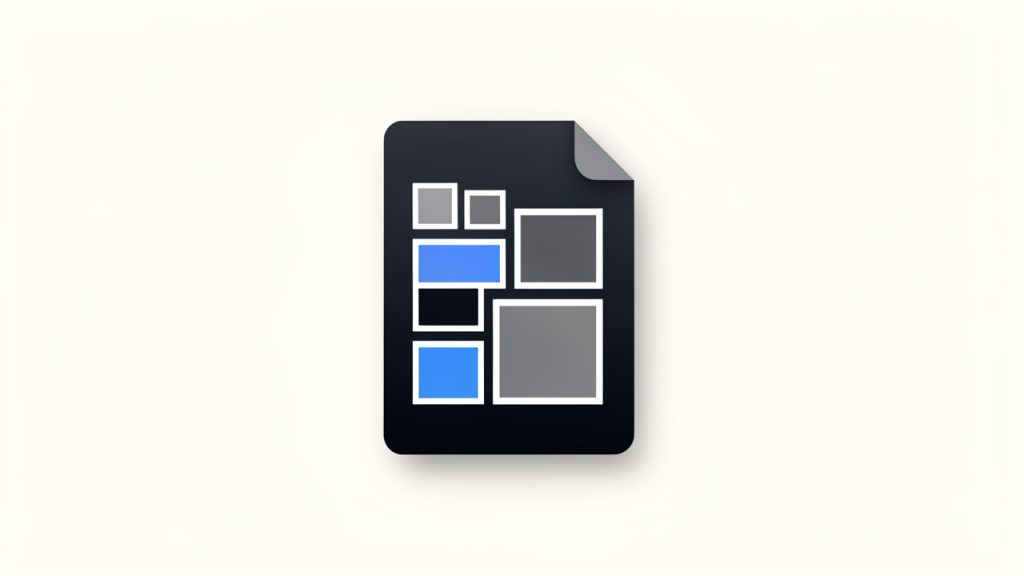
    A single ICO file icon with a stack or grid of smaller images inside it, labeled with common sizes (16x16, 32x32, 48x48, 64x64, 128x128, 256x256) to show that one ICO can contain multiple embedded sizes.

    For many users, converting a PNG into an ICO file sounds like a basic file conversion. In reality, it is also a formatting and optimization step. You are not simply renaming an image. You are preparing it to function well as an icon, which means considering dimensions, transparency, sharpness, and how the design reads at very small sizes.

    Why ICO still matters

    Even though PNG is widely supported and often preferred for general graphics, ICO remains relevant because of how Windows and certain platforms handle icons. If you are creating a desktop application, a custom executable, an installer, or even a website that needs broad favicon support, the ICO format is often still expected.

    This is especially important for productivity-minded users who want their tools and assets to work without friction. An icon is a small detail, but it affects recognition, consistency, and professionalism. A clean ICO file helps your project look intentional from the first click.

    Common use cases

    A converted icon is useful in more places than most people realize. Web designers use ICO files for favicons. Software developers use them for application branding. Business owners use custom icons for internal tools, shortcuts, and branded resources.

    If you have a PNG logo, social profile image, or minimal symbol, you may already have everything needed to create an icon. The real task is making sure it converts in a way that preserves clarity, especially at small sizes where visual noise becomes a problem.

    Key aspects of converting a PNG into an ICO file

    The quality of an ICO file depends less on the converter itself and more on the source image and export choices. A great converter helps, but it cannot rescue a poor design. If your original PNG is overcrowded, low resolution, or lacks contrast, the final icon will struggle no matter which tool you use.

    That is why successful conversion starts with thinking like an icon designer. Icons are tiny, functional graphics. They need to be recognized quickly. A detailed logo that looks fantastic on a website header may become unreadable when reduced to 16×16 pixels.

    Size and resolution matter

    One of the biggest strengths of the ICO format is support for multiple embedded sizes. Common icon dimensions include 16×16, 32×32, 48×48, 64×64, 128×128, and 256×256. A good converter that creates ICO files from PNG images often lets you export several of these at once, which improves compatibility across devices and contexts.

    If you start with a very small PNG and try to scale it up, the result can look soft or pixelated. It is usually better to begin with a larger, high-resolution PNG and let the converter generate smaller icon sizes from that source. This gives the file more visual information to work with and generally produces a cleaner result.
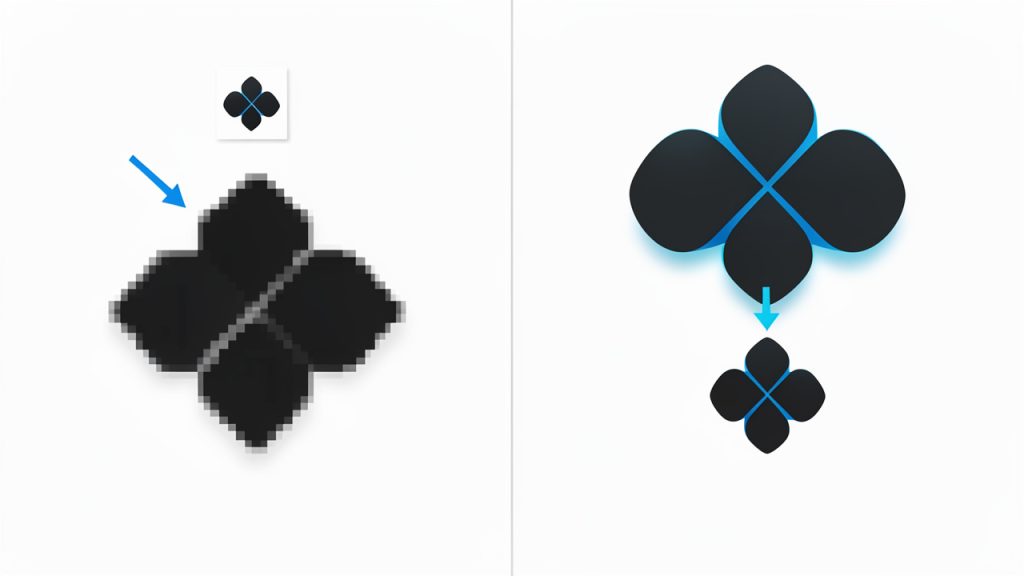
    Side-by-side comparison showing the same logo: left column uses a small low-resolution PNG scaled up (blurry/pixelated), right column uses a large high-resolution PNG scaled down (crisp). Include captions like "Start small and scale up -> blurry" and "Start large and scale down -> clean."

    Transparency is a major advantage

    PNG files are popular because they support transparent backgrounds, and this carries over well into ICO conversion. Transparency is crucial for modern icons because it allows the shape to sit naturally on different backgrounds without an ugly white box around it.

    That said, not all transparency behaves perfectly if the source image has rough edges, faint anti-aliasing, or poor contrast. Before conversion, it helps to inspect your PNG closely. A polished transparent edge can make the difference between an icon that looks crisp and one that appears messy.

    Simplicity wins at small sizes

    An icon is not a flyer. It is not a banner. It has a very small job, and it needs to do it fast. The best icon designs use simple shapes, strong contrast, and minimal text. In fact, text often performs badly in icons unless it is a single letter or an extremely bold abbreviation.

    Think of it like signage from across a room. If you cannot recognize the mark quickly, it is probably too complex. When converting a PNG into an ICO file, this design principle becomes even more important because the final file will likely be viewed in multiple reduced sizes.

    One file, multiple contexts

    The reason ICO is still so practical is that one file can serve many visual contexts. A browser may use one embedded size, while a Windows desktop shortcut uses another. This flexibility makes the format efficient, but it also means your design has to hold up under different viewing conditions.

    A strong icon looks consistent whether it is tiny in a browser tab or slightly larger in a taskbar. That consistency is what makes branding feel cohesive. It also reduces the need to manually create separate assets for every environment.

    Choosing the right tool

    Most users today convert a PNG into an ICO file with an online tool, and for good reason. Web-based converters are fast, free in many cases, and require no installation. That makes them especially attractive for freelancers, small teams, and anyone working on quick deliverables.

    Still, not all tools are equal. Some compress too aggressively. Others offer limited size options or strip useful quality settings. If privacy matters, such as when working with unreleased branding assets or client materials, an offline converter or design application may be the better option.

    The table below highlights the trade-offs between common approaches.

    Method Best For Strengths Limitations
    Online converter Quick one-off tasks Fast, easy, no install required May have file limits or privacy concerns
    Design software export Designers and brand teams Better control over sizing and visual quality Can take longer and may require paid software
    Developer toolchain App and software projects Easy to integrate into workflows Less ideal for non-technical users
    Desktop converter app Frequent offline use Good privacy, often supports batch processing Requires installation

    How to get started converting a PNG into an ICO file

    If you want a smooth result, treat conversion as a short workflow rather than a single button click. The process is still easy, but a little preparation helps you avoid the most common problems, such as fuzzy edges, unreadable details, or incorrect sizing.

    Start by reviewing the PNG you plan to use. Is it high resolution? Does it have a transparent background? Is the design still recognizable when shrunk dramatically? These questions matter because icons live in tiny spaces where every pixel counts.

    Prepare the PNG first

    Before you convert anything, clean up the source file. Remove unnecessary background areas and make sure the graphic is centered. If the image includes extra whitespace, the icon may appear visually smaller than intended once converted.

    You should also test how the PNG looks at reduced dimensions. Shrink it to a small preview and see whether the key shape still reads clearly. If not, simplify it before conversion. This is often the difference between a professional icon and one that feels improvised.

    Follow a simple conversion process

    For most users, the practical steps are straightforward:

    1. Choose a clean PNG with high resolution and transparency if possible.
    2. Upload it to a trusted online converter or open it in software that supports ICO export.
    3. Select multiple icon sizes if that option is available.
    4. Download and test the ICO file in the environment where it will be used.

    That final step matters. A file that looks fine in a preview window may behave differently once assigned to a shortcut, browser tab, or application. Testing saves time and avoids last-minute fixes.

    Best practices for better results

    A few practical habits can improve your icon quality immediately. Use a square image whenever possible, because icons are typically displayed in square dimensions. Keep the design centered and avoid thin lines that disappear at small sizes.

    It also helps to prioritize contrast and shape recognition over decorative detail. If your brand mark is intricate, consider making a simplified icon version rather than forcing the full logo into an ICO file. Many strong brands use a minimal symbol for icons and reserve the full logo for larger placements.

    Common mistakes to avoid

    One common mistake is assuming a large logo will automatically scale down well. It often does not. Another is using a JPG as the starting point, then converting that to PNG and finally to ICO. Since JPG does not support transparency and may introduce compression artifacts, this usually leads to lower-quality results.

    Users also run into issues when they export only one size. A single-dimension icon may work in one place but look poor elsewhere. Whenever possible, choose a conversion method that includes several sizes inside the ICO file.

    The table below shows frequent problems and how to solve them.

    Problem Likely Cause Better Approach
    Blurry icon Source PNG too small Start with a larger, sharper PNG
    White box around icon No real transparency Use a transparent PNG source
    Unreadable at small size Design too detailed Simplify the icon before converting
    Looks fine in one place, bad in another Only one size included Export an ICO with multiple sizes
    Soft or jagged edges Poor source quality or bad scaling Clean the PNG and test scaling first

    When an online converter is the best choice

    For many readers, an online converter that creates ICO files from PNG images is the most practical option. It is fast, accessible from any device, and usually free for basic use. If you only need a favicon or a desktop icon once in a while, this approach is hard to beat.

    The key is choosing a tool that is simple and trustworthy. Look for support for multiple icon sizes, transparent backgrounds, and straightforward downloads. If a site feels cluttered, confusing, or pushes aggressive ads and redirects, it is usually worth trying a different option.

    When you may need more control

    If you are preparing assets for a client project, software release, or branded product, you may want more than a quick conversion. In those cases, using design software or a dedicated desktop tool gives you better control over export settings, crisp edges, and file testing.

    Developers may also prefer a repeatable workflow, especially when shipping updates regularly. That does not make the process harder. It simply means the icon becomes part of a broader asset pipeline rather than a one-time task.

    Conclusion

    Turning a PNG into an ICO file is a small task with a visible impact. Done well, it gives your app, shortcut, website, or tool a cleaner and more professional presence. The core idea is simple, but the best results come from understanding that icon conversion is really about format, sizing, and clarity, not just changing a file extension.

    Your next step is straightforward. Start with the cleanest PNG you have, make sure it works visually at small sizes, then convert it into an ICO file that includes multiple dimensions. Test it where it will actually appear. That extra minute of care is what turns a basic image into an icon that looks sharp, polished, and ready to use.
  • Convert SVG to PNG Online — Fast, Accurate Exports

    Convert SVG to PNG Online — Fast, Accurate Exports

    You do not need design software to turn an SVG into a PNG anymore. If you have a logo, icon, illustration, or web graphic in SVG format and need a quick raster version for email, social media, presentations, or product listings, using an online converter is often the fastest path.

    That matters because SVG and PNG serve different jobs. SVG files are ideal for scalable graphics, while PNG files are better when you need broad compatibility, fixed dimensions, or transparent backgrounds in apps that do not handle vector formats well. If you want to convert SVG to PNG online, the good news is that the process is usually simple, fast, and accessible from any browser.

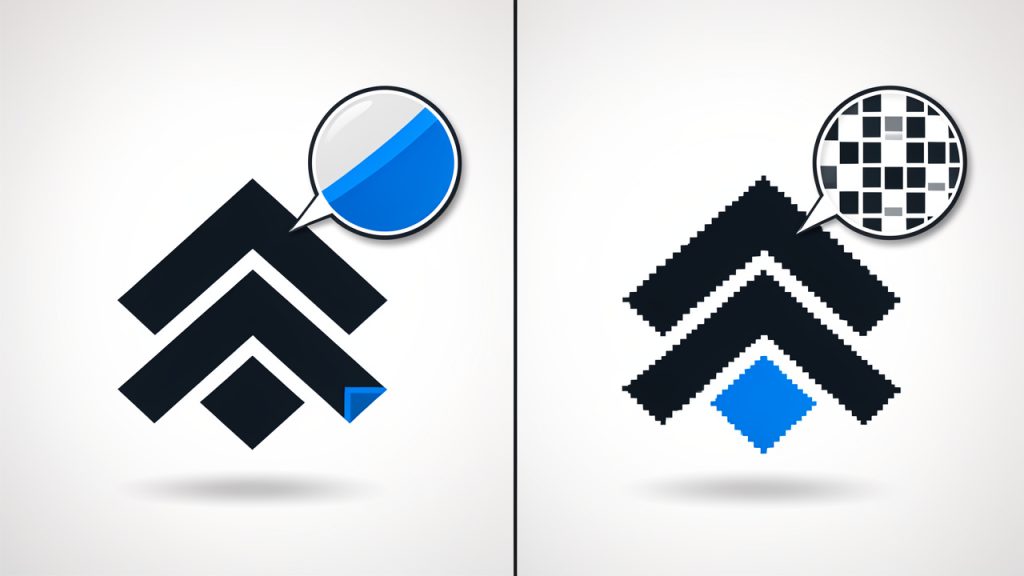
    Side-by-side comparison showing the same logo as an SVG (left) and a PNG (right). The SVG side remains perfectly sharp when zoomed or enlarged; the PNG side becomes visibly pixelated when scaled up. Include small zoom-in callouts to emphasize sharp vs pixelated edges.

    What is Convert svg to png online?

    To convert SVG to PNG online means using a browser-based tool to transform a vector graphic file into a pixel-based image, without installing desktop software. You upload an SVG, choose settings such as size or quality if needed, and download a PNG version in seconds.

    This is especially useful for small business owners and freelancers who work across different platforms. A brand logo may exist as an SVG for clean scaling on a website, but marketplaces, document editors, ad platforms, or messaging tools often require PNG uploads instead. An online converter bridges that gap quickly.

    The difference between the two formats is worth understanding. Scalable Vector Graphics, or SVG, is built from mathematical paths and shapes. It stays sharp at virtually any size. Portable Network Graphics, or PNG, is a raster image made of pixels. It cannot scale infinitely without losing clarity, but it is widely supported and excellent for screenshots, interface assets, and graphics that need transparency.

    In practical terms, converting from SVG to PNG is like taking a blueprint and turning it into a finished photograph at a chosen size. The original vector remains flexible, but the PNG becomes a fixed output that is easier to share in many everyday workflows.

    Key Aspects of Convert svg to png online

    Why people convert SVG to PNG

    Most users are not converting formats for technical reasons alone. They are solving a compatibility problem. If a client wants a logo for PowerPoint, if an ecommerce platform rejects SVG uploads, or if a social media scheduler only accepts PNG, then conversion becomes a necessary step.

    There is also a convenience factor. PNG files are predictable. They display the same way in most apps, can preserve transparent backgrounds, and are simple to insert into documents, slide decks, and design tools. For many users, that reliability matters more than keeping a file in vector format.

    Quality depends on output size

    One of the biggest misunderstandings around SVG conversion is assuming every PNG output will look perfect automatically. The quality of the PNG depends heavily on the export dimensions you choose. Since SVG is vector-based, it can render sharply at many sizes. But once exported to PNG, the image is locked into a specific pixel width and height.

    That means a logo converted at 300 pixels wide may look fine on a website but blurry on a printed handout or a high-resolution display. Choosing the right dimensions from the start is critical. If the image will appear in multiple places, it is often smart to export several PNG sizes rather than rely on one file for every use case.

    A three-panel example of the same graphic exported at different PNG widths (e.g., 150px, 300px, 900px). Show the small export appearing crisp for small use, the mid-size as appropriate for web, and the too-small/upsampled image looking blurry. Label each panel with its pixel dimensions and a short note about appropriate use.

    Transparency and background settings matter

    One major reason PNG remains popular is its support for transparent backgrounds. This is important for logos, icons, and layered graphics that need to sit cleanly on white, dark, or colored surfaces.

    When using an online SVG to PNG converter, check whether the tool preserves transparency by default. Some tools may flatten the image onto a white background, which can create problems later. If you are preparing assets for branding or UI work, transparency is not a small detail, it is often the difference between a polished result and one that looks improvised.

    Fonts, styling, and rendering can affect results

    Not every SVG behaves the same way in every converter. Some SVG files rely on embedded styles, linked fonts, masks, filters, or advanced effects. If the online tool does not fully support those elements, the PNG output may look slightly different from the original.

    This is common with exported artwork from design tools or custom web graphics. Text may shift if the converter cannot access the intended font. Effects such as shadows or clipping masks may render inconsistently. For simple icons and logos, this is rarely a major issue. For complex illustrations, it is worth testing output before final delivery.

    Privacy and file handling should not be ignored

    Convenience is important, but so is file security. When you convert SVG to PNG online, your file usually passes through a web service. If the SVG contains unpublished branding, client assets, product designs, or proprietary illustrations, you should pay attention to how that service handles uploads and deletions.

    For everyday public graphics, online conversion is generally low-friction and efficient. For sensitive commercial files, it is smarter to use a trusted service with clear privacy practices or switch to an offline workflow if needed. This is especially relevant for agencies, developers, and businesses managing confidential design assets.

    Online tools versus desktop apps

    An online converter is often the best option when speed and simplicity matter. You do not need to install software, update plugins, or learn a full design suite just to create a PNG. That makes browser-based tools attractive for non-designers and busy teams.

    Desktop software still has advantages when you need precise color management, batch processing, complex artboard handling, or complete control over export settings. The right choice depends on your workflow. For one-off tasks and lightweight production work, online conversion is usually enough. For repeat-heavy or highly controlled design pipelines, dedicated software may be worth it.

    Common use cases at a glance

    Use Case Why Convert SVG to PNG Best Practice
    Website asset fallback Some systems or email builders do not support SVG well Export at exact display size and 2x size
    Logo sharing Clients often need easy-to-use files Preserve transparency and create multiple sizes
    Ecommerce listings Platforms may require PNG or raster uploads Use clean edges and a consistent background
    Social media graphics PNG is widely accepted and predictable Match platform dimensions before export
    Presentations and documents Office tools handle PNG more reliably Use high enough resolution to avoid blur

    What makes a good online converter

    A good SVG to PNG online tool should do more than complete the conversion. It should preserve sharpness, retain transparency, render the design accurately, and make the process quick enough that it does not interrupt your work. That balance of quality and speed is what separates a useful tool from one you only use once.

    Look for a converter that supports custom dimensions, clean downloads, and straightforward file handling. If you regularly prepare assets for multiple outputs, the ability to scale exports without distortion is particularly valuable. Some tools also support drag-and-drop uploads, batch conversion, or cloud imports, which can save time in a professional workflow.

    The importance of sizing for real-world use

    Size is not just a technical setting, it is a business decision. A freelancer sending a client logo pack needs different PNG sizes than a developer exporting web UI icons. A small ecommerce seller may need a product badge sized for listings, while a marketing team may need a larger transparent graphic for paid ads.

    This is why the best approach is to think backward from where the image will appear. If the PNG is going on a website header, choose dimensions that match that area. If it may appear on high-density displays, prepare a larger version as well. Starting with use case instead of guesswork reduces rework later.

    Batch conversion and workflow efficiency

    For users managing many files, the real question is not whether conversion works, but whether it scales. If you have dozens of icons, product labels, or branded illustrations, converting files one by one can become tedious quickly.

    Some online tools address this with batch processing, allowing multiple SVG files to be converted at once. This is especially useful for developers preparing asset libraries or small teams standardizing image formats across platforms. Even a modest time saving per file adds up when repeated over a month of work.

    Browser convenience for non-designers

    One reason online converters have become so common is that they remove the learning curve. You do not need to know Illustrator, Figma, Inkscape, or image export settings in depth. In most cases, a browser and a file are enough.

    That accessibility opens the door for people who are not part of a formal design team. A virtual assistant updating product images, a founder preparing a pitch deck, or a freelance writer inserting a logo into a media kit can all handle the task without relying on specialist software. That kind of independence is valuable in fast-moving businesses.

    How to Get Started with Convert svg to png online

    Getting started is straightforward, but a few smart decisions upfront will improve your results. Before uploading anything, know where the PNG will be used. A website icon, slide graphic, and printable logo all require different export sizes. If you choose dimensions after conversion, you may end up stretching the file and reducing quality.

    It also helps to inspect the SVG itself. If the file contains unusual fonts, filters, or layered effects, test the output carefully. Simple graphics usually convert without issue, while more complex artwork may need a second pass or a different converter for the cleanest result.

    A practical starting workflow looks like this:

    1. Choose the SVG file you want to convert.
    2. Upload it to an online SVG to PNG converter in your browser.
    3. Set output size and transparency options if the tool allows it.
    4. Download the PNG and inspect it at the size you plan to use.
    5. Export additional sizes if the image will appear across multiple platforms.

    Once the PNG is downloaded, do not stop at a quick glance. Open it in the actual context where it will be used. A file that looks crisp in a download preview may appear too small in a presentation or slightly soft on a retina screen. Checking the final environment saves time and avoids avoidable revisions.

    If you work with brand assets regularly, create a small naming system for outputs. For example, keeping variants like logo-500px, logo-1000px, and logo-transparent helps prevent confusion later. This is a simple habit, but it makes asset management much easier as your file library grows.

    Common mistakes to avoid

    A frequent mistake is converting at too low a resolution. Because the SVG source is scalable, users sometimes assume they can create a tiny PNG now and enlarge it later. That is where quality breaks down. Once exported as PNG, the image is fixed in pixels.

    Another issue is ignoring background handling. If you need a transparent logo but export it with a white background, that problem may not become obvious until the file is placed on a dark website banner or colored flyer. A small export oversight can create an unprofessional result.

    There is also the temptation to use the first available tool without checking output accuracy. For basic files, that may be fine. For client-facing visuals, always verify alignment, color, and text rendering. A conversion should be invisible to the end user. If they can tell something changed, the output needs another look.

    Who benefits most from online SVG to PNG conversion

    Small business owners benefit because they often need quick, compatible graphics without hiring a designer for every minor task. Freelancers benefit because they can deliver assets in the format clients actually use, not just the format they were created in.

    Developers gain a fast way to prepare image fallbacks, app assets, or marketing visuals for environments that do not support vector graphics consistently. Productivity-focused users benefit from removing unnecessary software steps. When a browser can do the job in under a minute, the workflow becomes lighter and more efficient.

    Conclusion

    To convert SVG to PNG online is to solve a practical format problem with speed and flexibility. It allows you to take clean, scalable vector graphics and turn them into widely supported image files for documents, websites, ecommerce platforms, presentations, and social media. The process is simple, but the best results come from paying attention to size, transparency, rendering accuracy, and privacy.

    If you need a fast next step, start with one SVG file and export it in the exact dimensions required for its destination. Check the result in real use, then save additional sizes if needed. That small bit of care turns a quick conversion into a polished, professional asset you can use with confidence.