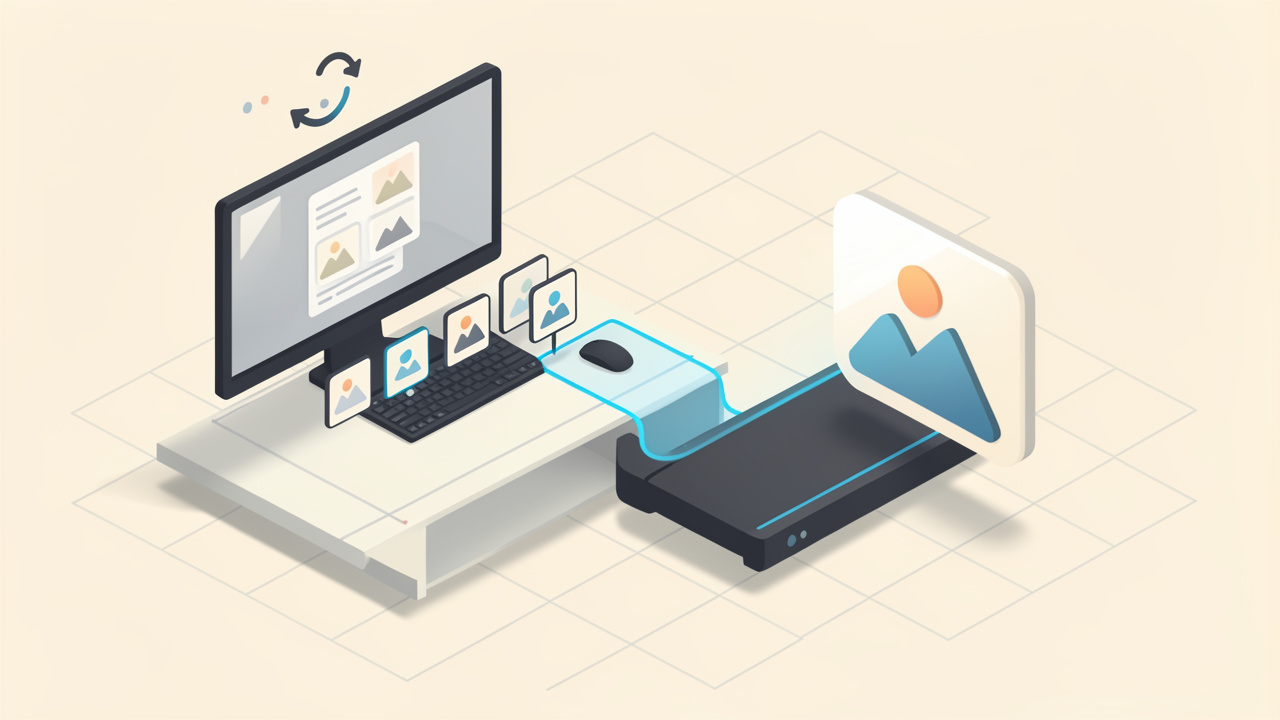
Converting an SVG to a PNG sounds simple until you actually need a clean result, the right size, and a file that works everywhere. That is where many people get stuck. A logo looks sharp in one app and blurry in another, a web graphic exports with the wrong background, or a client asks for a PNG version five minutes before a deadline.
If that sounds familiar, you are not alone. Small business owners, freelancers, developers, and everyday productivity-focused users often work with SVG files because they are flexible and lightweight. But many platforms, tools, and workflows still depend on PNG. Understanding how to convert an SVG to a PNG properly can save time, avoid quality issues, and make your files usable across websites, presentations, ecommerce listings, social posts, and design handoffs.
What is converting an SVG to a PNG?
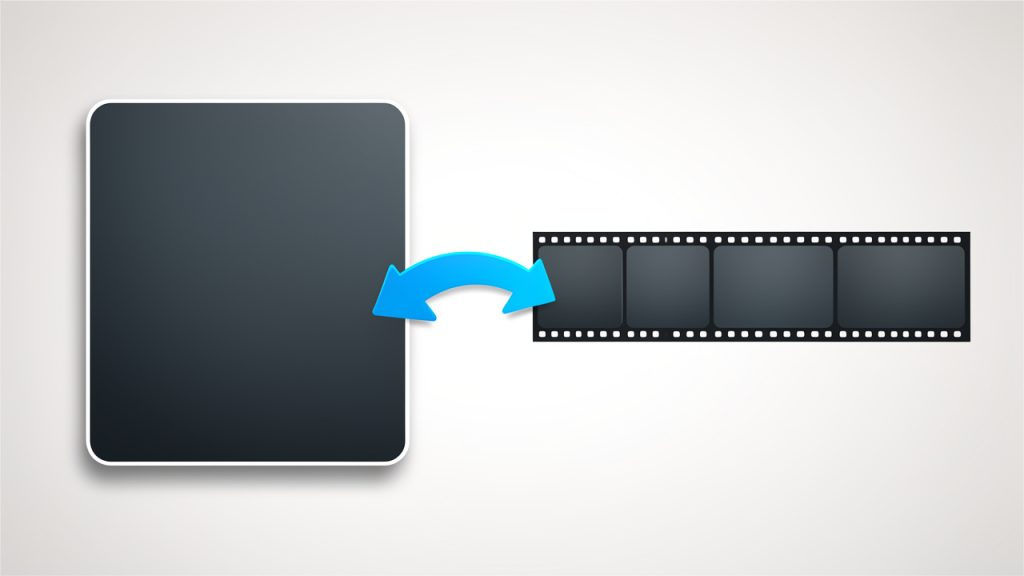
At its core, converting an SVG to a PNG means turning a vector image into a raster image. An SVG, or Scalable Vector Graphics file, is built with mathematical paths and shapes. That means it can scale up or down without losing clarity. A PNG, or Portable Network Graphics file, is made of pixels. It is fixed at a specific size and resolution.
This difference matters more than most people realize. SVG is ideal for logos, icons, line art, and interface graphics because it stays crisp on any screen size. PNG, on the other hand, is often preferred when you need broad compatibility, transparent backgrounds, and predictable display across apps, browser, document editors, and marketplaces.
Think of SVG as a master blueprint and PNG as a printed snapshot. The blueprint can be resized endlessly with no quality loss. The snapshot is locked into the dimensions you export. If you choose the wrong dimensions during conversion, the PNG may appear blurry or too large for its intended use.
For many users, the need to convert an SVG file to PNG comes from practical constraints rather than preference. Some social media tools do not accept SVG uploads. Many email platforms, office applications, and online forms work better with PNG. Clients may also ask for PNG because it is easier for non-designers to open, preview, and place into documents.
Key aspects of converting SVG to PNG
Why people convert SVG files to PNG
The most common reason is compatibility. SVG is powerful, but not every platform handles it well. PNG is supported almost everywhere, from website builders and ecommerce systems to slide decks and messaging apps.
Another major reason is visual consistency. A PNG looks the same wherever it is used because it is already rendered into pixels. An SVG can sometimes behave differently depending on how a browser, app, or system interprets fonts, effects, or embedded styling.
There is also the issue of workflow. A designer may create a logo in SVG, but a client may only need a transparent PNG for a website header or Instagram post. A developer might store icons as SVG for the product itself, yet export PNG assets for app store submissions, documentation, or marketing material.
The biggest difference between SVG and PNG
The crucial difference is scalability versus fixed resolution. SVG scales infinitely because it is vector-based. PNG does not. Once a PNG has been exported at a certain width and height, enlarging it reduces sharpness.
This is why the export stage matters so much. If you are converting an SVG to PNG for a website thumbnail, you need a different size than you would for a printed flyer or a retina display asset. The source SVG may be perfect, but a poor PNG export can still create a low-quality final result.
Transparency is another important factor. Both SVG and PNG can support transparent backgrounds, but when you convert, you need to check whether the export settings preserve that transparency. This is especially important for logos, product cutouts, and overlay graphics.
When SVG is better and when PNG is better
SVG is usually the better choice when the file will be displayed in modern digital environments that support vector graphics well. It is especially useful for responsive websites, UI icons, diagrams, and illustrations that need to stay sharp at different sizes.
PNG becomes the better choice when you need a dependable image file that can be dropped into almost any platform without special handling. It is often the safer format for business documents, online listings, CMS uploads, social graphics, and design delivery to non-technical users.
The best approach is often not choosing one over the other permanently. Instead, keep the SVG as your source file and create PNG exports for specific use cases. That gives you both flexibility and convenience.
Common quality issues during conversion
A lot of frustration with converting SVG files to PNG comes from avoidable mistakes. The most common one is exporting at the wrong dimensions. If the PNG is too small, it will look soft when reused in larger spaces. If it is unnecessarily large, it can create slow-loading pages and bloated files.
Font handling can also cause trouble. If the SVG relies on a font that is not embedded or properly supported, the exported PNG may not look the way you expect. Text can shift, resize, or render differently. In professional workflows, converting text to outlines before export can reduce these surprises, although it also removes editability.
Another issue is effects and styling. Some SVG files contain filters, masks, gradients, or CSS-based styles that do not translate perfectly in every conversion tool. If your export looks off, the problem may not be the SVG itself, it may be the converter.
A quick comparison of SVG and PNG
| Feature | SVG | PNG |
|---|---|---|
| Image type | Vector | Raster |
| Scalability | Infinite without quality loss | Fixed resolution |
| Best for | Logos, icons, illustrations, UI graphics | General image sharing, transparent web assets, broad compatibility |
| File behavior | Can depend on rendering support | Looks consistent once exported |
| Editability | Easy to edit as vector artwork | Limited pixel-based editing |
| Transparency | Supported | Supported |
| Typical use case | Source/master graphic | Final deliverable for broad use |
How to get started with converting SVG to PNG
Choose the right conversion method
There are several ways to convert an SVG into a PNG, and the right one depends on your workflow. If you only need a quick one-off export, an online converter can be the fastest solution. These tools are ideal for users who want speed and simplicity without installing software.
If you work with design assets regularly, using a graphics editor is often the better choice. Design software gives you more control over output size, transparency, scaling, and visual quality. This is especially useful when preparing logos, branded assets, or product graphics.
For developers and teams handling batches of assets, automated conversion can be more efficient. In those cases, command-line tools, build pipelines, or scripting options may help convert multiple SVG files into PNGs at consistent sizes. That matters when you are generating icon sets, app assets, or exports for multiple screen densities.
Start with the end use in mind
Before you convert anything, decide where the PNG will be used. That one decision affects almost every export setting. A website icon may need a small file size and transparent background. A presentation graphic may need larger dimensions for projector clarity. A print-related asset may require much higher resolution.
This simple question, what is this PNG for, can prevent a lot of rework. It helps you set the right width, height, and background before exporting. It also keeps you from generating oversized images that slow things down or undersized images that look poor.
If you are unsure, create a few versions. For example, you might export a standard-size PNG for everyday use and a larger version for high-density screens or future repurposing. Storage is cheap. Redoing urgent asset work is not.
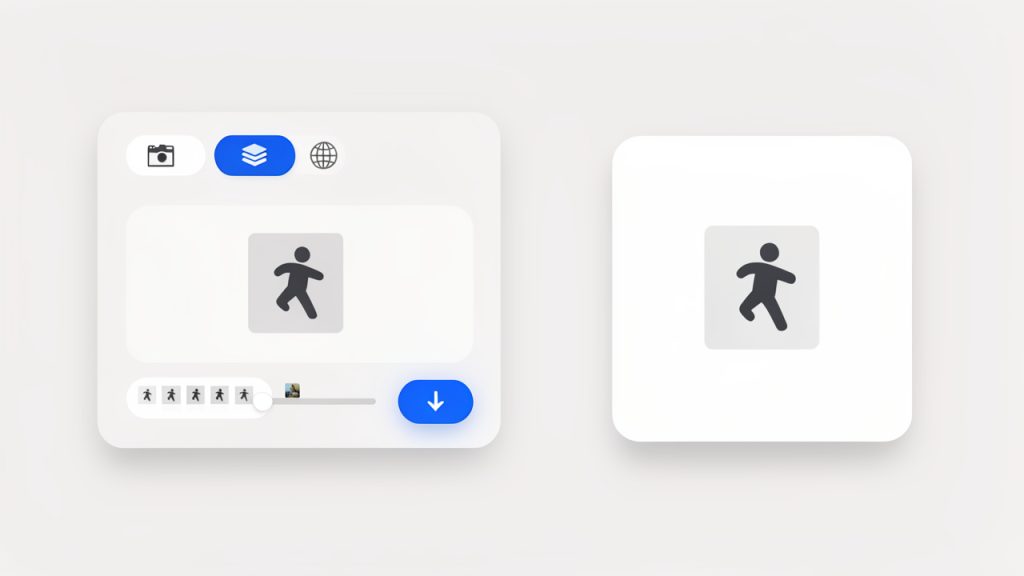
Basic steps for converting an SVG to a PNG
For most users, the process follows a familiar pattern:
- Open or upload the SVG file in your converter or design tool.
- Set the output size based on where the PNG will be used.
- Check transparency and background settings before exporting.
- Export and review the PNG at actual usage size.
That final review is important. Do not just assume the export is correct because it completed successfully. Open the file, zoom in, and inspect edges, text, and spacing. A five-second check can catch problems that would otherwise show up in front of a client or customer.
Best practices for cleaner PNG exports
A good conversion starts with a clean SVG. If the source file is messy, the PNG will inherit those problems. Extra hidden elements, oversized artboards, unsupported effects, and poorly managed text can all affect the final result.
It also helps to export at exact intended dimensions rather than resizing later. Scaling a PNG after export often reduces clarity. Since the SVG is resolution-independent, do the sizing during conversion instead of after the fact.
For brand assets, keep consistency in mind. If you are generating multiple PNGs from the same SVG, use a repeatable sizing system. A logo for a website header, favicon, email signature, and social profile should all come from the same source but be exported intentionally for each use.
What to watch for when using free online tools
Free tools are convenient, but not all of them are equally reliable. Some reduce quality, struggle with complex SVG features, or add limits on file size and export dimensions. Others may not handle transparency or fonts correctly.
Privacy can also matter. If the SVG contains sensitive branding, client material, internal diagrams, or product mockups, you may not want to upload it to just any web service. In those cases, using trusted software or an offline tool is the safer path.
The key is to balance convenience with control. For a simple icon, a lightweight online converter may be perfect. For a branded asset pack or developer handoff, you may want a more robust workflow.
Practical use cases for small businesses, freelancers, and developers
For small business owners, converting SVG to PNG is often about making assets usable across day-to-day platforms. Website builders, marketplaces, invoice software, and social scheduling tools may all expect PNG files. Having clean exports of your logo and graphics avoids constant format friction.
For freelancers, the value is speed and professionalism. Clients often ask for a PNG with transparency because it is the format they know. Being able to provide the right size quickly makes your workflow smoother and your deliverables easier to use.
For developers, SVG and PNG often work side by side. SVG is excellent inside modern interfaces, but PNG still has a place in fallback assets, documentation, previews, metadata images, and app submission requirements. Knowing when to convert helps keep projects practical, not just technically elegant.
Conclusion
Converting an SVG to a PNG is more than a format switch. It is the process of turning a flexible, scalable source graphic into a fixed image that needs to look right everywhere it appears. When you understand the differences between vector and raster formats, choose the right export size, and check transparency and rendering carefully, the results are much more reliable.
The smartest next step is simple. Keep your SVG as the original master file, then create PNG exports based on real use cases. If you do that consistently, you will save time, avoid blurry graphics, and have image assets ready for websites, documents, clients, and platforms that need a dependable PNG.