
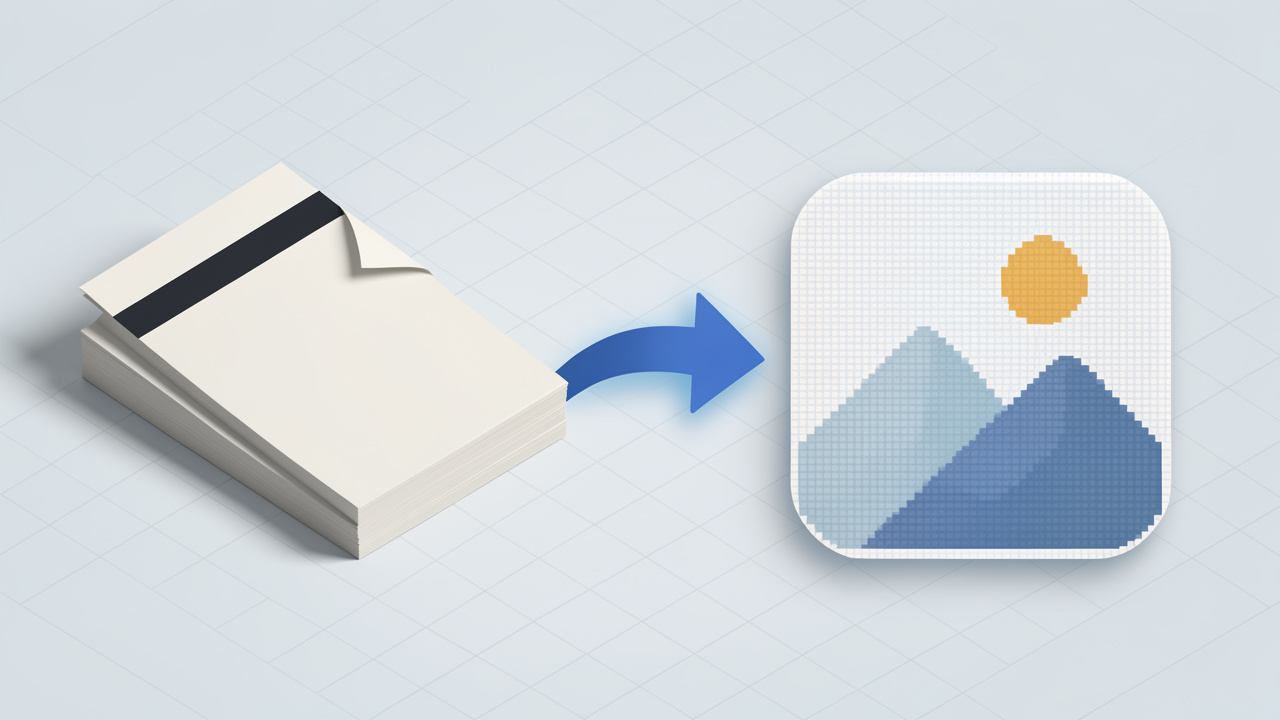
Turning a PDF into a PNG sounds simple, until you actually need to do it well. Maybe you want to pull a page from a proposal for a presentation, share a document preview on social media, send a clean image to a client, or extract a form without asking someone to open a PDF viewer. That is where converting PDF to PNG becomes genuinely useful, not just convenient.
For small business owners, freelancers, developers, and productivity-focused users, this conversion solves a very practical problem. PDFs are great for preserving layout and formatting, but they are not always the easiest format to preview, embed, annotate, or reuse. PNG files, on the other hand, are image-based, widely supported, and ideal when visual consistency matters. Understanding when and how to convert a PDF into a PNG can save time, reduce friction, and make your files much easier to work with.
What Is PDF to PNG?
At its core, converting a PDF to a PNG means taking one or more pages from a Portable Document Format file and exporting them as image files in the PNG format. Instead of a document with selectable text, embedded fonts, and multiple pages, you end up with a flat image representation of each page.
That distinction matters. A PDF is built for structured documents. It can contain text layers, vector graphics, links, forms, and multiple pages in one file. A PNG is an image format designed for high-quality raster graphics, especially when you need sharp lines, transparent backgrounds, or lossless compression. When you convert from PDF to PNG, you are essentially transforming a document into a visual snapshot.
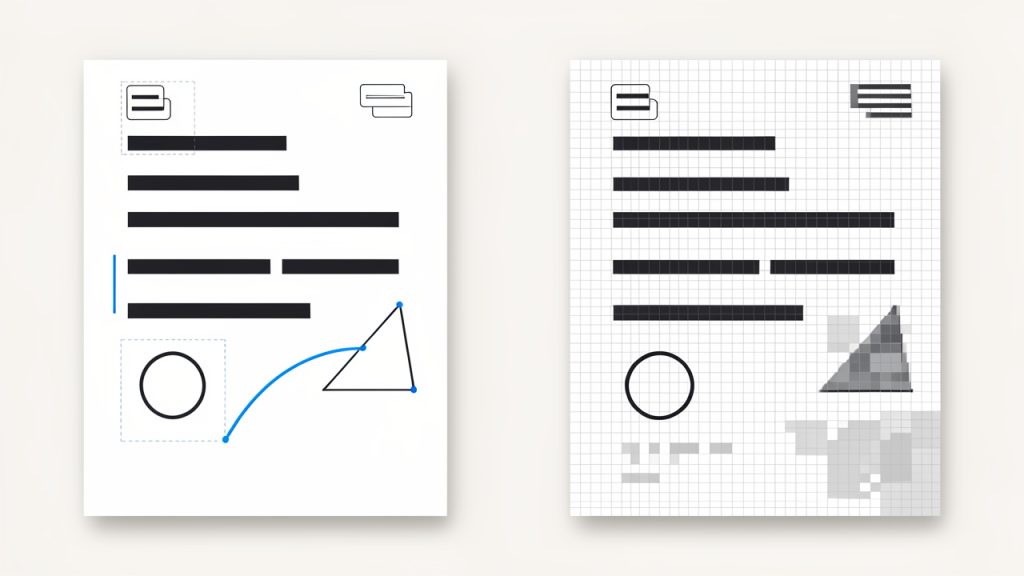
This is especially useful when the goal is display, not editing. If you are uploading a document preview to a website, sharing a single page in a chat app, using a page inside a design mockup, or preserving a specific layout exactly as it appears, PNG is often the better output format. It gives you a clean, fixed image that looks the same across devices and platforms.
Why People Convert PDFs Into PNG Images
In everyday workflows, people usually convert PDF files to PNG because they need accessibility and flexibility. A PDF may require a dedicated viewer, while a PNG opens almost anywhere instantly. For a busy freelancer sending proofs to a client, or a business owner posting a menu, flyer, or invoice preview online, that difference is meaningful.
There is also a visual advantage. PNG uses lossless compression, which means image quality is preserved better than with formats like JPG, especially for text-heavy pages, diagrams, logos, and interface screenshots. If your PDF contains crisp typography, tables, branding elements, or line art, PNG often produces a cleaner result.
Developers and digital teams also use PDF-to-PNG conversion in automated workflows. They may generate page thumbnails, create document previews in web apps, archive visual versions of reports, or process user uploads into image-friendly formats. In those cases, the conversion is not just a convenience feature, it becomes part of a larger document handling system.
PDF vs PNG at a Glance
| Format | Best For | Strengths | Limitations |
|---|---|---|---|
| Documents, forms, reports, printable files | Multi-page support, selectable text, layout preservation, compact structure | Less convenient for quick visual sharing or image-based workflows | |
| PNG | Page previews, graphics, screenshots, web use | Lossless quality, broad compatibility, sharp text and graphics | Single-image format, larger file sizes than some compressed alternatives |
Key Aspects of PDF to PNG
A good PDF-to-PNG conversion is not just about pressing a button. The quality of the output depends on several factors, and knowing them helps you avoid blurry pages, oversized files, and frustrating results.
Image Quality and Resolution
The first major factor is resolution, usually measured in DPI, or dots per inch. A low-resolution PNG might be fine for quick previews or on-screen sharing, but it can look soft when zoomed in or reused in print. Higher DPI settings produce sharper images, which is ideal for documents with small text, charts, or design details.
The trade-off is file size. A 72 DPI export may load quickly and work well for a lightweight web preview, while a 300 DPI export can look significantly sharper but create much larger PNG files. The right choice depends on how the image will be used. If the PNG is for internal sharing, speed may matter more. If it is for a portfolio, presentation, or design review, clarity usually wins.
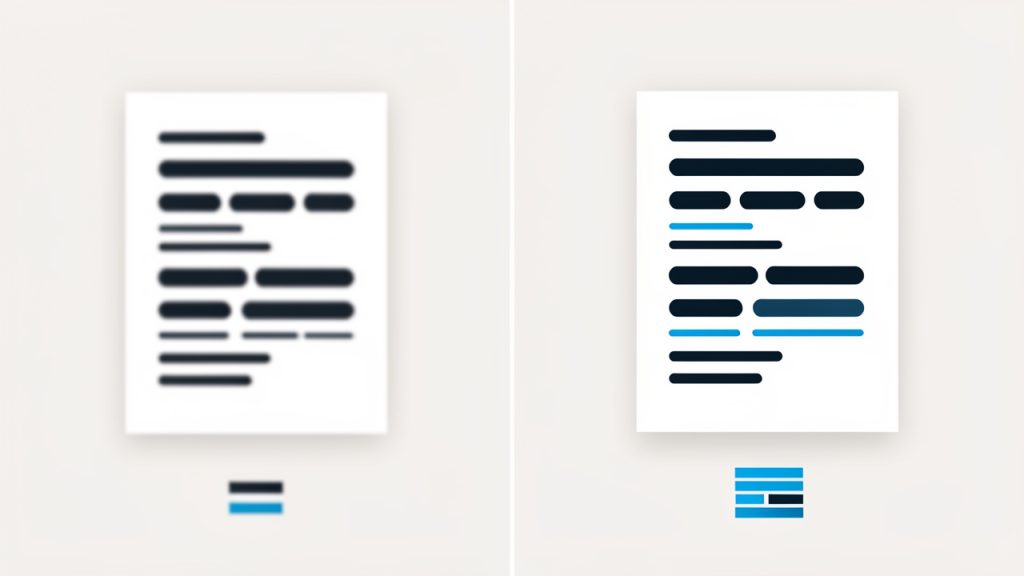
This is one of the most common mistakes people make. They assume all conversions are equal. They are not. The same PDF page exported at different resolutions can look dramatically different, especially when text or thin lines are involved.
Single Page vs Multi-Page Conversion
Another key aspect is how the tool handles multiple pages. Since a PNG is an image file, each PDF page typically becomes a separate PNG. If you have a 10-page PDF, you will usually get 10 image files after conversion.
That sounds obvious, but it affects workflow. If you only need one page, choose a tool that lets you extract or convert selected pages rather than the entire document. This keeps file management simpler and avoids unnecessary clutter. For business users handling contracts, presentations, or scanned reports, page selection can save time quickly.
For developers or teams automating this process, file naming also matters. Well-structured output, such as page-1.png, page-2.png, and so on, makes integration much easier in content systems and cloud workflows.
Transparency, Backgrounds, and Visual Fidelity
PNG supports transparency, which can be useful in some conversions, but not all PDF-to-PNG tools handle this the same way. If your PDF includes transparent elements, layered artwork, or vector graphics, the output may vary depending on the converter used.
In many cases, PDFs are exported with a white background because they are document-based rather than image-based. Still, if you are working with logos, illustrations, or design files saved as PDF, preserving transparency can be important. This is especially true for marketers, designers, and online sellers who need flexible image assets.
Visual fidelity also includes font rendering, line sharpness, and spacing accuracy. Better conversion tools preserve these details more reliably. Weak tools may flatten the page poorly, distort fonts, or create jagged edges around text and graphics.
File Size and Performance
PNG is excellent for quality, but it is not always the smallest format. If you convert a high-resolution PDF page into PNG, the result can be large, especially if the original page contains images, gradients, or complex layouts.
For websites, dashboards, or apps, this affects loading speed. For email and cloud sharing, it affects convenience. A high-quality PNG is useful, but if the file is too heavy for the task, it becomes inefficient. That is why many users should think in terms of purpose, not just maximum quality.
If the priority is crisp text and faithful reproduction, PNG is a strong choice. If the priority is minimum file size, another format might be more practical. Still, for sharp document previews and reusable visual assets, PNG remains one of the most dependable options.
How to Get Started with PDF to PNG
Getting started is usually straightforward, but choosing the right approach depends on your workflow, privacy needs, and quality expectations. Some users prefer a quick online converter. Others want offline tools for sensitive files. The best method is the one that fits the job without adding unnecessary steps.
Choosing the Right Conversion Method
Online tools are often the fastest place to start. You upload a PDF, select output settings if available, and download one or more PNG files. This works well for occasional use, especially when speed matters and the document is not confidential.
Offline tools are better when privacy, control, or batch processing is important. If you are handling invoices, legal files, HR forms, internal reports, or client documents, keeping everything local may be the smarter choice. Many desktop applications and built-in operating system tools can convert PDFs into images without sending files to a third-party service.
Developers and advanced users may prefer command-line or API-based solutions for automation. That route makes sense if you routinely generate previews, process uploaded PDFs, or build conversion into a larger system. It is not necessary for everyone, but it becomes valuable at scale.
A Simple Start for Most Users
- Choose your PDF file and decide whether you need all pages or just specific ones.
- Set the output quality based on use, lower for quick previews, higher for readability and detail.
- Convert and review the PNG files closely, especially text sharpness and page alignment.
- Rename and organize the output if the PDF contains multiple pages.
That review step is more important than many people realize. A converted image may technically work while still looking poor. Zoom in. Check the text. Make sure charts, signatures, logos, and margins appear the way you expect. If they do not, try a higher resolution or a more capable converter.
Best Practices for Better Results
If the PDF contains small text, technical diagrams, or branding details, export at a higher resolution from the beginning. This reduces the chance of fuzzy output and saves you from having to convert the file again. For client-facing work, quality should be intentional, not accidental.
It also helps to think about page dimensions before converting. A portrait PDF page becomes a tall image. A landscape report becomes a wide one. If the PNG is intended for a website, mobile display, or social platform, plan for how the image will actually be viewed. A technically accurate conversion is not always the same as a usable one.
For scanned PDFs, the source quality matters as much as the conversion tool. If the original scan is blurry, noisy, or crooked, converting it to PNG will not magically improve it. It may preserve the problem in a more shareable format, but it will not fix the underlying quality. In those cases, image cleanup or rescanning may be necessary.
Which Option Fits Your Use Case?
| Use Case | Best Approach | Why It Works |
|---|---|---|
| Quick one-time conversion | Online converter | Fast and convenient for non-sensitive files |
| Client or business documents | Offline desktop tool | Better privacy and more control over output |
| Website previews | PNG export at web-friendly resolution | Balances readability and performance |
| Batch workflows or apps | Automated or developer-focused solution | Efficient for repeated conversions at scale |
Common Problems and How to Avoid Them
Blurry output is the most common complaint. In most cases, the issue is low resolution. If your converted PNG looks soft, especially around text, increase the DPI or choose a tool that gives you better control over image quality.
Another issue is oversized files. This usually happens when users export every page at very high resolution without considering the final purpose. If the image is only meant for screen viewing, you probably do not need print-level quality. Matching the resolution to the use case makes the output much more practical.
Formatting errors can also occur, particularly with complex PDFs that include unusual fonts, transparency effects, or layered design elements. If a page renders incorrectly, try another conversion tool. Different engines handle PDFs differently, and one tool may preserve the layout far better than another.
Conclusion
Converting a PDF to PNG is one of those small tasks that can make a big difference in everyday work. It turns rigid documents into flexible image assets that are easier to preview, share, embed, and reuse. For business owners, freelancers, and digital teams, that means smoother communication and fewer format-related bottlenecks.
The best results come from choosing the right method, paying attention to resolution, and matching output quality to the actual job. If you only need a quick page preview, keep it simple. If the file is client-facing or part of a professional workflow, take a moment to optimize the conversion properly. Your next step is straightforward: pick a PDF, decide how you plan to use the image, and convert it with quality in mind.
If you need a quick way to embed or preview converted images inside a web workflow, consider tools that generate ready-to-use assets for web pages and apps.