
JNTZN

Tag: encoding

  • How to Convert Text to Base64 — A Practical Guide

    How to Convert Text to Base64 — A Practical Guide

    A simple string can become unreadable in seconds once you convert it to Base64, and that is exactly why so many people use it. Whether you are embedding text in a URL, passing data through an API, storing credentials in a config file, or preparing content for email and web applications, converting text to Base64 is one of those small technical tasks that shows up everywhere.

    For developers, it is a routine utility. For freelancers and small business owners using online tools, it can feel more mysterious than it really is. The good news is that Base64 is not complicated once you understand its purpose. It is simply a standardized way to represent text or binary data using a limited set of safe characters.

    If you have ever wondered what a text-to-Base64 converter actually does, when you should use one, and what to watch out for, this guide will make it clear. You will come away knowing not just how to convert text into Base64, but why it matters and where it fits into real-world workflows.

    What Is Text to Base64?

    At its core, converting text into Base64 means taking readable characters, such as words, numbers, or symbols, and encoding them into a different text-based format. The output looks like a random string of letters, numbers, and symbols, but it follows a strict encoding standard that computers can decode reliably later.

    Side-by-side illustration showing a short readable string (e.g., "Hello, café ☕") on the left and its Base64-encoded result on the right, with a labeled arrow “Encode →” and a small note “uses UTF-8 (or specified charset)”

    Base64 was designed to solve a practical problem. Some systems handle plain text well, but struggle with special characters, binary files, or raw byte data. Base64 turns that data into a safer transport format using a restricted character set. That makes it useful for email systems, HTML, JSON payloads, APIs, authentication headers, and many other digital workflows.

    It is important to understand one thing clearly: Base64 is an encoding method, not encryption. That means it does not protect sensitive information by itself. Anyone with a Base64 decoder can turn the output back into the original text. This is one of the most common misunderstandings, especially among non-technical users who see the encoded result and assume it is secure because it looks unreadable.

    Why Base64 Exists

    Computers process data as bytes, but not every platform handles every byte cleanly when transmitting or storing information. Older email systems, web forms, and various software integrations often expect data to be made of standard printable characters only. Base64 solves this by translating data into a limited alphabet that is broadly safe across systems.

    A simple pipeline diagram showing source data passing through systems (email, URL, API, storage) with an intermediate box labeled “Base64” that uses a restricted alphabet (A–Z, a–z, 0–9, +, /, =) to indicate how Base64 makes data safe for transport across incompatible systems

    That alphabet typically includes uppercase letters, lowercase letters, numbers, plus, slash, and sometimes one or two equals signs at the end for padding. Those trailing equals signs are normal. They help ensure the encoded output aligns properly for decoding.

    What Happens During Encoding

    When text is converted to Base64, the underlying bytes of that text are reorganized into groups that can be represented using the Base64 character set. You do not need to perform the math manually to use it effectively, but it helps to know that the process is deterministic. The same input text will always produce the same Base64 output, assuming the same character encoding is used.

    This matters more than many people realize. For example, the word “café” may encode differently depending on whether the system uses UTF-8 or another character encoding. That is why high-quality online converters and development tools usually specify or assume UTF-8, which is the most common standard today.

    Key Aspects of Text to Base64

    Understanding the main characteristics of Base64 helps you use it correctly and avoid costly mistakes. The conversion itself is easy. Knowing the limits and proper use cases is what separates a quick workaround from a reliable workflow.

    Base64 Makes Data Portable, Not Secret

    One of the strongest benefits of Base64 is portability. If you need to move text through a system that may break on special symbols, line breaks, or non-standard characters, Base64 gives you a cleaner format to work with. This is especially useful in technical environments where a small formatting issue can cause an upload, API request, or script to fail.

    What it does not do is protect confidential information. If you are handling passwords, API keys, customer records, or private business data, Base64 should never be treated as a security layer. It may be used alongside secure transport methods, such as HTTPS, or within authentication protocols, but it is not a substitute for encryption.

    The Output Gets Longer

    A practical trade-off of converting text into Base64 is that the output becomes larger than the original input. In general, Base64 increases data size by about 33%. That may not matter for a short string, but it can become significant when encoding large text blocks, attachments, or repeated payloads in web applications.

    For a small business owner using an online converter occasionally, this may never be an issue. For developers building systems that process thousands of requests, it matters. Increased payload size can affect performance, storage, and bandwidth usage, especially when Base64 is used excessively in JSON responses or front-end assets.

    Character Encoding Matters

    When people encounter broken Base64 results, the problem is often not the Base64 itself. It is the underlying text encoding. If a tool reads a text string with the wrong character set, the encoded result may decode into gibberish or unexpected symbols later.

    This becomes especially relevant when your text includes accented characters, non-Latin scripts, currency symbols, or emoji. A dependable text-to-Base64 tool should support modern text encoding standards and preserve the original content accurately. If your work involves multilingual content, always verify the decoded output after conversion.

    Common Business and Development Use Cases

    Base64 appears in more places than most users expect. It is used in web development to embed small assets, in email systems to package content safely, in APIs to transmit structured data, and in authentication flows such as Basic Auth. It also shows up in browser tools, automation platforms, and low-code systems where encoded text is passed between services.

    For freelancers and productivity-focused users, a text-to-Base64 converter can be helpful when working with integration tools, CMS platforms, custom embeds, or webhook payloads. You may never need to know the technical internals, but understanding what the conversion is doing gives you more confidence when troubleshooting.

    Base64 Variants Exist

    Not every Base64 output looks exactly the same in every context. Standard Base64 uses characters like + and /, but URL-safe Base64 replaces them with alternatives that work better inside web addresses and query strings. Some systems also omit padding characters.

    This matters because one tool’s output may not be accepted by another tool if they expect different Base64 variants. If you are sending encoded text to a third-party platform, check whether it expects standard Base64 or URL-safe Base64. A mismatch can cause confusing errors, even when the original text is correct.

    Quick Comparison of Plain Text and Base64 Text

    Format Readability Best Use Security Level Typical Size
    Plain text Human-readable Direct reading, editing, display Low Smaller
    Base64-encoded text Not human-friendly Safe transport, embedding, API exchange Low by itself Larger

    How to Get Started With Text to Base64

    Using a text-to-Base64 converter is usually straightforward, but a few smart habits will save time and prevent errors. The basic process is simple: enter the original text, convert it, then copy or use the encoded output where needed.

    If you are using an online tool, look for one that is fast, clear, and transparent about what it does. A good converter should let you paste text directly, handle special characters correctly, and offer a matching Base64-to-text decoder so you can verify the result instantly. For many users, that round-trip check is the easiest way to confirm the output is valid.

    A Simple Workflow That Works

    For most people, the best approach is to keep the process minimal and repeatable. Use the original text, encode it, test the output where it will be used, and decode it again if necessary to confirm nothing changed unexpectedly.

    The following sequence is usually enough:

    1. Paste the text into a trusted converter or tool.
    2. Run the Base64 encoding and copy the output.
    3. Test the result in your app, form, API, or workflow.
    4. Decode it back if you want to verify accuracy.

    This process sounds basic, but it is extremely effective. It reduces the chance of subtle issues with hidden spaces, line breaks, or character encoding mismatches.

    When Online Tools Make Sense

    For occasional use, a browser-based converter is often the fastest option. It is ideal when you need to encode a short string for a CMS field, integration setting, or API test. You do not need to install anything, and the result is immediate.

    That said, online tools should be used carefully. If the text contains sensitive information, such as customer details, credentials, or proprietary internal data, avoid pasting it into unknown websites. In those cases, local tools, built-in operating system utilities, or trusted development environments are the safer route.

    What Developers Should Watch For

    If you are a developer, Base64 issues tend to appear not in the conversion itself, but in the surrounding context. Whitespace, line wrapping, URL encoding, and character set assumptions can all affect the final outcome. A string that looks correct may still fail if an API expects a URL-safe variant or if the receiving system trims padding.

    It is also worth being careful with debugging. Logging Base64 output can seem harmless because it is not immediately readable, but if it contains sensitive source text, the risk remains. Teams sometimes expose secrets accidentally because encoded values feel less dangerous than plain text, even though they are easily reversible.

    Signs You Need a Better Tool or Workflow

    If your Base64 output fails unpredictably, the issue may be with the tool rather than the data. Poorly built converters can mishandle Unicode characters, insert line breaks, or apply browser-side formatting quirks that break compatibility. This is especially frustrating when integrating with strict APIs.

    A reliable setup usually includes a clean interface, proper UTF-8 handling, and instant decoding for validation. If you find yourself repeatedly fixing broken encoded strings by hand, it is time to switch tools or automate the step in a more controlled environment.

    Common Scenarios and Best Fit

    Scenario Best Approach Why It Works
    Encoding a short string for a form or API test Online text-to-Base64 tool Fast and convenient
    Working with sensitive business data Local or trusted internal tool Better privacy control
    Building repeatable app workflows Scripted or integrated encoding Reduces human error
    Sharing encoded content in URLs URL-safe Base64 Avoids invalid URL characters

    Conclusion

    Converting text into Base64 is one of those practical digital tasks that looks more technical than it really is. At a basic level, it is just a way to transform text into a standardized format that systems can transmit and process more reliably. Once you understand that, the confusion disappears.

    The key is to use Base64 for what it is good at, compatibility and transport, not security. If you keep character encoding in mind, choose the right variant, and verify your output when needed, a text-to-Base64 workflow becomes quick, dependable, and easy to repeat.

    Your next step is simple: try a trusted converter with a short sample of text, decode the result back, and see how the process behaves in your real use case. That hands-on test is often the fastest way to turn Base64 from a vague technical term into a useful everyday tool.

  • Base64 to Hex: Decode Bytes and Output Hex

    Base64 to Hex: Decode Bytes and Output Hex

    If you have ever copied a Base64 string out of an API response, a certificate file, or a debugging log and then needed it in hexadecimal form, you already know how awkward that conversion can feel.

    The data is there, but it is wrapped in a different encoding, and one wrong assumption can turn a valid byte sequence into nonsense.

    That is where Base64 to hex conversion becomes useful. It is a practical, everyday task for developers, security professionals, freelancers working with integrations, and even non-technical users handling encoded assets.

    Once you understand what is actually being converted, the process becomes simple, reliable, and much easier to troubleshoot.

    What is Base64 to hex?

    At a basic level, Base64 to hex means taking data that has been represented using Base64 encoding and converting it into a hexadecimal representation of the same underlying bytes.

    The important phrase here is the same underlying bytes. You are not changing the meaning of the data. You are only changing how that data is displayed.

    Base64 is a text-based encoding that uses letters, numbers, and a few symbols to represent binary data in a compact ASCII-friendly format.

    It is commonly used when binary content needs to travel through systems that prefer text, such as email, JSON payloads, or web APIs. A Base64 string might look like SGVsbG8=.

    Hex, short for hexadecimal, represents the same data using base-16 notation. Each byte is usually shown as two hex characters, such as 48 65 6c 6c 6f.

    If the Base64 string above decodes to the bytes for the word “Hello,” the hex output would be 48656c6c6f.

    Why this conversion matters

    This conversion is common because different tools and workflows expect different formats.

    A cryptography library may display a hash in hex. A browser or API may send a payload in Base64. A debugging tool may ask for raw bytes or hex values. In each case, the actual information is identical, but the representation changes.

    For small business owners or freelancers using automation tools, this may show up when connecting services, validating webhook payloads, or checking token data.

    For developers, it often appears in backend services, security work, binary protocols, and file inspection.

    For productivity-minded users, an online Base64 to hex converter can save time when quick validation is all that is needed.

    Base64 and hex are not interchangeable

    A common misunderstanding is thinking Base64 and hex are competing storage formats. They are not. Both are encodings of binary data, but they serve different purposes.

    Base64 is more compact than hex when representing binary as text. Hex is more readable at the byte level and often easier to inspect manually.

    If you are comparing byte patterns, checking magic numbers in files, or reading cryptographic values, hex is often the better view. If you are transporting data through text-only systems, Base64 is usually more convenient.

    Key Aspects of Base64 to hex

    Understanding a few core ideas makes Base64 to hex conversion much easier and helps you avoid the most common mistakes.

    The conversion happens in two steps

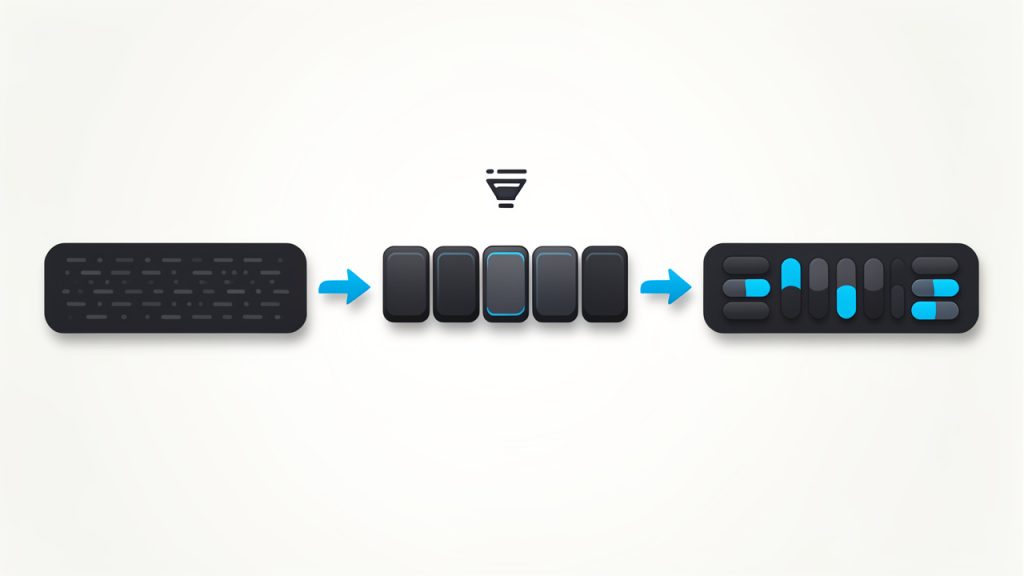
    The process is conceptually simple. First, you decode the Base64 string into raw bytes. Then, you render those bytes as hexadecimal. That is all.

    A simple flow diagram showing the two-step conversion: (1) Base64 string input -> decode -> raw bytes (visualized as a row of byte boxes), (2) raw bytes -> render -> hexadecimal string output. Include arrows and labels: 'decode Base64 to bytes' and 'format bytes as hex'.

    What often causes confusion is skipping the byte layer mentally. People sometimes try to “translate” Base64 characters directly into hex characters, but that is not how it works.

    Base64 and hex are both views of bytes, so the bytes have to remain the reference point.

    A useful analogy is file compression and file naming. If you rename a .zip file to .txt, the content does not become plain text. Likewise, if you look at bytes through Base64 or through hex, the bytes remain unchanged. Only the notation changes.

    Padding and valid Base64 input

    Many Base64 strings end with one or two equals signs, such as = or ==. These are padding characters.

    They help make the encoded output align correctly. Some systems include them, while others omit them, especially in URL-safe contexts.

    A good Base64 to hex tool should handle standard Base64 correctly and should clearly indicate if the input is malformed. If the input length is off, or if invalid characters appear, the converter may fail or produce misleading output. This is why validation matters, especially in security or API work.

    Standard Base64 vs URL-safe Base64

    Not all Base64 strings look exactly the same. Standard Base64 uses characters like + and /, while URL-safe Base64 replaces them with - and _.

    This small difference matters.

    If you try to decode a URL-safe Base64 string with a strict standard decoder, it may fail unless the tool supports both forms. This is especially relevant when dealing with JWT segments, OAuth tokens, and web application payloads.

    If your converter supports automatic normalization, the job becomes much easier.

    Hex output styles vary

    Hex output is not always shown in one universal style. Some tools output lowercase letters, such as 48656c6c6f, while others use uppercase, such as 48656C6C6F.

    Some insert spaces between bytes, and some prefix values with 0x.

    These differences usually do not affect the underlying data, but they matter when you compare values across tools or paste results into a script. If you are troubleshooting, it helps to know whether formatting differences are cosmetic or meaningful.

    Format Style Example Typical Use
    Lowercase hex 48656c6c6f Common in many developer tools
    Uppercase hex 48656C6C6F Seen in documentation and some security tools
    Spaced bytes 48 65 6c 6c 6f Easier manual inspection
    Prefixed hex 0x48 0x65 0x6c Low-level or educational contexts

    Character encoding can complicate interpretation

    The conversion itself is about bytes, not text. That distinction matters.

    Once you decode Base64, the result might be text, a file fragment, compressed data, an image header, encrypted bytes, or something else entirely.

    If the bytes represent UTF-8 text, the hex output may correspond to familiar characters. If the bytes represent a binary file, the hex may look random. This does not mean the conversion failed. It simply means the original content was not plain text.

    That is why a Base64 to hex converter is often used as a diagnostic step. It reveals what bytes are actually present, even when the decoded content is not human-readable.

    Practical use cases

    In real workflows, Base64 to hex shows up more often than many people expect.

    Security analysts use it to inspect keys, tokens, and binary signatures. Developers use it to validate API payloads and compare byte-level values across systems. Automation users may rely on it when transforming data between services that expect different formats.

    Imagine you receive a Base64-encoded webhook signature from one service, but your verification library logs the expected bytes in hex. You need a clean conversion path to compare them accurately.

    Or consider a binary attachment embedded in JSON. Converting Base64 to hex can help confirm whether the file starts with the correct header bytes before you save or process it.

    How to Get Started with Base64 to hex

    The easiest way to start is with a trusted online tool or a quick script in your preferred language.

    The right choice depends on whether you need a one-time conversion or a repeatable part of your workflow.

    If you only need to inspect a value occasionally, an online Base64 to hex converter is ideal. Paste the Base64 string, run the conversion, and review the hex output. This is fast, especially when debugging integrations or checking encoded values from logs or browser tools.

    If you work with encoded data regularly, a script gives you more control. It also makes it easier to automate repetitive tasks, validate input, and handle URL-safe variants consistently.

    A simple example

    Suppose your input is SGVsbG8=.

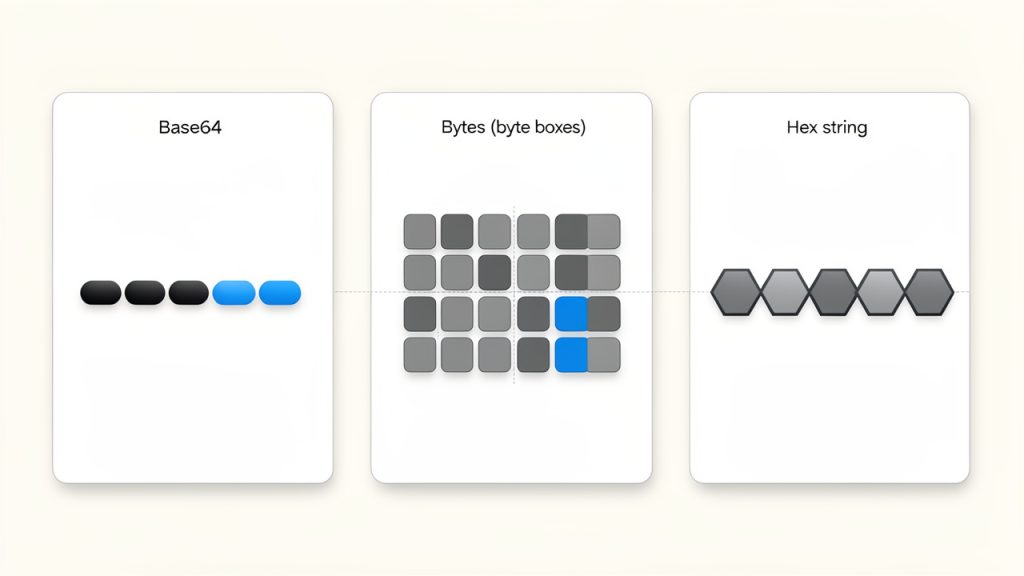
    A concrete example panel that shows the three parallel representations of the same data: left column 'Base64: SGVsbG8=', middle 'Bytes (hex pairs): 48 65 6c 6c 6f' shown as byte boxes, right 'Hex string: 48656c6c6f'. Optionally include a small label 'represents the ASCII text "Hello"' to tie to human-readable text.

    That Base64 string decodes to the bytes of the word “Hello”. When shown in hex, the output becomes 48656c6c6f.

    This is a small example, but it illustrates the pattern clearly. The Base64 string is not converted into letters. It is decoded into bytes, and those bytes are displayed in hexadecimal notation.

    Quick ways to convert Base64 to hex in code

    If you want to handle this in a script or application, here are straightforward examples.

    import base64
    
    b64 = "SGVsbG8="
    raw_bytes = base64.b64decode(b64)
    hex_output = raw_bytes.hex()
    
    print(hex_output)  # 48656c6c6f
    

    In Python, the process is very clean. You decode the Base64 string into bytes, then call .hex() on those bytes. This is one of the easiest ways to test values locally.

    const b64 = "SGVsbG8=";
    const buffer = Buffer.from(b64, "base64");
    const hexOutput = buffer.toString("hex");
    
    console.log(hexOutput); // 48656c6c6f
    

    In Node.js, Buffer handles both parts of the conversion. This is especially useful in backend development and API debugging.

    echo "SGVsbG8=" | base64 --decode | xxd -p
    

    On many Unix-like systems, command-line tools can do the job quickly. This approach is handy for terminal-based debugging, though exact command behavior may vary by platform.

    What to check before converting

    Before running any Base64 to hex conversion, it helps to verify a few basics.

    Confirm the string is actually Base64 and not plain text or another encoding.

    Check whether it is standard Base64 or URL-safe Base64.

    See whether missing = characters need to be restored.

    Decide whether you want compact hex, spaced bytes, or uppercase formatting.

    These checks prevent most conversion errors. They also save time when the issue is not the converter, but the input itself.

    Common mistakes to avoid

    One of the most frequent errors is converting the Base64 text characters to hex rather than decoding the Base64 first.

    For example, turning the ASCII characters S, G, V, s into hex is not the same as converting the encoded payload into hex bytes. That mistake produces the hex of the string itself, not the original data.

    Another common issue is pasting in a value that includes line breaks, extra spaces, or metadata such as a data URI prefix. For instance, a string like data:image/png;base64,... needs to be stripped down to the actual Base64 payload before conversion.

    A third issue is assuming the result should always be readable. If the original data is compressed or encrypted, the hex output will look opaque. That is expected. Hex is faithful, not necessarily friendly.

    Online tool versus local conversion

    For convenience, online tools are hard to beat. They are fast, accessible, and useful when you need a quick answer without opening an editor or terminal.

    They are particularly helpful for freelancers, operations teams, and users who do not want to write code for a one-off task.

    For sensitive data, local conversion is usually the better choice. If the Base64 string contains credentials, tokens, internal payloads, or private keys, handling the conversion on your own machine reduces risk.

    This is simple but important.

    Method Best For Main Advantage Main Consideration
    Online converter Quick, one-off tasks Fast and easy Avoid for sensitive data
    Local script Repeatable workflows Flexible and automatable Requires basic setup
    Command line Developer debugging Very fast in terminal Platform syntax may vary

    Conclusion

    Base64 to hex is a straightforward conversion once you focus on the byte layer.

    Base64 is one textual encoding of binary data, and hex is another. The job is not to translate characters directly, but to decode the Base64 into raw bytes, and then display those bytes as hexadecimal.

    That simple understanding unlocks a lot of practical value. You can inspect API payloads more accurately, compare cryptographic data across tools, debug integrations with confidence, and avoid the common pitfalls that waste time.

    The next step is simple: take a real Base64 value you work with, convert it to hex using a trusted tool or a small script, and verify the output against your workflow. Once you do it a couple of times, the process becomes second nature.