JNTZN

Tag: free tools

  • Encrypt Text Online Free: Secure Your Messages in Seconds

    Encrypt Text Online Free: Secure Your Messages in Seconds

    A plain text message can expose more than most people realize. Client notes, password hints, contract details, API keys, internal plans, and personal information often get copied into emails, chats, and documents without a second thought. That convenience is useful, but it also creates risk. If you need to encrypt text online free, the good news is that modern web tools make the process fast, accessible, and practical for everyday use.

    For small business owners, freelancers, developers, and productivity-focused users, text encryption is no longer a niche security task. It is a simple habit that helps protect sensitive content before it is shared or stored. The real challenge is not whether free online encryption exists, it is knowing what it actually does, when to trust it, and how to use it without creating a false sense of security.

    What is Encrypt text online free?

    At its core, encrypt text online free means using a web-based tool to convert readable text into an unreadable format that can only be restored with the correct key, password, or method. In simple terms, encryption scrambles your message so that even if someone intercepts it, they cannot understand it without authorization. The original readable message is often called plaintext, and the scrambled result is called ciphertext.

    This matters because not all text protection works the same way. Some online tools only encode text, which changes its format but does not truly secure it. Others perform real encryption using established cryptographic methods. That difference is critical. If you are protecting financial details, confidential business notes, customer information, or login-related content, you need actual encryption, not just a cosmetic transformation.

    Free online text encryption tools are popular because they remove friction. You do not need to install software, configure complex settings, or learn command-line utilities just to protect a short message. In many cases, you paste your text into a browser, choose a password or encryption option, and generate encrypted output in seconds. For quick workflows, that ease is valuable.

    Still, convenience should not replace judgment. The phrase encrypt text online free sounds simple, but the safety of the process depends on how the tool handles your data. Some services process everything locally in your browser, which means your text may never leave your device. Others send the content to a server for processing. That distinction can dramatically affect privacy and trust.

    Encryption versus encoding versus hashing

    People often use these terms interchangeably, but they solve different problems. Encryption is reversible with the right key or password, which makes it suitable when you want to protect a message and later recover it. Encoding is mostly about formatting data for compatibility, such as converting text into another representation. It is not security. Hashing creates a one-way fingerprint and is used to verify data or store passwords more safely, but it is not designed to restore the original text.

    A useful analogy is this. Encoding is like changing a document into a different file format. Hashing is like creating a unique fingerprint of the document. Encryption is like placing the document in a locked safe. If your goal is confidentiality, only the safe analogy fits.
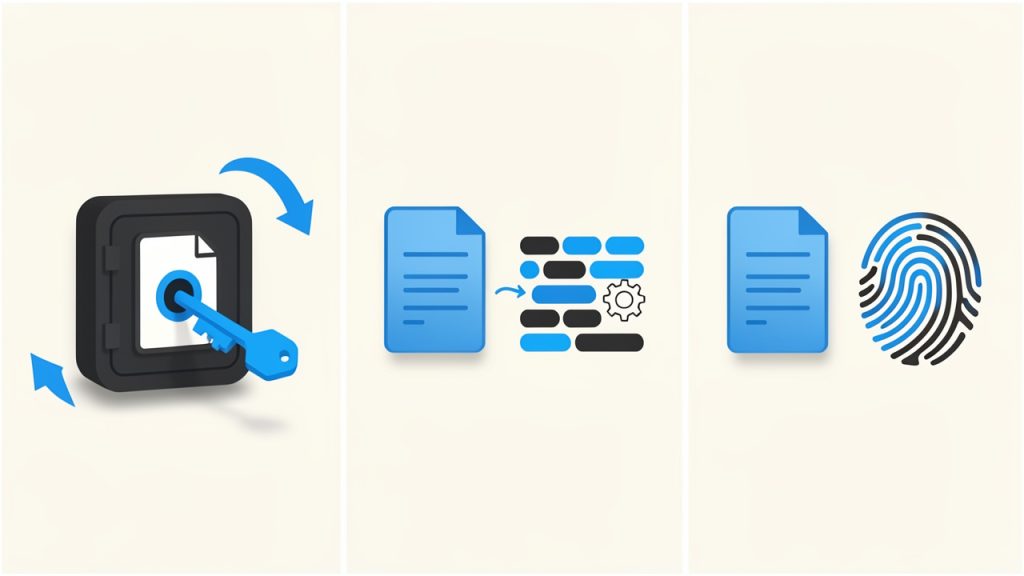
    Three-panel comparison illustrating 'Encryption vs Encoding vs Hashing': (1) Encryption — a document placed inside a locked safe with a key labeled 'decrypt' (reversible); (2) Encoding — the same document changing file formats (e.g., text -> encoded string) with a label 'formatting, not secure'; (3) Hashing — a fingerprint icon representing a one-way digest with no key to recover the original.

    Why people use online text encryption

    The use cases are broader than many expect. A freelancer might encrypt contract notes before sending them over a messaging app. A small business owner may protect sensitive instructions shared with a remote assistant. A developer may want to secure an API secret in transit. Even an individual sending personal details to a family member may want more than plain text privacy.

    This is why free tools remain attractive. They serve immediate, practical needs without requiring a budget approval or an IT department. When the tool is well designed and transparent about how it works, it can be an efficient way to add a meaningful layer of protection.

    Key Aspects of Encrypt text online free

    Choosing the right free online encryption method is not just about clicking the first result in a search engine. The quality of the tool, the security model, and your intended use all matter. A polished interface means little if the service stores your message on a server or uses weak cryptography behind the scenes.

    The most important factor is whether the encryption happens client-side, inside your browser. When that is the case, the text is transformed on your device before anything is transmitted. This reduces the risk of exposure. It also means the provider may never see your original message, which is exactly what privacy-conscious users want.

    Some services process everything locally in your browser, which means your text may never leave your device. Others send the content to a server for processing. That distinction can dramatically affect privacy and trust.
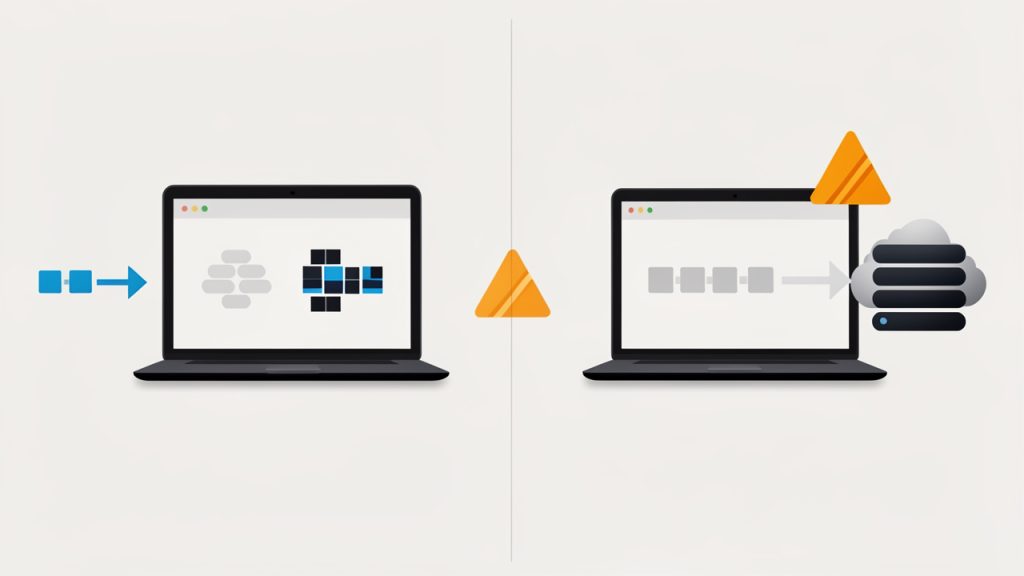
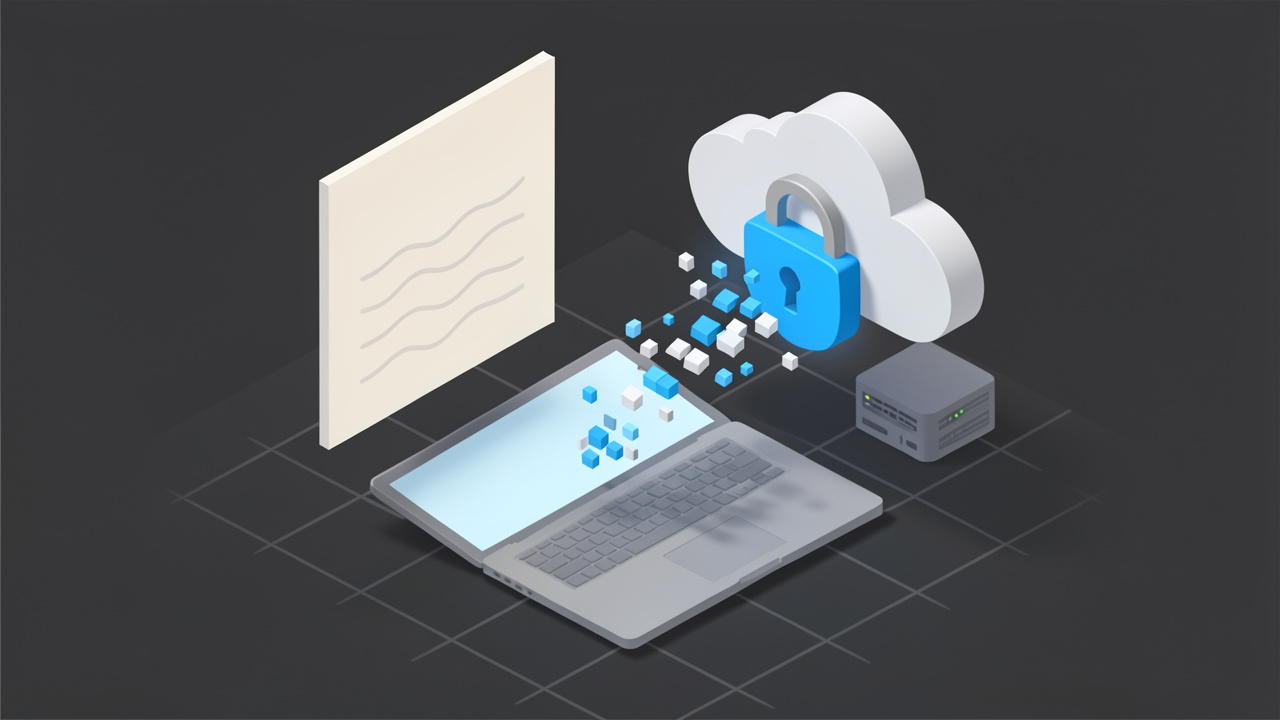
    Schematic diagram comparing browser-based (client-side) encryption vs server-side processing: on the left, a laptop with text that is transformed into ciphertext inside the browser, with an arrow showing only ciphertext leaving the device; on the right, a laptop sending plaintext to a remote server which then returns ciphertext — include a warning icon by the server path to indicate higher exposure.

    Browser-based encryption is often the safest online option

    When a tool performs encryption in the browser, it behaves more like a local app than a remote processor. That does not make it automatically perfect, but it is generally better than a service that asks you to trust its servers with your raw text. For business users handling confidential material, this distinction should be near the top of the checklist.

    You should also look for transparency. Reputable tools usually explain what encryption standard they use, whether the process is local, and whether they store any submitted content. If a website is vague about all three, caution is warranted. Security should be visible, not assumed.

    Strong passwords still matter

    Even the best encryption algorithm can be undermined by a weak password. If your encrypted text is protected with something obvious like “123456,” “companyname,” or a predictable phrase, the security benefit drops fast. The encryption system may be strong, but the lock is only as useful as the key you choose.

    A good password for text encryption should be long, unique, and difficult to guess. Passphrases are often easier to remember and stronger than short passwords filled with predictable substitutions. If you are encrypting something genuinely sensitive, create a fresh passphrase for that specific exchange instead of reusing one from another account or app.

    Free does not always mean private

    Many people assume “free” simply refers to price. In reality, free services often operate on trade-offs. Some may show ads, collect analytics, log activity, or monetize traffic indirectly. That does not automatically make them unsafe, but it does mean you should read carefully before using them for anything important.

    A free text encryption tool can be excellent if it limits data collection, processes text locally, and avoids storing content. On the other hand, a free tool that lacks transparency may create more risk than convenience. For sensitive business communications, the right free option is one that minimizes trust requirements.

    Usability matters more than people think

    Security tools fail when they are too awkward to use. If the process is confusing, users make mistakes. They may copy the wrong text, forget the password, store the key in the same message thread, or abandon encryption altogether because it slows them down. Good tools strike a balance between security and clarity.

    That balance is especially important for small teams and solo professionals. A tool that works in seconds and does not require technical expertise is far more likely to become a consistent habit. Consistency, in practice, often matters as much as technical strength.

    Common features to compare

    If you are evaluating online options, these are the features worth comparing at a glance:

    • Encryption location: Determines whether your text is exposed to a server, prefer in-browser or client-side encryption.
    • Password protection: Controls who can decrypt the text, prefer custom, strong passphrase support.
    • Transparency: Shows whether the tool explains its methods, prefer clear documentation and privacy details.
    • Storage policy: Affects whether your message may be retained, prefer no text storage or temporary local handling.
    • Ease of use: Reduces user error and speeds up workflow, prefer simple interfaces with clear steps.
    • Device compatibility: Helps when working across teams and platforms, prefer tools that work on desktop and mobile browsers.

    When online encryption is appropriate, and when it is not

    Free online encryption is ideal for short messages, notes, temporary sharing, and quick protection in a browser-first workflow. It is particularly useful when you need speed and do not want to install software on every device. For routine operational privacy, that can be enough.

    It is less ideal for highly regulated data, long-term secrets, or mission-critical business records that require strict compliance controls. In those cases, dedicated security tools, encrypted file vaults, or enterprise communication systems may be more appropriate. The right question is not “Is online text encryption good or bad?” It is “Is it appropriate for this kind of information?”

    How to Get Started with Encrypt text online free

    Getting started is straightforward, but doing it well requires a little discipline. The first step is understanding what kind of text you are trying to protect and how sensitive it is. A draft note to yourself is one thing. Client account details or private credentials are something else entirely. The more sensitive the text, the more selective you should be about the tool and your process.

    Before using any online service, check whether it states that encryption happens locally in your browser. Then verify that the site uses HTTPS and provides a clear explanation of its privacy approach. These are not advanced technical checks. They are practical signs that the tool takes security seriously.

    A simple process for first-time users

    Most people can begin with a short workflow like this:

    1. Choose a reputable tool: Prefer a browser-based service with clear privacy and encryption information.
    2. Paste only the necessary text: Avoid including extra details that do not need protection.
    3. Create a strong passphrase: Use a long, unique phrase that you do not reuse elsewhere.
    4. Generate the encrypted text: Confirm that the output is unreadable and properly copied.
    5. Share the passphrase separately: Never send the encrypted text and the password in the same message thread.

    That final point is where many users slip. Encrypting a message and then sending the password in the same email defeats much of the purpose. If possible, send the passphrase through a different channel, such as a phone call, secure chat, or separate messaging platform.

    Practical examples in everyday work

    Imagine a freelancer sending a private project brief that contains pricing, timelines, and internal strategy notes. Instead of pasting everything into a standard email, they encrypt the text first and send the ciphertext. Then they call the client or send the passphrase through a different app. The process takes a minute, but it meaningfully reduces exposure if the email is forwarded or intercepted.

    A developer might use a free online text encryption tool to protect a temporary configuration string while coordinating with a teammate. A small business owner could use it to send private HR notes or account recovery details during an urgent handoff. These are not theoretical security exercises; they are ordinary moments where plain text is unnecessarily risky.

    Mistakes to avoid

    Most problems with online text encryption come from process errors rather than cryptography. Users may forget the passphrase, use a weak one, trust an unverified tool, or store the decrypted text carelessly after receiving it. Encryption protects content in transit or at rest, but it cannot help once the text is copied into an unsecured note or left open on a shared device.

    Another common mistake is assuming all scrambled-looking text is secure. Some websites offer obfuscation, encoding, or novelty “cipher” transformations that look impressive but provide little real protection. If a tool does not clearly describe actual encryption, treat it with skepticism.

    A quick trust checklist

    Before you use any service to encrypt text online free, look for these signs:

    • Local processing: The website says encryption happens in your browser.
    • Clear privacy policy: It explains whether any text is stored or transmitted.
    • Recognized methods: It names established encryption approaches instead of vague claims.
    • Secure connection: The site uses HTTPS and appears professionally maintained.

    This short review can save you from the biggest mistake of all, trusting a tool simply because it appears high in search results.

    Building a secure habit

    The real value of text encryption comes from turning it into a repeatable habit. If you handle sensitive information often, set a personal rule for when encryption is required. Maybe it applies to client identifiers, account details, legal drafts, private pricing, or any internal planning document that would be problematic if exposed.

    Habits reduce decision fatigue. Instead of debating each time whether a message is “sensitive enough,” you create a threshold and follow it consistently. For busy professionals, that kind of system is far more reliable than relying on memory or instinct.

    Conclusion

    Using a tool to encrypt text online free is one of the simplest ways to improve digital privacy without adding much friction to your workflow. It helps protect confidential notes, business communications, and personal information from unnecessary exposure. The key is choosing a tool that encrypts in the browser, uses clear privacy practices, and lets you protect your message with a strong passphrase.

    Your next step is simple. Pick a reputable browser-based encryption tool, test it with non-sensitive text first, and build a habit around using it for information that should never travel as plain text. A few extra seconds of care can prevent a surprising amount of risk.
  • Split PDF Online Free – Fast, Secure PDF Splitting

    Split PDF Online Free – Fast, Secure PDF Splitting

    A large PDF can slow down work faster than almost anything else. You open a contract, proposal, report, or scanned packet, only to realize you do not need the whole file. You need pages 3 through 7, or perhaps you want to break a 120-page document into smaller sections you can email, upload, or archive more easily. That is where split PDF online free tools become surprisingly valuable.

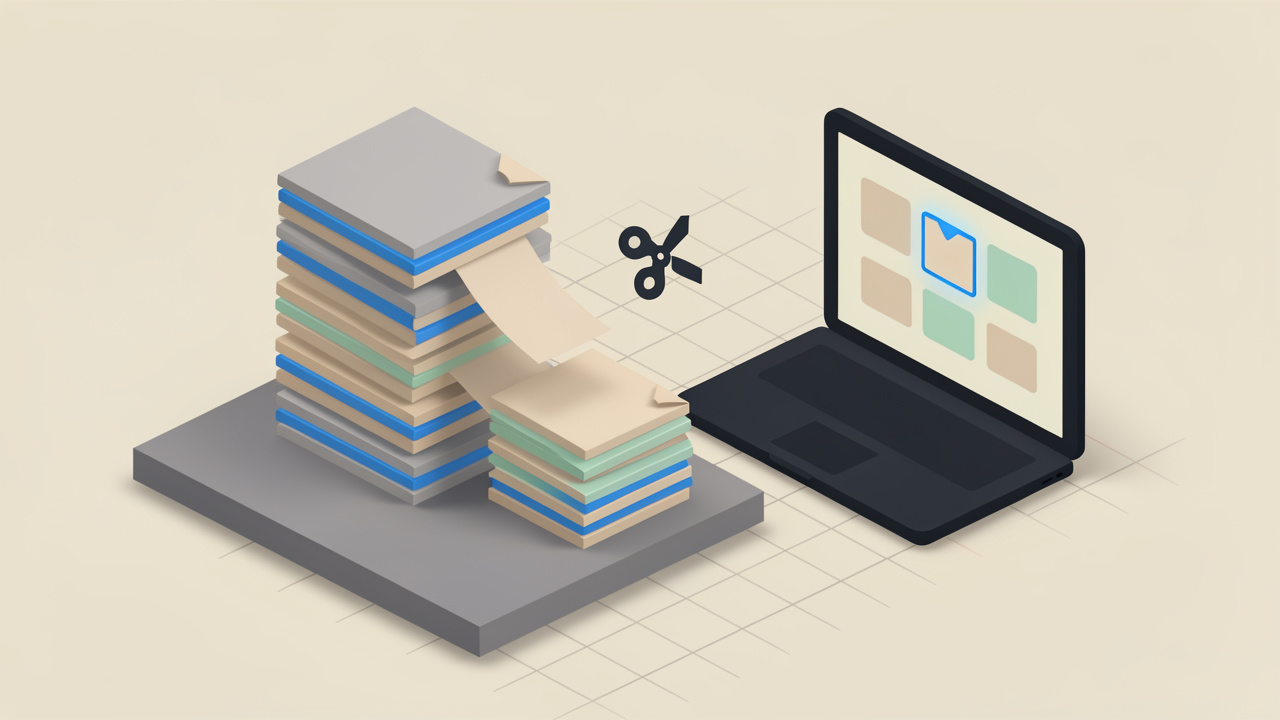
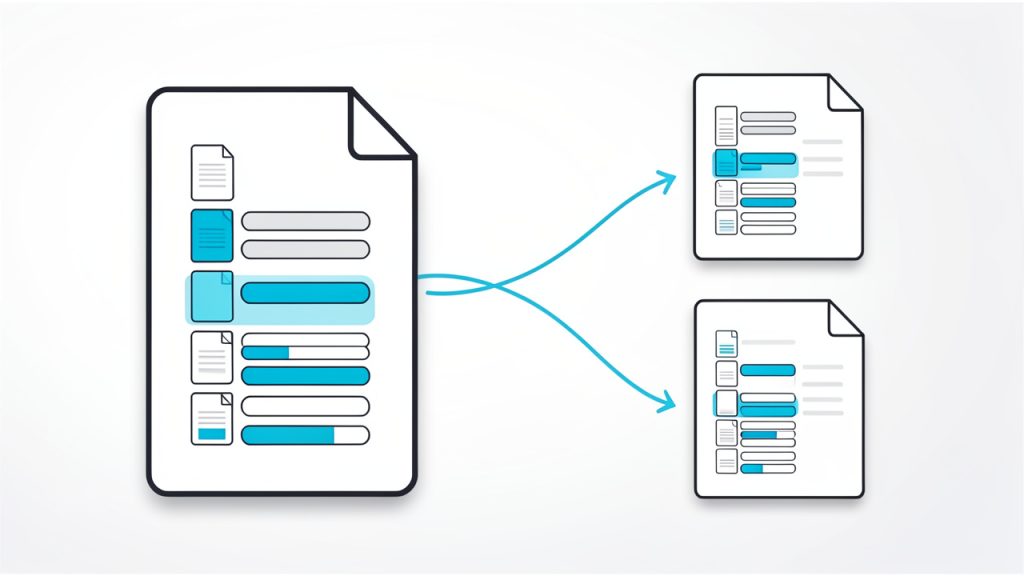
    PDF being split into multiple smaller files, labeled with page ranges

    For small business owners, freelancers, developers, and productivity-focused users, the appeal is obvious. You do not want to install heavy software for a simple one-time task, and you definitely do not want to pay for a full document suite just to separate a few pages. A good free online PDF splitter can save time, reduce friction, and keep your workflow moving, especially when speed matters.

    What is Split PDF online free?

    Split PDF online free refers to using a web-based tool to divide a PDF file into smaller PDF documents without paying for premium software. Instead of editing the file on your computer with desktop applications, you upload the PDF to a browser-based service, choose how you want it separated, and download the resulting files.

    In practice, this can mean a few different things. You might extract a specific page range from a larger file, such as pulling only the invoice pages from a monthly report. You might split every page into separate files, which is useful when you need to review or send pages individually. You might also divide a PDF into equal sections, such as splitting a training manual into chapters.

    This is different from simply viewing or compressing a PDF. A PDF splitter changes the structure of the document by creating one or more new files from the original. That makes it especially useful in real-world workflows where file size, page relevance, and sharing constraints matter.

    The reason online tools are so popular is simple. They remove setup time. You do not need to learn a complicated interface, update software, or switch devices. If you have a browser and an internet connection, you can usually complete the task in a few minutes (upload the PDF to a browser-based service).

    Key Aspects of Split PDF online free

    Why people use free online PDF splitters

    Most people look for a way to split PDF online free because they want convenience first. If you are sending a proposal to a client, you may only want to share the pricing pages, not the internal notes or appendices. If you are organizing tax records, invoices, legal forms, or design proofs, breaking one large file into smaller parts makes everything easier to sort and retrieve later.

    For freelancers, this can be a fast way to package deliverables more professionally. Instead of sending one oversized file packed with drafts, notes, and extras, you can send exactly the pages a client needs. That feels cleaner and more intentional.

    For small teams and solo operators, it also reduces friction in collaboration. A massive PDF often creates tiny but constant delays. It takes longer to upload, is harder to email, and requires more effort for recipients to navigate. Splitting it into focused documents can improve communication instantly.

    Common ways PDFs are split

    Not all PDF splitting tasks are the same. Some tools let you extract a custom page range, such as pages 10 to 15. Others let you split after every page, after every few pages, or at manually selected breakpoints.

    If you need to isolate one contract section from a legal packet, page-range extraction works well. If you are digitizing paper documents and each page belongs to a separate record, splitting each page into its own file makes more sense. If you are preparing a presentation or training material, dividing the document into sections may be the most practical approach.

    A useful way to think about it is like cutting a loaf of bread. Sometimes you need one slice. Sometimes you need half the loaf. Sometimes every slice needs to be packaged separately. The file is the same, but the outcome changes based on how you plan to use it.

    What makes a good free online tool

    A strong free online PDF splitter should do more than just split files. It should be easy to understand, reasonably fast, and reliable with different file sizes. The best tools make the process feel obvious, even for someone who rarely works with PDFs.

    Privacy matters too. This is especially important if your files contain client details, financial records, contracts, or internal business information. When choosing a service, look for clear information about how files are processed, how long they are stored, and whether they are deleted automatically after a short period.

    Usability is another major factor. Some free tools bury core features behind aggressive upsells or cluttered interfaces. Others are straightforward and let you upload, select pages, and download the result without unnecessary steps. For productivity-minded users, simplicity is not a luxury. It is part of the value.

    Benefits and trade-offs of splitting PDFs online

    The biggest advantage is speed. You can access the tool instantly, use it from nearly any device, and avoid installing software. This is particularly useful if you work across multiple systems, such as a desktop in the office, a laptop at home, and a phone while traveling.

    Another benefit is cost. Free tools are ideal for occasional use or lightweight workflows. If you only split PDFs once in a while, it often makes little sense to pay for a subscription.

    There are trade-offs, however. Some free tools limit file size, number of daily tasks, or advanced controls. Others may place watermarks on output files or reserve batch processing for paid plans. Browser-based tools also depend on upload speed, which can become noticeable when working with large scanned PDFs.

    Privacy is the biggest trade-off for many users. Uploading documents to an online service always introduces a level of trust. That does not mean online tools are inherently unsafe, but it does mean you should be selective, especially with sensitive business files.

    Online vs desktop PDF splitting

    Choosing between online and desktop solutions often comes down to frequency, sensitivity, and scale. If you need a quick one-off split for a non-sensitive file, online tools are often the fastest path. If you regularly handle confidential documents, very large files, or repeated batch jobs, desktop software may offer more control.

    The difference is similar to using a rideshare app versus owning a delivery van. For occasional transport, the app is efficient and affordable. For constant heavy-duty work, dedicated equipment becomes more practical.

    The table below highlights the difference:

    Factor Free Online PDF Splitter Desktop PDF Software
    Setup Instant, no installation Requires installation
    Cost Often free for basic use Usually paid or limited trial
    Speed for small tasks Very fast Fast after setup
    Large file handling May be limited Usually better
    Privacy control Depends on provider Greater local control
    Batch processing Often limited More robust
    Device flexibility Works across devices with browser Tied to installed system

    File size, page count, and performance

    One of the most overlooked aspects of using a free online PDF splitter is performance. A 10-page text PDF and a 200-page scanned image PDF may both be called “PDFs,” but they behave very differently. Scanned files are often much larger because each page is essentially an image. That affects upload time, processing speed, and sometimes whether the tool can handle the file at all.

    If your document is huge, splitting it online may still work well, but it depends on both your connection and the service limits. Some tools are excellent for lightweight tasks but become frustrating with archives, manuals, or multi-hundred-page scans.

    For business use, this matters because delays add up. A task that should take two minutes can turn into ten if the file is oversized or the tool struggles under load. That is why it helps to know in advance whether your document is text-based, image-heavy, or mixed.

    Security and privacy considerations

    If you are handling contracts, onboarding documents, legal forms, medical records, or internal reports, privacy should not be treated as an afterthought. When using a tool to split PDF online free, you are usually uploading the file to a remote server where it is processed before being returned to you.

    That is not automatically a problem, but it does require judgment. A trustworthy tool should explain whether files are encrypted during transfer, how long they remain on the server, and when they are deleted. If this information is difficult to find, that alone is a signal to be cautious.

    For many users, the right approach is simple. Use free online splitters for ordinary, non-sensitive files. For sensitive documents, consider local tools or company-approved solutions. That balance lets you keep the convenience of online services without exposing information unnecessarily.

    Ease of use matters more than feature overload

    Many PDF tools advertise a long list of features, but most users need only a few of them. They want to upload a file, select the pages, and get the output quickly. Extra features can be helpful, but they should not get in the way.

    A clean interface often produces better results than a feature-packed one. That is especially true when you are in a hurry or working across devices. Mobile browser use, for example, quickly exposes bad design. Tiny buttons, confusing file previews, and unclear page selectors can turn a simple job into a frustrating one.

    The best free tools respect your time. They reduce clicks, provide clear page previews, and make the final download obvious. Good design is not cosmetic here. It directly improves productivity.

    Output quality and formatting

    A good split should preserve the original file’s readability and layout. In most cases, splitting a PDF should not degrade quality, but some tools may recompress files or alter certain properties depending on how they process the document.

    This becomes noticeable when the PDF contains forms, embedded fonts, high-resolution visuals, or annotations. If you rely on those elements, test the output before sharing it widely. Open the split files, scroll through them, and check that page order, formatting, and legibility remain intact.

    For professionals, this final check is essential. Sending a broken PDF is a small error that can create a poor impression. A 20-second review can prevent that.

    How to Get Started with Split PDF online free

    A simple workflow that works for most users

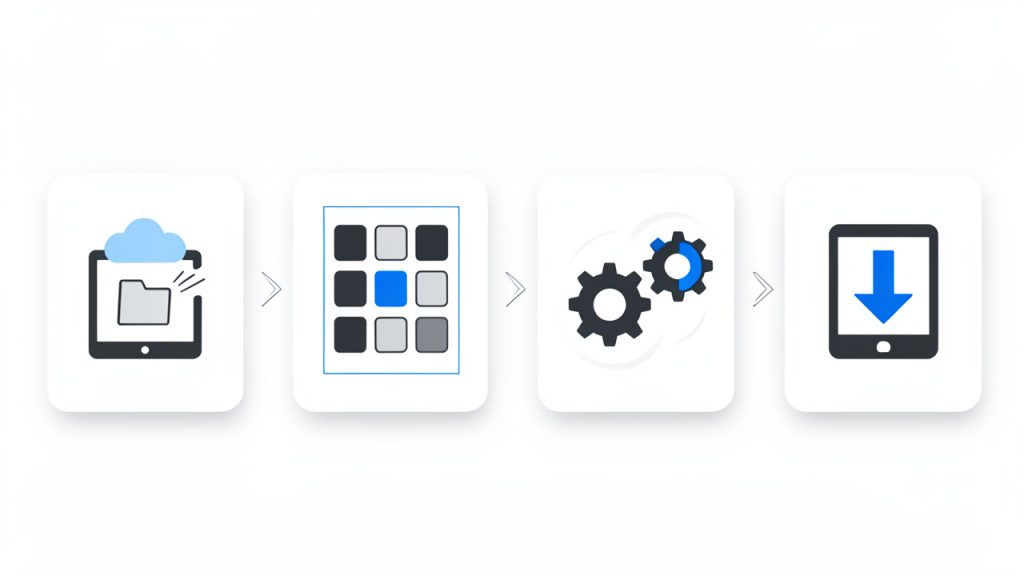
    A simple 4-step workflow: upload, choose split method, process, download

    Getting started is usually easy. Even if you have never used an online PDF splitter before, the process is familiar. You upload the file, choose the pages or split method, run the task, and download the results.

    For most users, the basic process looks like this:

    1. Upload the PDF from your device, cloud storage, or drag-and-drop area.
    2. Choose the split method, such as page ranges, every page, or selected sections.
    3. Process the file and wait for the tool to generate new PDFs.
    4. Download the result and review the output before sharing or storing it.

    This workflow is simple, but there is value in being intentional about the split. Before uploading anything, decide exactly what the output should be. Are you extracting only the signature pages? Are you separating monthly statements? Are you creating one file per invoice? Clarity up front prevents having to repeat the task.

    How to choose the right split method

    The right split method depends on how the document will be used afterward. If your goal is to send a client one section of a report, a custom page range is usually best. If you need to archive scanned records separately, splitting every page can save a lot of manual work. If you are organizing a large guide into modules, dividing it into named sections will feel more structured.

    Think beyond the split itself. The real goal is not just creating smaller files. It is creating more useful files. A split is successful when the resulting documents are easier to send, store, read, or process.

    That mindset helps you avoid random fragmentation. Breaking a PDF into too many small files can create a different kind of mess. The sweet spot is usually the smallest number of files that still matches the task.

    Tips for better results

    A few practical habits can make free online PDF splitting much smoother. Rename your output files immediately after downloading them, especially if the tool gives them generic names. That saves time later and prevents confusion when multiple versions are involved.

    It also helps to review the original page order before splitting. Long PDFs often include appendices, blank pages, scanned inserts, or rotated pages that you may not notice at first glance. A quick scan of thumbnails can prevent extracting the wrong section.

    If the file is sensitive, think carefully before uploading. And if the PDF is extremely large, you may want to test the process with a smaller section first. Small adjustments like these make the whole experience more predictable.

    What to look for before using any online PDF splitter

    Before you trust a service with your file, check a few basics. You do not need a deep technical audit, but you do want signs that the provider has thought through the user experience and security model.

    A quick checklist includes:

    • Privacy policy: Clear explanation of file handling and deletion.
    • File limits: Transparent upload size and usage restrictions.
    • Output quality: No unwanted watermarks or formatting issues.
    • Ease of use: Clean interface with clear page selection tools.

    These points may sound simple, but they separate useful free tools from frustrating ones. If a service is vague about privacy, overloaded with ads, or unclear about limits, it usually shows up later in the process.

    Best use cases for small businesses and freelancers

    For small business owners, splitting PDFs online free is especially useful in finance, operations, and client communication. You can separate invoices from a monthly accounting export, isolate signed pages from agreements, or break one long onboarding pack into role-specific files.

    Freelancers often benefit in client-facing workflows. A designer may separate concept pages from final deliverables. A consultant may pull only the action-plan section from a longer strategy document. A developer may isolate API documentation sections for easier internal sharing.

    The power of the tool is not just in what it does technically. It is in how it reduces friction around document handling. That may sound minor, but repeated small efficiencies create a smoother business process over time.

    Conclusion

    Using a tool to split PDF online free is one of those small digital tasks that can have a big practical payoff. It helps you turn bulky, awkward documents into focused files that are easier to share, archive, review, and manage. For occasional use, online splitters are often the fastest and simplest option available.

    The key is choosing the right tool and using it with a bit of intention. Pay attention to privacy, file limits, and output quality. Then match the split method to the job you actually need to complete. If you do that, you will spend less time wrestling with PDFs and more time getting useful work done.

    Your next step is simple. Take one oversized PDF you deal with regularly, test a reliable free online splitter, and build a faster document workflow around that use case. Often, one small improvement in file handling unlocks a much cleaner process everywhere else.

  • Free Productivity Tools That Actually Save Time

    Free Productivity Tools That Actually Save Time

    Time is expensive, but most people do not lose it in dramatic ways. They lose it in tiny fragments, a few minutes spent searching for a file, another ten switching between tabs, another half hour trying to remember what should happen next. That is why free productivity tools matter. The right ones do not just save money, they reduce friction, protect focus, and make work feel lighter.

    A visual metaphor for fragmented time: a clock face broken into many small pieces or lots of tiny clock icons scattered, each labeled with brief distractions (e.g., 'searching for a file', 'tab switching', 'remembering next step'), conveying how minutes add up into lost time.

    For small business owners, freelancers, developers, and anyone trying to do more with limited resources, the appeal is obvious. You want software that is easy to adopt, flexible enough to support real work, and free enough to test without a procurement process or a long commitment. The challenge is not finding tools. It is finding the right tools, using them well, and avoiding a stack so cluttered that your productivity system becomes another source of stress.

    What are free productivity tools?

    Free productivity tools are apps, platforms, and online services designed to help individuals or teams organize work, manage time, communicate, automate routine tasks, and store information, all without an upfront cost. In practical terms, these tools cover everything from task managers and calendar apps to note-taking systems, cloud storage, writing assistants, collaboration platforms, and automation utilities.

    The word free deserves a closer look. Some tools are truly free with generous features for personal use or small teams. Others operate on a freemium model, which means the core product is available at no cost, while advanced features sit behind a paid plan. That distinction matters because a tool that feels perfect today can become restrictive once your client load grows or your business starts collaborating across a larger team.

    Productivity itself is often misunderstood. It is not about cramming more tasks into the day. It is about using your time, attention, and energy with greater intention. A good free productivity tool supports that goal by making priorities visible, reducing repetitive work, and helping you move from idea to execution with less effort.

    For a freelancer, that might mean a simple project board that keeps client work from slipping through the cracks. For a small business owner, it could be a shared document system that prevents version confusion. For a developer, it may be a lightweight automation or note system that keeps context organized across projects. The category is broad, but the purpose is consistent, better output with less wasted motion.

    Key aspects of free productivity tools

    Usability matters more than feature count

    One of the biggest mistakes people make is choosing tools based on long feature lists rather than real-world usability. A productivity app can be powerful on paper and still fail in daily use if it is cluttered, slow, or hard to understand. In most cases, the best free productivity tools are the ones you can start using in minutes, not the ones that require hours of setup before they become useful.

    That is especially true for solo users and small teams. When you are already managing clients, deadlines, or product work, you do not need another system that demands constant administration. A clean interface, fast search, and sensible defaults often create more value than dozens of advanced options you may never touch.

    Free does not always mean fully free

    There is a practical trade-off behind most free plans. Some tools limit storage. Others cap integrations, user seats, project boards, automation runs, or history length. These limits are not necessarily a problem, but they should be understood early. A tool can still be an excellent choice if its free tier aligns with your actual workflow.

    The smartest approach is to evaluate free tools not by what they hide, but by what they genuinely enable. If a task manager gives you enough projects, reminders, and views to run your week smoothly, then it is doing its job. If a note app lets you capture and retrieve information quickly, that may be all you need. The goal is not to get enterprise software for free. The goal is to get meaningful utility without paying before you are ready.

    Integration can make or break your workflow

    A productivity tool rarely works in isolation. Your calendar connects to meetings, your notes connect to tasks, your files connect to client work, and your communication tools connect to everything. That is why integration is one of the most overlooked aspects of choosing free productivity tools.

    When tools work well together, they reduce duplication. You stop copying deadlines from one place to another. You stop hunting for attachments across email, chat, and cloud folders. Even a basic level of integration can save significant time over a month.

    For developers and technical users, this can extend into APIs, webhooks, and lightweight automations. For non-technical users, it might simply mean choosing tools that offer calendar syncing, browser extensions, or cloud file support. Either way, the underlying principle is the same, less manual transfer means fewer mistakes and more focus.

    Collaboration features are increasingly essential

    Even solo professionals collaborate constantly. You may share drafts with clients, exchange feedback with contractors, or coordinate timelines with partners. That is why many of the best free productivity tools now include commenting, shared workspaces, permission controls, and live editing.

    This shift is important because productivity is no longer just personal. It is operational. A tool that works only for you but creates confusion for everyone around you can become a bottleneck. A free plan that supports lightweight collaboration often delivers more value than a more advanced app designed purely for individual use.

    Security and reliability should not be ignored

    When software is free, people sometimes assume the stakes are lower. In reality, if a tool stores client notes, financial drafts, passwords, project plans, or business files, reliability matters a great deal. Look for tools with strong reputations, regular updates, transparent privacy policies, and export options.

    The ability to export your data is especially important. Free tools are useful, but lock-in is not. If your needs change, you should be able to move your notes, tasks, or files without rebuilding everything from scratch. Portability is a quiet feature, but it becomes critical the moment a free plan no longer fits.

    Different categories solve different bottlenecks

    It helps to think of free productivity tools by the problem they solve, not just by their app category. Some reduce cognitive load by giving you a trusted place to capture tasks and ideas. Others reduce administrative work through scheduling, templates, and automation. Some improve execution by keeping projects visible. Others improve communication by centralizing conversations and documents.

    A simple comparison makes this easier to evaluate:

    Category What It Helps With Best For Common Free Plan Limits
    Task Management Tracking to-dos, deadlines, priorities Freelancers, small teams, personal planning Limited projects, automations, or team seats
    Note-Taking Capturing ideas, meeting notes, documentation Writers, developers, consultants Storage caps, restricted collaboration
    Calendar and Scheduling Time blocking, appointments, meeting coordination Service businesses, consultants, remote workers Booking limits, branding, fewer integrations
    Cloud Storage File access, sharing, backup Small businesses, distributed teams Limited storage space
    Communication Tools Messaging, quick coordination, updates Remote teams, client-facing businesses Message history limits, user caps
    Automation Tools Repetitive task reduction, workflow triggers Power users, developers, operations-focused teams Limited runs, fewer app connections

    This is why no single tool can solve productivity by itself. If your bottleneck is poor planning, a note-taking app will not fix it. If your bottleneck is repetitive admin, a calendar app alone will not help much. Good tool selection starts with honest diagnosis.

    How to get started with free productivity tools

    Start with your biggest source of friction

    The best way to adopt free productivity tools is to avoid building a full system all at once. Instead, begin with the part of your work that feels most consistently frustrating. That might be missed deadlines, scattered notes, scheduling chaos, or the feeling that important tasks are living in five different places.

    When you identify that friction clearly, tool selection becomes simpler. You are no longer asking, “What is the best productivity app?” You are asking, “What tool can reduce this specific problem?” That question produces better decisions and faster results.

    For example, if you repeatedly forget follow-ups, choose a task manager with reminders before adding anything else. If meetings consume too much time, adopt a free scheduling tool. If project materials are scattered, implement a shared cloud folder and a simple naming convention. Productivity improves fastest when the solution matches the constraint.

    Keep your first setup intentionally small

    Many people sabotage tool adoption by overbuilding from day one. They create elaborate workspaces, too many tags, deeply nested folders, and complicated rules they cannot maintain. A better approach is to create a minimal structure that supports immediate use.

    A practical starter setup usually includes just a few essentials:

    1. One task hub for what needs to happen next.
    2. One note space for ideas, reference material, and meeting notes.
    3. One calendar for deadlines, appointments, and focused work blocks.
    4. One file location for documents you need to find quickly.

    This is enough to create order without adding complexity. Once the system proves useful, you can refine it gradually. That sequence matters. Stable habits should come before advanced customization.

    Evaluate tools by behavior, not branding

    A tool may be popular and still be wrong for your work style. Some people think visually and prefer boards. Others want simple lists. Some need collaborative editing. Others need offline access and strong search. The only way to judge a tool properly is to use it for actual work over several days.

    Pay attention to your own behavior. Are you returning to the tool naturally, or avoiding it? Does it reduce mental clutter, or add another layer of maintenance? Can you find what you saved last week? Do you trust it enough to stop keeping backup notes in three other places? These questions reveal more than product marketing ever will.

    A short evaluation framework can help:

    Evaluation Factor What to Ask
    Ease of Use Can I understand the interface without training?
    Daily Fit Does this match how I naturally plan and work?
    Scalability Will the free version still work a month from now?
    Collaboration Can clients, teammates, or partners use it easily?
    Portability Can I export data if I need to switch later?

    This kind of review keeps you grounded. It shifts the decision from novelty to usefulness.

    Build habits around the tool, not dependence on it

    A tool helps only when it supports a repeatable habit. A task manager, for instance, becomes valuable when you check it at a consistent time, capture tasks immediately, and review priorities before work starts. Without those behaviors, even excellent software produces weak outcomes.

    That is why getting started with free productivity tools should include a routine. Spend a few minutes each morning reviewing priorities. End the day by clearing inboxes, updating task status, and scheduling the next important action. Keep it short and sustainable. Consistency beats sophistication.

    The most productive users often have surprisingly simple systems. Their edge comes from trust. They know where tasks go. They know where notes live. They know how to recover context quickly. Free tools can absolutely support this level of clarity, as long as the workflow remains disciplined.

    Avoid the trap of tool collecting

    There is a hidden cost to free software: because it is easy to try, it is also easy to accumulate. You install one app for notes, another for tasks, another for bookmarks, another for documents, and soon your system is fragmented. This feels productive at first because setup creates the illusion of progress. But too many tools create decision fatigue and information loss.

    A useful rule is to add a new tool only when it replaces confusion or manual work. If it does not clearly solve a problem, it is probably a distraction. Fewer tools, used consistently, almost always outperform a bloated stack full of overlapping functions.

    Think in workflows, not apps

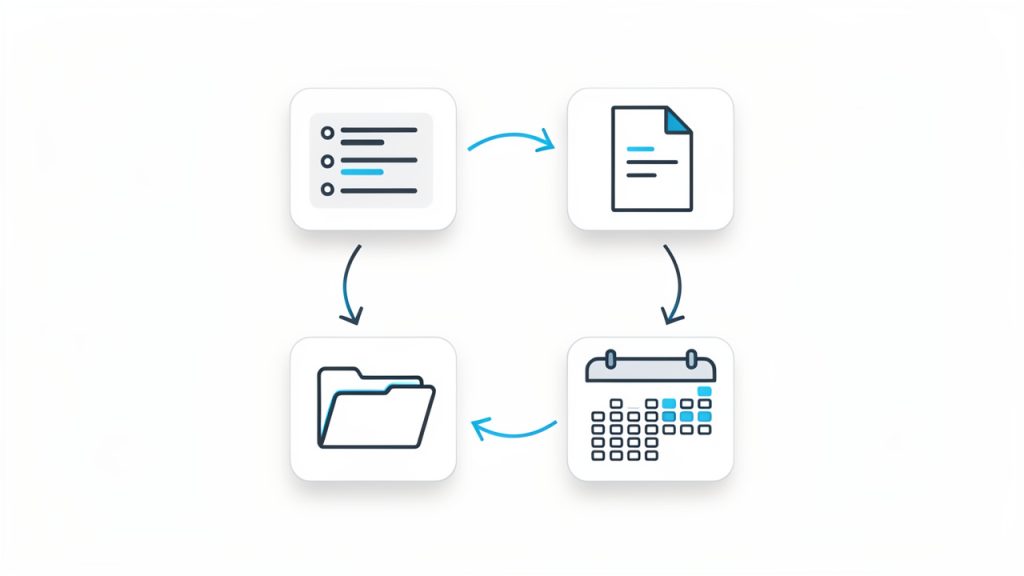
    The most effective way to use free productivity tools is to see them as part of a workflow. A lead comes in, gets added to your notes or CRM. A task is created. A meeting is scheduled. Documents are stored in one place. Follow-up happens on a defined date. Each tool supports one stage of movement.

    This mindset is especially valuable for small businesses and freelancers. When your process is clear, tools become interchangeable parts rather than sources of dependency. You can test a free tool confidently because you understand what job it is supposed to perform. That makes upgrades, replacements, and simplification much easier over time.

    A clear workflow diagram showing four connected boxes/icons: Tasks → Notes → Calendar → File Storage, with arrows indicating flow between them and small labels like 'create', 'schedule', 'store', 'reference' to show how the tools interact in a simple loop.

    Conclusion

    Free productivity tools are not just budget-friendly alternatives. When chosen carefully, they are powerful systems for reducing friction, improving visibility, and helping work move forward with less effort. The key is not using the most tools. It is using the right ones, in a way that supports your real workflow.

    Start with one bottleneck, choose one or two tools that solve it well, and build simple habits around them. Once your system feels trustworthy, expand only where needed. That approach keeps your stack lean, your processes clear, and your productivity grounded in results rather than software experimentation.