
If you have ever copied a hash, API payload, token fragment, or binary file signature and wondered why one system wants hex while another expects Base64, you are not alone. This is a common friction point in development, security work, and day-to-day data handling.
The good news is that converting hexadecimal data to Base64 is straightforward once you understand one key idea: both formats are just different text representations of the same underlying bytes. The tricky part is not the math itself. It is avoiding mistakes with odd-length input, padding, leading zeros, and format variants like Base64URL.
This guide explains how to convert hex into Base64 correctly, when to use each format, how to validate your results, and where this matters in real systems such as APIs, JWTs, cryptographic tools, email, and embedded web assets.
Introduction: Hex and Base64, What They Are and Why Conversion Matters
Quick definitions: hexadecimal and Base64
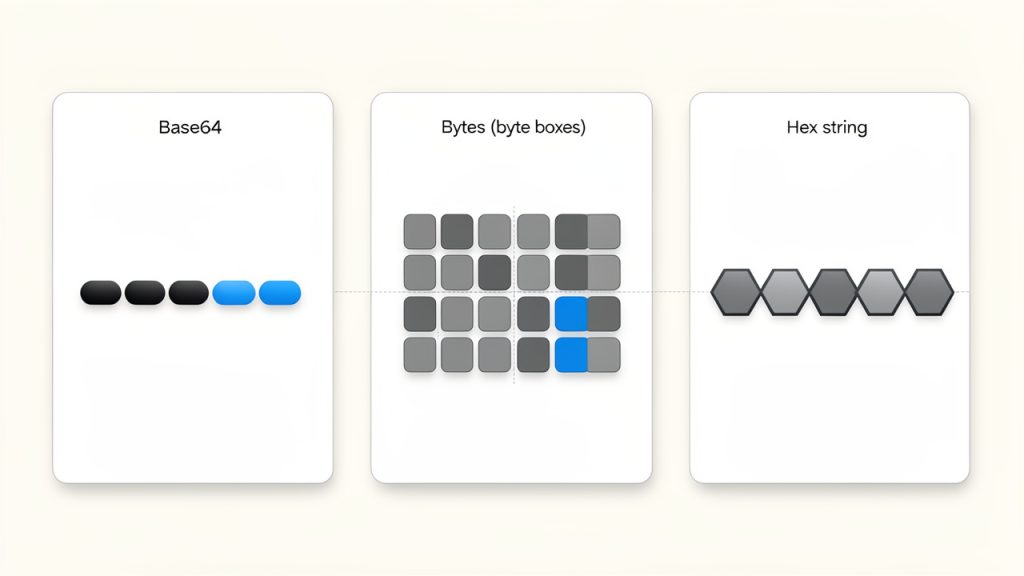
Hexadecimal, usually shortened to hex, is a base-16 representation. It uses the characters 0-9 and a-f to represent binary data. Because one hex digit represents 4 bits, two hex characters represent one byte.
Base64 is a base-64 encoding that uses a larger alphabet, typically A-Z, a-z, 0-9, +, and /, plus = for padding. Each Base64 character represents 6 bits. That makes it more compact than hex when turning raw bytes into text.
Both are widely used because binary data is awkward to move around in systems designed for text. Logs, JSON payloads, headers, email bodies, URLs, and form fields often need safe textual encodings.
Common use cases for converting hex into Base64
You will run into this conversion when a cryptographic tool outputs a digest in hex, but an API expects Base64. The reverse is also common. Many command-line utilities and programming libraries expose binary values in one format while documentation or wire protocols use another.
This matters in cryptography, where fingerprints, keys, message digests, and signatures are often shown in hex for readability. It also matters in web development, where Base64 is often preferred for transport because it is more compact and better suited for embedding in text-based formats.
You also see it in email and MIME encoding, data URIs, web tokens, and systems that store binary attachments inside JSON or XML. In all of these cases, converting hex to Base64 is less about changing data and more about choosing the right wrapper for the job.
Who should care and what you will learn
If you are a developer, security professional, freelancer working with APIs, or a technically inclined business user handling integrations, this topic is worth understanding. A bad conversion can break authentication, corrupt a file, or produce values that look plausible but are wrong.
By the end of this guide, you will know how the conversion works, how to do it with online tools and code, how to debug it, and how to handle edge cases such as endianness, padding, odd-length hex strings, and leading zero bytes.
Hex vs. Base64: Side-by-Side Comparison
Representation: character sets and length differences
Hex is simple and human-friendly. Each byte becomes exactly two characters, which makes it easy to inspect. If you see 4d616e, you know it is three bytes long because there are six hex characters.
Base64 is denser. It groups bits in 6-bit chunks, so it uses fewer characters to represent the same bytes. The same bytes that appear as 4d616e in hex become TWFu in Base64.
Here is the practical difference:
| Format | Base | Character Set | Size Relationship |
|---|---|---|---|
| Hex | 16 | 0-9, a-f |
2 characters per byte |
| Base64 | 64 | A-Z, a-z, 0-9, +, /, = |
About 4 characters per 3 bytes |
That is why Base64 strings are often shorter than hex strings representing the same data.
Storage and size implications
Hex doubles the visible character count of raw bytes. A 32-byte value becomes a 64-character hex string. That is predictable, readable, and useful for debugging.
Base64 increases size by about 33%, while hex increases size by 100%. If transport efficiency matters, Base64 is usually the better choice.
For example:
| Raw Bytes | Hex Length | Base64 Length |
|---|---|---|
| 3 bytes | 6 chars | 4 chars |
| 16 bytes | 32 chars | 24 chars |
| 32 bytes | 64 chars | 44 chars |
| 64 bytes | 128 chars | 88 chars |
The exact Base64 length depends on padding, but it is still consistently shorter than hex.
When to use hex and when to use Base64
Use hex when humans need to inspect values, compare bytes, or copy exact binary content in a readable way. That is why hashes, memory dumps, and protocol examples often appear in hex.
Use Base64 when you need to safely transport binary data through text systems with less overhead. It is especially useful in JSON payloads, HTTP headers, MIME content, and embedded binary blobs.
A good rule is simple: hex is better for readability, Base64 is better for transport efficiency.
How Hex to Base64 Conversion Works, The Theory
Step-by-step: bytes to bit stream to 6-bit groups
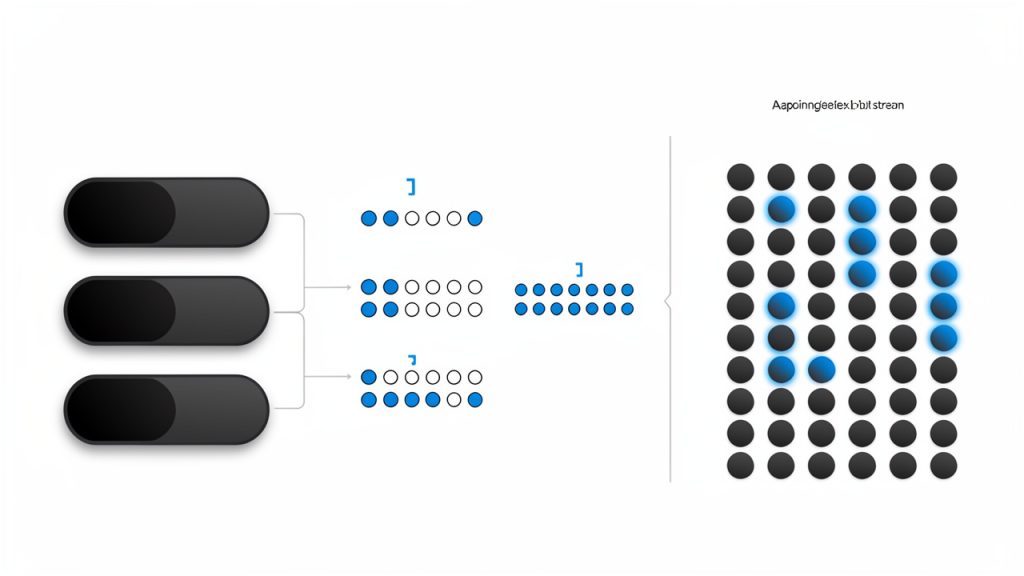
The right way to think about converting hex into Base64 is this: you do not convert hex characters directly into Base64 characters. You first recover the original bytes from the hex, then encode those bytes in Base64.
Take the hex string 4d616e.
Split it into bytes:
4d616e
Convert each byte to binary:
4d=0100110161=011000016e=01101110
Now join the bits into one stream:
010011010110000101101110
Group into 6-bit chunks:
010011010110000101101110
Convert each 6-bit group to decimal:
010011= 19010110= 22000101= 5101110= 46
Now map those indices to the Base64 alphabet:
- 19 =
T - 22 =
W - 5 =
F - 46 =
u
Result: TWFu
That is the Base64 encoding of the bytes represented by 4d616e, which also happens to be the ASCII word Man.
Handling leftover bits and padding with =
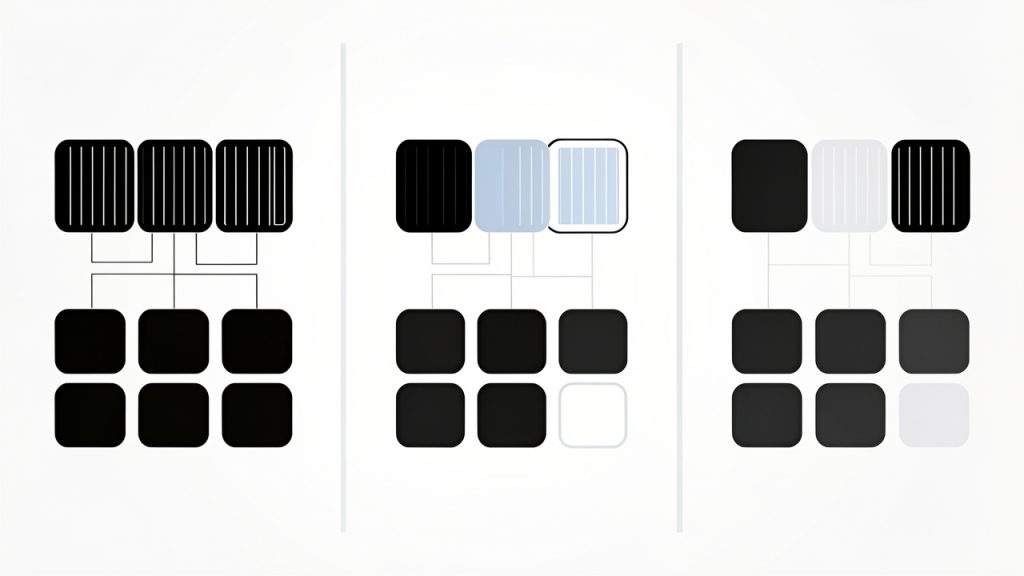
Base64 works in 24-bit blocks, which means it naturally processes 3 bytes at a time. If the input is not a multiple of 3 bytes, padding comes into play.
If there is 1 byte left, Base64 produces 2 meaningful characters and then adds ==.
If there are 2 bytes left, Base64 produces 3 meaningful characters and then adds =.
Padding tells the decoder how many real bytes were present. Some contexts, especially Base64URL, omit padding, but standard Base64 often includes it.
Common pitfalls: odd-length hex strings, leading zeros, and endianness
The first common problem is an odd-length hex string. Since each byte requires two hex digits, a value like abc is incomplete as written. In practice, this is usually interpreted by prepending a zero nibble, turning it into 0abc.
The second issue is leading zero bytes. If your real data begins with 00, those bytes matter. A sloppy conversion routine may accidentally drop them if it treats the value as a number instead of as raw bytes.
The third issue is endianness. Hex strings often represent bytes in a specific order. If a system gives you a multi-byte integer in little-endian order and you blindly convert it, your Base64 result may be technically valid but semantically wrong. Always confirm whether the hex represents raw bytes, a displayed integer, or a serialized structure.
Practical Methods: Tools and Code Examples to Convert Hex into Base64
Online tools and quick converters
An online converter is the fastest option when the data is non-sensitive and you just need a quick answer. Paste the hex string, run the conversion, and copy the Base64 output.
Be careful with anything private, such as API secrets, encryption keys, authentication tokens, customer files, or internal binary data. For sensitive material, prefer a local command-line tool or a short script on your own machine.
Command-line methods: OpenSSL, xxd, base64, and common shells
On Linux, macOS, and WSL, a reliable pattern is to decode hex into bytes first, then Base64-encode those bytes.
echo -n '4d616e' | xxd -r -p | base64
Output:
TWFu
To avoid line wrapping on some systems:
echo -n '4d616e' | xxd -r -p | base64 | tr -d 'n'
Using OpenSSL:
echo -n '4d616e' | xxd -r -p | openssl base64 -A
If the hex length is odd, pad it first:
hex='abc'
[ $(( ${#hex} % 2 )) -eq 1 ] && hex="0$hex"
echo -n "$hex" | xxd -r -p | base64
To convert Base64 back to hex:
echo -n 'TWFu' | base64 -d | xxd -p -c 999
For binary files already on disk, you do not need hex at all. But if you have a hex dump in a file:
xxd -r -p input.hex | base64 > output.b64
JavaScript: browser and Node.js examples
In Node.js, Buffer makes this easy because it understands both encodings.
const hex = '4d616e';
const b64 = Buffer.from(hex, 'hex').toString('base64');
console.log(b64); // TWFu

const backToHex = Buffer.from(b64, 'base64').toString('hex');
console.log(backToHex); // 4d616e
To handle odd-length hex safely:
function hexToBase64(hex) {
  const clean = hex.trim().replace(/^0x/, '');
  const padded = clean.length % 2 ? '0' + clean : clean;
  return Buffer.from(padded, 'hex').toString('base64');
}

console.log(hexToBase64('abc')); // Crw=
In the browser, there is no native Buffer by default, so you usually convert through a typed array:
function hexToBytes(hex) {
  const clean = hex.trim().replace(/^0x/, '');
  const padded = clean.length % 2 ? '0' + clean : clean;
  const bytes = new Uint8Array(padded.length / 2);
  for (let i = 0; i < padded.length; i += 2) {
    bytes[i / 2] = parseInt(padded.slice(i, i + 2), 16);
  }
  return bytes;
}

function bytesToBase64(bytes) {
  let binary = '';
  for (const b of bytes) binary += String.fromCharCode(b);
  return btoa(binary);
}

function base64ToHex(b64) {
  const binary = atob(b64);
  return Array.from(binary, c =>
    c.charCodeAt(0).toString(16).padStart(2, '0')
  ).join('');
}

const b64 = bytesToBase64(hexToBytes('4d616e'));
console.log(b64); // TWFu
console.log(base64ToHex(b64)); // 4d616e
Python: built-in libraries
Python has excellent built-in support through bytes.fromhex() and base64.
import base64

hex_str = "4d616e"
raw = bytes.fromhex(hex_str)
b64 = base64.b64encode(raw).decode("ascii")
print(b64)  # TWFu

back = base64.b64decode(b64)
print(back.hex())  # 4d616e
Handling odd-length hex:
import base64

def hex_to_base64(hex_str):
    clean = hex_str.strip().removeprefix("0x")
    if len(clean) % 2 == 1:
        clean = "0" + clean
    return base64.b64encode(bytes.fromhex(clean)).decode("ascii")

print(hex_to_base64("abc"))  # Crw=
Other languages: Java, Go, and Ruby
Java:
import java.util.Base64;

public class Main {
    public static void main(String[] args) {
        String hex = "4d616e";
        byte[] bytes = hexStringToByteArray(hex);
        String b64 = Base64.getEncoder().encodeToString(bytes);
        System.out.println(b64); // TWFu
    }

    static byte[] hexStringToByteArray(String s) {
        if (s.length() % 2 != 0) s = "0" + s;
        byte[] data = new byte[s.length() / 2];
        for (int i = 0; i < s.length(); i += 2) {
            data[i / 2] = (byte) ((Character.digit(s.charAt(i), 16) << 4)
                                + Character.digit(s.charAt(i + 1), 16));
        }
        return data;
    }
}
Go:
package main

import (
    "encoding/base64"
    "encoding/hex"
    "fmt"
)

func main() {
    hexStr := "4d616e"
    bytes, _ := hex.DecodeString(hexStr)
    b64 := base64.StdEncoding.EncodeToString(bytes)
    fmt.Println(b64) // TWFu
}
Ruby:
require 'base64'

hex = '4d616e'
hex = '0' + hex if hex.length.odd?
bytes = [hex].pack('H*')
b64 = Base64.strict_encode64(bytes)
puts b64 # TWFu

puts Base64.decode64(b64).unpack1('H*') # 4d616e
Step-by-Step Examples (Worked Examples)
Simple ASCII example: Man
The classic example is the ASCII string Man, whose hex representation is 4d616e.
We already saw the bit-level breakdown:
4d=0100110161=011000016e=01101110
Joined together:
010011 010110 000101 101110
Mapped through the Base64 alphabet:
T W F u
Final result: TWFu
You can reproduce it on the command line:
echo -n '4d616e' | xxd -r -p | base64
Binary data example: small PNG chunk
A PNG file begins with the well-known signature:
89504e470d0a1a0a
That hex sequence represents the first 8 bytes of a PNG file. Converting it to Base64 gives:
echo -n '89504e470d0a1a0a' | xxd -r -p | base64
Output:
iVBORw0KGgo=
If you have seen embedded PNG images on the web, that prefix may look familiar. Many PNG data URIs start with iVBORw0KGgo... because that is the Base64 form of the PNG header.
Edge cases: odd-length hex string and leading zero bytes
Suppose the hex string is abc. That is 3 hex digits, which means 12 bits, not a whole number of bytes. If the intent is raw bytes, the safest correction is to interpret it as 0abc.
Command:
echo -n '0abc' | xxd -r -p | base64
Output:
Crw=
Now consider leading zeros:
0001ff
Those first two zero bytes must not disappear. If they do, the Base64 output changes because the underlying bytes changed. Good conversion tools preserve them because they operate on bytes, not numeric values.
Debugging and Validation: How to Verify Your Conversion
Round-trip test: hex → Base64 → hex
The simplest validation is a round trip. Convert hex to Base64, then decode the Base64 back into hex. If the final hex matches the original normalized input, your conversion is correct.
On the command line:
hex='4d616e'
b64=$(echo -n "$hex" | xxd -r -p | base64 | tr -d 'n')
echo -n "$b64" | base64 -d | xxd -p -c 999
If your original had odd length, compare against the padded version such as 0abc, not the original shorthand.
Checksum and file comparison methods
For files or large payloads, compare the actual bytes rather than visually inspecting strings. You can decode both versions and use cmp, diff, or checksums like SHA-256.
Example:
xxd -r -p input.hex > a.bin
base64 -d input.b64 > b.bin
cmp a.bin b.bin && echo "Match"
This is especially useful when line wrapping, padding, or whitespace may differ while the binary content remains identical.
Common error messages and what they mean
If you see errors such as invalid character, the Base64 input may contain spaces, line breaks, or URL-safe characters in a standard decoder.
If you see incorrect padding, the Base64 string may be truncated or missing required = characters. Some decoders are forgiving, but many are strict.
If a hex decoder reports non-hex character or odd-length string, clean the input first. Remove prefixes like 0x, strip whitespace, and pad odd-length input if appropriate.
Security and Performance Considerations
When Base64 may leak information or increase risk
Base64 is not encryption. It only changes representation. If you put secrets into Base64 and log them, send them in URLs, or expose them in browser-visible markup, they are still secrets, just easier to move around.
That matters in APIs, build logs, CI pipelines, and support tickets. A Base64-encoded private key is still a private key. A Base64-encoded access token is still an access token.
Safe handling of sensitive binary data
If the content is sensitive, avoid browser-based tools and public converters. Use local utilities or scripts. Also avoid writing secrets to shell history, terminal scrollback, debug logs, and analytics events.
In application code, prefer byte arrays or streams over repeated string conversions. Each conversion can create extra copies in memory, which increases exposure time and garbage collection pressure.
Performance: large files and streaming
For small values such as fingerprints, signatures, and API fields, performance is irrelevant. For large files, it matters.
Base64 adds about 33% overhead, so sending a 100 MB binary file as Base64 can push it to roughly 133 MB before additional JSON or transport framing. That affects bandwidth, memory, and latency.
For large inputs, use streaming tools instead of loading everything into memory at once. Command-line utilities like openssl base64 and many language libraries support stream-based processing, which is safer and more efficient.
Common Use Cases and Examples in the Real World
Embedding binary assets in JSON or XML APIs
Many APIs avoid raw binary in JSON because JSON is text-only. Base64 is the standard compromise. An image, PDF, or signature can be encoded into Base64 and placed inside a field.
Hex can work too, but it is larger. That is why Base64 is usually chosen for transport, while hex is reserved for identifiers, hashes, or debugging.
JWTs and cryptographic fingerprints
This is a common source of confusion. JWT segments use Base64URL, not standard Base64. That means + becomes -, / becomes _, and padding is often omitted.
A SHA-256 digest might be displayed in hex for readability, but an API may require that same digest in Base64 or Base64URL. The bytes are identical. Only the textual representation changes.
See tools for working with JWTs when you need to inspect or convert token segments.
Email attachments and MIME encoding
Email systems have long relied on Base64 because attachment data must survive text-oriented transport rules. If you are generating or inspecting MIME messages, you will often encounter Base64 blocks representing binary files.
Hex appears much less often in that context because it is less space-efficient.
Data URIs in HTML and CSS
A classic web example is the data URI:
data:image/png;base64,iVBORw0KGgo=...
That iVBORw0KGgo= prefix comes from the PNG signature bytes. This is a practical case where converting binary or hex into Base64 helps embed assets directly in markup or stylesheets.
Quick Reference: Cheatsheet and Command Summary
Single-line CLI conversions
| Task | Command |
|---|---|
| Hex to Base64 | echo -n '4d616e' | xxd -r -p | base64 |
| Hex to Base64 with OpenSSL | echo -n '4d616e' | xxd -r -p | openssl base64 -A |
| Base64 to hex | echo -n 'TWFu' | base64 -d | xxd -p -c 999 |
| Hex file to Base64 file | xxd -r -p input.hex | base64 > output.b64 |
| Compare decoded outputs | cmp <(xxd -r -p a.hex) <(echo -n 'TWFu' | base64 -d) |
Short code snippets for popular languages
| Language | Hex to Base64 |
|---|---|
| Node.js | Buffer.from(hex, 'hex').toString('base64') |
| Python | base64.b64encode(bytes.fromhex(hex_str)).decode() |
| Go | base64.StdEncoding.EncodeToString(decodedBytes) |
| Ruby | Base64.strict_encode64([hex].pack('H*')) |
| Java | Base64.getEncoder().encodeToString(bytes) |
Common pitfalls checklist
- Clean the input: remove
0x, spaces, and line breaks. - Handle odd-length hex: prepend
0if the source format expects raw bytes. - Preserve leading zeros: treat the value as bytes, not as an integer.
- Use the right variant: standard Base64 and Base64URL are not the same.
- Validate with a round trip: convert back and compare normalized hex.
Frequently Asked Questions
Can I convert any hex string to Base64?
Yes, as long as it represents valid bytes. That means only hex characters are allowed. If the length is odd, decide whether to pad with a leading zero or whether the source data is malformed.
What is the difference between Base64 and Base64URL?
Base64URL is a URL-safe variant. It replaces + with - and / with _, and often omits = padding. It is common in JWTs, web tokens, and URL parameters.
How do I handle very large hex files?
Do not load the entire file into memory if you can avoid it. Use streaming command-line tools or stream-capable libraries. Decode the hex into bytes in a pipeline, then encode those bytes into Base64.
Why does my conversion produce padding or strange characters?
Padding with = is normal in standard Base64 when the byte length is not divisible by 3. Strange output usually means you decoded text with the wrong character assumptions, used the wrong Base64 variant, or accidentally treated a binary value as a number.
Conclusion and Next Steps
Converting hex into Base64 is simple once you remember the core rule: hex and Base64 are just two different text encodings of the same bytes. Hex is easier to inspect. Base64 is more compact for transport. Most bugs come from mishandling bytes, not from the encoding itself.
Your next step is practical. Try a few round-trip conversions with the examples above, then test your own real-world values with a local script or command-line pipeline. If this is something you do often, create a small gist, shell alias, or utility script so you can convert and validate safely in seconds.