Need a favicon, app icon, or legacy website asset in a more usable format? Converting an ICO file to PNG is one of those small tasks that becomes surprisingly important when you are updating branding, building a website, preparing UI assets, or simply trying to open an old icon file on a modern device.
For small business owners, freelancers, developers, and productivity-focused users, the goal is usually simple: get a clean PNG image from an ICO file quickly, without quality loss or unnecessary software. The good news is that the process is straightforward once you understand how ICO files work, what can go wrong during conversion, and how to choose the right output for your use case.
What Is an ICO to PNG Conversion?
An ICO to PNG conversion means taking an icon file in the Windows .ico format and turning it into a .png image file. While that sounds basic, ICO files are a little unusual compared with standard image formats.
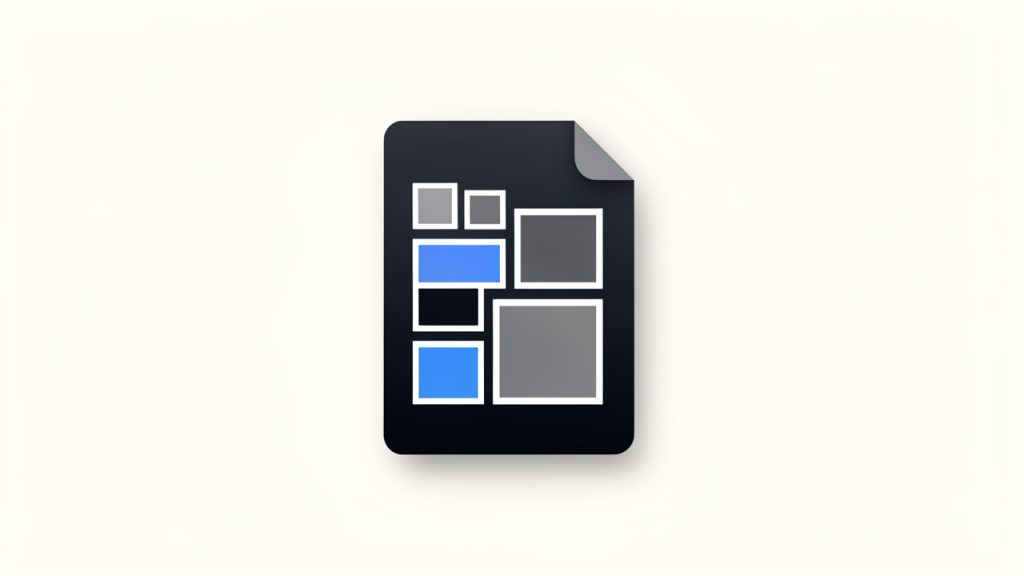
An ICO file often contains multiple versions of the same icon inside one file. These versions may vary by size, color depth, or resolution. For example, a single ICO file might include 16×16, 32×32, 48×48, and 256×256 pixel versions of the same icon. That makes the format useful for software, desktop shortcuts, and favicons, because systems can choose the most appropriate size automatically.
PNG, by contrast, is typically a single raster image with support for transparency and strong image quality. It is widely used across websites, apps, design tools, presentations, and digital documents. When people search for how to convert an ICO file to PNG, they are usually trying to make the icon easier to edit, preview, share, or reuse.
Why People Convert ICO Files to PNG
The most common reason is compatibility. Many everyday tools, from design platforms to content editors, handle PNG files more gracefully than ICO files. If you want to drag an icon into a slideshow, upload it to a website builder, or edit it in a graphics tool, PNG is often the easier option.
Another reason is visual control. Because PNG files are simple, visible image assets, they are easier to inspect. You can see whether the icon looks crisp, whether the transparent backgrounds are preserved, and whether the exported size fits your project.
There is also a practical workflow benefit. If you are managing digital assets for a brand, a SaaS product, or a client project, PNG files integrate more naturally into file libraries, cloud drives, and design systems. ICO files are great for specific technical uses, but PNG is often the format people actually work with day to day.
ICO vs PNG at a Glance
| Format | Best Use | Key Strength | Limitation |
|---|---|---|---|
| ICO | Favicons, Windows icons, software assets | Can store multiple icon sizes in one file | Less convenient for editing and general sharing |
| PNG | Web graphics, UI assets, presentations, design workflows | High quality with transparency support | Usually contains only one image size per file |
Key aspects of converting an ICO file to PNG
A good conversion is not just about changing the file extension. The real issue is whether the output PNG matches the quality, size, and transparency you need. That matters more than most users expect.
Size selection matters
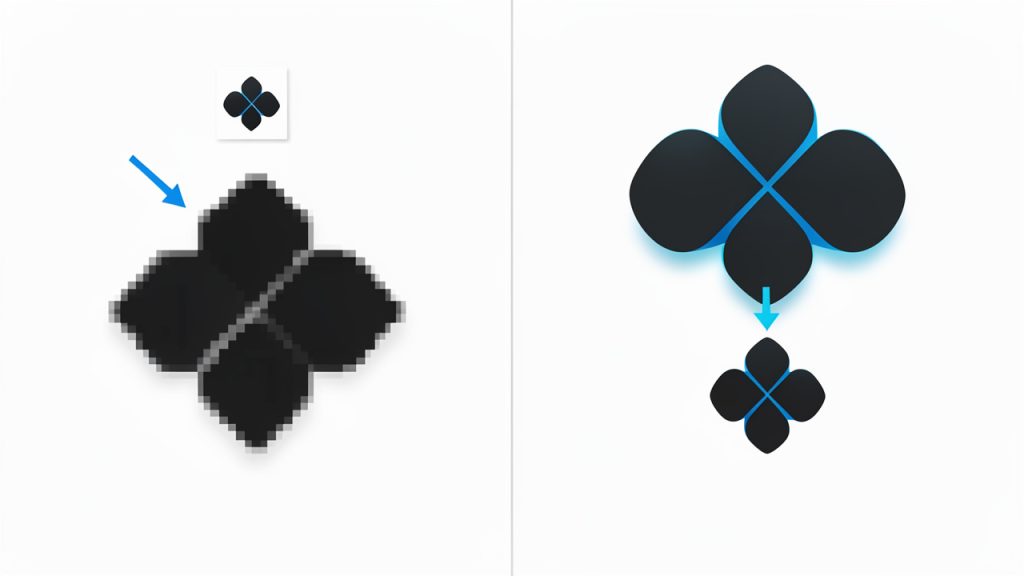
Because ICO files can include several icon sizes, the conversion tool or software may ask you which version to export. This is important. If you accidentally export the 16×16 version when you need a 256×256 PNG, the image will look blurry when enlarged.
For website work, a small PNG may be fine if the icon is only being used in tight interface spaces. For branding, app mockups, documentation, or marketplace listings, you will want the largest embedded icon size available. Starting from the highest-resolution version gives you more flexibility.
Think of it like choosing a source photo before printing. If you begin with a tiny image, no conversion tool can magically create sharp detail that was never there.
Transparency should be preserved
One of the biggest reasons people prefer PNG is its support for transparent backgrounds. Many ICO files also support transparency, but not every converter handles it equally well.
A poor conversion may add a black, white, or jagged background around the icon edges. That becomes obvious when you place the PNG on a colored website section, a dark app theme, or marketing material. If clean visual integration matters, always check the output on both light and dark backgrounds.
For logos, UI icons, and interface graphics, transparency is not a minor detail. It is often the difference between a professional-looking result and something that feels broken.
Quality depends on the source file
Not every ICO file is high quality. Some older icons were designed for very small screens and limited color palettes. Converting those icons to PNG does not improve them automatically. It simply makes them easier to use in modern tools.
If the source icon looks pixelated, soft, or outdated, the PNG will reflect those same limitations. That is why it helps to inspect the ICO file before relying on it for public-facing materials. In some cases, recreating the icon as SVG or designing a fresh PNG asset may be the better long-term move.
Online converters vs installed software
Many users want a free online ICO to PNG converter because it is fast and requires no installation. For basic tasks, online tools are often enough. You upload the file, select the output, and download the PNG.
That said, local software can be a better choice when you care about privacy, batch processing, or more precise control over export size and quality. If the icon is part of unreleased software, internal branding, or client-sensitive work, keeping the conversion offline may be the smarter path.
The right option depends on the context. Convenience is valuable, but so are security and consistency.
Common issues during conversion
Several problems show up repeatedly when converting from ICO to PNG. The first is exporting the wrong embedded size. The second is losing transparency. The third is mistaking a low-resolution icon for a high-quality one just because the file converted successfully.
There can also be workflow confusion. Some users believe they can rename .ico to .png and get a working image. That does not actually convert the file format. A proper conversion reads the icon data and exports a valid PNG image.
If you handle digital assets regularly, it helps to build a simple habit: convert, preview, verify transparency, and store the file with a clear size label.
How to get started with converting an ICO file to PNG
If your goal is speed, the process is easier than it looks. You do not need to be a designer or developer to get good results, but you do need to make a few smart choices.
A simple conversion workflow
Use this short process when converting an ICO file to PNG:
- Choose the source ICO file, the file that contains the icon you want to export.
- Open it in a trusted converter or image tool that supports ICO files.
- Select the largest or most appropriate size for your intended use.
- Export as PNG and save the file with a descriptive name.
- Preview the PNG on different backgrounds to confirm transparency and clarity.
This takes only a minute, but it prevents the most common mistakes.
Choosing the right PNG for the job
Not every output PNG should be treated the same way. If you are converting an icon for a website interface, file size may matter more than maximum resolution. If you are preparing assets for a client presentation or a product page, visual crispness may be the priority.
A practical way to decide is to start with the largest available icon, then create smaller PNG versions later if needed. This gives you a clean master asset while keeping your workflow flexible.
For teams and freelancers, naming helps more than people realize. A filename like brand-icon-256.png is far more useful than icon-final-new2.png. Good naming saves time when assets are shared across projects and collaborators.
Best use cases for converting an ICO file to PNG
A PNG converted from ICO can be useful in many real-world situations. It may be dropped into a website builder, inserted into onboarding documentation, used inside a social media graphic, or added to a product mockup.
Developers often convert icons to PNG for design review or documentation. Small business owners may need a PNG version of an old favicon to use in ads, slide decks, or branded forms. Freelancers may need to extract icon assets from legacy client files and make them editable in modern design workflows.
That is why this task shows up so often. It sits at the intersection of design, productivity, and compatibility.
When PNG is not the final destination
Sometimes PNG is only a stepping stone. You may convert from ICO to PNG to inspect the icon, place it in a layout, or hand it off to a designer who will recreate it in vector format later.
This is especially common when an icon needs to scale cleanly across many screen sizes. PNG is excellent for everyday use, but if you are building a modern brand system or UI library, you may eventually want SVG or another scalable format for the long term.
Still, PNG remains one of the most practical intermediate and final formats because it is widely supported, easy to preview, and simple to share.
Conclusion
Converting an ICO file to PNG is a small task with real practical value. It makes icon assets easier to edit, preview, upload, and reuse across websites, documents, apps, and marketing materials. The most important factors are choosing the correct embedded size, preserving transparency, and checking the output before using it publicly.
If you need to convert an ICO to a PNG today, start with a trusted tool, export the largest useful version, and verify how it looks on real backgrounds. That simple workflow will save time, reduce asset issues, and give you a cleaner image you can use almost anywhere.