
Converting a JPG to a BMP sounds simple, until image quality shifts, file sizes explode, or a once-sharp graphic suddenly becomes awkward to use in another program. If you have ever needed an image format for printing, legacy software, design work, or a device that refuses to accept JPG files, you have already run into this exact problem.
The good news is that turning a JPG image into BMP format is usually quick and straightforward. The more important question is when it makes sense, what changes during conversion, and how to do it without losing control over quality, size, or compatibility. For small business owners, freelancers, developers, and anyone using online tools to stay productive, understanding the difference can save time and prevent frustrating rework.
What is converting a JPG image to a BMP?
A conversion from JPG to BMP is the process of taking an image stored in JPG (or JPEG) format and saving it as a BMP bitmap file. Both formats store pictures, but they do it in very different ways. JPG is designed for efficient compression, which makes it ideal for web use, email attachments, and digital photos.
A JPG (or JPEG), an open description, is linked here for reference: https://en.wikipedia.org/wiki/JPEG. A BMP bitmap file is linked here: https://en.wikipedia.org/wiki/BMP_file_format.
That difference matters in real-world use. A JPG is usually much smaller, which is why it loads quickly and travels easily between apps and devices. A BMP is often much larger, but it can be easier for certain software to read, especially older Windows-based applications, image-processing tools, embedded systems, or workflows where compression artifacts are a problem.
When people search for a way to convert a JPG image to a BMP, they are often trying to solve a practical compatibility issue. Maybe a printer utility only accepts BMP files. Maybe a game asset pipeline needs bitmap images. Maybe a legacy application cannot correctly process JPEG compression. In each case, the conversion itself is easy, but choosing the right settings is where good results come from.
Why these formats exist side by side
JPG became dominant because it offers an excellent balance between visual quality and small file size. For photographs and general-purpose sharing, it works extremely well. The trade-off is that JPG uses lossy compression, which means some image information is discarded each time the file is compressed. See more about lossy compression here: https://en.wikipedia.org/wiki/Lossy_compression.
BMP takes a different approach. It is one of the oldest and simplest raster image formats, widely associated with Microsoft Windows. Because it often stores image data more directly, it can preserve the exact pixel layout without the compression behavior you get from JPG. That simplicity can be useful, even if it comes at the cost of much larger files.
A good way to think about it is this, JPG is built for efficiency, while BMP is built for straightforward storage and compatibility. Neither is universally better. The right choice depends on what you need the file to do next.
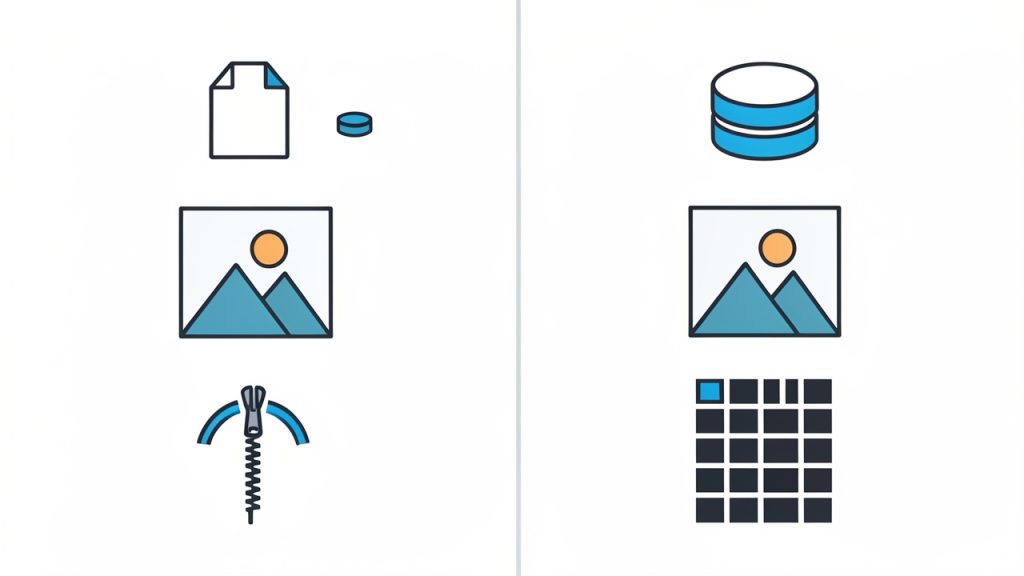
Caption: Efficiency (JPG) vs straightforward storage and compatibility (BMP).
Key aspects of converting a JPG image to a BMP
Before you convert a JPG file to BMP, it helps to understand what actually changes. The file extension changes, of course, but the deeper effects involve quality, compression, file size, transparency, and use case. These are the factors that determine whether the conversion is useful or just unnecessary extra weight.
File size usually increases significantly
The first surprise for most users is how much larger a BMP file can become. A compact JPG image that is only a few hundred kilobytes might become several megabytes after conversion. This is not a mistake. It is a consequence of BMP’s less compressed structure.
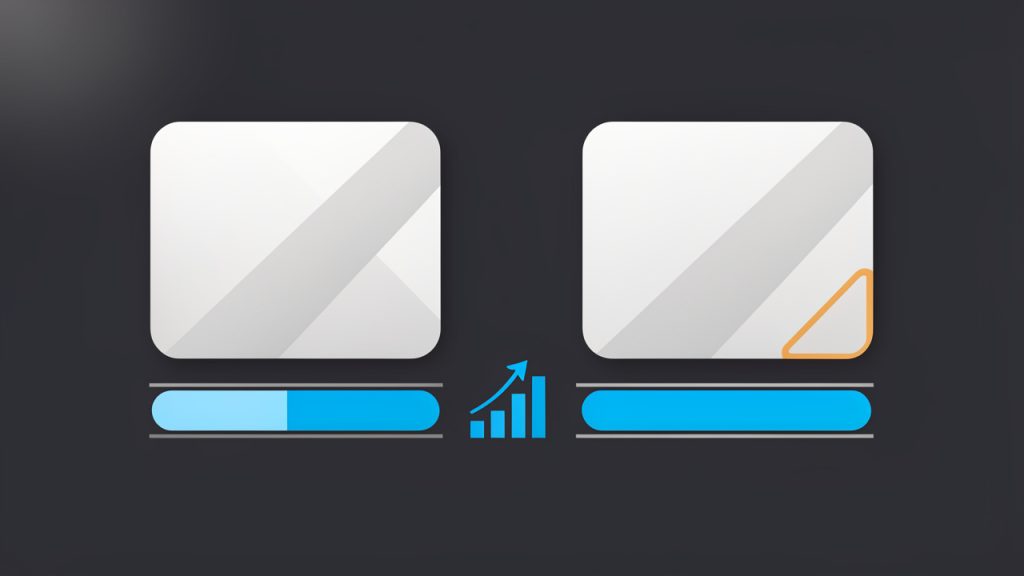
A compact JPG image that is only a few hundred kilobytes might become several megabytes after conversion. For businesses and freelancers, this matters when images need to be stored in bulk, uploaded to cloud systems, or shared with clients. A single conversion may be harmless, but converting an entire folder of JPG photos into BMP can quickly consume storage space and slow down workflows. If your goal is simply to change the file format for broad compatibility, BMP may be fine. If your goal is efficiency, it usually is not the best destination format.
Converting does not restore lost JPG detail
This is one of the most important points to understand. If a JPG image has already been compressed, converting it to BMP does not magically recover detail that was lost earlier. The BMP will store the image as it exists now, including any JPG artifacts such as blockiness, smoothing, or edge degradation.
That means a JPG-to-BMP conversion is best understood as a format change, not a quality upgrade. The resulting BMP can prevent further lossy compression if you continue editing, but it cannot recreate information that was already discarded when the JPG was made.
Imagine photocopying a document and then placing the copy in a premium folder. The folder may protect the copy from further damage, but it does not make the copied text sharper than it was to begin with. The same logic applies here.
BMP can improve software compatibility
Despite its age, BMP still matters in specific environments. Some desktop tools, industrial systems, documentation workflows, custom apps, and older Windows utilities work more reliably with bitmap images than with compressed formats like JPG. In these situations, converting a JPG image to a BMP is not about visual improvement. It is about predictable file handling.
Developers and technical users see this often. If a parser, import tool, or image library has limited format support, BMP can be the simplest bridge. The file may be larger, but it can be easier to process because the structure is less complex than modern compressed formats.
For non-technical users, the same principle applies in a simpler way. If a piece of software says “unsupported image format” when you upload a JPG, a BMP version may solve the problem immediately.
Image dimensions stay the same, but storage changes
When you convert a JPG to BMP, the pixel dimensions usually remain unchanged unless you explicitly resize the image. A 1200 x 800 image will still be 1200 x 800 after conversion. What changes is the way those pixels are stored.
This distinction is useful because many people confuse file size with image dimensions. A BMP may be dramatically larger in megabytes, yet look exactly the same on screen because the width and height are identical. The larger size reflects storage method, not necessarily a bigger visual image.
Color handling matters in some workflows
Most simple conversions preserve colors well enough for everyday use, but not every tool handles color profiles in exactly the same way. If your work depends on visual consistency, such as product photography, print preparation, UI design, or branded graphics, it is smart to inspect the converted BMP before using it in production.
Even small color shifts can matter when an image appears in marketing materials or customer-facing assets. A quick quality check after conversion can prevent mismatched visuals later.
JPG vs BMP at a glance
| Feature | JPG | BMP |
|---|---|---|
| Compression | Lossy, highly compressed | Usually uncompressed or lightly compressed |
| File Size | Small | Large |
| Best Use | Photos, web, sharing | Compatibility, editing workflows, legacy software |
| Image Quality Over Re-saves | Can degrade with repeated compression | More stable once saved |
| Software Support | Very broad | Broad, especially in Windows and older systems |
| Transparency Support | Limited in standard JPG | Typically limited in basic BMP workflows |
How to get started converting a JPG image to a BMP
If you need to convert a JPG image into BMP format, the actual process is usually fast. The smarter part is choosing the right method for your workflow. online tools are ideal for quick, occasional tasks. Built-in desktop tools work well for offline use. Batch-capable apps are better if you handle many files at once.
Choose the right conversion method
For most users, an online JPG-to-BMP converter is the fastest option. You upload the JPG file, let the tool process it, then download the BMP result. This works well for occasional conversions, especially when you do not want to install software.
If your images contain sensitive client material, internal documents, or unreleased creative assets, a local method may be better. Basic image editors on Windows and macOS often let you open a JPG and use “Save As” or “Export” to create a BMP file. This keeps the image on your device and reduces privacy concerns.
Developers and power users may prefer desktop tools with batch processing. When handling dozens or hundreds of files, automation matters more than convenience. In those cases, BMP is usually chosen because a downstream system specifically requires it.
A simple way to convert
The actual steps are usually short and familiar.
- Select your JPG file from your device or cloud storage.
- Choose BMP as the output format in the converter or editor.
- Convert and download the new bitmap file.
- Open the BMP to confirm the image looks correct and works in your target software.
These steps look simple because they are. What separates a good result from a frustrating one is the review afterward. Always open the converted file before sending it to a client, uploading it to a platform, or passing it into a production workflow.
What to check after conversion
After converting a JPG to BMP, verify that the image dimensions are correct, the colors look normal, and the file opens in the software that required the BMP format in the first place. A conversion is only successful if it solves the next step of your workflow.
It is also wise to check file size. If the BMP is too large for your intended use, that is not necessarily a problem with the converter. It may simply mean BMP is the wrong final format unless a specific system requires it. If the image is only being shared or displayed online, keeping it in JPG or switching to PNG may be more practical.
When an online tool makes sense
An online converter is especially useful when speed matters more than advanced settings. If you are preparing a one-off image for a vendor portal, a hardware utility, or a software import screen, the browser-based route is hard to beat. It removes friction and makes the task accessible to non-technical users.
That said, not all online tools are equal. A reliable tool should be easy to use, clear about supported formats, and quick to process standard file sizes. It should not force unnecessary account creation for simple conversions, and it should make downloads immediate and predictable.
Common mistakes to avoid
A few small mistakes cause most conversion problems. Users often assume BMP will improve image quality, when in fact it only preserves the current state of the JPG. Others forget how much the file size will grow and then struggle to upload or store the result. Another common issue is converting first and checking compatibility second, instead of testing the final BMP in the software that actually needs it.
The best approach is simple, convert with purpose. Know why you need BMP, confirm that BMP is truly required, and inspect the file once it is created. That discipline keeps image workflows clean and efficient.
Best use cases for BMP conversion
| Scenario | Is BMP a Good Choice? | Why |
|---|---|---|
| Uploading product photos to a website | Usually no | JPG is smaller and better for web delivery |
| Using images in older Windows software | Often yes | BMP may offer better compatibility |
| Editing after avoiding further JPG compression | Sometimes yes | BMP can preserve the current image state |
| Emailing files to clients | Usually no | BMP files are often too large |
| Importing into a specialized device or app | Yes, if required | Some systems explicitly expect bitmap files |
Conclusion
Converting a JPG image to a BMP is not complicated, but it is more than a basic file swap. It changes how the image is stored, usually increases file size, and can improve compatibility with software or systems that prefer bitmap files. What it does not do is restore detail lost to JPEG compression.
If you need a quick result, an online tool is often the easiest starting point. If privacy, batch processing, or software-specific requirements matter more, a local workflow may be the better fit. The next step is simple, take one JPG file, convert it to a BMP, open the result in your target application, and confirm that it solves the problem you actually need to solve.
Links referenced in this article:
- online tools: https://jntzn.com/
- email attachments: https://jntzn.com/tools/base64-encode-decode/
- JPG (or JPEG): https://en.wikipedia.org/wiki/JPEG
- BMP bitmap file: https://en.wikipedia.org/wiki/BMP_file_format
- lossy compression: https://en.wikipedia.org/wiki/Lossy_compression