JNTZN

Tag: image to pdf

  • How to Convert JPG Images to PDF — Easy Methods & Best Tools

    How to Convert JPG Images to PDF — Easy Methods & Best Tools

    A JPG can be opened almost anywhere, but it is often the wrong format when you need a document that looks polished, prints correctly, combines multiple pages, or stays intact when shared. That is why many people need to convert a JPG into a PDF, whether they are sending invoices, uploading application documents, archiving receipts, or turning phone snapshots into something more professional.

    The good news is that converting images to PDF is usually quick. In many cases, you do not even need to install anything. Windows, macOS, iPhone, iPad, and Android all offer built-in ways to save a JPG as a PDF, while online converters and desktop apps add batch processing, compression, OCR, and stronger editing controls.

    This guide covers the easiest ways to create a PDF from JPG files, the best tools for different needs, and the trade-offs that matter most, especially quality, privacy, file size, and convenience. If you only need a one-off conversion, there is a fast option for you. If you handle client documents, bulk image folders, or sensitive files, there is a better workflow for that too.

    Why Convert a JPG to a PDF?

    A JPG is ideal for a single image. A PDF is better when that image needs to behave like a document. That difference matters more than many users expect.

    For everyday work, PDFs solve several practical problems at once. They are easier to share in a professional context, more predictable when printed, and much better for bundling multiple pages into a single file. If you have ten receipt photos, a contract signature page, or a stack of scanned notes, sending them as separate image files is messy. Turning them into one PDF makes the result easier to open, store, annotate, and archive.

    PDF files also preserve layout more reliably across devices. A JPG can still be viewed almost anywhere, but it has no real concept of page order, document metadata, page size, or password protection. A PDF does. That is why PDFs are commonly preferred for forms, signed paperwork, reports, applications, invoices, and legal records.

    How JPG and PDF Differ

    A JPG, or JPEG, is an image format built for photographs and compressed graphics. It uses lossy compression, which means some image data is discarded to reduce file size. That is excellent for sharing photos quickly, but repeated saving can reduce clarity over time. A JPG is also usually a single image, not a true multi-page document.

    A PDF, by contrast, is a document container. It can hold one image or many images, along with text, metadata, fonts, annotations, links, and security settings. When you convert a JPG to a PDF, you are usually wrapping the image inside a document format rather than changing it into a text-editable file.

    That distinction explains a common misunderstanding. Converting a low-quality JPG into a PDF does not magically improve image sharpness. If the original image is blurry, the PDF will still be blurry. The best conversions preserve what you already have while giving you better structure, sharing, and output options.
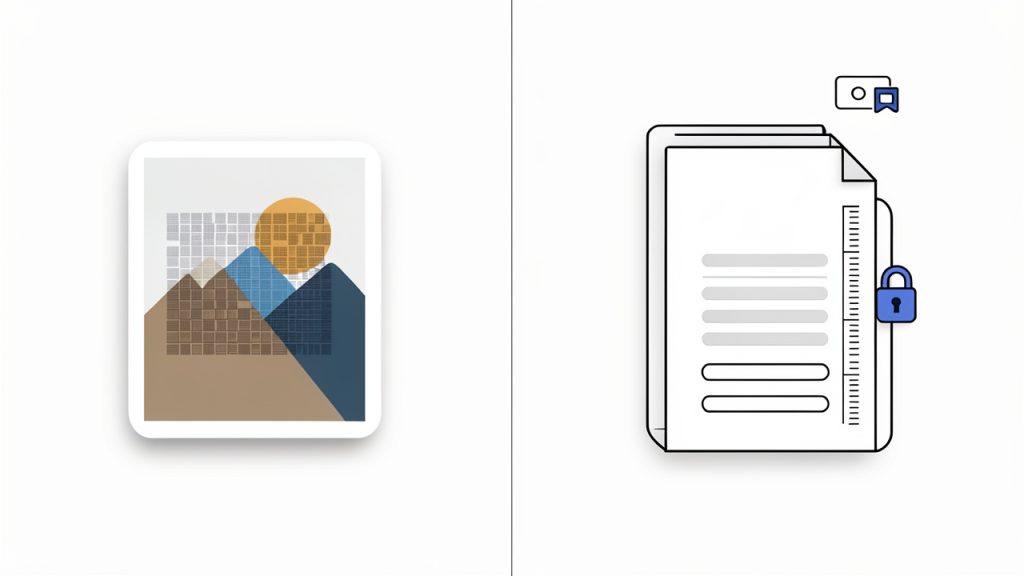
    Side-by-side illustration comparing a JPG (single floating photo) and a PDF (stack of pages in a document container with icons for metadata, password lock, and text layer). The JPG side shows lossy compression artifacts; the PDF side shows multiple pages, page size ruler, and a lock to indicate security.

    Fast Methods to Convert JPG to PDF

    If speed matters most, start with the tools already on your device. They are often enough for one-off tasks and basic multi-page PDFs.
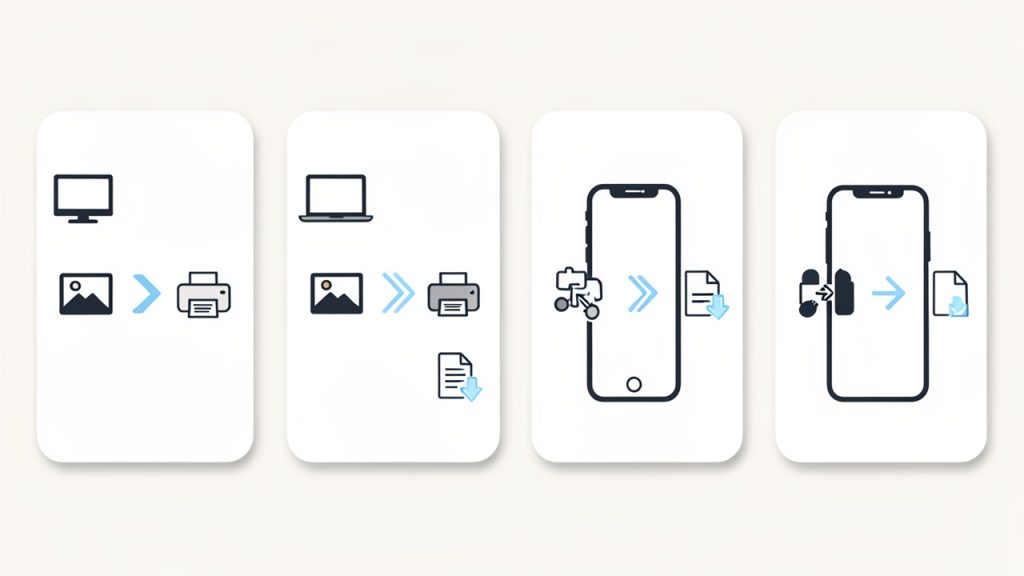
    A simple platform workflow graphic with four labeled panels/icons: Windows (Photos -> Print -> Microsoft Print to PDF), macOS Preview (Open in Preview -> Print -> Save as PDF), iPhone/iPad (Photos -> Share -> Print -> pinch-out -> Save), Android (Gallery/Photos -> Share/Print -> Save as PDF). Each panel shows the minimal tap/click sequence with small device icons.

    Windows 10 and Windows 11

    Windows includes Microsoft Print to PDF, which works with many image viewing apps. Open the JPG in Photos or another viewer, choose Print, then select Microsoft Print to PDF as the printer. After that, set paper size, quality, orientation, and fit options, then save the resulting PDF.

    If you want to combine multiple JPG files into one PDF, select all the images in File Explorer, right-click, and choose Print. Windows will let you arrange the images and output them into a single PDF file. Before saving, double-check page order. If filenames are inconsistent, Windows may sort them in an unexpected sequence.

    macOS Preview

    On a Mac, Preview is one of the easiest local tools for JPG-to-PDF conversion. Open one or more JPG files in Preview. If you are combining images, make sure the thumbnail sidebar is visible so you can drag pages into the correct order. Then choose File > Print, followed by Save as PDF from the PDF menu.

    Preview is especially useful for light cleanup. Before exporting, you can rotate pages, reorder them, or remove extras. For many users, that makes it a better option than uploading files to a website.

    iPhone and iPad

    On iPhone and iPad, you can turn a JPG into a PDF using the Share menu. In Photos, select the image, tap Share, then choose Print. On the print preview screen, pinch outward on the thumbnail preview. iOS will generate a PDF preview, which you can then share or save to Files.

    For multiple images, select them first in Photos, then repeat the same process. This method is slightly hidden, but it is reliable and does not require a third-party app. It is especially helpful when you need to send travel documents, receipts, or handwritten notes while away from your desk.

    Android

    Many Android devices support PDF creation through the Print option inside Google Photos, Files, or gallery apps. Open the image, tap Share or the menu icon, choose Print, then set Save as PDF as the destination. You can then save the file locally or upload it to cloud storage.

    The exact menu path varies by manufacturer, so Samsung, Pixel, and other Android phones may look slightly different. If your device supports selecting multiple images before printing, you can often combine them into a single PDF without extra software.

    Adobe Acrobat for More Control

    If you need professional output, Adobe Acrobat offers a cleaner workflow. You can create PDFs from images, combine many files into one document, reorder pages, compress large outputs, and apply OCR if the images contain text.

    This is the better choice when the PDF is going to a client, a court filing portal, a procurement system, or any environment where consistency matters. Acrobat is not the fastest tool for casual use, but it is one of the most complete.

    Best Free Online and Offline Tools for JPG-to-PDF Conversion

    Different users need different tools. Some want the fastest possible web converter. Others need offline privacy, batch processing, or mobile scanning. The options below cover the most useful choices.

    Quick Comparison

    Tool Best For Platform Free Option Batch Support OCR/Advanced Editing Privacy Fit
    Smallpdf Fast browser-based conversions Web Yes, limited Yes Limited on free tier Moderate
    ILovePDF Quick online workflows and file merging Web Yes Yes Some extra PDF tools Moderate
    PDFCandy Flexible free online PDF utilities Web/Desktop options Yes Varies Some editing tools Moderate
    Adobe Acrobat Pro Professional, secure, advanced workflows Desktop/Web Trial only Yes Strong High, especially local workflows
    Preview Free local conversion on Mac macOS Yes Yes Basic only High
    PDF24 Creator Free Windows desktop utility Windows Yes Yes Good utility set High
    Microsoft Lens Mobile scanning to PDF iOS/Android Yes Limited Strong scanning features Moderate to high
    Adobe Scan Clean mobile document capture iOS/Android Yes Limited OCR available Moderate
    CamScanner Mobile scanning and export iOS/Android Yes, often limited Limited Good scanning tools Moderate

    1. Smallpdf

    Screenshot of smallpdf.com

    Smallpdf is one of the easiest ways to convert a JPG into a PDF online. The interface is simple, the upload flow is smooth, and it works well for users who want a quick result without learning new software. For freelancers, students, and small teams doing occasional conversions, it is often the fastest route from image to shareable document.

    Key features include browser-based conversion with drag-and-drop upload, support for multiple JPGs so you can combine images into one PDF, easy page reordering before export, and a range of adjacent PDF tools such as compression and merging. Its advantages are convenience and a clean interface; the drawbacks are free usage limits and limited suitability for confidential files unless you trust the service. Advanced features require a paid plan.

    Website: https://smallpdf.com

    2. ILovePDF
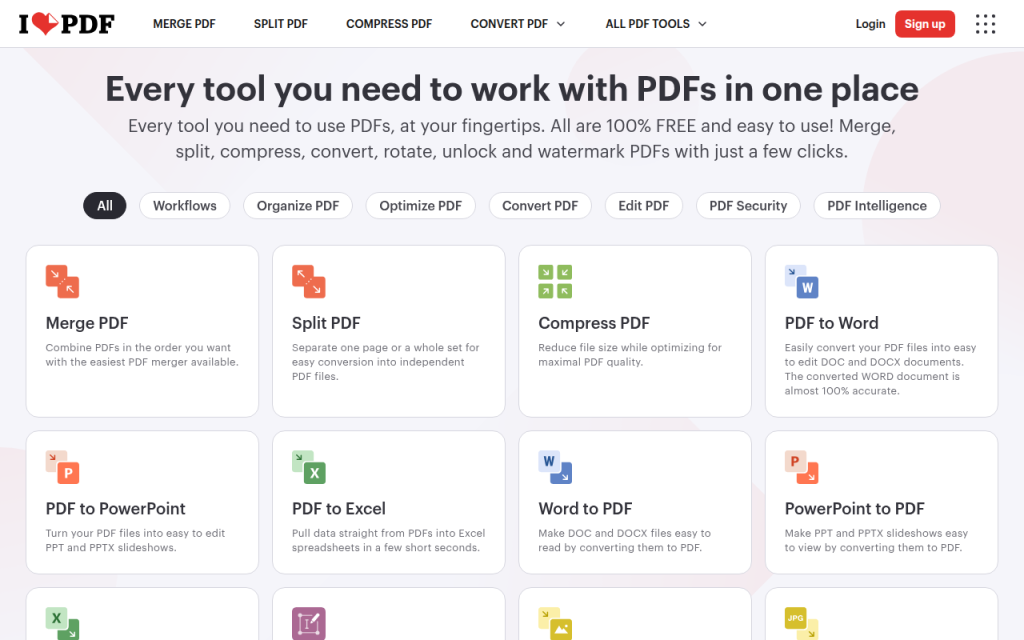
    Screenshot of ilovepdf.com

    ILovePDF combines a straightforward JPG-to-PDF converter with a broad toolkit for common document tasks. Upload one or more image files, choose orientation and page size, and convert. In addition to conversion, the platform offers merge, split, compress, and organize tools, and it integrates with cloud storage. It is a solid all-around option for small business owners who handle invoices, forms, and customer paperwork. Free limits apply for heavy use, and uploads may not be appropriate for highly sensitive documents without extra caution.

    Website: https://www.ilovepdf.com

    3. PDFCandy
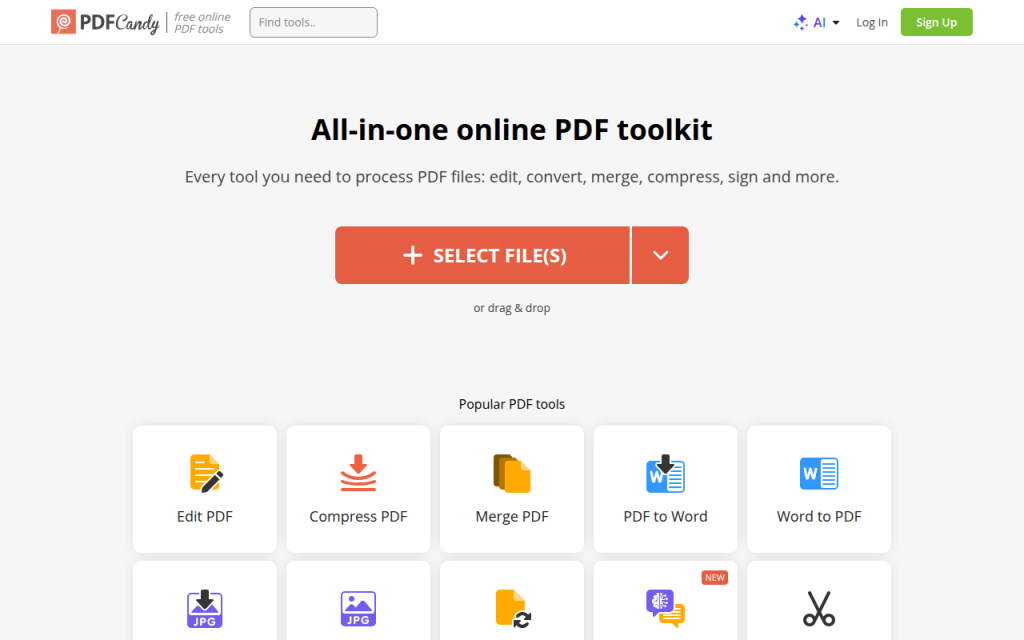
    Screenshot of pdfcandy.com

    PDFCandy is a flexible option for users who want more than a single conversion page. It offers image-to-PDF conversion alongside editing, compression, and other format conversion features, making it appealing for people who work across many file types. PDFCandy is useful when your workflow includes converting images one day, compressing PDFs the next, and extracting pages later on. It provides a wide feature set accessible through a simple browser workflow, with desktop options available in some cases. Performance depends on file size and browser, and privacy considerations apply to any online service.

    Website: https://pdfcandy.com

    4. Adobe Acrobat Pro

    Adobe Acrobat Pro is the professional benchmark for image-to-PDF conversion. It is not the lightest or cheapest option, but it is the tool people choose when the result needs to be dependable. If you regularly prepare client documents, submit paperwork to regulated systems, or need searchable PDFs with OCR, Acrobat earns its place.

    Its advantages are depth of capability: combine many images, optimize file size, run OCR, add passwords, edit page order, redact content, and export in various formats. The downsides are cost and complexity for casual users. Acrobat is usually sold as a subscription.

    Website: https://www.adobe.com

    5. Preview

    Preview is the unsung hero for Mac users. It is free, built in, and surprisingly capable for creating PDFs from JPG files. You can open images, arrange them visually, rotate or delete pages, and export everything into a single PDF without uploading anything. For privacy-conscious users, that local workflow is a major advantage. The main limitation is that Preview is macOS-only and does not provide advanced OCR or enterprise features.

    Website: https://www.apple.com/macos/preview

    6. PDF24 Creator

    PDF24 Creator is a strong free desktop option for Windows users who want offline control. It is particularly useful for batch conversions, merging files, and performing utility tasks without sending anything to the web. Think of it as a local PDF workstation: it is not as polished as Acrobat, but it covers common needs such as file assembly, compression, and document creation while keeping everything on your machine.

    The tool is free, works offline, and is ideal for repeated document tasks; the trade-off is a utilitarian interface and Windows-only availability.

    Website: https://tools.pdf24.org

    7. PDFsam

    PDFsam is known for splitting and merging PDFs and is useful in a JPG-to-PDF workflow when you need to organize and refine PDFs after creating them. If your images are already in PDF form, PDFsam helps you combine sets, reorder sections, and prepare cleaner final packages. It is a smart companion tool for larger workflows. There is a free basic version and paid editions for expanded capabilities.

    Website: https://pdfsam.org

    8. ImageMagick

    ImageMagick is a powerful choice for developers, IT teams, and power users who want scripted or repeatable conversion workflows. It is excellent when you need automation, server-side processing, or command-line control over many files at once. Use ImageMagick to automate repeated conversions, rename files systematically, or integrate image handling into scripts. The learning curve is steeper and PDF policy settings on some systems may require troubleshooting, but ImageMagick is open source and free.

    Website: https://imagemagick.org

    9. Microsoft Lens
    Screenshot of microsoft.com

    Microsoft Lens is one of the best mobile apps for turning photos into useful PDFs. It is especially strong for scanning documents, whiteboards, receipts, and notes rather than simply wrapping an existing photo into a PDF. Lens crops edges, improves readability, and integrates with Microsoft 365 workflows, which is helpful if you use Outlook, OneDrive, Word, or Teams. The app is free and works well for mobile professionals who need cloud handoff and decent scan quality.

    Website: https://www.microsoft.com

    10. Adobe Scan

    Adobe Scan is a polished mobile app for turning camera captures into PDFs quickly. It is particularly effective for receipts, contracts, handwritten notes, and other documents that need cleanup before export. The app offers good auto-detection, cropping, and OCR integration so scanned text can become searchable. Adobe Scan is free to start, with expanded capabilities tied to Adobe services.

    Website: https://www.adobe.com/acrobat/mobile/scanner-app.html

    11. CamScanner
    Screenshot of camscanner.com

    CamScanner is a popular mobile option for converting photographed documents into PDFs on the go. It provides enhancement filters, cropping tools, and a mobile-first convenience that suits freelancers, students, field staff, and small teams. It works best when the source is a physical page rather than an already clean digital image. Be aware of export limits, potential watermarks on free plans, and privacy terms before relying on any cloud-based scanning app for sensitive paperwork.

    Website: https://www.camscanner.com

    When to Use an Online Tool vs an Offline App

    Online converters are best when the job is simple, the files are not sensitive, and speed matters more than anything else. If you have two JPGs from a product manual or a non-confidential receipt, a browser-based tool is often the easiest answer.

    Offline tools are better when the images contain personal data, financial details, legal documents, medical information, contracts, or client records. They are also the smarter choice for batch jobs, recurring workflows, and anyone who wants predictable output without upload limits.

    A useful rule is simple: if you would hesitate to email the image openly, you should probably not upload it to a random converter either.

    Advanced Tips for Better PDF Results

    Quality problems usually begin before conversion. If the original JPG is small, heavily compressed, rotated incorrectly, or poorly lit, the resulting PDF will inherit those flaws. Check image resolution, orientation, and cropping before creating the PDF.

    For text-heavy images, OCR can be transformative. OCR, or optical character recognition, turns an image-based PDF into a searchable document so you can select text, search inside the file, and improve accessibility. Adobe Acrobat, Adobe Scan, and some other tools do this well, but accuracy depends on image clarity and contrast.

    Compression also deserves care. Aggressive compression reduces file size, but it can blur text and damage readability, especially with receipts, forms, and thin lines. For archival or print-ready documents, aim for moderate compression and test the output before sending.

    Privacy, Security, and Legal Considerations

    Privacy is a common blind spot. Web tools are safe enough for ordinary use, but not all services handle uploads the same way. Some delete files quickly; others retain them longer. Some process files server-side, while others use more privacy-friendly methods.

    Before uploading anything sensitive, read the provider’s privacy policy and retention terms. Look for automatic deletion, encryption in transit, account requirements, and whether files are used for service improvement or analytics. If you handle HR records, tax forms, ID documents, signed contracts, or health data, local processing is the safer route.

    If the PDF contains sensitive content, consider adding password protection or redacting information after conversion. Passwords restrict opening or editing, while redaction permanently removes visible and hidden sensitive content rather than simply covering it up.

    Troubleshooting Common JPG-to-PDF Problems

    If your PDF looks blurry, the most common cause is a low-resolution source image or excessive compression during export. Start with a higher-quality JPG, choose a larger paper size, or disable aggressive optimization. Scanned text should remain crisp enough to read at normal zoom; if it does not, fix the image quality first.

    If the page orientation is wrong, rotate the image before conversion when possible. Some systems interpret photo orientation based on EXIF metadata, which can produce surprises. Preview on macOS is especially good for correcting this before export. On Windows, checking the print preview carefully can save frustration.

    Large file sizes usually come from high-resolution photos, many pages, or minimal compression. If the file is too big to upload or email, run it through a trusted compression tool afterward and review the compressed result carefully, especially if the document contains fine print.

    If you cannot combine multiple images into one PDF, the issue is usually the workflow, not the files. On Windows, select all images together before printing to PDF. On Mac, open them in one Preview window and arrange them in the sidebar. In online tools, make sure multi-file upload is supported before converting.

    When to Use JPG vs PDF

    Use a JPG when the file is truly just an image, such as a product photo, social media graphic, or casual snapshot. It is lightweight, widely supported, and easy to insert into websites, slides, and chat messages.

    Use a PDF when the image needs to function like a document. That includes job applications, invoices, signed forms, proposals, receipts, scanned IDs, handouts, and archive files. If order, print consistency, professionalism, or security matters, PDF is usually the better choice.

    A helpful mental shortcut: if the recipient needs to view a picture, send a JPG. If they need to review a document, send a PDF.

    Recommended Workflows

    For a one-time personal conversion, use your device’s built-in tools first. They are fast, free, and private enough for ordinary needs. On Mac, use Preview. On Windows, use Print to PDF. On iPhone or Android, use the Print-to-PDF share flow.

    For business use, especially with repeated conversions, adopt a deliberate workflow: standardize filenames, check page order before export, compress only after reviewing readability, and keep a local copy of the original images. That reduces errors when you need to resend or revise the document later.

    For confidential files, stay offline whenever possible. Convert locally, apply OCR only if needed, add passwords when sharing, and use proper redaction tools if sensitive content must be removed. This is the safer path for legal, HR, finance, and healthcare-adjacent workflows.

    Appendix: Quick Reference for Power Users

    For advanced users, command-line tools can automate repeated conversions and bulk jobs. ImageMagick is a common choice, although configuration varies by system and some installations restrict PDF operations by default for security reasons.

    Common patterns include converting multiple JPG images into a single PDF via command-line tooling, then optimizing the resulting PDF with Ghostscript for compression. These tools are best suited to developers, IT admins, and anyone building repeatable automation rather than occasional manual conversions.

    The best way to convert a JPG into a PDF depends on what you care about most. If you want speed, use Smallpdf, ILovePDF, or your device’s built-in print features. If you want privacy and offline control, stick with Preview, PDF24 Creator, or Adobe Acrobat on desktop. If you want to capture paper documents from a phone, Microsoft Lens, Adobe Scan, and CamScanner are strong mobile options.

    The next step is simple. Pick the method that matches your situation, run a test conversion, and check three things before you send the file: clarity, page order, and file size. Those three checks prevent most problems and turn a quick image export into a document you can send with confidence.
  • Convert JPG to PDF Online Quickly and Securely

    A simple image file can slow down an entire workflow. You scan a receipt, export a design mockup, or snap a document photo on your phone, and suddenly you need it in a format that is easier to share, print, archive, or submit. That is where the need to convert JPG to PDF online becomes practical, not just convenient.

    For small business owners, freelancers, developers, and anyone who values speed, online conversion tools solve a very common problem in seconds. You do not need heavy desktop software, advanced design skills, or complicated setup. You upload a JPG, adjust a few options if needed, and download a PDF that is easier to send to clients, attach to forms, or store in a more professional format.

    The appeal goes beyond simplicity. A PDF looks consistent across devices, feels more polished in business settings, and can combine multiple images into a single file. If you often work with invoices, contracts, portfolios, screenshots, reports, or photographed paperwork, learning how to convert JPG to PDF online can save time and reduce friction in your daily process.

    What is convert JPG to PDF online?

    At its core, convert JPG to PDF online means using a web-based tool to transform one or more JPG image files into a PDF document directly in your browser. Instead of installing software on your computer, you use an online service that processes the image and packages it into a PDF file you can download immediately.

    This matters because JPG and PDF serve different purposes. A JPG is an image format. It is excellent for photos and visual content, but it is not always ideal for document workflows. A PDF, by contrast, is designed for sharing fixed-layout files. It preserves the look of the content, works well for printing, and is widely accepted for business, legal, and administrative use.

    In practical terms, converting a JPG to a PDF is often less about changing the visual itself and more about changing the container. The image remains visible, but it becomes part of a more structured, shareable document type. That distinction is important if you need to send paperwork, combine multiple scans, or present content in a more formal format.

    Online conversion is especially useful for people who work across multiple devices. You might snap a photo on your phone, upload it from a tablet, or convert files from a laptop without worrying about operating system compatibility. For busy users, that flexibility is a major advantage.

    Key aspects of convert JPG to PDF online

    Why people prefer PDF over JPG in real workflows

    A JPG is easy to create, but a PDF is often easier to use in professional settings. If you send a client a single image, it may open differently depending on the device or app. A PDF is more predictable. It feels like a finished document, not just a loose file.

    That difference matters when presentation affects credibility. A freelancer sending design proofs, a consultant submitting expense receipts, or a small business owner forwarding scanned forms all benefit from a format that looks organized and intentional. Even when the content starts as a photo, the PDF gives it a clearer business context.

    PDF files also make multi-page organization easier. If you have five JPG scans of a contract or ten product photos for a catalog draft, combining them into one PDF is far cleaner than sending a folder full of images. It reduces clutter and improves the recipient’s experience.

    The main benefits of using an online JPG to PDF converter

    The biggest benefit is speed. Most online tools are built for immediate use. You drag files into a browser window, choose the order if you have multiple images, and download the converted PDF within moments. For occasional tasks, this is much more efficient than installing dedicated software.

    Another benefit is accessibility. You can usually convert JPG to PDF online for free or at least complete basic tasks without cost. That is valuable for solo professionals and small teams that want utility without another subscription.

    There is also a lower learning curve. Good online converters are intentionally simple. They focus on one job and remove the complexity found in advanced document software. For users who just want the file converted and sent, that simplicity is a feature, not a limitation.

    File quality and formatting considerations

    Not all conversions produce the same result. The visual quality of the final PDF depends heavily on the original JPG. If the image is blurry, poorly lit, or heavily compressed, converting it to PDF will not improve it. The PDF may be easier to share, but it will still reflect the quality of the source image.

    Layout settings also matter. Some tools let you adjust page size, orientation, margins, and image scaling. These options become important when converting receipts, scanned letters, photographs, or presentation visuals. A receipt might need a compact page, while a portfolio image may look better centered on a full page with clean margins.

    File size is another trade-off. A high-quality JPG converted into a PDF can remain relatively large, especially if you combine multiple images. That can be useful when detail matters, such as in scanned contracts or design references. But if you need to email the file or upload it to a platform with size limits, compression features become useful.

    Privacy and security matter more than most users expect

    When you convert JPG to PDF online, you are often uploading files to a third-party server. That is convenient, but it introduces a privacy consideration. If your file includes invoices, IDs, legal pages, financial records, medical forms, or confidential business information, you need to be selective about the tool you use.

    A trustworthy online converter should clearly explain how files are handled, whether uploads are encrypted, and when files are deleted from its servers. If those details are missing, vague, or difficult to find, that is a warning sign. Convenience should not come at the cost of exposing sensitive data.

    For routine, non-sensitive images, this may not be a major concern. But for business use, privacy policies are part of the decision. The right mindset is simple, if you would hesitate to email the image to a stranger, do not upload it to an unknown converter without checking its handling practices first.

    Single image conversion versus combining multiple JPGs

    One of the most useful features in online converters is the ability to merge several JPG files into one PDF. This is especially valuable when working with scanned paperwork, receipts, signed pages, product images, or visual records from a site visit.

    A single-image conversion is straightforward. The JPG becomes one page in a PDF. Multi-image conversion, however, adds another layer of usefulness because it allows you to create a document that tells a sequence or contains a full set of materials. Think of it like turning a stack of loose photos into a stapled report.

    The order of pages matters here. A good converter lets you rearrange uploaded images before processing them. That small feature has a big effect on usability, especially when documents need to be reviewed in a specific sequence.

    Free tools versus advanced features

    Many people start by searching for a free JPG to PDF converter online, and that makes sense. Basic conversion is widely available without payment. For everyday needs, such as creating a PDF from a screenshot or scanned receipt, free tools are often enough.

    Paid or premium versions usually enter the picture when users need more control. That can include stronger compression, OCR support, batch processing, cloud integration, watermark removal, password protection, or higher upload limits. These are meaningful upgrades for teams and frequent users, but not always necessary for occasional tasks.

    The best choice depends on volume and context. If you convert a file once a month, free and simple is probably ideal. If you process client documents every day, reliability, privacy controls, and workflow features become more important than saving a few dollars.

    Consideration Basic Free Online Converter More Advanced Online PDF Tool
    Cost Usually free for simple tasks Often subscription-based or limited free tier
    Ease of use Very simple interface More features, slightly more setup
    Multi-file support Common, but sometimes limited Usually stronger batch handling
    Privacy features Varies significantly Often more transparent and robust
    Compression options Basic or automatic More control over output size and quality
    Best for Occasional personal or light business use Frequent professional workflows

    How to get started with convert JPG to PDF online

    Choose the right kind of tool for your use case

    Before you upload anything, think about what you actually need the PDF to do. If your goal is simply to turn one image into a downloadable PDF, nearly any reputable online converter will handle it. If you need to combine several JPGs, reduce file size, preserve print quality, or protect sensitive documents, the bar is higher.

    This step saves time because it keeps you from choosing a tool based only on search ranking or flashy design. The best converter for a one-page receipt is not necessarily the best one for client proposals, internal records, or legal paperwork. Matching the tool to the job is the simplest way to avoid frustration.

    A good starting checklist is short:

    1. Check privacy policy if the JPG contains sensitive information.
    2. Confirm multi-file support if you need more than one image in the PDF.
    3. Look for layout options if page size or orientation matters.
    4. Review file limits before uploading large images or batches.

    Prepare your JPG files before conversion

    A smoother conversion starts with cleaner source files. If the JPG is a photo of a document, crop out the background and straighten the image first. That small effort can dramatically improve how professional the final PDF looks. It also helps avoid oversized pages with too much empty space.

    If you are combining multiple files, rename them in the order you want them to appear. This makes uploads easier to manage and reduces mistakes when assembling the final document. For example, invoices, scanned pages, or portfolio images become much easier to organize when the filenames already follow a sequence.

    Resolution deserves some attention too. Extremely low-resolution JPGs can make the PDF look amateurish, while unnecessarily large files may slow uploads and create oversized PDFs. The ideal source image is clear, readable, and appropriately sized for its purpose.

    The basic process is usually very simple

    Most online workflows follow the same pattern. You upload your JPG files, adjust optional settings, start the conversion, and download the PDF. The simplicity is one reason these tools remain so popular.

    Here is the typical sequence:

    1. Upload your JPG file or files into the online converter.
    2. Arrange the images in the correct order if creating a multi-page PDF.
    3. Select settings such as page size, orientation, margins, or compression if available.
    4. Convert and download the final PDF to your device.

    The process itself takes only a minute or two. The real difference between tools is not whether they can convert the file, but how well they handle layout, quality, speed, and privacy.

    Common mistakes to avoid

    One common mistake is assuming conversion will improve a poor image. It will not. If the original JPG is blurry, dark, crooked, or cut off, the PDF will carry those same flaws. Start with the best possible image if readability matters.

    Another issue is ignoring the final file size. A PDF made from several large JPGs can become too big for email attachments or platform uploads. If that matters, choose a converter with compression settings or optimize the images before uploading.

    Users also often overlook page formatting. A portrait-oriented document image placed badly on a landscape page can look awkward and waste space. If the tool allows layout control, use it. Those details make the difference between a file that merely works and one that looks polished.

    When online conversion is the right choice, and when it is not

    For most everyday tasks, online conversion is ideal. It is fast, browser-based, and available anywhere. If you need a quick PDF from a JPG without installing software, this is often the best route.

    Still, there are situations where online tools are not the best fit. If you handle confidential legal records, internal company documents, medical files, or highly sensitive financial data, a trusted offline solution may be safer. The same is true if your internet connection is unreliable or you need to process large batches regularly.

    That does not make online tools less useful. It simply means the smart choice depends on the context. Convenience is powerful, but so is control. The goal is not to use online tools for everything, but to use them where they make the most sense.

    Conclusion

    To convert JPG to PDF online is to solve a small but constant digital workflow problem with speed and simplicity. It helps turn loose image files into structured documents that are easier to share, print, archive, and present professionally. For business users and productivity-minded professionals, that small shift in format often creates a real improvement in day-to-day efficiency.

    The next step is straightforward. Choose a reputable tool, start with a clear JPG, pay attention to privacy if the file is sensitive, and use layout options when presentation matters. Once you build this into your workflow, converting a JPG into a polished PDF becomes less of a task and more of a quick habit.

  • Convert JPG to PDF Online Free: Fast, Secure & Easy

    Convert JPG to PDF Online Free: Fast, Secure & Easy

    A folder full of JPG files looks manageable until it needs to become one shareable document. That is the point where people start searching for how to convert jpg to pdf online free, usually with urgency. It may be a scanned contract, handwritten notes, product images, receipts, or a set of screenshots that need to be sent in a clean format.

    The appeal is obvious. PDF is portable, predictable, and accepted almost everywhere. JPG is easy to capture, but awkward to organize when multiple images need to be bundled into a single file. A free online JPG to PDF converter closes that gap quickly, often without requiring software installation, account creation, or technical setup.

    For developers, operations teams, students, and everyday users alike, the value is not just convenience, it is workflow compression. A task that once required desktop tools can now be completed in a browser in minutes, sometimes in seconds, with drag-and-drop simplicity and acceptable output quality.

    What is convert jpg to pdf online free?

    The phrase convert jpg to pdf online free refers to using a web-based tool that transforms one or more JPG image files into a PDF document without charging a fee. In practical terms, the user uploads image files, the service processes them on a remote server or in the browser, and then returns a downloadable PDF.

    This solves a common format mismatch. JPG is an image format optimized for photographs and compressed visuals. PDF is a document container designed to preserve layout, improve portability, and simplify sharing across devices and operating systems. When the objective is to send a document rather than a loose set of images, PDF becomes the more functional format.

    There is also an important structural distinction. A JPG file contains a single image object. A PDF can contain multiple pages, embedded images, metadata, and layout instructions. That means several JPGs can be merged into a single ordered document, which is especially useful for forms, invoices, scanned pages, design proofs, and report attachments.

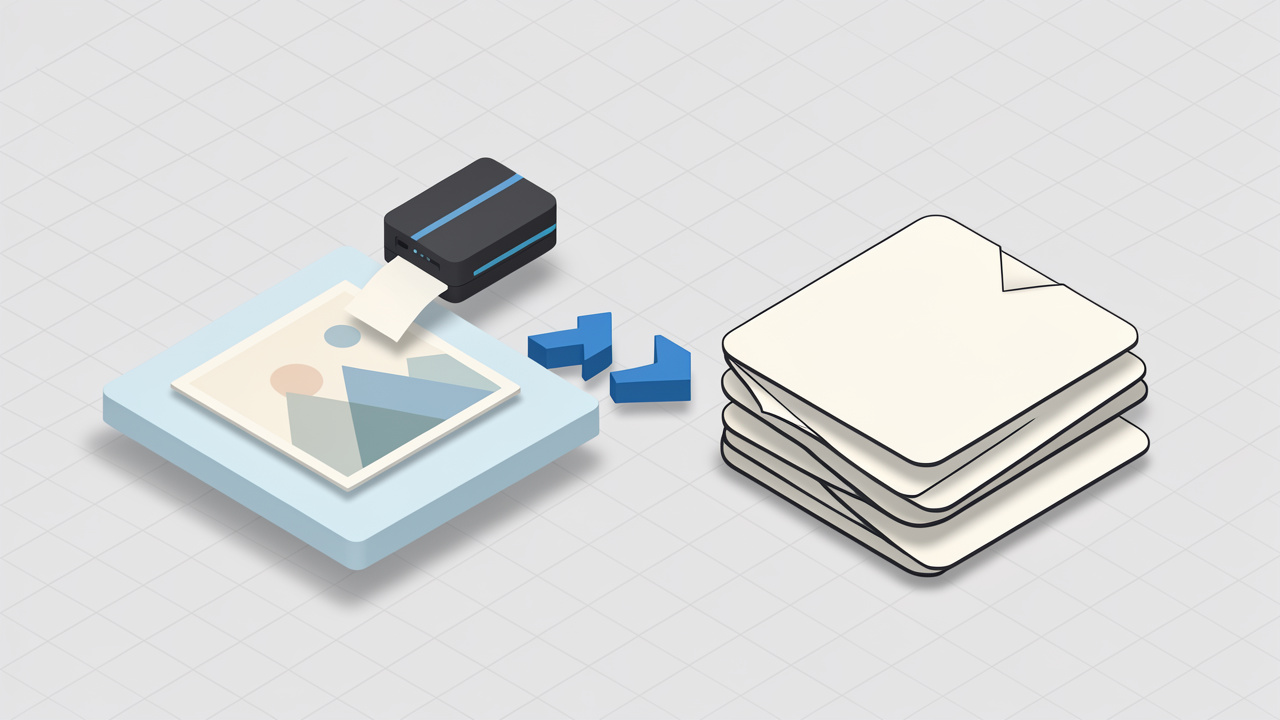
    A side-by-side comparison diagram: left side labeled 'JPG' showing a single raster image thumbnail; right side labeled 'PDF' showing a stack of pages with small image thumbnails on each page plus icons for metadata and layout (e.g., text lines, page numbers).

    Online conversion tools reduce friction because they remove installation and configuration requirements. Instead of opening a desktop editor, exporting files, and manually assembling pages, the process happens in the browser. For users who need speed and minimal setup, this is often the decisive advantage.

    Key Aspects of convert jpg to pdf online free

    Why people convert JPG to PDF in the first place

    The most common reason is document control. A batch of images can feel fragmented. A PDF creates a single, coherent artifact that is easier to upload to portals, email to clients, archive in cloud storage, or attach to support tickets.

    Compatibility is another driver. Many institutions, job portals, finance platforms, and government websites prefer or require PDF uploads. Even if the original content starts as phone photos or exported screenshots, converting those JPGs into PDF is often necessary just to complete the submission.

    There is also a presentation benefit. PDF looks intentional and suggests finality and structure. A set of JPGs may be interpreted as raw source material, while a PDF reads as a finished document. That distinction matters in business communication, internal reviews, and client-facing workflows.

    The main benefits of using an online free converter

    Accessibility is the strongest benefit. A free online JPG to PDF converter can usually be used from Windows, macOS, Linux, Android, and iPhone devices with nothing more than a browser and internet connection. This makes it practical for distributed teams and users working across multiple devices.

    Speed is the next factor. For small to medium conversion jobs, browser-based tools are often faster than installing software. Upload, reorder, convert, download: the interaction model is optimized for quick output.

    Cost matters too. Not every use case justifies a paid PDF suite. If the requirement is straightforward, such as combining five JPG receipts into one PDF, a free solution is often sufficient. For occasional users, this is efficient. For teams, it can reduce unnecessary software sprawl.

    What to evaluate before using a free online tool

    Not all converters are equal. Privacy should be the first checkpoint. If the JPG files contain IDs, contracts, medical information, financial records, or internal screenshots, the handling policy matters. Some services process files on remote servers and delete them after a short period. Others may be less explicit. Users should look for clear statements on retention, encryption, and deletion.

    Output control is another consideration. Basic tools may only convert in default settings, while better platforms allow page reordering, margin settings, orientation selection, page size adjustment, and compression control. These options affect whether the final PDF is usable for print, archive, or formal submission.

    File size behavior is the third factor. JPG images can be heavily compressed already, but combining many large images into one PDF can still produce a bulky file. A good converter balances image fidelity with reasonable PDF size. If a portal has strict upload limits, this becomes critical.

    Common limitations users should expect

    Free services often have boundaries, such as file count caps, maximum upload size, reduced speed during high traffic, or limitations on advanced editing features. That does not make them ineffective, but it does define the appropriate use case.

    Image handling can be inconsistent. Some converters preserve original dimensions well, while others aggressively scale or center images with wide margins. If visual accuracy matters, for example in design proofs or scanned records, test output quality before relying on a tool repeatedly.

    Ordering is another common issue. Multi-image PDF creation depends on correct sequence. If the upload interface is not explicit, pages may appear in alphabetical order, upload order, or an arbitrary drag-and-drop arrangement. That matters when converting documents with multiple pages.

    Online conversion versus desktop conversion

    The choice between online and desktop tools depends on context. Online conversion is ideal for speed, occasional use, and low-friction access. Desktop conversion is often better for sensitive documents, bulk processing, and advanced layout or OCR workflows.

    The trade-off can be summarized clearly:

    Criteria Online Free JPG to PDF Tools Desktop PDF Software
    Setup No installation required Installation required
    Speed for quick jobs Very fast Moderate
    Privacy control Depends on provider Usually higher
    Advanced features Often limited Usually extensive
    Cost Often free Frequently paid
    Best use case Occasional conversions Frequent or sensitive workflows

    For most users searching convert jpg to pdf online free, the immediate need is transactional rather than strategic. They want a reliable result now. That is where online tools perform best.

    How to Get Started with convert jpg to pdf online free

    A practical workflow that avoids common mistakes

    A clean result begins before upload. The source JPG files should be reviewed for orientation, clarity, and naming. If the images come from a phone camera, rotate them correctly first. If they represent multiple pages of a document, rename them in sequence so the intended order is obvious.

    Image quality also deserves attention. A blurry JPG does not become sharper inside a PDF. Conversion changes the container, not the source fidelity. If the original image is poorly lit, cropped badly, or captured at an angle, the output PDF will preserve those problems.

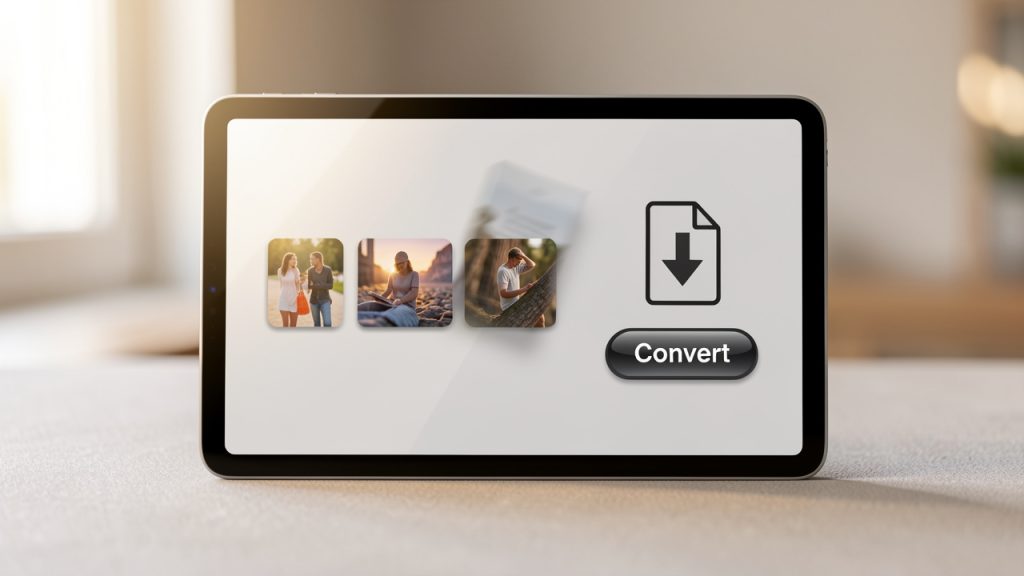
    A simple web UI mockup showing multiple JPG thumbnails being dragged into order, a prominent 'Convert' button, and a single PDF file icon with a download arrow. Include small labels: 'Upload', 'Reorder', 'Convert', 'Download'.

    For routine conversions, the workflow is usually simple. Upload the JPG files to a trusted online converter, arrange the images in the correct page order, adjust settings such as page size, margin, and orientation if available, convert and download the final PDF, and verify the output before sending or uploading it elsewhere.

    That last step matters more than users think. Open the PDF and inspect each page. Check readability, sequence, cropping, and file size. A 20-second review can prevent a failed submission or an embarrassing resend.

    Choosing the right settings for better output

    Page size affects readability and appearance. If the converter offers standard sizes like A4 or Letter, choose the one aligned with the destination context. Business and administrative use often expects one of those. If the images are photos rather than scanned pages, a fit-to-image layout may look better.

    Margins influence how polished the document feels. Zero-margin output can maximize image area, but modest spacing often improves readability and print behavior. For scanned paperwork, centered pages with consistent margins usually look more professional.

    Orientation should follow content, not convenience. Portrait is best for documents, forms, and notes. Landscape suits slides, dashboards, and wide screenshots. If the converter supports per-page orientation poorly, it may be worth rotating the JPGs before upload.

    Privacy and security considerations

    When using any service to convert jpg to pdf online free, assume the files are leaving the local device unless the tool explicitly states browser-only processing. That does not mean online conversion is unsafe, it means the user should apply judgment proportional to the data sensitivity.

    A public menu photo or generic presentation slide carries minimal risk. A passport scan, internal architecture diagram, legal agreement, or medical record is different. In those cases, a more controlled solution is appropriate. For teams, security is not only about encryption, it also includes retention policy, access logs, permission boundaries, and confidence in where files are processed.

    When free online tools are enough, and when they are not

    A free tool is enough when the use case is simple, low-risk, and occasional. A few receipts, a school assignment, a short image bundle for email, these are well within the strengths of browser-based converters.

    The threshold changes when the process becomes repetitive or business-critical. If a user converts dozens of image sets weekly, needs consistent page sizing, or must protect sensitive input, then the free tool model starts to show strain. At that point, efficiency is not just about zero cost, it is about minimizing rework and reducing uncertainty.

    Developers and technical users often evaluate tools through this lens. The question is not merely, “Can it convert?” The better question is, “Can it convert reliably, predictably, and with acceptable handling of sensitive data?” That distinction separates a convenient utility from a robust workflow component.

    Typical use cases across different audiences

    Students often need to turn photographed notes or assignment pages into a single PDF for submission systems. Freelancers convert JPGs into PDF for invoices, signed agreements, and portfolio pages. Support teams may bundle screenshots into one document for escalation records. Operations staff frequently combine scanned forms for archive or compliance workflows.

    Developers encounter this need as well, even if indirectly. Product documentation, bug reporting, UI review packs, and screenshot-based QA artifacts often benefit from PDF packaging. While the actual conversion may be non-technical, the underlying concern is familiar: reduce manual overhead and standardize output.

    That is why the search term convert jpg to pdf online free remains consistently relevant. It addresses a simple requirement, but one that sits at the intersection of usability, compatibility, and time efficiency.

    Conclusion

    To convert jpg to pdf online free is to solve a very practical format problem with minimal friction. JPG files are easy to create, but PDF files are easier to package, share, upload, and archive. Online tools make that transition fast, especially for low-volume and low-risk tasks.

    The best results come from using a trusted service, preparing source images carefully, checking page order, and reviewing the final PDF before distribution. For casual use, a free online converter is often all that is needed. For recurring or sensitive workflows, a more structured solution can provide a better long-term path.

    The next step is straightforward. Gather the JPG files, choose a reputable converter, test the output on a small batch, and confirm that the PDF meets your quality and privacy requirements. That single habit turns a quick fix into a reliable process.