JNTZN

Tag: Inkscape

  • Convert SVG Files to High-Quality JPGs Quickly

    You can turn an SVG into a JPG in seconds, but getting a clean, sharp, correctly rendered JPG is where most people run into trouble. Logos lose transparency, text shifts, colors look off, or the final image comes out blurry because the export size was too small.

    The good news is that converting an SVG to a JPG is easy once you understand one key idea: SVG is a vector format, while JPG is a raster format. That means your choices during export, especially dimensions, background color, and quality settings, directly determine how good the result looks.

    If you need a quick browser-based tool, a private desktop workflow, or an automated batch process for dozens of files, this guide walks you through the fastest and highest-quality methods to convert SVG files to JPG correctly.

    Why Convert SVG to JPG? When and Why It Makes Sense

    Differences between SVG and JPG file formats

    An SVG file is vector-based. It uses mathematical paths, shapes, and text instructions instead of a fixed grid of pixels. That is why an SVG logo can scale from a favicon to a billboard without becoming blurry.

    A JPG file works differently. It is a raster image, made of pixels, and it uses lossy compression to reduce file size. Once exported, it has a fixed resolution. If you enlarge it too much, it softens or pixelates.

    This is the heart of the SVG-to-JPG process. You are taking something infinitely scalable and flattening it into a fixed-size bitmap. That is not inherently bad. It means you need to choose the final size carefully.

    Common scenarios that require SVG to JPG conversion

    There are plenty of practical reasons to convert an SVG into a JPG. Some platforms still handle JPG more consistently than SVG, especially older content management systems, email builders, marketplace upload forms, or social publishing tools that expect raster images.

    You might also need a JPG for a blog thumbnail, a product preview, a client handoff, or a quick upload into software that cannot edit vectors. Many raster-first tools, internal company systems, and print workflows still prefer common image formats over SVG.

    For small business owners and freelancers, this often comes down to compatibility. The SVG may be your master file, but the JPG is the version that works everywhere.

    Trade-offs: scalability, transparency, file size, and quality

    The main trade-off is simple. JPG gives you compatibility, but you lose vector flexibility. Once the export is done, you cannot resize it upward without quality loss.

    You also lose transparency, because JPG does not support it. If your SVG has a transparent background, the exported JPG must be flattened onto a solid color, usually white or another chosen background.

    File size can go either way. A simple SVG icon may be much smaller than a JPG. But for photographic or visually rich exports, JPG may be more compact than PNG. Quality also becomes a balancing act, because higher JPEG quality means larger files.

    Prepare Your SVG for Conversion

    Check for external assets, fonts, and linked images

    Before converting anything, inspect the SVG for external dependencies. Many SVG files reference fonts that are installed locally on one machine but not another. Others link to images instead of embedding them directly. That can cause missing text, fallback fonts, or broken image elements during export.

    If the SVG contains text, open it in a tool like Inkscape or Adobe Illustrator and verify that the correct font is available. If you are sending the file to another system or converting on a server, consider converting text to outlines or paths if editing is no longer needed.

    Linked bitmap images should be embedded rather than referenced externally. In vector editors, this is usually available through an embed or package option. If the image is not embedded, the final JPG may export with empty areas.

    Simplify and clean the SVG

    A messy SVG can still look fine in a browser but export poorly in some converters. Hidden layers, unused definitions, extra metadata, clipping leftovers, and editor-specific markup can all make rendering less predictable.

    For quick cleanup, tools like SVGOMG are useful for stripping excess metadata and reducing complexity. If you want more control, open the file in a text editor or Inkscape and remove unused elements, invisible objects, and redundant groups.

    This matters more than many people realize. A clean SVG is easier for online tools, desktop apps, and command-line renderers to interpret consistently.

    Decide on final dimensions, background color, and DPI

    SVG files do not have a fixed pixel resolution in the same way JPGs do. That means you must decide what the output should be. If the JPG is for a website banner, set pixel dimensions based on where it will appear. If it is for print, set the final physical size and DPI before exporting.

    For web use, 72 to 150 DPI is usually sufficient, but pixel dimensions matter more than DPI in browsers. For print, 300 DPI is the standard target for high-quality results.

    You should also decide the background color in advance. Since JPG does not support transparency, transparent SVG areas will need to be filled, commonly with white, black, or a brand color.

    Quick Online Tools to Convert SVG to JPG (Fast, No Install)

    How to use free web converters safely

    If your file is not sensitive, an online converter is the fastest route. The workflow is usually the same across platforms.

    1. Upload the SVG file.
    2. Choose JPG or JPEG as the output format.
    3. Set size or quality options if available.
    4. Convert and download the result.

    This is ideal for one-off tasks, especially if you are on a borrowed computer, a Chromebook, or a device where you do not want to install software.

    Recommended online tools with brief pros and cons

    Several browser-based tools handle SVG-to-JPG conversion well for casual use.

    Tool Best For Pros Cons
    CloudConvert General-purpose conversions Clean interface, supports settings, reliable output Upload required, limits on free usage
    Convertio Quick one-off tasks Simple workflow, supports many formats Privacy concerns for sensitive files
    FreeConvert Adjustable exports Useful customization options Ads and file limits can vary
    Online-Convert More control Extra output settings Interface can feel cluttered

    These tools are convenient, but they are not always perfect with complex SVGs, custom fonts, or advanced filters. For logos and simple illustrations, they usually work well. For client assets or print work, desktop tools are safer.

    Privacy and security considerations for online converters

    If the SVG contains brand assets, client work, product mockups, internal diagrams, or unpublished graphics, think twice before uploading it to a third-party converter. Even trustworthy services still involve sending the file to an external server.

    For confidential files, a local desktop app or command-line tool is the better choice. It keeps the file on your own machine and reduces the risk of accidental exposure.

    Also check whether the tool deletes uploaded files automatically and whether it offers any retention policy details. Convenience is great, but privacy should win when the content matters.

    Convert SVG to JPG Using Desktop Apps (Best for Quality and Privacy)

    Using Inkscape (free): export raster image step-by-step

    Inkscape is one of the best free options for high-quality local conversion. It renders SVG natively and gives you solid control over export size and output area.

    Open the SVG in Inkscape and confirm that everything looks correct, especially fonts, shadows, masks, and linked images. Then choose File > Export. In newer versions, you can export by page, drawing, selection, or custom area.

    For a full design, use the page or drawing area depending on how your artwork is set up. Set the width and height in pixels, or define the DPI if you are preparing a print-oriented export. Since you need JPG and not PNG, a common approach is to export to raster and then save or convert to JPEG from there if your version requires that extra step.

    If the artwork includes transparency, place a background rectangle behind the design before export. Use white if you want a neutral result, or match the destination layout color.

    Using Adobe Illustrator: export settings to control antialiasing and quality

    In Adobe Illustrator, open the SVG and review the artwork carefully. Illustrator can usually preserve complex vectors well, but fonts and effects should still be checked before export.

    Go to File > Export > Export As, choose JPG, and enable Use Artboards if you want a clean crop based on the artboard bounds. Then set the color model, quality, and resolution. For screen use, select 72 or 150 PPI. For print, use 300 PPI.

    Choose Art Optimized antialiasing for illustrations and logos in most cases. It tends to preserve clean edges better than type-oriented settings unless text is the dominant element. If the export looks soft, increase dimensions rather than simply raising JPEG quality.

    Using Photoshop and other raster editors

    Photoshop can open SVG files, but it rasterizes them during import. That means Photoshop asks for dimensions and resolution up front. This can be helpful if you already know the exact output size.

    When opening the SVG, enter the target width, height, and resolution. If the background is transparent, add a fill layer beneath the artwork before exporting as JPG. Then choose File > Save a Copy or Export As, select JPEG, and set the quality level.

    This method is useful if you plan to edit the raster output, retouch edges, sharpen details, or compress the file further. It is less ideal if you want to preserve the original vector nature for multiple future sizes.

    Command-Line Conversion for Automation and Batch Jobs

    Using ImageMagick: convert and recommended flags

    If you need to convert many files or integrate SVG-to-JPG conversion into a workflow, ImageMagick is a strong choice. It is widely available on macOS, Linux, and Windows, and works well in scripts.

    A reliable basic command looks like this:

    magick input.svg -background white -density 300 -quality 92 output.jpg
    

    The -background white flag handles transparency by flattening onto white. The -density 300 setting improves rasterization quality for vector input, especially for print-sized exports. The -quality 92 setting is a practical starting point for a strong balance between file size and visual fidelity.

    If you need an exact width, you can resize after rasterization:

    magick input.svg -background white -density 300 -resize 2000x -quality 90 output.jpg
    

    For best results, inspect the final image rather than relying on defaults. Different SVGs respond differently depending on internal complexity and renderer support.

    Using rsvg-convert for accurate rendering

    For some SVG files, especially standards-compliant ones, rsvg-convert from the librsvg package can produce more consistent rendering than generic tools. It is often preferred in Linux-based automation environments.

    A common workflow is to render the SVG to a raster stream and then convert to JPG:

    rsvg-convert -w 2000 -h 2000 input.svg | magick - -background white -quality 92 output.jpg
    

    This approach gives you accurate SVG rendering and lets ImageMagick handle final JPEG encoding. If aspect ratio matters, set only width or only height unless you intentionally want distortion.

    Batch examples and Windows, Mac, Linux notes

    On macOS, you can install tools through Homebrew. On Ubuntu or Debian, use apt. On Windows, ImageMagick installers are straightforward, and librsvg-based workflows are possible through package managers or compatible environments.

    For batch conversion on Mac or Linux, a simple shell loop works well:

    for f in *.svg; do
      magick "$f" -background white -density 300 -quality 90 "${f%.svg}.jpg"
    done
    

    This is especially useful for exporting icon sets, illustrations, product graphics, or generated reports. If performance matters, test a few files first. Complex SVG filters and embedded images can slow down large batches.

    Optimizing JPG Output: Quality, File Size, and Visual Fidelity

    Choosing the right dimensions and DPI for web vs print

    The most important export decision is not the converter. It is the output size. A beautifully rendered SVG can still become a poor JPG if exported too small.

    For web graphics, think in pixels, not print DPI. A blog hero image might need 1600 pixels wide, while a thumbnail may only need 400 pixels. Export close to the real display size, or perhaps 2x for high-density screens if needed.

    For print, calculate the final physical size and multiply by 300 DPI. A 5-inch-wide printed image should usually be exported at about 1500 pixels wide. That gives the raster file enough detail for sharp output.

    Balancing JPEG quality and compression

    JPEG quality settings usually have diminishing returns. Going from 70 to 85 often makes a visible improvement. Going from 92 to 100 usually creates much larger files with little visible gain.

    For most designs, quality 82 to 92 is the sweet spot. If the image contains flat colors, text, or logo edges, JPG may show artifacts more easily. In those cases, PNG or WebP may be a better fit.

    You can also run the final JPG through a compressor such as TinyJPG or MozJPEG-based tools to reduce file size further. The best workflow is often export high, then optimize gently.

    Removing artifacts: antialiasing, color profiles, and sharpening

    Soft edges and color mismatch are common issues after conversion. Good antialiasing helps curved vector edges look smooth in the raster result. Most export tools handle this automatically, but advanced settings can improve line art and text-heavy graphics.

    Use the sRGB color profile for web output unless you have a specific print requirement. This reduces the chance of muted or shifted colors across browsers and devices.

    If the output looks slightly soft after conversion, a tiny amount of sharpening in a raster editor can help. Be conservative. Over-sharpening creates halos and makes compression artifacts more noticeable.

    Preserving Transparency and Alternatives When You Need It

    Why JPG cannot preserve transparency

    JPG does not support alpha transparency. That means any transparent area in your SVG must be flattened onto a solid background during export.

    This is why logos exported from SVG to JPG often end up with white boxes behind them. The format itself is the limitation, not the converter.

    Alternatives: PNG, WebP, and AVIF

    If transparency matters, PNG is the safest alternative. It preserves sharp edges and transparent backgrounds well, which makes it ideal for logos, icons, interface graphics, and overlays.

    WebP is often better than JPG for web delivery because it can support transparency and offer smaller files. AVIF can be even more efficient, though support and workflow compatibility may vary depending on your tools and platform.

    Here is a simple comparison:

    Format Transparency Best For Main Limitation
    JPG No Photos, universal compatibility Lossy, no transparency
    PNG Yes Logos, UI, crisp graphics Larger file sizes
    WebP Yes Modern web images Some older workflows may not support it
    AVIF Yes High compression, modern delivery Slower encoding, mixed tool support

    How to simulate transparency on JPG

    If JPG is required, the best workaround is to choose a background color that matches the final placement. If the image will sit on a white webpage, export onto white. If it will appear on a dark product page or social card, match that tone instead.

    For more polished results, some designers create a subtle background fill that blends naturally into the destination layout. It is not true transparency, but it avoids the obvious “boxed logo” look.

    Common Problems and How to Fix Them

    Fonts not rendering correctly

    Font issues usually happen because the converter cannot access the original typeface. If the text changes shape, spacing, or line breaks, confirm the font is installed on the exporting machine.

    If the design is final, convert text to paths or outlines before exporting. This removes font dependency entirely. The trade-off is that the text is no longer editable as text.

    Online converters are especially prone to font substitutions. If branding matters, use Inkscape, Illustrator, or another local tool where you can verify the result first.

    Blurred or pixelated output

    Blurry output almost always comes from exporting at dimensions that are too small. Because SVG is vector-based, it can look perfect on screen right up until the moment you rasterize it at an insufficient size.

    The fix is simple. Export larger. Also make sure you are exporting the correct area, such as the full page, artboard, or drawing bounds. A wrong export area can create extra whitespace and make the actual artwork occupy fewer pixels than expected.

    In command-line tools, increase -density, define a larger width, or both. In GUI tools, raise pixel dimensions or PPI before export.

    Color shifts

    Color shifts can happen when profiles are missing, ignored, or converted inconsistently. For web use, export in sRGB and preview the file in a standard browser as well as an image viewer.

    If exact brand color is critical, avoid converting back and forth between multiple formats unnecessarily. Each step can introduce variation, especially when compression and color management are applied differently across apps.

    Step-by-Step Tutorials: 3 Practical Conversion Workflows

    Fast web conversion using an online tool

    This method is best for a quick, non-sensitive file.

    1. Open a trusted online converter such as CloudConvert or Convertio.
    2. Upload your SVG file.
    3. Choose JPG as the output.
    4. Set width or quality options if available.
    5. Convert and download the image.
    6. Preview the JPG at 100% zoom to check edges, text, and background.

    Expected result: a fast, usable JPG for email, CMS upload, or general sharing. If transparency or fonts look wrong, switch to a local tool.

    High-quality local conversion with Inkscape

    This is the best free workflow for quality and privacy.

    1. Open the SVG in Inkscape.
    2. Check fonts, linked images, and hidden objects.
    3. Add a background rectangle if the design is transparent.
    4. Go to File > Export.
    5. Select Page or Drawing as the export area.
    6. Enter the target width, height, or DPI.
    7. Export at a large enough resolution for the final use.
    8. Save or convert the raster output to JPG with high quality.

    Expected result: a cleaner, more controlled export, especially for logos, illustrations, and print-ready graphics.

    Batch conversion with ImageMagick on Mac or Linux

    This is ideal for developers, power users, or repeat tasks.

    for f in *.svg; do
      magick "$f" -background white -density 300 -quality 90 "${f%.svg}.jpg"
    done
    

    Run the command inside the folder containing your SVG files. Each file is converted with a white background, high raster density, and solid JPEG quality.

    Expected result: consistent bulk exports with minimal manual work. If rendering differs from your source design, test rsvg-convert as the rendering step before JPEG encoding.

    Checklist: How to Get the Best JPG from an SVG

    Use this quick checklist before and after conversion:

    • Before export: Embed images, confirm fonts, remove hidden layers, clean excess metadata.
    • Export settings: Choose correct dimensions, set background color, use appropriate DPI, pick a sensible JPEG quality level.
    • After export: Preview at 100% zoom, check file size, inspect edges and text, confirm colors in sRGB-friendly viewers.

    This small routine prevents most conversion problems before they become visible in production.

    Frequently Asked Questions

    Can I convert SVG to JPG without quality loss?

    Not completely. An SVG is vector, while JPG is raster and lossy. You can make the result look excellent by exporting at the right dimensions and a high quality setting, but the format change itself introduces limits.

    Which is smaller, JPG converted from SVG or PNG?

    It depends on the artwork. For photo-like or complex imagery, JPG is often smaller. For logos, flat graphics, icons, and text-heavy visuals, PNG may preserve quality better, though file sizes can be larger.

    Is WebP a better choice than JPG for SVG exports?

    Often, yes, especially for web use. WebP usually delivers better compression and can preserve transparency. If your platform supports it, WebP is frequently a smarter export target than JPG.

    Recommended Tools and Resources

    If you want the simplest online path, tools like CloudConvert, Convertio, and FreeConvert are practical for quick jobs. They are best for non-sensitive files and casual one-off conversions.

    For desktop workflows, Inkscape is the top free option, while Adobe Illustrator gives professionals more export control inside a design-heavy workflow. Photoshop is useful when the goal is not just conversion, but also raster editing and retouching.

    For automation, ImageMagick and rsvg-convert are the most useful command-line tools. They are excellent for server workflows, repetitive exports, and custom pipelines where speed and repeatability matter.

    Conclusion and Final Recommendations

    If you only need a quick result, an online SVG-to-JPG converter is fine for simple files. If quality, privacy, or brand accuracy matter, use a local app like Inkscape or Illustrator. If you handle multiple files regularly, a command-line workflow with ImageMagick or librsvg is the most efficient choice.

    The key is to keep your original SVG as the master file and treat the JPG as a delivery format. Clean the SVG first, choose the right dimensions, flatten transparency intentionally, and export with the final use case in mind. Your next step is simple: pick the method that fits your workflow, convert one test file, and compare the output at full size before processing the rest.
  • How to Convert PNG to SVG: Tools and Best Practices

    How to Convert PNG to SVG: Tools and Best Practices

    A blurry logo can make an otherwise polished brand look amateur in seconds. That is usually the moment people start searching for a way to convert a PNG into an SVG, hoping for a crisp file that scales cleanly on websites, packaging, signs, and social media.

    The good news is that turning a PNG into an SVG is absolutely possible. The catch is that not every image converts well, and the quality of the result depends heavily on the image itself, the tool you use, and the cleanup you do afterward. A simple icon can become a clean vector in minutes. A detailed photo usually becomes a tangled mess of paths.

    This guide explains what converting a PNG to an SVG really means, how the process works, which tools are worth using, and how to judge whether your final SVG is actually good enough to publish. If you are a small business owner cleaning up a logo, a freelancer preparing client assets, or a developer building a batch workflow, you will find a practical path here.

    What Does “PNG to SVG” Mean and Why It Matters

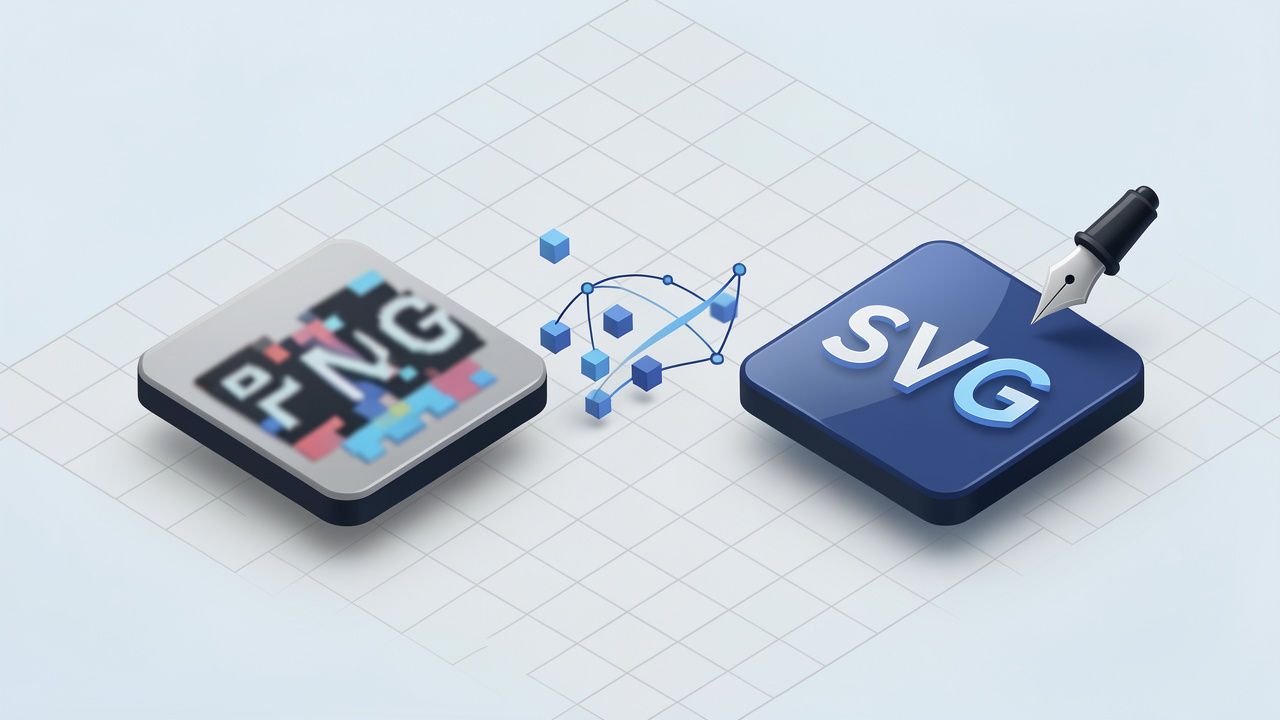
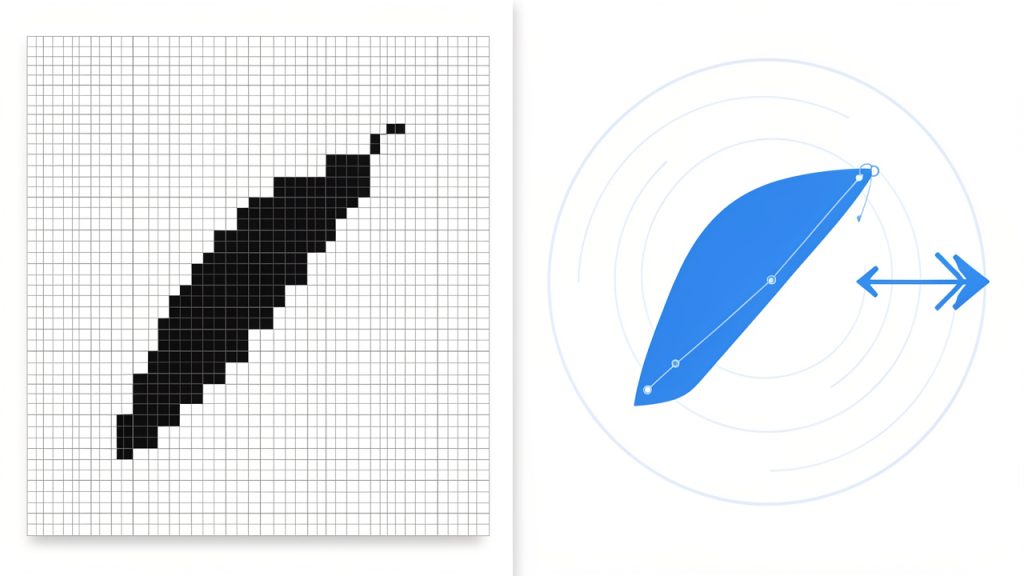
    Side-by-side illustration: left — a zoomed-in PNG showing a pixel grid and visible jagged edges; right — the same artwork rendered as an SVG with smooth curves and mathematical path outlines. Include labels “PNG (raster, pixels)” and “SVG (vector, paths)” and an arrow indicating infinite scaling on the SVG side.

    A PNG is a raster image. That means it is made of pixels, tiny colored squares arranged in a grid. When you enlarge a PNG too much, those squares become visible and the image starts to look soft or jagged.

    An SVG is a vector format. Instead of storing pixels, it stores shapes, lines, curves, and fills as mathematical instructions. Because of that, an SVG can scale up or down without losing sharpness. That makes it ideal for logos, icons, diagrams, badges, stickers, and simple illustrations.

    This is why people want to convert PNG files to SVG. If you have a logo that only exists as a small PNG, an SVG can make it editable and scalable. It can also reduce file size for simple artwork, especially when the original image uses a few solid colors rather than lots of detail.

    That said, conversion is not magic. If your PNG is a photograph, a textured painting, or a low-quality screenshot, turning it into SVG often creates a bloated file with thousands of awkward paths. In those cases, using a high-quality raster format like PNG or WebP, or doing a manual redraw, is usually the smarter choice.

    How PNG-to-SVG Conversion Works: Tracing, Auto-vectorization, and Manual Redrawing

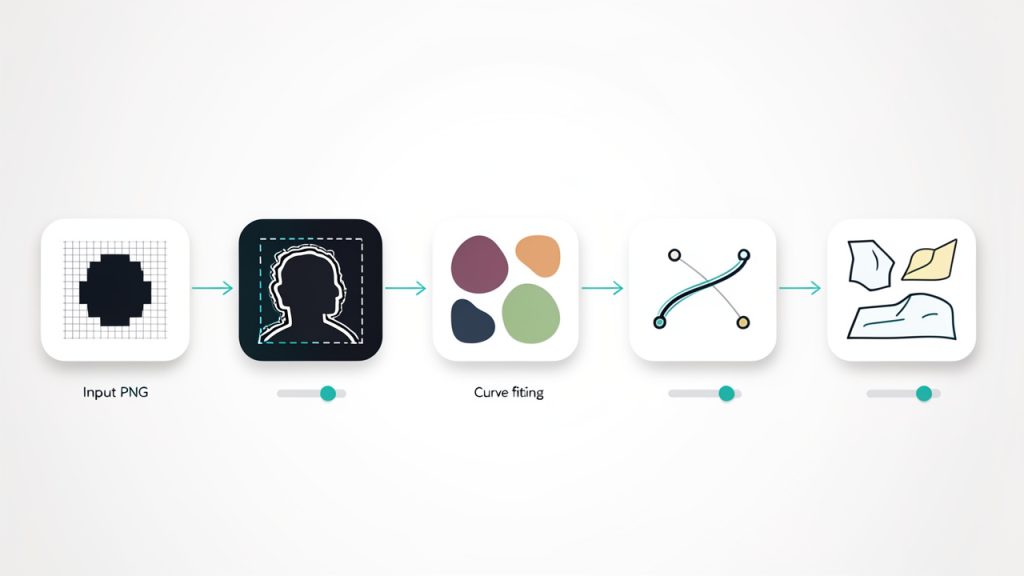
    A simple flow diagram showing the tracing/auto-vectorization steps: 1) Input PNG → 2) Edge detection / thresholding → 3) Color reduction / region detection → 4) Curve fitting → 5) Output SVG (paths). Use small icons for each step and annotate common settings like threshold, smoothing, and color reduction.

    Most PNG-to-SVG workflows rely on image tracing, also called auto-vectorization. The software scans the raster image, detects edges, identifies areas of similar color, and tries to convert them into vector paths. Under the hood, this often involves thresholding, curve fitting, and shape simplification.

    For black-and-white artwork, the process is fairly direct. The tool separates light from dark areas, then builds paths around the visible shapes. For color artwork, the tool has to do more work. It may reduce the image into a limited palette first, then create stacked shapes for each color region. The more colors and tiny details present, the more complex the final SVG becomes.

    This explains why a clean monochrome logo often converts beautifully while a textured watercolor illustration turns into a giant, messy file. The tracing algorithm is trying to represent every visible change in the image, even if those changes are just noise, compression artifacts, or anti-aliased edges.

    Designers often prefer manual redrawing for important brand assets. Instead of tracing every pixel, they rebuild the artwork with clean curves, consistent spacing, and intentional geometry. It takes longer, but the result is usually lighter, more editable, and far more professional.

    Typical automatic conversion problems include jagged edges, too many anchor points, color drift, broken holes in letters, and noisy backgrounds being traced as real shapes. These are predictable side effects of converting pixel-based art into vector instructions rather than tool failures.

    Step-by-Step: Convert a PNG to SVG Using Free Online Tools

    Try these Free Online Tools if you want to experiment quickly with online converters before committing to a desktop workflow.

    Before you upload anything, prepare the PNG. This matters more than most people realize. A cleaned image can produce a dramatically better SVG with the same tool and the same settings.

    Start by cropping away unused space and removing any accidental background. If possible, increase the contrast so the subject stands apart clearly. If the image is a logo or icon, simplify the colors and remove shadows, gradients, or texture effects. The fewer distractions in the source file, the cleaner the traced result.

    For online conversion, look for settings such as color reduction, threshold, smoothing, corner precision, and noise removal. These controls affect whether curves look clean or lumpy, and whether small specks become unwanted paths. If the image is simple, use fewer colors. If the edges look rough, try more smoothing and slightly less detail retention.

    1. Vectorizer

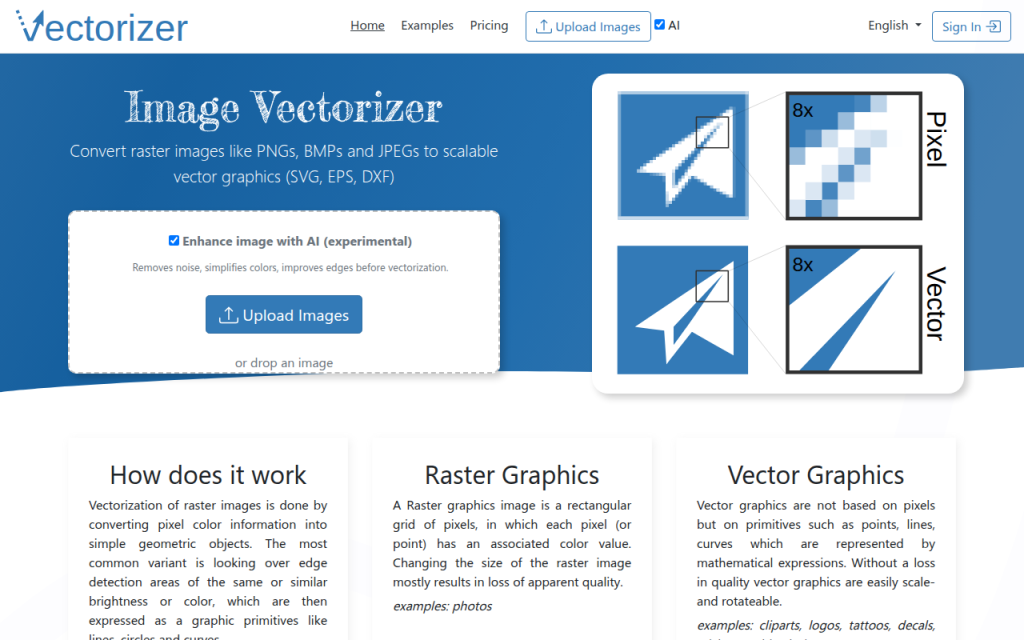
    Screenshot of vectorizer.io

    Vectorizer is one of the strongest web-based options for converting a PNG into SVG when you want speed and surprisingly solid output. It is especially good for logos, icons, flat illustrations, and high-contrast artwork. The interface is straightforward, and the preview makes it easy to judge quality before downloading.

    Key features include automatic vector tracing with a live preview and color-aware conversion for simple graphics, with browser-based SVG export suitable for web and print cleanup. Vectorizer is fast for simple assets and often produces a cleaner first draft than broad-purpose conversion tools, but it gives less control than desktop apps and can produce messy paths on complex images. Privacy may be a consideration for sensitive brand assets.

    A typical workflow is simple: upload the PNG, let the service analyze it, review the preview, adjust any available detail or smoothing settings, and then download the SVG. If the result looks close but not perfect, use the SVG as a starting point for cleanup in Illustrator or Inkscape.

    2. Convertio

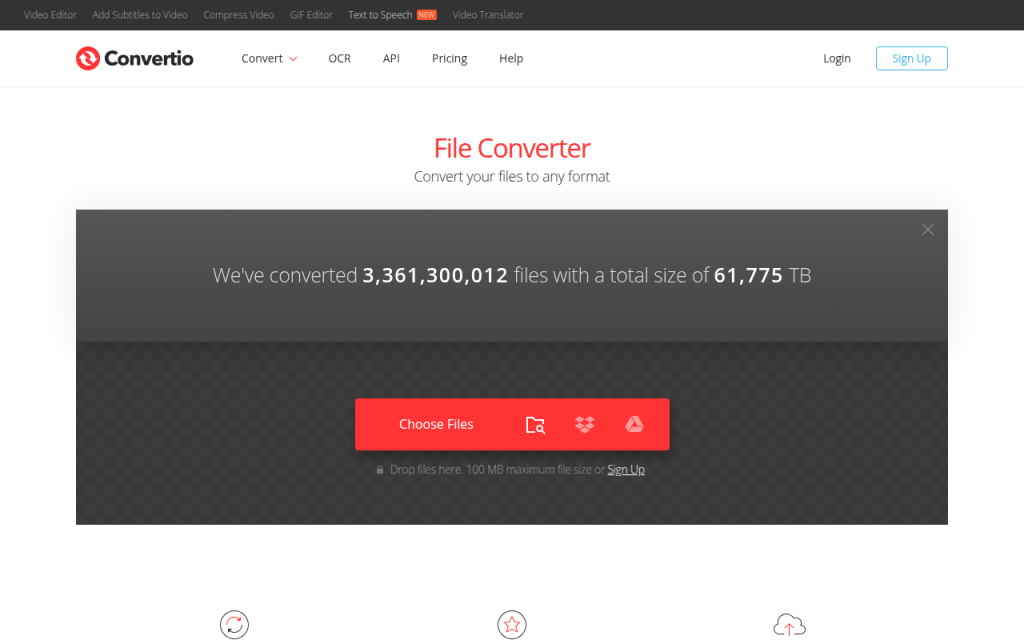
    Screenshot of convertio.co

    Convertio is widely known as a general-purpose file conversion service, and it supports converting PNG files to SVG. It is ideal for users who want a quick, low-friction online process without learning vector software. If your needs are basic, it gets the job done with minimal setup.

    Convertio offers a simple browser-based conversion flow with cloud storage integration and quick downloads. Its main strength is convenience: upload from your device or cloud storage, choose SVG as the output format, and convert in a few clicks. For simple artwork, that is often enough. For more demanding graphics, you will usually want a tool with more tracing control.

    3. Online-Convert

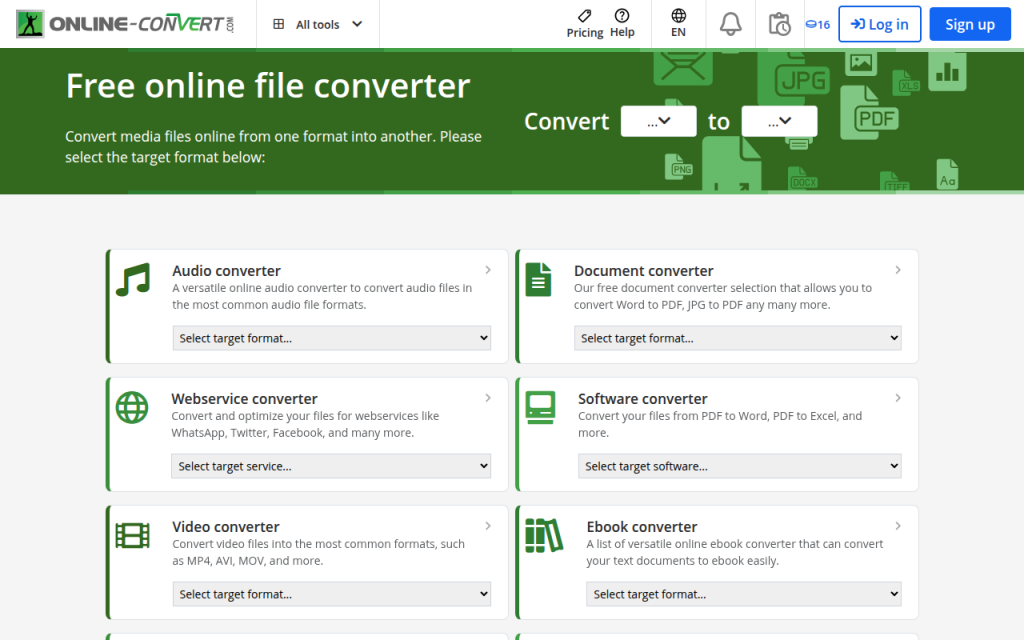
    Screenshot of online-convert.com

    Online-Convert sits somewhere between a basic converter and a configurable utility. It is useful when you want a free online option but need a little more control over dimensions, cleanup, or conversion behavior than the most minimal tools provide. It can be a practical middle ground for small business owners and freelancers who need quick conversions that may require a bit of tweaking.

    Online-Convert is accessible for fast experiments and can be a helpful backup when another converter struggles, but quality still depends heavily on the source image and advanced cleanup is often required afterward.

    Convert PNG to SVG in Desktop Software

    Online tools are convenient, but desktop software gives you more control, better previews, and more reliable cleanup options. If the SVG matters for print, branding, signage, or repeated use, desktop tracing is usually the better route.

    Adobe Illustrator is the standard for many professionals. Its Image Trace feature allows you to choose black-and-white, grayscale, or color modes, then tune paths, corners, noise handling, and fill behavior. For logos, start with a low-color or black-and-white preset, then adjust until the shapes are clean without becoming overly detailed. After tracing, expand the result and manually simplify any awkward curves.

    Inkscape is the best free option for serious work. Its Trace Bitmap tool can generate single-scan or multi-scan vectors, depending on whether the image is monochrome or colored. For simple logos, use a single scan and adjust threshold carefully. For multi-color icons, use multiple scans, then inspect overlaps and redundant shapes after tracing. Inkscape gives you a lot of control, but you still need to clean the file manually if precision matters.

    Other desktop choices include Affinity Designer and CorelDRAW. These can be strong fits for users already working in those ecosystems. The key advantage of desktop apps is not just better tracing, but better editing after tracing. That second part is often where quality is won or lost.

    4. Adobe Illustrator

    Screenshot of cloudconvert.com

    Adobe Illustrator is the most robust option for users who need high-quality results and detailed control. It is especially strong for professional logos, packaging graphics, signage, and client work where cleanup precision matters.

    Illustrator’s Image Trace panel offers meaningful controls rather than one-click guesses. You can fine-tune threshold, path fidelity, corner sharpness, and noise filtering, then expand the traced result into editable vector paths. This makes Illustrator ideal when automatic conversion gets you most of the way and you need a professional finish for the remaining cleanup. The downside is cost and a steeper learning curve compared with simple browser tools.

    Website: https://www.adobe.com

    5. Inkscape

    Screenshot of inkscape.org

    Inkscape is the best free desktop choice for converting PNG artwork to SVG with real control. It is ideal for freelancers, developers, hobbyists, and small businesses that want more than a browser converter without paying for a subscription.

    Inkscape’s Trace Bitmap feature is powerful enough for serious work. You can choose single or multiple scans, adjust brightness threshold, suppress speckles, smooth corners, and then manually refine the result. It is not as polished as Illustrator in every respect, but it is remarkably capable for a free tool.

    Website: https://inkscape.org

    6. Potrace

    Screenshot of potrace.sourceforge.net

    Potrace is a specialist tool rather than a general creative app. It is best for developers and technical users who need fast, scriptable bitmap tracing, especially for monochrome source images such as logos, stamps, and scanned line art.

    Potrace’s strength is precision within a narrow use case: clean, high-contrast input. It is fast, lightweight, and ideal for automation, but it is not beginner-friendly and is limited for multi-color artwork. Potrace works well in pipelines where command-line control and reproducible results matter.

    Website: https://potrace.sourceforge.net

    Automated and Developer-Friendly Conversion: Command-Line Tools and APIs

    If you need to convert many images at scale, browser tools become tedious quickly. This is where command-line tools and APIs become useful. Developers often use them for asset pipelines, content systems, design automation, and batch processing.

    Potrace is a classic open-source tracing tool that works especially well for black-and-white bitmap conversion. It is fast, scriptable, and dependable when the source image is high contrast. Autotrace offers similar functionality, though workflows and output quality vary by image type.

    Cloud services also offer API access. Tools such as the Vectorizer API, CloudConvert API, and Convertio API can fit into automated workflows where you need to upload a file, trigger conversion, and retrieve the SVG programmatically. This is useful for marketplaces, CMS platforms, and internal asset management systems.

    Batch conversion sounds efficient, but it also increases the risk of producing hundreds of bad files at once. The best practice is to sort images by type first. Send simple black-and-white artwork through one workflow, colored icons through another, and keep photos out of the vector pipeline entirely unless there is a very specific artistic reason.

    7. CloudConvert API

    Screenshot of cloudconvert.com

    CloudConvert is a strong choice when you need conversion inside an app, workflow, or backend process. It is less about design refinement and more about reliable file handling, automation, and integration.

    For developers, the value is convenience. You can plug conversion into a larger system without building your own infrastructure. That makes it useful for SaaS products, upload portals, and content operations that need a managed service. Keep in mind that CloudConvert is not a design cleanup tool; quality still depends on the source image, and usage costs can add up.

    Website: https://cloudconvert.com

    Quality Checklist: How to Evaluate a Converted SVG

    A converted SVG is not automatically a good SVG. You need to inspect both the visual result and the underlying file structure.

    First, zoom in aggressively. Curves should stay smooth, corners should look intentional, and enclosed shapes such as the centers of letters should remain open where expected. If a logo looks fine at 100% but falls apart at 800%, the tracing was too rough or too noisy.

    Then inspect the file itself. A clean SVG should not contain huge numbers of unnecessary nodes or embedded raster fragments masquerading as vector content. If a tiny icon creates a massive file, something went wrong. That often means the converter traced anti-aliased pixels, subtle shadows, or background noise as separate shapes.

    For web use, optimize the final file with tools like SVGO or SVGOMG. Remove unnecessary metadata, simplify paths where possible, and add semantic elements like

    and <desc> when the SVG conveys meaning. That extra cleanup improves performance, accessibility, and maintainability. <h2>Common Problems and How to Fix Them</h2> <p>If edges look blurry or jagged, your tracing settings may be too sensitive or not sensitive enough. Lowering noise, increasing smoothing, or simplifying the source PNG often fixes the problem. Sometimes the best move is to resize and sharpen the PNG before tracing, especially if the original is tiny.</p> <p>If colors look wrong, the issue is usually color quantization. The converter is reducing the image to a limited palette and choosing approximations. Try increasing the number of colors, or trace the image in simpler layers and recolor manually afterward.</p> <p>If the SVG becomes enormous, stop and ask whether vector is the right format. A highly detailed photograph converted into thousands of paths is rarely useful. In those cases, PNG or WebP will often look better and load faster. Vector is not automatically superior. It is superior for the right kind of graphic.</p> <p>Transparent backgrounds can also cause trouble. Some tools interpret soft transparency as extra shapes or halos. If possible, remove the background cleanly before tracing, rather than relying on semi-transparent edges to convert neatly.</p> <h2>Best Practices and Accessibility for Using SVGs on the Web</h2> <p>Once you have the SVG, you still need to use it correctly. For web projects, one decision is whether to inline the SVG in HTML or link it as an external file. Inlining gives you more control over styling and accessibility, while external files are easier to cache and reuse.</p> <p>Performance matters too. SVG files can be tiny and elegant, or surprisingly bloated. Compressing, minifying, and removing editor metadata can make a visible difference in load speed, especially across icon sets or repeated UI elements.</p> <p>Accessibility is often ignored, but it should not be. If the SVG communicates information, provide a title, descriptive text, and appropriate ARIA handling. If it is purely decorative, mark it accordingly so assistive technologies do not announce it unnecessarily.</p> <p>There is also a legal angle. Converting a third-party PNG into an SVG does not change the copyright status of the artwork. If you do not have permission to use the original image, vectorizing it does not create a loophole.</p> <h2>Tools Roundup: Which PNG-to-SVG Tool Should You Use?</h2> <p>The best tool depends less on popularity and more on your source image and your tolerance for cleanup. If you only need a fast result for a simple icon, a browser tool is often enough. If you are working on a client logo, print file, or product packaging asset, use desktop software. If you are processing dozens or hundreds of files, move toward command-line tools or APIs.</p> <table> <thead> <tr> <th>Tool</th> <th>Best For</th> <th align="right">Control Level</th> <th>Cost</th> <th>Privacy</th> <th>Batch/Automation</th> </tr> </thead> <tbody><tr> <td>Vectorizer</td> <td>Simple logos, icons, flat graphics</td> <td align="right">Medium</td> <td>Varies</td> <td>Lower than local tools</td> <td>Limited</td> </tr> <tr> <td>Convertio</td> <td>Fast one-off conversions</td> <td align="right">Low</td> <td>Freemium</td> <td>Cloud upload required</td> <td>Limited</td> </tr> <tr> <td>Online-Convert</td> <td>Quick experiments</td> <td align="right">Low to Medium</td> <td>Freemium</td> <td>Cloud upload required</td> <td>Limited</td> </tr> <tr> <td>Adobe Illustrator</td> <td>Professional cleanup and precise output</td> <td align="right">High</td> <td>Paid</td> <td>Local workflow possible</td> <td>Moderate</td> </tr> <tr> <td>Inkscape</td> <td>Free desktop tracing and editing</td> <td align="right">High</td> <td>Free</td> <td>Local workflow possible</td> <td>Moderate</td> </tr> <tr> <td>Potrace</td> <td>Monochrome CLI tracing</td> <td align="right">Medium</td> <td>Free</td> <td>Local workflow possible</td> <td>High</td> </tr> <tr> <td>CloudConvert API</td> <td>App integration and automation</td> <td align="right">Medium</td> <td>Usage-based</td> <td>Cloud processing</td> <td>High</td> </tr> </tbody></table> <h2>Practical Examples and Case Studies</h2> <p>A simple logo is the ideal conversion candidate. Imagine a black wordmark on a transparent background with a small icon. After cropping tightly and increasing contrast, you can trace it in Vectorizer or Inkscape with minimal colors and low noise settings. The result is usually clean enough that only minor node reduction and alignment fixes are needed.</p> <p>A multi-color icon set is more demanding. Consistency matters as much as conversion quality. If each icon is traced separately with different color settings, the set can feel mismatched. A better workflow is to standardize palette size, trace method, and post-processing rules across all icons, then manually normalize stroke weights and corner styles afterward.</p> <p>There are also times when manual redraw is the right call. Picture a low-resolution PNG of a brand logo with soft edges, gradients, and compression artifacts. Auto-tracing may technically produce an SVG, but the curves will be lumpy and the file may be huge. Redrawing the logo from scratch with clean geometry is slower upfront, but it creates a far better final asset.</p> <h2>Frequently Asked Questions</h2> <h3>Can every PNG be converted to SVG?</h3> <p>Technically, almost any PNG can be vectorized. Practically, not every PNG should be. Simple graphics convert well. Photographs and textured images usually do not.</p> <h3>Will converting to SVG reduce file size?</h3> <p>Sometimes. For simple logos, icons, and flat illustrations, SVG can be smaller than PNG. For complex images, the SVG may actually become larger.</p> <h3>How do I keep transparent backgrounds?</h3> <p>Use a PNG with a clean transparent background before tracing, and check the preview for halos or accidental background shapes. Soft transparency can create messy edges.</p> <h3>Is vectorization legal for copyrighted images?</h3> <p>Not automatically. Converting an image to SVG does not give you ownership or usage rights. You still need permission if the original work is protected.</p> <h2>Conclusion and Recommended Workflow</h2> <p>The smartest workflow is usually simple. First, decide whether the image is a good candidate for vectorization at all. Second, choose the tool that matches the job: online for speed, desktop for control, API or CLI for scale. Third, clean and optimize the SVG before using it anywhere public.</p> <p>If you want the shortest path to a solid result, use this rule of thumb: try Vectorizer first for simple logos or icons; use Inkscape or Illustrator for important brand assets; use Potrace or an API for bulk automation; and keep detailed photos as PNG or WebP.</p> <p>Your next step is to test one image in two different tools and compare the output at high zoom. That quick side-by-side check will tell you more than any feature list, and it will help you choose the right conversion method for future images.</p> </desc>