
A JPG can be opened almost anywhere, but it is often the wrong format when you need a document that looks polished, prints correctly, combines multiple pages, or stays intact when shared. That is why many people need to convert a JPG into a PDF, whether they are sending invoices, uploading application documents, archiving receipts, or turning phone snapshots into something more professional.
The good news is that converting images to PDF is usually quick. In many cases, you do not even need to install anything. Windows, macOS, iPhone, iPad, and Android all offer built-in ways to save a JPG as a PDF, while online converters and desktop apps add batch processing, compression, OCR, and stronger editing controls.
This guide covers the easiest ways to create a PDF from JPG files, the best tools for different needs, and the trade-offs that matter most, especially quality, privacy, file size, and convenience. If you only need a one-off conversion, there is a fast option for you. If you handle client documents, bulk image folders, or sensitive files, there is a better workflow for that too.
Why Convert a JPG to a PDF?
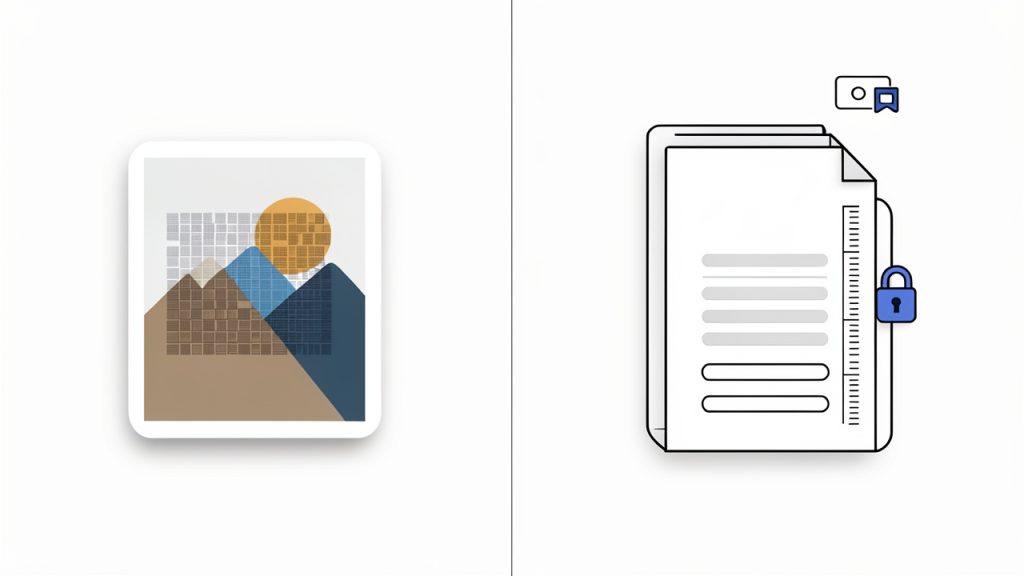
A JPG is ideal for a single image. A PDF is better when that image needs to behave like a document. That difference matters more than many users expect.
For everyday work, PDFs solve several practical problems at once. They are easier to share in a professional context, more predictable when printed, and much better for bundling multiple pages into a single file. If you have ten receipt photos, a contract signature page, or a stack of scanned notes, sending them as separate image files is messy. Turning them into one PDF makes the result easier to open, store, annotate, and archive.
PDF files also preserve layout more reliably across devices. A JPG can still be viewed almost anywhere, but it has no real concept of page order, document metadata, page size, or password protection. A PDF does. That is why PDFs are commonly preferred for forms, signed paperwork, reports, applications, invoices, and legal records.
How JPG and PDF Differ
A JPG, or JPEG, is an image format built for photographs and compressed graphics. It uses lossy compression, which means some image data is discarded to reduce file size. That is excellent for sharing photos quickly, but repeated saving can reduce clarity over time. A JPG is also usually a single image, not a true multi-page document.
A PDF, by contrast, is a document container. It can hold one image or many images, along with text, metadata, fonts, annotations, links, and security settings. When you convert a JPG to a PDF, you are usually wrapping the image inside a document format rather than changing it into a text-editable file.
That distinction explains a common misunderstanding. Converting a low-quality JPG into a PDF does not magically improve image sharpness. If the original image is blurry, the PDF will still be blurry. The best conversions preserve what you already have while giving you better structure, sharing, and output options.
Fast Methods to Convert JPG to PDF
If speed matters most, start with the tools already on your device. They are often enough for one-off tasks and basic multi-page PDFs.
Windows 10 and Windows 11
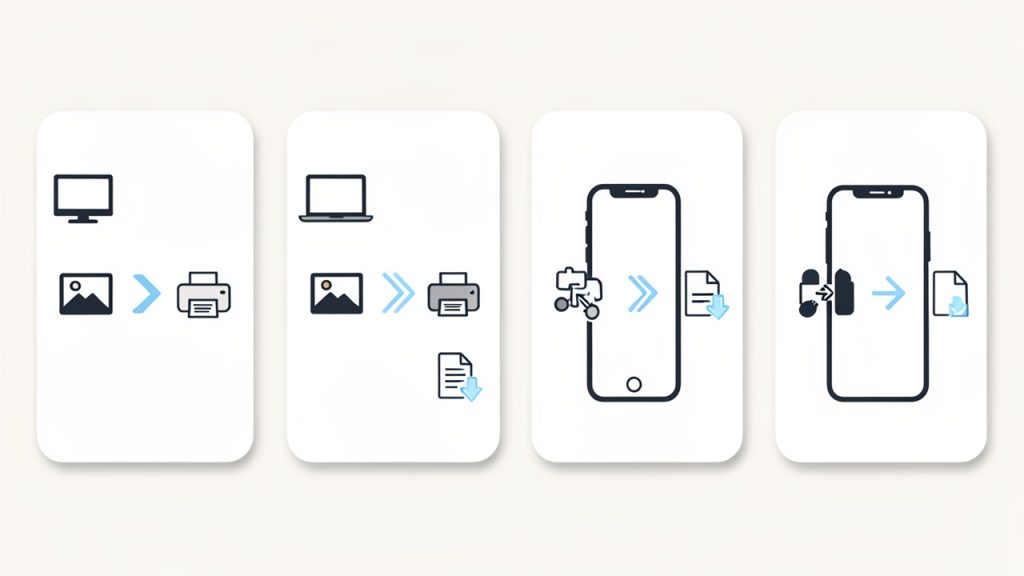
Windows includes Microsoft Print to PDF, which works with many image viewing apps. Open the JPG in Photos or another viewer, choose Print, then select Microsoft Print to PDF as the printer. After that, set paper size, quality, orientation, and fit options, then save the resulting PDF.
If you want to combine multiple JPG files into one PDF, select all the images in File Explorer, right-click, and choose Print. Windows will let you arrange the images and output them into a single PDF file. Before saving, double-check page order. If filenames are inconsistent, Windows may sort them in an unexpected sequence.
macOS Preview
On a Mac, Preview is one of the easiest local tools for JPG-to-PDF conversion. Open one or more JPG files in Preview. If you are combining images, make sure the thumbnail sidebar is visible so you can drag pages into the correct order. Then choose File > Print, followed by Save as PDF from the PDF menu.
Preview is especially useful for light cleanup. Before exporting, you can rotate pages, reorder them, or remove extras. For many users, that makes it a better option than uploading files to a website.
iPhone and iPad
On iPhone and iPad, you can turn a JPG into a PDF using the Share menu. In Photos, select the image, tap Share, then choose Print. On the print preview screen, pinch outward on the thumbnail preview. iOS will generate a PDF preview, which you can then share or save to Files.
For multiple images, select them first in Photos, then repeat the same process. This method is slightly hidden, but it is reliable and does not require a third-party app. It is especially helpful when you need to send travel documents, receipts, or handwritten notes while away from your desk.
Android
Many Android devices support PDF creation through the Print option inside Google Photos, Files, or gallery apps. Open the image, tap Share or the menu icon, choose Print, then set Save as PDF as the destination. You can then save the file locally or upload it to cloud storage.
The exact menu path varies by manufacturer, so Samsung, Pixel, and other Android phones may look slightly different. If your device supports selecting multiple images before printing, you can often combine them into a single PDF without extra software.
Adobe Acrobat for More Control
If you need professional output, Adobe Acrobat offers a cleaner workflow. You can create PDFs from images, combine many files into one document, reorder pages, compress large outputs, and apply OCR if the images contain text.
This is the better choice when the PDF is going to a client, a court filing portal, a procurement system, or any environment where consistency matters. Acrobat is not the fastest tool for casual use, but it is one of the most complete.
Best Free Online and Offline Tools for JPG-to-PDF Conversion
Different users need different tools. Some want the fastest possible web converter. Others need offline privacy, batch processing, or mobile scanning. The options below cover the most useful choices.
Quick Comparison
| Tool | Best For | Platform | Free Option | Batch Support | OCR/Advanced Editing | Privacy Fit |
|---|---|---|---|---|---|---|
| Smallpdf | Fast browser-based conversions | Web | Yes, limited | Yes | Limited on free tier | Moderate |
| ILovePDF | Quick online workflows and file merging | Web | Yes | Yes | Some extra PDF tools | Moderate |
| PDFCandy | Flexible free online PDF utilities | Web/Desktop options | Yes | Varies | Some editing tools | Moderate |
| Adobe Acrobat Pro | Professional, secure, advanced workflows | Desktop/Web | Trial only | Yes | Strong | High, especially local workflows |
| Preview | Free local conversion on Mac | macOS | Yes | Yes | Basic only | High |
| PDF24 Creator | Free Windows desktop utility | Windows | Yes | Yes | Good utility set | High |
| Microsoft Lens | Mobile scanning to PDF | iOS/Android | Yes | Limited | Strong scanning features | Moderate to high |
| Adobe Scan | Clean mobile document capture | iOS/Android | Yes | Limited | OCR available | Moderate |
| CamScanner | Mobile scanning and export | iOS/Android | Yes, often limited | Limited | Good scanning tools | Moderate |
1. Smallpdf
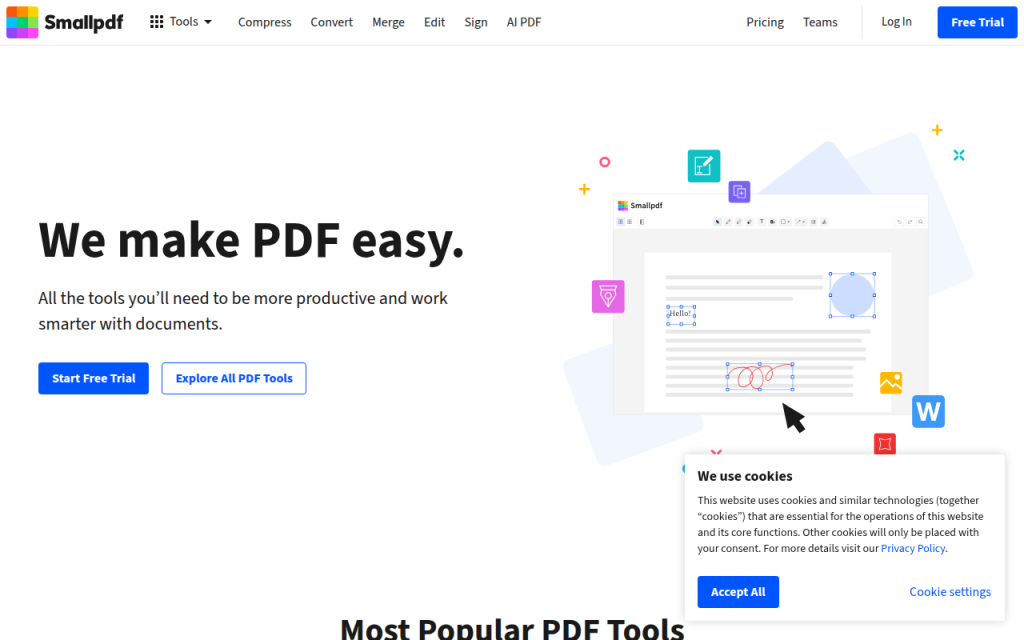
Smallpdf is one of the easiest ways to convert a JPG into a PDF online. The interface is simple, the upload flow is smooth, and it works well for users who want a quick result without learning new software. For freelancers, students, and small teams doing occasional conversions, it is often the fastest route from image to shareable document.
Key features include browser-based conversion with drag-and-drop upload, support for multiple JPGs so you can combine images into one PDF, easy page reordering before export, and a range of adjacent PDF tools such as compression and merging. Its advantages are convenience and a clean interface; the drawbacks are free usage limits and limited suitability for confidential files unless you trust the service. Advanced features require a paid plan.
Website: https://smallpdf.com
2. ILovePDF
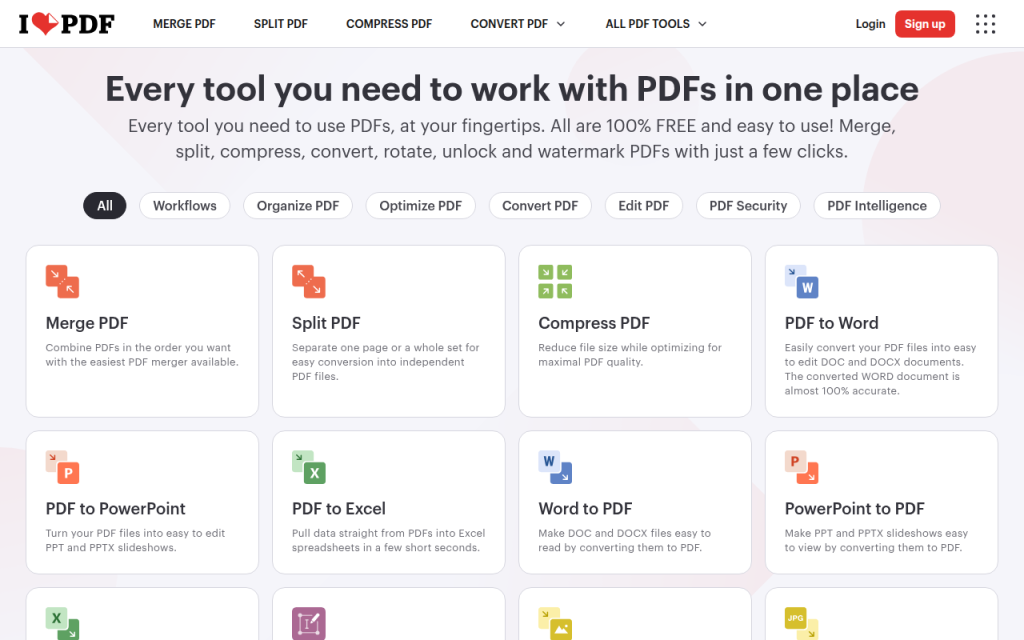
ILovePDF combines a straightforward JPG-to-PDF converter with a broad toolkit for common document tasks. Upload one or more image files, choose orientation and page size, and convert. In addition to conversion, the platform offers merge, split, compress, and organize tools, and it integrates with cloud storage. It is a solid all-around option for small business owners who handle invoices, forms, and customer paperwork. Free limits apply for heavy use, and uploads may not be appropriate for highly sensitive documents without extra caution.
Website: https://www.ilovepdf.com
3. PDFCandy
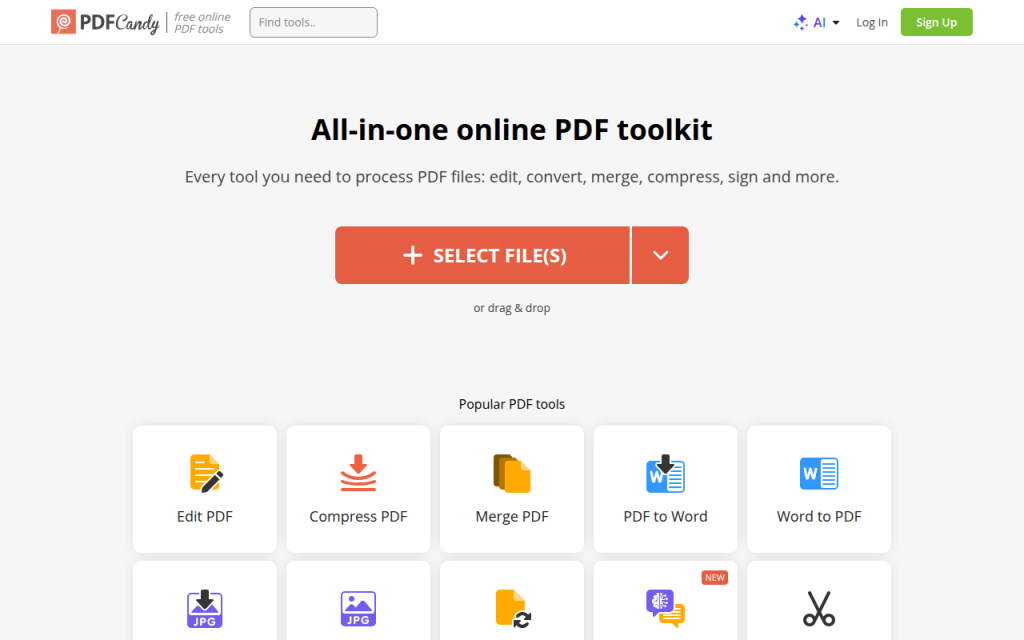
PDFCandy is a flexible option for users who want more than a single conversion page. It offers image-to-PDF conversion alongside editing, compression, and other format conversion features, making it appealing for people who work across many file types. PDFCandy is useful when your workflow includes converting images one day, compressing PDFs the next, and extracting pages later on. It provides a wide feature set accessible through a simple browser workflow, with desktop options available in some cases. Performance depends on file size and browser, and privacy considerations apply to any online service.
Website: https://pdfcandy.com
4. Adobe Acrobat Pro
Adobe Acrobat Pro is the professional benchmark for image-to-PDF conversion. It is not the lightest or cheapest option, but it is the tool people choose when the result needs to be dependable. If you regularly prepare client documents, submit paperwork to regulated systems, or need searchable PDFs with OCR, Acrobat earns its place.
Its advantages are depth of capability: combine many images, optimize file size, run OCR, add passwords, edit page order, redact content, and export in various formats. The downsides are cost and complexity for casual users. Acrobat is usually sold as a subscription.
Website: https://www.adobe.com
5. Preview
Preview is the unsung hero for Mac users. It is free, built in, and surprisingly capable for creating PDFs from JPG files. You can open images, arrange them visually, rotate or delete pages, and export everything into a single PDF without uploading anything. For privacy-conscious users, that local workflow is a major advantage. The main limitation is that Preview is macOS-only and does not provide advanced OCR or enterprise features.
Website: https://www.apple.com/macos/preview
6. PDF24 Creator
PDF24 Creator is a strong free desktop option for Windows users who want offline control. It is particularly useful for batch conversions, merging files, and performing utility tasks without sending anything to the web. Think of it as a local PDF workstation: it is not as polished as Acrobat, but it covers common needs such as file assembly, compression, and document creation while keeping everything on your machine.
The tool is free, works offline, and is ideal for repeated document tasks; the trade-off is a utilitarian interface and Windows-only availability.
Website: https://tools.pdf24.org
7. PDFsam
PDFsam is known for splitting and merging PDFs and is useful in a JPG-to-PDF workflow when you need to organize and refine PDFs after creating them. If your images are already in PDF form, PDFsam helps you combine sets, reorder sections, and prepare cleaner final packages. It is a smart companion tool for larger workflows. There is a free basic version and paid editions for expanded capabilities.
Website: https://pdfsam.org
8. ImageMagick
ImageMagick is a powerful choice for developers, IT teams, and power users who want scripted or repeatable conversion workflows. It is excellent when you need automation, server-side processing, or command-line control over many files at once. Use ImageMagick to automate repeated conversions, rename files systematically, or integrate image handling into scripts. The learning curve is steeper and PDF policy settings on some systems may require troubleshooting, but ImageMagick is open source and free.
Website: https://imagemagick.org
9. Microsoft Lens
Microsoft Lens is one of the best mobile apps for turning photos into useful PDFs. It is especially strong for scanning documents, whiteboards, receipts, and notes rather than simply wrapping an existing photo into a PDF. Lens crops edges, improves readability, and integrates with Microsoft 365 workflows, which is helpful if you use Outlook, OneDrive, Word, or Teams. The app is free and works well for mobile professionals who need cloud handoff and decent scan quality.
Website: https://www.microsoft.com
10. Adobe Scan
Adobe Scan is a polished mobile app for turning camera captures into PDFs quickly. It is particularly effective for receipts, contracts, handwritten notes, and other documents that need cleanup before export. The app offers good auto-detection, cropping, and OCR integration so scanned text can become searchable. Adobe Scan is free to start, with expanded capabilities tied to Adobe services.
Website: https://www.adobe.com/acrobat/mobile/scanner-app.html
11. CamScanner
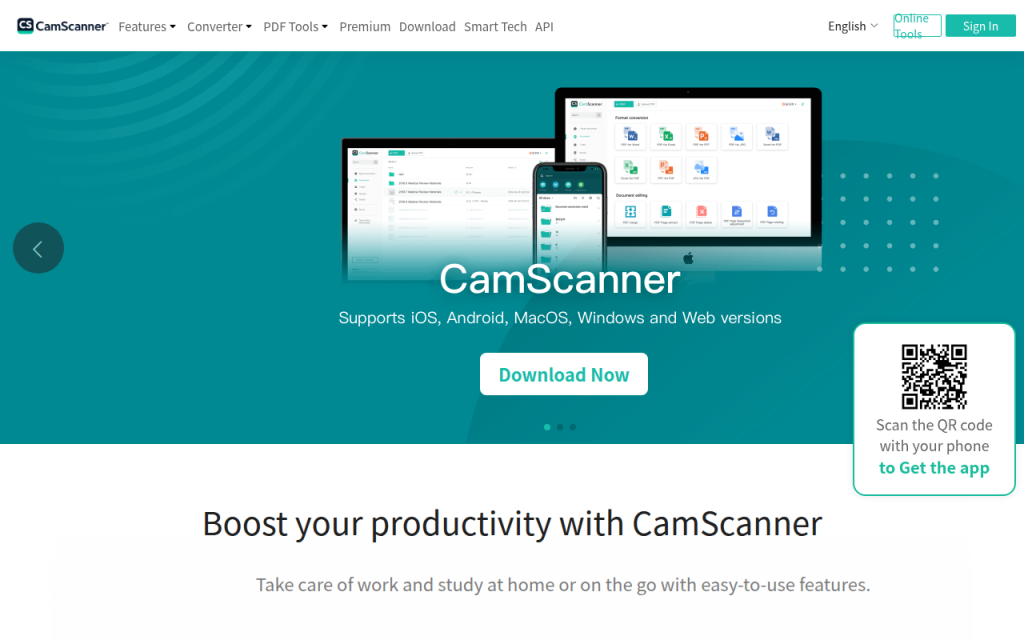
CamScanner is a popular mobile option for converting photographed documents into PDFs on the go. It provides enhancement filters, cropping tools, and a mobile-first convenience that suits freelancers, students, field staff, and small teams. It works best when the source is a physical page rather than an already clean digital image. Be aware of export limits, potential watermarks on free plans, and privacy terms before relying on any cloud-based scanning app for sensitive paperwork.
Website: https://www.camscanner.com
When to Use an Online Tool vs an Offline App
Online converters are best when the job is simple, the files are not sensitive, and speed matters more than anything else. If you have two JPGs from a product manual or a non-confidential receipt, a browser-based tool is often the easiest answer.
Offline tools are better when the images contain personal data, financial details, legal documents, medical information, contracts, or client records. They are also the smarter choice for batch jobs, recurring workflows, and anyone who wants predictable output without upload limits.
A useful rule is simple: if you would hesitate to email the image openly, you should probably not upload it to a random converter either.
Advanced Tips for Better PDF Results
Quality problems usually begin before conversion. If the original JPG is small, heavily compressed, rotated incorrectly, or poorly lit, the resulting PDF will inherit those flaws. Check image resolution, orientation, and cropping before creating the PDF.
For text-heavy images, OCR can be transformative. OCR, or optical character recognition, turns an image-based PDF into a searchable document so you can select text, search inside the file, and improve accessibility. Adobe Acrobat, Adobe Scan, and some other tools do this well, but accuracy depends on image clarity and contrast.
Compression also deserves care. Aggressive compression reduces file size, but it can blur text and damage readability, especially with receipts, forms, and thin lines. For archival or print-ready documents, aim for moderate compression and test the output before sending.
Privacy, Security, and Legal Considerations
Privacy is a common blind spot. Web tools are safe enough for ordinary use, but not all services handle uploads the same way. Some delete files quickly; others retain them longer. Some process files server-side, while others use more privacy-friendly methods.
Before uploading anything sensitive, read the provider’s privacy policy and retention terms. Look for automatic deletion, encryption in transit, account requirements, and whether files are used for service improvement or analytics. If you handle HR records, tax forms, ID documents, signed contracts, or health data, local processing is the safer route.
If the PDF contains sensitive content, consider adding password protection or redacting information after conversion. Passwords restrict opening or editing, while redaction permanently removes visible and hidden sensitive content rather than simply covering it up.
Troubleshooting Common JPG-to-PDF Problems
If your PDF looks blurry, the most common cause is a low-resolution source image or excessive compression during export. Start with a higher-quality JPG, choose a larger paper size, or disable aggressive optimization. Scanned text should remain crisp enough to read at normal zoom; if it does not, fix the image quality first.
If the page orientation is wrong, rotate the image before conversion when possible. Some systems interpret photo orientation based on EXIF metadata, which can produce surprises. Preview on macOS is especially good for correcting this before export. On Windows, checking the print preview carefully can save frustration.
Large file sizes usually come from high-resolution photos, many pages, or minimal compression. If the file is too big to upload or email, run it through a trusted compression tool afterward and review the compressed result carefully, especially if the document contains fine print.
If you cannot combine multiple images into one PDF, the issue is usually the workflow, not the files. On Windows, select all images together before printing to PDF. On Mac, open them in one Preview window and arrange them in the sidebar. In online tools, make sure multi-file upload is supported before converting.
When to Use JPG vs PDF
Use a JPG when the file is truly just an image, such as a product photo, social media graphic, or casual snapshot. It is lightweight, widely supported, and easy to insert into websites, slides, and chat messages.
Use a PDF when the image needs to function like a document. That includes job applications, invoices, signed forms, proposals, receipts, scanned IDs, handouts, and archive files. If order, print consistency, professionalism, or security matters, PDF is usually the better choice.
A helpful mental shortcut: if the recipient needs to view a picture, send a JPG. If they need to review a document, send a PDF.
Recommended Workflows
For a one-time personal conversion, use your device’s built-in tools first. They are fast, free, and private enough for ordinary needs. On Mac, use Preview. On Windows, use Print to PDF. On iPhone or Android, use the Print-to-PDF share flow.
For business use, especially with repeated conversions, adopt a deliberate workflow: standardize filenames, check page order before export, compress only after reviewing readability, and keep a local copy of the original images. That reduces errors when you need to resend or revise the document later.
For confidential files, stay offline whenever possible. Convert locally, apply OCR only if needed, add passwords when sharing, and use proper redaction tools if sensitive content must be removed. This is the safer path for legal, HR, finance, and healthcare-adjacent workflows.
Appendix: Quick Reference for Power Users
For advanced users, command-line tools can automate repeated conversions and bulk jobs. ImageMagick is a common choice, although configuration varies by system and some installations restrict PDF operations by default for security reasons.
Common patterns include converting multiple JPG images into a single PDF via command-line tooling, then optimizing the resulting PDF with Ghostscript for compression. These tools are best suited to developers, IT admins, and anyone building repeatable automation rather than occasional manual conversions.
The best way to convert a JPG into a PDF depends on what you care about most. If you want speed, use Smallpdf, ILovePDF, or your device’s built-in print features. If you want privacy and offline control, stick with Preview, PDF24 Creator, or Adobe Acrobat on desktop. If you want to capture paper documents from a phone, Microsoft Lens, Adobe Scan, and CamScanner are strong mobile options.
The next step is simple. Pick the method that matches your situation, run a test conversion, and check three things before you send the file: clarity, page order, and file size. Those three checks prevent most problems and turn a quick image export into a document you can send with confidence.