
If you need a quick way to convert an MP3 to M4A, the good news is that you have several solid options. The better news is that the right option depends less on the file format itself and more on what you care about most: convenience, privacy, batch conversion, Apple compatibility, or preserving tags and album art.
A lot of people assume converting audio will magically improve sound quality. It will not. In most cases, changing an MP3 into an M4A means re-encoding one lossy file into another lossy format, which can actually reduce quality if you choose poor settings. Still, there are good reasons to do it. M4A files, especially those using AAC, often deliver similar perceived quality at a smaller size and tend to work especially well across the Apple ecosystem.
This guide explains what MP3 and M4A actually are, when conversion makes sense, how the process works, and which tools are worth using. You will also get step-by-step instructions, FFmpeg examples, metadata tips, and a practical comparison table so you can choose the best method for your workflow.
What Is MP3 and What Is M4A? Key Differences Explained
MP3 became the default digital audio format for a reason. It made music files small enough to store, transfer, and stream back when bandwidth and disk space were far more limited than they are today. It still works almost everywhere, from older car stereos to Windows PCs, Android phones, budget music players, and web apps.
M4A is different. It is usually a container format that holds audio encoded with AAC. In practice, when people talk about M4A, they usually mean AAC audio stored in an M4A file. This format is especially common in Apple devices and apps, including iPhone, iPad, iTunes, the Music app on macOS, and parts of the broader Apple media ecosystem.
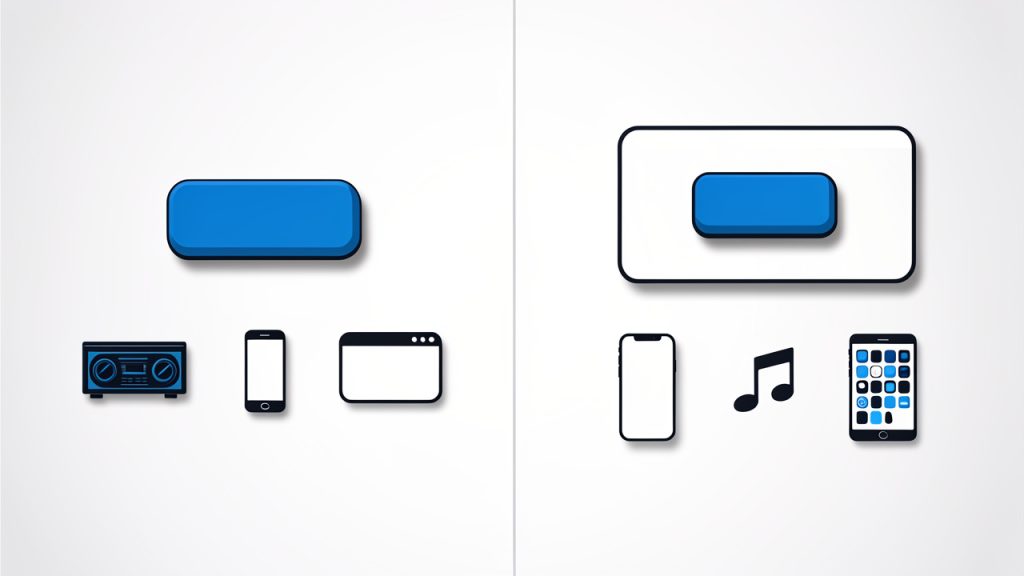
The technical difference matters. MP3 and AAC are both lossy codecs, but AAC is generally more efficient. That means an M4A file encoded with AAC can often sound as good as, or better than, an MP3 at the same bitrate. In some cases, it can also be smaller for the same perceived quality. That is why people often move from MP3 to M4A when optimizing libraries for mobile use.
Compatibility is broad for both formats, but not identical. MP3 is still the safest universal format. M4A works well on iPhone, iTunes, macOS, many Android apps, modern Windows players, VLC, and most current media software. If your main goal is Apple device sync, better metadata handling, or more efficient AAC compression, converting can make sense.
When Should You Convert MP3 to M4A?
There are a few practical reasons to convert. If you organize your music in Apple Music, iTunes, Finder, or an iPhone-focused workflow, M4A often feels more natural. If you are trying to reduce file size while keeping decent listening quality, AAC in an M4A container can also be a smart choice. Podcasts and spoken-word content can especially benefit from efficient AAC settings.
That said, you should not convert simply because you expect better audio. If your source file is already an MP3, converting it to M4A does not restore lost detail. It is a bit like photocopying a photocopy into a different paper size. You might get a more convenient version, but you do not recover the original information.
If sound quality matters, the best path is to start from a lossless source such as WAV, FLAC, or ALAC, then create your M4A from that original. If you downloaded an MP3 and just want it to play, sometimes the best move is to leave it alone. If a service offers the same track in AAC or M4A natively, downloading that version is better than converting the MP3 yourself.
How Conversion Works: What Actually Happens When You Convert Audio
In most MP3-to-M4A workflows, the audio is re-encoded. That means the MP3 is decoded back into audio data, then encoded again as AAC inside an M4A container. This is not the same as simply changing a filename extension or repackaging the stream. Because MP3 and AAC are different codecs, a true conversion almost always requires this extra compression step.
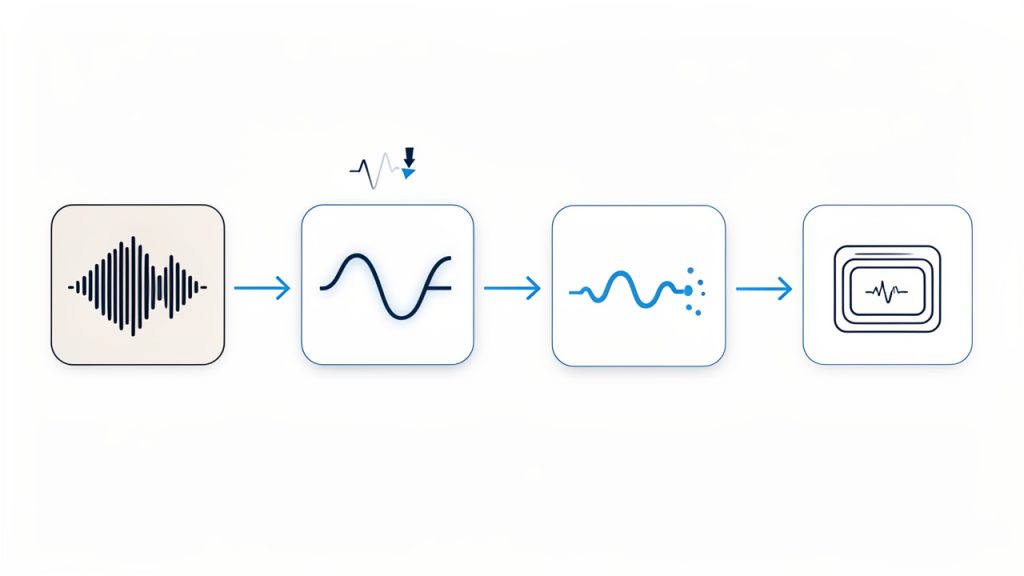
Bitrate plays a major role. For music, AAC-LC at 192 to 256 kbps is a sensible range for most users. For podcasts or voice recordings, lower settings may still sound perfectly fine. Sample rate usually stays the same as the source unless you deliberately change it. In most cases, there is no need to force a different sample rate.
Metadata is another overlooked issue. MP3 files typically use ID3 tags, while M4A files use MP4-style metadata tags. Good converters can map fields such as title, artist, album, track number, and genre automatically, but album art and some custom fields may not always carry over cleanly. That is why the best tools either preserve metadata directly or make retagging easy afterward.
Top Methods to Convert MP3 to M4A
Below are the most useful tools and services for converting MP3 to M4A, ranked by flexibility, ease of use, and real-world practicality.
1. FFmpeg
FFmpeg is the most powerful option on this list. It is a free, open-source command-line tool that can convert audio with precise control over codec, bitrate, metadata, and batch workflows. If you want repeatable results, automation, or professional-level flexibility, FFmpeg is hard to beat.
FFmpeg supports AAC encoding into M4A, batch conversion through scripts or terminal commands, metadata copying with -map_metadata 0, and cross-platform support for Windows, macOS, and Linux. It offers fine control over bitrate, sample rate, and encoder options. Because it runs offline, it is better for privacy and automation than web tools.
FFmpeg is free and open-source, extremely flexible, excellent for bulk conversion, and works offline. Its downsides are the command-line interface, which may intimidate beginners, and the fact that some advanced AAC encoders may not be included in every build.
A simple high-quality conversion command looks like this:
ffmpeg -i input.mp3 -c:a aac -b:a 256k -map_metadata 0 output.m4a
This tells FFmpeg to take input.mp3, encode it as AAC at 256 kbps, copy metadata from the source, and save the result as output.m4a.
For quality-based encoding with an FFmpeg build that includes libfdk_aac, you can use:
ffmpeg -i input.mp3 -c:a libfdk_aac -vbr 3 -map_metadata 0 output.m4a
For batch conversion on macOS or Linux:
for f in *.mp3; do ffmpeg -i "$f" -c:a aac -b:a 256k -map_metadata 0 "${f%.mp3}.m4a"; done
For batch conversion in Windows PowerShell:
Get-ChildItem *.mp3 | ForEach-Object { ffmpeg -i $_.FullName -c:a aac -b:a 256k -map_metadata 0 "$($_.BaseName).m4a" }
Website: https://ffmpeg.org
2. VLC Media Player
VLC is best known as a video player, but it also works as a capable media converter. For users who want a free desktop app with a graphical interface, VLC is one of the easiest ways to convert MP3 files to M4A without installing a specialized audio program.
VLC includes a built-in converter, processes files offline, and runs on Windows, macOS, and Linux. It is convenient if you already have VLC installed and it is safer than many random online converters for private files. The interface is not optimized for batch audio workflows, metadata handling can be inconsistent, and it exposes fewer transparent settings than FFmpeg.
To use VLC, open Media > Convert/Save, add your MP3 file, choose Convert, select an AAC or M4A-compatible profile, set the destination filename with the .m4a extension, then start the conversion. If the default profile is vague, create a custom profile with AAC audio and verify the container format.
Website: https://www.videolan.org
3. Apple Music app / iTunes
If you are an Apple user, this is often the smoothest method. On older Windows systems and older macOS versions, iTunes can convert MP3 files to AAC. On modern Macs, the Music app handles similar library-based workflows. This route is ideal if your files are already organized in an Apple library and you want tight integration with iPhone or iPad syncing.
Apple’s tools are built for Apple workflows, offer library-based conversion, and generally manage metadata and artwork well. They are very convenient for Mac and iPhone users, require no command-line knowledge, and produce files that are highly compatible with Apple devices. The trade-off is less flexibility than FFmpeg and fewer options for advanced batch automation.
To convert, go to the import settings in iTunes or the Music app, choose AAC Encoder, set your preferred quality, then select the MP3 file in your library and create an AAC version. The converted file will typically appear alongside the original.
Website: https://www.apple.com
4. CloudConvert
CloudConvert is one of the better online options for converting MP3 to M4A when you do not want to install software. It supports many file types, has a cleaner interface than most web converters, and usually provides clearer conversion settings than bare-bones alternatives.
CloudConvert offers web-based conversion with custom output settings and works across devices without local installation. It is very convenient and beginner friendly, but uploading audio to a third-party server is not ideal for sensitive recordings, private voice notes, unreleased media, or licensed content with restrictions. For occasional non-sensitive files, it is a solid choice.
If you use CloudConvert, upload the MP3, select M4A as the output format, check audio settings if available, choose AAC at a sensible bitrate such as 192 or 256 kbps, then download the converted file.
Website: https://cloudconvert.com
5. Zamzar
Zamzar has been around for years and remains one of the most recognizable online conversion services. Its strength is simplicity: upload a file, choose the target format, and wait for the conversion. For users who want minimal friction and do not need advanced settings, Zamzar is often enough.
Zamzar is very easy to use from almost any browser, but it provides limited control over advanced audio settings and is not ideal for sensitive files. It may be slower for large uploads and is best for public-domain clips or disposable test files.
Website: https://www.zamzar.com
6. Online-Convert
Online-Convert is another web-based service that often gives users more direct control over conversion settings than ultra-simple competitors. That makes it a better pick if you want some configurability without using FFmpeg or desktop software.
Online-Convert is convenient from the browser and offers more settings than some competitors. Privacy concerns still apply, the interface can feel utilitarian, and free usage may be limited, but it works well for quick experiments and basic bitrate adjustments.
Website: https://audio.online-convert.com
7. The Audio Converter (iPhone/iPad)
For iOS users, The Audio Converter is one of the more straightforward apps for converting files directly on a phone or tablet. It is useful when you receive audio by email, Files, or cloud storage and need a quick format change without moving to a desktop.
The main benefit is mobility, and it is handy for a few files on the go. For larger libraries, mobile conversion can feel clunky.
Website: https://www.floattechapps.com
8. Android converters
On Android, several apps can convert MP3 to M4A locally. The exact best choice can change over time, so choose an app with solid reviews, recent updates, and clear permission requirements. Good Android converters are handy for quick mobile edits or field recordings, but be cautious: mobile store apps vary widely in quality and some include ads or ask for suspicious permissions.
Website: https://play.google.com
Recommended Tools and Where They Shine
Choosing the best converter is easier when you map it to your actual use case rather than chasing a generic “best tool” label.
| Tool | Best For | Platform | Privacy | Ease of Use | Batch Support |
|---|---|---|---|---|---|
| FFmpeg | Power users, developers, archivists | Windows, macOS, Linux | Excellent, offline | Moderate to low for beginners | Excellent |
| VLC Media Player | Casual desktop users | Windows, macOS, Linux | Excellent, offline | Good | Basic |
| Apple Music / iTunes | Apple-centric libraries | macOS, Windows | Excellent, offline | Very good | Moderate |
| CloudConvert | Quick one-off web conversions | Browser | Moderate to low | Excellent | Limited |
| Zamzar | Simple online use | Browser | Moderate to low | Excellent | Limited |
| Mobile apps | Phone-only workflows | iOS, Android | Varies by app | Good | Low |
If you want the best free desktop option, use FFmpeg if you are comfortable with commands and VLC if you prefer buttons. If you live in the Apple ecosystem, Music app or iTunes is the most seamless route. If you only need one quick conversion and the file is not sensitive, CloudConvert is usually the strongest online pick.
Step-by-Step: Convert MP3 to M4A Using FFmpeg
Installing FFmpeg is straightforward. On Windows, download a trusted build from the official FFmpeg site or a reputable package source. On macOS, many users install it through Homebrew. On Linux, it is usually available through the distribution’s package manager.
Once installed, start with a simple command:
ffmpeg -i input.mp3 -c:a aac -b:a 256k -map_metadata 0 output.m4a
Here is what the flags mean. -i input.mp3 sets the source file. -c:a aac selects the AAC audio encoder. -b:a 256k sets audio bitrate to 256 kbps. -map_metadata 0 copies metadata from the first input. output.m4a defines the destination file and container.
If your build supports libfdk_aac, many users consider it a high-quality AAC encoder:
ffmpeg -i input.mp3 -c:a libfdk_aac -vbr 3 -map_metadata 0 output.m4a
For voice content or smaller files, you can reduce bitrate:
ffmpeg -i input.mp3 -c:a aac -b:a 128k -map_metadata 0 output.m4a
If album art does not transfer automatically, you may need a more explicit mapping workflow, especially when the source contains embedded cover art in a form FFmpeg interprets separately.
How to Keep Metadata and Album Art When Converting
Metadata transfer is where many converters fall short. MP3 files commonly use ID3 tags, while M4A relies on a different metadata structure. Basic tags like artist, album, and title often copy over without trouble, but embedded artwork can be inconsistent.
FFmpeg’s -map_metadata 0 helps preserve tags, but after conversion, it is worth checking the result in a dedicated tag editor such as Mp3tag or Kid3. These tools are especially useful if fields appear blank, track numbering breaks, or cover art disappears.
If metadata matters a lot to you, the Apple Music app and iTunes often do a better job in Apple-centric workflows. For manual cleanup on Windows, Mp3tag is one of the easiest options. On cross-platform setups, Kid3 is a solid choice.
Quality Tips and Best Practices
The most important rule is simple, do not expect quality gains from lossy-to-lossy conversion. If your MP3 is already compressed, your best goal is to avoid making it noticeably worse. For music, AAC-LC at 192 to 256 kbps is a safe recommendation. For podcasts and voice, 96 to 128 kbps can be enough, depending on the source.
AAC-LC is the standard choice for most music. HE-AAC can be efficient at very low bitrates, but it is not the best default for general music libraries. If you care about future-proofing, keep your original MP3 and, when possible, archive from a lossless master like FLAC or WAV so future conversions do not compound quality loss.
Safety, Privacy, and Legal Considerations
Online converters are convenient, but they introduce real privacy risk. If the file contains private interviews, internal business recordings, client assets, or unreleased material, keep the conversion offline. Use FFmpeg, VLC, or an Apple desktop tool instead.
Legality matters too. Converting audio you own for personal use may be acceptable in some contexts, but converting protected streaming content or bypassing platform restrictions can violate terms of service or copyright law. Always check the rules that apply in your region and with the service you are using.
Malware is another concern, especially with obscure “free converter” apps. Download software from official websites, avoid bundled installers, and verify app reviews and permissions before installing on desktop or mobile.
Troubleshooting Common Problems
If the converted file will not play, the issue is often the codec or container combination. Make sure you encoded to AAC and saved with the .m4a extension. Simply renaming a file is not conversion.
If metadata is missing, rerun the conversion with metadata mapping or open the file in Mp3tag or Kid3 to inspect fields manually. If track names become generic or artwork disappears, the source tags may not have mapped cleanly into the M4A structure.
If quality sounds worse than expected, check whether you converted a low-bitrate MP3 into an even lower-bitrate AAC. That usually compounds artifacts. Try a higher target bitrate, but remember that higher bitrate cannot restore detail already lost in the original MP3.
If file sizes are too large, your bitrate may be unnecessarily high. For everyday listening, stepping down from 256 kbps to 192 kbps AAC often offers a better balance between size and perceived quality.
Frequently Asked Questions (FAQ)
Does converting an MP3 to M4A improve quality?
No. Converting an existing MP3 to M4A does not improve the original audio quality. It may help with compatibility, library management, or file size efficiency, but it cannot restore lost detail.
Can I convert without losing metadata?
Often, yes. Tools like FFmpeg, iTunes, Music app, and some desktop converters can preserve metadata. Album art and custom fields may still need manual checking.
Is M4A better than MP3 for all devices?
No. M4A is excellent for Apple devices and many modern apps, but MP3 remains the most universally compatible format across older hardware and software.
Which is smaller, MP3 or M4A?
At similar perceived quality, M4A with AAC is often smaller than MP3. The exact result depends on the encoder and bitrate you choose.
Conclusion and Recommended Next Steps
If you want the simplest answer, here it is. Use FFmpeg for control and batch jobs, VLC for an easy free desktop workflow, Apple Music or iTunes if you live in the Apple ecosystem, and CloudConvert only for non-sensitive one-off files.
For the best results, keep your original file, use AAC-LC, aim for 192 to 256 kbps for music, and verify metadata after conversion. If quality really matters, start from a lossless source instead of an MP3.
A practical next step is to create a small test set with one song, one podcast, and one file with album art. Convert them with your preferred tool, compare file size, playback, and metadata, then apply the same settings to the rest of your library. That simple test will save you far more time than redoing hundreds of files later.