JNTZN

Tag: online converters

  • How to Convert PNG Files to PDF Quickly

    How to Convert PNG Files to PDF Quickly

    Turning a PNG into a PDF sounds like a tiny task until you need to do it quickly, keep the image quality sharp, and make sure the file is easy to share. That is where many people hit friction. A screenshot, scanned receipt, signed form, design mockup, or product image may look fine as a standalone image, but once it needs to be emailed, printed, archived, or combined with other pages, PDF is usually the format people expect.

    For small business owners, freelancers, developers, and productivity-focused users, converting PNG files into PDFs is less about file types and more about workflow. You want something simple, reliable, and preferably free. You also want to avoid bloated software, confusing settings, and quality loss. The good news is that converting a PNG file into a PDF is usually straightforward once you understand what changes, what stays the same, and what options matter.

    What is converting a PNG into a PDF?

    At its core, converting a PNG into a PDF means taking an image file and packaging it into a document format.

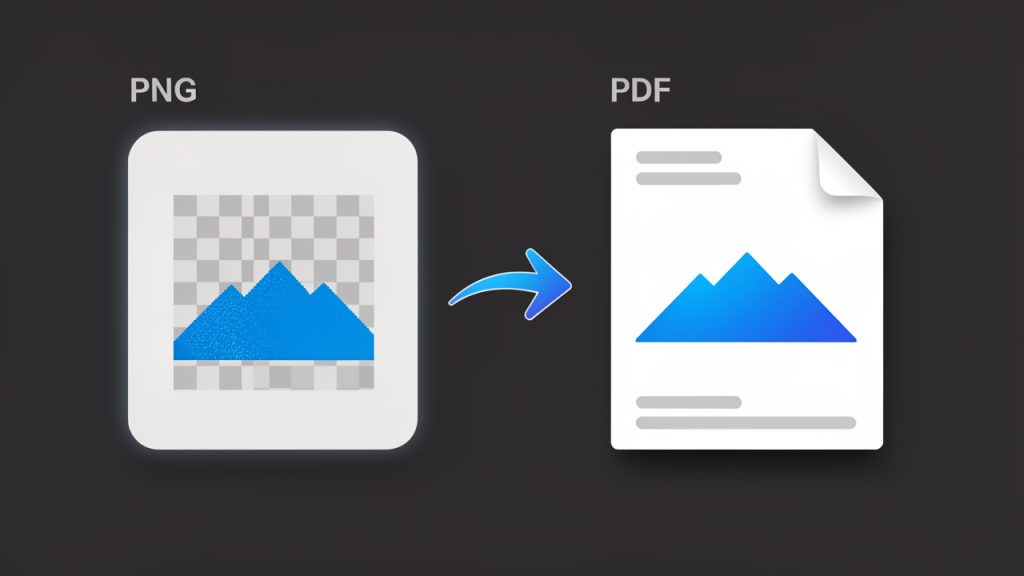
    Side-by-side comparison showing a PNG image (thumbnail of a logo/screenshot with a checkerboard transparency background) on the left and a PDF document page (same image centered on a page with header/footer metadata) on the right, with an arrow labeled “Convert” between them. Visual cues: ‘PNG (lossless image)’ and ‘PDF (document wrapper)’ labels, small icons for file types, and a subtle note showing that layout and compatibility are added by the PDF.

    A PNG file is designed for images, especially graphics that need sharp edges, transparency, or lossless quality. PNG is a lossless image format. A PDF, on the other hand, is designed for sharing and presenting content in a consistent layout across devices and platforms.

    This distinction matters more than it first appears. A PNG is excellent when you need an image to remain crisp, such as a logo, screenshot, chart, or digital illustration. A PDF becomes more useful when that same image needs to be treated like a document. If you are sending an invoice attachment, submitting paperwork, compiling scans, or preparing visual assets for review, a PDF gives the file more structure and broader compatibility.

    The phrase people search for, often written as “PNG to PDF”, usually refers to either a one-time conversion or an ongoing need in daily work. Sometimes it is as simple as converting a single image into a one-page PDF. In other cases, it means combining multiple PNG files into one organized PDF document with the right page order, page size, and orientation.

    Why PDF is often the better final format

    PDF has become the standard for formal file exchange because it preserves layout and is widely supported. Whether your recipient opens it on a laptop, tablet, phone, or office printer, the content is far more likely to appear exactly as intended. That predictability is a major reason people convert image files into PDFs instead of sending raw images.

    There is also a psychological aspect to file format choice. A PDF feels complete. It looks more official, more stable, and easier to archive. When a client receives a PDF instead of a loose image file, the presentation often feels more polished. For businesses and freelancers, that small difference can support a more professional impression.

    When people commonly convert PNG files into PDFs

    The most common use cases are practical and repetitive. Someone scans paperwork as images and needs to combine the pages into a single PDF. A freelancer exports mockups or slides as PNG files and wants to send them as a clean presentation document. A developer captures UI screenshots for bug reports or product documentation and converts them into a shareable file that can be reviewed or stored more easily.

    In each case, the image itself is still important, but the document wrapper is what makes the file easier to move through a workflow. That is why PNG-to-PDF conversion has become such a common utility task across industries.

    Key aspects of converting PNG files into PDFs

    A good conversion is not just about changing the extension. It is about preserving what matters while making the file more useful. To do that well, it helps to understand image quality, file size, layout behavior, and compatibility.

    Image quality and resolution

    One of the first concerns people have is whether converting a PNG into a PDF will reduce quality. In many cases, the answer is no, at least not automatically. If the conversion tool embeds the PNG cleanly into the PDF, the image can remain visually identical.

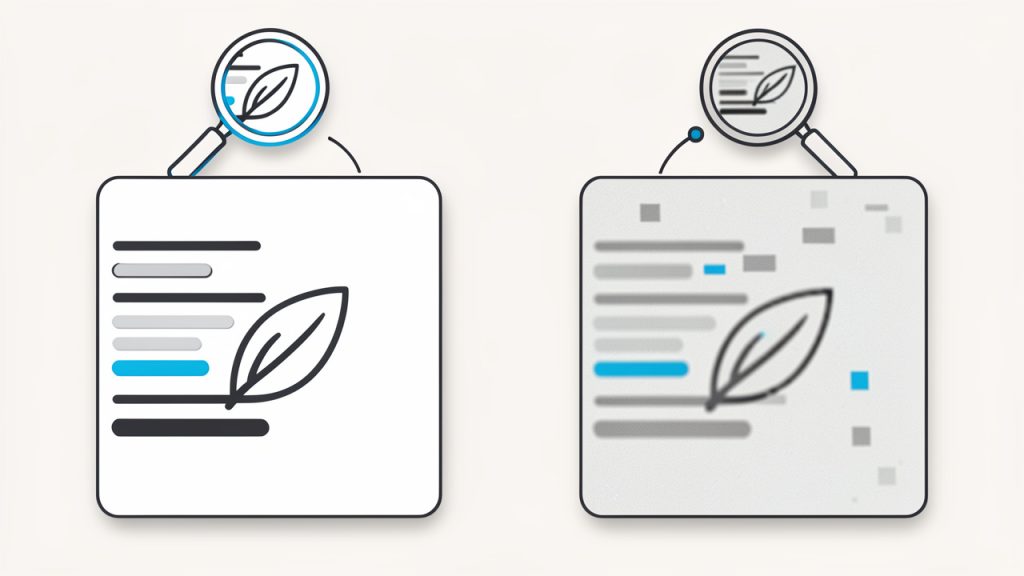
    A two-panel comparison illustrating image quality effects: left panel shows the original sharp PNG (close-up of small text and line art, labeled ‘Source PNG — lossless’), right panel shows the same image after aggressive conversion/compression (blurred edges, artifacts, labeled ‘Compressed/optimized PDF — lower quality’). Include callouts for ‘resolution unchanged’ and ‘compression can soften text’.

    That said, some tools optimize or compress files during export, and that can reduce quality if the settings are aggressive or hidden. If your PNG contains small text, interface elements, or line art, even slight compression can make the result look softer. This is especially noticeable when printing. If visual precision matters, check whether the tool allows you to control compression or output quality.

    Resolution is another factor that affects the final result. A low-resolution PNG converted into a PDF does not become sharper just because it is now in document format. The PDF can preserve the image, but it cannot invent detail that was never there. If the source PNG is blurry or pixelated, the PDF will usually reflect that same limitation.

    File size trade-offs

    A PDF is not always smaller than a PNG. In fact, depending on how the conversion is handled, the file can become larger. This surprises users who expect PDF to act like a compression shortcut. In reality, the PDF may wrap the image with additional document data, metadata, or page information, increasing the overall size.

    For business workflows, file size matters when you are emailing attachments, uploading documents to portals, or storing large numbers of files in the cloud. If you are converting multiple high-resolution PNGs into one PDF, the final document can grow quickly. In those cases, use a tool that balances compression with readability rather than simply maximizing quality at all costs.

    The right choice depends on your goal. If you need a polished print-ready document, a larger size may be acceptable. If you only need a file that can be reviewed on screen and sent quickly, a lighter PDF is often better.

    Single image vs. multi-page PDF

    Not every conversion works the same way. A single PNG can become a one-page PDF with minimal effort. A batch of PNGs is more complex because page order, page breaks, orientation, and page sizing all come into play.

    This is where a good converter becomes more than a format changer. It becomes a document assembly tool. If you are combining receipts, portfolio pages, contracts, forms, or screenshots, you want to be able to control sequence and page formatting. A well-structured PDF is much easier to navigate than a folder full of disconnected image files.

    Transparency, margins, and page layout

    PNG files support transparency, which is one of the format’s strengths. But PDF pages need a defined background and page area. Depending on the converter, transparent parts of the PNG may appear white, flattened, or placed against a default background when exported to PDF.

    Margins can also affect presentation. Some tools stretch the image to fit the page. Others center it and leave whitespace around the edges. Neither is inherently wrong, but the result may look very different from what you expected. This matters for scanned documents, digital art, and branding materials, where alignment and spacing contribute to readability and visual polish.

    Security and privacy considerations

    This is one of the most overlooked aspects of online conversion. If you are using a web-based tool to turn PNG files into PDFs, you are uploading your content to a server somewhere. For everyday files, that may be acceptable. For contracts, IDs, invoices, medical records, or client work, it deserves more thought.

    A privacy-conscious workflow means checking whether files are deleted automatically, whether uploads are encrypted, and whether the service has a clear retention policy. For sensitive material, a local desktop or device-based conversion method may be the safer option. Convenience is valuable, but so is control.

    Common methods compared

    Method Best For Pros Trade-Offs
    Online converter Quick one-off tasks Fast, accessible, no installation Privacy concerns, upload limits, variable quality
    Built-in print to PDF Basic local conversion Free, available on many devices, simple Limited control over page layout and batching
    Desktop software Frequent or sensitive conversions Better quality control, offline use, more settings May require installation or payment
    Mobile app On-the-go work Convenient for scans and quick sharing Smaller screen, fewer advanced options

    How to get started converting PNG files into PDFs

    For most people, the best starting point is the simplest one. Use the method already available to you, then move to a more specialized tool only if your workflow demands it. The right approach depends on whether you care most about speed, quality, privacy, or document organization.

    Start with your actual use case

    Before converting anything, ask one simple question: What is this PDF for? That answer shapes almost every decision that follows. If the file is for internal reference, speed may matter most. If it is for a client or official submission, presentation and compatibility become more important. If it contains confidential information, local processing should move higher on your list.

    This small moment of clarity prevents a lot of unnecessary trial and error. People often choose a tool first and only later realize it compresses too much, adds watermarks, limits file count, or handles page formatting poorly. Starting with the use case keeps the process efficient.

    A simple conversion workflow

    If you are new to converting PNG files into PDFs, the workflow is usually straightforward:

    1. Choose your PNG file or files.
    2. Select a trusted conversion method, either online or on your device.
    3. Check page order, orientation, and size if using multiple images.
    4. Export the PDF and review it carefully before sharing or printing.

    Even this basic process benefits from a final review. Open the PDF on a second device if possible. Make sure text is readable, page crops look correct, and image edges are not cut off. A quick check can save an awkward resend later.

    Organizing multiple PNGs into one PDF

    When converting multiple PNG files, the main challenge is not technical. It is organizational. If the images are named inconsistently or uploaded in the wrong order, the PDF can become confusing immediately. Renaming files before conversion is often worth the extra minute.

    For example, if you are combining pages from a scanned contract, names like page-1, page-2, and page-3 will reduce errors. If you are assembling design samples or report images, logical naming helps the converter maintain sequence. It also makes future edits easier if you need to rebuild the PDF later.

    Choosing the right page size and orientation

    This is a detail many users ignore until the final file looks odd. A portrait PNG placed on a landscape PDF page can create too much blank space. A wide screenshot forced into a standard letter-size page may appear too small to read comfortably. The best tools let you match the image dimensions to the page or scale the page to fit the image.

    If the PDF is meant for printing, choose standard paper sizes such as A4 or Letter. If it is only for digital viewing, a tighter image-to-page fit can make the document look cleaner and more modern. The point is not to chase perfection. It is to choose settings that serve the way the file will actually be used.

    Avoiding common problems

    Most conversion issues fall into a few predictable categories. The image looks blurry because the source file was too small or the tool compressed it. The pages are out of order because files were not arranged before export. The PDF is too large because high-resolution images were bundled without optimization. The margins look awkward because the converter applied default page settings that did not match the image shape.

    These are not complex problems, but they are frustrating when you are in a hurry. A little preparation goes a long way. Keep source images organized, know whether the file is for print or screen, and test one sample conversion before processing a larger batch.

    Online tool or local tool?

    For free, easy-to-use workflows, online tools are often the first choice. They work in the browser, require no setup, and handle basic conversions quickly. This is ideal when you are on a shared machine, switching devices, or just trying to finish a small task with minimal effort.

    Local tools make more sense when privacy, repeat usage, or output consistency matters. If you regularly convert invoices, reports, forms, or client assets, a desktop or built-in operating system solution may feel more dependable over time. It removes upload delays, avoids internet dependency, and gives you more control over where your files go.

    The best choice is not universal. It is situational. A productivity-minded user often benefits from having both options available and using each where it fits best.

    Conclusion

    Converting a PNG into a PDF is a simple task on the surface, but the best results come from understanding what the conversion is really doing. You are not improving the original image just by changing formats. You are making that image easier to share, organize, print, archive, and present. Once you see it that way, the right settings and tools become much easier to choose.

    If you need to get started today, begin with a small test file and focus on three things: image clarity, page layout, and file size. If those look right, your process is probably solid. From there, you can build a faster workflow for receipts, forms, screenshots, portfolios, or any other images you need to turn into a polished PDF document.

  • How to Convert JPG Images to BMP Without Losing Quality

    How to Convert JPG Images to BMP Without Losing Quality

    Converting a JPG to a BMP sounds simple, until image quality shifts, file sizes explode, or a once-sharp graphic suddenly becomes awkward to use in another program. If you have ever needed an image format for printing, legacy software, design work, or a device that refuses to accept JPG files, you have already run into this exact problem.

    The good news is that turning a JPG image into BMP format is usually quick and straightforward. The more important question is when it makes sense, what changes during conversion, and how to do it without losing control over quality, size, or compatibility. For small business owners, freelancers, developers, and anyone using online tools to stay productive, understanding the difference can save time and prevent frustrating rework.

    What is converting a JPG image to a BMP?

    A conversion from JPG to BMP is the process of taking an image stored in JPG (or JPEG) format and saving it as a BMP bitmap file. Both formats store pictures, but they do it in very different ways. JPG is designed for efficient compression, which makes it ideal for web use, email attachments, and digital photos.

    A JPG (or JPEG), an open description, is linked here for reference: https://en.wikipedia.org/wiki/JPEG. A BMP bitmap file is linked here: https://en.wikipedia.org/wiki/BMP_file_format.

    That difference matters in real-world use. A JPG is usually much smaller, which is why it loads quickly and travels easily between apps and devices. A BMP is often much larger, but it can be easier for certain software to read, especially older Windows-based applications, image-processing tools, embedded systems, or workflows where compression artifacts are a problem.

    When people search for a way to convert a JPG image to a BMP, they are often trying to solve a practical compatibility issue. Maybe a printer utility only accepts BMP files. Maybe a game asset pipeline needs bitmap images. Maybe a legacy application cannot correctly process JPEG compression. In each case, the conversion itself is easy, but choosing the right settings is where good results come from.

    Why these formats exist side by side

    JPG became dominant because it offers an excellent balance between visual quality and small file size. For photographs and general-purpose sharing, it works extremely well. The trade-off is that JPG uses lossy compression, which means some image information is discarded each time the file is compressed. See more about lossy compression here: https://en.wikipedia.org/wiki/Lossy_compression.

    BMP takes a different approach. It is one of the oldest and simplest raster image formats, widely associated with Microsoft Windows. Because it often stores image data more directly, it can preserve the exact pixel layout without the compression behavior you get from JPG. That simplicity can be useful, even if it comes at the cost of much larger files.

    A good way to think about it is this, JPG is built for efficiency, while BMP is built for straightforward storage and compatibility. Neither is universally better. The right choice depends on what you need the file to do next.

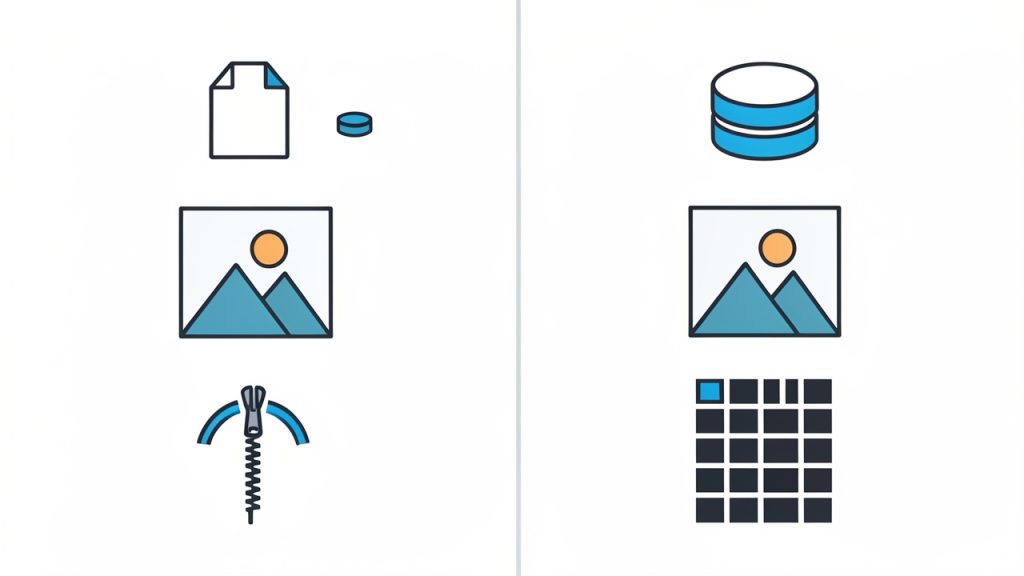
    JPG vs BMP comparison diagram, Efficiency vs straightforward storage

    Caption: Efficiency (JPG) vs straightforward storage and compatibility (BMP).

    Key aspects of converting a JPG image to a BMP

    Before you convert a JPG file to BMP, it helps to understand what actually changes. The file extension changes, of course, but the deeper effects involve quality, compression, file size, transparency, and use case. These are the factors that determine whether the conversion is useful or just unnecessary extra weight.

    File size usually increases significantly

    The first surprise for most users is how much larger a BMP file can become. A compact JPG image that is only a few hundred kilobytes might become several megabytes after conversion. This is not a mistake. It is a consequence of BMP’s less compressed structure.

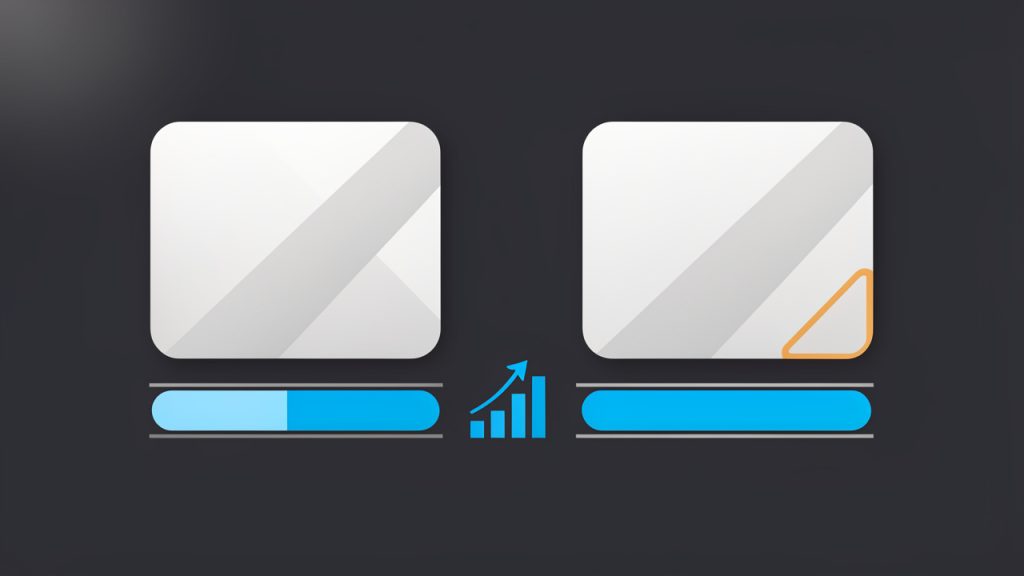
    File size increase example: identical image, JPG small vs BMP large

    A compact JPG image that is only a few hundred kilobytes might become several megabytes after conversion. For businesses and freelancers, this matters when images need to be stored in bulk, uploaded to cloud systems, or shared with clients. A single conversion may be harmless, but converting an entire folder of JPG photos into BMP can quickly consume storage space and slow down workflows. If your goal is simply to change the file format for broad compatibility, BMP may be fine. If your goal is efficiency, it usually is not the best destination format.

    Converting does not restore lost JPG detail

    This is one of the most important points to understand. If a JPG image has already been compressed, converting it to BMP does not magically recover detail that was lost earlier. The BMP will store the image as it exists now, including any JPG artifacts such as blockiness, smoothing, or edge degradation.

    That means a JPG-to-BMP conversion is best understood as a format change, not a quality upgrade. The resulting BMP can prevent further lossy compression if you continue editing, but it cannot recreate information that was already discarded when the JPG was made.

    Imagine photocopying a document and then placing the copy in a premium folder. The folder may protect the copy from further damage, but it does not make the copied text sharper than it was to begin with. The same logic applies here.

    BMP can improve software compatibility

    Despite its age, BMP still matters in specific environments. Some desktop tools, industrial systems, documentation workflows, custom apps, and older Windows utilities work more reliably with bitmap images than with compressed formats like JPG. In these situations, converting a JPG image to a BMP is not about visual improvement. It is about predictable file handling.

    Developers and technical users see this often. If a parser, import tool, or image library has limited format support, BMP can be the simplest bridge. The file may be larger, but it can be easier to process because the structure is less complex than modern compressed formats.

    For non-technical users, the same principle applies in a simpler way. If a piece of software says “unsupported image format” when you upload a JPG, a BMP version may solve the problem immediately.

    Image dimensions stay the same, but storage changes

    When you convert a JPG to BMP, the pixel dimensions usually remain unchanged unless you explicitly resize the image. A 1200 x 800 image will still be 1200 x 800 after conversion. What changes is the way those pixels are stored.

    This distinction is useful because many people confuse file size with image dimensions. A BMP may be dramatically larger in megabytes, yet look exactly the same on screen because the width and height are identical. The larger size reflects storage method, not necessarily a bigger visual image.

    Color handling matters in some workflows

    Most simple conversions preserve colors well enough for everyday use, but not every tool handles color profiles in exactly the same way. If your work depends on visual consistency, such as product photography, print preparation, UI design, or branded graphics, it is smart to inspect the converted BMP before using it in production.

    Even small color shifts can matter when an image appears in marketing materials or customer-facing assets. A quick quality check after conversion can prevent mismatched visuals later.

    JPG vs BMP at a glance

    Feature JPG BMP
    Compression Lossy, highly compressed Usually uncompressed or lightly compressed
    File Size Small Large
    Best Use Photos, web, sharing Compatibility, editing workflows, legacy software
    Image Quality Over Re-saves Can degrade with repeated compression More stable once saved
    Software Support Very broad Broad, especially in Windows and older systems
    Transparency Support Limited in standard JPG Typically limited in basic BMP workflows

    How to get started converting a JPG image to a BMP

    If you need to convert a JPG image into BMP format, the actual process is usually fast. The smarter part is choosing the right method for your workflow. online tools are ideal for quick, occasional tasks. Built-in desktop tools work well for offline use. Batch-capable apps are better if you handle many files at once.

    Choose the right conversion method

    For most users, an online JPG-to-BMP converter is the fastest option. You upload the JPG file, let the tool process it, then download the BMP result. This works well for occasional conversions, especially when you do not want to install software.

    If your images contain sensitive client material, internal documents, or unreleased creative assets, a local method may be better. Basic image editors on Windows and macOS often let you open a JPG and use “Save As” or “Export” to create a BMP file. This keeps the image on your device and reduces privacy concerns.

    Developers and power users may prefer desktop tools with batch processing. When handling dozens or hundreds of files, automation matters more than convenience. In those cases, BMP is usually chosen because a downstream system specifically requires it.

    A simple way to convert

    The actual steps are usually short and familiar.

    1. Select your JPG file from your device or cloud storage.
    2. Choose BMP as the output format in the converter or editor.
    3. Convert and download the new bitmap file.
    4. Open the BMP to confirm the image looks correct and works in your target software.

    These steps look simple because they are. What separates a good result from a frustrating one is the review afterward. Always open the converted file before sending it to a client, uploading it to a platform, or passing it into a production workflow.

    What to check after conversion

    After converting a JPG to BMP, verify that the image dimensions are correct, the colors look normal, and the file opens in the software that required the BMP format in the first place. A conversion is only successful if it solves the next step of your workflow.

    It is also wise to check file size. If the BMP is too large for your intended use, that is not necessarily a problem with the converter. It may simply mean BMP is the wrong final format unless a specific system requires it. If the image is only being shared or displayed online, keeping it in JPG or switching to PNG may be more practical.

    When an online tool makes sense

    An online converter is especially useful when speed matters more than advanced settings. If you are preparing a one-off image for a vendor portal, a hardware utility, or a software import screen, the browser-based route is hard to beat. It removes friction and makes the task accessible to non-technical users.

    That said, not all online tools are equal. A reliable tool should be easy to use, clear about supported formats, and quick to process standard file sizes. It should not force unnecessary account creation for simple conversions, and it should make downloads immediate and predictable.

    Common mistakes to avoid

    A few small mistakes cause most conversion problems. Users often assume BMP will improve image quality, when in fact it only preserves the current state of the JPG. Others forget how much the file size will grow and then struggle to upload or store the result. Another common issue is converting first and checking compatibility second, instead of testing the final BMP in the software that actually needs it.

    The best approach is simple, convert with purpose. Know why you need BMP, confirm that BMP is truly required, and inspect the file once it is created. That discipline keeps image workflows clean and efficient.

    Best use cases for BMP conversion

    Scenario Is BMP a Good Choice? Why
    Uploading product photos to a website Usually no JPG is smaller and better for web delivery
    Using images in older Windows software Often yes BMP may offer better compatibility
    Editing after avoiding further JPG compression Sometimes yes BMP can preserve the current image state
    Emailing files to clients Usually no BMP files are often too large
    Importing into a specialized device or app Yes, if required Some systems explicitly expect bitmap files

    Conclusion

    Converting a JPG image to a BMP is not complicated, but it is more than a basic file swap. It changes how the image is stored, usually increases file size, and can improve compatibility with software or systems that prefer bitmap files. What it does not do is restore detail lost to JPEG compression.

    If you need a quick result, an online tool is often the easiest starting point. If privacy, batch processing, or software-specific requirements matter more, a local workflow may be the better fit. The next step is simple, take one JPG file, convert it to a BMP, open the result in your target application, and confirm that it solves the problem you actually need to solve.

    Links referenced in this article:

  • How to Convert MP3 Files to M4A: Easy Methods and Tips

    How to Convert MP3 Files to M4A: Easy Methods and Tips

    If you need a quick way to convert an MP3 to M4A, the good news is that you have several solid options. The better news is that the right option depends less on the file format itself and more on what you care about most: convenience, privacy, batch conversion, Apple compatibility, or preserving tags and album art.

    A lot of people assume converting audio will magically improve sound quality. It will not. In most cases, changing an MP3 into an M4A means re-encoding one lossy file into another lossy format, which can actually reduce quality if you choose poor settings. Still, there are good reasons to do it. M4A files, especially those using AAC, often deliver similar perceived quality at a smaller size and tend to work especially well across the Apple ecosystem.

    This guide explains what MP3 and M4A actually are, when conversion makes sense, how the process works, and which tools are worth using. You will also get step-by-step instructions, FFmpeg examples, metadata tips, and a practical comparison table so you can choose the best method for your workflow.

    What Is MP3 and What Is M4A? Key Differences Explained

    MP3 became the default digital audio format for a reason. It made music files small enough to store, transfer, and stream back when bandwidth and disk space were far more limited than they are today. It still works almost everywhere, from older car stereos to Windows PCs, Android phones, budget music players, and web apps.

    M4A is different. It is usually a container format that holds audio encoded with AAC. In practice, when people talk about M4A, they usually mean AAC audio stored in an M4A file. This format is especially common in Apple devices and apps, including iPhone, iPad, iTunes, the Music app on macOS, and parts of the broader Apple media ecosystem.

    A simple labeled diagram comparing MP3 and M4A: left side shows an 'MP3 file' with an MP3 codec block and a list of broad compatibility icons (older car stereo, Android, web); right side shows an 'M4A file' as a container box with an AAC codec block inside and Apple ecosystem icons (iPhone, iTunes, Music app). Add a small caption: 'MP3 = codec; M4A = container (commonly AAC) — AAC is generally more efficient.'

    The technical difference matters. MP3 and AAC are both lossy codecs, but AAC is generally more efficient. That means an M4A file encoded with AAC can often sound as good as, or better than, an MP3 at the same bitrate. In some cases, it can also be smaller for the same perceived quality. That is why people often move from MP3 to M4A when optimizing libraries for mobile use.

    Compatibility is broad for both formats, but not identical. MP3 is still the safest universal format. M4A works well on iPhone, iTunes, macOS, many Android apps, modern Windows players, VLC, and most current media software. If your main goal is Apple device sync, better metadata handling, or more efficient AAC compression, converting can make sense.

    When Should You Convert MP3 to M4A?

    There are a few practical reasons to convert. If you organize your music in Apple Music, iTunes, Finder, or an iPhone-focused workflow, M4A often feels more natural. If you are trying to reduce file size while keeping decent listening quality, AAC in an M4A container can also be a smart choice. Podcasts and spoken-word content can especially benefit from efficient AAC settings.

    That said, you should not convert simply because you expect better audio. If your source file is already an MP3, converting it to M4A does not restore lost detail. It is a bit like photocopying a photocopy into a different paper size. You might get a more convenient version, but you do not recover the original information.

    If sound quality matters, the best path is to start from a lossless source such as WAV, FLAC, or ALAC, then create your M4A from that original. If you downloaded an MP3 and just want it to play, sometimes the best move is to leave it alone. If a service offers the same track in AAC or M4A natively, downloading that version is better than converting the MP3 yourself.

    How Conversion Works: What Actually Happens When You Convert Audio

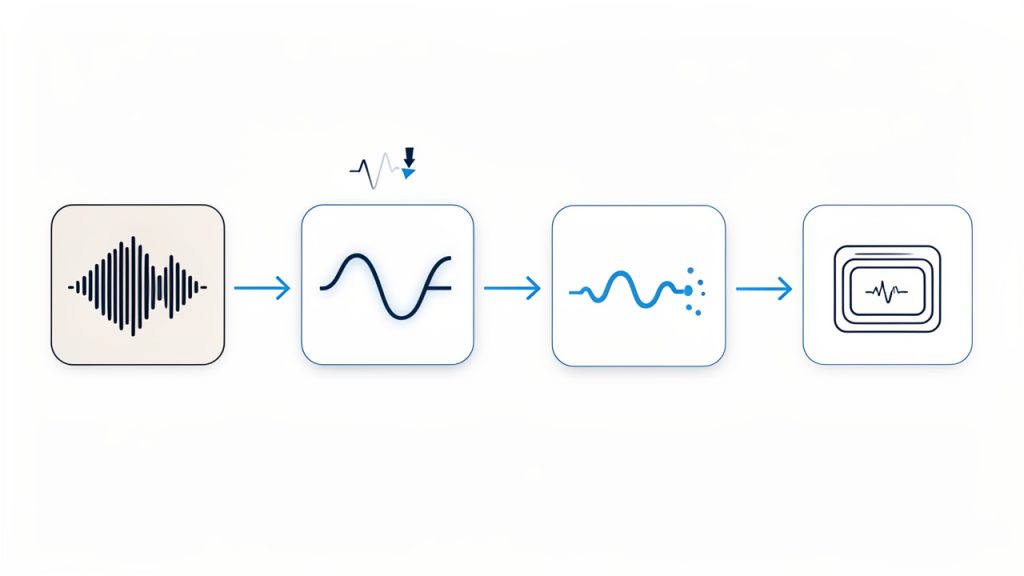
    In most MP3-to-M4A workflows, the audio is re-encoded. That means the MP3 is decoded back into audio data, then encoded again as AAC inside an M4A container. This is not the same as simply changing a filename extension or repackaging the stream. Because MP3 and AAC are different codecs, a true conversion almost always requires this extra compression step.

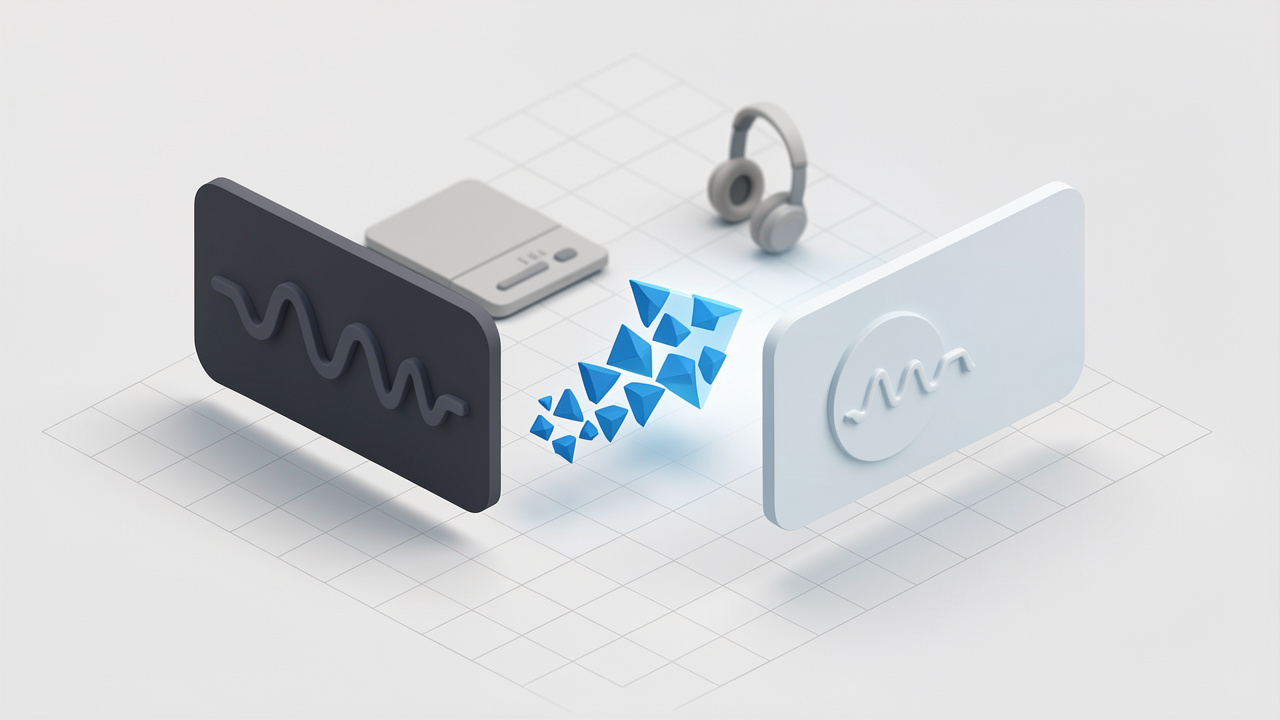
    A step-by-step conversion flow diagram: MP3 (compressed) -> decode to PCM (raw audio) -> encode to AAC -> wrap in M4A container. Include side notes: 'Re-encoding can reduce quality', 'Sample rate usually unchanged', and an icon showing metadata mapping (ID3 -> MP4 tags) with a warning about album art/custom fields.

    Bitrate plays a major role. For music, AAC-LC at 192 to 256 kbps is a sensible range for most users. For podcasts or voice recordings, lower settings may still sound perfectly fine. Sample rate usually stays the same as the source unless you deliberately change it. In most cases, there is no need to force a different sample rate.

    Metadata is another overlooked issue. MP3 files typically use ID3 tags, while M4A files use MP4-style metadata tags. Good converters can map fields such as title, artist, album, track number, and genre automatically, but album art and some custom fields may not always carry over cleanly. That is why the best tools either preserve metadata directly or make retagging easy afterward.

    Top Methods to Convert MP3 to M4A

    Below are the most useful tools and services for converting MP3 to M4A, ranked by flexibility, ease of use, and real-world practicality.

    1. FFmpeg

    FFmpeg is the most powerful option on this list. It is a free, open-source command-line tool that can convert audio with precise control over codec, bitrate, metadata, and batch workflows. If you want repeatable results, automation, or professional-level flexibility, FFmpeg is hard to beat.

    FFmpeg supports AAC encoding into M4A, batch conversion through scripts or terminal commands, metadata copying with -map_metadata 0, and cross-platform support for Windows, macOS, and Linux. It offers fine control over bitrate, sample rate, and encoder options. Because it runs offline, it is better for privacy and automation than web tools.

    FFmpeg is free and open-source, extremely flexible, excellent for bulk conversion, and works offline. Its downsides are the command-line interface, which may intimidate beginners, and the fact that some advanced AAC encoders may not be included in every build.

    A simple high-quality conversion command looks like this:

    ffmpeg -i input.mp3 -c:a aac -b:a 256k -map_metadata 0 output.m4a
    

    This tells FFmpeg to take input.mp3, encode it as AAC at 256 kbps, copy metadata from the source, and save the result as output.m4a.

    For quality-based encoding with an FFmpeg build that includes libfdk_aac, you can use:

    ffmpeg -i input.mp3 -c:a libfdk_aac -vbr 3 -map_metadata 0 output.m4a
    

    For batch conversion on macOS or Linux:

    for f in *.mp3; do ffmpeg -i "$f" -c:a aac -b:a 256k -map_metadata 0 "${f%.mp3}.m4a"; done
    

    For batch conversion in Windows PowerShell:

    Get-ChildItem *.mp3 | ForEach-Object { ffmpeg -i $_.FullName -c:a aac -b:a 256k -map_metadata 0 "$($_.BaseName).m4a" }
    

    Website: https://ffmpeg.org

    2. VLC Media Player

    VLC is best known as a video player, but it also works as a capable media converter. For users who want a free desktop app with a graphical interface, VLC is one of the easiest ways to convert MP3 files to M4A without installing a specialized audio program.

    VLC includes a built-in converter, processes files offline, and runs on Windows, macOS, and Linux. It is convenient if you already have VLC installed and it is safer than many random online converters for private files. The interface is not optimized for batch audio workflows, metadata handling can be inconsistent, and it exposes fewer transparent settings than FFmpeg.

    To use VLC, open Media > Convert/Save, add your MP3 file, choose Convert, select an AAC or M4A-compatible profile, set the destination filename with the .m4a extension, then start the conversion. If the default profile is vague, create a custom profile with AAC audio and verify the container format.

    Website: https://www.videolan.org

    3. Apple Music app / iTunes

    If you are an Apple user, this is often the smoothest method. On older Windows systems and older macOS versions, iTunes can convert MP3 files to AAC. On modern Macs, the Music app handles similar library-based workflows. This route is ideal if your files are already organized in an Apple library and you want tight integration with iPhone or iPad syncing.

    Apple’s tools are built for Apple workflows, offer library-based conversion, and generally manage metadata and artwork well. They are very convenient for Mac and iPhone users, require no command-line knowledge, and produce files that are highly compatible with Apple devices. The trade-off is less flexibility than FFmpeg and fewer options for advanced batch automation.

    To convert, go to the import settings in iTunes or the Music app, choose AAC Encoder, set your preferred quality, then select the MP3 file in your library and create an AAC version. The converted file will typically appear alongside the original.

    Website: https://www.apple.com

    4. CloudConvert

    CloudConvert is one of the better online options for converting MP3 to M4A when you do not want to install software. It supports many file types, has a cleaner interface than most web converters, and usually provides clearer conversion settings than bare-bones alternatives.

    CloudConvert offers web-based conversion with custom output settings and works across devices without local installation. It is very convenient and beginner friendly, but uploading audio to a third-party server is not ideal for sensitive recordings, private voice notes, unreleased media, or licensed content with restrictions. For occasional non-sensitive files, it is a solid choice.

    If you use CloudConvert, upload the MP3, select M4A as the output format, check audio settings if available, choose AAC at a sensible bitrate such as 192 or 256 kbps, then download the converted file.

    Website: https://cloudconvert.com

    5. Zamzar

    Zamzar has been around for years and remains one of the most recognizable online conversion services. Its strength is simplicity: upload a file, choose the target format, and wait for the conversion. For users who want minimal friction and do not need advanced settings, Zamzar is often enough.

    Zamzar is very easy to use from almost any browser, but it provides limited control over advanced audio settings and is not ideal for sensitive files. It may be slower for large uploads and is best for public-domain clips or disposable test files.

    Website: https://www.zamzar.com

    6. Online-Convert

    Online-Convert is another web-based service that often gives users more direct control over conversion settings than ultra-simple competitors. That makes it a better pick if you want some configurability without using FFmpeg or desktop software.

    Online-Convert is convenient from the browser and offers more settings than some competitors. Privacy concerns still apply, the interface can feel utilitarian, and free usage may be limited, but it works well for quick experiments and basic bitrate adjustments.

    Website: https://audio.online-convert.com

    7. The Audio Converter (iPhone/iPad)

    For iOS users, The Audio Converter is one of the more straightforward apps for converting files directly on a phone or tablet. It is useful when you receive audio by email, Files, or cloud storage and need a quick format change without moving to a desktop.

    The main benefit is mobility, and it is handy for a few files on the go. For larger libraries, mobile conversion can feel clunky.

    Website: https://www.floattechapps.com

    8. Android converters

    On Android, several apps can convert MP3 to M4A locally. The exact best choice can change over time, so choose an app with solid reviews, recent updates, and clear permission requirements. Good Android converters are handy for quick mobile edits or field recordings, but be cautious: mobile store apps vary widely in quality and some include ads or ask for suspicious permissions.

    Website: https://play.google.com

    Recommended Tools and Where They Shine

    Choosing the best converter is easier when you map it to your actual use case rather than chasing a generic “best tool” label.

    Tool Best For Platform Privacy Ease of Use Batch Support
    FFmpeg Power users, developers, archivists Windows, macOS, Linux Excellent, offline Moderate to low for beginners Excellent
    VLC Media Player Casual desktop users Windows, macOS, Linux Excellent, offline Good Basic
    Apple Music / iTunes Apple-centric libraries macOS, Windows Excellent, offline Very good Moderate
    CloudConvert Quick one-off web conversions Browser Moderate to low Excellent Limited
    Zamzar Simple online use Browser Moderate to low Excellent Limited
    Mobile apps Phone-only workflows iOS, Android Varies by app Good Low

    If you want the best free desktop option, use FFmpeg if you are comfortable with commands and VLC if you prefer buttons. If you live in the Apple ecosystem, Music app or iTunes is the most seamless route. If you only need one quick conversion and the file is not sensitive, CloudConvert is usually the strongest online pick.

    Step-by-Step: Convert MP3 to M4A Using FFmpeg

    Installing FFmpeg is straightforward. On Windows, download a trusted build from the official FFmpeg site or a reputable package source. On macOS, many users install it through Homebrew. On Linux, it is usually available through the distribution’s package manager.

    Once installed, start with a simple command:

    ffmpeg -i input.mp3 -c:a aac -b:a 256k -map_metadata 0 output.m4a
    

    Here is what the flags mean. -i input.mp3 sets the source file. -c:a aac selects the AAC audio encoder. -b:a 256k sets audio bitrate to 256 kbps. -map_metadata 0 copies metadata from the first input. output.m4a defines the destination file and container.

    If your build supports libfdk_aac, many users consider it a high-quality AAC encoder:

    ffmpeg -i input.mp3 -c:a libfdk_aac -vbr 3 -map_metadata 0 output.m4a
    

    For voice content or smaller files, you can reduce bitrate:

    ffmpeg -i input.mp3 -c:a aac -b:a 128k -map_metadata 0 output.m4a
    

    If album art does not transfer automatically, you may need a more explicit mapping workflow, especially when the source contains embedded cover art in a form FFmpeg interprets separately.

    How to Keep Metadata and Album Art When Converting

    Metadata transfer is where many converters fall short. MP3 files commonly use ID3 tags, while M4A relies on a different metadata structure. Basic tags like artist, album, and title often copy over without trouble, but embedded artwork can be inconsistent.

    FFmpeg’s -map_metadata 0 helps preserve tags, but after conversion, it is worth checking the result in a dedicated tag editor such as Mp3tag or Kid3. These tools are especially useful if fields appear blank, track numbering breaks, or cover art disappears.

    If metadata matters a lot to you, the Apple Music app and iTunes often do a better job in Apple-centric workflows. For manual cleanup on Windows, Mp3tag is one of the easiest options. On cross-platform setups, Kid3 is a solid choice.

    Quality Tips and Best Practices

    The most important rule is simple, do not expect quality gains from lossy-to-lossy conversion. If your MP3 is already compressed, your best goal is to avoid making it noticeably worse. For music, AAC-LC at 192 to 256 kbps is a safe recommendation. For podcasts and voice, 96 to 128 kbps can be enough, depending on the source.

    AAC-LC is the standard choice for most music. HE-AAC can be efficient at very low bitrates, but it is not the best default for general music libraries. If you care about future-proofing, keep your original MP3 and, when possible, archive from a lossless master like FLAC or WAV so future conversions do not compound quality loss.

    Safety, Privacy, and Legal Considerations

    Online converters are convenient, but they introduce real privacy risk. If the file contains private interviews, internal business recordings, client assets, or unreleased material, keep the conversion offline. Use FFmpeg, VLC, or an Apple desktop tool instead.

    Legality matters too. Converting audio you own for personal use may be acceptable in some contexts, but converting protected streaming content or bypassing platform restrictions can violate terms of service or copyright law. Always check the rules that apply in your region and with the service you are using.

    Malware is another concern, especially with obscure “free converter” apps. Download software from official websites, avoid bundled installers, and verify app reviews and permissions before installing on desktop or mobile.

    Troubleshooting Common Problems

    If the converted file will not play, the issue is often the codec or container combination. Make sure you encoded to AAC and saved with the .m4a extension. Simply renaming a file is not conversion.

    If metadata is missing, rerun the conversion with metadata mapping or open the file in Mp3tag or Kid3 to inspect fields manually. If track names become generic or artwork disappears, the source tags may not have mapped cleanly into the M4A structure.

    If quality sounds worse than expected, check whether you converted a low-bitrate MP3 into an even lower-bitrate AAC. That usually compounds artifacts. Try a higher target bitrate, but remember that higher bitrate cannot restore detail already lost in the original MP3.

    If file sizes are too large, your bitrate may be unnecessarily high. For everyday listening, stepping down from 256 kbps to 192 kbps AAC often offers a better balance between size and perceived quality.

    Frequently Asked Questions (FAQ)

    Does converting an MP3 to M4A improve quality?

    No. Converting an existing MP3 to M4A does not improve the original audio quality. It may help with compatibility, library management, or file size efficiency, but it cannot restore lost detail.

    Can I convert without losing metadata?

    Often, yes. Tools like FFmpeg, iTunes, Music app, and some desktop converters can preserve metadata. Album art and custom fields may still need manual checking.

    Is M4A better than MP3 for all devices?

    No. M4A is excellent for Apple devices and many modern apps, but MP3 remains the most universally compatible format across older hardware and software.

    Which is smaller, MP3 or M4A?

    At similar perceived quality, M4A with AAC is often smaller than MP3. The exact result depends on the encoder and bitrate you choose.

    Conclusion and Recommended Next Steps

    If you want the simplest answer, here it is. Use FFmpeg for control and batch jobs, VLC for an easy free desktop workflow, Apple Music or iTunes if you live in the Apple ecosystem, and CloudConvert only for non-sensitive one-off files.

    For the best results, keep your original file, use AAC-LC, aim for 192 to 256 kbps for music, and verify metadata after conversion. If quality really matters, start from a lossless source instead of an MP3.

    A practical next step is to create a small test set with one song, one podcast, and one file with album art. Convert them with your preferred tool, compare file size, playback, and metadata, then apply the same settings to the rest of your library. That simple test will save you far more time than redoing hundreds of files later.

  • How to Convert WMA Files to MP3 Quickly

    How to Convert WMA Files to MP3 Quickly

    Converting a WMA file to MP3 sounds simple until you actually need to do it fast. Maybe a client sent audio in the wrong format. Maybe an old voice recording will not play on your phone. Or maybe you are organizing a library of training files, podcasts, or archived interviews and keep running into compatibility issues.

    That is where the need to convert WMA into MP3 becomes practical, not technical. MP3 remains one of the most widely supported audio formats across phones, browsers, editing tools, cloud platforms, and everyday media players. If you want fewer playback problems and easier file sharing, turning WMA audio into MP3 is often the quickest fix.

    What is converting WMA to MP3?

    At its core, converting WMA to MP3 means changing an audio file from Windows Media Audio (WMA) format into MP3, a more universally accepted format. Both use lossy compression, but they were designed with different ecosystems in mind. WMA was developed by Microsoft and was once common in Windows-based software and older digital music libraries. MP3, by contrast, became the default standard for portable audio because it works almost everywhere.

    For most users, the format itself matters less than the outcome. You want your audio to open, play smoothly, upload easily, and work across devices without extra apps or compatibility warnings. That is why MP3 still dominates for everyday use. Whether you are handling business recordings, webinar exports, customer support clips, or personal audio files, MP3 is usually the safer destination format.

    People search for ways to convert WMA into MP3 because they want a quick, free, and reliable conversion method. They are not usually looking for a deep lesson in audio engineering. They want a file that simply works. That said, understanding a few basics helps you avoid quality loss, bloated files, or failed conversions.

    Why WMA still shows up

    WMA is not obsolete, but it is less convenient than it used to be. Many older desktops, CD rips, archived media collections, and legacy business systems still produce or store audio in WMA format. If you have inherited files from an older workflow, there is a good chance WMA is part of the mix.

    This matters for small teams and freelancers because legacy files tend to surface at inconvenient moments. A training department may need old audio modules republished. A virtual assistant may be asked to upload recordings into a modern content platform. A developer may need compatible assets for an app or browser-based tool. In each case, converting from WMA into MP3 removes friction.

    Why MP3 remains the default choice

    MP3 is popular for one simple reason, compatibility. It plays nicely with websites, smartphones, editing tools, email attachments, cloud storage systems, and social platforms. If your goal is broad usability, MP3 is often the right final format.

    It also offers a practical balance between file size and sound quality. For spoken-word audio, such as interviews, lectures, voice notes, and webinars, MP3 usually provides more than enough quality without creating oversized files. That balance is especially useful when you are sharing files with clients or uploading them through limited dashboards.

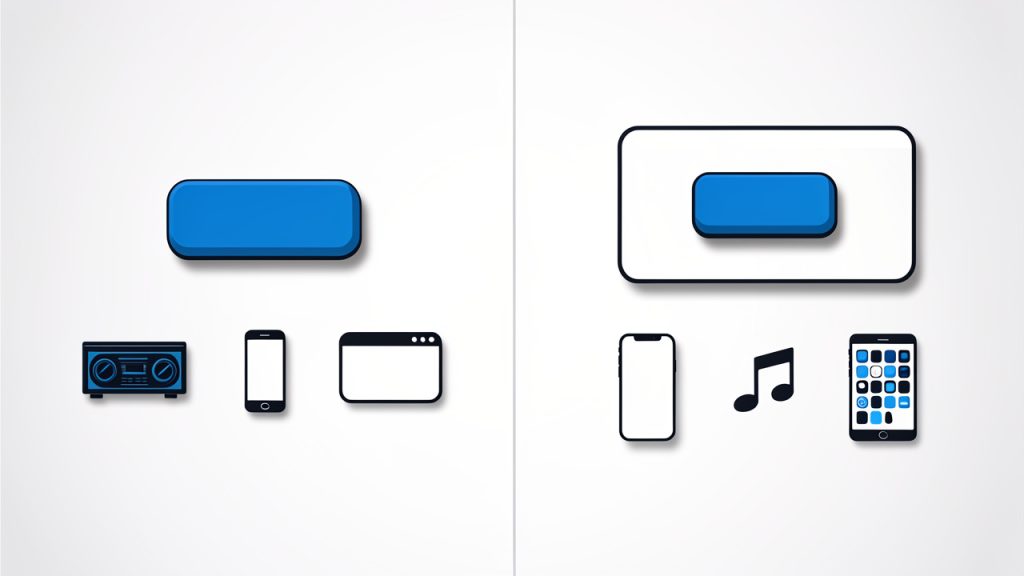
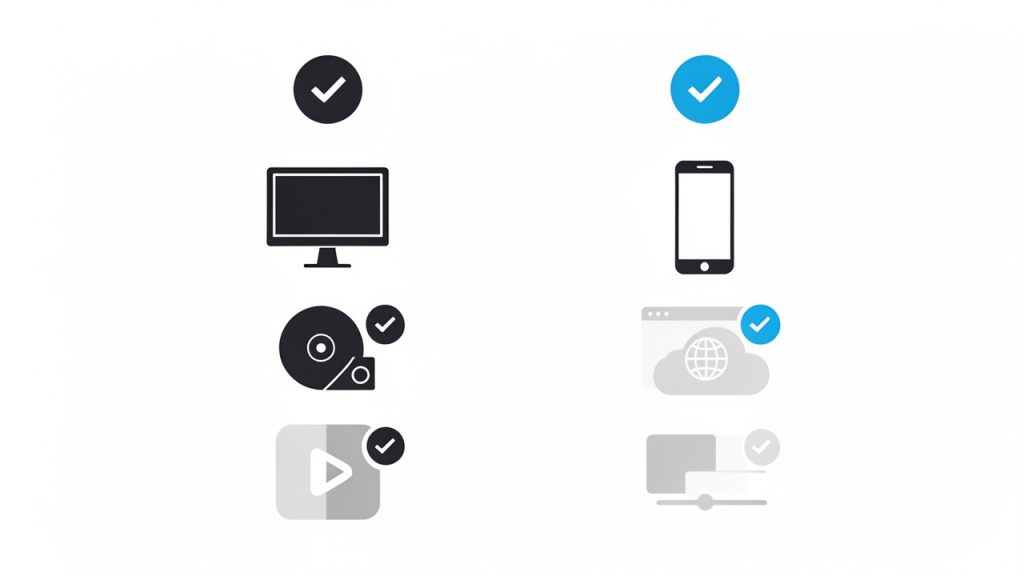
    Compatibility comparison illustration: where each format works best.

    Key aspects of converting WMA into MP3

    Converting audio is not just about changing the extension. A good conversion preserves the listening experience while making the file easier to use. To do that well, you need to think about quality, file size, compatibility, and workflow.

    Audio quality and compression

    Both WMA and MP3 use compression, which means they reduce file size by removing some audio data. When you convert a compressed file into another compressed format, there is usually some degree of quality trade-off. In plain language, each conversion can shave off a little detail.

    For most business and everyday use cases, this is not a major problem. If you are converting a spoken recording, meeting audio, or standard music file for normal listening, the difference may be negligible. But if the source file is already low quality, or if you convert it multiple times, the loss can become noticeable. That is why it is smart to convert from the original WMA file once and keep a backup of that source.

    Bitrate plays a major role here. A higher MP3 bitrate generally means better audio quality and a larger file. A lower bitrate creates smaller files but can introduce artifacts or dullness. For voice-heavy content, moderate settings often work well. For music, you may prefer a higher bitrate to retain more depth and clarity.

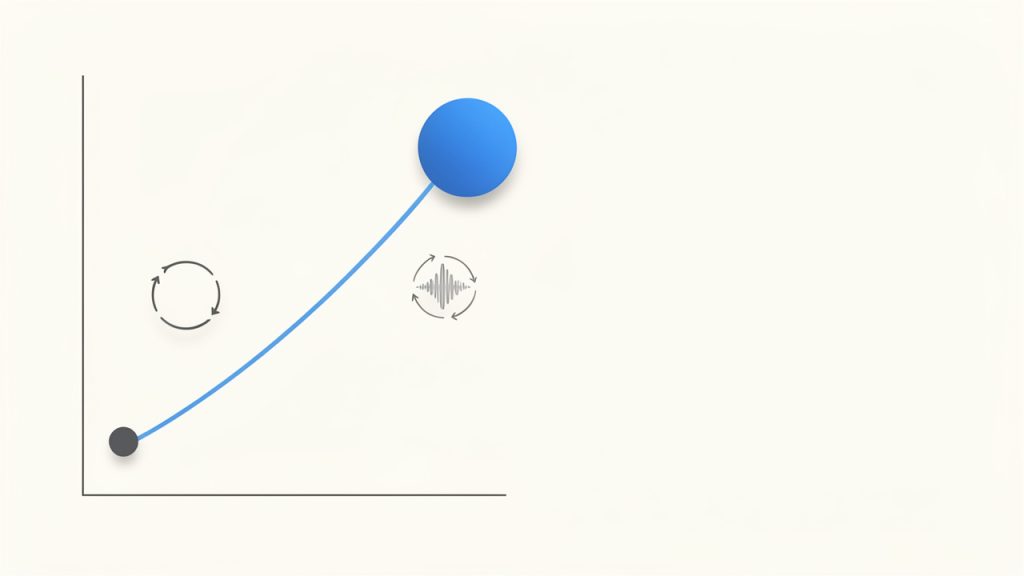
    Bitrate vs quality vs file size graphic: shows audio quality vs file size with markers for low, moderate, and high bitrates and a note about repeated conversions lowering quality.

    File size and storage efficiency

    One reason users search for ways to convert WMA files into MP3 is file sharing. Modern workflows rely on uploads, email attachments, cloud syncing, and mobile downloads. If a file is awkwardly formatted or too large, it slows everything down.

    MP3 gives you more control over size because many converters let you choose output settings. That can be useful if you are preparing files for a website, online course, client portal, or internal knowledge base. Smaller files upload faster and stream more smoothly, which improves the experience for your audience.

    The trade-off is straightforward. Smaller files are convenient, but compressing too aggressively can hurt quality. The ideal setting depends on how the audio will be used. A customer-facing podcast deserves more care than a simple internal memo recording.

    Device and platform compatibility

    Compatibility is the strongest case for converting WMA audio into MP3. WMA may still work in certain desktop environments, but support is less consistent on mobile devices, browser tools, and non-Windows platforms. If you need a format that behaves predictably across ecosystems, MP3 is the practical answer.

    This is especially relevant for freelancers and small businesses that use a patchwork of tools. You might record on one device, edit on another, upload through a browser, and share with clients using entirely different systems. MP3 reduces the chance that someone on the other end will reply with, “I cannot open this file.”

    Speed, simplicity, and online tools

    Most users do not want to install heavy software just to convert a few files. That is why online converters are popular. They are fast, accessible, and often free for basic use. You upload the WMA file, choose MP3 as the output, and download the converted version.

    That convenience comes with a few considerations. If the audio contains sensitive client information, internal meetings, or private interviews, you should pay attention to privacy policies and file retention rules. Convenience is valuable, but trust matters more when the content is confidential.

    For non-sensitive files, online conversion is often the easiest route. It is especially useful for occasional tasks, quick turnarounds, and lightweight workflows where installing desktop software would be overkill.

    A simple format comparison

    Format Full Name Best For Compatibility Typical Benefit Typical Limitation
    WMA Windows Media Audio Older Windows-based libraries and legacy systems Moderate Efficient in some Microsoft environments Less universal support
    MP3 MPEG Audio Layer III General playback, sharing, web use, mobile devices Very high Broad compatibility and flexible file sizes Possible quality loss at low bitrates

    How to get started converting WMA files into MP3

    If you need to convert a file today, the process is usually straightforward. The key is choosing the right method for your situation. A one-off personal file may call for an online converter, while frequent batch work may be better handled with installed software.

    Choose the right conversion method

    Start by thinking about volume and sensitivity. If you only have one or two audio files and they are not confidential, an online tool is often enough. It is quick, requires no setup, and works from almost any device. If you regularly convert recordings, or you need better control over output settings, dedicated desktop software may be more efficient.

    Browser-based tools are ideal for convenience. Desktop apps are better when you need batch conversion, offline access, or stronger privacy. The best tool is the one that fits your workflow without creating extra steps.

    Use sensible output settings

    When converting a WMA file to MP3, avoid choosing settings blindly. Think about where the audio is going next. If it is for speech, online learning, virtual meetings, or internal documentation, you can often use a moderate bitrate and get a clean result with manageable file size.

    If the file contains music, layered sound, or anything intended for polished public listening, choose higher quality settings. You do not need to over-optimize, but you do want to avoid making the file sound thin or distorted. It is often worth testing one sample conversion before processing a whole batch.

    Follow a basic conversion workflow

    For most tools, the process looks like this:

    1. Upload or import the WMA file.
    2. Select MP3 as the output format.
    3. Choose quality settings, if available.
    4. Start the conversion.
    5. Download and test the MP3 file on the device or platform where it will be used.

    The last step matters more than people think. A file that converts successfully is not always a file that performs well in the real world. Test playback, confirm the duration is correct, and make sure the audio sounds as expected before you send it to a client or publish it online.

    Organize files for repeated use

    If conversion is part of your regular workflow, a little organization saves time. Keep your original WMA files in a clearly labeled archive folder. Store the converted MP3 files separately. Add naming conventions that identify the version, date, or intended use.

    This is especially helpful for agencies, consultants, and content teams. Audio assets pile up quickly, and confusion grows when files have similar names but different formats. A simple folder structure can prevent duplicate work and make future updates easier.

    Common problems and how to avoid them

    One common mistake is converting a file several times. Every repeated conversion can degrade quality, so it is better to convert once from the original source and keep that original safely stored. Another issue is choosing output settings that are too low, which can make voice recordings sound muffled or metallic.

    Playback issues can also happen if the file extension changes but the actual format does not. A proper conversion tool re-encodes the file correctly. Simply renaming the extension from .wma to .mp3 does not work. If a converted file seems broken, try a different converter or re-export with more standard settings.

    Conclusion

    Converting WMA audio into MP3 is ultimately about making audio easier to use. MP3 wins because it is widely supported, easy to share, and flexible enough for everything from voice notes to customer-facing content. If you are dealing with older files or inconsistent playback, conversion is often the fastest way to remove friction from your workflow.

    Your next step is simple. Pick one file, convert it to MP3, and test it on the device or platform where it needs to work. If the result sounds right and plays everywhere you need it, you have a repeatable process you can use again and again.

    For a quick refresher on converting a WMA file to MP3, see this short guide on common WMA file to MP3 conversion steps.