JNTZN

Tag: optimization

  • How to Convert SVG to PNG Without Losing Quality

    Converting an SVG to a PNG sounds simple until you actually need a clean result, the right size, and a file that works everywhere. That is where many people get stuck. A logo looks sharp in one app and blurry in another, a web graphic exports with the wrong background, or a client asks for a PNG version five minutes before a deadline.

    If that sounds familiar, you are not alone. Small business owners, freelancers, developers, and everyday productivity-focused users often work with SVG files because they are flexible and lightweight. But many platforms, tools, and workflows still depend on PNG. Understanding how to convert an SVG to a PNG properly can save time, avoid quality issues, and make your files usable across websites, presentations, ecommerce listings, social posts, and design handoffs.

    What is converting an SVG to a PNG?

    At its core, converting an SVG to a PNG means turning a vector image into a raster image. An SVG, or Scalable Vector Graphics file, is built with mathematical paths and shapes. That means it can scale up or down without losing clarity. A PNG, or Portable Network Graphics file, is made of pixels. It is fixed at a specific size and resolution.

    This difference matters more than most people realize. SVG is ideal for logos, icons, line art, and interface graphics because it stays crisp on any screen size. PNG, on the other hand, is often preferred when you need broad compatibility, transparent backgrounds, and predictable display across apps, browser, document editors, and marketplaces.

    Think of SVG as a master blueprint and PNG as a printed snapshot. The blueprint can be resized endlessly with no quality loss. The snapshot is locked into the dimensions you export. If you choose the wrong dimensions during conversion, the PNG may appear blurry or too large for its intended use.

    For many users, the need to convert an SVG file to PNG comes from practical constraints rather than preference. Some social media tools do not accept SVG uploads. Many email platforms, office applications, and online forms work better with PNG. Clients may also ask for PNG because it is easier for non-designers to open, preview, and place into documents.

    Key aspects of converting SVG to PNG

    Why people convert SVG files to PNG

    The most common reason is compatibility. SVG is powerful, but not every platform handles it well. PNG is supported almost everywhere, from website builders and ecommerce systems to slide decks and messaging apps.

    Another major reason is visual consistency. A PNG looks the same wherever it is used because it is already rendered into pixels. An SVG can sometimes behave differently depending on how a browser, app, or system interprets fonts, effects, or embedded styling.

    There is also the issue of workflow. A designer may create a logo in SVG, but a client may only need a transparent PNG for a website header or Instagram post. A developer might store icons as SVG for the product itself, yet export PNG assets for app store submissions, documentation, or marketing material.

    The biggest difference between SVG and PNG

    The crucial difference is scalability versus fixed resolution. SVG scales infinitely because it is vector-based. PNG does not. Once a PNG has been exported at a certain width and height, enlarging it reduces sharpness.

    This is why the export stage matters so much. If you are converting an SVG to PNG for a website thumbnail, you need a different size than you would for a printed flyer or a retina display asset. The source SVG may be perfect, but a poor PNG export can still create a low-quality final result.

    Transparency is another important factor. Both SVG and PNG can support transparent backgrounds, but when you convert, you need to check whether the export settings preserve that transparency. This is especially important for logos, product cutouts, and overlay graphics.

    When SVG is better and when PNG is better

    SVG is usually the better choice when the file will be displayed in modern digital environments that support vector graphics well. It is especially useful for responsive websites, UI icons, diagrams, and illustrations that need to stay sharp at different sizes.

    PNG becomes the better choice when you need a dependable image file that can be dropped into almost any platform without special handling. It is often the safer format for business documents, online listings, CMS uploads, social graphics, and design delivery to non-technical users.

    The best approach is often not choosing one over the other permanently. Instead, keep the SVG as your source file and create PNG exports for specific use cases. That gives you both flexibility and convenience.

    Common quality issues during conversion

    A lot of frustration with converting SVG files to PNG comes from avoidable mistakes. The most common one is exporting at the wrong dimensions. If the PNG is too small, it will look soft when reused in larger spaces. If it is unnecessarily large, it can create slow-loading pages and bloated files.

    Font handling can also cause trouble. If the SVG relies on a font that is not embedded or properly supported, the exported PNG may not look the way you expect. Text can shift, resize, or render differently. In professional workflows, converting text to outlines before export can reduce these surprises, although it also removes editability.

    Another issue is effects and styling. Some SVG files contain filters, masks, gradients, or CSS-based styles that do not translate perfectly in every conversion tool. If your export looks off, the problem may not be the SVG itself, it may be the converter.

    A quick comparison of SVG and PNG

    Feature SVG PNG
    Image type Vector Raster
    Scalability Infinite without quality loss Fixed resolution
    Best for Logos, icons, illustrations, UI graphics General image sharing, transparent web assets, broad compatibility
    File behavior Can depend on rendering support Looks consistent once exported
    Editability Easy to edit as vector artwork Limited pixel-based editing
    Transparency Supported Supported
    Typical use case Source/master graphic Final deliverable for broad use

    How to get started with converting SVG to PNG

    Choose the right conversion method

    There are several ways to convert an SVG into a PNG, and the right one depends on your workflow. If you only need a quick one-off export, an online converter can be the fastest solution. These tools are ideal for users who want speed and simplicity without installing software.

    If you work with design assets regularly, using a graphics editor is often the better choice. Design software gives you more control over output size, transparency, scaling, and visual quality. This is especially useful when preparing logos, branded assets, or product graphics.

    For developers and teams handling batches of assets, automated conversion can be more efficient. In those cases, command-line tools, build pipelines, or scripting options may help convert multiple SVG files into PNGs at consistent sizes. That matters when you are generating icon sets, app assets, or exports for multiple screen densities.

    Start with the end use in mind

    Before you convert anything, decide where the PNG will be used. That one decision affects almost every export setting. A website icon may need a small file size and transparent background. A presentation graphic may need larger dimensions for projector clarity. A print-related asset may require much higher resolution.

    This simple question, what is this PNG for, can prevent a lot of rework. It helps you set the right width, height, and background before exporting. It also keeps you from generating oversized images that slow things down or undersized images that look poor.

    If you are unsure, create a few versions. For example, you might export a standard-size PNG for everyday use and a larger version for high-density screens or future repurposing. Storage is cheap. Redoing urgent asset work is not.

    Basic steps for converting an SVG to a PNG

    For most users, the process follows a familiar pattern:

    1. Open or upload the SVG file in your converter or design tool.
    2. Set the output size based on where the PNG will be used.
    3. Check transparency and background settings before exporting.
    4. Export and review the PNG at actual usage size.

    That final review is important. Do not just assume the export is correct because it completed successfully. Open the file, zoom in, and inspect edges, text, and spacing. A five-second check can catch problems that would otherwise show up in front of a client or customer.

    Best practices for cleaner PNG exports

    A good conversion starts with a clean SVG. If the source file is messy, the PNG will inherit those problems. Extra hidden elements, oversized artboards, unsupported effects, and poorly managed text can all affect the final result.

    It also helps to export at exact intended dimensions rather than resizing later. Scaling a PNG after export often reduces clarity. Since the SVG is resolution-independent, do the sizing during conversion instead of after the fact.

    For brand assets, keep consistency in mind. If you are generating multiple PNGs from the same SVG, use a repeatable sizing system. A logo for a website header, favicon, email signature, and social profile should all come from the same source but be exported intentionally for each use.

    What to watch for when using free online tools

    Free tools are convenient, but not all of them are equally reliable. Some reduce quality, struggle with complex SVG features, or add limits on file size and export dimensions. Others may not handle transparency or fonts correctly.

    Privacy can also matter. If the SVG contains sensitive branding, client material, internal diagrams, or product mockups, you may not want to upload it to just any web service. In those cases, using trusted software or an offline tool is the safer path.

    The key is to balance convenience with control. For a simple icon, a lightweight online converter may be perfect. For a branded asset pack or developer handoff, you may want a more robust workflow.

    Practical use cases for small businesses, freelancers, and developers

    For small business owners, converting SVG to PNG is often about making assets usable across day-to-day platforms. Website builders, marketplaces, invoice software, and social scheduling tools may all expect PNG files. Having clean exports of your logo and graphics avoids constant format friction.

    For freelancers, the value is speed and professionalism. Clients often ask for a PNG with transparency because it is the format they know. Being able to provide the right size quickly makes your workflow smoother and your deliverables easier to use.

    For developers, SVG and PNG often work side by side. SVG is excellent inside modern interfaces, but PNG still has a place in fallback assets, documentation, previews, metadata images, and app submission requirements. Knowing when to convert helps keep projects practical, not just technically elegant.

    Conclusion

    Converting an SVG to a PNG is more than a format switch. It is the process of turning a flexible, scalable source graphic into a fixed image that needs to look right everywhere it appears. When you understand the differences between vector and raster formats, choose the right export size, and check transparency and rendering carefully, the results are much more reliable.

    The smartest next step is simple. Keep your SVG as the original master file, then create PNG exports based on real use cases. If you do that consistently, you will save time, avoid blurry graphics, and have image assets ready for websites, documents, clients, and platforms that need a dependable PNG.

  • Minify JS Online: Fast JavaScript Minification for Small Sites

    Minify JS Online: Fast JavaScript Minification for Small Sites

    JavaScript files often grow quietly. A few utility functions here, a plugin there, one more analytics snippet, and suddenly your site feels heavier than it should. Pages take longer to render, users bounce sooner, and performance scores start slipping for reasons that seem frustratingly small. One of the simplest fixes is also one of the most overlooked: minify JS online.

    For small business owners, freelancers, developers, and anyone managing a website without a full DevOps pipeline, online JavaScript minification is a practical shortcut. You do not need a complicated build system to remove unnecessary characters, reduce file size, and make scripts faster to deliver. You just need to understand what minification does, when to use it, and how to do it safely.

    What is Minify js online?

    Minify JS online refers to using a browser-based tool to compress JavaScript code by removing anything the browser does not need to execute it. That usually includes whitespace, line breaks, comments, and sometimes even shorter variable names where safe. The result is a leaner version of the same script, designed to load faster while preserving functionality.

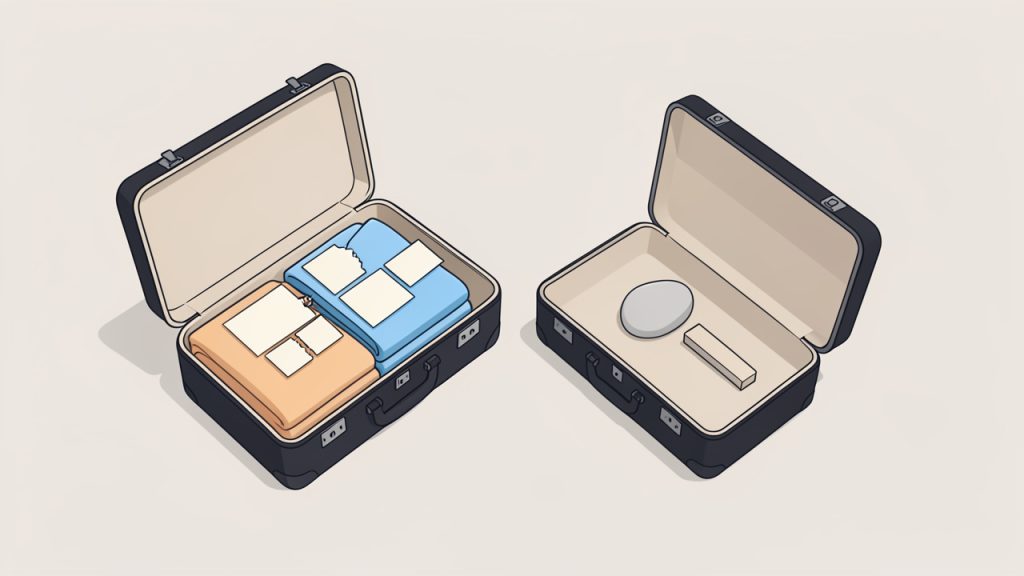
    Think of it like packing for a trip. Your original JavaScript file is a suitcase with everything laid out neatly, folded, and labeled for readability. That is great for developers. The browser, however, does not care about neat folding or labels. It only cares that the essentials are in the bag. Minification strips away the presentation and keeps the logic.

    A suitcase packing analogy: on the left an open suitcase with neatly folded clothes, labels, and notes (representing readable, development JavaScript); on the right the same suitcase compressed with only essentials visible, no labels (representing the minified production file).

    This matters because websites move across networks, not just within your own device. Even a modest reduction in file size can improve loading time, especially on slower mobile connections or for visitors far from your hosting server. If your site relies on JavaScript for menus, forms, sliders, checkout flows, or tracking, smaller files can directly improve responsiveness.

    How minification differs from compression

    It helps to separate minification from compression, because the terms are often mixed together. Minification changes the code itself by removing unnecessary characters and simplifying structure where possible. Compression, such as Gzip or Brotli, happens at the server level and reduces the file during transfer.

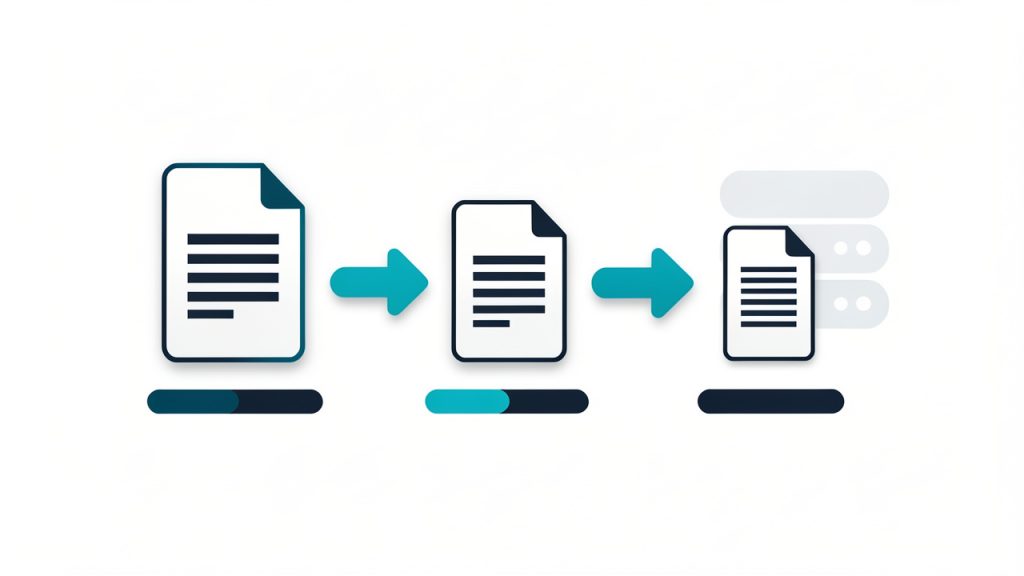
    A simple pipeline diagram showing two-step optimization: 1) 'Minification (removes whitespace/comments, shortens names)' applied to the code file, then 2) 'Compression (Gzip/Brotli)' applied at the server/network layer, with arrows and file-size bars indicating incremental size reduction at each step.

    These two methods are not competitors, they work best together. A minified file is already smaller before it reaches the server, and then compression can reduce it even further in transit. If you want better performance, using both is usually the right move.

    Why online tools appeal to non-technical users

    Not everyone wants to install Node.js, configure bundlers, or manage a command-line workflow just to optimize one JavaScript file. That is why online minifiers remain popular. They are fast, accessible, and useful for one-off tasks or lightweight projects.

    For freelancers updating client landing pages, marketers embedding scripts, or small teams maintaining a brochure site, an online tool can remove friction. Paste the code, click a button, copy the result, and publish the slimmer version. It is simple, and in many cases, that simplicity is exactly the point.

    Key Aspects of Minify js online

    Using an online JS minifier sounds straightforward, but there are important details that affect quality, reliability, and safety. The best results come from understanding what to expect from the tool and what trade-offs may come with convenience.

    Smaller file size and faster page loads

    The most obvious benefit of choosing to minify JS online is file size reduction. JavaScript written for humans tends to include indentation, comments, spacing, and descriptive variable names. All of that improves maintainability, but none of it is required for execution.

    When you minify the script, the browser downloads less data. That can shave milliseconds or more off the loading process, which matters more than many site owners realize. Performance is cumulative. A little improvement in one script, another in an image, and another in server caching can add up to a noticeably faster experience.

    This is especially valuable for mobile users. On high-speed desktop internet, a bulky script may feel acceptable. On a weaker connection, it becomes friction. Faster delivery can lead to better engagement, lower abandonment, and a smoother first impression.

    Cleaner delivery, not cleaner development

    A common misunderstanding is that minification is a way to improve the codebase itself. It is not. Minified JavaScript is harder to read, harder to debug, and unpleasant to maintain. Its purpose is delivery, not development.

    That means you should always keep the original, readable source file. Treat the minified output as a production asset, not as your working version. If something breaks later and the only version you have is minified, troubleshooting becomes far more difficult than it needs to be.

    Potential obfuscation, but not true security

    Some people assume minified code is protected code. That is only partly true, and not in a meaningful security sense. Minification can make JavaScript less pleasant to read at a glance, but it does not secure business logic, API keys, or sensitive operations.

    If confidential data or critical validation logic lives in client-side JavaScript, minification will not protect it. Browsers still receive the code, and determined users can still inspect it. Security must come from server-side design, authentication, authorization, and proper data handling, not from shrinking the script.

    Online convenience versus local control

    Online tools are convenient, but they come with trade-offs. When you paste code into a web-based tool, you are often sending that code through a third-party service. For public scripts or non-sensitive code, that may be acceptable. For proprietary client work, internal tools, or unreleased products, it may not be.

    This is where context matters. If you are minifying a simple front-end helper for a small website, an online tool is usually fine. If you are handling commercial code, scripts with tokens, or anything confidential, a local build process may be safer.

    The choice is not about which option is universally better. It is about matching the tool to the risk level and workflow.

    Minification and debugging

    One reason developers hesitate to minify too early is debugging. A readable source file makes it much easier to find syntax issues, inspect logic, and diagnose browser errors. Once code is minified, line numbers often collapse and stack traces become less intuitive.

    That is why the timing of minification matters. You should test the original version first, confirm it works, and only then create the minified build. If a problem appears after minification, compare the production file to the tested source and verify that no unsupported syntax or formatting issue crept in.

    Typical features of online JS minifiers

    Not all online tools do the exact same job. Some only remove whitespace and comments. Others perform more advanced optimizations, such as shortening variable names, collapsing expressions, or warning about syntax issues.

    If you are a casual user, basic functionality may be enough. If you are optimizing larger scripts or trying to squeeze out better performance, advanced options can make a measurable difference.

    How to Get Started with Minify js online

    The good news is that getting started is easy. The better news is that doing it well does not require much extra effort. A smart process helps you get the benefits of minification without introducing avoidable bugs.

    Start with a clean, tested JavaScript file

    Before you minify anything, make sure your original JavaScript works exactly as intended. This sounds obvious, but many users discover errors only after minification and assume the tool caused the issue. In reality, minification often exposes an existing problem, such as a missing semicolon in older code patterns, malformed syntax, or hidden formatting mistakes.

    Work from a readable source file that you have already tested in the browser. Keep that original version saved separately. If you are editing scripts for a client, preserve a backup before making any production changes.

    Use a simple workflow

    A reliable online minification workflow can be very short:

    1. Paste or upload your tested JavaScript into the online minifier.
    2. Run the minification and review the output for obvious issues.
    3. Replace or save the production version, then test it on your live or staging page.

    That is enough for many small projects. The key is not the complexity of the process, but the discipline of testing before and after.

    Check browser behavior after minification

    Once you publish the minified file, load the pages that depend on it and actually use the features involved. Click the menu. Submit the form. Open the modal. Trigger the slider. Watch for console errors and broken interactions.

    Minification should preserve behavior, but website environments are messy. Scripts can conflict, load in the wrong order, or depend on external libraries. If something changes after deployment, do not assume the minifier is inherently broken. Compare versions, check dependencies, and verify that file references are correct.

    Be careful with third-party or already minified files

    Many libraries already ship with a .min.js version. If you try to minify an already minified file again, you may not gain much, and you might make debugging harder. In some cases, aggressive reprocessing can even create avoidable issues depending on the tool and the script.

    If you are using common libraries, check whether an official minified build already exists. That version is often the safest production choice because it was generated and tested by the library maintainers.

    Know when online minification is enough

    For a small brochure site, a single landing page, a lightweight portfolio, or a few custom scripts, using an online tool to minify JS online is often all you need. It is quick, free, and low-friction.

    But once your project grows, your workflow may need to evolve. If you are managing multiple files, transpiling modern JavaScript, bundling dependencies, or deploying frequently, manual online minification becomes less practical. At that point, build tools such as bundlers, task runners, or CI-based workflows offer better consistency.

    This is not a reason to avoid online minifiers. It is simply a reminder that the right tool depends on the stage of the project.

    Practical signs you should switch to a local workflow

    An online tool is ideal when speed and simplicity matter most. A local or automated workflow starts making more sense when you notice repeatable friction. That usually happens when you are editing several JavaScript files each week, versioning production assets, or collaborating with other developers who need a predictable build process.

    Here is a quick comparison to help frame the decision:

    Situation Online JS Minifier Local Build Tool
    One or two files Excellent fit Possible, but more setup
    Non-technical user Easy to use Can feel complex
    Frequent deployments Repetitive Efficient
    Sensitive or proprietary code Less ideal Better control
    Team collaboration Limited Stronger workflow
    Advanced optimization Moderate Best option

    For many readers, the sweet spot is simple: use online minification for lightweight tasks, and graduate to local automation when your process starts repeating itself.

    Common mistakes to avoid

    One of the biggest mistakes is overwriting the original source file with the minified one. It saves a moment now and creates headaches later. Always keep your readable version. Future edits should happen there, not in the compressed file.

    Another frequent issue is minifying code that has not been tested in isolation. If you are copying snippets from plugins, forums, or mixed project files, syntax problems can slip through unnoticed. Minification is not a substitute for validation. It is the last polish before delivery.

    There is also a privacy mistake that many users do not think about. If your JavaScript contains tokens, endpoint details, client-specific logic, or unpublished features, pasting it into an online tool may not be appropriate. Convenience should not override basic caution.

    How minification supports SEO and user experience

    While JavaScript minification is not a magic SEO button, it contributes to the broader performance signals search engines care about. Faster pages tend to create better user experiences. Better user experiences can support stronger engagement. And technical efficiency helps reduce the drag that slows modern websites down.

    This matters even more on mobile-first websites. Search visibility is tied increasingly to real-world usability, not just keywords and metadata. If your pages feel sluggish because they rely on bloated scripts, that can affect both visitors and performance benchmarks.

    For small business websites, the value is practical. A faster site feels more professional. It reduces friction before a user calls, books, buys, or fills out a form. In many cases, the person visiting your site will never notice that your JavaScript was minified. They will only notice that the site feels quick and smooth. That is the outcome that matters.

    Conclusion

    Choosing to minify JS online is one of the simplest ways to make a website leaner without investing in a full development pipeline. It reduces unnecessary file weight, supports faster loading, and gives small teams and solo site owners a practical path to better front-end performance.

    Start with a tested source file, use an online minifier carefully, keep the original version untouched, and verify the result in a real browser. If your workflow stays small, that may be all you need. If your project grows, you can always move to a local build setup later. The next step is simple: take one JavaScript file from your site, minify it, test it, and measure the difference.