A PDF that looks perfect on your screen can fall apart the moment you need it as an image. Text turns fuzzy, transparent backgrounds disappear, file sizes explode, or a multi-page document suddenly becomes a folder full of confusing filenames.
If you have ever tried to turn a PDF into a shareable thumbnail, a slide image, a website asset, or an OCR-ready scan, you already know that a simple export is not always enough. If you have ever tried to turn a PDF into a shareable thumbnail, a slide image, a website asset, or an OCR-ready scan, you already know that a simple export is not always enough.
The good news is that converting a PDF to an image is straightforward once you understand the trade-offs. The right format, the right DPI, and the right tool make the difference between a crisp, lightweight result and a blurry, oversized mess. Whether you are a small business owner preparing product sheets, a freelancer sending visual proofs, a developer building an automated workflow, or a productivity-minded user trying to streamline daily tasks, there is a practical path that fits.
This guide explains how to convert a PDF into an image using online tools, desktop apps, command-line utilities, and developer libraries. It also covers image formats, quality settings, privacy concerns, batch processing, and troubleshooting so you can get the result you want the first time.
Introduction: Why convert a PDF into an image?
Converting a PDF into an image solves a surprisingly wide range of everyday problems. For websites, it is useful for generating page previews, thumbnails, and visual snippets that load quickly in browsers.
For presentations and social sharing, an image is often easier to place, crop, or embed than a full PDF. Teams also convert pages from PDFs into images for annotation, approvals, or chat-based collaboration where image previews are more convenient than document attachments.
There are also technical and archival reasons. Some users rasterize PDF pages for OCR workflows, especially when dealing with scans or inconsistent source files. Others need image outputs for print proofs, legacy systems, or software that accepts PNG, JPEG, or TIFF but not PDF. In legal, education, and operations workflows, converting selected pages into images can be a fast way to preserve visual appearance when layout matters more than editability.
The catch is that conversion changes the nature of the file. A PDF can contain vector graphics, embedded fonts, transparency, layers, and multiple pages. An image is usually a flat raster snapshot. That means choices around format, resolution, and compression directly affect sharpness, color fidelity, transparency, and file size. Common mistakes include exporting at too low a DPI, choosing JPEG for line art, or forgetting that a 20-page PDF may become 20 separate files.
You will also run into format choices quickly. JPEG is good for photos and smaller file sizes. PNG is better for screenshots, line art, and transparency. TIFF is common in archival and print workflows. WebP offers modern compression benefits for web use, while BMP is rarely the best option except in niche legacy environments. The right choice depends on how and where the image will be used.
Understanding the technical differences: PDFs vs. raster images
Vector vs. raster, what changes during conversion
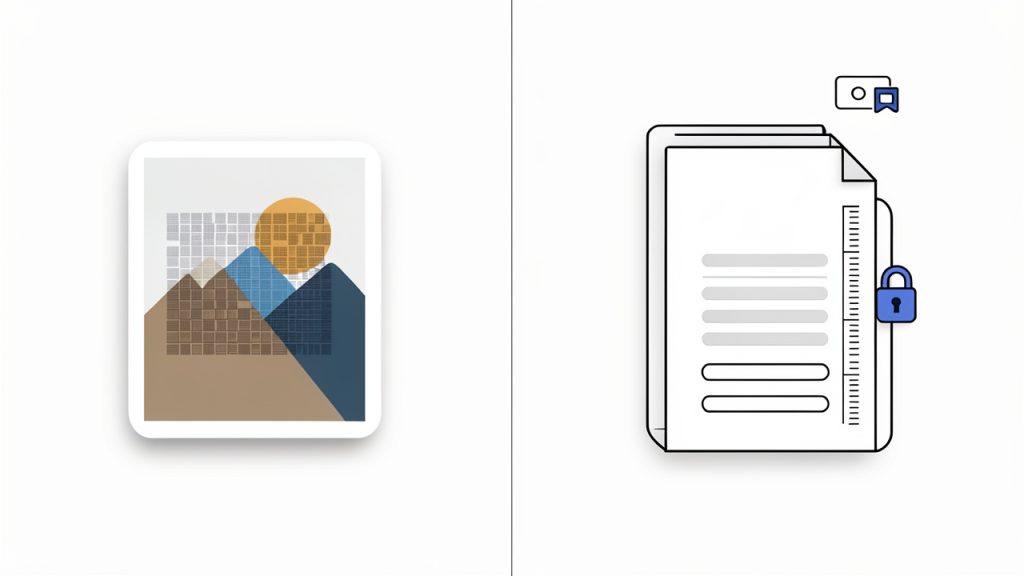
A PDF is more like a set of instructions than a photograph. It can say, “draw this letter in this font at this size,” or “place this line exactly here.” That is why text in a PDF often stays sharp no matter how far you zoom in. When you convert that same page to an image, those instructions are flattened into a grid of pixels.
This matters most for text and diagrams. A clean vector chart in a PDF can look razor-sharp at any size. Once rasterized, its quality depends entirely on the resolution you choose during export. If you convert a page at 72 DPI, small text may look soft or jagged. At 300 DPI, that same page usually looks much better, especially for print or OCR.
How resolution affects quality and file size
DPI, or dots per inch, controls how much detail ends up in the image. Higher DPI means more pixels, which usually means better visual quality and larger files. Lower DPI keeps files small but can make text, logos, and thin lines look blurry.
A practical way to think about it is this: 72 to 150 DPI is usually fine for web previews, email sharing, and on-screen viewing. 300 DPI is the standard safe choice for print and OCR. If the source PDF contains fine typography, engineering drawings, or detailed tables, going above 300 DPI can help, but file sizes increase fast.
Color profiles, transparency, and compression artifacts
Not all output issues are caused by DPI. Color profiles can shift how images appear across devices and printers. A PDF prepared for print may use CMYK color data, while many image workflows expect RGB. If the conversion tool handles color poorly, the result can look dull or off-brand.
Transparency is another frequent surprise. PDFs can support transparent elements, but some image formats cannot preserve them well. PNG handles transparency reliably. JPEG does not, so transparent areas may become white or another flat background color.
Compression also changes the result. JPEG uses lossy compression, which is efficient for photos but can create visible artifacts around text and edges. PNG and TIFF can preserve detail more cleanly, although often at the cost of larger files.
Multi-page PDFs and output behavior
A PDF can contain one page or one hundred. An image file usually represents a single page or frame. That is why most PDF-to-image workflows export each page as a separate file. If your PDF has ten pages, expect ten outputs unless your tool offers a contact sheet or combined image option.
Naming matters here. Good tools automatically generate filenames like document-1.png, document-2.png, and so on. Poorly configured exports can overwrite earlier pages or create inconsistent numbering. For batch workflows, predictable naming is essential.
Choose the right image format for your needs
JPEG for photographs and smaller files
JPEG is the best fit when your PDF pages contain photographs, gradients, or scanned imagery and you want smaller file sizes. It is widely supported, easy to share, and ideal for web previews where perfection is less important than speed.
The trade-off is quality loss. Each time a JPEG is compressed, some detail disappears. That is usually acceptable for photo-heavy pages, but not great for text-heavy handouts, UI screenshots, or logos. If you choose JPEG, use moderate to high quality settings to reduce visible artifacts.
PNG for text, line art, and transparency
PNG is often the safest all-around option when clarity matters. It preserves sharp edges well, which makes it especially useful for screenshots, diagrams, invoices, forms, slide exports, and pages with transparent backgrounds.
If your PDF contains simple graphics, black text on white backgrounds, or interface elements, PNG usually looks cleaner than JPEG. The downside is larger file sizes, especially for high-resolution pages with photographic content.
TIFF for archival and print workflows
TIFF is a strong choice for archival storage, publishing pipelines, and print production. It supports lossless compression and high quality, which makes it valuable when image integrity matters more than convenience.
The cost is compatibility and size. TIFF files are often much larger than JPEG or PNG, and they are not as convenient for casual web sharing. For internal archives, print vendors, and document imaging systems, though, TIFF remains highly relevant.
WebP and newer formats
WebP is attractive for websites because it can deliver smaller files than JPEG and PNG while still maintaining good visual quality. If your main goal is faster page loads, WebP is worth considering.
Support is now broad in modern browsers, but some older systems and workflows still prefer PNG or JPEG. For public-facing web assets, WebP is often a smart optimization step after conversion rather than the initial export format.
When to use SVG or keep vector output
Sometimes the best PDF to image workflow is not turning the content into a raster image at all. If the page is mostly vector art, icons, or simple illustrations, exporting to SVG can preserve sharpness and scalability. This is especially useful for logos, diagrams, and web graphics.
If your end use accepts PDF directly, keeping the original format may still be the best decision. Converting to an image makes sense when compatibility, display, or workflow requirements demand it, not just because it seems simpler.
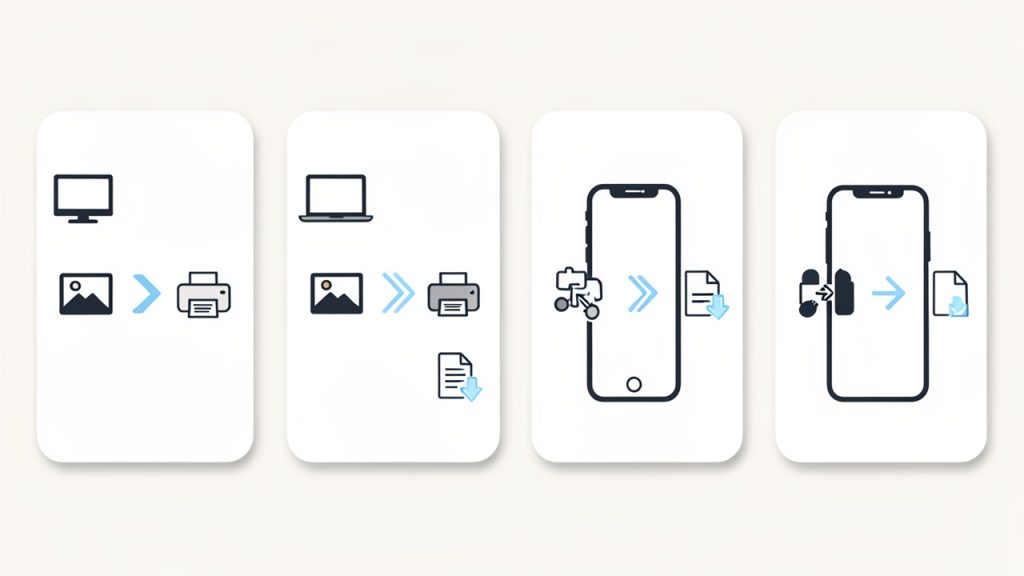
Methods to convert PDF to image: tools and workflows
There is no single best tool for every situation. The right method depends on your priorities: convenience, privacy, price, automation, or output control.
Online converters
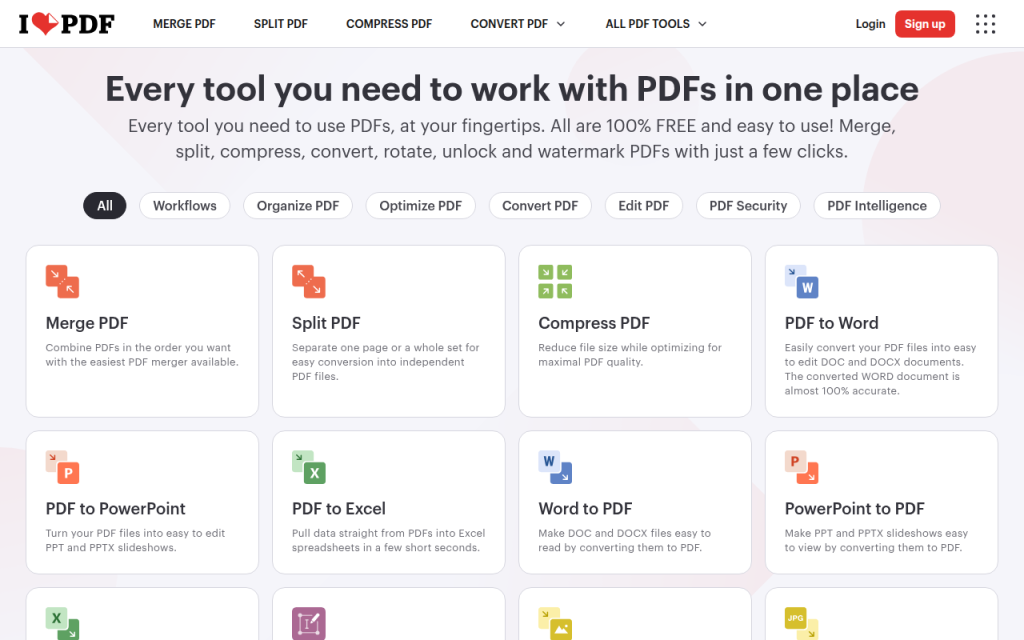
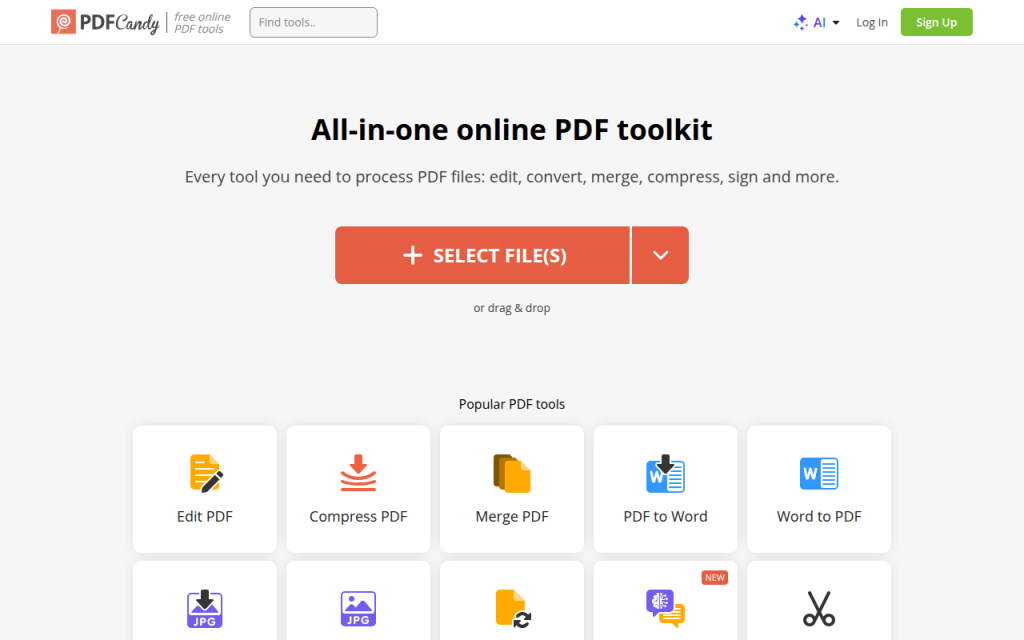
Online converters are the fastest route for occasional tasks. You upload a file, choose PNG or JPEG, click convert, and download the output. For small, non-sensitive PDFs, this is hard to beat for convenience. Many users like these services because they work on any device and require no installation.
The weakness is privacy. If your PDF contains contracts, invoices, client work, personal data, or internal documents, uploading it to a third-party service may be a bad idea. You also have limited control over rendering settings, color handling, and advanced export options.
Desktop software
Desktop tools give you more control and usually better privacy. Adobe Acrobat offers reliable export options and strong support for professional PDFs. Preview on macOS is quick and built in, making it a great lightweight option for Mac users. GIMP and IrfanView can help with opening and exporting PDFs, especially when you also want image editing or batch actions.
For most small business and freelance workflows, desktop software is the sweet spot. It balances ease of use with output quality, and it keeps files local.
Command-line tools
For power users, ImageMagick, Ghostscript, and pdftoppm from Poppler are excellent. They offer precise control over DPI, file naming, page ranges, and automation. These tools are widely used in Linux environments, CI pipelines, server-side jobs, and batch processing scripts.
The main barrier is usability. Command-line tools are fast and powerful, but they are less approachable if you are unfamiliar with terminal commands. Once configured, though, they are often the most efficient option.
Programming libraries and APIs
Developers integrating PDF to image conversion into apps often use Python libraries such as pdf2image and PyMuPDF, or Node tools such as pdf-poppler and pdfjs. These libraries are useful when conversion needs to happen in a web app, a backend service, or an internal automation process.
An API-based approach also helps when you need scale, event-driven processing, or integration with storage, OCR, or document workflows. The trade-off is implementation effort and the need to manage rendering dependencies.
Step-by-step how-tos
Online converter workflow
If you are using an online converter for a quick page export, follow this simple process:
- Upload the PDF to a reputable converter.
- Choose the output format, usually PNG for clarity or JPEG for smaller size.
- Set page range or select a single page if the tool supports it.
- Adjust quality or resolution settings when available.
- Download the output and verify text sharpness before sharing.
For safety, avoid this method for sensitive documents unless the provider clearly states deletion timelines, encryption practices, and data retention limits.
Adobe Acrobat export steps
In Adobe Acrobat, open the PDF and choose the export option from the tools menu. Select Image as the export category, then choose JPEG, PNG, or TIFF. If settings are available, choose the desired resolution and color space before exporting. Acrobat generally handles fonts and layout well, so it is one of the more dependable options for client-facing materials.
macOS Preview quick steps
Preview can open a PDF page and export it as an image with very little friction. Open the PDF, navigate to the page you want, then use the export command and pick PNG or JPEG as the output format. For simple one-page extractions, it is fast and effective. For advanced multi-page export or batch processing, you will usually need a more specialized tool.
ImageMagick example
If you want command-line control, ImageMagick remains a popular choice. A common example is:
magick -density 300 input.pdf output.png
This command renders the PDF at 300 DPI before conversion. That density setting is important. Without it, the output may default to a lower resolution and appear blurry.
For multi-page PDFs, ImageMagick typically creates separate files automatically, often with numbered suffixes. If you need only one page, you can specify the page index:
magick -density 300 "input.pdf[0]" output-page1.png
pdftoppm high-quality export examples
Poppler’s pdftoppm is often preferred for reliable PDF rendering and speed. To export a PDF to PNG at 300 DPI, use:
pdftoppm -png -r 300 input.pdf output
This creates files like output-1.png, output-2.png, and so on. If you want only a specific page, add page limits:
pdftoppm -png -r 300 -f 1 -singlefile input.pdf output-page1
For JPEG output, switch the format flag:
pdftoppm -jpeg -r 200 input.pdf output
Python example with pdf2image
For developers, pdf2image offers a practical Python route. First install the package and make sure Poppler is available on your system.
from pdf2image import convert_from_path

pages = convert_from_path("input.pdf", dpi=300)
pages[0].save("page-1.png", "PNG")
That handles a single page save after converting all pages. For a multi-page export:
from pdf2image import convert_from_path

pages = convert_from_path("input.pdf", dpi=300)

for i, page in enumerate(pages, start=1):
    page.save(f"output-{i}.png", "PNG")
This approach is useful in dashboards, upload pipelines, and automated document services where PDFs need to become images on demand.
Optimizing output: quality, size, and accessibility
A good conversion is not just about getting an image. It is about getting an image that is sharp enough, small enough, and usable enough for its final destination.
For web use, 72 to 150 DPI is usually enough. For OCR and print, 300 DPI is the standard recommendation. If you go much higher without a clear reason, you often get larger files with little visible improvement. This is especially true for plain text documents destined for screens.
Compression comes next. JPEG quality settings should be high enough to avoid ugly artifacts around letters and edges. PNG files can often be optimized after export with tools like pngquant, while JPEG files can be trimmed with jpegoptim. These tools reduce size without forcing a full re-render from the original PDF.
pngquant --quality=65-85 --ext .png --force output.png
jpegoptim --max=85 image.jpg
Resizing is another simple win. If you converted a letter-size page at 300 DPI and only need a thumbnail for a website, the exported file is probably far larger than necessary. Reducing dimensions after conversion can dramatically improve load times.
Accessibility is often overlooked. Once text becomes an image, screen readers cannot interpret it unless you add alt text where the image is published. If the original purpose of the PDF was to convey readable text, ask whether rasterizing is actually the right move. In many cases, keeping the PDF searchable or applying OCR is more accessible than flattening everything into pixels.
Batch processing and automation strategies
When you need to convert more than a few files, manual export becomes tedious fast. Batch processing saves time, but it also introduces consistency concerns around naming, logging, and error handling.
A simple Bash loop with pdftoppm can process an entire folder of PDFs:
for file in *.pdf; do
  base="${file%.pdf}"
  pdftoppm -png -r 300 "$file" "$base"
done
That script converts every PDF in the current directory into numbered PNG files. If you prefer ImageMagick, a similar loop works there too:
for file in *.pdf; do
  base="${file%.pdf}"
  magick -density 300 "$file" "${base}.png"
done
For no-code automation, watch-folder workflows can be surprisingly effective. On macOS, Automator or Shortcuts can detect new PDFs in a folder and trigger conversion steps. In cloud workflows, Zapier and Make can move files between storage systems and APIs, though they are better for orchestration than heavy rendering.
On servers, scaling means thinking about memory and concurrency. PDF rendering can be CPU-intensive, especially with high DPI settings or large batches. A queue-based architecture with worker limits is safer than trying to process everything at once. Logging should capture source filename, page count, output format, DPI, and conversion errors so failed jobs can be retried cleanly.
Privacy, security, and legal considerations
A PDF often contains more than visible text. It may include invoices, contracts, financials, IDs, signatures, or sensitive internal documents. Uploading that file to an online converter means trusting a third party not just with the visible content, but also with whatever metadata and retention practices sit behind the service.
For confidential material, local tools are safer. Desktop software, self-hosted conversion tools, and server-side libraries keep the data within your environment. If cloud processing is unavoidable, check whether files are encrypted in transit, how long uploads are stored, whether deletion is automatic, and whether the provider uses files for training or analytics.
Retention policies matter. Even reputable tools may keep files temporarily for processing or abuse prevention. If you work in regulated environments, that may be unacceptable. Secure deletion practices and internal handling policies should be part of your workflow, not an afterthought.
There is also a legal dimension. Converting a PDF into an image does not remove copyright restrictions. If the source content is protected, you still need the right to reproduce, share, or publish it.
Troubleshooting common problems
Blurry or pixelated text
This is the most common complaint, and the cause is usually low DPI. Re-export at 300 DPI if the image will be printed, OCR’d, or viewed closely. For web use, try 150 DPI first and inspect small text before settling. Also make sure you are using PNG rather than JPEG for text-heavy pages.
Missing fonts or garbled characters
If the source PDF does not embed fonts correctly, some converters may substitute or misrender text. Adobe Acrobat and Poppler-based tools often handle these cases better than lightweight converters. If possible, regenerate the original PDF with embedded fonts before converting.
Large file sizes
If the image is too big, reduce the DPI, resize the dimensions, or switch formats. Text-heavy pages often compress well as optimized PNGs. Photo-heavy pages are better suited to JPEG or WebP. Do not default to TIFF unless you truly need archival or print-grade output.
Corrupted or unreadable output
Sometimes the issue is the source PDF, not the export tool. Try opening the file in another renderer, re-saving the PDF, or printing it to a new PDF before converting. If one tool fails, test another. Different rendering engines interpret problematic PDFs differently.
Tool recommendations: best options by use case
| Use Case | Recommended Tool | Platform | Cost | Why It Stands Out |
|---|---|---|---|---|
| Quick one-off conversion | CloudConvert | Web | Free/Paid | Easy interface, flexible formats, good for occasional non-sensitive files |
| Fast browser-based tasks | Zamzar | Web | Free/Paid | Simple workflow, broad file support |
| Professional document export | Adobe Acrobat | Windows, macOS, Web | Paid | Strong rendering quality, dependable font handling, TIFF/JPEG export |
| Mac-native quick export | Preview | macOS | Free | Built in, fast, ideal for simple page exports |
| Free image editing after conversion | GIMP | Windows, macOS, Linux | Free | Useful if you need to tweak or crop output |
| Lightweight Windows workflow | IrfanView | Windows | Free | Fast, practical, good for occasional desktop use |
| Automation and scripting | pdftoppm (Poppler) | Windows, macOS, Linux | Free | Excellent rendering, clean multi-page export, batch friendly |
| Flexible command-line rendering | ImageMagick | Windows, macOS, Linux | Free | Powerful for conversion pipelines and format control |
| Python app integration | pdf2image | Cross-platform | Free | Straightforward API, popular for backend workflows |
| Advanced Python rendering | PyMuPDF | Cross-platform | Free/Paid options | Fast, powerful, useful for extraction and rendering tasks |
| Node-based conversion | pdf-poppler | Cross-platform | Free | Helpful for app automation in JavaScript environments |
If privacy is your top concern, prefer Preview, Adobe Acrobat, pdftoppm, or ImageMagick running locally. If speed and convenience matter most for a harmless file, a web converter can be perfectly adequate.
Frequently asked questions
Will converting a PDF into an image make text unsearchable?
Yes, in most cases. Once the page is rasterized, the text becomes pixels rather than selectable characters. If searchability matters, keep the PDF or apply OCR after conversion.
Can I convert back from image to PDF without quality loss?
You can place the image into a new PDF, but that does not restore vector text or lost detail. The PDF will simply contain the image. If the original export was low quality, that loss remains.
What DPI should I use for OCR?
300 DPI is the standard recommendation for OCR. Lower resolutions can work for large, clean text, but 300 DPI gives OCR software a better chance of recognizing characters accurately.
How do I keep vector graphics sharp?
If possible, keep the content in PDF or export to SVG instead of a raster format. If you must create an image, use a high DPI and choose PNG or TIFF for cleaner edges.
Conclusion and practical checklist
A successful PDF to image workflow comes down to a few smart choices. First, pick the right format for the content. PNG for text and graphics, JPEG for photos, TIFF for archival, WebP for web optimization. Then choose the right DPI based on use case, usually 72 to 150 for web and 300 for print or OCR. Finally, use the right tool for the job: online for convenience, desktop for privacy and ease, command-line for automation, and libraries for app integration.
If you want a simple rule of thumb, use PNG at 150 DPI for web graphics, JPEG at moderate quality for photo-heavy pages, and PNG or TIFF at 300 DPI for print, OCR, or records. After conversion, optimize the file, check text sharpness, and think about accessibility and privacy before publishing or sharing.
For your next step, choose one workflow and test it on a real file you use often. If you need a quick result, start with Preview or an online converter. If you need repeatable quality or automation, move straight to Poppler, ImageMagick, or a Python library. The right setup can turn PDF to image conversion from an occasional annoyance into a fast, reliable part of your workflow.