
JNTZN

Tag: security

  • Base64 to Text: Decode Base64 Safely and Easily

    Base64 to Text: Decode Base64 Safely and Easily

    A long string ending in = can look like nonsense, but it often hides something very ordinary, a message, a config value, a file header, or plain readable text. If you have a Base64 string and need to turn it back into text, the good news is that the process is usually simple. The challenge is knowing which tool to use, how to spot the right variant, and how to avoid privacy mistakes along the way.

    This guide explains Base64 to text conversion in plain language first, then gives you practical methods for browsers, terminals, and common programming languages. It also covers the parts many quick converter pages skip, including URL-safe Base64, data URI cleanup, character encoding issues, JWT payloads, and secure handling of sensitive data.

    What is Base64 and why you encounter it

    Definition: Base64 encoding in simple terms

    Base64 is a way to represent binary data as text. Instead of sending raw bytes directly, Base64 transforms them into a limited set of characters that are easier to transport through systems built for text.

    That is why a Base64 string often looks like a block of letters, numbers, slashes, plus signs, and sometimes one or two = characters at the end. It is not meant for humans to read directly. It is meant for computers to pass around safely.

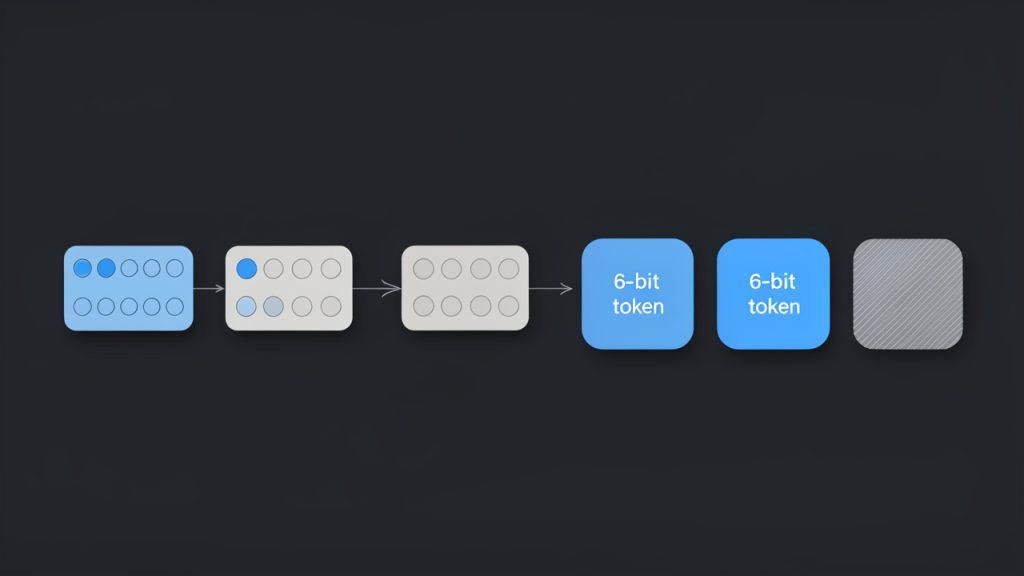
    A quick technical note helps here. Base64 takes data and splits it into 6-bit chunks, then maps each chunk to a character from a 64-character alphabet. If the original data length does not divide evenly, Base64 uses padding, usually =, to complete the output.

    Why Base64 exists: binary-to-text transport and common use-cases

    Many older and modern systems handle text more reliably than raw binary. Base64 solves that compatibility problem. It lets images, attachments, tokens, and other binary content travel through channels that expect text.

    That is why you see Base64 in APIs, HTML data URIs, email attachments, certificate files, and authentication tokens. It is not encryption, and it is not compression. It is simply an encoding format.

    The trade-off is size. Base64 makes data about 33% larger than the original. That sounds inefficient, and it is, but the benefit is portability and predictable transport.

    Where you commonly see Base64

    You will often run into Base64 in places where systems need to embed or move data without worrying about binary corruption. A common example is an image embedded directly into HTML or CSS using a data URI, such as data:image/png;base64,....

    Developers also see Base64 in API payloads, particularly when binary files are sent in JSON. Security-related tools use it in JWT tokens, though those use the URL-safe variant. Email systems use Base64 for attachments and MIME parts, and certificate-related formats may contain Base64-encoded blocks inside text files.

    If a string is long, contains only letters, digits, +, /, _, -, and maybe =, there is a fair chance you are looking at Base64 or one of its close variants.

    How Base64 encoding works (brief technical overview)

    The algorithm in steps: grouping, 6-bit chunks, mapping to alphabet, padding

    The process is easier to understand if you think in layers. Original text is first stored as bytes. Those bytes are grouped in sets of 3, which gives 24 bits. Base64 then splits those 24 bits into 4 groups of 6 bits each.

    Each 6-bit value maps to one Base64 character. That is how 3 bytes become 4 text characters.

    For example, the text Hi becomes the Base64 string SGk=. The trailing = appears because Hi is only 2 bytes, not 3, so the output needs padding to complete the final block.

    Diagram showing the Base64 encoding process: 3 input bytes (24 bits) grouped together, split into four 6-bit chunks, each mapped to a Base64 character. Include an example: ASCII for 'Hi' (0x48 0x69) shown as bytes, padded with zeros to make 24 bits, resulting 6-bit values, mapped to characters 'S', 'G', 'k', '=' with the '=' shown as padding. Annotate '3 bytes -> 4 chars', '6-bit chunks', and 'padding when input length ≠ multiple of 3'.

    Base64 alphabet and variants

    Standard Base64 uses this character set: uppercase letters, lowercase letters, digits, +, and /. Padding is done with =.

    A very common variant is Base64URL, used in URLs and JWTs. It replaces + with - and / with _. It also often omits padding. That small change matters, because a standard decoder may reject URL-safe input unless you normalize it first.

    Another variation appears in MIME email content, where line breaks may be inserted every 76 characters. If you copy encoded data from an email, those line breaks usually need to be removed before decoding.

    Side-by-side comparison of Base64 alphabets/variants: left column labeled 'Standard Base64' showing characters A–Z a–z 0–9 + / and '=' padding; right column labeled 'Base64URL' replacing '+' with '-' and '/' with '_' and noting 'padding often omitted'. Include a small note/arrow showing how to normalize URL-safe to standard (+/ and add padding) before decoding.

    Common pitfalls: padding, line breaks, character set assumptions

    Many Base64 decoding errors come from tiny formatting issues. Missing padding is common in JWTs and URL-safe strings. Embedded whitespace or line breaks are common in emails and certificates. Data URI prefixes are common in web contexts.

    Another frequent issue is not Base64 itself, but the character encoding of the decoded bytes. You may decode the Base64 correctly and still see gibberish if the output is not UTF-8 text. It could be Latin-1, UTF-16, compressed data, or even a binary file.

    That is why Base64 to text conversion is really a two-step interpretation. First decode the Base64. Then determine what the resulting bytes actually represent.

    How to convert Base64 to text: quick methods

    Online tools and one-click converters

    For non-sensitive data, a browser-based converter is the fastest route. Paste the Base64 string, decode it, and inspect the result.

    Tools on domains such as base64.guru, www.base64decode.org, and www.utilities-online.info are commonly used for quick checks. They are convenient, but convenience comes with a warning. If the string may contain tokens, personal data, customer records, API secrets, or private messages, avoid random online tools and decode locally instead.

    If your input begins with a data URI prefix like data:text/plain;base64,, remove everything before the comma first. Most good tools handle this automatically, but not all do.

    Browser devtools and console

    If you want a local method in the browser, open developer tools and use JavaScript in the console. This works well for short text strings.

    const input = "SGVsbG8gd29ybGQ=";
    const cleaned = input.replace(/^data:[^,]+,/, "").replace(/s+/g, "");
    const text = decodeURIComponent(
      Array.from(atob(cleaned), c => "%" + c.charCodeAt(0).toString(16).padStart(2, "0")).join("")
    );
    console.log(text);
    

    For a URL-safe string, normalize it first.

    const input = "SGVsbG8td29ybGQ";
    const normalized = input
      .replace(/-/g, "+")
      .replace(/_/g, "/")
      .padEnd(Math.ceil(input.length / 4) * 4, "=");
    
    console.log(atob(normalized));
    

    The first example handles UTF-8 text more reliably than a plain atob() call. That matters when the decoded text includes non-English characters.

    Command-line options on Linux and macOS

    On Unix-like systems, the built-in base64 command is often enough.

    echo 'SGVsbG8gd29ybGQ=' | base64 --decode
    

    If the input may contain whitespace or a data URI prefix, clean it first.

    echo 'data:text/plain;base64,SGVsbG8gd29ybGQ=' | sed 's/^data:[^,]*,//' | tr -d 'nrt ' | base64 --decode
    

    To normalize a URL-safe string:

    s='SGVsbG8td29ybGQ'
    s=$(printf "%s" "$s" | tr '_-' '/+')
    pad=$(( (4 - ${#s} % 4) % 4 ))
    s="${s}$(printf '=%.0s' $(seq 1 $pad))"
    printf "%s" "$s" | base64 --decode
    

    If base64 behaves differently on your system, openssl is another option.

    echo 'SGVsbG8gd29ybGQ=' | openssl base64 -d -A
    

    The -A flag helps when line breaks are involved.

    Windows PowerShell

    PowerShell makes Base64 decoding straightforward for text.

    $input = "SGVsbG8gd29ybGQ="
    $bytes = [Convert]::FromBase64String($input)
    $text = [System.Text.Encoding]::UTF8.GetString($bytes)
    ### $text
    

    To handle a URL-safe string and missing padding:

    $input = "SGVsbG8td29ybGQ"
    $normalized = $input.Replace('-', '+').Replace('_', '/')
    switch ($normalized.Length % 4) {
      2 { $normalized += "==" }
      3 { $normalized += "=" }
    }
    $bytes = [Convert]::FromBase64String($normalized)
    [System.Text.Encoding]::UTF8.GetString($bytes)
    

    To remove a data URI prefix:

    $input = "data:text/plain;base64,SGVsbG8gd29ybGQ="
    $cleaned = $input -replace '^data:[^,]+,', ''
    [System.Text.Encoding]::UTF8.GetString([Convert]::FromBase64String($cleaned))
    

    Programming examples: Python, JavaScript, Java, C#

    If you are building the conversion into an app or script, use the language’s standard library where possible.

    Python:

    import base64
    
    s = "SGVsbG8gd29ybGQ="
    cleaned = s.split(",", 1)[-1].strip()
    decoded = base64.b64decode(cleaned)
    print(decoded.decode("utf-8"))
    

    Python with URL-safe Base64:

    import base64
    
    s = "SGVsbG8td29ybGQ"
    cleaned = s.split(",", 1)[-1].strip()
    padding = "=" * (-len(cleaned) % 4)
    decoded = base64.urlsafe_b64decode(cleaned + padding)
    print(decoded.decode("utf-8"))
    

    JavaScript in Node.js:

    const input = "SGVsbG8gd29ybGQ=";
    const cleaned = input.replace(/^data:[^,]+,/, "").replace(/s+/g, "");
    const text = Buffer.from(cleaned, "base64").toString("utf8");
    console.log(text);
    

    Java:

    import java.nio.charset.StandardCharsets;
    import java.util.Base64;
    
    String input = "SGVsbG8gd29ybGQ=";
    String cleaned = input.replaceFirst("^data:[^,]+,", "").replaceAll("\s+", "");
    byte[] decoded = Base64.getDecoder().decode(cleaned);
    String text = new String(decoded, StandardCharsets.UTF_8);
    System.out.println(text);
    

    C#:

    using System;
    using System.Text;
    
    string input = "SGVsbG8gd29ybGQ=";
    string cleaned = System.Text.RegularExpressions.Regex.Replace(input, @"^data:[^,]+,", "");
    byte[] bytes = Convert.FromBase64String(cleaned);
    string text = Encoding.UTF8.GetString(bytes);
    Console.WriteLine(text);
    

    Step-by-step: Decode Base64 to readable text securely

    Step 1: Identify if string is Base64

    A Base64 string often has a recognizable pattern. It usually contains only letters, digits, +, /, _, -, and optional = padding. It may be very long and may not contain obvious words.

    A quick heuristic is useful, but not perfect. Some ordinary strings can accidentally match the Base64 character set. The best test is to try decoding with a strict decoder and see whether the result makes sense.

    Step 2: Clean the input

    Before decoding, remove anything that does not belong to the encoded payload. That includes data URI prefixes, line breaks, spaces, tabs, and sometimes enclosing quotes.

    If you are dealing with JWTs or URL parameters, convert - back to + and _ back to /. Then restore missing = padding if needed so the length becomes a multiple of 4.

    Step 3: Choose a safe tool

    If the string may contain credentials, customer records, signed tokens, internal logs, or confidential documents, decode it offline using your terminal or a local script.

    Online converters are fine for test strings and harmless samples. They are not a good home for secrets. The same principle applies to screenshots, browser sync, and clipboard history. Sensitive data has a way of traveling farther than expected.

    Step 4: Decode and interpret the result

    Once decoded, inspect the output carefully. If it is readable text, you are done. If it looks scrambled, the issue may be the text encoding rather than the Base64.

    UTF-8 is the most common encoding, but not the only one. Tools like file on Linux or libraries such as chardet in Python can help identify likely encodings.

    echo 'SGVsbG8gd29ybGQ=' | base64 --decode | file -
    
    import chardet, base64
    data = base64.b64decode("SGVsbG8gd29ybGQ=")
    print(chardet.detect(data))
    

    Step 5: Troubleshooting common errors

    If you see invalid character errors, the input may contain whitespace, a data URI prefix, or URL-safe characters that were not normalized.

    If decoding succeeds but the output looks like random symbols, the data may not be text at all. It could be an image, a PDF, compressed bytes, or another encoded layer. In some cases, it is text in a different character set, such as UTF-16 or ISO-8859-1.

    Examples: Real-world Base64-to-text conversions

    Decoding a data URI

    Suppose you have this input:

    data:text/plain;base64,SGVsbG8sIHdvcmxkIQ==

    Remove the prefix and decode the rest. The result is:

    Hello, world!

    If the data URI says image/png instead of text/plain, the decoded output is binary image data, not readable text. That distinction matters.

    Extracting a message from a Base64 email part

    An email body or attachment section may include:

    VGhhbmsgeW91IGZvciB5b3VyIG9yZGVyLg==

    That decodes to:

    Thank you for your order.

    In real emails, line breaks are often inserted automatically. Remove them before decoding.

    Decoding a JWT payload

    JWTs are split into three parts separated by dots. The middle part is the payload and usually uses Base64URL, not standard Base64.

    A payload like:

    eyJzdWIiOiIxMjM0NTY3ODkwIiwibmFtZSI6IkpvaG4gRG9lIiwiaWF0IjoxNTE2MjM5MDIyfQ

    decodes to JSON text like:

    {"sub":"1234567890","name":"John Doe","iat":1516239022}

    This is useful for inspection, but decoding a JWT is not the same as validating it. Anyone can decode it. Trust requires signature verification.

    Recovering text from logs or config files

    You might find a config value like:

    YXBpX2tleT1kZW1vMTIz

    Decoded, this becomes:

    api_key=demo123

    That can be helpful in troubleshooting, but it also shows why Base64 should never be treated as a security feature. It only obscures content, it does not protect it.

    Security, privacy, and integrity considerations

    Never paste secrets into untrusted online tools

    This is the most important practical rule. A Base64 string may contain passwords, private tokens, invoices, identity data, or full file contents. If you paste it into an online converter, you may be sharing that information with a third party.

    Use browser tools, local scripts, or terminal commands whenever the data matters. For businesses and freelancers, that small habit reduces avoidable risk.

    Malicious payloads and why decoding may be risky

    Decoded content is not always harmless text. It could be JavaScript, a macro-enabled document, an executable, or compressed malware. Decoding alone does not execute content, but opening the resulting file might.

    If the decoded output is not clearly text, treat it like an unknown file. Save it carefully, inspect it in a controlled environment, and scan it before opening.

    Verifying integrity

    Base64 does not prove authenticity or integrity. It only changes representation.

    If you need to know whether decoded data is genuine, look for checksums, digital signatures, or protocol-level verification. With JWTs, that means validating the signature using the correct key and algorithm. Reading the payload is easy. Trusting it is a separate step.

    Handling encoded files safely

    When Base64 wraps a file, decode it to disk only if necessary. Then use antivirus or sandbox tools if the origin is uncertain.

    For teams handling customer uploads, logs, or attachments, a simple policy helps: decode locally, inspect file type, scan, then open.

    Advanced topics and troubleshooting

    When decoding yields gibberish

    If the result is unreadable, several things may be happening. The decoded bytes may use the wrong character set. The content may be compressed. Or the string may be encoded more than once.

    A classic clue for gzip-compressed data is the magic byte sequence 1f 8b after decoding. In that case, you must decompress after Base64 decoding.

    echo 'H4sIAAAAA...' | base64 --decode | gunzip
    

    Detecting and handling double-encoded data

    Sometimes Base64 is applied twice. After the first decode, you get another Base64-looking string instead of meaningful text.

    If the first decoded result still matches Base64 patterns and decodes cleanly again, you may be dealing with double-encoded data. This shows up in logs, migrations, and systems where multiple layers try to “safely” wrap the same value.

    Base64 vs other encodings

    Base64 is not the only text-friendly encoding. Hex is simpler and easier to debug by eye, but it doubles size. Base32 is useful in some interoperability contexts. Base58 avoids visually confusing characters and is popular in blockchain-related systems.

    For general binary-to-text transport, Base64 remains the default because it balances efficiency and compatibility well.

    Performance and size considerations

    Base64 increases storage and transfer size by roughly one-third. For occasional values, that is minor. For large attachments or high-volume APIs, it matters.

    Encoding and decoding are fast, but moving oversized payloads through JSON or email still adds cost. If performance is important, prefer direct binary transfer where the system supports it.

    Tools and resources: recommended utilities and references

    The best tools are usually the ones already on your machine. Terminal utilities such as base64, openssl, and PowerShell’s [Convert]::FromBase64String() are reliable and private. For application code, use the standard libraries in Python, Node.js, Java, and .NET rather than hand-rolled decoders.

    If you need an online converter for harmless sample data, choose well-known sites and avoid anything that asks for sign-in, permissions, or uploads unrelated metadata. Examples people commonly use include base64.guru and base64decode.org, but local decoding is still the safer default.

    For authoritative references, start with RFC 4648 for Base64 and Base64URL rules. For JWT behavior, consult RFC 7519. For email-related line wrapping and content transfer details, MIME standards remain the key reference point.

    FAQ: quick answers to common reader questions

    Is Base64 encryption?

    No. Base64 is encoding, not encryption. Anyone can decode it with basic tools.

    Why does decoding sometimes produce strange characters?

    Usually because the decoded bytes are not UTF-8 text, or because the content is binary, compressed, or encoded again. The Base64 decode may be correct even if the displayed text is not.

    Can I safely share Base64-encoded strings?

    Only if you would also be comfortable sharing the underlying content. Base64 does not meaningfully protect sensitive information.

    How do I detect if a string is Base64 programmatically?

    The most dependable method is to try decoding with validation enabled, then inspect whether the result is expected. Pattern matching helps, but it is only a heuristic.

    Conclusion and best-practices checklist

    Base64 to text conversion is easy once you know what to look for. Clean the input, identify the right variant, decode with a trusted local tool, and then interpret the output using the correct text encoding. If something looks wrong, the issue is often padding, URL-safe characters, MIME line breaks, or non-UTF-8 output.

    Use online converters only for non-sensitive samples. For everything else, decode locally and inspect carefully. If your next step is practical, start with the method that matches your environment: browser console, terminal, PowerShell, or a short script in your preferred language.

  • Base64 to Hex: Decode Bytes and Output Hex

    Base64 to Hex: Decode Bytes and Output Hex

    If you have ever copied a Base64 string out of an API response, a certificate file, or a debugging log and then needed it in hexadecimal form, you already know how awkward that conversion can feel.

    The data is there, but it is wrapped in a different encoding, and one wrong assumption can turn a valid byte sequence into nonsense.

    That is where Base64 to hex conversion becomes useful. It is a practical, everyday task for developers, security professionals, freelancers working with integrations, and even non-technical users handling encoded assets.

    Once you understand what is actually being converted, the process becomes simple, reliable, and much easier to troubleshoot.

    What is Base64 to hex?

    At a basic level, Base64 to hex means taking data that has been represented using Base64 encoding and converting it into a hexadecimal representation of the same underlying bytes.

    The important phrase here is the same underlying bytes. You are not changing the meaning of the data. You are only changing how that data is displayed.

    Base64 is a text-based encoding that uses letters, numbers, and a few symbols to represent binary data in a compact ASCII-friendly format.

    It is commonly used when binary content needs to travel through systems that prefer text, such as email, JSON payloads, or web APIs. A Base64 string might look like SGVsbG8=.

    Hex, short for hexadecimal, represents the same data using base-16 notation. Each byte is usually shown as two hex characters, such as 48 65 6c 6c 6f.

    If the Base64 string above decodes to the bytes for the word “Hello,” the hex output would be 48656c6c6f.

    Why this conversion matters

    This conversion is common because different tools and workflows expect different formats.

    A cryptography library may display a hash in hex. A browser or API may send a payload in Base64. A debugging tool may ask for raw bytes or hex values. In each case, the actual information is identical, but the representation changes.

    For small business owners or freelancers using automation tools, this may show up when connecting services, validating webhook payloads, or checking token data.

    For developers, it often appears in backend services, security work, binary protocols, and file inspection.

    For productivity-minded users, an online Base64 to hex converter can save time when quick validation is all that is needed.

    Base64 and hex are not interchangeable

    A common misunderstanding is thinking Base64 and hex are competing storage formats. They are not. Both are encodings of binary data, but they serve different purposes.

    Base64 is more compact than hex when representing binary as text. Hex is more readable at the byte level and often easier to inspect manually.

    If you are comparing byte patterns, checking magic numbers in files, or reading cryptographic values, hex is often the better view. If you are transporting data through text-only systems, Base64 is usually more convenient.

    Key Aspects of Base64 to hex

    Understanding a few core ideas makes Base64 to hex conversion much easier and helps you avoid the most common mistakes.

    The conversion happens in two steps

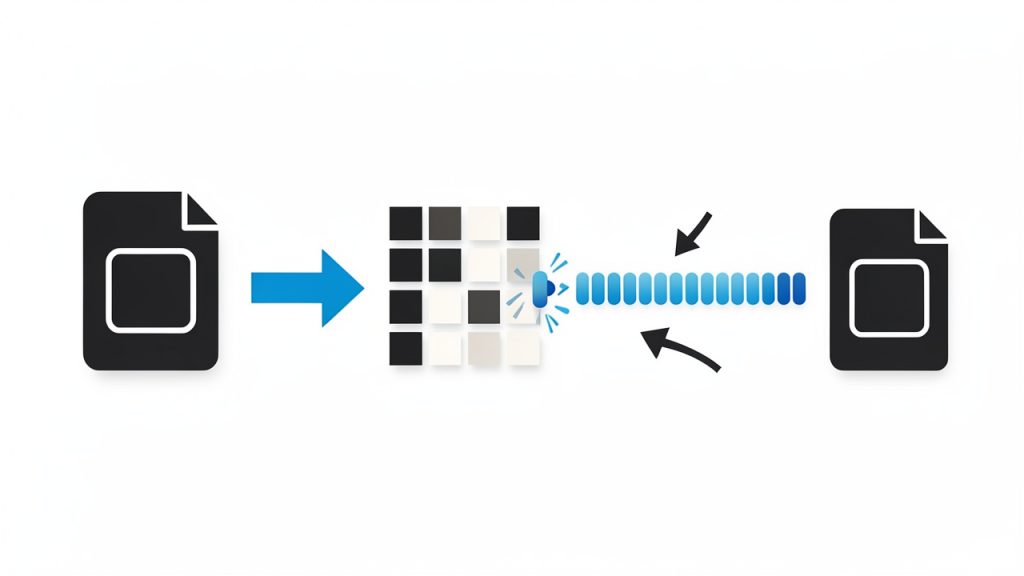
    The process is conceptually simple. First, you decode the Base64 string into raw bytes. Then, you render those bytes as hexadecimal. That is all.

    A simple flow diagram showing the two-step conversion: (1) Base64 string input -> decode -> raw bytes (visualized as a row of byte boxes), (2) raw bytes -> render -> hexadecimal string output. Include arrows and labels: 'decode Base64 to bytes' and 'format bytes as hex'.

    What often causes confusion is skipping the byte layer mentally. People sometimes try to “translate” Base64 characters directly into hex characters, but that is not how it works.

    Base64 and hex are both views of bytes, so the bytes have to remain the reference point.

    A useful analogy is file compression and file naming. If you rename a .zip file to .txt, the content does not become plain text. Likewise, if you look at bytes through Base64 or through hex, the bytes remain unchanged. Only the notation changes.

    Padding and valid Base64 input

    Many Base64 strings end with one or two equals signs, such as = or ==. These are padding characters.

    They help make the encoded output align correctly. Some systems include them, while others omit them, especially in URL-safe contexts.

    A good Base64 to hex tool should handle standard Base64 correctly and should clearly indicate if the input is malformed. If the input length is off, or if invalid characters appear, the converter may fail or produce misleading output. This is why validation matters, especially in security or API work.

    Standard Base64 vs URL-safe Base64

    Not all Base64 strings look exactly the same. Standard Base64 uses characters like + and /, while URL-safe Base64 replaces them with - and _.

    This small difference matters.

    If you try to decode a URL-safe Base64 string with a strict standard decoder, it may fail unless the tool supports both forms. This is especially relevant when dealing with JWT segments, OAuth tokens, and web application payloads.

    If your converter supports automatic normalization, the job becomes much easier.

    Hex output styles vary

    Hex output is not always shown in one universal style. Some tools output lowercase letters, such as 48656c6c6f, while others use uppercase, such as 48656C6C6F.

    Some insert spaces between bytes, and some prefix values with 0x.

    These differences usually do not affect the underlying data, but they matter when you compare values across tools or paste results into a script. If you are troubleshooting, it helps to know whether formatting differences are cosmetic or meaningful.

    Format Style Example Typical Use
    Lowercase hex 48656c6c6f Common in many developer tools
    Uppercase hex 48656C6C6F Seen in documentation and some security tools
    Spaced bytes 48 65 6c 6c 6f Easier manual inspection
    Prefixed hex 0x48 0x65 0x6c Low-level or educational contexts

    Character encoding can complicate interpretation

    The conversion itself is about bytes, not text. That distinction matters.

    Once you decode Base64, the result might be text, a file fragment, compressed data, an image header, encrypted bytes, or something else entirely.

    If the bytes represent UTF-8 text, the hex output may correspond to familiar characters. If the bytes represent a binary file, the hex may look random. This does not mean the conversion failed. It simply means the original content was not plain text.

    That is why a Base64 to hex converter is often used as a diagnostic step. It reveals what bytes are actually present, even when the decoded content is not human-readable.

    Practical use cases

    In real workflows, Base64 to hex shows up more often than many people expect.

    Security analysts use it to inspect keys, tokens, and binary signatures. Developers use it to validate API payloads and compare byte-level values across systems. Automation users may rely on it when transforming data between services that expect different formats.

    Imagine you receive a Base64-encoded webhook signature from one service, but your verification library logs the expected bytes in hex. You need a clean conversion path to compare them accurately.

    Or consider a binary attachment embedded in JSON. Converting Base64 to hex can help confirm whether the file starts with the correct header bytes before you save or process it.

    How to Get Started with Base64 to hex

    The easiest way to start is with a trusted online tool or a quick script in your preferred language.

    The right choice depends on whether you need a one-time conversion or a repeatable part of your workflow.

    If you only need to inspect a value occasionally, an online Base64 to hex converter is ideal. Paste the Base64 string, run the conversion, and review the hex output. This is fast, especially when debugging integrations or checking encoded values from logs or browser tools.

    If you work with encoded data regularly, a script gives you more control. It also makes it easier to automate repetitive tasks, validate input, and handle URL-safe variants consistently.

    A simple example

    Suppose your input is SGVsbG8=.

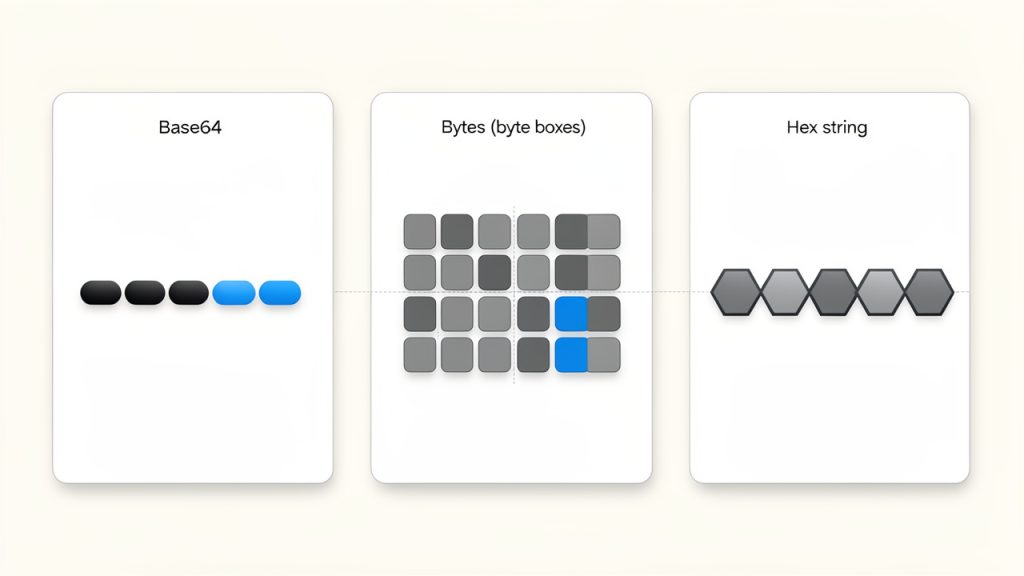
    A concrete example panel that shows the three parallel representations of the same data: left column 'Base64: SGVsbG8=', middle 'Bytes (hex pairs): 48 65 6c 6c 6f' shown as byte boxes, right 'Hex string: 48656c6c6f'. Optionally include a small label 'represents the ASCII text "Hello"' to tie to human-readable text.

    That Base64 string decodes to the bytes of the word “Hello”. When shown in hex, the output becomes 48656c6c6f.

    This is a small example, but it illustrates the pattern clearly. The Base64 string is not converted into letters. It is decoded into bytes, and those bytes are displayed in hexadecimal notation.

    Quick ways to convert Base64 to hex in code

    If you want to handle this in a script or application, here are straightforward examples.

    import base64
    
    b64 = "SGVsbG8="
    raw_bytes = base64.b64decode(b64)
    hex_output = raw_bytes.hex()
    
    print(hex_output)  # 48656c6c6f
    

    In Python, the process is very clean. You decode the Base64 string into bytes, then call .hex() on those bytes. This is one of the easiest ways to test values locally.

    const b64 = "SGVsbG8=";
    const buffer = Buffer.from(b64, "base64");
    const hexOutput = buffer.toString("hex");
    
    console.log(hexOutput); // 48656c6c6f
    

    In Node.js, Buffer handles both parts of the conversion. This is especially useful in backend development and API debugging.

    echo "SGVsbG8=" | base64 --decode | xxd -p
    

    On many Unix-like systems, command-line tools can do the job quickly. This approach is handy for terminal-based debugging, though exact command behavior may vary by platform.

    What to check before converting

    Before running any Base64 to hex conversion, it helps to verify a few basics.

    Confirm the string is actually Base64 and not plain text or another encoding.

    Check whether it is standard Base64 or URL-safe Base64.

    See whether missing = characters need to be restored.

    Decide whether you want compact hex, spaced bytes, or uppercase formatting.

    These checks prevent most conversion errors. They also save time when the issue is not the converter, but the input itself.

    Common mistakes to avoid

    One of the most frequent errors is converting the Base64 text characters to hex rather than decoding the Base64 first.

    For example, turning the ASCII characters S, G, V, s into hex is not the same as converting the encoded payload into hex bytes. That mistake produces the hex of the string itself, not the original data.

    Another common issue is pasting in a value that includes line breaks, extra spaces, or metadata such as a data URI prefix. For instance, a string like data:image/png;base64,... needs to be stripped down to the actual Base64 payload before conversion.

    A third issue is assuming the result should always be readable. If the original data is compressed or encrypted, the hex output will look opaque. That is expected. Hex is faithful, not necessarily friendly.

    Online tool versus local conversion

    For convenience, online tools are hard to beat. They are fast, accessible, and useful when you need a quick answer without opening an editor or terminal.

    They are particularly helpful for freelancers, operations teams, and users who do not want to write code for a one-off task.

    For sensitive data, local conversion is usually the better choice. If the Base64 string contains credentials, tokens, internal payloads, or private keys, handling the conversion on your own machine reduces risk.

    This is simple but important.

    Method Best For Main Advantage Main Consideration
    Online converter Quick, one-off tasks Fast and easy Avoid for sensitive data
    Local script Repeatable workflows Flexible and automatable Requires basic setup
    Command line Developer debugging Very fast in terminal Platform syntax may vary

    Conclusion

    Base64 to hex is a straightforward conversion once you focus on the byte layer.

    Base64 is one textual encoding of binary data, and hex is another. The job is not to translate characters directly, but to decode the Base64 into raw bytes, and then display those bytes as hexadecimal.

    That simple understanding unlocks a lot of practical value. You can inspect API payloads more accurately, compare cryptographic data across tools, debug integrations with confidence, and avoid the common pitfalls that waste time.

    The next step is simple: take a real Base64 value you work with, convert it to hex using a trusted tool or a small script, and verify the output against your workflow. Once you do it a couple of times, the process becomes second nature.

  • Note-Taking Tools: Capture, Organize, and Retrieve Ideas

    Note-Taking Tools: Capture, Organize, and Retrieve Ideas

    The hardest part of managing ideas is rarely the ideas themselves. It is the friction between capturing them, organizing them, and finding them again when they matter. That is why note taking tools have become essential infrastructure for developers, students, knowledge workers, and anyone trying to operate with less mental clutter and more precision.

    A good note system does more than store text. It becomes an external memory layer, a lightweight project tracker, a reference library, and often a thinking environment. The gap between a quick scratchpad and a structured knowledge base is where most modern note taking tools compete, and where the right choice can change daily workflow more than another messaging app or calendar ever will.

    What are note taking tools?

    Note taking tools are software applications designed to capture, structure, retrieve, and synchronize information across devices and workflows. At the simplest level, they replace paper notebooks and sticky notes. At a more advanced level, they function as personal knowledge management systems, supporting tags, links, databases, templates, collaboration, and automation.

    The category is broad because note taking itself is not a single activity. One user needs a fast place to jot meeting points. Another wants markdown-based documentation for technical work. A third wants a searchable archive of research, clipped web pages, and project decisions. The best note taking tools are built to handle one or more of these jobs without introducing so much complexity that the tool becomes the work.

    For developers, the value is especially clear. Notes often include API references, debugging observations, architecture decisions, sprint planning details, and reusable snippets. In that context, a note taking tool is not just a repository of text. It is part of the development environment, sitting somewhere between documentation, task management, and long-term memory.

    The market has evolved accordingly. Some tools focus on speed and simplicity, offering instant capture and minimal formatting. Others are designed for deep knowledge organization, using backlinks, graph views, or nested structures. Still others emphasize team collaboration, making them suitable for shared project spaces and lightweight internal wikis.

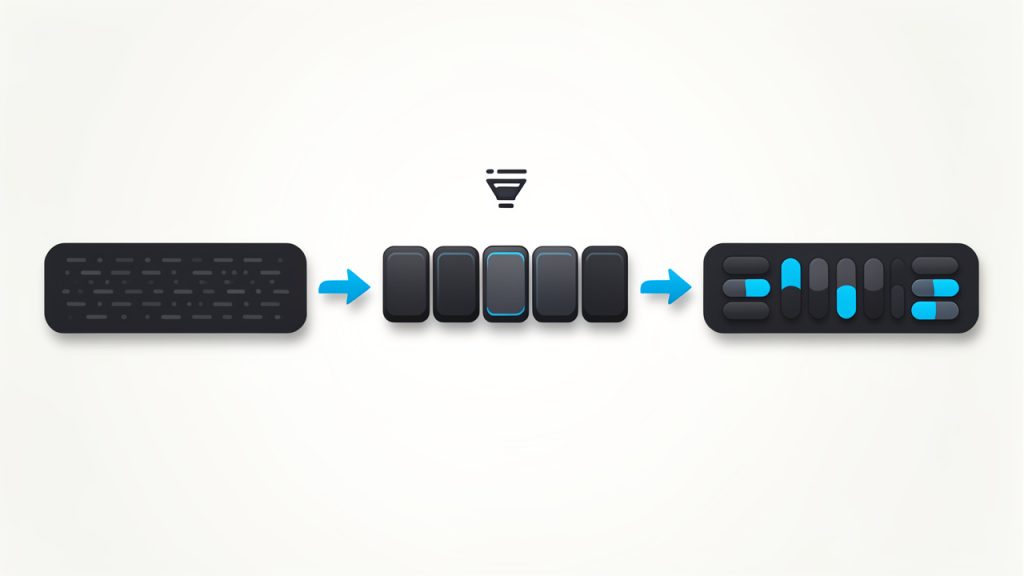
    A useful way to understand the category is to view note taking tools through four functional layers. The first is capture, where information enters the system. The second is organization, where notes are classified or connected. The third is retrieval, where search and navigation determine whether stored information remains useful. The fourth is action, where notes connect to tasks, projects, and decisions. Tools that perform well across all four layers tend to remain valuable over time.

    A clean, simple flow diagram showing the four functional layers as stacked or sequential blocks: Capture -> Organization -> Retrieval -> Action. Each block has a small icon (e.g., lightning bolt for capture, folder/tag/linked nodes for organization, magnifying glass for retrieval, checklist/arrow for action) and arrows indicating information flow between them.

    Key aspects of note taking tools

    Capture speed and low-friction input

    The first quality that separates effective note taking tools from forgettable ones is capture speed. If opening the app, creating a note, and typing the first line takes too long, users default to temporary workarounds. They send themselves messages, open random text files, or trust memory, which usually fails under pressure.

    Fast capture matters because note-taking often happens in unstable contexts. A developer notices an edge case during testing. A manager hears a useful idea in a meeting. A researcher finds a source worth preserving. In each case, the note tool must behave like a reliable buffer between fleeting input and durable knowledge.

    This is why mobile widgets, keyboard shortcuts, browser extensions, voice input, and quick-add commands are not minor features. They directly affect adoption. A tool that supports frictionless intake earns trust because it reduces the delay between thought and storage.

    Organization models and information architecture

    Once notes accumulate, structure becomes more important than formatting polish. Different note taking tools use different organizational models, and each model reflects a theory about how people think. Some rely on folders and subfolders. Others emphasize tags. Some add backlinks and bidirectional relationships, allowing notes to behave more like a graph than a filing cabinet.

    Folders work well when the content has a stable hierarchy, such as client documentation or course materials. Tags are more flexible when information belongs to multiple contexts at once. Linked-note systems are powerful when the goal is idea discovery, synthesis, or long-term knowledge development.

    The trade-off is predictable. The more flexible the structure, the more discipline the user must apply. A rigid folder tree can feel limiting but remains easy to understand. A highly networked note system can be powerful but risks devolving into a web of inconsistent links. The best note taking tools provide enough structure to maintain order while preserving enough freedom to support real work.

    A comparative illustration with three panels: (1) a hierarchical folder tree (filing cabinet) labeled "Folders", (2) a tag cloud with overlapping tags labeled "Tags", and (3) a network graph of interconnected nodes labeled "Backlinks / Graph". Include a small caption under each panel summarizing trade-offs (e.g., "stable hierarchy", "flexible multi-context", "idea discovery").

    Search, retrieval, and resurfacing

    A note that cannot be found is operationally equivalent to a note never taken. That makes retrieval quality one of the most important evaluation criteria. Search should be fast, tolerant of partial memory, and rich enough to filter by title, tag, date, content type, or workspace.

    Advanced retrieval goes further. Some tools support saved searches, backlinks, semantic suggestions, or contextual resurfacing. That matters because users rarely remember where a note lives. They remember fragments, such as a phrase, a meeting date, or the project it was related to. Good retrieval systems are designed around that reality.

    For technical users, search becomes even more critical when notes contain code references, version information, command history, and architecture discussions. In these cases, note taking tools can replace hours of repeated investigation. The ability to locate the exact observation made three weeks ago during debugging is a genuine productivity gain, not a convenience feature.

    Markdown, formatting, and developer friendliness

    Many developers prefer note taking tools that support Markdown, plain text storage, and exportable formats. The reason is not aesthetic. It is about portability, durability, and control. Notes that live in accessible formats are easier to migrate, script, version, and back up.

    Rich text editors appeal to users who value visual formatting and ease of use. They are often better for collaborative documents and polished internal pages. Plain text or markdown-first systems are often better for technical workflows, especially when users want to integrate notes with git repositories, static documentation, or local-first workflows.

    This is one of the clearest fault lines in the category. Some note taking tools behave like document editors. Others behave more like a layer on top of files. Neither approach is universally superior. The better choice depends on whether the priority is presentation, collaboration, customization, or long-term control over data.

    Cross-device sync and offline reliability

    A note system only works if it is available where work happens. That makes cross-device synchronization a baseline requirement for many users. Desktop access is important for deep work. Mobile access matters for capture. Web access can be essential in restricted environments or on shared machines.

    Reliability matters as much as feature breadth. Sync conflicts, slow updates, and partial note loads damage trust quickly. A note taking tool should feel consistent across platforms, especially when users move between laptop, phone, and tablet throughout the day.

    Offline access is similarly important. Notes are often needed while traveling, in low-connectivity spaces, or during outages. Tools that support local caching or local-first storage give users a stronger sense of control and reduce dependence on constant connectivity.

    Collaboration and shared knowledge

    While many note taking tools begin as personal systems, the strongest products increasingly support shared work. Team notes, meeting records, engineering decisions, onboarding guides, and process documentation often benefit from living in a collaborative environment rather than isolated personal notebooks.

    This shifts the requirement set. Collaboration introduces permissions, version history, comments, page sharing, and sometimes database-style structures. The tool must support both clarity and governance. Informal notes can coexist with structured team knowledge, but only if the workspace can scale without becoming chaotic.

    For teams, a note platform often becomes a lightweight wiki. That is particularly useful for fast-moving technical groups that need accessible documentation but do not want the overhead of a formal documentation stack for every internal process. In that space, tools that balance speed with shared structure tend to perform best.

    Security, privacy, and data ownership

    Not all notes are equal. Some are disposable reminders. Others contain confidential business information, research, credentials, or intellectual property. Because of that, security and privacy should not be treated as secondary considerations when evaluating note taking tools.

    Encryption, access controls, compliance posture, and export capability all matter. So does data ownership. Users should understand whether notes are stored locally, in the cloud, or both, and whether they can be exported in usable formats without lock-in. For developers and organizations, this question often determines whether a tool is merely convenient or strategically viable.

    A practical evaluation framework helps. The table below compares the major dimensions that usually matter most.

    Evaluation Area What to Look For Why It Matters
    Capture Quick add, mobile input, browser clipping, shortcuts Reduces friction and improves consistency
    Organization Folders, tags, links, templates, databases Determines long-term scalability
    Search Full-text search, filters, saved queries Makes notes reusable, not just stored
    Format Markdown, rich text, export support Affects portability and editing style
    Sync Fast cross-device updates, offline mode Ensures access everywhere work happens
    Collaboration Shared spaces, comments, permissions Supports teams and project documentation
    Security Encryption, backups, access control Protects sensitive information
    Extensibility Integrations, APIs, automation Connects notes to broader workflows

    Different tools emphasize different strengths. A minimalist app may excel at rapid capture but fall short on collaboration. A workspace platform may be ideal for team documentation but feel heavy for personal thinking. A local-first markdown tool may appeal strongly to developers but require more setup and discipline.

    That is why the best note taking tools are not simply the most feature-rich. They are the ones aligned with the user’s information behavior. The more closely the tool matches the way a person captures, organizes, and retrieves knowledge, the more likely it is to become part of daily workflow.

    How to get started with note taking tools

    Start with use case, not brand

    Many people choose note taking tools by looking at feature checklists or popularity rankings first. That usually leads to avoidable switching later. A better starting point is to define the primary workload. Is the tool meant for quick capture, technical documentation, research organization, meeting notes, or team collaboration?

    This matters because each use case imposes different requirements. A developer maintaining architecture notes may value markdown support, backlinks, and local storage. A manager coordinating meetings may value templates, calendar integration, and sharing. A student may care most about searchable notebooks, annotation support, and cross-device access.

    The first decision should be functional. Once that is clear, vendor choice becomes easier. Instead of asking which app is best in general, the user asks which app is best for this specific operating model.

    Build a small system before building a big one

    A common mistake is over-designing note architecture on day one. Users create elaborate folder structures, complex tagging taxonomies, and nested templates before they have enough real notes to understand what structure is needed. The result is maintenance overhead without practical benefit.

    A better method is to begin with a simple operating structure and let patterns emerge. One notebook for active work, one for reference, and one for archive is often enough to start. Tags can be added later when repeated themes become clear. Links can emerge naturally as knowledge grows. This incremental approach prevents the tool from becoming a classification project.

    For many users, successful adoption depends less on the perfect structure and more on a stable routine. The goal is not to build a museum of notes. The goal is to create a system that gets used consistently under real conditions.

    Use templates where repetition exists

    Templates are one of the most practical features in modern note taking tools, especially for recurring workflows. Meeting notes, sprint retrospectives, daily logs, research summaries, bug reports, and one-on-one agendas all benefit from standardized structure.

    The benefit is not just speed. Templates improve note quality by reducing omission. A meeting template can prompt decisions, owners, and deadlines. A debugging template can prompt reproduction steps, observed behavior, attempted fixes, and final resolution. Over time, this consistency makes notes easier to search and compare.

    For technical teams, templates also improve institutional memory. Repeated formats create stable records. They help turn notes from private fragments into reusable operational assets.

    Connect notes to workflow, not just storage

    Many note collections fail because they remain disconnected from action. Notes are taken, saved, and forgotten. The strongest systems connect note taking tools to ongoing work, which means tying them to tasks, projects, calendars, repositories, or team processes.

    A project note should contain context, decisions, next steps, and relevant links. A meeting note should lead to action items. A research note should connect to related topics or implementation plans. When notes remain linked to execution, they become a living system rather than passive storage.

    This is also where integrated workspaces can help. A platform such as Home can be useful when users want note capture and organization to sit closer to daily operations instead of living in an isolated app. When notes, references, and active work exist in the same environment, context switching drops and information becomes easier to act on.

    Review and prune regularly

    A note system that only accumulates will eventually become noisy. Regular review keeps the signal strong. This does not require aggressive deletion. It means archiving stale material, merging duplicates, and elevating high-value notes into more permanent reference pages.

    A lightweight review cycle often works best. Weekly review can focus on active notes and unfinished ideas. Monthly review can focus on structure, taxonomy, and archives. This creates a feedback loop where the note taking tool continues to reflect current priorities rather than becoming a pile of digital sediment.

    The following sequence is enough for most users starting from scratch:

    1. Define the primary use case for the note system.
    2. Choose one tool that matches that workflow instead of testing many at once.
    3. Create a minimal structure with only a few top-level categories.
    4. Capture notes daily and review patterns after two to four weeks.
    5. Add templates or tags only where repetition clearly exists.

    This approach works because it avoids premature optimization. It lets real usage shape the system, which is usually more durable than trying to predict every category in advance.

    Compare tool types before committing

    The category becomes easier to navigate when viewed by operating style rather than by individual product names. The table below summarizes the main patterns.

    Tool Type Typical Strength Common Limitation Best For
    Minimalist note apps Fast capture, low complexity Limited structure and collaboration Personal reminders, quick notes
    Markdown-first tools Portability, developer control, extensibility Higher setup friction Developers, technical documentation
    Workspace-style platforms Collaboration, databases, shared knowledge Can feel heavy for simple note taking Teams, project hubs, internal wikis
    Research-focused tools Clipping, annotation, source organization Less suited to general task flow Students, researchers, analysts
    Local-first tools Privacy, offline access, ownership Variable sync and sharing maturity Privacy-conscious users, power users

    Choosing between these types is often more important than choosing between brands inside the same type. Once a user identifies the operating model that fits, the field narrows quickly.

    Conclusion

    The best note taking tools do not just help people write things down. They reduce cognitive load, preserve context, and make information usable across time. That requires more than a clean editor. It requires effective capture, scalable organization, reliable search, strong sync, and enough flexibility to match the way real work unfolds.

    For developers and efficiency-focused users, the right note taking tool often becomes part of the core stack. The smartest next step is simple: identify the main use case, choose one tool that fits it, and build a small system that can survive daily use. If the goal is to connect notes more closely with actual work, collaborative context, and organized execution, exploring a workspace like Home can be a practical place to start.