

A blurry logo can make even a polished brand look amateur in seconds. If you have ever tried to enlarge a JPG for a website header, a storefront sign, or a client presentation, you have probably run into the same problem, the image gets soft, jagged, and unusable fast.
That is where converting a JPG to an SVG becomes so valuable. For small business owners, freelancers, developers, and anyone working with digital assets, understanding this conversion can save time, reduce design friction, and improve visual quality across print and screen.
The catch is simple. A JPG and an SVG are not just different file extensions, they are built in completely different ways. That means converting a JPG image into SVG format is sometimes straightforward, sometimes messy, and often misunderstood. Once you know what actually happens during the process, it becomes much easier to choose the right tool, the right image, and the right expectations.
What Is Converting a JPG into an SVG?
A JPG is a raster image format. It stores pictures as a grid of colored pixels, which makes it ideal for photographs and detailed images with gradients, shadows, and subtle textures. The downside is that raster images lose quality when scaled up. Every enlargement stretches those pixels further.
An SVG, or Scalable Vector Graphics file, works differently. Instead of storing a fixed grid of pixels, it uses mathematical paths, curves, and shapes to describe the image. Because of that, SVG files can scale to almost any size without losing sharpness. A logo on a business card and the same logo on a billboard can remain crisp when stored as an SVG.
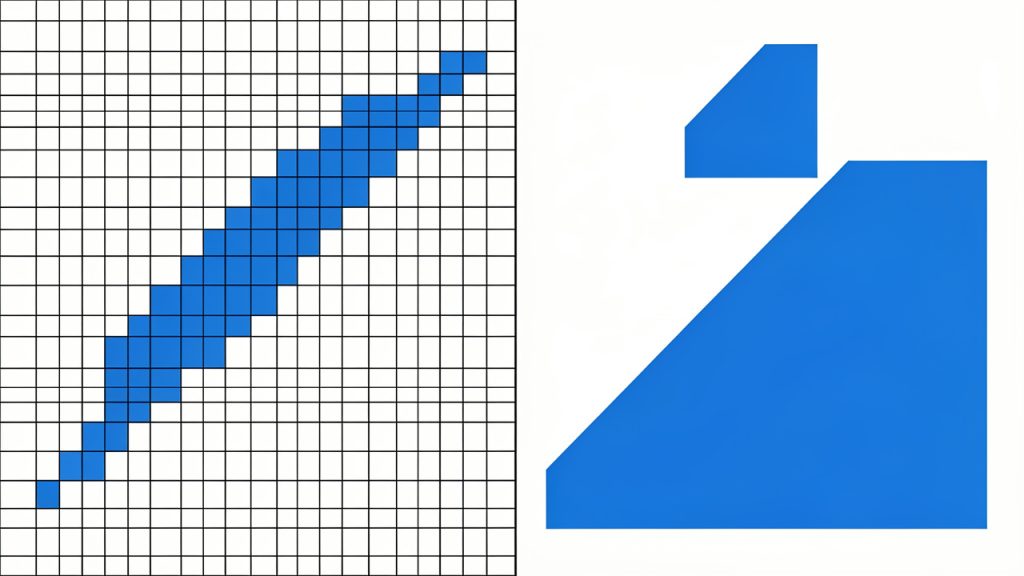
When people search for a way to convert a JPG to an SVG, they are usually trying to solve one of three problems. They want a logo that scales cleanly, an icon that looks sharp on modern screens, or artwork that can be edited more easily in design software. In all three cases, the goal is not just conversion for its own sake. The real goal is flexibility, quality, and reuse.
That said, converting a JPG into an SVG is not magic. The software does not restore lost quality from a compressed photo. It interprets the image and attempts to turn visible edges, colors, and shapes into vector paths. This is why a simple black-and-white icon converts beautifully, while a complex photo of a person or landscape often becomes bloated, inaccurate, or visually strange.
Key Aspects of Converting JPG Images to SVG
Raster and vector are fundamentally different
The biggest misunderstanding about converting a JPG image into SVG format is the assumption that every image will improve just by changing file type. It will not. File format conversion does not automatically upgrade the design itself.
A low-resolution JPG logo might become an SVG file, but if the original image is noisy, pixelated, or poorly cropped, the vector result may simply trace those flaws. Think of it like tracing a wrinkled sketch with a pen. You may create clean lines, but you are still starting from imperfect source material.
This is why the best candidates for conversion are images with clear edges, limited colors, strong contrast, and simple shapes. Logos, symbols, badges, signatures, and line art usually perform well. Product photos, portraits, and detailed scenic images usually do not.
Automatic conversion vs. manual redrawing
Most online tools that convert JPG files to SVG use auto-tracing. They analyze the image, identify boundaries between color areas, and convert those boundaries into vector paths. This is fast, convenient, and often good enough for simple use cases.
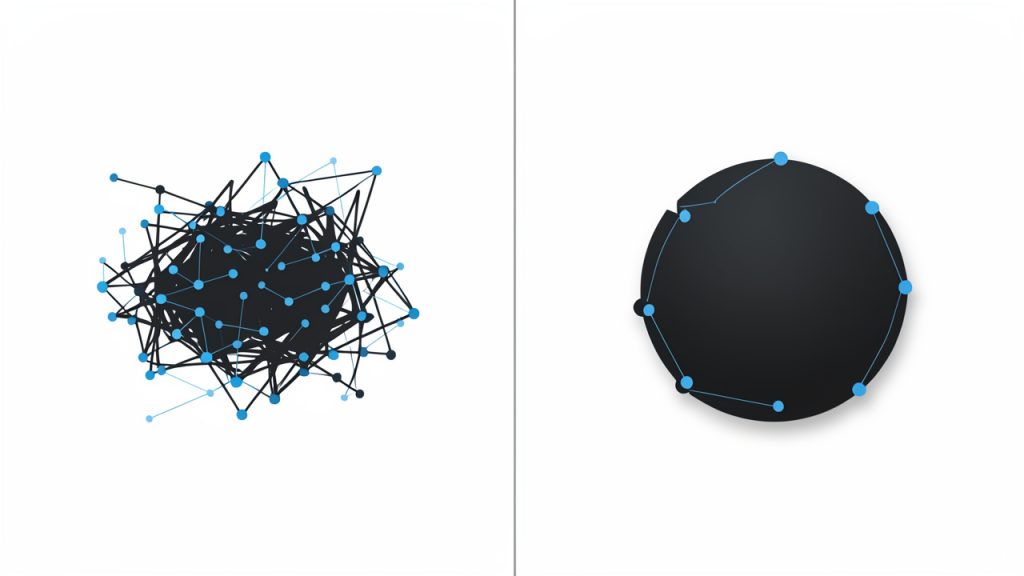
However, automatic conversion has limits. It may create too many anchor points, rough edges, layered shapes, or odd artifacts around text and corners. If you need a polished brand asset, especially for commercial use, you may need to clean the SVG afterward in a design editor or recreate the artwork manually.
Manual redrawing takes more time, but it gives better control. For example, if you have a logo that must look perfect on packaging, signage, and mobile screens, redrawing the mark as true vector artwork often produces a cleaner result than relying entirely on auto-conversion.
Image complexity changes the outcome
The more detailed the original JPG, the harder the conversion. A simple coffee shop logo with one icon and a wordmark might trace neatly. A photograph of a coffee cup on a wooden table with steam, shadows, and reflections will not convert into a practical SVG in the same way.
This matters because many users expect SVG to be a universal better format. It is better for certain types of visuals, especially graphics that need to scale. It is not inherently better for every image. For many photographs, keeping the image as JPG, PNG, or WebP is the smarter choice.
A useful way to think about it is this, SVG is best for designed graphics, not captured reality. If the image is built from intentional shapes, SVG makes sense. If the image depends on photographic detail, raster formats usually remain the right fit.
File size is not always smaller
Another common assumption is that an SVG will always be lighter than a JPG. Sometimes it is. Sometimes it is much larger.
A simple vector icon can be tiny and efficient. But an SVG created from a detailed JPG can include thousands of paths and become cumbersome. That can slow down editing, complicate rendering, and create unnecessary overhead for web use.
For developers and site owners, this matters. A clean SVG logo in a navigation bar is excellent. A messy auto-traced SVG with excessive vector data is not. If performance matters, the output file should be checked, simplified, and tested rather than accepted at face value.
Text, transparency, and background cleanup matter
Many JPG files include backgrounds, shadows, and flattened text. That creates friction during conversion. A logo saved as a JPG may have a white background baked in, which the converter interprets as part of the image. The result is often an SVG with an unwanted rectangle or extra paths around the edges.
Text can also become problematic. Instead of remaining editable text, it may be converted into shapes, and sometimes inaccurate ones. If typography matters, it is often better to recreate the text with the original font rather than rely on an automatic trace.
This is why source image preparation matters so much. Before converting, it often helps to crop tightly, remove the background, increase contrast, and simplify the image. A cleaner JPG usually leads to a cleaner SVG.
How to Get Started With Converting JPG Files to SVG
Start with the right image
The quality of the final SVG begins with the quality of the original image. If possible, choose the cleanest version available. A high-resolution logo with strong contrast will trace far better than a blurry screenshot copied from social media.
If you only have a poor JPG, do some preparation first. Remove unnecessary background space. Straighten the image if it is tilted. Increase contrast if the edges are faint. If the design uses only one or two colors, simplify it before conversion. These small steps can dramatically improve the result.
For business users, this is especially important when dealing with old branding files. Many companies discover that their “logo file” is just a low-quality JPG buried in an email thread from years ago. In that case, conversion can help as a starting point, but the best long-term fix may be to rebuild the logo properly in vector format.
Choose a tool based on your goal
Not every converter is built for the same outcome. Some online tools prioritize speed and convenience. Others offer more control over threshold, color count, smoothing, and path simplification. Design software may go further by allowing you to edit, clean, and optimize the vector after tracing.
If your goal is quick reuse for a website icon or mockup, an easy online converter may be enough. If your goal is print-ready brand artwork, you will likely want a tool that gives you more control over the tracing process and the ability to refine the output.
The best approach depends on how exact the result needs to be. For casual use, convenience often wins. For professional assets, control usually matters more than speed.
Follow a simple conversion process
You do not need a complicated workflow to get started. In most cases, the process looks like this:
- Upload the JPG to a converter or vector design tool.
- Adjust tracing settings such as detail, contrast, or color count.
- Preview the result and look for rough edges, missing shapes, or unwanted background areas.
- Export the SVG and open it in an editor if cleanup is needed.
That sounds simple, but the preview stage is where smart decisions happen. If the traced image looks cluttered or inaccurate, exporting immediately usually leads to more frustration later. It is better to pause, simplify the source image, or reduce trace complexity before moving on.
Check the SVG before using it everywhere
Once the file is exported, test it in the environments that matter. Open it in a browser. Place it in a design tool. Resize it large and small. If it is for a website, see how it renders on light and dark backgrounds. If it is for print, inspect the edges and curves closely.
This testing step often reveals issues that are easy to miss at first glance. Thin strokes may disappear at small sizes. Background remnants may show up only on colored layouts. Overly complex paths may make editing painful later. Catching those issues early prevents repeat work.
A practical mindset helps here. The purpose of converting a JPG into an SVG is not merely to produce a new file type. It is to create an asset that is more useful than the original. If the new file is harder to use, the conversion has not really succeeded.
Comparing JPG and SVG for real-world use
The difference between these formats becomes clearer when you compare how they behave in everyday projects.
| Format | Best For | Scaling | Editability | Typical Weakness |
|---|---|---|---|---|
| JPG | Photos, complex images, web images with many colors | Loses quality when enlarged | Limited, pixel-based edits | Blurry edges at larger sizes |
| SVG | Logos, icons, illustrations, simple graphics | Scales cleanly at any size | Highly editable in vector tools | Poor fit for detailed photos |
For a freelancer designing social media graphics, JPG may still be ideal for photographic banners and content images. But for logos, buttons, icons, and brand marks, SVG usually offers better flexibility.
For developers, SVG is especially useful in modern interfaces because it looks crisp on high-density screens. That makes it a strong choice for UI icons, product illustrations, and scalable brand elements. Still, the key is using SVG where it belongs, not forcing every image into vector form.
Common mistakes to avoid
Many conversion problems come from unrealistic expectations rather than bad tools. One of the most common mistakes is trying to vectorize a complex photograph and expecting a clean, minimal SVG. The software can only interpret what it sees, and detailed photos create a flood of shapes and paths.
Another frequent issue is using a poor source image. Tiny screenshots, compressed files, and images with noisy backgrounds make tracing far less accurate. If the original is weak, the final result usually reflects that weakness.
There is also a tendency to skip cleanup. Users often convert the file, see that it technically opens as SVG, and assume the job is done. But for professional use, especially in branding or product design, cleanup is often where the real quality work happens.
When converting a JPG into an SVG makes sense
A JPG-to-SVG workflow is worth using when the image is simple, the shape matters more than photographic detail, and scalability is important. That applies to logos, badges, stamps, icons, diagrams, and line drawings. In these cases, vector output can be significantly more useful than the original raster file.
It also makes sense when you need a more editable version of an existing graphic. Even if the first conversion is imperfect, it can provide a workable base for refining the artwork instead of redrawing everything from scratch.
On the other hand, if your original image is a photo or heavily textured artwork, conversion may not be the right answer. You may be better off improving the raster image itself, exporting in a better raster format, or using a hybrid workflow that combines vector and bitmap assets.
Conclusion
Converting a JPG into an SVG can be a smart move, but only when you understand what the process is actually doing. You are not simply changing file extensions. You are translating a pixel-based image into vector shapes, and that translation works best with simple, clean graphics.
If you want the best result, start with a strong source image, choose the right tool for your needs, and review the output carefully before using it in production. For logos, icons, and branded graphics, SVG can bring sharpness, scalability, and long-term flexibility that a JPG simply cannot match.
Your next step is practical. Take one image you use often, preferably a logo or icon, and test a conversion with a clean source file. Compare the result at different sizes, on different backgrounds, and in the tools you already use. That quick experiment will tell you more than any definition ever could.