

Choosing the right SEO software can save months of wasted effort. Choosing the wrong stack can do the opposite, flooding you with dashboards, noisy metrics, and expensive subscriptions that never turn into rankings, leads, or sales.
The best SEO tools are not always the most expensive ones. They are the tools that match your goals, your team size, and your workflow, a solo consultant usually needs a lean setup with strong keyword research and rank tracking, a local business may get most of its value from Google Search Console, a local listing platform, and a simple on-page plugin, and an agency often needs collaboration, reporting, crawling, and backlink intelligence at scale.
This guide covers both free and paid SEO tools, with ranked recommendations, side-by-side comparisons, practical workflows, and advice on how to build a stack that actually works. If you want a quick shortcut, start with your primary need: keyword research, technical SEO, backlinks, content optimization, local SEO, or reporting. Then choose one core tool, one validation source from Google, and only add specialized tools when you hit a real limitation.
Why Choosing the Right SEO Tools Matters
SEO tools now cover far more than keyword ideas. A modern toolkit may include keyword research, rank tracking, backlink analysis, technical crawling, on-page optimization, content planning, page speed testing, local listing management, and reporting. That breadth is useful, but it also makes tool selection harder because many platforms overlap.
The good news is that most people do not need everything at once. Small businesses usually need visibility into search queries, page performance, and local presence. Freelancers often need fast audits, competitor research, and lightweight reporting. In-house teams may need deeper integrations, API access, and clearer collaboration features. The best setup depends less on industry hype and more on what work you need to do every week.
This article is structured to help you move from confusion to a practical decision. First, you will learn how to choose SEO tools based on goals and budget. Then you will see the top tools by category, followed by ranked short reviews, a comparison table, and step-by-step workflows for using multiple tools together.
How to Choose the Right SEO Tools for Your Needs
Start with the outcome you care about most. If your goal is traffic growth, prioritize keyword research, content planning, and rank tracking. If your goal is technical stability, put more weight on crawling, page speed testing, and Search Console diagnostics. If you run a local business, local listings, reviews, and map visibility matter more than a huge backlink database.
Match tasks to features. Keyword research tools help you find topics, estimate search demand, and assess competition. Site audit tools uncover crawl errors, redirects, duplicate content, missing metadata, and indexation issues. Backlink tools help with link prospecting, competitor analysis, and toxicity review. Content optimization platforms help turn a target keyword into a stronger brief and more complete page.
Budget matters, but so does team fit. A free stack can go surprisingly far when combined well. Entry-level plans are often enough for a freelancer or early-stage business. Enterprise plans only make sense when you need larger data allowances, more seats, API access, and formal reporting.
Before committing, test three things during a free trial: data quality, usability, and exportability. You should be able to answer simple questions quickly, such as which pages lost traffic, which keywords a competitor ranks for, what technical issues matter first, and how easily you can export data into a spreadsheet or dashboard.
Top SEO Tools by Category
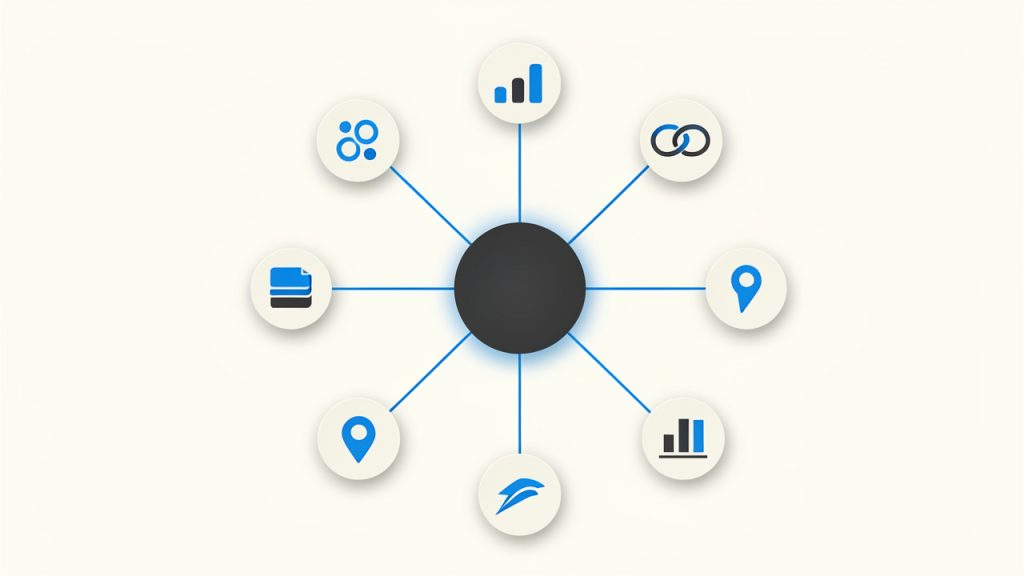
If you want a quick map of the market, it helps to think in categories. Ahrefs, SEMrush, and Moz Pro are broad suites. Screaming Frog is a technical crawler. Google Search Console and Google Analytics are foundational free data sources. Surfer SEO and Clearscope focus on content optimization. AccuRanker and SERPWatcher are rank trackers. GTmetrix, PageSpeed Insights, and WebPageTest handle performance testing. Yoast and Rank Math support WordPress on-page SEO.
For keyword research, the strongest choices are usually Ahrefs, SEMrush, and Google’s own search data via Search Console. For technical audits, Screaming Frog remains one of the most trusted options because it shows what a crawler sees, not just what a marketing dashboard summarizes.
For backlinks, Ahrefs and Majestic are widely respected. For local SEO, Moz Local and Google Business Profile-related workflows are often enough for many small businesses.
What matters most is not finding one perfect tool. It is building a complementary stack. A strong stack often includes one discovery tool, one technical tool, and one source of truth from Google.
1. Ahrefs
Ahrefs is one of the most respected SEO platforms for backlink analysis, keyword research, competitor discovery, and content gap analysis. It is especially useful when you want to understand why a competing page ranks, where its links come from, and which topics are driving growth in a niche.
Key features include Site Explorer for backlink and organic traffic analysis, Keywords Explorer for keyword ideas, difficulty, and SERP review, a Site Audit tool for technical SEO monitoring, and Content Gap and competitor comparison tools. Its strengths are strong backlink intelligence, excellent competitor research workflows, and useful keyword and content gap features. Pricing can be steep for small teams, some users find usage limits restrictive, and it is not the cheapest option for occasional use. Ahrefs typically fits best when SEO is a consistent growth channel rather than an occasional task.
Website: https://ahrefs.com
2. SEMrush
SEMrush is a broad digital marketing suite with strong SEO functionality, especially in keyword research, site audits, rank tracking, competitor analysis, and advertising research. It is often the best fit for teams that want one platform to cover both organic and paid search visibility.
Its advantage is breadth, enabling keyword research, site audits, position monitoring, competitor examination, and report generation without switching systems constantly. That makes it attractive for agencies and marketing managers who need all-in-one convenience more than specialist depth in one narrow area. SEMrush offers a wide feature set beyond pure SEO, strong reporting and project organization, and a good fit for agencies and multi-channel teams. The interface can feel busy at first, cost rises quickly with add-ons and limits, and heavy overlap of features can overwhelm new users.
Website: https://semrush.com
3. Moz Pro
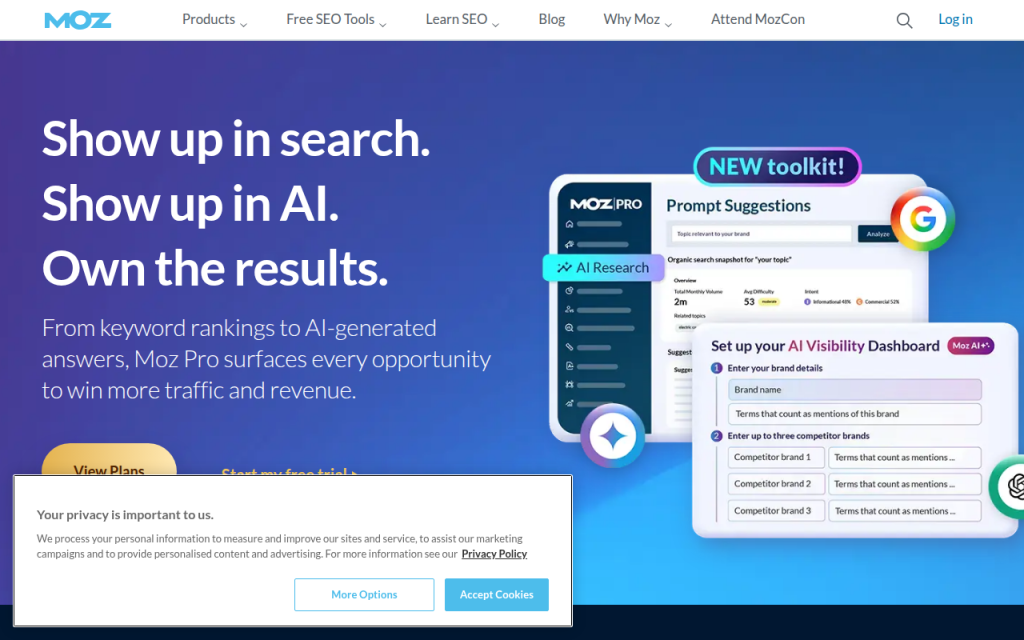
Moz Pro remains a solid choice for users who want a more approachable SEO suite. It is often recommended for beginners, small businesses, and teams that want straightforward workflows without too much clutter.
Moz’s strengths include keyword tracking, site audits, and recognizable authority metrics. It may not feel as expansive as Ahrefs or SEMrush in every area, but that simplicity can be an advantage when adoption matters more than power-user depth. Moz is beginner-friendly, backed by a good educational ecosystem, and useful for small teams and local visibility work. Some datasets feel less expansive than top-tier rivals, power users may outgrow it, and advanced workflows are not its strongest angle.
Website: https://moz.com
4. Screaming Frog SEO Spider
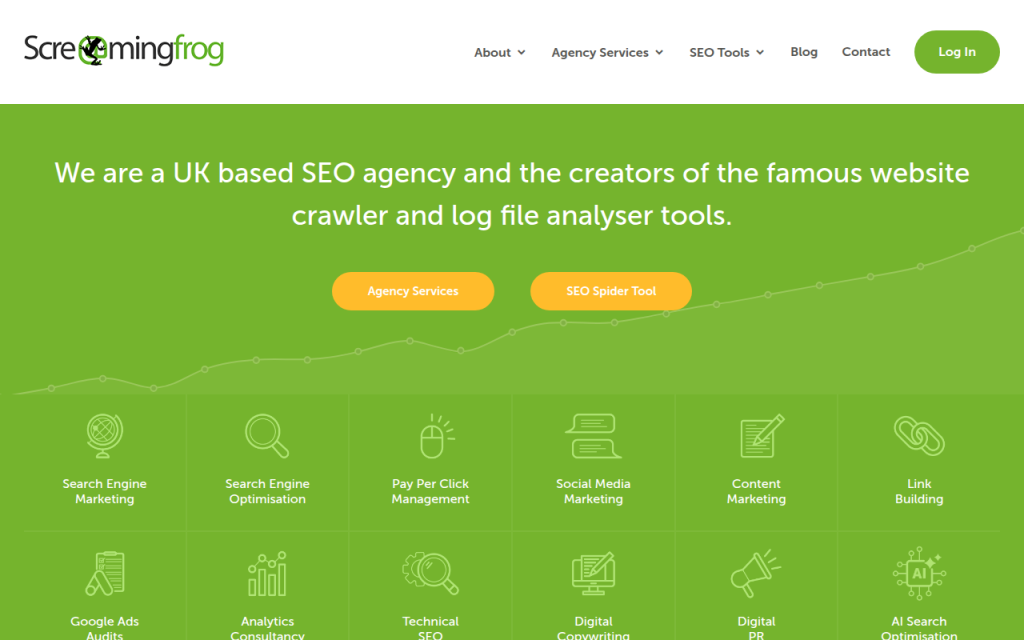
Screaming Frog is the technical SEO specialist on this list. It crawls websites the way a search engine bot might, revealing status codes, redirect chains, duplicate tags, missing metadata, canonicals, orphan pages, and indexation problems.
This is the tool to use when rankings are blocked by technical issues rather than weak content. It gives raw, actionable data and is beloved by consultants, developers, and technical SEOs. Features include deep site crawling, custom extraction, technical filtering, and integrations with analytics and Search Console for richer audits. Screaming Frog is one of the best technical crawlers available, excellent for audits and migrations, and useful for large sites and detailed QA work. It has a learning curve for non-technical users, a desktop-software feel that may not suit everyone, and it is less useful for keyword discovery than all-in-one suites. There is a free version with crawl limits and a paid version that unlocks larger-scale and advanced functionality.
Website: https://www.screamingfrog.co.uk/seo-spider/
5. Google Search Console
Google Search Console is not optional. It shows how your site actually performs in Google Search, including queries, clicks, impressions, average position, indexing status, and coverage issues.
For small businesses and experienced SEOs alike, this is your validation layer. Third-party tools estimate, Search Console reports what Google is willing to tell you directly. It is essential for identifying pages that rank without getting clicks, queries with growing impressions, and indexing problems that can quietly suppress performance. It is free and authoritative, essential for indexing and performance diagnostics, and valuable for validating third-party data. Limitations include less historical granularity compared with some paid tools and an interface built more for function than polish.
Website: https://search.google.com/search-console
6. Google Analytics
Google Analytics complements Search Console by showing what happens after the click, helping you understand traffic sources, engagement, conversions, landing-page performance, and user behavior.
Analytics is critical because ranking alone is not the goal. If a page attracts traffic but drives no leads, purchases, or signups, it may need a different keyword target or a stronger page experience. Used with Search Console, Analytics helps connect visibility to business outcomes. Setup can be confusing for beginners, and event tracking requires care, but it remains free and powerful when implemented well.
Website: https://analytics.google.com
7. Majestic
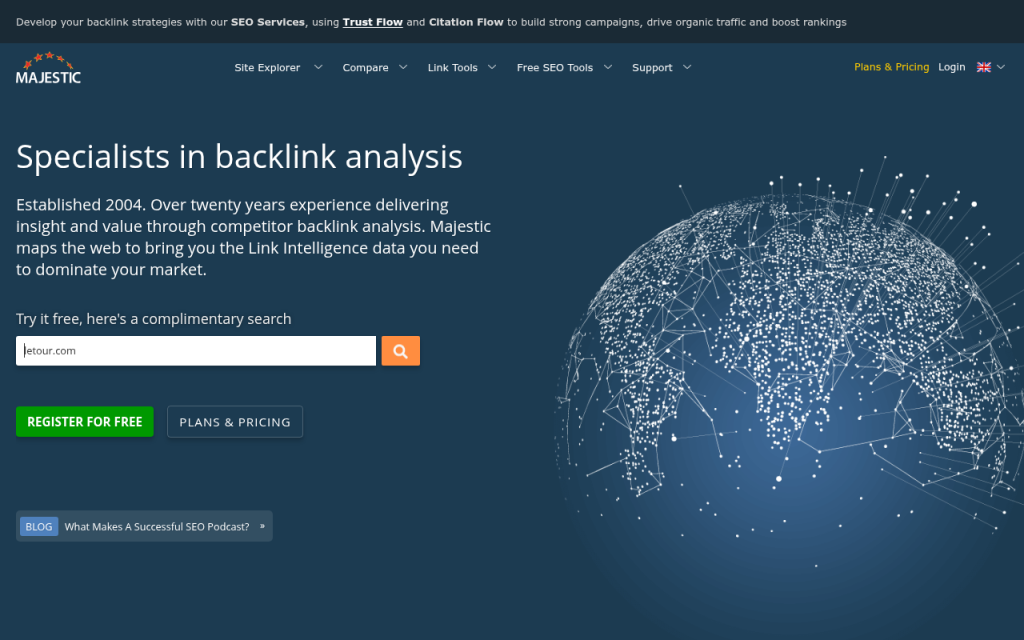
Majestic is a specialized link intelligence platform focusing on backlink profiles, trust metrics, citation metrics, and link neighborhood analysis. It is not trying to be an all-in-one SEO suite, and that focus is why many link builders still value it.
If your work revolves around authority analysis, competitor link comparisons, and prospect qualification, Majestic provides a link-centric lens rather than an everything dashboard. Its strengths are backlink-focused workflows and proprietary trust metrics. It can feel narrow compared with broader suites, the interface may seem dated to some users, and it is usually justified for teams doing regular backlink work.
Website: https://majestic.com
8. Surfer SEO
Surfer SEO focuses on content optimization, SERP-based content structure, on-page recommendations, and workflow support for writers and editors. It helps teams build pages that better match search intent and topical coverage by suggesting subtopics and relevant terms based on ranking pages.
Its real value is speed and structured briefs. Surfer is excellent for content briefs and optimization, aligning pages to SERP patterns, and supporting writers and editors. It can encourage formulaic writing if used too rigidly, and it is best combined with editorial judgment rather than used as an optimization score alone. You will need a separate tool for technical and backlink work.
Website: https://surferseo.com
9. Clearscope

Clearscope is a leading content optimization platform, praised for a clean editorial workflow and strong relevance guidance. It helps teams produce content that is more complete, aligned with search intent, and easier to brief across stakeholders.
Clearscope feels polished for larger content teams and publishers that want consistency across many writers. It is premium priced and more narrowly focused than all-in-one suites, making it better for mature content workflows than for early experimentation.
Website: https://www.clearscope.io
10. AccuRanker
AccuRanker is a specialist rank tracking tool designed for accurate, frequent keyword position monitoring. If daily ranking movements matter, especially across many terms, locations, or devices, a dedicated tracker like AccuRanker is often more reliable and flexible than bundled trackers inside general SEO suites.
It is best for agencies and larger teams where reporting precision matters. AccuRanker offers strong rank tracking accuracy, frequent reporting options, and useful filters for segmentation. It is a specialized subscription that adds another cost to the stack and is overkill for very small sites. Pricing typically scales with the number of tracked keywords.
Website: https://www.accuranker.com
11. GTmetrix
GTmetrix is a practical tool for testing page speed, loading behavior, and performance bottlenecks. It translates site speed into visible issues such as oversized assets, script delays, and render-blocking resources.
For many businesses, GTmetrix is easier to interpret than raw developer diagnostics alone. It is especially useful during redesigns, template changes, and troubleshooting drops in page experience.
Website: https://gtmetrix.com
12. WebPageTest
WebPageTest is a deeper performance testing platform favored by developers and technical specialists. It allows more detailed test conditions and waterfall analysis than many beginner tools.
If GTmetrix gives you the headline, WebPageTest gives you the engineering detail. It is ideal when SEO and performance work overlap heavily.
Website: https://www.webpagetest.org
13. Yoast SEO
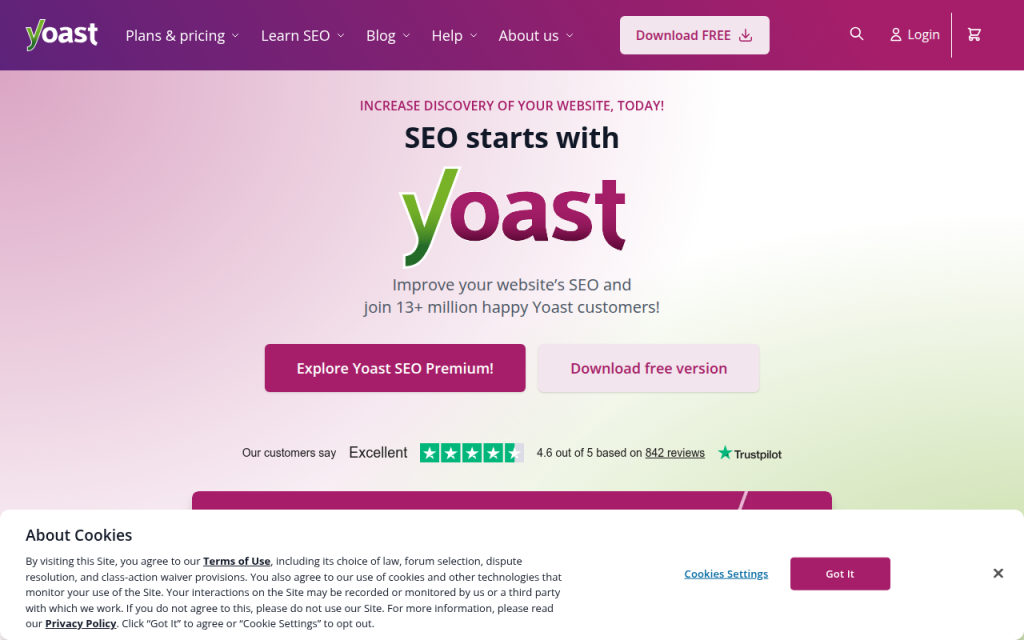
Yoast SEO is a well-known WordPress plugin that handles titles, meta descriptions, XML sitemaps, schema basics, and on-page optimization guidance. It helps site owners manage important SEO settings without editing code.
For small business sites on WordPress, Yoast is often enough to establish a strong on-page foundation, especially when combined with Search Console and a basic keyword workflow.
Website: https://yoast.com
14. Rank Math
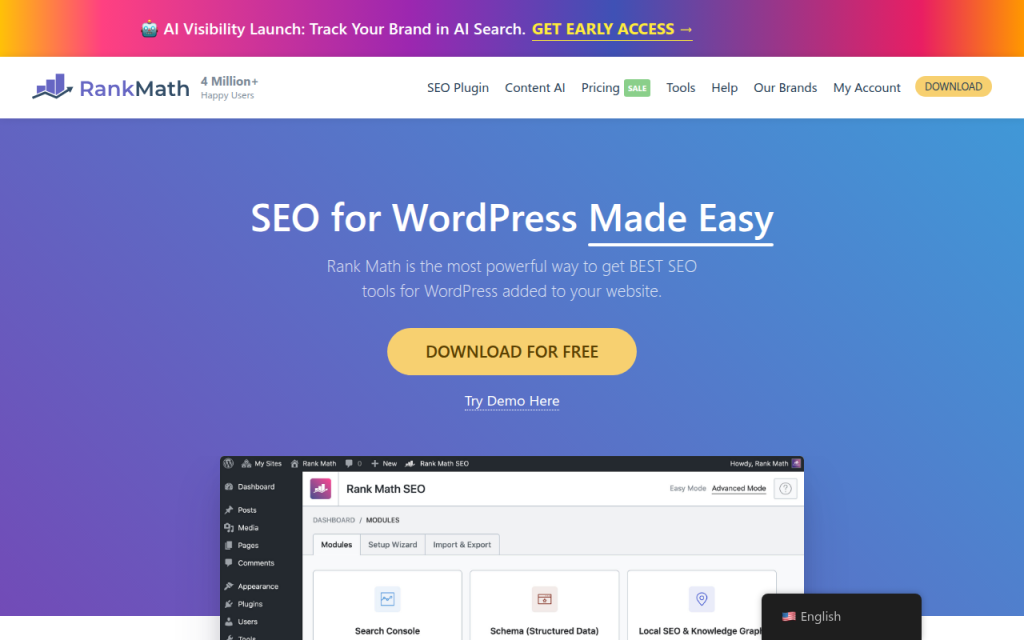
Rank Math is another popular WordPress SEO plugin with a broad feature set and a modern interface. Many users like it because it packs schema options, on-page checks, redirects, and integrations into a single plugin.
It appeals to site owners who want more built-in functionality from their WordPress SEO plugin without adding several separate extensions.
Website: https://rankmath.com
Side-by-Side Comparison: Features, Pricing, and Best Use Cases
Here is a practical comparison of leading options.
| Tool | Best For | Strength Area | Free Option | Typical Pricing Level | Best User |
|---|---|---|---|---|---|
| Ahrefs | Competitor SEO research | Backlinks, keywords | Limited tools | Premium | Agencies, in-house teams |
| SEMrush | All-in-one marketing SEO | Keywords, audits, reporting | Limited trials/tools | Premium | Agencies, multi-channel teams |
| Moz Pro | Simpler SEO suite | Usability, tracking | Limited free tools | Mid to premium | Small teams, beginners |
| Screaming Frog | Technical SEO | Crawling, audits | Yes, limited crawl | Low to mid | Consultants, developers |
| Google Search Console | Search performance | Queries, indexing | Yes | Free | Everyone |
| Google Analytics | User behavior | Engagement, conversion | Yes | Free | Everyone |
| Majestic | Link analysis | Trust and backlink data | Limited | Mid | Link-focused SEOs |
| Surfer SEO | On-page content | Optimization, briefs | No meaningful free tier | Mid | Content teams |
| Clearscope | Editorial SEO | Content relevance | No | Premium | Publishers, large teams |
| AccuRanker | Rank tracking | Position accuracy | No | Mid to premium | Agencies, reporting-heavy teams |
| GTmetrix | Speed testing | Performance diagnostics | Yes | Free to mid | Site owners, developers |
| Yoast SEO | WordPress on-page SEO | Metadata, sitemaps | Yes | Low | WordPress site owners |
| Rank Math | WordPress SEO plugin | On-page, schema, redirects | Yes | Low | WordPress site owners |
A smart stack avoids too much overlap. For many teams, Ahrefs plus Screaming Frog plus Search Console is a strong research and technical combination. SEMrush plus GA4 plus a WordPress plugin suits many small marketing teams. Search Console plus Analytics plus Screaming Frog free plus Yoast or Rank Math is an excellent low-cost starting point.
Practical Workflows: How to Use Tools Together
For a new site launch, start in Search Console and your CMS. Set up verification, submit the sitemap, and confirm indexing access. Then run Screaming Frog to check titles, canonicals, redirects, and noindex issues. Use Ahrefs or SEMrush to build a keyword map by assigning one primary intent to each core page. Finally, use Yoast or Rank Math to implement on-page basics and monitor impressions in Search Console during the first few weeks.
For a content workflow, begin with topic discovery in Ahrefs or SEMrush and pick a keyword cluster based on realistic competition and business relevance. Then use Surfer SEO or Clearscope to create a brief with subtopics, headings, and coverage guidance. After publishing, track early impressions and query variations in Search Console, then refine the page based on actual search behavior rather than only optimization scores.
For a backlink workflow, use Ahrefs or Majestic to review competitor links and identify realistic prospects. Evaluate link quality by relevance, authority patterns, and traffic signals rather than one metric alone. After outreach and link acquisition, monitor the impact on target pages in Search Console and rankings in AccuRanker or your suite’s tracker.
For a technical SEO workflow, crawl the site with Screaming Frog, sort issues by impact, then hand off priority fixes to development. Re-crawl after deployment to verify changes. Use Search Console to confirm that indexing and coverage trends improve over time. Technical SEO is not just about finding errors, it is about verifying that search engines respond positively after the fix.
Free and Low-Cost Alternatives
If budget is tight, start with Google Search Console, Google Analytics, PageSpeed Insights, Screaming Frog free, and a WordPress plugin like Yoast or Rank Math. That stack will not replace a premium suite for competitor intelligence, but it covers the essentials surprisingly well.
Low-cost tools become attractive when you need one extra capability without buying a giant platform. A smaller rank tracker, a limited content optimization subscription, or a standalone crawler license can often produce better ROI than paying for a large suite you barely use.
A simple way to extend free tools is to export data into spreadsheets. Search Console query exports can reveal pages with high impressions but low click-through rates, which often surfaces quick wins faster than broad keyword databases. CSV exports from crawlers can also be filtered to uncover missing metadata, redirect chains, and thin category pages.
Advanced Topics and Emerging Trends in SEO Tools
AI is changing how SEO tools assist with content briefs, topical clustering, internal linking suggestions, and intent modeling. The best use of AI in SEO is acceleration, not blind content generation. AI helps teams analyze SERPs faster, organize information, and identify missing angles, while human judgment protects quality and originality.
Privacy changes and reduced data transparency also affect tool choice. Third-party estimates remain useful, but they are still estimates. That makes first-party sources like Search Console, Analytics, CRM data, and server logs more important. Future-proof SEO stacks will combine external intelligence with internal evidence.
Another growing area is SERP feature tracking. Ranking number three means less if the page is pushed down by ads, video packs, local packs, and AI-generated search features. Modern SEO tools need to help you see not just rank, but visibility context.
Common Mistakes When Choosing or Using SEO Tools
One of the biggest mistakes is relying too heavily on a single metric such as Domain Authority, Domain Rating, or Trust Flow. These numbers are helpful shorthand, not business truth. A lower-metric site can still outrank stronger domains with better relevance, structure, and intent match.
Another common mistake is buying overlapping subscriptions too early. Many teams pay for two large suites when one suite plus Search Console would cover most tasks. Complexity rises, adoption drops, and reporting becomes inconsistent.
Misconfiguration is another silent failure point. If Analytics events are wrong, Search Console is not verified properly, or crawlers are blocked, your tool stack will produce false confidence. Always validate setup before trusting output.
Tool Evaluation Checklist and Quick Decision Guide
Use this simple framework when comparing three candidate tools: core feature fit, data trust, ease of use, integrations, export options, support, and total monthly cost. Score each category from 1 to 5. The highest score should not automatically win, but patterns become obvious quickly.
For a small business, prioritize ease of use, essential audits, Google integration, and affordable pricing. For a freelancer, prioritize research depth, exportability, and technical troubleshooting. For an agency, prioritize collaboration, reporting, crawl capacity, and keyword-tracking scale. For an enterprise team, API access, governance, and integration flexibility become much more important.
Conclusion and Next Steps
The best SEO software is rarely one tool. It is usually a stack built around a clear job. For many users, a practical starting point is Google Search Console plus Google Analytics, one core SEO platform, and one technical or content specialist tool as needed. That combination keeps costs controlled while giving you enough data to make better decisions.
If you are evaluating options now, run a two-week trial with one real objective. Audit your site, research one competitor, optimize one page, and track one set of target keywords. If the tool helps you make faster, better decisions in that short window, it has probably earned a place in your stack.
Useful links referenced in this guide:
- Screaming Frog: https://www.screamingfrog.co.uk/
- Google Search Console: https://search.google.com/search-console
- Google Analytics: https://analytics.google.com
- Ahrefs: https://ahrefs.com/
- WebPageTest: https://www.webpagetest.org/
- PageSpeed Insights: https://developers.google.com/speed/pagespeed/insights/