If you need to convert an MP3 to an AIFF, you are probably not chasing better sound by magic. You are trying to solve a workflow problem. Maybe your editor prefers AIFF, your mastering chain expects uncompressed audio, or an older studio tool refuses to play nicely with MP3 files.
That is where this guide helps. Converting an MP3 to an AIFF file is easy on Windows, macOS, and Linux, and you can do it with free tools in just a few minutes.
The important part is understanding what this conversion does, what it does not do, and which settings make sense for your actual use case.
A quick reality check matters here. Turning an MP3 into AIFF does not restore lost detail. MP3 is a lossy format, which means some audio data was discarded when the file was originally compressed. AIFF can preserve what remains without adding new loss, but it cannot rebuild what is already gone. Still, for editing, compatibility, and production workflows, converting MP3 files to AIFF can be the right move.
What Is MP3 and What Is AIFF?
MP3: a quick overview
MP3 is one of the most widely used audio formats ever created. Its main advantage is file size, and it uses lossy compression, which reduces the amount of audio data by removing sounds that are considered less noticeable to human hearing.
That compression is what made MP3 perfect for portable players, downloads, email attachments, and streaming-era convenience. A three-minute song in MP3 format might only take a few megabytes, while the same audio in an uncompressed format can be many times larger.
The tradeoff is quality. At high bitrates, an MP3 can sound very good, even transparent for casual listening, but it is still a compressed format, and once the data has been removed, it is gone.
AIFF: a quick overview
AIFF, short for Audio Interchange File Format, is an audio container developed by Apple. It typically stores uncompressed PCM audio, similar in quality and structure to WAV. Because it is uncompressed, AIFF preserves the audio exactly as stored, without additional quality loss during conversion or editing.
AIFF is common in music production, audio editing, mastering, broadcast workflows, and legacy Mac-based environments. Many professional audio tools support it well, especially in Apple-centric studios.
A useful way to think about AIFF is this: MP3 is optimized for convenience, while AIFF is optimized for fidelity and workflow stability.
Key differences: quality, size, metadata, and compatibility
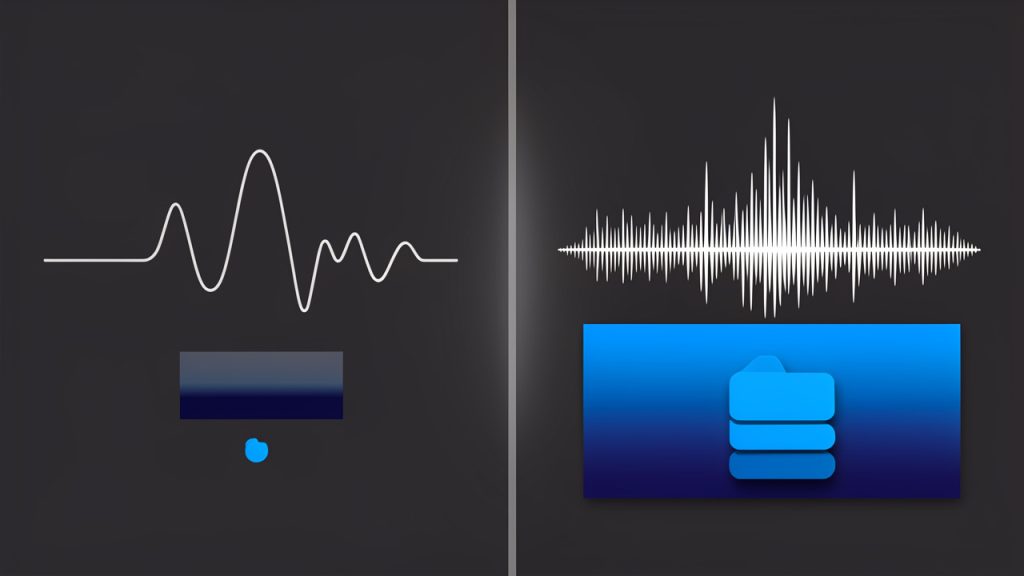
The biggest difference between MP3 and AIFF is lossy versus uncompressed audio. MP3 sacrifices some information to save space. AIFF keeps the waveform intact as PCM data, which makes it better for processing and repeated editing.
File size is the next major difference. AIFF files are much larger. If storage space matters, that increase can be significant. If you are working in a DAW, preparing for CD authoring, or handing files to professional gear, the size increase is often worth it.
Metadata handling also differs. MP3 commonly uses ID3 tags for artist, title, album, artwork, and track information. AIFF can store metadata too, but it often uses chunks rather than the exact same tagging structure. Some converters copy tags cleanly, some only copy part of them, and some ignore artwork unless you re-add it manually.
When and Why You Should Convert MP3 to AIFF
Useful cases for converting
There are several valid reasons to convert MP3 files to AIFF, even though the conversion does not improve original fidelity. One of the most common is audio editing. Many editors and DAWs handle uncompressed audio more smoothly, especially when applying effects, trimming, crossfading, or exporting multiple versions.
Another good reason is professional workflow compatibility. Some studio tools, samplers, older hardware units, and archival systems prefer or require AIFF or WAV. If you are sending files to a collaborator, a post-production engineer, or a CD authoring system, AIFF can be the more reliable handoff format.
It can also make sense for archival copies of already-delivered MP3 assets when you need a stable, uncompressed working version for repeated processing. You are not improving the source, but you are preventing further quality loss from repeated lossy exports.
The limitation that many guides gloss over
This is the part many people misunderstand. Converting MP3 to AIFF does not make the sound better. It only changes the container and storage method.
If an MP3 was encoded at 128 kbps and lost high-frequency detail, switching it to AIFF keeps that 128 kbps-derived sound exactly as it is, only in a larger, uncompressed form. This is not the same thing as creating a true lossless master.
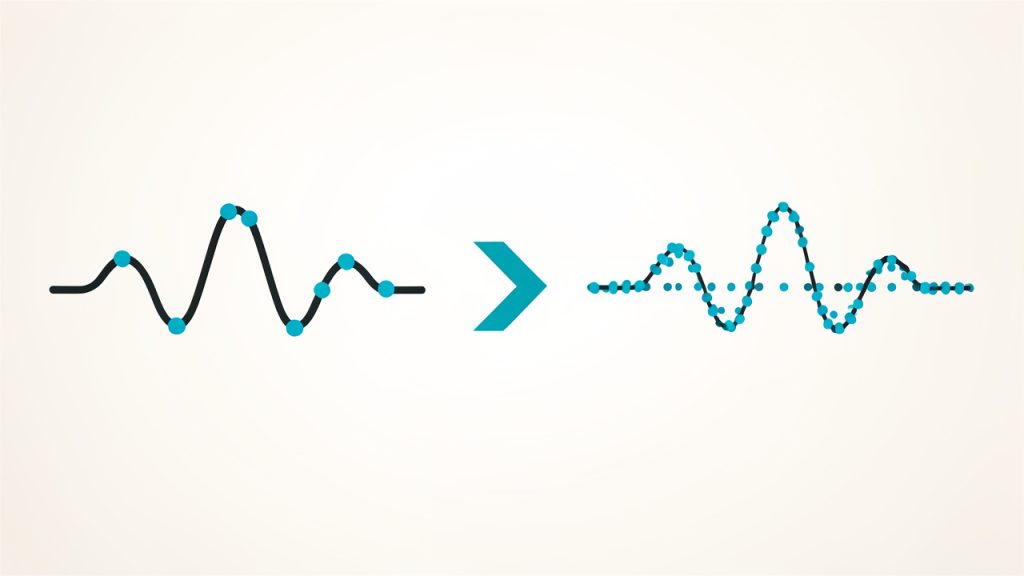
The same logic applies to upsampling. Changing a 44.1 kHz MP3 to 96 kHz AIFF does not create more sonic detail. It only increases the sample count mathematically. Sometimes higher rates are required by a workflow, but they do not recover lost information.
When not to convert
If your goal is streaming, mobile listening, or saving space, converting MP3 to AIFF usually makes little sense. The files get larger, transfer slower, and offer no audible improvement for casual playback.
For everyday listening, keeping the original MP3 is often smarter. AIFF is best used when you need editing headroom, format compatibility, or a professional delivery standard.
Best Ways to Convert MP3 to AIFF
There is no single best tool for every user. The right method depends on whether you value speed, editing features, batch conversion, privacy, or metadata control.
Desktop apps are usually the best starting point. They are faster, more reliable with large files, and safer for private audio. Tools like VLC, Audacity, Apple Music, and dedicated converters can handle one-off jobs well.
Online converters are convenient when you need a fast result without installing software, but they come with tradeoffs, especially file-size limits, slower uploads, and privacy concerns. If the audio is sensitive, copyrighted, or client-related, uploading it to a third-party service may not be appropriate.
Command-line tools like FFmpeg are ideal for power users. They are fast, flexible, scriptable, and excellent for batch jobs. If you regularly convert folders full of files, FFmpeg is often the most efficient route.
Step-by-Step: Convert MP3 to AIFF on Windows (Using Free Tools)
Method A, using VLC Media Player
VLC is free, widely trusted, and easy for quick conversions. Download it from the official VideoLAN site to avoid bundled installers.
- Open VLC Media Player.
- Go to Media > Convert / Save.
- Click Add and choose your MP3 file.
- Click Convert / Save.
- In Profile, choose an audio profile that outputs AIFF, or create a custom profile if needed.
- Set the destination filename with the .aiff extension.
- Start the conversion.
VLC is excellent for speed, but metadata handling can be inconsistent. If song info matters, check the exported file afterward in a tag editor or media library.
For settings, use 44.1 kHz for CD-related audio and most music files, or 48 kHz if the destination is video production. Keep channels in stereo unless you specifically need mono.
Method B, using Audacity
Audacity is free and better when you want editing control before export. It is also a more comfortable option if you want to inspect waveforms, trim silence, or normalize levels.
- Install Audacity from the official Audacity site.
- Open the program and drag your MP3 file into the window.
- If needed, edit or inspect the track.
- Go to File > Export > Export Audio.
- Choose AIFF Files as the export format.
- Pick the destination folder and filename.
- Set sample rate and channel options if needed.
- Add or confirm metadata in the export dialog.
- Click Export.
Audacity is a strong choice when metadata and manual quality control matter. It also makes it easier to hear whether your MP3 source has artifacts before you commit it to a larger AIFF workflow.
Method C, using FFmpeg
FFmpeg is the most flexible free solution on Windows, especially for repeated conversions. Install it from the official FFmpeg source or trusted package managers, then make sure the executable is available in your system path.
A basic single-file conversion looks like this:
ffmpeg -i input.mp3 output.aiff
If you want explicit control over sample rate, channels, and metadata mapping, use:
ffmpeg -i input.mp3 -ar 44100 -ac 2 -sample_fmt s16 -map_metadata 0 output.aiff
This keeps the workflow predictable. -ar 44100 sets the sample rate, -ac 2 sets stereo, -sample_fmt s16 sets 16-bit PCM style output, and -map_metadata 0 copies source metadata where possible.
If FFmpeg throws errors, the usual causes are bad file paths, permission issues, or an incorrect install. On Windows, quoting paths with spaces is essential.
Step-by-Step: Convert MP3 to AIFF on macOS (Using Native Tools and Free Apps)
Method A, using Apple Music or iTunes
On macOS, Apple Music is one of the easiest built-in methods. On older systems, the equivalent process may still be under iTunes.
First, configure the import settings. Open Music, then go to Settings or Preferences, find Files, and open Import Settings. Choose AIFF Encoder. This tells the app what format to create during conversion.
Then:
- Add the MP3 file to your library if it is not already there.
- Select the track.
- Use File > Convert > Create AIFF Version, or right-click if your version offers that shortcut.
- Wait for the new AIFF file to appear in the library.
- Reveal it in Finder if you need the actual file location.
This method is simple and preserves library organization well. It is especially useful for users already working inside the Apple ecosystem.
Method B, using Audacity or VLC
Audacity and VLC on macOS work much like they do on Windows. Audacity gives you better visibility into export settings and metadata entry. VLC is faster for quick conversions.
If you care about artwork, track titles, and album data, Audacity usually gives you more explicit control. If you just need an AIFF file quickly, VLC is often enough.
Method C, using FFmpeg with Homebrew
For batch conversion on macOS, FFmpeg is hard to beat. The easiest installation path is Homebrew.
Install Homebrew if you do not already use it, then install FFmpeg with:
brew install ffmpeg
Once installed, convert a file with:
ffmpeg -i input.mp3 -ar 44100 -ac 2 -sample_fmt s16 -map_metadata 0 output.aiff
For a whole folder, a simple shell loop works well:
for f in *.mp3; do ffmpeg -i "$f" -ar 44100 -ac 2 -sample_fmt s16 -map_metadata 0 "${f%.mp3}.aiff"; done
That command converts every MP3 in the current folder to AIFF while preserving names and attempting to copy metadata.
Step-by-Step: Convert MP3 to AIFF on Linux (GUI and CLI)
Method A, using SoundConverter
Linux users who prefer a graphical interface can use SoundConverter or similar desktop tools. It is lightweight and straightforward for bulk jobs.
On many distributions, you can install it from the package manager. After launch, add your MP3 files or drag in a folder, choose AIFF as the output format if supported by the installed backend, select your destination, and run the conversion.
This route is convenient, but exact format support may vary depending on codecs and backend packages installed on your system.
Method B, using FFmpeg
On Linux, FFmpeg is usually the most dependable approach. Install it with your distribution’s package manager, then use:
ffmpeg -i input.mp3 output.aiff
For more control:
ffmpeg -i input.mp3 -ar 48000 -ac 2 -sample_fmt s16 -map_metadata 0 output.aiff
Linux users often run into path and permission quirks, especially when converting files in protected directories. If a command fails, confirm you have write access to the destination folder.
Tips for scripting batch jobs
A practical batch command for the current directory is:
for f in *.mp3; do ffmpeg -i "$f" -ar 44100 -ac 2 -sample_fmt s16 -map_metadata 0 "${f%.mp3}.aiff"; done
If your folder tree is deeper, you may want a find-based workflow. The key is to test on a few files first before processing hundreds of tracks.
Top Online Converters: Quick Comparison and Privacy Considerations
Online converters are useful when you need a one-time conversion and do not want to install software. The best known services usually support drag-and-drop uploads, simple format selection, and quick downloads. Common examples include CloudConvert, Convertio, FreeConvert, and Zamzar.
What matters most is not the prettiest interface. It is whether the service uses HTTPS, states how long files are retained, allows control over output settings, and handles metadata properly. Some online tools silently re-encode with defaults you did not choose, which can create unexpected sample rates or strip tags.
If you are converting sensitive recordings, unreleased music, client audio, or large folders, online tools are usually the wrong choice. Local conversion is faster, more private, and more predictable.
Recommended Tools: Features, Pros, Cons, and Use Cases
Choosing the right tool is easier when you match it to your workflow rather than just the format.
FFmpeg runs on Windows, macOS, and Linux and is best for batch conversion, automation, and precise settings. It is fast, scriptable, and powerful, but the command line can intimidate beginners.
Audacity is cross-platform and ideal when you need editing plus conversion. It provides excellent control and visual editing, but it is slower for large batch jobs.
Apple Music or iTunes works well in Apple-centric environments for simple library conversion. It is built in and integrates with your library, but it offers limited advanced control.
VLC is good for quick one-off conversions across platforms. It is free and familiar, but metadata handling can be inconsistent.
Online converters are useful in a pinch, but privacy, upload time, and file limits are disadvantages.
For most users, 44.1 kHz, stereo, 16-bit is a safe default. If the destination is video production, 48 kHz is often the better fit. If you plan more intensive editing inside a modern DAW, you might prefer 24-bit AIFF, but remember that raising bit depth on an MP3 source does not add lost detail. It mainly gives your processing chain more room for subsequent work.
Common Conversion Settings Explained
Sample rate
The sample rate determines how many times per second the waveform is measured. 44.1 kHz is standard for music and CDs. 48 kHz is standard in video and many broadcast workflows.
Higher rates like 88.2 or 96 kHz have their place in recording and production, but they do not magically improve an MP3 source. If the original file came from a standard compressed music file, staying at 44.1 or 48 kHz is usually the practical choice.
Bit depth
16-bit is standard for CD-quality delivery. 24-bit is common in production because it provides more headroom for processing and level adjustments.
When converting from MP3, increasing bit depth does not recover detail. It can still be useful if the AIFF file will go through further EQ, dynamics processing, or mixing, because the working environment may benefit from the added processing margin.
Channels
Most MP3 music files are stereo, and they should generally stay that way. Converting stereo to mono should only happen when the destination explicitly requires it, such as voice-only material or bandwidth-limited production systems.
Normalization and dithering
Normalization adjusts loudness, usually to bring the peak level to a target. It can be helpful if the source is unusually quiet, but it also changes the file, so it should be intentional.
Dithering matters when reducing bit depth, especially in professional workflows. If you are exporting to 16-bit after processing in a higher internal precision environment, dithering can help reduce quantization artifacts. If you are simply converting without meaningful editing, it is less critical.
Metadata and Tags: Preserving Song Info When Converting
MP3 files usually carry metadata in ID3 tags. AIFF stores metadata in different ways, often through chunks inside the file container. Because of this mismatch, metadata transfer is not always perfect.
FFmpeg can copy metadata with -map_metadata 0, and Apple Music often keeps library info well when converting inside its own ecosystem. Audacity lets you manually confirm or edit tags during export, which is useful when accuracy matters more than automation.
If metadata is missing after conversion, use a dedicated tag editor such as Kid3 or Mp3tag. For music libraries, this extra step can save a lot of cleanup time later. Artwork is especially worth checking, since it is one of the first things many converters drop.
Audio Quality Myths and Realities
The biggest myth in conversion is that AIFF sounds better simply because it is bigger. It does not. The conversion only prevents additional loss during later stages. It does not reverse the original lossy compression.
You may still hear differences after conversion in a production environment, but not because AIFF repaired the source. More often, it is because your editing software handles uncompressed files more predictably, avoids repeated MP3 decoding, or reduces compatibility issues in the workflow.
The best practice is simple. Start with the highest-quality source available, avoid multiple lossy transcodes, and use AIFF or another lossless format once you enter the editing or mastering stage.
Troubleshooting: Common Problems and Fixes
Conversion failures usually come down to a few recurring causes. The first is permissions. If the destination folder is read-only or protected, the converter may fail silently or throw a generic error. The second is path formatting, especially on Windows when filenames contain spaces. The third is a broken or unofficial install.
If metadata disappears, the issue is usually not the audio itself but the converter’s handling of tags. Try FFmpeg with metadata mapping, or export with Audacity and re-enter tags manually. If album artwork is missing, a dedicated tag editor is often the fastest fix.
Online converters can fail on large files because of browser timeouts or upload caps. In that case, switch to a desktop tool. If an exported AIFF will not play correctly, check the sample rate and channel settings. Some older hardware is picky about unexpected combinations.
Practical Examples and FFmpeg Command Cheatsheet
If you want a reliable way to convert MP3 to AIFF with full control, FFmpeg is the most useful tool to learn.
A basic conversion:
ffmpeg -i input.mp3 output.aiff
A safer production-style conversion with explicit settings:
ffmpeg -i input.mp3 -ar 44100 -ac 2 -sample_fmt s16 -map_metadata 0 output.aiff
For 48 kHz output:
ffmpeg -i input.mp3 -ar 48000 -ac 2 -sample_fmt s16 -map_metadata 0 output.aiff
For batch conversion in the current folder on macOS or Linux:
for f in *.mp3; do ffmpeg -i "$f" -ar 44100 -ac 2 -sample_fmt s16 -map_metadata 0 "${f%.mp3}.aiff"; done
For Windows PowerShell, a simple loop is:
Get-ChildItem *.mp3 | ForEach-Object { ffmpeg -i $_.FullName -ar 44100 -ac 2 -sample_fmt s16 -map_metadata 0 ($_.BaseName + ".aiff") }
If you want loudness adjustment or normalization, do it carefully and only when needed. That step changes the audio content, so it is not part of a pure format conversion.
Legal and Ethical Considerations
Converting your own files for editing, backup, or device compatibility is usually straightforward. Sharing or distributing converted files that you do not have rights to is a different matter. Copyright still applies, regardless of the format.
Privacy matters too. If you use an online converter, you are uploading audio to someone else’s servers. That may be harmless for a public podcast intro and unacceptable for confidential interviews, client recordings, or unreleased music.
Responsible archival means keeping track of what the source was, what settings you used, and whether the result is a working copy or a final deliverable.
Summary: Best Practice Recommendations
If you need an easy way to handle an MP3-to-AIFF workflow, the smartest choice depends on what you are actually doing with the file afterward. For quick one-off conversions, VLC or Apple Music can be enough. For editing and metadata control, Audacity is the better choice. For batch conversion, automation, and precise settings, FFmpeg is the clear winner.
A few defaults work well for most people. Use 44.1 kHz, 16-bit, stereo for general music and CD-related tasks. Use 48 kHz when the file is headed into video production. Expect much larger files, and do not expect better fidelity than the original MP3 already contained.
Your next step is simple. Pick the method that matches your workflow, convert one test file first, verify playback and metadata, then process the rest with confidence.
Appendix: Resources and Download Links
Use official sources whenever possible. That reduces the risk of bundled adware, outdated builds, and broken codecs.
The most trustworthy places to get started are the official sites for FFmpeg, Audacity, VLC Media Player, and Apple Music or iTunes support documentation. For tag editing, Kid3 and Mp3tag are both reputable options.
If you want to learn more, look for vendor documentation and established audio engineering references covering PCM audio, AIFF and WAV containers, sample rate standards, bit depth, dithering, and mastering workflows. Those resources will help you make better decisions long after a simple conversion job is done.