
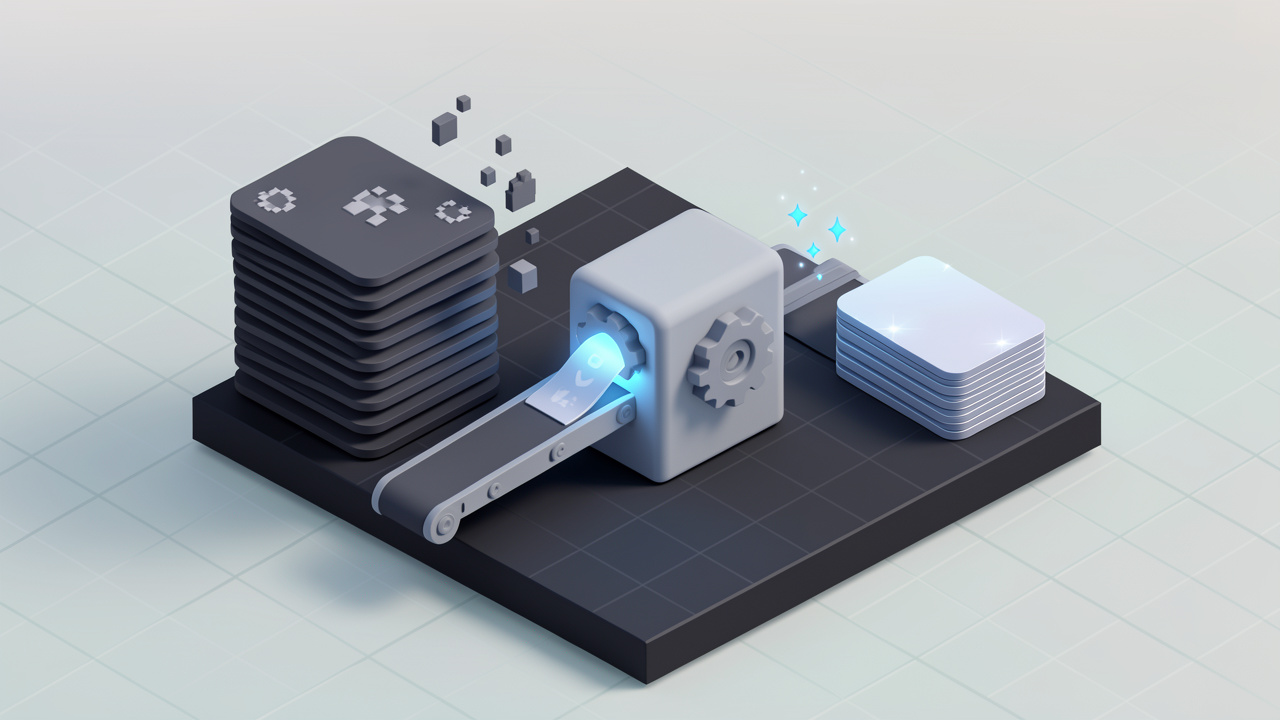
Every extra kilobyte on a webpage costs attention, speed, and sometimes sales. If your site uses a lot of PNG images, especially screenshots, logos, interface elements, or transparent graphics, you may be carrying more file weight than necessary. Converting PNG files to WebP is one of the simplest ways to make pages load faster without rebuilding your entire site.
For small business owners, freelancers, developers, and anyone relying on lightweight online tools, this matters more than it seems. Faster image delivery can improve user experience, support better performance on mobile devices, and reduce bandwidth usage. The good news is that switching from PNG to WebP is usually easy, and in many cases, the visual quality remains excellent.
What Is PNG to WebP?
PNG to WebP refers to converting an image from the PNG format into the WebP format. PNG has long been a reliable choice for graphics that need transparency and sharp detail. It is especially common for logos, icons, UI assets, and screenshots. WebP, created for the web, aims to preserve that usefulness while producing much smaller files.
At a practical level, this conversion is about efficiency. A PNG image can look great, but it often comes with a relatively large file size. WebP can often reduce that size significantly while still supporting important features like transparency. For websites, landing pages, online portfolios, product pages, and web apps, this can make a noticeable difference.
The reason people search for PNG-to-WebP solutions is simple, they want a file format that is more web-friendly, more compact, and easier on page speed scores. In many workflows, the image itself does not need to change visually. Only the container format changes, and that change can create better performance.
Why This Conversion Matters
When a browser loads a page, images are often among the heaviest assets. Text loads quickly. A stylesheet is usually manageable. But large images can slow everything down, especially on mobile connections. If your pages rely on multiple PNG files, those delays add up.
That is where WebP becomes valuable. By shrinking image size without dramatically harming quality, it helps pages render faster. For users, that means less waiting. For site owners, it can mean better engagement, lower bounce rates, and stronger performance metrics.
There is also a maintenance advantage. Once your images are optimized, you are not constantly fighting the same speed issues on every page. A well-managed image library can quietly improve your entire website.
PNG vs WebP at a Glance
| Format | Best For | Transparency Support | Typical File Size | Web Use Case |
|---|---|---|---|---|
| PNG | Logos, screenshots, graphics needing lossless quality | Yes | Larger | Traditional web graphics |
| WebP | Web-optimized images with strong compression | Yes | Smaller in many cases | Faster-loading websites |
Key Aspects of PNG to WebP
Understanding the conversion properly helps you make smarter decisions. This is not just about choosing the smallest file every time. It is about balancing quality, compatibility, transparency, and workflow.
File Size and Page Speed
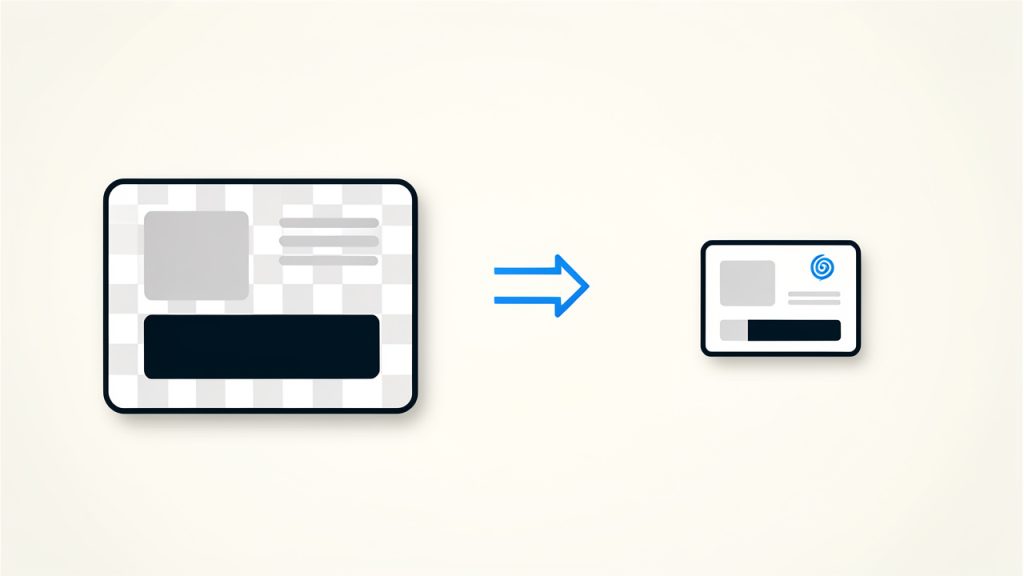
The biggest reason to convert PNG images to WebP is usually file size reduction. In many cases, a WebP version of a PNG can be noticeably smaller. That means less data for browsers to download and faster load times for visitors.
This matters even more on pages with many visual elements. A homepage with icons, a SaaS dashboard with screenshots, or an e-commerce page with layered graphics can become much lighter once heavy PNGs are replaced. One image may not seem like much. Twenty images absolutely are.
For search visibility, performance is not a minor technical detail. Search engines increasingly care about user experience, and speed is part of that picture. While image optimization alone will not guarantee higher rankings, it supports the broader health of your site.
Transparency Support
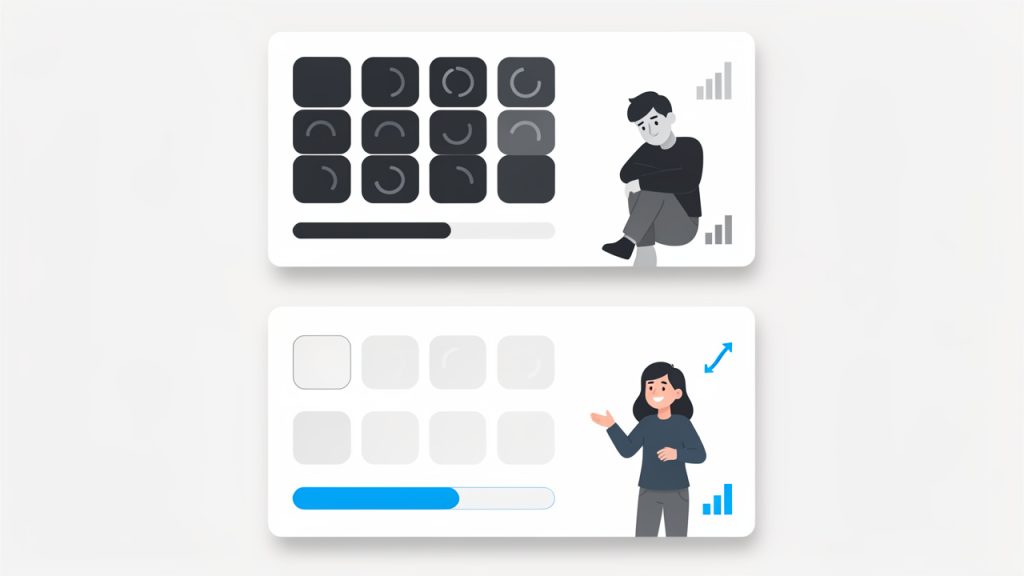
One reason PNG became so popular is its support for transparent backgrounds. That feature is essential for logos, product overlays, stickers, icons, and interface elements. If a format cannot handle transparency well, it is not a real replacement for many design assets.
WebP supports transparency too, which is why it works so well as a modern alternative. This allows businesses and creators to preserve clean visual layering while reducing file size. If you have a logo that needs to sit neatly on different background colors, WebP can usually handle that without issue.
That said, not every converted image behaves identically. It is worth checking edges, shadows, and semi-transparent elements after conversion. Fine details can sometimes reveal whether settings were too aggressive.
Lossy vs Lossless Compression
A critical part of converting PNG to WebP is choosing the compression type. See Lossy vs Lossless Compression for background.
Lossless WebP tries to preserve image data more faithfully, making it a strong choice for graphics, text-heavy screenshots, and assets where sharpness matters. Lossy WebP compresses more aggressively, which can create smaller files but may soften detail.
For a photographer’s background image, a slight reduction in crispness may be acceptable if it speeds up the page dramatically. For a pricing table screenshot or a logo, even small visual changes can look unprofessional. The right choice depends on the image’s role.
Think of it like packing a suitcase. Lossless compression is careful folding, lossy compression is vacuum sealing. Both save space, but one is gentler than the other.
Quality Trade-Offs in Real Use
Not every PNG should automatically become a WebP file without review. Some PNGs are already well optimized, and the savings might be modest. Others may convert beautifully and end up far smaller. The key is testing rather than assuming.
Screenshots with lots of text deserve extra attention. So do graphics with thin lines, subtle glows, or hard-edged brand elements. A WebP file can still look excellent, but your settings matter. Over-compressing a clean interface graphic can make it look fuzzy in seconds.
For most business and productivity websites, the best outcome is not the smallest possible image. It is the smallest image that still looks professional. That distinction is important.
Browser Compatibility and Modern Web Use
WebP is widely supported across modern browsers, which is one reason it has become a standard recommendation for web optimization. For most users today, delivering WebP images is straightforward. If you run a modern site, a web app, or an online store, compatibility is rarely a major obstacle.
Still, some teams prefer fallback strategies, especially for legacy systems or older content libraries. Developers may keep original PNG files as source assets while serving WebP on the front end. This keeps workflows flexible and avoids getting locked into a single output version.
For non-technical users, the simplest approach is often enough. Convert the image, test it on your page, and confirm that it displays correctly across common devices and browsers. If it looks right and loads faster, the conversion has done its job.
How to Get Started With PNG to WebP
The easiest way to begin is to look at the images you already use online. Focus first on assets that appear on high-traffic pages. Hero graphics, logos, product illustrations, screenshots, and interface elements are good candidates. If an image is large and visible, optimizing it can bring immediate value.
A practical workflow starts with selecting a few PNG files and converting them using a trusted online tool, design app, or image processing utility. Then compare the original and converted versions side by side. Check file size, sharpness, transparency, and how the image looks on an actual page, not just in a file browser.
Choose the Right Images First
Not all files deserve the same priority. If you want quick wins, start with PNG images that are both large in file size and important to page performance. A tiny decorative icon may not move the needle much. A large product diagram probably will.
For business owners and freelancers, this approach saves time. You do not need to optimize your entire archive in one afternoon. Improve the assets that directly affect user experience first, then work through the rest gradually.
Use a Simple Evaluation Process
A reliable conversion process does not need to be complicated. It just needs to be consistent. After converting a PNG to WebP, ask four questions: Does it look the same, or close enough? Is the transparent background intact? Is the file meaningfully smaller? Does it display properly where it will actually be used?
If the answer is yes to all four, you likely have a good replacement. If not, try different export settings or switch from lossy to lossless WebP. A few extra minutes of review can prevent blurry assets from slipping into production.
Common Use Cases for PNG to WebP
| Use Case | Why PNG Is Common | Why WebP Helps |
|---|---|---|
| Logos | Clean edges and transparency | Smaller file size with transparency preserved |
| Screenshots | Sharp text and interface detail | Better web delivery if quality settings are tuned well |
| Icons and UI graphics | Lossless quality and alpha transparency | Faster asset loading on interfaces and dashboards |
| Product overlays | Transparent visual elements | Reduced bandwidth without losing layering support |
Online Tools, Design Apps, and Developer Workflows
Most users will start with an online converter because it is fast and accessible. That is often the best option for freelancers, marketers, and small teams that need immediate results without a technical setup. You upload the PNG, convert it, download the WebP file, and test it.
Design software can also export to WebP, which is useful when images are still being edited. This keeps quality control closer to the source file. For developers and technical teams, batch conversion tools can streamline larger libraries of assets. That is especially useful when managing dozens or hundreds of interface images.
The right method depends on volume. If you are handling five images, use the simplest route. If you are handling five hundred, automation starts to matter.
If you are looking for quick conversions with minimal setup, try using lightweight online tools for occasional work and testing.
Best Practices Before Replacing Originals
Before you fully switch over, keep your original PNG files stored safely. The PNG often works best as a source asset for editing, archiving, or future export needs. WebP is excellent for delivery on the web, but it is not always the file you want to keep as your master design version.
It is also smart to check naming conventions and publishing workflows. If your site, CMS, or app references image files directly, replacing them may require updating links or asset settings. A fast image does not help if it breaks the layout.
If you want a clean starting point, follow this short process:
- Select high-impact PNG files from your most visited pages.
- Convert them to WebP using a reliable tool or app.
- Compare quality and file size before publishing.
- Test the images live on desktop and mobile.
- Keep the original PNGs as backup source files.
Conclusion
Converting PNG images to WebP is one of the most practical upgrades you can make to a modern website. It can reduce file sizes, support faster page loads, preserve transparency, and improve the overall efficiency of your image library. For many sites, it is a low-effort change with a very real payoff.
The best next step is simple: pick a handful of PNG images from a page that matters, convert them to WebP, and test the results. Start small, look closely, and optimize what actually improves performance. That approach keeps your workflow manageable and your website faster where it counts.