Converting a WMA file to MP3 sounds simple until you actually need to do it fast. Maybe a client sent audio in the wrong format. Maybe an old voice recording will not play on your phone. Or maybe you are organizing a library of training files, podcasts, or archived interviews and keep running into compatibility issues.
That is where the need to convert WMA into MP3 becomes practical, not technical. MP3 remains one of the most widely supported audio formats across phones, browsers, editing tools, cloud platforms, and everyday media players. If you want fewer playback problems and easier file sharing, turning WMA audio into MP3 is often the quickest fix.
What is converting WMA to MP3?
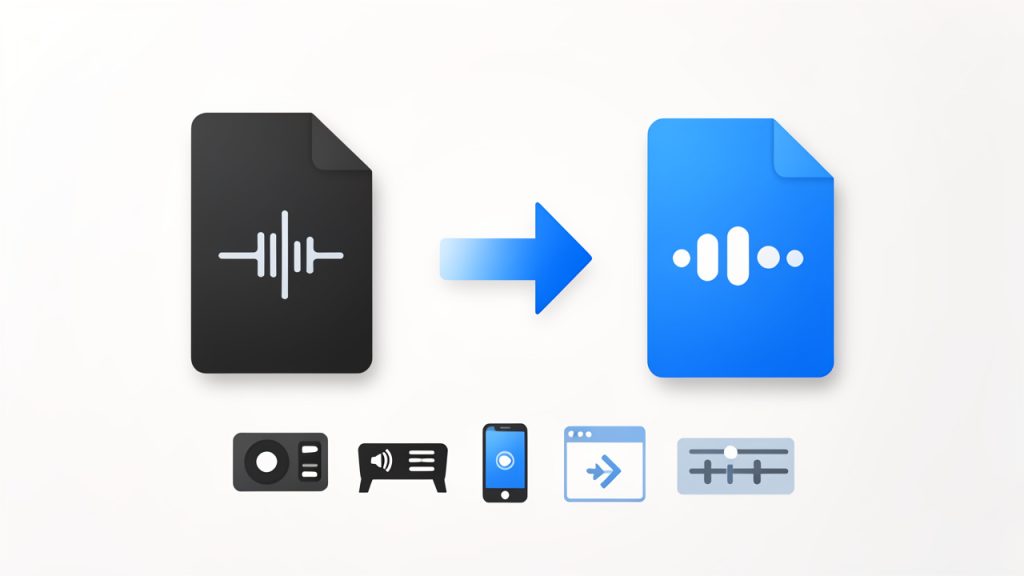
At its core, converting WMA to MP3 means changing an audio file from Windows Media Audio (WMA) format into MP3, a more universally accepted format. Both use lossy compression, but they were designed with different ecosystems in mind. WMA was developed by Microsoft and was once common in Windows-based software and older digital music libraries. MP3, by contrast, became the default standard for portable audio because it works almost everywhere.
For most users, the format itself matters less than the outcome. You want your audio to open, play smoothly, upload easily, and work across devices without extra apps or compatibility warnings. That is why MP3 still dominates for everyday use. Whether you are handling business recordings, webinar exports, customer support clips, or personal audio files, MP3 is usually the safer destination format.
People search for ways to convert WMA into MP3 because they want a quick, free, and reliable conversion method. They are not usually looking for a deep lesson in audio engineering. They want a file that simply works. That said, understanding a few basics helps you avoid quality loss, bloated files, or failed conversions.
Why WMA still shows up
WMA is not obsolete, but it is less convenient than it used to be. Many older desktops, CD rips, archived media collections, and legacy business systems still produce or store audio in WMA format. If you have inherited files from an older workflow, there is a good chance WMA is part of the mix.
This matters for small teams and freelancers because legacy files tend to surface at inconvenient moments. A training department may need old audio modules republished. A virtual assistant may be asked to upload recordings into a modern content platform. A developer may need compatible assets for an app or browser-based tool. In each case, converting from WMA into MP3 removes friction.
Why MP3 remains the default choice
MP3 is popular for one simple reason, compatibility. It plays nicely with websites, smartphones, editing tools, email attachments, cloud storage systems, and social platforms. If your goal is broad usability, MP3 is often the right final format.
It also offers a practical balance between file size and sound quality. For spoken-word audio, such as interviews, lectures, voice notes, and webinars, MP3 usually provides more than enough quality without creating oversized files. That balance is especially useful when you are sharing files with clients or uploading them through limited dashboards.
Key aspects of converting WMA into MP3
Converting audio is not just about changing the extension. A good conversion preserves the listening experience while making the file easier to use. To do that well, you need to think about quality, file size, compatibility, and workflow.
Audio quality and compression
Both WMA and MP3 use compression, which means they reduce file size by removing some audio data. When you convert a compressed file into another compressed format, there is usually some degree of quality trade-off. In plain language, each conversion can shave off a little detail.
For most business and everyday use cases, this is not a major problem. If you are converting a spoken recording, meeting audio, or standard music file for normal listening, the difference may be negligible. But if the source file is already low quality, or if you convert it multiple times, the loss can become noticeable. That is why it is smart to convert from the original WMA file once and keep a backup of that source.
Bitrate plays a major role here. A higher MP3 bitrate generally means better audio quality and a larger file. A lower bitrate creates smaller files but can introduce artifacts or dullness. For voice-heavy content, moderate settings often work well. For music, you may prefer a higher bitrate to retain more depth and clarity.

File size and storage efficiency
One reason users search for ways to convert WMA files into MP3 is file sharing. Modern workflows rely on uploads, email attachments, cloud syncing, and mobile downloads. If a file is awkwardly formatted or too large, it slows everything down.
MP3 gives you more control over size because many converters let you choose output settings. That can be useful if you are preparing files for a website, online course, client portal, or internal knowledge base. Smaller files upload faster and stream more smoothly, which improves the experience for your audience.
The trade-off is straightforward. Smaller files are convenient, but compressing too aggressively can hurt quality. The ideal setting depends on how the audio will be used. A customer-facing podcast deserves more care than a simple internal memo recording.
Device and platform compatibility
Compatibility is the strongest case for converting WMA audio into MP3. WMA may still work in certain desktop environments, but support is less consistent on mobile devices, browser tools, and non-Windows platforms. If you need a format that behaves predictably across ecosystems, MP3 is the practical answer.
This is especially relevant for freelancers and small businesses that use a patchwork of tools. You might record on one device, edit on another, upload through a browser, and share with clients using entirely different systems. MP3 reduces the chance that someone on the other end will reply with, “I cannot open this file.”
Speed, simplicity, and online tools
Most users do not want to install heavy software just to convert a few files. That is why online converters are popular. They are fast, accessible, and often free for basic use. You upload the WMA file, choose MP3 as the output, and download the converted version.
That convenience comes with a few considerations. If the audio contains sensitive client information, internal meetings, or private interviews, you should pay attention to privacy policies and file retention rules. Convenience is valuable, but trust matters more when the content is confidential.
For non-sensitive files, online conversion is often the easiest route. It is especially useful for occasional tasks, quick turnarounds, and lightweight workflows where installing desktop software would be overkill.
A simple format comparison
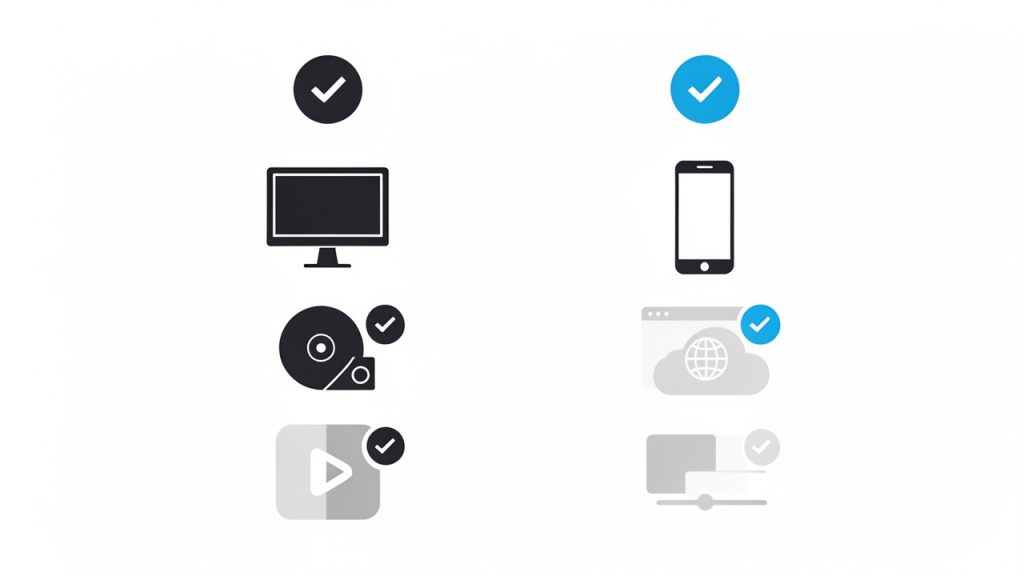
| Format | Full Name | Best For | Compatibility | Typical Benefit | Typical Limitation |
|---|---|---|---|---|---|
| WMA | Windows Media Audio | Older Windows-based libraries and legacy systems | Moderate | Efficient in some Microsoft environments | Less universal support |
| MP3 | MPEG Audio Layer III | General playback, sharing, web use, mobile devices | Very high | Broad compatibility and flexible file sizes | Possible quality loss at low bitrates |
How to get started converting WMA files into MP3
If you need to convert a file today, the process is usually straightforward. The key is choosing the right method for your situation. A one-off personal file may call for an online converter, while frequent batch work may be better handled with installed software.
Choose the right conversion method
Start by thinking about volume and sensitivity. If you only have one or two audio files and they are not confidential, an online tool is often enough. It is quick, requires no setup, and works from almost any device. If you regularly convert recordings, or you need better control over output settings, dedicated desktop software may be more efficient.
Browser-based tools are ideal for convenience. Desktop apps are better when you need batch conversion, offline access, or stronger privacy. The best tool is the one that fits your workflow without creating extra steps.
Use sensible output settings
When converting a WMA file to MP3, avoid choosing settings blindly. Think about where the audio is going next. If it is for speech, online learning, virtual meetings, or internal documentation, you can often use a moderate bitrate and get a clean result with manageable file size.
If the file contains music, layered sound, or anything intended for polished public listening, choose higher quality settings. You do not need to over-optimize, but you do want to avoid making the file sound thin or distorted. It is often worth testing one sample conversion before processing a whole batch.
Follow a basic conversion workflow
For most tools, the process looks like this:
- Upload or import the WMA file.
- Select MP3 as the output format.
- Choose quality settings, if available.
- Start the conversion.
- Download and test the MP3 file on the device or platform where it will be used.
The last step matters more than people think. A file that converts successfully is not always a file that performs well in the real world. Test playback, confirm the duration is correct, and make sure the audio sounds as expected before you send it to a client or publish it online.
Organize files for repeated use
If conversion is part of your regular workflow, a little organization saves time. Keep your original WMA files in a clearly labeled archive folder. Store the converted MP3 files separately. Add naming conventions that identify the version, date, or intended use.
This is especially helpful for agencies, consultants, and content teams. Audio assets pile up quickly, and confusion grows when files have similar names but different formats. A simple folder structure can prevent duplicate work and make future updates easier.
Common problems and how to avoid them
One common mistake is converting a file several times. Every repeated conversion can degrade quality, so it is better to convert once from the original source and keep that original safely stored. Another issue is choosing output settings that are too low, which can make voice recordings sound muffled or metallic.
Playback issues can also happen if the file extension changes but the actual format does not. A proper conversion tool re-encodes the file correctly. Simply renaming the extension from .wma to .mp3 does not work. If a converted file seems broken, try a different converter or re-export with more standard settings.
Conclusion
Converting WMA audio into MP3 is ultimately about making audio easier to use. MP3 wins because it is widely supported, easy to share, and flexible enough for everything from voice notes to customer-facing content. If you are dealing with older files or inconsistent playback, conversion is often the fastest way to remove friction from your workflow.
Your next step is simple. Pick one file, convert it to MP3, and test it on the device or platform where it needs to work. If the result sounds right and plays everywhere you need it, you have a repeatable process you can use again and again.
For a quick refresher on converting a WMA file to MP3, see this short guide on common WMA file to MP3 conversion steps.