
Audio files become a problem the moment they stop being convenient. You download a voice note, podcast clip, webinar recording, or music track in AAC format, then discover your device, editing app, car stereo, or client workflow works better with MP3. Suddenly, a simple file turns into friction.
That is why converting AAC to MP3 remains such a common task. It is not just about changing one file type into another. It is about making audio easier to share, open, edit, archive, and use across the tools people already rely on every day. For small business owners, freelancers, developers, and productivity-focused users, the goal is usually simple: get the audio working everywhere, fast, and without quality surprises.
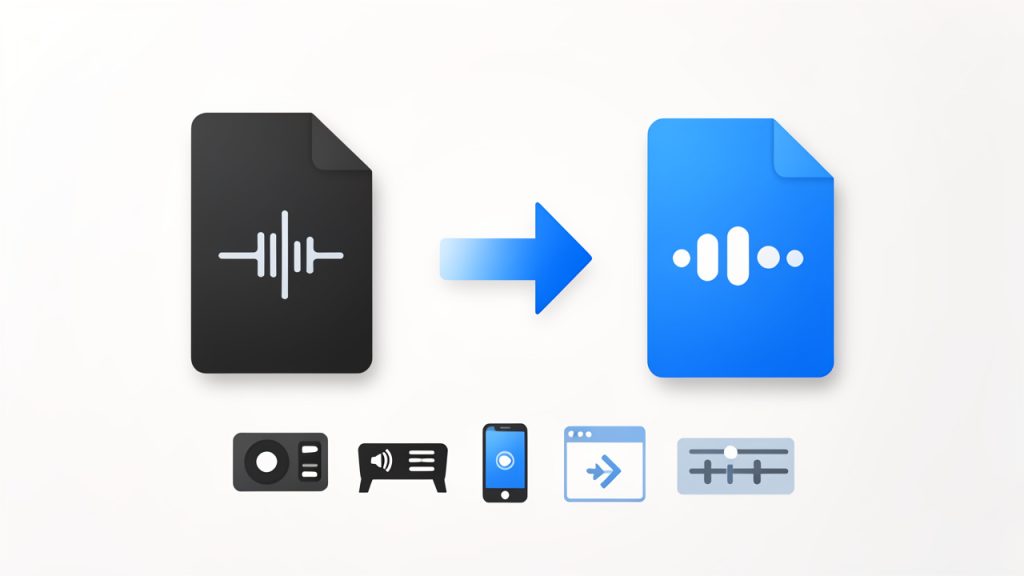
Convert for easier playback and sharing.
What Is AAC to MP3?
Converting AAC to MP3 means taking an audio file encoded in the AAC format and re-saving it as an MP3 file. Both are compressed audio formats, but they are not identical. AAC, short for Advanced Audio Coding, is often used by streaming platforms, mobile devices, and Apple-related ecosystems. MP3, on the other hand, is the format almost everyone recognizes.
The reason this conversion matters is compatibility. AAC can sound very good, often even more efficient than MP3 at similar bitrates, but MP3 still wins on universal support. If you need an audio file to open reliably on older devices, embedded systems, shared drives, browser tools, editing platforms, or client handoffs, MP3 is often the safer choice.
In practical terms, converting from AAC to MP3 is like translating a document into a language more devices can understand. The content stays the same, but the packaging changes. That packaging matters when you are sending training audio to a client, uploading clips to a basic CMS, or trying to play a file in a legacy system that does not fully support AAC.
There is also a workflow angle. Many people are not chasing perfect audiophile quality. They want a file that works in email attachments, online tools, social media workflows, transcription apps, and everyday playback environments. For those situations, MP3 remains the default format because it is familiar, lightweight, and easy to handle.
Key Aspects of AAC to MP3
The biggest thing to understand is that AAC and MP3 are both lossy formats. That means they reduce file size by discarding some audio data. When you convert an AAC file into MP3, you are not restoring lost information. You are taking one compressed file and compressing it again into a different format. This can affect sound quality, especially if the original file already has a low bitrate.

Re-encoding a lossy file can’t restore lost data, expect a quality ceiling.
That does not mean the conversion is a bad idea. It simply means expectations should be realistic. If your AAC file is a spoken-word recording, a meeting recap, a webinar, or a podcast segment, the quality difference after conversion may be barely noticeable at a reasonable bitrate. If it is music with more detail and dynamic range, the impact may be easier to hear.
Compatibility Is Usually the Main Reason
For most users, compatibility is the deciding factor. MP3 works almost everywhere. It is supported by old media players, low-cost hardware devices, in-car audio systems, website upload forms, email tools, and a wide range of software. AAC support is also broad, but not as universal in every environment.
This matters when time is limited. If you are delivering audio to a client, publishing downloadable content, or building a repeatable workflow, choosing MP3 can reduce support issues. Fewer people need to ask, “Why won’t this file open?” That alone can justify the conversion.
Quality Depends on the Source and Settings
When converting AAC to MP3, the original file quality sets the ceiling. A clean AAC file encoded at a higher bitrate gives you more room to create a decent MP3. A low-quality AAC file, however, cannot become high quality just because you export it again.
Bitrate is especially important here. A higher MP3 bitrate usually preserves more detail, but it also creates a larger file. For voice recordings, moderate settings often work well. For music, users usually prefer a higher bitrate to avoid obvious compression artifacts. The right choice depends on whether your priority is fidelity, file size, or speed.
File Size and Convenience Matter Too
MP3 remains popular because it balances small file size with broad usability. That matters if you are uploading files to a website, sending them through messaging apps, attaching them to project handoffs, or storing many audio assets in a cloud folder.
A freelancer sending interview clips to a client may care more about fast delivery than format purity. A small business owner uploading product audio, training material, or voicemail archives may just want stable playback across many devices. In these cases, MP3 often becomes the practical option, not necessarily the technically superior one.
Metadata Can Change During Conversion
Another often-overlooked detail is metadata. Audio files can contain title information, artist fields, album names, artwork, timestamps, and other tags. Depending on the converter you use, some of this information may transfer cleanly, some may be lost, and some may need to be edited afterward.
If your workflow depends on organized audio libraries, this matters more than many people expect. For a podcast producer, marketer, or business team archiving voice assets, poor metadata handling creates confusion later. A good conversion process should preserve naming consistency and basic tags whenever possible.
Online Tools vs Desktop Tools
Most people converting AAC files to MP3 today choose between an online converter and a desktop app. Online tools are appealing because they are fast, easy, and require no installation. You upload the file, choose MP3, and download the result. That works well for occasional tasks and smaller files.
Desktop software is often better for privacy, batch conversion, advanced settings, and large files. If you are handling client recordings, sensitive interviews, internal business audio, or high volumes of files, local conversion can be the smarter choice. It gives you more control and reduces concerns about uploading files to third-party servers.
The best option depends on the file, the urgency, and the sensitivity of the content. Convenience is valuable, but so is control.
How to Get Started with AAC to MP3
If you need to convert AAC to MP3, begin by deciding what matters most in your situation: speed, compatibility, privacy, or audio quality. That one decision makes the rest easier. Someone converting a single lecture recording for offline playback can use a lightweight online tool. Someone managing dozens of customer support recordings may want a desktop solution with batch processing.
Before converting anything, check the source file. Listen to a short section and verify that the AAC file already sounds acceptable. If the original has distortion, clipping, or muffled audio, conversion will not fix it. The new MP3 may only make those issues more obvious.
A simple starting process looks like this:
- Choose a trusted converter that supports AAC input and MP3 output.
- Select the bitrate based on your use case, lower for voice, higher for music.
- Convert a short test file first before processing an entire folder.
- Review playback and metadata on the device or platform you actually plan to use.
That small test step saves time. Many users skip it, convert everything at once, and only later realize the bitrate was too low, the names changed, or the files do not behave as expected in their destination app.
Picking the Right Settings
The best settings depend on context. For spoken content such as interviews, meetings, tutorials, and voice notes, you can often choose moderate compression and still get clear results. For music, branded audio, or polished media, it usually makes sense to preserve more detail with a higher-quality export.
Here is a simple comparison to guide that decision:
| Use Case | Recommended Priority | Typical MP3 Approach |
|---|---|---|
| Voice notes | Small file size | Lower to moderate bitrate |
| Podcasts and webinars | Clarity and compatibility | Moderate bitrate |
| Music tracks | Better audio fidelity | Higher bitrate |
| Client deliveries | Reliable playback | Moderate to high bitrate |
| Archives for broad access | Universal support | Moderate bitrate |
This is not about chasing the “best” setting in the abstract. It is about choosing a setting that fits the outcome you need. Audio for a quick internal review does not need the same treatment as a file that represents your brand.
Avoiding Common Mistakes
A common mistake is converting the same file multiple times across different formats. Every lossy re-encode can degrade quality. If you think you may need several output types later, it is better to keep the original source file and create each export from that source instead of converting from one compressed version to another repeatedly.
Another mistake is using an online tool without considering privacy. If your AAC file contains internal calls, customer recordings, interview material, legal content, or unreleased media, think carefully before uploading it anywhere. Free convenience is useful, but not every file should leave your device.
The third issue is assuming all converters behave the same way. Some tools are clean and efficient. Others add confusing limits, aggressive ads, poor metadata support, or unnecessary processing. A quick test with one file can reveal a lot before you commit to a full workflow.
When an Online AAC-to-MP3 Tool Makes Sense
For many users, an online converter is enough. If the file is not sensitive, the size is manageable, and you only need occasional conversion, web-based tools can save time. They are especially helpful when you are on a borrowed machine, working on a Chromebook, or trying to avoid software installs.
This is often the sweet spot for productivity-minded users. You have a task, not a long-term audio engineering project. You want the file converted, downloaded, and moved into the next step of your workflow with minimal friction. In that context, simplicity matters more than advanced audio controls.
When Local Conversion Is Better
Local conversion is the better route when you need privacy, repeatability, or scale. If you are converting many files, managing client assets, or integrating audio handling into a more structured process, desktop tools tend to offer better control. They can also be faster for batch jobs and more reliable when internet speed is inconsistent.
For developers and technical users, local tools can fit neatly into automation workflows. Even if the end goal is still just an MP3 file, the value comes from consistency. You know where files are stored, how settings are applied, and how output naming works. That predictability becomes important quickly.
Conclusion
Converting AAC files to MP3 is less about format theory and more about practical access. AAC is efficient and widely used, but MP3 remains the easiest format to share, play, and support across a huge range of devices and platforms. If compatibility is your priority, the conversion often makes perfect sense.
The smart next step is simple: test one file using the method that fits your needs, online for speed or local for control, then confirm the result on the device or platform that actually matters. Once that process works, you can turn AAC to MP3 conversion into a reliable part of your everyday workflow.
Leave a Reply