JNTZN

Tag: MP3

  • How to Convert MP3 Files to M4A: Easy Methods and Tips

    How to Convert MP3 Files to M4A: Easy Methods and Tips

    If you need a quick way to convert an MP3 to M4A, the good news is that you have several solid options. The better news is that the right option depends less on the file format itself and more on what you care about most: convenience, privacy, batch conversion, Apple compatibility, or preserving tags and album art.

    A lot of people assume converting audio will magically improve sound quality. It will not. In most cases, changing an MP3 into an M4A means re-encoding one lossy file into another lossy format, which can actually reduce quality if you choose poor settings. Still, there are good reasons to do it. M4A files, especially those using AAC, often deliver similar perceived quality at a smaller size and tend to work especially well across the Apple ecosystem.

    This guide explains what MP3 and M4A actually are, when conversion makes sense, how the process works, and which tools are worth using. You will also get step-by-step instructions, FFmpeg examples, metadata tips, and a practical comparison table so you can choose the best method for your workflow.

    What Is MP3 and What Is M4A? Key Differences Explained

    MP3 became the default digital audio format for a reason. It made music files small enough to store, transfer, and stream back when bandwidth and disk space were far more limited than they are today. It still works almost everywhere, from older car stereos to Windows PCs, Android phones, budget music players, and web apps.

    M4A is different. It is usually a container format that holds audio encoded with AAC. In practice, when people talk about M4A, they usually mean AAC audio stored in an M4A file. This format is especially common in Apple devices and apps, including iPhone, iPad, iTunes, the Music app on macOS, and parts of the broader Apple media ecosystem.
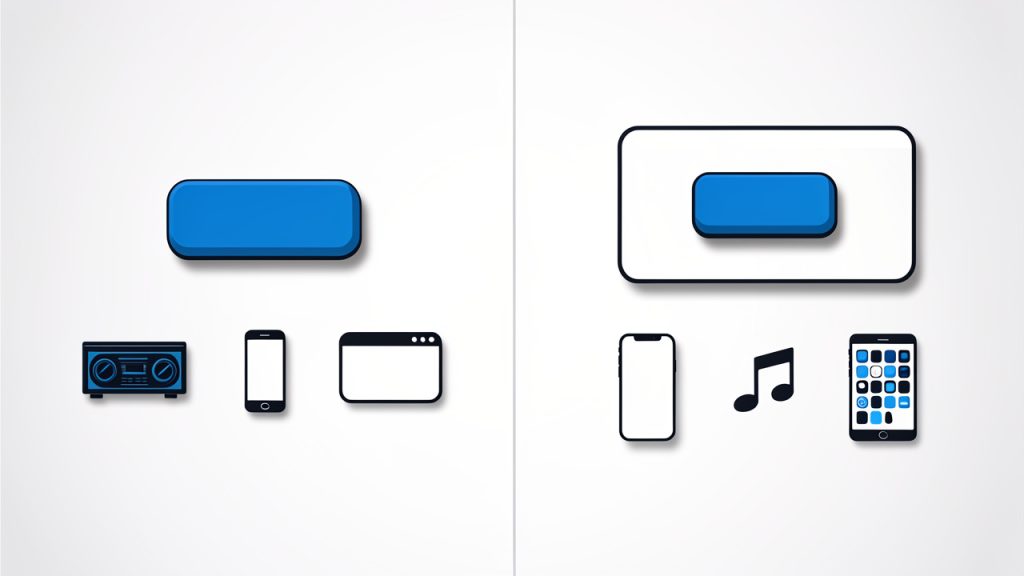
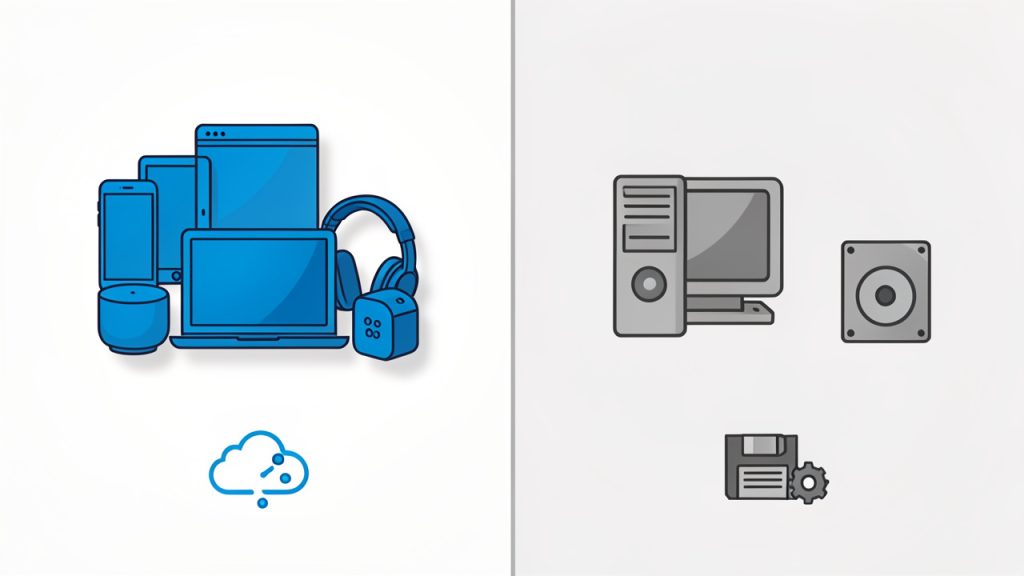
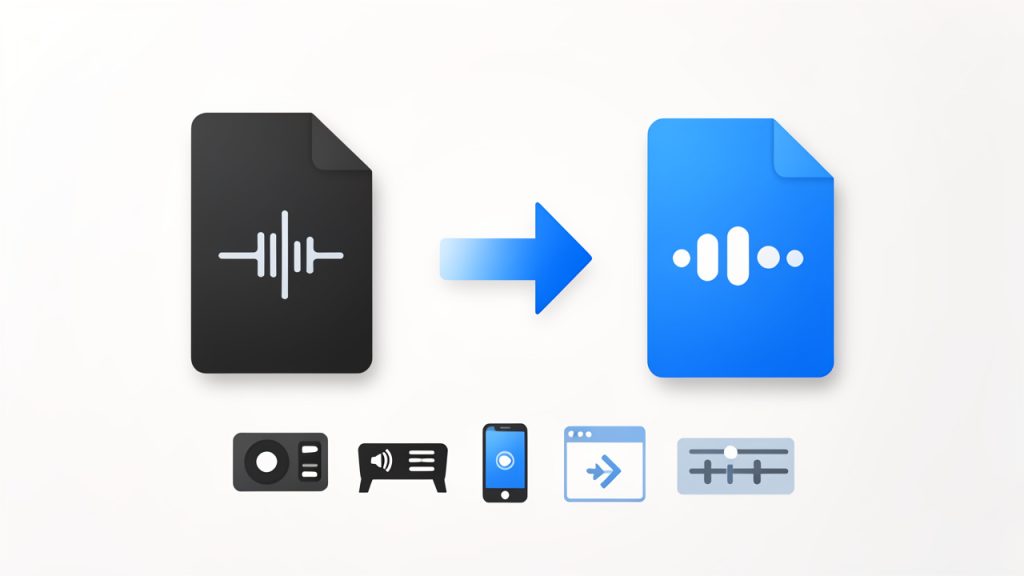
    A simple labeled diagram comparing MP3 and M4A: left side shows an 'MP3 file' with an MP3 codec block and a list of broad compatibility icons (older car stereo, Android, web); right side shows an 'M4A file' as a container box with an AAC codec block inside and Apple ecosystem icons (iPhone, iTunes, Music app). Add a small caption: 'MP3 = codec; M4A = container (commonly AAC) — AAC is generally more efficient.'

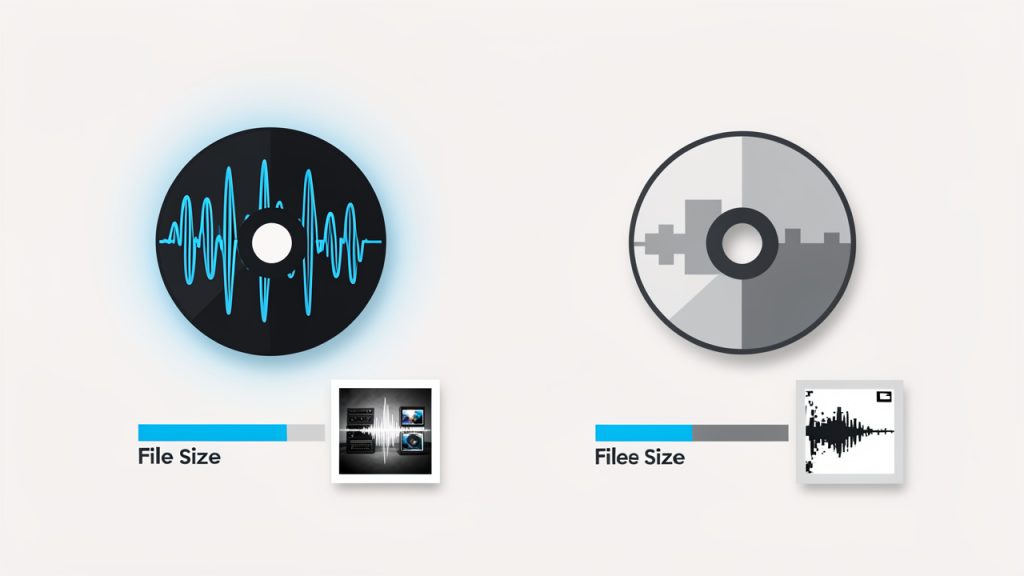
    The technical difference matters. MP3 and AAC are both lossy codecs, but AAC is generally more efficient. That means an M4A file encoded with AAC can often sound as good as, or better than, an MP3 at the same bitrate. In some cases, it can also be smaller for the same perceived quality. That is why people often move from MP3 to M4A when optimizing libraries for mobile use.

    Compatibility is broad for both formats, but not identical. MP3 is still the safest universal format. M4A works well on iPhone, iTunes, macOS, many Android apps, modern Windows players, VLC, and most current media software. If your main goal is Apple device sync, better metadata handling, or more efficient AAC compression, converting can make sense.

    When Should You Convert MP3 to M4A?

    There are a few practical reasons to convert. If you organize your music in Apple Music, iTunes, Finder, or an iPhone-focused workflow, M4A often feels more natural. If you are trying to reduce file size while keeping decent listening quality, AAC in an M4A container can also be a smart choice. Podcasts and spoken-word content can especially benefit from efficient AAC settings.

    That said, you should not convert simply because you expect better audio. If your source file is already an MP3, converting it to M4A does not restore lost detail. It is a bit like photocopying a photocopy into a different paper size. You might get a more convenient version, but you do not recover the original information.

    If sound quality matters, the best path is to start from a lossless source such as WAV, FLAC, or ALAC, then create your M4A from that original. If you downloaded an MP3 and just want it to play, sometimes the best move is to leave it alone. If a service offers the same track in AAC or M4A natively, downloading that version is better than converting the MP3 yourself.

    How Conversion Works: What Actually Happens When You Convert Audio

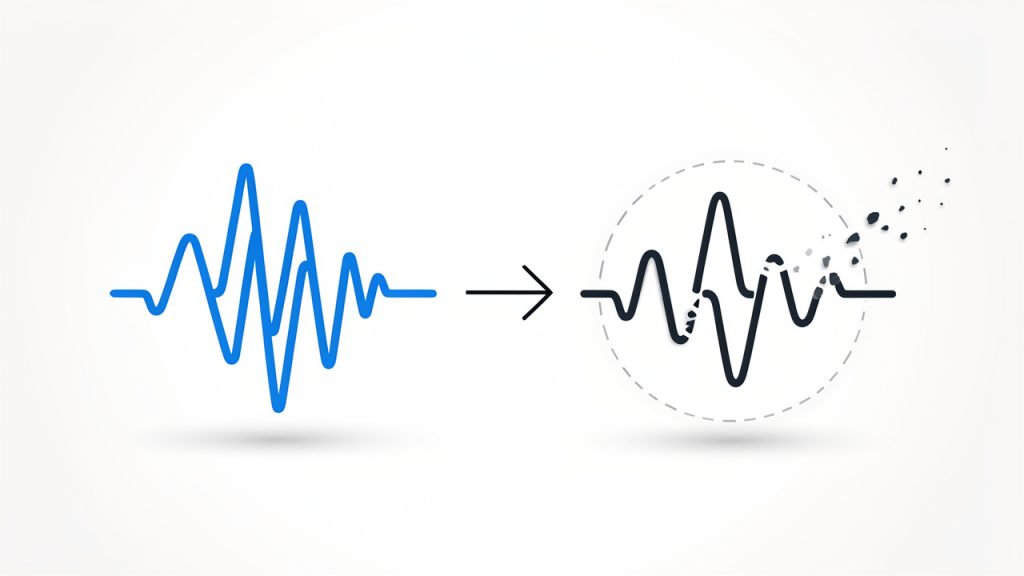
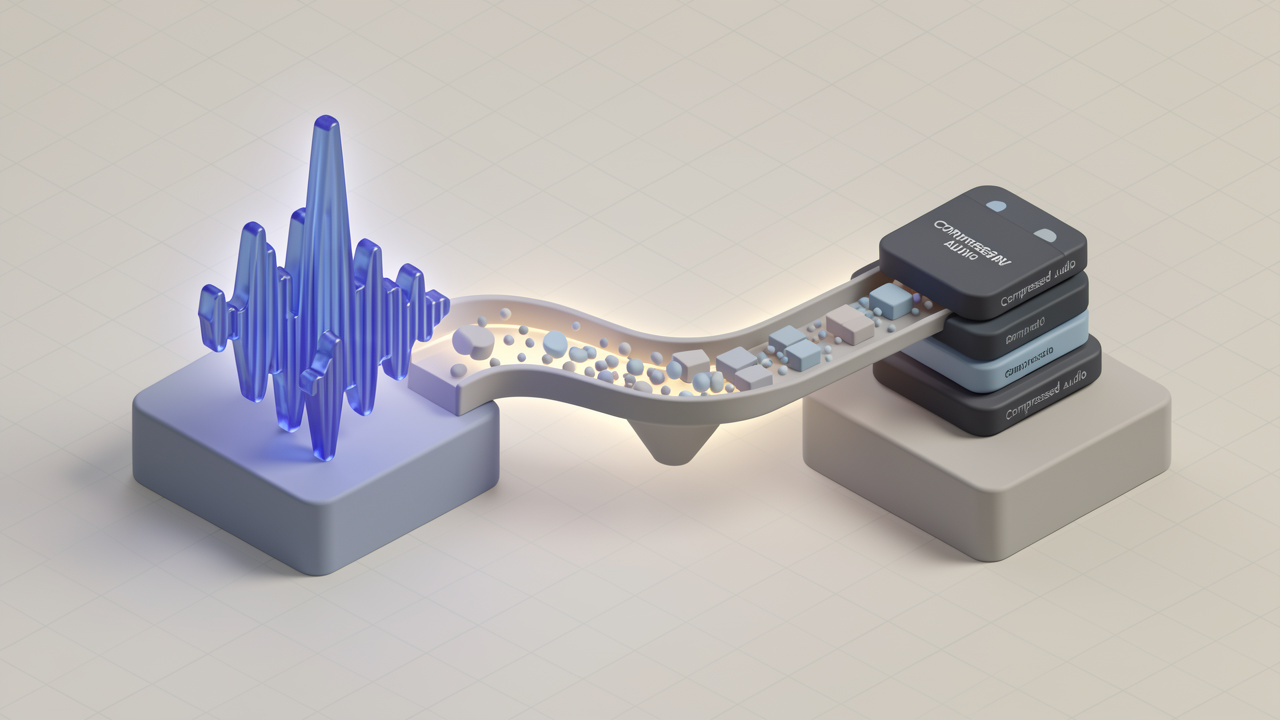
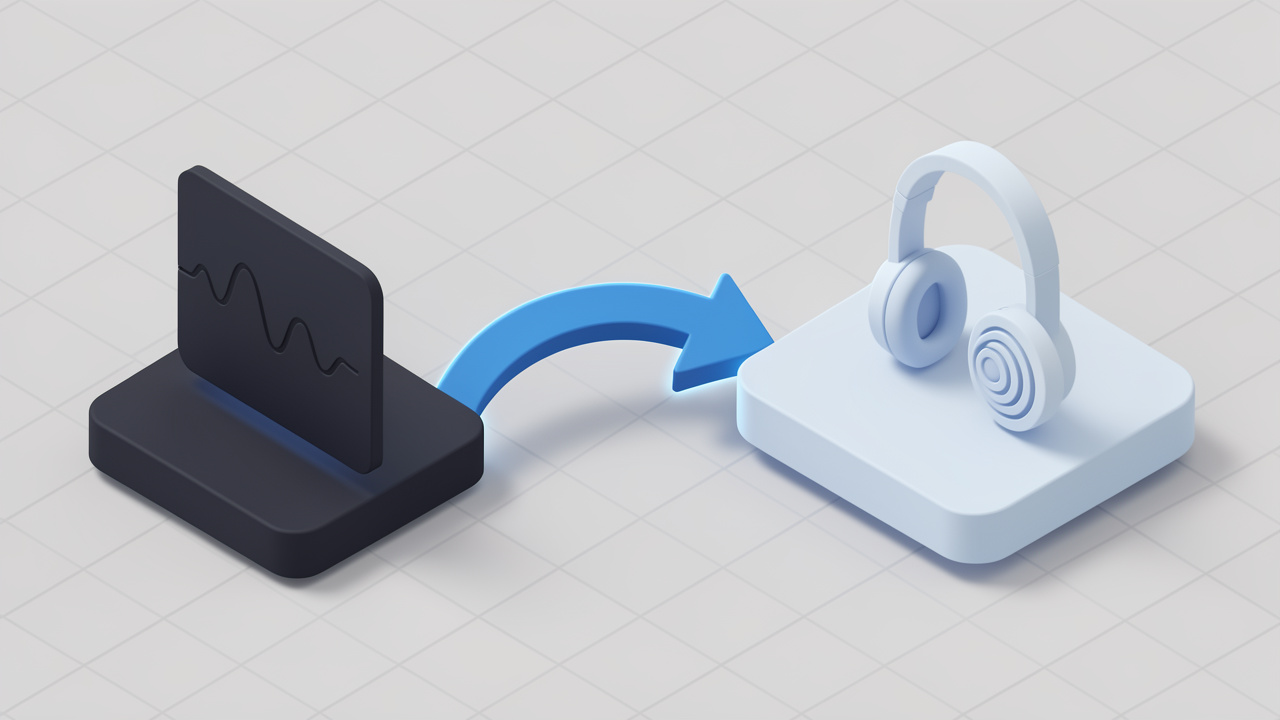
    In most MP3-to-M4A workflows, the audio is re-encoded. That means the MP3 is decoded back into audio data, then encoded again as AAC inside an M4A container. This is not the same as simply changing a filename extension or repackaging the stream. Because MP3 and AAC are different codecs, a true conversion almost always requires this extra compression step.
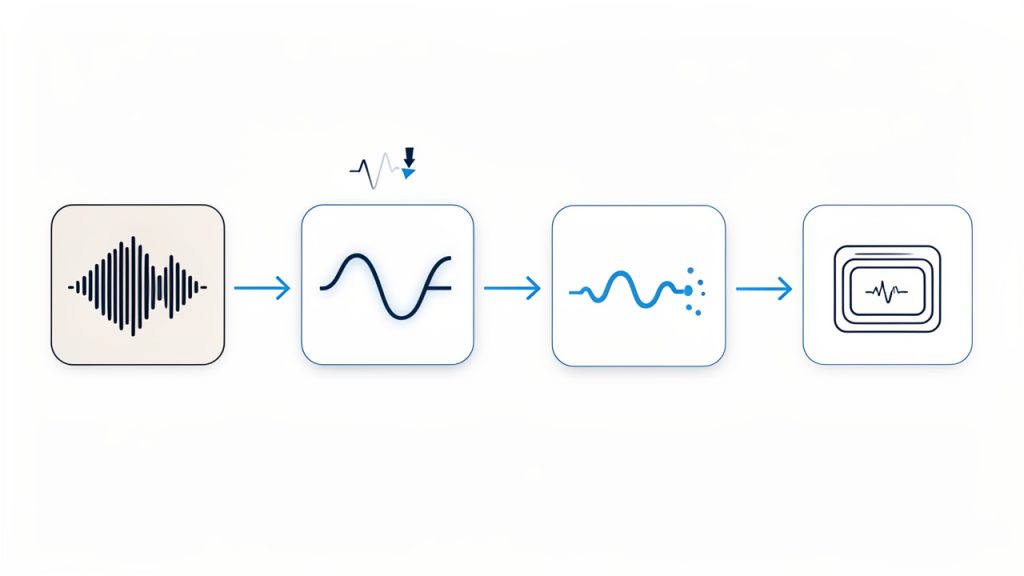
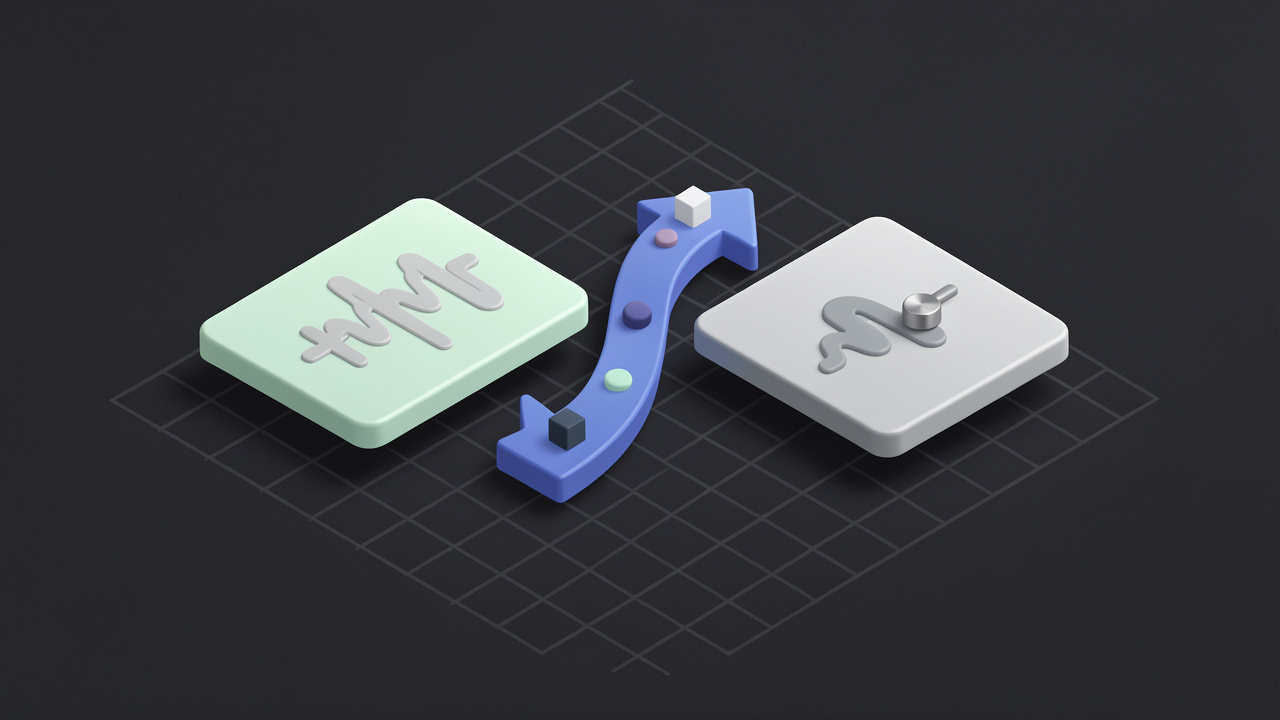
    A step-by-step conversion flow diagram: MP3 (compressed) -> decode to PCM (raw audio) -> encode to AAC -> wrap in M4A container. Include side notes: 'Re-encoding can reduce quality', 'Sample rate usually unchanged', and an icon showing metadata mapping (ID3 -> MP4 tags) with a warning about album art/custom fields.

    Bitrate plays a major role. For music, AAC-LC at 192 to 256 kbps is a sensible range for most users. For podcasts or voice recordings, lower settings may still sound perfectly fine. Sample rate usually stays the same as the source unless you deliberately change it. In most cases, there is no need to force a different sample rate.

    Metadata is another overlooked issue. MP3 files typically use ID3 tags, while M4A files use MP4-style metadata tags. Good converters can map fields such as title, artist, album, track number, and genre automatically, but album art and some custom fields may not always carry over cleanly. That is why the best tools either preserve metadata directly or make retagging easy afterward.

    Top Methods to Convert MP3 to M4A

    Below are the most useful tools and services for converting MP3 to M4A, ranked by flexibility, ease of use, and real-world practicality.

    1. FFmpeg

    FFmpeg is the most powerful option on this list. It is a free, open-source command-line tool that can convert audio with precise control over codec, bitrate, metadata, and batch workflows. If you want repeatable results, automation, or professional-level flexibility, FFmpeg is hard to beat.

    FFmpeg supports AAC encoding into M4A, batch conversion through scripts or terminal commands, metadata copying with -map_metadata 0, and cross-platform support for Windows, macOS, and Linux. It offers fine control over bitrate, sample rate, and encoder options. Because it runs offline, it is better for privacy and automation than web tools.

    FFmpeg is free and open-source, extremely flexible, excellent for bulk conversion, and works offline. Its downsides are the command-line interface, which may intimidate beginners, and the fact that some advanced AAC encoders may not be included in every build.

    A simple high-quality conversion command looks like this:

    ffmpeg -i input.mp3 -c:a aac -b:a 256k -map_metadata 0 output.m4a
    

    This tells FFmpeg to take input.mp3, encode it as AAC at 256 kbps, copy metadata from the source, and save the result as output.m4a.

    For quality-based encoding with an FFmpeg build that includes libfdk_aac, you can use:

    ffmpeg -i input.mp3 -c:a libfdk_aac -vbr 3 -map_metadata 0 output.m4a
    

    For batch conversion on macOS or Linux:

    for f in *.mp3; do ffmpeg -i "$f" -c:a aac -b:a 256k -map_metadata 0 "${f%.mp3}.m4a"; done
    

    For batch conversion in Windows PowerShell:

    Get-ChildItem *.mp3 | ForEach-Object { ffmpeg -i $_.FullName -c:a aac -b:a 256k -map_metadata 0 "$($_.BaseName).m4a" }
    

    Website: https://ffmpeg.org

    2. VLC Media Player

    VLC is best known as a video player, but it also works as a capable media converter. For users who want a free desktop app with a graphical interface, VLC is one of the easiest ways to convert MP3 files to M4A without installing a specialized audio program.

    VLC includes a built-in converter, processes files offline, and runs on Windows, macOS, and Linux. It is convenient if you already have VLC installed and it is safer than many random online converters for private files. The interface is not optimized for batch audio workflows, metadata handling can be inconsistent, and it exposes fewer transparent settings than FFmpeg.

    To use VLC, open Media > Convert/Save, add your MP3 file, choose Convert, select an AAC or M4A-compatible profile, set the destination filename with the .m4a extension, then start the conversion. If the default profile is vague, create a custom profile with AAC audio and verify the container format.

    Website: https://www.videolan.org

    3. Apple Music app / iTunes

    If you are an Apple user, this is often the smoothest method. On older Windows systems and older macOS versions, iTunes can convert MP3 files to AAC. On modern Macs, the Music app handles similar library-based workflows. This route is ideal if your files are already organized in an Apple library and you want tight integration with iPhone or iPad syncing.

    Apple’s tools are built for Apple workflows, offer library-based conversion, and generally manage metadata and artwork well. They are very convenient for Mac and iPhone users, require no command-line knowledge, and produce files that are highly compatible with Apple devices. The trade-off is less flexibility than FFmpeg and fewer options for advanced batch automation.

    To convert, go to the import settings in iTunes or the Music app, choose AAC Encoder, set your preferred quality, then select the MP3 file in your library and create an AAC version. The converted file will typically appear alongside the original.

    Website: https://www.apple.com

    4. CloudConvert

    CloudConvert is one of the better online options for converting MP3 to M4A when you do not want to install software. It supports many file types, has a cleaner interface than most web converters, and usually provides clearer conversion settings than bare-bones alternatives.

    CloudConvert offers web-based conversion with custom output settings and works across devices without local installation. It is very convenient and beginner friendly, but uploading audio to a third-party server is not ideal for sensitive recordings, private voice notes, unreleased media, or licensed content with restrictions. For occasional non-sensitive files, it is a solid choice.

    If you use CloudConvert, upload the MP3, select M4A as the output format, check audio settings if available, choose AAC at a sensible bitrate such as 192 or 256 kbps, then download the converted file.

    Website: https://cloudconvert.com

    5. Zamzar

    Zamzar has been around for years and remains one of the most recognizable online conversion services. Its strength is simplicity: upload a file, choose the target format, and wait for the conversion. For users who want minimal friction and do not need advanced settings, Zamzar is often enough.

    Zamzar is very easy to use from almost any browser, but it provides limited control over advanced audio settings and is not ideal for sensitive files. It may be slower for large uploads and is best for public-domain clips or disposable test files.

    Website: https://www.zamzar.com

    6. Online-Convert

    Online-Convert is another web-based service that often gives users more direct control over conversion settings than ultra-simple competitors. That makes it a better pick if you want some configurability without using FFmpeg or desktop software.

    Online-Convert is convenient from the browser and offers more settings than some competitors. Privacy concerns still apply, the interface can feel utilitarian, and free usage may be limited, but it works well for quick experiments and basic bitrate adjustments.

    Website: https://audio.online-convert.com

    7. The Audio Converter (iPhone/iPad)

    For iOS users, The Audio Converter is one of the more straightforward apps for converting files directly on a phone or tablet. It is useful when you receive audio by email, Files, or cloud storage and need a quick format change without moving to a desktop.

    The main benefit is mobility, and it is handy for a few files on the go. For larger libraries, mobile conversion can feel clunky.

    Website: https://www.floattechapps.com

    8. Android converters

    On Android, several apps can convert MP3 to M4A locally. The exact best choice can change over time, so choose an app with solid reviews, recent updates, and clear permission requirements. Good Android converters are handy for quick mobile edits or field recordings, but be cautious: mobile store apps vary widely in quality and some include ads or ask for suspicious permissions.

    Website: https://play.google.com

    Recommended Tools and Where They Shine

    Choosing the best converter is easier when you map it to your actual use case rather than chasing a generic “best tool” label.

    Tool Best For Platform Privacy Ease of Use Batch Support
    FFmpeg Power users, developers, archivists Windows, macOS, Linux Excellent, offline Moderate to low for beginners Excellent
    VLC Media Player Casual desktop users Windows, macOS, Linux Excellent, offline Good Basic
    Apple Music / iTunes Apple-centric libraries macOS, Windows Excellent, offline Very good Moderate
    CloudConvert Quick one-off web conversions Browser Moderate to low Excellent Limited
    Zamzar Simple online use Browser Moderate to low Excellent Limited
    Mobile apps Phone-only workflows iOS, Android Varies by app Good Low

    If you want the best free desktop option, use FFmpeg if you are comfortable with commands and VLC if you prefer buttons. If you live in the Apple ecosystem, Music app or iTunes is the most seamless route. If you only need one quick conversion and the file is not sensitive, CloudConvert is usually the strongest online pick.

    Step-by-Step: Convert MP3 to M4A Using FFmpeg

    Installing FFmpeg is straightforward. On Windows, download a trusted build from the official FFmpeg site or a reputable package source. On macOS, many users install it through Homebrew. On Linux, it is usually available through the distribution’s package manager.

    Once installed, start with a simple command:

    ffmpeg -i input.mp3 -c:a aac -b:a 256k -map_metadata 0 output.m4a
    

    Here is what the flags mean. -i input.mp3 sets the source file. -c:a aac selects the AAC audio encoder. -b:a 256k sets audio bitrate to 256 kbps. -map_metadata 0 copies metadata from the first input. output.m4a defines the destination file and container.

    If your build supports libfdk_aac, many users consider it a high-quality AAC encoder:

    ffmpeg -i input.mp3 -c:a libfdk_aac -vbr 3 -map_metadata 0 output.m4a
    

    For voice content or smaller files, you can reduce bitrate:

    ffmpeg -i input.mp3 -c:a aac -b:a 128k -map_metadata 0 output.m4a
    

    If album art does not transfer automatically, you may need a more explicit mapping workflow, especially when the source contains embedded cover art in a form FFmpeg interprets separately.

    How to Keep Metadata and Album Art When Converting

    Metadata transfer is where many converters fall short. MP3 files commonly use ID3 tags, while M4A relies on a different metadata structure. Basic tags like artist, album, and title often copy over without trouble, but embedded artwork can be inconsistent.

    FFmpeg’s -map_metadata 0 helps preserve tags, but after conversion, it is worth checking the result in a dedicated tag editor such as Mp3tag or Kid3. These tools are especially useful if fields appear blank, track numbering breaks, or cover art disappears.

    If metadata matters a lot to you, the Apple Music app and iTunes often do a better job in Apple-centric workflows. For manual cleanup on Windows, Mp3tag is one of the easiest options. On cross-platform setups, Kid3 is a solid choice.

    Quality Tips and Best Practices

    The most important rule is simple, do not expect quality gains from lossy-to-lossy conversion. If your MP3 is already compressed, your best goal is to avoid making it noticeably worse. For music, AAC-LC at 192 to 256 kbps is a safe recommendation. For podcasts and voice, 96 to 128 kbps can be enough, depending on the source.

    AAC-LC is the standard choice for most music. HE-AAC can be efficient at very low bitrates, but it is not the best default for general music libraries. If you care about future-proofing, keep your original MP3 and, when possible, archive from a lossless master like FLAC or WAV so future conversions do not compound quality loss.

    Safety, Privacy, and Legal Considerations

    Online converters are convenient, but they introduce real privacy risk. If the file contains private interviews, internal business recordings, client assets, or unreleased material, keep the conversion offline. Use FFmpeg, VLC, or an Apple desktop tool instead.

    Legality matters too. Converting audio you own for personal use may be acceptable in some contexts, but converting protected streaming content or bypassing platform restrictions can violate terms of service or copyright law. Always check the rules that apply in your region and with the service you are using.

    Malware is another concern, especially with obscure “free converter” apps. Download software from official websites, avoid bundled installers, and verify app reviews and permissions before installing on desktop or mobile.

    Troubleshooting Common Problems

    If the converted file will not play, the issue is often the codec or container combination. Make sure you encoded to AAC and saved with the .m4a extension. Simply renaming a file is not conversion.

    If metadata is missing, rerun the conversion with metadata mapping or open the file in Mp3tag or Kid3 to inspect fields manually. If track names become generic or artwork disappears, the source tags may not have mapped cleanly into the M4A structure.

    If quality sounds worse than expected, check whether you converted a low-bitrate MP3 into an even lower-bitrate AAC. That usually compounds artifacts. Try a higher target bitrate, but remember that higher bitrate cannot restore detail already lost in the original MP3.

    If file sizes are too large, your bitrate may be unnecessarily high. For everyday listening, stepping down from 256 kbps to 192 kbps AAC often offers a better balance between size and perceived quality.

    Frequently Asked Questions (FAQ)

    Does converting an MP3 to M4A improve quality?

    No. Converting an existing MP3 to M4A does not improve the original audio quality. It may help with compatibility, library management, or file size efficiency, but it cannot restore lost detail.

    Can I convert without losing metadata?

    Often, yes. Tools like FFmpeg, iTunes, Music app, and some desktop converters can preserve metadata. Album art and custom fields may still need manual checking.

    Is M4A better than MP3 for all devices?

    No. M4A is excellent for Apple devices and many modern apps, but MP3 remains the most universally compatible format across older hardware and software.

    Which is smaller, MP3 or M4A?

    At similar perceived quality, M4A with AAC is often smaller than MP3. The exact result depends on the encoder and bitrate you choose.

    Conclusion and Recommended Next Steps

    If you want the simplest answer, here it is. Use FFmpeg for control and batch jobs, VLC for an easy free desktop workflow, Apple Music or iTunes if you live in the Apple ecosystem, and CloudConvert only for non-sensitive one-off files.

    For the best results, keep your original file, use AAC-LC, aim for 192 to 256 kbps for music, and verify metadata after conversion. If quality really matters, start from a lossless source instead of an MP3.

    A practical next step is to create a small test set with one song, one podcast, and one file with album art. Convert them with your preferred tool, compare file size, playback, and metadata, then apply the same settings to the rest of your library. That simple test will save you far more time than redoing hundreds of files later.
  • How to Convert WMA Files to MP3 Quickly

    How to Convert WMA Files to MP3 Quickly

    Converting a WMA file to MP3 sounds simple until you actually need to do it fast. Maybe a client sent audio in the wrong format. Maybe an old voice recording will not play on your phone. Or maybe you are organizing a library of training files, podcasts, or archived interviews and keep running into compatibility issues.

    That is where the need to convert WMA into MP3 becomes practical, not technical. MP3 remains one of the most widely supported audio formats across phones, browsers, editing tools, cloud platforms, and everyday media players. If you want fewer playback problems and easier file sharing, turning WMA audio into MP3 is often the quickest fix.

    What is converting WMA to MP3?

    At its core, converting WMA to MP3 means changing an audio file from Windows Media Audio (WMA) format into MP3, a more universally accepted format. Both use lossy compression, but they were designed with different ecosystems in mind. WMA was developed by Microsoft and was once common in Windows-based software and older digital music libraries. MP3, by contrast, became the default standard for portable audio because it works almost everywhere.

    For most users, the format itself matters less than the outcome. You want your audio to open, play smoothly, upload easily, and work across devices without extra apps or compatibility warnings. That is why MP3 still dominates for everyday use. Whether you are handling business recordings, webinar exports, customer support clips, or personal audio files, MP3 is usually the safer destination format.

    People search for ways to convert WMA into MP3 because they want a quick, free, and reliable conversion method. They are not usually looking for a deep lesson in audio engineering. They want a file that simply works. That said, understanding a few basics helps you avoid quality loss, bloated files, or failed conversions.

    Why WMA still shows up

    WMA is not obsolete, but it is less convenient than it used to be. Many older desktops, CD rips, archived media collections, and legacy business systems still produce or store audio in WMA format. If you have inherited files from an older workflow, there is a good chance WMA is part of the mix.

    This matters for small teams and freelancers because legacy files tend to surface at inconvenient moments. A training department may need old audio modules republished. A virtual assistant may be asked to upload recordings into a modern content platform. A developer may need compatible assets for an app or browser-based tool. In each case, converting from WMA into MP3 removes friction.

    Why MP3 remains the default choice

    MP3 is popular for one simple reason, compatibility. It plays nicely with websites, smartphones, editing tools, email attachments, cloud storage systems, and social platforms. If your goal is broad usability, MP3 is often the right final format.

    It also offers a practical balance between file size and sound quality. For spoken-word audio, such as interviews, lectures, voice notes, and webinars, MP3 usually provides more than enough quality without creating oversized files. That balance is especially useful when you are sharing files with clients or uploading them through limited dashboards.

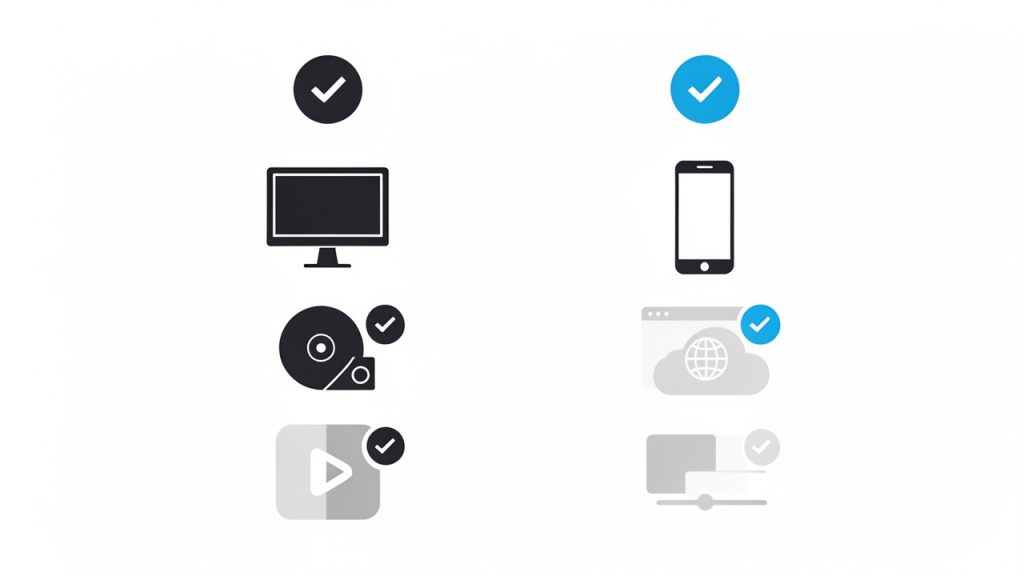
    Compatibility comparison illustration: where each format works best.

    Key aspects of converting WMA into MP3

    Converting audio is not just about changing the extension. A good conversion preserves the listening experience while making the file easier to use. To do that well, you need to think about quality, file size, compatibility, and workflow.

    Audio quality and compression

    Both WMA and MP3 use compression, which means they reduce file size by removing some audio data. When you convert a compressed file into another compressed format, there is usually some degree of quality trade-off. In plain language, each conversion can shave off a little detail.

    For most business and everyday use cases, this is not a major problem. If you are converting a spoken recording, meeting audio, or standard music file for normal listening, the difference may be negligible. But if the source file is already low quality, or if you convert it multiple times, the loss can become noticeable. That is why it is smart to convert from the original WMA file once and keep a backup of that source.

    Bitrate plays a major role here. A higher MP3 bitrate generally means better audio quality and a larger file. A lower bitrate creates smaller files but can introduce artifacts or dullness. For voice-heavy content, moderate settings often work well. For music, you may prefer a higher bitrate to retain more depth and clarity.

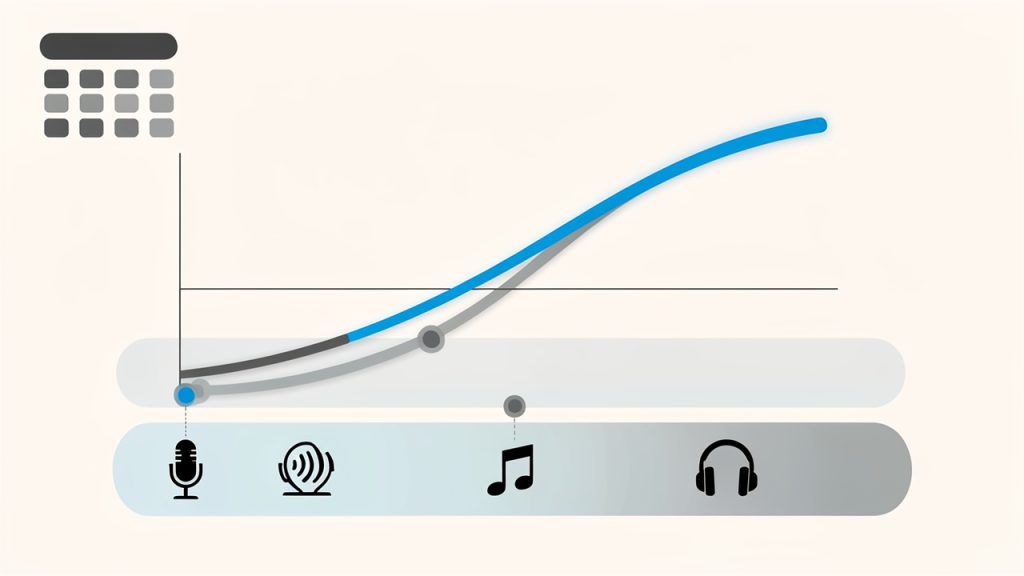
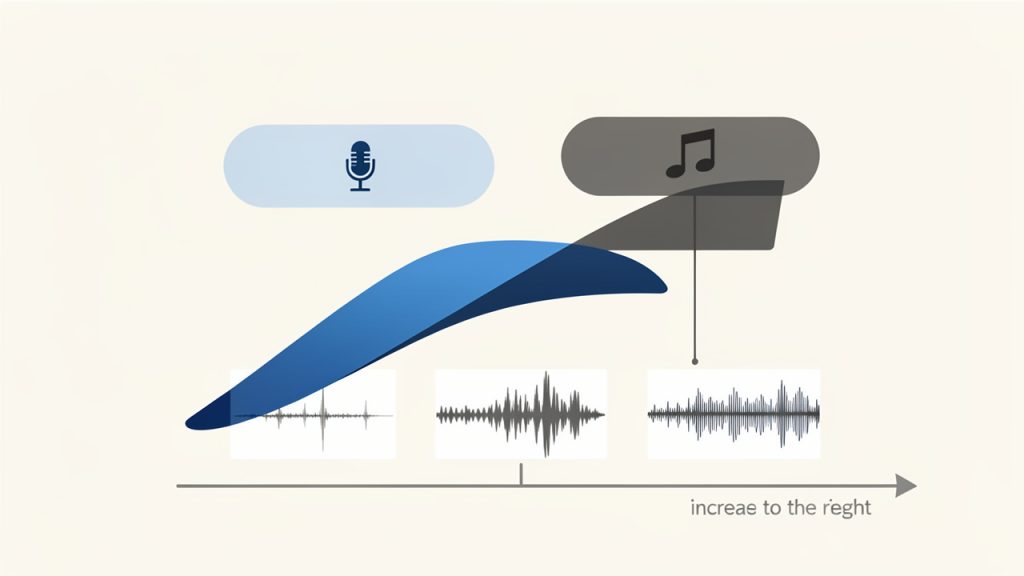
    Bitrate vs quality vs file size graphic: shows audio quality vs file size with markers for low, moderate, and high bitrates and a note about repeated conversions lowering quality.

    File size and storage efficiency

    One reason users search for ways to convert WMA files into MP3 is file sharing. Modern workflows rely on uploads, email attachments, cloud syncing, and mobile downloads. If a file is awkwardly formatted or too large, it slows everything down.

    MP3 gives you more control over size because many converters let you choose output settings. That can be useful if you are preparing files for a website, online course, client portal, or internal knowledge base. Smaller files upload faster and stream more smoothly, which improves the experience for your audience.

    The trade-off is straightforward. Smaller files are convenient, but compressing too aggressively can hurt quality. The ideal setting depends on how the audio will be used. A customer-facing podcast deserves more care than a simple internal memo recording.

    Device and platform compatibility

    Compatibility is the strongest case for converting WMA audio into MP3. WMA may still work in certain desktop environments, but support is less consistent on mobile devices, browser tools, and non-Windows platforms. If you need a format that behaves predictably across ecosystems, MP3 is the practical answer.

    This is especially relevant for freelancers and small businesses that use a patchwork of tools. You might record on one device, edit on another, upload through a browser, and share with clients using entirely different systems. MP3 reduces the chance that someone on the other end will reply with, “I cannot open this file.”

    Speed, simplicity, and online tools

    Most users do not want to install heavy software just to convert a few files. That is why online converters are popular. They are fast, accessible, and often free for basic use. You upload the WMA file, choose MP3 as the output, and download the converted version.

    That convenience comes with a few considerations. If the audio contains sensitive client information, internal meetings, or private interviews, you should pay attention to privacy policies and file retention rules. Convenience is valuable, but trust matters more when the content is confidential.

    For non-sensitive files, online conversion is often the easiest route. It is especially useful for occasional tasks, quick turnarounds, and lightweight workflows where installing desktop software would be overkill.

    A simple format comparison

    Format Full Name Best For Compatibility Typical Benefit Typical Limitation
    WMA Windows Media Audio Older Windows-based libraries and legacy systems Moderate Efficient in some Microsoft environments Less universal support
    MP3 MPEG Audio Layer III General playback, sharing, web use, mobile devices Very high Broad compatibility and flexible file sizes Possible quality loss at low bitrates

    How to get started converting WMA files into MP3

    If you need to convert a file today, the process is usually straightforward. The key is choosing the right method for your situation. A one-off personal file may call for an online converter, while frequent batch work may be better handled with installed software.

    Choose the right conversion method

    Start by thinking about volume and sensitivity. If you only have one or two audio files and they are not confidential, an online tool is often enough. It is quick, requires no setup, and works from almost any device. If you regularly convert recordings, or you need better control over output settings, dedicated desktop software may be more efficient.

    Browser-based tools are ideal for convenience. Desktop apps are better when you need batch conversion, offline access, or stronger privacy. The best tool is the one that fits your workflow without creating extra steps.

    Use sensible output settings

    When converting a WMA file to MP3, avoid choosing settings blindly. Think about where the audio is going next. If it is for speech, online learning, virtual meetings, or internal documentation, you can often use a moderate bitrate and get a clean result with manageable file size.

    If the file contains music, layered sound, or anything intended for polished public listening, choose higher quality settings. You do not need to over-optimize, but you do want to avoid making the file sound thin or distorted. It is often worth testing one sample conversion before processing a whole batch.

    Follow a basic conversion workflow

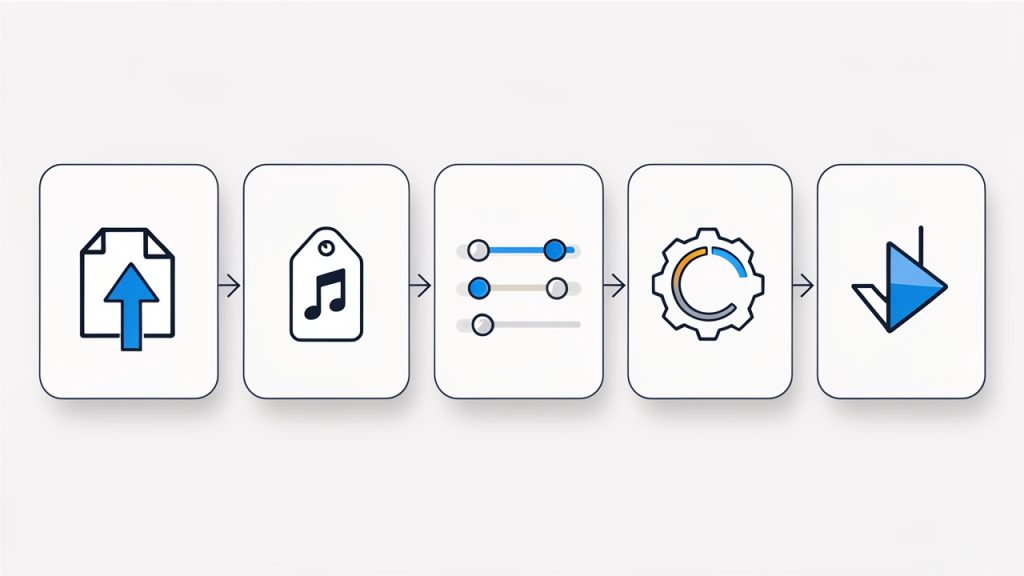
    For most tools, the process looks like this:

    1. Upload or import the WMA file.
    2. Select MP3 as the output format.
    3. Choose quality settings, if available.
    4. Start the conversion.
    5. Download and test the MP3 file on the device or platform where it will be used.

    The last step matters more than people think. A file that converts successfully is not always a file that performs well in the real world. Test playback, confirm the duration is correct, and make sure the audio sounds as expected before you send it to a client or publish it online.

    Organize files for repeated use

    If conversion is part of your regular workflow, a little organization saves time. Keep your original WMA files in a clearly labeled archive folder. Store the converted MP3 files separately. Add naming conventions that identify the version, date, or intended use.

    This is especially helpful for agencies, consultants, and content teams. Audio assets pile up quickly, and confusion grows when files have similar names but different formats. A simple folder structure can prevent duplicate work and make future updates easier.

    Common problems and how to avoid them

    One common mistake is converting a file several times. Every repeated conversion can degrade quality, so it is better to convert once from the original source and keep that original safely stored. Another issue is choosing output settings that are too low, which can make voice recordings sound muffled or metallic.

    Playback issues can also happen if the file extension changes but the actual format does not. A proper conversion tool re-encodes the file correctly. Simply renaming the extension from .wma to .mp3 does not work. If a converted file seems broken, try a different converter or re-export with more standard settings.

    Conclusion

    Converting WMA audio into MP3 is ultimately about making audio easier to use. MP3 wins because it is widely supported, easy to share, and flexible enough for everything from voice notes to customer-facing content. If you are dealing with older files or inconsistent playback, conversion is often the fastest way to remove friction from your workflow.

    Your next step is simple. Pick one file, convert it to MP3, and test it on the device or platform where it needs to work. If the result sounds right and plays everywhere you need it, you have a repeatable process you can use again and again.

    For a quick refresher on converting a WMA file to MP3, see this short guide on common WMA file to MP3 conversion steps.

  • MP3 Converter: Fast, Private Audio Conversion for Workflows

    MP3 Converter: Fast, Private Audio Conversion for Workflows

    Audio files have a way of becoming a bottleneck at the worst possible moment. A podcast episode is ready, but it is in the wrong format. A client sends a voice note that will not play on your device. A webinar recording is too large to upload, too awkward to share, or incompatible with the editing tool you actually use. That is where a Mp3 converter becomes one of those simple tools that quietly saves time, money, and frustration.

    For small business owners, freelancers, developers, and productivity-focused users, the appeal is obvious. You want an audio file that works everywhere, opens quickly, and is easy to store, send, publish, or archive. An MP3 converter helps you take audio from one format and turn it into MP3, the most widely recognized and supported format in everyday use. The trick is not just converting files, but doing it in a way that preserves quality, protects privacy, and fits smoothly into your workflow.

    What is an MP3 converter?

    An MP3 converter is a tool that changes audio files from one format into MP3. In practical terms, it takes files such as WAV, AAC, M4A, FLAC, OGG, or even audio extracted from video, and transforms them into a version that is easier to play on nearly any phone, laptop, browser, media app, or car stereo. It is a format translator, but one with real implications for file size, quality, compatibility, and convenience.

    The reason MP3 remains so popular is simple. It balances compression and usability exceptionally well. Uncompressed formats like WAV can sound excellent, but they are often large and cumbersome. Other compressed formats may offer technical advantages, but MP3 still wins on universal support. If your goal is to make audio accessible to clients, team members, listeners, or customers with minimal friction, MP3 is often the safest choice.

    For business and productivity use, this matters more than many people realize. A converted audio file can be easier to attach to emails, upload to a CMS, embed on a website, distribute in an online course, or share in a project management system. Instead of forcing the recipient to troubleshoot playback issues, you provide a file they can use immediately. That is the real value of a good MP3 converter. It removes technical obstacles from communication.

    Why people use MP3 so often

    MP3 became the default for a reason. It is lightweight, familiar, and broadly accepted across devices and software. If you are publishing voiceovers, training clips, interviews, or customer-facing media, there is a good chance MP3 will work without extra instructions or compatibility checks.

    There is also a practical storage benefit. Converting large raw recordings into MP3 can significantly reduce file size, which makes cloud storage less expensive and transfer times shorter. For freelancers and small teams juggling multiple projects, that can add up quickly. A smarter file format is not just a technical preference, it is an operational advantage.

    Common file types an MP3 converter handles

    Most MP3 converters are built to accept a wide range of input formats. A typical tool can work with audio formats like WAV, FLAC, AAC, OGG, and M4A. Some also extract audio from video files such as MP4 or MOV, which is useful when you need the soundtrack, interview audio, or meeting recording without the full video attached.

    The exact support varies by tool, of course. Some online converters focus on speed and simplicity, while desktop tools often support more advanced settings. That difference matters if you need batch conversion, bitrate control, metadata editing, or privacy protections for sensitive files.

    Key aspects of MP3 converters

    Choosing an MP3 converter is not just about whether it works. Most tools can convert a file. What separates a useful converter from a frustrating one is how well it handles quality, speed, control, and security. Those factors affect the final listening experience and the amount of time you spend fixing avoidable issues.

    Audio quality and bitrate

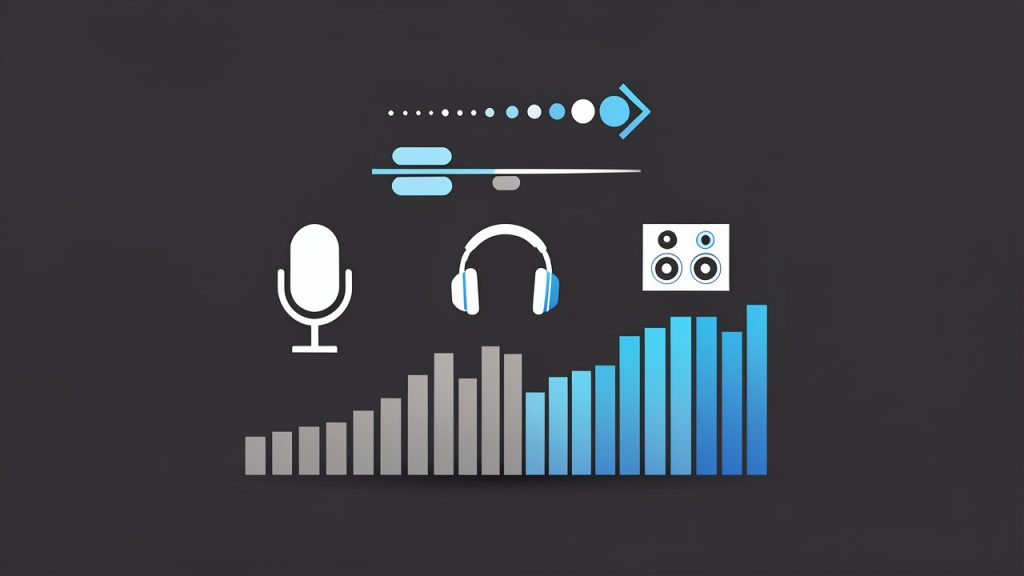
    Bitrate trade-offs: file size vs audio quality

    The most important concept to understand is bitrate. Bitrate determines how much audio data is stored per second in the MP3 file. In simple terms, higher bitrates usually mean better sound quality, but also larger file sizes. Lower bitrates save space, but can make audio sound thin, muffled, or compressed.

    For spoken audio such as interviews, voice notes, or training content, a moderate bitrate is often enough. For music, sound design, or premium branded media, higher bitrate settings are usually worth it. The right choice depends on how the file will be used. If the audio is part of a public-facing product, quality should carry more weight. If it is an internal memo or a rough archive, a smaller file may be more practical.

    File size and storage efficiency

    One of the biggest reasons to use an MP3 converter is compression. Large files create friction. They upload slowly, consume storage, and can fail in low-bandwidth environments. MP3 reduces that burden while keeping the audio usable for most everyday purposes.

    This is especially helpful for businesses that create recurring content. If you record frequent client calls, podcast episodes, tutorials, or training materials, keeping everything in uncompressed formats can become expensive and disorganized. Converting finalized content into MP3 gives you a more manageable media library without making your systems feel overloaded.

    Compatibility across devices and platforms

    Compatibility is where MP3 continues to shine. An MP3 file will usually play with minimal resistance across operating systems, browsers, smartphones, media players, and communication platforms. That broad compatibility is often more valuable than small technical differences in format performance.

    Think of it like sending a PDF instead of a niche document type. You are choosing the format most likely to open successfully for the other person. When you use an MP3 converter, you are often making the file more usable for everyone else, not just for yourself. That matters when your audience includes clients, customers, team members, or students using different devices and apps.

    Speed and ease of use

    For many users, especially those who rely on free online tools, the best MP3 converter is the one that gets the job done quickly. A clean interface, fast uploads, and straightforward export settings can save more time than a long list of advanced features you never touch.

    That said, simplicity should not come at the cost of control. A useful converter should make basic actions easy while still giving you access to options like bitrate selection, trimming, filename handling, and batch processing when needed. The ideal experience is quick for routine work and flexible for more demanding tasks.

    Privacy and security considerations

    Privacy is often overlooked until the audio file contains something sensitive. If you are converting internal calls, customer interviews, confidential meetings, or pre-release content, uploading files to a random online converter may not be a smart move. Some services retain uploads longer than expected or provide limited clarity about data handling.

    This is why it is worth checking how a converter treats your files. Look for clear deletion policies, secure uploads, and transparent terms. If the content is especially sensitive, a desktop or offline MP3 converter may be the better option. Convenience matters, but data control matters more when the audio is business-critical.

    Feature differences between converter types

    Converter TypeBest ForStrengthsTrade-offs
    Online MP3 converterQuick one-off tasksNo installation, easy access, works in browserUpload limits, privacy concerns, fewer advanced controls
    Desktop MP3 converterFrequent or sensitive conversionsBetter performance, offline use, richer settingsRequires installation, may have a learning curve
    Mobile MP3 converter appOn-the-go tasksConvenient from phone or tabletSmaller interface, limited power for larger jobs
    Integrated media editorUsers already editing audio/videoConversion plus trimming, editing, taggingCan be overkill for simple conversions

    How to get started with an MP3 converter

    Getting started with an MP3 converter is usually straightforward, but a little planning helps you avoid quality loss and unnecessary rework. The first step is to define your outcome. Are you converting for playback compatibility, smaller file size, email sharing, publishing, or archiving? That single decision influences the settings you should choose.

    If you are converting speech-based content, focus on clarity and manageable file size. If you are converting music or branded audio assets, preserve more quality. If speed is the main concern, an online tool may be enough. If privacy, batch processing, or repeat use matters, a desktop solution is often the smarter long-term choice.

    A simple way to begin

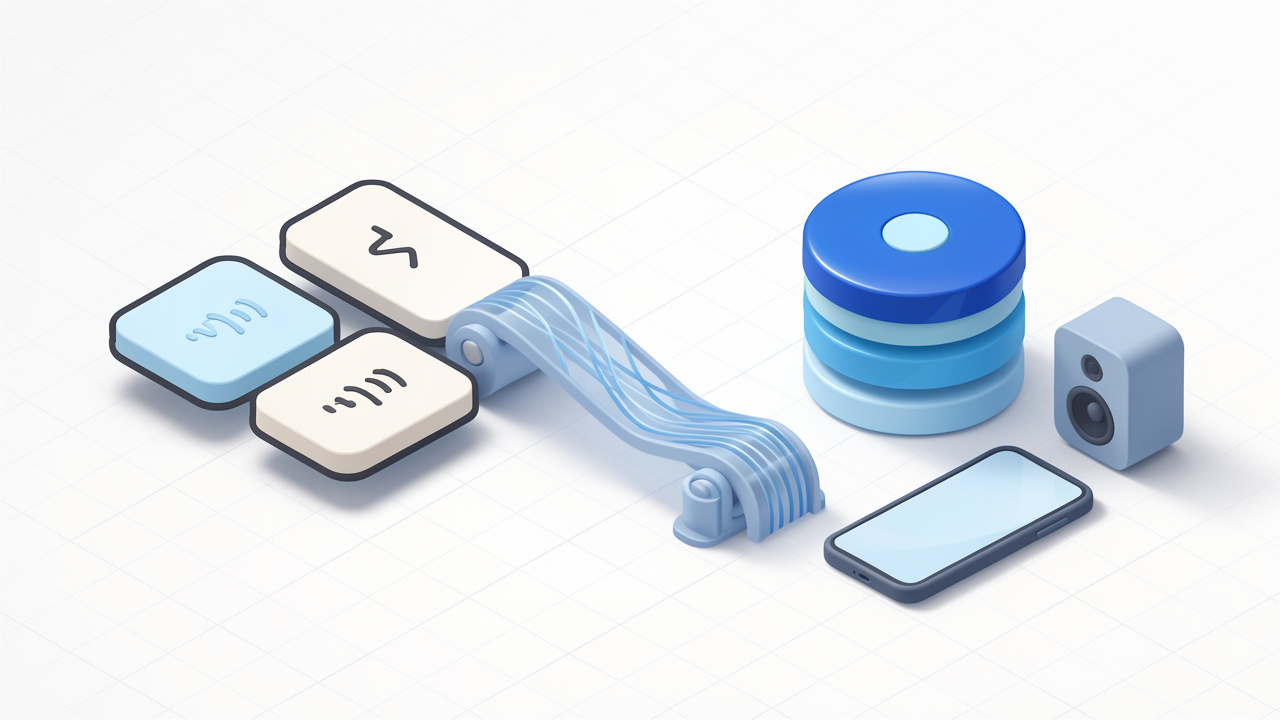
    MP3 conversion workflow

    You do not need a complicated setup to start using an MP3 converter effectively. In most cases, the process follows the same pattern:

    1. Upload or import your file.
    2. Choose MP3 as the output format.
    3. Select quality or bitrate settings.
    4. Convert and download the new file.
    5. Test playback before sharing or publishing.

    Those five actions are enough for most everyday tasks. The final step is the one people skip most often. Always test the converted file on at least one common device or player. A successful conversion is not just a completed download, it is a file that sounds right and behaves as expected.

    Choosing the right settings

    Settings matter because conversion is not magic. If you choose a very low bitrate, the file may be smaller, but the sound can suffer noticeably. If you choose a very high bitrate for a simple spoken memo, you may be wasting storage and upload time without gaining meaningful quality.

    A useful rule of thumb is to match the setting to the purpose. Voice recordings can often be converted at moderate settings while remaining clear and professional. Music, polished content, and public-facing assets deserve more generous quality settings. This is where testing one or two versions can save trouble later. Compare them briefly and keep the smallest file that still sounds good.

    Avoiding common conversion mistakes

    A common mistake is converting a file repeatedly between compressed formats. Each conversion can degrade quality, especially if the source is already compressed. If possible, start from the highest-quality original file, then create your MP3 from that version. It is similar to making copies of a photocopy. Each generation tends to lose something.

    Another mistake is ignoring metadata and naming conventions. If you are handling dozens of client files, podcast clips, or training modules, a vague filename like “audio-final-new-2.mp3” will create confusion fast. A clean naming structure makes your converted files easier to search, share, and archive. Good organization turns conversion from a one-time fix into a scalable workflow.

    When free online tools are enough

    For occasional use, free online MP3 converters can be perfectly adequate. If you have a non-sensitive file, a stable internet connection, and a basic need, such as turning a WAV file into something easier to email, an online tool can solve the problem in minutes.

    The key is to use them intentionally. Check file size limits, review privacy language, and avoid uploading confidential recordings unless you trust the platform. Free tools are best viewed as convenience tools, not automatic solutions for every type of media workflow.

    When you may need something more advanced

    As your needs grow, the limits of simple converters become more obvious. If you regularly process multiple files, need precise bitrate control, want to trim silence, preserve metadata, normalize audio levels, or automate repetitive tasks, a more advanced MP3 converter or media application can save significant time.

    This is especially true for freelancers and teams working with recurring content pipelines. A podcast producer, course creator, virtual assistant, or developer managing downloadable assets often benefits from a repeatable process rather than one-off browser conversions. At that point, the converter becomes part of your production system, not just a rescue tool.

    Practical use cases for business and productivity

    The value of an MP3 converter becomes clearer when you look at everyday scenarios. A consultant may record client summaries and convert them into lightweight MP3 files for quick delivery. A coach might turn webinar audio into downloadable lessons. A developer building a knowledge base may need standardized audio assets that load reliably across platforms. In each case, conversion supports a smoother user experience.

    There is also a strong internal productivity angle. Teams often work with recordings from meetings, interviews, or brainstorming sessions. Converting those files into MP3 can make them easier to share in cloud folders, messaging tools, or project systems. That sounds small, but repeated across a week or month, it reduces friction in collaboration.

    Typical use cases at a glance

    Use CaseWhy MP3 HelpsWhat to Prioritize
    Podcast publishingEasier distribution and broad playback supportHigher audio quality, metadata
    Client voice deliverablesFast sharing and smaller attachmentsClear speech, consistent naming
    Course and training contentAccessible downloads for students or staffBalance quality and file size
    Meeting archivesEasier storage and playback laterCompression efficiency, organization
    Audio from videoExtracts only what you needAccuracy, format support

    How to choose the best MP3 converter for your needs

    The best MP3 converter is the one that fits your actual workflow, not the one with the longest feature list. If you only convert a file once a month, simplicity should win. If you manage content daily, reliability and control matter more than a polished homepage.

    Start by looking at four things: supported formats, output settings, file limits, and privacy handling. Those basics tell you whether the tool can realistically support your needs. After that, usability becomes the deciding factor. If the process feels clumsy, users tend to make mistakes, skip checks, or postpone tasks.

    For professional use, it is also worth considering whether the tool supports future growth. Today you may only need single-file conversion. Later, you may want batch processing, faster exports, or audio cleanup features. A converter that scales with your workflow often delivers more long-term value than one that solves only the immediate problem.

    Conclusion

    An MP3 converter is a simple tool with outsized practical value. It helps turn awkward, oversized, or incompatible audio files into a format that is easy to play, share, store, and publish. For small businesses, freelancers, developers, and productivity-minded users, that translates into smoother communication, faster workflows, and fewer technical interruptions.

    If you are just getting started, begin with a straightforward file conversion and pay attention to quality, compatibility, and privacy. Test the output, refine your settings, and build a small repeatable process around the kinds of audio files you use most. Once you do, an MP3 converter stops being a utility you only remember in a pinch, and becomes a reliable part of how you work.

  • Convert WAV to MP3: Fast, Simple Audio Compression

    Convert WAV to MP3: Fast, Simple Audio Compression

    If you work with audio files regularly, you already know how quickly WAV files can become inconvenient. They sound great, but they are bulky, slow to share, and often far larger than you need for everyday use. That is where Wav to mp3 conversion becomes practical, it turns high-quality, uncompressed audio into a smaller, easier-to-manage format without making your workflow more complicated.

    For small business owners, freelancers, developers, and productivity-minded users, this is more than a file format choice, it is about saving storage, speeding up uploads, making files easier to distribute, and keeping your audio usable across devices and platforms. Whether you are handling podcast clips, voice notes, training materials, or music samples, knowing when and how to convert WAV to MP3 can streamline your entire process.

    What is Wav to mp3?

    WAV to MP3 is the process of converting an audio file from the WAV format into the MP3 format. WAV, short for Waveform Audio File Format, is typically uncompressed, which means it preserves a lot of audio detail but creates very large files. MP3, on the other hand, uses compression to reduce file size while keeping the sound quality acceptable for most everyday uses.

    The difference is easy to understand if you think of it like packaging. WAV is the full original box, with every part included exactly as it was recorded. MP3 is the same content packed into a much smaller container, making it easier to carry, send, and store. For many use cases, that trade-off is worth it.

    Same content, different packaging

    This is why WAV to MP3 conversion is so common in content creation, business communication, and digital publishing. A file that once took up hundreds of megabytes can often shrink dramatically after conversion, which makes it much easier to upload to websites, attach to emails, or keep organized on your computer.

    Why WAV files are often converted

    WAV files are excellent when you need maximum fidelity, such as in recording, editing, mastering, or archiving original audio. But once that stage is over, the large file size can become a problem. If you are publishing a voice recording, distributing a lesson, or sharing a sound asset with a client, you usually do not need the full weight of a WAV file.

    MP3 is widely supported across phones, laptops, media players, apps, and browsers. That broad compatibility makes it a convenient final format for distribution. In practice, many users keep a WAV master for editing and export an MP3 version for everyday access.

    What changes during conversion

    When converting WAV to MP3, the file is compressed, which means some audio information is removed to reduce size. The quality difference is not always obvious, especially at higher bitrates, but the file becomes much smaller and more practical.

    This makes bitrate an important part of the decision, a higher bitrate MP3 usually sounds better and preserves more detail, while a lower bitrate creates a smaller file. The right choice depends on what you are using the file for. A training clip or spoken audio file can usually be compressed more aggressively than a music track intended for close listening.

    Bitrate vs quality vs file size

    Key Aspects of Wav to mp3

    The most important thing to understand about WAV to MP3 is that it is not just a technical conversion, it is a balance between quality and convenience. If you want the highest possible quality for production work, WAV is often the safer choice. If you want portability and efficiency, MP3 usually wins.

    Audio quality is the first factor people worry about, and for good reason. MP3 is a lossy format, which means it sacrifices some audio data during compression. That does not automatically make it bad, it simply means that the output is optimized for smaller size, not perfect preservation. For most spoken audio, business use, and casual listening, the difference is often acceptable.

    File size is the second major consideration. A WAV file can be several times larger than the same audio saved as MP3. That matters when you are uploading multiple files, working with limited storage, or sending content to clients and collaborators. Smaller files also load faster, which can improve user experience on websites and in apps.

    Compatibility is another reason MP3 remains so popular. While WAV is supported by many systems, MP3 is nearly universal. If you need a format that works reliably across platforms, MP3 is usually the safer bet. That is especially helpful when you are publishing files for an audience you do not control.

    Quality versus convenience

    The quality-versus-size trade-off is the heart of the conversation. A WAV file is often the right choice during production because it gives you more flexibility for editing and processing. An MP3 is often the right choice at the end of the workflow because it is smaller and easier to distribute.

    For example, if you are a freelancer delivering audio samples to a client, you might keep the project in WAV while editing, then export the final version as MP3 for easy review. If you are a business owner uploading a podcast episode preview or an internal announcement, MP3 is likely more efficient than sending a huge WAV file.

    When MP3 makes more sense

    MP3 is usually the better option when the audio is meant for listening rather than editing. That includes interviews, lectures, voice memos, marketing assets, and basic website audio. In these situations, the practical benefits of compression usually outweigh the minor quality loss.

    If the audio will be heavily edited later, or if it serves as a master archive, staying in WAV may be wiser. The key is to match the format to the purpose. That is the real productivity win, choosing the right file type before storage and sharing become a bottleneck.

    Common use cases

    Use caseBetter formatWhy
    Final audio for web uploadMP3Smaller size and broad compatibility
    Editing and masteringWAVUncompressed quality preserves detail
    Voice memos and meetingsMP3Easier to store and share
    Audio archivesWAVBetter for long-term preservation
    Client delivery for reviewMP3Convenient and lightweight

    How to Get Started with Wav to mp3

    Getting started with WAV to MP3 conversion is usually straightforward. You do not need advanced technical knowledge, and in many cases you can complete the process in a browser using a free online tool. The key is knowing what to look for before you upload anything.

    First, check whether the tool supports your audio file size and whether it allows you to choose bitrate settings. A good converter should be simple enough for quick use, but flexible enough to let you control output quality. If your source file is important, it is also smart to use a converter that handles files securely and deletes uploads after processing.

    Before converting, make sure your original WAV file is clean and ready. If you are using audio from a recording session, trimming silence, removing noise, or making edits first can save time later. Conversion will not improve the sound, so it is best to finalize the audio before changing formats.

    What to look for in a converter

    A practical WAV to MP3 tool should be easy to use, fast, and reliable. It should not make you dig through confusing settings just to complete a simple task. For many users, the best tools are the ones that make the process feel almost invisible.

    • Ease of use: The upload and conversion process should be simple and intuitive.
    • Bitrate control: Higher bitrate options help preserve better sound quality.
    • Security: Upload handling should be safe, especially for business or client files.
    • Speed: Fast conversion saves time when dealing with multiple files.
    • Compatibility: The tool should work on desktop and mobile browsers when needed.

    Choosing the right bitrate

    Bitrate has a direct impact on the final MP3 quality and file size. Higher bitrates generally sound better but create larger files. Lower bitrates reduce size further, but they can introduce noticeable audio artifacts, especially in music or complex recordings.

    For speech, a moderate bitrate is often enough. For music or branded audio where quality matters more, a higher bitrate is usually the safer choice. If you are unsure, it is better to start a little higher, then reduce only if file size becomes a problem.

    A simple workflow for conversion

    A practical workflow usually looks like this: prepare the WAV file, upload it to the converter, choose the output settings, and download the MP3 version. That sounds basic, but the value is in consistency. Once you establish a repeatable process, you can convert files quickly without thinking about it each time.

    If you work with audio often, it helps to keep both versions when appropriate. The WAV file can serve as your master copy, while the MP3 is your shareable version. That gives you flexibility later if you need to edit again or export into another format.

    Best practices for everyday use

    One of the smartest habits is to keep your original WAV files organized before converting anything. That way, if you ever need a different bitrate or a fresh export, you are not forced to start over. A clear folder structure saves time and reduces mistakes.

    It also helps to name files clearly. Instead of generic labels, use descriptive names that tell you what the file contains, such as a project name, date, or version number. That small habit makes a big difference once your audio library starts growing.

    Conclusion

    WAV to MP3 conversion is one of those simple tasks that can make a big difference in your workflow. WAV gives you quality and flexibility, while MP3 gives you convenience and reach. When you understand the trade-offs, it becomes much easier to choose the right format for the job instead of defaulting to one option every time.

    The next step is to look at your own audio workflow and decide where file size, compatibility, and speed matter most. If the goal is sharing, publishing, or everyday listening, MP3 is often the practical choice. If the goal is editing, preservation, or production work, keep the WAV file as your source and convert only when you are ready.

  • Text-to-Speech Online Free MP3: Best Tools & Workflow Guide

    Text-to-Speech Online Free MP3: Best Tools & Workflow Guide

    Finding a reliable text to speech online free MP3 tool sounds simple until the details start to matter. One service has a clean interface but weak voices. Another sounds excellent but hides MP3 export behind a signup. A third looks free until the licensing terms rule out commercial use. For developers, creators, and anyone building efficient workflows, the real problem is not converting text to audio, it is choosing a tool that produces usable MP3 output, predictable quality, and a workflow that does not collapse at scale.

    This guide is built for that exact use case. It combines a ranked comparison with practical implementation advice, so the reader can move from quick one-off MP3 exports to repeatable, production-aware text-to-speech pipelines. It also covers the technical layer most pages skip, including bitrate, sample rate, SSML, loudness normalization, API automation, and licensing risk.

    Overview, Text-to-Speech Online Free MP3

    Definition and core capabilities

    Text-to-speech (TTS) systems convert written text into synthesized speech. In the browser-based category, the typical workflow is simple: paste text, choose a voice, adjust rate or pitch, preview playback, then export an audio file.

    A simple flowchart of the typical browser-based TTS workflow: 1) Paste or type text -> 2) Choose language/voice -> 3) Adjust rate/pitch -> 4) Preview playback -> 5) Export/download MP3. Include small icons for each step (text, voice, sliders, play, download).

    What separates basic tools from useful ones is not the presence of a play button, it is the extent of control over voice quality, language coverage, pronunciation, and output format.

    For the specific search intent around text to speech online free MP3, MP3 export is the operational requirement. MP3 remains the most convenient output for general distribution because it is small, widely supported, and easy to embed in websites, learning modules, video editors, and mobile workflows. Most online TTS services target this format first, while some also expose WAV or OGG for higher fidelity or lower-latency application use.

    Common use cases

    Accessibility is the obvious one, especially for users who prefer listening to articles, instructions, or educational material instead of reading blocks of text. Audiobook prototyping is another common use, because a creator can test pacing and tone before committing to full narration. Voiceovers for internal demos, explainer videos, and UI prompts also fit naturally into online TTS workflows.

    Language learning and pronunciation support are growing use cases as well. A learner may need a consistent voice to model vocabulary, sentence rhythm, or accent contrast. Developers often use online TTS for prototyping before connecting to an API. That is where quick MP3 export becomes especially valuable, because it allows fast iteration without building a backend pipeline on day one.

    File output formats, with emphasis on MP3

    MP3 is a lossy codec, but for spoken voice it is often the most efficient trade-off between quality and file size. Typical online tools export anywhere from 64 kbps to 320 kbps, though many web demos settle in the 96 kbps to 192 kbps range. For general voice content, 128 kbps is usually acceptable, while 160 kbps to 192 kbps is a better target when the result will be reused in podcasts, course content, or public-facing media.

    A two-panel chart showing audio quality vs file size for MP3 bitrates (64, 96, 128, 160, 192, 320 kbps) and a separate table or annotated frequency-axis showing common sample rates (22.05 kHz, 24 kHz, 44.1 kHz, 48 kHz). Use arrows/labels to indicate recommended targets (128 kbps acceptable; 160–192 kbps for polished narration; 44.1 kHz as safer default).

    Sample rate also matters. Common values include 22.05 kHz, 24 kHz, 44.1 kHz, and 48 kHz. Lower sample rates reduce file size and can sound perfectly fine for prompts or screen-reader-style output. For polished narration, 44.1 kHz is a safer default. Online tools frequently hide these settings, so the user inherits whatever the service encodes by default. That is one reason results vary, even when the synthesized voice itself is strong.

    Most free browser tools also impose operational constraints. These may include per-session character caps, queue limits, daily quotas, or download throttling. Some demos allow listening but limit export. Others allow export but prohibit commercial reuse. Those constraints matter more than headline claims of “free.”

    Article Intent and Scope

    Search intent analysis

    The search phrase text to speech online free MP3 has mixed intent. Part of the audience wants a fast answer: a site that converts text into a downloadable MP3 with no friction. Another part wants a durable solution that supports multiple languages, batch generation, or integration into a production process. That means the query sits between informational and transactional search intent.

    A shallow list of tools is not enough for this query. The user usually needs two things at once: a comparison of viable options and a method for getting better output from whichever tool they choose. That is why a hybrid comparison plus how-to guide is the right structure.

    Scope and deliverables of this guide

    This guide ranks practical online TTS services that can produce MP3 output, then explains how to evaluate quality, control pronunciation with SSML, automate exports through APIs, and avoid licensing mistakes. It also highlights where free tools are sufficient and where upgrading to a paid service becomes rational.

    For teams building content systems or creator workflows, integrating audio generation into a broader publishing home can be valuable. A platform such as Home can fit naturally into the workflow when audio generation is part of a larger content operation, especially if the goal is to organize, publish, and manage assets in one place rather than treating TTS as an isolated one-off utility.

    Top Free Online TTS Tools That Export MP3, Comparative Matrix

    Selection criteria and testing methodology

    The tools below were selected based on practical relevance, public accessibility, voice quality reputation, and whether MP3 export is directly available or realistically achievable through a demo or cloud workflow. Testing used the same short English input, similar speaking-rate settings where possible, and an evaluation focused on three indicators: naturalness, latency, and output practicality.

    Naturalness is represented as an estimated MOS-style score on a five-point scale. This is not a lab-grade benchmark, but it is a useful directional measure for comparative listening. Latency reflects approximate time from submission to audible or downloadable output under normal web conditions. File quality considers perceived clarity, encoding quality, and whether the resulting MP3 is immediately usable.

    Feature matrix

    Tool MP3 Export Languages/Voices SSML Support Speed/Pitch Controls Signup Required Commercial Use Clarity Best For
    Home Varies by workflow integration Workflow-dependent Workflow-dependent Workflow-dependent Usually yes Depends on configured provider Teams managing content workflows
    TTSMP3 Yes Broad consumer voice set Partial/limited practical support Yes No Must verify terms carefully Fast one-off MP3 downloads
    NaturalReader Yes Broad, polished voices Limited in browser workflow Yes Often for advanced features Terms vary by plan Human-like playback and simple exports
    Google Cloud Text-to-Speech Yes Extensive Yes Yes Yes Clear in paid cloud terms Developers, automation, scale
    IBM Watson Text to Speech Yes Good enterprise coverage Yes Moderate Yes Clearer in cloud account terms Developer testing and enterprise use
    Microsoft Azure AI Speech Yes Extensive neural voices Yes Yes Yes Clear in Azure terms High-quality synthesis and production apps

    Performance indicators

    Tool Estimated Naturalness (MOS 1-5) Approx. Latency Observed Quality Notes
    Home 4.0-4.8, provider dependent Workflow dependent Strong if paired with premium TTS backend
    TTSMP3 3.8-4.3 Low Convenient, quality varies by selected voice
    NaturalReader 4.1-4.5 Low to medium Smooth consumer-grade voices
    Google Cloud Text-to-Speech 4.3-4.7 Low Clean, configurable, API-friendly
    IBM Watson Text to Speech 4.0-4.4 Low to medium Consistent, slightly more utilitarian timbre
    Microsoft Azure AI Speech 4.4-4.8 Low Among the strongest neural voice options

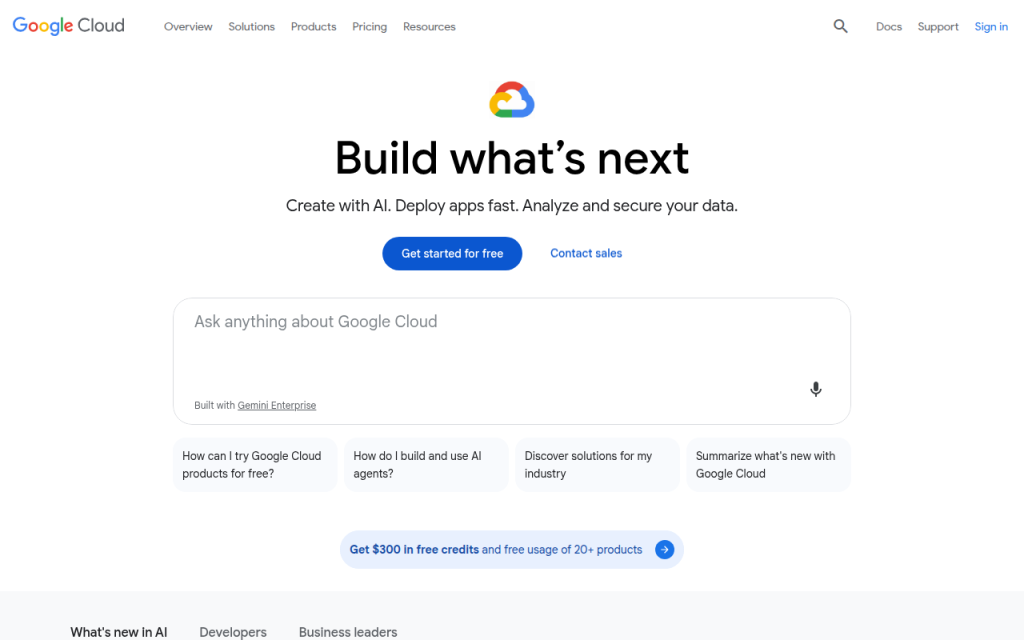
    1. Home

    Screenshot of cloud.google.com

    1. Home

    Home is not just a text-to-speech website in the narrow sense, it is more useful to teams and advanced users who need a place to organize content operations, publishing tasks, and tool-driven workflows in one environment. That matters because TTS rarely stays isolated for long. A single MP3 export becomes a set of recurring tasks: article narration, asset naming, metadata management, publishing, and version control.

    For users who want a more structured system instead of hopping between disconnected free tools, Home stands out as a workflow layer. If the objective is to integrate text to speech online free MP3 generation into a broader production process, this kind of environment can be more efficient than relying entirely on standalone converter pages. Pricing depends on the specific product usage model and any connected services.

    Website: utilitytools.com

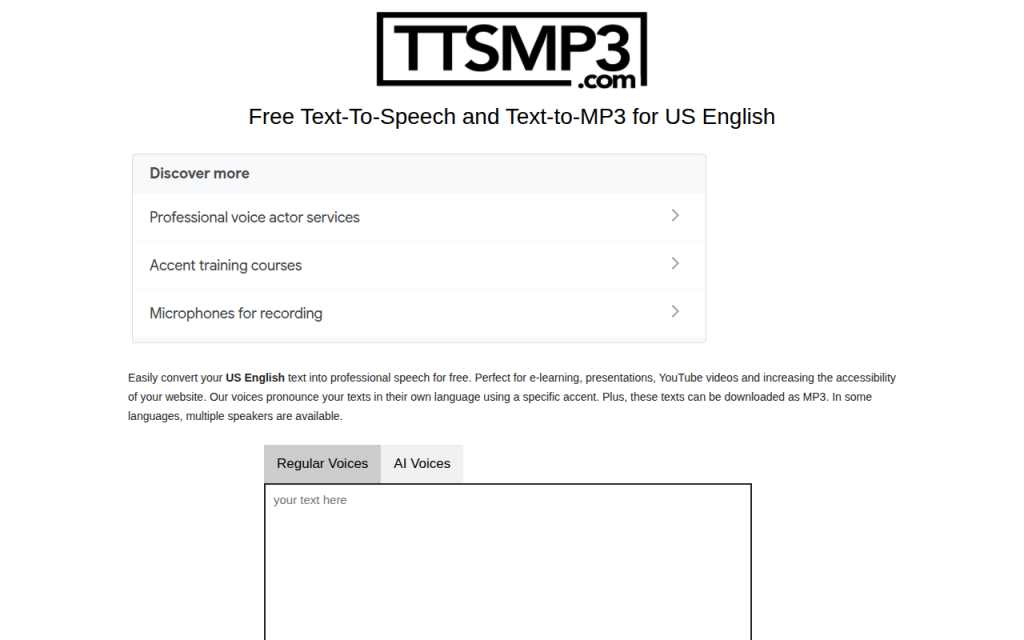
    2. TTSMP3

    Screenshot of ttsmp3.com

    2. TTSMP3

    TTSMP3 is one of the most direct answers to the query. It is designed for quick text input, voice selection, playback, and MP3 download with minimal friction. For users who want fast results and do not want to configure a cloud account, it is often the shortest path from text to a downloadable file.

    Its strength is convenience: a simple interface, a broad enough voice set for many scenarios, and an obvious export flow. The trade-off is that it is not built like a developer platform, so deep control, licensing confidence, and production guarantees are weaker than what cloud providers offer. In practical use, observed MP3 outputs are usually appropriate for casual voice content, often in the mid-bitrate range suitable for speech. Character limits and session restrictions may apply depending on traffic and tool policy.

    Website: ttsmp3.com

    3. NaturalReader

    Screenshot of naturalreaders.com

    3. NaturalReader

    NaturalReader is a strong option when voice smoothness matters more than raw configurability. It targets a broader audience than developers alone, and that can be an advantage because the product is designed to make listening feel easy. Its voices often sound more polished than users expect from a free web TTS experience.

    For creators making article narration, study materials, or simple voiceovers, NaturalReader often feels more refined than ultra-basic tools. The downside is that certain advanced capabilities, including licensing clarity or high-volume export, may depend on account level or plan structure. Pricing follows a freemium model, with free access for lighter usage and paid plans for more advanced voices or expanded features.

    Website: naturalreaders.com

    4. Google Cloud Text-to-Speech

    Screenshot of cloud.google.com

    4. Google Cloud Text-to-Speech

    Google Cloud Text-to-Speech is one of the best technical choices for users who move beyond manual browser conversion. While the entry path is less casual than a public converter site, the advantages are significant: high-quality voices, explicit API control, support for SSML, and reliable MP3 generation within a cloud environment.

    This tool stands out for developers, automation-heavy teams, and anyone who wants reproducible results. Instead of hoping a browser UI preserves the same settings tomorrow, the user defines the voice, encoding, speaking rate, and request structure directly. That precision is what makes cloud TTS attractive once the workload grows.

    Key features include an extensive voice catalog, SSML support for pauses, emphasis, and pronunciation control, and MP3 output via API configuration. The trade-offs are account setup and quota-based free usage rather than unlimited demos. Pricing is usage-based, and there is typically a free tier or trial path, but ongoing use follows cloud billing rules.

    Website: cloud.google.com

    5. IBM Watson Text to Speech

    5. IBM Watson Text to Speech

    IBM Watson Text to Speech remains a viable option for developers who want structured cloud access without relying on a consumer-facing converter. It provides programmable speech synthesis with an enterprise-oriented posture, which is useful when auditability, documentation, and service consistency matter.

    Its voice character can feel slightly more utilitarian than the most expressive neural offerings, but the platform is solid for application prompts, system narration, and internal tooling. The practical advantage is clearer cloud-account governance compared with ad hoc free websites. Pricing is cloud-based, with trial or lite access depending on current terms.

    Website: cloud.ibm.com

    6. Microsoft Azure AI Speech

    Screenshot of azure.microsoft.com

    6. Microsoft Azure AI Speech

    Microsoft Azure AI Speech is one of the strongest options for high-quality neural TTS in a scalable environment. It combines broad language support, strong voice realism, and mature SSML handling. For developers building products, content pipelines, or multilingual voice experiences, Azure is often near the top of the shortlist.

    Its main limitation in this context is friction: it is not the quickest way to generate one free MP3 in the browser if that is all the user wants. But for teams that care about reliability, voice selection, and future integration, the added setup effort pays off. Pricing is consumption-based, with free-tier and trial conditions depending on the account and region.

    Website: azure.microsoft.com

    How to Produce High-Quality MP3 from Online TTS

    Choosing bitrate and sample rate

    For spoken-word content, 128 kbps MP3 is the baseline that balances quality and size well. If the output will be embedded in videos, podcasts, or learning products, 160 kbps to 192 kbps is a safer range. Lower values such as 64 kbps can still work for short prompts or accessibility cues, but they are more likely to introduce audible artifacts around consonants and sibilants.

    For sample rate, 44.1 kHz is a strong default when fidelity matters. 22.05 kHz or 24 kHz is acceptable for compact voice prompts and internal tools. If a browser tool does not expose these parameters, evaluate the output by use case rather than assuming all MP3 files are equivalent.

    Using SSML for better speech

    SSML is the main mechanism for making synthetic speech sound intentional. It can insert pauses, emphasize words, slow or speed phrases, and correct pronunciation. This is one of the clearest differences between basic online text readers and serious TTS systems.

    A small SSML adjustment can fix many common problems. A badly paced sentence may only need a break tag. A mispronounced product name may need a phoneme or alias. A heading that sounds flat may need emphasis. When supported, SSML is often more important than switching providers.

    <speak>
      Welcome to <emphasis level="moderate">Home</emphasis>.
      <break time="400ms"/>
      This MP3 export uses <prosody rate="95%">controlled pacing</prosody>
      for clearer narration.
    </speak>
    

    Post-processing and loudness targets

    Even strong TTS output usually benefits from light post-processing. The most useful adjustments are normalization, gentle compression, and loudness targeting. For podcast-style spoken content, a target around -16 LUFS is a common reference. For mono voice or platform-specific requirements, the exact target may vary, but the key is consistency.

    Noise gating is usually unnecessary with synthetic voices because there is no room noise in the original generation. However, clipping can still occur if a platform applies aggressive gain or if multiple processing stages stack. A clean workflow keeps the generated MP3 at a moderate level, then normalizes once near the final output stage.

    Batch generation and automation

    Once the user needs more than a few files, browser-only workflows become inefficient. API-based generation is the natural next step. A request typically includes the input text or SSML, the voice name, and the desired output encoding such as MP3.

    curl -X POST 
      -H "Authorization: Bearer YOUR_TOKEN" 
      -H "Content-Type: application/json" 
      -d '{
        "input": {"text": "This is a sample MP3 export."},
        "voice": {"languageCode": "en-US", "name": "en-US-Neural2-C"},
        "audioConfig": {"audioEncoding": "MP3", "speakingRate": 1.0}
      }' 
      "https://texttospeech.googleapis.com/v1/text:synthesize"
    

    A Python workflow for batch export can read text rows from CSV, submit requests, decode the returned audio payload, and save each file under a predictable naming scheme.

    import csv
    import base64
    import requests
    
    API_KEY = "YOUR_API_KEY"
    URL = f"https://texttospeech.googleapis.com/v1/text:synthesize?key={API_KEY}"
    
    with open("input.csv", newline="", encoding="utf-8") as f:
        reader = csv.DictReader(f)
        for row in reader:
            payload = {
                "input": {"text": row["text"]},
                "voice": {"languageCode": "en-US", "name": "en-US-Neural2-C"},
                "audioConfig": {"audioEncoding": "MP3"}
            }
            r = requests.post(URL, json=payload, timeout=30)
            r.raise_for_status()
            audio_b64 = r.json()["audioContent"]
            with open(f'{row["slug"]}.mp3', "wb") as out:
                out.write(base64.b64decode(audio_b64))
    

    Licensing, Commercial Use, and Attribution

    A major weakness in many pages about text to speech online free MP3 is the absence of legal caution. Free access does not automatically mean commercial permission. Demo endpoints often exist for evaluation, not publication. Some services allow personal use but restrict monetized content, resale, or redistribution. Others require an account tier upgrade before generated audio can be used in products or public media.

    The safest workflow is procedural: capture the terms-of-service URL, record the plan name used for synthesis, and save screenshots or account records that show the entitlement in effect when the file was generated. If the service changes its terms later, this documentation helps establish what permissions were active at the time of production.

    Cost and Limitations, When Free Tools Are Not Enough

    Free tools are ideal for experiments, prototypes, and low-volume personal use. They become less practical when the project needs high throughput, consistent voice assignment, bulk export, reliable SSML support, or clean legal status. Rate limits are the first pressure point. Voice quality consistency is the second. Licensing confidence is often the third, and that one matters most when money is involved.

    Paid APIs start to make sense when audio generation becomes recurring operational work rather than occasional convenience. A small project may still fit comfortably inside free or trial quotas. A content site publishing narrated articles every day probably will not. At that point, cloud billing is less a cost problem and more a predictability advantage.

    Troubleshooting and FAQ

    If the voice sounds robotic, the cause is often not the engine alone. The script may be too dense, punctuation may be weak, or the speaking rate may be too fast. Inserting sentence-level punctuation and SSML breaks usually improves realism more than random voice switching.

    If MP3 output sounds worse than WAV, that is expected in some cases. MP3 compression discards information. With speech, the loss is usually acceptable, but repeated encode cycles make it worse. The fix is simple: keep a higher-quality master when possible, then export MP3 only once at the delivery stage.

    Pronunciation issues with accents, homographs, and proper nouns are common. SSML alias tags, phoneme tags, or strategic respelling can solve many of them. When automation fails, the usual causes are invalid credentials, quota exhaustion, malformed SSML, or character encoding issues in the submitted text.

    Implementation Examples and Recipes

    A simple single-click recipe looks like this: open a browser TTS tool such as TTSMP3 or NaturalReader, paste the article excerpt, choose a voice, lower the speaking rate slightly for long-form readability, preview the result, then export the MP3. If pronunciation is wrong and the interface does not support SSML, edit the text directly using punctuation and phonetic hints.

    A batch job recipe is more robust. Export article titles and body text into CSV, run a Python script that submits each row to a cloud TTS API, store the returned MP3 files with predictable slugs, and write metadata back to the CMS or content repository. This is where a structured environment such as Home becomes useful, because the MP3 is no longer just a file, it becomes part of a managed content asset workflow.

    Appendix, Test Inputs, SSML Samples, and Glossary

    A useful short test string is: “The quick brown fox jumps over the lazy dog. This is a sample narration for MP3 export.” A medium test should include dates, numbers, acronyms, and a proper noun. A long test should include multiple paragraphs to expose pacing issues, breath timing, and consistency over duration.

    Core glossary terms are straightforward. SSML is Speech Synthesis Markup Language. MOS is Mean Opinion Score, a human-rated quality measure. LUFS is a loudness unit used for delivery normalization. Sample rate defines how frequently audio is sampled. Bitrate defines how much encoded data is allocated per second.

    Conclusion and Recommendations

    For quick browser-based conversion, TTSMP3 is one of the fastest ways to get a downloadable file. For smoother consumer-grade voices, NaturalReader is often the better experience. For developers and teams that need reliable MP3 generation, Google Cloud, IBM Watson, and Azure AI Speech are stronger long-term options because they support automation, SSML, and clearer usage governance.

    The right next step depends on workload. If the task is a one-time MP3 export, start with a browser tool. If the task repeats weekly, evaluate API-driven generation. If audio is part of a broader content operation, use a workflow platform such as Home to keep narration, publishing, and asset management connected. That shift, from isolated conversion to managed workflow, is usually where the biggest efficiency gains appear.