
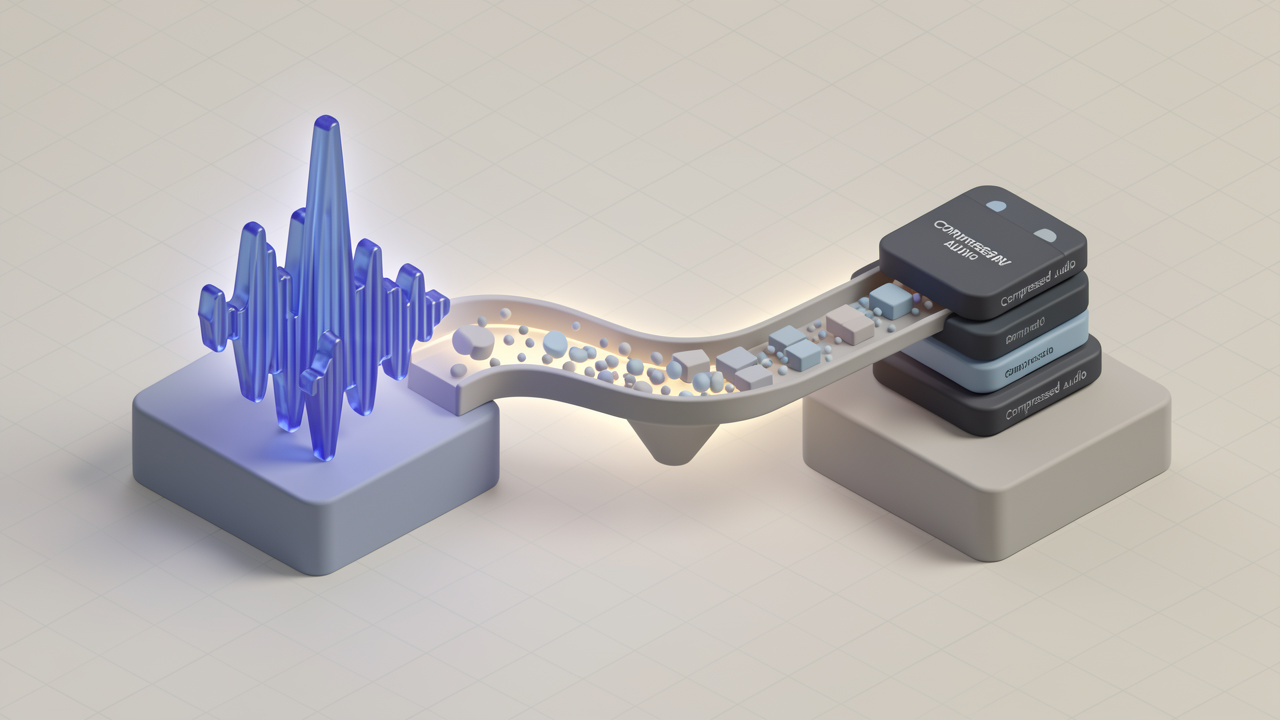
Converting a FLAC file to MP3 sounds simple until you care about what you might lose. One format is prized for audio purity, and the other wins on compatibility, smaller file size, and convenience. If you have a music library, podcast archive, voice recordings, or client audio assets sitting in FLAC, sooner or later you may need an MP3 version that works everywhere.
That is why so many people search for a practical way to handle FLAC-to-MP3 conversion. They want speed, quality, and a process that does not require audio engineering knowledge. Whether you are a freelancer sending audio to clients, a small business owner preparing files for a website, or a productivity-minded user organizing media across devices, the goal is usually the same: keep the sound good enough while making the file easier to use.
What Is FLAC to MP3?
At its core, converting FLAC to MP3 means changing an audio file from one format to another. FLAC stands for Free Lossless Audio Codec. It preserves all the original audio data without quality loss during compression. MP3, by contrast, is a lossy format. It reduces file size by removing parts of the audio that are considered less noticeable to the human ear.
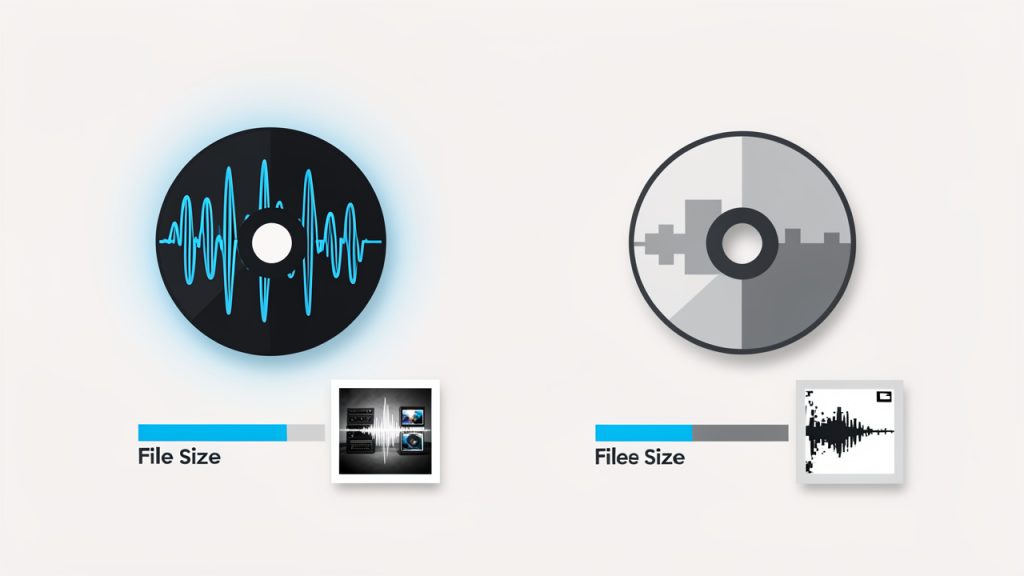
That difference matters. FLAC is often the preferred choice for archiving music, preserving masters, or keeping high-quality original recordings. MP3 is usually the better choice for everyday playback, email attachments, web uploads, and storage on devices with limited space. In simple terms, FLAC is like keeping the full-resolution original photo, while MP3 is like saving a smaller compressed version that is easier to share.
The search query “flac to mp3” usually reflects a practical need rather than technical curiosity. People may have downloaded music in FLAC only to discover their car stereo does not support it. They may need to upload audio to a platform with size limits. Or they may want to carry hundreds of tracks on a phone without sacrificing too much storage.
Key Aspects of FLAC-to-MP3 Conversion
Why People Convert FLAC Files
The biggest reason to convert FLAC files is compatibility. While FLAC support has improved over the years, MP3 remains nearly universal. Phones, car audio systems, web players, editing tools, and older media devices all understand MP3. If your workflow involves sharing files with clients or coworkers, MP3 removes friction.
The second major reason is file size. FLAC files are significantly smaller than uncompressed WAV files, but they are still much larger than MP3s. A large audio library in FLAC can consume substantial storage space. Converting to MP3 can reduce those files dramatically, which is useful for cloud backups, mobile devices, and quick transfers.
There is also a workflow reason. In business and creative work, not every audio file needs archival quality. A voice memo, rough interview cut, demo track, or background audio asset may not justify the storage overhead of lossless audio. In those cases, MP3 is often the more efficient format.
The Trade-Off Between Quality and Size
The main compromise in conversion is that quality loss is permanent. Once a FLAC file is converted to MP3, some audio information is removed. You cannot get that original fidelity back by converting the MP3 into FLAC later. The container may change, but the lost detail is still gone.
That sounds alarming, but in practice the outcome depends heavily on the bitrate you choose. A higher bitrate preserves more detail and usually sounds better, though it creates a larger file. A lower bitrate saves more space, but can introduce obvious artifacts, especially in complex music, cymbals, ambient recordings, or layered vocals.
For many listeners, a well-encoded MP3 at a solid bitrate will sound perfectly fine in casual listening environments. On earbuds during a commute, through laptop speakers, or in a car, the difference may be minimal. On studio monitors or high-end headphones, however, FLAC has a clearer advantage.
FLAC vs MP3 at a Glance
| Format | Compression Type | Audio Quality | File Size | Device Compatibility | Best Use Case |
|---|---|---|---|---|---|
| FLAC | Lossless | Excellent, original preserved | Larger | Moderate to strong, but not universal | Archiving, mastering, high-quality collections |
| MP3 | Lossy | Good to very good, depending on bitrate | Much smaller | Excellent, nearly universal | Sharing, streaming, portable playback |
Bitrate Choices Explained
When you convert FLAC to MP3, bitrate is the setting that deserves the most attention. It determines how much data is used each second to represent the audio. More data usually means better sound. Less data means a smaller file.
For spoken-word content such as interviews, lectures, and internal business recordings, a moderate bitrate may be completely sufficient. For music, especially tracks with dynamic range and texture, a higher bitrate tends to produce better results. If you are converting a music library and care about a balance between quality and storage, choosing a strong middle ground is often smarter than defaulting to the lowest possible setting.
If you are unsure, think about the file’s purpose. If the MP3 is for casual listening on mobile devices, a good-quality setting will likely be enough. If the file is being shared with clients, embedded in presentations, or reused in future projects, it makes sense to preserve more quality at the conversion stage.
Metadata and Album Art Matter Too
A common mistake in conversion is focusing only on sound quality and ignoring metadata. Track title, artist name, album, genre, year, and cover art all contribute to a usable library. If that information disappears during conversion, the result can be a messy collection of unnamed files that are harder to search and organize.
This matters even more for freelancers, podcasters, and small teams managing large audio folders. Proper metadata turns a pile of sound files into a clean asset library. A good converter should preserve tags wherever possible, especially if you work across devices and apps.
How to Get Started with FLAC to MP3
Choose the Right Conversion Method
There are three common ways to convert FLAC files into MP3 format: online converters, desktop software, and built-in media tools. The best option depends on what you value most.
Online converters are ideal for convenience. They are usually fast to access, require no installation, and work well for occasional jobs. This is especially useful if you only need to convert a few files and want a simple browser-based workflow. For productivity-focused users, that low-friction approach can be appealing.
Desktop tools are often better for privacy, batch processing, and fine-grained control. If you are converting large libraries, setting custom bitrates, or preserving metadata carefully, local software tends to offer a more reliable experience. It can also be the safer route for sensitive recordings, client assets, or internal business audio that you would rather not upload to a third-party service.
Know What to Check Before You Convert
Before starting a conversion, look at a few practical factors that affect the final result. Start with a genuine FLAC original, not a FLAC file that was previously created from a low-quality MP3. Choose a bitrate based on your use case, not just the smallest file size. Confirm that titles, album info, and artwork will carry over. If you have many files, make sure the tool can process folders efficiently. Finally, avoid uploading confidential or licensed material to unknown services.
These checks take only a minute but prevent most of the frustrations people run into later.
A Simple Workflow That Works
The process itself is straightforward. Select the FLAC file, choose MP3 as the output format, adjust the bitrate if needed, and start the conversion. After that, verify playback quality and confirm that tags and file names look right.
What separates a good workflow from a frustrating one is what happens after the file is created. Always listen to a sample before converting your entire library. If the result sounds thin, harsh, or obviously compressed, adjust the bitrate upward and test again. A short trial run can save a lot of cleanup.
For larger batches, keep your original FLAC files untouched in a separate folder. Think of FLAC as your archive and MP3 as your distribution copy. That gives you flexibility later if you need a different bitrate, a different format, or a cleaner export for another device or platform.
Best Practices for Different Use Cases
If your goal is music playback, prioritize a higher-quality MP3 setting and preserve album art and metadata. For voice content, you can often use a more compact setting without sacrificing usability. For client delivery, consistency matters as much as quality, so standardized file naming and tags are worth the effort.
Developers and technically minded users often care about automation. In those workflows, repeatability matters. Even if you use a simple tool, keep naming conventions, destination folders, and quality settings consistent across projects. That small discipline makes future media management much easier.
Common Mistakes to Avoid
Many people assume all converters produce the same result. They do not. The encoding quality, metadata handling, and batch performance can vary widely. A poor converter may create usable MP3s, but strip important tags or introduce unnecessary artifacts.
Another mistake is converting already compressed files multiple times. If a track started life as an MP3, was converted to FLAC, and is now being converted back to MP3, the file will not magically improve. Repeated lossy conversions can make the sound worse. The best results come from converting directly from a true lossless source.
A final mistake is choosing the lowest bitrate just to save space. Storage is cheaper than wasted time and disappointing audio. If the file matters, a slightly larger MP3 is usually the better decision.
Conclusion
Converting FLAC files to MP3 is really about matching the format to the job. FLAC gives you lossless quality and a strong archival master. MP3 gives you portability, broad compatibility, and smaller files that are easier to share and manage. Neither is universally better. The right choice depends on how you plan to use the audio.
If you are getting started, begin with a small test batch. Convert a few FLAC files to MP3, check the sound, confirm the metadata, and compare file sizes. Once you find a setting that balances quality and convenience, you can scale the process with confidence.
Leave a Reply