
Converting an MP3 file to AAC sounds simple, but the reason people do it is usually practical. You may need a smaller file for mobile delivery, better compatibility with Apple devices, smoother playback in modern apps, or cleaner audio quality at the same bitrate. If you create content for clients, run a small business, build digital products, or just want faster, lighter media files, understanding how MP3-to-AAC conversion works can save time and reduce friction.
The catch is, audio conversion is not magic. Changing an MP3 into AAC does not restore lost quality from the original compression. What it can do is help you optimize files for current platforms, reduce size in some cases, and fit your workflow better. If you are looking for an easy guide to converting MP3 to AAC, this article explains what the process means, when it makes sense, and how to do it without damaging your audio more than necessary.
What Is MP3 to AAC?
At its core, converting MP3 to AAC means taking an audio file encoded in the MP3 format and re-encoding it into the AAC format. Both are lossy audio codecs, which means they reduce file size by removing audio data that is considered less noticeable to human hearing. That makes them efficient, but it also means every re-encoding step can potentially reduce quality.
MP3 is one of the most familiar audio formats in the world. It became the default for music sharing, downloads, and portable players for years. AAC, short for Advanced Audio Coding, came later and is generally considered more efficient. In many situations, AAC can deliver similar or better perceived sound quality than MP3 at the same bitrate.
That efficiency is the main reason people search for ways to convert an MP3 file to AAC. They are not usually trying to improve the original recording itself. Instead, they want a format that works better for streaming, mobile apps, Apple ecosystems, video platforms, or modern distribution systems. For many users, AAC is simply the more practical final format.
Why AAC Is Often Preferred Today
AAC has become common across smartphones, tablets, streaming platforms, social media tools, and editing software. If you publish podcasts, embed audio on websites, send preview files to clients, or prepare content for playback in apps, AAC often fits neatly into those environments.
Another reason AAC remains popular is file efficiency. At lower and medium bitrates, AAC often sounds cleaner than MP3. This matters when storage space, upload speed, and bandwidth all affect the user experience. A freelancer delivering many media files or a business owner managing digital assets may notice that even modest file savings add up over time.
The Important Caveat About Quality
There is one point worth being direct about. Converting MP3 to AAC does not increase audio quality. If your MP3 was already compressed, the lost information is gone. Re-encoding the file into another lossy format can introduce a second round of quality loss.
Think of it like making a photocopy of a photocopy. The new copy may still be useful, and in some contexts it may be easier to store or share, but it will not become sharper than the original. That is why the smartest workflow is always to convert from the highest-quality source available, such as WAV, AIFF, or FLAC, rather than converting from MP3 whenever possible.
Key Aspects of MP3 to AAC
To make good decisions during conversion, it helps to understand the trade-offs. Most problems happen not because the tool is wrong, but because the settings and expectations are mismatched.
File Size Versus Sound Quality
The most common reason to convert audio is to balance quality and file size. AAC generally performs well when you need compact files that still sound good on phones, earbuds, laptops, and car audio systems. If your audience listens casually, AAC can be a smart delivery format.
That said, bitrate still matters. A low-bitrate AAC file may be small, but it can sound thin, swishy, or harsh, especially on music with lots of detail. If spoken-word audio is your focus, such as voice notes, interviews, or podcast clips, you may get away with lower bitrates more comfortably than with full-range music.
Compatibility Across Devices and Platforms
MP3 is still widely supported, but AAC is deeply integrated into many modern ecosystems. Apple devices, video containers like MP4, editing apps, and streaming workflows often use AAC naturally. If you are preparing media for iPhones, iPads, online video, app delivery, or social content, AAC may be the smoother choice.
For business users, compatibility is not just technical. It is operational. When files work correctly across devices without extra troubleshooting, teams move faster. Fewer playback issues mean fewer support requests, fewer client complaints, and less time spent re-exporting media.
Bitrate Selection Matters More Than Most People Think
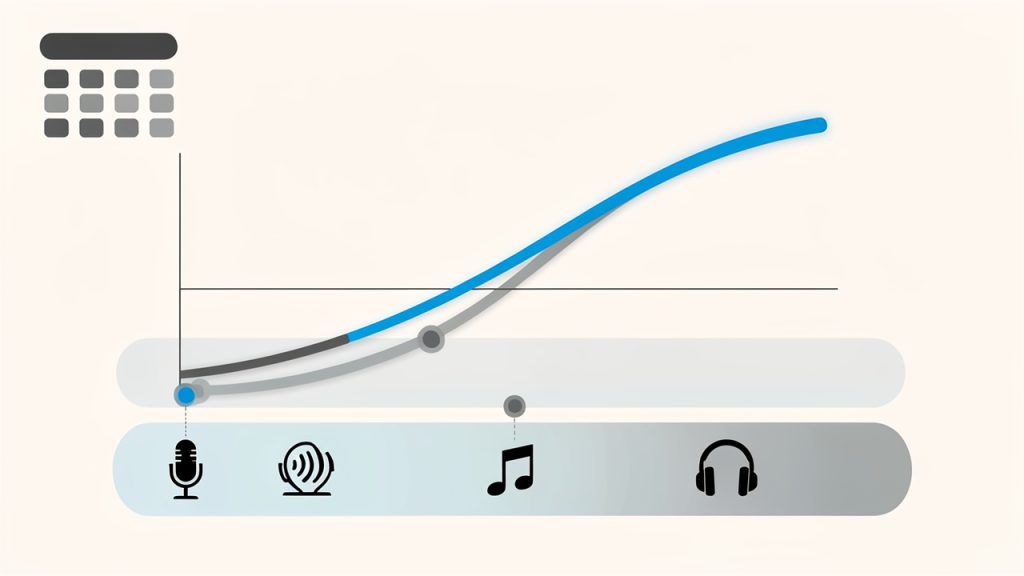
When converting an MP3 to AAC, one of the biggest decisions is the target bitrate. Higher bitrates preserve more detail but create larger files. Lower bitrates shrink the file but may introduce audible artifacts.
A practical rule is to avoid converting a low-bitrate MP3 into a high-bitrate AAC and expecting a miracle. If the source is poor, a higher output bitrate only makes a bigger file with the same underlying limitations. On the other hand, converting a reasonably good MP3 into AAC at a sensible bitrate can still be useful for workflow or compatibility reasons.
| Use Case | Typical Priority | AAC Bitrate Range | Notes |
|---|---|---|---|
| Voice recordings | Small size, clear speech | 64 to 96 kbps | Often enough for spoken content |
| Podcasts and interviews | Balanced quality and size | 96 to 128 kbps | Common for distribution |
| Casual music playback | Better listening quality | 128 to 192 kbps | Good fit for mobile use |
| Higher-quality music delivery | Preserve more detail | 192 to 256 kbps | Better for demanding listeners |
Metadata and Tag Preservation
A detail many people overlook is metadata. Your MP3 may contain title, artist, album, artwork, track number, and other tags. During conversion, some tools preserve this automatically and others do not.
If you manage a large media library or distribute professional audio, this matters. Missing metadata creates confusion fast. Files become harder to organize, playback apps display incomplete information, and your polished workflow starts to look messy. Before converting a batch of files, check whether your chosen tool keeps tags and artwork intact.
Batch Conversion for Productivity
If you only need to convert one file, almost any decent online tool can handle it. But if you work with multiple assets every week, batch conversion becomes the real time-saver. This is especially relevant for agencies, podcasters, video editors, course creators, and app developers who process recurring media files.
The best tools for ongoing work make it easy to drag in several files, choose a consistent bitrate, preserve names and metadata, and export everything cleanly. The difference between converting one file and converting fifty is not just scale. It is workflow quality.
How to Get Started With MP3 to AAC
Getting started is easier than most people expect, but choosing the right method depends on what matters most to you: speed, privacy, file size, quality control, or convenience.
Choose the Right Type of Tool
For many users, an online MP3-to-AAC converter is the fastest option. You upload the file, choose the format, wait a moment, and download the result. This works well for occasional tasks, especially when the files are small and not sensitive.
If you handle confidential recordings, large media assets, or frequent batch work, desktop software may be the better choice. Local tools usually offer stronger control over bitrate, metadata, and output consistency. They also avoid upload delays and privacy concerns.
A simple comparison helps here:
| Tool Type | Best For | Advantages | Trade-Offs |
|---|---|---|---|
| Online converter | Quick one-off tasks | Fast, easy, no installation | Upload limits, privacy concerns |
| Desktop app | Frequent or professional use | More control, batch support, local processing | Requires installation |
| Built-in media software | Basic personal workflows | Familiar interface, simple exports | Limited advanced settings |
Start With a Clear Goal
Before you convert anything, decide what success looks like. Are you trying to reduce file size for email delivery? Improve compatibility for a mobile app? Prepare audio for video editing? Standardize assets for a content library? The right settings depend on the answer.
This is where many people waste time. They convert first and evaluate later. A better approach is to choose the destination and listener upfront. Audio for a voice memo archive does not need the same settings as music for customer-facing content. Once the purpose is clear, the conversion settings become much easier to choose.
A Simple Conversion Process
For most tools, the workflow looks like this:
- Upload or import your MP3 file.
- Select AAC as the output format.
- Choose the bitrate based on your use case.
- Convert and download the finished file.
- Listen to the result before using it in production.
That final step matters more than the others. Never assume the file is good just because the conversion finished successfully. Listen on the devices your audience is most likely to use. A file that sounds acceptable on studio headphones might behave differently on a phone speaker or in a noisy car.
Best Practices for Cleaner Results
The smartest habit is to begin with the best source file available. If all you have is an MP3, use it carefully and avoid repeated conversions. Every additional lossy export increases the risk of degradation.
It also helps to keep a master copy of your original file. That way, if you later need another format, bitrate, or distribution version, you can generate it from the cleanest source instead of converting a conversion. This is especially valuable for freelancers delivering assets to multiple clients and for businesses managing reusable content.
When testing settings, compare two or three output versions rather than guessing. A short listening test can reveal whether 96 kbps is enough or whether 128 kbps sounds noticeably better for your content. A few extra minutes here can prevent rework later.
When You Should Not Convert MP3 to AAC
There are cases where converting an MP3 file to AAC is unnecessary. If the MP3 already plays correctly everywhere you need it and file size is not a problem, conversion may offer little benefit. Re-encoding without a clear reason just adds another processing step.
You should also avoid this route when audio quality is critical and you still have access to an original uncompressed file. In that situation, export straight from the source to AAC. That produces a better result than going from MP3 to AAC because it avoids stacking one lossy compression stage on top of another.
Conclusion
Converting MP3 to AAC is less about upgrading sound and more about choosing a format that better suits modern devices, apps, and workflows. AAC can offer better efficiency, strong compatibility, and practical file sizes, which makes it a smart option for business owners, freelancers, developers, and anyone managing digital media regularly.
The key is to convert with purpose. Use the highest-quality source you can, choose bitrate settings based on the real listening context, and always test the output before sharing or publishing it. If you need a quick win, start with a single file, compare the result, and build a simple repeatable process from there.
Leave a Reply