JNTZN

Tag: podcasting

  • MP3 to WAV: When to Convert and How It Affects Quality

    MP3 to WAV: When to Convert and How It Affects Quality

    Converting MP3 to WAV sounds simple, but it often becomes confusing the moment audio quality, file size, compatibility, and editing needs enter the picture. Many people assume one format is just as good as the other, or that conversion somehow “restores” lost sound data. It does not. A little clarity saves time, storage, and frustration.

    If you are a small business owner preparing podcast clips, a freelancer editing voice recordings, a developer handling media assets, or someone trying to make an audio file work in the right app, understanding MP3 to WAV conversion matters. The right choice depends on what you need the file to do next, not just on what sounds familiar.

    What is MP3 to WAV?

    At its core, MP3 to WAV means converting an audio file from the MP3 format into the WAV format. MP3 is a compressed audio format designed to reduce file size. WAV is typically an uncompressed audio format that preserves more raw audio data and is widely used in editing, production, and professional workflows.

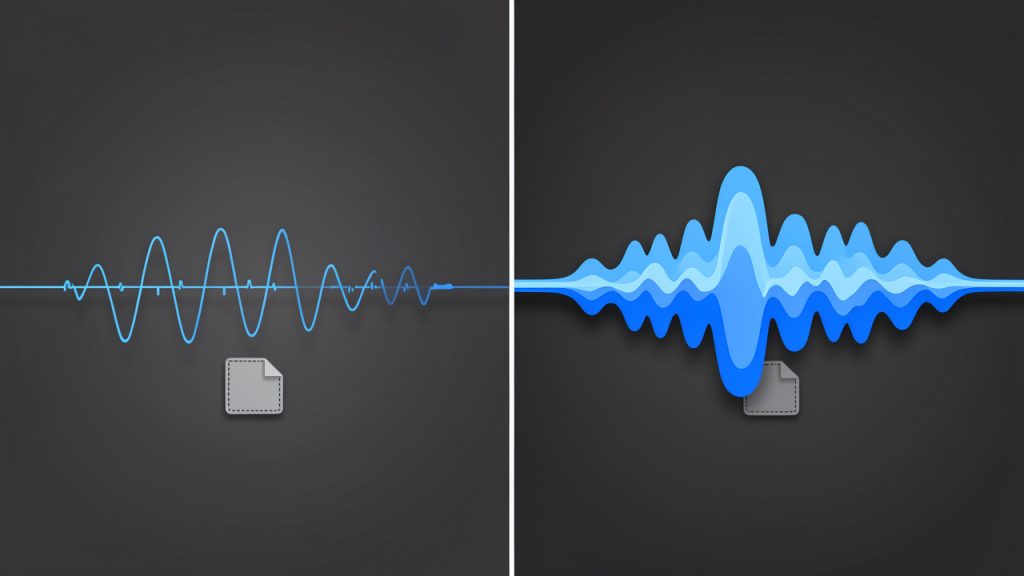
    Side-by-side visual comparing MP3 vs WAV: left panel shows a simplified, 'thinner' waveform with parts faded or missing and a small file-size icon labeled MP3 (lossy/compressed); right panel shows a fuller, detailed waveform and a large file-size icon labeled WAV (uncompressed).

    The key difference is not just the file extension, it is how the audio is stored. An MP3 removes parts of the sound data to make the file much smaller. This is called lossy compression. A WAV file, by contrast, usually stores audio in a much less compressed or uncompressed form, which makes it larger and easier for editing software, recording systems, and some hardware devices to process accurately.

    This leads to an important point that many users miss. Converting an MP3 into WAV does not improve the original audio quality. If the MP3 already lost data during compression, that missing information does not magically come back when you save it as WAV. What conversion does do is make the file more suitable for certain tasks, especially where compatibility and editing stability matter.

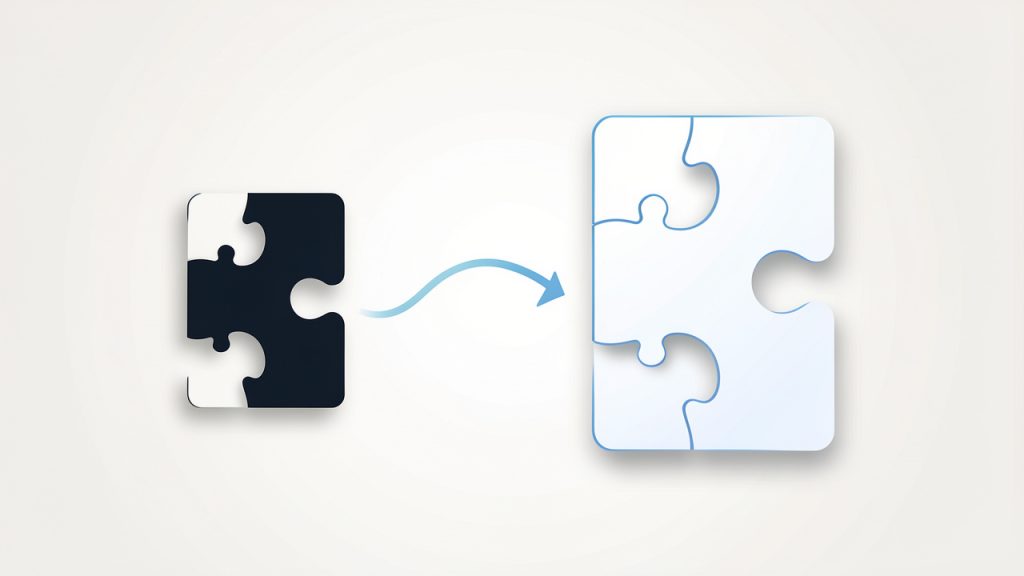
    A metaphorical illustration showing an MP3 file with pieces removed (like missing puzzle pieces) being converted into a larger WAV file where the missing pieces remain absent — emphasizing that conversion does not restore lost audio data.

    A simple way to think about it is this. MP3 is like a highly compressed image sent over messaging apps to save space, WAV is more like the original working file used in design software. Turning the compressed image back into a larger file does not recreate the missing detail, but it may make it easier to use in a professional workflow.

    Key Aspects of MP3 to WAV

    Why people convert MP3 to WAV

    The most common reason for converting MP3 to WAV is workflow compatibility. Audio editors, video production tools, DAWs, transcription systems, and some broadcasting platforms often handle WAV files more predictably than MP3s. WAV files are simpler for software to decode because they usually do not rely on the same compression logic as MP3.

    Another major reason is editing performance. When you edit audio repeatedly, cut sections, apply effects, normalize volume, or mix tracks, working with WAV can reduce the chance of introducing additional compression artifacts. Editors often prefer WAV because it gives them a more stable source format, even if the original audio began as MP3.

    There is also the issue of device and platform requirements. Some systems, including legacy hardware, professional recording devices, call systems, and speech processing tools, specifically request WAV uploads. In those cases, the conversion is not about quality improvement, it is about meeting a technical requirement.

    MP3 vs WAV at a glance

    Feature MP3 WAV
    Compression type Lossy Usually uncompressed
    File size Small Large
    Audio quality Reduced to save space Higher retention of source audio
    Best use case Streaming, sharing, storage Editing, production, archiving workflows
    Compatibility in editors Good, but sometimes less ideal Excellent
    Can conversion restore lost quality? No No

    This comparison highlights the practical trade-off. MP3 is efficient, WAV is flexible. One is built for convenience, the other for production.

    Audio quality misconceptions

    One of the biggest misconceptions around MP3 to WAV is the belief that WAV automatically means “better sound.” That is only true if the source audio was already high quality. If your original file is a 128 kbps MP3, converting it to WAV simply creates a much larger file that contains the same compressed audio quality.

    That does not mean the conversion is pointless, it means the benefit is functional, not magical. For example, if you need to import voice audio into editing software, sync it with video, or deliver it to a platform that rejects MP3 uploads, WAV becomes useful even though it does not improve the sound itself.

    A second misconception is that all WAV files are identical. In reality, WAV files can vary by sample rate, bit depth, and encoding settings. A 44.1 kHz, 16-bit WAV may be perfectly fine for music delivery, while 48 kHz, 24-bit is more common in video and production environments. Understanding those settings matters when precision is important.

    File size and storage implications

    Storage is where the difference becomes obvious fast. An MP3 might be only a few megabytes, while the same audio as WAV can be ten times larger or more. For a solo creator working on a few clips, that may not matter. For a business processing hundreds of recordings, it matters a lot.

    Larger files take longer to upload, download, sync, and archive. If you convert everything by default without a reason, your storage bill and project clutter can grow unnecessarily. That is why MP3 to WAV should be intentional. Use WAV where editing, system compatibility, or delivery standards require it. Keep MP3 where portability and smaller files are the priority.

    For teams and freelancers, this decision affects project management too. WAV files are better as working files, MP3 files are often better as sharing files. Knowing when to use each can keep both quality expectations and storage demands under control.

    How to Get Started with MP3 to WAV

    Start with your actual goal

    Before converting any file, ask a practical question: Why do I need WAV? If the answer is “to improve quality,” you may not get the result you expect. If the answer is “my editor, client, software tool, or system requires WAV,” then the conversion makes sense.

    This small mindset shift prevents wasted time. A lot of users convert files simply because WAV sounds more professional. Sometimes it is the right move. Sometimes it just creates larger files with no real benefit. The best workflow starts with the next step in your process, not the format name alone.

    For example, if you are sending a podcast episode draft to a client for approval, MP3 is often enough. If you are importing spoken word tracks into audio editing software for cleanup and mastering, WAV is usually the better choice.

    Choose the right conversion settings

    When converting MP3 to WAV, pay attention to the export settings if the tool allows it. The most common options include sample rate and bit depth. These settings do not restore lost quality from the MP3, but they can affect compatibility with downstream tools.

    For general use, 44.1 kHz, 16-bit WAV is a safe standard. For video production or professional post-production, 48 kHz is often preferred. If you are delivering files to a client or platform, use their required settings rather than guessing.

    If your conversion tool offers “high quality” presets, be careful not to confuse that label with source recovery. A high-quality WAV export from a low-bitrate MP3 is still limited by the original MP3. The conversion can preserve what remains, but it cannot recreate what was removed during compression.

    Use an online tool carefully

    Online converters are popular because they are fast and convenient. For many users, especially those handling a few files at a time, an online MP3 to WAV tool is the easiest option. You upload the MP3, choose WAV, convert, and download.

    That convenience comes with considerations. If your audio contains private interviews, client calls, unreleased media, legal recordings, or sensitive business material, be cautious. Not every free tool clearly explains how long files are stored or whether uploads are deleted after processing. For public or low-risk files, online conversion is usually fine. For confidential work, a trusted desktop app may be the safer route.

    If you do use a browser-based tool, look for clear file limits, transparent privacy policies, and support for the output settings you need. Ease of use matters, but so does control.

    A simple conversion workflow

    1. Upload your MP3 file to a trusted converter or open it in a desktop audio tool.
    2. Select WAV as the output format and review any settings like sample rate or bit depth.
    3. Convert and download the file, then test it in the app, editor, or system where you plan to use it.

    That is enough for basic needs. What matters more is checking the output file in the real destination environment. A conversion is only successful if the new WAV file works where you need it.

    Check the result before moving on

    After converting, play the WAV file and verify a few basics. Make sure the audio starts and ends correctly, volume levels are consistent, and the file opens in your target software. If the file is for client work or production, confirm that the sample rate matches project requirements.

    This verification step is often skipped, especially when converting in bulk. That can create avoidable problems later, such as sync issues in video timelines or rejected uploads on third-party systems. A quick check now can save a rework cycle later.

    If you handle audio regularly, it is smart to create a repeatable mini-workflow. Use the same settings, naming conventions, and storage folders each time. That level of consistency helps freelancers, teams, and small businesses stay organized as media files pile up.

    Conclusion

    MP3 to WAV conversion is less about making audio sound better and more about making it usable in the right context. MP3 is great for compact storage and easy sharing, WAV is better for editing, production, and systems that require a less compressed format. The conversion has value, but only when it supports your actual workflow.

    The next step is simple. Look at how you plan to use the file after conversion. If you need cleaner compatibility, easier editing, or a format accepted by professional tools, convert your MP3 to WAV with the right settings and verify the output. If not, keeping the file as MP3 may be the smarter and more efficient choice.

  • MP3 Converter: Fast, Private Audio Conversion for Workflows

    MP3 Converter: Fast, Private Audio Conversion for Workflows

    Audio files have a way of becoming a bottleneck at the worst possible moment. A podcast episode is ready, but it is in the wrong format. A client sends a voice note that will not play on your device. A webinar recording is too large to upload, too awkward to share, or incompatible with the editing tool you actually use. That is where a Mp3 converter becomes one of those simple tools that quietly saves time, money, and frustration.

    For small business owners, freelancers, developers, and productivity-focused users, the appeal is obvious. You want an audio file that works everywhere, opens quickly, and is easy to store, send, publish, or archive. An MP3 converter helps you take audio from one format and turn it into MP3, the most widely recognized and supported format in everyday use. The trick is not just converting files, but doing it in a way that preserves quality, protects privacy, and fits smoothly into your workflow.

    What is an MP3 converter?

    An MP3 converter is a tool that changes audio files from one format into MP3. In practical terms, it takes files such as WAV, AAC, M4A, FLAC, OGG, or even audio extracted from video, and transforms them into a version that is easier to play on nearly any phone, laptop, browser, media app, or car stereo. It is a format translator, but one with real implications for file size, quality, compatibility, and convenience.

    The reason MP3 remains so popular is simple. It balances compression and usability exceptionally well. Uncompressed formats like WAV can sound excellent, but they are often large and cumbersome. Other compressed formats may offer technical advantages, but MP3 still wins on universal support. If your goal is to make audio accessible to clients, team members, listeners, or customers with minimal friction, MP3 is often the safest choice.

    For business and productivity use, this matters more than many people realize. A converted audio file can be easier to attach to emails, upload to a CMS, embed on a website, distribute in an online course, or share in a project management system. Instead of forcing the recipient to troubleshoot playback issues, you provide a file they can use immediately. That is the real value of a good MP3 converter. It removes technical obstacles from communication.

    Why people use MP3 so often

    MP3 became the default for a reason. It is lightweight, familiar, and broadly accepted across devices and software. If you are publishing voiceovers, training clips, interviews, or customer-facing media, there is a good chance MP3 will work without extra instructions or compatibility checks.

    There is also a practical storage benefit. Converting large raw recordings into MP3 can significantly reduce file size, which makes cloud storage less expensive and transfer times shorter. For freelancers and small teams juggling multiple projects, that can add up quickly. A smarter file format is not just a technical preference, it is an operational advantage.

    Common file types an MP3 converter handles

    Most MP3 converters are built to accept a wide range of input formats. A typical tool can work with audio formats like WAV, FLAC, AAC, OGG, and M4A. Some also extract audio from video files such as MP4 or MOV, which is useful when you need the soundtrack, interview audio, or meeting recording without the full video attached.

    The exact support varies by tool, of course. Some online converters focus on speed and simplicity, while desktop tools often support more advanced settings. That difference matters if you need batch conversion, bitrate control, metadata editing, or privacy protections for sensitive files.

    Key aspects of MP3 converters

    Choosing an MP3 converter is not just about whether it works. Most tools can convert a file. What separates a useful converter from a frustrating one is how well it handles quality, speed, control, and security. Those factors affect the final listening experience and the amount of time you spend fixing avoidable issues.

    Audio quality and bitrate

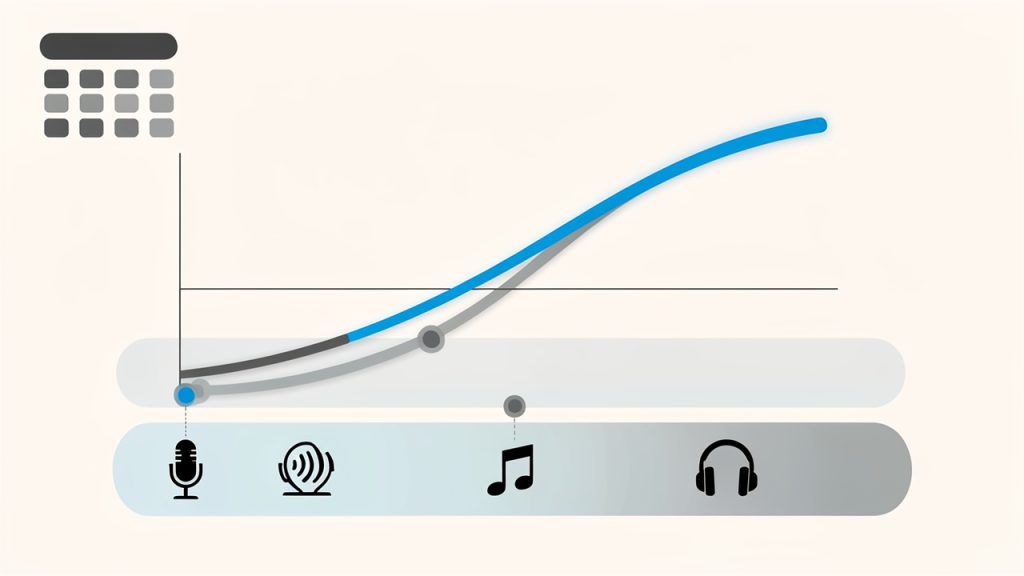
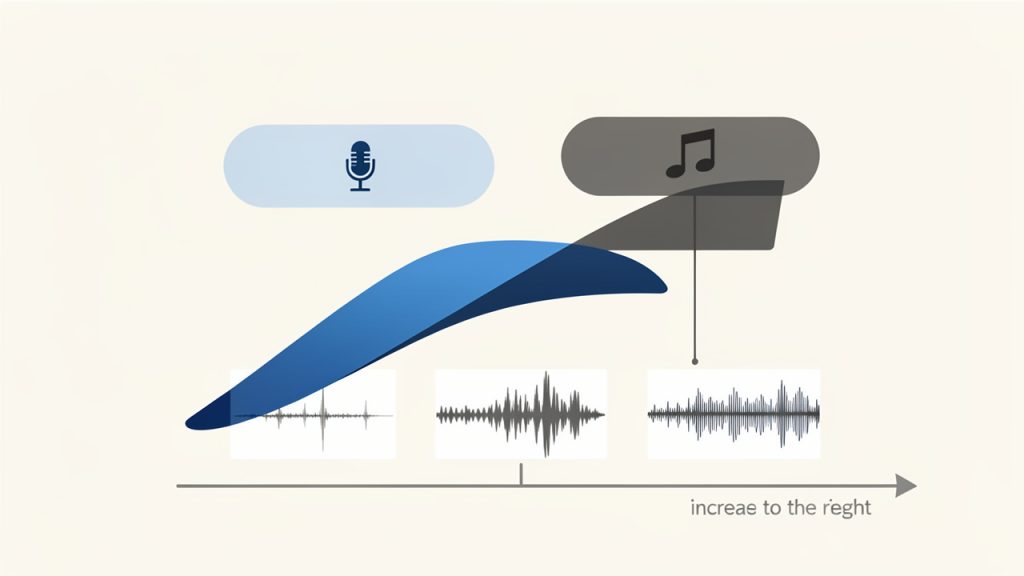
    Bitrate trade-offs: file size vs audio quality

    The most important concept to understand is bitrate. Bitrate determines how much audio data is stored per second in the MP3 file. In simple terms, higher bitrates usually mean better sound quality, but also larger file sizes. Lower bitrates save space, but can make audio sound thin, muffled, or compressed.

    For spoken audio such as interviews, voice notes, or training content, a moderate bitrate is often enough. For music, sound design, or premium branded media, higher bitrate settings are usually worth it. The right choice depends on how the file will be used. If the audio is part of a public-facing product, quality should carry more weight. If it is an internal memo or a rough archive, a smaller file may be more practical.

    File size and storage efficiency

    One of the biggest reasons to use an MP3 converter is compression. Large files create friction. They upload slowly, consume storage, and can fail in low-bandwidth environments. MP3 reduces that burden while keeping the audio usable for most everyday purposes.

    This is especially helpful for businesses that create recurring content. If you record frequent client calls, podcast episodes, tutorials, or training materials, keeping everything in uncompressed formats can become expensive and disorganized. Converting finalized content into MP3 gives you a more manageable media library without making your systems feel overloaded.

    Compatibility across devices and platforms

    Compatibility is where MP3 continues to shine. An MP3 file will usually play with minimal resistance across operating systems, browsers, smartphones, media players, and communication platforms. That broad compatibility is often more valuable than small technical differences in format performance.

    Think of it like sending a PDF instead of a niche document type. You are choosing the format most likely to open successfully for the other person. When you use an MP3 converter, you are often making the file more usable for everyone else, not just for yourself. That matters when your audience includes clients, customers, team members, or students using different devices and apps.

    Speed and ease of use

    For many users, especially those who rely on free online tools, the best MP3 converter is the one that gets the job done quickly. A clean interface, fast uploads, and straightforward export settings can save more time than a long list of advanced features you never touch.

    That said, simplicity should not come at the cost of control. A useful converter should make basic actions easy while still giving you access to options like bitrate selection, trimming, filename handling, and batch processing when needed. The ideal experience is quick for routine work and flexible for more demanding tasks.

    Privacy and security considerations

    Privacy is often overlooked until the audio file contains something sensitive. If you are converting internal calls, customer interviews, confidential meetings, or pre-release content, uploading files to a random online converter may not be a smart move. Some services retain uploads longer than expected or provide limited clarity about data handling.

    This is why it is worth checking how a converter treats your files. Look for clear deletion policies, secure uploads, and transparent terms. If the content is especially sensitive, a desktop or offline MP3 converter may be the better option. Convenience matters, but data control matters more when the audio is business-critical.

    Feature differences between converter types

    Converter TypeBest ForStrengthsTrade-offs
    Online MP3 converterQuick one-off tasksNo installation, easy access, works in browserUpload limits, privacy concerns, fewer advanced controls
    Desktop MP3 converterFrequent or sensitive conversionsBetter performance, offline use, richer settingsRequires installation, may have a learning curve
    Mobile MP3 converter appOn-the-go tasksConvenient from phone or tabletSmaller interface, limited power for larger jobs
    Integrated media editorUsers already editing audio/videoConversion plus trimming, editing, taggingCan be overkill for simple conversions

    How to get started with an MP3 converter

    Getting started with an MP3 converter is usually straightforward, but a little planning helps you avoid quality loss and unnecessary rework. The first step is to define your outcome. Are you converting for playback compatibility, smaller file size, email sharing, publishing, or archiving? That single decision influences the settings you should choose.

    If you are converting speech-based content, focus on clarity and manageable file size. If you are converting music or branded audio assets, preserve more quality. If speed is the main concern, an online tool may be enough. If privacy, batch processing, or repeat use matters, a desktop solution is often the smarter long-term choice.

    A simple way to begin

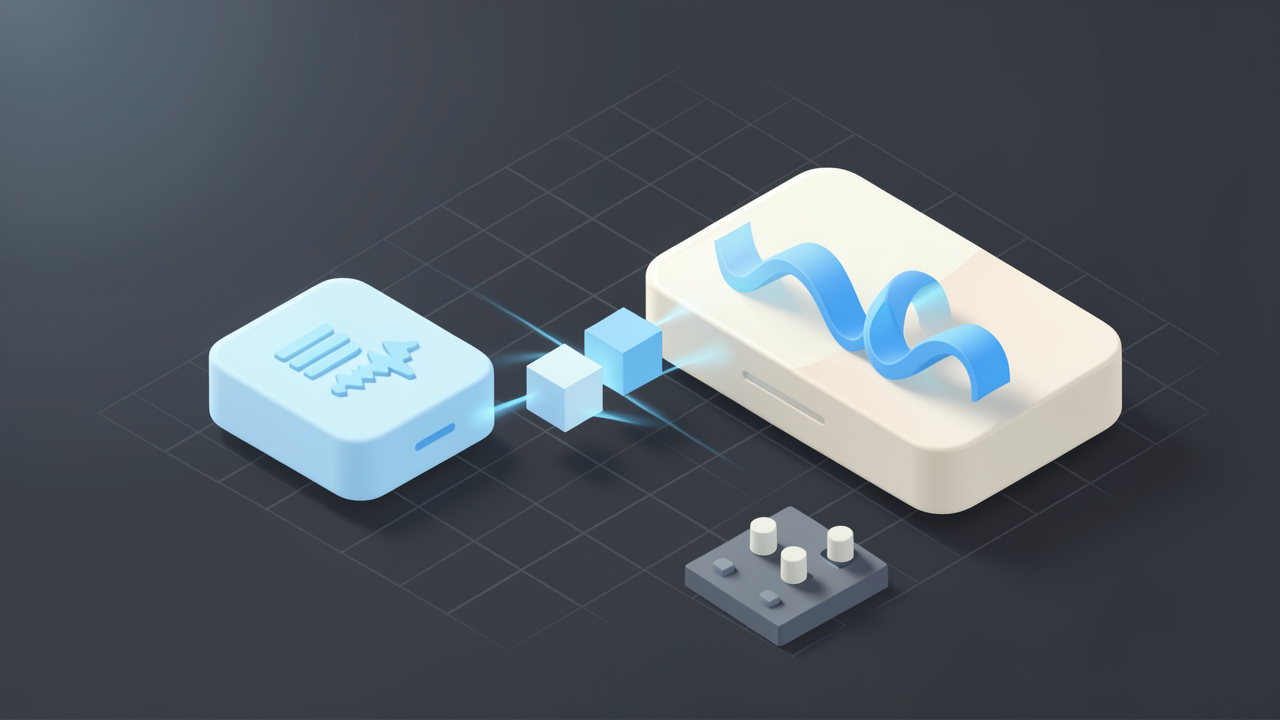
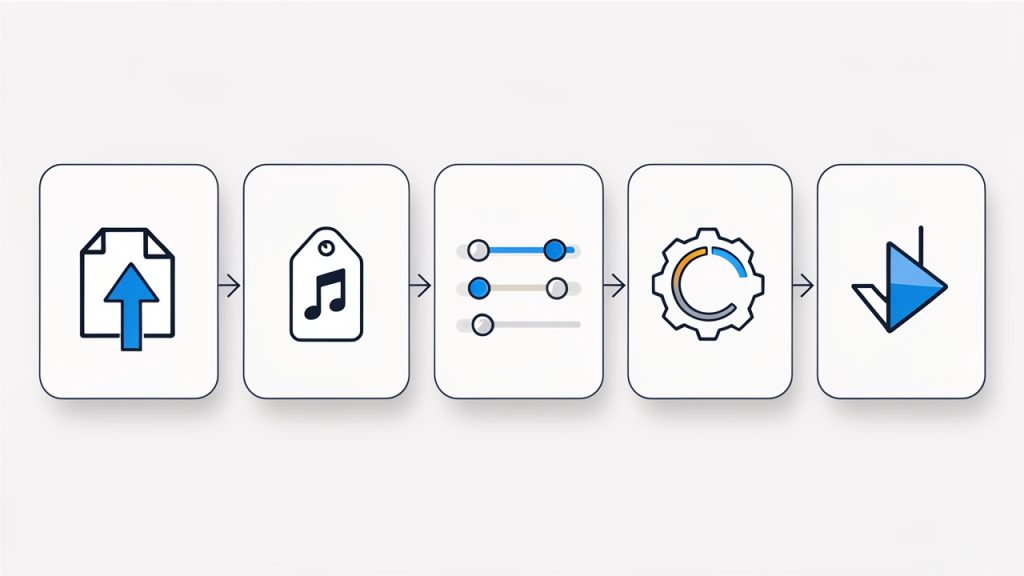
    MP3 conversion workflow

    You do not need a complicated setup to start using an MP3 converter effectively. In most cases, the process follows the same pattern:

    1. Upload or import your file.
    2. Choose MP3 as the output format.
    3. Select quality or bitrate settings.
    4. Convert and download the new file.
    5. Test playback before sharing or publishing.

    Those five actions are enough for most everyday tasks. The final step is the one people skip most often. Always test the converted file on at least one common device or player. A successful conversion is not just a completed download, it is a file that sounds right and behaves as expected.

    Choosing the right settings

    Settings matter because conversion is not magic. If you choose a very low bitrate, the file may be smaller, but the sound can suffer noticeably. If you choose a very high bitrate for a simple spoken memo, you may be wasting storage and upload time without gaining meaningful quality.

    A useful rule of thumb is to match the setting to the purpose. Voice recordings can often be converted at moderate settings while remaining clear and professional. Music, polished content, and public-facing assets deserve more generous quality settings. This is where testing one or two versions can save trouble later. Compare them briefly and keep the smallest file that still sounds good.

    Avoiding common conversion mistakes

    A common mistake is converting a file repeatedly between compressed formats. Each conversion can degrade quality, especially if the source is already compressed. If possible, start from the highest-quality original file, then create your MP3 from that version. It is similar to making copies of a photocopy. Each generation tends to lose something.

    Another mistake is ignoring metadata and naming conventions. If you are handling dozens of client files, podcast clips, or training modules, a vague filename like “audio-final-new-2.mp3” will create confusion fast. A clean naming structure makes your converted files easier to search, share, and archive. Good organization turns conversion from a one-time fix into a scalable workflow.

    When free online tools are enough

    For occasional use, free online MP3 converters can be perfectly adequate. If you have a non-sensitive file, a stable internet connection, and a basic need, such as turning a WAV file into something easier to email, an online tool can solve the problem in minutes.

    The key is to use them intentionally. Check file size limits, review privacy language, and avoid uploading confidential recordings unless you trust the platform. Free tools are best viewed as convenience tools, not automatic solutions for every type of media workflow.

    When you may need something more advanced

    As your needs grow, the limits of simple converters become more obvious. If you regularly process multiple files, need precise bitrate control, want to trim silence, preserve metadata, normalize audio levels, or automate repetitive tasks, a more advanced MP3 converter or media application can save significant time.

    This is especially true for freelancers and teams working with recurring content pipelines. A podcast producer, course creator, virtual assistant, or developer managing downloadable assets often benefits from a repeatable process rather than one-off browser conversions. At that point, the converter becomes part of your production system, not just a rescue tool.

    Practical use cases for business and productivity

    The value of an MP3 converter becomes clearer when you look at everyday scenarios. A consultant may record client summaries and convert them into lightweight MP3 files for quick delivery. A coach might turn webinar audio into downloadable lessons. A developer building a knowledge base may need standardized audio assets that load reliably across platforms. In each case, conversion supports a smoother user experience.

    There is also a strong internal productivity angle. Teams often work with recordings from meetings, interviews, or brainstorming sessions. Converting those files into MP3 can make them easier to share in cloud folders, messaging tools, or project systems. That sounds small, but repeated across a week or month, it reduces friction in collaboration.

    Typical use cases at a glance

    Use CaseWhy MP3 HelpsWhat to Prioritize
    Podcast publishingEasier distribution and broad playback supportHigher audio quality, metadata
    Client voice deliverablesFast sharing and smaller attachmentsClear speech, consistent naming
    Course and training contentAccessible downloads for students or staffBalance quality and file size
    Meeting archivesEasier storage and playback laterCompression efficiency, organization
    Audio from videoExtracts only what you needAccuracy, format support

    How to choose the best MP3 converter for your needs

    The best MP3 converter is the one that fits your actual workflow, not the one with the longest feature list. If you only convert a file once a month, simplicity should win. If you manage content daily, reliability and control matter more than a polished homepage.

    Start by looking at four things: supported formats, output settings, file limits, and privacy handling. Those basics tell you whether the tool can realistically support your needs. After that, usability becomes the deciding factor. If the process feels clumsy, users tend to make mistakes, skip checks, or postpone tasks.

    For professional use, it is also worth considering whether the tool supports future growth. Today you may only need single-file conversion. Later, you may want batch processing, faster exports, or audio cleanup features. A converter that scales with your workflow often delivers more long-term value than one that solves only the immediate problem.

    Conclusion

    An MP3 converter is a simple tool with outsized practical value. It helps turn awkward, oversized, or incompatible audio files into a format that is easy to play, share, store, and publish. For small businesses, freelancers, developers, and productivity-minded users, that translates into smoother communication, faster workflows, and fewer technical interruptions.

    If you are just getting started, begin with a straightforward file conversion and pay attention to quality, compatibility, and privacy. Test the output, refine your settings, and build a small repeatable process around the kinds of audio files you use most. Once you do, an MP3 converter stops being a utility you only remember in a pinch, and becomes a reliable part of how you work.