
Converting an MP3 to WMA sounds simple until you actually need to do it fast, keep the audio quality intact, and avoid sketchy software. That is where many users get stuck. You may have a file that plays everywhere, but a client system, older Windows device, archive workflow, or specific app needs it in WMA format instead.
If you are a small business owner managing voice recordings, a freelancer delivering audio assets, or a productivity-minded user organizing files, the goal is usually the same. You want a reliable way to convert MP3 files into WMA without wasting time on bloated desktop tools or confusing settings.
This guide breaks down what converting MP3 audio to WMA actually means, when it makes sense, what trade-offs to watch for, and how to get started smoothly. If you want a practical answer instead of a technical maze, you are in the right place.
What Is MP3 to WMA?
At the most basic level, converting MP3 to WMA means changing an audio file from the MP3 format into Windows Media Audio (WMA). Both are compressed audio formats, which means they reduce file size compared to raw audio. That makes them easier to store, share, and stream.
MP3 became the universal standard because it works almost everywhere. Phones, browsers, media players, editing tools, and websites have supported it for years. WMA, on the other hand, is closely associated with Microsoft and older Windows ecosystems. It is less universal today, but it still matters in certain business, legacy, and compatibility-focused workflows.
The key thing to understand is that this is not a magical upgrade in sound. If your original file is already an MP3, converting it into WMA does not restore lost detail. In most cases, you are re-encoding compressed audio into another compressed format. That can be useful for compatibility, storage, or workflow reasons, but it is not the same as improving quality.
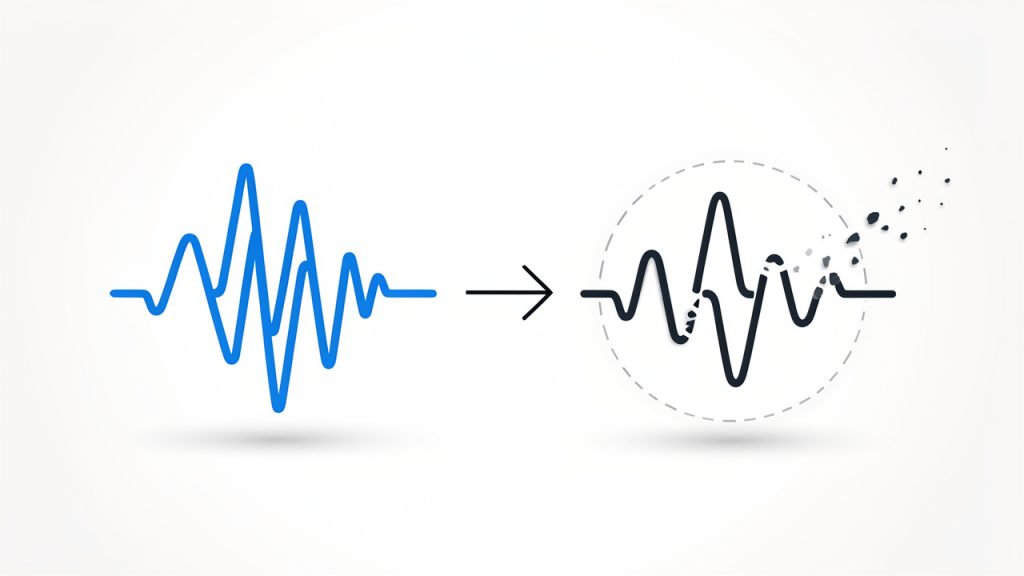
Caption: Re-encoding typically incurs further quality loss, converting compressed audio into another compressed format.
Why Someone Would Convert an MP3 File to WMA
There are still real reasons to turn an MP3 into a WMA file. Some organizations use older software that prefers or requires WMA. Certain legacy hardware systems, digital dictation setups, archived training systems, or internal Windows-based workflows may perform better with WMA files.
For freelancers and small teams, another common reason is consistency. If a company archive, audio library, or playback environment is built around WMA, converting incoming MP3 files into that format can help keep everything standardized. That is especially useful when multiple people touch the same media assets.
There is also the issue of file size and bitrate tuning. In some cases, users compare MP3 and WMA settings to meet a target storage limit or playback requirement. The format itself is only part of the equation. The bitrate you choose often matters just as much.
MP3 vs WMA at a Glance
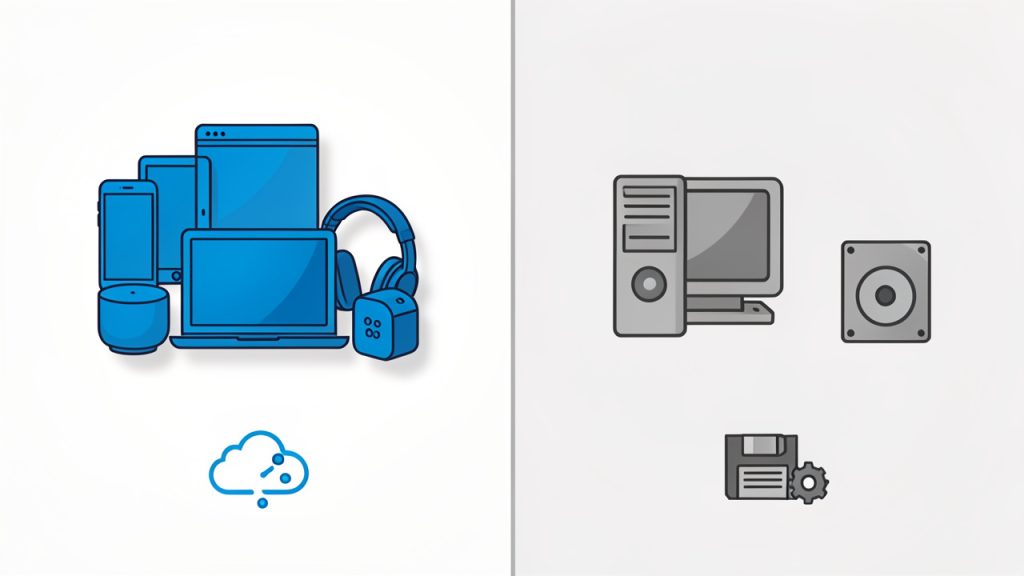
Caption: Typical best uses — MP3 for everyday sharing, WMA for legacy Windows workflows.
| Format | Full Name | Typical Strength | Main Limitation | Best Use Case |
|---|---|---|---|---|
| MP3 | MPEG Audio Layer III | Very broad compatibility | Less efficient than newer codecs at the same bitrate | Everyday playback, sharing, web use |
| WMA | Windows Media Audio | Good integration with some Windows-based systems | Less universal support today | Legacy Windows workflows, specialized compatibility needs |
Does Converting MP3 to WMA Reduce Quality?
Usually, yes, at least in theory. Since MP3 is already a compressed format, converting it into WMA means compressing compressed audio again. This can introduce some additional quality loss, especially if you use a lower bitrate during conversion.
That said, not every conversion causes a noticeable drop to the human ear. If the original MP3 is decent quality and the new WMA output uses an appropriate bitrate, spoken-word recordings, meetings, interviews, or standard listening files may still sound perfectly acceptable.
The practical takeaway is simple. Convert for compatibility or workflow needs, not because you expect better sound from the new file format.
Key Aspects of MP3 to WMA
Understanding the core trade-offs makes the process much easier. Most problems people face during audio conversion come down to three things, quality, compatibility, and control over settings.
Audio Quality Depends More on Settings Than Labels
Many users focus too heavily on the file extension. MP3 and WMA matter, but bitrate, sample rate, and encoder settings often matter more in day-to-day results. A poorly configured conversion can make a good source file sound thin, muddy, or overprocessed.
If you are converting speech, such as podcasts, training recordings, or voice notes, you can often use moderate settings without noticeable issues. Music is less forgiving. Complex audio with layered instruments, reverb, and dynamic range tends to reveal compression artifacts more quickly.
This is why a good converter should let you choose output quality instead of hiding everything behind a single vague button. Even if you prefer simplicity, some control is valuable.
Compatibility Is the Real Reason Most Users Convert
In modern workflows, MP3 is often the safer default. So when someone chooses WMA, it is usually because a specific device, platform, or internal process requires it. That distinction matters because it helps you decide whether conversion is actually necessary.
For example, if the audio only needs to be shared over email, uploaded to a website, or played across mixed devices, sticking with MP3 is often smarter. But if an old Windows application, enterprise archive, or playback system explicitly expects WMA, then converting is justified.
That is especially true in office environments where one outdated but still mission-critical tool dictates format requirements for everyone else.
File Size and Bitrate Should Be Chosen Intentionally
If your goal is to save space, you need to think in terms of bitrate, not just format. A high-bitrate WMA file can be larger than a low-bitrate MP3. A low-quality WMA can also sound worse than a well-encoded MP3 of similar size.
A useful mental model is this, the format is the container strategy, while bitrate is the budget. If you spend the budget wisely, the result can be efficient and listenable. If not, the file may be small but disappointing.
For business use, this becomes important when you are managing dozens or hundreds of files. Training modules, customer call recordings, and voice documentation all add up. Efficient conversion settings can save storage and speed up file transfers without undermining usability.
Metadata and Naming Can Matter More Than People Expect
When you convert an MP3 file to WMA, you are not just changing audio encoding. You may also affect metadata such as title, artist, album, comments, or embedded cover art. Some converters preserve this well. Others strip it out or rewrite it inconsistently.
For individual users, that may be a minor annoyance. For freelancers delivering organized files to clients, or for small businesses maintaining searchable audio libraries, metadata consistency matters. It affects discoverability, professionalism, and workflow speed.
If your audio files are part of a larger system, always verify whether the converter preserves tags and naming conventions properly.
How to Get Started With MP3 to WMA
The easiest path is to begin with your actual need, not the tool. Ask one question first, why am I converting this file? If the answer is compatibility, then your settings should prioritize reliable playback. If the answer is storage efficiency, then you should test bitrate carefully. If the answer is workflow standardization, then consistency across all files matters most.
That simple clarity prevents the most common mistake, converting files blindly and only realizing later that the output is too large, too low-quality, or unsupported by the target system.
Choose the Right Type of Converter
Most users today prefer an online MP3-to-WMA converter because it is fast, accessible, and does not require installation. This is ideal for occasional tasks, lightweight business use, and users who want results in minutes.
Desktop tools can make more sense when you need bulk conversion, stronger privacy control, or advanced settings. If you work with sensitive client recordings, internal business audio, or large file batches, local processing may be the better fit.
A good rule is to match the tool to the job. For one or two standard files, online is usually enough. For high-volume or privacy-sensitive work, desktop options deserve more attention.
Basic Steps to Convert MP3 to WMA
- Upload your MP3 file to a trusted converter.
- Select WMA as the output format.
- Choose audio quality or bitrate settings based on your use case.
- Start the conversion and download the new file.
- Test playback on the target device or software before finalizing.
Those steps are simple, but the testing stage is the one people skip most often. That is where compatibility issues show up.
Recommended Settings for Common Use Cases
| Use Case | Suggested Focus | Practical Approach |
|---|---|---|
| Voice notes and meetings | Smaller file size with clear speech | Use moderate bitrate and verify speech remains crisp |
| Music playback | Balanced quality and compatibility | Use higher bitrate to reduce audible artifacts |
| Legacy software import | Reliable file recognition | Prioritize format compatibility over aggressive compression |
| Business archives | Consistency and manageable storage | Standardize bitrate and naming across all files |
Watch for These Common Mistakes
One of the biggest mistakes is expecting the converted WMA file to sound better than the original MP3. It usually will not. The best outcome is typically maintaining acceptable quality while meeting a compatibility requirement.
Another common issue is using the lowest possible bitrate to save space. That may seem efficient at first, but it can make speech harder to understand and music noticeably degraded. A small gain in storage can create a bigger loss in usability.
There is also the privacy factor. If you are uploading sensitive recordings to an online converter, make sure you trust the service and understand how files are handled. This matters for client calls, internal recordings, legal dictation, and any material with confidential information.
How to Make the Process More Efficient
If you regularly convert audio files from MP3 into WMA, create a repeatable workflow. Use consistent naming conventions, standard output settings, and a quick review step after conversion. That turns a repetitive chore into a reliable system.
For example, a freelancer handling podcast edits might keep source MP3s in one folder, export WMA copies for a legacy client portal, and label files by date and episode number. A small business might standardize all internal voice recordings to one WMA setting so any employee can access and archive them easily.
Efficiency often comes from reducing decisions, not adding more tools.
Conclusion
Converting MP3 to WMA is usually less about sound quality and more about compatibility, file management, and workflow needs. MP3 remains the more universal format, but WMA still has a place in older Windows-based systems, specialized software, and organizations with established format requirements.
The smartest next step is to convert one sample file first, choose settings based on your actual use case, and test it on the device or software that matters most. If the result works well, you can apply the same approach consistently across the rest of your audio library.
Leave a Reply