
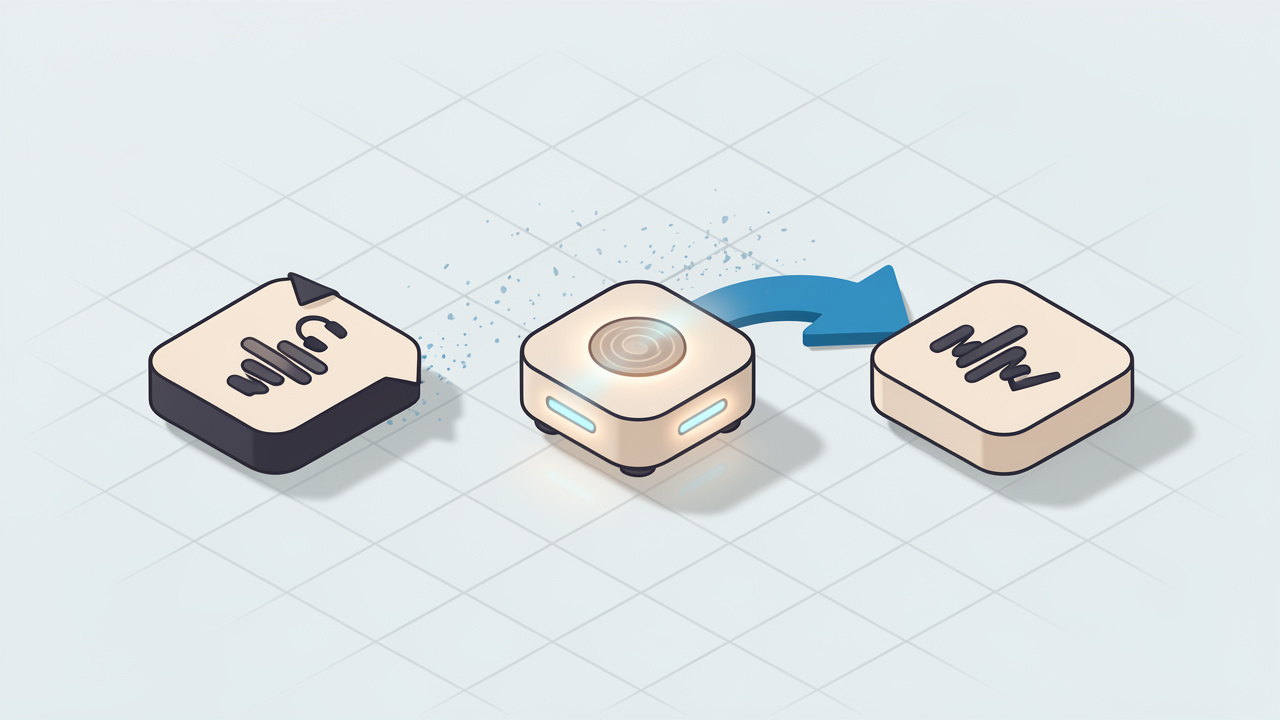
Converting an audio file should not feel like a technical chore, yet many people still get stuck when they need to turn an M4A file into MP3 quickly. You download a voice note, podcast clip, interview recording, or product demo, and suddenly the file will not play nicely in your preferred app, browser, car stereo, or editing workflow.
That is why interest in converting an M4A file to MP3 remains high. People want a format that is easy to share, widely supported, and simple to use across devices. If you are a freelancer sending audio to clients, a small business owner repurposing recordings, or a developer organizing media assets, understanding how this conversion works can save time and reduce friction.
What does converting an M4A file to MP3 mean?
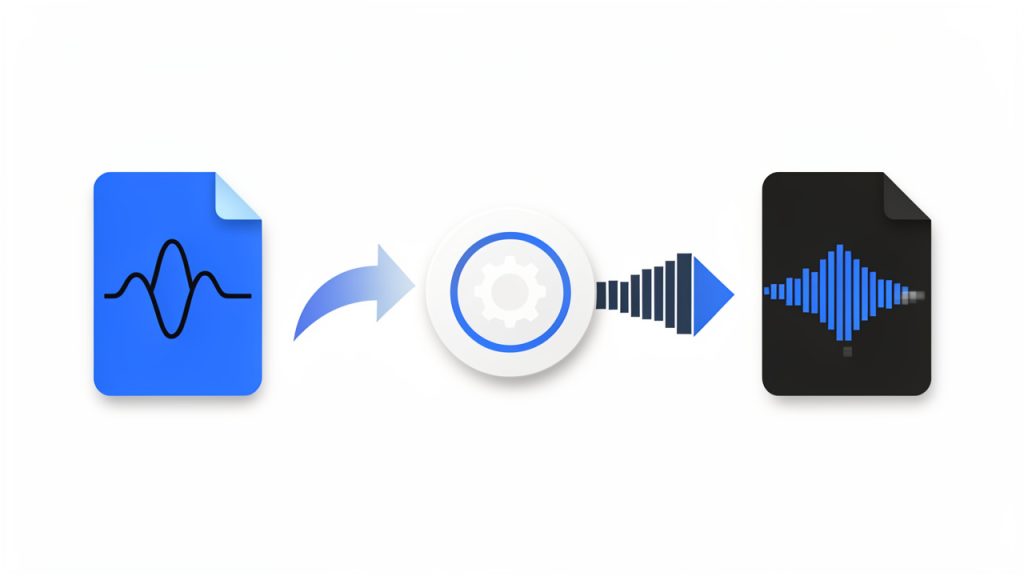
At its core, converting an M4A file to MP3 means changing one audio file format into another. M4A is commonly associated with Apple ecosystems and AAC audio encoding, though it can also contain other codecs. MP3, by contrast, is the long-standing universal standard that almost every device, app, and platform understands.
The reason this matters is compatibility. An M4A file may sound perfectly fine, but it is not always the most convenient format for playback, upload, archiving, or client delivery. MP3 is often the practical fallback because it works almost everywhere, from older hardware to web upload tools and lightweight editing software.
It also helps to understand that format conversion is not just a filename change. You are typically re-encoding the audio. That means the software reads the source file and creates a new version in MP3 format. In many cases, this is straightforward, but the output quality depends on the settings you choose and the quality of the original file.
Why M4A exists in the first place
M4A became popular because it can deliver good audio quality with efficient compression. For many users, especially those working in Apple-centric environments, it is a practical format for music, voice recordings, and exported media. It is smaller than uncompressed formats and often sounds excellent at modest file sizes.
The issue is not that M4A is bad. The issue is that MP3 is more universally accepted. If your goal is broad compatibility rather than format efficiency, converting an M4A file to MP3 is often the easiest way to avoid playback issues later.
Why people still prefer MP3
MP3 survives because it solves a real problem. It plays in legacy systems, embedded devices, online tools, and countless media players with little drama. When someone asks for an audio file “that just works,” they usually mean MP3.
For business and productivity-focused users, that reliability matters. If you are sending audio to a client, uploading media to a platform with unclear format support, or preparing files for a team with mixed devices, MP3 is often the safest option.
Key aspects of converting M4A files to MP3
Before converting audio, it helps to know what actually changes, what does not, and where mistakes happen. This is where a lot of users lose quality unnecessarily or choose settings that are larger than needed.
Audio quality and compression
One of the biggest concerns when converting from M4A to MP3 is quality loss. Both formats are usually compressed, and MP3 conversion often introduces another round of lossy compression. If the original M4A was already compressed, the new MP3 will not improve the sound. At best, it preserves most of what is there. At worst, poor settings make the result noticeably worse.
That said, quality loss is often negligible for everyday use if you choose sensible bitrates. For voice recordings, meetings, webinars, and spoken content, a moderate bitrate is usually more than enough. For music or polished branded audio, you may want higher settings to avoid artifacts.
A simple way to think about it is this, you are trading some efficiency for compatibility. If compatibility is your priority, that trade often makes perfect sense.
File size and bitrate
Bitrate determines how much data is used per second of audio, which affects both sound quality and file size. Higher bitrate usually means better quality and bigger files. Lower bitrate means smaller files but more aggressive compression.
For many practical use cases, the best bitrate depends on the content:
| Use Case | Recommended MP3 Bitrate | Why It Works |
|---|---|---|
| Voice notes, calls, meetings | 64 to 128 kbps | Keeps files small while preserving clear speech |
| Podcasts, interviews, webinars | 96 to 160 kbps | Balances spoken-word clarity and manageable size |
| Music, brand audio, richer sound | 192 to 320 kbps | Better for full-range audio and repeated listening |

This matters if you are handling many files. A freelancer managing dozens of client recordings or a small team archiving support calls can save substantial storage by choosing the right bitrate instead of defaulting to the highest option.
Metadata and organization
Another overlooked part of converting M4A files to MP3 is metadata. Metadata includes the title, artist, album, recording date, and sometimes embedded artwork. Some converters preserve this automatically. Others strip it out unless you use specific settings.
If you are converting a large library of files, metadata can be the difference between a clean archive and a folder full of generic filenames. For business users, it also affects searchability and internal organization. A file named “audio-final-3.mp3” is far less useful than one with proper tags and a clear naming convention.
Speed, privacy, and workflow
The best conversion method is not always the most powerful one. It is the one that fits your workflow. Online converters are convenient when you need a quick result and do not want to install software. Desktop tools are better when you need speed, privacy, batch processing, or more control.
If your files include sensitive content, such as customer calls, interviews, internal recordings, or unreleased media, privacy becomes a serious factor. Uploading audio to an online converter may be fine for public or low-risk content, but many businesses prefer local conversion to keep everything on-device.
A quick comparison of common conversion approaches
| Method | Best For | Main Advantage | Main Trade-Off |
|---|---|---|---|
| Online converter | Fast one-off tasks | No installation | Privacy and file size limits |
| Desktop app | Frequent use | Better control and batch processing | Requires installation |
| Built-in media software | Casual users | Familiar interface | Fewer advanced options |
| Professional audio tool | Editors and creators | Precise settings and export control | More complexity |
How to get started converting M4A to MP3
The good news is that converting an M4A file to MP3 is usually simple. The better news is that you do not need an advanced audio background to do it well. A few smart choices at the start can save you from poor output, oversized files, or repeated work.
Start with the end use in mind
Before you convert anything, ask one practical question: what is this file for? If the MP3 is meant for client review, internal sharing, uploading to a web form, or playback in a car or phone, convenience is likely the priority. If the audio will be edited later, archived, or published publicly, quality and consistency matter more.
This small decision shapes everything else. It influences bitrate, naming, folder structure, and whether you should convert one file manually or automate a batch process. Productivity-minded users often skip this step, then end up reconverting the same files later.
Choose the right tool for your situation
If you only need to convert one or two files occasionally, an online tool may be enough. The experience is usually simple, upload the M4A, choose MP3, pick a quality setting, and download the converted file. For non-sensitive recordings, this can be the fastest route.
If you convert audio regularly, a desktop solution usually makes more sense. It gives you more reliable performance, better batch handling, and fewer restrictions on file size. It also makes repeat work easier, especially if you often process meeting recordings, customer interviews, or content assets in volume.
Use a sensible conversion process
A clean workflow helps avoid clutter and accidental quality issues. Keep it simple:
- Check the source file and confirm the M4A plays correctly.
- Choose MP3 settings based on voice or music use.
- Convert a single test file before processing a large batch.
- Review the output for sound quality, filename accuracy, and metadata.
- Batch convert the rest only after the test looks right.
This approach takes a minute longer upfront, but it reduces mistakes dramatically. It is especially useful in client-facing workflows where broken or mislabeled files create avoidable friction.
Avoid common mistakes
A surprisingly common mistake is choosing the highest possible bitrate for everything. That sounds safe, but it often creates larger files without meaningful benefit, especially for speech. Another mistake is converting already low-quality audio and expecting the MP3 to sound better. Conversion changes format, not source quality.
People also forget to standardize filenames. If you are converting ten files today, you may remember what they are. If you revisit them in three months, messy naming becomes a real operational problem. Clear file labels, dates, and project references make your audio library far easier to manage.
When online tools make sense
Online conversion tools are ideal for quick, lightweight tasks. If you have a short voice memo and need to send it in a more compatible format, they remove friction. For busy professionals, that convenience is valuable.
Still, it is worth reading the basic terms of service and checking whether files are stored temporarily. For sensitive recordings, local tools are the safer default. Convenience should not come at the cost of privacy when the audio contains business-critical information.
When you should keep the original M4A
Converting to MP3 does not mean deleting the source file. In many cases, keeping the original M4A is the smarter move. If you need to reconvert later at a different bitrate, create alternate versions, or preserve the best available source, the original file remains valuable.
Think of the M4A as your master copy and the MP3 as the delivery copy. That mindset is especially helpful for creators, agencies, and businesses building reusable media libraries.
Conclusion
Converting an M4A file to MP3 is ultimately about making audio easier to use. MP3 remains the format people trust for wide compatibility, simple sharing, and dependable playback across platforms. If your goal is speed and convenience, the conversion process can be quick. If your goal is quality and repeatability, a little planning goes a long way.
The next step is straightforward, choose a tool that matches your workflow, test one file with the right bitrate, and keep the original M4A for backup. That gives you a practical, low-friction system for handling audio without wasting time or sacrificing usability.
Leave a Reply