JNTZN

Tag: file conversion

  • How to Convert BMP Files to PNG

    If you have ever tried to upload a BMP image to a website, email it to a client, or use it in a design workflow, you have probably hit the same problem: the file is too large, too rigid, or simply not accepted. That’s where converting BMP files to PNG format becomes useful. It is one of those small tasks that saves time, reduces friction, and makes image files easier to work with across devices and platforms.

    For small business owners, freelancers, developers, and anyone who values efficient digital workflows, understanding how to convert a BMP file into a PNG is more than a formatting detail. It affects website speed, storage space, image quality, and compatibility. A simple conversion can turn an outdated image format into one that is lighter, cleaner, and much more practical for modern use.

    What is BMP to PNG conversion?

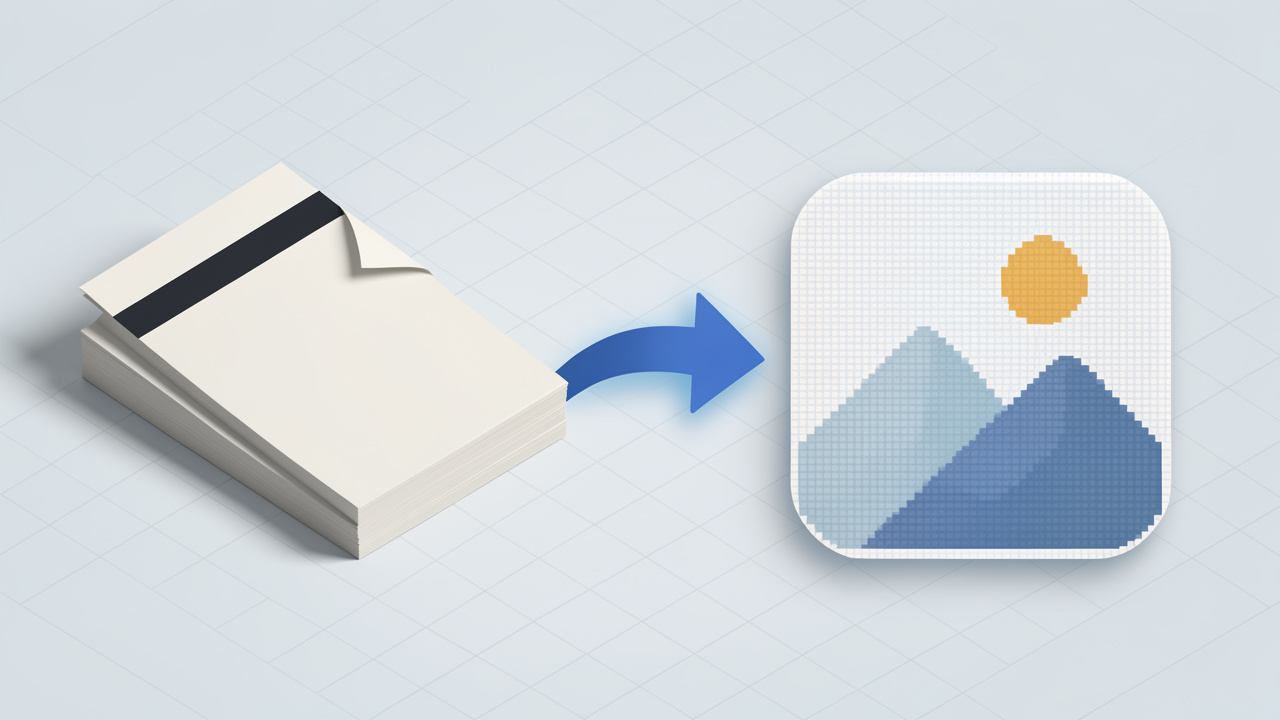
    Converting BMP files to PNG means taking an image saved in the Bitmap (BMP) format and changing it into the Portable Network Graphics (PNG) format. Both are raster image formats, which means they store pictures as pixels. The difference lies in how they store and compress that image data.

    BMP is one of the older image formats. It is known for being simple and widely supported, but it is often uncompressed or only lightly compressed, so BMP files can become very large even for fairly ordinary images. A logo, screenshot, or product image saved as BMP may look fine, but it can be inefficient to store, upload, or share.

    PNG was designed to solve some of those limitations. It uses lossless compression, which reduces file size without sacrificing image quality. That makes PNG especially useful for graphics that need sharp edges, clear text, transparent backgrounds, or repeated editing. When people search for a way to change a bitmap image into PNG format, they are usually looking for a better balance between quality, size, and usability.

    In practical terms, a BMP-to-PNG conversion is often less about changing how the image looks and more about improving how the image behaves. The visual content usually remains the same, but the file becomes easier to manage in modern digital environments.

    Key aspects of converting BMP to PNG

    Why people convert BMP files to PNG

    The biggest reason is file efficiency. BMP files are often much larger than necessary, which creates problems when uploading to websites, attaching files to emails, or organizing cloud storage. PNG can preserve the same visible image while cutting file size significantly.

    Another important reason is compatibility. PNG is supported almost everywhere, from browsers and design apps to content management systems and mobile devices. If you run an online store, manage digital documents, or send visual assets to clients, PNG is usually more practical than BMP.

    There is also the question of image quality. PNG is lossless, so you do not lose detail in the conversion. That matters for screenshots, interface elements, text-heavy graphics, diagrams, and logos. If the image needs to stay crisp, PNG is usually a strong choice.

    BMP vs PNG at a glance

    Feature BMP PNG
    Compression Usually uncompressed Lossless compression
    File Size Large Smaller than BMP in most cases
    Image Quality High High
    Transparency Limited or not commonly used Fully supported
    Web Use Poor for modern web workflows Excellent
    Editing Suitability Basic storage format Strong for graphics and repeated use
    Sharing and Uploading Less convenient Much easier

    This comparison highlights why PNG has become a default choice for many digital tasks. BMP still has niche uses in some legacy systems or simple local storage cases, but for most current workflows, PNG is the more flexible format.

    When PNG is the better choice

    PNG is especially useful when the image contains text, icons, logos, line art, or transparency. For example, if a freelancer receives a BMP logo from a client and needs to place it on a website or presentation, converting it to PNG can preserve sharp edges and allow easier placement over colored backgrounds.

    It is also ideal for screenshots. BMP screenshots often take up unnecessary disk space. A PNG version usually looks identical to the eye while being much easier to upload to documentation platforms, project management tools, or support tickets.

    For developers and productivity-minded users, PNG is often the practical choice because it works smoothly in web interfaces, app assets, design systems, and shared folders. A format that is easier to preview, upload, and store reduces small daily frictions that add up over time.

    What to watch out for

    Not every conversion changes the file in the same way. While PNG is usually smaller than BMP, the final size depends on the image itself. A simple graphic with large flat color areas may compress very well. A highly detailed image may not shrink as dramatically.

    It is also worth noting that converting a BMP image to PNG does not automatically improve the image content. If the original BMP is blurry, poorly scanned, or low resolution, the PNG will preserve those flaws faithfully. The conversion improves the container, not the underlying visual quality.

    Another point is workflow intent. If the image is a photograph, formats like JPG may sometimes produce much smaller files than PNG. But JPG uses lossy compression, so there is a quality trade-off. PNG is usually best when you want to keep every detail intact.

    How to get started converting BMP to PNG

    Choose the right conversion method

    The easiest way to convert BMP files to PNG is by using an online image converter. This is often the fastest route for small business owners and freelancers who just need a quick result without installing software. A good online tool should be easy to use, secure, and capable of preserving image quality without adding unnecessary steps.

    Desktop software can make more sense if you work with images regularly or need batch processing. Built-in tools on Windows, macOS, and many image editors can open BMP files and save or export them as PNG. For users handling large numbers of files, this method offers more control and often better privacy because the files stay on the local machine.

    Developers may prefer scripted or automated workflows, especially when processing assets in bulk. In that context, converting bitmap files into PNG images becomes part of a larger system for optimization, deployment, or asset management. The best method depends less on the file format itself and more on how often you need to perform the task.

    A simple conversion workflow

    For most users, the process is straightforward.

    1. Select the BMP file you want to convert.
    2. Open it in a converter or image editor that supports PNG export.
    3. Choose PNG as the output format.
    4. Save or download the new file and check the result.

    That is the mechanical side of it. The smarter part is what happens after. Always verify that the dimensions are correct, the colors look normal, and transparency is handled properly if needed. A quick visual check prevents avoidable issues later, especially if the image is going into a live website, marketing document, or client deliverable.

    Best practices for better results

    If you are converting files for web use, think beyond the format alone. PNG is a good choice, but image dimensions also matter. A huge PNG can still slow down a page if the resolution is much larger than needed. Resize images to match their actual display purpose whenever possible.

    Naming also matters more than many users realize. A clear filename makes assets easier to manage, especially when working across teams or projects. Instead of saving a converted image as something vague like “image-final-new2.png”, use a descriptive and consistent naming style that supports searchability and version control.

    If privacy is important, be selective about the tool you use. Sensitive files, client materials, internal diagrams, or product mockups should be converted with services that state how uploads are handled, or better yet, with local software. Convenience matters, but so does data responsibility.

    Who benefits most from converting BMP files to PNG

    Small business owners often benefit because they need images that work well in websites, product listings, proposals, and social content. A BMP file can feel like a dead end in those environments, while PNG fits naturally into most publishing tools.

    Freelancers benefit from smoother client handoffs. Sending a PNG instead of a bulky BMP reduces the chance of compatibility issues and makes deliverables more polished. It is a small change that signals professionalism.

    Developers and technical users benefit from consistency. Modern interfaces, documentation systems, design pipelines, and static assets are generally more friendly to PNG than BMP. Choosing the right format helps keep workflows lean and predictable.

    Conclusion

    Converting BMP files to PNG is a simple move with practical benefits. It usually gives you a file that is smaller, more compatible, easier to share, and better suited for modern digital use, all without sacrificing image quality. That makes it one of the easiest image format upgrades you can make.

    If you are working with old bitmap files, screenshots, logos, or stored visual assets, your next step is straightforward: convert a few BMP images into PNG format and compare the results. In most cases, you will end up with cleaner, more useful files that fit better into everyday work.
  • How to Convert PNG Files to PDF Quickly

    How to Convert PNG Files to PDF Quickly

    Turning a PNG into a PDF sounds like a tiny task until you need to do it quickly, keep the image quality sharp, and make sure the file is easy to share. That is where many people hit friction. A screenshot, scanned receipt, signed form, design mockup, or product image may look fine as a standalone image, but once it needs to be emailed, printed, archived, or combined with other pages, PDF is usually the format people expect.

    For small business owners, freelancers, developers, and productivity-focused users, converting PNG files into PDFs is less about file types and more about workflow. You want something simple, reliable, and preferably free. You also want to avoid bloated software, confusing settings, and quality loss. The good news is that converting a PNG file into a PDF is usually straightforward once you understand what changes, what stays the same, and what options matter.

    What is converting a PNG into a PDF?

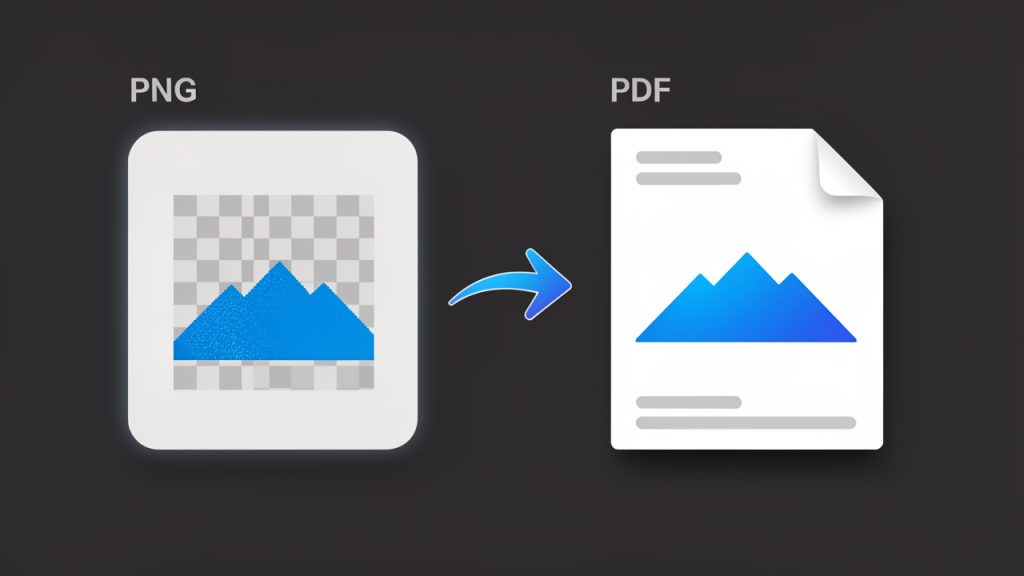
    At its core, converting a PNG into a PDF means taking an image file and packaging it into a document format.

    Side-by-side comparison showing a PNG image (thumbnail of a logo/screenshot with a checkerboard transparency background) on the left and a PDF document page (same image centered on a page with header/footer metadata) on the right, with an arrow labeled “Convert” between them. Visual cues: ‘PNG (lossless image)’ and ‘PDF (document wrapper)’ labels, small icons for file types, and a subtle note showing that layout and compatibility are added by the PDF.

    A PNG file is designed for images, especially graphics that need sharp edges, transparency, or lossless quality. PNG is a lossless image format. A PDF, on the other hand, is designed for sharing and presenting content in a consistent layout across devices and platforms.

    This distinction matters more than it first appears. A PNG is excellent when you need an image to remain crisp, such as a logo, screenshot, chart, or digital illustration. A PDF becomes more useful when that same image needs to be treated like a document. If you are sending an invoice attachment, submitting paperwork, compiling scans, or preparing visual assets for review, a PDF gives the file more structure and broader compatibility.

    The phrase people search for, often written as “PNG to PDF”, usually refers to either a one-time conversion or an ongoing need in daily work. Sometimes it is as simple as converting a single image into a one-page PDF. In other cases, it means combining multiple PNG files into one organized PDF document with the right page order, page size, and orientation.

    Why PDF is often the better final format

    PDF has become the standard for formal file exchange because it preserves layout and is widely supported. Whether your recipient opens it on a laptop, tablet, phone, or office printer, the content is far more likely to appear exactly as intended. That predictability is a major reason people convert image files into PDFs instead of sending raw images.

    There is also a psychological aspect to file format choice. A PDF feels complete. It looks more official, more stable, and easier to archive. When a client receives a PDF instead of a loose image file, the presentation often feels more polished. For businesses and freelancers, that small difference can support a more professional impression.

    When people commonly convert PNG files into PDFs

    The most common use cases are practical and repetitive. Someone scans paperwork as images and needs to combine the pages into a single PDF. A freelancer exports mockups or slides as PNG files and wants to send them as a clean presentation document. A developer captures UI screenshots for bug reports or product documentation and converts them into a shareable file that can be reviewed or stored more easily.

    In each case, the image itself is still important, but the document wrapper is what makes the file easier to move through a workflow. That is why PNG-to-PDF conversion has become such a common utility task across industries.

    Key aspects of converting PNG files into PDFs

    A good conversion is not just about changing the extension. It is about preserving what matters while making the file more useful. To do that well, it helps to understand image quality, file size, layout behavior, and compatibility.

    Image quality and resolution

    One of the first concerns people have is whether converting a PNG into a PDF will reduce quality. In many cases, the answer is no, at least not automatically. If the conversion tool embeds the PNG cleanly into the PDF, the image can remain visually identical.

    A two-panel comparison illustrating image quality effects: left panel shows the original sharp PNG (close-up of small text and line art, labeled ‘Source PNG — lossless’), right panel shows the same image after aggressive conversion/compression (blurred edges, artifacts, labeled ‘Compressed/optimized PDF — lower quality’). Include callouts for ‘resolution unchanged’ and ‘compression can soften text’.

    That said, some tools optimize or compress files during export, and that can reduce quality if the settings are aggressive or hidden. If your PNG contains small text, interface elements, or line art, even slight compression can make the result look softer. This is especially noticeable when printing. If visual precision matters, check whether the tool allows you to control compression or output quality.

    Resolution is another factor that affects the final result. A low-resolution PNG converted into a PDF does not become sharper just because it is now in document format. The PDF can preserve the image, but it cannot invent detail that was never there. If the source PNG is blurry or pixelated, the PDF will usually reflect that same limitation.

    File size trade-offs

    A PDF is not always smaller than a PNG. In fact, depending on how the conversion is handled, the file can become larger. This surprises users who expect PDF to act like a compression shortcut. In reality, the PDF may wrap the image with additional document data, metadata, or page information, increasing the overall size.

    For business workflows, file size matters when you are emailing attachments, uploading documents to portals, or storing large numbers of files in the cloud. If you are converting multiple high-resolution PNGs into one PDF, the final document can grow quickly. In those cases, use a tool that balances compression with readability rather than simply maximizing quality at all costs.

    The right choice depends on your goal. If you need a polished print-ready document, a larger size may be acceptable. If you only need a file that can be reviewed on screen and sent quickly, a lighter PDF is often better.

    Single image vs. multi-page PDF

    Not every conversion works the same way. A single PNG can become a one-page PDF with minimal effort. A batch of PNGs is more complex because page order, page breaks, orientation, and page sizing all come into play.

    This is where a good converter becomes more than a format changer. It becomes a document assembly tool. If you are combining receipts, portfolio pages, contracts, forms, or screenshots, you want to be able to control sequence and page formatting. A well-structured PDF is much easier to navigate than a folder full of disconnected image files.

    Transparency, margins, and page layout

    PNG files support transparency, which is one of the format’s strengths. But PDF pages need a defined background and page area. Depending on the converter, transparent parts of the PNG may appear white, flattened, or placed against a default background when exported to PDF.

    Margins can also affect presentation. Some tools stretch the image to fit the page. Others center it and leave whitespace around the edges. Neither is inherently wrong, but the result may look very different from what you expected. This matters for scanned documents, digital art, and branding materials, where alignment and spacing contribute to readability and visual polish.

    Security and privacy considerations

    This is one of the most overlooked aspects of online conversion. If you are using a web-based tool to turn PNG files into PDFs, you are uploading your content to a server somewhere. For everyday files, that may be acceptable. For contracts, IDs, invoices, medical records, or client work, it deserves more thought.

    A privacy-conscious workflow means checking whether files are deleted automatically, whether uploads are encrypted, and whether the service has a clear retention policy. For sensitive material, a local desktop or device-based conversion method may be the safer option. Convenience is valuable, but so is control.

    Common methods compared

    Method Best For Pros Trade-Offs
    Online converter Quick one-off tasks Fast, accessible, no installation Privacy concerns, upload limits, variable quality
    Built-in print to PDF Basic local conversion Free, available on many devices, simple Limited control over page layout and batching
    Desktop software Frequent or sensitive conversions Better quality control, offline use, more settings May require installation or payment
    Mobile app On-the-go work Convenient for scans and quick sharing Smaller screen, fewer advanced options

    How to get started converting PNG files into PDFs

    For most people, the best starting point is the simplest one. Use the method already available to you, then move to a more specialized tool only if your workflow demands it. The right approach depends on whether you care most about speed, quality, privacy, or document organization.

    Start with your actual use case

    Before converting anything, ask one simple question: What is this PDF for? That answer shapes almost every decision that follows. If the file is for internal reference, speed may matter most. If it is for a client or official submission, presentation and compatibility become more important. If it contains confidential information, local processing should move higher on your list.

    This small moment of clarity prevents a lot of unnecessary trial and error. People often choose a tool first and only later realize it compresses too much, adds watermarks, limits file count, or handles page formatting poorly. Starting with the use case keeps the process efficient.

    A simple conversion workflow

    If you are new to converting PNG files into PDFs, the workflow is usually straightforward:

    1. Choose your PNG file or files.
    2. Select a trusted conversion method, either online or on your device.
    3. Check page order, orientation, and size if using multiple images.
    4. Export the PDF and review it carefully before sharing or printing.

    Even this basic process benefits from a final review. Open the PDF on a second device if possible. Make sure text is readable, page crops look correct, and image edges are not cut off. A quick check can save an awkward resend later.

    Organizing multiple PNGs into one PDF

    When converting multiple PNG files, the main challenge is not technical. It is organizational. If the images are named inconsistently or uploaded in the wrong order, the PDF can become confusing immediately. Renaming files before conversion is often worth the extra minute.

    For example, if you are combining pages from a scanned contract, names like page-1, page-2, and page-3 will reduce errors. If you are assembling design samples or report images, logical naming helps the converter maintain sequence. It also makes future edits easier if you need to rebuild the PDF later.

    Choosing the right page size and orientation

    This is a detail many users ignore until the final file looks odd. A portrait PNG placed on a landscape PDF page can create too much blank space. A wide screenshot forced into a standard letter-size page may appear too small to read comfortably. The best tools let you match the image dimensions to the page or scale the page to fit the image.

    If the PDF is meant for printing, choose standard paper sizes such as A4 or Letter. If it is only for digital viewing, a tighter image-to-page fit can make the document look cleaner and more modern. The point is not to chase perfection. It is to choose settings that serve the way the file will actually be used.

    Avoiding common problems

    Most conversion issues fall into a few predictable categories. The image looks blurry because the source file was too small or the tool compressed it. The pages are out of order because files were not arranged before export. The PDF is too large because high-resolution images were bundled without optimization. The margins look awkward because the converter applied default page settings that did not match the image shape.

    These are not complex problems, but they are frustrating when you are in a hurry. A little preparation goes a long way. Keep source images organized, know whether the file is for print or screen, and test one sample conversion before processing a larger batch.

    Online tool or local tool?

    For free, easy-to-use workflows, online tools are often the first choice. They work in the browser, require no setup, and handle basic conversions quickly. This is ideal when you are on a shared machine, switching devices, or just trying to finish a small task with minimal effort.

    Local tools make more sense when privacy, repeat usage, or output consistency matters. If you regularly convert invoices, reports, forms, or client assets, a desktop or built-in operating system solution may feel more dependable over time. It removes upload delays, avoids internet dependency, and gives you more control over where your files go.

    The best choice is not universal. It is situational. A productivity-minded user often benefits from having both options available and using each where it fits best.

    Conclusion

    Converting a PNG into a PDF is a simple task on the surface, but the best results come from understanding what the conversion is really doing. You are not improving the original image just by changing formats. You are making that image easier to share, organize, print, archive, and present. Once you see it that way, the right settings and tools become much easier to choose.

    If you need to get started today, begin with a small test file and focus on three things: image clarity, page layout, and file size. If those look right, your process is probably solid. From there, you can build a faster workflow for receipts, forms, screenshots, portfolios, or any other images you need to turn into a polished PDF document.

  • How to Convert a PDF to PNG for Sharp, Shareable Images

    How to Convert a PDF to PNG for Sharp, Shareable Images

    Turning a PDF into a PNG sounds simple, until you actually need to do it well. Maybe you want to pull a page from a proposal for a presentation, share a document preview on social media, send a clean image to a client, or extract a form without asking someone to open a PDF viewer. That is where converting PDF to PNG becomes genuinely useful, not just convenient.

    For small business owners, freelancers, developers, and productivity-focused users, this conversion solves a very practical problem. PDFs are great for preserving layout and formatting, but they are not always the easiest format to preview, embed, annotate, or reuse. PNG files, on the other hand, are image-based, widely supported, and ideal when visual consistency matters. Understanding when and how to convert a PDF into a PNG can save time, reduce friction, and make your files much easier to work with.

    What Is PDF to PNG?

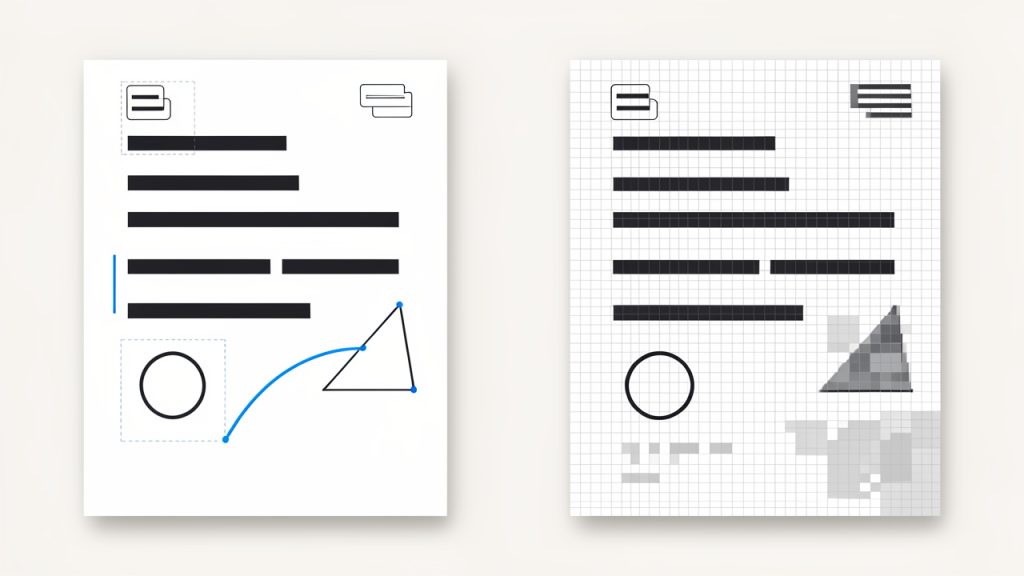
    At its core, converting a PDF to a PNG means taking one or more pages from a Portable Document Format file and exporting them as image files in the PNG format. Instead of a document with selectable text, embedded fonts, and multiple pages, you end up with a flat image representation of each page.

    That distinction matters. A PDF is built for structured documents. It can contain text layers, vector graphics, links, forms, and multiple pages in one file. A PNG is an image format designed for high-quality raster graphics, especially when you need sharp lines, transparent backgrounds, or lossless compression. When you convert from PDF to PNG, you are essentially transforming a document into a visual snapshot.

    Side-by-side comparison: left shows a PDF page with selectable text, vector shapes, multiple layers; right shows the same page flattened into a PNG raster image

    This is especially useful when the goal is display, not editing. If you are uploading a document preview to a website, sharing a single page in a chat app, using a page inside a design mockup, or preserving a specific layout exactly as it appears, PNG is often the better output format. It gives you a clean, fixed image that looks the same across devices and platforms.

    Why People Convert PDFs Into PNG Images

    In everyday workflows, people usually convert PDF files to PNG because they need accessibility and flexibility. A PDF may require a dedicated viewer, while a PNG opens almost anywhere instantly. For a busy freelancer sending proofs to a client, or a business owner posting a menu, flyer, or invoice preview online, that difference is meaningful.

    There is also a visual advantage. PNG uses lossless compression, which means image quality is preserved better than with formats like JPG, especially for text-heavy pages, diagrams, logos, and interface screenshots. If your PDF contains crisp typography, tables, branding elements, or line art, PNG often produces a cleaner result.

    Developers and digital teams also use PDF-to-PNG conversion in automated workflows. They may generate page thumbnails, create document previews in web apps, archive visual versions of reports, or process user uploads into image-friendly formats. In those cases, the conversion is not just a convenience feature, it becomes part of a larger document handling system.

    PDF vs PNG at a Glance

    Format Best For Strengths Limitations
    PDF Documents, forms, reports, printable files Multi-page support, selectable text, layout preservation, compact structure Less convenient for quick visual sharing or image-based workflows
    PNG Page previews, graphics, screenshots, web use Lossless quality, broad compatibility, sharp text and graphics Single-image format, larger file sizes than some compressed alternatives

    Key Aspects of PDF to PNG

    A good PDF-to-PNG conversion is not just about pressing a button. The quality of the output depends on several factors, and knowing them helps you avoid blurry pages, oversized files, and frustrating results.

    Image Quality and Resolution

    The first major factor is resolution, usually measured in DPI, or dots per inch. A low-resolution PNG might be fine for quick previews or on-screen sharing, but it can look soft when zoomed in or reused in print. Higher DPI settings produce sharper images, which is ideal for documents with small text, charts, or design details.

    The trade-off is file size. A 72 DPI export may load quickly and work well for a lightweight web preview, while a 300 DPI export can look significantly sharper but create much larger PNG files. The right choice depends on how the image will be used. If the PNG is for internal sharing, speed may matter more. If it is for a portfolio, presentation, or design review, clarity usually wins.

    Low vs high DPI: left low resolution appears soft and blurry, right high resolution looks crisp, with filesize indicators

    This is one of the most common mistakes people make. They assume all conversions are equal. They are not. The same PDF page exported at different resolutions can look dramatically different, especially when text or thin lines are involved.

    Single Page vs Multi-Page Conversion

    Another key aspect is how the tool handles multiple pages. Since a PNG is an image file, each PDF page typically becomes a separate PNG. If you have a 10-page PDF, you will usually get 10 image files after conversion.

    That sounds obvious, but it affects workflow. If you only need one page, choose a tool that lets you extract or convert selected pages rather than the entire document. This keeps file management simpler and avoids unnecessary clutter. For business users handling contracts, presentations, or scanned reports, page selection can save time quickly.

    For developers or teams automating this process, file naming also matters. Well-structured output, such as page-1.png, page-2.png, and so on, makes integration much easier in content systems and cloud workflows.

    Transparency, Backgrounds, and Visual Fidelity

    PNG supports transparency, which can be useful in some conversions, but not all PDF-to-PNG tools handle this the same way. If your PDF includes transparent elements, layered artwork, or vector graphics, the output may vary depending on the converter used.

    In many cases, PDFs are exported with a white background because they are document-based rather than image-based. Still, if you are working with logos, illustrations, or design files saved as PDF, preserving transparency can be important. This is especially true for marketers, designers, and online sellers who need flexible image assets.

    Visual fidelity also includes font rendering, line sharpness, and spacing accuracy. Better conversion tools preserve these details more reliably. Weak tools may flatten the page poorly, distort fonts, or create jagged edges around text and graphics.

    File Size and Performance

    PNG is excellent for quality, but it is not always the smallest format. If you convert a high-resolution PDF page into PNG, the result can be large, especially if the original page contains images, gradients, or complex layouts.

    For websites, dashboards, or apps, this affects loading speed. For email and cloud sharing, it affects convenience. A high-quality PNG is useful, but if the file is too heavy for the task, it becomes inefficient. That is why many users should think in terms of purpose, not just maximum quality.

    If the priority is crisp text and faithful reproduction, PNG is a strong choice. If the priority is minimum file size, another format might be more practical. Still, for sharp document previews and reusable visual assets, PNG remains one of the most dependable options.

    How to Get Started with PDF to PNG

    Getting started is usually straightforward, but choosing the right approach depends on your workflow, privacy needs, and quality expectations. Some users prefer a quick online converter. Others want offline tools for sensitive files. The best method is the one that fits the job without adding unnecessary steps.

    Choosing the Right Conversion Method

    Online tools are often the fastest place to start. You upload a PDF, select output settings if available, and download one or more PNG files. This works well for occasional use, especially when speed matters and the document is not confidential.

    Offline tools are better when privacy, control, or batch processing is important. If you are handling invoices, legal files, HR forms, internal reports, or client documents, keeping everything local may be the smarter choice. Many desktop applications and built-in operating system tools can convert PDFs into images without sending files to a third-party service.

    Developers and advanced users may prefer command-line or API-based solutions for automation. That route makes sense if you routinely generate previews, process uploaded PDFs, or build conversion into a larger system. It is not necessary for everyone, but it becomes valuable at scale.

    A Simple Start for Most Users

    1. Choose your PDF file and decide whether you need all pages or just specific ones.
    2. Set the output quality based on use, lower for quick previews, higher for readability and detail.
    3. Convert and review the PNG files closely, especially text sharpness and page alignment.
    4. Rename and organize the output if the PDF contains multiple pages.

    That review step is more important than many people realize. A converted image may technically work while still looking poor. Zoom in. Check the text. Make sure charts, signatures, logos, and margins appear the way you expect. If they do not, try a higher resolution or a more capable converter.

    Best Practices for Better Results

    If the PDF contains small text, technical diagrams, or branding details, export at a higher resolution from the beginning. This reduces the chance of fuzzy output and saves you from having to convert the file again. For client-facing work, quality should be intentional, not accidental.

    It also helps to think about page dimensions before converting. A portrait PDF page becomes a tall image. A landscape report becomes a wide one. If the PNG is intended for a website, mobile display, or social platform, plan for how the image will actually be viewed. A technically accurate conversion is not always the same as a usable one.

    For scanned PDFs, the source quality matters as much as the conversion tool. If the original scan is blurry, noisy, or crooked, converting it to PNG will not magically improve it. It may preserve the problem in a more shareable format, but it will not fix the underlying quality. In those cases, image cleanup or rescanning may be necessary.

    Which Option Fits Your Use Case?

    Use Case Best Approach Why It Works
    Quick one-time conversion Online converter Fast and convenient for non-sensitive files
    Client or business documents Offline desktop tool Better privacy and more control over output
    Website previews PNG export at web-friendly resolution Balances readability and performance
    Batch workflows or apps Automated or developer-focused solution Efficient for repeated conversions at scale

    Common Problems and How to Avoid Them

    Blurry output is the most common complaint. In most cases, the issue is low resolution. If your converted PNG looks soft, especially around text, increase the DPI or choose a tool that gives you better control over image quality.

    Another issue is oversized files. This usually happens when users export every page at very high resolution without considering the final purpose. If the image is only meant for screen viewing, you probably do not need print-level quality. Matching the resolution to the use case makes the output much more practical.

    Formatting errors can also occur, particularly with complex PDFs that include unusual fonts, transparency effects, or layered design elements. If a page renders incorrectly, try another conversion tool. Different engines handle PDFs differently, and one tool may preserve the layout far better than another.

    Conclusion

    Converting a PDF to PNG is one of those small tasks that can make a big difference in everyday work. It turns rigid documents into flexible image assets that are easier to preview, share, embed, and reuse. For business owners, freelancers, and digital teams, that means smoother communication and fewer format-related bottlenecks.

    The best results come from choosing the right method, paying attention to resolution, and matching output quality to the actual job. If you only need a quick page preview, keep it simple. If the file is client-facing or part of a professional workflow, take a moment to optimize the conversion properly. Your next step is straightforward: pick a PDF, decide how you plan to use the image, and convert it with quality in mind.

    If you need a quick way to embed or preview converted images inside a web workflow, consider tools that generate ready-to-use assets for web pages and apps.

  • How to Convert Base64 to PDF — Quick Guide

    How to Convert Base64 to PDF — Quick Guide

    A PDF that refuses to open is frustrating enough. When the source comes as a long, unreadable Base64 string, it can feel even worse. You know the file exists somewhere inside that block of text, but turning it into a usable document is not always obvious, especially if you are juggling invoices, contracts, reports, or app-generated files.

    That is exactly where Base64 to pdf conversion comes in. It takes encoded document data and restores it into a normal PDF you can save, share, print, or archive. For small business owners, freelancers, developers, and anyone working with digital workflows, understanding this process can save time, prevent file errors, and make document handling far more reliable.

    What is Base64 to pdf?

    Base64 to pdf refers to converting a Base64-encoded string back into a standard PDF file. Base64 is a text-based encoding method that represents binary data, such as a PDF, in plain ASCII characters. This makes it easier to transmit files through systems that are designed to handle text rather than raw binary content.

    In practical terms, Base64 often appears when files are sent through APIs, embedded in JSON responses, stored in databases, attached to emails, or passed between web applications. Instead of receiving a file named document.pdf, you may receive a long string beginning with something like JVBERi0x…. That string is not random noise. It is the PDF, translated into text form.

    The conversion process simply reverses that translation. Once decoded, the Base64 content becomes a working PDF again. If the original data is valid and complete, the result should open normally in any standard PDF reader.

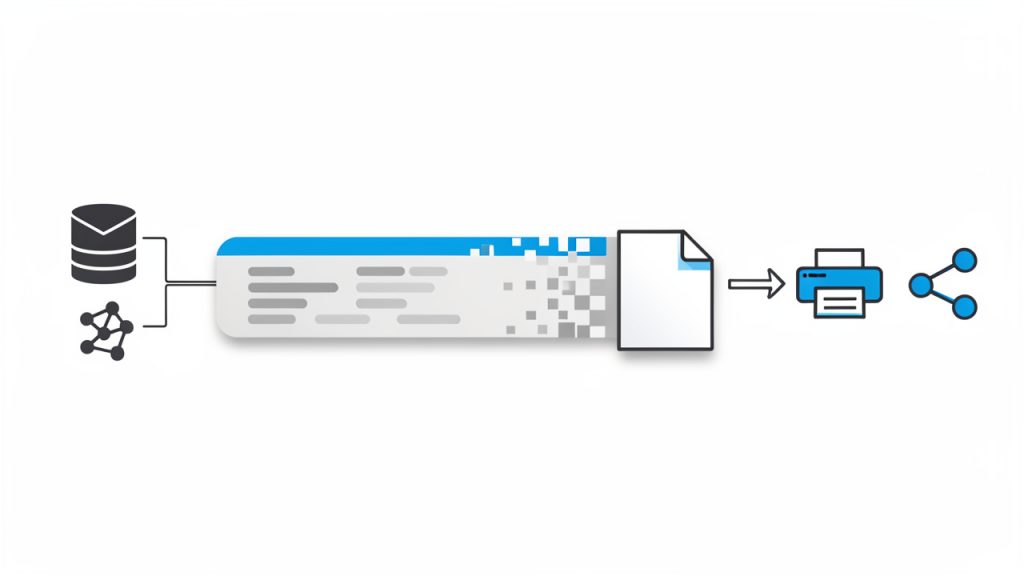
    Clear flow diagram showing Base64-encoded PDF recovery: leftmost column with source systems (API, email, database) feeding into a long Base64 text block icon; an arrow labeled "decode" pointing to a PDF file icon; final arrow to actions (save, print, share). Include small labels for "text transport layer" over the Base64 block and "original PDF" over the PDF icon.

    Why Base64 is used in the first place

    Base64 exists because many systems are more comfortable handling text than binary files. Some older communication protocols, web forms, and data transfer methods can corrupt or reject binary content. Encoding the file as Base64 creates a safer transport format.

    This matters in everyday business and technical workflows. A freelance designer might receive a signed PDF through an automation platform. A small business owner might export archived records from a system that stores documents as encoded strings. A developer might build a web app that receives PDF data from an API response. In all of these cases, Base64 is not the final format. It is a delivery format.

    That distinction is important. Base64 is not a document type, and it is not a replacement for PDF. It is just a way to carry the PDF from one place to another.

    What a Base64 PDF string looks like

    A Base64 string is usually long and continuous, made up of uppercase and lowercase letters, numbers, plus signs, slashes, and sometimes equals signs at the end. In some cases, it may also include a prefix such as data:application/pdf;base64, before the encoded content begins.

    That prefix is useful in web contexts because it tells the browser what kind of file is being represented. But if you are decoding the content manually or uploading it into a converter, you may need to remove that prefix first. The actual Base64 data starts after the comma.

    If the string has been copied from an email, spreadsheet, or exported file, spacing and line breaks can also cause problems. A valid Base64 to pdf conversion depends on receiving the complete string without accidental edits.

    Annotated example of a Base64 string: show a long continuous line of characters with a highlighted prefix segment (data:application/pdf;base64,) separated from the encoded content. Add callouts pointing to characters allowed (A–Z, a–z, 0–9, +, /) and padding equals signs at the end. Include a small note showing the comma as the split point between prefix and actual data.

    Key Aspects of Base64 to pdf

    The most important thing to understand is that successful conversion depends on clean input data. When a PDF does not decode correctly, the problem is often not the converter. It is usually a broken Base64 string, a missing prefix issue, an incomplete copy-paste, or corrupted source data from the system that generated it.

    This is why Base64 to pdf can seem easy in one scenario and confusing in another. If the source is complete and properly encoded, conversion is almost instant. If the source has been trimmed, altered, or wrapped incorrectly, the output file may be unreadable or fail to generate entirely.

    Common use cases

    Base64 to pdf conversion appears in more places than many people realize. In business settings, it often shows up in automated invoicing, e-signature workflows, customer document portals, and cloud-based record systems. A platform may package a generated PDF as Base64 to send it safely through an API.

    Developers see it constantly in web and mobile applications. An app may generate a PDF receipt, encode it in Base64, and send it to a front end for download. A backend service may receive PDF uploads as encoded strings for temporary processing. Even browser-based tools sometimes use Base64 under the hood when previewing downloadable content.

    For non-technical users, the experience is often accidental. You expected a file and got a wall of text instead. That usually means the PDF was delivered in encoded form and now needs decoding.

    Base64 to pdf vs other file conversion tasks

    This process is different from a traditional file conversion like Word to PDF or JPG to PDF. In those cases, you are changing one file format into another. With Base64 to pdf, you are not really changing the content itself. You are restoring the original binary file from an encoded text version.

    That difference affects expectations. A standard format conversion may alter layout, compression, fonts, or quality. A Base64 to pdf conversion should not do that. If done correctly, it recreates the exact original PDF data.

    This is also why it is often used in document-sensitive workflows. Contracts, receipts, tax forms, and legal documents need to remain intact. Base64 encoding helps move them safely, and decoding brings them back without modifying the document structure.

    Security and privacy considerations

    Whenever you handle Base64-encoded PDFs, you are still handling the actual document content. Even though the data looks scrambled, Base64 is not encryption. Anyone with access to that string can decode it into the original PDF.

    That is especially important for financial files, client records, HR documents, medical forms, or signed agreements. If you are using an online Base64 to pdf converter, think carefully about what kind of data you are uploading and whether the service is appropriate for sensitive information.

    For businesses and developers, local conversion is often the safer route when privacy matters. Keeping the decoding process inside your own environment reduces exposure and gives you more control over storage, retention, and compliance.

    Typical problems users run into

    One frequent issue is the inclusion of extra characters before or after the Base64 string. This often happens when content is copied from logs, web pages, or exported JSON. Even a small interruption can break the conversion.

    Another problem is incomplete data. Base64 strings can be extremely long, and if part of the content is cut off, the PDF will not reconstruct properly. Some tools also struggle when line breaks are inserted in the wrong place, especially if the string was pasted from a formatted document or spreadsheet.

    There is also the issue of file type mismatch. Sometimes users assume a string represents a PDF when it actually encodes a PNG, ZIP file, or another document type. If the source is not really a PDF, decoding it as one will fail no matter how many times you try.

    Quick comparison of common approaches

    Method Best For Pros Trade-offs
    Online Base64 to pdf tool Fast one-off conversions Simple, no setup, beginner-friendly May raise privacy concerns for sensitive files
    Local desktop utility Repeated offline use Better control, no browser upload May require installation
    Custom script or app logic Developers and automated workflows Scalable, flexible, integrates with systems Requires technical setup and testing
    Browser-based manual decoding Lightweight personal tasks Convenient for quick checks Not ideal for confidential business documents

    How to Get Started with Base64 to pdf

    If you are new to this, the easiest path is to start by checking the source string carefully. Make sure you actually have Base64 data for a PDF, not just a partial snippet. If the string includes a prefix like data:application/pdf;base64,, note whether your chosen tool expects the full value or only the encoded portion.

    For a quick conversion, many users choose an online tool. That works well for non-sensitive documents and occasional tasks. You paste the string, run the conversion, and download the resulting PDF. If the document opens correctly, the process is done.

    A simple workflow for first-time users

    Most Base64 to pdf tasks follow the same basic sequence:

    1. Copy the full Base64 string from the source without truncating it.
    2. Remove any unnecessary prefix or extra characters if your tool requires clean encoded data only.
    3. Decode the string into PDF format using a trusted converter or local method.
    4. Open and verify the PDF to confirm that pages, text, and formatting appear correctly.

    This sounds straightforward, and in many cases it is. The real challenge is accuracy. A clean input almost always leads to a smooth result.

    How developers usually handle it

    For developers, Base64 to pdf is often part of a broader workflow rather than a one-time file rescue. You might receive Base64 in an API response, decode it server-side, and write the output as a .pdf file. Or you may let a front end trigger a browser download after decoding a response from a backend service.

    In these situations, validation matters. It helps to confirm that the string is complete, verify the MIME type if available, and handle decoding errors gracefully. When documents are customer-facing, even a small file corruption issue can create support tickets and undermine trust.

    Developers should also be mindful of performance. Base64 increases data size compared to raw binary. That is acceptable for many workflows, but at scale it can affect payload size, memory use, and response times. For large documents or high-volume systems, direct file handling may sometimes be more efficient than passing everything as Base64.

    How to tell if your Base64 string is valid

    A valid PDF encoded in Base64 usually decodes into a file that begins with the standard PDF header internally. You will not always inspect that manually, but a reliable conversion result should open in a normal PDF viewer without warnings or blank pages.

    If the file will not open, first go back to the source string. Check whether the content was cut off. Look for pasted spaces, line wrapping, quote marks, or metadata mixed into the actual encoded data. If a prefix is present, test whether removing it helps.

    It is also worth confirming the origin. If the string came from an API, log export, or database field, verify that the source system actually generated a PDF. Mislabeling happens more often than many users expect.

    Choosing the right method for your workflow

    The right Base64 to pdf method depends on context. If you only need to decode a receipt once, convenience is probably your priority. If you handle confidential business records regularly, privacy and control matter more. If you are building a product or automating document delivery, repeatability and error handling become essential.

    That is why this topic matters beyond a one-time conversion. It sits at the intersection of usability, security, and workflow design. A good process is not just about getting a PDF today. It is about making document handling dependable tomorrow.

    Practical tips for smoother results

    • Keep the source intact: Avoid editing or reformatting the string unless necessary.
    • Check for the data prefix: Some tools accept it, others require only the raw Base64 portion.
    • Use secure methods for sensitive files: Treat Base64 data like the document itself.
    • Verify the output immediately: Open the PDF and confirm that it matches expectations.

    These small checks save time because they catch the most common failure points early. In document workflows, that kind of consistency matters more than speed alone.

    Conclusion

    Base64 to pdf is simpler than it first appears. You are taking text-encoded document data and restoring it to its original PDF form. Once you understand that Base64 is just a transport layer, the process becomes much easier to manage.

    Whether you are a freelancer trying to recover a client file, a small business owner dealing with automated documents, or a developer integrating file delivery into an application, the same rules apply. Start with clean data, choose the right conversion method, and treat encoded documents with the same care you would give the final PDF.

    Your next step is straightforward. Take the Base64 string you have, verify that it is complete, and decode it using a method that fits your privacy and workflow needs. If the output opens cleanly, you have not just solved one file problem. You have learned a practical skill that makes digital document handling far more efficient.

  • Convert JPG to PDF Online Quickly and Securely

    A simple image file can slow down an entire workflow. You scan a receipt, export a design mockup, or snap a document photo on your phone, and suddenly you need it in a format that is easier to share, print, archive, or submit. That is where the need to convert JPG to PDF online becomes practical, not just convenient.

    For small business owners, freelancers, developers, and anyone who values speed, online conversion tools solve a very common problem in seconds. You do not need heavy desktop software, advanced design skills, or complicated setup. You upload a JPG, adjust a few options if needed, and download a PDF that is easier to send to clients, attach to forms, or store in a more professional format.

    The appeal goes beyond simplicity. A PDF looks consistent across devices, feels more polished in business settings, and can combine multiple images into a single file. If you often work with invoices, contracts, portfolios, screenshots, reports, or photographed paperwork, learning how to convert JPG to PDF online can save time and reduce friction in your daily process.

    What is convert JPG to PDF online?

    At its core, convert JPG to PDF online means using a web-based tool to transform one or more JPG image files into a PDF document directly in your browser. Instead of installing software on your computer, you use an online service that processes the image and packages it into a PDF file you can download immediately.

    This matters because JPG and PDF serve different purposes. A JPG is an image format. It is excellent for photos and visual content, but it is not always ideal for document workflows. A PDF, by contrast, is designed for sharing fixed-layout files. It preserves the look of the content, works well for printing, and is widely accepted for business, legal, and administrative use.

    In practical terms, converting a JPG to a PDF is often less about changing the visual itself and more about changing the container. The image remains visible, but it becomes part of a more structured, shareable document type. That distinction is important if you need to send paperwork, combine multiple scans, or present content in a more formal format.

    Online conversion is especially useful for people who work across multiple devices. You might snap a photo on your phone, upload it from a tablet, or convert files from a laptop without worrying about operating system compatibility. For busy users, that flexibility is a major advantage.

    Key aspects of convert JPG to PDF online

    Why people prefer PDF over JPG in real workflows

    A JPG is easy to create, but a PDF is often easier to use in professional settings. If you send a client a single image, it may open differently depending on the device or app. A PDF is more predictable. It feels like a finished document, not just a loose file.

    That difference matters when presentation affects credibility. A freelancer sending design proofs, a consultant submitting expense receipts, or a small business owner forwarding scanned forms all benefit from a format that looks organized and intentional. Even when the content starts as a photo, the PDF gives it a clearer business context.

    PDF files also make multi-page organization easier. If you have five JPG scans of a contract or ten product photos for a catalog draft, combining them into one PDF is far cleaner than sending a folder full of images. It reduces clutter and improves the recipient’s experience.

    The main benefits of using an online JPG to PDF converter

    The biggest benefit is speed. Most online tools are built for immediate use. You drag files into a browser window, choose the order if you have multiple images, and download the converted PDF within moments. For occasional tasks, this is much more efficient than installing dedicated software.

    Another benefit is accessibility. You can usually convert JPG to PDF online for free or at least complete basic tasks without cost. That is valuable for solo professionals and small teams that want utility without another subscription.

    There is also a lower learning curve. Good online converters are intentionally simple. They focus on one job and remove the complexity found in advanced document software. For users who just want the file converted and sent, that simplicity is a feature, not a limitation.

    File quality and formatting considerations

    Not all conversions produce the same result. The visual quality of the final PDF depends heavily on the original JPG. If the image is blurry, poorly lit, or heavily compressed, converting it to PDF will not improve it. The PDF may be easier to share, but it will still reflect the quality of the source image.

    Layout settings also matter. Some tools let you adjust page size, orientation, margins, and image scaling. These options become important when converting receipts, scanned letters, photographs, or presentation visuals. A receipt might need a compact page, while a portfolio image may look better centered on a full page with clean margins.

    File size is another trade-off. A high-quality JPG converted into a PDF can remain relatively large, especially if you combine multiple images. That can be useful when detail matters, such as in scanned contracts or design references. But if you need to email the file or upload it to a platform with size limits, compression features become useful.

    Privacy and security matter more than most users expect

    When you convert JPG to PDF online, you are often uploading files to a third-party server. That is convenient, but it introduces a privacy consideration. If your file includes invoices, IDs, legal pages, financial records, medical forms, or confidential business information, you need to be selective about the tool you use.

    A trustworthy online converter should clearly explain how files are handled, whether uploads are encrypted, and when files are deleted from its servers. If those details are missing, vague, or difficult to find, that is a warning sign. Convenience should not come at the cost of exposing sensitive data.

    For routine, non-sensitive images, this may not be a major concern. But for business use, privacy policies are part of the decision. The right mindset is simple, if you would hesitate to email the image to a stranger, do not upload it to an unknown converter without checking its handling practices first.

    Single image conversion versus combining multiple JPGs

    One of the most useful features in online converters is the ability to merge several JPG files into one PDF. This is especially valuable when working with scanned paperwork, receipts, signed pages, product images, or visual records from a site visit.

    A single-image conversion is straightforward. The JPG becomes one page in a PDF. Multi-image conversion, however, adds another layer of usefulness because it allows you to create a document that tells a sequence or contains a full set of materials. Think of it like turning a stack of loose photos into a stapled report.

    The order of pages matters here. A good converter lets you rearrange uploaded images before processing them. That small feature has a big effect on usability, especially when documents need to be reviewed in a specific sequence.

    Free tools versus advanced features

    Many people start by searching for a free JPG to PDF converter online, and that makes sense. Basic conversion is widely available without payment. For everyday needs, such as creating a PDF from a screenshot or scanned receipt, free tools are often enough.

    Paid or premium versions usually enter the picture when users need more control. That can include stronger compression, OCR support, batch processing, cloud integration, watermark removal, password protection, or higher upload limits. These are meaningful upgrades for teams and frequent users, but not always necessary for occasional tasks.

    The best choice depends on volume and context. If you convert a file once a month, free and simple is probably ideal. If you process client documents every day, reliability, privacy controls, and workflow features become more important than saving a few dollars.

    Consideration Basic Free Online Converter More Advanced Online PDF Tool
    Cost Usually free for simple tasks Often subscription-based or limited free tier
    Ease of use Very simple interface More features, slightly more setup
    Multi-file support Common, but sometimes limited Usually stronger batch handling
    Privacy features Varies significantly Often more transparent and robust
    Compression options Basic or automatic More control over output size and quality
    Best for Occasional personal or light business use Frequent professional workflows

    How to get started with convert JPG to PDF online

    Choose the right kind of tool for your use case

    Before you upload anything, think about what you actually need the PDF to do. If your goal is simply to turn one image into a downloadable PDF, nearly any reputable online converter will handle it. If you need to combine several JPGs, reduce file size, preserve print quality, or protect sensitive documents, the bar is higher.

    This step saves time because it keeps you from choosing a tool based only on search ranking or flashy design. The best converter for a one-page receipt is not necessarily the best one for client proposals, internal records, or legal paperwork. Matching the tool to the job is the simplest way to avoid frustration.

    A good starting checklist is short:

    1. Check privacy policy if the JPG contains sensitive information.
    2. Confirm multi-file support if you need more than one image in the PDF.
    3. Look for layout options if page size or orientation matters.
    4. Review file limits before uploading large images or batches.

    Prepare your JPG files before conversion

    A smoother conversion starts with cleaner source files. If the JPG is a photo of a document, crop out the background and straighten the image first. That small effort can dramatically improve how professional the final PDF looks. It also helps avoid oversized pages with too much empty space.

    If you are combining multiple files, rename them in the order you want them to appear. This makes uploads easier to manage and reduces mistakes when assembling the final document. For example, invoices, scanned pages, or portfolio images become much easier to organize when the filenames already follow a sequence.

    Resolution deserves some attention too. Extremely low-resolution JPGs can make the PDF look amateurish, while unnecessarily large files may slow uploads and create oversized PDFs. The ideal source image is clear, readable, and appropriately sized for its purpose.

    The basic process is usually very simple

    Most online workflows follow the same pattern. You upload your JPG files, adjust optional settings, start the conversion, and download the PDF. The simplicity is one reason these tools remain so popular.

    Here is the typical sequence:

    1. Upload your JPG file or files into the online converter.
    2. Arrange the images in the correct order if creating a multi-page PDF.
    3. Select settings such as page size, orientation, margins, or compression if available.
    4. Convert and download the final PDF to your device.

    The process itself takes only a minute or two. The real difference between tools is not whether they can convert the file, but how well they handle layout, quality, speed, and privacy.

    Common mistakes to avoid

    One common mistake is assuming conversion will improve a poor image. It will not. If the original JPG is blurry, dark, crooked, or cut off, the PDF will carry those same flaws. Start with the best possible image if readability matters.

    Another issue is ignoring the final file size. A PDF made from several large JPGs can become too big for email attachments or platform uploads. If that matters, choose a converter with compression settings or optimize the images before uploading.

    Users also often overlook page formatting. A portrait-oriented document image placed badly on a landscape page can look awkward and waste space. If the tool allows layout control, use it. Those details make the difference between a file that merely works and one that looks polished.

    When online conversion is the right choice, and when it is not

    For most everyday tasks, online conversion is ideal. It is fast, browser-based, and available anywhere. If you need a quick PDF from a JPG without installing software, this is often the best route.

    Still, there are situations where online tools are not the best fit. If you handle confidential legal records, internal company documents, medical files, or highly sensitive financial data, a trusted offline solution may be safer. The same is true if your internet connection is unreliable or you need to process large batches regularly.

    That does not make online tools less useful. It simply means the smart choice depends on the context. Convenience is powerful, but so is control. The goal is not to use online tools for everything, but to use them where they make the most sense.

    Conclusion

    To convert JPG to PDF online is to solve a small but constant digital workflow problem with speed and simplicity. It helps turn loose image files into structured documents that are easier to share, print, archive, and present professionally. For business users and productivity-minded professionals, that small shift in format often creates a real improvement in day-to-day efficiency.

    The next step is straightforward. Choose a reputable tool, start with a clear JPG, pay attention to privacy if the file is sensitive, and use layout options when presentation matters. Once you build this into your workflow, converting a JPG into a polished PDF becomes less of a task and more of a quick habit.

  • Online Convert: Fast, Secure File Conversion for Workflows

    Online Convert: Fast, Secure File Conversion for Workflows

    Every day, people lose time to simple file problems. A client sends a HEIC image your laptop cannot preview. A supplier uploads a spreadsheet in the wrong format. A PDF is too large to email, a video will not play on mobile, or a document needs to become editable before a deadline. These are small blockers, but they add up fast.

    That is why Online convert tools have become a quiet productivity essential for small business owners, freelancers, developers, and anyone who works across devices and file types. Instead of installing heavy software for every format mismatch, you can use a browser-based tool to convert files in minutes. The appeal is obvious, less friction, lower cost, and faster turnaround.

    What makes online conversion especially useful is its range. It is not just about turning one file into another. It often includes compression, resizing, format cleanup, OCR, media adjustments, and basic optimization. For users who want free, easy-to-use online tools, this makes online convert services a practical part of a modern digital workflow.

    What is Online convert?

    Online convert refers to web-based tools that let you change one digital format into another without installing desktop software. In the simplest sense, you upload a file, choose the output format, adjust any settings if needed, and download the converted result. That could mean turning a Word document into PDF, a PNG into JPG, an MP4 into GIF, or a CSV into XLSX.

    The idea sounds basic, but the value is much bigger than the action itself. Format conversion solves compatibility problems between apps, devices, operating systems, and platforms. A freelancer might need to deliver a compressed PDF that opens cleanly on any device. A small business might need product photos resized and converted for faster website loading. A developer might need structured data transformed into a format that fits an API, database import, or reporting workflow.

    File conversion becomes the bridge that keeps work moving when formats do not naturally line up.

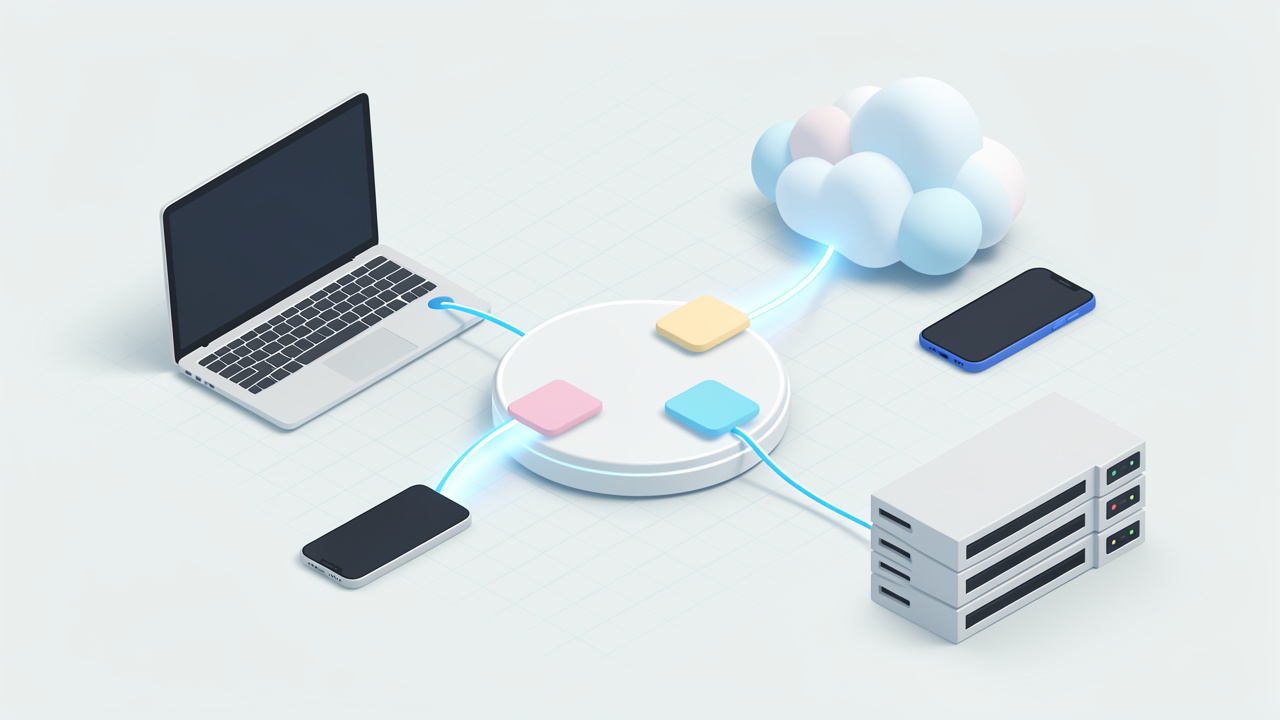
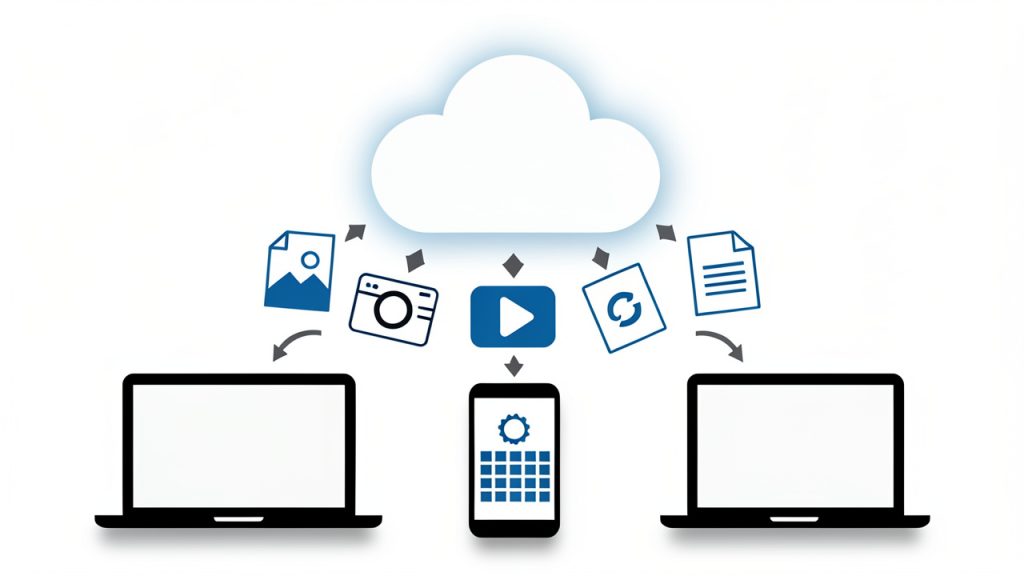
    A central 'online convert' cloud or bridge icon connecting a variety of file-type icons (PDF, DOCX, JPG/PNG, HEIC, MP4, GIF, CSV/XLSX, EPUB) and device icons (laptop, smartphone, tablet). Use arrows showing files flowing from devices into the cloud and back as converted formats — conveys 'file conversion as the bridge between apps, devices, and formats.'

    Another reason these tools have gained popularity is accessibility. Traditional conversion software can be expensive, complex, or device-specific. Browser-based tools lower that barrier. In many cases, a user can open a site, drag in a file, choose the target format, and finish the task in under five minutes. For people who prioritize speed and simplicity, that is a powerful advantage.

    Key Aspects of Online convert

    Format flexibility is the biggest strength

    One of the strongest reasons people rely on Online convert platforms is the broad variety of supported formats. Good services typically cover documents, images, audio, video, ebooks, archives, and sometimes fonts or data files. That means a single tool can solve many unrelated problems across a workday.

    This matters more than it first appears. If you run a small business, your tasks are rarely limited to one media type. You might prepare invoices, edit product images, compress promotional videos, and share presentations, all in the same week. Using separate software for each format creates friction. A flexible online converter reduces tool sprawl and shortens the gap between task and completion.

    Ease of use often determines real value

    A converter can support hundreds of file formats and still be frustrating if it is hard to use. The best online convert tools keep the workflow simple. You upload, select, adjust, and download. The interface is usually intuitive enough that even non-technical users can complete conversions without training.

    For freelancers and productivity-minded users, this simplicity is not just convenience. It is part of efficiency. When a task is small, the setup cost matters. If a conversion requires software installation, account creation, plugin troubleshooting, or a steep learning curve, the time saved disappears. A clean browser-based experience keeps attention on the work, not the tool.

    Conversion quality matters more than speed alone

    Fast conversion is useful, but accuracy and output quality are what separate a dependable tool from a disposable one. A poor image converter may reduce sharpness. A weak document converter may break formatting, tables, or embedded fonts. A low-quality video converter may produce files that technically work but look noticeably degraded.

    This is where context matters. If you are converting a rough draft for internal use, small quality loss may not matter. If you are submitting legal documents, sales materials, portfolio assets, or downloadable customer resources, quality becomes critical. Smart users do not judge online convert tools only by how fast they process a file. They also judge how well the result preserves layout, readability, metadata, and usability.

    Security and privacy should never be an afterthought

    Many people focus on convenience first, but security is one of the most important aspects of any online conversion tool. When you upload a file, you are often sending business data, client information, contracts, financial documents, or creative work to a third-party service. That creates a trust question.

    A reliable online convert platform should clearly explain file handling, deletion policies, encryption, and storage practices. If that information is missing or vague, caution is justified. For highly sensitive documents, local or offline tools may still be the better option. Convenience is valuable, but not at the cost of exposing confidential data.

    Free does not always mean unlimited

    Many users search for free online convert tools because they want quick results without buying software. That is reasonable, and many services do offer useful free plans. Still, free access usually comes with trade-offs. These may include file size limits, slower processing, daily conversion caps, fewer output options, or lower priority in the queue.

    That does not make free tools bad. In fact, for occasional use, they are often more than enough. But it is worth understanding the model. If your workflow depends on frequent or large-volume conversions, you may eventually need a premium option or a mix of tools. The smartest approach is to match the tool to the workload rather than assume all free converters will scale smoothly.

    Extra tools often provide hidden value

    Many online convert services now include more than pure format conversion. They may offer file compression, image resizing, OCR for scanned PDFs, metadata editing, trimming for media files, or quality presets for web and mobile use. These features matter because real-world conversion tasks rarely happen in isolation.

    Imagine you are preparing a brochure for email distribution. You may need to convert it to PDF, compress it, and ensure it opens cleanly on different devices. Or consider an ecommerce seller who needs to convert a product image, resize it for a marketplace, and reduce file weight for page speed. In both cases, the best tool is not only one that changes file type, but one that supports the full task.

    Different users benefit in different ways

    The value of Online convert depends on the user’s context. For a small business owner, it can reduce dependency on specialized software and help staff handle routine file tasks in-house. For freelancers, it can speed up delivery and improve compatibility with clients. For developers, it can assist with data transformation, asset preparation, and testing file behavior across systems.

    This is why online conversion is best understood not as a niche utility, but as a workflow layer. It removes friction at the edges of digital work. The better your files move between people, platforms, and devices, the smoother your operations become.

    How to Get Started with Online convert

    Start with a clear use case

    Before choosing a tool, identify what you actually need to convert and why. That sounds obvious, but many users start with the tool instead of the task. A person who only needs to convert invoices to PDF has different needs from someone transforming large video files or batch-processing product images.

    When you define the use case first, it becomes easier to choose the right online convert service. You can focus on supported formats, output quality, file size limits, privacy expectations, and any extra features required. This prevents wasted time and reduces the chance of choosing a tool that looks good on the surface but fails on the details.

    Test on a non-critical file first

    If you are using a new online converter, start with a sample file rather than an important client asset or final deliverable. This lets you check how the platform handles formatting, image quality, naming conventions, and download behavior before trusting it with mission-critical work.

    That test is especially important for documents with complex layouts, spreadsheets with formulas, and media files where quality loss can be subtle. A quick trial run can reveal whether the tool is dependable enough for your workflow. It is a small habit that prevents bigger mistakes later.

    Compare tools based on practical criteria

    Choosing an online convert platform is easier when you judge it by how it performs in everyday work, not just by its homepage claims.

    Criteria Why It Matters What to Look For
    Supported formats Determines whether the tool fits your tasks Common and specialized input/output types
    Output quality Affects professionalism and usability Good formatting retention, sharp media, stable files
    Ease of use Reduces time and frustration Simple upload flow, clear settings, fast downloads
    Security Protects sensitive information HTTPS, deletion policy, privacy transparency
    File limits Impacts larger or frequent jobs Reasonable size caps, batch support if needed
    Extra features Saves time on related tasks Compression, resize, OCR, optimization options

    This kind of comparison helps you think like a practical operator rather than a casual browser. For most users, the best online convert tool is the one that handles recurring tasks reliably, not the one with the longest feature list.

    Build a simple workflow around recurring conversions

    If you repeatedly convert the same types of files, create a lightweight process for it. Save source files in a consistent folder, name them clearly, and note the settings that produce the best output. Repetition creates opportunities for speed.

    For example, a freelancer sending client deliverables every Friday might standardize images to a specific size and format. A small business might convert all scanned receipts to PDF and compress them before cloud storage. A developer may regularly transform exported data into cleaner import formats. These routines reduce decision fatigue and prevent avoidable errors.

    Know when online tools are enough, and when they are not

    Online convert services are excellent for convenience, but they are not perfect for every scenario. If you are working with highly sensitive files, massive datasets, large video renders, or complex design documents that must preserve every detail, a dedicated desktop or enterprise solution may be more appropriate.

    That is not a weakness of online conversion. It is simply a matter of fit. Browser-based tools are strongest when speed, accessibility, and low setup matter most. Knowing where they shine helps you use them with confidence, rather than expecting them to solve every technical edge case.

    A simple getting-started process

    A simple four-step flow graphic: 1) Upload (arrow into cloud), 2) Select/Adjust settings (gear or sliders), 3) Convert/Process (spinning/processing icon), 4) Download & Inspect (download arrow and magnifying glass). Each step shown with a clear icon and short label to illustrate the getting-started process.

    1. Choose the file type you need to convert, such as PDF, JPG, MP4, DOCX, or CSV.
    2. Select a trusted online converter with clear privacy information and support for your format.
    3. Upload a test file and review any optional settings before processing.
    4. Download and inspect the result to confirm quality, formatting, and compatibility.
    5. Repeat with your real file once you are satisfied with the output.

    This basic process keeps risk low and helps you learn quickly. After one or two successful tasks, using an online convert tool usually becomes second nature.

    Conclusion

    Online convert is ultimately about reducing friction in digital work. It helps bridge the gaps between formats, devices, software, and user expectations. For small business owners, freelancers, developers, and productivity-focused users, that translates into faster turnaround, fewer software headaches, and smoother collaboration.

    The best next step is simple, identify one recurring file problem in your workflow and solve it with a reliable online conversion tool. Start small, test carefully, and pay attention to quality and privacy. Once you find a tool that fits, you will likely wonder how much time you used to lose on file issues that should have taken only minutes.

  • Convert JPG to PDF Online Free: Fast, Secure & Easy

    Convert JPG to PDF Online Free: Fast, Secure & Easy

    A folder full of JPG files looks manageable until it needs to become one shareable document. That is the point where people start searching for how to convert jpg to pdf online free, usually with urgency. It may be a scanned contract, handwritten notes, product images, receipts, or a set of screenshots that need to be sent in a clean format.

    The appeal is obvious. PDF is portable, predictable, and accepted almost everywhere. JPG is easy to capture, but awkward to organize when multiple images need to be bundled into a single file. A free online JPG to PDF converter closes that gap quickly, often without requiring software installation, account creation, or technical setup.

    For developers, operations teams, students, and everyday users alike, the value is not just convenience, it is workflow compression. A task that once required desktop tools can now be completed in a browser in minutes, sometimes in seconds, with drag-and-drop simplicity and acceptable output quality.

    What is convert jpg to pdf online free?

    The phrase convert jpg to pdf online free refers to using a web-based tool that transforms one or more JPG image files into a PDF document without charging a fee. In practical terms, the user uploads image files, the service processes them on a remote server or in the browser, and then returns a downloadable PDF.

    This solves a common format mismatch. JPG is an image format optimized for photographs and compressed visuals. PDF is a document container designed to preserve layout, improve portability, and simplify sharing across devices and operating systems. When the objective is to send a document rather than a loose set of images, PDF becomes the more functional format.

    There is also an important structural distinction. A JPG file contains a single image object. A PDF can contain multiple pages, embedded images, metadata, and layout instructions. That means several JPGs can be merged into a single ordered document, which is especially useful for forms, invoices, scanned pages, design proofs, and report attachments.

    A side-by-side comparison diagram: left side labeled 'JPG' showing a single raster image thumbnail; right side labeled 'PDF' showing a stack of pages with small image thumbnails on each page plus icons for metadata and layout (e.g., text lines, page numbers).

    Online conversion tools reduce friction because they remove installation and configuration requirements. Instead of opening a desktop editor, exporting files, and manually assembling pages, the process happens in the browser. For users who need speed and minimal setup, this is often the decisive advantage.

    Key Aspects of convert jpg to pdf online free

    Why people convert JPG to PDF in the first place

    The most common reason is document control. A batch of images can feel fragmented. A PDF creates a single, coherent artifact that is easier to upload to portals, email to clients, archive in cloud storage, or attach to support tickets.

    Compatibility is another driver. Many institutions, job portals, finance platforms, and government websites prefer or require PDF uploads. Even if the original content starts as phone photos or exported screenshots, converting those JPGs into PDF is often necessary just to complete the submission.

    There is also a presentation benefit. PDF looks intentional and suggests finality and structure. A set of JPGs may be interpreted as raw source material, while a PDF reads as a finished document. That distinction matters in business communication, internal reviews, and client-facing workflows.

    The main benefits of using an online free converter

    Accessibility is the strongest benefit. A free online JPG to PDF converter can usually be used from Windows, macOS, Linux, Android, and iPhone devices with nothing more than a browser and internet connection. This makes it practical for distributed teams and users working across multiple devices.

    Speed is the next factor. For small to medium conversion jobs, browser-based tools are often faster than installing software. Upload, reorder, convert, download: the interaction model is optimized for quick output.

    Cost matters too. Not every use case justifies a paid PDF suite. If the requirement is straightforward, such as combining five JPG receipts into one PDF, a free solution is often sufficient. For occasional users, this is efficient. For teams, it can reduce unnecessary software sprawl.

    What to evaluate before using a free online tool

    Not all converters are equal. Privacy should be the first checkpoint. If the JPG files contain IDs, contracts, medical information, financial records, or internal screenshots, the handling policy matters. Some services process files on remote servers and delete them after a short period. Others may be less explicit. Users should look for clear statements on retention, encryption, and deletion.

    Output control is another consideration. Basic tools may only convert in default settings, while better platforms allow page reordering, margin settings, orientation selection, page size adjustment, and compression control. These options affect whether the final PDF is usable for print, archive, or formal submission.

    File size behavior is the third factor. JPG images can be heavily compressed already, but combining many large images into one PDF can still produce a bulky file. A good converter balances image fidelity with reasonable PDF size. If a portal has strict upload limits, this becomes critical.

    Common limitations users should expect

    Free services often have boundaries, such as file count caps, maximum upload size, reduced speed during high traffic, or limitations on advanced editing features. That does not make them ineffective, but it does define the appropriate use case.

    Image handling can be inconsistent. Some converters preserve original dimensions well, while others aggressively scale or center images with wide margins. If visual accuracy matters, for example in design proofs or scanned records, test output quality before relying on a tool repeatedly.

    Ordering is another common issue. Multi-image PDF creation depends on correct sequence. If the upload interface is not explicit, pages may appear in alphabetical order, upload order, or an arbitrary drag-and-drop arrangement. That matters when converting documents with multiple pages.

    Online conversion versus desktop conversion

    The choice between online and desktop tools depends on context. Online conversion is ideal for speed, occasional use, and low-friction access. Desktop conversion is often better for sensitive documents, bulk processing, and advanced layout or OCR workflows.

    The trade-off can be summarized clearly:

    Criteria Online Free JPG to PDF Tools Desktop PDF Software
    Setup No installation required Installation required
    Speed for quick jobs Very fast Moderate
    Privacy control Depends on provider Usually higher
    Advanced features Often limited Usually extensive
    Cost Often free Frequently paid
    Best use case Occasional conversions Frequent or sensitive workflows

    For most users searching convert jpg to pdf online free, the immediate need is transactional rather than strategic. They want a reliable result now. That is where online tools perform best.

    How to Get Started with convert jpg to pdf online free

    A practical workflow that avoids common mistakes

    A clean result begins before upload. The source JPG files should be reviewed for orientation, clarity, and naming. If the images come from a phone camera, rotate them correctly first. If they represent multiple pages of a document, rename them in sequence so the intended order is obvious.

    Image quality also deserves attention. A blurry JPG does not become sharper inside a PDF. Conversion changes the container, not the source fidelity. If the original image is poorly lit, cropped badly, or captured at an angle, the output PDF will preserve those problems.

    A simple web UI mockup showing multiple JPG thumbnails being dragged into order, a prominent 'Convert' button, and a single PDF file icon with a download arrow. Include small labels: 'Upload', 'Reorder', 'Convert', 'Download'.

    For routine conversions, the workflow is usually simple. Upload the JPG files to a trusted online converter, arrange the images in the correct page order, adjust settings such as page size, margin, and orientation if available, convert and download the final PDF, and verify the output before sending or uploading it elsewhere.

    That last step matters more than users think. Open the PDF and inspect each page. Check readability, sequence, cropping, and file size. A 20-second review can prevent a failed submission or an embarrassing resend.

    Choosing the right settings for better output

    Page size affects readability and appearance. If the converter offers standard sizes like A4 or Letter, choose the one aligned with the destination context. Business and administrative use often expects one of those. If the images are photos rather than scanned pages, a fit-to-image layout may look better.

    Margins influence how polished the document feels. Zero-margin output can maximize image area, but modest spacing often improves readability and print behavior. For scanned paperwork, centered pages with consistent margins usually look more professional.

    Orientation should follow content, not convenience. Portrait is best for documents, forms, and notes. Landscape suits slides, dashboards, and wide screenshots. If the converter supports per-page orientation poorly, it may be worth rotating the JPGs before upload.

    Privacy and security considerations

    When using any service to convert jpg to pdf online free, assume the files are leaving the local device unless the tool explicitly states browser-only processing. That does not mean online conversion is unsafe, it means the user should apply judgment proportional to the data sensitivity.

    A public menu photo or generic presentation slide carries minimal risk. A passport scan, internal architecture diagram, legal agreement, or medical record is different. In those cases, a more controlled solution is appropriate. For teams, security is not only about encryption, it also includes retention policy, access logs, permission boundaries, and confidence in where files are processed.

    When free online tools are enough, and when they are not

    A free tool is enough when the use case is simple, low-risk, and occasional. A few receipts, a school assignment, a short image bundle for email, these are well within the strengths of browser-based converters.

    The threshold changes when the process becomes repetitive or business-critical. If a user converts dozens of image sets weekly, needs consistent page sizing, or must protect sensitive input, then the free tool model starts to show strain. At that point, efficiency is not just about zero cost, it is about minimizing rework and reducing uncertainty.

    Developers and technical users often evaluate tools through this lens. The question is not merely, “Can it convert?” The better question is, “Can it convert reliably, predictably, and with acceptable handling of sensitive data?” That distinction separates a convenient utility from a robust workflow component.

    Typical use cases across different audiences

    Students often need to turn photographed notes or assignment pages into a single PDF for submission systems. Freelancers convert JPGs into PDF for invoices, signed agreements, and portfolio pages. Support teams may bundle screenshots into one document for escalation records. Operations staff frequently combine scanned forms for archive or compliance workflows.

    Developers encounter this need as well, even if indirectly. Product documentation, bug reporting, UI review packs, and screenshot-based QA artifacts often benefit from PDF packaging. While the actual conversion may be non-technical, the underlying concern is familiar: reduce manual overhead and standardize output.

    That is why the search term convert jpg to pdf online free remains consistently relevant. It addresses a simple requirement, but one that sits at the intersection of usability, compatibility, and time efficiency.

    Conclusion

    To convert jpg to pdf online free is to solve a very practical format problem with minimal friction. JPG files are easy to create, but PDF files are easier to package, share, upload, and archive. Online tools make that transition fast, especially for low-volume and low-risk tasks.

    The best results come from using a trusted service, preparing source images carefully, checking page order, and reviewing the final PDF before distribution. For casual use, a free online converter is often all that is needed. For recurring or sensitive workflows, a more structured solution can provide a better long-term path.

    The next step is straightforward. Gather the JPG files, choose a reputable converter, test the output on a small batch, and confirm that the PDF meets your quality and privacy requirements. That single habit turns a quick fix into a reliable process.