Turning a PNG into a PDF sounds like a tiny task until you need to do it quickly, keep the image quality sharp, and make sure the file is easy to share. That is where many people hit friction. A screenshot, scanned receipt, signed form, design mockup, or product image may look fine as a standalone image, but once it needs to be emailed, printed, archived, or combined with other pages, PDF is usually the format people expect.
For small business owners, freelancers, developers, and productivity-focused users, converting PNG files into PDFs is less about file types and more about workflow. You want something simple, reliable, and preferably free. You also want to avoid bloated software, confusing settings, and quality loss. The good news is that converting a PNG file into a PDF is usually straightforward once you understand what changes, what stays the same, and what options matter.
What is converting a PNG into a PDF?
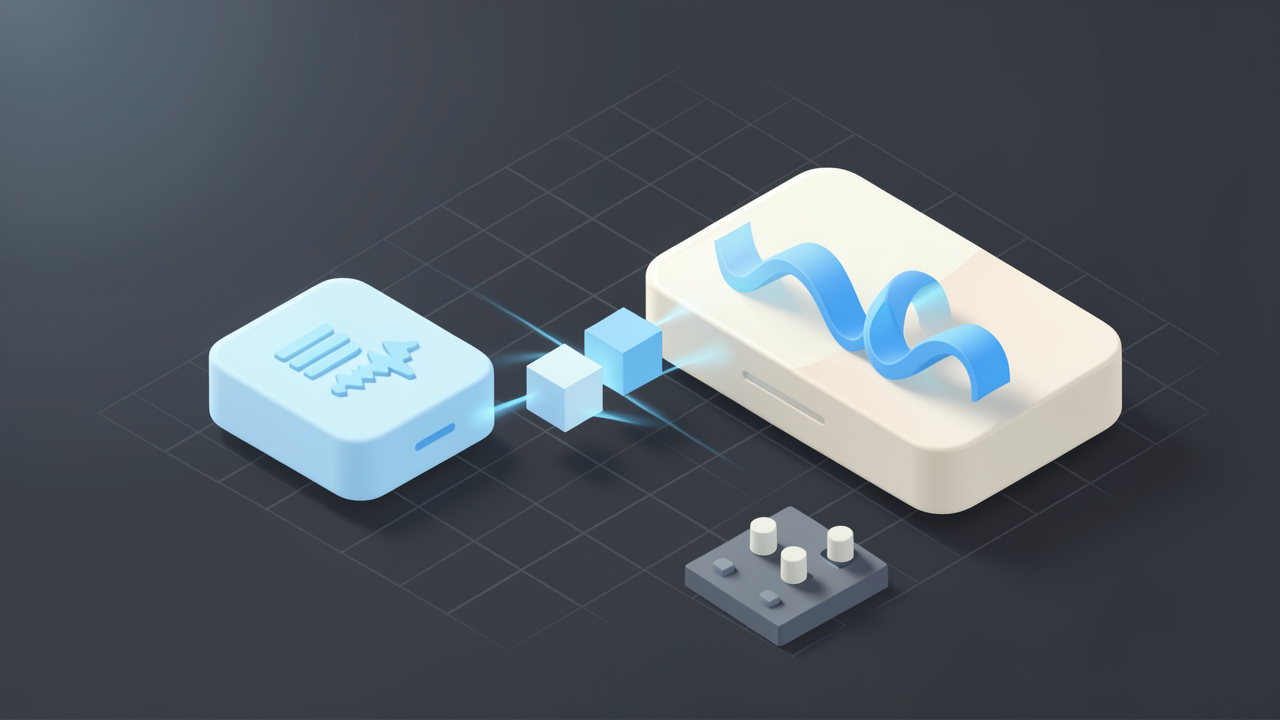
At its core, converting a PNG into a PDF means taking an image file and packaging it into a document format.
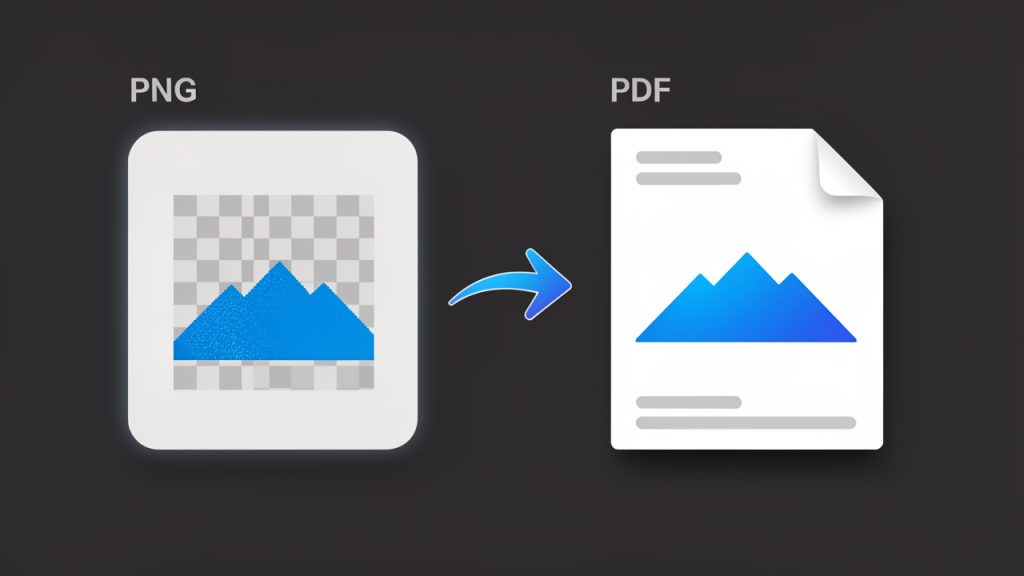
A PNG file is designed for images, especially graphics that need sharp edges, transparency, or lossless quality. PNG is a lossless image format. A PDF, on the other hand, is designed for sharing and presenting content in a consistent layout across devices and platforms.
This distinction matters more than it first appears. A PNG is excellent when you need an image to remain crisp, such as a logo, screenshot, chart, or digital illustration. A PDF becomes more useful when that same image needs to be treated like a document. If you are sending an invoice attachment, submitting paperwork, compiling scans, or preparing visual assets for review, a PDF gives the file more structure and broader compatibility.
The phrase people search for, often written as “PNG to PDF”, usually refers to either a one-time conversion or an ongoing need in daily work. Sometimes it is as simple as converting a single image into a one-page PDF. In other cases, it means combining multiple PNG files into one organized PDF document with the right page order, page size, and orientation.
Why PDF is often the better final format
PDF has become the standard for formal file exchange because it preserves layout and is widely supported. Whether your recipient opens it on a laptop, tablet, phone, or office printer, the content is far more likely to appear exactly as intended. That predictability is a major reason people convert image files into PDFs instead of sending raw images.
There is also a psychological aspect to file format choice. A PDF feels complete. It looks more official, more stable, and easier to archive. When a client receives a PDF instead of a loose image file, the presentation often feels more polished. For businesses and freelancers, that small difference can support a more professional impression.
When people commonly convert PNG files into PDFs
The most common use cases are practical and repetitive. Someone scans paperwork as images and needs to combine the pages into a single PDF. A freelancer exports mockups or slides as PNG files and wants to send them as a clean presentation document. A developer captures UI screenshots for bug reports or product documentation and converts them into a shareable file that can be reviewed or stored more easily.
In each case, the image itself is still important, but the document wrapper is what makes the file easier to move through a workflow. That is why PNG-to-PDF conversion has become such a common utility task across industries.
Key aspects of converting PNG files into PDFs
A good conversion is not just about changing the extension. It is about preserving what matters while making the file more useful. To do that well, it helps to understand image quality, file size, layout behavior, and compatibility.
Image quality and resolution
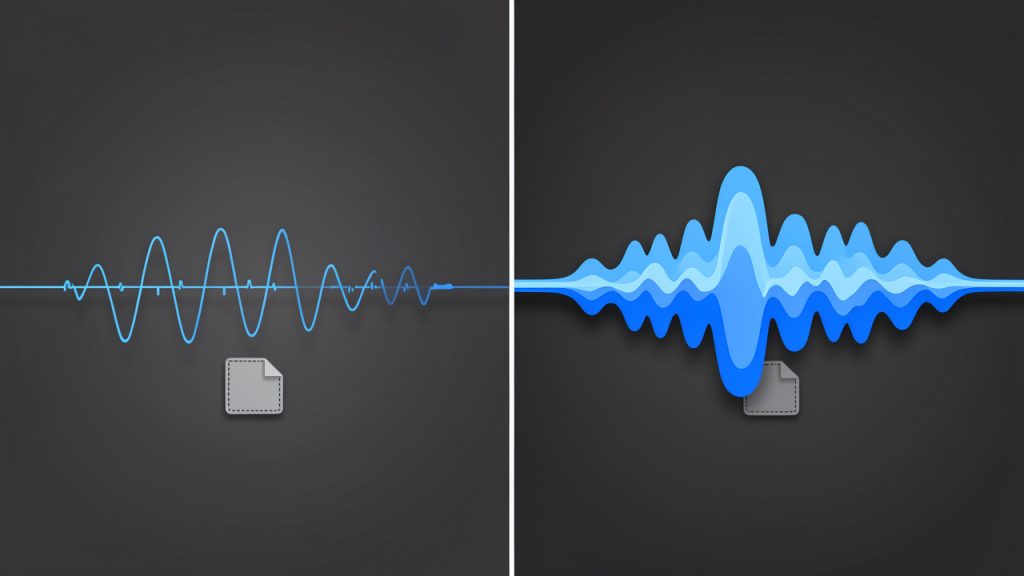
One of the first concerns people have is whether converting a PNG into a PDF will reduce quality. In many cases, the answer is no, at least not automatically. If the conversion tool embeds the PNG cleanly into the PDF, the image can remain visually identical.
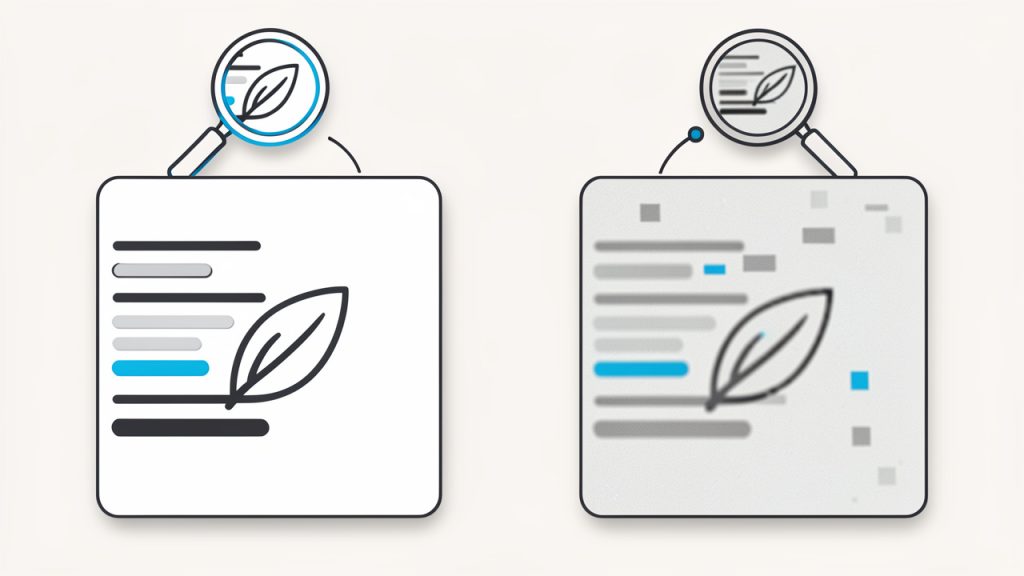
That said, some tools optimize or compress files during export, and that can reduce quality if the settings are aggressive or hidden. If your PNG contains small text, interface elements, or line art, even slight compression can make the result look softer. This is especially noticeable when printing. If visual precision matters, check whether the tool allows you to control compression or output quality.
Resolution is another factor that affects the final result. A low-resolution PNG converted into a PDF does not become sharper just because it is now in document format. The PDF can preserve the image, but it cannot invent detail that was never there. If the source PNG is blurry or pixelated, the PDF will usually reflect that same limitation.
File size trade-offs
A PDF is not always smaller than a PNG. In fact, depending on how the conversion is handled, the file can become larger. This surprises users who expect PDF to act like a compression shortcut. In reality, the PDF may wrap the image with additional document data, metadata, or page information, increasing the overall size.
For business workflows, file size matters when you are emailing attachments, uploading documents to portals, or storing large numbers of files in the cloud. If you are converting multiple high-resolution PNGs into one PDF, the final document can grow quickly. In those cases, use a tool that balances compression with readability rather than simply maximizing quality at all costs.
The right choice depends on your goal. If you need a polished print-ready document, a larger size may be acceptable. If you only need a file that can be reviewed on screen and sent quickly, a lighter PDF is often better.
Single image vs. multi-page PDF
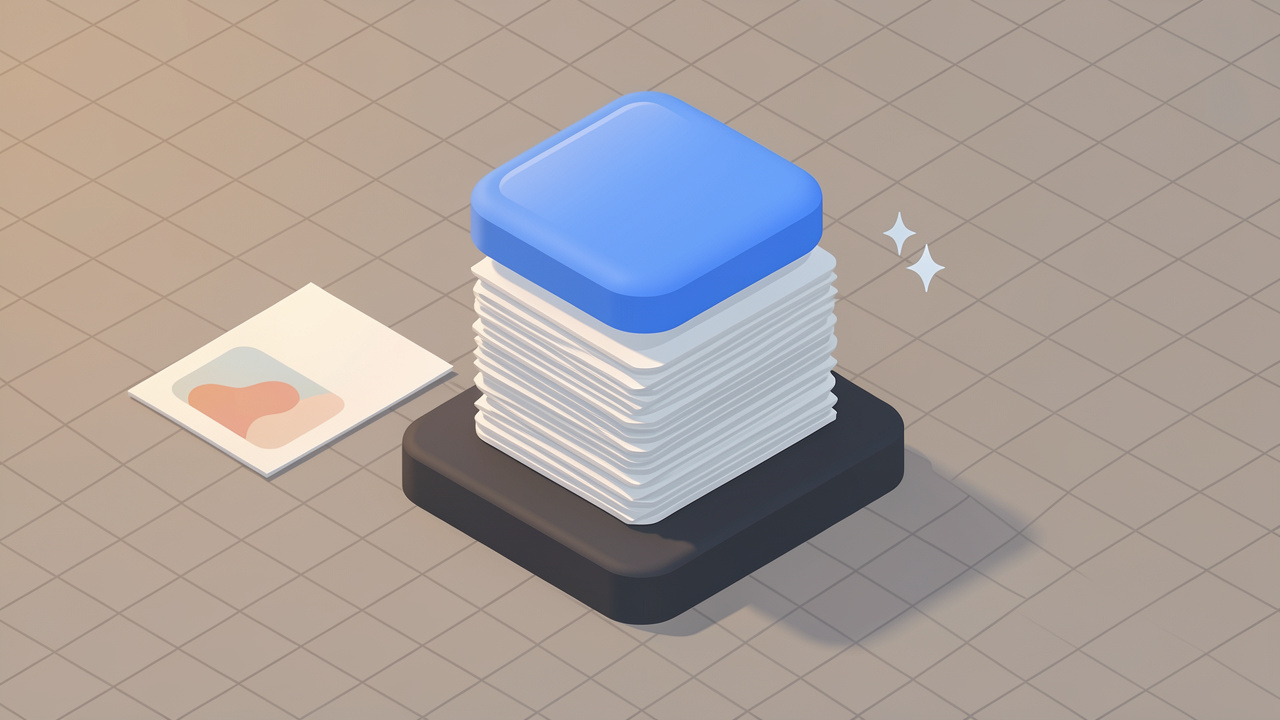
Not every conversion works the same way. A single PNG can become a one-page PDF with minimal effort. A batch of PNGs is more complex because page order, page breaks, orientation, and page sizing all come into play.
This is where a good converter becomes more than a format changer. It becomes a document assembly tool. If you are combining receipts, portfolio pages, contracts, forms, or screenshots, you want to be able to control sequence and page formatting. A well-structured PDF is much easier to navigate than a folder full of disconnected image files.
Transparency, margins, and page layout
PNG files support transparency, which is one of the format’s strengths. But PDF pages need a defined background and page area. Depending on the converter, transparent parts of the PNG may appear white, flattened, or placed against a default background when exported to PDF.
Margins can also affect presentation. Some tools stretch the image to fit the page. Others center it and leave whitespace around the edges. Neither is inherently wrong, but the result may look very different from what you expected. This matters for scanned documents, digital art, and branding materials, where alignment and spacing contribute to readability and visual polish.
Security and privacy considerations
This is one of the most overlooked aspects of online conversion. If you are using a web-based tool to turn PNG files into PDFs, you are uploading your content to a server somewhere. For everyday files, that may be acceptable. For contracts, IDs, invoices, medical records, or client work, it deserves more thought.
A privacy-conscious workflow means checking whether files are deleted automatically, whether uploads are encrypted, and whether the service has a clear retention policy. For sensitive material, a local desktop or device-based conversion method may be the safer option. Convenience is valuable, but so is control.
Common methods compared
| Method | Best For | Pros | Trade-Offs |
|---|---|---|---|
| Online converter | Quick one-off tasks | Fast, accessible, no installation | Privacy concerns, upload limits, variable quality |
| Built-in print to PDF | Basic local conversion | Free, available on many devices, simple | Limited control over page layout and batching |
| Desktop software | Frequent or sensitive conversions | Better quality control, offline use, more settings | May require installation or payment |
| Mobile app | On-the-go work | Convenient for scans and quick sharing | Smaller screen, fewer advanced options |
How to get started converting PNG files into PDFs
For most people, the best starting point is the simplest one. Use the method already available to you, then move to a more specialized tool only if your workflow demands it. The right approach depends on whether you care most about speed, quality, privacy, or document organization.
Start with your actual use case
Before converting anything, ask one simple question: What is this PDF for? That answer shapes almost every decision that follows. If the file is for internal reference, speed may matter most. If it is for a client or official submission, presentation and compatibility become more important. If it contains confidential information, local processing should move higher on your list.
This small moment of clarity prevents a lot of unnecessary trial and error. People often choose a tool first and only later realize it compresses too much, adds watermarks, limits file count, or handles page formatting poorly. Starting with the use case keeps the process efficient.
A simple conversion workflow
If you are new to converting PNG files into PDFs, the workflow is usually straightforward:
- Choose your PNG file or files.
- Select a trusted conversion method, either online or on your device.
- Check page order, orientation, and size if using multiple images.
- Export the PDF and review it carefully before sharing or printing.
Even this basic process benefits from a final review. Open the PDF on a second device if possible. Make sure text is readable, page crops look correct, and image edges are not cut off. A quick check can save an awkward resend later.
Organizing multiple PNGs into one PDF
When converting multiple PNG files, the main challenge is not technical. It is organizational. If the images are named inconsistently or uploaded in the wrong order, the PDF can become confusing immediately. Renaming files before conversion is often worth the extra minute.
For example, if you are combining pages from a scanned contract, names like page-1, page-2, and page-3 will reduce errors. If you are assembling design samples or report images, logical naming helps the converter maintain sequence. It also makes future edits easier if you need to rebuild the PDF later.
Choosing the right page size and orientation
This is a detail many users ignore until the final file looks odd. A portrait PNG placed on a landscape PDF page can create too much blank space. A wide screenshot forced into a standard letter-size page may appear too small to read comfortably. The best tools let you match the image dimensions to the page or scale the page to fit the image.
If the PDF is meant for printing, choose standard paper sizes such as A4 or Letter. If it is only for digital viewing, a tighter image-to-page fit can make the document look cleaner and more modern. The point is not to chase perfection. It is to choose settings that serve the way the file will actually be used.
Avoiding common problems
Most conversion issues fall into a few predictable categories. The image looks blurry because the source file was too small or the tool compressed it. The pages are out of order because files were not arranged before export. The PDF is too large because high-resolution images were bundled without optimization. The margins look awkward because the converter applied default page settings that did not match the image shape.
These are not complex problems, but they are frustrating when you are in a hurry. A little preparation goes a long way. Keep source images organized, know whether the file is for print or screen, and test one sample conversion before processing a larger batch.
Online tool or local tool?
For free, easy-to-use workflows, online tools are often the first choice. They work in the browser, require no setup, and handle basic conversions quickly. This is ideal when you are on a shared machine, switching devices, or just trying to finish a small task with minimal effort.
Local tools make more sense when privacy, repeat usage, or output consistency matters. If you regularly convert invoices, reports, forms, or client assets, a desktop or built-in operating system solution may feel more dependable over time. It removes upload delays, avoids internet dependency, and gives you more control over where your files go.
The best choice is not universal. It is situational. A productivity-minded user often benefits from having both options available and using each where it fits best.
Conclusion
Converting a PNG into a PDF is a simple task on the surface, but the best results come from understanding what the conversion is really doing. You are not improving the original image just by changing formats. You are making that image easier to share, organize, print, archive, and present. Once you see it that way, the right settings and tools become much easier to choose.
If you need to get started today, begin with a small test file and focus on three things: image clarity, page layout, and file size. If those look right, your process is probably solid. From there, you can build a faster workflow for receipts, forms, screenshots, portfolios, or any other images you need to turn into a polished PDF document.