
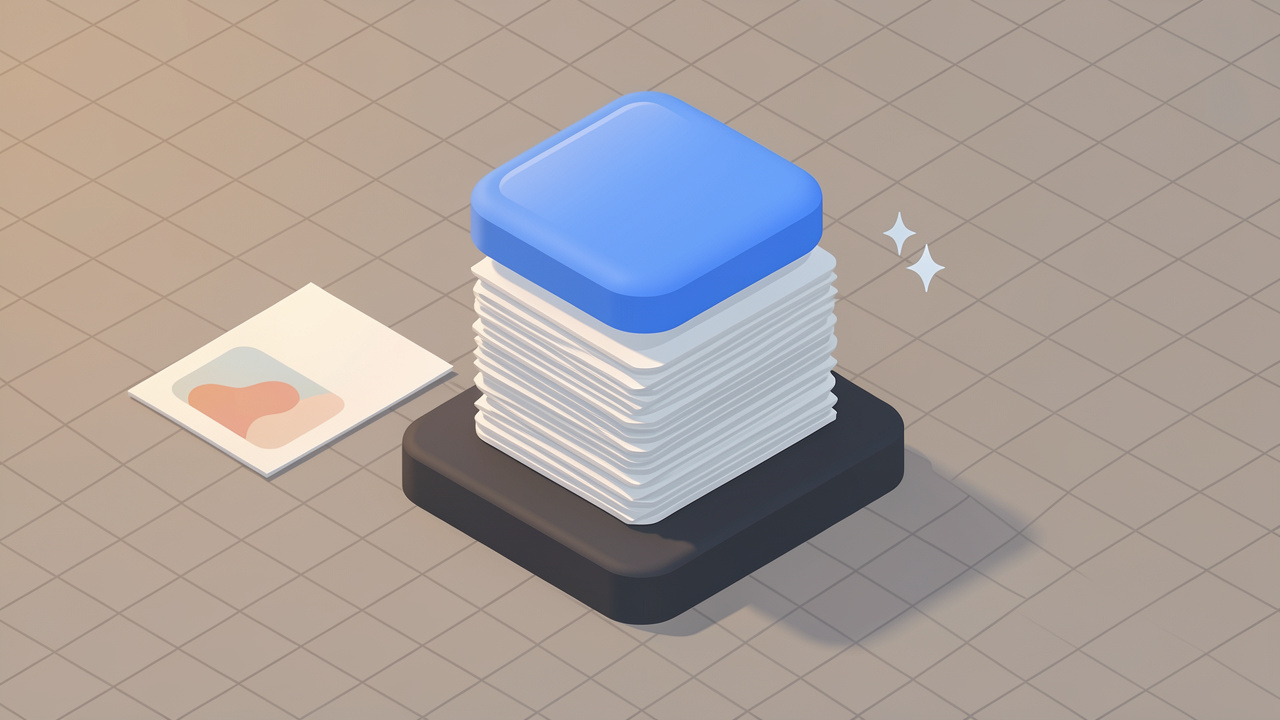
PDFs get bloated fast. A few scanned pages, some embedded images, a branded cover, and suddenly a simple document turns into a file that is too large to email, slow to upload, and frustrating to share. If you have ever watched an attachment fail at 99% or had a client reject a file for being over the size limit, you already know the problem is not the PDF itself, it is the weight.
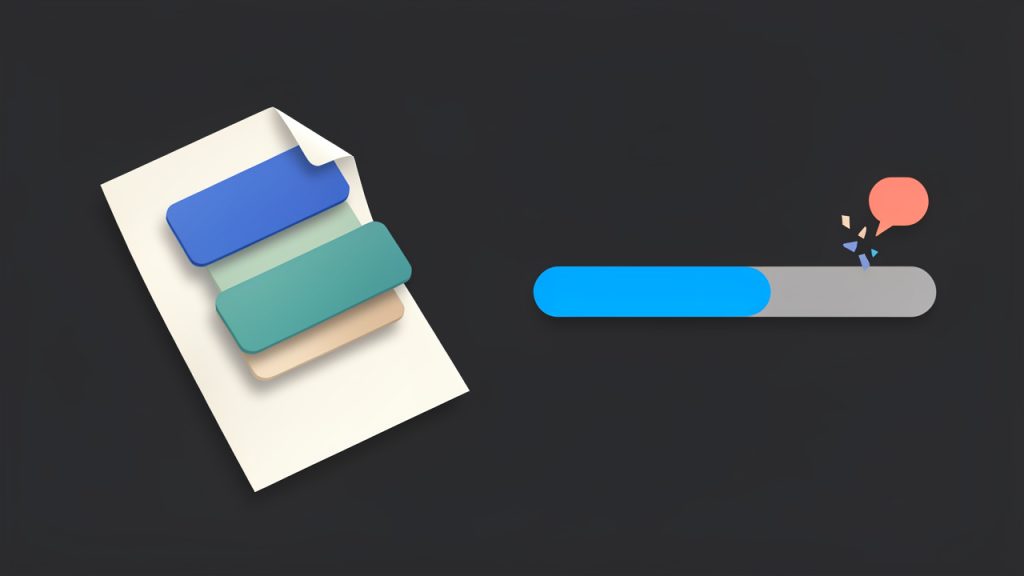
That is why so many people look for ways to compress PDF online. The appeal is obvious. You do not need to install software, learn a complicated design tool, or spend time adjusting obscure settings. You upload the file, reduce its size, and move on with your day. For small business owners, freelancers, developers, and productivity-focused teams, that convenience matters.
Online PDF compression can be a genuine time-saver, but it helps to understand what is actually happening behind the scenes. A smaller PDF is not always a better PDF if text becomes blurry, graphics lose detail, or sensitive information is handled carelessly. The best approach balances file size, readability, speed, and privacy. Once you know how that trade-off works, choosing the right tool and settings becomes much easier.
What is compress PDF online?
compress PDF online refers to using a web-based tool to reduce the file size of a PDF without needing desktop software. Instead of opening a program on your computer, you use a browser, upload the document, let the service process it, and then download a smaller version.
At a basic level, compression works by making the contents of the PDF more efficient. That can mean lowering image resolution, re-encoding graphics, removing unnecessary embedded data, optimizing fonts, or cleaning up structural overhead inside the file. Some tools do this aggressively to achieve the smallest possible result. Others aim for a more balanced reduction so the document still looks professional when viewed or printed.
This matters because PDFs are everywhere in modern work. Businesses send invoices, proposals, contracts, onboarding packs, reports, and presentations as PDFs every day. Freelancers use them for portfolios and deliverables. Developers generate PDFs for documentation, exports, and user-facing reports. In all of these cases, smaller files are easier to store, share, and load.
The phrase itself also covers a broad range of use cases. Sometimes you want to compress a scanned contract so it can be emailed quickly. Sometimes you need to shrink a presentation deck so it uploads to a form with strict limits. Other times, you are trying to archive hundreds of PDF files more efficiently. The goal is the same, but the right compression level can vary a lot depending on what the document is for.
Why file size becomes a problem
PDFs grow large for predictable reasons. High-resolution images are one of the biggest causes, especially when a PDF contains scanned pages or exported slides with full-page visuals. Embedded fonts can also add bulk, particularly in branded documents with multiple typefaces. In some files, hidden metadata, duplicated elements, or inefficient export settings make the size larger than it needs to be.
A common example is a scanned document created on an office copier. It may look like a simple black-and-white form, but if it was scanned as a high-resolution color image, the resulting PDF can be far larger than expected. Another example is a pitch deck exported from presentation software with oversized background images. The document looks clean, but each page carries more visual data than necessary.
When you compress PDF online, the tool tries to strip away that excess while preserving the parts users actually notice. The smart tools do this with minimal visible quality loss. The weaker ones simply crush the file until artifacts become obvious.
Why online compression is so popular
The biggest reason is convenience. Browser-based tools are fast, accessible, and usually intuitive enough for anyone to use without training. If you are on a borrowed device, working remotely, or trying to help a client quickly, that matters a lot.
There is also a workflow advantage. Online tools often make it easy to upload, compress, and redownload in a few clicks. That simplicity is ideal for occasional tasks. If you only need to shrink a PDF once in a while, installing dedicated software can feel unnecessary.
For many users, the online route also lowers friction across devices. You can compress files from a laptop, tablet, or even a phone. That flexibility is useful when business happens on the move and file issues cannot wait until you are back at your desk.
Key aspects of compress PDF online
Not all PDF compression is equal. The quality of the result depends on how the service processes images, text, fonts, layout, and metadata. A good understanding of these differences helps you avoid the most common mistake, which is choosing the smallest file instead of the best usable file.
Compression usually means image optimization
In many PDFs, images are the heaviest element. This is especially true for scanned paperwork, brochures, portfolios, and reports with screenshots. So when an online service compresses a PDF, it often focuses first on image data.
That can involve reducing image resolution, changing the image format internally, or increasing compression on image layers. For a document meant to be read on screen, that may be perfectly fine. For a print-ready brochure or a signed form where every detail must remain crisp, it may not be.
This is why context matters. A PDF that looks acceptable on a laptop display may appear soft or pixelated when printed. If your document is client-facing, always check the compressed file at 100% zoom and, if relevant, test a sample print before sending it widely.
Text-based PDFs compress differently than scanned PDFs
A text-based PDF, such as an exported invoice or a digitally created report, often compresses well without major visual loss. The text itself is relatively lightweight compared to image-heavy content. Optimization here may involve streamlining fonts, removing redundant data, and cleaning internal structure.
Scanned PDFs are different because each page is often stored more like an image than editable text. That means the file carries much more visual information, and there is less room to shrink it without affecting clarity. Compression can still help, but the trade-off becomes more noticeable.
If your PDF comes from a scanner, it is worth asking whether it was created with sensible settings in the first place. Lowering scan resolution before compression can sometimes produce a better result than over-compressing a high-resolution file afterward.
Privacy should be part of the decision
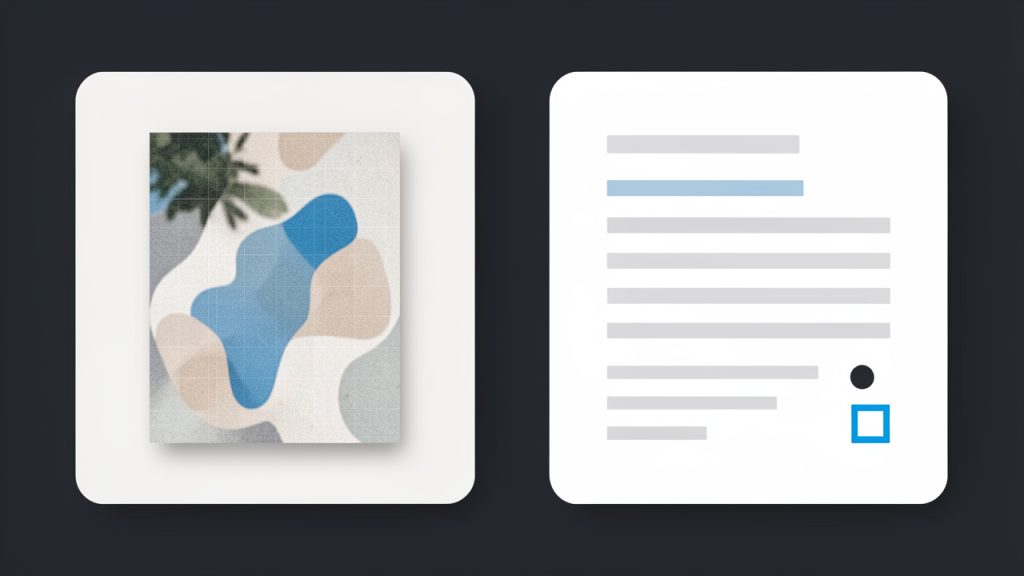
Whenever you upload a document to an online tool, you are sending that file to a remote server. For harmless materials, that may be fine. For contracts, tax forms, legal documents, HR records, medical information, or confidential client files, it deserves more caution.
A trustworthy service should be transparent about file handling, encryption, retention periods, and automatic deletion. If that information is unclear or buried, treat it as a warning sign. Compression is convenient, but convenience should not come at the cost of exposing sensitive business data.
For privacy-conscious users, the safest approach is to separate files by sensitivity. Generic marketing PDFs and public-facing documents are usually suitable for online compression. Highly confidential files may be better handled with offline tools or internal systems.
Speed matters, but consistency matters more
Many people choose a tool because it feels fast. That makes sense when you are in a hurry, but speed alone can be misleading. A very quick compressor may reduce quality too aggressively or fail on larger files.
Consistency is more valuable in real work. You want a service that reliably handles common document types, preserves formatting, and gives predictable output. If you often send proposals, manuals, or reports, a stable result saves more time than shaving a few seconds off the process.
The ideal outcome is a compressed PDF that still looks like the original, only smaller. That sounds simple, but it is the benchmark that actually matters.
Common trade-offs at a glance
| Aspect | Lower Compression | Higher Compression |
|---|---|---|
| File Size | Larger final file | Smaller final file |
| Visual Quality | Better preservation | More risk of blur or artifacts |
| Print Readiness | Usually stronger | May degrade in print |
| Upload Speed | Slower than tiny files | Faster uploads and sharing |
| Best Use Case | Client-facing, archival, print | Email limits, web sharing, quick transfers |
This trade-off explains why there is no universal best setting. A freelancer sending a contract for signature may prioritize readability. A developer attaching logs and reports to a support portal may care more about staying under a strict upload cap. A small business owner sending a product brochure may need a middle ground.
How to get started with compress PDF online
If you want the best result, the process should be deliberate, not random. Compressing a PDF online is easy, but using it well takes a little judgment. The good news is that the workflow is simple once you know what to check.
Start with the purpose of the file
Before uploading anything, ask one practical question, what will this PDF be used for? A document meant for internal review can tolerate more compression than a sales brochure, legal agreement, or printable handout. The answer will guide how aggressive you can be.
If the document only needs to be readable on screen, moderate or strong compression may be acceptable. If people will zoom in, print it, or inspect fine details, you should preserve more quality. This one decision prevents most avoidable mistakes.
Use a simple step-by-step process
- Choose the PDF you want to reduce in size.
- Upload it to a reputable online PDF compression tool.
- Select a compression level based on whether you need screen viewing, sharing, or print quality.
- Download and review the result carefully before sending or storing it.
This sequence is straightforward, but the review step is where experienced users separate themselves from rushed users. Never assume the compressed version is acceptable just because the file size dropped.
Check the right things after compression
Open the new PDF and inspect the pages that matter most. Zoom in on small text, signatures, charts, and logos. These elements reveal quality loss quickly. If the document contains screenshots, check whether they still look sharp enough to interpret.
Pay attention to page layout as well. Most online tools preserve formatting well, but occasional issues can appear with unusual fonts, complex layered graphics, or certain exported files. A quick review takes less than a minute and can save you from resending a broken file later.
It is also smart to compare the original size to the compressed size in practical terms. A reduction from 18 MB to 4 MB is significant. A reduction from 2.1 MB to 1.9 MB may not justify any quality loss. Smaller is useful only when the improvement actually solves a problem.
Know when to recompress and when to recreate
If the first compressed result looks poor, do not keep recompressing the same file repeatedly. Multiple rounds can compound quality loss, especially for image-heavy PDFs. In many cases, it is better to return to the original source document and export a fresh PDF using more efficient settings.
This is especially relevant for presentations, design exports, and scans. If you still have the editable source, recreating the PDF often gives you a cleaner and smaller result than squeezing an already-generated file again and again.
For scanned documents, you may get better outcomes by rescanning at a more appropriate resolution. For digital documents, exporting with optimized image settings can outperform generic compression tools. Online compression is helpful, but it is not always the first best fix.
What to look for in an online PDF compressor
A useful service should feel simple, but there are a few signs of quality worth paying attention to.
- Clear privacy policy: Explains how files are stored and when they are deleted.
- Compression options: Offers light, medium, or strong settings instead of a one-size-fits-all result.
- Reliable formatting: Preserves layout, text, and images consistently.
- Reasonable file limits: Handles everyday business documents without unnecessary restrictions.
If a tool makes bold promises but says little about security or file handling, be cautious. If it compresses aggressively without letting you choose the quality level, expect inconsistent results.
Best use cases for online compression
Online PDF compression is especially useful when speed and accessibility matter more than advanced editing. It works well for invoices, basic contracts, reports, eBooks, portfolios, proposal drafts, presentations, forms, and scanned records that need lighter file sizes for sharing.
It is particularly helpful in everyday business scenarios. A consultant can shrink a proposal before emailing it to a client. A freelancer can compress a portfolio for quicker downloads. A small team can optimize training materials before uploading them to a shared workspace. A developer can reduce generated documentation or exported reports before attaching them to tickets or dashboards.
These are not edge cases. They are the normal friction points of digital work. That is why the ability to compress PDF online has become such a practical utility rather than just a niche feature.
Conclusion
To compress PDF online effectively, think beyond the upload button. The real goal is not simply a smaller file, it is a file that is easier to share while still looking professional, reading clearly, and staying secure. When you understand how compression affects images, text, formatting, and privacy, you can make smarter decisions in seconds.
The next step is simple. Take one PDF that is slowing down your workflow, compress it with a reputable online tool, and compare the result carefully. If the file is smaller, clear, and fit for its purpose, you have found a process worth repeating. If not, adjust the compression level or go back to the source file and optimize it there. That small habit can save time every week.
Leave a Reply