
Large images quietly slow down websites, clutter storage, and make everyday sharing more frustrating than it needs to be. If you have ever uploaded a product photo, blog image, portfolio mockup, or client asset and then watched page speed suffer, you have already felt the problem that an Image to webp converter is designed to solve.
The appeal is simple. You keep the visual quality people expect, but reduce file size enough to improve loading times, save bandwidth, and create a smoother experience across devices. For small business owners, freelancers, developers, and anyone trying to work smarter, converting images to WebP is one of those rare improvements that is both technical and practical.
What is Image to webp converter?
An Image to webp converter is a tool that changes image files such as JPG, JPEG, PNG, and sometimes GIF or BMP into WebP. WebP is a modern image format created to make images smaller while preserving strong visual quality. In plain terms, it helps your images take up less space without looking obviously worse.
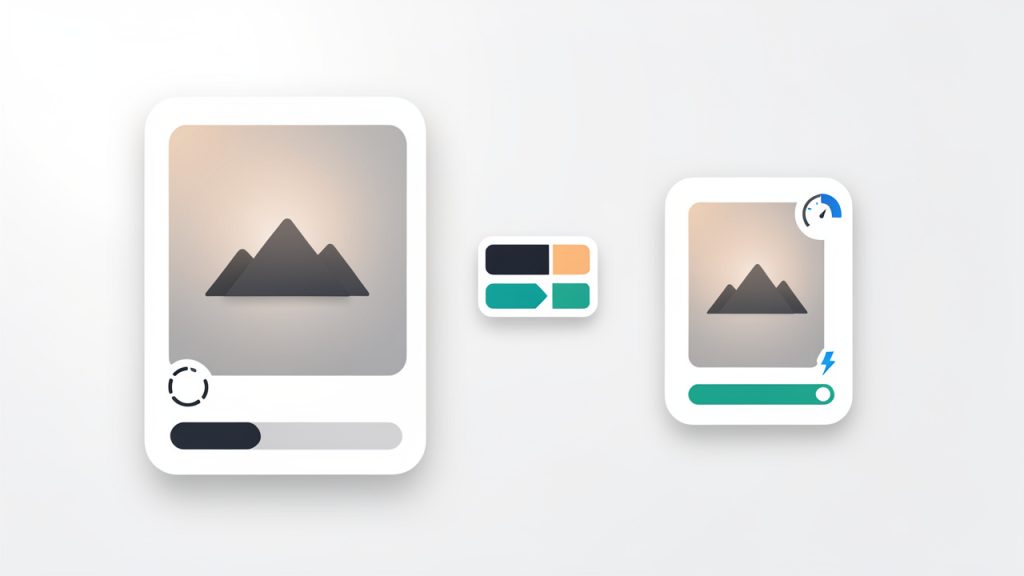
That matters more than it may seem at first. Every image on a website adds weight to the page. If that weight is too high, users wait longer, mobile visitors consume more data, and search performance can suffer. A converter removes much of that overhead by compressing the image into a format built for the web.
What makes WebP especially useful is its flexibility. It supports both Lossy compression and Lossless compression, which means you can choose whether to prioritize the smallest possible file or preserve every detail more carefully. It can also support transparency, which makes it a practical replacement for many PNG files.
For everyday users, an online Image to webp converter often feels as simple as uploading a file, choosing quality settings, and downloading the new version. Behind that simple experience, the tool is making several optimization decisions that can have a real impact on speed, storage, and usability.
Key Aspects of Image to webp converter
Why WebP matters for websites and digital work
The biggest reason people use an Image to webp converter is performance. Smaller images usually load faster, and faster pages tend to keep visitors engaged. If you run an online store, publish blog content, or showcase visual work, image optimization directly affects how professional and responsive your site feels.
There is also a cost side to consider. Smaller image files reduce bandwidth usage and can help lower hosting or delivery costs, especially if your site serves many images every day. For freelancers and agencies managing multiple client sites, that efficiency scales quickly.
Even outside websites, WebP can make routine digital tasks easier. Sending compressed assets to clients, organizing a lighter media library, or preparing visuals for landing pages becomes more manageable when files are smaller but still sharp enough for real use.
Common input and output formats
Most Image to webp converter tools accept familiar image formats. JPEG and JPG are common for photos, PNG is common for graphics with transparent backgrounds, and some tools also support GIF, BMP, TIFF, or SVG depending on how advanced the converter is.
The output, of course, is .webp. What matters is not just the extension but the compression profile used during conversion. A good converter gives you some control over quality level, image dimensions, or metadata handling so the result fits your actual goal.
Here is a simple comparison of common formats and where WebP fits:
| Format | Best For | File Size | Transparency | Typical Use Case |
|---|---|---|---|---|
| JPEG/JPG | Photos | Medium to high | No | Product photos, blog images |
| PNG | Graphics, logos | High | Yes | Transparent graphics, UI elements |
| GIF | Simple animations | Medium to high | Limited | Short animations |
| WebP | Web images, mixed use | Low to medium | Yes | Websites, marketing assets, optimized image delivery |
This is why WebP often becomes the default target format for modern web publishing. It combines much of what users liked about JPEG and PNG while reducing the trade-off between quality and size.
Lossy vs lossless conversion
When using an Image to webp converter, one of the most important decisions is whether to use Lossy compression or Lossless compression. Lossy compression removes some image data to achieve a smaller file. If done well, the visual difference is minor or even invisible to the average viewer.
Lossless compression keeps the image data intact more faithfully. The file may be larger than a lossy version, but it is useful when visual precision matters, such as interface assets, logos, screenshots, or files that may be edited again later.
The right choice depends on purpose. A homepage banner or product gallery image can usually handle careful lossy compression. A sharp logo with transparency may benefit more from lossless settings. The best converters help you test both approaches rather than forcing a one-size-fits-all result.
Quality settings and image appearance
Not all conversions are equal. The difference between an excellent and disappointing result often comes down to quality settings. If the compression is too aggressive, images can look soft, smeared, or uneven. If the quality is set too high, the file may barely shrink, which defeats the purpose.
A good Image to webp converter gives you enough control to find the balance. For example, a lifestyle photo on a blog can often be compressed more heavily than a product close-up on an ecommerce page. The right setting is not universal, it is contextual.
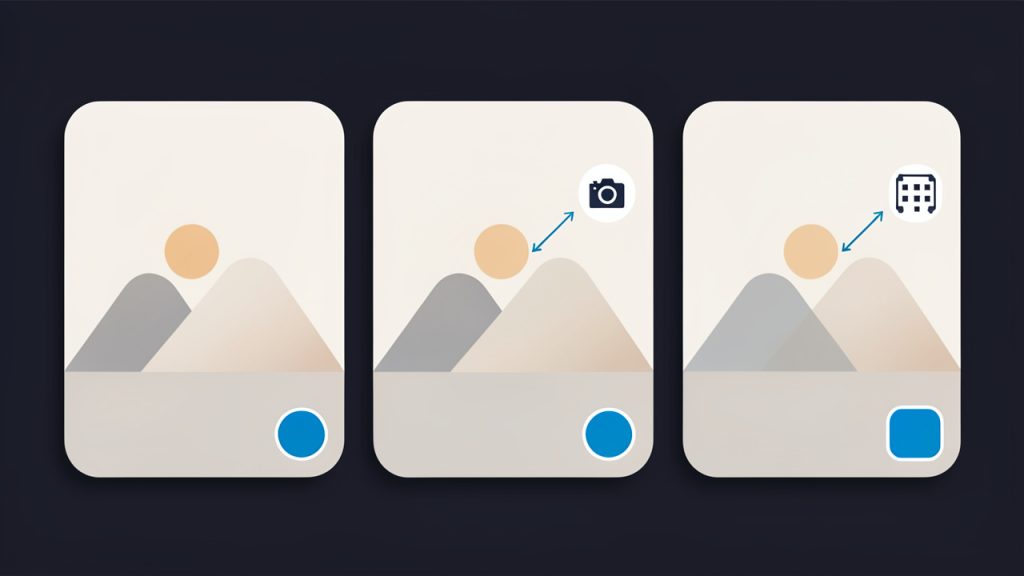
This is where preview functionality becomes valuable. Seeing the original image beside the converted version helps you make decisions based on visible impact, not guesswork. For users who care about productivity, that saves time and reduces the back-and-forth of exporting multiple versions.
Browser support and compatibility
One reason WebP has become widely adopted is that modern browsers support it well. For most websites and mainstream digital use, compatibility is no longer the obstacle it once was. That said, some workflows still benefit from keeping a fallback version, especially in older systems or highly specific environments.
Developers often serve WebP by default while retaining JPEG or PNG copies as backups. Small business owners using website builders may not need to think about the technical details if the platform handles image delivery automatically. But it is still useful to understand the principle: WebP is optimized for the modern web, not every legacy workflow.
If you share files directly with clients or collaborators, consider whether they need WebP specifically or whether they expect more traditional formats. An Image to webp converter is powerful, but format choice should still match the destination.
How to Get Started with Image to webp converter
Start with the right images
The easiest way to get value from an Image to webp converter is to begin with the images that have the biggest impact. Website banners, product images, blog feature images, portfolio visuals, and landing page graphics are ideal candidates because they are often large and user-facing.
There is also a practical angle here. Converting every file in your library at once may create unnecessary work. A better approach is to focus first on the images that are currently slowing down your site or taking up excessive storage. That gives you quick wins and clearer results.
Use a simple workflow
For most users, getting started follows a short sequence:
- Upload the image to the converter.
- Choose quality or compression settings based on the image type.
- Preview the result if the tool offers side-by-side comparison.
- Download the WebP file and test it where it will actually be used.
That process is simple, but the testing step matters. An image that looks great in isolation can behave differently on a website, inside a content management system, or across device sizes. Always judge the final result in context.
Decide what matters most, speed, quality, or transparency
Every conversion involves trade-offs. If your main goal is faster load speed, you may accept slightly stronger compression. If your brand depends on polished visuals, you may keep quality settings higher. If the image uses a transparent background, preserving that transparency becomes part of the decision.
Thinking this way makes the converter far more useful. Instead of asking for the best setting, ask for the best setting for this job. A blog thumbnail, hero image, and logo all have different requirements, so they should not always be converted the same way.
This is especially relevant for freelancers and agencies. The more intentional your conversion decisions are, the more consistent your image quality becomes across projects. That consistency shows up in user experience, brand presentation, and client confidence.
Watch for metadata, dimensions, and file naming
A good Image to webp converter does more than change format. It may also strip unnecessary metadata, preserve or adjust dimensions, and help manage the output file cleanly. These details are easy to overlook, but they affect organization and performance.
Metadata can include camera details, location information, or editing history that is not needed for web use. Removing it can reduce file size further. Dimensions also matter because a giant image converted to WebP is still oversized if the displayed area is much smaller.
File naming deserves attention too. Clear names make assets easier to manage in websites, shared folders, and SEO-friendly workflows. A smaller file is helpful, but a well-organized image library is what keeps that efficiency sustainable.
Batch conversion for productivity
If you manage many images, batch conversion is where an Image to webp converter becomes a real productivity tool. Instead of optimizing files one by one, you can process multiple images at once. That saves time and makes it easier to maintain consistency across a site or project.
This is particularly useful for ecommerce catalogs, blog archives, agency deliverables, and media-heavy portfolios. A batch workflow lets you standardize image output while reducing repetitive manual work. For a growing business, that efficiency compounds fast.
Not every batch process should be fully automated, though. High-value images still deserve spot checks. It is smart to treat automation as a time-saver, not a substitute for quality control.
When not to convert to WebP
An Image to webp converter is useful, but it is not automatically the right answer for every situation. Some print workflows, design handoffs, or editing pipelines still work better with formats like PNG, JPEG, or layered source files. If an asset will be revised repeatedly, a final delivery format should not replace the original working file.
That is why the safest approach is to keep source images and export WebP versions for distribution or publishing. Think of WebP as an optimized delivery format rather than the only version you should keep. This protects flexibility while still giving you the performance benefits where they matter.
Conclusion
An Image to webp converter is one of the simplest tools for improving digital efficiency. It helps reduce file size, speed up websites, support better user experience, and streamline image-heavy workflows without demanding advanced technical knowledge.
If you want an immediate next step, start with a few high-impact images from your website or current project. Convert them to WebP, compare quality, and measure the difference in loading speed and file size. Small changes at the image level often create some of the most noticeable gains across the whole experience.
For guidance on measuring performance improvements, consider testing before and after with tools like page speed insights to see real-world impact.
Leave a Reply