
JNTZN

Tag: online tool

  • Base64 Encoder & Decoder Online — Fast, Private Conversion

    Base64 Encoder & Decoder Online — Fast, Private Conversion

    You do not need to be a developer to run into Base64. It shows up when you paste API credentials, inspect email content, move image data between tools, or troubleshoot odd-looking strings that seem unreadable at first glance. In those moments, a Base64 encoder decoder online tool can save time immediately.

    For small business owners, freelancers, and developers, the appeal is simple. You want a fast way to convert plain text or binary-related content into Base64, then reverse it back without installing software or digging through technical documentation. A good online tool removes friction, helps you verify data quickly, and reduces the chance of mistakes when working across systems.

    What is Base64 encoder decoder online?

    A Base64 encoder decoder online tool is a web-based utility that converts data into Base64 format and decodes Base64 back into readable content.

    Base64 itself is a method for representing data using a limited set of text characters. Instead of sending raw bytes directly, the data is transformed into a text-friendly format that can travel more easily through systems built for text handling.

    This matters because many digital workflows were originally designed around text rather than arbitrary binary data. If you need to embed an image in HTML, include data inside JSON, move content through email, or work with API payloads, Base64 often appears as the bridge. If you need to embed an image in HTML, include data inside JSON, move content through email, or work with API payloads, Base64 often appears as the bridge. It is not a form of encryption, and that distinction is important. Base64 is encoding, not security. It makes data transportable, not protected.

    An online Base64 tool simplifies that process. You paste text, a token, or encoded data into a field, click encode or decode, and get the converted output instantly. The best tools also support UTF-8 text, URL-safe variants, file input, copy-to-clipboard convenience, and local browser processing for better privacy.

    Why Base64 appears so often

    Base64 is common because it solves a practical compatibility problem. Some systems do not handle raw binary cleanly, but they do handle plain text reliably. By converting data into a text-only structure, developers and non-technical users alike can move content between platforms with fewer formatting issues.

    You may see Base64 in email attachments, basic authentication headers, embedded images, signed tokens, API responses, configuration values, and browser-based data URLs. Even if you never write code, you may still need to recognize it. A long string containing letters, numbers, plus signs, slashes, and equal signs at the end is often a clue.

    A multi-scene illustration (grid of small icons) showing common places Base64 appears: an email with an attachment, an HTTP header labeled 'Authorization: Basic ...', a web page with an embedded image data URL, a JSON config snippet, and a signed token. Each scene includes a short label like 'Email', 'API', 'Image embed', 'Config', 'Token'.

    Encoding vs decoding, the simple difference

    When you encode, you turn readable input or raw data into Base64 text. When you decode, you reverse that process and restore the original content. Think of it like putting a document into a shipping-friendly container, then unpacking it on arrival. The contents stay the same in meaning, but the format changes so other systems can handle it predictably.

    That is why a Base64 encoder and decoder are usually paired in one online tool. Most users need both directions. You may encode text before sending it to another application, then decode a returned value to confirm that everything worked correctly.
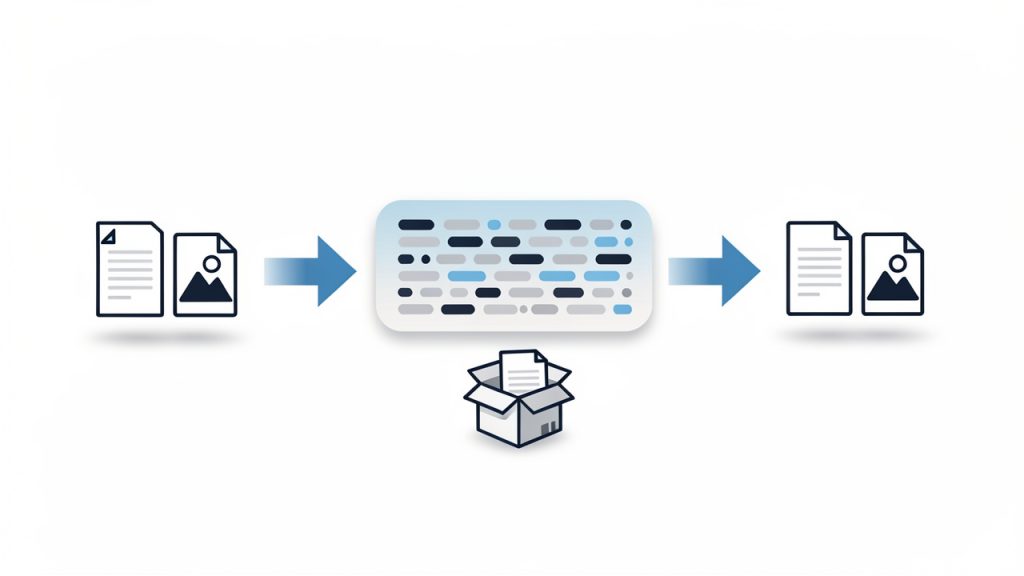
    A clear pipeline diagram showing: left — readable input (text file, image icon) labeled 'Input'; middle — an arrow labeled 'Encode →' leading to a long Base64 string box with characters like 'TWFu...' ; right — an arrow labeled 'Decode →' back to the original readable input. Include a small caption: 'Encoding = format change, not encryption.'

    Key Aspects of Base64 encoder decoder online

    The value of an online Base64 tool is not just convenience. It is also about speed, compatibility, accuracy, and privacy. Those four factors determine whether the tool is useful for casual tasks or trustworthy enough for regular professional work.

    Speed and ease of use

    The biggest advantage of a Base64 encoder decoder online utility is immediate access. There is no software installation, no command line requirement, and no setup. You open the page, paste your content, and get results in seconds. For busy freelancers and small teams, that matters more than it might seem. Tiny interruptions compound over time.

    Ease of use also reduces errors. A clean interface with separate input and output fields, a visible encode/decode toggle, and one-click copy buttons helps prevent accidental misuse. If you are checking a webhook payload or converting text for a CMS field, clarity is productivity.

    Browser-based privacy

    Privacy is one of the first concerns users should have when using any online conversion tool. Some Base64 strings contain harmless sample data. Others may include customer details, internal URLs, API information, or authentication-related values. Because of that, it is wise to prefer tools that process data locally in your browser rather than uploading it to a server.

    A trustworthy tool usually makes this clear. If a site explains that encoding and decoding happen on the client side, you gain a meaningful privacy benefit. It does not replace your own judgment, but it lowers the risk of exposing sensitive information during routine work.

    Accuracy with text and special characters

    Not all online tools handle input equally well. Plain English text is easy. Real-world data is not. You may be working with accented characters, symbols, emoji, line breaks, JSON fragments, or URL parameters. A strong Base64 decoder online should handle character encoding correctly, especially UTF-8, so the decoded output matches the original input without corruption.

    This becomes especially important in multilingual environments or when copying content between business systems. One wrong character in a payment note, customer name, or API secret can create a confusing problem. Reliable tools preserve the exact content.

    Support for common use cases

    Base64 is used in more places than many people realize. An online tool becomes more valuable when it supports the kinds of tasks people actually perform. Text encoding is the baseline, but some users need file support, URL-safe Base64 options, or easy handling of data URLs.

    The table below shows how Base64 often appears in practical workflows:

    Use Case How Base64 Is Used Why an Online Tool Helps
    API testing Encodes credentials, payload fragments, or tokens Quickly verify whether data is formatted correctly
    Email troubleshooting Helps inspect encoded message parts or attachments Makes unreadable segments understandable
    Image embedding Converts image data into text for inline usage Useful for quick experiments and debugging
    Configuration work Encodes values stored in app settings or environment workflows Helps confirm values before deployment
    Web development Decodes tokens, strings, or browser-generated data Speeds up debugging without extra software

    Understanding the limits of Base64

    One of the most common misunderstandings is treating Base64 as if it were a security feature. It is not. Anyone with a decoder can reverse it instantly. If you encode a password in Base64, you have not protected it. You have only changed its appearance.

    That matters for business users who may see encoded values and assume they are safe to expose publicly. They are not. Sensitive data still needs proper encryption, secure storage, and access control. A Base64 encoder decoder online tool is for formatting and inspection, not confidentiality.

    Another practical limit is file size. Base64 increases data size by roughly a third. That makes it convenient for compatibility, but inefficient for large assets. If you embed big files in Base64 unnecessarily, pages and payloads can become heavier and slower.

    How to Get Started with Base64 encoder decoder online

    Using a Base64 tool is straightforward, but a few good habits make the process smoother and safer. The goal is not just to convert data, but to do it correctly and with confidence.

    A simple workflow that works

    For most tasks, the process follows the same pattern:

    1. Paste your input into the text area or upload the file if the tool supports it.
    2. Choose encode or decode based on what you need.
    3. Review the output carefully, then copy or export it for your next step.

    That simplicity is exactly why online tools are so useful. You can move from confusion to clarity in under a minute, whether you are validating a token string or checking if a value in a settings panel decodes into plain text.

    How to tell if a string is probably Base64

    Users often ask whether a strange string is definitely Base64. There is no perfect visual test, but there are clues. Standard Base64 often includes uppercase and lowercase letters, numbers, plus signs, and slashes. It may end with one or two equal signs used as padding. URL-safe Base64 replaces some of those symbols, usually with hyphens and underscores.

    Even so, appearance alone is not enough. Some plain strings can resemble Base64, and some Base64 strings omit padding. A practical approach is to try decoding with a reliable online tool and see whether the result is meaningful and error-free. If the decoded output is readable text, structured JSON, or recognizable binary metadata, you likely have a match.

    Choosing the right online tool

    Not every free utility is equally useful. If you plan to use a Base64 encoder decoder online tool regularly, look for a few practical qualities.

    • Local processing: Keeps data in your browser when possible.
    • UTF-8 support: Preserves non-English text and special characters accurately.
    • Clear interface: Reduces mistakes during quick tasks.
    • Copy and reset options: Saves time when handling repeated conversions.

    Those features sound small, but they make a big difference in daily use. A cluttered tool creates friction. A fast, transparent one becomes part of your normal workflow.

    Common mistakes to avoid

    A frequent mistake is decoding content and assuming the output is safe or trustworthy just because it is readable. Decoded data can still contain harmful scripts, malformed text, or confidential information. Treat unknown content carefully, especially if it comes from external systems.

    Another common issue is mixing up standard Base64 with URL-safe Base64. They are similar, but not identical. If a token fails to decode in one mode, it may simply be using the other variant. Good tools either detect this automatically or make it easy to switch.

    A third issue is losing formatting during copy and paste. Line breaks, hidden spaces, or accidental truncation can break the conversion. If the result looks wrong, check the input first. In many cases, the tool is fine and the pasted data is the real problem.

    Real-world examples for business and development users

    A freelancer managing client websites may encounter Base64 when inspecting a plugin setting, email header, or API response. An online decoder helps reveal what is actually inside the encoded string without requiring technical setup. That speeds up communication with clients and support teams because you can verify facts quickly.

    A small business owner using no-code or low-code tools may see Base64 in automation platforms, webhook logs, or file transfer workflows. In that context, an online encoder decoder becomes a practical troubleshooting companion. It turns mysterious machine-looking text into something understandable.

    Developers, of course, use these tools constantly for testing. But the benefit is not limited to engineers. Anyone working across modern web systems can gain from understanding what Base64 does and how to reverse it safely.

    Conclusion

    A Base64 encoder decoder online tool is one of those deceptively simple utilities that becomes indispensable once you start working with digital systems more often. It helps you convert, inspect, troubleshoot, and verify data quickly, whether you are handling API values, embedded content, email fragments, or configuration strings.

    The key is to use it with the right expectations. Base64 improves compatibility, not security. Choose a tool that is accurate, easy to use, and privacy-conscious, especially if it processes data locally in your browser. If you regularly work with encoded strings, your next step is simple, keep a reliable online Base64 encoder decoder handy and use it as part of your everyday workflow.

  • Online Hash Generator – MD5 & SHA-256

    Online Hash Generator – MD5 & SHA-256

    Need a quick way to verify a file, fingerprint a password string, or compare two pieces of text without installing anything? An online hash generator MD5 SHA256 tool solves exactly that problem. It gives you a fast, browser-based way to turn input data into a fixed-length hash, which is useful for integrity checks, testing, development workflows, and everyday troubleshooting.

    For small business owners, freelancers, and developers, the appeal is simple. You paste text or upload a file, choose an algorithm like MD5 or SHA-256, and get an output in seconds. No setup. No command line required. But while the tool is easy to use, the concepts behind it matter, especially if you want to choose the right hash type and use it safely.

    What is Hash generator md5 sha256 online?

    A hash generator MD5 SHA256 online is a web-based utility that converts text, files, or other data into a fixed string of characters called a hash value or digest. This output acts like a digital fingerprint. Even a tiny change in the original input produces a very different result, which makes hashing useful for detecting changes and confirming data consistency.

    The key idea is that hashing is a one-way process. You can generate a hash from the input, but you generally cannot reverse the hash to recover the original content. That is what makes hashing different from encryption. Encryption is designed to be reversible with the right key. Hashing is designed to create a consistent, non-reversible signature.

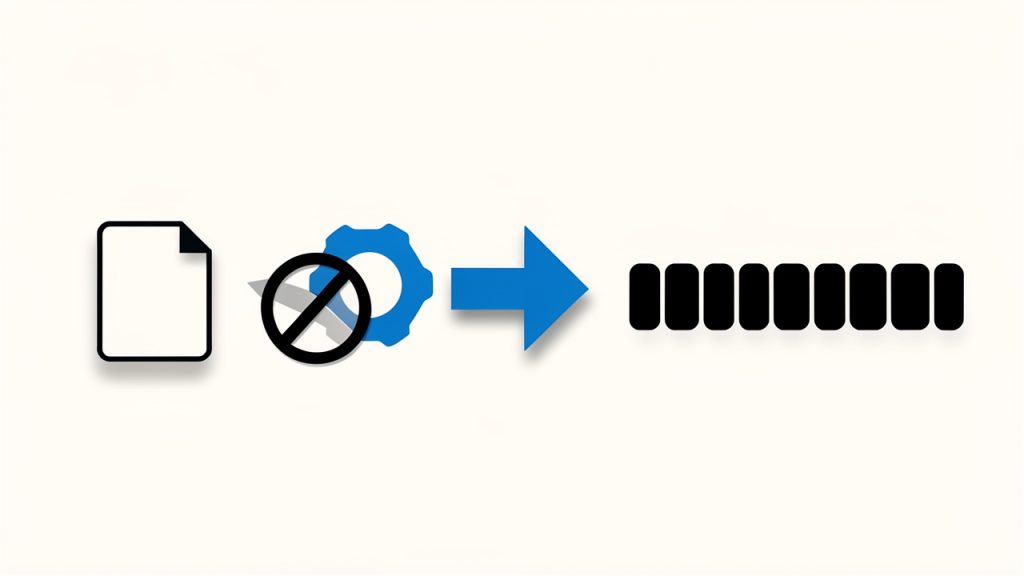
    A simple diagram showing the hashing process: input text/file on left, an arrow labeled 'hash function (MD5 / SHA-256)' in the middle, and a fixed-length hash string (digest) on the right. Include a one-way symbol (no reverse arrow) to emphasize non-reversibility.

    When people search for an online hash generator, they usually want one of two common algorithms: MD5 and SHA-256. MD5 is older and faster, and it still appears in many legacy systems, file verification pages, and technical documentation. SHA-256 is newer, stronger, and widely preferred when security matters.

    Why people use online hash generators

    In practice, these tools serve a surprisingly wide audience. A freelancer may use one to verify that a downloaded client file matches the original checksum. A developer may use one to test API signatures, compare outputs, or confirm that input formatting stays consistent. A business owner may simply want to validate downloaded software against a published checksum before installing it.

    There is also a productivity angle. An online tool removes friction. If your goal is to generate a hash quickly, especially for occasional use, opening a browser is often more convenient than running local utilities. That ease of access is the main reason the phrase hash generator md5 sha256 online gets so much search interest.

    MD5 vs SHA-256 at a glance

    Although both algorithms generate a unique-looking digest, they are not equal in security or modern suitability. MD5 is considered cryptographically broken for security-sensitive use cases because collisions can be engineered. SHA-256 remains far more secure and is part of the SHA-2 family widely used across modern systems.

    A comparative visual showing MD5 vs SHA-256: two bars or boxes with labeled bit lengths (128-bit vs 256-bit), example digest lengths (32 hex chars vs 64 hex chars), and icons or color coding indicating 'weak/legacy' for MD5 and 'strong/recommended' for SHA‑256.

    Algorithm Output Length Speed Security Level Best Use Today
    MD5 128-bit Very fast Weak for security Legacy checks, non-sensitive integrity comparisons
    SHA-256 256-bit Fast Strong File verification, modern apps, security-conscious workflows

    That comparison matters because many users assume all hashes are interchangeable. They are not. If you only need a quick checksum for an old process that explicitly requires MD5, it may still be acceptable. If you are dealing with passwords, signatures, or anything security-related, SHA-256 is the stronger baseline, though password handling usually requires dedicated password hashing methods beyond plain SHA-256.

    Key Aspects of Hash generator md5 sha256 online

    The biggest strength of an online hash generator is convenience, but convenience should not hide the underlying trade-offs. To use these tools well, it helps to understand what makes them useful, where they fit, and where caution is necessary.

    Deterministic output and consistency

    A good hash function is deterministic, which means the same input always produces the same output. If you hash the phrase “invoice-2026” today and again next week, the result will be identical as long as the input is exactly the same. That consistency is what makes hashes so useful for comparison.

    At the same time, a tiny difference changes everything. An extra space, a line break, or a capital letter will generate a completely different digest. This often surprises first-time users. If two hashes do not match, it does not always mean the file is corrupted. It may simply mean the input formatting was altered in a subtle way.

    File integrity and download verification

    One of the most practical uses for a hash generator MD5 SHA256 online is checking file integrity. Many software vendors publish checksums next to their download links. After downloading the file, you generate its hash and compare it to the published value. If they match, you gain confidence that the file was not changed during transfer.

    This is especially useful for installers, backups, exported data, and client deliverables. It is not a guarantee of trust by itself, because you still need to trust the source that published the checksum. But it is an important layer of verification and a common best practice.

    Security limitations users should understand

    Hashing often gets discussed alongside passwords and cybersecurity, which can create confusion. A basic online hash generator is useful for testing and understanding hashes, but it is not automatically the right tool for secure password storage. Modern password protection relies on specialized algorithms such as bcrypt, scrypt, or Argon2, which are designed to resist brute-force attacks.

    Similarly, MD5 should not be used for security-critical applications. It still appears in tutorials and legacy systems because it is widely supported and easy to compute. But if the goal involves security rather than convenience, MD5 is usually the wrong choice today.

    Privacy matters with browser-based tools

    An online tool is convenient because it runs in the browser, but users should still think carefully about what they submit. If you paste confidential text, customer data, internal documents, or sensitive credentials into a third-party website, you are placing trust in that service.

    Some online hash generators process data entirely in the browser, which reduces risk because the content is not sent to a server. Others may upload data for processing. If privacy matters, look for clear statements about local processing, HTTPS, and data retention. Better yet, avoid entering sensitive material into public web tools unless you fully understand how the site works.

    Practical use cases beyond security

    Hash generators are not only for security professionals. They also support routine operational tasks. A content creator can verify that archived assets remain unchanged over time. A web developer can compare generated values while debugging form handling or API requests. A consultant sharing deliverables with clients can provide a checksum to confirm file authenticity after transfer.

    That broad utility is why online hash tools remain relevant. They sit at the intersection of security, quality control, and productivity. Even if you are not technical, the ability to confirm whether two pieces of data are identical can save time and avoid costly mistakes.

    How to Get Started with Hash generator md5 sha256 online

    Using an online hash generator is usually straightforward, but a few small choices make a big difference. The right algorithm, the right input method, and the right expectations all help you get reliable results without confusion.

    Choose the right algorithm for the job

    The first decision is whether you need MD5 or SHA-256. If a software provider publishes a SHA-256 checksum, use SHA-256. If an older system, plugin, or workflow explicitly asks for MD5, then use MD5 for compatibility. In most modern contexts, SHA-256 is the safer default.

    This choice is less about personal preference and more about matching your purpose. If you are verifying a legacy asset against a published MD5 value, using SHA-256 instead will not help because the outputs are different by design. A hash comparison only works when both sides use the same algorithm.

    Enter text or upload a file carefully

    Most tools support either direct text input or file upload. For text, precision matters. A copied sentence with an extra trailing space will generate a different hash than the same sentence without it. If you are testing exact output, pay attention to whitespace, line endings, and encoding quirks.

    For files, make sure you upload the final version you want to verify. If a file is renamed, the hash does not change, because hashing evaluates the content, not the filename. But if the file is edited, compressed differently, or exported again, the hash likely will change.

    A simple workflow anyone can follow

    1. Select the algorithm that matches your need, usually MD5 or SHA-256.
    2. Paste text or upload the file you want to hash.
    3. Generate the digest and copy the resulting value.
    4. Compare the output with the expected checksum or with another generated hash.

    That process is simple enough for non-technical users, but it is also robust enough for developers doing quick tests. The key is consistency. If you are comparing values, both the algorithm and the input must match exactly.

    How to interpret the output

    A hash output may look random, but it is structured according to the algorithm used. MD5 produces a shorter digest, while SHA-256 produces a longer one. The difference in length is normal and expected. A longer output does not just look more complex, it reflects a larger bit size and stronger resistance to certain attacks.

    If two outputs match exactly, the input is almost certainly the same for practical integrity checks. If they differ by even one character, the input is different. There is no “close enough” with hashes. They either match or they do not.

    Best practices for safe, effective use

    If you are using a public online tool, treat it as you would any other third-party service. Avoid submitting private passwords, confidential client data, financial records, or internal business documents unless the tool clearly performs hashing locally in your browser and you trust the provider.

    For routine file verification, online generators are often enough. For repeated business use, internal workflows, or privacy-sensitive tasks, local utilities may be better. Many operating systems already include built-in ways to generate hashes, and developer tools can automate the process. Online tools are excellent for speed and convenience, but they are not always the best long-term solution for sensitive operations.

    Conclusion

    A hash generator MD5 SHA256 online is one of those deceptively simple tools that solves real problems fast. It helps verify downloads, compare files, test inputs, and confirm data integrity without installing software or learning command-line tools. For occasional use, that convenience is hard to beat.

    The most important next step is choosing the right algorithm and using the tool with clear expectations. Use SHA-256 for most modern needs, rely on MD5 only when compatibility requires it, and be cautious with sensitive data in browser-based services. If you start there, you will get the speed of an online tool with the confidence of using it correctly.

  • JSON Formatter Online: Pretty Print, Validate & Minify

    Messy JSON can stop good work in its tracks. One broken bracket, one deeply nested object, or one unreadable API response can turn a simple task into a frustrating debugging session. That is exactly why a Json formatter online has become such a useful everyday tool for developers, freelancers, small business owners, and anyone who works with web apps, integrations, or exported data.

    The appeal is simple. You paste in raw JSON, click a button, and suddenly the content becomes readable, structured, and much easier to validate. What looked like a wall of text turns into something you can scan, understand, and trust. If you regularly move data between tools, inspect API responses, troubleshoot automations, or clean up configuration files, an online JSON formatter can save time and reduce errors almost immediately.

    What is Json formatter online?

    A Json formatter online is a web-based tool that takes raw JSON data and presents it in a clean, human-readable format. JSON, short for JavaScript Object Notation, is one of the most common ways systems exchange data. It is lightweight, machine-friendly, and widely used in APIs, apps, databases, and integrations. The problem is that raw JSON is not always easy for people to read, especially when it appears compressed into a single line or contains many nested fields.

    An online JSON formatter solves that problem by automatically adding indentation, spacing, and structure. Instead of squinting at a dense string of text, you can quickly identify keys, values, arrays, and nested objects. Many tools also include JSON validation, which helps detect syntax errors such as missing commas, unmatched braces, or incorrect quotation marks.

    This matters beyond programming. A freelancer connecting apps through automation tools may need to inspect webhook payloads. A small business owner exporting records from a platform may need to understand field names before importing them somewhere else. A marketer working with tracking events or analytics data may need to confirm that a payload is structured correctly. In each case, readability is not a luxury, it is part of making better decisions, faster.

    Why JSON is so common

    JSON became popular because it strikes a balance between simplicity and flexibility. It is easy for systems to generate and parse, and relatively approachable for humans once properly formatted. That combination has made it the default language of modern APIs and web services.

    When people talk about integrating apps, sending data between platforms, or pulling information from a service, JSON is often what sits underneath. Even if you never write code from scratch, there is a good chance you encounter JSON while using automation platforms, CMS tools, e-commerce systems, CRM exports, or reporting dashboards.

    Why formatting matters

    Formatting does more than make JSON look nicer. It turns it into something you can actually work with. A single-line payload may technically be valid, but it is difficult to inspect. Once formatted, patterns become obvious. You can see where objects begin and end, spot repeated fields, and recognize whether a value is a string, number, boolean, or array.

    That clarity improves accuracy. It reduces the chance of copying the wrong field, misreading nested data, or overlooking an error. In practical terms, a good formatter helps you move from confusion to action much faster.

    Key Aspects of Json formatter online

    The most useful online JSON formatters do more than prettify text. They support the broader workflow of reading, validating, debugging, and sometimes transforming data. That is where the real value lies.

    A strong formatter helps users answer basic but important questions quickly. Is this JSON valid? Where is the error? What fields are present? How deeply nested is the structure? Can I copy a cleaned version and use it somewhere else without introducing mistakes? Good tools make these answers feel immediate.

    Formatting and readability

    At the core of any Json formatter online is the ability to add indentation and line breaks intelligently. This makes nested objects and arrays easier to follow. A raw API response that once looked overwhelming becomes navigable, almost like turning a cramped spreadsheet into a well-organized report.

    Readability matters most when JSON becomes large. Small snippets can be understood with minimal formatting, but once data structures grow, the absence of whitespace becomes a genuine productivity issue. Developers save time when debugging. Business users save time when checking exported values. Teams save time when sharing structured data that others need to review.

    Validation and error detection

    One of the biggest advantages of using an online formatter is instant validation. JSON is unforgiving. A tiny syntax mistake can break an entire request or integration. Missing quotes around a key, trailing commas, or mismatched braces are common issues, especially when data is edited manually.

    A formatter with validation can flag those issues immediately. Some tools highlight the exact line or character where the problem begins. That feedback is especially useful when you are dealing with long payloads, because finding a syntax mistake by eye can feel like searching for a typo in a phone book.

    Tree view and structure inspection

    Many advanced JSON tools offer a tree view, which displays data in expandable levels. This is extremely helpful when you are working with deeply nested responses from APIs or webhook payloads. Instead of scrolling through a long text block, you can open only the sections you care about.

    Tree views are valuable because they mirror how people naturally inspect complex information. You start broad, then drill down. If you are trying to find a customer ID inside an order object, or a shipping status inside a fulfillment array, a structured view makes that process much more efficient.

    Minification and compact output

    Formatting improves readability, but sometimes you need the opposite. For storage, transmission, or embedding in certain tools, a compact version may be more practical. That is why many JSON formatters also provide minification, which removes extra spaces and line breaks without altering the data itself.

    This feature is useful when payload size matters or when you need to paste JSON into a field that expects compact input. It is a reminder that a good formatter is not just about visual cleanup, it is about preparing JSON for the context in which you need to use it.

    Privacy and browser-based processing

    For many users, especially businesses and freelancers handling sensitive data, privacy is a major concern. Customer records, order details, email addresses, and internal configuration data should not be exposed unnecessarily. The best online JSON formatters often process content directly in the browser rather than sending it to a server.

    That distinction matters. If you are formatting harmless test data, server-side processing may not concern you. If you are reviewing real customer or operational data, you should look for tools that clearly explain how data is handled. Trust is part of usability.

    Speed and ease of use

    A good Json formatter online should feel immediate. Paste, format, review, copy. That is the ideal flow. If the interface is cluttered or the tool is slow with larger datasets, it creates friction that defeats the point of using it.

    The best tools are often simple on the surface and capable underneath. They do not require installation, account setup, or unnecessary steps. That accessibility is a big reason online formatters remain popular even among technical users who could use local editors instead.

    Common features compared

    FeatureWhat It DoesWhy It Matters
    Pretty PrintAdds indentation and line breaksMakes JSON readable and easier to inspect
    ValidationChecks syntax correctnessPrevents broken payloads and debugging delays
    Tree ViewShows collapsible nested structureHelps navigate complex responses quickly
    MinifyRemoves extra whitespaceUseful for compact storage or transmission
    Copy/DownloadExports cleaned outputSpeeds up workflow and sharing
    Browser-Based ProcessingFormats data locally in the browserImproves privacy for sensitive information

    How to Get Started with Json formatter online

    Getting started is straightforward, but using the tool well requires a bit of judgment. The first step is understanding what kind of JSON you are working with. It may come from an API response, a webhook, a system export, a configuration file, or an automation platform. In most cases, you will copy the raw data into the formatter and let the tool organize it for review.

    Once formatted, do not just admire the cleaner layout. Use it actively. Scan the structure. Check whether the fields match what you expected. Confirm that values appear in the correct data types. If the formatter includes validation, pay close attention to warnings or errors before moving the data into another system.

    A simple workflow that works

    For most users, the process looks like this:

    1. Paste the raw JSON into the online formatter.
    2. Run formatting or validation to clean and check the structure.
    3. Review the output for errors, key fields, and nested data.
    4. Copy or export the cleaned JSON for your next task.

    This simple routine can save a surprising amount of time. It is especially useful when troubleshooting automations, testing API calls, or preparing example payloads for documentation or client work.

    Choosing the right tool

    Not every formatter is equally useful. Some are built for quick formatting only, while others offer validation, search, tree views, file upload support, and privacy-focused local processing. The best choice depends on what you do most often.

    If you are a developer, you may care about large file handling, error highlighting, and structure inspection. If you are a freelancer or business user, you may prioritize simplicity, copy-paste convenience, and reassurance that your data is not being stored. A productivity-minded user may want a tool that is fast enough to become part of a daily workflow rather than something used only in emergencies.

    What to look for before you trust a formatter

    Before relying on any online JSON tool, check a few basics:

    • Validation support: Confirms whether the JSON is syntactically correct.
    • Privacy transparency: Explains whether data stays in your browser.
    • Readable interface: Makes large or nested data easy to scan.
    • Export flexibility: Lets you copy, download, or minify when needed.

    These details separate a handy tool from one that becomes a reliable part of your toolkit.

    Practical use cases in real work

    In real-world workflows, an online JSON formatter often becomes a bridge between technical systems and practical decision-making. A developer may use it to inspect an API response after a failed request. A freelancer may use it to understand the output of a no-code automation. A small business owner may use it to verify product or customer data before import.

    The common thread is clarity. Structured data is only useful if you can interpret it confidently. A formatter provides that confidence by turning hidden complexity into visible structure.

    Common mistakes to avoid

    One common mistake is pasting malformed data and assuming the tool is broken when it fails. In many cases, the input itself has issues such as smart quotes, extra commas, or copied characters from formatted documents. Another is using an online formatter with sensitive production data without checking privacy practices first.

    A more subtle mistake is using formatting as a substitute for understanding. Clean indentation helps, but it does not explain what each field means or how systems interpret those values. The most effective users combine formatting with careful reading and context. They use the tool to reveal structure, then apply judgment to what they see.

    Conclusion

    A Json formatter online is one of those deceptively simple tools that solves a very real problem. It makes raw data readable, helps catch syntax errors, supports troubleshooting, and speeds up the work of anyone dealing with APIs, exports, automations, or structured records. What begins as a convenience often turns into a daily productivity habit.

    If you regularly encounter JSON, the next step is easy. Start using a formatter as part of your normal workflow, not just when something breaks. Choose one that is fast, trustworthy, and easy to read. Once you get used to seeing JSON clearly, you will spend less time untangling data and more time actually using it.

  • Free Online Image Compressor — Optimize Images Fast

    Free Online Image Compressor — Optimize Images Fast

    An image compressor online free is one of the simplest tools in modern web workflows, yet it solves a problem that affects speed, storage, and user experience across almost every digital surface.

    Large image files slow down pages, consume bandwidth, and increase friction in content pipelines, especially when teams work with blogs, landing pages, product catalogs, and documentation portals.

    A free online compressor reduces file size directly in the browser or through a remote service, while preserving enough visual fidelity for practical use.

    For developers and efficiency-focused users, the value is not limited to convenience.

    A well-designed compressor supports faster uploads, leaner deployments, lower hosting overhead, and better performance metrics.

    When handled correctly, image compression becomes a small operational step with measurable impact on Core Web Vitals, mobile usability, and content delivery speed.

    What is Image compressor online free?

    An image compressor online free is a browser-accessible utility that reduces the file size of raster images such as JPG, PNG, WebP, and sometimes AVIF.

    The process typically works by removing redundant data, lowering quality settings, optimizing metadata, or converting the image to a more efficient format.

    The practical purpose is straightforward, reduce bytes without introducing visible degradation that would interfere with the image’s intended use.

    For a blog hero image, a product thumbnail, or a screenshot in documentation, that trade-off is often acceptable, and in many cases preferable.

    Compression versus resizing

    Compression and resizing are related, but they are not the same operation.

    Resizing changes the pixel dimensions of the image, which directly affects width and height.

    Compression changes how efficiently those pixels are stored, which affects file size more than layout dimensions.

    A 4000 by 3000 photo can be compressed and still remain 4000 by 3000.

    It can also be resized to 1600 by 1200, then compressed again for a much smaller payload.

    That distinction matters because teams often need both operations in a performance workflow, not just one.

    Compression versus resizing

    Lossy and lossless behavior

    Most online compressors use either lossy or lossless strategies, sometimes both.

    Lossy compression reduces file size more aggressively by discarding some visual data, which is generally acceptable for photographs and marketing images.

    Lossless compression preserves all image data, which is useful for graphics, UI assets, logos, and screenshots where precision matters.

    The choice depends on the asset class.

    A product image can usually tolerate moderate lossy compression, while a transparent icon or a UI element often benefits more from lossless optimization.

    Understanding this split helps avoid the common mistake of over-compressing the wrong asset type.

    Lossy vs Lossless behavior

    Why free online tools remain popular

    Free online compressors stay popular because they remove setup friction.

    There is no installation, no environment configuration, and no dependency chain to manage.

    For quick tasks, that is enough.

    They are also useful in lightweight workflows where the user only needs an occasional optimization pass.

    A developer updating a landing page, a marketer preparing an email asset, or a writer publishing documentation may not want to run a local optimization pipeline for a small batch of files.

    In those cases, an online compressor is the fastest path from raw asset to deployable asset.

    Key Aspects of Image compressor online free

    The quality of an image compressor online free depends on several operational characteristics, not just file size reduction.

    A competent tool balances output quality, browser performance, supported formats, privacy behavior, and batch handling.

    The best tools reduce friction while keeping the compression result predictable.

    Output quality and visual fidelity

    File size reduction is only useful if the image remains fit for purpose.

    A strong compressor preserves edge clarity, gradient smoothness, and text legibility, especially when processing screenshots or interface mockups.

    If artifacts become visible too early, the tool may be reducing bytes too aggressively.

    This is where quality sliders or compression presets become useful.

    They allow users to choose a lower file size for casual previews or a higher-fidelity output for production publishing.

    For web developers, this flexibility is critical because asset requirements differ across environments.

    Format awareness

    Different formats respond differently to compression.

    WebP often provides a strong balance between quality and size for modern browsers, JPEG is efficient for photos, and PNG is better for transparency and sharp graphics.

    AVIF can produce excellent compression ratios, but support and workflow compatibility may still vary depending on the stack.

    A useful online compressor should respect the format in use and, where appropriate, allow conversion to a more efficient target format.

    That said, conversion should be deliberate.

    A logo with transparency may be better left as PNG or WebP rather than forced into JPEG, where the background would be flattened.

    Browser-based processing and privacy

    Many free compressors process files directly in the browser.

    This approach reduces upload overhead and can improve privacy because the image may never leave the client session.

    For sensitive content, this matters.

    However, not every tool works that way.

    Some platforms upload files to a remote server for processing, which can be acceptable for public marketing assets but less ideal for confidential or proprietary images.

    Users should understand the processing model before trusting the tool with internal screenshots, design mockups, or restricted content.

    Batch compression and workflow efficiency

    Single-image compression is useful, but batch support is where efficiency scales.

    If a page requires multiple responsive images, or if a documentation update touches several illustrations, batch processing saves substantial time.

    A batch-capable compressor also reduces the risk of inconsistent settings across assets.

    This becomes especially important in production workflows.

    Keeping compression settings aligned across a whole set of images helps maintain visual consistency, which is often more valuable than squeezing out a few extra kilobytes from one file.

    Metadata handling

    Images often contain metadata such as camera settings, location data, or application-specific tags.

    An efficient compressor may strip unneeded metadata automatically, which reduces file size and removes sensitive information.

    For public-facing assets, that is usually desirable.

    Still, metadata removal should be treated as a functional decision.

    Some teams may want to preserve copyright tags, alt-related workflow notes, or source information during internal review.

    The best tools make this behavior clear rather than hidden.

    Practical trade-offs in free tools

    Free tools are effective, but they come with trade-offs.

    Some impose file size limits, queue restrictions, or quality control constraints.

    Others may prioritize convenience over granular control, which can be limiting for advanced users.

    The table below outlines the most common trade-offs.

    AspectBenefitLimitation
    No installationFast access from any deviceDependent on browser and network conditions
    Free usageZero direct costMay include limits or ads
    Quick processingEfficient for small tasksLarge batches may be slower
    Format supportHandles common web image typesAdvanced formats may not be fully supported
    Browser-based privacyReduces server upload exposureNot guaranteed across all services

    How to Get Started with Image compressor online free

    Using an image compressor online free is usually a simple sequence, but the order matters if the goal is reliable output rather than just smaller files.

    A disciplined workflow prevents avoidable quality loss and keeps the result suitable for deployment.

    Prepare the source image first

    Before compression, the source asset should be checked for relevance and dimensions.

    If the image is larger than the target display size, resize it first or use a tool that combines resizing and compression in one pass.

    That approach usually produces a cleaner final result than compressing a large image and relying on browser scaling.

    It is also worth removing unnecessary duplicates and selecting the correct source format.

    A screenshot exported as PNG may not need to remain PNG if transparency is irrelevant.

    Likewise, a photo should not be preserved as a massive unoptimized PNG when JPEG or WebP would be more appropriate.

    Upload and select the right settings

    After the image is loaded into the compressor, the next decision is the quality level or optimization preset.

    For photographs, moderate compression generally offers the best balance.

    For screenshots and UI graphics, the user should test compression carefully to avoid blurred text or banding around solid-color regions.

    If the tool provides format conversion, the target format should be selected based on use case, not habit.

    WebP is often a practical default for web delivery, while PNG remains useful for transparency and pixel-perfect graphics.

    The right choice depends on how the file will be consumed downstream.

    Review the output before deployment

    Compressed images should always be inspected before publication.

    Zooming in on text, gradients, and edges will reveal issues that are not obvious at a normal viewing distance.

    This is especially important for hero sections, product pages, and documentation screenshots, where clarity directly affects user trust.

    A side-by-side comparison is often enough.

    If the compressed file looks clean at the intended display size and the file size is materially lower, the process has succeeded.

    If artifacts are visible, the quality setting should be adjusted upward or a different format should be used.

    Use compression as part of a broader optimization workflow

    An online compressor is effective, but it should not be the only optimization step.

    Responsive image sizing, proper caching headers, lazy loading, and format selection all contribute to the final performance profile.

    Compression is one layer in a larger delivery strategy.

    For teams managing a site or product UI, this is where a central hub like Home can be useful as an entry point to the rest of the workflow.

    From there, images can be organized, reviewed, compressed, and prepared for publication in a more structured way.

    That reduces the number of ad hoc decisions scattered across different tools.

    A practical checklist for first-time use

    • Choose the source file carefully: Start with the cleanest, most relevant version of the image.
    • Match the format to the asset: Use JPEG, PNG, WebP, or AVIF based on content type and browser requirements.
    • Set a conservative quality level first: Reduce size without immediately sacrificing readability.
    • Inspect the result at actual display size: Confirm that the output is usable in the target context.
    • Download and replace the original only after verification: Keep a fallback copy in case the compressed version is too aggressive.

    Conclusion

    An image compressor online free is a high-leverage utility for anyone who needs to reduce asset size without building a complex workflow.

    Used correctly, it improves page speed, simplifies delivery, and cuts unnecessary storage and bandwidth consumption.

    The key is to treat compression as a controlled optimization step, not a blind file shrink operation.

    The next step is simple, identify the image type, choose the right compression mode, and verify the output in context.

    For ongoing workflows, centralize the process through a structured entry point such as Home, then standardize the settings that best fit your content pipeline.

    That approach turns a basic tool into a repeatable performance advantage.