JNTZN

Tag: online tools

  • How to Convert PNG to JPG Online — Fast, Secure & High-Quality

    How to Convert PNG to JPG Online — Fast, Secure & High-Quality

    A bloated PNG can quietly slow down your website, break an email attachment limit, or frustrate a client who just wants a simple photo upload. If you need to convert PNG to JPG online, the good news is that it usually takes less than a minute. The catch is that not every converter handles quality, transparency, privacy, and compression the same way.

    That matters more than most people realize. A PNG with a transparent background can turn into a white box. A colorful product image can shift slightly if the color profile is mishandled. And if you upload sensitive graphics to the wrong tool, convenience can come at a privacy cost. The best approach is not just finding a converter, but choosing the right one for your use case.

    This guide explains when PNG-to-JPG conversion makes sense, how online tools work, what settings to choose, and which free tools are worth using. It also covers the less obvious details, like metadata, sRGB color consistency, progressive JPGs, and how to avoid common quality problems.

    Why convert PNG to JPG? When and why it matters

    PNG and JPG solve different problems. PNG is lossless, which means it preserves image data more faithfully and supports transparency. That makes it ideal for logos, interface elements, screenshots, and images you may want to edit again later. JPG is lossy, which means it compresses image data to create a much smaller file, often with little visible difference at sensible settings.

    For many real-world tasks, that smaller size is the whole point. A large PNG photo might be several megabytes, while a JPG version at good web quality could be dramatically smaller. That reduction improves page speed, speeds up uploads, and makes file sharing easier. For a blog, ecommerce gallery, listing photo, or portfolio image, JPG is often the more practical format.

    PNG vs JPG: the real trade-off

    The simplest way to think about it is this, PNG prioritizes fidelity and flexibility, while JPG prioritizes efficiency. If your image is a photograph, especially one without transparency, JPG usually makes more sense for online use. If it is a logo with crisp edges or an asset layered into a design workflow, PNG may still be the better choice.

    The major compromise is that JPG does not support transparency. Any transparent area in a PNG must be flattened onto a solid background, typically white, black, or a custom color. JPG also introduces compression artifacts if quality is set too low, which can show up as blur, haloing, or blocky gradients.

    Common reasons to convert

    Small business owners and freelancers often convert PNG to JPG online for practical reasons. Product photos on a store need to load faster. Images for a CMS may need a more common web-friendly format. Email systems may reject large attachments. Social platforms and marketplaces may also handle JPG more predictably than PNG.

    Developers and productivity-focused users often convert in batches to streamline asset preparation. If you are optimizing screenshots for a documentation site, compressing article images for better Core Web Vitals, or preparing image uploads for clients, JPG is often the fastest path to a lighter workflow.

    When you should not convert

    There are cases where converting is the wrong move. If you need transparent backgrounds, keep the file as PNG or switch to a modern format that supports alpha transparency. If the image is part of an editing pipeline, repeated JPG saves can degrade quality over time.

    You should also avoid converting archival master files just to save space. Keep the original PNG if it matters. A good rule is simple, publish a JPG if you need speed, but preserve the source PNG if you may need to edit, reuse, or repurpose the file later.

    How online PNG-to-JPG conversion works

    At a basic level, an online converter takes the source PNG, removes or flattens any transparency, applies JPG compression, and gives you a downloadable output file. What differs from tool to tool is where the conversion happens, what settings you can control, and what happens to your file during and after the process.

    Some tools run the conversion on their servers after you upload the image. Others, especially privacy-focused browser apps, do the work locally in your browser. That distinction affects both speed and trust.

    Client-side vs server-side conversion

    A server-side converter uploads the image to a remote system, processes it there, and then provides the JPG for download. This is often convenient and can support more formats, automation, and larger workflows. It is common in tools like CloudConvert, Convertio, and Zamzar.

    A client-side converter performs the work directly in your browser. The main advantage is privacy, because the file may never need to leave your device. This is why tools like Squoosh stand out. For sensitive images, browser-based conversion is often the smarter option, assuming the tool truly processes locally.

    Color profiles, metadata, and quality settings

    Not all converters treat image data the same way. Many tools let you choose a quality setting, usually as a slider or percentage. For most web images, 75 to 85 quality is a strong starting point. Lower than that can create noticeable artifacts. Higher than that may preserve detail but reduce the file-size benefit.

    Metadata is another overlooked detail. Your PNG or converted JPG may contain information such as timestamps, authoring details, or embedded color profile data. Some tools strip metadata automatically, which helps reduce file size and protect privacy. Others preserve it. Neither behavior is universally better, so it is worth checking if that matters for your project.

    Handling transparency correctly

    When you convert a transparent PNG to JPG, the transparent pixels must be replaced with something. Most tools either flatten them to white by default or let you choose a custom background color. If the converter does this poorly, you may see jagged edges or dark halos around formerly transparent regions.
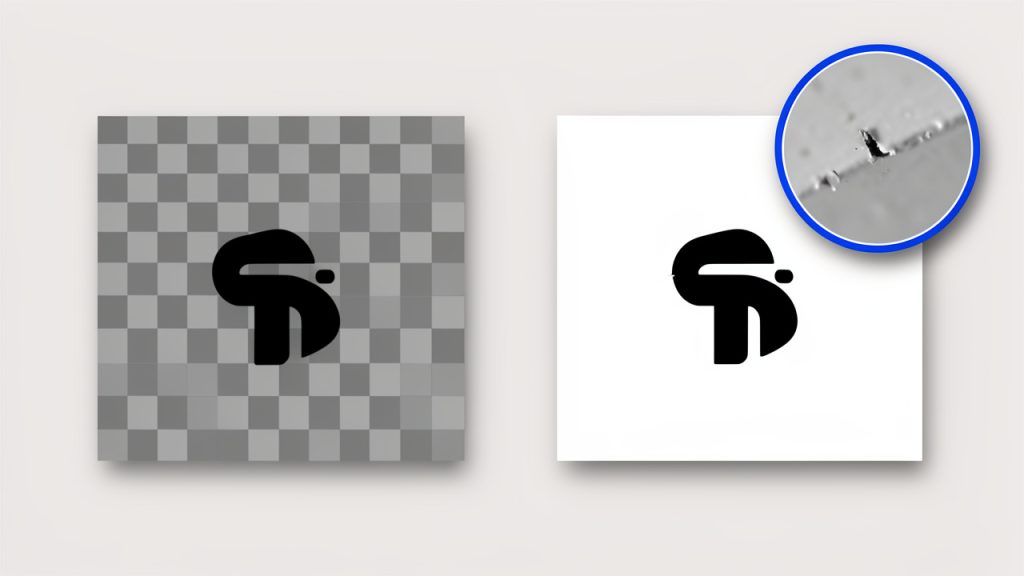
    Transparency flattening before/after: left PNG with checkerboard background, right flattened background — white (alpha removed)

    This is especially noticeable with logos, icons, and cutout product images. If you know the image will sit on a white web page, a white background is usually the cleanest choice. If it will appear on a colored layout, choose a matching background to avoid ugly edge artifacts.

    Step-by-step: Convert PNG to JPG online

    The workflow is usually simple, but small setting choices can have a big effect on the result. If you want a fast, dependable process, use this general method.

    Step 1, choose a trusted tool

    Start with a converter that has a solid reputation, a clear privacy policy, and enough controls for your needs. If the image is sensitive, lean toward a client-side tool. If you need batch conversion, cloud storage imports, or advanced settings, a server-based service may be more convenient.

    Step 2, upload the PNG
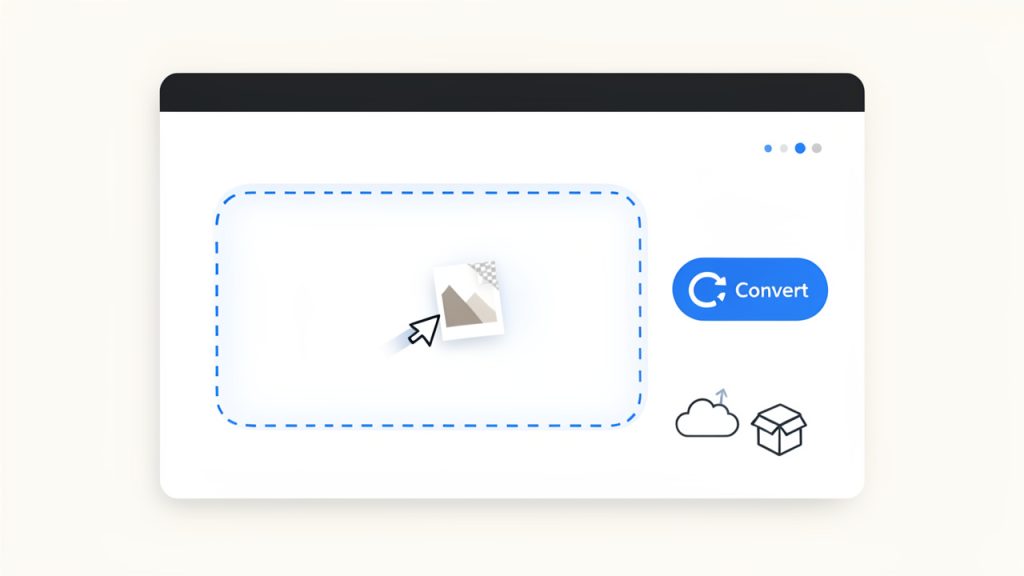
    Drag-and-drop upload UI with dashed drop zone labeled “Drop PNG files here” and a PNG thumbnail being dragged in

    Most tools support drag-and-drop, which is the fastest option. You can also browse for files manually or import from cloud services in some cases. If you are converting multiple images, check whether the tool supports batch upload before you begin.

    Step 3, choose output options

    If the tool offers settings, set the output format to JPG, then choose your quality level. For web images, a quality setting around 75 to 85 usually gives the best balance between clarity and size. If the PNG has transparency, select an appropriate background color.

    Some converters also let you resize before export. This is useful because a smaller image dimension often cuts file size more than compression alone. If your website only displays an image at 1200 pixels wide, exporting a 4000-pixel JPG is wasted weight.

    Step 4, convert and download

    Once the settings are in place, run the conversion and download the file. On some tools this happens instantly. On others, especially server-based services, there may be a brief processing step. If batch files are involved, you may receive a ZIP archive.

    Step 5, verify quality and metadata

    Open the new JPG and inspect it before publishing. Look for soft detail, color shifts, edge artifacts, or an unexpected background color where transparency used to be. If the file still feels too large, try resizing first, then adjusting compression slightly.

    Also check whether metadata was preserved or removed if privacy or workflow compatibility matters. This step is easy to skip, but it is the difference between a quick conversion and a polished one.
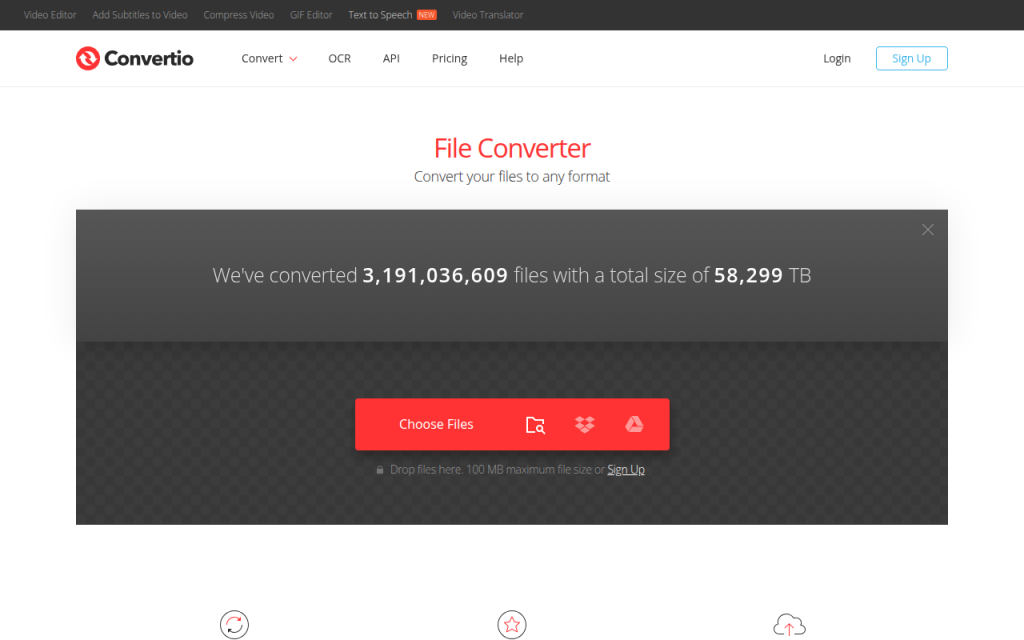
    Screenshot of convertio.co

    1. Convertio

    Convertio is one of the most recognizable names for people who need to convert PNG to JPG online quickly. Its main appeal is convenience. The interface is clean, drag-and-drop works well, and the service supports a huge range of file types beyond images, which makes it especially useful for freelancers and small business owners who want one tool for occasional format changes across different media. Convertio supports cloud imports, basic batch workflows, and a familiar conversion flow that does not overwhelm non-technical users.

    Convertio is very beginner-friendly, quick to set up for one-off conversions, and convenient for cloud import/export. The trade-offs are that processing happens on their servers, which may not suit sensitive files, advanced image controls are not as deep as specialist tools, and free usage limits can be restrictive for heavy users.

    Website: https://convertio.co
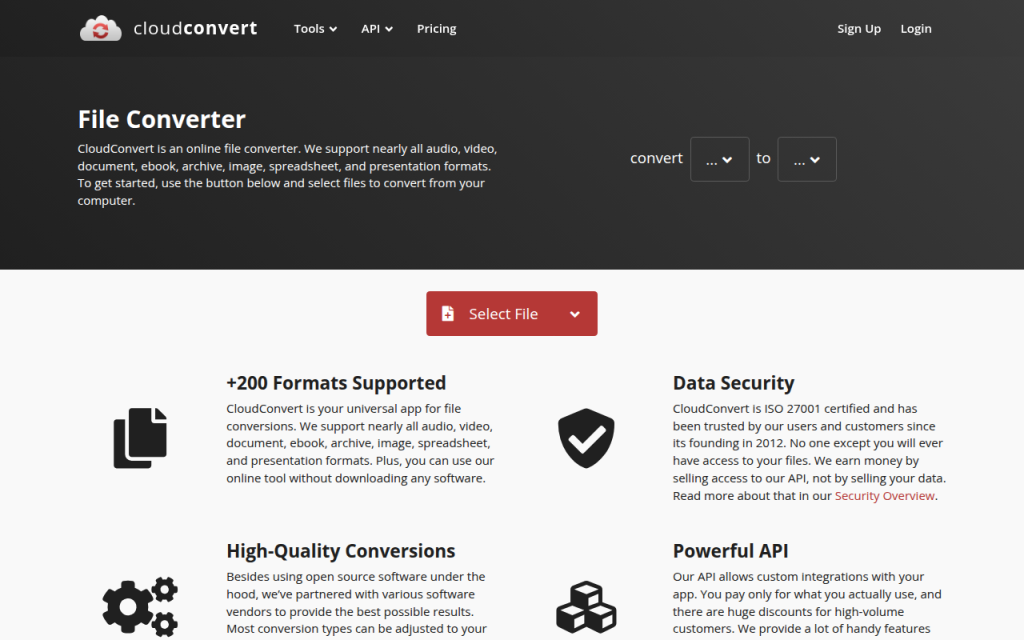
    Screenshot of cloudconvert.com

    2. CloudConvert

    CloudConvert is a strong option for users who want more control and a professional feel. It supports image conversion well and caters to users who care about workflow reliability, API access, and configurable settings. If you are a developer, power user, or agency handling recurring conversions, CloudConvert often feels more robust than lightweight web converters. It provides a high-quality engine, advanced settings for supported formats, and API access for automation and integration, which makes it especially useful when you need consistency across batches or must integrate conversion into a larger workflow.

    CloudConvert is reliable for professional use, supports good format coverage and workflow flexibility, and works well for teams and developers. Its downsides are server-side uploads, a less casual feel than ultra-simple converters, and limited free credits for frequent users.

    Website: https://cloudconvert.com/
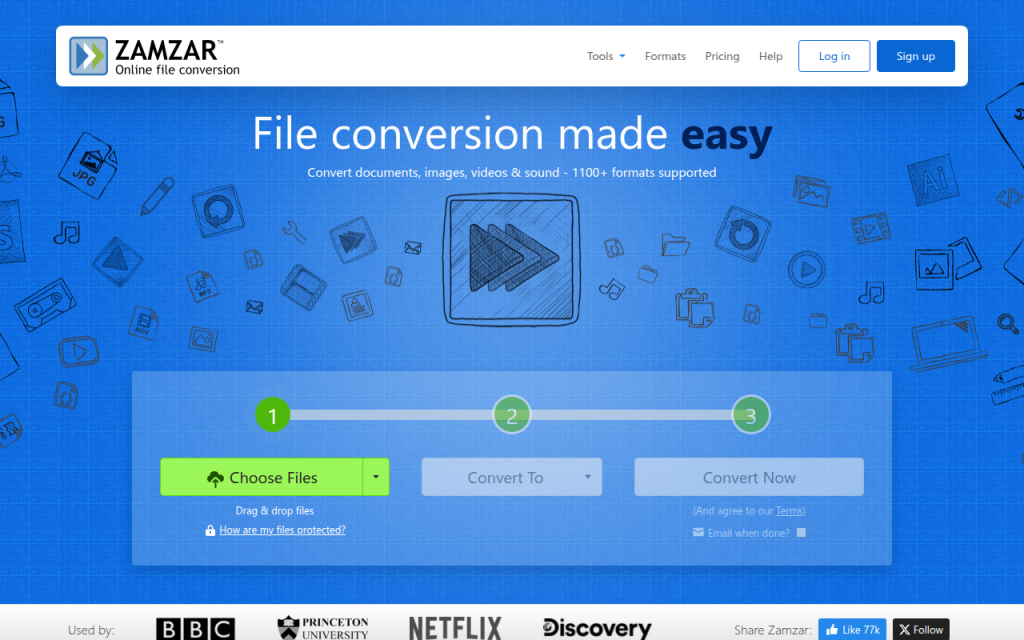
    Screenshot of zamzar.com

    3. Zamzar

    Zamzar is a long-standing, no-frills choice for straightforward online file conversion. If you want to upload a PNG, choose JPG, and download the result without worrying about many settings, Zamzar does the job. It supports a broad range of file types and is simple to use, making it a good fit for occasional users and business users who need low-friction conversions.

    Zamzar offers a straightforward conversion flow and broad file support, but its optimization controls are limited, processing is server-side, and it may feel basic to users who want detailed compression tuning.

    Website: https://www.zamzar.com/
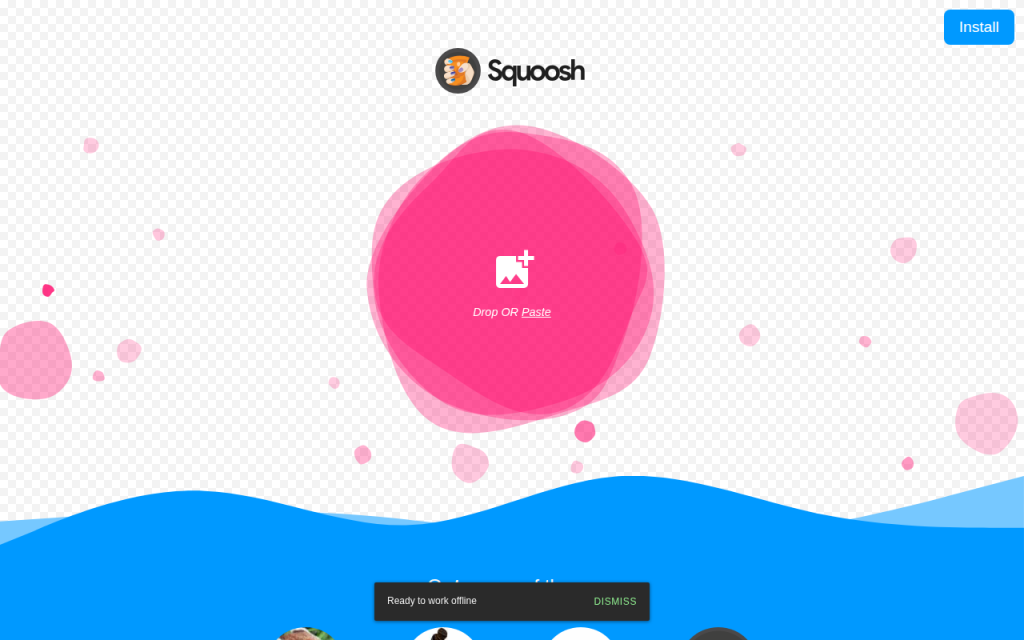
    Screenshot of squoosh.app

    4. Squoosh

    Squoosh is the standout choice if privacy and image optimization matter more than generic file conversion convenience. Built as a browser-based image app, much of the processing can happen client-side, directly on your device. For users who do not want to upload sensitive visuals to a remote server, that is a major advantage. Squoosh also provides visual before-and-after comparisons and fine-grained optimization controls, letting you see the effect of compression before exporting and make smarter decisions about file size.

    Squoosh is excellent for privacy-conscious users and for fine tuning quality, and it is ideal for web optimization workflows. Its limitations are that it is less general-purpose than multi-format converters, can feel more technical for beginners, and is not primarily designed for batch handling.

    Website: https://squoosh.app/
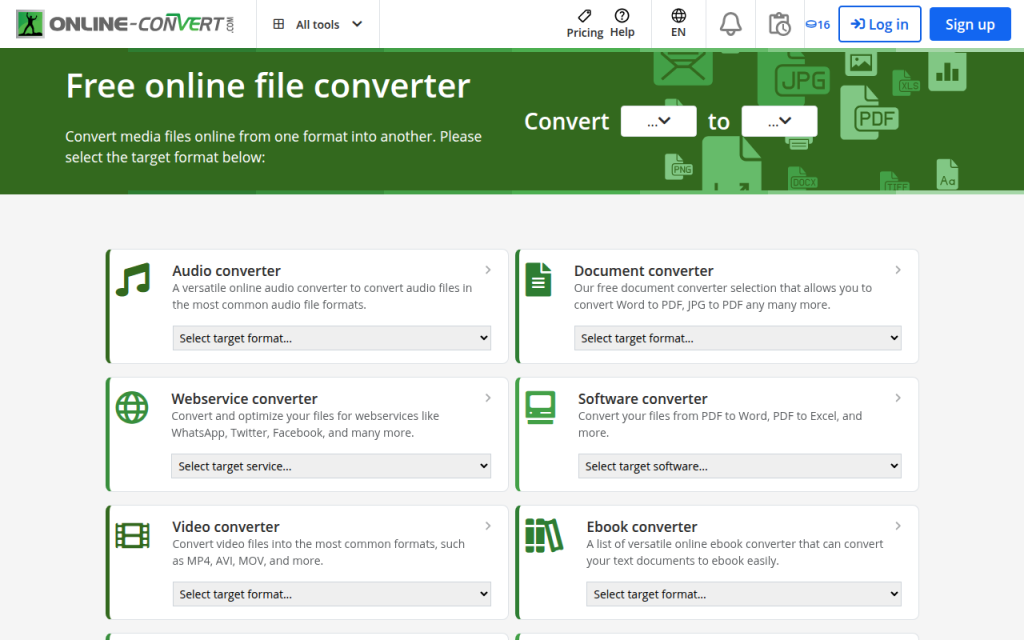
    Screenshot of online-convert.com

    5. Online-Convert.com

    Online-Convert.com sits in a practical middle ground. It offers more settings than the simplest converters while remaining accessible to non-experts. If you want to tweak output behavior, adjust image-related parameters, or work with a range of file types from one platform, it is a solid pick.

    Online-Convert.com is more configurable than many casual tools and strikes a good balance between ease and control. The trade-offs are server-side conversion, a busier interface than minimalist competitors, and free limits that may apply depending on usage.

    Website: https://www.online-convert.com/

    Quick comparison of the best PNG to JPG online tools

    ToolBest forPrivacy modelBatch supportQuality controlsEase of use
    ConvertioFast everyday conversionsServer-sideYesBasic to moderateVery easy
    CloudConvertProfessional and repeat workflowsServer-sideYesModerate to strongEasy
    ZamzarOccasional simple useServer-sideLimited to moderateBasicVery easy
    SquooshPrivacy and optimizationClient-sideLimitedStrongModerate
    Online-Convert.comFlexible utility useServer-sideYesModerateEasy

    Best practices and tips to preserve quality and reduce size

    The best JPG is not always the smallest one. Over-compress an image and it looks cheap, keep it too large and your page speed suffers. The sweet spot for most photographic web images is quality 70 to 85, especially after resizing to appropriate display dimensions.

    If you are working with screenshots, graphics with text, or UI elements, be cautious. JPG can blur edges and introduce artifacting around letters or sharp lines. In many of those cases, PNG may still be the better choice. Conversion is most effective when the source is photo-like rather than graphic-heavy.

    Resize before you obsess over quality

    A lot of oversized images remain too large because users only change compression. Dimension matters more than people think. Reducing an image from 4000 pixels wide to 1600 pixels wide can slash file size while keeping the image perfectly usable on most websites. Cropping also helps. If part of the image does not contribute to the message, remove it before exporting. Less visual information often means a lighter file and a stronger composition at the same time.

    Use progressive JPG and sRGB when possible

    A progressive JPG loads in layers, which can make pages feel faster to users, even if the total file size is similar to a baseline JPG. Not every converter exposes this option, but it is worth using for web publishing when available. For color consistency, sRGB is the safest choice for the web. If your tool or editor lets you convert or embed an sRGB profile, do it to reduce the chances of washed-out or oversaturated images on different screens and browsers.

    Strip metadata when privacy or speed matters

    Metadata can include location, timestamps, device information, and editing details. If you are publishing to the web or sending files externally, removing unnecessary metadata can slightly reduce size and improve privacy. If you are a photographer or need EXIF data for workflow reasons, keep it. Otherwise, stripping it is usually the smarter default for public-facing images.

    Privacy, security, and legal considerations

    Uploading files to an online converter is not a neutral act. Once the file leaves your device, you are trusting the service to process it responsibly, delete it promptly, and not reuse it in ways you did not intend. That is fine for generic stock-style visuals, but not always for client assets, internal documents, or unreleased product imagery.

    If the image contains confidential information, copyrighted material under restricted use, or customer data, think twice before using a server-side tool. A browser-based converter like Squoosh, or a local desktop app, is often safer.

    What to check before uploading

    Look for a clear privacy policy, retention timeline, and deletion policy. Check whether files are auto-deleted after a short period and whether the provider states how uploads are handled. If that information is hard to find, that alone is a warning sign.

    Also consider the legal side. If you are converting client work, licensed visuals, or partner assets, make sure your use of a third-party conversion service does not conflict with contract terms or platform restrictions.

    Troubleshooting: Common conversion problems and fixes

    Even the best online tool can produce a disappointing result if the settings or source image are not right. Most issues fall into a handful of predictable categories, and they are usually fixable.

    Blurry output or banding artifacts

    If the JPG looks soft or shows ugly transitions in skies, shadows, or gradients, the quality setting is probably too low. Raise the compression quality slightly and try again. If the source image is extremely detailed, resize it first rather than forcing ultra-heavy compression. Banding is especially common in areas with subtle tonal shifts. Some tools simply handle those cases better than others, so switching converters can help too.

    Color shifts or dull-looking images

    If the image looks less vibrant after conversion, the problem is often the color profile. Exporting or converting to sRGB usually helps. If the tool does not expose profile controls, try a different converter or use a desktop editor for that file. Also compare the file in a proper image viewer rather than relying only on browser thumbnails, which can sometimes mislead.

    Output file is still too large

    If the JPG remains bigger than expected, check the image dimensions first. A large-resolution file at moderate compression can still be huge. Resize to the actual needed display size, then export again at around 75 to 85 quality. If the image contains large flat-color areas, text, or interface elements, JPG may simply be inefficient for that kind of content. In that case, PNG or another modern format may perform better.

    Transparency turned into the wrong background

    This happens when a transparent PNG is flattened automatically, often to white or black. If the result looks wrong, choose a specific background color during export if the tool allows it. Matching the destination page background usually produces the cleanest edges.

    Alternatives: Desktop and command-line options

    Online tools are convenient, but they are not always the best choice. If you handle sensitive files, large batches, or recurring asset work, local software is often faster and safer in the long run.

    On macOS, Preview can export many images to JPG easily. On Windows, Paint or Photos can handle basic conversions. Free tools like GIMP and IrfanView offer more control and are better for repeat use.

    For developers and power users, ImageMagick is one of the most efficient options available, excellent for batch conversion, scripting, and automation. Here are a few practical examples:

    magick input.png -background white -flatten -quality 85 output.jpg
    

    This command converts a PNG to JPG, fills transparent areas with white, and uses a quality setting of 85.

    magick input.png -resize 1600x -background white -flatten -quality 80 output.jpg
    

    This version resizes the image to 1600 pixels wide before converting, which is often a better way to reduce file size.

    magick *.png -background white -flatten -quality 82 *.jpg
    

    For batch workflows, commands like this can save enormous time, though exact shell behavior may vary by system. If you handle dozens or hundreds of files regularly, automation quickly becomes more efficient than any online interface.

    Quick FAQ

    Will converting PNG to JPG reduce quality permanently?

    Yes, potentially. JPG is a lossy format, so some image data is discarded during compression. At good settings the loss may be hard to notice, but it is still there. Keep the original PNG if you may need it later.

    Can I convert a transparent PNG to JPG and keep transparency?

    No, JPG does not support transparency. The transparent area must be replaced with a solid background color.

    What is the best JPG quality setting for web use?

    For most photos, 75 to 85 is the practical sweet spot. Start there, then adjust based on image detail and file-size goals.

    Are online converters safe?

    Some are reasonably safe for routine files, but not all are equal. For sensitive images, use a client-side tool or local software. Always review privacy and deletion policies before uploading.

    Recommended workflows by use case

    If you just need to convert one ordinary image fast, a simple service like Convertio or Zamzar is usually enough. If you need more reliability or batch-friendly workflows, CloudConvert or Online-Convert.com makes more sense. If privacy matters, Squoosh is the strongest web-based choice because it is geared toward local, browser-side processing.

    If you routinely prepare images for websites, the best workflow is often this: start with the original file, resize to the actual needed dimensions, convert to JPG at around 80 quality, use sRGB for consistent color, and remove metadata unless you explicitly need it. Then preview the final file before publishing.

    A final check goes a long way. Confirm the background looks correct, inspect the image at full size, verify the file size is reasonable, and keep the source PNG stored safely. That way you get the speed benefits of JPG without losing control of quality, privacy, or future editing flexibility.

  • Password Generator Online: Create Strong Unique Passwords Fast

    Password Generator Online: Create Strong Unique Passwords Fast

    A weak password can undo years of careful work in a single breach. For small business owners, freelancers, developers, and anyone managing dozens of accounts, password fatigue is real. You need strong credentials for email, banking, cloud apps, client portals, project tools, and social platforms, but creating unique passwords by hand is tedious and unreliable.

    That’s exactly why a password generator online has become such a practical tool. It removes guesswork, creates high-entropy passwords in seconds, and helps you avoid the common habits attackers count on, like reused phrases, predictable substitutions, and short combinations. Used well, an online password generator can dramatically improve account security without slowing down your workflow.

    What is Password generator online?

    A password generator online is a web-based tool that automatically creates strong, random passwords for you. Instead of thinking up your own combinations, you choose preferences such as length, symbols, numbers, uppercase letters, or memorable passphrases, and the tool generates a password instantly.

    At its core, the idea is simple. Humans are not good at randomness. We tend to reuse old patterns, favorite words, dates, or familiar keyboard sequences. An online password generator avoids those habits by producing credentials that are much harder to predict or crack through brute-force attacks, dictionary attacks, or credential stuffing attempts.

    For most users, the appeal is speed and convenience. You open the tool, generate a password, copy it, and use it for a new account or to replace a weak one. For professionals, the value goes deeper. A good generator supports stronger security policies, faster onboarding, and cleaner account management across teams and devices.

    Why online password generators matter more than ever

    The average user now manages far more digital accounts than they did a few years ago. Even a solo freelancer may have logins for invoicing, CRM software, cloud storage, video calls, design tools, analytics dashboards, and multiple client environments.

    That growth creates a familiar problem. If every password must be unique and secure, you either need a reliable system or you end up taking shortcuts. Many people choose easy-to-remember variations of the same password. That feels efficient, but it creates a domino effect. If one site is compromised, attackers test the same password elsewhere.

    A password generator online breaks that cycle by making strong, unique passwords easy to create at the moment you need them. Instead of relying on memory, you rely on randomness and proper storage.

    Password generator vs password manager

    These tools are related, but they are not the same. A password generator creates a strong password. A password manager stores and organizes those passwords so you do not have to memorize them.

    In practice, they work best together. Many password managers include a built-in generator, but standalone online tools are still useful when you need a quick password on a device where you are not logged into your manager, or when you want a simple, no-friction way to create secure credentials.

    Key Aspects of Password generator online

    Not all password generators are equally useful. The best ones combine strong randomness, flexible options, and sensible defaults. If you are choosing a tool for personal use or recommending one within a business, it helps to understand what really matters.

    Randomness is the foundation

    The biggest advantage of a password generator online is randomness. Strong passwords are not just long, they are also unpredictable. A password like Summer2024! may appear complex at first glance, but it follows a pattern that attackers know well. It contains a common word, a recent year, and a common symbol.

    A randomly generated password, by contrast, does not follow a recognizable pattern. That unpredictability increases what security professionals call entropy, which is a measure of how hard a password is to guess. The more entropy a password has, the more resistant it is to automated attacks.

    This is where quality matters. A trustworthy generator should rely on strong browser-based randomness rather than simplistic formulas. You may not see that technology directly, but it affects the strength of every password produced.

    Side-by-side comparison showing weak and strong passwords, with an entropy meter under each example

    Human-created (predictable) vs Random character password vs Random passphrase, with a simple entropy/strength indicator.

    Length usually matters more than complexity alone

    Many people focus only on special characters. Symbols do help, but length is often the bigger factor. A short password with mixed characters can still be vulnerable. A longer password, especially one generated randomly, is dramatically harder to crack.

    For many accounts, a password length of 16 to 20 characters is a strong default. For highly sensitive accounts such as email, banking, admin panels, and password managers, going longer is wise if the platform allows it.

    Some generators also offer passphrases, which use multiple random words. These can be easier to type and remember when needed, while still offering strong protection if they are sufficiently long and truly random.

    Customization improves usability

    A useful online generator gives you control without forcing you to think too hard. You may need to include or exclude specific character types because some websites have frustrating password rules. You may also need to avoid ambiguous characters such as lowercase L, uppercase I, or zero and uppercase O.

    That flexibility matters in real-world use. A password that is mathematically strong but difficult to enter correctly on mobile, or rejected by a website’s legacy requirements, creates friction. Good tools balance security with practical usability.

    Here is a simple comparison of common password styles:

    Password Type Example Style Strength Potential Ease of Use Best For
    Random character password Mixed letters, numbers, symbols Very high Moderate Most online accounts
    Long alphanumeric password Letters and numbers only High Good Sites with symbol restrictions
    Passphrase Several random words High to very high Very good Accounts you may need to type manually
    Human-created password Familiar word plus variations Low to moderate Good at first, poor long term Not recommended

    Privacy and trust are essential

    When people search for a password generator online, they often focus on convenience first. That is understandable, but trust should come first. You are using a security tool, so it should not create new risks.

    A good online password generator should ideally generate passwords locally in your browser, rather than sending them to a server, which reduces exposure and aligns with the basic principle of minimizing data transmission. Even if the password is only visible briefly, you want as little external handling as possible.

    Illustration showing local/browser-based generation vs server transmission

    Generate locally when possible vs Avoid sending passwords to remote servers.

    Transparency also helps. Reputable tools usually explain how passwords are generated, whether anything is stored, and what privacy protections are in place. If a site is vague, cluttered with suspicious ads, or pushes odd permissions, move on.

    Strong passwords are only one part of security

    Generating a strong password is a major step, but it is not the entire security strategy. Even the best password can be undermined if it is reused across sites, shared insecurely, or stored in a spreadsheet named “logins-final-final.”

    This is especially relevant for small teams. A business may adopt stronger passwords but still struggle because credentials are copied into chat apps or shared through email. The real goal is not just stronger passwords, but stronger password practices.

    That usually means combining a password generator with a password manager, enabling two-factor authentication, reviewing old accounts, and limiting access by role. Security improves most when these habits work together.

    Common mistakes people still make

    One of the most common mistakes is generating a strong password, then slightly modifying it for other accounts. That defeats much of the benefit. Attackers look for patterns, and small variations are easier to predict than most people realize.

    Another frequent issue is prioritizing memorability over strength for every account. In reality, most passwords do not need to be memorized if they are stored in a secure password manager. Trying to remember all of them usually pushes people back toward weak, repeated patterns.

    A third mistake is ignoring account importance. Not every login carries the same risk. Your email account, domain registrar, payment systems, cloud storage, and admin dashboards deserve the strongest possible credentials because they often act as gateways to everything else.

    How to Get Started with Password generator online

    Getting started is straightforward, but doing it well makes a noticeable difference. The goal is not simply to generate one strong password. It is to build a repeatable habit that improves your security across all accounts.

    Start with your highest-risk accounts

    If you have been using weak or repeated passwords, do not feel like you need to fix everything in one sitting. Start with the accounts that matter most. In most cases, that means your primary email, banking, password manager, cloud storage, and any business-critical software.

    These are the accounts that can trigger broader compromise if accessed by an attacker. Securing them first gives you the highest return for your effort.

    A practical first pass usually includes:

    1. Email account: This is often the recovery hub for everything else.
    2. Banking and payment tools: Financial systems need immediate attention.
    3. Password manager: Protect the vault before anything else.
    4. Business admin accounts: Hosting, domains, cloud tools, and client systems.
    5. Frequently reused accounts: Replace any password that appears in multiple places.

    Choose sensible generator settings

    When using a password generator online, pick settings that fit both security and the platform you are using. For most modern websites, a random password of 16 or more characters that includes uppercase, lowercase, numbers, and symbols is an excellent choice.

    If you expect to type the password manually, a passphrase or a password without ambiguous characters may be more practical. If a site has odd restrictions, adapt the output, but avoid over-simplifying just for convenience. It is better to use a long alphanumeric password than a short one with forced complexity.

    Store passwords properly from day one

    This step matters just as much as generation. If you create strong passwords but save them in insecure notes, browser text files, or shared documents, you lose much of the protection.

    A password manager is the best companion to an online generator. It lets you create, store, and autofill unique passwords across services without relying on memory. For teams, it also creates safer sharing workflows and better visibility into who has access to what.

    If you are a freelancer or business owner, this can also improve continuity. When tools, client portals, or financial platforms are stored properly, access is less likely to get lost during device changes, contractor handoffs, or urgent support situations.

    Use passphrases when they make more sense

    Not every account needs a dense string of characters that looks impossible to type. Sometimes a random passphrase is the smarter choice, especially for systems you access manually on multiple devices.

    A well-generated passphrase made of unrelated words can offer strong security while remaining easier to enter accurately. The key is that the words must be random, not chosen from personal preferences or familiar phrases.

    For example, a random passphrase works well for Wi-Fi access, encrypted backups, or accounts that require occasional manual login. For everything else, traditional random passwords are still a strong default.

    Build a simple ongoing routine

    A security habit only works if it is sustainable. The easiest approach is to use a generator every time you create a new account or change an old password. Make uniqueness your default, not your exception.

    It also helps to review older accounts in batches. Update a few each week rather than turning it into a one-time project you never finish. Over time, your weakest credentials get replaced without creating unnecessary friction.

    If you manage a team, set a clear standard. Encourage unique generated passwords, require two-factor authentication where possible, and avoid informal credential sharing. Good security is easier to maintain when the process is consistent.

    What to look for in a good online password generator

    Before choosing a tool, focus on a few practical signals of quality:

    FeatureWhy It Matters
    Local browser generationReduces the chance of passwords being transmitted or logged remotely
    Adjustable lengthLets you create stronger passwords for sensitive accounts
    Character controlsHelps meet site requirements without weakening security
    Passphrase optionUseful for manually entered credentials
    Clear privacy informationBuilds trust and shows security maturity
    Clean interfaceReduces mistakes and speeds up everyday use

    Conclusion

    A password generator online is one of the simplest security upgrades you can make, and one of the most effective. It helps you create strong, unique passwords quickly, reduces reliance on predictable patterns, and supports better security across personal and business accounts alike.

    The next step is practical. Pick a trustworthy generator, pair it with a password manager, and start by updating your most important accounts. Once strong password creation becomes part of your normal workflow, better security stops feeling like a chore and starts feeling automatic.

  • Merge PDF Online Free: Fast, Private, Practical Guide

    Merge PDF Online Free: Fast, Private, Practical Guide

    Merging PDFs should take seconds, not become a mini document engineering project. Yet the moment multiple files are involved, report sections arrive out of order, page sizes clash, or a portal accepts only one upload, the simple task of combining documents turns into friction.

    This guide focuses on the real question behind “merge pdf online free”, which tool works fastest, which one respects privacy, and when an online service should be avoided altogether. It covers both quick consumer workflows and technical considerations that matter to developers, operations teams, and anyone handling structured documents at scale.

    The emphasis here is practical. You will get a short how-to, a ranked comparison of leading tools, reproducible test criteria, security notes, and local alternatives for cases where browser-based merging is the wrong choice.

    Merge PDF Online Free, Overview and Use Cases

    Problem statement: Why merge PDFs?

    PDF merging solves a very common operational constraint, many submission systems, procurement portals, HR applications, academic platforms, and government forms accept a single file only. When supporting material exists as separate PDFs, such as a cover letter, report appendix, invoice bundle, or scanned ID set, those files must be combined into one ordered deliverable.

    There is also a workflow efficiency angle. Combining related PDFs reduces attachment sprawl, simplifies version control, and minimizes upload retries. Instead of sending five files with naming conventions that may or may not survive email forwarding, a merged PDF creates a single artifact with deterministic page order.

    Common scenarios and user intent

    Most users searching for a free online PDF merger fall into a few patterns. One group needs a quick one-off utility for combining bills, contracts, or school submissions. Another group needs repeated browser-based processing without installing desktop software, see this resource on browser-based processing for that use case. A third group includes technical users who want to know whether the online workflow preserves page fidelity, metadata, bookmarks, or searchable text.

    A few cases are more nuanced. Scanned PDFs may be image-only and therefore not text searchable after merging unless OCR has already been applied, see OCR for background. Password-protected files add another constraint, because many online tools require decryption before upload; refer to Password-protected files for how that typically works. Mixed page sizes, rotated scans, and interactive forms can also change output quality if the service recompresses or flattens content during processing.

    Criteria for selecting an online merging tool

    A good online merger is not just about a visible Merge button. It should handle upload reliability, page reordering, and output fidelity without forcing registration for basic use. File size limits matter. So does whether the platform retains files on its servers, and for how long.

    For this comparison, the core criteria are security, free-tier practicality, speed, page-level control, output quality, and interface clarity. Secondary criteria include OCR-adjacent workflows, metadata behavior, ads or upsells, and whether the tool feels built for one-time consumer use or repeat operational use.

    Quick How-to: Merge PDFs Online (Step-by-Step)

    Generic workflow

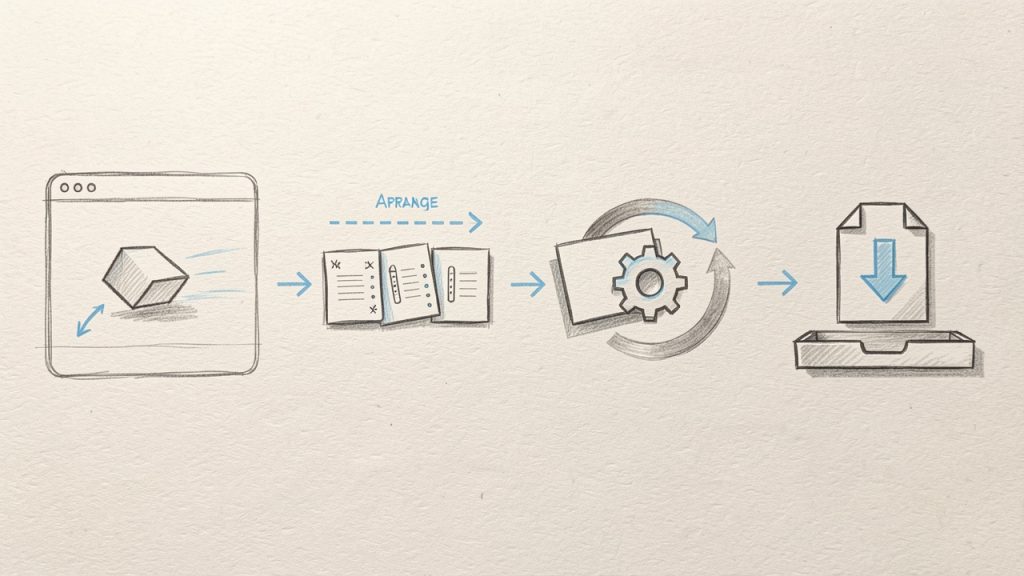
    The online merge pattern is consistent across most tools. The sequence is usually: upload files, reorder them, optionally set page ranges, run the merge operation, then download the output PDF.

    A compact workflow looks like this:

    1. Upload the source PDFs via drag-and-drop or file picker.
    2. Reorder files or pages using thumbnail controls.
    3. Trim pages if the tool supports partial selection.
    4. Merge and wait for server-side or client-side processing to complete.
    5. Download the combined PDF and verify page order, orientation, and searchability.

    The expected outcome is one output file with preserved visual fidelity and correct sequence. If the service adds compression implicitly, the file size may shrink, but image quality can also change slightly.

    A clean linear flowchart showing the generic online-merge workflow: 1) Upload (drag-and-drop/file picker icon), 2) Reorder (thumbnails with drag handles), 3) Trim/Select pages (scissors or checkbox on a page), 4) Merge (button with progress spinner), 5) Download (down-arrow to disk). Include a small note under step 4 that some tools process in-browser while others upload to a server (two tiny branch icons).

    Detailed annotated example: using an online tool

    A typical example using a modern browser-based merger is straightforward. After opening the tool page, drag the PDFs into the drop zone. The UI should render file cards or page thumbnails. At that point, reorder by dragging thumbnails left to right or top to bottom, depending on the layout.

    If page-range controls are available, remove unwanted pages before merging. This matters for scanned packets where blank separator pages often inflate the result. When the merge operation starts, watch for two implementation differences, some tools upload first and process on the server, while others perform more logic in the browser. The user-facing result is similar, but the privacy model is not.

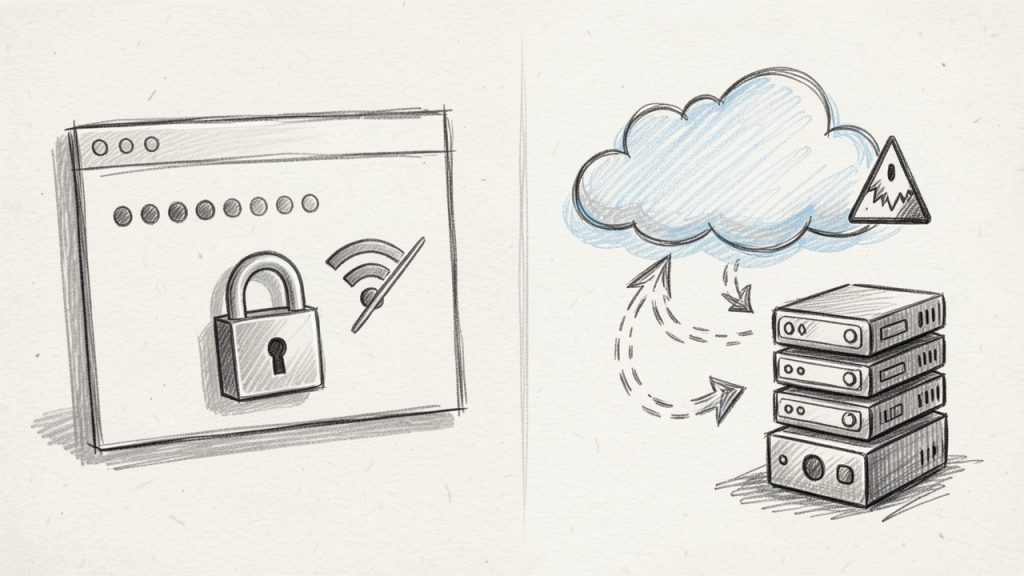
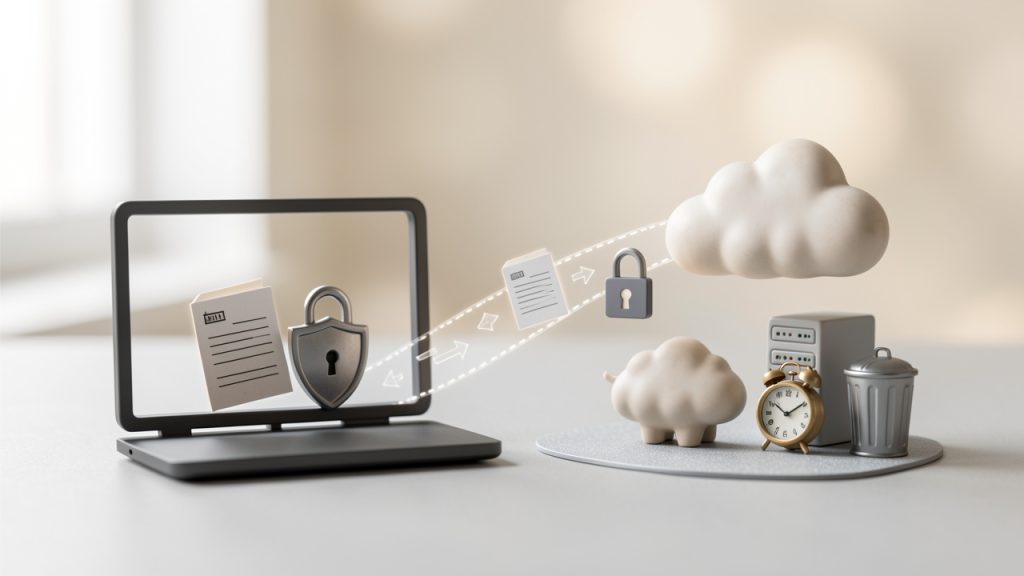
    Side-by-side comparison diagram labeled 'Client-side (Browser) Processing' and 'Server-side (Cloud) Processing'. Left: a browser window with files staying inside a dotted laptop outline, labeled 'no upload, data stays local / better privacy'. Right: files moving via arrows to a cloud/server icon with a clock and trash can indicating 'upload, temporary custody, retention/deletion policy'. Add privacy implications (encryption in transit, retention time) as small callouts.

    Troubleshooting common issues

    If a merged PDF opens with corrupted pages, the source file may already contain malformed objects or nonstandard incremental updates. Re-saving the original PDF through a desktop viewer or using a local repair tool such as qpdf can normalize it before upload.

    If a service rejects a file, the cause is usually one of three things: file-size caps, password protection, or unsupported PDF structure. Browser popup blocking can also interfere with downloads on some sites. When that happens, allow downloads for the domain and retry. If mixed orientation produces awkward results, check whether the tool supports page rotation before merging. If not, rotate locally first.

    Comparative Evaluation of Top Free Online PDF Mergers

    Evaluation criteria and methodology

    To compare tools fairly, the test set should reflect real-world variance, not just two clean office exports. For this article, the evaluation model assumes three input categories: a standard text PDF, a scanned image-heavy PDF, and a mixed-layout PDF with different page dimensions. A password-protected file is also relevant, though many free online tools will require prior unlocking.

    The benchmark dimensions are simple but useful: time to upload and merge, output file size delta, visual fidelity, page order controls, and friction on the free tier. The environment assumed is a modern Chromium-based browser on a stable broadband connection. Since public tool behavior changes over time, the matrix below should be read as operational guidance, not a permanent specification sheet.

    Tool comparison matrix

    Tool Free use without signup Page reordering Partial page selection Typical privacy posture Large file handling Ads/Upsell friction Best fit
    Home Yes Yes Varies by workflow Emphasis on simple web utility flow Good for routine tasks Low Fast everyday merging
    Smallpdf Yes, with limits Yes Limited in some flows Documented retention/deletion messaging Moderate Moderate Clean UI, general users
    ILovePDF Yes Yes Often stronger batch controls Document retention policy published Good Moderate Batch workflows
    Adobe Acrobat Online Yes, stronger with account Yes Basic Trusted brand, account-centric ecosystem Moderate Higher Users already in Adobe stack
    PDF24 Tools Yes Yes Yes in several tools Practical utility model Good Low Power users wanting options
    Sejda PDF Yes, limited tasks/day Yes Yes Usage limits clearly surfaced Moderate Moderate Precise edits on small jobs

    Short profiles of the top tier

    The leading services differ less in basic merging than in workflow polish and operational constraints. Some prioritize a frictionless drag-and-drop UI. Others push users gently toward accounts, cloud sync, or premium exports. The gap becomes visible with large files, repeated use, and edge cases like page extraction or mixed scan quality.

    For users who only need to merge pdf online free, nearly any major tool can complete a basic job. For users who need repeatability, privacy clarity, or cleaner page-level control, the differences matter more than marketing copy suggests.

    In-Depth Reviews: How the Top Tools Performed

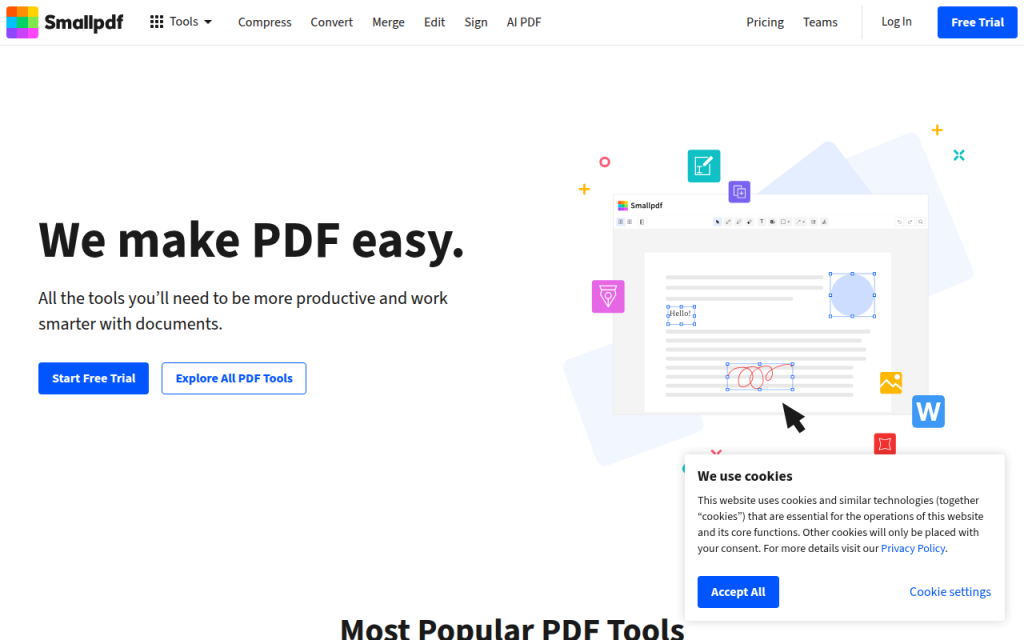
    Screenshot of smallpdf.com

    2. Smallpdf

    Smallpdf is one of the most recognizable names in the category, and for good reason. Its interface is polished, predictable, and easy to understand even for first-time users. The merge flow follows a well-known pattern: upload, reorder, merge, and download. For general users, that straightforwardness is a major strength.

    Smallpdf stands out most in user experience design. Thumbnail handling is clear, the visual hierarchy is strong, and the service communicates status well during processing. Free-tier limits can appear quickly for frequent users, and upsell prompts are present across the product ecosystem, so heavy users may prefer a subscription. For casual merges and users who value interface clarity, Smallpdf is often the safest recommendation.

    Website: https://smallpdf.com/merge-pdf

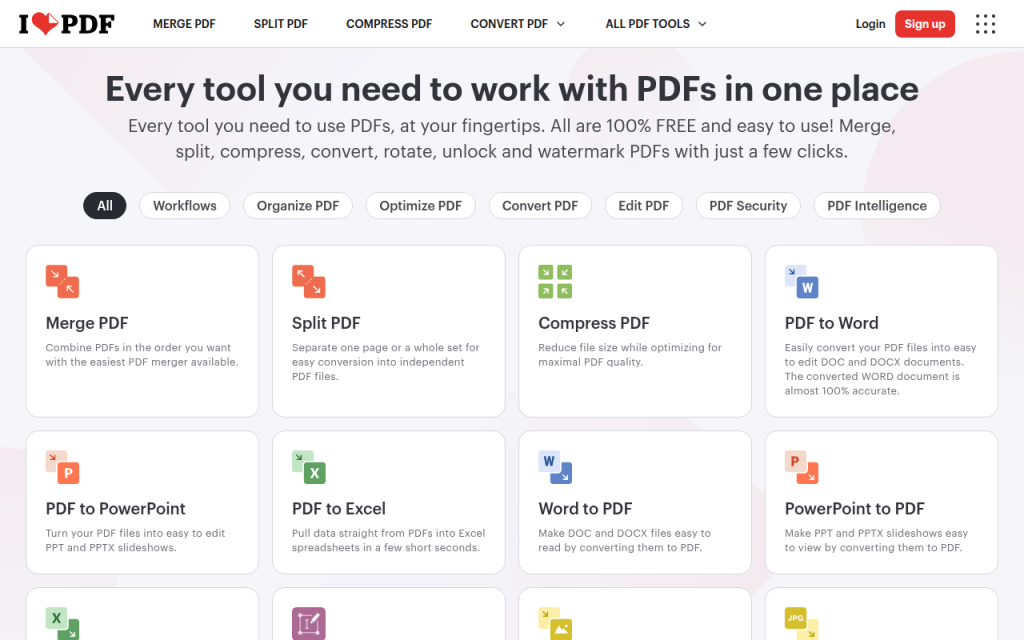
    Screenshot of ilovepdf.com

    3. ILovePDF

    ILovePDF is particularly strong when multiple files, repeated tasks, or adjacent PDF operations are involved. The platform integrates splitting, compression, rotation, and format conversion in a coherent way, and it favors batch-oriented workflows. That makes it efficient for users preparing multi-document packets, office workflows, and support teams.

    The service balances speed and control well, though free use caps matter for frequent workloads. Interface density is slightly higher than single-purpose tools, and privacy-sensitive workflows still require careful policy review. For batch merging and adjacent PDF tasks, ILovePDF is a solid choice.

    Website: https://www.ilovepdf.com/merge_pdf

    1. Home

    Home earns a top placement because it addresses the core use case directly, a fast, low-friction web workflow for routine document tasks. For users who want to merge PDF files online for free without navigating a cluttered interface, that simplicity matters. The product is especially suitable for people who value speed and minimal UI overhead over ecosystem lock-in.

    What makes Home stand out is its practical utility profile. It feels closer to a focused browser tool than a broad document suite trying to route the user through multiple premium upsells. That is useful when the job is operational, not exploratory, such as combining a proposal, invoice packet, or compliance submission into one final file.

    Home emphasizes a browser-based merge, a simple upload and reorder flow, and a low-friction interface suitable for one-off and repeat document tasks. Advanced PDF editing depth may be narrower than larger suite-style platforms, and feature availability can vary depending on the specific tool page and workflow design. Pricing is positioned around accessible web utility usage, with core functionality available for users seeking a free online merge workflow.

    Website: https://utilitytools.org

    4. Adobe Acrobat Online

    Adobe Acrobat Online brings brand trust and strong PDF pedigree. For users already inside the Adobe ecosystem, the online merge tool feels like a natural extension of existing workflows. The output quality is generally dependable for standard office documents, and the Adobe name reduces hesitation for some users.

    The trade-off is that the experience can feel more account-oriented than lightweight utility tools. Adobe is often best for users who already use Acrobat, Document Cloud, or related services, rather than for someone seeking the lightest possible free browser tool. Free-tier flexibility may be narrower than expected, and account prompts are more prominent.

    Website: https://www.adobe.com/acrobat/online/merge-pdf.html

    5. PDF24 Tools

    PDF24 Tools is often underrated. It offers a broad collection of PDF utilities with a practical, engineer-friendly orientation. The interface is less stylized than some competitors but compensates with flexibility and a strong utility-first feel.

    For users who want to go beyond merging into compression, rearrangement, extraction, and conversion without immediately hitting a subscription wall, PDF24 is a strong option. It appeals to technical users who care more about function density than branding polish.

    Website: https://tools.pdf24.org/en/merge-pdf

    6. Sejda PDF

    Sejda PDF is notable for offering more precise document controls than many casual web utilities. It is especially useful for smaller, deliberate jobs where the user cares about page-level manipulation and adjacent edits, not just a raw file join operation.

    Its main limitation is visible usage gating. For occasional users, that is acceptable. For frequent use, the free tier may feel restrictive. Even so, Sejda remains one of the better choices when the merge task sits inside a more detailed PDF editing sequence.

    Website: https://www.sejda.com/merge-pdf

    Security, Privacy, and Legal Considerations

    Data lifecycle: upload, processing, storage, deletion

    When using any service to merge pdf online free, the key technical question is where the file is processed. If the tool uploads your PDFs to a server, the provider potentially has temporary custody of the document contents. That means your risk profile depends on transport encryption, storage duration, deletion policy, and internal access controls.

    A published deletion window is helpful, but it is not the same as client-side processing. If the material contains contracts, personally identifiable information, health data, payroll records, or unreleased product information, browser convenience should not override data classification rules. For highly sensitive documents, prefer local processing to avoid third-party custody.

    Encryption and server-side processing

    HTTPS protects documents in transit between browser and server, but it does not mean the provider never sees the files. Many online PDF mergers process content server-side, which is operationally normal but important to understand. A stricter privacy model is one where more processing happens locally in the browser using JavaScript or WebAssembly.

    For sensitive content, the safer decision is often to merge locally using desktop or command-line tools. That avoids third-party upload entirely and gives better control over logs, temporary files, and retention.

    Handling confidential PDFs

    A practical rule is simple. If disclosure would create legal, contractual, regulatory, or reputational risk, do not upload the file to an unknown web tool. Use a trusted provider with explicit retention documentation or a local toolchain instead.

    For scanned records containing IDs, signatures, bank information, or HR data, local processing is usually the right default. Online tools are best reserved for low-sensitivity documents where convenience outweighs the privacy trade-off.

    Advanced Options and Alternatives

    Local and CLI alternatives

    For developers and technical users, local command-line tools are often superior. They are faster on large batches, more scriptable, and safer for sensitive files.

    Using qpdf, a simple merge command is:

    qpdf --empty --pages file1.pdf file2.pdf file3.pdf -- merged.pdf
    

    With Ghostscript, a common merge pattern is:

    gs -dBATCH -dNOPAUSE -q -sDEVICE=pdfwrite -sOutputFile=merged.pdf file1.pdf file2.pdf file3.pdf
    

    For older workflows, pdftk still appears in many automation scripts:

    pdftk file1.pdf file2.pdf cat output merged.pdf
    

    These tools are especially useful when merging must be embedded into CI jobs, internal portals, scheduled scripts, or compliance workflows.

    Desktop GUI alternatives

    On macOS, Preview can merge PDFs with almost no learning curve. Adobe Acrobat desktop provides more control, especially for bookmarks, forms, and comments. Free editors and utility suites can also handle local merging without uploading anything.

    Desktop tools are usually the best middle ground for users who want visual interaction but cannot justify server-side exposure of documents. They also tend to perform better with very large files or unstable internet connections.

    Browser-side JavaScript option

    For privacy-preserving workflows, browser or Node-based libraries such as pdf-lib can merge documents without relying on a third-party hosted merge service. A minimal Node example looks like this:

    import { PDFDocument } from 'pdf-lib';
    import fs from 'fs';
    
    const outPdf = await PDFDocument.create();
    
    for (const path of ['file1.pdf', 'file2.pdf']) {
      const bytes = fs.readFileSync(path);
      const src = await PDFDocument.load(bytes);
      const pages = await outPdf.copyPages(src, src.getPageIndices());
      pages.forEach((p) => outPdf.addPage(p));
    }
    
    const merged = await outPdf.save();
    fs.writeFileSync('merged.pdf', merged);
    

    This approach is attractive for developers building internal tools where privacy and automation matter as much as convenience.

    Best Practices and Optimization Tips

    Pre-merge preparation

    Before merging, normalize what can be normalized. Remove blank pages, rotate sideways scans, and flatten interactive forms if the destination system expects static output. If page sizes vary dramatically, the final file may look inconsistent even though the merge succeeds technically.

    If searchability matters, run OCR before merging image-only scans. Merging does not magically create searchable text, it only combines document structure and page content as provided by the source files.

    Post-merge optimization

    After generating the merged PDF, compression may be useful, but it should be intentional. Aggressive recompression can degrade charts, screenshots, or scanned text. If web delivery matters, linearization can improve first-page loading behavior.

    A common Ghostscript compression pattern is:

    gs -sDEVICE=pdfwrite -dCompatibilityLevel=1.4 -dPDFSETTINGS=/ebook -dNOPAUSE -dQUIET -dBATCH -sOutputFile=optimized.pdf merged.pdf
    

    And linearization with qpdf looks like this:

    qpdf --linearize merged.pdf merged-linearized.pdf
    

    Accessibility considerations

    Accessibility is often ignored in merge workflows. If the source PDFs are tagged inconsistently, the merged result may not preserve a coherent reading order for assistive technology. This matters for public-sector, educational, and enterprise documents.

    If PDF/UA compliance or tagged structure matters, use a more capable desktop workflow for verification. Online merge tools typically focus on page assembly, not semantic remediation.

    FAQs, Short Technical Answers

    Will online merging reduce PDF quality?

    Usually not, if the tool only concatenates page objects without recompressing assets. It can reduce quality if the service also optimizes or compresses output automatically.

    Are merged PDFs searchable?

    Yes, if the source PDFs already contain selectable text or OCR text layers. No, if the source pages are scanned images without OCR.

    Can page numbers and bookmarks be preserved automatically?

    Sometimes. Page visuals are usually preserved. Bookmarks, metadata, forms, and navigation structures are more tool-dependent and often handled better by desktop or CLI tools.

    Appendix: Test Files, Commands, and Audit Log

    Test files used

    A reproducible test set should include one text-heavy office PDF, one scanned PDF at roughly 300 DPI, and one mixed-layout PDF with different page sizes and orientations. Adding a password-protected sample is useful for rejection-path testing.

    This mix exposes the edge cases that casual comparisons miss. A tool that looks identical on two tiny office exports may behave quite differently on image-heavy scans or awkward source dimensions.

    Raw commands referenced

    The commands shown earlier for qpdf, Ghostscript, pdftk, and pdf-lib are sufficient to reproduce an offline comparison baseline. These local baselines are useful because they separate browser convenience from document-processing capability.

    Privacy checklist and decision tree

    If the file is low sensitivity, under the service limit, and needed quickly, an online tool is reasonable. If it contains regulated data, trade secrets, legal records, or identity material, prefer local processing. If repeatability and scripting matter, choose CLI tools. If visual page arrangement matters but privacy is still important, use a local desktop GUI.

    Conclusion and Recommendations

    For most users searching merge pdf online free, the best choice depends less on raw merge capability and more on context. Home is a strong top option when speed, simplicity, and low-friction browser use are the priority. Smallpdf is excellent for users who want the most polished interface. ILovePDF is especially good for batch-oriented workflows and adjacent PDF tasks.

    If the files are sensitive, the recommendation changes immediately. Use qpdf, Ghostscript, Preview, or another local tool and avoid uploading confidential material. The next step is simple: pick an online tool for convenience when the documents are routine, and switch to local processing the moment privacy, scale, or compliance starts to matter.

  • Merge PDF Online Free: Fast, Secure PDF Merger

    Merge PDF Online Free: Fast, Secure PDF Merger

    You rarely notice how many PDFs pile up until a simple task turns into a time drain. An invoice in one file, a signed contract in another, a proposal in a third. Suddenly, you need one clean document to send, store, or print, and you need it fast. That is exactly why people search for merge pdf online free tools every day.

    For small business owners, freelancers, developers, and productivity-focused users, the appeal is obvious. You do not want to install heavy software for a basic job. You want a quick, reliable way to combine files from any device, keep formatting intact, and move on with your day. The good news is that free online PDF merging can absolutely do that, if you know what to look for and how to use it safely.

    What is Merge pdf online free?

    At its core, merge pdf online free means using a web-based tool to combine two or more PDF files into a single document without paying for desktop software. Instead of downloading an application, you upload your files through a browser, arrange them in the order you want, and let the tool generate one finished PDF.

    This sounds simple, and it is. But the real value goes beyond convenience. Merging PDFs online helps streamline common workflows that otherwise feel fragmented. A consultant can combine a cover letter, pricing sheet, and case study into one client-ready file. A contractor can merge permits, plans, and signed approvals into a single record. A developer can bundle technical documentation, release notes, and architecture diagrams for internal sharing.

    The reason online PDF merging has become so popular is that it removes friction. It works across operating systems, usually requires no setup, and often supports drag-and-drop file ordering. For people who work across multiple devices, that flexibility matters. You might start on a laptop, finish on a tablet, and send the final file from your phone.

    There is also a psychological benefit. When documents are split across multiple attachments, communication feels messier. A single PDF looks more professional, is easier to archive, and reduces the chance that someone misses an important page. In many business contexts, presentation is part of the message. A consolidated file signals organization and attention to detail.

    Key aspects of Merge pdf online free

    Ease of use is the main advantage

    Most people are not looking for advanced document engineering. They just want to combine files quickly. The best free online PDF merger tools reflect that reality by keeping the process short and intuitive. Upload, reorder, merge, download. That is the entire journey in many cases.

    Upload, arrange, merge, download flow

    For busy users, this matters more than flashy features. A freelancer sending proposals does not need a deep editing suite. A small business owner preparing onboarding paperwork needs speed and clarity. When a tool is well designed, it cuts the task down to under a minute. That time savings compounds over weeks and months.

    Accessibility across devices makes it practical

    One of the strongest reasons to use an online PDF merger is accessibility. Because the tool runs in a browser, it usually works on Windows, macOS, Linux, Chromebook, Android, and iPhone. That makes it ideal for people who are not always sitting at the same desk.

    This is especially useful for field-based work. If you are at a job site and need to combine a scanned receipt with a signed work order before sending it to accounting, a browser-based tool can be the fastest path. The same is true for remote teams who need document flexibility without standardizing every machine.

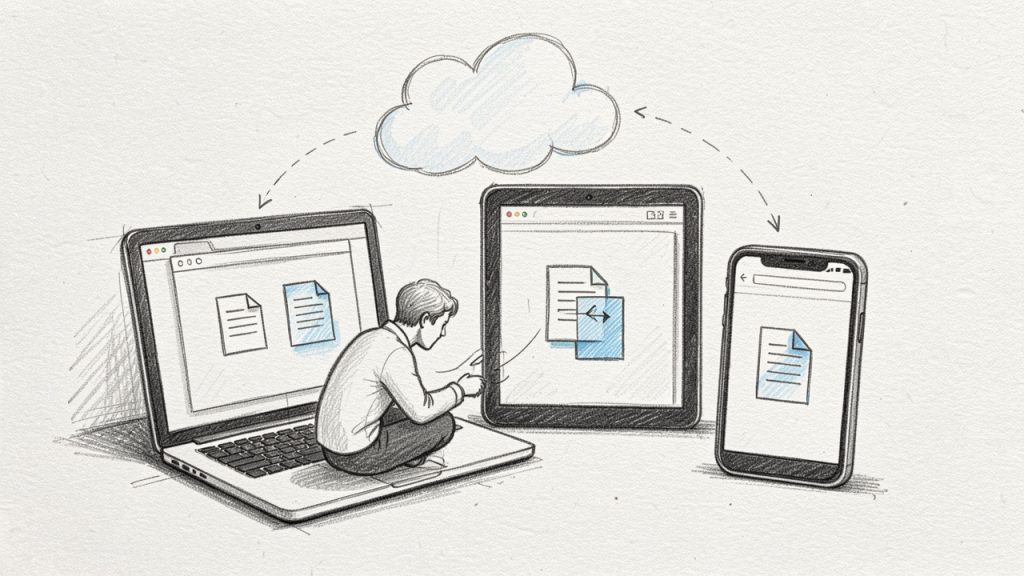
    Cross-device accessibility: laptop, tablet, phone

    File order and document structure are more important than they seem

    Merging PDFs is not only about combining pages. It is about creating a document that reads correctly. Page order changes the meaning of the final file. A signature page at the beginning instead of the end can confuse a client. A pricing appendix placed before the proposal narrative can make the document feel disjointed.

    That is why strong online merger tools let you preview files, drag them into order, and sometimes rotate or remove pages before finalizing the output. Even when using a free option, these controls can make the difference between a professional result and a document that feels stitched together in a hurry.

    Privacy and security should never be an afterthought

    This is where many users pause, and they should. Uploading PDFs online means handing files to a third-party service, even if only temporarily. If the documents contain contracts, invoices, identity records, HR forms, or legal materials, you need to be careful.

    A trustworthy service should clearly explain how uploads are handled, whether files are encrypted in transit, how long files are stored, and when they are deleted. If that information is vague or missing, treat it as a warning sign. Free does not have to mean careless, but it does mean you should read the fine print.

    For highly sensitive documents, an offline desktop tool may be a better fit. But for routine documents, a reputable free online PDF merger can still be practical and safe enough, especially when used thoughtfully. The key is matching the tool to the sensitivity of the task.

    Free tools often come with trade-offs

    The phrase merge pdf online free is attractive, but free tools are not all equal. Some limit file size. Others place daily usage caps, add watermarks, reduce speed during peak times, or bundle the feature with ads and upsells. These limits are not necessarily deal-breakers, but they do affect usability.

    The smartest approach is to judge a tool by your actual workflow. If you only merge two or three modest files each week, a basic free service may be more than enough. If you regularly combine large reports, presentations, and scanned contracts, you may outgrow the free tier quickly. The important thing is to recognize the trade-off before it interrupts your work.

    Output quality matters more than many users expect

    A good merged PDF should preserve layout, text clarity, image quality, and page sizing. This is particularly important when the source files come from different origins, such as exported invoices, scanned forms, design proofs, or browser-generated PDFs.

    When output quality drops, the document may still be technically usable, but it no longer feels polished. Logos can blur. Margins can look inconsistent. Scanned pages can become harder to read. If your merged file is client-facing or part of a formal record, quality is not a minor issue. It is part of professionalism.

    Common use cases show why this matters in real workflows

    Free online PDF merging is not just a convenience feature. It solves recurring business problems. Consider how often teams need to package related information into one clean file. The pattern appears in sales, finance, operations, compliance, and project delivery.

    Use CaseWhy Merge PDFs HelpsTypical Users
    Client proposalsCombines cover page, scope, pricing, and samples into one documentFreelancers, agencies, consultants
    Invoicing and billingGroups invoice, receipt, and payment terms for cleaner recordsSmall business owners, bookkeepers
    Hiring and HRKeeps applications, resumes, signed forms, and ID copies togetherStartups, HR managers
    Technical documentationBundles specs, diagrams, release notes, and support docsDevelopers, product teams
    Real estate and legal paperworkCreates one package from multiple signed formsAgents, attorneys, contractors

    Choosing the right tool starts with your use case

    Not every PDF merger is built for the same type of user. Some are designed for one-off convenience. Others are tuned for repeat workflows. If you only need to merge a few pages occasionally, simplicity is king. If you work with longer reports and multi-document packets, file limits and stability matter more.

    The biggest mistake is choosing based on a homepage promise alone. A tool can advertise itself as free and easy, but still become frustrating if it struggles with larger files or forces you through too many steps. For productivity-minded users, the best experience is the one that feels invisible. You upload, merge, and move on without friction.

    Speed can save more time than extra features

    A lot of users assume more features automatically mean a better tool. In practice, speed often wins. If a free online PDF merger can process standard files quickly and reliably, that is already a major advantage. It reduces interruptions and keeps momentum in your workflow.

    This is especially true for repetitive admin work. Think about the freelancer who merges onboarding docs for every new client, or the office manager who combines expense reports daily. In those moments, shaving even one or two minutes off each task can create meaningful gains over time.

    Clean interface design improves accuracy

    A cluttered interface does more than look messy. It increases the chance of mistakes. You might merge files in the wrong order, forget a page, or accidentally download the wrong version. That is why interface quality is not cosmetic. It directly affects document accuracy.

    An effective merge PDF online free tool should make the current file order obvious, allow easy rearranging, and clearly show what happens next. Good design supports good outcomes. It helps users complete routine tasks without second-guessing themselves.

    Browser-based workflows fit modern work habits

    Today, many people work from cloud storage, email attachments, messaging apps, and shared drives instead of local folders alone. A browser-based PDF merger fits naturally into that ecosystem. It becomes another quick utility in a digital workflow rather than a separate software environment you have to maintain.

    That matters for hybrid and remote work. The less your process depends on a single machine or installed app, the more flexible your document handling becomes. For users who value convenience and speed, this is one of the strongest reasons to prefer online tools for basic PDF tasks.

    How to Get Started with Merge pdf online free

    Start with a simple file prep routine

    Before you upload anything, take a moment to prepare your source PDFs. Check that each file opens correctly, has the right orientation, and contains the final version of the content. If you skip this step, you may merge outdated or incomplete documents and only notice after sending them.

    It also helps to rename files clearly before uploading. A folder full of filenames like “scan001” and “document-final-final” creates avoidable confusion. Better names lead to faster merging and fewer mistakes. This sounds minor, but in practice it is one of the easiest ways to improve your workflow.

    Follow a basic merging process

    For most tools, the actual process is very straightforward:

    1. Upload your PDF files to the online merger tool.
    2. Arrange the files in the correct order before processing.
    3. Run the merge and wait for the combined document to generate.
    4. Download and review the final PDF before sharing or storing it.

    Upload, arrange, merge, download flow

    That final review matters. Open the merged file, scroll through it, and verify page order, readability, signatures, and formatting. Many document problems are caught in under 30 seconds if you check right away.

    Know what to avoid when using free tools

    Getting started is easy, but a few habits can save you trouble. Do not upload highly sensitive files unless you trust the platform and understand its data policy. Do not assume the merge order is correct without checking. Do not rely on a free service for large-volume workflows unless you know its file limits and reliability.

    A smart user treats free online tools as helpful utilities, not magic boxes. They can be excellent, but they still require judgment. If your work involves legal, medical, financial, or confidential internal documents, caution should guide the process.

    Build PDF merging into your broader workflow

    The best way to use merge pdf online free is not as a last-minute rescue, but as a repeatable habit. If you regularly send project deliverables, contract packets, invoices, onboarding kits, or documentation bundles, define a simple order and naming convention for every set. That consistency makes merging faster and your final documents easier for others to navigate.

    For example, a freelancer might always combine files in this order: cover note, proposal, scope, pricing, terms, signature page. A developer might bundle architecture overview, setup guide, API notes, and changelog. Once the pattern is established, merging becomes routine rather than reactive.

    A quick checklist helps when quality matters

    If the PDF is client-facing or business-critical, review these points before sending:

    • Page order: Make sure the document flows logically from first page to last.
    • Legibility: Confirm text, signatures, and scanned pages are easy to read.
    • File size: Check that the final PDF is easy to email or upload if needed.
    • Security fit: Verify the document type is appropriate for an online service.

    This kind of quick quality check is what separates a merely merged PDF from a polished one.

    Conclusion

    Using a merge pdf online free tool is one of the simplest ways to reduce document clutter and speed up routine work. It helps you package information cleanly, present files more professionally, and avoid the friction of juggling multiple attachments. For small business owners, freelancers, developers, and efficiency-focused users, that convenience can have an outsized impact on daily productivity.

    The best next step is practical. Choose a reputable online PDF merger, test it with a few non-sensitive files, and build a repeatable process around naming, ordering, and reviewing documents. Once that habit is in place, merging PDFs stops feeling like admin overhead and starts functioning like what it should be, a fast, useful step in a smoother workflow.