JNTZN

Tag: productivity

  • Note-Taking Tools: Capture, Organize, and Retrieve Ideas

    Note-Taking Tools: Capture, Organize, and Retrieve Ideas

    The hardest part of managing ideas is rarely the ideas themselves. It is the friction between capturing them, organizing them, and finding them again when they matter. That is why note taking tools have become essential infrastructure for developers, students, knowledge workers, and anyone trying to operate with less mental clutter and more precision.

    A good note system does more than store text. It becomes an external memory layer, a lightweight project tracker, a reference library, and often a thinking environment. The gap between a quick scratchpad and a structured knowledge base is where most modern note taking tools compete, and where the right choice can change daily workflow more than another messaging app or calendar ever will.

    What are note taking tools?

    Note taking tools are software applications designed to capture, structure, retrieve, and synchronize information across devices and workflows. At the simplest level, they replace paper notebooks and sticky notes. At a more advanced level, they function as personal knowledge management systems, supporting tags, links, databases, templates, collaboration, and automation.

    The category is broad because note taking itself is not a single activity. One user needs a fast place to jot meeting points. Another wants markdown-based documentation for technical work. A third wants a searchable archive of research, clipped web pages, and project decisions. The best note taking tools are built to handle one or more of these jobs without introducing so much complexity that the tool becomes the work.

    For developers, the value is especially clear. Notes often include API references, debugging observations, architecture decisions, sprint planning details, and reusable snippets. In that context, a note taking tool is not just a repository of text. It is part of the development environment, sitting somewhere between documentation, task management, and long-term memory.

    The market has evolved accordingly. Some tools focus on speed and simplicity, offering instant capture and minimal formatting. Others are designed for deep knowledge organization, using backlinks, graph views, or nested structures. Still others emphasize team collaboration, making them suitable for shared project spaces and lightweight internal wikis.

    A useful way to understand the category is to view note taking tools through four functional layers. The first is capture, where information enters the system. The second is organization, where notes are classified or connected. The third is retrieval, where search and navigation determine whether stored information remains useful. The fourth is action, where notes connect to tasks, projects, and decisions. Tools that perform well across all four layers tend to remain valuable over time.
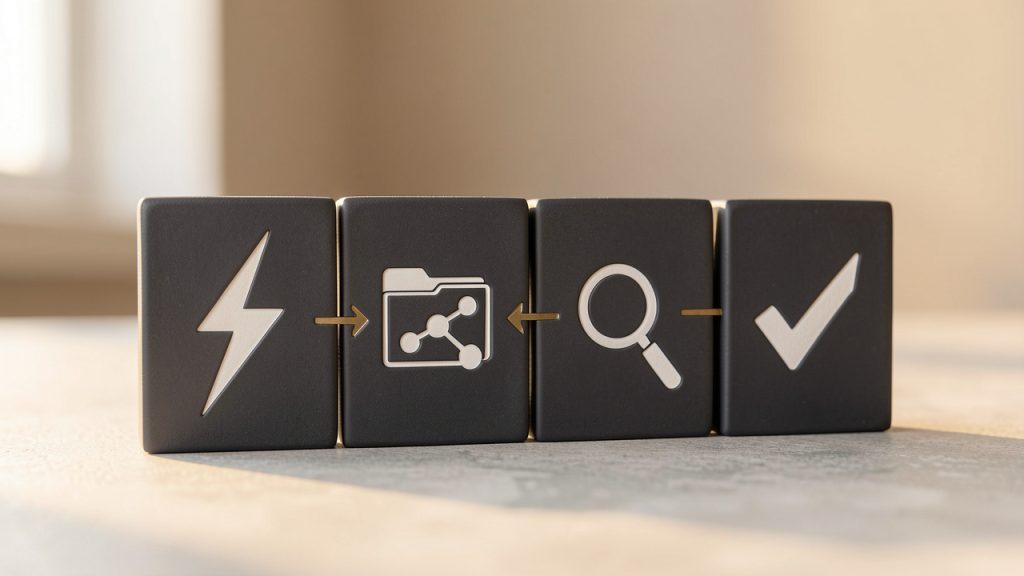
    A clean, simple flow diagram showing the four functional layers as stacked or sequential blocks: Capture -> Organization -> Retrieval -> Action. Each block has a small icon (e.g., lightning bolt for capture, folder/tag/linked nodes for organization, magnifying glass for retrieval, checklist/arrow for action) and arrows indicating information flow between them.

    Key aspects of note taking tools

    Capture speed and low-friction input

    The first quality that separates effective note taking tools from forgettable ones is capture speed. If opening the app, creating a note, and typing the first line takes too long, users default to temporary workarounds. They send themselves messages, open random text files, or trust memory, which usually fails under pressure.

    Fast capture matters because note-taking often happens in unstable contexts. A developer notices an edge case during testing. A manager hears a useful idea in a meeting. A researcher finds a source worth preserving. In each case, the note tool must behave like a reliable buffer between fleeting input and durable knowledge.

    This is why mobile widgets, keyboard shortcuts, browser extensions, voice input, and quick-add commands are not minor features. They directly affect adoption. A tool that supports frictionless intake earns trust because it reduces the delay between thought and storage.

    Organization models and information architecture

    Once notes accumulate, structure becomes more important than formatting polish. Different note taking tools use different organizational models, and each model reflects a theory about how people think. Some rely on folders and subfolders. Others emphasize tags. Some add backlinks and bidirectional relationships, allowing notes to behave more like a graph than a filing cabinet.

    Folders work well when the content has a stable hierarchy, such as client documentation or course materials. Tags are more flexible when information belongs to multiple contexts at once. Linked-note systems are powerful when the goal is idea discovery, synthesis, or long-term knowledge development.

    The trade-off is predictable. The more flexible the structure, the more discipline the user must apply. A rigid folder tree can feel limiting but remains easy to understand. A highly networked note system can be powerful but risks devolving into a web of inconsistent links. The best note taking tools provide enough structure to maintain order while preserving enough freedom to support real work.

    A comparative illustration with three panels: (1) a hierarchical folder tree (filing cabinet) labeled "Folders", (2) a tag cloud with overlapping tags labeled "Tags", and (3) a network graph of interconnected nodes labeled "Backlinks / Graph". Include a small caption under each panel summarizing trade-offs (e.g., "stable hierarchy", "flexible multi-context", "idea discovery").

    Search, retrieval, and resurfacing

    A note that cannot be found is operationally equivalent to a note never taken. That makes retrieval quality one of the most important evaluation criteria. Search should be fast, tolerant of partial memory, and rich enough to filter by title, tag, date, content type, or workspace.

    Advanced retrieval goes further. Some tools support saved searches, backlinks, semantic suggestions, or contextual resurfacing. That matters because users rarely remember where a note lives. They remember fragments, such as a phrase, a meeting date, or the project it was related to. Good retrieval systems are designed around that reality.

    For technical users, search becomes even more critical when notes contain code references, version information, command history, and architecture discussions. In these cases, note taking tools can replace hours of repeated investigation. The ability to locate the exact observation made three weeks ago during debugging is a genuine productivity gain, not a convenience feature.

    Markdown, formatting, and developer friendliness

    Many developers prefer note taking tools that support Markdown, plain text storage, and exportable formats. The reason is not aesthetic. It is about portability, durability, and control. Notes that live in accessible formats are easier to migrate, script, version, and back up.

    Rich text editors appeal to users who value visual formatting and ease of use. They are often better for collaborative documents and polished internal pages. Plain text or markdown-first systems are often better for technical workflows, especially when users want to integrate notes with git repositories, static documentation, or local-first workflows.

    This is one of the clearest fault lines in the category. Some note taking tools behave like document editors. Others behave more like a layer on top of files. Neither approach is universally superior. The better choice depends on whether the priority is presentation, collaboration, customization, or long-term control over data.

    Cross-device sync and offline reliability

    A note system only works if it is available where work happens. That makes cross-device synchronization a baseline requirement for many users. Desktop access is important for deep work. Mobile access matters for capture. Web access can be essential in restricted environments or on shared machines.

    Reliability matters as much as feature breadth. Sync conflicts, slow updates, and partial note loads damage trust quickly. A note taking tool should feel consistent across platforms, especially when users move between laptop, phone, and tablet throughout the day.

    Offline access is similarly important. Notes are often needed while traveling, in low-connectivity spaces, or during outages. Tools that support local caching or local-first storage give users a stronger sense of control and reduce dependence on constant connectivity.

    Collaboration and shared knowledge

    While many note taking tools begin as personal systems, the strongest products increasingly support shared work. Team notes, meeting records, engineering decisions, onboarding guides, and process documentation often benefit from living in a collaborative environment rather than isolated personal notebooks.

    This shifts the requirement set. Collaboration introduces permissions, version history, comments, page sharing, and sometimes database-style structures. The tool must support both clarity and governance. Informal notes can coexist with structured team knowledge, but only if the workspace can scale without becoming chaotic.

    For teams, a note platform often becomes a lightweight wiki. That is particularly useful for fast-moving technical groups that need accessible documentation but do not want the overhead of a formal documentation stack for every internal process. In that space, tools that balance speed with shared structure tend to perform best.

    Security, privacy, and data ownership

    Not all notes are equal. Some are disposable reminders. Others contain confidential business information, research, credentials, or intellectual property. Because of that, security and privacy should not be treated as secondary considerations when evaluating note taking tools.

    Encryption, access controls, compliance posture, and export capability all matter. So does data ownership. Users should understand whether notes are stored locally, in the cloud, or both, and whether they can be exported in usable formats without lock-in. For developers and organizations, this question often determines whether a tool is merely convenient or strategically viable.

    A practical evaluation framework helps. The table below compares the major dimensions that usually matter most.

    Evaluation Area What to Look For Why It Matters
    Capture Quick add, mobile input, browser clipping, shortcuts Reduces friction and improves consistency
    Organization Folders, tags, links, templates, databases Determines long-term scalability
    Search Full-text search, filters, saved queries Makes notes reusable, not just stored
    Format Markdown, rich text, export support Affects portability and editing style
    Sync Fast cross-device updates, offline mode Ensures access everywhere work happens
    Collaboration Shared spaces, comments, permissions Supports teams and project documentation
    Security Encryption, backups, access control Protects sensitive information
    Extensibility Integrations, APIs, automation Connects notes to broader workflows

    Different tools emphasize different strengths. A minimalist app may excel at rapid capture but fall short on collaboration. A workspace platform may be ideal for team documentation but feel heavy for personal thinking. A local-first markdown tool may appeal strongly to developers but require more setup and discipline.

    That is why the best note taking tools are not simply the most feature-rich. They are the ones aligned with the user’s information behavior. The more closely the tool matches the way a person captures, organizes, and retrieves knowledge, the more likely it is to become part of daily workflow.

    How to get started with note taking tools

    Start with use case, not brand

    Many people choose note taking tools by looking at feature checklists or popularity rankings first. That usually leads to avoidable switching later. A better starting point is to define the primary workload. Is the tool meant for quick capture, technical documentation, research organization, meeting notes, or team collaboration?

    This matters because each use case imposes different requirements. A developer maintaining architecture notes may value markdown support, backlinks, and local storage. A manager coordinating meetings may value templates, calendar integration, and sharing. A student may care most about searchable notebooks, annotation support, and cross-device access.

    The first decision should be functional. Once that is clear, vendor choice becomes easier. Instead of asking which app is best in general, the user asks which app is best for this specific operating model.

    Build a small system before building a big one

    A common mistake is over-designing note architecture on day one. Users create elaborate folder structures, complex tagging taxonomies, and nested templates before they have enough real notes to understand what structure is needed. The result is maintenance overhead without practical benefit.

    A better method is to begin with a simple operating structure and let patterns emerge. One notebook for active work, one for reference, and one for archive is often enough to start. Tags can be added later when repeated themes become clear. Links can emerge naturally as knowledge grows. This incremental approach prevents the tool from becoming a classification project.

    For many users, successful adoption depends less on the perfect structure and more on a stable routine. The goal is not to build a museum of notes. The goal is to create a system that gets used consistently under real conditions.

    Use templates where repetition exists

    Templates are one of the most practical features in modern note taking tools, especially for recurring workflows. Meeting notes, sprint retrospectives, daily logs, research summaries, bug reports, and one-on-one agendas all benefit from standardized structure.

    The benefit is not just speed. Templates improve note quality by reducing omission. A meeting template can prompt decisions, owners, and deadlines. A debugging template can prompt reproduction steps, observed behavior, attempted fixes, and final resolution. Over time, this consistency makes notes easier to search and compare.

    For technical teams, templates also improve institutional memory. Repeated formats create stable records. They help turn notes from private fragments into reusable operational assets.

    Connect notes to workflow, not just storage

    Many note collections fail because they remain disconnected from action. Notes are taken, saved, and forgotten. The strongest systems connect note taking tools to ongoing work, which means tying them to tasks, projects, calendars, repositories, or team processes.

    A project note should contain context, decisions, next steps, and relevant links. A meeting note should lead to action items. A research note should connect to related topics or implementation plans. When notes remain linked to execution, they become a living system rather than passive storage.

    This is also where integrated workspaces can help. A platform such as Home can be useful when users want note capture and organization to sit closer to daily operations instead of living in an isolated app. When notes, references, and active work exist in the same environment, context switching drops and information becomes easier to act on.

    Review and prune regularly

    A note system that only accumulates will eventually become noisy. Regular review keeps the signal strong. This does not require aggressive deletion. It means archiving stale material, merging duplicates, and elevating high-value notes into more permanent reference pages.

    A lightweight review cycle often works best. Weekly review can focus on active notes and unfinished ideas. Monthly review can focus on structure, taxonomy, and archives. This creates a feedback loop where the note taking tool continues to reflect current priorities rather than becoming a pile of digital sediment.

    The following sequence is enough for most users starting from scratch:

    1. Define the primary use case for the note system.
    2. Choose one tool that matches that workflow instead of testing many at once.
    3. Create a minimal structure with only a few top-level categories.
    4. Capture notes daily and review patterns after two to four weeks.
    5. Add templates or tags only where repetition clearly exists.

    This approach works because it avoids premature optimization. It lets real usage shape the system, which is usually more durable than trying to predict every category in advance.

    Compare tool types before committing

    The category becomes easier to navigate when viewed by operating style rather than by individual product names. The table below summarizes the main patterns.

    Tool Type Typical Strength Common Limitation Best For
    Minimalist note apps Fast capture, low complexity Limited structure and collaboration Personal reminders, quick notes
    Markdown-first tools Portability, developer control, extensibility Higher setup friction Developers, technical documentation
    Workspace-style platforms Collaboration, databases, shared knowledge Can feel heavy for simple note taking Teams, project hubs, internal wikis
    Research-focused tools Clipping, annotation, source organization Less suited to general task flow Students, researchers, analysts
    Local-first tools Privacy, offline access, ownership Variable sync and sharing maturity Privacy-conscious users, power users

    Choosing between these types is often more important than choosing between brands inside the same type. Once a user identifies the operating model that fits, the field narrows quickly.

    Conclusion

    The best note taking tools do not just help people write things down. They reduce cognitive load, preserve context, and make information usable across time. That requires more than a clean editor. It requires effective capture, scalable organization, reliable search, strong sync, and enough flexibility to match the way real work unfolds.

    For developers and efficiency-focused users, the right note taking tool often becomes part of the core stack. The smartest next step is simple: identify the main use case, choose one tool that fits it, and build a small system that can survive daily use. If the goal is to connect notes more closely with actual work, collaborative context, and organized execution, exploring a workspace like Home can be a practical place to start.


  • Productivity Tools List: Build a Focused, Minimal Stack

    Productivity Tools List: Build a Focused, Minimal Stack

    The modern workday is rarely short on effort. It is short on clarity. Tasks arrive from chat, email, tickets, meetings, documents, and personal notes, then compete for attention until even simple work starts to feel fragmented. That is why a well-structured productivity tools list matters. It is not just a catalog of apps. It is a practical system for reducing friction, preserving focus, and making execution more predictable.

    For developers and efficiency-minded professionals, the challenge is usually not access to software. It is tool sprawl. A new note app solves one problem, a new project board solves another, and a calendar extension promises to optimize time, yet the overall workflow becomes harder to manage. The right approach is to understand what each category of productivity software is designed to do, how the tools interact, and where overlap creates complexity instead of value.

    This guide breaks down a practical productivity tools list, explains the key categories, and shows how to build a setup that supports deep work rather than constant switching. The goal is not to use more tools. The goal is to use fewer tools, more intentionally.

    What is Productivity tools list?

    A productivity tools list is a structured collection of software, platforms, and utilities that help individuals or teams plan, execute, track, automate, and complete work more efficiently. In plain terms, it is a reference model for the tools that support output. That can include task managers, note-taking apps, calendars, communication platforms, automation services, file organization systems, and focus aids.

    The phrase often gets treated like a generic roundup, but in practice it should be more precise than that. A useful productivity tools list does not simply name popular applications. It groups them by operational function. That distinction matters because choosing a tool should begin with the job it performs in the workflow, not with brand familiarity.

    For example, a developer may need one tool for issue tracking, another for documentation, and another for blocking distractions during coding sessions. A founder or operations lead may need a knowledge base, a recurring task manager, and a lightweight collaboration layer. The tools differ, but the principle remains the same. Each tool should have a clearly defined role in the system.

    A strong list also accounts for environment. Solo users tend to prioritize speed, low setup overhead, and flexible capture. Teams tend to prioritize visibility, permissions, integration, and auditability. That is why the best productivity stack is rarely universal. It is contextual, shaped by role, team size, project complexity, and tolerance for maintenance.

    Why the concept matters more than the app names

    The market is saturated with software that claims to improve efficiency. Some tools are genuinely excellent. Others are polished distractions. What separates effective systems from expensive clutter is role definition. If a calendar app is also being used as a task manager, reminder system, planning board, and knowledge archive, the workflow eventually degrades.

    A better method is to view a productivity tools list as an architecture. Each category handles a specific operational domain. Tasks manage commitments. Notes store information. Calendars manage time allocation. Communication tools move decisions. Automation tools remove repetition. File systems preserve access and version clarity.

    A layered architecture diagram showing core productivity categories as interconnected modules (Task & Project Management, Notes & Knowledge, Calendar & Scheduling, Communication, Automation, Focus Tools, File Storage). Arrows indicate interactions/integrations between modules and a central 'workspace' hub that reduces fragmentation.

    That architectural view is especially important for technical professionals. Developers often work across local environments, repositories, documentation, issue trackers, CI pipelines, and team chat. Without a clear system, context switching becomes the hidden tax on output. The tools are not the work, but they strongly influence how much uninterrupted work becomes possible.

    Key Aspects of Productivity tools list

    The most useful way to evaluate a productivity tools list is by category. That approach makes comparison clearer and reduces the tendency to select tools based on trend rather than necessity.

    Task and project management tools

    Task management tools sit at the center of most productivity systems because they answer a basic operational question: what needs to happen next? The simplest versions are personal to-do managers. More advanced platforms support dependencies, priorities, recurring tasks, team ownership, and workflow states.

    For solo work, the best task tools tend to be fast, low-friction, and easy to trust. If adding a task feels like opening a control panel, the system will be abandoned. For team work, visibility becomes more important. The platform should make status, blockers, due dates, and responsibility obvious without requiring constant meetings.

    Tools in this category often include personal managers such as Todoist or Microsoft To Do, and more structured platforms such as Trello, Asana, ClickUp, Jira, and Linear. The differences are less about quality than operational design. Jira is built for structured engineering workflows. Trello emphasizes visual simplicity. Linear focuses on speed and product development efficiency.

    Note-taking and knowledge management tools

    Ideas that are not captured are usually lost. Information that is captured poorly is almost as bad. That is why note-taking and knowledge management tools deserve a distinct place in any serious productivity tools list.

    A quick-capture note app helps preserve thoughts, snippets, links, and decisions in real time. A knowledge system goes further. It organizes long-term reference material, meeting notes, internal documentation, research, and process definitions so they remain usable over time. For developers, this may include architecture notes, API references, debugging patterns, or onboarding documents.

    Notion, Obsidian, Evernote, OneNote, and Confluence each approach this domain differently. Notion is highly flexible and often used as a combined wiki and workspace. Obsidian appeals to users who want local-first note graphs and markdown workflows. Confluence is common in larger teams that need structured documentation and enterprise permissions.

    The core criterion is not feature count. It is retrieval speed. If useful information cannot be found when needed, the repository becomes a graveyard rather than a productivity asset.

    Calendar and scheduling tools

    Time is different from tasks. A task list shows obligation. A calendar shows capacity. Confusing the two creates predictable failure. That is why a good productivity tools list separates scheduling tools from general task systems.

    Google Calendar, Outlook Calendar, Calendly, Motion, and Sunsama represent different scheduling philosophies. Some tools manage meetings. Others support time blocking, planning, or dynamic prioritization. A strong calendar setup allows users to see where focused work can actually occur, instead of assuming open time exists somewhere later.

    For developers, this distinction can be critical. A day can appear light in terms of meetings but still be fragmented beyond usefulness. Calendar tooling helps identify contiguous blocks for coding, reviewing, writing, or planning. It makes work visible in time, not just in abstract quantity.

    Communication and collaboration tools

    Many productivity problems are communication problems wearing a different label. Delays happen because ownership is vague. Work gets duplicated because decisions are buried in chat. Tasks drift because there is no durable link between discussion and execution.

    Communication tools such as Slack, Microsoft Teams, and email clients remain essential, but they become productive only when paired with clear usage boundaries. Chat should support rapid coordination, not serve as the permanent home for key decisions. Important outcomes should move into tasks, docs, or project records.

    Collaboration tools also include shared whiteboards, document editors, and meeting systems. Google Workspace, Microsoft 365, Zoom, and Miro often sit in this layer. Their value lies in reducing coordination overhead, particularly in distributed teams where information otherwise fragments across time zones and tools.

    Automation and integration tools

    If a recurring process can be defined, some portion of it can usually be automated. This is where tools like Zapier, Make, IFTTT, and native app integrations become valuable. They reduce repetitive handoffs, sync data between platforms, and eliminate manual copying that adds no real value.

    Automation is especially useful in workflows that cross tool boundaries. A form submission can create a task. A ticket update can trigger a notification. A completed action can archive a file or move a record to another system. These small automations compound. They reduce cognitive load because the user no longer has to remember every administrative follow-up.

    Developers often extend this layer with scripts, webhooks, and API-based workflows. In technical environments, the highest-value automation is usually not flashy. It is the quiet removal of routine process friction.

    Focus and time management tools

    Not all productivity software is about organizing work. Some tools exist to protect attention. That function is increasingly important because digital environments are optimized for interruption.

    Focus tools include website blockers, Pomodoro timers, ambient concentration apps, and analytics platforms that show how time is actually spent. RescueTime, Forest, Freedom, and Session are common examples. These tools are most effective when paired with a deliberate work model, such as scheduled deep work blocks or notification batching.

    For knowledge workers, attention is the scarce resource. For developers, uninterrupted attention can determine whether a hard problem gets solved in one hour or remains unresolved all day. Focus software does not create discipline on its own, but it can make distraction more expensive and concentration easier to sustain.

    File storage and document organization

    Even the best tasks and notes become less useful if the underlying documents are disorganized. Cloud storage and file management tools form the infrastructure layer of a productivity system. Google Drive, Dropbox, OneDrive, and Box are obvious examples, but the real issue is not where files live. It is whether naming conventions, folder structure, and permissions support fast retrieval.

    A mature productivity tools list includes this category because document search, version control, and access management directly affect execution speed. A misplaced contract, outdated spec, or inaccessible asset can stop progress as effectively as a missing task.

    Developers often solve part of this problem through repositories and version control, while non-code artifacts still require conventional document systems. The strongest setups treat storage as part of the productivity architecture, not as an afterthought.

    Comparison of core productivity tool categories

    Category Primary Function Best For Common Risk
    Task Management Tracking actions, owners, deadlines Personal planning, team execution Overcomplication, too many statuses
    Knowledge Management Storing notes, docs, reference material Documentation, research, internal processes Poor structure, low retrieval speed
    Calendar and Scheduling Allocating time and coordinating availability Meetings, time blocking, workload visibility Treating calendar as task dump
    Communication Real-time and asynchronous coordination Team collaboration, decision flow Decision loss inside chat threads
    Automation Reducing repetitive manual work Cross-tool workflows, recurring process steps Brittle setups, low maintenance discipline
    Focus Tools Protecting attention and measuring time use Deep work, distraction control Using tracking without behavior change
    File Storage Preserving and organizing documents Shared assets, version access, archive Naming chaos, permission confusion

    What makes a tool actually productive

    A productive tool reduces total system friction. That sounds obvious, but many tools only reduce friction locally while increasing it globally. A new app might make meeting notes easier to write while forcing the team to search one more place for information. Another might automate a niche process while adding a layer of maintenance nobody owns.

    The practical test is simple. A tool should improve at least one of these variables: speed, clarity, consistency, or focus. Ideally, it improves more than one. If it does not, then it is probably adding novelty rather than productivity.

    This is where a unified environment can help. In some setups, using a central workspace such as Home makes sense because it reduces fragmentation between information, tasks, and routine operations. The value is not in having another dashboard. The value is in lowering the cost of context switching and making the workflow easier to navigate day after day.

    How to Get Started with Productivity tools list

    Building a useful productivity setup starts with diagnosis, not downloads. Most people know they are inefficient in a general sense, but they have not mapped where the inefficiency actually occurs. Before selecting any software, it helps to identify the points where work slows down, disappears, or becomes unnecessarily repetitive.

    In practice, these bottlenecks usually appear in four places. Capture fails, so ideas and tasks are forgotten. Prioritization fails, so everything looks urgent. Retrieval fails, so notes and documents cannot be found. Execution fails, so attention keeps breaking before meaningful progress happens. A solid productivity tools list should address each of these failure modes directly.

    Start with workflow mapping

    The first step is to define the lifecycle of work. For an individual, that may look like capture, plan, schedule, execute, review. For a team, it may include intake, assignment, collaboration, handoff, delivery, and retrospective. Once the lifecycle is visible, tool categories become easier to assign.

    A simple horizontal workflow map showing the lifecycle of work: Capture → Plan → Schedule → Execute → Review. Include branches for team workflows (Intake → Assignment → Collaboration → Handoff → Delivery → Retrospective) and icons for common failure points (capture fails, prioritization fails, retrieval fails, execution fails).

    This is the stage where many people discover they do not need ten tools. They need one task manager, one knowledge base, one calendar, and a small set of integrations. The goal is to cover the workflow with the fewest moving parts possible.

    A useful constraint is to avoid duplicate purpose. If two apps manage tasks, one should be removed. If notes live in three places, consolidation should become a priority. Every redundant tool adds search cost and decision fatigue.

    Choose tools by role, not popularity

    Popular software is not always the best software for a given workflow. A tool should be selected based on operational fit. That means considering interface speed, integration quality, mobile access, offline support, collaboration features, and maintenance burden.

    A developer may prefer markdown-based notes and issue-centric project tracking. A manager may prefer structured dashboards and calendar-heavy planning. A freelancer may benefit most from simple task capture and invoicing automation. There is no single correct stack, but there is a correct method for choosing one.

    The following baseline stack works for many users as a starting model:

    1. Task manager for commitments and follow-up.
    2. Notes or wiki tool for knowledge capture and reference.
    3. Calendar for time blocking and scheduling.
    4. Communication platform for coordination.
    5. Automation layer for repetitive workflows.

    That is enough to build a highly functional system. More tools should be added only when a clear gap exists.

    Build conventions before scale

    Tools fail less often because of missing features than because of missing rules. Even the best software becomes chaotic without conventions. Tasks need naming logic. Notes need structure. Files need a standard format. Shared work needs ownership definitions.

    For teams, this is non-negotiable. A project board without clear status definitions quickly turns into visual noise. A wiki without page standards becomes difficult to search and harder to trust. A chat tool without channel discipline creates endless re-asking of the same questions.

    For individual users, conventions matter just as much. A simple rule such as “all actionable items go into one task system” can remove a surprising amount of mental overhead. So can a consistent note template for meetings, research, or debugging sessions.

    Integrate carefully, then review behavior

    Once the core tools are chosen, integrations can improve flow dramatically. Calendar events can link to project records. Task completions can trigger updates. Notes can connect to action items. The point is not to automate everything. It is to reduce repeated mechanical effort.

    After setup, the system should be reviewed after one or two weeks. This is where behavior becomes visible. Are tasks being captured consistently? Are notes searchable? Is the calendar reflecting real work time? Are distractions still breaking focus? If the answer is no, the issue may be the workflow, the conventions, or the tool itself.

    This review cycle is what turns a productivity tools list into a functional operating system. Without review, most setups decay into partial adoption and silent inconsistency.

    A sample decision framework

    Need Recommended Tool Type Selection Criterion
    Too many loose tasks Task manager Fast input, recurring tasks, reminders
    Scattered knowledge Notes or wiki platform Search quality, structure flexibility, linking
    No time for deep work Calendar and focus tools Time blocking, notification control
    Repeated manual steps Automation platform Reliable integrations, low maintenance
    Team confusion on ownership Project management tool Assignees, status visibility, reporting

    Common mistakes to avoid

    The most common mistake is overbuilding too early. People often design complex systems for an ideal future version of themselves rather than for their current behavior. The result is abandonment. A lightweight system used consistently is far more effective than an elaborate setup used intermittently.

    Another mistake is measuring productivity by app count. More software does not imply more control. In many cases, the opposite is true. Every new tool creates another interface to learn, another source of notifications, and another place where information can drift.

    A third mistake is ignoring maintenance. Productivity systems require periodic cleanup. Completed projects should be archived. Old notes should be organized or deleted. Automations should be checked. Permissions should be reviewed. Without maintenance, even a strong system becomes noisy over time.

    Conclusion

    A useful productivity tools list is not a random collection of trending apps. It is a deliberate framework for managing tasks, knowledge, time, communication, automation, focus, and files with minimal friction. The strongest setups are simple, role-based, and built around actual workflow constraints rather than software enthusiasm.

    The next step is practical. Audit the tools already in use, identify overlap, and define one clear purpose for each remaining category. Then standardize the way those tools are used. If a central workspace such as Home can reduce switching and unify routine work, it is worth evaluating as part of that simplification effort. Productivity improves when the system becomes easier to trust, easier to navigate, and easier to maintain.

  • Productivity Tools for Work: Build a Focused Stack

    Productivity Tools for Work: Build a Focused Stack

    Work rarely becomes difficult because people lack effort. It becomes difficult because attention is fragmented, priorities are unclear, and every task arrives with its own app, alert, and deadline. That is why productivity tools for work matter. They do not create discipline by themselves, but they can reduce friction, compress decision-making, and make focused execution far more realistic.

    A knowledge worker at a desk overwhelmed by many floating app windows and icons

    For developers and knowledge workers, the problem is even sharper. A normal day can involve code editors, issue trackers, documentation systems, chat platforms, cloud consoles, meetings, and personal notes, all competing for context. The right productivity stack does not simply help a person “do more.” It helps them do the right work with less cognitive waste.

    What are productivity tools for work?

    Productivity tools for work are software applications, platforms, and systems designed to improve how tasks are planned, executed, communicated, tracked, and completed. In practical terms, these tools reduce operational overhead. They help people organize work, automate repetitive steps, centralize information, and preserve context across teams and projects.

    This category is broader than many people assume. It includes task managers, calendars, note-taking software, time trackers, project management platforms, collaboration suites, documentation systems, automation tools, password managers, and focus applications. A text editor with strong plugins can be a productivity tool. So can a shared knowledge base or a meeting transcription app. The defining factor is not the label, but the outcome: less time lost to coordination, searching, switching, and repetition.

    For developers, productivity tools often operate at multiple layers. One layer is personal execution, such as task capture, time blocking, and note organization. Another layer is team coordination, including sprint planning, issue assignment, and asynchronous updates. A third layer is workflow automation, where integrations connect systems so that status changes, notifications, builds, and approvals happen with minimal manual intervention.

    A three-layered stack diagram for developers: personal execution, team coordination, workflow automation

    The most effective tools do not just store information. They shape behavior. A well-designed task system encourages prioritization. A shared documentation platform improves reuse and onboarding. A calendar tool with strong scheduling logic protects deep work. In this sense, productivity software is partly technical infrastructure and partly operational design.

    Key aspects of productivity tools for work

    Task management and prioritization

    A large percentage of workplace inefficiency comes from ambiguity. People often know they are busy, but cannot clearly identify what matters now, what can wait, and what is blocked. Task management tools address this by giving work a visible structure. They convert mental clutter into explicit objects: tasks, owners, due dates, dependencies, and status fields.

    The real value is not the checklist itself. It is the ability to define a system of execution. For example, a developer handling multiple tickets can use a task manager to separate urgent production issues from strategic architecture work. Without that separation, the day becomes reactive. With it, work can be sequenced according to impact, urgency, and available focus time.

    Strong prioritization tools also create historical visibility. Teams can inspect where time is actually being spent, identify bottlenecks, and detect recurring work that should be automated. This is where many organizations move from being merely busy to being operationally mature.

    Communication and collaboration

    Communication tools are often treated as simple messaging channels, but they are among the most influential productivity tools for work because they determine how interruptions propagate. A poorly configured chat platform can destroy concentration. A well-managed collaboration environment can accelerate decisions while preserving focus.

    The distinction lies in communication design. Synchronous channels are useful for urgent issues, live debugging, and fast alignment. Asynchronous channels are better for status updates, documentation links, and decision records. Teams that understand this difference usually work more efficiently because they stop forcing every interaction into real-time conversation.

    For distributed teams, collaboration tools also function as memory systems. Message threads, shared documents, comments, and linked tasks preserve context. That context reduces duplicate questions and makes onboarding easier. Instead of repeatedly asking why a decision was made, a team member can inspect the documented trail and proceed with confidence.

    Knowledge management and documentation

    A team without documentation pays a tax on every repeated task. That tax appears in onboarding delays, duplicated troubleshooting, inconsistent processes, and reliance on a few individuals who become informal knowledge bottlenecks. Documentation platforms, internal wikis, and structured note systems are therefore central productivity assets, not administrative extras.

    The best knowledge tools support fast capture and reliable retrieval. Capturing ideas is easy. Finding them three weeks later is the real test. Search quality, tagging, linking, version history, and collaborative editing all matter because workplace productivity depends on accessible knowledge, not merely stored knowledge.

    This is one area where a platform like Home can be useful when teams need a cleaner operational center. If work, notes, and routines are scattered across too many disconnected applications, a more unified environment can reduce switching costs and make core information easier to maintain and act on.

    Time management and focus protection

    Time management software is often misunderstood as surveillance or rigid scheduling. At its best, it is neither. It is a way to align time usage with work type. Deep engineering work requires uninterrupted blocks. Administrative work can often be grouped. Meetings can be constrained. Personal focus patterns can be observed and used intentionally.

    Calendars, time-blocking systems, Pomodoro timers, and time analysis tools all support this process. Their purpose is not to fill every hour. Their purpose is to make invisible patterns visible. If a person discovers that most coding work is being interrupted every 12 minutes, the solution is not motivation. The solution is structural change.

    Focus tools become especially valuable in environments saturated with notifications. A worker who disables non-essential alerts, batches communication windows, and reserves protected work sessions can often outperform someone working longer hours with constant interruptions. Productivity is tightly coupled with attention quality, not just duration.

    Automation and integration

    Repetitive work is one of the clearest signals that a workflow can be improved. Copying data between systems, sending routine reminders, updating statuses manually, or recreating the same report each week are all candidates for automation. This is where productivity tools move from passive support to active operational leverage.

    Automation platforms connect applications through triggers, conditions, and actions. A support ticket can create a task automatically. A merged pull request can update project status. A form submission can populate a database and notify the correct team. Each individual automation may save only a few minutes, but across a team, the cumulative gain is substantial.

    Integrations also reduce context switching. Instead of visiting five tools to understand one project state, workers can centralize critical signals. This lowers mental overhead and decreases the chance of missing updates. For technical teams, integration quality is often more important than the feature list of any single product.

    Security, reliability, and scalability

    A productivity stack that saves time but creates security risk is not a real improvement. Developers and teams should evaluate tools not only for usability, but also for access controls, auditability, backup practices, and compliance alignment. Sensitive information flows through productivity systems constantly, including credentials, roadmaps, client data, and internal discussions.

    Reliability matters just as much. If a task platform is slow, a documentation tool loses edits, or a sync process fails unpredictably, users stop trusting the system. Once trust erodes, people build shadow workflows in spreadsheets, local notes, or personal chat messages, and the organization loses consistency.

    Scalability is the longer-term consideration. A tool that works for a solo freelancer may fail for a 50-person engineering team. Permission models, template systems, reporting features, and integration support become more important as work grows in complexity. Choosing tools with a view toward future workflows prevents painful migrations later.

    Choosing tool categories and team balance

    Categories that matter most in day-to-day operations

    When people search for the best productivity tools for work, they often compare products before they define requirements. That reverses the correct sequence. The better approach is to identify workflow categories first, then evaluate products inside each category. Most work environments rely on some combination of task management, communication, documentation, scheduling, file storage, and automation.

    A developer, for instance, may need an issue tracker for engineering tasks, a personal note system for design ideas, a team documentation platform for architecture records, and a calendar system that can protect coding blocks from meeting sprawl. If all four categories are covered well, productivity improves substantially even without a large software budget.

    The table below shows how common tool categories map to workplace outcomes.

    Tool Category Primary Function Typical Benefit Common Risk
    Task Management Track work items and priorities Better execution clarity Over-engineering workflows
    Team Chat Fast communication and coordination Faster response times Constant interruption
    Documentation Store and retrieve shared knowledge Reduced duplication Stale or unmaintained content
    Calendar and Scheduling Allocate time and meetings Better focus planning Overscheduled days
    Automation Platforms Remove manual repetitive work Higher operational efficiency Fragile or opaque automations
    Time Tracking Measure effort and patterns Better planning accuracy Micromanagement if misused

    The pattern is consistent. Every category has upside and trade-offs. A tool becomes productive only when its implementation aligns with actual work behavior. Adding software without process discipline often increases complexity instead of reducing it.

    Personal productivity versus team productivity

    A common mistake is optimizing only for the individual. A person may have a beautifully organized personal system while the team around them operates in fragmented ways. In that case, the personal gain remains limited because collaboration still creates delays, duplicate effort, and confusion.

    Personal productivity tools help with capture, planning, focus, and recall. Team productivity tools help with visibility, alignment, handoffs, and accountability. Both are necessary. A developer can maintain excellent private notes, but if architectural decisions live only there, the team gains little value. Conversely, a team can have a robust project board, but if individuals lack a method for handling daily priorities, execution still degrades.

    The strongest setups connect the two levels cleanly. Personal tasks should map to team goals. Team documentation should support individual execution. Meeting decisions should create trackable actions. This is the difference between a collection of apps and a real productivity system.

    The hidden cost of tool sprawl

    Many organizations do not suffer from too few tools. They suffer from too many. Tool sprawl occurs when each new problem is addressed with another platform, often without integration, governance, or retirement of the old system. Over time, the stack becomes noisy and expensive, and people stop knowing where truth lives.

    This issue is especially common in technical environments because teams adopt specialized software rapidly. One tool handles project planning, another handles docs, another stores snippets, another captures retrospectives, and another sends alerts. Each may be good individually, but together they can create a high-friction environment.

    Reducing tool sprawl does not mean collapsing everything into one product at any cost. It means being deliberate. Teams should identify core systems of record, define where certain information belongs, and retire redundant workflows. In many cases, a platform like Home is most valuable not because it adds another feature, but because it consolidates routine work patterns into a more coherent operating space.

    How to get started with productivity tools for work

    Choosing productivity tools should begin with observation, not shopping. Before selecting software, it is necessary to understand where work is actually slowing down. That may be task overload, constant interruptions, poor handoffs, missing documentation, or too much manual updating between systems. Tools are effective only when they are matched to a real constraint.

    A simple starting framework is to audit one normal workweek. Track where delays occur, where information gets lost, and which repeated actions feel unnecessary. If meetings generate unclear follow-up, a task and note system may be the priority. If project knowledge is trapped in chat, documentation should come first. If status reporting consumes too much time, automation may produce the fastest return.

    A practical setup sequence

    For most individuals and teams, implementation is easier when done in a stable order. The sequence below reduces confusion and prevents premature complexity.

    1. Define the workflow problem, identify whether the main issue is planning, communication, documentation, focus, or repetitive admin work.
    2. Select one primary tool per category, and avoid testing multiple overlapping platforms at the same time.
    3. Create minimal structure, using a small number of projects, tags, statuses, or folders rather than an elaborate taxonomy.
    4. Establish team rules that decide where tasks live, where decisions are documented, and what belongs in chat versus project systems.
    5. Review after two weeks, remove friction, simplify fields, and automate only the steps that repeat consistently.

    This order matters because most tool rollouts fail from overconfiguration. People build complex boards, labels, templates, and automations before they have validated basic usage. A lightweight system that people actually use is more productive than a sophisticated one nobody trusts.

    Start small, then standardize

    The first version of a productivity system should be intentionally modest. For a solo professional, that may mean one task manager, one note system, and a disciplined calendar. For a team, it may mean one project board, one documentation repository, and one communication standard for decisions and updates.

    Once basic adoption is stable, the next step is standardization. Naming conventions, task templates, document formats, and recurring meeting notes all reduce variability. This may sound bureaucratic, but in practice it removes decision fatigue. When every sprint ticket follows a known format and every project page contains the same key sections, people spend less time interpreting structure and more time doing work.

    Standardization is particularly valuable for developers, who often move between implementation and coordination. Structured workflows reduce the amount of mental decompression required when switching contexts.

    Evaluate tools by workflow fit, not hype

    Software selection is often distorted by popularity. A tool may be widely recommended and still be wrong for a given team. The better evaluation method is to test workflow fit. Does the software support how work actually moves? Does it integrate with existing systems? Can it scale without becoming administratively heavy? Is the interface fast enough for daily use?

    This is also where teams should assess hidden costs. A feature-rich platform can require significant maintenance. A simpler product may produce better results if it lowers setup time and training overhead. Productivity is not gained from having more toggles. It is gained from reducing friction at decision points.

    A useful comparison lens is shown below.

    Evaluation Factor What to Ask Why It Matters
    Ease of Adoption Can a new user become productive quickly? Lowers rollout friction
    Integration Support Does it connect to core tools already in use? Reduces manual transfer work
    Flexibility Can it support current and future workflows? Prevents early replacement
    Search and Retrieval Can information be found fast? Preserves context and knowledge
    Governance Are permissions and visibility controllable? Supports security and scale
    Maintenance Load How much admin work does the tool create? Prevents system fatigue

    If a team is already overwhelmed, low-maintenance tools usually outperform highly customizable ones. Precision matters, but so does operational simplicity.

    Build habits around the tools

    Even excellent productivity tools fail when they are treated as passive containers. They need rituals. A task system needs a daily review. A documentation tool needs ownership and update rules. A calendar needs explicit focus blocks. Automation needs monitoring so failures are visible and fixable.

    Habits are what transform software into process. A weekly review, for example, can surface stale tasks, blocked dependencies, and mismatched priorities. A post-project documentation pass can preserve lessons before context fades. A shared protocol for meeting outcomes can ensure that discussion becomes action rather than disappearing into chat history.

    This is why adoption strategy is as important as selection strategy. The tool itself rarely solves the problem alone. The combination of tool, workflow, and habit is what drives measurable gains.

    Conclusion

    The best productivity tools for work do not simply help people move faster. They help them work with greater clarity, lower friction, and stronger alignment. Task systems improve prioritization. Documentation tools preserve knowledge. Communication platforms shape collaboration. Automation removes repetitive effort. When these elements are chosen deliberately and used consistently, productivity becomes a property of the system, not just an individual struggle.

    The next step is practical. Identify the single biggest source of friction in your current workflow, then choose one tool category that directly addresses it. Implement a minimal version, use it for two weeks, and refine based on real behavior. If the goal is a cleaner, more centralized working environment, a solution like Home may be worth considering as part of that simplification. The objective is not more software. It is better work, with less waste.

  • How to Compare Productivity Tools and Choose the Right Stack

    How to Compare Productivity Tools and Choose the Right Stack

    The average knowledge worker does not have a time problem. The real problem is a tool problem. Too many apps promise focus, speed, and control, yet the wrong stack creates duplicated work, fractured context, and constant switching between tabs.

    A knowledge worker at a desk surrounded by many floating app windows and browser tabs (task manager, notes, chat, calendar), with arrows showing duplicated entries and a tangled line labeled “context loss” to convey fractured context and constant switching between tabs.

    That is why teams and individuals increasingly need to compare productivity tools before adopting them. A task manager that works beautifully for a solo developer may fail inside a cross-functional team. A note-taking app may excel at capturing ideas but collapse when documentation, automation, and collaboration become requirements. The goal is not to find the “best” productivity tool in the abstract. The goal is to identify the right fit for a specific workflow, technical environment, and operating style.

    For developers and efficiency-focused professionals, this comparison process should be systematic. Features matter, but so do latency, integrations, data portability, permission models, search quality, and cognitive overhead. A tool that looks powerful on a pricing page can become expensive if it adds friction to everyday work. A simpler tool can outperform a feature-rich platform if it reduces decision fatigue and keeps execution moving.

    What Is Compare Productivity Tools?

    To compare productivity tools means evaluating software platforms that help users plan, track, create, communicate, automate, and organize work. This includes categories such as task managers, project management platforms, note systems, calendar tools, team collaboration suites, and knowledge bases. The comparison is not only about feature parity. It is about understanding how each product behaves under real conditions.

    In practical terms, productivity tool comparison is a framework for answering a set of operational questions. Can the platform handle both personal planning and shared execution? Does it support structured workflows or only lightweight to-do lists? Is information easy to retrieve after three months, or does it disappear into clutter? These questions matter more than a polished landing page.

    For developers, the comparison often extends beyond user interface and pricing. It includes API availability, webhook support, Markdown compatibility, Git or repository integrations, and automation paths through services like Zapier, Make, or native rules engines. A general user may care most about ease of use. A technical user often cares about whether the tool can become part of a larger system.

    Why Comparison Matters More Than Feature Hunting

    Many buyers evaluate software by scanning a checklist. That approach is fast, but it is incomplete. Two tools may both advertise reminders, dashboards, templates, and AI assistance, yet one will still produce a cleaner working day than the other.

    The reason is workflow fit. Productivity software sits at the center of daily habits. If the structure of the tool conflicts with the structure of the work, users compensate manually. They create naming conventions, workaround databases, duplicate notes, and disconnected calendars. That hidden maintenance cost is rarely visible in product demos.

    A careful comparison helps prevent this. It reveals trade-offs early, before the team migrates data, trains users, and builds dependencies on a platform that may not scale with real usage.

    Categories Commonly Included in Productivity Tool Comparisons

    When people compare productivity tools, they are usually comparing one or more of these categories:

    Category Primary Purpose Typical Strength Common Limitation
    Task Management Track personal or team work items Clear action tracking Can become shallow for documentation
    Project Management Coordinate multi-step work across teams Visibility and dependencies Often heavier to maintain
    Note-Taking Capture ideas, reference material, and knowledge Fast information capture Weak execution tracking
    Knowledge Management Store and organize durable information Searchable team memory Requires governance
    Calendar and Scheduling Manage time allocation and availability Time-based planning Limited task depth
    Collaboration Platforms Centralize messaging and shared work Fast communication Information can become fragmented

    This distinction matters because many tools now overlap. A note app may add task tracking. A task manager may add docs. A project platform may add chat and AI summaries. The overlap creates convenience, but it also makes comparison harder. Buyers must decide whether they want an all-in-one workspace or a modular stack.

    Key Aspects of Compare Productivity Tools

    A strong comparison model starts with structure. Without criteria, most evaluations collapse into vague impressions such as “this one feels cleaner” or “that one has more features.” Those observations are valid, but they should not drive the entire decision.

    The better approach is to assess productivity tools across several operational dimensions, then match those findings against the actual work being done. That is how a solo freelancer, a startup engineering team, and an enterprise operations group can arrive at different, equally correct decisions.

    Usability and Cognitive Load

    The first and most immediate factor is usability. This is not limited to visual design. It includes how quickly a new user can create structure, navigate views, find information, and return to interrupted work without reorienting.

    A clean interface is useful, but the deeper issue is cognitive load. Some tools expose every possible property, relation, and automation rule up front. That can be excellent for power users and exhausting for everyone else. Other tools deliberately constrain customization, which improves adoption but may limit long-term flexibility.

    For developers, this trade-off is familiar. A highly configurable platform behaves like a framework. A simple app behaves like a focused utility. Neither is inherently better. The right choice depends on whether the workflow needs strict modeling or fast execution.

    Feature Depth Versus Workflow Friction

    A common mistake in productivity software selection is equating more features with more productivity. In practice, feature depth only matters if it reduces friction. If users need five clicks to capture a task, assign a date, and link supporting notes, the tool is consuming attention instead of preserving it.

    The strongest platforms tend to do two things well. First, they support a low-friction default workflow. Second, they allow complexity to emerge only when needed. This pattern is visible in products that work well for both personal planning and collaborative operations.

    Feature depth should also be evaluated in context. A team managing releases, bug triage, content calendars, and internal docs may benefit from a unified system. A solo developer tracking coding goals and reading notes may be more productive with a lightweight combination of notes, tasks, and calendar blocking.

    Collaboration and Permission Models

    Many productivity tools look excellent in single-user mode and become far less effective once multiple stakeholders join. Collaboration introduces permission boundaries, ownership ambiguity, version control issues, and noise. A useful comparison must therefore include multi-user behavior.

    This means examining commenting systems, mentions, shared views, access controls, guest permissions, approval flows, and audit history. It also means asking whether the tool supports asynchronous work well. Fast-moving teams need software that preserves context even when contributors are in different time zones or departments.

    A platform like Home becomes relevant here when the problem is not just storing work, but coordinating it in a way that remains visible and manageable across users. The benefit is not the brand itself. The benefit is having a central environment where tasks, information, and progress can stay connected instead of being scattered across disconnected apps.

    Integrations, APIs, and Automation

    For technically minded users, integrations are often the dividing line between a tool that is helpful and a tool that becomes infrastructure. Native integrations reduce manual copying. APIs and webhooks allow custom flows. Automation rules reduce repetitive coordination work.

    This matters because productivity breaks down fastest at transition points. A task created from a support ticket, a note linked to a pull request, or a meeting outcome pushed into a sprint board saves more than time. It preserves continuity. The user no longer needs to remember where information originated.

    When comparing tools, examine whether integrations are native, partial, or dependent on third-party middleware. Also assess the maturity of the API, documentation quality, rate limits, event reliability, and export options. A polished integration page is not enough. Technical users should treat integration claims the way they would treat performance claims in software engineering, as something to validate, not assume.

    Search, Organization, and Retrieval Quality

    A productivity tool is not just a place to put information. It is a system for retrieving the right information at the right moment. Search quality is therefore a core evaluation criterion, particularly for note apps, knowledge hubs, and project documentation tools.

    Weak search creates a hidden tax. Users recreate notes they cannot find, ask questions already answered, and open multiple views to reconstruct missing context. Over time, this erodes trust in the system. Once trust falls, adoption follows.

    Good retrieval combines several elements: full-text indexing, structured filters, consistent tagging or metadata, linked references, and fast performance. The practical question is simple. Can a user recover a decision, task, or document quickly under pressure? If not, the tool is not improving productivity, regardless of how attractive the workspace appears.

    Pricing, Scalability, and Total Cost

    Sticker price is only one layer of cost. When users compare productivity tools, they should also evaluate training time, migration effort, admin overhead, and the cost of fragmented workflows. A lower-cost app that requires three supporting tools may be more expensive than an integrated platform with a higher subscription fee.

    Scalability matters as well. Some tools are excellent at one level of complexity and unstable at the next. A note app may become cluttered when used as a company wiki. A task tool may struggle once custom fields, reporting, and dependencies become mandatory. A project platform may feel excessive for a team of two.

    The comparison should therefore include present needs and near-term growth. Good software selection does not optimize only for today. It avoids locking the user into a model that breaks once the workload, team size, or process maturity increases.

    How to Get Started with Compare Productivity Tools

    A productive evaluation process starts by defining work, not software. Most failed tool decisions happen because users begin with product categories and pricing plans instead of actual operating requirements. The question is not “Which app is popular?” The question is “What kind of work must this system support every day without friction?”

    A simple flowchart or roadmap showing the evaluation process: Map workflow → Define primary use case → Build evaluation matrix → Pilot with real work → Measure friction → Choose fit. Use distinct boxes and arrows to show sequence and decision points.

    Start by mapping the workflow in plain terms. Identify where tasks originate, where documentation lives, how deadlines are managed, how collaboration happens, and where work currently gets stuck. This baseline makes comparison objective. It also prevents feature hype from distorting priorities.

    Define the Primary Use Case First

    One tool rarely solves every problem equally well. That is why the first step is identifying the dominant use case. Is the priority personal task execution, team project coordination, deep note-taking, meeting management, or cross-functional visibility? The answer changes the evaluation completely.

    If the primary use case is personal execution, speed and simplicity may outweigh reporting and permissions. If the primary use case is team delivery, shared views, dependencies, and status visibility matter more. If the use case is technical knowledge management, search, linking, Markdown support, and version-friendly export become critical.

    Without that clarity, comparisons become distorted. A project platform can appear weak compared to a notes app if the evaluator values capture speed above all else. The opposite is also true.

    Build a Small Evaluation Matrix

    A compact evaluation matrix is usually more useful than a long checklist. Limit criteria to the capabilities that directly affect output quality, coordination speed, and maintenance burden. This keeps the process grounded.

    A practical matrix might look like this:

    Evaluation Criterion Why It Matters What to Test
    Ease of Capture Determines whether users record work consistently Create tasks, notes, and follow-ups in under a minute
    Organization Model Shapes long-term clarity Test projects, tags, folders, databases, or linked pages
    Collaboration Affects team adoption Add comments, assign items, manage permissions
    Integrations Reduces manual handoff work Connect calendar, chat, repository, or email workflows
    Search and Retrieval Protects information value over time Find old notes, tasks, and decisions quickly
    Automation Reduces repetitive admin Trigger reminders, status changes, or recurring workflows
    Scalability Prevents future replatforming Simulate a larger workload or more contributors

    This kind of matrix allows direct side-by-side review without becoming an abstract scorecard detached from real use.

    Test with Real Work, Not Demo Data

    The fastest way to misjudge a productivity platform is to test it with empty sample projects and generic template content. Most tools look good in a vacuum. The weaknesses appear when live work enters the system.

    Use a one- or two-week pilot with actual tasks, meetings, notes, decisions, and deadlines. Import a realistic volume of information. Assign items across collaborators. Attempt retrieval after several days. Observe what the tool encourages by default. Some systems naturally create order. Others require constant intervention.

    For developers, include technical scenarios in the pilot. Link documentation to tickets, connect planning notes to repositories, or move issue summaries into a project board. That exposes how well the tool handles structured, high-context work rather than only superficial planning.

    Measure Friction Points Explicitly

    A useful comparison should capture not just what a tool can do, but where it slows users down. Friction often appears in subtle forms. Too many fields during task creation. Weak keyboard navigation. Poor mobile capture. Slow synchronization. Confusing permissions. Rigid views that force users into one planning style.

    Document these points during testing. The comparison becomes much sharper when evaluators can say, with evidence, that one tool required fewer steps for recurring actions or produced fewer retrieval failures during the pilot period.

    This is also where integrated environments can outperform fragmented stacks. If a platform such as Home reduces app switching by keeping planning, collaboration, and reference material close together, that benefit may outweigh a few missing advanced features. Reduced context switching is often more valuable than theoretical capability.

    Decide Between All-in-One and Best-of-Breed

    One of the central decisions in any effort to compare productivity tools is architecture. Should the user adopt one platform that handles many functions, or a specialized stack where each tool does one job well?

    An all-in-one system typically improves visibility, reduces duplication, and lowers context switching. It can also simplify onboarding and administration. The trade-off is that one or more modules may feel less refined than category-leading standalone products.

    A best-of-breed stack offers stronger specialization. The note tool is optimized for knowledge, the task app for execution, the calendar for scheduling, and the chat platform for communication. The downside is integration complexity. Information can fragment unless the user is disciplined and the connectors are reliable.

    This choice is less about ideology and more about operating reality. Teams with mature processes and technical integration skills may benefit from modular stacks. Individuals and smaller teams often gain more from coherence than specialization.

    A Simple Starting Procedure

    For readers who want a direct path, this sequence is usually enough:

    1. Define the primary workflow that needs support.
    2. Select three tools that align with that workflow category.
    3. Test each tool using real tasks, notes, and collaboration scenarios.
    4. Compare friction, retrieval speed, and integration quality.
    5. Choose the tool that improves consistency, not just capability.

    This process is deliberately short. Complex evaluation methods often fail because they consume more time than the problem they are meant to solve.

    Conclusion

    To compare productivity tools effectively, the focus should stay on operational fit. The best choice is not the platform with the longest feature list or the loudest marketing. It is the one that supports real work with the least friction, the clearest structure, and the strongest long-term reliability.

    For developers and efficiency-minded professionals, this means evaluating usability, collaboration, automation, search, scalability, and total workflow cost as a connected system. A strong tool should not only store tasks and information. It should reduce context switching, preserve clarity, and make execution easier day after day.

    The next step is practical. Pick a narrow use case, shortlist a few candidates, and run a real pilot. Compare what happens in actual work, not what appears in product copy. That is where the right answer becomes obvious.

  • Productivity Tool Setup Guide — Reduce Tool Friction

    Productivity Tool Setup Guide — Reduce Tool Friction

    Most people do not have a time problem, they have a tool friction problem. Work gets slower not because tasks are unusually difficult, but because notes live in one app, tasks in another, files in a third, and alerts arrive from everywhere at once. A productivity stack that is installed but not configured properly quickly turns into another source of noise.

    A visual of 'tool friction': multiple app windows/icons (notes app, task manager, calendar, chat, file storage) scattered around a person at a desk. Arrows between apps cross and tangle, and small visual 'noise' symbols (bells, red dots) indicate notifications. Emphasize friction and fragmentation rather than complexity.

    A solid productivity tool setup guide fixes that at the system level. Instead of chasing isolated tips, it defines how tools should capture inputs, organize work, surface priorities, and reduce context switching. For developers and efficiency-minded professionals, that matters more than any single app recommendation. The best setup is not the one with the most features. It is the one that disappears into the background and reliably supports execution.

    What is a productivity tool setup guide?

    A productivity tool setup guide is a structured method for selecting, configuring, and connecting the tools used to manage work. It covers the practical design of a personal or team workflow, including task management, note capture, calendar control, communication boundaries, automation, and file organization. The purpose is not simply to install software, the purpose is to create a repeatable operating environment.

    In technical terms, a good setup guide functions like system architecture for attention. Inputs are routed into known channels. Processing rules determine what becomes a task, what becomes a note, and what gets ignored. Outputs, such as scheduled work, documented decisions, and completed deliverables, become easier to track because the system has consistent states and fewer exceptions.

    A system-architecture diagram for attention: inputs (email, chat, meeting notes, PRs) flow into three labeled funnels/channels (Capture, Process/Organize, Execute) with processing rules boxes that route items into Task System, Knowledge Base, or Archive. Outputs (scheduled work, documented decisions, completed deliverables) come out the other side. Use clear labels for channels and routing decisions.

    For developers, this matters in a very specific way. Engineering work often combines deep focus, asynchronous communication, ticket-driven execution, documentation, and ad hoc troubleshooting. If the setup does not distinguish between high-focus work and low-value interruptions, the day gets fragmented. A proper configuration reduces the number of decisions required just to begin working.

    The guide also serves another purpose, which is long-term maintainability. Many people build a workflow accidentally, one app at a time. Over months, the stack becomes bloated. Notifications multiply. Duplicate systems emerge. A setup guide imposes constraints. It clarifies what each tool is for, what it is not for, and how information should move across the stack.

    Key aspects of a productivity tool setup guide

    Define the role of each tool

    The first rule in any effective productivity system is simple, one clear role per tool. Confusion starts when the same type of information is stored in multiple places. Tasks in chat, ideas in email drafts, project notes in local text files, and deadlines in memory create an unreliable operating model.

    A better approach is to assign strict functional boundaries. One tool should serve as the task system of record. Another should serve as the knowledge base. A calendar should represent hard commitments, not wishful intentions. Communication tools should be used for discussion, not long-term storage. When each system has a defined role, retrieval becomes predictable and trust increases.

    This separation is especially important for developers who already work across issue trackers, code repositories, terminal environments, and team chat. Without boundaries, the same bug might appear in GitHub Issues, Slack, a notebook, and a calendar reminder. The duplication feels safe at first, but it creates synchronization overhead. A good setup removes that redundancy.

    Build around capture, organization, and review

    Every strong setup handles three phases well, capture, organization, and review. Capture refers to the ability to record incoming ideas, requests, and obligations quickly. If capture is slow, people defer it. Deferred capture becomes forgotten work.

    Organization is the process of converting raw input into structured information. That means deciding whether an item is actionable, reference material, waiting on someone else, or irrelevant. The key is to avoid over-organizing. Too many folders, tags, and statuses create more maintenance work than value.

    Weekly review is the part most users skip, and it is the reason many systems fail after a few weeks. A setup only stays useful if it is checked regularly. Daily review keeps priorities current. Weekly review resets project status, removes stale items, and catches drift before it becomes disorder. In practice, review is what converts a collection of apps into an actual system.

    Minimize context switching

    A major objective of any productivity tool setup guide is reducing attention fragmentation. Context switching is expensive. It introduces latency, increases mental reload time, and lowers the quality of deep work. This is not just a preference issue, it is a throughput issue.

    The setup should therefore reduce unnecessary app hopping. Notifications must be tuned aggressively. Integrations should support flow, not add noise. If a tool can centralize alerts, summaries, or task updates without becoming another inbox, it usually improves focus. This is one reason unified environments can work well when configured carefully. A platform like Home, for example, can be useful when the goal is to reduce scattered touchpoints and create a cleaner work surface rather than adding yet another destination.

    The practical test is simple. At any point in the workday, it should be obvious where new inputs arrive, where current priorities live, and where supporting information is stored. If that answer changes depending on the day, the setup needs simplification.

    Design for retrieval, not just storage

    Many people optimize for collecting information. Fewer optimize for finding it later. That is a critical mistake. A productivity system is only as effective as its retrieval path. Notes that cannot be found, tasks buried under vague labels, and files named inconsistently all increase friction at the point of execution.

    A better design uses a small number of categories, predictable naming, and lightweight metadata. Projects should have stable names. Meeting notes should follow the same title pattern. Files should be stored according to how they are retrieved in practice, not according to an ideal taxonomy no one remembers.

    This principle applies strongly to technical workers. Documentation is useful only if it is discoverable during implementation, debugging, onboarding, or handoff. A clean setup treats future retrieval as a primary requirement, not an afterthought.

    Match the stack to work type

    Not every workflow needs the same tools. A solo developer, a startup operator, and an enterprise engineering manager all have different needs. The right setup depends on the volume of communication, complexity of projects, collaboration model, and reporting requirements.

    A lightweight stack may be enough for an individual contributor. That often means one task manager, one notes repository, a calendar, and basic automation. A more complex environment may need issue tracking, team documentation, scheduled reporting, collaboration spaces, and dashboarding. The mistake is assuming that more complexity equals more control. In many cases, extra layers only make the system harder to maintain.

    The most reliable setups are usually conservative. They cover the critical functions well and avoid optional complexity until there is a real operational need.

    Core tool categories and their purpose

    Tool Category Primary Function Configuration Priority Common Failure Mode
    Task Manager Track actionable work and next steps High Treated as a wishlist instead of a current execution system
    Notes/Knowledge Base Store reference material, decisions, and ideas High Over-tagging and poor retrieval structure
    Calendar Manage time-bound commitments High Used for vague intentions rather than real constraints
    Communication Tool Support discussion and coordination Medium Becomes a task manager and archive at the same time
    File Storage Preserve assets and documents Medium Inconsistent naming and duplicated versions
    Automation Layer Move information between systems Medium Automates broken processes instead of fixing them
    Dashboard/Home Workspace Centralize visibility and reduce switching Medium to High Added as another destination without clear workflow value

    How to get started with a productivity tool setup guide

    Start with workflow mapping, not app shopping

    The best way to begin is to map the work before choosing or reconfiguring tools. Many people start with feature lists and pricing pages. That usually leads to a stack that looks impressive but does not fit actual behavior. Workflow mapping reveals the real requirements.

    Track where work enters the system, how it gets clarified, where it is executed, and how it is reviewed. For a developer, this often includes issue trackers, pull request reviews, standups, chat messages, meeting notes, and personal tasks. Once those flows are visible, tool choices become more obvious. The setup should reflect actual demand patterns, not aspirational productivity habits.

    This stage also reveals duplication. If the same item is captured in three places, one of those locations should be eliminated. If approvals are hidden in chat but project status lives elsewhere, the handoff point needs to be made explicit. Good setup is often subtraction before addition.

    Establish a minimum viable stack

    A practical productivity system usually begins with a short list of components: a task manager, a notes or documentation tool, a calendar, a primary communication channel, and an optional dashboard or workspace hub. That minimal stack is enough for most individuals and many small teams. The important part is not the quantity of tools but the contract between them. The task manager owns action items. The notes tool owns reference material. The calendar owns fixed time commitments. Communication tools handle conversation and escalation, not long-term planning.

    If a central workspace is added, it should reduce search time and provide visibility across priorities. That is where a solution like Home can add value, especially for users who want a simpler control layer over fragmented apps and recurring work surfaces.

    Configure capture paths first

    Before customizing tags, themes, templates, or advanced views, configure capture. This is the highest-leverage step. If incoming information does not enter the system quickly, nothing else matters.

    Create one default path for tasks and one for notes. The task path should be fast enough to use during meetings, coding sessions, and interruptions. The note path should support quick idea capture without forcing premature categorization. Email forwarding, mobile widgets, browser shortcuts, and keyboard quick-add features are often more valuable than advanced organization settings.

    The reason is behavioral. People consistently use systems that have low entry friction. They abandon systems that require too many decisions at the moment of capture. Good setup respects that constraint.

    Keep organization deliberately simple

    A common failure pattern is building a beautifully structured system that is too complex to sustain. Excessive tags, nested folders, multi-stage statuses, and custom taxonomies may look efficient, but they usually increase maintenance cost. A productivity system should support work, not become work.

    Use a limited number of project areas and statuses. Choose naming conventions that are obvious on first glance. Prefer broad categories over fine-grained classification unless reporting requirements justify the detail. If a label is rarely used for retrieval, it probably does not need to exist.

    This principle is even more important when the system is shared with others. Complexity compounds under collaboration. What feels precise to one user often feels ambiguous to the rest of the team.

    Set review intervals and protection rules

    A setup becomes reliable when it has operational cadence. That means the system is not only configured once but maintained through routine review. Daily review keeps the current task list aligned with reality. Weekly review checks open loops, stale projects, deferred items, and upcoming deadlines.

    Protection rules are equally important. These are the boundaries that prevent degradation. For example, tasks should not live permanently in chat. Calendar blocks should correspond to genuine commitments. Notes should be linked to projects when relevant. Notifications should be opt-in for low-priority channels and explicit for urgent ones.

    A system without review becomes a graveyard. A system without rules becomes inconsistent. A durable setup requires both.

    Implement in a controlled sequence

    The rollout should be sequential, not simultaneous. Rebuilding everything at once creates unnecessary resistance and makes it difficult to diagnose what is working.

    1. Audit current tools and remove obvious duplicates.
    2. Choose the system of record for tasks and notes.
    3. Configure capture methods and notification rules.
    4. Define naming conventions, project structure, and review cadence.
    5. Add integrations or a central workspace only after the core flow is stable.

    This sequence works because it preserves functional clarity. Capture and execution come first. Optimization comes later. Once the core system is stable, dashboards, automations, and unified workspaces can be layered in with less risk.

    Example of a practical developer setup

    A developer-focused configuration often works best when it mirrors the rhythm of technical work. Tickets and deliverables should live in the primary task system or issue tracker. Meeting outcomes and architecture notes should live in the documentation layer. The calendar should contain actual time-bound events, along with selective focus blocks for deep work. Chat should remain for coordination, not long-term task storage.

    In this configuration, the daily operating loop becomes straightforward. New requests are captured quickly. Work is clarified into next actions. Supporting context is stored in notes or project documentation. Scheduled obligations are visible on the calendar. Review closes the loop. If a workspace such as Home is used on top of that stack, its role should be visibility and simplification, giving the user one dependable place to see priorities, context, and current commitments.

    The result is not a perfect system. No real productivity setup is perfect. The result is a lower-friction environment that supports consistent execution.

    Conclusion

    A strong productivity tool setup guide is less about software selection and more about system design. It defines the role of each tool, reduces duplication, improves capture, simplifies organization, and creates a review rhythm that keeps the whole structure usable over time. For developers and efficiency-focused professionals, that translates directly into better focus, cleaner handoffs, and less operational drag.

    The next step is to audit the current stack with a strict lens. Identify where tasks actually live, where context gets lost, and where switching costs are highest. Then simplify. Configure one reliable capture path, one trusted task system, one clear notes repository, and a review cadence you can sustain. Once that foundation is stable, tools like Home can help unify visibility and make the setup even more efficient without adding unnecessary complexity.

  • Time Management Tools: Protect Focus and Boost Output

    Time Management Tools: Protect Focus and Boost Output

    Time disappears fastest when work is fragmented. A few messages, a calendar alert, an unfinished task, a context switch, and suddenly a full afternoon has been consumed without meaningful progress. That is exactly why time management tools matter. They do not create more hours, but they make hours more visible, structured, and defensible.

    A visual of a single afternoon being eaten by many small interruptions: floating icons for chat messages, email alerts, a calendar notification, a half-finished task sticky note, and a developer looking distracted while the clock hands spin quickly. The composition should convey that fragmented, small events aggregate into a large loss of focused time.

    For developers and efficiency-focused professionals, the problem is rarely a lack of ambition. It is usually a systems problem. Work arrives from multiple channels, priorities shift in real time, and deep focus competes with meetings, support requests, and administrative overhead. The right toolset turns this chaos into an operable workflow, creating a layer between intention and distraction.

    This article examines what time management tools are, how they function in practice, which categories matter most, and how to adopt them without building a complicated productivity stack that becomes another source of friction. The objective is not to recommend more software for its own sake. It is to show how to use tools to protect attention, reduce task drift, and improve output quality over time.

    What is Time management tools?

    Time management tools are systems, applications, and interfaces designed to help individuals plan, allocate, track, and optimize how time is used. At a basic level, they help answer four operational questions: what needs to be done, when it should be done, how long it should take, and whether time was actually spent as intended.

    In practical terms, the category includes task managers, digital calendars, project planning platforms, focus timers, habit trackers, time trackers, scheduling assistants, and automation tools. Some tools are lightweight, built for personal use and rapid capture. Others are designed for teams, where time management intersects with resource planning, sprint velocity, delivery forecasting, and workload balancing.

    The phrase itself can sound broad because it is broad. A calendar is a time management tool. So is a Kanban board. So is a Pomodoro timer. So is software that logs application usage and reveals that “quick checks” of email consumed ninety minutes. What unifies them is not form factor, but function. Each tool attempts to bring structure, visibility, and control to time use.

    For technical professionals, the category has an additional layer. Time management is not only about scheduling. It is also about cognitive load management. A developer may need long uninterrupted blocks for architecture work, shorter windows for code review, and explicit boundaries around communication channels. In that context, time management tools become less about rigid planning and more about protecting the conditions required for high-quality work.

    Why the concept matters now

    Modern work environments reward responsiveness, but meaningful progress often depends on the opposite. Deep work requires latency. Good problem solving needs uninterrupted sequences of thought. Without deliberate tooling, the default environment pushes toward reactive behavior, where urgency displaces importance.

    That is why many people adopt time management tools after a failure point. Deadlines slip. Task lists become unreliable. Meetings consume planned execution time. Or personal energy becomes inconsistent because every day feels improvised. The tool is then not a luxury, but a control mechanism.

    Used well, these tools create a feedback loop. Planning improves execution. Execution produces tracking data. Tracking data reveals misestimation, bottlenecks, and distraction patterns. That information then improves future planning. Over time, the user shifts from guessing to managing.

    Key Aspects of Time management tools

    Visibility into commitments

    The first major function of a time management tool is visibility. Many productivity problems are not caused by laziness or poor discipline. They are caused by hidden commitments. Work exists in inboxes, chat threads, issue trackers, personal notes, and memory. If obligations are distributed across too many places, prioritization becomes unreliable.

    A funnel or hub-and-spoke diagram showing multiple sources (email, chat, issue tracker, personal notes, meetings) feeding into a single central dashboard that displays a combined view of tasks, deadlines, and calendar blocks. Emphasize that the central view enables prioritization and reduces hidden commitments.

    A strong tool centralizes what matters. It does not need to hold every artifact, but it should serve as the authoritative layer where tasks, deadlines, and time blocks can be reviewed together. This is where digital calendars and task managers become foundational. One shows when time is already allocated. The other shows what still competes for that time.

    When visibility improves, decision quality improves. It becomes easier to identify overload early, defer low-value work, and avoid the common mistake of assuming open calendar space means available cognitive capacity. Those are not the same thing.

    Prioritization and sequencing

    Not all time management tools are equal in how they handle priority. Some are excellent for capture but weak in sequencing. Others support dependencies, due dates, tags, effort estimates, and status transitions. The right choice depends on whether the user needs simple personal organization or structured workflow control.

    For developers, prioritization often has hidden complexity. A task may look small but require setup time, environment context, or coordination with another team. Good tools support more than deadlines. They help separate urgent, important, blocked, and optional work. They also make sequencing easier by showing what should happen next, not just what exists in the backlog.

    This distinction matters. A long unsorted task list creates anxiety, not execution. Effective time management tools reduce ambiguity by narrowing focus. Instead of presenting fifty open items, they help surface the two or three that deserve the next available block of concentration.

    Time blocking and calendar integration

    One of the most effective applications of time management tools is time blocking, the practice of assigning work to actual periods on the calendar rather than leaving it as abstract intention. This is often where productivity systems become real. A task on a list is a possibility. A task assigned to 10:00 to 11:30 is a commitment.

    Calendar-based planning forces realism. It exposes whether workload actually fits inside available time. It also creates friction against overcommitting. Many professionals discover that their problem is not underperformance, but systematic overplanning. They schedule eight hours of focused work into a day that contains three meetings, multiple interruptions, and unavoidable operational tasks.

    Tools that synchronize tasks and calendar events are particularly useful because they bridge planning and execution. This is also an area where an integrated workspace like Home can be valuable, especially for users who want planning, scheduling, and personal workflow structure in one environment instead of spread across disconnected apps.

    Tracking actual time versus estimated time

    Planning alone is incomplete without measurement. That is why time tracking is one of the most important, and often most misunderstood, categories of time management tools. Tracking is not only for freelancers billing clients or managers monitoring utilization. It is also a diagnostic tool for personal accuracy.

    Many people consistently underestimate how long tasks take. Others fail to account for startup costs, interruptions, and recovery time after context switching. Time tracking reveals these patterns. It helps answer whether recurring work is truly routine, whether meetings generate hidden follow-up overhead, and whether certain parts of the day produce better output than others.

    For technical work, this can be especially useful. Debugging, refactoring, investigation, and performance optimization rarely fit neat estimates. Tracking actual time spent can improve sprint planning, reduce unrealistic commitments, and create more credible future forecasts.

    Focus support and distraction control

    A large segment of time management tools is built around a simple truth, unmanaged attention makes planning irrelevant. A perfect calendar does not help if the planned hour is lost to notifications, tab switching, or passive communication loops.

    Focus tools address this by creating boundaries. Some use timers, such as Pomodoro-based applications. Others block distracting websites, mute notifications, or provide session analytics. The goal is not to gamify concentration, but to reduce the number of times the brain is asked to re-enter a task after interruption.

    This matters because context switching carries a real cost. For developers, that cost can be severe. Rebuilding working memory after interruption takes time and degrades quality. A time management tool that protects uninterrupted sessions may therefore be more valuable than one with a long feature list but no practical support for focus.

    Automation and recurring workflows

    Advanced time management becomes more efficient when routine actions are automated. Repeating reminders, recurring task templates, scheduled reviews, and meeting buffers all reduce the need for manual maintenance. Good tools do not just store plans, they help operationalize them.

    Automation is especially effective for recurring responsibilities that tend to be forgotten because they are small, not because they are unimportant. Weekly planning, code review follow-ups, invoice deadlines, learning sessions, or maintenance tasks benefit from systems that regenerate them automatically. This lowers cognitive overhead and increases consistency.

    The best setups often feel almost invisible. They surface work at the right time, preserve default structures, and reduce decision fatigue. That is a stronger outcome than a feature-rich tool that requires constant upkeep.

    Team coordination versus personal execution

    A common mistake is using one tool to solve two very different problems. Team project platforms optimize for shared visibility, dependencies, assignments, and status reporting. Personal time management tools optimize for focus, scheduling, and day-level execution. Sometimes one product handles both reasonably well. Often, it does not.

    This is why professionals frequently maintain a layered system. Team obligations live in a project management platform. Personal execution happens in a task manager or calendar environment that translates shared commitments into individual time blocks. The separation is useful because project status is not the same as daily actionability.

    A developer may be assigned five tickets in a sprint board, but still need a personal system to decide which one enters the next focus block, how much time to reserve, and when administrative work should happen around it. Time management tools are most effective when that distinction is explicit.

    Comparing common categories of time management tools

    The market is crowded, but most products fall into a small number of operational categories. The comparison below clarifies what each category does best.

    Tool Category Primary Function Best For Limitation
    Task Managers Capture, organize, and prioritize tasks Personal workflows, daily planning, follow-ups Weak if not linked to calendar reality
    Calendars Schedule time-bound events and work blocks Time blocking, meetings, deadline visibility Does not manage backlog complexity well
    Project Management Platforms Coordinate tasks across teams Shared projects, dependencies, progress tracking Can become too heavy for personal execution
    Time Trackers Measure actual time spent Estimation accuracy, billing, productivity analysis Tracking without review creates noise
    Focus Tools Protect attention during work sessions Deep work, distraction control, session discipline Limited value without clear priorities
    Automation Tools Reduce repetitive planning/admin work Recurring tasks, reminders, workflow consistency Poor setup can create silent failure points

    The important point is not to adopt one of everything. It is to identify which operational gaps actually exist. If the problem is forgotten tasks, a timer will not solve it. If the problem is distraction, a better backlog view may not help enough. Tool choice should follow failure mode.

    How to Get Started with Time management tools

    Start with the bottleneck, not the feature list

    Most failed productivity systems begin with enthusiasm and collapse under complexity. The user installs multiple apps, creates tags and categories, imports goals, watches tutorials, and then abandons the setup within two weeks because maintenance becomes a second job.

    A better starting point is to define the bottleneck. Is work being forgotten? Is too much work being accepted? Are priorities unclear? Is focus constantly interrupted? Is task duration consistently underestimated? A good implementation begins with one concrete problem and one corresponding tool capability.

    If someone misses deadlines because tasks are scattered across email and chat, the first need is a trusted capture and task management layer. If someone knows what to do but never finds uninterrupted time, the first need is calendar blocking plus distraction control. This diagnostic approach prevents overbuilding.

    Build a minimal stack

    A minimal stack is usually enough for most professionals. In many cases, a strong combination is one task manager, one calendar, and one method for focused execution. Additional layers should only be added when they solve a known problem.

    A practical starter stack often includes the following elements:

    1. Task Manager for capturing and prioritizing work.
    2. Calendar for assigning time blocks and reviewing commitments.
    3. Focus Method such as timed sessions or notification control.
    4. Optional Tracker for measuring actual time if estimates are unreliable.

    This setup is intentionally restrained. The objective is to create a working system that survives real life, not an idealized dashboard that looks impressive and fails under pressure.

    Define a workflow before customizing

    Tools perform best when attached to a clear workflow. Without one, even excellent software becomes a storage container for good intentions. A simple workflow might look like this: capture all incoming tasks in one place, review and prioritize them daily, assign top tasks to calendar blocks, execute during focus sessions, and review actual progress at the end of the day.

    That sequence matters because it turns productivity from aspiration into process. The software supports the process, but does not replace it. This is where many users go wrong. They expect the application to create discipline automatically. In reality, the tool amplifies whatever workflow already exists, whether disciplined or chaotic.

    For users who want a more unified environment, Home can help reduce fragmentation by bringing daily planning and execution into a single operational space. That matters because fewer system boundaries usually mean less friction and better follow-through.

    Use estimates carefully

    Time estimates are useful, but only when treated as operational signals rather than promises. A developer may estimate a feature task at ninety minutes, then discover that environment setup, dependency issues, and edge case testing expand it to three hours. This does not mean estimation is pointless. It means estimates should be revisited using real tracking data.

    A practical approach is to estimate in broad ranges first. Short, medium, and deep-work tasks are often easier to classify than assigning exact minutes. Once patterns emerge, estimates become more accurate. This helps with both personal planning and team communication.

    The goal is not perfect precision. It is reduced surprise. Better estimates lead to better calendars, fewer missed commitments, and more realistic daily plans.

    Create review loops

    A time management tool becomes valuable only when it is reviewed consistently. Without review, task lists decay, calendars fill reactively, and tracking data remains unused. Review is the maintenance layer that keeps the system credible.

    Daily review should be brief. It checks today’s commitments, identifies the top priorities, and ensures the calendar reflects actual intention. Weekly review is more strategic. It examines overdue work, recurring bottlenecks, unfinished priorities, and upcoming constraints. This is also where the user can decide whether the tool setup still matches current workload.

    These reviews are not administrative overhead in the negative sense. They are control points. They prevent drift. They also convert the tool from passive repository into active management system.

    Avoid common implementation errors

    Several patterns repeatedly undermine adoption. One is using too many tools at once. Another is storing tasks in multiple places without a clear system of record. A third is creating highly detailed plans that collapse the first time the day changes. Overengineering is often just procrastination wearing a technical disguise.

    Another common error is measuring too much without acting on the data. Tracking every minute can feel productive, but if the information is never reviewed, it becomes surveillance rather than insight. The same applies to tags, labels, and project structures that are too granular to sustain.

    The most durable systems are slightly boring. They are predictable, easy to maintain, and clear under stress. That is a feature, not a flaw.

    A practical selection framework

    When evaluating time management tools, it helps to compare them against real operational criteria rather than marketing language.

    Evaluation Factor What to Look For Why It Matters
    Capture Speed Fast task entry on desktop and mobile Friction causes tasks to stay in memory or get lost
    Calendar Integration Two-way sync or easy time blocking Planning improves when tasks meet real time constraints
    Review Usability Clear dashboard, filters, or today view A system that is hard to review will not be maintained
    Focus Support Timers, notification controls, session modes Good planning fails without protected execution time
    Automation Recurring tasks, reminders, templates Reduces repetitive setup and improves consistency
    Scalability Works for both light and busy weeks A tool should not break when workload changes

    This framework is intentionally functional. The right choice is the one that supports execution with the least friction, not the one with the largest feature inventory.

    Conclusion

    Time management tools are most effective when they solve a specific coordination problem between intention, attention, and execution. They help make work visible, translate priorities into time, reveal where hours actually go, and create boundaries around focus. For developers and efficiency-minded professionals, that means fewer lost tasks, better estimates, and more reliable progress on demanding work.

    The next step is simple. Identify the single point where time currently leaks the most, then choose one tool or one integrated environment to address it. Build a small system, review it regularly, and let data refine the process. Better time management is rarely the result of trying harder. More often, it is the result of using the right structure consistently.

  • Merge PDF Online Free: Fast, Secure PDF Merger

    Merge PDF Online Free: Fast, Secure PDF Merger

    You rarely notice how many PDFs pile up until a simple task turns into a time drain. An invoice in one file, a signed contract in another, a proposal in a third. Suddenly, you need one clean document to send, store, or print, and you need it fast. That is exactly why people search for merge pdf online free tools every day.

    For small business owners, freelancers, developers, and productivity-focused users, the appeal is obvious. You do not want to install heavy software for a basic job. You want a quick, reliable way to combine files from any device, keep formatting intact, and move on with your day. The good news is that free online PDF merging can absolutely do that, if you know what to look for and how to use it safely.

    What is Merge pdf online free?

    At its core, merge pdf online free means using a web-based tool to combine two or more PDF files into a single document without paying for desktop software. Instead of downloading an application, you upload your files through a browser, arrange them in the order you want, and let the tool generate one finished PDF.

    This sounds simple, and it is. But the real value goes beyond convenience. Merging PDFs online helps streamline common workflows that otherwise feel fragmented. A consultant can combine a cover letter, pricing sheet, and case study into one client-ready file. A contractor can merge permits, plans, and signed approvals into a single record. A developer can bundle technical documentation, release notes, and architecture diagrams for internal sharing.

    The reason online PDF merging has become so popular is that it removes friction. It works across operating systems, usually requires no setup, and often supports drag-and-drop file ordering. For people who work across multiple devices, that flexibility matters. You might start on a laptop, finish on a tablet, and send the final file from your phone.

    There is also a psychological benefit. When documents are split across multiple attachments, communication feels messier. A single PDF looks more professional, is easier to archive, and reduces the chance that someone misses an important page. In many business contexts, presentation is part of the message. A consolidated file signals organization and attention to detail.

    Key aspects of Merge pdf online free

    Ease of use is the main advantage

    Most people are not looking for advanced document engineering. They just want to combine files quickly. The best free online PDF merger tools reflect that reality by keeping the process short and intuitive. Upload, reorder, merge, download. That is the entire journey in many cases.

    Upload, arrange, merge, download flow

    For busy users, this matters more than flashy features. A freelancer sending proposals does not need a deep editing suite. A small business owner preparing onboarding paperwork needs speed and clarity. When a tool is well designed, it cuts the task down to under a minute. That time savings compounds over weeks and months.

    Accessibility across devices makes it practical

    One of the strongest reasons to use an online PDF merger is accessibility. Because the tool runs in a browser, it usually works on Windows, macOS, Linux, Chromebook, Android, and iPhone. That makes it ideal for people who are not always sitting at the same desk.

    This is especially useful for field-based work. If you are at a job site and need to combine a scanned receipt with a signed work order before sending it to accounting, a browser-based tool can be the fastest path. The same is true for remote teams who need document flexibility without standardizing every machine.

    Cross-device accessibility: laptop, tablet, phone

    File order and document structure are more important than they seem

    Merging PDFs is not only about combining pages. It is about creating a document that reads correctly. Page order changes the meaning of the final file. A signature page at the beginning instead of the end can confuse a client. A pricing appendix placed before the proposal narrative can make the document feel disjointed.

    That is why strong online merger tools let you preview files, drag them into order, and sometimes rotate or remove pages before finalizing the output. Even when using a free option, these controls can make the difference between a professional result and a document that feels stitched together in a hurry.

    Privacy and security should never be an afterthought

    This is where many users pause, and they should. Uploading PDFs online means handing files to a third-party service, even if only temporarily. If the documents contain contracts, invoices, identity records, HR forms, or legal materials, you need to be careful.

    A trustworthy service should clearly explain how uploads are handled, whether files are encrypted in transit, how long files are stored, and when they are deleted. If that information is vague or missing, treat it as a warning sign. Free does not have to mean careless, but it does mean you should read the fine print.

    For highly sensitive documents, an offline desktop tool may be a better fit. But for routine documents, a reputable free online PDF merger can still be practical and safe enough, especially when used thoughtfully. The key is matching the tool to the sensitivity of the task.

    Free tools often come with trade-offs

    The phrase merge pdf online free is attractive, but free tools are not all equal. Some limit file size. Others place daily usage caps, add watermarks, reduce speed during peak times, or bundle the feature with ads and upsells. These limits are not necessarily deal-breakers, but they do affect usability.

    The smartest approach is to judge a tool by your actual workflow. If you only merge two or three modest files each week, a basic free service may be more than enough. If you regularly combine large reports, presentations, and scanned contracts, you may outgrow the free tier quickly. The important thing is to recognize the trade-off before it interrupts your work.

    Output quality matters more than many users expect

    A good merged PDF should preserve layout, text clarity, image quality, and page sizing. This is particularly important when the source files come from different origins, such as exported invoices, scanned forms, design proofs, or browser-generated PDFs.

    When output quality drops, the document may still be technically usable, but it no longer feels polished. Logos can blur. Margins can look inconsistent. Scanned pages can become harder to read. If your merged file is client-facing or part of a formal record, quality is not a minor issue. It is part of professionalism.

    Common use cases show why this matters in real workflows

    Free online PDF merging is not just a convenience feature. It solves recurring business problems. Consider how often teams need to package related information into one clean file. The pattern appears in sales, finance, operations, compliance, and project delivery.

    Use CaseWhy Merge PDFs HelpsTypical Users
    Client proposalsCombines cover page, scope, pricing, and samples into one documentFreelancers, agencies, consultants
    Invoicing and billingGroups invoice, receipt, and payment terms for cleaner recordsSmall business owners, bookkeepers
    Hiring and HRKeeps applications, resumes, signed forms, and ID copies togetherStartups, HR managers
    Technical documentationBundles specs, diagrams, release notes, and support docsDevelopers, product teams
    Real estate and legal paperworkCreates one package from multiple signed formsAgents, attorneys, contractors

    Choosing the right tool starts with your use case

    Not every PDF merger is built for the same type of user. Some are designed for one-off convenience. Others are tuned for repeat workflows. If you only need to merge a few pages occasionally, simplicity is king. If you work with longer reports and multi-document packets, file limits and stability matter more.

    The biggest mistake is choosing based on a homepage promise alone. A tool can advertise itself as free and easy, but still become frustrating if it struggles with larger files or forces you through too many steps. For productivity-minded users, the best experience is the one that feels invisible. You upload, merge, and move on without friction.

    Speed can save more time than extra features

    A lot of users assume more features automatically mean a better tool. In practice, speed often wins. If a free online PDF merger can process standard files quickly and reliably, that is already a major advantage. It reduces interruptions and keeps momentum in your workflow.

    This is especially true for repetitive admin work. Think about the freelancer who merges onboarding docs for every new client, or the office manager who combines expense reports daily. In those moments, shaving even one or two minutes off each task can create meaningful gains over time.

    Clean interface design improves accuracy

    A cluttered interface does more than look messy. It increases the chance of mistakes. You might merge files in the wrong order, forget a page, or accidentally download the wrong version. That is why interface quality is not cosmetic. It directly affects document accuracy.

    An effective merge PDF online free tool should make the current file order obvious, allow easy rearranging, and clearly show what happens next. Good design supports good outcomes. It helps users complete routine tasks without second-guessing themselves.

    Browser-based workflows fit modern work habits

    Today, many people work from cloud storage, email attachments, messaging apps, and shared drives instead of local folders alone. A browser-based PDF merger fits naturally into that ecosystem. It becomes another quick utility in a digital workflow rather than a separate software environment you have to maintain.

    That matters for hybrid and remote work. The less your process depends on a single machine or installed app, the more flexible your document handling becomes. For users who value convenience and speed, this is one of the strongest reasons to prefer online tools for basic PDF tasks.

    How to Get Started with Merge pdf online free

    Start with a simple file prep routine

    Before you upload anything, take a moment to prepare your source PDFs. Check that each file opens correctly, has the right orientation, and contains the final version of the content. If you skip this step, you may merge outdated or incomplete documents and only notice after sending them.

    It also helps to rename files clearly before uploading. A folder full of filenames like “scan001” and “document-final-final” creates avoidable confusion. Better names lead to faster merging and fewer mistakes. This sounds minor, but in practice it is one of the easiest ways to improve your workflow.

    Follow a basic merging process

    For most tools, the actual process is very straightforward:

    1. Upload your PDF files to the online merger tool.
    2. Arrange the files in the correct order before processing.
    3. Run the merge and wait for the combined document to generate.
    4. Download and review the final PDF before sharing or storing it.

    Upload, arrange, merge, download flow

    That final review matters. Open the merged file, scroll through it, and verify page order, readability, signatures, and formatting. Many document problems are caught in under 30 seconds if you check right away.

    Know what to avoid when using free tools

    Getting started is easy, but a few habits can save you trouble. Do not upload highly sensitive files unless you trust the platform and understand its data policy. Do not assume the merge order is correct without checking. Do not rely on a free service for large-volume workflows unless you know its file limits and reliability.

    A smart user treats free online tools as helpful utilities, not magic boxes. They can be excellent, but they still require judgment. If your work involves legal, medical, financial, or confidential internal documents, caution should guide the process.

    Build PDF merging into your broader workflow

    The best way to use merge pdf online free is not as a last-minute rescue, but as a repeatable habit. If you regularly send project deliverables, contract packets, invoices, onboarding kits, or documentation bundles, define a simple order and naming convention for every set. That consistency makes merging faster and your final documents easier for others to navigate.

    For example, a freelancer might always combine files in this order: cover note, proposal, scope, pricing, terms, signature page. A developer might bundle architecture overview, setup guide, API notes, and changelog. Once the pattern is established, merging becomes routine rather than reactive.

    A quick checklist helps when quality matters

    If the PDF is client-facing or business-critical, review these points before sending:

    • Page order: Make sure the document flows logically from first page to last.
    • Legibility: Confirm text, signatures, and scanned pages are easy to read.
    • File size: Check that the final PDF is easy to email or upload if needed.
    • Security fit: Verify the document type is appropriate for an online service.

    This kind of quick quality check is what separates a merely merged PDF from a polished one.

    Conclusion

    Using a merge pdf online free tool is one of the simplest ways to reduce document clutter and speed up routine work. It helps you package information cleanly, present files more professionally, and avoid the friction of juggling multiple attachments. For small business owners, freelancers, developers, and efficiency-focused users, that convenience can have an outsized impact on daily productivity.

    The best next step is practical. Choose a reputable online PDF merger, test it with a few non-sensitive files, and build a repeatable process around naming, ordering, and reviewing documents. Once that habit is in place, merging PDFs stops feeling like admin overhead and starts functioning like what it should be, a fast, useful step in a smoother workflow.