Need a favicon, app icon, or legacy website asset in a more usable format? Converting an ICO file to PNG is one of those small tasks that becomes surprisingly important when you are updating branding, building a website, preparing UI assets, or simply trying to open an old icon file on a modern device.
For small business owners, freelancers, developers, and productivity-focused users, the goal is usually simple: get a clean PNG image from an ICO file quickly, without quality loss or unnecessary software. The good news is that the process is straightforward once you understand how ICO files work, what can go wrong during conversion, and how to choose the right output for your use case.
What Is an ICO to PNG Conversion?
An ICO to PNG conversion means taking an icon file in the Windows .ico format and turning it into a .png image file. While that sounds basic, ICO files are a little unusual compared with standard image formats.
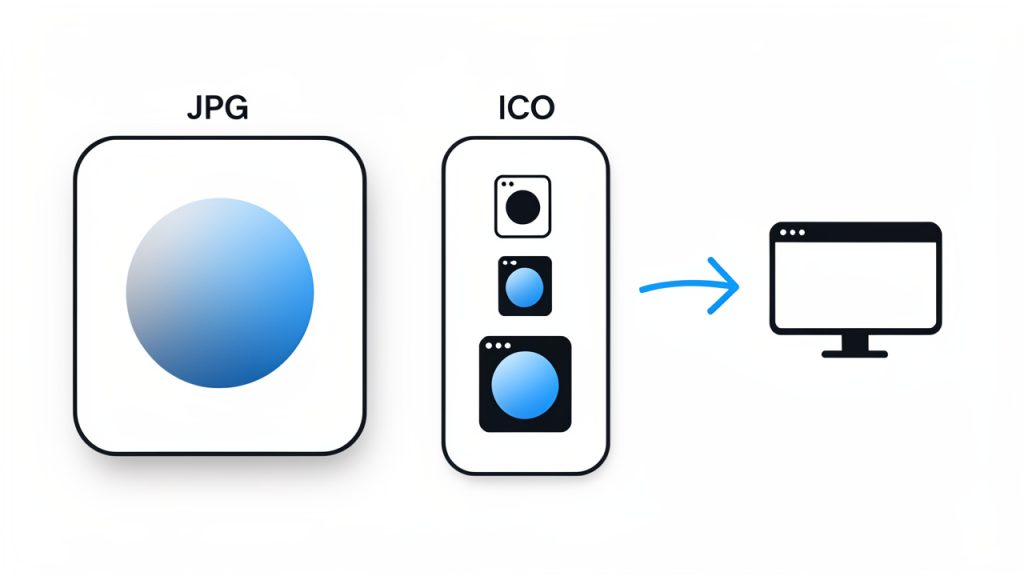
An ICO file often contains multiple versions of the same icon inside one file. These versions may vary by size, color depth, or resolution. For example, a single ICO file might include 16×16, 32×32, 48×48, and 256×256 pixel versions of the same icon. That makes the format useful for software, desktop shortcuts, and favicons, because systems can choose the most appropriate size automatically.
PNG, by contrast, is typically a single raster image with support for transparency and strong image quality. It is widely used across websites, apps, design tools, presentations, and digital documents. When people search for how to convert an ICO file to PNG, they are usually trying to make the icon easier to edit, preview, share, or reuse.
Why People Convert ICO Files to PNG
The most common reason is compatibility. Many everyday tools, from design platforms to content editors, handle PNG files more gracefully than ICO files. If you want to drag an icon into a slideshow, upload it to a website builder, or edit it in a graphics tool, PNG is often the easier option.
Another reason is visual control. Because PNG files are simple, visible image assets, they are easier to inspect. You can see whether the icon looks crisp, whether the transparent backgrounds are preserved, and whether the exported size fits your project.
There is also a practical workflow benefit. If you are managing digital assets for a brand, a SaaS product, or a client project, PNG files integrate more naturally into file libraries, cloud drives, and design systems. ICO files are great for specific technical uses, but PNG is often the format people actually work with day to day.
ICO vs PNG at a Glance
Format
Best Use
Key Strength
Limitation
ICO
Favicons, Windows icons, software assets
Can store multiple icon sizes in one file
Less convenient for editing and general sharing
PNG
Web graphics, UI assets, presentations, design workflows
High quality with transparency support
Usually contains only one image size per file
Key aspects of converting an ICO file to PNG
A good conversion is not just about changing the file extension. The real issue is whether the output PNG matches the quality, size, and transparency you need. That matters more than most users expect.
Size selection matters
Because ICO files can include several icon sizes, the conversion tool or software may ask you which version to export. This is important. If you accidentally export the 16×16 version when you need a 256×256 PNG, the image will look blurry when enlarged.
For website work, a small PNG may be fine if the icon is only being used in tight interface spaces. For branding, app mockups, documentation, or marketplace listings, you will want the largest embedded icon size available. Starting from the highest-resolution version gives you more flexibility.
Think of it like choosing a source photo before printing. If you begin with a tiny image, no conversion tool can magically create sharp detail that was never there.
Transparency should be preserved
One of the biggest reasons people prefer PNG is its support for transparent backgrounds. Many ICO files also support transparency, but not every converter handles it equally well.
A poor conversion may add a black, white, or jagged background around the icon edges. That becomes obvious when you place the PNG on a colored website section, a dark app theme, or marketing material. If clean visual integration matters, always check the output on both light and dark backgrounds.
For logos, UI icons, and interface graphics, transparency is not a minor detail. It is often the difference between a professional-looking result and something that feels broken.
Quality depends on the source file
Not every ICO file is high quality. Some older icons were designed for very small screens and limited color palettes. Converting those icons to PNG does not improve them automatically. It simply makes them easier to use in modern tools.
If the source icon looks pixelated, soft, or outdated, the PNG will reflect those same limitations. That is why it helps to inspect the ICO file before relying on it for public-facing materials. In some cases, recreating the icon as SVG or designing a fresh PNG asset may be the better long-term move.
Online converters vs installed software
Many users want a free online ICO to PNG converter because it is fast and requires no installation. For basic tasks, online tools are often enough. You upload the file, select the output, and download the PNG.
That said, local software can be a better choice when you care about privacy, batch processing, or more precise control over export size and quality. If the icon is part of unreleased software, internal branding, or client-sensitive work, keeping the conversion offline may be the smarter path.
The right option depends on the context. Convenience is valuable, but so are security and consistency.
Common issues during conversion
Several problems show up repeatedly when converting from ICO to PNG. The first is exporting the wrong embedded size. The second is losing transparency. The third is mistaking a low-resolution icon for a high-quality one just because the file converted successfully.
There can also be workflow confusion. Some users believe they can rename .ico to .png and get a working image. That does not actually convert the file format. A proper conversion reads the icon data and exports a valid PNG image.
If you handle digital assets regularly, it helps to build a simple habit: convert, preview, verify transparency, and store the file with a clear size label.
How to get started with converting an ICO file to PNG
If your goal is speed, the process is easier than it looks. You do not need to be a designer or developer to get good results, but you do need to make a few smart choices.
A simple conversion workflow
Use this short process when converting an ICO file to PNG:
Choose the source ICO file, the file that contains the icon you want to export.
Open it in a trusted converter or image tool that supports ICO files.
Select the largest or most appropriate size for your intended use.
Export as PNG and save the file with a descriptive name.
Preview the PNG on different backgrounds to confirm transparency and clarity.
This takes only a minute, but it prevents the most common mistakes.
Choosing the right PNG for the job
Not every output PNG should be treated the same way. If you are converting an icon for a website interface, file size may matter more than maximum resolution. If you are preparing assets for a client presentation or a product page, visual crispness may be the priority.
A practical way to decide is to start with the largest available icon, then create smaller PNG versions later if needed. This gives you a clean master asset while keeping your workflow flexible.
For teams and freelancers, naming helps more than people realize. A filename like brand-icon-256.png is far more useful than icon-final-new2.png. Good naming saves time when assets are shared across projects and collaborators.
Best use cases for converting an ICO file to PNG
A PNG converted from ICO can be useful in many real-world situations. It may be dropped into a website builder, inserted into onboarding documentation, used inside a social media graphic, or added to a product mockup.
Developers often convert icons to PNG for design review or documentation. Small business owners may need a PNG version of an old favicon to use in ads, slide decks, or branded forms. Freelancers may need to extract icon assets from legacy client files and make them editable in modern design workflows.
That is why this task shows up so often. It sits at the intersection of design, productivity, and compatibility.
When PNG is not the final destination
Sometimes PNG is only a stepping stone. You may convert from ICO to PNG to inspect the icon, place it in a layout, or hand it off to a designer who will recreate it in vector format later.
This is especially common when an icon needs to scale cleanly across many screen sizes. PNG is excellent for everyday use, but if you are building a modern brand system or UI library, you may eventually want SVG or another scalable format for the long term.
Still, PNG remains one of the most practical intermediate and final formats because it is widely supported, easy to preview, and simple to share.
Conclusion
Converting an ICO file to PNG is a small task with real practical value. It makes icon assets easier to edit, preview, upload, and reuse across websites, documents, apps, and marketing materials. The most important factors are choosing the correct embedded size, preserving transparency, and checking the output before using it publicly.
If you need to convert an ICO to a PNG today, start with a trusted tool, export the largest useful version, and verify how it looks on real backgrounds. That simple workflow will save time, reduce asset issues, and give you a cleaner image you can use almost anywhere.
You can turn an SVG into a JPG in seconds, but getting a clean, sharp, correctly rendered JPG is where most people run into trouble. Logos lose transparency, text shifts, colors look off, or the final image comes out blurry because the export size was too small.
The good news is that converting an SVG to a JPG is easy once you understand one key idea: SVG is a vector format, while JPG is a raster format. That means your choices during export, especially dimensions, background color, and quality settings, directly determine how good the result looks.
If you need a quick browser-based tool, a private desktop workflow, or an automated batch process for dozens of files, this guide walks you through the fastest and highest-quality methods to convert SVG files to JPG correctly.
Why Convert SVG to JPG? When and Why It Makes Sense
Differences between SVG and JPG file formats
An SVG file is vector-based. It uses mathematical paths, shapes, and text instructions instead of a fixed grid of pixels. That is why an SVG logo can scale from a favicon to a billboard without becoming blurry.
A JPG file works differently. It is a raster image, made of pixels, and it uses lossy compression to reduce file size. Once exported, it has a fixed resolution. If you enlarge it too much, it softens or pixelates.
This is the heart of the SVG-to-JPG process. You are taking something infinitely scalable and flattening it into a fixed-size bitmap. That is not inherently bad. It means you need to choose the final size carefully.
Common scenarios that require SVG to JPG conversion
There are plenty of practical reasons to convert an SVG into a JPG. Some platforms still handle JPG more consistently than SVG, especially older content management systems, email builders, marketplace upload forms, or social publishing tools that expect raster images.
You might also need a JPG for a blog thumbnail, a product preview, a client handoff, or a quick upload into software that cannot edit vectors. Many raster-first tools, internal company systems, and print workflows still prefer common image formats over SVG.
For small business owners and freelancers, this often comes down to compatibility. The SVG may be your master file, but the JPG is the version that works everywhere.
Trade-offs: scalability, transparency, file size, and quality
The main trade-off is simple. JPG gives you compatibility, but you lose vector flexibility. Once the export is done, you cannot resize it upward without quality loss.
You also lose transparency, because JPG does not support it. If your SVG has a transparent background, the exported JPG must be flattened onto a solid color, usually white or another chosen background.
File size can go either way. A simple SVG icon may be much smaller than a JPG. But for photographic or visually rich exports, JPG may be more compact than PNG. Quality also becomes a balancing act, because higher JPEG quality means larger files.
Prepare Your SVG for Conversion
Check for external assets, fonts, and linked images
Before converting anything, inspect the SVG for external dependencies. Many SVG files reference fonts that are installed locally on one machine but not another. Others link to images instead of embedding them directly. That can cause missing text, fallback fonts, or broken image elements during export.
If the SVG contains text, open it in a tool like Inkscape or Adobe Illustrator and verify that the correct font is available. If you are sending the file to another system or converting on a server, consider converting text to outlines or paths if editing is no longer needed.
Linked bitmap images should be embedded rather than referenced externally. In vector editors, this is usually available through an embed or package option. If the image is not embedded, the final JPG may export with empty areas.
Simplify and clean the SVG
A messy SVG can still look fine in a browser but export poorly in some converters. Hidden layers, unused definitions, extra metadata, clipping leftovers, and editor-specific markup can all make rendering less predictable.
For quick cleanup, tools like SVGOMG are useful for stripping excess metadata and reducing complexity. If you want more control, open the file in a text editor or Inkscape and remove unused elements, invisible objects, and redundant groups.
This matters more than many people realize. A clean SVG is easier for online tools, desktop apps, and command-line renderers to interpret consistently.
Decide on final dimensions, background color, and DPI
SVG files do not have a fixed pixel resolution in the same way JPGs do. That means you must decide what the output should be. If the JPG is for a website banner, set pixel dimensions based on where it will appear. If it is for print, set the final physical size and DPI before exporting.
For web use, 72 to 150 DPI is usually sufficient, but pixel dimensions matter more than DPI in browsers. For print, 300 DPI is the standard target for high-quality results.
You should also decide the background color in advance. Since JPG does not support transparency, transparent SVG areas will need to be filled, commonly with white, black, or a brand color.
Quick Online Tools to Convert SVG to JPG (Fast, No Install)
How to use free web converters safely
If your file is not sensitive, an online converter is the fastest route. The workflow is usually the same across platforms.
Upload the SVG file.
Choose JPG or JPEG as the output format.
Set size or quality options if available.
Convert and download the result.
This is ideal for one-off tasks, especially if you are on a borrowed computer, a Chromebook, or a device where you do not want to install software.
Recommended online tools with brief pros and cons
Several browser-based tools handle SVG-to-JPG conversion well for casual use.
These tools are convenient, but they are not always perfect with complex SVGs, custom fonts, or advanced filters. For logos and simple illustrations, they usually work well. For client assets or print work, desktop tools are safer.
Privacy and security considerations for online converters
If the SVG contains brand assets, client work, product mockups, internal diagrams, or unpublished graphics, think twice before uploading it to a third-party converter. Even trustworthy services still involve sending the file to an external server.
For confidential files, a local desktop app or command-line tool is the better choice. It keeps the file on your own machine and reduces the risk of accidental exposure.
Also check whether the tool deletes uploaded files automatically and whether it offers any retention policy details. Convenience is great, but privacy should win when the content matters.
Convert SVG to JPG Using Desktop Apps (Best for Quality and Privacy)
Using Inkscape (free): export raster image step-by-step
Inkscape is one of the best free options for high-quality local conversion. It renders SVG natively and gives you solid control over export size and output area.
Open the SVG in Inkscape and confirm that everything looks correct, especially fonts, shadows, masks, and linked images. Then choose File > Export. In newer versions, you can export by page, drawing, selection, or custom area.
For a full design, use the page or drawing area depending on how your artwork is set up. Set the width and height in pixels, or define the DPI if you are preparing a print-oriented export. Since you need JPG and not PNG, a common approach is to export to raster and then save or convert to JPEG from there if your version requires that extra step.
If the artwork includes transparency, place a background rectangle behind the design before export. Use white if you want a neutral result, or match the destination layout color.
Using Adobe Illustrator: export settings to control antialiasing and quality
In Adobe Illustrator, open the SVG and review the artwork carefully. Illustrator can usually preserve complex vectors well, but fonts and effects should still be checked before export.
Go to File > Export > Export As, choose JPG, and enable Use Artboards if you want a clean crop based on the artboard bounds. Then set the color model, quality, and resolution. For screen use, select 72 or 150 PPI. For print, use 300 PPI.
Choose Art Optimized antialiasing for illustrations and logos in most cases. It tends to preserve clean edges better than type-oriented settings unless text is the dominant element. If the export looks soft, increase dimensions rather than simply raising JPEG quality.
Using Photoshop and other raster editors
Photoshop can open SVG files, but it rasterizes them during import. That means Photoshop asks for dimensions and resolution up front. This can be helpful if you already know the exact output size.
When opening the SVG, enter the target width, height, and resolution. If the background is transparent, add a fill layer beneath the artwork before exporting as JPG. Then choose File > Save a Copy or Export As, select JPEG, and set the quality level.
This method is useful if you plan to edit the raster output, retouch edges, sharpen details, or compress the file further. It is less ideal if you want to preserve the original vector nature for multiple future sizes.
Command-Line Conversion for Automation and Batch Jobs
Using ImageMagick: convert and recommended flags
If you need to convert many files or integrate SVG-to-JPG conversion into a workflow, ImageMagick is a strong choice. It is widely available on macOS, Linux, and Windows, and works well in scripts.
A reliable basic command looks like this:
magick input.svg -background white -density 300 -quality 92 output.jpg
The -background white flag handles transparency by flattening onto white. The -density 300 setting improves rasterization quality for vector input, especially for print-sized exports. The -quality 92 setting is a practical starting point for a strong balance between file size and visual fidelity.
If you need an exact width, you can resize after rasterization:
For best results, inspect the final image rather than relying on defaults. Different SVGs respond differently depending on internal complexity and renderer support.
Using rsvg-convert for accurate rendering
For some SVG files, especially standards-compliant ones, rsvg-convert from the librsvg package can produce more consistent rendering than generic tools. It is often preferred in Linux-based automation environments.
A common workflow is to render the SVG to a raster stream and then convert to JPG:
This approach gives you accurate SVG rendering and lets ImageMagick handle final JPEG encoding. If aspect ratio matters, set only width or only height unless you intentionally want distortion.
Batch examples and Windows, Mac, Linux notes
On macOS, you can install tools through Homebrew. On Ubuntu or Debian, use apt. On Windows, ImageMagick installers are straightforward, and librsvg-based workflows are possible through package managers or compatible environments.
For batch conversion on Mac or Linux, a simple shell loop works well:
for f in *.svg; do
  magick "$f" -background white -density 300 -quality 90 "${f%.svg}.jpg"
done
This is especially useful for exporting icon sets, illustrations, product graphics, or generated reports. If performance matters, test a few files first. Complex SVG filters and embedded images can slow down large batches.
Optimizing JPG Output: Quality, File Size, and Visual Fidelity
Choosing the right dimensions and DPI for web vs print
The most important export decision is not the converter. It is the output size. A beautifully rendered SVG can still become a poor JPG if exported too small.
For web graphics, think in pixels, not print DPI. A blog hero image might need 1600 pixels wide, while a thumbnail may only need 400 pixels. Export close to the real display size, or perhaps 2x for high-density screens if needed.
For print, calculate the final physical size and multiply by 300 DPI. A 5-inch-wide printed image should usually be exported at about 1500 pixels wide. That gives the raster file enough detail for sharp output.
Balancing JPEG quality and compression
JPEG quality settings usually have diminishing returns. Going from 70 to 85 often makes a visible improvement. Going from 92 to 100 usually creates much larger files with little visible gain.
For most designs, quality 82 to 92 is the sweet spot. If the image contains flat colors, text, or logo edges, JPG may show artifacts more easily. In those cases, PNG or WebP may be a better fit.
You can also run the final JPG through a compressor such as TinyJPG or MozJPEG-based tools to reduce file size further. The best workflow is often export high, then optimize gently.
Removing artifacts: antialiasing, color profiles, and sharpening
Soft edges and color mismatch are common issues after conversion. Good antialiasing helps curved vector edges look smooth in the raster result. Most export tools handle this automatically, but advanced settings can improve line art and text-heavy graphics.
Use the sRGB color profile for web output unless you have a specific print requirement. This reduces the chance of muted or shifted colors across browsers and devices.
If the output looks slightly soft after conversion, a tiny amount of sharpening in a raster editor can help. Be conservative. Over-sharpening creates halos and makes compression artifacts more noticeable.
Preserving Transparency and Alternatives When You Need It
Why JPG cannot preserve transparency
JPG does not support alpha transparency. That means any transparent area in your SVG must be flattened onto a solid background during export.
This is why logos exported from SVG to JPG often end up with white boxes behind them. The format itself is the limitation, not the converter.
Alternatives: PNG, WebP, and AVIF
If transparency matters, PNG is the safest alternative. It preserves sharp edges and transparent backgrounds well, which makes it ideal for logos, icons, interface graphics, and overlays.
WebP is often better than JPG for web delivery because it can support transparency and offer smaller files. AVIF can be even more efficient, though support and workflow compatibility may vary depending on your tools and platform.
Here is a simple comparison:
Format
Transparency
Best For
Main Limitation
JPG
No
Photos, universal compatibility
Lossy, no transparency
PNG
Yes
Logos, UI, crisp graphics
Larger file sizes
WebP
Yes
Modern web images
Some older workflows may not support it
AVIF
Yes
High compression, modern delivery
Slower encoding, mixed tool support
How to simulate transparency on JPG
If JPG is required, the best workaround is to choose a background color that matches the final placement. If the image will sit on a white webpage, export onto white. If it will appear on a dark product page or social card, match that tone instead.
For more polished results, some designers create a subtle background fill that blends naturally into the destination layout. It is not true transparency, but it avoids the obvious “boxed logo” look.
Common Problems and How to Fix Them
Fonts not rendering correctly
Font issues usually happen because the converter cannot access the original typeface. If the text changes shape, spacing, or line breaks, confirm the font is installed on the exporting machine.
If the design is final, convert text to paths or outlines before exporting. This removes font dependency entirely. The trade-off is that the text is no longer editable as text.
Online converters are especially prone to font substitutions. If branding matters, use Inkscape, Illustrator, or another local tool where you can verify the result first.
Blurred or pixelated output
Blurry output almost always comes from exporting at dimensions that are too small. Because SVG is vector-based, it can look perfect on screen right up until the moment you rasterize it at an insufficient size.
The fix is simple. Export larger. Also make sure you are exporting the correct area, such as the full page, artboard, or drawing bounds. A wrong export area can create extra whitespace and make the actual artwork occupy fewer pixels than expected.
In command-line tools, increase -density, define a larger width, or both. In GUI tools, raise pixel dimensions or PPI before export.
Color shifts
Color shifts can happen when profiles are missing, ignored, or converted inconsistently. For web use, export in sRGB and preview the file in a standard browser as well as an image viewer.
If exact brand color is critical, avoid converting back and forth between multiple formats unnecessarily. Each step can introduce variation, especially when compression and color management are applied differently across apps.
This method is best for a quick, non-sensitive file.
Open a trusted online converter such as CloudConvert or Convertio.
Upload your SVG file.
Choose JPG as the output.
Set width or quality options if available.
Convert and download the image.
Preview the JPG at 100% zoom to check edges, text, and background.
Expected result: a fast, usable JPG for email, CMS upload, or general sharing. If transparency or fonts look wrong, switch to a local tool.
High-quality local conversion with Inkscape
This is the best free workflow for quality and privacy.
Open the SVG in Inkscape.
Check fonts, linked images, and hidden objects.
Add a background rectangle if the design is transparent.
Go to File > Export.
Select Page or Drawing as the export area.
Enter the target width, height, or DPI.
Export at a large enough resolution for the final use.
Save or convert the raster output to JPG with high quality.
Expected result: a cleaner, more controlled export, especially for logos, illustrations, and print-ready graphics.
Batch conversion with ImageMagick on Mac or Linux
This is ideal for developers, power users, or repeat tasks.
for f in *.svg; do
  magick "$f" -background white -density 300 -quality 90 "${f%.svg}.jpg"
done
Run the command inside the folder containing your SVG files. Each file is converted with a white background, high raster density, and solid JPEG quality.
Expected result: consistent bulk exports with minimal manual work. If rendering differs from your source design, test rsvg-convert as the rendering step before JPEG encoding.
Checklist: How to Get the Best JPG from an SVG
Use this quick checklist before and after conversion:
Export settings: Choose correct dimensions, set background color, use appropriate DPI, pick a sensible JPEG quality level.
After export: Preview at 100% zoom, check file size, inspect edges and text, confirm colors in sRGB-friendly viewers.
This small routine prevents most conversion problems before they become visible in production.
Frequently Asked Questions
Can I convert SVG to JPG without quality loss?
Not completely. An SVG is vector, while JPG is raster and lossy. You can make the result look excellent by exporting at the right dimensions and a high quality setting, but the format change itself introduces limits.
Which is smaller, JPG converted from SVG or PNG?
It depends on the artwork. For photo-like or complex imagery, JPG is often smaller. For logos, flat graphics, icons, and text-heavy visuals, PNG may preserve quality better, though file sizes can be larger.
Is WebP a better choice than JPG for SVG exports?
Often, yes, especially for web use. WebP usually delivers better compression and can preserve transparency. If your platform supports it, WebP is frequently a smarter export target than JPG.
Recommended Tools and Resources
If you want the simplest online path, tools like CloudConvert, Convertio, and FreeConvert are practical for quick jobs. They are best for non-sensitive files and casual one-off conversions.
For desktop workflows, Inkscape is the top free option, while Adobe Illustrator gives professionals more export control inside a design-heavy workflow. Photoshop is useful when the goal is not just conversion, but also raster editing and retouching.
For automation, ImageMagick and rsvg-convert are the most useful command-line tools. They are excellent for server workflows, repetitive exports, and custom pipelines where speed and repeatability matter.
Conclusion and Final Recommendations
If you only need a quick result, an online SVG-to-JPG converter is fine for simple files. If quality, privacy, or brand accuracy matter, use a local app like Inkscape or Illustrator. If you handle multiple files regularly, a command-line workflow with ImageMagick or librsvg is the most efficient choice.
The key is to keep your original SVG as the master file and treat the JPG as a delivery format. Clean the SVG first, choose the right dimensions, flatten transparency intentionally, and export with the final use case in mind. Your next step is simple: pick the method that fits your workflow, convert one test file, and compare the output at full size before processing the rest.
A simple image file can quietly make your brand look polished, or make it look unfinished. If you have ever uploaded a logo, favicon, or app icon and realized the platform wants an ICO file instead of a JPG, you are not alone. This is one of those small technical tasks that seems trivial until it blocks a website launch, desktop shortcut, or software packaging workflow.
Converting a JPG to an ICO file is usually easy, but doing it well takes a little more care than most people expect. The right dimensions, transparency, sharpness, and file quality all affect how your icon appears in browser tabs, Windows folders, shortcuts, and app interfaces. A rushed conversion can leave you with blurry edges, awkward backgrounds, or an icon that looks fine in one place and terrible in another.
What Is Converting a JPG to an ICO File?
A conversion from a JPEG image into an ICO file turns a photograph-style image into the icon format commonly used by Windows and often associated with website favicons and application icons. While a JPG is designed for photographs and general image sharing, an ICO file is built specifically to display small icons clearly across different sizes.
An ICO file can contain multiple image sizes in one file, which allows the operating system or browser to choose the most appropriate version depending on where the icon is displayed. That is why a proper icon can still look crisp at 16×16 pixels and remain usable at 32×32 or 64×64.
This difference matters more than it seems. A JPG usually contains a single flat image, often compressed in a way that sacrifices some fine detail. An ICO file, in contrast, is optimized for clarity at small dimensions. If the source image is too detailed, too rectangular, or lacks contrast, the final icon may be technically correct but visually weak.
For small business owners and freelancers, this often comes up when setting up a favicon for a website, creating a branded desktop shortcut, or preparing assets for a Windows application. For developers, it may be part of the packaging process for software, browser extensions, or desktop tools. In all of these cases, the goal is the same: create a small, recognizable image that still works when scaled down dramatically.
Key aspects of converting JPG images to ICO files
File format differences matter
A JPG is excellent for photos because it keeps file sizes low while preserving acceptable visual quality. The trade-off is that JPEG compression can introduce artifacts, especially around text, logos, and hard edges. Those imperfections become much more visible when the image is reduced to icon size.
An ICO file serves a different purpose. It is designed for clarity at small dimensions, not for photographic realism. In practice, clean lines, strong contrast, and simple shapes perform far better than busy graphics. If your source image is a detailed banner or a full-color photograph, converting it directly into an icon may technically work, but the result often looks muddy and unreadable.
Size and scalability are critical
Most icons are viewed at very small sizes. A logo that looks sharp on a website header at 500 pixels wide may become impossible to recognize at 16×16. That is why resizing is not just a mechanical step, it is a design decision.
A good icon usually starts with a simple, centered subject. If your JPG includes extra background space, long text, or multiple visual elements, the icon will likely lose impact. Cropping and simplifying the image before conversion often makes a bigger difference than the conversion tool itself.
The most common icon sizes include 16×16, 32×32, 48×48, and 64×64 pixels. Some tools let you generate several sizes in a single ICO file, which is usually the best option. This allows systems to choose the size they need rather than scaling one version up or down.
If you are creating a favicon, your smallest size matters a lot. Fine details vanish quickly. Test whether the icon still looks recognizable at 16×16 before finalizing it. If it does not, the design likely needs to be simplified rather than merely resized.
Transparency can be a hidden issue
One of the biggest limitations of a JPG source file is that JPEG does not support transparency. If your original image has a white or colored background, that background will usually stay visible after conversion unless you edit the image first.
This becomes especially noticeable when the icon is displayed against dark mode interfaces, colored browser themes, or custom desktop backgrounds. A white box around a logo can make an otherwise professional brand asset look unfinished. If transparency matters, it may be better to first edit the image in a format like PNG, remove the background, and then create the ICO file from that cleaner source.
For users who only have a JPG available, this does not mean the project is doomed. It simply means expectations need to be realistic. Some icons work perfectly well with a solid background, especially if they are designed intentionally as square badges. Others need a transparent edge to blend naturally into their environment.
Quality depends on the source image
The phrase garbage in, garbage out applies here. A low-resolution JPG will not magically become a sharp icon because it has been converted to ICO. If the original image is blurry, heavily compressed, or poorly cropped, the final result will reflect those flaws.
The best source images are usually high-resolution, square or near-square, and visually simple. Logos, initials, symbols, and bold marks convert well. Detailed flyers, photos of people, and full website screenshots do not. Think of an icon like a road sign. It needs to be understandable instantly, even from a distance, or in this case, at a tiny scale.
Use case shapes the right output
Not every icon is for the same environment. A favicon for a website has different practical needs than a Windows application icon. A browser tab icon needs to be recognizable at a glance and often appears at very small dimensions. A desktop application icon may appear in shortcuts, file explorers, taskbars, and installation files, sometimes at several sizes.
For that reason, a smart JPG-to-ICO workflow considers where the icon will actually be used. If the file is for a website, prioritize simplicity and contrast. If it is for a software product, consider multiple sizes and how the icon will appear on both light and dark backgrounds.
How to get started converting a JPG to an ICO file
Start with the right image
Before you use any converter, look at the JPG critically. Ask whether the image is truly suited to icon use. If it includes small text, busy textures, or multiple focal points, simplify it first. Often the best approach is to isolate the brand mark, monogram, or symbol rather than using the full logo lockup.
If possible, crop the image into a square. Most icons display best in square proportions, and many conversion tools will otherwise force the image into a square area in ways that create awkward spacing or distortion. Centering the important visual element before conversion gives you much more predictable results.
Choose an appropriate size
Generate icon sizes that match common usage, such as 16×16, 32×32, 48×48, and 64×64. If your tool allows multiple embedded sizes in one ICO file, use that feature so systems can pick the best resolution.
If you are creating a favicon, your smallest size matters a lot. Fine details vanish quickly, so simplify the design until it remains readable at 16×16.
Use a reliable conversion tool
Many online tools can convert a JPG to an ICO file in seconds. That convenience is useful, especially for freelancers or small teams who do not want to install extra software for a one-time task. Still, not all converters produce equally clean results. Some compress aggressively, some offer limited size options, and some do not preserve image quality as well as expected.
When evaluating a tool, focus on whether it lets you control icon dimensions, generate multiple sizes, and preview the result. If the task is business-critical, such as preparing a branded favicon for a live website or packaging a software release, it is worth testing more than one tool and comparing outputs side by side.
Follow a simple workflow
For most users, the process is straightforward. Select a clean JPG image that is high-resolution and square if possible. Crop or simplify the image so the core visual remains clear at small sizes. Upload it to a converter that supports ICO output and size selection. Download and test the file in the environment where it will actually appear.
Testing in context is often skipped, and it should not be. An icon that looks fine in a preview may appear too small, too soft, or too cluttered once placed in a browser tab or Windows shortcut. Real-world testing is part of the conversion process.
Check the result in context
A favicon should be tested in a browser tab, bookmark bar, and mobile browser if relevant. A desktop icon should be viewed on different background colors and at different scaling settings. Developers should also verify that the file is accepted by the build system, installer, or framework they are using.
This context-based testing separates a merely converted file from a usable one. It is the difference between checking a box and creating an asset that actually supports brand recognition and usability.
Common mistakes to avoid
Here are predictable problems and better alternatives:
Using a detailed photo: Icon becomes blurry and unreadable, use a simple symbol, logo mark, or initial instead.
Starting with a low-resolution JPG: Final ICO looks soft or pixelated, use the highest-quality source available.
Ignoring background color: White or awkward box appears around icon, edit the background first or use a cleaner source image.
Using only one size: Icon scales poorly in different contexts, create an ICO with multiple size variants.
Conclusion
Converting a JPG to an ICO file is simple on the surface, but quality depends on more than just uploading and downloading. The source image, its clarity at small sizes, the presence or absence of transparency, and the intended use all shape whether the final icon looks professional or improvised.
If you need an icon for a website, app, shortcut, or branded digital asset, start with the cleanest possible image and think like a designer, not just a file converter. A strong icon is small, clear, and instantly recognizable. Your next step is straightforward: choose your best source image, create the ICO file, and test it where your audience will actually see it.