

A simple image file can quietly make your brand look polished, or make it look unfinished. If you have ever uploaded a logo, favicon, or app icon and realized the platform wants an ICO file instead of a JPG, you are not alone. This is one of those small technical tasks that seems trivial until it blocks a website launch, desktop shortcut, or software packaging workflow.
Converting a JPG to an ICO file is usually easy, but doing it well takes a little more care than most people expect. The right dimensions, transparency, sharpness, and file quality all affect how your icon appears in browser tabs, Windows folders, shortcuts, and app interfaces. A rushed conversion can leave you with blurry edges, awkward backgrounds, or an icon that looks fine in one place and terrible in another.
What Is Converting a JPG to an ICO File?
A conversion from a JPEG image into an ICO file turns a photograph-style image into the icon format commonly used by Windows and often associated with website favicons and application icons. While a JPG is designed for photographs and general image sharing, an ICO file is built specifically to display small icons clearly across different sizes.
An ICO file can contain multiple image sizes in one file, which allows the operating system or browser to choose the most appropriate version depending on where the icon is displayed. That is why a proper icon can still look crisp at 16×16 pixels and remain usable at 32×32 or 64×64.
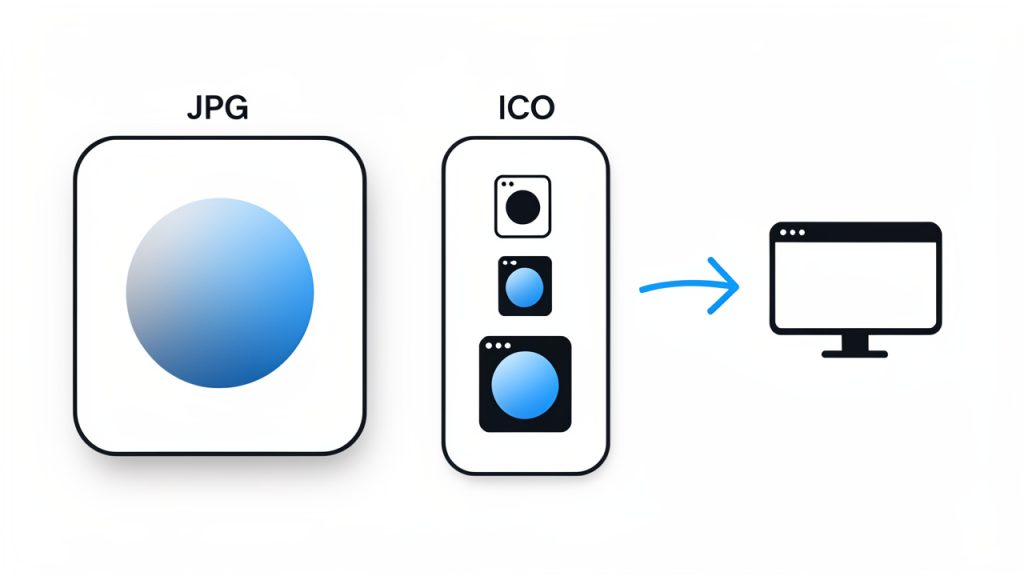
This difference matters more than it seems. A JPG usually contains a single flat image, often compressed in a way that sacrifices some fine detail. An ICO file, in contrast, is optimized for clarity at small dimensions. If the source image is too detailed, too rectangular, or lacks contrast, the final icon may be technically correct but visually weak.
For small business owners and freelancers, this often comes up when setting up a favicon for a website, creating a branded desktop shortcut, or preparing assets for a Windows application. For developers, it may be part of the packaging process for software, browser extensions, or desktop tools. In all of these cases, the goal is the same: create a small, recognizable image that still works when scaled down dramatically.
Key aspects of converting JPG images to ICO files
File format differences matter
A JPG is excellent for photos because it keeps file sizes low while preserving acceptable visual quality. The trade-off is that JPEG compression can introduce artifacts, especially around text, logos, and hard edges. Those imperfections become much more visible when the image is reduced to icon size.
An ICO file serves a different purpose. It is designed for clarity at small dimensions, not for photographic realism. In practice, clean lines, strong contrast, and simple shapes perform far better than busy graphics. If your source image is a detailed banner or a full-color photograph, converting it directly into an icon may technically work, but the result often looks muddy and unreadable.
Size and scalability are critical
Most icons are viewed at very small sizes. A logo that looks sharp on a website header at 500 pixels wide may become impossible to recognize at 16×16. That is why resizing is not just a mechanical step, it is a design decision.
A good icon usually starts with a simple, centered subject. If your JPG includes extra background space, long text, or multiple visual elements, the icon will likely lose impact. Cropping and simplifying the image before conversion often makes a bigger difference than the conversion tool itself.

The most common icon sizes include 16×16, 32×32, 48×48, and 64×64 pixels. Some tools let you generate several sizes in a single ICO file, which is usually the best option. This allows systems to choose the size they need rather than scaling one version up or down.
If you are creating a favicon, your smallest size matters a lot. Fine details vanish quickly. Test whether the icon still looks recognizable at 16×16 before finalizing it. If it does not, the design likely needs to be simplified rather than merely resized.
Transparency can be a hidden issue
One of the biggest limitations of a JPG source file is that JPEG does not support transparency. If your original image has a white or colored background, that background will usually stay visible after conversion unless you edit the image first.
This becomes especially noticeable when the icon is displayed against dark mode interfaces, colored browser themes, or custom desktop backgrounds. A white box around a logo can make an otherwise professional brand asset look unfinished. If transparency matters, it may be better to first edit the image in a format like PNG, remove the background, and then create the ICO file from that cleaner source.
For users who only have a JPG available, this does not mean the project is doomed. It simply means expectations need to be realistic. Some icons work perfectly well with a solid background, especially if they are designed intentionally as square badges. Others need a transparent edge to blend naturally into their environment.
Quality depends on the source image
The phrase garbage in, garbage out applies here. A low-resolution JPG will not magically become a sharp icon because it has been converted to ICO. If the original image is blurry, heavily compressed, or poorly cropped, the final result will reflect those flaws.
The best source images are usually high-resolution, square or near-square, and visually simple. Logos, initials, symbols, and bold marks convert well. Detailed flyers, photos of people, and full website screenshots do not. Think of an icon like a road sign. It needs to be understandable instantly, even from a distance, or in this case, at a tiny scale.
Use case shapes the right output
Not every icon is for the same environment. A favicon for a website has different practical needs than a Windows application icon. A browser tab icon needs to be recognizable at a glance and often appears at very small dimensions. A desktop application icon may appear in shortcuts, file explorers, taskbars, and installation files, sometimes at several sizes.
For that reason, a smart JPG-to-ICO workflow considers where the icon will actually be used. If the file is for a website, prioritize simplicity and contrast. If it is for a software product, consider multiple sizes and how the icon will appear on both light and dark backgrounds.
How to get started converting a JPG to an ICO file
Start with the right image
Before you use any converter, look at the JPG critically. Ask whether the image is truly suited to icon use. If it includes small text, busy textures, or multiple focal points, simplify it first. Often the best approach is to isolate the brand mark, monogram, or symbol rather than using the full logo lockup.
If possible, crop the image into a square. Most icons display best in square proportions, and many conversion tools will otherwise force the image into a square area in ways that create awkward spacing or distortion. Centering the important visual element before conversion gives you much more predictable results.
Choose an appropriate size
Generate icon sizes that match common usage, such as 16×16, 32×32, 48×48, and 64×64. If your tool allows multiple embedded sizes in one ICO file, use that feature so systems can pick the best resolution.
If you are creating a favicon, your smallest size matters a lot. Fine details vanish quickly, so simplify the design until it remains readable at 16×16.
Use a reliable conversion tool
Many online tools can convert a JPG to an ICO file in seconds. That convenience is useful, especially for freelancers or small teams who do not want to install extra software for a one-time task. Still, not all converters produce equally clean results. Some compress aggressively, some offer limited size options, and some do not preserve image quality as well as expected.
When evaluating a tool, focus on whether it lets you control icon dimensions, generate multiple sizes, and preview the result. If the task is business-critical, such as preparing a branded favicon for a live website or packaging a software release, it is worth testing more than one tool and comparing outputs side by side.
Follow a simple workflow
For most users, the process is straightforward. Select a clean JPG image that is high-resolution and square if possible. Crop or simplify the image so the core visual remains clear at small sizes. Upload it to a converter that supports ICO output and size selection. Download and test the file in the environment where it will actually appear.
Testing in context is often skipped, and it should not be. An icon that looks fine in a preview may appear too small, too soft, or too cluttered once placed in a browser tab or Windows shortcut. Real-world testing is part of the conversion process.
Check the result in context
A favicon should be tested in a browser tab, bookmark bar, and mobile browser if relevant. A desktop icon should be viewed on different background colors and at different scaling settings. Developers should also verify that the file is accepted by the build system, installer, or framework they are using.
This context-based testing separates a merely converted file from a usable one. It is the difference between checking a box and creating an asset that actually supports brand recognition and usability.
Common mistakes to avoid
Here are predictable problems and better alternatives:
- Using a detailed photo: Icon becomes blurry and unreadable, use a simple symbol, logo mark, or initial instead.
- Starting with a low-resolution JPG: Final ICO looks soft or pixelated, use the highest-quality source available.
- Ignoring background color: White or awkward box appears around icon, edit the background first or use a cleaner source image.
- Using only one size: Icon scales poorly in different contexts, create an ICO with multiple size variants.
Conclusion
Converting a JPG to an ICO file is simple on the surface, but quality depends on more than just uploading and downloading. The source image, its clarity at small sizes, the presence or absence of transparency, and the intended use all shape whether the final icon looks professional or improvised.
If you need an icon for a website, app, shortcut, or branded digital asset, start with the cleanest possible image and think like a designer, not just a file converter. A strong icon is small, clear, and instantly recognizable. Your next step is straightforward: choose your best source image, create the ICO file, and test it where your audience will actually see it.
Leave a Reply