
A blurry logo can make an otherwise polished brand look amateur in seconds. That is usually the moment people start searching for a way to convert a PNG into an SVG, hoping for a crisp file that scales cleanly on websites, packaging, signs, and social media.
The good news is that turning a PNG into an SVG is absolutely possible. The catch is that not every image converts well, and the quality of the result depends heavily on the image itself, the tool you use, and the cleanup you do afterward. A simple icon can become a clean vector in minutes. A detailed photo usually becomes a tangled mess of paths.
This guide explains what converting a PNG to an SVG really means, how the process works, which tools are worth using, and how to judge whether your final SVG is actually good enough to publish. If you are a small business owner cleaning up a logo, a freelancer preparing client assets, or a developer building a batch workflow, you will find a practical path here.
What Does “PNG to SVG” Mean and Why It Matters
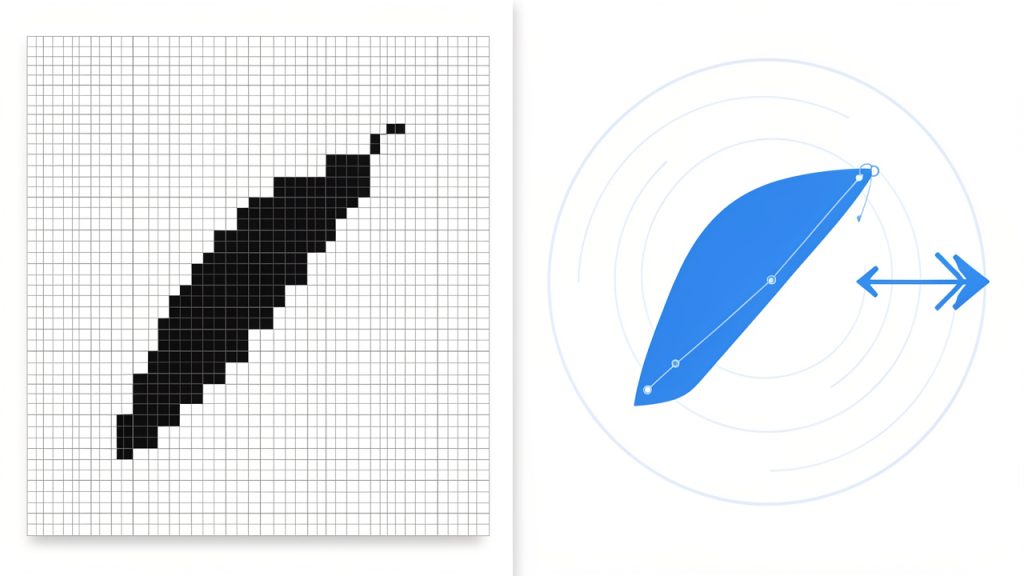
A PNG is a raster image. That means it is made of pixels, tiny colored squares arranged in a grid. When you enlarge a PNG too much, those squares become visible and the image starts to look soft or jagged.
An SVG is a vector format. Instead of storing pixels, it stores shapes, lines, curves, and fills as mathematical instructions. Because of that, an SVG can scale up or down without losing sharpness. That makes it ideal for logos, icons, diagrams, badges, stickers, and simple illustrations.
This is why people want to convert PNG files to SVG. If you have a logo that only exists as a small PNG, an SVG can make it editable and scalable. It can also reduce file size for simple artwork, especially when the original image uses a few solid colors rather than lots of detail.
That said, conversion is not magic. If your PNG is a photograph, a textured painting, or a low-quality screenshot, turning it into SVG often creates a bloated file with thousands of awkward paths. In those cases, using a high-quality raster format like PNG or WebP, or doing a manual redraw, is usually the smarter choice.
How PNG-to-SVG Conversion Works: Tracing, Auto-vectorization, and Manual Redrawing
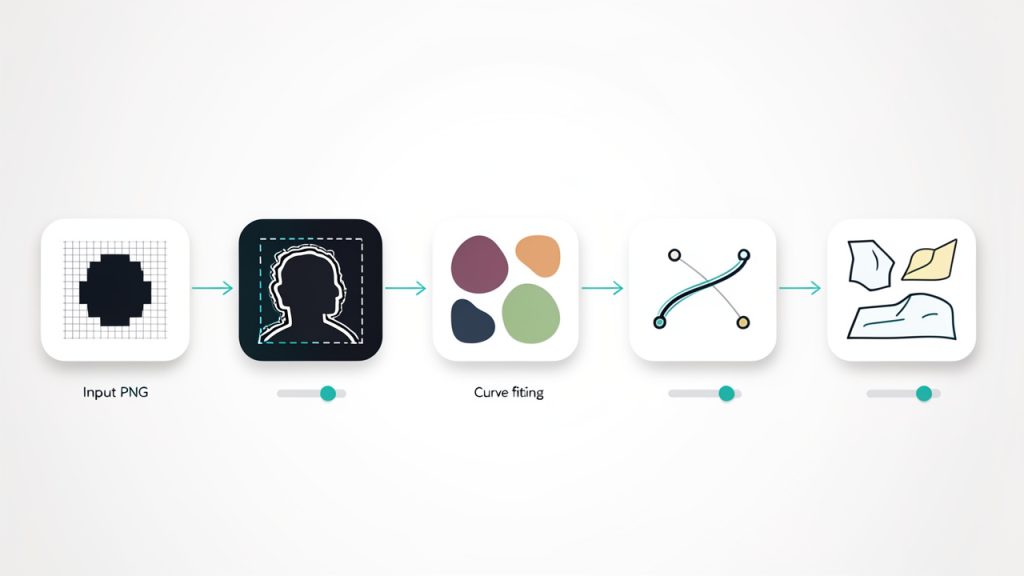
Most PNG-to-SVG workflows rely on image tracing, also called auto-vectorization. The software scans the raster image, detects edges, identifies areas of similar color, and tries to convert them into vector paths. Under the hood, this often involves thresholding, curve fitting, and shape simplification.
For black-and-white artwork, the process is fairly direct. The tool separates light from dark areas, then builds paths around the visible shapes. For color artwork, the tool has to do more work. It may reduce the image into a limited palette first, then create stacked shapes for each color region. The more colors and tiny details present, the more complex the final SVG becomes.
This explains why a clean monochrome logo often converts beautifully while a textured watercolor illustration turns into a giant, messy file. The tracing algorithm is trying to represent every visible change in the image, even if those changes are just noise, compression artifacts, or anti-aliased edges.
Designers often prefer manual redrawing for important brand assets. Instead of tracing every pixel, they rebuild the artwork with clean curves, consistent spacing, and intentional geometry. It takes longer, but the result is usually lighter, more editable, and far more professional.
Typical automatic conversion problems include jagged edges, too many anchor points, color drift, broken holes in letters, and noisy backgrounds being traced as real shapes. These are predictable side effects of converting pixel-based art into vector instructions rather than tool failures.
Step-by-Step: Convert a PNG to SVG Using Free Online Tools
Try these Free Online Tools if you want to experiment quickly with online converters before committing to a desktop workflow.
Before you upload anything, prepare the PNG. This matters more than most people realize. A cleaned image can produce a dramatically better SVG with the same tool and the same settings.
Start by cropping away unused space and removing any accidental background. If possible, increase the contrast so the subject stands apart clearly. If the image is a logo or icon, simplify the colors and remove shadows, gradients, or texture effects. The fewer distractions in the source file, the cleaner the traced result.
For online conversion, look for settings such as color reduction, threshold, smoothing, corner precision, and noise removal. These controls affect whether curves look clean or lumpy, and whether small specks become unwanted paths. If the image is simple, use fewer colors. If the edges look rough, try more smoothing and slightly less detail retention.
1. Vectorizer
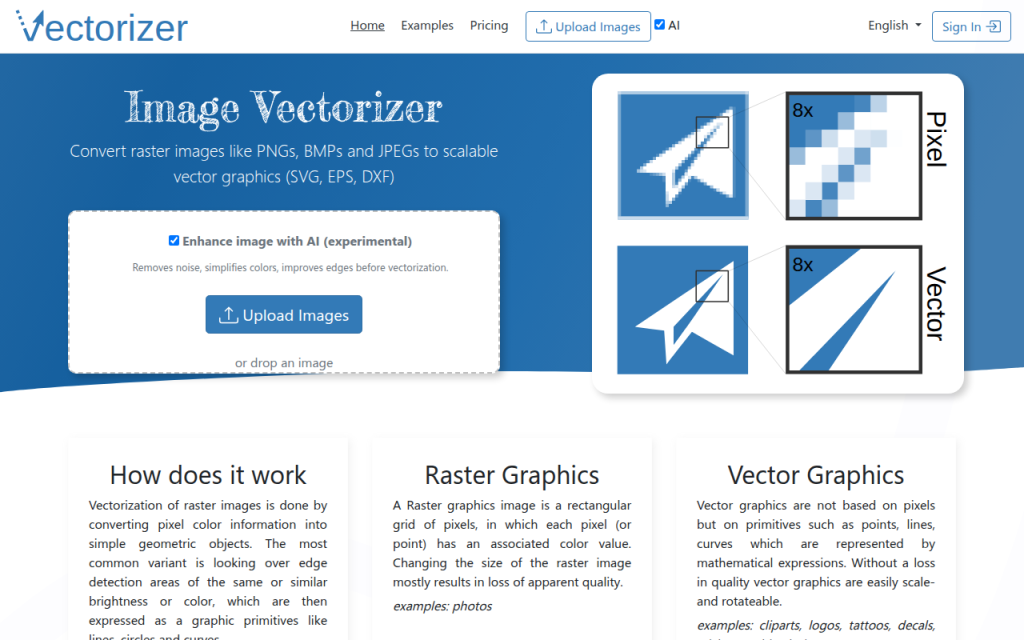
Vectorizer is one of the strongest web-based options for converting a PNG into SVG when you want speed and surprisingly solid output. It is especially good for logos, icons, flat illustrations, and high-contrast artwork. The interface is straightforward, and the preview makes it easy to judge quality before downloading.
Key features include automatic vector tracing with a live preview and color-aware conversion for simple graphics, with browser-based SVG export suitable for web and print cleanup. Vectorizer is fast for simple assets and often produces a cleaner first draft than broad-purpose conversion tools, but it gives less control than desktop apps and can produce messy paths on complex images. Privacy may be a consideration for sensitive brand assets.
A typical workflow is simple: upload the PNG, let the service analyze it, review the preview, adjust any available detail or smoothing settings, and then download the SVG. If the result looks close but not perfect, use the SVG as a starting point for cleanup in Illustrator or Inkscape.
2. Convertio
Convertio is widely known as a general-purpose file conversion service, and it supports converting PNG files to SVG. It is ideal for users who want a quick, low-friction online process without learning vector software. If your needs are basic, it gets the job done with minimal setup.
Convertio offers a simple browser-based conversion flow with cloud storage integration and quick downloads. Its main strength is convenience: upload from your device or cloud storage, choose SVG as the output format, and convert in a few clicks. For simple artwork, that is often enough. For more demanding graphics, you will usually want a tool with more tracing control.
3. Online-Convert
Online-Convert sits somewhere between a basic converter and a configurable utility. It is useful when you want a free online option but need a little more control over dimensions, cleanup, or conversion behavior than the most minimal tools provide. It can be a practical middle ground for small business owners and freelancers who need quick conversions that may require a bit of tweaking.
Online-Convert is accessible for fast experiments and can be a helpful backup when another converter struggles, but quality still depends heavily on the source image and advanced cleanup is often required afterward.
Convert PNG to SVG in Desktop Software
Online tools are convenient, but desktop software gives you more control, better previews, and more reliable cleanup options. If the SVG matters for print, branding, signage, or repeated use, desktop tracing is usually the better route.
Adobe Illustrator is the standard for many professionals. Its Image Trace feature allows you to choose black-and-white, grayscale, or color modes, then tune paths, corners, noise handling, and fill behavior. For logos, start with a low-color or black-and-white preset, then adjust until the shapes are clean without becoming overly detailed. After tracing, expand the result and manually simplify any awkward curves.
Inkscape is the best free option for serious work. Its Trace Bitmap tool can generate single-scan or multi-scan vectors, depending on whether the image is monochrome or colored. For simple logos, use a single scan and adjust threshold carefully. For multi-color icons, use multiple scans, then inspect overlaps and redundant shapes after tracing. Inkscape gives you a lot of control, but you still need to clean the file manually if precision matters.
Other desktop choices include Affinity Designer and CorelDRAW. These can be strong fits for users already working in those ecosystems. The key advantage of desktop apps is not just better tracing, but better editing after tracing. That second part is often where quality is won or lost.
4. Adobe Illustrator
Adobe Illustrator is the most robust option for users who need high-quality results and detailed control. It is especially strong for professional logos, packaging graphics, signage, and client work where cleanup precision matters.
Illustrator’s Image Trace panel offers meaningful controls rather than one-click guesses. You can fine-tune threshold, path fidelity, corner sharpness, and noise filtering, then expand the traced result into editable vector paths. This makes Illustrator ideal when automatic conversion gets you most of the way and you need a professional finish for the remaining cleanup. The downside is cost and a steeper learning curve compared with simple browser tools.
Website: https://www.adobe.com
5. Inkscape
Inkscape is the best free desktop choice for converting PNG artwork to SVG with real control. It is ideal for freelancers, developers, hobbyists, and small businesses that want more than a browser converter without paying for a subscription.
Inkscape’s Trace Bitmap feature is powerful enough for serious work. You can choose single or multiple scans, adjust brightness threshold, suppress speckles, smooth corners, and then manually refine the result. It is not as polished as Illustrator in every respect, but it is remarkably capable for a free tool.
Website: https://inkscape.org
6. Potrace
Potrace is a specialist tool rather than a general creative app. It is best for developers and technical users who need fast, scriptable bitmap tracing, especially for monochrome source images such as logos, stamps, and scanned line art.
Potrace’s strength is precision within a narrow use case: clean, high-contrast input. It is fast, lightweight, and ideal for automation, but it is not beginner-friendly and is limited for multi-color artwork. Potrace works well in pipelines where command-line control and reproducible results matter.
Website: https://potrace.sourceforge.net
Automated and Developer-Friendly Conversion: Command-Line Tools and APIs
If you need to convert many images at scale, browser tools become tedious quickly. This is where command-line tools and APIs become useful. Developers often use them for asset pipelines, content systems, design automation, and batch processing.
Potrace is a classic open-source tracing tool that works especially well for black-and-white bitmap conversion. It is fast, scriptable, and dependable when the source image is high contrast. Autotrace offers similar functionality, though workflows and output quality vary by image type.
Cloud services also offer API access. Tools such as the Vectorizer API, CloudConvert API, and Convertio API can fit into automated workflows where you need to upload a file, trigger conversion, and retrieve the SVG programmatically. This is useful for marketplaces, CMS platforms, and internal asset management systems.
Batch conversion sounds efficient, but it also increases the risk of producing hundreds of bad files at once. The best practice is to sort images by type first. Send simple black-and-white artwork through one workflow, colored icons through another, and keep photos out of the vector pipeline entirely unless there is a very specific artistic reason.
7. CloudConvert API
CloudConvert is a strong choice when you need conversion inside an app, workflow, or backend process. It is less about design refinement and more about reliable file handling, automation, and integration.
For developers, the value is convenience. You can plug conversion into a larger system without building your own infrastructure. That makes it useful for SaaS products, upload portals, and content operations that need a managed service. Keep in mind that CloudConvert is not a design cleanup tool; quality still depends on the source image, and usage costs can add up.
Website: https://cloudconvert.com
Quality Checklist: How to Evaluate a Converted SVG
A converted SVG is not automatically a good SVG. You need to inspect both the visual result and the underlying file structure.
First, zoom in aggressively. Curves should stay smooth, corners should look intentional, and enclosed shapes such as the centers of letters should remain open where expected. If a logo looks fine at 100% but falls apart at 800%, the tracing was too rough or too noisy.
Then inspect the file itself. A clean SVG should not contain huge numbers of unnecessary nodes or embedded raster fragments masquerading as vector content. If a tiny icon creates a massive file, something went wrong. That often means the converter traced anti-aliased pixels, subtle shadows, or background noise as separate shapes.
For web use, optimize the final file with tools like SVGO or SVGOMG. Remove unnecessary metadata, simplify paths where possible, and add semantic elements like
Leave a Reply