
A GIF can be useful for a quick animation, but it becomes a problem the moment you need a clean still image, a website asset, a product screenshot, or a frame you can actually edit. That is why so many people end up searching for a way to turn a GIF into an image format they can use immediately.
If you run a small business, manage client content, build websites, or create social posts, converting a GIF into an image is often less about file formats and more about speed. You want the right frame, the right quality, and a file that works everywhere, without installing heavy software or wasting time on trial and error. The good news is that the process is usually simple once you understand what is happening behind the scenes.
What is converting a GIF into an image?
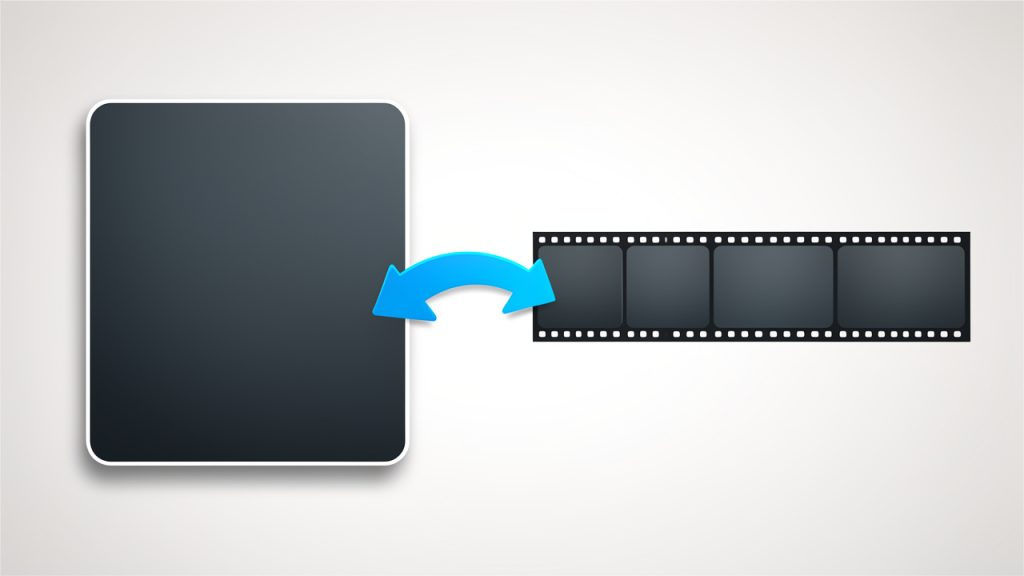
Converting a GIF into an image is the process of extracting either a single frame or multiple frames from a GIF and saving them as standard image files such as JPG, PNG, or WebP. In plain terms, you are turning an animated or static GIF into one or more still images.
This matters because a GIF is not always the most practical format. Animated GIFs are built from a sequence of frames, much like a flipbook. If all you need is one visual from that sequence, keeping the entire animation adds unnecessary weight and complexity. A still image is easier to upload, edit, compress, and reuse across websites, documents, e-commerce listings, and presentations.
For many users, converting a GIF into an image usually means one of two things. The first is exporting every frame as individual image files. The second is capturing a specific frame and saving it as a standalone image. Both are common, but they serve different purposes.
Static GIF vs Animated GIF
A static GIF contains just one frame. In that case, converting it to an image is straightforward because there is no motion to preserve or choose from. You are simply changing the container format.
An animated GIF contains many frames. Here, the conversion process is more selective. You may want the first frame, the sharpest frame, or every frame. That decision affects quality, file size, and how useful the final output will be.
Why people convert GIFs into images
In day-to-day work, the reasons are practical. A freelancer might need a product shot from an animated demo. A developer may want a lightweight image for a landing page instead of an animation that slows performance. A business owner could need a clean thumbnail for an email campaign or marketplace listing.
There is also the issue of compatibility. Some tools, editors, content management systems, and social platforms handle standard image formats more reliably than GIFs. Converting a GIF into an image gives you more control and fewer surprises.
Key aspects of converting a GIF to an image
The biggest misconception is that every conversion is the same. It is not. The right way to convert a GIF depends on what you need the final image to do.
Choosing the right output format
The output format shapes both quality and usability. PNG is often the best choice when you want crisp edges, transparency support, and minimal quality loss. It works especially well for logos, interface elements, screenshots, and graphics with text.
JPG is better for photographic content where smaller file size matters more than perfect sharpness. If the frame from your GIF looks like a photo or a complex scene, JPG can reduce weight significantly. The trade-off is compression, which may soften details.
WebP is increasingly useful for web performance. It can produce small files with good quality, although support and workflow preferences vary depending on the platform you use.
| Format | Best For | Strengths | Trade-Offs |
|---|---|---|---|
| PNG | Graphics, screenshots, transparent assets | Sharp quality, lossless, transparency support | Larger file sizes |
| JPG | Photos, blog visuals, general web use | Small size, widely supported | Lossy compression, no transparency |
| WebP | Modern websites, performance-focused publishing | Efficient compression, good quality | Not ideal for every legacy workflow |
Single frame vs all frames
This is where many users get stuck. If your goal is a single usable image, extracting one frame is usually enough. That keeps the process quick and avoids clutter.
If you are repurposing motion into design assets, storyboards, or step-by-step visuals, exporting all frames may be smarter. For example, a tutorial creator might pull each stage of an animated walkthrough into separate PNGs. A designer might scan through all frames to choose the cleanest one.
The important point is to be intentional. Exporting all frames from a long GIF can produce dozens or even hundreds of image files. That is useful only when you actually need them.
Image quality and compression
Not all GIFs start from high-quality source material. GIFs are often already compressed and limited in color range. That means converting a GIF into an image does not magically improve it. You can preserve what is there, but you usually cannot recover detail that was already lost.
This is especially noticeable with gradients, shadows, and photographic scenes. A GIF may show banding or rough color transitions. Saving that frame as a PNG preserves the frame well, but it does not repair the original limitations. If visual quality is critical, it helps to start with the original video or source design file whenever possible.
Transparency considerations
Some GIFs use transparency, and not every output format handles that the same way. PNG is a safer option if you need the background to remain transparent.
If you save a transparent GIF frame as a JPG, the transparent areas will usually be replaced with a solid background color, often white or black. That can be fine for some use cases, but it is a poor fit for logos, cutouts, and overlay graphics.
Speed, privacy, and convenience
For productivity-minded users, the best tool is often the one that gets the job done in seconds. Online converters are popular because they remove friction. You upload the GIF, choose a frame or format, and download the result.
Still, privacy matters. If the GIF contains client work, internal assets, or sensitive visuals, you may prefer a tool that processes files locally in the browser or a desktop editor that keeps files on your machine. Convenience is valuable, but not at the cost of control.
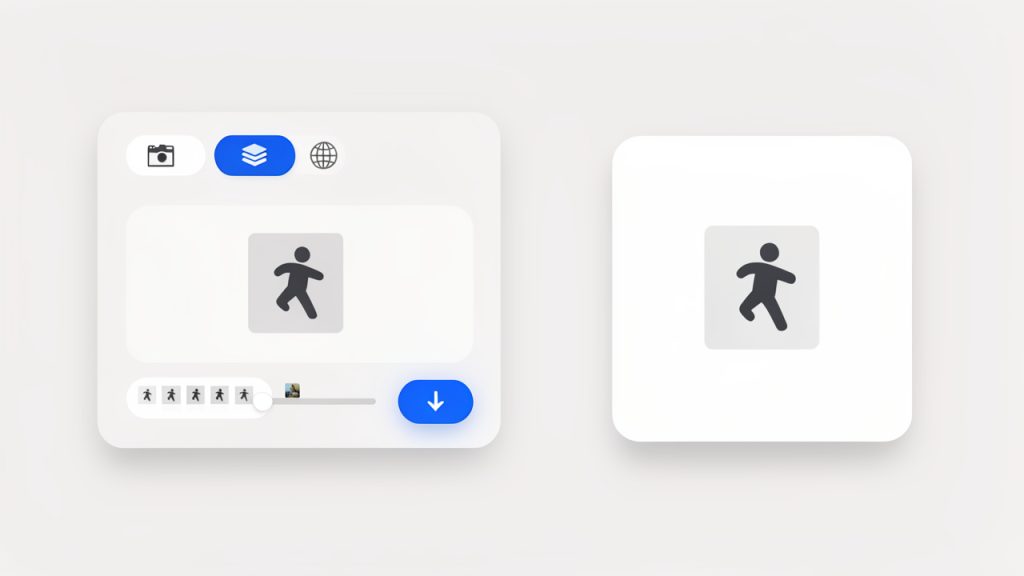
Here is an example online tool interface you might see, with a frame scrubber and export options for PNG, JPG, or WebP.
How to get started converting GIFs into images
The fastest way to start is to define your end goal before you touch the file. Ask yourself whether you need a thumbnail, a transparent asset, a shareable still, or a frame-by-frame extraction. That single decision will make the rest of the process much easier.
For most people, an online converter is enough. You upload the GIF, select the output image format, choose a frame if needed, then export. The process feels simple because it is simple. The real skill lies in choosing the right options, not in performing the conversion itself.
A practical workflow that saves time
A clean workflow prevents rework. Start by checking whether the GIF is animated or static. Then preview the frames to identify the exact still image you want. If the GIF contains text, UI elements, or product details, zoom in before exporting so you do not accidentally pick a blurred transition frame.
Next, choose the output format based on use case rather than habit. If you need a crisp on-brand visual, pick PNG. If you need a lightweight image for a blog post or internal doc, JPG may be enough. If this is going on a modern website and file size matters, WebP is worth considering.
Finally, download the image and inspect it before publishing. Look for compression artifacts, awkward cropping, lost transparency, or a frame that does not represent the animation well. A five-second check can save you from shipping the wrong asset.
Basic steps most tools follow
- Upload the GIF you want to convert.
- Choose the output format, such as PNG, JPG, or WebP.
- Select a frame if the GIF is animated, or export all frames if needed.
- Download the image and review quality before using it.
Common mistakes to avoid
One common mistake is picking the first frame automatically. In many animated GIFs, the first frame is only a transition and not the best visual. A better frame might appear a second later.
Another issue is using JPG for everything. It is familiar, but it is not always the right choice. If your image contains text, logos, sharp edges, or transparency, JPG can degrade the result more than expected.
A third mistake is expecting the conversion to improve a low-quality GIF. Conversion changes the format, not the original fidelity. If the source is poor, the output will reflect that.
Best use cases for small businesses, freelancers, and developers
For small business owners, converting a GIF into an image is useful when creating product thumbnails, email graphics, marketplace visuals, or social media stills. A clean image often performs better in places where animation is distracting or unsupported.
For freelancers, it is a practical asset-reuse strategy. You can pull stills from client GIFs for proposals, mockups, portfolio pages, or content repurposing. One animated asset can become multiple static deliverables.
For developers and web teams, converting GIFs into images can improve page speed and user experience. Not every page needs autoplay animation. In many cases, a well-chosen still image gives the same visual message with much lower weight.
Conclusion
Turning a GIF into an image is a small task with outsized value. It helps you move faster, publish cleaner assets, and use visuals in more places without format headaches. Once you understand the difference between extracting a single frame and exporting multiple frames, the process becomes far more predictable.
The next step is simple. Take one GIF you already use, decide what role the final image should play, and convert it with that purpose in mind. When you match the frame and format to the job, converting a GIF into an image becomes a reliable part of your content, design, and productivity toolkit.
Leave a Reply