
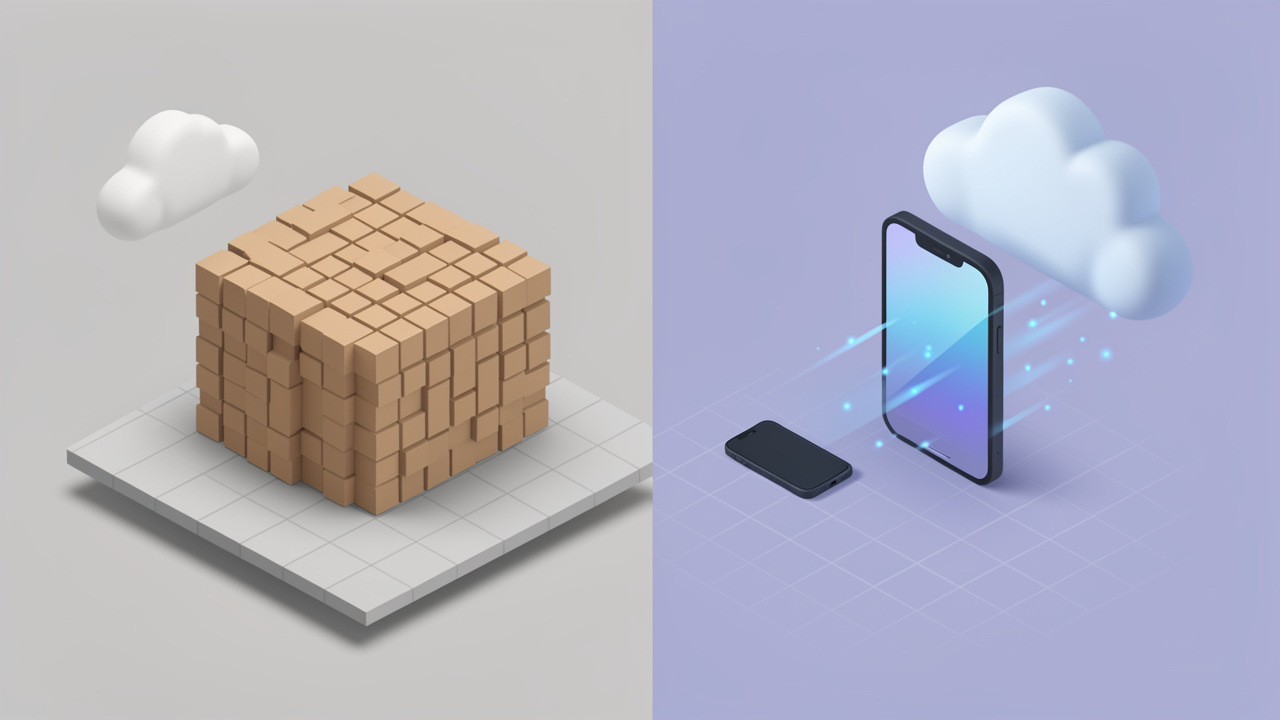
If your website feels slower than it should, your images are often the reason. Large JPG files can quietly eat bandwidth, delay page loads, and hurt the user experience, especially on mobile. Converting a JPG to WebP is one of the simplest ways to reduce image size without noticeably sacrificing visual quality.
That matters whether you run a small business site, manage client projects, sell products online, or just want faster pages with less manual work. A smart JPG to WebP workflow can improve performance, support better SEO, and make your content feel more polished. The good news is that you do not need expensive software or deep technical expertise to make the switch.
What Is a JPG to WebP Conversion?
A JPG to WebP conversion is the process of taking an image in JPG format and saving it as a WebP file instead. JPG has been a standard image format for years because it is widely supported and generally efficient for photographs. WebP, developed for the web, was designed to deliver similar visual quality at smaller file sizes, and more details are available at the WebP documentation.
In practical terms, this means you can often keep an image looking sharp while making it lighter and faster to load. That is especially valuable for websites with many product photos, blog visuals, portfolio images, or landing page graphics. Smaller files reduce the amount of data a browser needs to download, which can help pages render more quickly.
For many users, the appeal of converting JPG images to WebP comes down to speed, efficiency, and simplicity. You are not changing the content of the image. You are changing the container and compression method so the file is better optimized for modern web use.
Why WebP Has Become So Popular
Web performance has moved from a technical concern to a business concern. Visitors expect fast pages, and search engines reward strong user experience signals. Hosting and bandwidth costs add up when a site serves thousands of large images every day.
WebP fits neatly into that reality. It is widely supported in modern browsers, and it is now a common choice for websites that want to improve performance without redesigning everything from scratch. For developers, it offers a practical optimization layer. For non-technical users, it is an easy win.
There is also a productivity angle. Instead of manually resizing and compressing the same images again and again, many online tools and content systems now make JPG to WebP conversion almost automatic. That lowers the barrier for freelancers, marketers, and business owners who just need results.
JPG vs WebP at a Glance
The difference between these formats is easiest to understand side by side.
| Feature | JPG | WebP |
|---|---|---|
| Primary use | Photos and general web images | Modern web image optimization |
| Compression | Lossy | Lossy and lossless |
| Typical file size | Larger for similar quality | Often smaller at similar quality |
| Transparency support | No | Yes |
| Browser support | Very broad | Broad across modern browsers |
| Best fit | Legacy workflows, compatibility | Faster websites, modern performance needs |
This does not mean JPG is obsolete. It still works well and remains useful in many workflows. But if your goal is better web performance, WebP is often the stronger choice.
Key Aspects of Converting JPG to WebP
The biggest advantage of converting a JPG to WebP is usually file size reduction. Smaller images improve loading time, particularly on mobile connections where every kilobyte matters. A page with ten heavy JPG images can feel sluggish. The same page using optimized WebP files may feel noticeably quicker and more responsive.
That speed improvement has real consequences. Visitors are less likely to bounce. Product pages feel more professional. Content loads more smoothly in image-heavy blog posts and galleries. If your business depends on first impressions, image optimization is not a minor detail. It is part of the customer experience.
Quality vs Compression
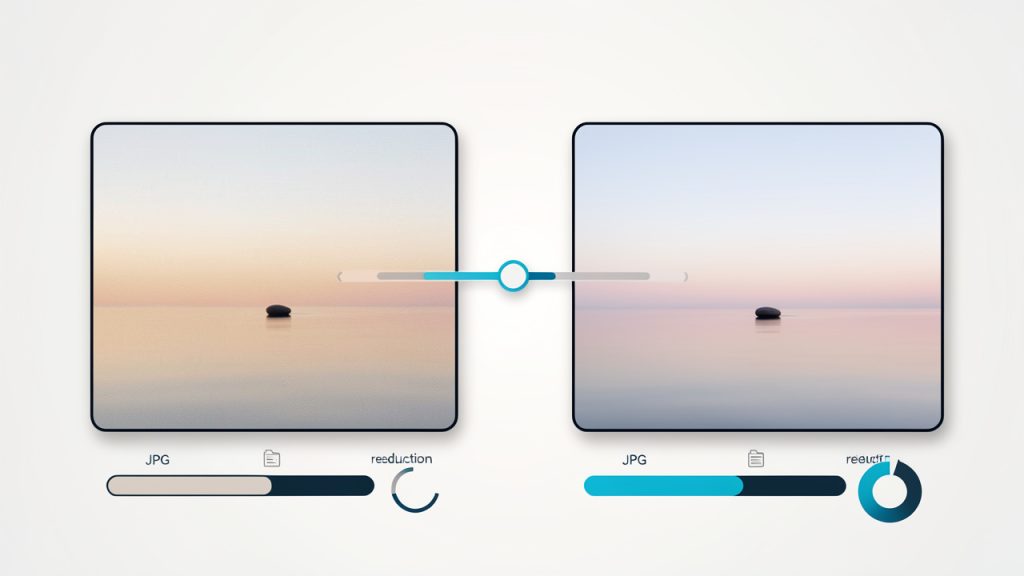
One concern many people have is image quality. That concern is valid. Any time you compress an image, you are balancing visual fidelity against file size. The goal is not to make the smallest possible file at all costs. The goal is to find the point where the image still looks clean to the human eye while taking up less space.
WebP performs well here because it can often preserve perceived quality at lower file sizes than JPG. That does not mean every converted file will always look better. Results depend on the original image, the compression level, and how the image is used. A product photo with fine texture may need gentler settings than a simple blog header image.
This is why testing matters. It helps to compare a few versions rather than assume one default export setting is perfect. A smart workflow focuses on acceptable visual quality, not theoretical perfection at 400 percent zoom.
SEO and Page Performance Benefits
Search engine optimization is about more than keywords and backlinks. Technical experience matters too. Faster pages tend to support better engagement, and optimized images reduce one of the most common sources of slow load times.
Using WebP can help improve metrics connected to user experience, especially when images make up a large share of page weight. While image format alone will not guarantee rankings, it supports the broader goal of a fast, efficient site. For small businesses competing against larger brands, these cumulative improvements can make a meaningful difference.
There is also a practical SEO benefit in media-heavy publishing. When your site serves lighter images, it can handle traffic more efficiently. Users can browse more pages with less friction. That can support longer sessions and better interaction overall.
Compatibility and Real-World Considerations
Modern browser support for WebP is strong, which is one reason the format has become mainstream. Still, compatibility is not just about browsers. It also includes your CMS, email workflows, design tools, client handoff process, and any platform where the image will be reused.
For example, a WebP image may be perfect for a website but less convenient if a client expects a file for print or for use in an older application. In those cases, it makes sense to keep the original JPG as a source file and generate WebP specifically for web delivery. That way, you preserve flexibility without giving up performance.
This is often the best mindset, JPG for source compatibility, WebP for web publishing. You do not have to treat the formats as competitors in every context. They can serve different roles in the same workflow.
When a JPG to WebP Conversion Makes the Most Sense
A conversion is especially useful when the image will be displayed on a website, app, blog, online store, or landing page. These are environments where smaller files improve speed and where browser support is already strong enough to make the format practical.
It is also valuable when you are working with many images at once. A single file saved 100 KB smaller may not seem dramatic. But across hundreds of images, the savings become substantial. That can improve performance, reduce storage needs, and make uploads more manageable.
How to Get Started With a JPG to WebP Workflow
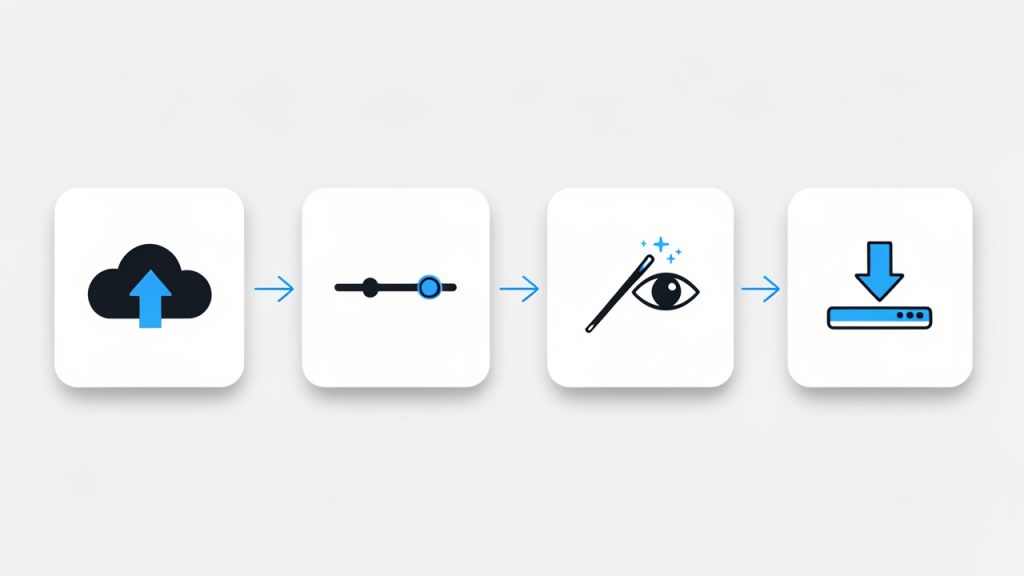
The easiest way to start is with an online converter. For most small business owners, freelancers, and productivity-focused users, this is the fastest path. You upload a JPG, choose a quality level if the tool provides that option, convert the file, and download the WebP version.
This approach is ideal when you need quick results and do not want to install software. It also works well for occasional tasks, such as optimizing blog images, updating portfolio pieces, or shrinking hero banners before uploading them to a site.
Choosing the Right Tool
Not all conversion tools are equally useful. Some focus on convenience, while others give you more control over quality, size, or batch processing. The best choice depends on how often you convert images and how much precision you need.
If you handle images regularly, look for a tool that supports batch conversion, lets you preview quality differences, and keeps the interface simple. If privacy matters, you may prefer a desktop solution or a browser-based tool with clear file handling policies. If speed matters most, prioritize drag-and-drop uploads and quick downloads.
A practical evaluation comes down to a few questions.
- Can it preserve acceptable image quality?
- Does it support multiple files at once?
- Is the workflow fast enough for repeated use?
- Does it fit your privacy and storage preferences?
If you want a lightweight, in-browser converter to experiment with, try converting JPG images to WebP with Squoosh to see immediate visual and file-size differences.
A Simple Conversion Process
For most users, the process itself is straightforward.
- Upload your JPG image to a trusted converter or image optimization tool.
- Adjust quality settings if available, aiming for a balance between clarity and file size.
- Convert and preview the result to check for unwanted artifacts or softness.
- Download the WebP file and upload it to your website or project.
That is enough to get started. Over time, you can fine-tune settings based on your content type. Product photography, blog headers, screenshots, and background images may all benefit from slightly different compression choices.
Best Practices for Better Results
A successful JPG to WebP workflow is not just about conversion. It is about using the right image at the right size. If you upload a massive 4000-pixel image for a small blog thumbnail, converting it to WebP helps, but it does not solve the whole problem. Resize before or during export whenever possible.
It also helps to keep your original JPG files. Think of them as your editable source material. If you later need a different size, a different compression level, or another format, starting from the source usually gives better results than repeatedly converting the same already-compressed file.
Naming and organization matter too. If you manage many site assets, use a clean folder structure and consistent naming convention so your optimized WebP files do not become a confusing pile of duplicates. A small amount of discipline here saves time later, especially in client work or collaborative projects.
Common Mistakes to Avoid
One common mistake is assuming every image should be converted with the same settings. Different images behave differently. A detailed photograph may need higher quality than a simple decorative background. Treating them identically can lead to either bloated files or visible quality loss.
Another mistake is focusing only on file size and ignoring actual display context. If an image looks good on the page, that matters more than microscopic differences visible only when zoomed in. Optimization should support the user experience, not chase numbers without context.
Some users also forget to test the final result on real devices. An image that looks fine on a desktop monitor may feel too soft on a high-density mobile screen, or it may be larger than necessary for its actual display dimensions. A quick check across devices can prevent avoidable issues.
Making JPG to WebP Part of a Smarter Workflow
Once you understand the basics, the next step is consistency. Rather than converting files one by one whenever you remember, build image optimization into your normal publishing process. If you write blog posts, optimize visuals before uploading. If you run an online store, prepare WebP versions as part of product image management.
This creates two benefits. First, you stop treating optimization as a cleanup task. Second, your site becomes consistently faster over time instead of improving only in isolated spots. For freelancers and agencies, this also adds professionalism to deliverables. Clients may never ask what format their images use, but they notice when pages load smoothly.
Developers can go a step further by integrating image optimization into build processes or CMS workflows. Non-technical users do not need to go that far, but the principle is the same. The more automatic the process becomes, the easier it is to maintain performance gains.
Who Benefits Most?
- Small business owners: Faster pages, better mobile experience, and more efficient product or service imagery.
- Freelancers: Cleaner deliverables, better-performing client websites, and less time spent on manual optimization.
- Developers: Better control over page weight and front-end performance.
- Content creators: Faster-loading blog posts, portfolios, and media-rich pages.
Even if your website is relatively small, image optimization is one of those improvements that compounds. A modest gain on every page becomes a noticeable upgrade across the whole site.
Conclusion
Converting a JPG to WebP is a practical, high-impact way to improve image efficiency for the web. It can reduce file sizes, support faster load times, and help create a smoother experience for visitors without forcing you into a complicated workflow. For modern websites, it is one of the easiest technical improvements to make.
The smartest next step is simple: take a few of your largest JPG images, convert them to WebP, and compare the results. Check file size, visual quality, and page speed. Once you see the difference in a real use case, it becomes much easier to turn JPG to WebP conversion into a standard part of how you publish online.
For more on browser support, see why WebP is widely supported in modern browsers, and read about user experience signals to understand how performance affects search rankings. If your site depends on first impressions, invest some time in image optimization to improve load times and overall engagement.
Leave a Reply