
Need to convert a PNG to BMP quickly, without losing control over quality or compatibility? If so, convert a PNG to BMP quickly, whether you are preparing files for legacy software, print workflows, embedded systems, Windows utilities, or design tools that still prefer bitmap images.
For small business owners, freelancers, developers, and everyday productivity-focused users, understanding how to convert a PNG image to BMP is not just about changing a file extension. It is about choosing the right format for the job, avoiding unnecessary quality issues, and making sure the image works exactly where you need it. If you have ever uploaded a PNG only to discover a program refuses it, or opened a BMP and wondered why the file is suddenly much larger, this guide will help you make sense of it.
What Is PNG to BMP?
Converting an image from PNG to BMP means taking an image stored in the Portable Network Graphics (PNG) format and saving it as a Bitmap (BMP) file. Both are raster image formats, but they are built for different purposes. PNG is widely used for web graphics, interface elements, logos, screenshots, and images with transparency, because it supports lossless compression and preserves detail well.
BMP, by contrast, is a more traditional raster image format commonly associated with Windows environments and software that expects raw or minimally processed bitmap data.
At a visual level, a PNG and a BMP can look identical. The difference is often in how the data is stored. PNG uses lossless compression, which keeps image quality intact while reducing file size. BMP files are often much larger because they may store image data with little or no compression. That makes BMP straightforward for some programs to read, but less efficient for storage and sharing.
This is why converting from PNG to bitmap format is common in practical workflows. A freelancer might need a BMP version of a logo for an older sign-making tool. A developer may need BMP assets for a legacy desktop application. A business owner could be asked to upload BMP files to a specialized printer or kiosk system. In each case, the conversion is less about aesthetics and more about compatibility, predictability, and workflow requirements.
Why People Still Use BMP
BMP is not the most modern or space-efficient format, but it remains useful. Certain older systems, Windows utilities, industrial software, and proprietary tools still rely on BMP because it is simple and consistent. That simplicity matters in environments where a lightweight parser or a rigid import process is more important than file size.
There is also a practical reason BMP sticks around. When teams use long-established workflows, changing formats can create friction. It is often easier to convert a PNG image to BMP than to redesign the toolchain around newer standards. For many users, that is the whole story: the software asks for BMP, so BMP is what they need.
PNG vs BMP at a Glance
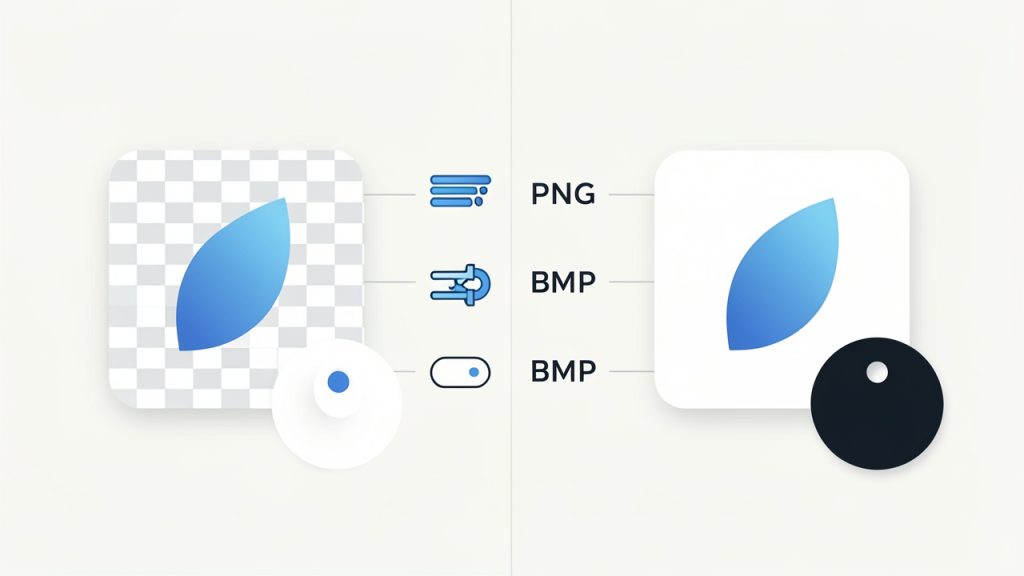
| Feature | PNG | BMP |
|---|---|---|
| Compression | Lossless compressed | Often uncompressed or minimally compressed |
| File Size | Usually smaller | Usually much larger |
| Transparency | Supported | Limited or often unsupported in basic workflows |
| Web Use | Excellent | Poor |
| Legacy Software Compatibility | Mixed | Often strong |
| Editing Simplicity | High | High, especially in older Windows tools |
| Best For | Web graphics, screenshots, logos | Legacy apps, system-level graphics, specialized software |
Key Aspects of PNG to BMP
Before you convert anything, it helps to understand what actually changes during the process. The image may look the same on screen, but format conversion can affect transparency, file size, color handling, and software compatibility.
File Size Usually Increases
The first thing most users notice is that BMP files are often much larger than PNG files. This does not mean the image became higher quality. It simply means the BMP format generally stores data less efficiently. If you convert a small PNG icon, the difference may be minor. If you convert a high-resolution screenshot or product image, the BMP version can grow dramatically.
This matters if you are managing lots of files, emailing assets, or storing graphics in a shared folder. For a one-off compatibility task, the larger size may not matter. For a high-volume workflow, it can become a real burden. That is why BMP is often best used as a delivery format for specific requirements, not as your long-term archive format.
Transparency May Not Carry Over Cleanly
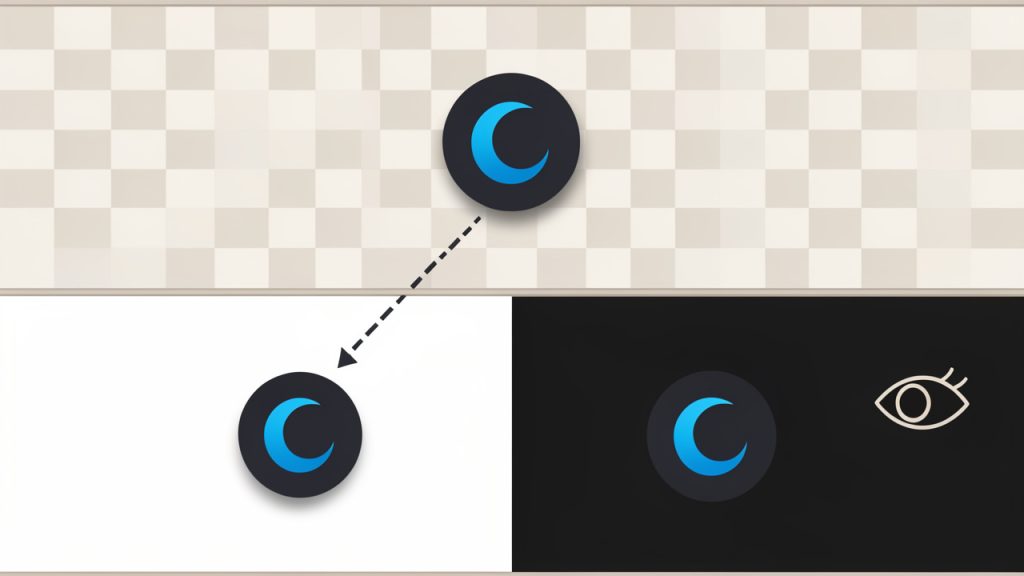
PNG supports transparent backgrounds very well, which is one reason it is so popular for logos, icons, and UI elements. BMP support for transparency is far less dependable in everyday use. In many conversions, transparent areas become a solid color, often white, black, or another background tone chosen by the software.
If your PNG includes transparency, check the converted BMP carefully. This is especially important for branding assets, overlays, and interface graphics. A logo that looks perfect as a PNG may suddenly appear inside an unwanted box when exported to BMP.
For users handling visual assets professionally, this is one of the biggest reasons to preview the result before sending it on. The conversion may be technically successful while still being visually wrong for the intended use.
Image Quality Is Usually Preserved
The good news is that converting PNG to BMP does not usually introduce lossy compression artifacts. Since PNG is lossless and BMP is generally not a lossy format either, detail is typically preserved. Text, crisp edges, and flat-color graphics often survive the conversion just fine.
That said, quality can still be affected indirectly. If the tool changes color depth, removes alpha transparency, or applies automatic settings, the result can look different. For example, a 32-bit PNG may be exported into a lower-bit BMP depending on the software and chosen options. In that case, the issue is not the format alone, but the export settings behind the conversion.
Color Depth and Compatibility Matter
Not all BMP files are created equal. Some tools let you save BMP images in different bit depths, such as 8-bit, 16-bit, 24-bit, or 32-bit. This sounds technical, but the practical implication is simple: the target program may only accept certain kinds of BMP files.
A developer working with embedded displays may need a specific color depth. A manufacturing system may reject BMP files unless they match a narrow standard. A normal user might never notice this distinction, but in business and technical environments, it can be the difference between a file that opens and one that fails.
If you are converting for a known destination, it is smart to ask one question before starting: what exact BMP format does the receiving software expect? That can save a lot of trial and error.
When Converting to BMP Makes Sense
Converting a PNG image to BMP is useful when the destination demands it. This commonly happens with older Windows applications, custom software tools, printers, scanners, industrial interfaces, and internal systems built years ago. It can also come up when preparing graphics for game mods, icon resources, desktop applications, or firmware interfaces.
It makes less sense when the image is mainly for websites, social sharing, cloud storage, or modern design collaboration. In those environments, PNG is usually the better choice because it is smaller, cleaner for transparency, and more universally efficient. BMP should usually be viewed as a purpose-driven format, not the default option.
How to Get Started with PNG to BMP
The conversion itself is easy. The key is choosing the right method and checking the result with the intended use in mind. You can use an online converter, desktop software, built-in operating system tools, or image editors, depending on how often you do this and how much control you need.
Choosing the Right Conversion Method
If you only need to convert one or two files, an online PNG to BMP converter is often the fastest route. These tools are convenient because they run in the browser, require no installation, and usually complete the job in seconds. For busy freelancers or small teams, that speed can be valuable.
Still, convenience is not the whole picture. If your images contain sensitive information, such as customer data, internal UI screenshots, product mockups, or confidential branding assets, uploading them to a third-party service may not be ideal. In those cases, a desktop tool gives you more privacy and often more control.
If you convert files regularly, or need to manage color depth and output settings, using an image editor or dedicated desktop app is usually the better long-term choice. Developers and technical users may also prefer local tools because they are easier to automate and test consistently.
A Simple Workflow for Most Users
For most people, the process looks like this:
- Open the PNG file in a trusted image converter or editor.
- Choose Save As or Export and select BMP as the output format.
- Review format options such as color depth, background handling, or resolution if available.
- Save the BMP file and open it to verify appearance and compatibility.
That is the basic workflow, but the final verification step matters more than many users expect. A file can convert successfully and still fail your real requirement. Maybe the background changed, the software rejects the bit depth, or the file is too large for the target system. A quick visual and functional check prevents avoidable rework.
What to Check After Conversion
Once the BMP is created, inspect it with purpose. If it is a logo, confirm the background looks right. If it is for software, test whether the program accepts it. If it is going to print equipment or a kiosk, run a sample import before converting your whole batch.
You should also compare dimensions and sharpness. Some tools may preserve everything perfectly, while others apply hidden defaults. This is especially true with screenshots, interface assets, and line art, where even a small change is easy to spot.
For business use, consistency matters. If you are converting multiple files for a client or project, use the same tool and the same settings each time. That reduces surprises and keeps the output uniform.
Online Tools vs Desktop Tools
| Method | Best For | Advantages | Trade-Offs |
|---|---|---|---|
| Online converter | Quick one-off tasks | Fast, simple, no install | Privacy concerns, fewer settings |
| Desktop image viewer/editor | Regular use | More control, offline, reliable | Requires installation |
| Professional image editor | Detailed asset work | Advanced export options, color control | More complexity than casual users need |
| Automated local workflow | Developers and batch processing | Efficient for scale, repeatable results | Setup takes more effort |
Tips for Better Results
A few practical habits can make your PNG-to-bitmap conversion smoother. Start with the highest-quality original PNG you have. If transparency matters, decide in advance what background color should replace it if the target BMP workflow does not support alpha properly. If a client or system has format requirements, ask for them early rather than guessing.
It is also wise to keep the original PNG file. BMP is often the required output, but PNG is usually the better working source because it is smaller and more flexible. Think of the BMP as the version you generate for a task, not necessarily the master file you build everything from.
If you are working at scale, naming conventions matter too. Clean file names, version labels, and organized folders can save time when you have to regenerate assets with different settings later.
Conclusion
Converting a PNG to BMP is a simple action with important practical implications. The image may look similar, but the file behaves differently in storage, compatibility, transparency, and workflow integration. PNG remains the better format for many modern uses, while BMP still holds value where older systems, specialized tools, or strict software requirements are involved.
The best next step is straightforward: choose a trusted converter, run a test file, and verify the BMP in the exact environment where it will be used. If it works, repeat the process with consistent settings. If it does not, check transparency, color depth, and file requirements first. Those details usually explain why a conversion succeeds technically but fails in practice.
Leave a Reply