JNTZN

Autore: basti

  • I migliori strumenti di controllo grammaticale online gratuiti: confronta i principali strumenti

    I migliori strumenti di controllo grammaticale online gratuiti: confronta i principali strumenti

    A single typo can make a freelance proposal look careless, a client email sound rushed, or a landing page quietly lose trust. That is why so many people search for an online grammar checker free solution, not because they want perfect prose, but because they want a fast, reliable second pair of eyes before they hit publish or send.

    The good news is that free grammar tools are genuinely useful now. The bad news is that they are not all useful in the same way. Some are better for email and day-to-day business writing. Some are stronger for style and readability. Others help multilingual users catch awkward phrasing that basic spellcheck misses. If you pick the wrong one, you may end up with lots of noisy suggestions and not much real improvement.

    This guide compares the best free online grammar checkers, explains how they work, and shows you how to choose one based on your writing, privacy needs, and workflow. It also covers the part most roundup articles skip, namely where these tools fail, when a free plan is enough, and how to use them without blindly accepting every change.

    What is an Online Grammar Checker and How Does It Work?

    An online grammar checker is a web-based or app-based writing assistant that scans your text for grammar, punctuation, spelling, clarity, style, and sometimes tone. At a basic level, it looks for mistakes such as subject-verb disagreement, repeated words, missing commas, and misspellings. More advanced tools also flag wordiness, passive voice, awkward phrasing, and inconsistent tone.

    That broad feature set is why free grammar tools have become popular with students, consultants, marketers, developers, and small business owners. They do more than spellcheck. A standard spellchecker might catch teh instead of the. A grammar checker may also suggest changing There is many reasons to There are many reasons, or point out that your should actually be you’re.

    Definition and core functions

    Most modern checkers focus on five core areas. The first is grammar, which covers sentence structure and agreement. The second is punctuation, such as commas, apostrophes, and capitalization. The third is spelling, including contextual spelling mistakes. The fourth is style, which includes clarity, concision, and readability. The fifth is tone, which tries to estimate whether your writing sounds formal, confident, friendly, or overly blunt.

    Tone matters more than many people realize. If you write sales emails, support replies, proposals, or cover letters, grammar is only part of the job. The wording also needs to sound appropriate for the reader. Some AI-assisted tools now try to help with that, although their tone detection is still imperfect.

    How modern checkers use rules, statistical models, and AI

    "A

    Older grammar checkers relied heavily on rule-based systems, using hand-built language rules such as, “a singular subject usually takes a singular verb.” Rule-based tools are often transparent and good at catching predictable errors, but they can be rigid. Newer tools mix those rules with statistical language models and AI-based writing suggestions. In simple terms, the software does not just ask, “Does this break a grammar rule?” It also asks, “Does this phrase look unusual compared to how fluent writers usually write?” That combination is why modern tools catch more subtle issues than the grammar software of a decade ago.

    AI is not infallible. It can overcorrect intentional phrasing, misunderstand industry jargon, and flatten creative voice. A grammar checker is best seen as a smart assistant, not a final editor.

    Where they run

    Free online grammar checkers now show up in several formats. The most common is the web editor, where you paste text into a browser and review suggestions. Many also offer browser extensions that work inside Gmail, LinkedIn, Google Docs, and other web apps. Some provide desktop apps, mobile keyboards, or integrations for Microsoft Word.

    For productivity-minded users, integrations matter almost as much as accuracy. A good checker you never remember to open is less useful than a slightly less powerful one that works wherever you write.

    Why Use a Free Online Grammar Checker? Benefits and Typical Use Cases

    A free grammar checker saves time in a way manual proofreading rarely can. It scans instantly, flags obvious issues, and helps you clean up first drafts before you spend mental energy polishing. For busy professionals, that speed is often the main benefit.

    There is also a consistency advantage. If you write lots of emails, support documentation, proposals, blog posts, or product copy, a grammar checker helps maintain a baseline level of quality. It catches errors you stop seeing because you are too close to the text.

    Common benefits

    The biggest benefit is simple, fewer avoidable mistakes. That matters whether you are a solo founder emailing leads or a developer writing documentation. Small errors do not always destroy credibility, but repeated errors chip away at it.

    Another advantage is that these tools act like a lightweight editorial pass. They can spot duplicate words, long-winded sentences, and clunky transitions. Even when you reject the actual suggestion, the alert itself can help you notice where the sentence needs another look.

    Use cases by audience

    For students, free tools are helpful for drafts, essays, personal statements, and discussion posts. They can reduce surface-level mistakes, although they should not be trusted as the only check for academic writing.

    For professionals and freelancers, free grammar checkers are especially useful for proposals, invoices, outreach emails, reports, and website copy. These are high-frequency writing tasks where speed matters.

    For non-native English speakers, grammar checkers can be even more valuable. They often catch article usage, preposition choices, and awkward constructions that basic spellcheck misses. Tools with paraphrasing or rewrite suggestions can also help users sound more natural.

    For content creators and marketers, the best tools do more than fix grammar. They improve readability and help adjust tone for a landing page, newsletter, social post, or blog article.

    When a free tool is enough

    A free grammar checker is usually enough if you mainly need basic grammar, punctuation, spelling, and light clarity improvements. That covers most short business writing, casual professional communication, and first-pass editing.

    You may need a premium plan, or human editing, if you require advanced rewrites, plagiarism detection, deep style analysis, team features, or support for sensitive client content. Academic manuscripts, legal writing, investor documents, and brand-critical marketing copy often deserve more than a free automated check.

    Top Free Online Grammar Checkers (Side-by-Side Overview)

    The tools below are among the most widely used options for anyone searching for an online grammar checker free solution. Each one takes a slightly different approach. Some prioritize all-purpose correction. Others focus on readability, multilingual support, or rewrite assistance.

    Quick comparison table

    Tool Best For Free Plan Strengths Main Limitations on Free Tier Platforms
    Grammarly General business writing Strong grammar, punctuation, browser support Advanced style, tone rewrites, plagiarism gated Web, browser, desktop, mobile
    LanguageTool Multilingual users, privacy-conscious users Good grammar checks across multiple languages Some advanced suggestions limited Web, browser, desktop, mobile
    QuillBot Grammar Checker Quick cleanup and paraphrasing-adjacent workflows Simple grammar correction, easy interface Broader writing features split across tools Web, browser extensions
    ProWritingAid Writers who want deeper analysis Good reports and style guidance Many advanced reports and usage limits Web, browser, desktop, Word
    Hemingway Editor Readability and clarity Great for simplifying dense writing Not a true grammar-first checker Web, desktop
    Ginger ESL users and sentence rewrites Helpful corrections and rewrite support Free tier can feel restricted Web, desktop, mobile

    "Clean

    1. Grammarly

    Grammarly is still the default recommendation for many users because it balances ease of use, broad platform support, and solid free grammar checking. The free version is particularly good for catching everyday mistakes in emails, documents, and browser-based writing fields. If you live in Gmail, Google Docs, LinkedIn, or Slack, its extension is convenient.

    Its biggest strength is accessibility. You do not have to change your writing process much. Grammarly meets you where you already work, then highlights issues in real time. For freelancers, consultants, and small teams, that frictionless experience is often more important than having the deepest editorial analysis.

    Key features

    Grammarly provides real-time grammar and spelling checks, a browser extension for web writing, and tone and clarity signals in many contexts. It also offers desktop and mobile apps so you can get suggestions across devices.

    Pros and cons

    Grammarly is very easy to start using, and its free tier covers general mistakes well. Integration across common writing platforms is excellent. On the downside, many advanced suggestions are locked behind premium, the tool can overflag stylistic choices, and privacy-sensitive users may want to review policies carefully.

    The free plan is enough for basic correction, while premium features add advanced rewrites, vocabulary suggestions, and plagiarism checking.

    Website: https://www.grammarly.com

    "Screenshot

    2. LanguageTool

    LanguageTool is one of the strongest choices if you want a free grammar checker that supports multiple languages and offers a practical balance between usability and flexibility. It is especially appealing for international users, multilingual teams, and anyone writing in more than English alone.

    It does not feel as tightly locked into one ecosystem. It works through a web editor, via extensions, and in several app environments. It also has a reputation for being a practical option for users who care about control and language coverage.

    Key features

    LanguageTool offers grammar and style checking in many languages, browser extensions and office integrations, a picky mode for stricter checks, and options that appeal to privacy-aware users.

    Pros and cons

    LanguageTool provides excellent multilingual support and useful style suggestions with flexible setup options. Some advanced recommendations are limited to paid plans, the interface can feel utilitarian compared to rivals, and not every suggestion is equally polished across languages.

    Its free version is generous for everyday writing, while paid plans unlock fuller style suggestions and higher usage limits.

    Website: https://languagetool.org

    3. QuillBot Grammar Checker

    QuillBot is known more broadly for paraphrasing, but its grammar checker is a solid free option for users who want a quick browser-based cleanup tool. It is especially useful if your workflow already includes QuillBot’s rewriting or summarizing features.

    For students, bloggers, and non-native speakers, QuillBot feels approachable. The interface is simple, and the tool focuses on fast corrections rather than overwhelming you with deep editorial reports. That makes it good for short drafts and quick revisions.

    Key features

    QuillBot provides fast, approachable grammar corrections with a simple interface and easy access to paraphrasing tools when you want rewrite options.

    Pros and cons

    QuillBot is quick to use and works well for fast fixes. Advanced writing help is spread across separate tools, and it is less comprehensive than some dedicated grammar-first options. It’s also less ideal for enterprise or workflow-heavy users.

    Website: https://quillbot.com

    "Screenshot

    4. ProWritingAid

    ProWritingAid is better thought of as a deeper writing analysis platform than a lightweight spellcheck replacement. Its free functionality can help everyday users, but it shines most with longer-form writers who want feedback on style, pacing, readability, repetition, and structure.

    For fiction writers, bloggers, and long-form content marketers, this extra depth is valuable. Where some tools simply say “change this,” ProWritingAid helps you understand broader writing patterns. That said, its interface can feel more analytical than casual users need.

    Key features

    ProWritingAid delivers grammar and style reports, detailed writing analytics, and integrations for Word and browser workflows, making it useful for long-form editing.

    Pros and cons

    ProWritingAid is excellent for deeper style analysis and reporting, which suits serious writers and editors. It can feel heavy for simple email editing, free usage limits are noticeable, and there is a learning curve compared with simpler tools.

    The free plan offers limited access, while premium expands the number of reports, integrations, and document support.

    Website: https://prowritingaid.com

    5. Hemingway Editor

    "Screenshot

    Hemingway is not the strongest pure grammar checker on this list, but it deserves a place because it solves a different problem extremely well, readability. If your writing is technically correct yet still hard to read, Hemingway can be more useful than a grammar-first tool.

    It highlights long sentences, dense phrasing, excessive adverbs, and passive voice. For website copy, blog content, sales pages, and internal documentation, that kind of clarity feedback can be more valuable than catching a missing comma.

    Key features

    Hemingway emphasizes readability by highlighting complex sentences, dense phrasing, and passive constructions, and it provides a distraction-free interface for focused editing.

    Pros and cons

    Hemingway is excellent for simplifying dense writing and is very useful for readability-focused editing. It is not a comprehensive grammar checker, can push writing toward oversimplification, and is less helpful for nuanced correctness issues.

    There is a free web version, with desktop options available separately.

    Website: https://hemingwayapp.com

    6. Ginger

    Ginger has long focused on helping users improve sentence construction, making it particularly useful for ESL learners and business users who want rewrite-style support. It combines grammar correction with phrasing assistance in a way that feels practical for everyday communication.

    Its interface and brand may not feel as dominant as Grammarly’s, but it still earns attention for users who care about sentence-level fixes and alternative wording. It can be a useful secondary tool when a first checker catches errors but does not help enough with flow.

    Key features

    Ginger provides grammar correction alongside sentence rephrasing, with desktop and mobile support for users who want alternative wording suggestions.

    Pros and cons

    Ginger is helpful for non-native English speakers and offers useful rewrite-style support. Free tier limitations are noticeable, it is less widely integrated than top rivals, and the interface is less streamlined than some newer tools.

    Ginger uses a freemium model, with more robust writing assistance available in paid plans.

    Website: https://www.gingersoftware.com

    How to Choose the Right Free Grammar Checker for Your Needs

    The best free grammar checker is not necessarily the one with the most features. It is the one that fits your writing habits, tolerance for noise, and privacy requirements. If you write short emails all day, you want speed and browser integration. If you write long articles, you may care more about readability and style analysis.

    Accuracy also depends on what you write. A tool that performs well on general business English may struggle with legal language, technical documentation, creative dialogue, or industry shorthand. The right question is not “Which tool is best?” but “Best for what kind of writing?”

    Decision factors that matter

    Start with accuracy for your use case by pasting in a real sample, not a polished paragraph from a homepage. Check privacy, especially if you handle client data, contracts, medical information, or internal business content. Then evaluate language support, integrations, interface quality, and the likely cost to upgrade if the free plan feels too limiting.

    A browser extension is a huge advantage for many users, but not for everyone. Some people prefer a clean web editor because they do not want suggestions popping up in every text field online. Others want offline or desktop support because they write in Word or work with sensitive documents.

    Quick decision checklist

    If you want the shortest path to a good choice, use this simple filter: for general business convenience, start with Grammarly. For multilingual or privacy-aware needs, try LanguageTool. Students who want quick web-based edits will find QuillBot approachable. Long-form writers and editors benefit from ProWritingAid. Marketers focused on readability should use Hemingway. ESL users needing sentence help may prefer Ginger.

    Red flags to watch for

    A free tool stops being helpful if the privacy policy is vague, upload limits are too restrictive, or the interface buries basic suggestions behind constant upgrade prompts. Also be cautious if a tool offers very little detail on how it handles stored text, shared data, or AI training. Poor context awareness is another red flag; if a tool keeps flagging correct industry terms or pushing obviously wrong changes, it may create more editing work than it saves.

    Step-by-Step: Using a Free Online Grammar Checker Effectively

    Most people get mediocre results from grammar tools because they use them too late or trust them too much. The best workflow is not “paste text, accept all, done.” It is a short editing sequence where the tool helps you think more clearly.

    Preparing your text and context

    Before checking grammar, decide who the writing is for and how formal it should sound. A sales email, support response, investor update, and blog post all need different wording. If the tool allows tone or audience context, use it. Even a rough context cue improves suggestions.

    Next, clean up obvious issues yourself. Remove duplicate fragments, unfinished sentences, and placeholder notes. Grammar tools work better when the draft is complete enough to show your intended meaning.

    Best practices for accepting or rejecting suggestions

    Treat every suggestion like a junior editor, not a law. Ask two questions: Is the suggestion technically correct, and does it improve the sentence for this audience? Sometimes the answer to the first is yes and the second is no. For example, a tool might suggest simplifying a sentence that is deliberately formal because you are writing a proposal or legal notice. In that case, precision may matter more than simplification, so reject the change.

    How to combine tools for better results

    A strong workflow often combines one grammar checker with one readability tool and a final human pass. You might use Grammarly or LanguageTool for correctness, then Hemingway for clarity, then do a final manual read for tone and nuance. If you publish professionally, especially in academic, legal, or brand-sensitive contexts, consider grammar software as the first screen, not the final authority.

    Privacy, Security, and Data Concerns with Free Grammar Tools

    Privacy is one of the most overlooked parts of choosing an online grammar checker free tool. Many people paste client emails, contracts, internal strategy documents, resumes, or product roadmaps into these platforms without thinking about where that text goes.

    Because these tools often process writing in the cloud, your text may be transmitted to remote servers for analysis. That does not automatically make a tool unsafe, but it means you need to read the privacy terms more carefully than most roundup posts suggest.

    What to check in a privacy policy

    Look for plain answers to these questions: How long is text retained? Is content used to improve models or services? Is data shared with subprocessors or third parties? Can you delete stored content? Are there different terms for free users versus business users? If the language is overly vague, that is worth noticing. A privacy policy should tell you enough to understand the risk level, not force you to guess.

    Safer options for sensitive content

    If you work with sensitive information, the safest options are typically local editing tools, on-device solutions, or paid business plans with stronger contractual protections. In some cases, open-source or self-hosted language tools can make sense for technical teams.

    For many solo users, a practical middle ground is to avoid pasting highly sensitive text into web editors and instead use desktop integrations or anonymized drafts wherever possible.

    Practical tips to reduce risk

    If you need a grammar check on sensitive material, remove names, account numbers, pricing details, internal code names, and confidential identifiers first. Replace them with placeholders, run the check, then restore the original details locally. That extra minute is often worth it. Good writing is valuable, but not at the cost of exposing information that should stay private.

    Limitations and Common Mistakes of Free Grammar Checkers

    Free grammar tools are useful, but they have blind spots. They are strongest on surface-level correctness and weakest on context, nuance, voice, and specialized language. This matters because the closer your writing gets to persuasion, creativity, or technical precision, the more costly a bad suggestion can be.

    They also struggle with intentional rule-breaking. Creative writing often uses fragments, repetition, or unusual punctuation for effect. Marketing copy sometimes does the same. A tool may flag those choices as errors even when they are doing their job.

    Typical false positives and false negatives

    A false positive is when the tool flags something that is not actually wrong. For example, in the sentence “Let’s move fast. Really fast.” a checker may dislike the fragment. But in marketing copy, that fragment may be intentional and effective.

    A false negative is when the tool misses a real problem. For example, “We help startups scale securely, quickly, and without increasing operational complexity for teams that are already overloaded” may be grammatically acceptable, but still too dense for easy reading. Some grammar tools will let that pass.

    Jargon can also confuse checkers. A developer writing “containerized microservices” or a finance professional writing “EBITDA adjustments” may trigger irrelevant suggestions, especially in tools trained mostly on general-purpose prose.

    When to get human editing

    If the stakes are high, human review still matters. That includes investor decks, legal terms, grant applications, academic submissions, thought leadership articles, and major website copy. A human editor can understand subtext, persuasion, and audience expectations in ways a free grammar checker cannot. Use software to catch what is obvious, then apply judgment or a human pass to refine what matters.

    Advanced Tips: Getting Better Results From Any Grammar Tool

    You can improve almost any grammar checker by giving it better input and using it in the right sequence. This matters even more now that many tools mix rules with AI suggestions.

    How to give AI-based tools better context

    If the tool allows custom instructions or rewrite context, be specific. Tell it the audience, desired tone, reading level, and purpose. For example, “Rewrite for a busy B2B client, concise, confident, and polite” will usually produce better results than asking for a generic improvement. Context helps the model choose between technically valid but stylistically different options.

    Combining rule-based and AI suggestions

    A useful pattern is to trust rule-based corrections more for punctuation, agreement, and spelling, while treating AI-style rewrites as optional ideas. Rules are often reliable for mechanics. AI can be great for clarity, but it is also more likely to distort your meaning. This separation keeps you from accepting a polished-sounding sentence that is less accurate than the original.

    Build a personal editing checklist

    The most effective writers do not rely only on tools. Create a short style checklist for recurring issues, such as sentence length, jargon, headline tone, Oxford comma preference, contractions, or preferred product names. Once you know your patterns, grammar tools become more useful because you are not asking them to define good writing for you. You are using them to support standards you already understand.

    Frequently Asked Questions

    Are free grammar checkers reliable enough for academic work?

    They are reliable enough for basic proofreading, but not for final academic review. They can catch surface-level issues, yet they may mishandle discipline-specific wording or make style suggestions that do not fit academic conventions. For important submissions, combine a grammar tool with manual review and, if possible, a human editor or supervisor.

    Do grammar checkers store or use my writing to train models?

    Sometimes, depending on the tool and plan. Policies differ. Some services retain text temporarily for processing, some may use data for service improvement under certain terms, and some business tiers offer stronger protections. Always review the current privacy policy before uploading sensitive content.

    Can they detect plagiarism?

    Some can, but plagiarism detection is usually not fully included in free plans. Even when available, it is often part of a premium feature set or a separate product. If plagiarism screening matters for academic or publishing reasons, confirm exactly what the free tier includes before relying on it.

    Conclusion, Quick Recommendations and Next Steps

    If you want the safest all-around starting point, begin with Grammarly for general writing convenience or LanguageTool if you need multilingual support or want a strong alternative. Choose Hemingway if readability is your primary goal, ProWritingAid if you write long-form content, and QuillBot or Ginger if you want quick sentence help and easy web-based editing.

    The best next step is practical. Take one real piece of writing, such as an email, proposal, blog intro, or support reply, and test it in two tools from this list. Compare not just how many errors they find, but whether the suggestions actually improve the message. That small test will tell you more than any feature page.

    For further improvement, keep a trusted style reference nearby, such as the AP Stylebook, Chicago Manual of Style, or your own internal brand guide. A free online grammar checker is excellent for catching mistakes. Your judgment is what turns clean writing into effective writing.
  • Il miglior generatore di codici QR online: Scegli, Crea, Confronta

    Il miglior generatore di codici QR online: Scegli, Crea, Confronta

    A good QR code generator online can turn a plain link, menu, contact card, or payment request into something people can scan in seconds.

    A bad one can leave you with blurry exports, broken redirects, weak analytics, or a printed code you cannot change after 1,000 flyers are already out the door.

    That is why choosing the right tool matters. Small business owners want something fast and affordable. Freelancers care about branding and ease of use. Developers often need APIs, automation, and predictable output. This guide covers all three angles, with a practical how-to, a balanced comparison, and a clear decision framework so you can pick the right online QR code generator without trial and error.

    What is an online QR code generator?

    Quick definition and how it works

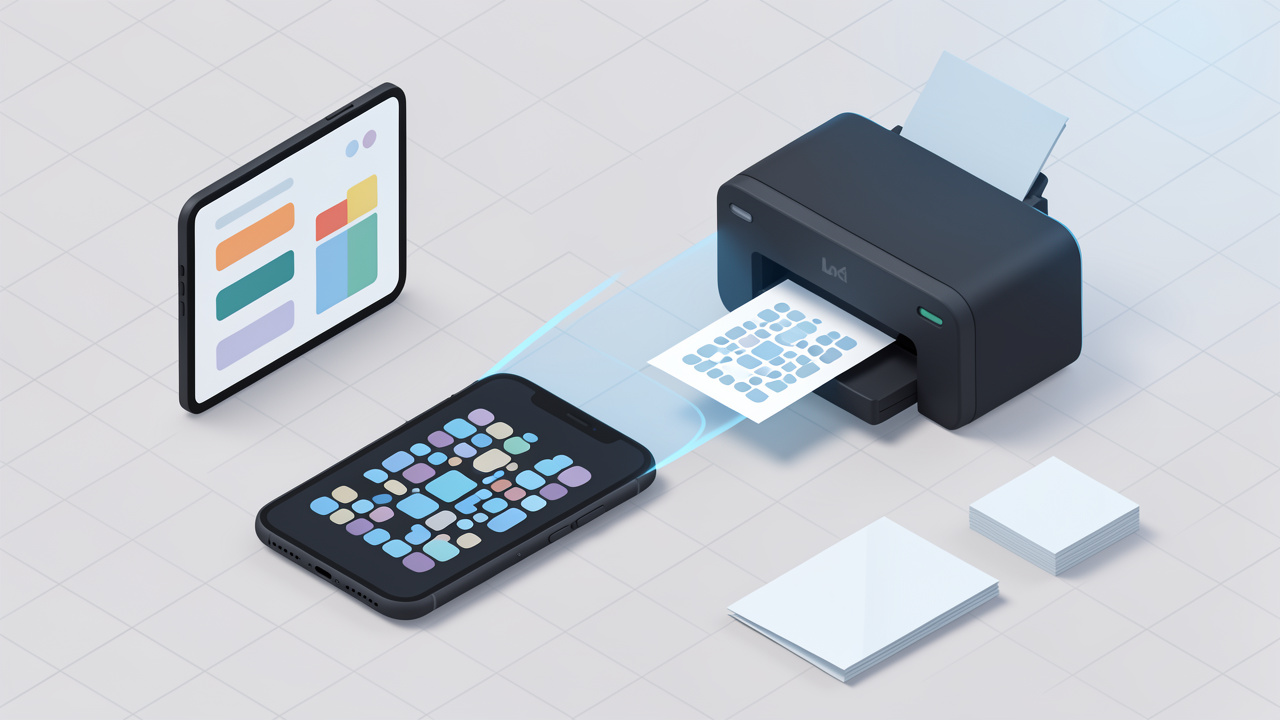
    An online QR code generator is a web-based tool that converts information into a scannable QR code image. Instead of installing software, you open a browser, choose a content type, paste in your data, and download the finished code as an image or vector file.

    Behind the scenes, the tool encodes your content into a matrix of square modules. A phone camera reads that pattern, reconstructs the data, and triggers an action such as opening a URL, joining Wi-Fi, saving a contact, or displaying text. Most generators also let you choose export formats like PNG, SVG, or PDF, and many offer design controls such as colors, frames, and logo placement.

    QR codes also include error correction, which allows the code to remain scannable even if part of it is damaged or covered. That is useful on packaging, signage, or business cards. But higher error correction can make the pattern denser, so customization needs to be handled carefully.

    Common QR code types (URL, vCard, Wi‑Fi, text, email, SMS, PDF, event)

    Most online tools support the most common QR code formats used by businesses and individuals. A URL QR code is the simplest and most common, often used for websites, menus, forms, landing pages, app downloads, and portfolios.

    A vCard QR code stores contact details so someone can save your name, phone number, email, and company instantly. Wi‑Fi QR codes let guests join a network without typing a password. Email and SMS QR codes prefill communication details, which is useful for support or lead capture. PDF and file-based QR codes point users to downloadable assets such as brochures or manuals. Event QR codes can contain calendar information like date, time, and location.

    For business use, URL and dynamic landing page codes dominate because they are flexible and measurable. For personal use, vCard, Wi‑Fi, and text codes are often enough.

    Static vs dynamic QR codes, key differences and use cases

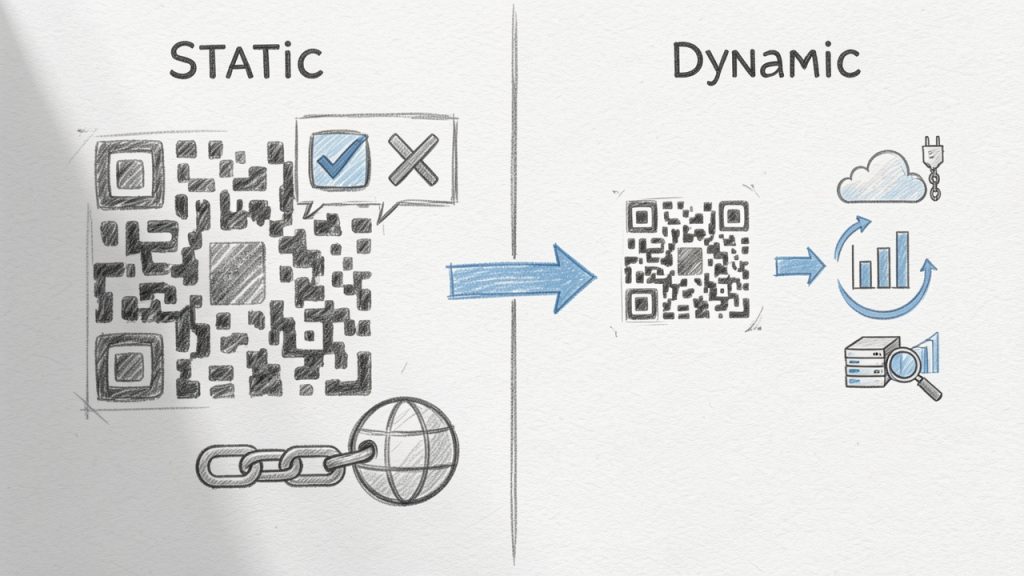
    A static QR code directly stores the final content. If you encode a URL into it, that URL is permanent. Static codes are usually free, simple, and ideal for information that will not change, such as a personal website, a permanent portfolio link, or a stable support page.

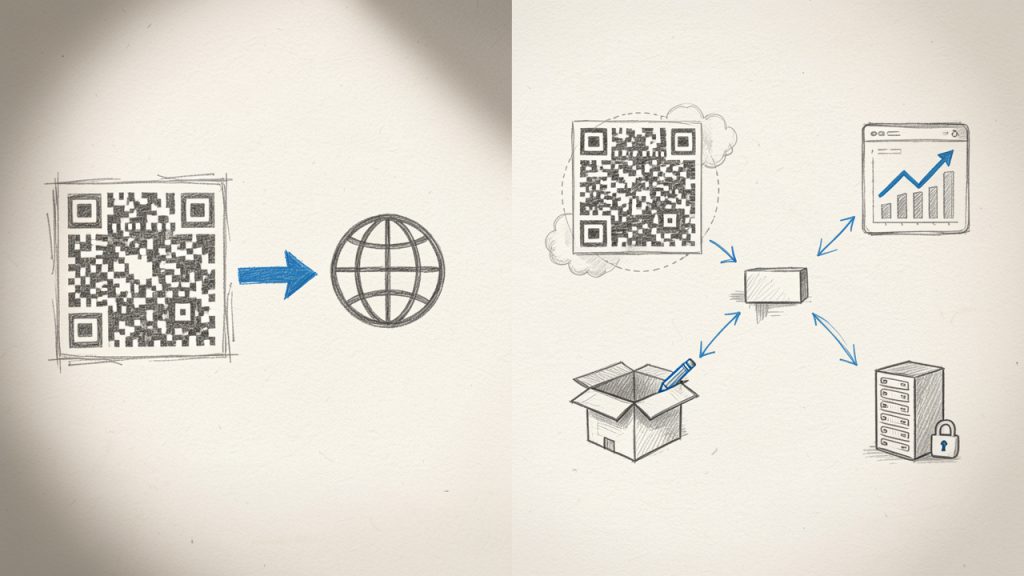
    A dynamic QR code points to a short redirect URL managed by the provider, which means you can change the final destination later without changing the printed code. This is extremely useful for restaurant menus, campaigns, product packaging, event materials, and any situation where content may evolve after printing.

    Dynamic codes also enable scan analytics, device insights, geographic trends, and campaign management. The trade-off is that they usually require a paid plan and depend on the provider’s infrastructure. If the subscription ends or the provider changes limits, your code behavior may be affected, so provider reliability is a real selection factor, not just a pricing detail.

    Diagram comparing static vs dynamic QR codes: left panel shows a static QR encoding a final URL, right panel shows a dynamic QR pointing to a short redirect URL, editable destination, and analytics dashboard

    Side-by-side diagram comparing static vs dynamic QR codes: left encodes a full URL, right points to a provider-managed redirect with editable destination and analytics

    Why use an online QR code generator, benefits and limitations

    Benefits, speed and accessibility

    The main appeal of a QR code generator online is speed. You can go from idea to downloadable file in under a minute, without installing desktop software or dealing with graphic design tools. That matters when you need a code for a flyer, invoice, event badge, or product insert right away.

    Online tools are also accessible from anywhere. A freelancer can create a vCard QR code on a laptop, a café owner can update a menu from a tablet, and a marketer can build campaign codes from a browser while collaborating with a remote team. Many platforms provide templates, brand color controls, logo options, and multiple file formats so the same code can be used on social posts, posters, print collateral, and packaging.

    Limitations, privacy and reliability

    Not every free tool is truly free in practical terms. Some add watermarks, limit high-resolution exports, or gate dynamic codes behind a subscription. Others let you build a code but retain control over tracking links, analytics dashboards, or branded landing pages.

    Privacy is another real issue. If you create dynamic QR codes through a third-party platform, that provider may process scan data, destination URLs, campaign names, or visitor metadata. For basic use, that may be acceptable. For healthcare, finance, internal operations, or regulated customer data, it may not be.

    Reliability matters too. If you print a dynamic code on packaging and the provider’s redirect service fails, users hit a dead end. For mission-critical use, you want strong uptime, account controls, and a clear understanding of what happens if your plan lapses.

    When to choose a free tool versus paid or enterprise solutions

    A free tool makes sense when you need static QR codes, simple exports, and no analytics. It is perfect for portfolio links, Wi‑Fi access cards, contact sharing, internal labels, or one-off printed materials where the destination will not change.

    A paid tool is better when you need dynamic redirects, tracking, campaign organization, editable destinations, multiple team members, or brand consistency across many codes. An enterprise solution becomes worthwhile when QR codes are tied to customer journeys, asset management, retail packaging, large events, or compliance-sensitive workflows.

    How to pick the best QR code generator for your needs

    Key criteria you should check

    Start with the use case, not the tool. If you need a QR code for a business card, almost any solid generator will do. If you need to manage 500 product QR codes, rotate destinations seasonally, and export data into your reporting stack, your shortlist gets much smaller.

    The most important criteria are content type support, static versus dynamic options, analytics quality, customization controls, and export formats. For print, SVG and PDF matter because they scale cleanly. For digital use, PNG is often enough. If you are a developer or part of an ops team, look for API access, bulk generation, and campaign-level organization.

    Security and privacy checklist

    Before committing to a platform, ask simple but important questions. Does the site use HTTPS? Does it explain how scan data is stored? Can you restrict team access? Is there a way to delete codes or export ownership data? Does the provider document privacy compliance or data processing terms?

    If you plan to collect user interactions through dynamic codes, especially in the EU or similar regulated markets, your privacy posture matters. QR scan analytics can include location patterns, device types, and timestamps. Even when data is aggregated, it can still fall into a broader compliance conversation.

    Budget and licensing considerations

    Pricing models vary more than people expect. Some tools are free for unlimited static codes but charge for dynamic ones. Others price by code volume, scan volume, or feature tier. A design platform may include QR generation as part of a broader subscription, while enterprise tools package analytics, integrations, and support into higher monthly contracts.

    If you are comparing costs, calculate the total value of one printed mistake. A paid dynamic plan may cost less than reprinting menus, shelf talkers, or event materials because a destination changed.

    Step-by-step guide, create a QR code online

    Step 1, choose the QR code type and enter content

    Begin with the end action you want the user to take. If the goal is to drive traffic, use a URL QR code. If the goal is contact sharing, use a vCard. If it is convenience in a physical location, Wi‑Fi may be the right fit.

    Keep the destination clean and purposeful. For links, use final URLs that are mobile-friendly and fast-loading. If you are tracking campaigns, apply UTM parameters consistently so analytics are meaningful after the scan.

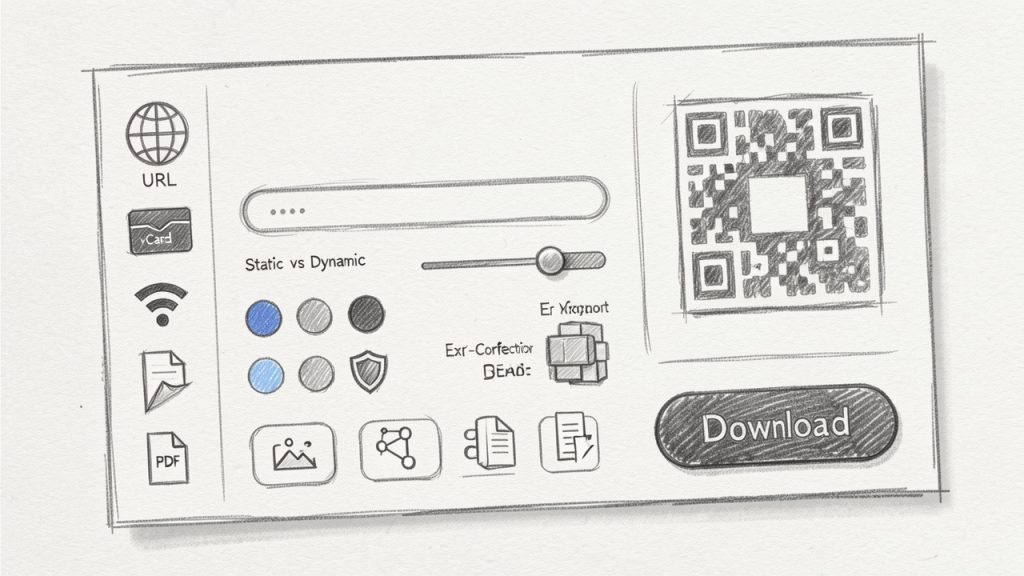
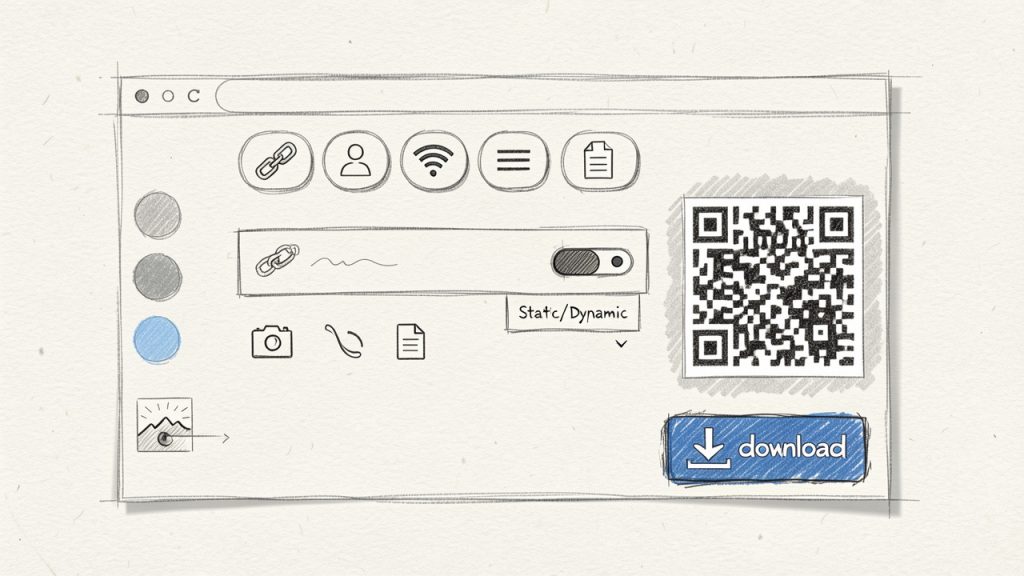
    Screenshot-style mockup of an online QR code generator interface showing content-type options, input field, static vs dynamic toggle, customization controls, export format buttons, and a prominent Download button

    Browser-based QR code generator interface showing content-type buttons, input field with a sample URL, Static/Dynamic toggle, export format dropdown, color & logo customization controls, and a live QR preview

    Step 2, select static or dynamic and set redirect options

    Choose static if the destination will stay fixed. Choose dynamic if you might need to update the destination later, pause a campaign, A/B test landing pages, or review scan analytics.

    For dynamic campaigns, define naming conventions early. A label like “Spring Poster” is not enough at scale. Use structured names such as “2026-Q2-Retail-Window-NYC-A” to make later reporting and management straightforward.

    Step 3, customize design with accessibility in mind

    A branded QR code can look great, but scan reliability always comes first. Maintain strong contrast between foreground and background. Dark code on a light background is still the safest choice. Avoid busy backgrounds, low-contrast color pairs, and oversized logos that eat into the scannable area.

    If you add a logo, use an appropriate error correction level and test aggressively. Decorative frames can improve response rates because they signal action, but keep the quiet zone, the blank margin around the code, intact.

    Step 4, set tracking and test across devices

    If your platform offers analytics, enable them before launch. Use campaign naming and UTM structure that match the rest of your marketing stack. That way, scans can be tied back to source materials, locations, or placements.

    Then test on multiple devices, under real conditions. A code that scans perfectly on a new flagship phone in bright office light may struggle on an older budget phone in a dim restaurant. Test both iPhone and Android if possible, and check common camera apps rather than relying on a single scanner app.

    Step 5, download the right file format for print or web

    Use PNG for quick digital use, social graphics, or slide decks. Use SVG for logos, signage, packaging, and any design that may be resized. Use PDF when delivering assets to printers or embedding in production-ready materials.

    For print, avoid tiny codes. In many real-world cases, at least 2 x 2 cm is a practical minimum for close-range scanning, while posters and signage usually need more. If the scanning distance increases, the code size should increase too. A useful rule of thumb is that the scanning distance should be roughly ten times the code width.

    Comparison: Top online QR code generators (features, pricing, pros & cons)

    Overview of evaluated tools

    The tools below are among the most visible and useful options for people searching for a QR code generator online. They differ in philosophy. Some focus on free static generation and design flexibility. Others focus on dynamic campaigns, enterprise controls, or template-driven design workflows.

    Tool Best For Static Codes Dynamic Codes Analytics Design Customization API/Automation Typical Pricing Position
    QRCode Monkey Free, high-quality static codes Yes Limited via related services Limited Strong No major public focus Free-first
    QR Code Generator by Egoditor General business use Yes Yes Yes Good Limited compared with enterprise tools Freemium
    Beaconstac Teams, enterprise, analytics Yes Yes Strong Good Yes Premium
    QRStuff Straightforward business use Yes Yes Moderate Moderate Limited Mid-range
    Canva Design-first users Yes Limited depending on workflow Limited Excellent in design context No Subscription ecosystem

    QRCode Monkey

    QRCode Monkey is one of the most popular choices for people who want a free online QR code generator with strong visual customization. It is especially appealing to freelancers, designers, and small businesses that need high-resolution codes quickly without getting pulled into a complex subscription flow.

    Features include high-resolution PNG and SVG exports, logo and color customization, and support for multiple content types. Its simplicity and quality output make it a reliable pick for brochures, posters, packaging mockups, or business cards.

    Its main advantages are ease of use and excellent free static QR code generation with strong customization for visual branding. The downsides are limited analytics and dynamic management, which make it less suitable for enterprise workflows that require campaign tracking or API automation.

    Website: https://www.qrcode-monkey.com

    QR Code Generator by Egoditor

    This platform balances consumer simplicity and business functionality. It supports both static and dynamic QR codes, offers editable destinations and basic scan analytics, and provides business-ready templates for common use cases like promotions, menus, and landing pages.

    It is a good fit for marketers, local businesses, agencies, and teams who want editable destinations and tracking without committing to enterprise pricing. Advanced analytics may be limited compared with enterprise platforms, and free access is narrower than static-only tools, so costs can rise as usage grows.

    Website: https://www.qr-code-generator.com

    Beaconstac

    Beaconstac is geared toward serious business use where dynamic QR codes, analytics, team controls, integrations, and operational reliability matter. It supports advanced dynamic QR management, campaign analytics, team and enterprise features, API and integration support, and is built for compliance-aware environments.

    This tool is strong for scale and governance, making it suited to packaging, retail, field marketing, customer journeys, and multi-location campaigns. The trade-offs are higher cost and increased setup discipline to get full value, so it may be overkill for basic personal use.

    Website: https://www.beaconstac.com

    QRStuff

    QRStuff is an established, practical option for users who want a broad selection of QR content types without a design-heavy workflow. It supports many content types, static and dynamic options, and a simple interface, which makes it useful for educators, small businesses, and non-designers.

    Its appeal is breadth and familiarity rather than cutting-edge design controls. Customization is less polished than some competitors and analytics depth may not satisfy larger teams, but it remains a solid practical option for many scenarios.

    Website: https://www.qrstuff.com

    Canva

    Canva is not a dedicated QR platform, but it is valuable for users who already design flyers, menus, posters, and social graphics there. Generating a QR code inside a layout saves time and preserves visual consistency, which is why many small businesses prefer it.

    Canva’s strength is context and template integration rather than deep analytics or dynamic campaign management. If you need enterprise-level tracking or API access, a dedicated QR platform will be a better fit.

    Website: https://www.canva.com

    Best practices and real-world use cases

    Print marketing (posters, business cards, flyers)

    In print, placement matters almost as much as the code itself. A QR code tucked into a crowded corner of a flyer often underperforms, even if it scans fine. Give it room, pair it with a clear call to action, and make the destination match the user’s context. A poster in a shop window should not send users to a cluttered homepage; it should route to the exact offer.

    For business cards, use a QR code to reduce friction. A vCard or booking link often performs better than a generic homepage. For posters and public signage, expect scan rates to depend heavily on visibility, urgency, and the clarity of the action promised.

    Restaurants and menus

    Restaurant QR codes need durability and trust. If the code links to a PDF menu that loads slowly, the user experience breaks immediately. A mobile-friendly webpage is often better than a heavy file. The code should be easy to wipe clean, physically visible, and not buried among decorative patterns.

    Dynamic QR codes are especially valuable here because menus change. One printed table card can continue working across seasonal updates, item changes, or language variations.

    Events and ticketing

    For events, QR codes can handle registration, maps, agenda pages, and ticket validation. Security matters more in this context. If codes grant access or reveal attendee information, do not treat them as casual marketing assets.

    A dynamic QR setup can help rotate destinations or disable outdated pages after the event. It also allows organizers to track where attendee engagement is strongest, such as entrances, booths, or printed schedules.

    Product packaging and inventory

    On packaging, QR codes often outlive the original campaign timeline, which makes dynamic management especially useful. A code can first support a launch page, then later route to instructions, warranty registration, or updated compliance information.

    For inventory or asset tracking, reliability beats decoration. Use high contrast, consistent labels, and durable materials. Fancy styling rarely helps in warehouse conditions.

    Contactless payments and check-ins

    Payment and check-in flows raise the stakes because users expect speed and confidence. If you link to payment pages, use trusted domains and clear branding. If you support venue check-ins, consider privacy disclosure and how long associated data will be retained.

    Troubleshooting and FAQs

    Why won’t my QR code scan?

    The most common causes are low contrast, insufficient size, poor print quality, broken quiet zone, or over-customization. If you inserted a large logo, changed the eye shapes, and used a gradient on a dark background, the design may simply be too aggressive.

    Start by testing the plain black-and-white version. If that scans reliably, add branding back gradually.

    How to track scans and where analytics might be misleading

    Scan analytics are useful, but they are not perfect. A “scan” may represent a camera recognition event, a redirect hit, or a user who never fully loaded the destination page, depending on the provider. That means QR platform data and web analytics may not match exactly.

    Use QR scan data as directional insight, then confirm behavior with landing-page analytics and campaign tags.

    How to change destination after printing

    You can only change the destination after printing if the QR code is dynamic. Static codes are fixed once generated.

    If flexibility matters, always choose dynamic for printed materials with any chance of future updates.

    Legal and privacy questions

    If your QR setup collects scan metadata or routes users to forms, privacy obligations may apply. In GDPR-sensitive contexts, be transparent about data collection, minimize unnecessary tracking, and coordinate with your legal or compliance team when scan data links to identifiable individuals.

    Recommended workflow and checklist before launch

    A reliable QR workflow prevents expensive mistakes. Treat QR codes like mini digital products, not just images. Define the objective, assign ownership, test under real conditions, and keep a version record of every live code.

    Before launch, confirm the destination URL, mobile usability, print size, contrast, file format, and device testing coverage. After launch, monitor scan trends, landing-page conversions, and failure signals such as sudden drop-offs or geographic anomalies.

    StageWhat to CheckWhy It Matters
    Pre-launchDestination URL, UTM tags, mobile page speedPrevents broken journeys
    Design reviewContrast, quiet zone, logo size, CTA textProtects scan reliability
    TestingiPhone, Android, bright light, dim light, print sampleReduces real-world failure
    DeploymentFinal export format, print proof, version namingAvoids production mistakes
    Post-launchScan trends, page conversions, redirect statusEnables optimization

    Resources and tools

    Quick references (size and print table, contrast rules)

    A few practical guidelines go a long way. Keep contrast high, preserve the quiet zone, and scale the code to match the expected scanning distance. For close-up materials like table tents or business cards, a modest size may work. For walls, posters, or storefront glass, increase size generously.

    Use Case Recommended Starting Size Best Format
    Business card 2 x 2 cm SVG
    Flyer or brochure 2.5 to 3 cm SVG or PDF
    Table tent/menu card 3 to 4 cm SVG or PDF
    Poster 4 cm and up SVG or PDF
    Packaging label Depends on viewing distance, often 2.5 cm+ SVG

    Links to tools and further reading

    For tool evaluation, start with the official sites mentioned in this guide. For standards and technical background, consult authoritative references such as ISO-related materials, printer guidelines, and analytics platform documentation. Also review your web analytics setup so scan traffic is categorized properly.

    Free assets (print-ready templates, QR test checklist)

    If you build QR codes regularly, create your own internal assets: a print proof template, a naming convention sheet, and a device testing checklist. These lightweight documents save more time than hopping between tools.

    Conclusion, which QR generator should you use?

    If you want the best free QR code generator online for static, high-quality, customizable exports, QRCode Monkey is an easy recommendation. If you want a balanced business tool with dynamic options, QR Code Generator by Egoditor is a practical fit. If analytics, team management, and scale are priorities, Beaconstac is the stronger choice. If you prefer straightforward breadth, QRStuff still holds up. If your workflow starts in design, Canva is the most convenient.

    The right choice depends less on the QR code itself and more on what happens after the scan. Pick the tool that matches your need for flexibility, measurement, and reliability.

    Then test it like it matters, because once a QR code is printed, it often does.

  • Come rimuovere lo sfondo dell’immagine gratuitamente — Veloce e professionale

    Come rimuovere lo sfondo dell’immagine gratuitamente — Veloce e professionale

    Rimuovere lo sfondo da un’immagine non deve essere costoso o tecnicamente intimidatorio. Che tu venda prodotti online, crei post sui social, costruisca siti web o prepari presentazioni, un soggetto pulito su uno sfondo trasparente fa risaltare le tue immagini e migliora la professionalità. Questo articolo spiega come rimuovere lo sfondo da un’immagine, cosa aspettarti dagli strumenti gratuiti e passaggi pratici per produrre ritagli di alta qualità senza abbonamenti costosi.

    Imparerai la differenza tra metodi automatizzati e manuali, come scegliere l’approccio giusto per il tuo flusso di lavoro e tattiche rapide per migliorare i risultati. L’obiettivo è fornire a piccoli imprenditori, liberi professionisti e utenti orientati alla produttività una strada chiara e concreta per rimuovere gli sfondi in modo efficace evitando trappole comuni come output a bassa risoluzione o filigrane nascoste.

    Cos’è?

    Rimuovere lo sfondo significa isolare il soggetto principale di un’immagine e rendere trasparente l’area circostante, sostituendola o rendendendola trasparente. Quando rimuovi lo sfondo da un’immagine, usi strumenti o tecniche che ti permettono di creare un PNG trasparente, un oggetto ritagliato da posizionare su banner colorati o un soggetto mascherato in modo ordinato per un editing più avanzato. Il risultato finale può essere utilizzato per elenchi di prodotti, foto profilo, asset di marketing o design a livelli.

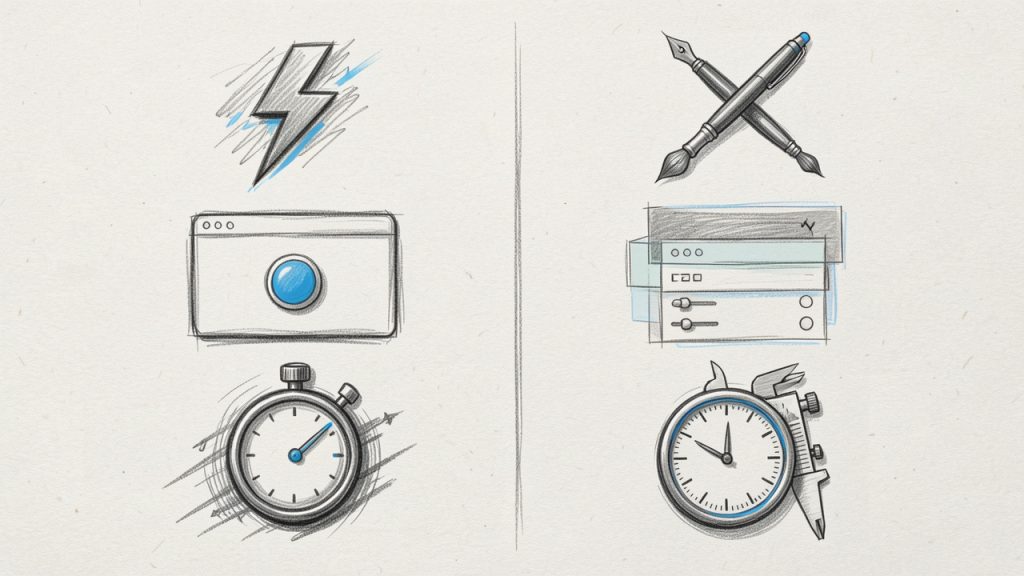
    Ci sono due approcci principali. Gli strumenti automatizzati utilizzano l’apprendimento automatico e la rilevazione dei bordi per creare una selezione rapida con input minimo, spesso consegnata in pochi secondi. I metodi manuali si basano su strumenti di selezione, maschere e pennellate, offrendo controllo preciso per bordi difficili come capelli o materiali trasparenti. Entrambi gli approcci mirano allo stesso risultato, ma scambiano velocità per controllo.

    Simple two-column diagram comparing approaches: one column labeled 'Automated' with a lightning bolt icon, a one-click web tool screenshot thumbnail, and a stopwatch indicating speed; the other column labeled 'Manual' with a brush and pen icon, a layered editor thumbnail, and a control/precision icon, plus a small caption 'Speed vs Control'.

    Concetti tecnici utili da capire includono canali alfa, maschere, e percorsi di ritaglio. Un canale alfa memorizza informazioni di trasparenza affinché parti dell’immagine possano essere perfettamente o parzialmente trasparenti. Le maschere permettono modifiche non distruttive, consentendoti di rifinire i bordi senza modificare permanentemente i pixel originali. I percorsi di ritaglio sono contorni vettoriali spesso usati nel commercio elettronico per garantire silhouette nitide.

    Side-by-side example: left — original product photo with background; right — the subject isolated on a transparent checkerboard (PNG), with a small label showing 'Export: PNG / WebP'. This demonstrates the expected end result of removing a background.

    Aspetti chiave di un rimuovi-sfondo

    Accuratezza contro comodità

    Quando si considera la rimozione gratuita dello sfondo, accuratezza e comodità di solito si muovono in direzioni opposte. Strumenti web completamente automatizzati sono comodi e veloci, spesso fornendo risultati utilizzabili per soggetti semplici su sfondi a contrasto. Per scene complesse, sarà necessaria una rifinitura manuale per ottenere una qualità professionale. Comprendi che una soluzione con un solo clic potrebbe richiedere ritocchi successivi per rimuovere aloni, conservare i dettagli dei capelli o gestire oggetti semi-trasparenti.

    Formati di output e risoluzione

    La maggior parte degli utenti che rimuove sfondi desidera un risultato trasparente. PNG è il formato gratuito più comune per la trasparenza, mentre WebP può offrire dimensioni dei file più piccole con supporto alla trasparenza. Strumenti gratuiti a volte limitano la risoluzione di output, quindi verifica se lo strumento mantiene la dimensione originale dell’immagine o se la downscaling. Se prevedi di stampare o visualizzare grandi immagini, dai priorità agli strumenti che mantengono la risoluzione piena.

    Privacy e gestione dei dati

    I servizi online gratuiti possono elaborare le immagini su server remoti. Se le tue immagini contengono informazioni sensibili o foto di prodotto non ancora rilasciate, considera uno strumento offline o verifica la politica sulla privacy del servizio. Molti strumenti affidabili dichiarano di eliminare i file dopo l’elaborazione, ma conferma sempre le politiche di conservazione dei dati prima di caricare asset proprietari.

    Elaborazione batch e flusso di lavoro

    Il volume conta. Per immagini singole, uno strumento automatizzato gratuito è di solito più veloce. Per cataloghi o più articoli, cerca un metodo che supporti l’elaborazione batch. Alcune app desktop gratuite e servizi web offrono opzioni batch, mentre altri richiedono ripetizioni manuali. Il tempo speso per organizzare un set di scatto coerente, con uno sfondo solido e un’illuminazione uniforme, può ridurre drasticamente il tempo speso per la modifica in seguito.

    Trappole di costo e licensing

    Uno strumento rimuovi-sfondo può nascondere limitazioni. I piani gratuiti potrebbero includere filigrane, richiedere crediti giornalieri o limitare l’uso commerciale. Leggi i termini; se hai bisogno di licenze per alto volume o uso commerciale, valuta piani a pagamento. Gli strumenti gratuiti sono ottimi per test e uso occasionale; per la coerenza aziendale a lungo termine, valuta se un abbonamento vale i guadagni in termini di efficienza.

    Come iniziare

    Prima di iniziare, riunisci alcuni prerequisiti semplici per migliorare ogni risultato e accelerare il tuo flusso di lavoro.

    • Immagine ad alta risoluzione: un numero maggiore di pixel mantiene i dettagli dopo la mascheratura.
    • Sfondo a contrasto: uno sfondo solido e contrastante rende l’individuazione automatica più accurata.

    Segui questi passaggi per rimuovere rapidamente uno sfondo utilizzando uno strumento web gratuito tipico, quindi usa il metodo offline alternativo se preferisci l’editing locale.

    1. Carica l’immagine nello strumento gratuito di rimozione dello sfondo che preferisci.
    2. Consenti al processo automatico di rilevare e rimuovere lo sfondo.
    3. Ispeziona il risultato al 100% di ingrandimento per artefatti ai bordi e aree mancanti.
    4. Usa il pennello di rifinitura o la gomma per correggere linee di capelli, bordi semi-trasparenti o piccoli pixel residui.
    5. Esporta il ritaglio finale come PNG con trasparenza o WebP se la dimensione del file è una preoccupazione.
    6. Salva una copia con una maschera di livello in un formato con livelli se prevedi ulteriori modifiche.

    Se preferisci un metodo offline per motivi di privacy o controllo preciso, usa un editor gratuito come GIMP o un editor web che supporti le maschere. Apri l’immagine, crea un livello duplicato e usa strumenti di selezione come Selezione Primo Piano, Strumento Tracciato o Maschera Rapida per isolare il soggetto. Converti la selezione in una maschera e dipingi dentro o fuori per rifinire i bordi. Esporta come PNG trasparente quando sei soddisfatto.

    Consigli per casi difficili

    Lavorare con capelli, peli, vetro o sfocatura di movimento può essere impegnativo. Affina le maschere con sfumature e aggiustamenti di contrasto, dipingi manualmente sulle maschere con un pennello morbido a bassa opacità per rendere le transizioni più morbide, e usa strumenti di decontaminazione del colore per rimuovere la dispersione di colore dai bordi. Per oggetti lucidi o trasparenti, accetta che una certa riflessione o trasparenza faccia parte dell’oggetto; a volte aggiungere un’ombra sottile su un nuovo livello offre un risultato più naturale che cercare di isolare completamente i materiali trasparenti.

    Risoluzione dei problemi comuni

    Se il ritaglio mostra frange di colore, aggiungi un piccolo contrasto negativo o positivo al bordo della maschera per rimuovere aloni. Se lo strumento fallisce con soggetti a basso contrasto, prova a convertire temporaneamente l’immagine a maggiore contrasto, esegui la selezione, quindi riapplicala all’immagine originale. Quando i capelli vanno persi, passa al rifinimento manuale con pennello e lavora ad alto livello di zoom per la precisione.

    Confronto tra i metodi gratuiti di rimozione dello sfondo

    Metodo

    Facilità d’uso

    Qualità

    Formato di output

    Ideale per

    Limitazioni

    IA Web automatizzata

    Molto alta

    Buono per soggetti semplici

    PNG/WebP

    Immagini singole, velocità

    Possibile riduzione, limiti/crediti

    Editor basato sul web (manuale + auto)

    Alta

    Molto buono con raffinamento

    PNG, esportazioni a livelli

    Correzioni manuali rapide, basato su browser

    Curva di apprendimento, prestazioni del browser

    Editor desktop (GIMP)

    Moderato

    Professionale nel tempo

    PNG, esportazione PSD tramite plugin

    Privacy, controllo totale

    Richiede abilità, lavoro manuale

    App mobili

    Molto alta

    Varia, spesso buono

    PNG

    Modifiche rapide ai social

    Qualità varia, acquisti in-app

    Tracciamento basato su vettori

    Moderato

    Nitido per grafica piatta

    SVG, PNG

    Loghi e icone

    Non adatto per foto, servono percorsi manuali

    Conclusione

    Rimuovere lo sfondo da un’immagine gratuitamente è accessibile e pratico per imprenditori, freelance e sviluppatori che necessitano di contenuti visivi puliti senza investimenti pesanti. Gli strumenti automatizzati offrono velocità e comodità per immagini semplici, mentre gli editor desktop gratuiti offrono privacy e precisione necessarie per soggetti di alto valore o complessi. Presta attenzione ai formati di output, alle politiche sulla privacy e a eventuali limiti d’uso che potrebbero influire sui flussi di lavoro commerciali.

    Prossimo passo: scegli un approccio e provalo con una foto di prodotto recente o un ritratto. Esercitati con un’immagine ad alto contrasto per aumentare la fiducia, poi affronta scatti più impegnativi man mano che impari le tecniche di mascheraggio. Se le tue esigenze crescono, valuta un’opzione a pagamento per l’elaborazione batch e una risoluzione garantita, ma per molti compiti quotidiani, le soluzioni gratuite offrono ottimi risultati.

  • Convertitore PDF a Word gratuito: trasforma PDF in DOCX modificabili

    Convertitore PDF a Word gratuito: trasforma PDF in DOCX modificabili

    Hai un PDF da modificare, un cliente che chiede un file Word o un contratto intrappolato in un’immagine scansionata. Convertire un PDF in un documento Word modificabile è una di quelle attività quotidiane di produttività che possono far risparmiare ore di ridigitazione manuale. Fortunatamente, esistono modi affidabili e gratuiti per farlo, validi per imprenditori di piccole imprese, freelance, sviluppatori e chiunque dia valore a velocità e precisione.

    Questo articolo spiega cosa fa realmente un convertitore gratuito da PDF a Word, quali compromessi aspettarsi, come funziona la conversione dietro le quinte, e passaggi chiari e pratici per completare il lavoro in modo rapido e sicuro. Continua a leggere per scegliere l’approccio giusto in base al tipo di file, ai requisiti di privacy e all’obiettivo desiderato.

    Cos’è un convertitore da PDF a Word?

    Un convertitore da PDF a Word è uno strumento che trasforma un file Portable Document Format in un documento Microsoft Word modificabile, di solito .doc o .docx. L’obiettivo è preservare l’impaginazione originale, testo, immagini, tabelle e font il più possibile, producendo contenuti che puoi modificare, commentare o riutilizzare.

    Non tutte le conversioni sono uguali. Un PDF di testo semplice creato da un’esportazione Word si converte con grande fedeltà poiché il PDF contiene già testo selezionabile. Un PDF scansionato, che è un’immagine di ogni pagina, richiede il riconoscimento ottico dei caratteri (OCR) per estrarre il testo. OCR aggiunge complessità e spesso richiede compromessi tra accuratezza, formattazione e velocità.

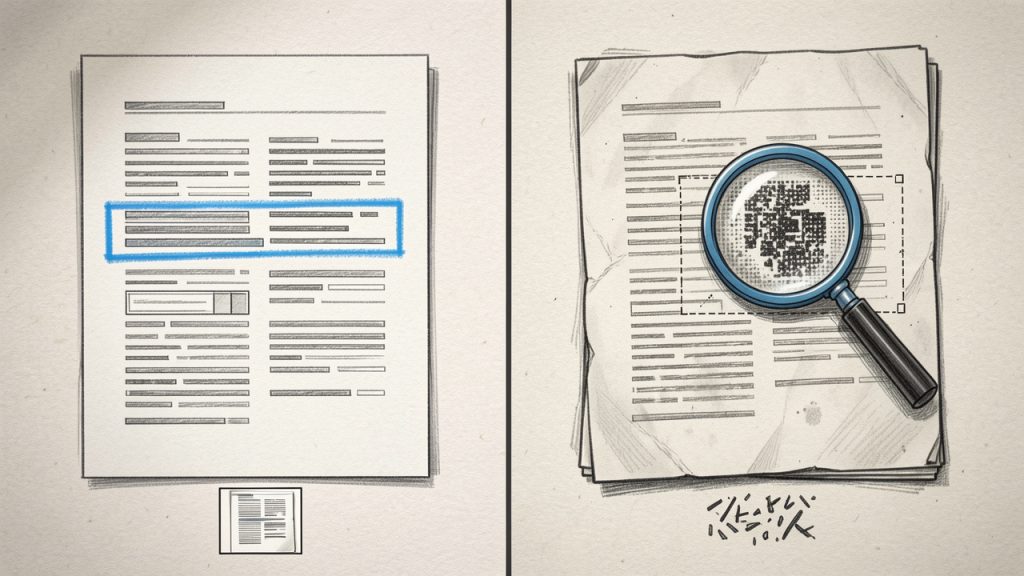
    Illustrazione affiancata che mostra (A) un 'PDF digitale' con testo selezionabile e metadati di layout incorporati, e (B) un 'PDF scansionato' che è l'immagine di una pagina che richiede OCR. Differenze nelle etichette (testo selezionabile vs immagine, OCR richiesto) e mostrano i tipici esiti dopo la conversione.

    Pensa alla conversione come alla traduzione di una newsletter stampata in un modello di documento. Vuoi che la traduzione mantenga titoli, colonne e immagini al loro posto, ma anche che il testo sia modificabile senza ulteriori necessità di pulizia. Un buon convertitore gratuito bilancia questo aspetto, e questo articolo ti aiuta a scegliere in base al file che hai e al risultato di cui hai bisogno.

    Aspetti chiave del convertitore da PDF a Word

    Precisione e fedeltà della formattazione

    Quando cerchi un convertitore da PDF a Word, la precisione sarà la preoccupazione centrale. Gli strumenti differiscono nel modo in cui conservano font, spaziatura, colonne, intestazioni e piè di pagina, e l’ubicazione delle immagini. Convertire un curriculum di una pagina è generalmente semplice, ma brochure a più colonne, tabelle complesse o documenti con font personalizzati richiedono spesso modifiche manuali dopo la conversione.

    La precisione dipende in genere da come è stato creato il PDF. I PDF generati da fonti digitali come Word o InDesign contengono testo incorporato e informazioni di layout che i convertitori possono mappare agli stili di Word. I documenti scansionati richiedono OCR, che introduce possibili letture errate per font insoliti, scansioni a bassa risoluzione o note manoscritte.

    OCR e documenti scansionati

    Un convertitore gratuito che include OCR è essenziale se il tuo PDF è una scansione. OCR analizza i pixel e prevede lettere e parole. L’OCR moderno è abbastanza buono con testo stampato a risoluzione ragionevole, ma aspettati di rileggere e correggere errori, soprattutto in layout a colonne e tabelle.

    Alcuni strumenti OCR gratuiti ti permettono di scegliere la lingua, il formato di output e l’accuratezza del riconoscimento. Una maggiore precisione può aumentare i tempi di elaborazione, e gli strumenti OCR basati su cloud potrebbero caricare i file su server remoti, il che solleva considerazioni sulla privacy.

    Privacy e sicurezza

    La privacy è un fattore importante per aziende e utenti freelance. I convertitori online gratuiti spesso elaborano i file su server remoti. Se stai convertendo contratti riservati, bilanci o informazioni di identificazione personale, verifica la policy sulla privacy del servizio e le regole di conservazione. Le soluzioni desktop o open-source che funzionano localmente evitano la fase di caricamento e mantengono i dati sul tuo dispositivo.

    Controlla sempre se il convertitore utilizza la crittografia durante l’upload, quanto tempo vengono conservati i file temporanei e se il fornitore elimina esplicitamente i file dopo la conversione. In caso di dubbio, usa un metodo offline.

    Limiti di dimensione dei file e conversione in batch

    I convertitori online gratuiti spesso impongono limiti di dimensione dei file o quote giornaliere. Se lavori con PDF di grandi dimensioni o hai bisogno di conversioni in batch, queste limitazioni possono rallentare i flussi di lavoro. Gli strumenti desktop di solito gestiscono file più grandi e l’elaborazione batch in modo più efficiente, ma possono richiedere una configurazione maggiore.

    La capacità di conversione batch è una considerazione pratica per agenzie e freelance che devono convertire decine di file contemporaneamente. Una soluzione desktop gratuita o un approccio scriptato tende a scalare meglio rispetto ai moduli web gratuiti.

    Compatibilità e qualità dell’output

    Non tutti i convertitori producono la stessa struttura .docx. Alcuni convertono in modo visivo, incorporando il testo in caselle di testo e posizioni fisse, il che mantiene l’aspetto ma rende difficile l’editing. Altri ricostruiscono stili di paragrafo e intestazioni, creando una esperienza di modifica più naturale in Word. Per documenti di lunga durata o da revisionare, preferisci strumenti che producano testo in flusso modificabile invece di blocchi a posizione fissa.

    Velocità e comodità

    Per conversioni rapide di una sola volta, un convertitore online gratuito è spesso l’opzione più rapida. Per lavori ripetitivi, gli strumenti desktop e soluzioni integrate come Google Docs o Microsoft Word possono far risparmiare tempo. Gli sviluppatori potrebbero preferire strumenti gratuiti basati su riga di comando o API che possono essere inclusi in pipeline.

    Come iniziare

    Guida rapida alle decisioni

    Inizia valutando tre fattori: sensibilità del documento, complessità del layout e quanto spesso devi convertire file. Se il documento è riservato, scegli un metodo offline. Se il layout è complesso e la fedeltà è importante, testa un paio di strumenti e confronta i risultati. Se effettui conversioni frequenti, investi tempo in una soluzione desktop o scriptata.

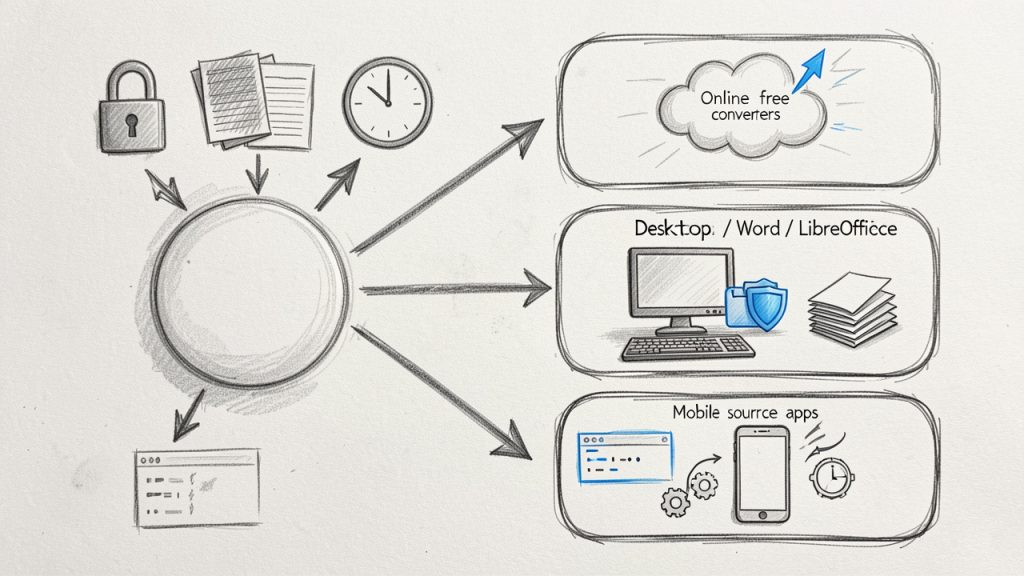
    Diagramma di flusso decisionale che aiuta a scegliere un metodo di conversione: inizia con tre domande (sensibilità del documento, complessità del layout, frequenza). Dirigiti verso convertitori online gratuiti (veloci, caricamento), desktop/Word/LibreOffice (locale, migliore per privacy/grandi dimensioni/batch), strumenti open-source/CLI (scriptabili, tecnico), o app mobili (in movimento).

    Prerequisiti

    Prima di convertire, assicurati che il PDF sia di qualità sufficiente per l’OCR se necessario. I PDF scansionati dovrebbero avere una risoluzione di almeno 200–300 DPI per una migliore accuratezza OCR. Assicurati di avere un editor in grado di aprire file .doc o .docx e conferma di avere il permesso di convertire e modificare il documento. Come misura di sicurezza, mantieni una copia del PDF originale prima della conversione.

    Passaggi: conversione con uno strumento online gratuito

    1. Carica il file PDF sul sito del convertitore.
    2. Seleziona il formato di output come Microsoft Word (.doc o .docx).
    3. Scegli opzioni OCR se il tuo file è un’immagine scansionata.
    4. Avvia la conversione e attendi che il processo termini.
    5. Scarica il documento Word risultante e aprilo per la correzione e la revisione.

    Questo processo è rapido per documenti semplici e comodo quando sei lontano dalla tua workstation principale.

    Passaggi: conversione offline utilizzando software desktop

    1. Apri Microsoft Word e scegli File > Apri, poi seleziona il PDF.
    2. Consenti a Word di convertire il PDF in un documento modificabile.
    3. Rivedi il documento convertito e correggi eventuali errori di formattazione o OCR.
    4. Salva il file come .docx.

    Se preferisci l’open-source, LibreOffice può importare i PDF e permetterti di esportare in formati di documenti modificabili, anche se i risultati variano in base alla complessità del layout.

    Consigli per i migliori risultati

    Inizia con il PDF di massima qualità disponibile. Se il PDF contiene più lingue, seleziona la lingua OCR appropriata. Dopo la conversione, concentrati su intestazioni, elenchi, tabelle e caratteri speciali durante la revisione. Se mancano i font, sostituiscili con font simili per mantenere l’impaginazione pur mantenendo il testo modificabile.

    Tabella di confronto: Tipi di convertitori gratuiti

    Tipo

    Costo

    Ideale per

    Vantaggi

    Svantaggi

    Convertitori online gratuiti

    Gratuiti, a volte limitati

    Conversioni rapide di singoli file

    Veloce, nessuna installazione, interfaccia facile

    Limiti di dimensione file, potenziali preoccupazioni sulla privacy

    Convertitori desktop (Word, LibreOffice)

    Gratuiti con software esistente

    Utenti frequenti, file grandi

    Elaborazione locale, nessun caricamento necessario

    Fedeltà variabile con layout complessi

    Strumenti open-source e CLI

    Gratuiti

    Sviluppatori, workflow automatizzati

    Scriptabili, nessun vendor lock-in

    Richiede configurazione, conoscenze tecniche

    App mobili

    Livelli gratuiti disponibili

    Scansione e modifiche rapide in movimento

    Pratico per lavoro sul campo, OCR integrata della fotocamera

    Annunci, limiti in-app, compromessi sulla privacy

    Gestione di elementi complessi: tabelle, immagini e moduli

    Le tabelle spesso causano la maggior parte dei problemi durante la conversione. Le tabelle semplici di solito si convertono pulite, ma tabelle annidate o quelle con celle unite possono trasformarsi in elementi immagine o blocchi di testo. Se conservare i dati delle tabelle è fondamentale, valuta di estrarrele in CSV usando uno strumento progettato per il riconoscimento delle tabelle, quindi reinserirle o ricostruirle in Word.

    Le immagini di solito si convertono come immagini incorporate che mantengono la posizione. Per moduli e campi compilabili, la conversione in Word non conserverà la funzionalità del modulo. Se ti serve un modulo modificabile, valuta di ricrearlo in Word o di utilizzare strumenti di creazione moduli dopo la conversione.

    Flussi di lavoro attenti alla privacy

    Se la privacy è importante, esegui le conversioni localmente ogni volta che è possibile. Usa applicazioni desktop, macchine virtuali o strumenti CLI open-source che mantengono i file sul tuo dispositivo. Se devi utilizzare servizi online, scegli fornitori con politiche di eliminazione dei dati chiare e crittografia TLS. Evita di caricare file contenenti dati personali sensibili o informazioni finanziarie a meno che il servizio non supporti esplicitamente flussi di lavoro sicuri.

    Errori comuni e come correggerli

    Un problema frequente con un convertitore gratuito da PDF a Word è la rottura del layout, dove i paragrafi diventano caselle di testo o le intestazioni perdono gli stili. Per correggere, incolla il testo in un nuovo documento e riapplica gli stili, oppure usa Trova e sostituisci di Word per rimuovere interruzioni di riga in eccesso.

    Un altro intoppo è il riconoscimento errato dei caratteri dopo OCR, ad esempio confusione tra 0 e O o tra l e 1. Una rapida ricognizione per schemi comuni e strumenti di controllo ortografico specifici della lingua riducono notevolmente questi errori.

    Infine, immagini o grafica possono perdere risoluzione durante la conversione. Se la qualità dell’immagine è critica, estrai le immagini originali dal PDF prima della conversione e reinserisci copie ad alta risoluzione nel documento Word.

    Quando scegliere strumenti a pagamento

    I convertitori gratuiti soddisfano molte esigenze, ma le soluzioni a pagamento diventano utili per flussi di lavoro ad alto volume, sicurezza garantita, automazione batch o la migliore fedeltà possibile per layout complessi. Se converti spesso documenti legali, materiale di marketing o manuali di grandi dimensioni, valuta opzioni a pagamento che offrano OCR di livello aziendale, elaborazione batch e SLA per la gestione dei dati.

    Conclusione

    Un convertitore da PDF a Word è uno strumento indispensabile per la produttività moderna se usato con consapevolezza dei suoi limiti. Per modifiche rapide e file occasionali, i convertitori online gratuiti sono efficienti, mentre le soluzioni desktop e open-source sono migliori per privacy e lavori in grande volume. Comprendi se il tuo PDF contiene testo selezionabile o immagini scansionate, scegli lo strumento giusto per fedeltà e privacy, e rileggi sempre il file Word convertito.

    Prossimo passo: prova una breve conversione di test con un PDF non sensibile per confrontare i risultati. Se hai bisogno di aiuto per scegliere gli strumenti in base a un tipo di documento o flusso di lavoro specifico, descrivilo brevemente e ti consiglierò un approccio su misura.

  • Escape/Unescape HTML

    Escape/Unescape HTML


    Cos’è uno strumento HTML Escape/Unescape?

    L’HTML Escaping è il processo di conversione dei caratteri speciali nelle loro entità HTML corrispondenti, in modo che vengano visualizzati come testo nel browser invece di essere interpretati come codice HTML.

    L’HTML Unescaping esegue l’operazione inversa.


    Perché utilizzare HTML Escape/Unescape?

    1. Sicurezza (prevenire attacchi XSS)
      L’escaping aiuta a prevenire attacchi Cross-Site Scripting (XSS).
    2. Visualizzare caratteri speciali in modo sicuro
      Caratteri come <, >, & e " hanno significati speciali in HTML.
    3. Integrità dei dati
      Quando si mostrano esempi di codice o input di form, l’escaping evita che il contenuto venga interpretato come HTML.

    Come funziona?

    CharacterEscaped Entity
    <&lt;
    >&gt;
    &&amp;
    "&quot;
    '&#39;

    Esempio:

    original: 
    <script>alert("Hi")</script>
    
    escaped:
    &lt;script&gt;alert(&quot;Hi&quot;)&lt;/script&gt;

    L’Unescape inverte il processo.

  • Formattatore SQL

    Formattatore SQL


    Cos’è un formattatore SQL?

    Un formattatore SQL è uno strumento progettato per organizzare e migliorare l’aspetto delle query SQL standardizzando l’indentazione, l’uso delle maiuscole e gli spazi. Migliora la leggibilità del codice e garantisce coerenza tra i progetti.


    Perché dovrei usare un formattatore SQL?

    Un formattatore SQL aiuta a rendere le query complesse più facili da leggere e da eseguire il debug, applica uno stile coerente tra i team e riduce gli errori causati da codice disallineato o poco chiaro.


    Come funziona un formattatore SQL?

    Parsing dell’SQL:

    • Il formattatore legge il testo SQL grezzo e lo suddivide in token: parole chiave (SELECT, FROM), identificatori (nomi di tabelle/colonne), operatori (=, >, AND) e punteggiatura (;, ,, ()).
    • Costruisce un albero sintattico per comprendere la struttura della query.

    Applicazione delle regole di formattazione:

    • Ristruttura la query secondo regole come:
      • Interruzioni di riga dopo determinate parole chiave (SELECT, FROM, WHERE, ecc.)
      • Indentazione per query e condizioni annidate
      • Uso delle maiuscole per le parole chiave
      • Rimozione degli spazi extra

    Generazione dell’output:

    Genera la stringa SQL riformattata e la restituisce per la visualizzazione o l’esportazione.

  • Strumento XML Escape / Unescape

    Strumento XML Escape / Unescape

    Cos’è uno strumento XML Escape / Unescape?

    Uno strumento XML Escape / Unescape è un’utilità che esegue l’escape dei caratteri speciali nel testo per renderlo valido in XML (ad esempio sostituendo < con &lt;) e annulla l’escape dei caratteri codificati riportandoli alla forma originale (ad esempio convertendo &lt; in <).


    Perché l’escape è importante in XML?

    L’escape garantisce che caratteri speciali come <, >, &, ' e " vengano interpretati come testo letterale e non come parte della sintassi XML. Questo evita errori e garantisce l’integrità della struttura XML.


    Come funziona uno strumento XML Escape / Unescape?

    L’escape sostituisce i caratteri riservati XML con i loro riferimenti di entità (ad esempio < diventa &lt;, > diventa &gt;), mentre l’unescape converte i riferimenti di entità nei caratteri originali.


    Quali caratteri devono essere sottoposti a escape in XML?

    In XML, i seguenti caratteri devono essere sottoposti a escape:

    < diventa &lt;
    > diventa &gt;
    & diventa &amp;
    ' diventa &apos;
    " diventa &quot;


    Ci sono limitazioni nell’escape e unescape?

    Escape eccessivo: Escapare caratteri inutilmente può rendere l’output confuso.
    Interpretazione errata: Caratteri speciali non escapati possono causare errori di parsing.
    Codifica: Assicurati che lo strumento supporti la codifica del documento XML per evitare corruzioni.


    Quali sono i casi d’uso comuni degli strumenti XML Escape / Unescape?

    Escape: Quando si inserisce testo generato dagli utenti o contenuto dinamico in XML per prevenire errori di sintassi.
    Unescape: Quando si elaborano o visualizzano dati XML per migliorarne la leggibilità o manipolazione.
    Debug di problemi causati da caratteri speciali non escapati nei file XML.
    Preparazione di contenuti XML per archiviazione o trasmissione in sistemi con requisiti di caratteri rigorosi.

  • Validatore HTML

    Validatore HTML


    Cos’è un validatore HTML?

    Un validatore HTML è uno strumento che controlla la struttura e la sintassi del tuo codice HTML per assicurarsi che segua gli standard del web. Aiuta a identificare errori, incongruenze e tag obsoleti, migliorando la qualità e le prestazioni delle tue pagine web.


    Perché dovrei validare il mio HTML?

    Validare il tuo HTML garantisce che la tua pagina web sia solida, accessibile e compatibile con browser e dispositivi moderni. Aiuta a individuare errori che potrebbero causare problemi di rendering o influire sull’ottimizzazione per i motori di ricerca (SEO). Una corretta validazione contribuisce anche a una migliore esperienza utente e a un debugging più rapido.


    Come funziona un validatore HTML?

    Lo strumento analizza il tuo codice HTML confrontandolo con le specifiche più recenti e segnala errori come tag mancanti, attributi non corrispondenti o nidificazione non valida. Molti validator offrono anche suggerimenti per correggere i problemi, rendendo più semplice mantenere un codice pulito e conforme. In generale, controlliamo il tuo codice HTML per verificarne la conformità agli standard W3C.


    La validazione è importante per la SEO?

    Assolutamente sì. Un HTML pulito e valido garantisce che i motori di ricerca possano scansionare e interpretare correttamente il tuo contenuto. Anche se piccoli errori di validazione potrebbero non influire direttamente sul posizionamento, possono influenzare le prestazioni della pagina e l’accessibilità, entrambi fattori che incidono sulla SEO.


    Quali sono i casi d’uso comuni dei validatori HTML?

    I validatori HTML sono essenziali per il debugging, il miglioramento della qualità del codice e la garanzia della compatibilità tra browser. Sono ampiamente utilizzati durante lo sviluppo, nei test prima del lancio e nella manutenzione continua dei siti.

  • Generatore di Chiavi SSH

    Generatore di Chiavi SSH


    Cos’è un Generatore di Chiavi SSH?

    Un generatore di chiavi SSH è uno strumento che crea coppie di chiavi sicure per l’autenticazione nelle connessioni SSH (Secure Shell). Genera una chiave privata per l’utente e una chiave pubblica da condividere, consentendo l’accesso sicuro a server o sistemi senza utilizzare una password.


    A cosa servono le chiavi SSH?

    Le chiavi SSH sono utilizzate principalmente per accedere in modo sicuro a server remoti, automatizzare attività nei flussi di lavoro di sviluppo e autenticarsi con sistemi di controllo versione come Git. Sono inoltre utili per stabilire tunnel sicuri e canali di comunicazione crittografati.


    Come funziona un Generatore di Chiavi SSH?

    Il generatore crea una coppia di chiavi crittografiche — una pubblica e una privata — utilizzando algoritmi come RSA, Ed25519 o ECDSA. La chiave privata viene conservata in modo sicuro sul tuo dispositivo, mentre la chiave pubblica viene aggiunta al file delle chiavi autorizzate del server per l’autenticazione.


    Perché usare le chiavi SSH invece delle password?

    Le chiavi SSH offrono una sicurezza maggiore rispetto alle password. La chiave privata rimane confidenziale sul tuo sistema, mentre la chiave pubblica viene condivisa con il server. Questo elimina il rischio di intercettazione delle password o attacchi brute-force, offrendo un metodo di autenticazione più affidabile.

    Le chiavi SSH sono anche molto utili per l’integrazione con script, processi di deployment e operazioni Git senza esporre password.

  • Visualizzatore HTML

    Visualizzatore HTML

    Che cos’è un Visualizzatore HTML?
    Un visualizzatore HTML è un software o uno strumento che mostra il codice HTML come una pagina web, proprio come un browser. Consente di inserire HTML (di solito insieme a CSS e JavaScript) e visualizzare un’anteprima di come apparirà e si comporterà in un browser. I visualizzatori HTML possono essere applicazioni desktop, applicazioni web o widget integrati in altre applicazioni.


    Come funziona un Visualizzatore HTML?

    1. Inserisci codice HTML grezzo (opzionalmente con CSS e JavaScript).
    2. Il visualizzatore analizza l’HTML e costruisce una struttura chiamata Document Object Model (DOM).
    3. Applica gli stili CSS ed esegue il JavaScript, se presente.
    4. Infine esegue il rendering grafico finale per mostrarne il risultato.

    Casi d’uso di un Visualizzatore HTML

    • Sviluppo web: Anteprima del codice HTML/CSS/JS durante la programmazione.
    • Design email: Visualizzare l’aspetto dei template email HTML.
    • Documentazione: Mostrare esempi interattivi nella documentazione tecnica.
    • Educazione: Aiutare gli studenti a imparare HTML con risultati immediati.
    • Debug: Individuare problemi nel codice senza pubblicarlo online.
    • Browser personalizzati: Mostrare contenuti HTML in applicazioni mobile o desktop.

    Perché usare un Visualizzatore HTML?

    • Fornisce feedback immediato sull’aspetto e sul funzionamento del codice.
    • Permette di testare il codice in sicurezza senza influenzare un sito web live.
    • Funziona senza bisogno di un server web.
    • I visualizzatori sono generalmente leggeri e spesso funzionano offline.
    • Sono versatili e possono essere integrati in molti ambienti (come editor di codice o app mobili).