JNTZN

Category: Uncategorized

  • Base64 Encoder & Decoder Online — Fast, Private Conversion

    Base64 Encoder & Decoder Online — Fast, Private Conversion

    You do not need to be a developer to run into Base64. It shows up when you paste API credentials, inspect email content, move image data between tools, or troubleshoot odd-looking strings that seem unreadable at first glance. In those moments, a Base64 encoder decoder online tool can save time immediately.

    For small business owners, freelancers, and developers, the appeal is simple. You want a fast way to convert plain text or binary-related content into Base64, then reverse it back without installing software or digging through technical documentation. A good online tool removes friction, helps you verify data quickly, and reduces the chance of mistakes when working across systems.

    What is Base64 encoder decoder online?

    A Base64 encoder decoder online tool is a web-based utility that converts data into Base64 format and decodes Base64 back into readable content.

    Base64 itself is a method for representing data using a limited set of text characters. Instead of sending raw bytes directly, the data is transformed into a text-friendly format that can travel more easily through systems built for text handling.

    This matters because many digital workflows were originally designed around text rather than arbitrary binary data. If you need to embed an image in HTML, include data inside JSON, move content through email, or work with API payloads, Base64 often appears as the bridge. If you need to embed an image in HTML, include data inside JSON, move content through email, or work with API payloads, Base64 often appears as the bridge. It is not a form of encryption, and that distinction is important. Base64 is encoding, not security. It makes data transportable, not protected.

    An online Base64 tool simplifies that process. You paste text, a token, or encoded data into a field, click encode or decode, and get the converted output instantly. The best tools also support UTF-8 text, URL-safe variants, file input, copy-to-clipboard convenience, and local browser processing for better privacy.

    Why Base64 appears so often

    Base64 is common because it solves a practical compatibility problem. Some systems do not handle raw binary cleanly, but they do handle plain text reliably. By converting data into a text-only structure, developers and non-technical users alike can move content between platforms with fewer formatting issues.

    You may see Base64 in email attachments, basic authentication headers, embedded images, signed tokens, API responses, configuration values, and browser-based data URLs. Even if you never write code, you may still need to recognize it. A long string containing letters, numbers, plus signs, slashes, and equal signs at the end is often a clue.
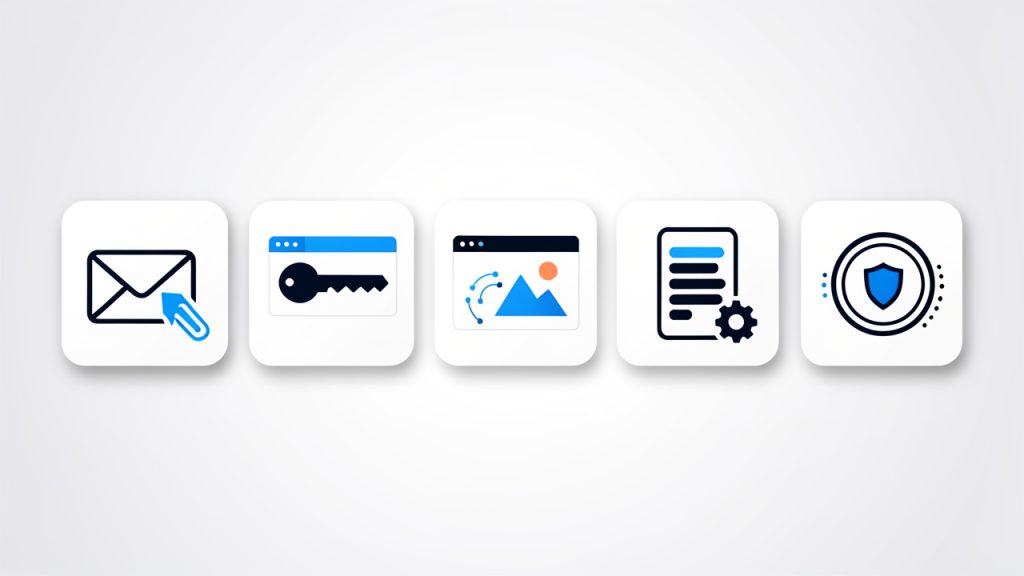
    A multi-scene illustration (grid of small icons) showing common places Base64 appears: an email with an attachment, an HTTP header labeled 'Authorization: Basic ...', a web page with an embedded image data URL, a JSON config snippet, and a signed token. Each scene includes a short label like 'Email', 'API', 'Image embed', 'Config', 'Token'.

    Encoding vs decoding, the simple difference

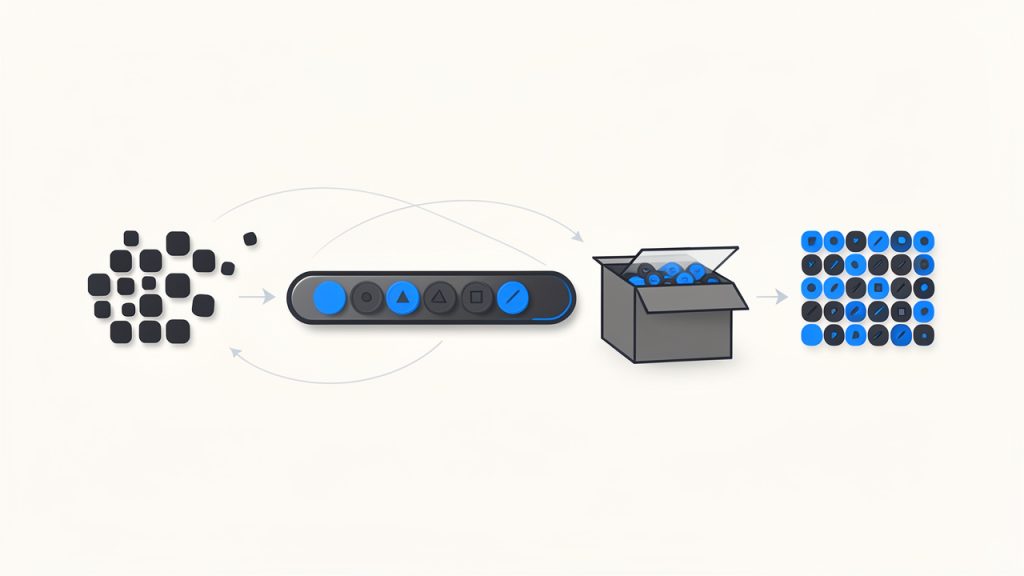
    When you encode, you turn readable input or raw data into Base64 text. When you decode, you reverse that process and restore the original content. Think of it like putting a document into a shipping-friendly container, then unpacking it on arrival. The contents stay the same in meaning, but the format changes so other systems can handle it predictably.

    That is why a Base64 encoder and decoder are usually paired in one online tool. Most users need both directions. You may encode text before sending it to another application, then decode a returned value to confirm that everything worked correctly.
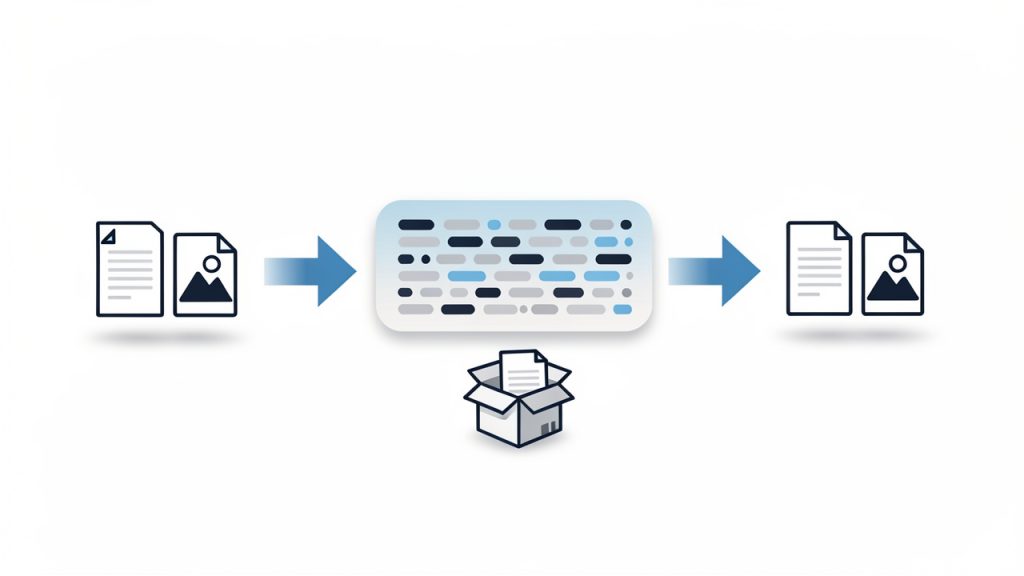
    A clear pipeline diagram showing: left — readable input (text file, image icon) labeled 'Input'; middle — an arrow labeled 'Encode →' leading to a long Base64 string box with characters like 'TWFu...' ; right — an arrow labeled 'Decode →' back to the original readable input. Include a small caption: 'Encoding = format change, not encryption.'

    Key Aspects of Base64 encoder decoder online

    The value of an online Base64 tool is not just convenience. It is also about speed, compatibility, accuracy, and privacy. Those four factors determine whether the tool is useful for casual tasks or trustworthy enough for regular professional work.

    Speed and ease of use

    The biggest advantage of a Base64 encoder decoder online utility is immediate access. There is no software installation, no command line requirement, and no setup. You open the page, paste your content, and get results in seconds. For busy freelancers and small teams, that matters more than it might seem. Tiny interruptions compound over time.

    Ease of use also reduces errors. A clean interface with separate input and output fields, a visible encode/decode toggle, and one-click copy buttons helps prevent accidental misuse. If you are checking a webhook payload or converting text for a CMS field, clarity is productivity.

    Browser-based privacy

    Privacy is one of the first concerns users should have when using any online conversion tool. Some Base64 strings contain harmless sample data. Others may include customer details, internal URLs, API information, or authentication-related values. Because of that, it is wise to prefer tools that process data locally in your browser rather than uploading it to a server.

    A trustworthy tool usually makes this clear. If a site explains that encoding and decoding happen on the client side, you gain a meaningful privacy benefit. It does not replace your own judgment, but it lowers the risk of exposing sensitive information during routine work.

    Accuracy with text and special characters

    Not all online tools handle input equally well. Plain English text is easy. Real-world data is not. You may be working with accented characters, symbols, emoji, line breaks, JSON fragments, or URL parameters. A strong Base64 decoder online should handle character encoding correctly, especially UTF-8, so the decoded output matches the original input without corruption.

    This becomes especially important in multilingual environments or when copying content between business systems. One wrong character in a payment note, customer name, or API secret can create a confusing problem. Reliable tools preserve the exact content.

    Support for common use cases

    Base64 is used in more places than many people realize. An online tool becomes more valuable when it supports the kinds of tasks people actually perform. Text encoding is the baseline, but some users need file support, URL-safe Base64 options, or easy handling of data URLs.

    The table below shows how Base64 often appears in practical workflows:

    Use Case How Base64 Is Used Why an Online Tool Helps
    API testing Encodes credentials, payload fragments, or tokens Quickly verify whether data is formatted correctly
    Email troubleshooting Helps inspect encoded message parts or attachments Makes unreadable segments understandable
    Image embedding Converts image data into text for inline usage Useful for quick experiments and debugging
    Configuration work Encodes values stored in app settings or environment workflows Helps confirm values before deployment
    Web development Decodes tokens, strings, or browser-generated data Speeds up debugging without extra software

    Understanding the limits of Base64

    One of the most common misunderstandings is treating Base64 as if it were a security feature. It is not. Anyone with a decoder can reverse it instantly. If you encode a password in Base64, you have not protected it. You have only changed its appearance.

    That matters for business users who may see encoded values and assume they are safe to expose publicly. They are not. Sensitive data still needs proper encryption, secure storage, and access control. A Base64 encoder decoder online tool is for formatting and inspection, not confidentiality.

    Another practical limit is file size. Base64 increases data size by roughly a third. That makes it convenient for compatibility, but inefficient for large assets. If you embed big files in Base64 unnecessarily, pages and payloads can become heavier and slower.

    How to Get Started with Base64 encoder decoder online

    Using a Base64 tool is straightforward, but a few good habits make the process smoother and safer. The goal is not just to convert data, but to do it correctly and with confidence.

    A simple workflow that works

    For most tasks, the process follows the same pattern:

    1. Paste your input into the text area or upload the file if the tool supports it.
    2. Choose encode or decode based on what you need.
    3. Review the output carefully, then copy or export it for your next step.

    That simplicity is exactly why online tools are so useful. You can move from confusion to clarity in under a minute, whether you are validating a token string or checking if a value in a settings panel decodes into plain text.

    How to tell if a string is probably Base64

    Users often ask whether a strange string is definitely Base64. There is no perfect visual test, but there are clues. Standard Base64 often includes uppercase and lowercase letters, numbers, plus signs, and slashes. It may end with one or two equal signs used as padding. URL-safe Base64 replaces some of those symbols, usually with hyphens and underscores.

    Even so, appearance alone is not enough. Some plain strings can resemble Base64, and some Base64 strings omit padding. A practical approach is to try decoding with a reliable online tool and see whether the result is meaningful and error-free. If the decoded output is readable text, structured JSON, or recognizable binary metadata, you likely have a match.

    Choosing the right online tool

    Not every free utility is equally useful. If you plan to use a Base64 encoder decoder online tool regularly, look for a few practical qualities.

    • Local processing: Keeps data in your browser when possible.
    • UTF-8 support: Preserves non-English text and special characters accurately.
    • Clear interface: Reduces mistakes during quick tasks.
    • Copy and reset options: Saves time when handling repeated conversions.

    Those features sound small, but they make a big difference in daily use. A cluttered tool creates friction. A fast, transparent one becomes part of your normal workflow.

    Common mistakes to avoid

    A frequent mistake is decoding content and assuming the output is safe or trustworthy just because it is readable. Decoded data can still contain harmful scripts, malformed text, or confidential information. Treat unknown content carefully, especially if it comes from external systems.

    Another common issue is mixing up standard Base64 with URL-safe Base64. They are similar, but not identical. If a token fails to decode in one mode, it may simply be using the other variant. Good tools either detect this automatically or make it easy to switch.

    A third issue is losing formatting during copy and paste. Line breaks, hidden spaces, or accidental truncation can break the conversion. If the result looks wrong, check the input first. In many cases, the tool is fine and the pasted data is the real problem.

    Real-world examples for business and development users

    A freelancer managing client websites may encounter Base64 when inspecting a plugin setting, email header, or API response. An online decoder helps reveal what is actually inside the encoded string without requiring technical setup. That speeds up communication with clients and support teams because you can verify facts quickly.

    A small business owner using no-code or low-code tools may see Base64 in automation platforms, webhook logs, or file transfer workflows. In that context, an online encoder decoder becomes a practical troubleshooting companion. It turns mysterious machine-looking text into something understandable.

    Developers, of course, use these tools constantly for testing. But the benefit is not limited to engineers. Anyone working across modern web systems can gain from understanding what Base64 does and how to reverse it safely.

    Conclusion

    A Base64 encoder decoder online tool is one of those deceptively simple utilities that becomes indispensable once you start working with digital systems more often. It helps you convert, inspect, troubleshoot, and verify data quickly, whether you are handling API values, embedded content, email fragments, or configuration strings.

    The key is to use it with the right expectations. Base64 improves compatibility, not security. Choose a tool that is accurate, easy to use, and privacy-conscious, especially if it processes data locally in your browser. If you regularly work with encoded strings, your next step is simple, keep a reliable online Base64 encoder decoder handy and use it as part of your everyday workflow.

  • Online Hash Generator – MD5 & SHA-256

    Online Hash Generator – MD5 & SHA-256

    Need a quick way to verify a file, fingerprint a password string, or compare two pieces of text without installing anything? An online hash generator MD5 SHA256 tool solves exactly that problem. It gives you a fast, browser-based way to turn input data into a fixed-length hash, which is useful for integrity checks, testing, development workflows, and everyday troubleshooting.

    For small business owners, freelancers, and developers, the appeal is simple. You paste text or upload a file, choose an algorithm like MD5 or SHA-256, and get an output in seconds. No setup. No command line required. But while the tool is easy to use, the concepts behind it matter, especially if you want to choose the right hash type and use it safely.

    What is Hash generator md5 sha256 online?

    A hash generator MD5 SHA256 online is a web-based utility that converts text, files, or other data into a fixed string of characters called a hash value or digest. This output acts like a digital fingerprint. Even a tiny change in the original input produces a very different result, which makes hashing useful for detecting changes and confirming data consistency.

    The key idea is that hashing is a one-way process. You can generate a hash from the input, but you generally cannot reverse the hash to recover the original content. That is what makes hashing different from encryption. Encryption is designed to be reversible with the right key. Hashing is designed to create a consistent, non-reversible signature.

    A simple diagram showing the hashing process: input text/file on left, an arrow labeled 'hash function (MD5 / SHA-256)' in the middle, and a fixed-length hash string (digest) on the right. Include a one-way symbol (no reverse arrow) to emphasize non-reversibility.

    When people search for an online hash generator, they usually want one of two common algorithms: MD5 and SHA-256. MD5 is older and faster, and it still appears in many legacy systems, file verification pages, and technical documentation. SHA-256 is newer, stronger, and widely preferred when security matters.

    Why people use online hash generators

    In practice, these tools serve a surprisingly wide audience. A freelancer may use one to verify that a downloaded client file matches the original checksum. A developer may use one to test API signatures, compare outputs, or confirm that input formatting stays consistent. A business owner may simply want to validate downloaded software against a published checksum before installing it.

    There is also a productivity angle. An online tool removes friction. If your goal is to generate a hash quickly, especially for occasional use, opening a browser is often more convenient than running local utilities. That ease of access is the main reason the phrase hash generator md5 sha256 online gets so much search interest.

    MD5 vs SHA-256 at a glance

    Although both algorithms generate a unique-looking digest, they are not equal in security or modern suitability. MD5 is considered cryptographically broken for security-sensitive use cases because collisions can be engineered. SHA-256 remains far more secure and is part of the SHA-2 family widely used across modern systems.

    A comparative visual showing MD5 vs SHA-256: two bars or boxes with labeled bit lengths (128-bit vs 256-bit), example digest lengths (32 hex chars vs 64 hex chars), and icons or color coding indicating 'weak/legacy' for MD5 and 'strong/recommended' for SHA‑256.

    Algorithm Output Length Speed Security Level Best Use Today
    MD5 128-bit Very fast Weak for security Legacy checks, non-sensitive integrity comparisons
    SHA-256 256-bit Fast Strong File verification, modern apps, security-conscious workflows

    That comparison matters because many users assume all hashes are interchangeable. They are not. If you only need a quick checksum for an old process that explicitly requires MD5, it may still be acceptable. If you are dealing with passwords, signatures, or anything security-related, SHA-256 is the stronger baseline, though password handling usually requires dedicated password hashing methods beyond plain SHA-256.

    Key Aspects of Hash generator md5 sha256 online

    The biggest strength of an online hash generator is convenience, but convenience should not hide the underlying trade-offs. To use these tools well, it helps to understand what makes them useful, where they fit, and where caution is necessary.

    Deterministic output and consistency

    A good hash function is deterministic, which means the same input always produces the same output. If you hash the phrase “invoice-2026” today and again next week, the result will be identical as long as the input is exactly the same. That consistency is what makes hashes so useful for comparison.

    At the same time, a tiny difference changes everything. An extra space, a line break, or a capital letter will generate a completely different digest. This often surprises first-time users. If two hashes do not match, it does not always mean the file is corrupted. It may simply mean the input formatting was altered in a subtle way.

    File integrity and download verification

    One of the most practical uses for a hash generator MD5 SHA256 online is checking file integrity. Many software vendors publish checksums next to their download links. After downloading the file, you generate its hash and compare it to the published value. If they match, you gain confidence that the file was not changed during transfer.

    This is especially useful for installers, backups, exported data, and client deliverables. It is not a guarantee of trust by itself, because you still need to trust the source that published the checksum. But it is an important layer of verification and a common best practice.

    Security limitations users should understand

    Hashing often gets discussed alongside passwords and cybersecurity, which can create confusion. A basic online hash generator is useful for testing and understanding hashes, but it is not automatically the right tool for secure password storage. Modern password protection relies on specialized algorithms such as bcrypt, scrypt, or Argon2, which are designed to resist brute-force attacks.

    Similarly, MD5 should not be used for security-critical applications. It still appears in tutorials and legacy systems because it is widely supported and easy to compute. But if the goal involves security rather than convenience, MD5 is usually the wrong choice today.

    Privacy matters with browser-based tools

    An online tool is convenient because it runs in the browser, but users should still think carefully about what they submit. If you paste confidential text, customer data, internal documents, or sensitive credentials into a third-party website, you are placing trust in that service.

    Some online hash generators process data entirely in the browser, which reduces risk because the content is not sent to a server. Others may upload data for processing. If privacy matters, look for clear statements about local processing, HTTPS, and data retention. Better yet, avoid entering sensitive material into public web tools unless you fully understand how the site works.

    Practical use cases beyond security

    Hash generators are not only for security professionals. They also support routine operational tasks. A content creator can verify that archived assets remain unchanged over time. A web developer can compare generated values while debugging form handling or API requests. A consultant sharing deliverables with clients can provide a checksum to confirm file authenticity after transfer.

    That broad utility is why online hash tools remain relevant. They sit at the intersection of security, quality control, and productivity. Even if you are not technical, the ability to confirm whether two pieces of data are identical can save time and avoid costly mistakes.

    How to Get Started with Hash generator md5 sha256 online

    Using an online hash generator is usually straightforward, but a few small choices make a big difference. The right algorithm, the right input method, and the right expectations all help you get reliable results without confusion.

    Choose the right algorithm for the job

    The first decision is whether you need MD5 or SHA-256. If a software provider publishes a SHA-256 checksum, use SHA-256. If an older system, plugin, or workflow explicitly asks for MD5, then use MD5 for compatibility. In most modern contexts, SHA-256 is the safer default.

    This choice is less about personal preference and more about matching your purpose. If you are verifying a legacy asset against a published MD5 value, using SHA-256 instead will not help because the outputs are different by design. A hash comparison only works when both sides use the same algorithm.

    Enter text or upload a file carefully

    Most tools support either direct text input or file upload. For text, precision matters. A copied sentence with an extra trailing space will generate a different hash than the same sentence without it. If you are testing exact output, pay attention to whitespace, line endings, and encoding quirks.

    For files, make sure you upload the final version you want to verify. If a file is renamed, the hash does not change, because hashing evaluates the content, not the filename. But if the file is edited, compressed differently, or exported again, the hash likely will change.

    A simple workflow anyone can follow

    1. Select the algorithm that matches your need, usually MD5 or SHA-256.
    2. Paste text or upload the file you want to hash.
    3. Generate the digest and copy the resulting value.
    4. Compare the output with the expected checksum or with another generated hash.

    That process is simple enough for non-technical users, but it is also robust enough for developers doing quick tests. The key is consistency. If you are comparing values, both the algorithm and the input must match exactly.

    How to interpret the output

    A hash output may look random, but it is structured according to the algorithm used. MD5 produces a shorter digest, while SHA-256 produces a longer one. The difference in length is normal and expected. A longer output does not just look more complex, it reflects a larger bit size and stronger resistance to certain attacks.

    If two outputs match exactly, the input is almost certainly the same for practical integrity checks. If they differ by even one character, the input is different. There is no “close enough” with hashes. They either match or they do not.

    Best practices for safe, effective use

    If you are using a public online tool, treat it as you would any other third-party service. Avoid submitting private passwords, confidential client data, financial records, or internal business documents unless the tool clearly performs hashing locally in your browser and you trust the provider.

    For routine file verification, online generators are often enough. For repeated business use, internal workflows, or privacy-sensitive tasks, local utilities may be better. Many operating systems already include built-in ways to generate hashes, and developer tools can automate the process. Online tools are excellent for speed and convenience, but they are not always the best long-term solution for sensitive operations.

    Conclusion

    A hash generator MD5 SHA256 online is one of those deceptively simple tools that solves real problems fast. It helps verify downloads, compare files, test inputs, and confirm data integrity without installing software or learning command-line tools. For occasional use, that convenience is hard to beat.

    The most important next step is choosing the right algorithm and using the tool with clear expectations. Use SHA-256 for most modern needs, rely on MD5 only when compatibility requires it, and be cautious with sensitive data in browser-based services. If you start there, you will get the speed of an online tool with the confidence of using it correctly.

  • JSON Formatter Online: Pretty Print, Validate & Minify

    Messy JSON can stop good work in its tracks. One broken bracket, one deeply nested object, or one unreadable API response can turn a simple task into a frustrating debugging session. That is exactly why a Json formatter online has become such a useful everyday tool for developers, freelancers, small business owners, and anyone who works with web apps, integrations, or exported data.

    The appeal is simple. You paste in raw JSON, click a button, and suddenly the content becomes readable, structured, and much easier to validate. What looked like a wall of text turns into something you can scan, understand, and trust. If you regularly move data between tools, inspect API responses, troubleshoot automations, or clean up configuration files, an online JSON formatter can save time and reduce errors almost immediately.

    What is Json formatter online?

    A Json formatter online is a web-based tool that takes raw JSON data and presents it in a clean, human-readable format. JSON, short for JavaScript Object Notation, is one of the most common ways systems exchange data. It is lightweight, machine-friendly, and widely used in APIs, apps, databases, and integrations. The problem is that raw JSON is not always easy for people to read, especially when it appears compressed into a single line or contains many nested fields.

    An online JSON formatter solves that problem by automatically adding indentation, spacing, and structure. Instead of squinting at a dense string of text, you can quickly identify keys, values, arrays, and nested objects. Many tools also include JSON validation, which helps detect syntax errors such as missing commas, unmatched braces, or incorrect quotation marks.

    This matters beyond programming. A freelancer connecting apps through automation tools may need to inspect webhook payloads. A small business owner exporting records from a platform may need to understand field names before importing them somewhere else. A marketer working with tracking events or analytics data may need to confirm that a payload is structured correctly. In each case, readability is not a luxury, it is part of making better decisions, faster.

    Why JSON is so common

    JSON became popular because it strikes a balance between simplicity and flexibility. It is easy for systems to generate and parse, and relatively approachable for humans once properly formatted. That combination has made it the default language of modern APIs and web services.

    When people talk about integrating apps, sending data between platforms, or pulling information from a service, JSON is often what sits underneath. Even if you never write code from scratch, there is a good chance you encounter JSON while using automation platforms, CMS tools, e-commerce systems, CRM exports, or reporting dashboards.

    Why formatting matters

    Formatting does more than make JSON look nicer. It turns it into something you can actually work with. A single-line payload may technically be valid, but it is difficult to inspect. Once formatted, patterns become obvious. You can see where objects begin and end, spot repeated fields, and recognize whether a value is a string, number, boolean, or array.

    That clarity improves accuracy. It reduces the chance of copying the wrong field, misreading nested data, or overlooking an error. In practical terms, a good formatter helps you move from confusion to action much faster.

    Key Aspects of Json formatter online

    The most useful online JSON formatters do more than prettify text. They support the broader workflow of reading, validating, debugging, and sometimes transforming data. That is where the real value lies.

    A strong formatter helps users answer basic but important questions quickly. Is this JSON valid? Where is the error? What fields are present? How deeply nested is the structure? Can I copy a cleaned version and use it somewhere else without introducing mistakes? Good tools make these answers feel immediate.

    Formatting and readability

    At the core of any Json formatter online is the ability to add indentation and line breaks intelligently. This makes nested objects and arrays easier to follow. A raw API response that once looked overwhelming becomes navigable, almost like turning a cramped spreadsheet into a well-organized report.

    Readability matters most when JSON becomes large. Small snippets can be understood with minimal formatting, but once data structures grow, the absence of whitespace becomes a genuine productivity issue. Developers save time when debugging. Business users save time when checking exported values. Teams save time when sharing structured data that others need to review.

    Validation and error detection

    One of the biggest advantages of using an online formatter is instant validation. JSON is unforgiving. A tiny syntax mistake can break an entire request or integration. Missing quotes around a key, trailing commas, or mismatched braces are common issues, especially when data is edited manually.

    A formatter with validation can flag those issues immediately. Some tools highlight the exact line or character where the problem begins. That feedback is especially useful when you are dealing with long payloads, because finding a syntax mistake by eye can feel like searching for a typo in a phone book.

    Tree view and structure inspection

    Many advanced JSON tools offer a tree view, which displays data in expandable levels. This is extremely helpful when you are working with deeply nested responses from APIs or webhook payloads. Instead of scrolling through a long text block, you can open only the sections you care about.

    Tree views are valuable because they mirror how people naturally inspect complex information. You start broad, then drill down. If you are trying to find a customer ID inside an order object, or a shipping status inside a fulfillment array, a structured view makes that process much more efficient.

    Minification and compact output

    Formatting improves readability, but sometimes you need the opposite. For storage, transmission, or embedding in certain tools, a compact version may be more practical. That is why many JSON formatters also provide minification, which removes extra spaces and line breaks without altering the data itself.

    This feature is useful when payload size matters or when you need to paste JSON into a field that expects compact input. It is a reminder that a good formatter is not just about visual cleanup, it is about preparing JSON for the context in which you need to use it.

    Privacy and browser-based processing

    For many users, especially businesses and freelancers handling sensitive data, privacy is a major concern. Customer records, order details, email addresses, and internal configuration data should not be exposed unnecessarily. The best online JSON formatters often process content directly in the browser rather than sending it to a server.

    That distinction matters. If you are formatting harmless test data, server-side processing may not concern you. If you are reviewing real customer or operational data, you should look for tools that clearly explain how data is handled. Trust is part of usability.

    Speed and ease of use

    A good Json formatter online should feel immediate. Paste, format, review, copy. That is the ideal flow. If the interface is cluttered or the tool is slow with larger datasets, it creates friction that defeats the point of using it.

    The best tools are often simple on the surface and capable underneath. They do not require installation, account setup, or unnecessary steps. That accessibility is a big reason online formatters remain popular even among technical users who could use local editors instead.

    Common features compared

    FeatureWhat It DoesWhy It Matters
    Pretty PrintAdds indentation and line breaksMakes JSON readable and easier to inspect
    ValidationChecks syntax correctnessPrevents broken payloads and debugging delays
    Tree ViewShows collapsible nested structureHelps navigate complex responses quickly
    MinifyRemoves extra whitespaceUseful for compact storage or transmission
    Copy/DownloadExports cleaned outputSpeeds up workflow and sharing
    Browser-Based ProcessingFormats data locally in the browserImproves privacy for sensitive information

    How to Get Started with Json formatter online

    Getting started is straightforward, but using the tool well requires a bit of judgment. The first step is understanding what kind of JSON you are working with. It may come from an API response, a webhook, a system export, a configuration file, or an automation platform. In most cases, you will copy the raw data into the formatter and let the tool organize it for review.

    Once formatted, do not just admire the cleaner layout. Use it actively. Scan the structure. Check whether the fields match what you expected. Confirm that values appear in the correct data types. If the formatter includes validation, pay close attention to warnings or errors before moving the data into another system.

    A simple workflow that works

    For most users, the process looks like this:

    1. Paste the raw JSON into the online formatter.
    2. Run formatting or validation to clean and check the structure.
    3. Review the output for errors, key fields, and nested data.
    4. Copy or export the cleaned JSON for your next task.

    This simple routine can save a surprising amount of time. It is especially useful when troubleshooting automations, testing API calls, or preparing example payloads for documentation or client work.

    Choosing the right tool

    Not every formatter is equally useful. Some are built for quick formatting only, while others offer validation, search, tree views, file upload support, and privacy-focused local processing. The best choice depends on what you do most often.

    If you are a developer, you may care about large file handling, error highlighting, and structure inspection. If you are a freelancer or business user, you may prioritize simplicity, copy-paste convenience, and reassurance that your data is not being stored. A productivity-minded user may want a tool that is fast enough to become part of a daily workflow rather than something used only in emergencies.

    What to look for before you trust a formatter

    Before relying on any online JSON tool, check a few basics:

    • Validation support: Confirms whether the JSON is syntactically correct.
    • Privacy transparency: Explains whether data stays in your browser.
    • Readable interface: Makes large or nested data easy to scan.
    • Export flexibility: Lets you copy, download, or minify when needed.

    These details separate a handy tool from one that becomes a reliable part of your toolkit.

    Practical use cases in real work

    In real-world workflows, an online JSON formatter often becomes a bridge between technical systems and practical decision-making. A developer may use it to inspect an API response after a failed request. A freelancer may use it to understand the output of a no-code automation. A small business owner may use it to verify product or customer data before import.

    The common thread is clarity. Structured data is only useful if you can interpret it confidently. A formatter provides that confidence by turning hidden complexity into visible structure.

    Common mistakes to avoid

    One common mistake is pasting malformed data and assuming the tool is broken when it fails. In many cases, the input itself has issues such as smart quotes, extra commas, or copied characters from formatted documents. Another is using an online formatter with sensitive production data without checking privacy practices first.

    A more subtle mistake is using formatting as a substitute for understanding. Clean indentation helps, but it does not explain what each field means or how systems interpret those values. The most effective users combine formatting with careful reading and context. They use the tool to reveal structure, then apply judgment to what they see.

    Conclusion

    A Json formatter online is one of those deceptively simple tools that solves a very real problem. It makes raw data readable, helps catch syntax errors, supports troubleshooting, and speeds up the work of anyone dealing with APIs, exports, automations, or structured records. What begins as a convenience often turns into a daily productivity habit.

    If you regularly encounter JSON, the next step is easy. Start using a formatter as part of your normal workflow, not just when something breaks. Choose one that is fast, trustworthy, and easy to read. Once you get used to seeing JSON clearly, you will spend less time untangling data and more time actually using it.

  • Convert JPG to PDF Online Quickly and Securely

    A simple image file can slow down an entire workflow. You scan a receipt, export a design mockup, or snap a document photo on your phone, and suddenly you need it in a format that is easier to share, print, archive, or submit. That is where the need to convert JPG to PDF online becomes practical, not just convenient.
    For small business owners, freelancers, developers, and anyone who values speed, online conversion tools solve a very common problem in seconds. You do not need heavy desktop software, advanced design skills, or complicated setup. You upload a JPG, adjust a few options if needed, and download a PDF that is easier to send to clients, attach to forms, or store in a more professional format.

    The appeal goes beyond simplicity. A PDF looks consistent across devices, feels more polished in business settings, and can combine multiple images into a single file. If you often work with invoices, contracts, portfolios, screenshots, reports, or photographed paperwork, learning how to convert JPG to PDF online can save time and reduce friction in your daily process.

    What is convert JPG to PDF online?

    At its core, convert JPG to PDF online means using a web-based tool to transform one or more JPG image files into a PDF document directly in your browser. Instead of installing software on your computer, you use an online service that processes the image and packages it into a PDF file you can download immediately.

    This matters because JPG and PDF serve different purposes. A JPG is an image format. It is excellent for photos and visual content, but it is not always ideal for document workflows. A PDF, by contrast, is designed for sharing fixed-layout files. It preserves the look of the content, works well for printing, and is widely accepted for business, legal, and administrative use.

    In practical terms, converting a JPG to a PDF is often less about changing the visual itself and more about changing the container. The image remains visible, but it becomes part of a more structured, shareable document type. That distinction is important if you need to send paperwork, combine multiple scans, or present content in a more formal format.

    Online conversion is especially useful for people who work across multiple devices. You might snap a photo on your phone, upload it from a tablet, or convert files from a laptop without worrying about operating system compatibility. For busy users, that flexibility is a major advantage.

    Key aspects of convert JPG to PDF online

    Why people prefer PDF over JPG in real workflows

    A JPG is easy to create, but a PDF is often easier to use in professional settings. If you send a client a single image, it may open differently depending on the device or app. A PDF is more predictable. It feels like a finished document, not just a loose file.

    That difference matters when presentation affects credibility. A freelancer sending design proofs, a consultant submitting expense receipts, or a small business owner forwarding scanned forms all benefit from a format that looks organized and intentional. Even when the content starts as a photo, the PDF gives it a clearer business context.

    PDF files also make multi-page organization easier. If you have five JPG scans of a contract or ten product photos for a catalog draft, combining them into one PDF is far cleaner than sending a folder full of images. It reduces clutter and improves the recipient’s experience.

    The main benefits of using an online JPG to PDF converter

    The biggest benefit is speed. Most online tools are built for immediate use. You drag files into a browser window, choose the order if you have multiple images, and download the converted PDF within moments. For occasional tasks, this is much more efficient than installing dedicated software.

    Another benefit is accessibility. You can usually convert JPG to PDF online for free or at least complete basic tasks without cost. That is valuable for solo professionals and small teams that want utility without another subscription.

    There is also a lower learning curve. Good online converters are intentionally simple. They focus on one job and remove the complexity found in advanced document software. For users who just want the file converted and sent, that simplicity is a feature, not a limitation.

    File quality and formatting considerations

    Not all conversions produce the same result. The visual quality of the final PDF depends heavily on the original JPG. If the image is blurry, poorly lit, or heavily compressed, converting it to PDF will not improve it. The PDF may be easier to share, but it will still reflect the quality of the source image.

    Layout settings also matter. Some tools let you adjust page size, orientation, margins, and image scaling. These options become important when converting receipts, scanned letters, photographs, or presentation visuals. A receipt might need a compact page, while a portfolio image may look better centered on a full page with clean margins.

    File size is another trade-off. A high-quality JPG converted into a PDF can remain relatively large, especially if you combine multiple images. That can be useful when detail matters, such as in scanned contracts or design references. But if you need to email the file or upload it to a platform with size limits, compression features become useful.

    Privacy and security matter more than most users expect

    When you convert JPG to PDF online, you are often uploading files to a third-party server. That is convenient, but it introduces a privacy consideration. If your file includes invoices, IDs, legal pages, financial records, medical forms, or confidential business information, you need to be selective about the tool you use.

    A trustworthy online converter should clearly explain how files are handled, whether uploads are encrypted, and when files are deleted from its servers. If those details are missing, vague, or difficult to find, that is a warning sign. Convenience should not come at the cost of exposing sensitive data.

    For routine, non-sensitive images, this may not be a major concern. But for business use, privacy policies are part of the decision. The right mindset is simple, if you would hesitate to email the image to a stranger, do not upload it to an unknown converter without checking its handling practices first.

    Single image conversion versus combining multiple JPGs

    One of the most useful features in online converters is the ability to merge several JPG files into one PDF. This is especially valuable when working with scanned paperwork, receipts, signed pages, product images, or visual records from a site visit.

    A single-image conversion is straightforward. The JPG becomes one page in a PDF. Multi-image conversion, however, adds another layer of usefulness because it allows you to create a document that tells a sequence or contains a full set of materials. Think of it like turning a stack of loose photos into a stapled report.

    The order of pages matters here. A good converter lets you rearrange uploaded images before processing them. That small feature has a big effect on usability, especially when documents need to be reviewed in a specific sequence.

    Free tools versus advanced features

    Many people start by searching for a free JPG to PDF converter online, and that makes sense. Basic conversion is widely available without payment. For everyday needs, such as creating a PDF from a screenshot or scanned receipt, free tools are often enough.

    Paid or premium versions usually enter the picture when users need more control. That can include stronger compression, OCR support, batch processing, cloud integration, watermark removal, password protection, or higher upload limits. These are meaningful upgrades for teams and frequent users, but not always necessary for occasional tasks.

    The best choice depends on volume and context. If you convert a file once a month, free and simple is probably ideal. If you process client documents every day, reliability, privacy controls, and workflow features become more important than saving a few dollars.

    Consideration Basic Free Online Converter More Advanced Online PDF Tool
    Cost Usually free for simple tasks Often subscription-based or limited free tier
    Ease of use Very simple interface More features, slightly more setup
    Multi-file support Common, but sometimes limited Usually stronger batch handling
    Privacy features Varies significantly Often more transparent and robust
    Compression options Basic or automatic More control over output size and quality
    Best for Occasional personal or light business use Frequent professional workflows

    How to get started with convert JPG to PDF online

    Choose the right kind of tool for your use case

    Before you upload anything, think about what you actually need the PDF to do. If your goal is simply to turn one image into a downloadable PDF, nearly any reputable online converter will handle it. If you need to combine several JPGs, reduce file size, preserve print quality, or protect sensitive documents, the bar is higher.

    This step saves time because it keeps you from choosing a tool based only on search ranking or flashy design. The best converter for a one-page receipt is not necessarily the best one for client proposals, internal records, or legal paperwork. Matching the tool to the job is the simplest way to avoid frustration.

    A good starting checklist is short:

    1. Check privacy policy if the JPG contains sensitive information.
    2. Confirm multi-file support if you need more than one image in the PDF.
    3. Look for layout options if page size or orientation matters.
    4. Review file limits before uploading large images or batches.

    Prepare your JPG files before conversion

    A smoother conversion starts with cleaner source files. If the JPG is a photo of a document, crop out the background and straighten the image first. That small effort can dramatically improve how professional the final PDF looks. It also helps avoid oversized pages with too much empty space.

    If you are combining multiple files, rename them in the order you want them to appear. This makes uploads easier to manage and reduces mistakes when assembling the final document. For example, invoices, scanned pages, or portfolio images become much easier to organize when the filenames already follow a sequence.

    Resolution deserves some attention too. Extremely low-resolution JPGs can make the PDF look amateurish, while unnecessarily large files may slow uploads and create oversized PDFs. The ideal source image is clear, readable, and appropriately sized for its purpose.

    The basic process is usually very simple

    Most online workflows follow the same pattern. You upload your JPG files, adjust optional settings, start the conversion, and download the PDF. The simplicity is one reason these tools remain so popular.

    Here is the typical sequence:

    1. Upload your JPG file or files into the online converter.
    2. Arrange the images in the correct order if creating a multi-page PDF.
    3. Select settings such as page size, orientation, margins, or compression if available.
    4. Convert and download the final PDF to your device.

    The process itself takes only a minute or two. The real difference between tools is not whether they can convert the file, but how well they handle layout, quality, speed, and privacy.

    Common mistakes to avoid

    One common mistake is assuming conversion will improve a poor image. It will not. If the original JPG is blurry, dark, crooked, or cut off, the PDF will carry those same flaws. Start with the best possible image if readability matters.

    Another issue is ignoring the final file size. A PDF made from several large JPGs can become too big for email attachments or platform uploads. If that matters, choose a converter with compression settings or optimize the images before uploading.

    Users also often overlook page formatting. A portrait-oriented document image placed badly on a landscape page can look awkward and waste space. If the tool allows layout control, use it. Those details make the difference between a file that merely works and one that looks polished.

    When online conversion is the right choice, and when it is not

    For most everyday tasks, online conversion is ideal. It is fast, browser-based, and available anywhere. If you need a quick PDF from a JPG without installing software, this is often the best route.

    Still, there are situations where online tools are not the best fit. If you handle confidential legal records, internal company documents, medical files, or highly sensitive financial data, a trusted offline solution may be safer. The same is true if your internet connection is unreliable or you need to process large batches regularly.

    That does not make online tools less useful. It simply means the smart choice depends on the context. Convenience is powerful, but so is control. The goal is not to use online tools for everything, but to use them where they make the most sense.

    Conclusion

    To convert JPG to PDF online is to solve a small but constant digital workflow problem with speed and simplicity. It helps turn loose image files into structured documents that are easier to share, print, archive, and present professionally. For business users and productivity-minded professionals, that small shift in format often creates a real improvement in day-to-day efficiency.

    The next step is straightforward. Choose a reputable tool, start with a clear JPG, pay attention to privacy if the file is sensitive, and use layout options when presentation matters. Once you build this into your workflow, converting a JPG into a polished PDF becomes less of a task and more of a quick habit.

  • How to Convert PNG to JPG Online — Fast, Secure & High-Quality

    How to Convert PNG to JPG Online — Fast, Secure & High-Quality

    A bloated PNG can quietly slow down your website, break an email attachment limit, or frustrate a client who just wants a simple photo upload. If you need to convert PNG to JPG online, the good news is that it usually takes less than a minute. The catch is that not every converter handles quality, transparency, privacy, and compression the same way.

    That matters more than most people realize. A PNG with a transparent background can turn into a white box. A colorful product image can shift slightly if the color profile is mishandled. And if you upload sensitive graphics to the wrong tool, convenience can come at a privacy cost. The best approach is not just finding a converter, but choosing the right one for your use case.

    This guide explains when PNG-to-JPG conversion makes sense, how online tools work, what settings to choose, and which free tools are worth using. It also covers the less obvious details, like metadata, sRGB color consistency, progressive JPGs, and how to avoid common quality problems.

    Why convert PNG to JPG? When and why it matters

    PNG and JPG solve different problems. PNG is lossless, which means it preserves image data more faithfully and supports transparency. That makes it ideal for logos, interface elements, screenshots, and images you may want to edit again later. JPG is lossy, which means it compresses image data to create a much smaller file, often with little visible difference at sensible settings.

    For many real-world tasks, that smaller size is the whole point. A large PNG photo might be several megabytes, while a JPG version at good web quality could be dramatically smaller. That reduction improves page speed, speeds up uploads, and makes file sharing easier. For a blog, ecommerce gallery, listing photo, or portfolio image, JPG is often the more practical format.

    PNG vs JPG: the real trade-off

    The simplest way to think about it is this, PNG prioritizes fidelity and flexibility, while JPG prioritizes efficiency. If your image is a photograph, especially one without transparency, JPG usually makes more sense for online use. If it is a logo with crisp edges or an asset layered into a design workflow, PNG may still be the better choice.

    The major compromise is that JPG does not support transparency. Any transparent area in a PNG must be flattened onto a solid background, typically white, black, or a custom color. JPG also introduces compression artifacts if quality is set too low, which can show up as blur, haloing, or blocky gradients.

    Common reasons to convert

    Small business owners and freelancers often convert PNG to JPG online for practical reasons. Product photos on a store need to load faster. Images for a CMS may need a more common web-friendly format. Email systems may reject large attachments. Social platforms and marketplaces may also handle JPG more predictably than PNG.

    Developers and productivity-focused users often convert in batches to streamline asset preparation. If you are optimizing screenshots for a documentation site, compressing article images for better Core Web Vitals, or preparing image uploads for clients, JPG is often the fastest path to a lighter workflow.
    When you should not convert

    There are cases where converting is the wrong move. If you need transparent backgrounds, keep the file as PNG or switch to a modern format that supports alpha transparency. If the image is part of an editing pipeline, repeated JPG saves can degrade quality over time.

    You should also avoid converting archival master files just to save space. Keep the original PNG if it matters. A good rule is simple, publish a JPG if you need speed, but preserve the source PNG if you may need to edit, reuse, or repurpose the file later.

    How online PNG-to-JPG conversion works

    At a basic level, an online converter takes the source PNG, removes or flattens any transparency, applies JPG compression, and gives you a downloadable output file. What differs from tool to tool is where the conversion happens, what settings you can control, and what happens to your file during and after the process.

    Some tools run the conversion on their servers after you upload the image. Others, especially privacy-focused browser apps, do the work locally in your browser. That distinction affects both speed and trust.

    Client-side vs server-side conversion

    A server-side converter uploads the image to a remote system, processes it there, and then provides the JPG for download. This is often convenient and can support more formats, automation, and larger workflows. It is common in tools like CloudConvert, Convertio, and Zamzar.

    A client-side converter performs the work directly in your browser. The main advantage is privacy, because the file may never need to leave your device. This is why tools like Squoosh stand out. For sensitive images, browser-based conversion is often the smarter option, assuming the tool truly processes locally.

    Color profiles, metadata, and quality settings

    Not all converters treat image data the same way. Many tools let you choose a quality setting, usually as a slider or percentage. For most web images, 75 to 85 quality is a strong starting point. Lower than that can create noticeable artifacts. Higher than that may preserve detail but reduce the file-size benefit.

    Metadata is another overlooked detail. Your PNG or converted JPG may contain information such as timestamps, authoring details, or embedded color profile data. Some tools strip metadata automatically, which helps reduce file size and protect privacy. Others preserve it. Neither behavior is universally better, so it is worth checking if that matters for your project.

    Handling transparency correctly

    When you convert a transparent PNG to JPG, the transparent pixels must be replaced with something. Most tools either flatten them to white by default or let you choose a custom background color. If the converter does this poorly, you may see jagged edges or dark halos around formerly transparent regions.

    Transparency flattening before/after: left PNG with checkerboard background, right flattened background — white (alpha removed)

    This is especially noticeable with logos, icons, and cutout product images. If you know the image will sit on a white web page, a white background is usually the cleanest choice. If it will appear on a colored layout, choose a matching background to avoid ugly edge artifacts.

    Step-by-step: Convert PNG to JPG online

    The workflow is usually simple, but small setting choices can have a big effect on the result. If you want a fast, dependable process, use this general method.

    Step 1, choose a trusted tool

    Start with a converter that has a solid reputation, a clear privacy policy, and enough controls for your needs. If the image is sensitive, lean toward a client-side tool. If you need batch conversion, cloud storage imports, or advanced settings, a server-based service may be more convenient.

    Step 2, upload the PNG

    Drag-and-drop upload UI with dashed drop zone labeled “Drop PNG files here” and a PNG thumbnail being dragged in

    Most tools support drag-and-drop, which is the fastest option. You can also browse for files manually or import from cloud services in some cases. If you are converting multiple images, check whether the tool supports batch upload before you begin.

    Step 3, choose output options

    If the tool offers settings, set the output format to JPG, then choose your quality level. For web images, a quality setting around 75 to 85 usually gives the best balance between clarity and size. If the PNG has transparency, select an appropriate background color.

    Some converters also let you resize before export. This is useful because a smaller image dimension often cuts file size more than compression alone. If your website only displays an image at 1200 pixels wide, exporting a 4000-pixel JPG is wasted weight.

    Step 4, convert and download

    Once the settings are in place, run the conversion and download the file. On some tools this happens instantly. On others, especially server-based services, there may be a brief processing step. If batch files are involved, you may receive a ZIP archive.

    Step 5, verify quality and metadata

    Open the new JPG and inspect it before publishing. Look for soft detail, color shifts, edge artifacts, or an unexpected background color where transparency used to be. If the file still feels too large, try resizing first, then adjusting compression slightly.

    Also check whether metadata was preserved or removed if privacy or workflow compatibility matters. This step is easy to skip, but it is the difference between a quick conversion and a polished one.

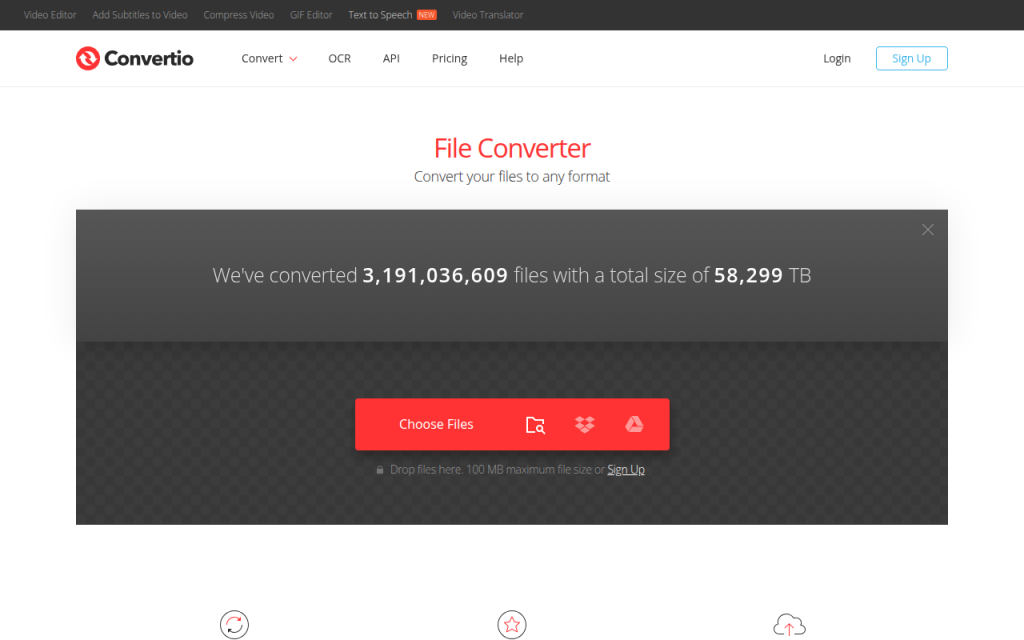
    Screenshot of convertio.co

    1. Convertio

    Convertio is one of the most recognizable names for people who need to convert PNG to JPG online quickly. Its main appeal is convenience. The interface is clean, drag-and-drop works well, and the service supports a huge range of file types beyond images, which makes it especially useful for freelancers and small business owners who want one tool for occasional format changes across different media. Convertio supports cloud imports, basic batch workflows, and a familiar conversion flow that does not overwhelm non-technical users.

    Convertio is very beginner-friendly, quick to set up for one-off conversions, and convenient for cloud import/export. The trade-offs are that processing happens on their servers, which may not suit sensitive files, advanced image controls are not as deep as specialist tools, and free usage limits can be restrictive for heavy users.

    Website: https://convertio.co

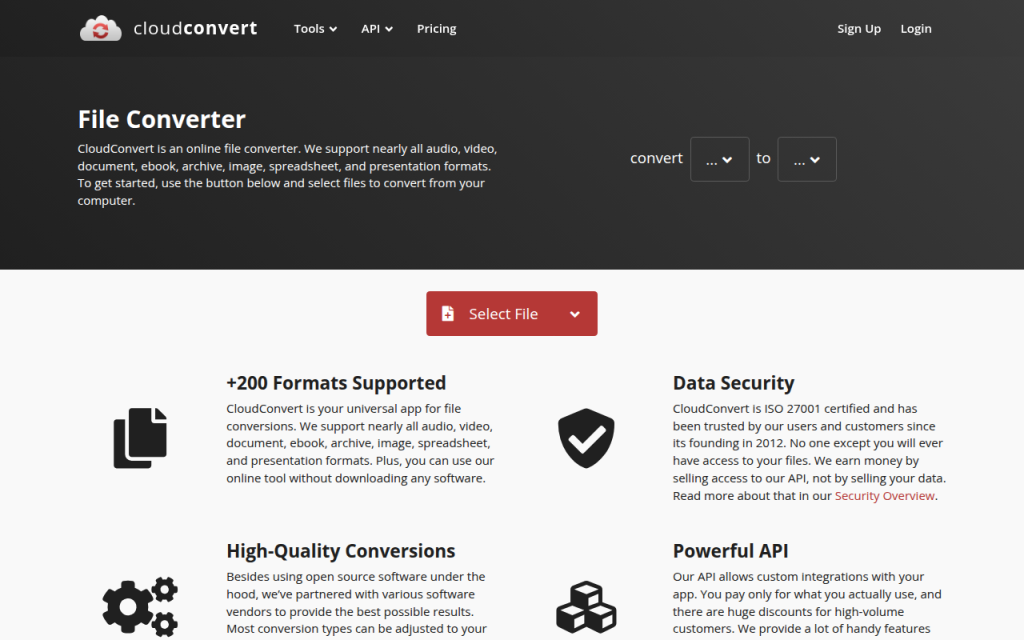
    Screenshot of cloudconvert.com

    2. CloudConvert

    CloudConvert is a strong option for users who want more control and a professional feel. It supports image conversion well and caters to users who care about workflow reliability, API access, and configurable settings. If you are a developer, power user, or agency handling recurring conversions, CloudConvert often feels more robust than lightweight web converters. It provides a high-quality engine, advanced settings for supported formats, and API access for automation and integration, which makes it especially useful when you need consistency across batches or must integrate conversion into a larger workflow.

    CloudConvert is reliable for professional use, supports good format coverage and workflow flexibility, and works well for teams and developers. Its downsides are server-side uploads, a less casual feel than ultra-simple converters, and limited free credits for frequent users.

    Website: https://cloudconvert.com/

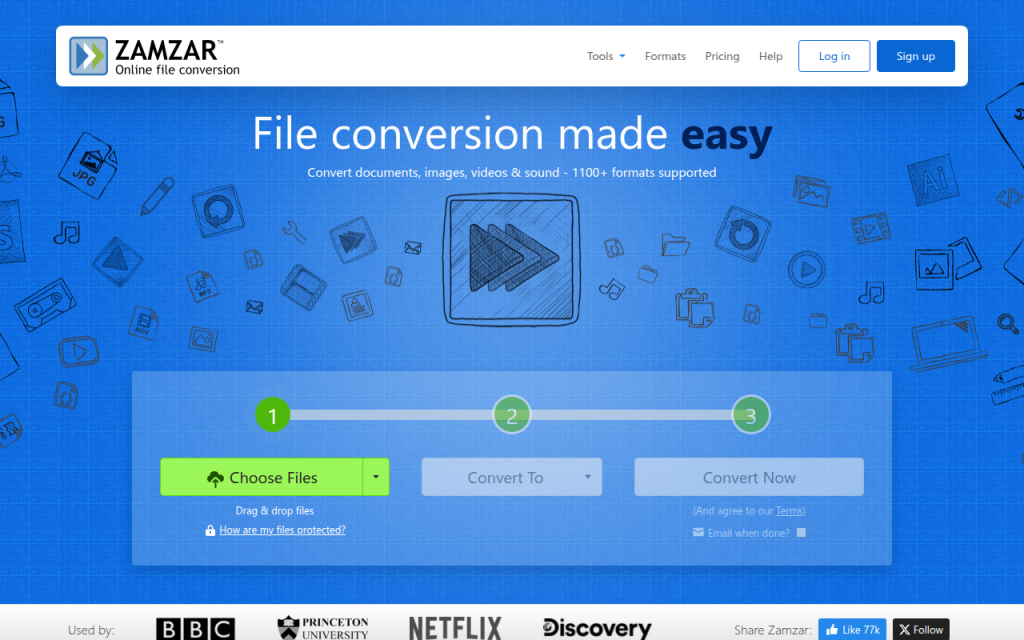
    Screenshot of zamzar.com

    3. Zamzar

    Zamzar is a long-standing, no-frills choice for straightforward online file conversion. If you want to upload a PNG, choose JPG, and download the result without worrying about many settings, Zamzar does the job. It supports a broad range of file types and is simple to use, making it a good fit for occasional users and business users who need low-friction conversions.

    Zamzar offers a straightforward conversion flow and broad file support, but its optimization controls are limited, processing is server-side, and it may feel basic to users who want detailed compression tuning.

    Website: https://www.zamzar.com/

    Screenshot of squoosh.app

    4. Squoosh

    Squoosh is the standout choice if privacy and image optimization matter more than generic file conversion convenience. Built as a browser-based image app, much of the processing can happen client-side, directly on your device. For users who do not want to upload sensitive visuals to a remote server, that is a major advantage. Squoosh also provides visual before-and-after comparisons and fine-grained optimization controls, letting you see the effect of compression before exporting and make smarter decisions about file size.

    Squoosh is excellent for privacy-conscious users and for fine tuning quality, and it is ideal for web optimization workflows. Its limitations are that it is less general-purpose than multi-format converters, can feel more technical for beginners, and is not primarily designed for batch handling.

    Website: https://squoosh.app/

    Screenshot of online-convert.com

    5. Online-Convert.com

    Online-Convert.com sits in a practical middle ground. It offers more settings than the simplest converters while remaining accessible to non-experts. If you want to tweak output behavior, adjust image-related parameters, or work with a range of file types from one platform, it is a solid pick.

    Online-Convert.com is more configurable than many casual tools and strikes a good balance between ease and control. The trade-offs are server-side conversion, a busier interface than minimalist competitors, and free limits that may apply depending on usage.

    Website: https://www.online-convert.com/

    Quick comparison of the best PNG to JPG online tools

    ToolBest forPrivacy modelBatch supportQuality controlsEase of use
    ConvertioFast everyday conversionsServer-sideYesBasic to moderateVery easy
    CloudConvertProfessional and repeat workflowsServer-sideYesModerate to strongEasy
    ZamzarOccasional simple useServer-sideLimited to moderateBasicVery easy
    SquooshPrivacy and optimizationClient-sideLimitedStrongModerate
    Online-Convert.comFlexible utility useServer-sideYesModerateEasy

    Best practices and tips to preserve quality and reduce size

    The best JPG is not always the smallest one. Over-compress an image and it looks cheap, keep it too large and your page speed suffers. The sweet spot for most photographic web images is quality 70 to 85, especially after resizing to appropriate display dimensions.

    If you are working with screenshots, graphics with text, or UI elements, be cautious. JPG can blur edges and introduce artifacting around letters or sharp lines. In many of those cases, PNG may still be the better choice. Conversion is most effective when the source is photo-like rather than graphic-heavy.

    Resize before you obsess over quality

    A lot of oversized images remain too large because users only change compression. Dimension matters more than people think. Reducing an image from 4000 pixels wide to 1600 pixels wide can slash file size while keeping the image perfectly usable on most websites. Cropping also helps. If part of the image does not contribute to the message, remove it before exporting. Less visual information often means a lighter file and a stronger composition at the same time.

    Use progressive JPG and sRGB when possible

    A progressive JPG loads in layers, which can make pages feel faster to users, even if the total file size is similar to a baseline JPG. Not every converter exposes this option, but it is worth using for web publishing when available. For color consistency, sRGB is the safest choice for the web. If your tool or editor lets you convert or embed an sRGB profile, do it to reduce the chances of washed-out or oversaturated images on different screens and browsers.

    Strip metadata when privacy or speed matters

    Metadata can include location, timestamps, device information, and editing details. If you are publishing to the web or sending files externally, removing unnecessary metadata can slightly reduce size and improve privacy. If you are a photographer or need EXIF data for workflow reasons, keep it. Otherwise, stripping it is usually the smarter default for public-facing images.

    Privacy, security, and legal considerations

    Uploading files to an online converter is not a neutral act. Once the file leaves your device, you are trusting the service to process it responsibly, delete it promptly, and not reuse it in ways you did not intend. That is fine for generic stock-style visuals, but not always for client assets, internal documents, or unreleased product imagery.

    If the image contains confidential information, copyrighted material under restricted use, or customer data, think twice before using a server-side tool. A browser-based converter like Squoosh, or a local desktop app, is often safer.

    What to check before uploading

    Look for a clear privacy policy, retention timeline, and deletion policy. Check whether files are auto-deleted after a short period and whether the provider states how uploads are handled. If that information is hard to find, that alone is a warning sign.

    Also consider the legal side. If you are converting client work, licensed visuals, or partner assets, make sure your use of a third-party conversion service does not conflict with contract terms or platform restrictions.

    Troubleshooting: Common conversion problems and fixes

    Even the best online tool can produce a disappointing result if the settings or source image are not right. Most issues fall into a handful of predictable categories, and they are usually fixable.

    Blurry output or banding artifacts

    If the JPG looks soft or shows ugly transitions in skies, shadows, or gradients, the quality setting is probably too low. Raise the compression quality slightly and try again. If the source image is extremely detailed, resize it first rather than forcing ultra-heavy compression. Banding is especially common in areas with subtle tonal shifts. Some tools simply handle those cases better than others, so switching converters can help too.

    Color shifts or dull-looking images

    If the image looks less vibrant after conversion, the problem is often the color profile. Exporting or converting to sRGB usually helps. If the tool does not expose profile controls, try a different converter or use a desktop editor for that file. Also compare the file in a proper image viewer rather than relying only on browser thumbnails, which can sometimes mislead.

    Output file is still too large

    If the JPG remains bigger than expected, check the image dimensions first. A large-resolution file at moderate compression can still be huge. Resize to the actual needed display size, then export again at around 75 to 85 quality. If the image contains large flat-color areas, text, or interface elements, JPG may simply be inefficient for that kind of content. In that case, PNG or another modern format may perform better.

    Transparency turned into the wrong background

    This happens when a transparent PNG is flattened automatically, often to white or black. If the result looks wrong, choose a specific background color during export if the tool allows it. Matching the destination page background usually produces the cleanest edges.

    Alternatives: Desktop and command-line options

    Online tools are convenient, but they are not always the best choice. If you handle sensitive files, large batches, or recurring asset work, local software is often faster and safer in the long run.

    On macOS, Preview can export many images to JPG easily. On Windows, Paint or Photos can handle basic conversions. Free tools like GIMP and IrfanView offer more control and are better for repeat use.

    For developers and power users, ImageMagick is one of the most efficient options available, excellent for batch conversion, scripting, and automation. Here are a few practical examples:

    magick input.png -background white -flatten -quality 85 output.jpg
    

    This command converts a PNG to JPG, fills transparent areas with white, and uses a quality setting of 85.

    magick input.png -resize 1600x -background white -flatten -quality 80 output.jpg
    

    This version resizes the image to 1600 pixels wide before converting, which is often a better way to reduce file size.

    magick *.png -background white -flatten -quality 82 *.jpg
    

    For batch workflows, commands like this can save enormous time, though exact shell behavior may vary by system. If you handle dozens or hundreds of files regularly, automation quickly becomes more efficient than any online interface.

    Quick FAQ

    Will converting PNG to JPG reduce quality permanently?

    Yes, potentially. JPG is a lossy format, so some image data is discarded during compression. At good settings the loss may be hard to notice, but it is still there. Keep the original PNG if you may need it later.

    Can I convert a transparent PNG to JPG and keep transparency?

    No, JPG does not support transparency. The transparent area must be replaced with a solid background color.

    What is the best JPG quality setting for web use?

    For most photos, 75 to 85 is the practical sweet spot. Start there, then adjust based on image detail and file-size goals.

    Are online converters safe?

    Some are reasonably safe for routine files, but not all are equal. For sensitive images, use a client-side tool or local software. Always review privacy and deletion policies before uploading.

    Recommended workflows by use case

    If you just need to convert one ordinary image fast, a simple service like Convertio or Zamzar is usually enough. If you need more reliability or batch-friendly workflows, CloudConvert or Online-Convert.com makes more sense. If privacy matters, Squoosh is the strongest web-based choice because it is geared toward local, browser-side processing.

    If you routinely prepare images for websites, the best workflow is often this: start with the original file, resize to the actual needed dimensions, convert to JPG at around 80 quality, use sRGB for consistent color, and remove metadata unless you explicitly need it. Then preview the final file before publishing.

    A final check goes a long way. Confirm the background looks correct, inspect the image at full size, verify the file size is reasonable, and keep the source PNG stored safely. That way you get the speed benefits of JPG without losing control of quality, privacy, or future editing flexibility.

  • How to Convert Base64 to Image Files (Quick Guide)

    How to Convert Base64 to Image Files (Quick Guide)

    A Base64 image string looks harmless until you need to turn it into a real file, display it in a browser, or debug why it refuses to render. That is where most people get stuck. You might have a string from an API, an HTML email, a database export, or a frontend app, and all you really want is a usable image.

    The good news is that Base64 to image conversion is simple once you know what format you are holding, how to clean it, and which tool fits your workflow. Whether you are a developer saving files on a server, a freelancer testing API responses, or a small business owner using an online tool for a one-off job, the same rules apply.

    This guide explains what Base64 does, why images are encoded this way, how to convert Base64 to image files in multiple languages, and how to avoid the common mistakes that waste time. It also covers the parts many tutorials skip, including image type detection, security checks, performance tradeoffs, and troubleshooting.

    What is Base64 and why it’s used for images

    What Base64 encoding does

    Base64 is a way to represent binary data, such as an image, using plain text characters. Computers store images as raw bytes, but many systems are designed to safely move text. Base64 acts like a translator, converting binary content into a text-friendly form made from letters, numbers, +, /, and sometimes = for padding.

    That text is not an image by itself. It is an encoded version of the image data. To turn Base64 to image, you decode the string back into the original bytes and then save or display those bytes as a PNG, JPEG, GIF, WebP, or another image format.

    A useful mental model is this: Base64 is like packing a product into a shipping box that fits the transport system better. The box adds bulk, but it helps the item travel through channels that prefer text.

    Visual metaphor showing raw image bytes being 'packed' into a Base64 text string and then unpacked back into bytes — include a simple conveyor: bytes (binary) -> Base64 characters (A–Z, a–z, 0–9, +, /, =) boxed for transport -> decoded bytes (image file).

    Why images are embedded as Base64

    Images are often embedded as Base64 because it makes transfer and embedding easier in certain contexts. One of the most common examples is a data URI, which looks like data:image/png;base64,.... This lets a browser render an image directly from a string, without requesting a separate file URL.

    That is useful for inline images in HTML or CSS, especially for very small assets like icons, placeholders, or tiny logos. Email templates also use embedded images in some cases, because external image loading may be blocked or delayed by the email client. Some APIs return Base64 image data because it can be bundled into a JSON response without needing separate file storage or signed URLs.

    There is convenience here, but it comes with tradeoffs. Base64 makes it easy to move image data around, but it is not always the most efficient format for storage or delivery.

    Diagram of a data URI embedded in HTML: show a browser window rendering an <img> whose src is a long data:image/png;base64,... string — include a highlighted snippet of the data URI and an arrow to the rendered inline image (no separate network request).

    Pros and cons of using Base64 for images

    The biggest downside is size. Base64 adds roughly 33% overhead compared with the original binary file. A 300 KB image can become around 400 KB or more once encoded. That affects bandwidth, API payload size, page weight, and memory use.

    Caching is another important factor. If an image is embedded directly into HTML or CSS as a data URI, the browser cannot cache it separately from that file. If the page changes, the image may be downloaded again as part of the document. By contrast, an external image file can be cached independently and reused across multiple pages.

    The upside is fewer HTTP requests for tiny assets, simpler packaging in APIs, and easier portability in systems that only handle text. For small icons or one-off embedded images, Base64 can be practical. For large photos, product galleries, or repeated assets, external files are usually better.

    How to convert Base64 string to an image, quick examples

    Online converters and when to use them

    If you just need a quick result and you are not handling sensitive data, an online Base64 to image converter is the fastest option. You paste the string, the tool decodes it, and you preview or download the image.

    This works well for debugging API responses, checking if a string is valid, or converting a one-time asset. It is less suitable for private customer files, internal documents, or anything security-sensitive. In those cases, local conversion is safer.

    A reliable tool should let you preview the decoded image, identify the file type, and alert you if the Base64 is malformed.

    Convert Base64 to image using JavaScript in the browser

    In the browser, the easiest case is when you already have a full data URI. You can assign it directly to an image element.

    <img id="preview" alt="Preview" />
    <script>
      const base64 = "data:image/png;base64,iVBORw0KGgoAAAANSUhEUgAA...";
      document.getElementById("preview").src = base64;
    </script>
    

    If you want to turn a raw Base64 string into a downloadable file, first strip any prefix, decode it, and build a Blob.

    const input = "data:image/png;base64,iVBORw0KGgoAAAANSUhEUgAA...";
    const match = input.match(/^data:(image/[a-zA-Z0-9.+-]+);base64,(.+)$/);
    const mimeType = match ? match[1] : "image/png";
    const base64Data = match ? match[2] : input;
    const byteCharacters = atob(base64Data);
    const byteNumbers = new Array(byteCharacters.length);
    for (let i = 0; i < byteCharacters.length; i++) {
      byteNumbers[i] = byteCharacters.charCodeAt(i);
    }
    const byteArray = new Uint8Array(byteNumbers);
    const blob = new Blob([byteArray], { type: mimeType });
    const url = URL.createObjectURL(blob);
    const a = document.createElement("a");
    a.href = url;
    a.download = "image.png";
    a.click();
    URL.revokeObjectURL(url);
    

    This approach is useful for frontend tools and browser-based image previews. For very large payloads, though, it can use a lot of memory because the whole string is decoded in one go.

    Convert Base64 to image using Node.js

    Node.js makes this straightforward with Buffer. If the string includes a data URI prefix, remove it first.

    const fs = require("fs");
    const input = "data:image/png;base64,iVBORw0KGgoAAAANSUhEUgAA...";
    const base64Data = input.replace(/^data:image/[a-zA-Z0-9.+-]+;base64,/, "");
    const buffer = Buffer.from(base64Data, "base64");
    fs.writeFileSync("output.png", buffer);
    console.log("Image saved as output.png");
    

    If you do not know the file type in advance, detect it before choosing the extension. That is especially important in production systems that receive images from users or third-party APIs.

    Convert Base64 to image using Python

    Python’s built-in base64 module handles decoding cleanly.

    import base64
    import re
    input_data = "data:image/png;base64,iVBORw0KGgoAAAANSUhEUgAA..."
    base64_data = re.sub(r"^data:image/[a-zA-Z0-9.+-]+;base64,", "", input_data)
    image_bytes = base64.b64decode(base64_data)
    with open("output.png", "wb") as f:
        f.write(image_bytes)
    print("Image saved as output.png")
    

    For stricter validation, use base64.b64decode(base64_data, validate=True) so invalid characters trigger an error instead of being silently ignored.

    Convert Base64 to image using PHP

    PHP includes base64_decode(), which is enough for most cases.

    <?php
    $input = "data:image/png;base64,iVBORw0KGgoAAAANSUhEUgAA...";
    $base64 = preg_replace('/^data:image/[a-zA-Z0-9.+-]+;base64,/', '', $input);
    $data = base64_decode($base64, true);
    if ($data === false) {
        die("Invalid Base64 data");
    }
    file_put_contents("output.png", $data);
    echo "Image saved as output.png";
    ?>
    

    The second argument to base64_decode enables strict mode, which helps catch malformed input early.

    Convert Base64 to image using command-line tools

    On Linux or macOS, command-line decoding is fast and practical for debugging.

    echo 'iVBORw0KGgoAAAANSUhEUgAA...' | base64 -d > output.png
    

    If your system uses a different flag:

    echo 'iVBORw0KGgoAAAANSUhEUgAA...' | base64 --decode > output.png
    

    If the data is hex-encoded after another processing step, xxd can help, but for standard Base64 to image conversion, base64 -d is the usual tool.

    Handling common Base64 variants and pitfalls

    Recognizing and stripping the data URI prefix

    A lot of conversion failures happen because the input is not just Base64. It includes a prefix like data:image/jpeg;base64,. That header is useful because it tells you the MIME type, but most decoders need only the content after the comma.

    The safe pattern is to detect whether the string starts with data: and split on the first comma. Everything after that is the actual Base64 payload. If you forget this step, your decoder may error out or produce a corrupt file.

    URL-safe Base64 vs standard Base64

    Not all Base64 strings use the same alphabet. URL-safe Base64 replaces + with - and / with _. This variant appears in web tokens, query strings, and some APIs because it avoids characters that can cause issues in URLs.

    If you try to decode URL-safe Base64 with a standard decoder, it may fail unless you first normalize those characters back to the standard form. Many libraries support URL-safe decoding explicitly, but it is worth checking documentation instead of assuming all Base64 is identical.

    Padding characters and when they matter

    The = character at the end of a Base64 string is padding. It helps ensure the encoded length fits Base64’s block structure. Some systems omit padding, especially in URL-safe variants.

    Missing padding does not always break decoding, but some decoders require it. A simple fix is to add = characters until the string length is divisible by 4. If the payload still fails after that, the issue is probably not padding alone.

    Invalid characters and error handling

    Whitespace, line breaks, transport errors, or accidental copy-paste changes can break a Base64 string. The result might be an exception, a corrupt image, or an output file that exists but will not open.

    Good practice is to validate before decoding and wrap the decode step in error handling. In Python, use strict validation. In PHP, use strict mode. In JavaScript and Node.js, check the input format and fail gracefully if the decoded bytes do not match an expected image signature.

    Large payloads and memory considerations

    A very large Base64 string can stress memory because the text version is already bigger than the binary file, and decoding often creates additional copies in memory. That is one reason browser-based conversion can freeze tabs when the payload is large.

    On servers, avoid full-buffer decoding for very large files when possible. Stream the input, decode in chunks, and write directly to disk or object storage. This matters in image-heavy apps, upload services, and automation pipelines.

    Detecting image type from Base64

    Using the data URI MIME type if present

    If your Base64 string begins with something like data:image/webp;base64, you already have the simplest clue about the image type. In many workflows, that is enough to choose the file extension and set the correct Content-Type.

    Still, do not trust it blindly. A malicious or buggy source can label a payload as PNG when it is actually something else. For anything security-sensitive, compare the declared MIME type with the actual decoded bytes.

    Magic bytes approach

    Most image formats have recognizable magic bytes at the beginning of the file. After decoding a small portion of the Base64 string, you can inspect the first few bytes and identify the type.

    Here are common signatures:

    FormatMagic bytes (hex)Notes
    PNG89 50 4E 47Starts with .PNG signature
    JPEGFF D8 FFCommon for .jpg and .jpeg
    GIF47 49 46ASCII GIF
    WebP52 49 46 46 + 57 45 42 50RIFF container with WEBP marker

    This technique is more reliable than trusting a filename or a MIME prefix alone. It is a smart check when saving user uploads or processing third-party API content.

    Libraries and tools to detect format automatically

    If you do this often, use a library. In Node.js, file-type can inspect buffers and detect the format. In Python, python-magic and Pillow are common choices. In PHP, finfo, GD, or Imagick can help verify the actual file type and whether the image can be opened safely.

    Automation is especially useful when the Base64 string has no prefix and the extension is unknown.

    Security considerations

    Malicious payloads hidden in Base64

    Base64 does not make content safe. It only changes the representation. A harmful file can still be encoded as Base64 and passed through APIs, forms, or databases.

    That includes malformed files, oversized payloads, polyglot files that pretend to be images, and hidden content techniques such as steganography. If your system accepts Base64 image uploads, treat them like any untrusted file upload.

    Validating image content before displaying or saving

    The best defense is to decode the data, verify the actual image format, and then open it with a trusted image library. In many cases, the safest pattern is to re-encode the image into a known-good format like PNG or JPEG using a library such as Pillow, GD, or Imagick.

    That strips unexpected metadata, normalizes structure, and reduces the risk of passing through malformed or disguised content. It also lets you enforce size limits, dimensions, and file type restrictions.

    Rate limiting and resource exhaustion attacks

    Because Base64 strings are text, they are easy to send in huge quantities. Attackers can abuse this to consume CPU, memory, disk space, or bandwidth. Even legitimate users can unintentionally trigger issues by uploading extremely large inline images.

    Set strict maximum payload sizes, limit decode time where possible, and rate-limit endpoints that accept Base64 image data. Reject requests before decode if the string length already exceeds your policy threshold.

    Serving decoded images safely

    If you save and serve decoded images, send the correct Content-Type header and avoid content sniffing issues. If you render Base64 data directly into a page, review your Content-Security-Policy rules to ensure data: URLs are allowed only where appropriate.

    If image data is user-generated, sanitize any related metadata and do not mix untrusted strings directly into HTML without context-aware escaping. The risk is not just the image bytes, but also how surrounding content is handled.

    Performance best practices and alternatives

    When to use Base64 vs external image files

    A practical rule of thumb is simple. Use Base64 for tiny assets where reducing requests matters more than efficient caching. Use external files for anything medium or large, especially photos, product images, user uploads, and repeated UI assets.

    For example, a 1 KB icon embedded inline may be fine. A 200 KB product image embedded in JSON is usually a bad trade.

    Impact on page speed and caching

    Base64 can reduce the number of requests, but it increases document size. That matters on slower networks and mobile devices. If images are embedded in HTML, CSS, or JavaScript bundles, the browser must download that entire file before it can reuse the image.

    An external image file can be cached separately, lazy-loaded, served from a CDN, and reused across pages. That often leads to better real-world performance than inlining everything.

    Techniques to reduce size

    If you must move images as Base64, optimize the underlying image first. Compress it, resize it, and choose a modern format. Converting large PNGs or JPEGs to WebP or AVIF can reduce the file dramatically before any Base64 encoding happens.

    Server-side compression can help surrounding payloads, but remember that Base64 itself is still overhead. The best savings usually come from image optimization, not from trying to make the encoded text smaller.

    CDNs and data URI tradeoffs

    A CDN shines when images are separate files. It can cache near the user, apply optimized delivery, and reduce load on your origin server. Data URIs bypass those benefits because the image is tied to the parent file.

    If your workflow needs compact inline graphics, consider inline SVG for simple vector icons or traditional sprite strategies for tightly controlled assets. These options can be more efficient than Base64 for certain UI elements.

    Advanced scenarios and tools

    Embedding images in emails

    Email is one of the classic places where Base64 images appear, but client support is inconsistent. Some clients block images, some strip certain constructs, and large email bodies can hurt deliverability.

    For tiny logos or icons, inline embedding can work. For larger images, linked hosted files are often more manageable. Keep total email size low and test across major clients before relying on embedded images heavily.

    Storing Base64 images in databases

    Storing Base64 directly in a database is convenient, but usually inefficient. You pay the 33% size overhead, increase row size, and make backups heavier. Queries can also become slower and more memory-intensive.

    A better pattern is to store the image as binary in object storage or a file system, then save only metadata and a URL or key in the database. If you must accept Base64 at the API layer, decode it immediately and store the binary result instead of the original encoded string.

    Streaming decode for very large images

    For very large inputs, streaming is the right architecture. In Node.js, you can process incoming data with streams rather than buffering the entire payload. In Python, chunked processing or upload handlers can reduce memory pressure.

    This matters less for occasional small files and much more for batch systems, media pipelines, or services accepting user-generated content at scale.

    Automated conversion pipelines and tooling

    If your workflow repeatedly handles Base64 images, build a pipeline. Decode, detect type, validate dimensions, re-encode into a standard format, optimize, and store.

    Useful tools include Node packages like file-type and native Buffer, Python libraries such as Pillow and python-magic, and PHP image libraries like GD or Imagick. Command-line tools can also fit into scripts and CI pipelines for quick checks.

    Step-by-step troubleshooting checklist

    If your Base64 to image conversion fails, check these in order:

    1. Confirm the prefix: If the string starts with data:image/...;base64,, strip everything before the comma before decoding.
    2. Verify the variant: If it contains - and _, it may be URL-safe Base64 and needs normalization.
    3. Fix padding: If the length is not divisible by 4, add = until it is.
    4. Inspect the bytes: After decoding, check the first bytes for PNG, JPEG, GIF, or WebP signatures.
    5. Validate the MIME type: Make sure declared type and actual content match.
    6. Check memory limits: Large strings can crash browser tabs or exhaust server memory. Use streaming for big files.
    7. Review CSP rules: If a browser will not display an inline data URI, your Content-Security-Policy may block data: sources.

    A simple command-line check can help quickly:

    echo 'YOUR_BASE64_STRING' | base64 -d > test_image.bin
    file test_image.bin
    

    If file reports a valid image format, your Base64 is probably fine and the issue is elsewhere, such as MIME type or frontend rendering.

    Examples and common use-cases

    Inline avatars in single-page apps

    A single-page app might embed tiny default avatars as Base64 to avoid extra requests during initial render. That can be acceptable for a few very small placeholders.

    But once users upload real profile photos, external file storage becomes better. The photos can be resized, cached independently, and delivered through a CDN instead of bloating API responses.

    Small icon sprites embedded in emails

    An email template with a few tiny monochrome icons may use embedded image data to reduce dependence on remote loading. This can make branding more consistent in some clients.

    Still, the total message size matters. What works for a 500-byte icon becomes a problem when a marketing email embeds multiple large images directly in the HTML.

    APIs that return Base64 images vs returning URLs

    Some internal APIs return Base64 because it simplifies a single JSON response. That is fine for signatures, QR codes, or generated thumbnails. For larger assets, returning a URL is usually better because it keeps API responses smaller and lets the client fetch only what it needs.

    This is one of the most common design decisions teams revisit as an app grows. What feels simple early on can become expensive later.

    Converting legacy Base64 storage to modern workflows

    A legacy system might store customer images as Base64 text in a database. Migrating that setup usually means decoding each record, detecting the real type, re-encoding where needed, storing the file in object storage, and replacing the text field with a reference.

    Teams often see immediate benefits: smaller databases, faster backups, easier CDN delivery, and simpler frontend rendering.

    Resources, libraries and online tools

    Recommended libraries by language

    The following tools are widely used and practical:

    LanguageLibraries / ToolsBest use
    Node.jsBuffer, file-typeDecode Base64, detect image type
    Pythonbase64, Pillow, python-magicDecode, validate, re-encode
    PHPbase64_decode, GD, Imagick, finfoDecode and verify image content
    CLIbase64, file, xxdQuick validation and debugging

    Online Base64 to image converters and validators

    For one-off jobs, online tools can save time. The best ones offer preview, MIME detection, and validation. Use them for non-sensitive content only, or self-host an internal version if privacy matters.

    If you work with client data, financial documents, or user uploads, local or server-side conversion is the safer choice.

    Further reading and official docs

    Official language documentation is the best source for edge cases and strict decoding behavior. For production systems, also review your image library docs, storage platform guidance, and security recommendations for file uploads and content validation.

    Conclusion and quick reference

    Base64 to image conversion is easy once you separate the actual payload from any data URI prefix, decode it with the right tool, and verify the resulting bytes. The biggest mistakes usually come from trusting the MIME type blindly, ignoring URL-safe variants, or using Base64 where normal image files would perform better.

    Your next step depends on your use case. For a quick one-off, use an online converter. For app development, decode locally in JavaScript, Node.js, Python, or PHP. For production systems, add validation, file type detection, size limits, and a storage strategy that avoids unnecessary Base64 bloat.

    Cheat sheet: common commands and snippets

    TaskSnippet
    Browser preview<img src="data:image/png;base64,..." />
    Node.js save filefs.writeFileSync("output.png", Buffer.from(base64Data, "base64"))
    Python save fileopen("output.png", "wb").write(base64.b64decode(base64_data))
    PHP save filefile_put_contents("output.png", base64_decode($base64, true))
    Linux decode`echo ‘BASE64’
    Strip data URI prefixRemove data:image/...;base64, before decoding
    Fix missing paddingAdd = until length is divisible by 4
    Detect PNG bytes89 50 4E 47
    Detect JPEG bytesFF D8 FF
    Detect GIF bytes47 49 46

    If you are building a workflow around Base64 images, the smartest move is simple: decode early, validate carefully, optimize the real image, and store files in a format built for delivery.

  • Mobile Detection in JavaScript — Capability-First

    Mobile Detection in JavaScript — Capability-First

    Mobile users now make up a huge share of web traffic, yet many sites still handle mobile detection on JavaScript poorly. The result is familiar, slow-loading pages, broken touch interactions, unnecessary popups, or features that behave differently on phones and tablets than they do on desktops. For developers, freelancers, and small business owners trying to build practical, fast web experiences, this is not a minor detail. It directly affects usability, conversion, and customer trust.

    The tricky part is that mobile detection on JavaScript is not a single technique. It can mean checking screen size, reading the user agent, detecting touch capability, or observing feature support in the browser. Each method solves a different problem, and each has limitations. The best approach is usually not to ask, “Is this a mobile device?” but rather, “What capabilities does this device and browser actually have?”

    What is Mobile detection on javascript?

    At its core, mobile detection on JavaScript is the process of identifying whether a visitor is likely using a mobile device, and sometimes what kind of mobile environment they are using. This information can be used to adapt navigation, optimize interactions, load lighter assets, adjust layouts, or tweak behaviors for touch-first use cases.

    Many people assume this is as simple as checking if the screen is small. In practice, it is more nuanced. A small browser window on a desktop is not the same as a phone. A large tablet can have a screen wider than some laptops. A foldable device may change shape while the user is interacting with your app. JavaScript can help detect these situations, but only when you understand what signal you are actually measuring.

    The older style of mobile detection relied heavily on the user agent string, which is a text identifier sent by the browser. For years, developers parsed this string to guess whether the device was an iPhone, Android phone, iPad, or desktop browser. That method still exists, but it is less reliable than it used to be. Browsers increasingly reduce or standardize user agent data for privacy and compatibility reasons. See more about the user agent string on MDN: user agent string.

    Modern front-end development leans more toward responsive design and feature detection. Instead of making broad assumptions about device category, developers use CSS media queries and JavaScript checks to respond to viewport size, touch support, orientation, pointer type, network conditions, or browser features. This produces more resilient applications and reduces edge-case failures.

    Why developers still use mobile detection

    Even though responsive design handles much of the layout work, there are still practical reasons to detect mobile contexts with JavaScript. A business website might want to simplify a complex pricing table on smaller viewports. A booking app may switch from hover-driven interactions to tap-based controls. A dashboard could delay nonessential scripts for users on constrained mobile connections.

    There is also a performance angle. If you know a user is likely on a mobile environment, you may choose to lazy-load high-resolution media, compress interactions, or avoid expensive animations. That does not mean serving a lesser experience. It means serving a more appropriate one.

    Device detection versus capability detection

    This distinction matters. Device detection tries to answer what the device is. Capability detection tries to answer what the browser can do. If your goal is to improve usability, capability detection is usually safer.

    For example, if you want to know whether to show hover-based tooltips, checking for a “mobile” user agent is a weak solution. A better approach is to ask whether the device has a fine pointer or supports hover. That is a capability question, and JavaScript can work with those signals more effectively than a broad mobile label.

    Side-by-side comparison showing device detection vs capability detection

    Key Aspects of Mobile detection on javascript

    Infographic showing main detection methods as tiles: User agent, Viewport, Touch, Media queries, Pointer & hover

    To make smart decisions, you need to understand the main detection methods and what they are good at. No single method is perfect, so the strength comes from using the right tool for the right job.

    User agent detection

    User agent detection is still widely used because it is simple and familiar. In JavaScript, developers often inspect navigator.userAgent and search for markers like Android, iPhone, or iPad.

    function isMobileByUserAgent() {
      return /Android|iPhone|iPad|iPod|Opera Mini|IEMobile|WPDesktop/i.test(
        navigator.userAgent
      );
    }
    
    console.log(isMobileByUserAgent());
    

    This approach can work for quick heuristics, especially in legacy codebases or analytics scripts. It is also helpful when you need rough categorization for known device families.

    The downside is reliability. User agent strings can be spoofed, changed, or normalized across browsers. They are not future-proof, and they often break when new devices appear. If your business logic depends heavily on them, maintenance becomes painful.

    Viewport and screen size detection

    A more common pattern is to detect the viewport width and adapt behavior accordingly. This aligns closely with responsive web design and often matches what users actually experience on screen.

    function isSmallViewport() {
      return window.innerWidth <= 768;
    }
    
    console.log(isSmallViewport());
    

    This is useful when your concern is layout or available screen real estate. If a side menu should collapse below a certain width, viewport detection is a perfectly reasonable solution.

    Still, it is important to be precise about what this means. It does not tell you whether the user is on a phone. It only tells you the current viewport is small. A resized desktop browser may trigger the same result. For many interface decisions, that is fine. For device classification, it is not enough.

    Touch capability detection

    Some developers equate touch support with mobile usage, but that shortcut can be misleading. Many laptops support touch, and some mobile browsers may behave differently than expected. Even so, touch capability is still valuable when your interface needs different gestures or controls.

    function supportsTouch() {
      return (
        'ontouchstart' in window ||
        navigator.maxTouchPoints > 0 ||
        navigator.msMaxTouchPoints > 0
      );
    }
    
    console.log(supportsTouch());
    

    This works best when you are answering a specific interaction question. If you need bigger tap targets, swipe gestures, or drag behavior tuned for touch, this check can help. If you are trying to decide whether the visitor is “mobile,” it is too broad on its own.

    Media queries in JavaScript

    JavaScript can also read the same kinds of conditions used in CSS media queries. This is often one of the cleanest ways to align styling and scripting logic.

    const mobileQuery = window.matchMedia('(max-width: 768px)');
    
    function handleViewportChange(e) {
      if (e.matches) {
        console.log('Likely mobile-sized viewport');
      } else {
        console.log('Larger viewport');
      }
    }
    
    handleViewportChange(mobileQuery);
    mobileQuery.addEventListener('change', handleViewportChange);
    

    This approach is especially useful when your UI changes dynamically. A user may rotate a phone, resize a browser, or move between split-screen modes. Media-query-based detection lets your scripts respond in real time instead of assuming the device state never changes.

    Pointer and hover detection

    A more modern and often overlooked strategy is checking input behavior. This matters because many mobile-specific UX issues are actually input issues.

    const hasCoarsePointer = window.matchMedia('(pointer: coarse)').matches;
    const supportsHover = window.matchMedia('(hover: hover)').matches;
    
    console.log({ hasCoarsePointer, supportsHover });
    

    A coarse pointer usually indicates finger-based interaction, while hover support tends to correlate with mouse or trackpad use. This is often more useful than broad mobile detection when deciding how menus, tooltips, and interactive controls should behave.

    Comparing common approaches

    The most effective mobile detection strategy depends on the question you are asking. The table below shows where each method fits best.

    Method Best For Strengths Limitations
    User agent detection, Rough device categorization Rough device categorization Simple, familiar, quick to implement Fragile, spoofable, less future-proof
    Viewport width, Layout and responsive behavior Layout and responsive behavior Matches screen space, easy to maintain Does not identify actual device type
    Touch detection, Touch-specific interactions Touch-specific interactions Good for gesture and tap-related logic Touch does not always mean mobile
    Media queries via JavaScript, Dynamic responsive behavior Dynamic responsive behavior Syncs with CSS logic, reacts to changes Still focused on conditions, not device identity
    Pointer and hover detection, Input-specific UX adjustments Input-specific UX adjustments Excellent for interaction design Not a complete mobile classification system

    Why “mobile” is often the wrong target

    One of the biggest mistakes in JavaScript mobile detection is treating all phones and tablets as a single category. A modern flagship phone on a fast connection can outperform an old desktop machine in some tasks. A tablet with a keyboard may behave more like a laptop than a phone. A foldable device can switch from narrow to wide layouts instantly.

    That is why a context-first approach works better. If you need to adapt layout, use viewport logic. If you need to adjust interactions, use pointer and hover detection. If you need to reduce heavy effects on constrained devices, combine feature and performance signals. This gives you fewer false assumptions and a cleaner architecture.

    How to Get Started with Mobile detection on javascript

    The easiest way to begin is to stop chasing a perfect definition of mobile and instead define the exact behavior you want to change. That framing simplifies the implementation. You are no longer trying to identify every possible device. You are solving a specific user experience problem.

    For example, if your navigation breaks on touch-first devices, focus on pointer and touch detection. If your content feels cramped on smaller screens, focus on viewport-based logic. If a third-party script causes slowdowns on smaller devices, focus on screen width, network-aware loading, and progressive enhancement.

    Start with responsive design first

    Before writing JavaScript detection logic, make sure your layout is already responsive with CSS. In many cases, CSS media queries solve the problem more elegantly than JavaScript. Mobile detection on JavaScript should usually support behavior, not replace responsive design.

    When the visual layout and spacing are already responsive, your JavaScript becomes lighter and more intentional. You only add device-aware logic where interaction, performance, or conditional loading truly requires it.

    Use feature detection for behavior changes

    If the goal is to change how an interface behaves, feature detection is usually the right starting point. This means checking whether the browser supports a capability rather than trying to infer it from the device label. See more on feature detection: feature detection.

    Here is a practical example that adapts a menu interaction based on hover support:

    const canHover = window.matchMedia('(hover: hover)').matches;
    
    const menuButton = document.querySelector('.menu-button');
    const menu = document.querySelector('.menu');
    
    if (canHover) {
      menuButton.addEventListener('mouseenter', () => {
        menu.classList.add('open');
      });
    
      menuButton.addEventListener('mouseleave', () => {
        menu.classList.remove('open');
      });
    } else {
      menuButton.addEventListener('click', () => {
        menu.classList.toggle('open');
      });
    }
    

    This is a strong pattern because it adapts to how the user interacts, not what device name they happen to use. A touch laptop and a phone may both avoid hover-dependent logic, while a desktop browser keeps the richer mouse-friendly behavior.

    Combine signals when necessary

    Sometimes one signal is not enough. If you need to make a broader guess about mobile usage, combining checks can improve accuracy without pretending you have certainty.

    function isLikelyMobile() {
      const smallScreen = window.matchMedia('(max-width: 768px)').matches;
      const coarsePointer = window.matchMedia('(pointer: coarse)').matches;
      const mobileUA = /Android|iPhone|iPad|iPod|Opera Mini|IEMobile|WPDesktop/i.test(
        navigator.userAgent
      );
    
      return smallScreen && (coarsePointer || mobileUA);
    }
    
    console.log(isLikelyMobile());
    

    This still should not be used as a hard security or business-critical rule. It is a heuristic. For UI tuning, though, it can be practical when you need a fallback category for analytics or lightweight experience adjustments.

    Watch for resize and orientation changes

    One common mistake is checking once on page load and never updating again. Mobile conditions can change while the page is open. Orientation changes, split-screen apps, foldable devices, and browser resizing all affect the environment.

    function updateDeviceState() {
      const mobileSized = window.matchMedia('(max-width: 768px)').matches;
      document.body.classList.toggle('mobile-sized', mobileSized);
    }
    
    window.addEventListener('resize', updateDeviceState);
    window.addEventListener('orientationchange', updateDeviceState);
    updateDeviceState();
    

    This kind of event-based update keeps your interface aligned with the current context. It is especially important for dashboards, web apps, booking systems, and tools that remain open for long sessions.

    Avoid common implementation mistakes

    The first mistake is using user agent detection as the only source of truth. It feels convenient, but it creates hidden bugs over time. The second is using mobile detection to gate essential content. Users should not lose core functionality because your script guessed wrong.

    Another common issue is overengineering. Not every site needs a complex device detection layer. If your goal is simply to stack cards on smaller screens or enlarge tap areas, CSS and a few targeted JavaScript checks are enough. Keep the logic tied to actual product needs.

    A practical setup for most websites

    For many business sites and web apps, a sensible approach looks like this:

    1. Use CSS media queries for layout and spacing.
    2. Use matchMedia() in JavaScript for behavior tied to viewport or input type.
    3. Use feature detection for touch, hover, or pointer-related interactions.
    4. Use user agent checks sparingly for edge cases or analytics, not as your main strategy.

    That workflow gives you flexibility without making your front end brittle. It is also easier to test, explain, and maintain across projects.

    Testing your mobile detection logic

    Testing matters because mobile detection bugs often hide in edge cases. A page can seem fine in a desktop browser resized to phone width, then behave differently on an actual device with touch input and browser chrome.

    Use browser developer tools for quick viewport checks, but also test on real phones and tablets whenever possible. Pay attention to orientation changes, keyboard overlays, tap behavior, hover states, and performance under slower conditions. If your site serves customers, not just developers, these details shape the user experience more than the detection method itself.

    Conclusion

    Mobile detection on JavaScript is less about identifying a perfect device category and more about choosing the right signal for the job. User agent detection can still help in limited cases, but modern development works better when you focus on viewport size, feature support, touch capability, and input behavior. That approach is more resilient, more accurate for UX decisions, and easier to maintain.

    The next step is simple. Review one part of your site that behaves differently on phones, such as navigation, forms, media, or interactive widgets. Then ask what you really need to detect: screen space, touch, hover, or a rough mobile heuristic. Once you answer that clearly, your JavaScript becomes cleaner, and your users get a smoother experience on every device.

  • JPG to PNG: When to Convert, Tools, and Best Practices

    JPG to PNG: When to Convert, Tools, and Best Practices

    A quick JPG to PNG conversion can solve the right problem, or create a bigger one. That is why so many people end up with bloated files, disappointing image quality, or a transparent background that still looks rough around the edges.

    If you are a small business owner updating product images, a freelancer sending client assets, or a developer preparing web graphics, the format you choose matters. This guide explains what JPG to PNG really means, when it helps, when it does not, and how to convert files the right way using built-in tools, desktop software, online converters, and developer-friendly methods.

    What “JPG to PNG” Means and When to Convert

    What is JPG/JPEG?

    JPG, also written as JPEG, is one of the most common image formats in the world. It was designed primarily for photographs and complex images with lots of colors, gradients, and visual detail. Its biggest advantage is small file size, which comes from lossy compression.

    Lossy compression means the file discards some image data to reduce storage space. In many cases, especially at high quality settings, that loss is hard to notice with the naked eye. But once the data is removed, it is gone. Re-saving a JPG over and over can gradually make artifacts, soft edges, and blocky areas more visible.

    JPG also does not support true transparency. If you need a logo with no background, or a cutout product photo that sits cleanly on a webpage, JPG is usually the wrong final format. It can store metadata such as EXIF camera data and color profiles, but its core strength remains efficient photo compression.

    What is PNG?

    PNG stands for Portable Network Graphics. It uses lossless compression, which means image data is preserved rather than thrown away during saving. That makes PNG a strong choice when you want to keep sharp lines, crisp text, interface elements, screenshots, diagrams, and graphics intact.

    PNG also supports transparency, including smooth alpha transparency. This matters for logos, icons, signatures, overlays, and product images that need to blend into different backgrounds without a white box around them.

    In practical terms, PNG is often better for graphics than photos. It can preserve detail very well, but the trade-off is file size. A PNG made from a photograph can be much larger than the original JPG without looking noticeably better.

    Split-screen comparison: JPG vs PNG, lossy vs lossless and transparency support

    Common reasons to convert JPG to PNG

    There are several legitimate reasons to convert JPG to PNG. One common case is editing. If you must continue editing an image multiple times, saving your working file as PNG can help you avoid further lossy degradation that would happen with repeated JPG exports.

    Another reason is design workflow. If you are placing an image into presentations, mockups, apps, or websites and you need transparency or cleaner edges, PNG is often more practical. This is especially true for logos, badges, UI elements, and screenshots.

    It can also make sense for archival of a current state, but with an important caveat. Converting a JPG to PNG preserves the current image without introducing new JPG compression on future saves. However, it does not recover quality already lost in the JPG. Think of it like photocopying a document into a protective sleeve. You preserve what you have now, but you do not magically recreate the original.

    When You Should Not Convert JPG to PNG

    Quality misconceptions

    The biggest myth around JPG to PNG is that conversion improves quality. It does not. If a JPG already has compression artifacts, blur, banding, or noise, saving it as PNG will simply preserve those flaws in a different container.

    This matters because people often convert a low-quality JPG hoping it will become sharper. It will not. A PNG can stop further lossy damage if you continue working with the file, but it cannot reconstruct discarded image information.

    If you still have the original source file, such as a RAW photo, PSD, AI, or an earlier export, use that instead. Starting from the best source is always better than converting a compressed derivative.

    File size considerations

    For photographs, JPG is often preferable because it gives you a strong balance between visual quality and compact size. A high-resolution photo that is 1 MB as a JPG might become 5 MB, 10 MB, or more as a PNG with little visible improvement.

    That increase matters if you store many images, send them by email, upload them to client portals, or publish them online. PNG is efficient for flat-color graphics and transparent assets, but it is rarely the best format for everyday photo delivery.

    A simple rule helps here: if the image is mostly a photo, keep it as JPG unless you have a specific reason to use PNG. If the image is mostly graphics, text, interface elements, or transparency, PNG becomes more attractive.

    File-size tradeoffs: photo vs graphics, JPG vs PNG

    Caption: Photo → usually JPG; Graphics/Transparency → usually PNG.

    Web performance implications

    For websites, unnecessary PNGs can hurt page speed. Larger files increase bandwidth usage and slow loading, especially on mobile connections. If you convert every photo from JPG to PNG, your site may become heavier without any meaningful visual benefit.

    That has real business impact. Slow pages can reduce conversions, increase bounce rate, and weaken SEO performance. Google does not rank a page higher just because an image is PNG. It values user experience, and faster pages usually win.

    For web delivery, modern formats like WebP and AVIF are often better than either JPG or PNG for many use cases. PNG still has a role, especially for transparency and graphics, but it should be chosen intentionally.

    How to Convert JPG to PNG, Step-by-Step Methods

    Using built-in OS tools

    If you want the fastest possible method, your operating system may already be enough.

    On Windows, Paint can convert JPG to PNG in a few clicks:

    1. Open the JPG file in Paint.
    2. Click File.
    3. Choose Save As.
    4. Select PNG picture.
    5. Rename the file and save it.

    On macOS, Preview is just as straightforward:

    1. Open the JPG in Preview.
    2. Click File and then Export.
    3. Choose PNG from the format dropdown.
    4. Select a location and save.

    These built-in tools are convenient for one-off tasks. They are not ideal for advanced color management, transparency editing, or bulk workflows, but they work well when speed matters.

    Using free desktop software

    Desktop tools give you more control, especially if you care about resizing, metadata, transparency, or batch conversion. IrfanView is excellent for Windows users who want a lightweight option. GIMP is a powerful free editor for Windows, macOS, and Linux. Photoshop is still the standard in many design environments.

    In IrfanView, you typically open the JPG, choose Save As, then select PNG. In GIMP, you open the image and use Export As to choose PNG. In Photoshop, you can use Save a Copy or Export As depending on your workflow. These tools also let you prepare the image before conversion, which is often more important than the format switch itself.

    If the file name matters, use clear versioning. Something like product-shot-v2.png is more useful than image-final-new-3.png. For client work, consistent naming saves time and avoids accidental overwrites.

    Using online converters

    Online converters are popular because they are quick and require no installation. Services such as CloudConvert, Convertio, and Online-Convert are widely used for JPG to PNG tasks.

    They are best for occasional conversions when the image is not sensitive. Upload the JPG, choose PNG, wait for processing, then download the result. Most platforms also support drag and drop and can handle a few files at once.

    Before using any online converter, check three things. First, confirm the site uses HTTPS. Second, review the file deletion policy to see how long uploaded files are stored. Third, avoid uploading confidential client documents, IDs, contracts, or private photos unless you fully trust the service and your compliance requirements allow it.

    Converting in bulk

    If you need to convert dozens or hundreds of images, manual methods become painful. Batch workflows are much better.

    Many desktop apps support bulk conversion through a dedicated batch tool. IrfanView has a built-in batch conversion window. Photoshop supports Actions and Image Processor. GIMP can be extended with batch plugins or external tools.

    For developers and power users, command-line tools are faster and more repeatable. ImageMagick is one of the best options. A simple example looks like this:

    magick input.jpg output.png
    

    To convert multiple JPG files in a folder, you can script it with shell tools or platform-specific automation. This is especially helpful for product catalogs, content migrations, or asset pipelines.

    Converting programmatically

    If conversion is part of an app, workflow, or upload pipeline, Python Pillow is a practical choice. It gives you programmatic control over format conversion and post-processing.

    Here is a basic example using Pillow:

    from PIL import Image
    img = Image.open("input.jpg")
    img.save("output.png", "PNG")
    

    If you want to preserve color consistency, inspect the source image mode and profile before saving. In production workflows, it is also smart to validate file type rather than relying only on the file extension.

    For quick automation from the terminal, ImageMagick remains excellent because it is scriptable, cross-platform, and mature. It is especially useful when you need resizing, metadata stripping, or format conversion in one step.

    Best Tools and Services for JPG to PNG Conversion

    Choosing the best JPG to PNG tool depends on what you care about most: speed, privacy, batch support, editing control, or automation. Built-in tools are ideal for occasional use. Online services are convenient when you are on any device and need immediate results. Desktop apps win when you need advanced editing or bulk work. Developer tools are best for repeatable workflows.

    The table below gives a practical comparison.

    Tool Best for Ease of use Batch support Privacy Cost
    Paint / Preview Quick one-off conversion Very easy Limited High, local files Free
    CloudConvert Fast online conversion Easy Moderate Medium, upload required Free tier / paid
    Convertio Browser-based convenience Easy Moderate Medium, upload required Free tier / paid
    Online-Convert Flexible online settings Moderate Moderate Medium, upload required Free tier / paid
    IrfanView Lightweight desktop batch work Easy Strong High, local files Free for personal use
    GIMP Free advanced editing Moderate Moderate High, local files Free
    Photoshop Professional editing workflows Moderate Strong High, local files Paid
    ImageMagick / Pillow Automation and developer workflows Advanced Excellent High, local files Free

    Security, privacy, and batch limits

    If privacy matters, local tools are safer by default because files never leave your machine. That makes Preview, Paint, GIMP, Photoshop, IrfanView, ImageMagick, and Pillow strong choices for business documents, sensitive assets, and client work.

    For online tools, read the fine print. Look for file retention windows, deletion guarantees, maximum file size, daily conversion caps, and whether API access or batch processing is hidden behind a paywall. A free tool can be perfect for occasional use, but frustrating for heavy workflows.

    Optimizing PNGs After Conversion

    Reducing PNG file size

    A converted PNG is not always ready to use. In many cases, it needs optimization. This is where tools like optipng, pngcrush, and pngquant become valuable.

    pngquant is especially useful when you can reduce the image to a limited color palette. That can shrink file size dramatically for logos, icons, illustrations, and UI graphics. optipng and pngcrush focus on lossless optimization, which means they attempt to reduce file size without changing visible quality.

    Here are two practical commands:

    optipng output.png
    
    pngcrush -rem allb -reduce input.png optimized.png
    

    The -rem allb option strips unnecessary metadata chunks, and -reduce tries to use a more efficient PNG structure where possible.

    When to use PNG-8 vs PNG-24/32

    PNG-8 uses a limited color palette, usually up to 256 colors. It is a strong fit for simple graphics, flat illustrations, icons, and logos where the image does not need millions of colors.

    PNG-24 supports far more color detail and is better for richer graphics. PNG-32 usually refers to 24-bit color plus an 8-bit alpha channel for full transparency. That is often what people mean when they want smooth transparent edges.

    For photos, even PNG-24 can become very large. For simple graphics, PNG-8 can offer a much better size-to-quality balance. That is why optimization is not just compression, it is also about choosing the right PNG variant.

    Preserving or removing metadata

    PNG files can carry metadata, although not always in the same way as JPG EXIF. Some workflows preserve embedded color profiles or textual information, while others strip it.

    If you need accurate color reproduction across devices, retaining the ICC profile may be important. If file size matters more and the image is simple web artwork, stripping metadata can save space. This trade-off is small on one file, but significant across hundreds of assets.

    Compressing without notable quality loss

    The best practical tip is to optimize after conversion, not before. First convert the image. Then run a PNG optimizer or export through a tool that supports palette reduction and metadata control.

    If the image is a screenshot or flat graphic, try palette reduction. If it is a logo with transparency, test PNG-8 first. If you see banding or rough edges, move back to PNG-24 or PNG-32. This simple testing cycle often produces much better results than blindly saving everything at maximum settings.

    Handling Transparency and Backgrounds

    How to remove or make background transparent

    Converting JPG to PNG does not automatically create transparency. If your JPG has a white background, converting it to PNG will usually give you a PNG with the same white background. Transparency must be created by editing the image.

    In Photoshop, open the image, unlock the background layer, select the background using the Magic Wand, Quick Selection, or Select Subject, refine the mask, then export as PNG. In GIMP, add an alpha channel first, select the background, delete it, refine edges if needed, and export as PNG.

    Automatic online background removers can help with simple product shots or portraits. They are convenient, but results vary. Hair, soft shadows, and semi-transparent materials often need manual touch-up afterward.

    Edge smoothing and anti-aliasing

    The hardest part of transparency is not removing the background, it is making the edges look natural. Jagged edges, white halos, and rough outlines are common when the original JPG was compressed heavily or placed on a bright background.

    To improve results, feather the selection slightly, refine masks carefully, and zoom in around complex edges. If a light fringe appears, use defringe or edge cleanup tools in your editor. This is especially important for logos, people, and product cutouts displayed on dark backgrounds.

    Common pitfalls when converting photos vs graphics

    Photos are harder than graphics. A screenshot or icon usually has clear boundaries and cleaner color transitions. A real-world photo may have motion blur, hair strands, shadows, reflections, and compression noise that make clean transparency difficult.

    That is why JPG to PNG works best for graphics when transparency is needed. For photos, PNG is not a magic background-removal format. The quality of your masking work matters more than the file extension.

    Performance, Accessibility, and SEO Considerations

    Page speed and modern formats

    For websites, PNG should be used with purpose. If you need sharp graphics with transparency, PNG is a strong option. If you are serving photos, WebP or AVIF will often provide much smaller files at similar visual quality.

    SVG is also better than PNG for many logos and icons because it is resolution-independent and often tiny in size. This means the best web workflow is not always JPG to PNG. Sometimes the better answer is JPG to WebP or rebuilding the asset as SVG.

    Alt text and accessibility

    Changing image format does not change accessibility on its own. What matters is how the image is described and used. If you replace a JPG with a PNG on a website, keep or improve the alt text so screen readers still convey the right meaning.

    Decorative images should have appropriate empty alt attributes. Informative images should describe their purpose clearly. Accessibility is about communication, not file type.

    Responsive images and multiple formats

    Developers should think beyond one output file. A good image strategy often means generating several sizes and formats, then serving the best option depending on the browser and screen size.

    A common pattern is to provide modern formats first, with a fallback:

    <picture>
      <source srcset="image.webp" type="image/webp">
      <source srcset="image.png" type="image/png">
      <img src="image.png" alt="Product logo">
    </picture>
    

    This approach balances compatibility and performance. It also fits well into responsive image workflows where the same visual asset needs to look sharp on different devices.

    Common Problems and Troubleshooting

    Poor quality after conversion

    If the PNG looks bad, the problem usually started with the original JPG. Compression artifacts, blur, and soft edges carry over into the PNG. Re-export from the original source file if possible. If not, mild sharpening or cleanup may help, but do not expect miracles.

    Another common issue is scaling. If you enlarged the image before conversion, it may look worse because you are stretching limited detail. Conversion is not enhancement.

    Huge PNG files

    Very large PNGs usually happen when a photo is saved losslessly without optimization. Check dimensions first. A 4000-pixel image used in a 400-pixel webpage slot is wasting space.

    Then check image type. If it is a photo, use JPG, WebP, or AVIF instead. If it must remain PNG, try palette reduction, metadata stripping, and optimization tools like optipng or pngquant.

    Color profile and ICC issues

    If the converted file looks washed out or overly saturated, a color profile mismatch may be the cause. Some apps preserve embedded profiles, others convert or discard them. This leads to different rendering across browsers, editors, and operating systems.

    A safer workflow is to standardize around sRGB for web graphics. For print or color-critical work, preserve the correct ICC profile and test in the target environment.

    Failed conversions or corrupted files

    If a conversion fails, the file may be damaged, mislabeled, or partially downloaded. Try opening it in another app first. If that works, re-save it and convert again.

    If a command-line tool fails, inspect the actual file format instead of trusting the extension. A file named .jpg might not always be a valid JPEG internally. Using another converter can also help, because some tools are better at handling edge cases than others.

    FAQs, Quick Answers

    • Does converting JPG to PNG improve quality? No. It prevents additional JPG-style compression on future saves, but it does not restore lost detail.
    • Can PNG files be larger than JPG? Yes, often much larger, especially for photographs.
    • Is PNG better for web? Sometimes. It is better for transparency, logos, screenshots, and graphics. It is usually not the best choice for large photos.
    • How do I convert multiple files at once? Use a batch-capable app like IrfanView or Photoshop, or automate with ImageMagick or Pillow.

    Resources and Further Reading

    If you want to go deeper, the best next step is to use official documentation and proven image tools rather than relying on random snippets. ImageMagick is excellent for command-line workflows. Pillow is the standard Python imaging library for many automation tasks. The official PNG specification is useful if you work closely with image pipelines, metadata, or browser rendering.

    A small cheat sheet can save time when you do this often:

    magick input.jpg output.png
    
    optipng output.png
    
    pngquant --quality=65-85 output.png
    

    For most users, the right workflow is simple. Convert JPG to PNG only when you need lossless editing, transparency, or cleaner graphic handling. If the image is a photo for the web, pause first and ask whether JPG, WebP, or AVIF would do the job better.

    Your next step is to test one image with the method that matches your use case. Use Preview or Paint for a quick one-off conversion, GIMP or Photoshop if you need transparency, and ImageMagick or Pillow if you want scalable automation. The best conversion is not just successful, it is appropriate for the way the image will actually be used.

  • MP3 Converter: Fast, Private Audio Conversion for Workflows

    MP3 Converter: Fast, Private Audio Conversion for Workflows

    Audio files have a way of becoming a bottleneck at the worst possible moment. A podcast episode is ready, but it is in the wrong format. A client sends a voice note that will not play on your device. A webinar recording is too large to upload, too awkward to share, or incompatible with the editing tool you actually use. That is where a Mp3 converter becomes one of those simple tools that quietly saves time, money, and frustration.

    For small business owners, freelancers, developers, and productivity-focused users, the appeal is obvious. You want an audio file that works everywhere, opens quickly, and is easy to store, send, publish, or archive. An MP3 converter helps you take audio from one format and turn it into MP3, the most widely recognized and supported format in everyday use. The trick is not just converting files, but doing it in a way that preserves quality, protects privacy, and fits smoothly into your workflow.

    What is an MP3 converter?

    An MP3 converter is a tool that changes audio files from one format into MP3. In practical terms, it takes files such as WAV, AAC, M4A, FLAC, OGG, or even audio extracted from video, and transforms them into a version that is easier to play on nearly any phone, laptop, browser, media app, or car stereo. It is a format translator, but one with real implications for file size, quality, compatibility, and convenience.

    The reason MP3 remains so popular is simple. It balances compression and usability exceptionally well. Uncompressed formats like WAV can sound excellent, but they are often large and cumbersome. Other compressed formats may offer technical advantages, but MP3 still wins on universal support. If your goal is to make audio accessible to clients, team members, listeners, or customers with minimal friction, MP3 is often the safest choice.

    For business and productivity use, this matters more than many people realize. A converted audio file can be easier to attach to emails, upload to a CMS, embed on a website, distribute in an online course, or share in a project management system. Instead of forcing the recipient to troubleshoot playback issues, you provide a file they can use immediately. That is the real value of a good MP3 converter. It removes technical obstacles from communication.

    Why people use MP3 so often

    MP3 became the default for a reason. It is lightweight, familiar, and broadly accepted across devices and software. If you are publishing voiceovers, training clips, interviews, or customer-facing media, there is a good chance MP3 will work without extra instructions or compatibility checks.

    There is also a practical storage benefit. Converting large raw recordings into MP3 can significantly reduce file size, which makes cloud storage less expensive and transfer times shorter. For freelancers and small teams juggling multiple projects, that can add up quickly. A smarter file format is not just a technical preference, it is an operational advantage.

    Common file types an MP3 converter handles

    Most MP3 converters are built to accept a wide range of input formats. A typical tool can work with audio formats like WAV, FLAC, AAC, OGG, and M4A. Some also extract audio from video files such as MP4 or MOV, which is useful when you need the soundtrack, interview audio, or meeting recording without the full video attached.

    The exact support varies by tool, of course. Some online converters focus on speed and simplicity, while desktop tools often support more advanced settings. That difference matters if you need batch conversion, bitrate control, metadata editing, or privacy protections for sensitive files.

    Key aspects of MP3 converters

    Choosing an MP3 converter is not just about whether it works. Most tools can convert a file. What separates a useful converter from a frustrating one is how well it handles quality, speed, control, and security. Those factors affect the final listening experience and the amount of time you spend fixing avoidable issues.

    Audio quality and bitrate

    Bitrate trade-offs: file size vs audio quality

    The most important concept to understand is bitrate. Bitrate determines how much audio data is stored per second in the MP3 file. In simple terms, higher bitrates usually mean better sound quality, but also larger file sizes. Lower bitrates save space, but can make audio sound thin, muffled, or compressed.

    For spoken audio such as interviews, voice notes, or training content, a moderate bitrate is often enough. For music, sound design, or premium branded media, higher bitrate settings are usually worth it. The right choice depends on how the file will be used. If the audio is part of a public-facing product, quality should carry more weight. If it is an internal memo or a rough archive, a smaller file may be more practical.

    File size and storage efficiency

    One of the biggest reasons to use an MP3 converter is compression. Large files create friction. They upload slowly, consume storage, and can fail in low-bandwidth environments. MP3 reduces that burden while keeping the audio usable for most everyday purposes.

    This is especially helpful for businesses that create recurring content. If you record frequent client calls, podcast episodes, tutorials, or training materials, keeping everything in uncompressed formats can become expensive and disorganized. Converting finalized content into MP3 gives you a more manageable media library without making your systems feel overloaded.

    Compatibility across devices and platforms

    Compatibility is where MP3 continues to shine. An MP3 file will usually play with minimal resistance across operating systems, browsers, smartphones, media players, and communication platforms. That broad compatibility is often more valuable than small technical differences in format performance.

    Think of it like sending a PDF instead of a niche document type. You are choosing the format most likely to open successfully for the other person. When you use an MP3 converter, you are often making the file more usable for everyone else, not just for yourself. That matters when your audience includes clients, customers, team members, or students using different devices and apps.

    Speed and ease of use

    For many users, especially those who rely on free online tools, the best MP3 converter is the one that gets the job done quickly. A clean interface, fast uploads, and straightforward export settings can save more time than a long list of advanced features you never touch.

    That said, simplicity should not come at the cost of control. A useful converter should make basic actions easy while still giving you access to options like bitrate selection, trimming, filename handling, and batch processing when needed. The ideal experience is quick for routine work and flexible for more demanding tasks.

    Privacy and security considerations

    Privacy is often overlooked until the audio file contains something sensitive. If you are converting internal calls, customer interviews, confidential meetings, or pre-release content, uploading files to a random online converter may not be a smart move. Some services retain uploads longer than expected or provide limited clarity about data handling.

    This is why it is worth checking how a converter treats your files. Look for clear deletion policies, secure uploads, and transparent terms. If the content is especially sensitive, a desktop or offline MP3 converter may be the better option. Convenience matters, but data control matters more when the audio is business-critical.

    Feature differences between converter types

    Converter TypeBest ForStrengthsTrade-offs
    Online MP3 converterQuick one-off tasksNo installation, easy access, works in browserUpload limits, privacy concerns, fewer advanced controls
    Desktop MP3 converterFrequent or sensitive conversionsBetter performance, offline use, richer settingsRequires installation, may have a learning curve
    Mobile MP3 converter appOn-the-go tasksConvenient from phone or tabletSmaller interface, limited power for larger jobs
    Integrated media editorUsers already editing audio/videoConversion plus trimming, editing, taggingCan be overkill for simple conversions

    How to get started with an MP3 converter

    Getting started with an MP3 converter is usually straightforward, but a little planning helps you avoid quality loss and unnecessary rework. The first step is to define your outcome. Are you converting for playback compatibility, smaller file size, email sharing, publishing, or archiving? That single decision influences the settings you should choose.

    If you are converting speech-based content, focus on clarity and manageable file size. If you are converting music or branded audio assets, preserve more quality. If speed is the main concern, an online tool may be enough. If privacy, batch processing, or repeat use matters, a desktop solution is often the smarter long-term choice.

    A simple way to begin

    MP3 conversion workflow

    You do not need a complicated setup to start using an MP3 converter effectively. In most cases, the process follows the same pattern:

    1. Upload or import your file.
    2. Choose MP3 as the output format.
    3. Select quality or bitrate settings.
    4. Convert and download the new file.
    5. Test playback before sharing or publishing.

    Those five actions are enough for most everyday tasks. The final step is the one people skip most often. Always test the converted file on at least one common device or player. A successful conversion is not just a completed download, it is a file that sounds right and behaves as expected.

    Choosing the right settings

    Settings matter because conversion is not magic. If you choose a very low bitrate, the file may be smaller, but the sound can suffer noticeably. If you choose a very high bitrate for a simple spoken memo, you may be wasting storage and upload time without gaining meaningful quality.

    A useful rule of thumb is to match the setting to the purpose. Voice recordings can often be converted at moderate settings while remaining clear and professional. Music, polished content, and public-facing assets deserve more generous quality settings. This is where testing one or two versions can save trouble later. Compare them briefly and keep the smallest file that still sounds good.

    Avoiding common conversion mistakes

    A common mistake is converting a file repeatedly between compressed formats. Each conversion can degrade quality, especially if the source is already compressed. If possible, start from the highest-quality original file, then create your MP3 from that version. It is similar to making copies of a photocopy. Each generation tends to lose something.

    Another mistake is ignoring metadata and naming conventions. If you are handling dozens of client files, podcast clips, or training modules, a vague filename like “audio-final-new-2.mp3” will create confusion fast. A clean naming structure makes your converted files easier to search, share, and archive. Good organization turns conversion from a one-time fix into a scalable workflow.

    When free online tools are enough

    For occasional use, free online MP3 converters can be perfectly adequate. If you have a non-sensitive file, a stable internet connection, and a basic need, such as turning a WAV file into something easier to email, an online tool can solve the problem in minutes.

    The key is to use them intentionally. Check file size limits, review privacy language, and avoid uploading confidential recordings unless you trust the platform. Free tools are best viewed as convenience tools, not automatic solutions for every type of media workflow.

    When you may need something more advanced

    As your needs grow, the limits of simple converters become more obvious. If you regularly process multiple files, need precise bitrate control, want to trim silence, preserve metadata, normalize audio levels, or automate repetitive tasks, a more advanced MP3 converter or media application can save significant time.

    This is especially true for freelancers and teams working with recurring content pipelines. A podcast producer, course creator, virtual assistant, or developer managing downloadable assets often benefits from a repeatable process rather than one-off browser conversions. At that point, the converter becomes part of your production system, not just a rescue tool.

    Practical use cases for business and productivity

    The value of an MP3 converter becomes clearer when you look at everyday scenarios. A consultant may record client summaries and convert them into lightweight MP3 files for quick delivery. A coach might turn webinar audio into downloadable lessons. A developer building a knowledge base may need standardized audio assets that load reliably across platforms. In each case, conversion supports a smoother user experience.

    There is also a strong internal productivity angle. Teams often work with recordings from meetings, interviews, or brainstorming sessions. Converting those files into MP3 can make them easier to share in cloud folders, messaging tools, or project systems. That sounds small, but repeated across a week or month, it reduces friction in collaboration.

    Typical use cases at a glance

    Use CaseWhy MP3 HelpsWhat to Prioritize
    Podcast publishingEasier distribution and broad playback supportHigher audio quality, metadata
    Client voice deliverablesFast sharing and smaller attachmentsClear speech, consistent naming
    Course and training contentAccessible downloads for students or staffBalance quality and file size
    Meeting archivesEasier storage and playback laterCompression efficiency, organization
    Audio from videoExtracts only what you needAccuracy, format support

    How to choose the best MP3 converter for your needs

    The best MP3 converter is the one that fits your actual workflow, not the one with the longest feature list. If you only convert a file once a month, simplicity should win. If you manage content daily, reliability and control matter more than a polished homepage.

    Start by looking at four things: supported formats, output settings, file limits, and privacy handling. Those basics tell you whether the tool can realistically support your needs. After that, usability becomes the deciding factor. If the process feels clumsy, users tend to make mistakes, skip checks, or postpone tasks.

    For professional use, it is also worth considering whether the tool supports future growth. Today you may only need single-file conversion. Later, you may want batch processing, faster exports, or audio cleanup features. A converter that scales with your workflow often delivers more long-term value than one that solves only the immediate problem.

    Conclusion

    An MP3 converter is a simple tool with outsized practical value. It helps turn awkward, oversized, or incompatible audio files into a format that is easy to play, share, store, and publish. For small businesses, freelancers, developers, and productivity-minded users, that translates into smoother communication, faster workflows, and fewer technical interruptions.

    If you are just getting started, begin with a straightforward file conversion and pay attention to quality, compatibility, and privacy. Test the output, refine your settings, and build a small repeatable process around the kinds of audio files you use most. Once you do, an MP3 converter stops being a utility you only remember in a pinch, and becomes a reliable part of how you work.

  • Shorten URL Online: Choose, Create, and Track Short Links

    Shorten URL Online: Choose, Create, and Track Short Links

    A long, messy link can quietly damage a great campaign. It looks untrustworthy in a text message, eats up precious characters in social posts, and gives you almost no control over branding or click tracking.

    If you want to shorten URL online without sacrificing analytics, trust, or flexibility, the right tool matters. Some services are perfect for quick personal links. Others are built for marketers who need branded domains, QR codes, UTM tracking, and API access. A few give developers and privacy-focused teams full control through self-hosting.

    This guide combines both sides of the decision. You will learn how URL shorteners work, how to create better short links, what pitfalls to avoid, and which tools stand out for individuals, small businesses, freelancers, and technical teams.

    What is a URL shortener and why use one?

    A URL shortener turns a long web address into a shorter, easier-to-share link. Instead of posting a bulky URL filled with tracking parameters, category paths, and random characters, you get something compact and readable.

    At a basic level, a shortener stores your original destination URL and creates a new, shorter address that redirects visitors to it. When someone clicks the shortened link, the service forwards them to the original page almost instantly. To the user, it feels seamless. Behind the scenes, the shortener may also log information such as click count, device type, location, and referral source.

    How URL shorteners work

    Most online shorteners use standard HTTP redirects. Two redirect types commonly come up: a 301 redirect, and a 302 redirect. A 301 redirect usually signals a permanent move, while a 302 redirect signals a temporary one. In practice, many modern shortening services manage this for you, but the distinction still matters for SEO, caching behavior, and analytics setups.

    If you are using shortened links mainly for marketing campaigns, analytics consistency is usually more important than obsessing over redirect theory.

    If you are using them for long-term branded assets, such as links in print materials or QR codes, it is worth checking how the provider handles redirects and whether those links are meant to stay stable indefinitely.

    Simple flow diagram showing: User clicks short URL (e.g., short.ly/xyz) → shortener service looks up stored destination → service redirects user to the long destination URL. Include a side box showing that the service logs analytics (click count, device, location, referrer) during the redirect.

    A custom domain adds another layer of professionalism. Instead of using a public shortener domain, you can create links on a domain you own, such as go.yourbrand.com or link.yourcompany.com. That improves recognition and often lifts click confidence because users can immediately see the brand behind the link.

    Common use cases

    Shortened links are useful anywhere space, readability, or tracking matters. Social media is the obvious example, especially for platforms where a clean link looks better than a long parameter-heavy one. SMS marketing is another major use case because every character counts and trust matters even more.

    They are also widely used in email campaigns, QR codes, affiliate promotions, podcast show notes, YouTube descriptions, and offline materials such as flyers or packaging. A short, branded URL is easier to type from a poster than a long product page link.

    Key benefits

    A short link improves clarity. It looks cleaner and feels easier to share.

    Shorteners also make tracking easier. Many services provide dashboards showing clicks by channel, geography, device, or time period, which simplifies campaign comparison and optimization.

    Finally, brand recognition matters. A branded short domain signals trust and familiarity, which often improves click-through rate and customer confidence.

    Types of URL shorteners: free vs paid, hosted vs self-hosted

    Not all URL shorteners solve the same problem. Some are built for pure convenience. Others are really campaign management tools disguised as link generators.

    Free public shorteners

    Free public tools are the fastest way to shorten a URL online. You paste a long link, click a button, and copy the short version. They are ideal for one-off sharing, personal use, lightweight social posting, and quick experiments.

    The trade-off is limited analytics, fewer customization options, weaker branding, and less control over link permanence. Some free tools also impose rate limits or reserve advanced features, such as QR codes and custom slugs, for paid tiers.

    Paid and business-focused solutions

    Paid shorteners add structure and control. They often include custom domains, team access, deeper analytics, link routing rules, UTM tracking, QR code generation, and API access. These features matter if shortened links are part of your sales funnel rather than just a convenience.

    For small businesses and marketers, the real value is not the short link itself, but the ecosystem around it: reporting, brand consistency, campaign segmentation, and dependable uptime.

    Self-hosted and open-source options

    Self-hosted shorteners let you run the service yourself on your own infrastructure. That gives you full control over branding, data retention, privacy, and feature customization.

    This route makes sense for developers, agencies, or privacy-conscious organizations that do not want link data flowing through a third-party platform. The downside is maintenance. You become responsible for hosting, updates, abuse prevention, backups, and security hardening.

    When to choose each type

    If you are an individual sharing occasional links, a free hosted shortener is usually enough.

    If you are a freelancer, small business, or marketer running campaigns, a managed paid tool is often the sweet spot because it balances convenience with branding and analytics.

    If you are a developer, technical team, or privacy-first organization that needs complete control, self-hosting becomes more attractive.

    How to shorten a URL online: step-by-step guide

    Shortening a link is easy. Doing it well takes a little more care.

    Quick start with a public tool

    A typical workflow looks like this:

    1. Paste the destination URL into the shortener’s input field.
    2. Check the full destination for errors before generating the short link.
    3. Customize the slug if the tool allows it, such as /spring-sale instead of random characters.
    4. Generate and copy the link.
    5. Test it on desktop and mobile before publishing.

    That process takes less than a minute, but one mistake can send traffic to the wrong page or break campaign attribution.

    Creating branded short links

    If you want branded links, the process usually starts with setting up a custom domain or subdomain in your DNS settings. Many tools walk you through the connection with clear instructions, such as creating a CNAME record.

    Once connected, you can create short links using your own domain. Instead of a generic public shortener URL, users see your brand in the link itself. That is especially useful for SMS, print campaigns, and client-facing links where trust matters.

    Adding UTM parameters without breaking tracking

    UTM parameters help you measure campaign source, medium, and content inside analytics platforms like Google Analytics. The safest approach is to build your full campaign URL first, with all required UTMs, and then shorten that final version.

    A common mistake is shortening a plain URL, then trying to add UTMs later inside a second system. That can create duplication, misattribution, or broken reporting. Another frequent issue is stacking multiple tracking systems on top of each other without documenting which one is the source of truth.

    A simple rule helps: build the final destination URL once, verify the parameters, then shorten it. After that, click the short link and confirm the UTMs remain intact in the browser before launch.

    Generating QR codes from shortened links

    Many modern shorteners can generate QR codes directly from the shortened URL. That matters because a QR code tied to a manageable short link is far more flexible than one tied to a raw destination URL.

    If the platform lets you edit the destination later, you can keep the printed QR code the same while updating where it sends people. That is useful for menus, event signage, packaging, and seasonal promotions.

    Top online URL shortener tools compared

    Below are some of the best-known platforms for anyone who wants to shorten URL online, from casual users to enterprise teams.

    Feature comparison table

    Tool Best For Custom Domain Analytics API QR Codes Self-Hosted Pricing Style
    Bitly Businesses, marketers Yes Strong Yes Yes No Free + paid plans
    TinyURL Simple personal use Limited/available on higher tiers Basic to moderate Yes Limited No Free + paid plans
    Rebrandly Branding-first teams Yes Strong Yes Yes No Free + paid plans
    Short.io SMBs, marketers, developers Yes Strong Yes Yes No Free + paid plans
    BL.INK Enterprise, teams Yes Advanced Yes Yes No Paid-focused
    Tiny.cc Individuals, light business use Yes Moderate Yes Limited No Free + paid plans
    is.gd Fast anonymous shortening No meaningful branding focus Minimal Limited No No Free
    T2M QR code and campaign users Yes Strong Yes Yes No Paid-focused
    YOURLS Developers, self-hosters Yes Depends on setup Yes Plugin-based Yes Free open-source
    Kutt Open-source, privacy-minded users Yes Moderate Yes Some setups Yes Free open-source / hosted variants

    Screenshot of bitly.com

    1. Bitly

    Bitly is one of the most recognized names in link shortening, and that brand familiarity is part of its appeal. For many businesses, it is the default answer when they need to shorten URL online, especially if they also want analytics, QR codes, and team-friendly management.

    It works well for small businesses, agencies, and marketing teams that want more than a one-click utility. Bitly’s interface is polished, reporting is easy to understand, and it supports branded links at scale. That combination makes it strong for campaigns where presentation and measurement matter equally.

    Key features include branded links with custom domains, click analytics, QR code generation, integrations and API access, and team-oriented link management. Bitly is a well-known and trusted platform with robust analytics for business users. Many of its best features are behind paid tiers, which can make it feel like overkill for occasional personal use.

    Website: bitly.com

    Screenshot of tinyurl.com

    2. TinyURL

    TinyURL remains popular because it does the basic job quickly. If your main goal is simply to shorten a link and move on, it offers a straightforward experience with minimal setup friction.

    It is best for casual users, freelancers, and anyone who values speed over advanced campaign controls. Compared with more marketing-heavy tools, TinyURL feels lightweight, which can be an advantage when you do not need dashboards full of data.

    TinyURL provides fast public URL shortening, optional alias customization, browser extensions, and simple management tools. It is very easy to use and familiar, but its analytics and campaign features are not as deep as business-focused platforms.

    Website: tinyurl.com

    3. Rebrandly

    Rebrandly is built around a simple idea: your short links should reinforce your brand, not someone else’s. That makes it especially attractive to small businesses, consultants, agencies, and ecommerce teams that care about presentation and consistency.

    Its strongest appeal is branding. If you want every shared link to look like part of your company identity, Rebrandly is one of the cleanest options on the market. It also supports analytics and integrations that help move it beyond aesthetics into serious campaign use.

    Rebrandly offers strong custom domain support, branded short links at scale, link analytics, campaign tracking, and collaboration features. It is excellent for a branded link strategy and a clean user experience, though it is less appealing if you only need occasional free links.

    Website: rebrandly.com

    Screenshot of short.io

    4. Short.io

    Short.io is a versatile option that sits comfortably between marketer-friendly and developer-friendly. It supports branded domains, strong analytics, QR codes, and automation options, making it a practical choice for growing businesses.

    Where Short.io stands out is flexibility. It works for a startup that needs clean branded links today and still has room to support APIs, routing rules, and larger campaigns later. That makes it one of the better all-around platforms in this category.

    Short.io provides multiple custom domains, detailed click analytics, API and automation support, QR code creation, and smart routing options. It offers a broad feature set for the price and is suitable for both business users and technical teams, though the interface has more moving parts than ultra-simple tools.

    Website: short.io

    5. BL.INK

    BL.INK is more business-focused than many consumer-facing shorteners. It is designed for teams that care deeply about governance, analytics, and structured campaign management.

    For enterprises or data-driven organizations, BL.INK can be compelling because it treats links as managed assets rather than disposable shortcuts. It is less about casual convenience and more about reliable, measurable distribution at scale.

    BL.INK emphasizes advanced analytics and link governance, making it a strong fit for teams that need enterprise-oriented capabilities. It is not the simplest option for solo users, and pricing tends to target business customers.

    Website: bl.ink

    Screenshot of tiny.cc

    6. Tiny.cc

    Tiny.cc is a practical middle-ground tool for users who want simplicity with a bit more control. It is often chosen by individuals, educators, and small businesses that want manageable short links without jumping into a heavier enterprise platform.

    It offers useful features for recurring use, including custom aliases and reporting, while keeping the experience approachable. That makes it a sensible option if you have moved beyond one-off free shortening but are not ready for a full marketing suite.

    Tiny.cc provides a straightforward interface, useful customization for light business use, and better structure than the most basic free tools. It is less powerful than top-tier business platforms, and its brand recognition is lower than Bitly or TinyURL.

    Website: tiny.cc

    Screenshot of is.gd

    7. is.gd

    is.gd is about as minimal as URL shortening gets. It is quick, public, and lightweight, which makes it useful for users who need instant shortening without account creation or platform overhead.

    That simplicity is also the limitation. You do not come here for rich branding, deep reporting, or business collaboration. You use it when speed matters more than management.

    is.gd is extremely fast and simple, and it is good for one-off public links. It offers minimal analytics and branding, so it is not ideal for business trust or long-term campaigns.

    Website: is.gd

    Screenshot of t2mio.com

    8. T2M

    T2M is often appreciated by users who care about QR codes and campaign measurement. It is built more for active marketing and operational use than pure casual shortening.

    If your workflow includes QR campaigns, reporting, and bulk link management, T2M is worth a close look. It may not have the same mainstream name recognition as Bitly, but its feature set is well aligned with practical business use.

    T2M offers strong QR code support, good analytics and management tools, and bulk usage features. It is a paid-focused platform that fits recurring users who need campaign features and higher usage limits.

    Website: t2mio.com

    9. YOURLS

    YOURLS, short for Your Own URL Shortener, is one of the best-known open-source options. Unlike hosted tools, YOURLS gives you full control over your shortener, your data, and your domain.

    This makes it ideal for developers, agencies, and organizations that want to avoid vendor dependency. It does require technical setup and ongoing maintenance, but in return you get ownership and flexibility that managed platforms cannot fully match.

    YOURLS supports self-hosted URL shortening, custom domain support, a plugin ecosystem, API access, and full data control. It provides complete ownership of infrastructure and data, with no subscription lock-in, but you are responsible for hosting, security, and maintenance.

    Website: yourls.org

    10. Kutt

    Kutt is a modern open-source shortener with a cleaner feel than many older self-hosted projects. It appeals to privacy-conscious users and developers who want open-source flexibility without a clunky experience.

    It can be self-hosted or used through hosted variants, depending on the deployment route you choose. That flexibility makes it interesting for users who may want to start light and retain the option of greater control later.

    Kutt is open-source and privacy-friendly, with a modern interface that balances usability and control. Self-hosting still requires technical skill, and feature depth depends on the deployment setup.

    Website: kutt.it

    Two-column illustration comparing 301 vs 302 redirects: left column labeled 301 (Permanent) with icons for SEO/caching permanence and note 'use for long-term branded assets/QR codes'; right column labeled 302 (Temporary) with icons for temporary change and note 'use for short campaigns/temporary A/B tests'.

    Security, privacy, and deliverability considerations

    Short links can look suspicious because they hide the final destination, which is the core trust challenge for this category. Reputable providers address it with abuse detection, malware scanning, rate limiting, and moderation systems.

    If safety is a priority, choose established providers or run a well-maintained self-hosted solution with clear governance. For customer-facing campaigns, branded domains help because users can see your identity before clicking.

    Privacy is equally important. Many shorteners collect click metadata such as timestamp, approximate location, device type, and referrer. That is useful for analytics, but it also means you should review the provider’s privacy policy, data retention practices, and compliance posture if you serve regulated markets or privacy-conscious audiences.

    Deliverability matters in email and SMS. Some public shortener domains have been abused heavily, which can hurt trust with spam filters or recipients. A custom branded domain often performs better because it reduces the mystery link problem and presents a more legitimate identity.

    Advanced features to look for

    Some URL shorteners do much more than redirect traffic. Deep linking can send mobile users into a specific app screen instead of a generic webpage, which is powerful for product onboarding, ecommerce flows, and app re-engagement.

    Retargeting pixels and A/B routing can also matter for marketers. A short link can become a traffic-control layer, sending users to different destinations based on rules, experiments, or campaigns. Used carefully, this can improve conversion rates without changing every published asset.

    For developers and operations teams, API access, webhooks, and bulk shortening are where these tools become infrastructure. If your system generates links dynamically for notifications, customer portals, invoices, or support flows, automation saves time and reduces human error.

    Common pitfalls and how to avoid them

    The biggest operational risk is link rot. If a provider changes policy, deletes inactive links, or shuts down, your short URLs can break. That is a serious issue for printed QR codes, evergreen content, and customer documents.

    The best defense is simple. Keep a backup of all created links and their destination URLs. Export your link database regularly if the provider allows it. If the link is mission-critical, favor a branded domain and a provider with a solid reputation, or self-host.

    Another common mistake is over-shortening. A tiny link might save characters, but if it looks random and generic, it can reduce trust. Branded domains and readable slugs often perform better than cryptic strings.

    Analytics mismatches are also common. Built-in shortener metrics do not always match Google Analytics or CRM data exactly because each system measures slightly different events and may filter traffic differently. Set expectations early and define one primary reporting source for decision-making.

    Privacy-friendly and open-source URL shorteners

    For teams that care about control, open-source tools such as YOURLS and Kutt are the main starting points. They let you manage your own short domain, store your own data, and avoid dependency on a commercial platform’s roadmap.

    Self-hosting makes the most sense when privacy, compliance, custom behavior, or long-term ownership matter more than convenience. It is especially useful for agencies managing many client brands, internal enterprise tools, and developer-led teams that already operate web infrastructure.

    The trade-off is operational responsibility. You must manage hosting, updates, SSL, backups, security patches, and abuse prevention. If that sounds like overhead rather than leverage, a hosted business platform is probably the better fit.

    How to measure ROI from shortened links

    Short links are valuable because they make campaigns easier to measure and improve.

    Track clicks, click-through rate, conversion rate, and downstream outcomes such as signups, purchases, or booked calls. If your shortener provides device and geography data, use that to understand where performance differs across audiences.

    The strongest attribution setup combines UTM parameters with the shortener’s own analytics. The shortener shows top-of-funnel engagement, while your analytics platform or CRM shows what happened after the click. Together, they reveal whether a specific link is just attracting attention or actually generating business value.

    A practical example helps. If you run the same offer in email, SMS, and Instagram Stories, create separate shortened links with distinct UTMs. Then compare which channel drove the most clicks, which delivered the best conversion rate, and which produced the highest revenue per click. That is where ROI becomes clear.

    Recommended quick checklist before sharing a shortened URL

    Before publishing any short link, take one minute to verify the basics:

    • Destination URL: Confirm it loads the correct page and does not return errors.
    • Tracking parameters: Check UTMs for duplicates, typos, or missing values.
    • Branding: Make sure the custom domain and slug look trustworthy and relevant.
    • Testing: Open the link on mobile, desktop, and inside the channel where it will be shared.

    That tiny checklist prevents most avoidable mistakes.

    Frequently asked questions

    Are shortened URLs safe to click?

    They can be, but safety depends on the provider and sender. Branded short links from known businesses are generally safer than anonymous public links from unknown sources. If in doubt, preview the destination or verify the source before clicking.

    Do shorteners hurt SEO?

    A reputable shortener using proper redirects does not automatically harm SEO. The real issue is not the short link itself, but how it is used. For long-term SEO assets, use redirects thoughtfully and avoid creating unnecessary redirect chains.

    Can I customize the slug?

    Usually yes, especially on paid tools and some free platforms. Restrictions often apply to length, special characters, reserved words, and availability.

    What happens if the shortener shuts down?

    If the service disappears, your links may stop working. That is why mission-critical campaigns should use reputable vendors, exported link backups, and ideally a branded domain strategy that makes migration easier.

    Conclusion and recommended next steps

    If you only need to shorten a URL online a few times a month, a simple public tool like TinyURL or is.gd may be enough. If you want branded links, stronger analytics, QR codes, and team workflows, Bitly, Rebrandly, or Short.io are better fits. If ownership and privacy matter most, YOURLS or Kutt deserve serious attention.

    The best next step is practical. Pick one use case, such as your next email campaign, SMS promotion, or social post. Create a short link, add clean UTM parameters, test it across devices, and measure results. If you see value quickly, move to a custom domain next. That is usually the point where link shortening stops being a convenience and starts becoming a real business asset.