
JNTZN

Category: Uncategorized

  • Merge PDF Online Free: Fast, Private, Practical Guide

    Merge PDF Online Free: Fast, Private, Practical Guide

    Merging PDFs should take seconds, not become a mini document engineering project. Yet the moment multiple files are involved, report sections arrive out of order, page sizes clash, or a portal accepts only one upload, the simple task of combining documents turns into friction.

    This guide focuses on the real question behind “merge pdf online free”, which tool works fastest, which one respects privacy, and when an online service should be avoided altogether. It covers both quick consumer workflows and technical considerations that matter to developers, operations teams, and anyone handling structured documents at scale.

    The emphasis here is practical. You will get a short how-to, a ranked comparison of leading tools, reproducible test criteria, security notes, and local alternatives for cases where browser-based merging is the wrong choice.

    Merge PDF Online Free, Overview and Use Cases

    Problem statement: Why merge PDFs?

    PDF merging solves a very common operational constraint, many submission systems, procurement portals, HR applications, academic platforms, and government forms accept a single file only. When supporting material exists as separate PDFs, such as a cover letter, report appendix, invoice bundle, or scanned ID set, those files must be combined into one ordered deliverable.

    There is also a workflow efficiency angle. Combining related PDFs reduces attachment sprawl, simplifies version control, and minimizes upload retries. Instead of sending five files with naming conventions that may or may not survive email forwarding, a merged PDF creates a single artifact with deterministic page order.

    Common scenarios and user intent

    Most users searching for a free online PDF merger fall into a few patterns. One group needs a quick one-off utility for combining bills, contracts, or school submissions. Another group needs repeated browser-based processing without installing desktop software, see this resource on browser-based processing for that use case. A third group includes technical users who want to know whether the online workflow preserves page fidelity, metadata, bookmarks, or searchable text.

    A few cases are more nuanced. Scanned PDFs may be image-only and therefore not text searchable after merging unless OCR has already been applied, see OCR for background. Password-protected files add another constraint, because many online tools require decryption before upload; refer to Password-protected files for how that typically works. Mixed page sizes, rotated scans, and interactive forms can also change output quality if the service recompresses or flattens content during processing.

    Criteria for selecting an online merging tool

    A good online merger is not just about a visible Merge button. It should handle upload reliability, page reordering, and output fidelity without forcing registration for basic use. File size limits matter. So does whether the platform retains files on its servers, and for how long.

    For this comparison, the core criteria are security, free-tier practicality, speed, page-level control, output quality, and interface clarity. Secondary criteria include OCR-adjacent workflows, metadata behavior, ads or upsells, and whether the tool feels built for one-time consumer use or repeat operational use.

    Quick How-to: Merge PDFs Online (Step-by-Step)

    Generic workflow

    The online merge pattern is consistent across most tools. The sequence is usually: upload files, reorder them, optionally set page ranges, run the merge operation, then download the output PDF.

    A compact workflow looks like this:

    1. Upload the source PDFs via drag-and-drop or file picker.
    2. Reorder files or pages using thumbnail controls.
    3. Trim pages if the tool supports partial selection.
    4. Merge and wait for server-side or client-side processing to complete.
    5. Download the combined PDF and verify page order, orientation, and searchability.

    The expected outcome is one output file with preserved visual fidelity and correct sequence. If the service adds compression implicitly, the file size may shrink, but image quality can also change slightly.

    A clean linear flowchart showing the generic online-merge workflow: 1) Upload (drag-and-drop/file picker icon), 2) Reorder (thumbnails with drag handles), 3) Trim/Select pages (scissors or checkbox on a page), 4) Merge (button with progress spinner), 5) Download (down-arrow to disk). Include a small note under step 4 that some tools process in-browser while others upload to a server (two tiny branch icons).

    Detailed annotated example: using an online tool

    A typical example using a modern browser-based merger is straightforward. After opening the tool page, drag the PDFs into the drop zone. The UI should render file cards or page thumbnails. At that point, reorder by dragging thumbnails left to right or top to bottom, depending on the layout.

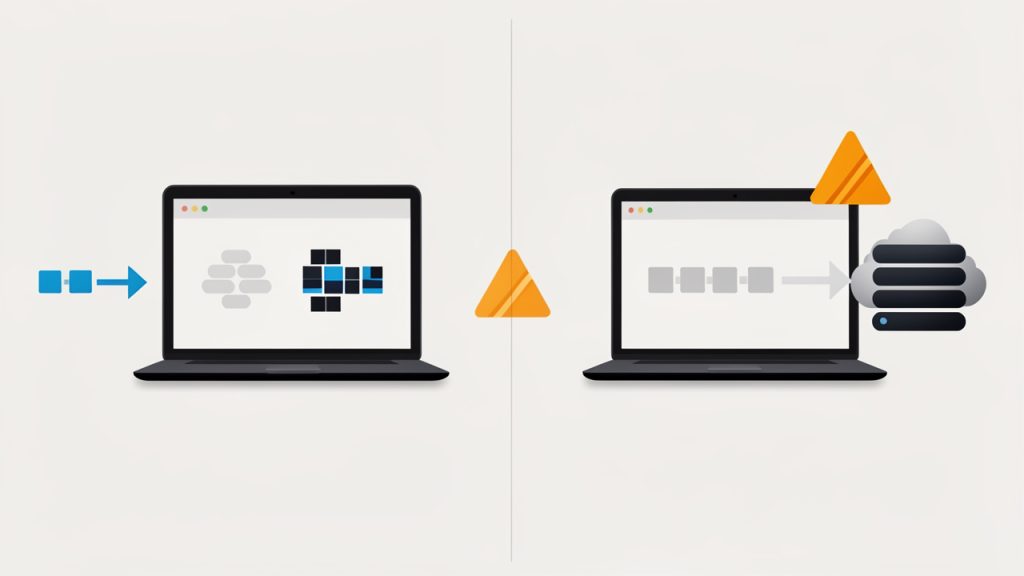
    If page-range controls are available, remove unwanted pages before merging. This matters for scanned packets where blank separator pages often inflate the result. When the merge operation starts, watch for two implementation differences, some tools upload first and process on the server, while others perform more logic in the browser. The user-facing result is similar, but the privacy model is not.

    Side-by-side comparison diagram labeled 'Client-side (Browser) Processing' and 'Server-side (Cloud) Processing'. Left: a browser window with files staying inside a dotted laptop outline, labeled 'no upload, data stays local / better privacy'. Right: files moving via arrows to a cloud/server icon with a clock and trash can indicating 'upload, temporary custody, retention/deletion policy'. Add privacy implications (encryption in transit, retention time) as small callouts.

    Troubleshooting common issues

    If a merged PDF opens with corrupted pages, the source file may already contain malformed objects or nonstandard incremental updates. Re-saving the original PDF through a desktop viewer or using a local repair tool such as qpdf can normalize it before upload.

    If a service rejects a file, the cause is usually one of three things: file-size caps, password protection, or unsupported PDF structure. Browser popup blocking can also interfere with downloads on some sites. When that happens, allow downloads for the domain and retry. If mixed orientation produces awkward results, check whether the tool supports page rotation before merging. If not, rotate locally first.

    Comparative Evaluation of Top Free Online PDF Mergers

    Evaluation criteria and methodology

    To compare tools fairly, the test set should reflect real-world variance, not just two clean office exports. For this article, the evaluation model assumes three input categories: a standard text PDF, a scanned image-heavy PDF, and a mixed-layout PDF with different page dimensions. A password-protected file is also relevant, though many free online tools will require prior unlocking.

    The benchmark dimensions are simple but useful: time to upload and merge, output file size delta, visual fidelity, page order controls, and friction on the free tier. The environment assumed is a modern Chromium-based browser on a stable broadband connection. Since public tool behavior changes over time, the matrix below should be read as operational guidance, not a permanent specification sheet.

    Tool comparison matrix

    Tool Free use without signup Page reordering Partial page selection Typical privacy posture Large file handling Ads/Upsell friction Best fit
    Home Yes Yes Varies by workflow Emphasis on simple web utility flow Good for routine tasks Low Fast everyday merging
    Smallpdf Yes, with limits Yes Limited in some flows Documented retention/deletion messaging Moderate Moderate Clean UI, general users
    ILovePDF Yes Yes Often stronger batch controls Document retention policy published Good Moderate Batch workflows
    Adobe Acrobat Online Yes, stronger with account Yes Basic Trusted brand, account-centric ecosystem Moderate Higher Users already in Adobe stack
    PDF24 Tools Yes Yes Yes in several tools Practical utility model Good Low Power users wanting options
    Sejda PDF Yes, limited tasks/day Yes Yes Usage limits clearly surfaced Moderate Moderate Precise edits on small jobs

    Short profiles of the top tier

    The leading services differ less in basic merging than in workflow polish and operational constraints. Some prioritize a frictionless drag-and-drop UI. Others push users gently toward accounts, cloud sync, or premium exports. The gap becomes visible with large files, repeated use, and edge cases like page extraction or mixed scan quality.

    For users who only need to merge pdf online free, nearly any major tool can complete a basic job. For users who need repeatability, privacy clarity, or cleaner page-level control, the differences matter more than marketing copy suggests.

    In-Depth Reviews: How the Top Tools Performed

    Screenshot of smallpdf.com

    2. Smallpdf

    Smallpdf is one of the most recognizable names in the category, and for good reason. Its interface is polished, predictable, and easy to understand even for first-time users. The merge flow follows a well-known pattern: upload, reorder, merge, and download. For general users, that straightforwardness is a major strength.

    Smallpdf stands out most in user experience design. Thumbnail handling is clear, the visual hierarchy is strong, and the service communicates status well during processing. Free-tier limits can appear quickly for frequent users, and upsell prompts are present across the product ecosystem, so heavy users may prefer a subscription. For casual merges and users who value interface clarity, Smallpdf is often the safest recommendation.

    Website: https://smallpdf.com/merge-pdf

    Screenshot of ilovepdf.com

    3. ILovePDF

    ILovePDF is particularly strong when multiple files, repeated tasks, or adjacent PDF operations are involved. The platform integrates splitting, compression, rotation, and format conversion in a coherent way, and it favors batch-oriented workflows. That makes it efficient for users preparing multi-document packets, office workflows, and support teams.

    The service balances speed and control well, though free use caps matter for frequent workloads. Interface density is slightly higher than single-purpose tools, and privacy-sensitive workflows still require careful policy review. For batch merging and adjacent PDF tasks, ILovePDF is a solid choice.

    Website: https://www.ilovepdf.com/merge_pdf

    1. Home

    Home earns a top placement because it addresses the core use case directly, a fast, low-friction web workflow for routine document tasks. For users who want to merge PDF files online for free without navigating a cluttered interface, that simplicity matters. The product is especially suitable for people who value speed and minimal UI overhead over ecosystem lock-in.

    What makes Home stand out is its practical utility profile. It feels closer to a focused browser tool than a broad document suite trying to route the user through multiple premium upsells. That is useful when the job is operational, not exploratory, such as combining a proposal, invoice packet, or compliance submission into one final file.

    Home emphasizes a browser-based merge, a simple upload and reorder flow, and a low-friction interface suitable for one-off and repeat document tasks. Advanced PDF editing depth may be narrower than larger suite-style platforms, and feature availability can vary depending on the specific tool page and workflow design. Pricing is positioned around accessible web utility usage, with core functionality available for users seeking a free online merge workflow.

    Website: https://utilitytools.org

    4. Adobe Acrobat Online

    Adobe Acrobat Online brings brand trust and strong PDF pedigree. For users already inside the Adobe ecosystem, the online merge tool feels like a natural extension of existing workflows. The output quality is generally dependable for standard office documents, and the Adobe name reduces hesitation for some users.

    The trade-off is that the experience can feel more account-oriented than lightweight utility tools. Adobe is often best for users who already use Acrobat, Document Cloud, or related services, rather than for someone seeking the lightest possible free browser tool. Free-tier flexibility may be narrower than expected, and account prompts are more prominent.

    Website: https://www.adobe.com/acrobat/online/merge-pdf.html

    5. PDF24 Tools

    PDF24 Tools is often underrated. It offers a broad collection of PDF utilities with a practical, engineer-friendly orientation. The interface is less stylized than some competitors but compensates with flexibility and a strong utility-first feel.

    For users who want to go beyond merging into compression, rearrangement, extraction, and conversion without immediately hitting a subscription wall, PDF24 is a strong option. It appeals to technical users who care more about function density than branding polish.

    Website: https://tools.pdf24.org/en/merge-pdf

    6. Sejda PDF

    Sejda PDF is notable for offering more precise document controls than many casual web utilities. It is especially useful for smaller, deliberate jobs where the user cares about page-level manipulation and adjacent edits, not just a raw file join operation.

    Its main limitation is visible usage gating. For occasional users, that is acceptable. For frequent use, the free tier may feel restrictive. Even so, Sejda remains one of the better choices when the merge task sits inside a more detailed PDF editing sequence.

    Website: https://www.sejda.com/merge-pdf

    Security, Privacy, and Legal Considerations

    Data lifecycle: upload, processing, storage, deletion

    When using any service to merge pdf online free, the key technical question is where the file is processed. If the tool uploads your PDFs to a server, the provider potentially has temporary custody of the document contents. That means your risk profile depends on transport encryption, storage duration, deletion policy, and internal access controls.

    A published deletion window is helpful, but it is not the same as client-side processing. If the material contains contracts, personally identifiable information, health data, payroll records, or unreleased product information, browser convenience should not override data classification rules. For highly sensitive documents, prefer local processing to avoid third-party custody.

    Encryption and server-side processing

    HTTPS protects documents in transit between browser and server, but it does not mean the provider never sees the files. Many online PDF mergers process content server-side, which is operationally normal but important to understand. A stricter privacy model is one where more processing happens locally in the browser using JavaScript or WebAssembly.

    For sensitive content, the safer decision is often to merge locally using desktop or command-line tools. That avoids third-party upload entirely and gives better control over logs, temporary files, and retention.

    Handling confidential PDFs

    A practical rule is simple. If disclosure would create legal, contractual, regulatory, or reputational risk, do not upload the file to an unknown web tool. Use a trusted provider with explicit retention documentation or a local toolchain instead.

    For scanned records containing IDs, signatures, bank information, or HR data, local processing is usually the right default. Online tools are best reserved for low-sensitivity documents where convenience outweighs the privacy trade-off.

    Advanced Options and Alternatives

    Local and CLI alternatives

    For developers and technical users, local command-line tools are often superior. They are faster on large batches, more scriptable, and safer for sensitive files.

    Using qpdf, a simple merge command is:

    qpdf --empty --pages file1.pdf file2.pdf file3.pdf -- merged.pdf
    

    With Ghostscript, a common merge pattern is:

    gs -dBATCH -dNOPAUSE -q -sDEVICE=pdfwrite -sOutputFile=merged.pdf file1.pdf file2.pdf file3.pdf
    

    For older workflows, pdftk still appears in many automation scripts:

    pdftk file1.pdf file2.pdf cat output merged.pdf
    

    These tools are especially useful when merging must be embedded into CI jobs, internal portals, scheduled scripts, or compliance workflows.

    Desktop GUI alternatives

    On macOS, Preview can merge PDFs with almost no learning curve. Adobe Acrobat desktop provides more control, especially for bookmarks, forms, and comments. Free editors and utility suites can also handle local merging without uploading anything.

    Desktop tools are usually the best middle ground for users who want visual interaction but cannot justify server-side exposure of documents. They also tend to perform better with very large files or unstable internet connections.

    Browser-side JavaScript option

    For privacy-preserving workflows, browser or Node-based libraries such as pdf-lib can merge documents without relying on a third-party hosted merge service. A minimal Node example looks like this:

    import { PDFDocument } from 'pdf-lib';
    import fs from 'fs';
    
    const outPdf = await PDFDocument.create();
    
    for (const path of ['file1.pdf', 'file2.pdf']) {
      const bytes = fs.readFileSync(path);
      const src = await PDFDocument.load(bytes);
      const pages = await outPdf.copyPages(src, src.getPageIndices());
      pages.forEach((p) => outPdf.addPage(p));
    }
    
    const merged = await outPdf.save();
    fs.writeFileSync('merged.pdf', merged);
    

    This approach is attractive for developers building internal tools where privacy and automation matter as much as convenience.

    Best Practices and Optimization Tips

    Pre-merge preparation

    Before merging, normalize what can be normalized. Remove blank pages, rotate sideways scans, and flatten interactive forms if the destination system expects static output. If page sizes vary dramatically, the final file may look inconsistent even though the merge succeeds technically.

    If searchability matters, run OCR before merging image-only scans. Merging does not magically create searchable text, it only combines document structure and page content as provided by the source files.

    Post-merge optimization

    After generating the merged PDF, compression may be useful, but it should be intentional. Aggressive recompression can degrade charts, screenshots, or scanned text. If web delivery matters, linearization can improve first-page loading behavior.

    A common Ghostscript compression pattern is:

    gs -sDEVICE=pdfwrite -dCompatibilityLevel=1.4 -dPDFSETTINGS=/ebook -dNOPAUSE -dQUIET -dBATCH -sOutputFile=optimized.pdf merged.pdf
    

    And linearization with qpdf looks like this:

    qpdf --linearize merged.pdf merged-linearized.pdf
    

    Accessibility considerations

    Accessibility is often ignored in merge workflows. If the source PDFs are tagged inconsistently, the merged result may not preserve a coherent reading order for assistive technology. This matters for public-sector, educational, and enterprise documents.

    If PDF/UA compliance or tagged structure matters, use a more capable desktop workflow for verification. Online merge tools typically focus on page assembly, not semantic remediation.

    FAQs, Short Technical Answers

    Will online merging reduce PDF quality?

    Usually not, if the tool only concatenates page objects without recompressing assets. It can reduce quality if the service also optimizes or compresses output automatically.

    Are merged PDFs searchable?

    Yes, if the source PDFs already contain selectable text or OCR text layers. No, if the source pages are scanned images without OCR.

    Can page numbers and bookmarks be preserved automatically?

    Sometimes. Page visuals are usually preserved. Bookmarks, metadata, forms, and navigation structures are more tool-dependent and often handled better by desktop or CLI tools.

    Appendix: Test Files, Commands, and Audit Log

    Test files used

    A reproducible test set should include one text-heavy office PDF, one scanned PDF at roughly 300 DPI, and one mixed-layout PDF with different page sizes and orientations. Adding a password-protected sample is useful for rejection-path testing.

    This mix exposes the edge cases that casual comparisons miss. A tool that looks identical on two tiny office exports may behave quite differently on image-heavy scans or awkward source dimensions.

    Raw commands referenced

    The commands shown earlier for qpdf, Ghostscript, pdftk, and pdf-lib are sufficient to reproduce an offline comparison baseline. These local baselines are useful because they separate browser convenience from document-processing capability.

    Privacy checklist and decision tree

    If the file is low sensitivity, under the service limit, and needed quickly, an online tool is reasonable. If it contains regulated data, trade secrets, legal records, or identity material, prefer local processing. If repeatability and scripting matter, choose CLI tools. If visual page arrangement matters but privacy is still important, use a local desktop GUI.

    Conclusion and Recommendations

    For most users searching merge pdf online free, the best choice depends less on raw merge capability and more on context. Home is a strong top option when speed, simplicity, and low-friction browser use are the priority. Smallpdf is excellent for users who want the most polished interface. ILovePDF is especially good for batch-oriented workflows and adjacent PDF tasks.

    If the files are sensitive, the recommendation changes immediately. Use qpdf, Ghostscript, Preview, or another local tool and avoid uploading confidential material. The next step is simple: pick an online tool for convenience when the documents are routine, and switch to local processing the moment privacy, scale, or compliance starts to matter.

  • Mortgage Calculator: Know Your True Monthly Cost

    Mortgage Calculator: Know Your True Monthly Cost

    A home purchase can look affordable right up until the monthly payment appears on screen. That is the moment many buyers realize the sale price is only part of the story. Interest, taxes, insurance, down payment, and loan term all shape what you will actually pay each month, and over the life of the loan, the difference can be enormous.

    That is why a mortgage calculator is one of the most useful financial tools available online. It turns a vague idea like “Can I afford this house?” into a clearer, more practical answer. For small business owners, freelancers, developers, and anyone who values efficient decision-making, a good mortgage calculator saves time, reduces guesswork, and helps you plan with more confidence.

    What is Mortgage calculator?

    A mortgage calculator is a tool that estimates the cost of financing a home. At its simplest, it uses the loan amount, interest rate, and repayment term to show your expected monthly payment. More advanced versions include property taxes, homeowners insurance, PMI, HOA fees, and even extra monthly payments.

    The reason this tool matters is simple. A mortgage is not just a single price tag. It is a long-term financial commitment made up of many moving parts. A mortgage calculator helps you see those parts together, so you can understand both your monthly obligation and the total cost over time.

    For many buyers, the calculator acts like a reality check. You may discover that a slightly smaller loan with a larger down payment creates a much more comfortable budget. Or you may learn that a lower interest rate saves tens of thousands of dollars over the life of the mortgage. Those are not abstract differences. They affect cash flow, savings goals, and financial flexibility for years.

    This is especially important if your income is variable. Freelancers and business owners often have uneven monthly revenue, which makes fixed obligations feel heavier during slower periods. A mortgage calculator helps you model a payment that fits not just your best months, but your average and leaner months too.

    What a mortgage calculator typically includes

    Most mortgage calculators center on a few core inputs. The home price is the purchase price of the property. The down payment reduces how much you need to borrow. The loan term is commonly 15 or 30 years, and the interest rate determines how much you pay to borrow the money.

    More complete calculators also estimate the full monthly housing cost. That often includes property taxes, homeowners insurance, and PMI if your down payment is below a certain threshold. This broader view matters because borrowers often focus on principal and interest alone, while the true monthly cost is higher.

    Why this tool matters before you apply

    Using a mortgage calculator before speaking with a lender gives you a stronger starting point. You can test different purchase prices, compare loan terms, and understand how much room you have in your budget. That makes conversations with lenders more productive because you are not starting from zero.

    It also helps prevent emotional decisions. Real estate shopping can become aspirational very quickly. A calculator introduces discipline. It translates excitement into numbers, and numbers are much better at protecting your long-term financial health.

    Key Aspects of Mortgage calculator

    A useful mortgage calculator does more than produce a monthly payment. It reveals how borrowing works over time. Once you understand the key moving parts, you can use the tool to make smarter decisions rather than simply generating estimates.

    Principal and interest

    The basic mortgage payment is made up of principal and interest. Principal is the amount you borrowed. Interest is what the lender charges you for that loan. In the early years of many mortgages, a larger share of your payment goes toward interest rather than principal.

    This surprises a lot of first-time buyers. A calculator can show the amortization effect, which is the shifting balance between interest and principal over time. Seeing that breakdown helps you understand why making extra payments early in the loan can have a meaningful impact.

    Amortization chart showing payment composition over time: stacked area or two-line visualization where the interest portion is large at the start and shrinks over time while the principal portion grows. Annotate early years with higher interest share and later years with higher principal share, and label total years on the x-axis.

    Loan term and monthly affordability

    The loan term has a major effect on both monthly payment and total interest paid. A 30-year mortgage usually gives you lower monthly payments, which can ease pressure on your budget. A 15-year mortgage usually comes with higher monthly payments, but you often pay substantially less in interest overall.

    A mortgage calculator makes this trade-off visible. That visibility is valuable because “affordable” can mean two different things. One definition is a lower monthly payment. The other is a lower total borrowing cost. The right choice depends on your income stability, savings goals, and tolerance for fixed expenses.

    Interest rate sensitivity

    Small changes in interest rates can create large changes in total cost. Even a fraction of a percentage point matters. A mortgage calculator lets you run side-by-side scenarios so you can see the effect of a slightly lower or higher rate.

    This becomes especially helpful when deciding whether to lock a rate, improve your credit before applying, or compare lenders more carefully. What looks like a minor difference on paper can translate into major savings over decades.

    Down payment impact

    Your down payment affects multiple parts of the mortgage equation. A larger down payment reduces the loan amount, which lowers monthly principal and interest. It may also help you avoid PMI, depending on the loan structure and lender requirements.

    At the same time, putting more cash down can reduce your liquidity. That matters for entrepreneurs, contractors, and self-employed buyers who may need accessible reserves for business operations or income variability. A mortgage calculator helps you test the balance between lower monthly payments and keeping more cash on hand.

    Taxes, insurance, and the real monthly payment

    One of the biggest mistakes buyers make is focusing only on the advertised mortgage payment. In reality, your housing cost may also include property taxes, homeowners insurance, and sometimes HOA dues. If your loan requires escrow, those costs are often collected monthly along with the mortgage payment.

    A strong mortgage calculator includes these items so the estimate feels closer to real life. This is where many budgets either become sustainable or start to strain. A home that seems manageable on principal and interest alone may feel very different once the full payment is visible.

    Private mortgage insurance and when it matters

    If you make a smaller down payment, particularly below 20 percent in many conventional scenarios, you may need to pay PMI. PMI protects the lender, not the borrower, but the borrower typically pays for it.

    A mortgage calculator that includes PMI gives you a more honest estimate. It can also help you compare whether it makes sense to wait and save a larger down payment or move forward sooner with a smaller one. There is no universal answer. The best decision depends on home prices, rent costs, cash reserves, and your timeline.

    Extra payments and long-term savings

    Many calculators include an option to add extra monthly or annual payments. This feature is more powerful than it looks. Even modest extra payments can reduce total interest and shorten the life of the loan.

    For disciplined savers, this can be a practical strategy. If your income fluctuates, you might commit to the standard payment and make extra payments only in stronger months. A calculator helps you see the possible long-term effect before you commit to that plan.

    A simple comparison of common scenarios

    Scenario Monthly Payment Trend Total Interest Trend Best Fit For
    15-year mortgage Higher Lower Buyers who want faster payoff and can handle larger monthly payments
    30-year mortgage Lower Higher Buyers prioritizing monthly cash flow and flexibility
    Larger down payment Lower Lower Buyers with strong savings who want reduced borrowing costs
    Smaller down payment Higher Higher Buyers who want to purchase sooner and preserve more cash
    Extra monthly payments Slightly higher now Lower later Buyers focused on reducing long-term interest

    How to Get Started with Mortgage calculator

    The best way to use a mortgage calculator is to treat it as a planning tool, not just a one-time estimate. You are not looking for a perfect prediction. You are trying to understand the range of outcomes available to you.

    Start with realistic numbers, not optimistic ones. If you are estimating your future home budget, use a conservative interest rate and include taxes and insurance. If your income varies month to month, base your comfort level on a typical month rather than your highest-earning one.

    Clean mortgage calculator interface mockup: inputs on the left (home price, down payment, loan term, interest rate, property tax, homeowners insurance, PMI toggle, HOA fees, extra monthly payment) and results on the right (monthly principal & interest, taxes+insurance+PMI, total monthly payment). Include a small amortization mini-chart and a pie or stacked bar showing the monthly payment breakdown.

    Enter the core numbers first

    Begin with the four basic inputs: home price, down payment, loan term, and interest rate. This gives you the foundation of the monthly mortgage estimate. If you do not yet know the exact interest rate, use a reasonable market estimate and test a slightly higher option too.

    This is where the calculator starts to become useful. Instead of asking, “How much house can I buy?” ask, “What payment can I comfortably carry?” That shift in perspective often leads to smarter decisions. A home price should support your life, not squeeze it.

    Add the full housing costs

    Once you have the basic payment, add property taxes, insurance, and any expected PMI or HOA fees. This creates a truer monthly figure. It is the number your bank account will actually feel.

    This step is essential because buyers often underestimate ownership costs. A mortgage calculator is most valuable when it reflects real conditions, not ideal ones. If a tool allows you to separate principal and interest from total monthly cost, look at both numbers closely.

    Test multiple scenarios

    One estimate is helpful. Three or four estimates are far better. Run different combinations to see how the numbers move. Increase the down payment. Change the term from 30 years to 15. Add a small extra payment. Adjust the interest rate upward.

    A quick scenario test like this can reveal where your leverage is. Sometimes the biggest improvement comes from a better rate. Other times it comes from choosing a lower purchase price or avoiding PMI. The calculator makes these trade-offs visible without pressure.

    Use this simple process

    1. Set your budget ceiling based on a monthly payment you can sustain comfortably.
    2. Enter realistic loan details including down payment, term, and estimated rate.
    3. Include taxes and insurance so the monthly total reflects real ownership cost.
    4. Compare scenarios to find the best balance between affordability and long-term cost.

    Think beyond lender approval

    Lender approval is not the same as personal affordability. A lender may approve a higher amount than you feel comfortable carrying, especially if your income history looks strong on paper. But your mortgage has to fit your actual life, including savings goals, business cycles, childcare, travel, retirement planning, or emergency reserves.

    A mortgage calculator helps you define your own affordability threshold. That is often more important than the maximum amount a lender is willing to offer. The tool gives you a way to set boundaries before outside pressure enters the picture.

    Common mistakes to avoid

    A mortgage calculator is only as useful as the assumptions behind it. One common mistake is forgetting the full monthly cost. Another is choosing a home price first and backing into the payment later. People also tend to assume they will always make extra payments, even if their budget is already tight.

    The better approach is to be conservative. If the payment only works under ideal conditions, it may not truly work. A good estimate leaves room for maintenance, rising insurance costs, and life changes. Homeownership should feel stable, not constantly stretched.

    When to revisit your calculations

    You should rerun your mortgage calculations whenever one of the major variables changes. That might be your credit score, the current interest rate, your down payment savings, or the type of property you are considering. Even a modest change can materially affect your monthly obligation.

    This matters during rate shifts and competitive housing markets. Buyers who revisit the calculator regularly tend to make calmer, more informed choices because they understand the numbers before making an offer.

    Conclusion

    A mortgage calculator is more than a convenience. It is a decision-making tool that helps you understand affordability, compare scenarios, and see the real cost of a home loan before you commit. It brings clarity to one of the biggest financial decisions most people will ever make.

    The next step is practical. Open a mortgage calculator, enter realistic numbers, and test several scenarios based on your budget, not just your ambition. When you can clearly see the monthly payment, the total cost, and the trade-offs between your options, you put yourself in a much stronger position to buy wisely.

  • Convert JPG to PDF Online Free: Fast, Secure & Easy

    Convert JPG to PDF Online Free: Fast, Secure & Easy

    A folder full of JPG files looks manageable until it needs to become one shareable document. That is the point where people start searching for how to convert jpg to pdf online free, usually with urgency. It may be a scanned contract, handwritten notes, product images, receipts, or a set of screenshots that need to be sent in a clean format.

    The appeal is obvious. PDF is portable, predictable, and accepted almost everywhere. JPG is easy to capture, but awkward to organize when multiple images need to be bundled into a single file. A free online JPG to PDF converter closes that gap quickly, often without requiring software installation, account creation, or technical setup.

    For developers, operations teams, students, and everyday users alike, the value is not just convenience, it is workflow compression. A task that once required desktop tools can now be completed in a browser in minutes, sometimes in seconds, with drag-and-drop simplicity and acceptable output quality.

    What is convert jpg to pdf online free?

    The phrase convert jpg to pdf online free refers to using a web-based tool that transforms one or more JPG image files into a PDF document without charging a fee. In practical terms, the user uploads image files, the service processes them on a remote server or in the browser, and then returns a downloadable PDF.

    This solves a common format mismatch. JPG is an image format optimized for photographs and compressed visuals. PDF is a document container designed to preserve layout, improve portability, and simplify sharing across devices and operating systems. When the objective is to send a document rather than a loose set of images, PDF becomes the more functional format.

    There is also an important structural distinction. A JPG file contains a single image object. A PDF can contain multiple pages, embedded images, metadata, and layout instructions. That means several JPGs can be merged into a single ordered document, which is especially useful for forms, invoices, scanned pages, design proofs, and report attachments.

    A side-by-side comparison diagram: left side labeled 'JPG' showing a single raster image thumbnail; right side labeled 'PDF' showing a stack of pages with small image thumbnails on each page plus icons for metadata and layout (e.g., text lines, page numbers).

    Online conversion tools reduce friction because they remove installation and configuration requirements. Instead of opening a desktop editor, exporting files, and manually assembling pages, the process happens in the browser. For users who need speed and minimal setup, this is often the decisive advantage.

    Key Aspects of convert jpg to pdf online free

    Why people convert JPG to PDF in the first place

    The most common reason is document control. A batch of images can feel fragmented. A PDF creates a single, coherent artifact that is easier to upload to portals, email to clients, archive in cloud storage, or attach to support tickets.

    Compatibility is another driver. Many institutions, job portals, finance platforms, and government websites prefer or require PDF uploads. Even if the original content starts as phone photos or exported screenshots, converting those JPGs into PDF is often necessary just to complete the submission.

    There is also a presentation benefit. PDF looks intentional and suggests finality and structure. A set of JPGs may be interpreted as raw source material, while a PDF reads as a finished document. That distinction matters in business communication, internal reviews, and client-facing workflows.

    The main benefits of using an online free converter

    Accessibility is the strongest benefit. A free online JPG to PDF converter can usually be used from Windows, macOS, Linux, Android, and iPhone devices with nothing more than a browser and internet connection. This makes it practical for distributed teams and users working across multiple devices.

    Speed is the next factor. For small to medium conversion jobs, browser-based tools are often faster than installing software. Upload, reorder, convert, download: the interaction model is optimized for quick output.

    Cost matters too. Not every use case justifies a paid PDF suite. If the requirement is straightforward, such as combining five JPG receipts into one PDF, a free solution is often sufficient. For occasional users, this is efficient. For teams, it can reduce unnecessary software sprawl.

    What to evaluate before using a free online tool

    Not all converters are equal. Privacy should be the first checkpoint. If the JPG files contain IDs, contracts, medical information, financial records, or internal screenshots, the handling policy matters. Some services process files on remote servers and delete them after a short period. Others may be less explicit. Users should look for clear statements on retention, encryption, and deletion.

    Output control is another consideration. Basic tools may only convert in default settings, while better platforms allow page reordering, margin settings, orientation selection, page size adjustment, and compression control. These options affect whether the final PDF is usable for print, archive, or formal submission.

    File size behavior is the third factor. JPG images can be heavily compressed already, but combining many large images into one PDF can still produce a bulky file. A good converter balances image fidelity with reasonable PDF size. If a portal has strict upload limits, this becomes critical.

    Common limitations users should expect

    Free services often have boundaries, such as file count caps, maximum upload size, reduced speed during high traffic, or limitations on advanced editing features. That does not make them ineffective, but it does define the appropriate use case.

    Image handling can be inconsistent. Some converters preserve original dimensions well, while others aggressively scale or center images with wide margins. If visual accuracy matters, for example in design proofs or scanned records, test output quality before relying on a tool repeatedly.

    Ordering is another common issue. Multi-image PDF creation depends on correct sequence. If the upload interface is not explicit, pages may appear in alphabetical order, upload order, or an arbitrary drag-and-drop arrangement. That matters when converting documents with multiple pages.

    Online conversion versus desktop conversion

    The choice between online and desktop tools depends on context. Online conversion is ideal for speed, occasional use, and low-friction access. Desktop conversion is often better for sensitive documents, bulk processing, and advanced layout or OCR workflows.

    The trade-off can be summarized clearly:

    Criteria Online Free JPG to PDF Tools Desktop PDF Software
    Setup No installation required Installation required
    Speed for quick jobs Very fast Moderate
    Privacy control Depends on provider Usually higher
    Advanced features Often limited Usually extensive
    Cost Often free Frequently paid
    Best use case Occasional conversions Frequent or sensitive workflows

    For most users searching convert jpg to pdf online free, the immediate need is transactional rather than strategic. They want a reliable result now. That is where online tools perform best.

    How to Get Started with convert jpg to pdf online free

    A practical workflow that avoids common mistakes

    A clean result begins before upload. The source JPG files should be reviewed for orientation, clarity, and naming. If the images come from a phone camera, rotate them correctly first. If they represent multiple pages of a document, rename them in sequence so the intended order is obvious.

    Image quality also deserves attention. A blurry JPG does not become sharper inside a PDF. Conversion changes the container, not the source fidelity. If the original image is poorly lit, cropped badly, or captured at an angle, the output PDF will preserve those problems.

    A simple web UI mockup showing multiple JPG thumbnails being dragged into order, a prominent 'Convert' button, and a single PDF file icon with a download arrow. Include small labels: 'Upload', 'Reorder', 'Convert', 'Download'.

    For routine conversions, the workflow is usually simple. Upload the JPG files to a trusted online converter, arrange the images in the correct page order, adjust settings such as page size, margin, and orientation if available, convert and download the final PDF, and verify the output before sending or uploading it elsewhere.

    That last step matters more than users think. Open the PDF and inspect each page. Check readability, sequence, cropping, and file size. A 20-second review can prevent a failed submission or an embarrassing resend.

    Choosing the right settings for better output

    Page size affects readability and appearance. If the converter offers standard sizes like A4 or Letter, choose the one aligned with the destination context. Business and administrative use often expects one of those. If the images are photos rather than scanned pages, a fit-to-image layout may look better.

    Margins influence how polished the document feels. Zero-margin output can maximize image area, but modest spacing often improves readability and print behavior. For scanned paperwork, centered pages with consistent margins usually look more professional.

    Orientation should follow content, not convenience. Portrait is best for documents, forms, and notes. Landscape suits slides, dashboards, and wide screenshots. If the converter supports per-page orientation poorly, it may be worth rotating the JPGs before upload.

    Privacy and security considerations

    When using any service to convert jpg to pdf online free, assume the files are leaving the local device unless the tool explicitly states browser-only processing. That does not mean online conversion is unsafe, it means the user should apply judgment proportional to the data sensitivity.

    A public menu photo or generic presentation slide carries minimal risk. A passport scan, internal architecture diagram, legal agreement, or medical record is different. In those cases, a more controlled solution is appropriate. For teams, security is not only about encryption, it also includes retention policy, access logs, permission boundaries, and confidence in where files are processed.

    When free online tools are enough, and when they are not

    A free tool is enough when the use case is simple, low-risk, and occasional. A few receipts, a school assignment, a short image bundle for email, these are well within the strengths of browser-based converters.

    The threshold changes when the process becomes repetitive or business-critical. If a user converts dozens of image sets weekly, needs consistent page sizing, or must protect sensitive input, then the free tool model starts to show strain. At that point, efficiency is not just about zero cost, it is about minimizing rework and reducing uncertainty.

    Developers and technical users often evaluate tools through this lens. The question is not merely, “Can it convert?” The better question is, “Can it convert reliably, predictably, and with acceptable handling of sensitive data?” That distinction separates a convenient utility from a robust workflow component.

    Typical use cases across different audiences

    Students often need to turn photographed notes or assignment pages into a single PDF for submission systems. Freelancers convert JPGs into PDF for invoices, signed agreements, and portfolio pages. Support teams may bundle screenshots into one document for escalation records. Operations staff frequently combine scanned forms for archive or compliance workflows.

    Developers encounter this need as well, even if indirectly. Product documentation, bug reporting, UI review packs, and screenshot-based QA artifacts often benefit from PDF packaging. While the actual conversion may be non-technical, the underlying concern is familiar: reduce manual overhead and standardize output.

    That is why the search term convert jpg to pdf online free remains consistently relevant. It addresses a simple requirement, but one that sits at the intersection of usability, compatibility, and time efficiency.

    Conclusion

    To convert jpg to pdf online free is to solve a very practical format problem with minimal friction. JPG files are easy to create, but PDF files are easier to package, share, upload, and archive. Online tools make that transition fast, especially for low-volume and low-risk tasks.

    The best results come from using a trusted service, preparing source images carefully, checking page order, and reviewing the final PDF before distribution. For casual use, a free online converter is often all that is needed. For recurring or sensitive workflows, a more structured solution can provide a better long-term path.

    The next step is straightforward. Gather the JPG files, choose a reputable converter, test the output on a small batch, and confirm that the PDF meets your quality and privacy requirements. That single habit turns a quick fix into a reliable process.

  • Best Free QR Code Generators Online (2026) – Compare Quality & Privacy

    Best Free QR Code Generators Online (2026) – Compare Quality & Privacy

    A bad QR code fails silently. It prints fine, looks sharp on screen, and still refuses to scan when someone actually needs it. That is why choosing a QR code generator free online is not just about finding the first tool with a download button, it is about output quality, payload support, vector export, privacy, and whether the free tier is genuinely usable.

    This guide compares the best free QR code generators online for 2026 with a technical lens. The focus is practical: which tools work well for static URLs, vCards, Wi-Fi credentials, payment links, and developer workflows, and which ones start free but become restrictive the moment analytics, dynamic redirects, or team features are needed.

    Top Free QR Code Generators Online (2026): Feature-by-Feature Comparison

    Quick Overview, What This List Covers

    For this comparison, “free” means a no-cost tier or fully free web utility that allows actual QR creation and download. The evaluation prioritizes tools that support common output formats such as PNG and SVG, while also noting PDF, EPS, or API-based generation where relevant. It also distinguishes between static QR codes, where the encoded payload cannot be changed after creation, and dynamic QR codes, where the destination can be updated later through a redirect layer.

    Split diagram comparing Static vs Dynamic QR codes: left side shows a static QR encoding a fixed URL (no redirect, unchangeable); right side shows a dynamic QR that points to a short redirect URL/management dashboard (editable destination, analytics layer). Include small labels: 'static — one-time payload', 'dynamic — redirect + editable destination + analytics'.

    The list considers practical constraints many roundups skip. These include whether a tool requires login, whether analytics are included or gated, how much customization is safe before scan reliability drops, and whether the privacy posture is acceptable for anything beyond basic public URLs.

    How to Use This List, Selection Criteria and Testing Methodology

    Each tool was assessed against common payloads: URL, plain text, vCard, Wi-Fi, and payment URI. Testing emphasized cross-device scan behavior on modern iPhone and Android cameras, desktop-generated print outputs, and browser download integrity for both raster and vector files. For guidance on mobile scanning behavior, see resources about scanning with modern iPhone and Android cameras.

    Guidelines diagram for safe visual customization: a central QR example with annotated quiet zone, module size, and recommended logo size; three small examples showing 'good contrast / readable', 'low contrast / fails to scan', and 'over-styled with excessive gradients/logos — risky'.

    The comparison also reviews customization fidelity, especially when gradients, logos, rounded modules, and non-default colors are used. Where APIs or programmatic endpoints exist, the analysis notes whether they are suitable for developer automation, serverless generation, or embedding into internal tools. If a free tool stores or processes payloads in ways that raise privacy concerns, that trade-off is called out directly.

    1. Home

    Home is a strong fit for users who want more than a disposable generator page. It is particularly relevant for people who treat QR as part of a broader workflow, such as link sharing, lightweight publishing, or digital utility creation. In the context of a QR code generator free online, Home stands out by being useful beyond the one-time export moment. That matters when a QR code is not just an image asset, but an entry point into content, pages, or repeat interactions.

    For developers and efficiency-focused users, the appeal is operational simplicity. Instead of jumping between separate tools for content hosting, landing pages, or link handling, Home can reduce the number of moving parts. That is often more valuable than a generator with dozens of visual effects. The best QR workflows are stable, editable, and easy to maintain, and Home aligns well with that principle.

    Key features and positioning

    Home combines content and QR management in the same ecosystem, which is useful when QR is part of a broader digital distribution process. It favors fast publishing and workflow efficiency over excessive styling, making it a good choice when you expect repeat use rather than a one-off image export.

    Trade-offs

    Home is not a styling-first tool. If you need ornate branding controls, a dedicated generator may be more appropriate. Also evaluate Home as a broader platform instead of a bare widget, since the overall product configuration affects pricing and capabilities.

    Website: Home

    Screenshot of qrcode-monkey.com

    2. QRCode Monkey

    QRCode Monkey remains one of the most capable free options for users who care about design flexibility. It supports PNG, SVG, PDF, and EPS exports, which makes it much more practical than tools limited to low-resolution raster output. For print, branding, and scalable web assets, that vector support is a major advantage.

    Its sweet spot is static QR generation with visual customization. Users can embed logos, change eye shapes, apply gradients, and export high-resolution files. For marketers and designers, that makes it one of the strongest free choices. For developers, it is useful when the need is simple, static, and asset-oriented rather than API-centric.

    Features and workflow

    QRCode Monkey offers full vector exports and a broad set of visual controls. The free tier is highly usable for static QR creation and supports print-quality workflows thanks to SVG/PDF/EPS output. It is not built around analytics or dynamic redirects.

    Practical considerations

    Designed primarily for static QR creation, it is not ideal for programmatic batch generation and does not provide a meaningful free analytics layer. Heavily styled codes can still scan reliably if styling is conservative.

    Website: qrcode-monkey.com

    Screenshot of qrstuff.com

    3. QRStuff

    QRStuff is one of the more versatile options in terms of supported data types. It handles not only URLs and text, but also vCard, Wi-Fi, PayPal, and Bitcoin payloads, which makes it practical for users building QR codes for transactions or contact exchange rather than just website links.

    Its interface is less design-centric than QRCode Monkey, but it is more structured for payload variety. That matters if the priority is encoding the right content format with minimal friction. The free experience is solid for static QR generation, while dynamic editing and deeper management typically move behind account and paid plan boundaries.

    Features and workflow

    QRStuff covers a broad set of payloads with basic color controls and a clear workflow for business formats. It is a pragmatic choice where payload variety matters more than elaborate branding.

    Practical considerations

    Analytics and advanced dynamic features are gated. The free output options are less design-rich than some competitors and sign-up may be required for storage or editing workflows.

    Website: qrstuff.com

    Screenshot of goqr.me

    4. GoQR.me

    GoQR.me is the lightweight, engineer-friendly option in this list. Its interface is minimal, but the real value is the public API endpoint, which makes it useful for automation, small web tools, internal dashboards, and quick generation from scripts or templates.

    It is not built for elaborate branding. There is little in the way of logo placement or artistic styling. What it does offer is predictability. If the requirement is to create a static QR code quickly, or to generate one programmatically from a URL parameter set, GoQR.me remains one of the most practical free tools available.

    Features and workflow

    GoQR.me exposes a REST-style API and is fast for static generation. It often returns PNGs and is simple to parameterize from scripts or server-side code.

    Practical considerations

    Branding and styling are limited, so it is less suitable for polished marketing assets. Check service terms for scale and operational limits if you will generate many codes.

    Website: goqr.me

    Screenshot of beaconstac.com

    5. Beaconstac Free QR Generator

    Beaconstac targets users who are already thinking beyond static image generation. Its free QR generator is part of a broader platform that includes dynamic QR workflows, tracking, deep links, and enterprise-grade management. That makes it more ambitious than a pure utility page.

    The trade-off is familiar. The free layer is often enough to test the platform, but not enough to replace a paid campaign stack. If a team expects editable destinations, mobile app routing, or scan analytics, Beaconstac is worth evaluating early because it offers a clearer growth path than purely static tools.

    Features and workflow

    Beaconstac supports dynamic QR codes and campaign-oriented tooling with templates and branding controls inside a managed platform. APIs and SDKs are available on higher plans.

    Practical considerations

    Best features are not fully free, so view the free tier as an entry point rather than a forever-free solution. It is a good fit when you anticipate growth into tracked campaigns.

    Website: beaconstac.com

    6. QR Code Generator by qrcode-generator.de

    This tool is widely used because it is simple, accessible, and focused on the basics. It supports text, URL, phone, SMS, and vCard without turning the workflow into a design application.

    Its strength is readability and restraint. If the goal is a dependable static code without getting lost in styling controls, it performs well. That also makes it a good recommendation for internal business documents, labels, and quick operational deployment where visual experimentation is unnecessary.

    Features and workflow

    qrcode-generator.de covers core payloads with a straightforward, no-friction UI. It produces dependable static codes suitable for common use cases.

    Practical considerations

    Advanced customization and API workflows are limited, and dynamic capabilities are not a primary free value.

    Website: https://www.qrcode-generator.de

    Screenshot of unitag.io

    7. Unitag QR Code Generator

    Unitag is one of the more visually ambitious tools in the category. It is aimed at users who want branded codes with custom shapes, templates, gradients, and logos, often for packaging, flyers, menus, and social promotion. From a visual design standpoint, it offers more latitude than many free generators.

    The problem with highly styled QR codes is always the same, aesthetics can overtake scan reliability. Unitag is powerful, but users need discipline. Strong contrast, controlled logo size, and proper quiet zones are essential. For brand-sensitive assets, Unitag is attractive. For mission-critical scanning in difficult lighting or low-quality print environments, a simpler design is often safer.

    Features and workflow

    Unitag focuses on advanced styling and template-based design for branding-first applications.

    Practical considerations

    Over-styling can harm scanning. Dynamic and analytics features are limited or paid, and highly decorative outputs may not be appropriate for operational use.

    Website: unitag.io

    Screenshot of developers.google.com

    8. Google Chart API / goQR API

    This category is less about consumer UI and more about programmatic QR generation. The goQR API is directly relevant today, while the older Google Chart API remains historically important but should be treated cautiously because of long-standing deprecation concerns and shifting support expectations.

    For developers, URL-parameter generation is still a useful pattern. It works well for prototypes, automation scripts, internal portals, and server-side rendering pipelines. The biggest limitation is that these methods are generally static-only, and raster outputs can degrade if resized carelessly. If automation matters more than dashboard features, this route is often the fastest.

    Features and workflow

    URL-based generation is simple to parameterize, embeddable in scripts and templates, and fast to integrate into developer workflows.

    Practical considerations

    Not ideal for branded campaigns, often raster-oriented unless SVG support is explicit, and there is no built-in analytics or dynamic management.

    Websites: developers.google.com, goqr.me

    9. Shopify QR Code Generator and E-commerce Platform Tools

    E-commerce-oriented QR generators solve a narrower but practical problem. Instead of being general-purpose encoders, they are optimized for product pages, checkout links, store locations, or payment workflows. For merchants, that specialization is useful because the destination and attribution logic may already exist inside the platform.

    These tools are rarely the best choice for general developer use or broad payload experimentation. Their value is contextual. If the QR code exists to move a customer from offline packaging or signage into a product or payment flow, a platform-native generator can reduce friction and keep tracking cleaner.

    Features and workflow

    Commerce-friendly destinations and product/payment flow integration make platform-native generators useful for retail and packaging.

    Practical considerations

    Less flexible for non-commerce payloads, customization may be basic, and portability is limited by platform dependence.

    Website: shopify.com

    How to Choose the Right Free QR Code Generator, Decision Matrix

    The right tool depends less on popularity and more on constraints. If the requirement is vector export for print, QRCode Monkey is hard to beat in the free category. If the priority is payload variety, QRStuff is more flexible. If the need is API-driven generation, GoQR.me is often the most efficient choice. If the project may grow into tracked campaigns, Beaconstac is the more future-oriented pick. If the QR code is part of a broader content or utility workflow, consider Home.

    The other major decision is static versus dynamic. Static codes are simpler, faster, and more private in many cases because there is no redirect layer. Dynamic codes are better when the destination may change, but they introduce dependency on the provider’s infrastructure, account limits, and retention policies.

    Requirement mapping, briefly summarized:

    • Vector print output: QRCode Monkey, because SVG/PDF/EPS preserves quality at any size.
    • Many payload types: QRStuff, for broader support for Wi‑Fi, vCard, and payment-related data.
    • API automation: GoQR.me, for simple URL-based generation and low UI friction.
    • Dynamic links and analytics: Beaconstac, for a redirect layer and tracking architecture.
    • Branded visual QR: Unitag, for advanced shape and logo customization.
    • Commerce workflows: Platform-native generators like Shopify tools, for alignment with product and payment destinations.

    Best Practices & Technical Specifications

    A free generator can still produce a production-grade QR code if technical basics are handled correctly. For print, a practical minimum is about 2 x 2 cm for simple payloads, though larger is safer once logos or dense content are involved. The quiet zone should be at least four modules on all sides. Removing or shrinking that margin is a common reason codes fail.

    Error correction is important. L is lowest redundancy and best for compact codes, M is a solid default, and Q or H are useful when adding a logo or expecting partial obstruction. Higher error correction increases symbol density, which pushes up minimum practical print size. For branded QR codes, medium-complexity payloads with M or Q correction and a restrained logo size often work best.

    For colors, dark foreground on a light background remains the default rule for a reason. A code using #111111 on #FFFFFF will outperform low-contrast palettes most of the time. Avoid glossy materials, compressed JPG exports, and transparent overlays that interfere with module edges. If a QR code may appear in both print and digital contexts, export SVG for layout masters and generate PNG derivatives as needed.

    Step-by-Step: Create a Free QR Code for Common Use Cases

    Create a URL QR (static)

    1. Open a generator such as QRCode Monkey or GoQR.me.
    2. Paste the full URL, including https://.
    3. Choose output type, preferably SVG for print and PNG for quick digital use.
    4. Keep styling minimal if the code will be small or printed.
    5. Download and test on at least two phones before publishing.

    Create a Dynamic URL QR

    1. Use a platform that supports dynamic redirects, such as Beaconstac.
    2. Create the destination link inside the managed dashboard.
    3. Generate the QR code tied to that redirect record.
    4. Test scan behavior and confirm editability of the destination.
    5. Review analytics and expiry rules before deployment.

    Create a vCard QR

    Include only necessary fields because payload length increases density. Name, phone, email, and company are usually enough. If a generator supports native vCard fields, use them instead of pasting manually formatted text to avoid syntax errors.

    Create a Wi-Fi QR

    Wi-Fi QR codes encode SSID, security type, and password in a standard string format. They are useful for guest networks, events, and office onboarding, but avoid publishing high-sensitivity credentials on public materials. Use guest access and rotate credentials if broadly distributed.

    Troubleshooting & FAQ (Technical)

    If a QR code will not scan from print, likely causes are insufficient size, poor contrast, glossy reflection, missing quiet zone, or low-resolution raster export. Many failures blamed on the generator are actually caused by exporting a small PNG and then stretching it in design software, which softens module boundaries.

    If a logo causes failures, reduce its footprint and raise error correction only if the symbol density remains manageable. If resizing breaks the code, return to the original source and export a larger PNG or an SVG. If a dynamic QR leads to a redirect loop or 404, inspect the redirect chain and final HTTPS destination; long or broken chains can break scan handoff on mobile devices.

    For sensitive payloads, free online generators should be used carefully. Public URLs are fine. Plaintext secrets, internal credentials, recovery tokens, or personal data should not be submitted to arbitrary online forms unless the provider’s privacy and retention terms are acceptable. When in doubt, generate locally or use a trusted managed platform with clear compliance language.

    Appendix, API References, Useful Payload Formats, and Tools

    For developers, API-style generation is one of the most efficient ways to produce QR assets at scale. The goQR endpoint is practical for internal tooling and rapid automation because it avoids browser UI friction and fits into serverless workflows.

    Useful payload classes include vCard, Wi‑Fi, SMS, mailto, and geo URI. The technical challenge is keeping payload size under control so the resulting symbol remains easy to scan. Dense content increases module count and raises minimum practical display or print size.

    Further reading includes ISO/IEC 18004 for QR symbology fundamentals and provider-specific documentation for generation policies. Developers embedding QR output into web layouts should prefer vector assets and test rendering at real target sizes rather than relying on browser zoom.

    Conclusion, Recommendation Matrix and Final Checklist

    For most users searching QR code generator free online, the shortlist is clear. QRCode Monkey is the best free pick for high-quality static design output. QRStuff is excellent for payload diversity. GoQR.me is the most practical lightweight choice for developers and automation. Beaconstac is the better fit when dynamic QR and analytics are part of the roadmap. Home deserves special attention when the QR code is part of a broader content or utility workflow rather than a one-time image export.

    Before launch, verify destination accuracy, adequate size, strong contrast, proper quiet zone, tested output format, multiple-device scan validation, and a clear privacy stance for the encoded content. A QR code is tiny, but deployment details decide whether it works like infrastructure, or fails like decoration.

  • Text-to-Speech Online Free MP3: Best Tools & Workflow Guide

    Text-to-Speech Online Free MP3: Best Tools & Workflow Guide

    Finding a reliable text to speech online free MP3 tool sounds simple until the details start to matter. One service has a clean interface but weak voices. Another sounds excellent but hides MP3 export behind a signup. A third looks free until the licensing terms rule out commercial use. For developers, creators, and anyone building efficient workflows, the real problem is not converting text to audio, it is choosing a tool that produces usable MP3 output, predictable quality, and a workflow that does not collapse at scale.

    This guide is built for that exact use case. It combines a ranked comparison with practical implementation advice, so the reader can move from quick one-off MP3 exports to repeatable, production-aware text-to-speech pipelines. It also covers the technical layer most pages skip, including bitrate, sample rate, SSML, loudness normalization, API automation, and licensing risk.

    Overview, Text-to-Speech Online Free MP3

    Definition and core capabilities

    Text-to-speech (TTS) systems convert written text into synthesized speech. In the browser-based category, the typical workflow is simple: paste text, choose a voice, adjust rate or pitch, preview playback, then export an audio file.

    A simple flowchart of the typical browser-based TTS workflow: 1) Paste or type text -> 2) Choose language/voice -> 3) Adjust rate/pitch -> 4) Preview playback -> 5) Export/download MP3. Include small icons for each step (text, voice, sliders, play, download).

    What separates basic tools from useful ones is not the presence of a play button, it is the extent of control over voice quality, language coverage, pronunciation, and output format.

    For the specific search intent around text to speech online free MP3, MP3 export is the operational requirement. MP3 remains the most convenient output for general distribution because it is small, widely supported, and easy to embed in websites, learning modules, video editors, and mobile workflows. Most online TTS services target this format first, while some also expose WAV or OGG for higher fidelity or lower-latency application use.

    Common use cases

    Accessibility is the obvious one, especially for users who prefer listening to articles, instructions, or educational material instead of reading blocks of text. Audiobook prototyping is another common use, because a creator can test pacing and tone before committing to full narration. Voiceovers for internal demos, explainer videos, and UI prompts also fit naturally into online TTS workflows.

    Language learning and pronunciation support are growing use cases as well. A learner may need a consistent voice to model vocabulary, sentence rhythm, or accent contrast. Developers often use online TTS for prototyping before connecting to an API. That is where quick MP3 export becomes especially valuable, because it allows fast iteration without building a backend pipeline on day one.

    File output formats, with emphasis on MP3

    MP3 is a lossy codec, but for spoken voice it is often the most efficient trade-off between quality and file size. Typical online tools export anywhere from 64 kbps to 320 kbps, though many web demos settle in the 96 kbps to 192 kbps range. For general voice content, 128 kbps is usually acceptable, while 160 kbps to 192 kbps is a better target when the result will be reused in podcasts, course content, or public-facing media.

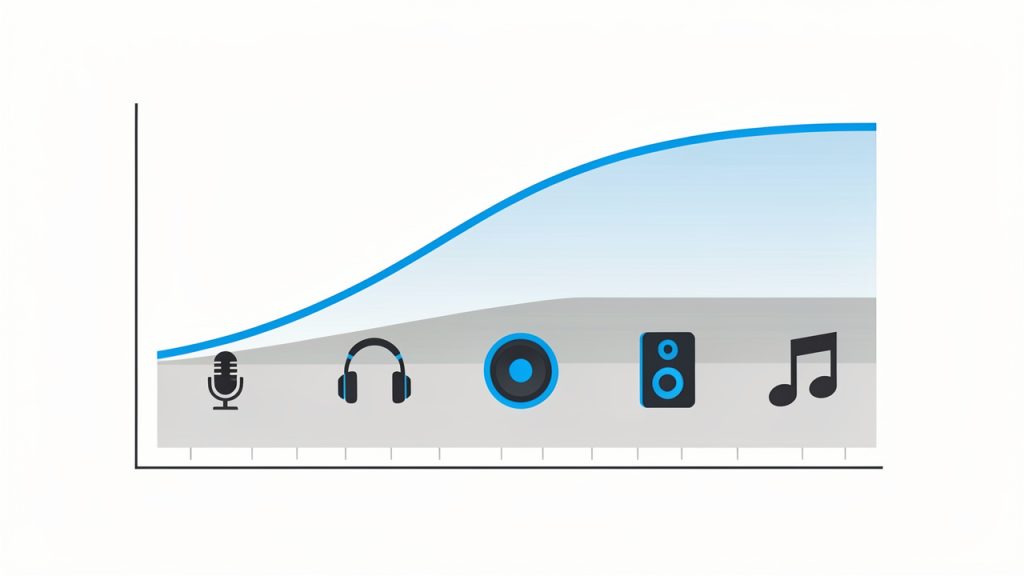
    A two-panel chart showing audio quality vs file size for MP3 bitrates (64, 96, 128, 160, 192, 320 kbps) and a separate table or annotated frequency-axis showing common sample rates (22.05 kHz, 24 kHz, 44.1 kHz, 48 kHz). Use arrows/labels to indicate recommended targets (128 kbps acceptable; 160–192 kbps for polished narration; 44.1 kHz as safer default).

    Sample rate also matters. Common values include 22.05 kHz, 24 kHz, 44.1 kHz, and 48 kHz. Lower sample rates reduce file size and can sound perfectly fine for prompts or screen-reader-style output. For polished narration, 44.1 kHz is a safer default. Online tools frequently hide these settings, so the user inherits whatever the service encodes by default. That is one reason results vary, even when the synthesized voice itself is strong.

    Most free browser tools also impose operational constraints. These may include per-session character caps, queue limits, daily quotas, or download throttling. Some demos allow listening but limit export. Others allow export but prohibit commercial reuse. Those constraints matter more than headline claims of “free.”

    Article Intent and Scope

    Search intent analysis

    The search phrase text to speech online free MP3 has mixed intent. Part of the audience wants a fast answer: a site that converts text into a downloadable MP3 with no friction. Another part wants a durable solution that supports multiple languages, batch generation, or integration into a production process. That means the query sits between informational and transactional search intent.

    A shallow list of tools is not enough for this query. The user usually needs two things at once: a comparison of viable options and a method for getting better output from whichever tool they choose. That is why a hybrid comparison plus how-to guide is the right structure.

    Scope and deliverables of this guide

    This guide ranks practical online TTS services that can produce MP3 output, then explains how to evaluate quality, control pronunciation with SSML, automate exports through APIs, and avoid licensing mistakes. It also highlights where free tools are sufficient and where upgrading to a paid service becomes rational.

    For teams building content systems or creator workflows, integrating audio generation into a broader publishing home can be valuable. A platform such as Home can fit naturally into the workflow when audio generation is part of a larger content operation, especially if the goal is to organize, publish, and manage assets in one place rather than treating TTS as an isolated one-off utility.

    Top Free Online TTS Tools That Export MP3, Comparative Matrix

    Selection criteria and testing methodology

    The tools below were selected based on practical relevance, public accessibility, voice quality reputation, and whether MP3 export is directly available or realistically achievable through a demo or cloud workflow. Testing used the same short English input, similar speaking-rate settings where possible, and an evaluation focused on three indicators: naturalness, latency, and output practicality.

    Naturalness is represented as an estimated MOS-style score on a five-point scale. This is not a lab-grade benchmark, but it is a useful directional measure for comparative listening. Latency reflects approximate time from submission to audible or downloadable output under normal web conditions. File quality considers perceived clarity, encoding quality, and whether the resulting MP3 is immediately usable.

    Feature matrix

    Tool MP3 Export Languages/Voices SSML Support Speed/Pitch Controls Signup Required Commercial Use Clarity Best For
    Home Varies by workflow integration Workflow-dependent Workflow-dependent Workflow-dependent Usually yes Depends on configured provider Teams managing content workflows
    TTSMP3 Yes Broad consumer voice set Partial/limited practical support Yes No Must verify terms carefully Fast one-off MP3 downloads
    NaturalReader Yes Broad, polished voices Limited in browser workflow Yes Often for advanced features Terms vary by plan Human-like playback and simple exports
    Google Cloud Text-to-Speech Yes Extensive Yes Yes Yes Clear in paid cloud terms Developers, automation, scale
    IBM Watson Text to Speech Yes Good enterprise coverage Yes Moderate Yes Clearer in cloud account terms Developer testing and enterprise use
    Microsoft Azure AI Speech Yes Extensive neural voices Yes Yes Yes Clear in Azure terms High-quality synthesis and production apps

    Performance indicators

    Tool Estimated Naturalness (MOS 1-5) Approx. Latency Observed Quality Notes
    Home 4.0-4.8, provider dependent Workflow dependent Strong if paired with premium TTS backend
    TTSMP3 3.8-4.3 Low Convenient, quality varies by selected voice
    NaturalReader 4.1-4.5 Low to medium Smooth consumer-grade voices
    Google Cloud Text-to-Speech 4.3-4.7 Low Clean, configurable, API-friendly
    IBM Watson Text to Speech 4.0-4.4 Low to medium Consistent, slightly more utilitarian timbre
    Microsoft Azure AI Speech 4.4-4.8 Low Among the strongest neural voice options

    1. Home

    Screenshot of cloud.google.com

    1. Home

    Home is not just a text-to-speech website in the narrow sense, it is more useful to teams and advanced users who need a place to organize content operations, publishing tasks, and tool-driven workflows in one environment. That matters because TTS rarely stays isolated for long. A single MP3 export becomes a set of recurring tasks: article narration, asset naming, metadata management, publishing, and version control.

    For users who want a more structured system instead of hopping between disconnected free tools, Home stands out as a workflow layer. If the objective is to integrate text to speech online free MP3 generation into a broader production process, this kind of environment can be more efficient than relying entirely on standalone converter pages. Pricing depends on the specific product usage model and any connected services.

    Website: utilitytools.com

    2. TTSMP3

    Screenshot of ttsmp3.com

    2. TTSMP3

    TTSMP3 is one of the most direct answers to the query. It is designed for quick text input, voice selection, playback, and MP3 download with minimal friction. For users who want fast results and do not want to configure a cloud account, it is often the shortest path from text to a downloadable file.

    Its strength is convenience: a simple interface, a broad enough voice set for many scenarios, and an obvious export flow. The trade-off is that it is not built like a developer platform, so deep control, licensing confidence, and production guarantees are weaker than what cloud providers offer. In practical use, observed MP3 outputs are usually appropriate for casual voice content, often in the mid-bitrate range suitable for speech. Character limits and session restrictions may apply depending on traffic and tool policy.

    Website: ttsmp3.com

    3. NaturalReader

    Screenshot of naturalreaders.com

    3. NaturalReader

    NaturalReader is a strong option when voice smoothness matters more than raw configurability. It targets a broader audience than developers alone, and that can be an advantage because the product is designed to make listening feel easy. Its voices often sound more polished than users expect from a free web TTS experience.

    For creators making article narration, study materials, or simple voiceovers, NaturalReader often feels more refined than ultra-basic tools. The downside is that certain advanced capabilities, including licensing clarity or high-volume export, may depend on account level or plan structure. Pricing follows a freemium model, with free access for lighter usage and paid plans for more advanced voices or expanded features.

    Website: naturalreaders.com

    4. Google Cloud Text-to-Speech

    Screenshot of cloud.google.com

    4. Google Cloud Text-to-Speech

    Google Cloud Text-to-Speech is one of the best technical choices for users who move beyond manual browser conversion. While the entry path is less casual than a public converter site, the advantages are significant: high-quality voices, explicit API control, support for SSML, and reliable MP3 generation within a cloud environment.

    This tool stands out for developers, automation-heavy teams, and anyone who wants reproducible results. Instead of hoping a browser UI preserves the same settings tomorrow, the user defines the voice, encoding, speaking rate, and request structure directly. That precision is what makes cloud TTS attractive once the workload grows.

    Key features include an extensive voice catalog, SSML support for pauses, emphasis, and pronunciation control, and MP3 output via API configuration. The trade-offs are account setup and quota-based free usage rather than unlimited demos. Pricing is usage-based, and there is typically a free tier or trial path, but ongoing use follows cloud billing rules.

    Website: cloud.google.com

    5. IBM Watson Text to Speech

    5. IBM Watson Text to Speech

    IBM Watson Text to Speech remains a viable option for developers who want structured cloud access without relying on a consumer-facing converter. It provides programmable speech synthesis with an enterprise-oriented posture, which is useful when auditability, documentation, and service consistency matter.

    Its voice character can feel slightly more utilitarian than the most expressive neural offerings, but the platform is solid for application prompts, system narration, and internal tooling. The practical advantage is clearer cloud-account governance compared with ad hoc free websites. Pricing is cloud-based, with trial or lite access depending on current terms.

    Website: cloud.ibm.com

    6. Microsoft Azure AI Speech

    Screenshot of azure.microsoft.com

    6. Microsoft Azure AI Speech

    Microsoft Azure AI Speech is one of the strongest options for high-quality neural TTS in a scalable environment. It combines broad language support, strong voice realism, and mature SSML handling. For developers building products, content pipelines, or multilingual voice experiences, Azure is often near the top of the shortlist.

    Its main limitation in this context is friction: it is not the quickest way to generate one free MP3 in the browser if that is all the user wants. But for teams that care about reliability, voice selection, and future integration, the added setup effort pays off. Pricing is consumption-based, with free-tier and trial conditions depending on the account and region.

    Website: azure.microsoft.com

    How to Produce High-Quality MP3 from Online TTS

    Choosing bitrate and sample rate

    For spoken-word content, 128 kbps MP3 is the baseline that balances quality and size well. If the output will be embedded in videos, podcasts, or learning products, 160 kbps to 192 kbps is a safer range. Lower values such as 64 kbps can still work for short prompts or accessibility cues, but they are more likely to introduce audible artifacts around consonants and sibilants.

    For sample rate, 44.1 kHz is a strong default when fidelity matters. 22.05 kHz or 24 kHz is acceptable for compact voice prompts and internal tools. If a browser tool does not expose these parameters, evaluate the output by use case rather than assuming all MP3 files are equivalent.

    Using SSML for better speech

    SSML is the main mechanism for making synthetic speech sound intentional. It can insert pauses, emphasize words, slow or speed phrases, and correct pronunciation. This is one of the clearest differences between basic online text readers and serious TTS systems.

    A small SSML adjustment can fix many common problems. A badly paced sentence may only need a break tag. A mispronounced product name may need a phoneme or alias. A heading that sounds flat may need emphasis. When supported, SSML is often more important than switching providers.

    <speak>
      Welcome to <emphasis level="moderate">Home</emphasis>.
      <break time="400ms"/>
      This MP3 export uses <prosody rate="95%">controlled pacing</prosody>
      for clearer narration.
    </speak>
    

    Post-processing and loudness targets

    Even strong TTS output usually benefits from light post-processing. The most useful adjustments are normalization, gentle compression, and loudness targeting. For podcast-style spoken content, a target around -16 LUFS is a common reference. For mono voice or platform-specific requirements, the exact target may vary, but the key is consistency.

    Noise gating is usually unnecessary with synthetic voices because there is no room noise in the original generation. However, clipping can still occur if a platform applies aggressive gain or if multiple processing stages stack. A clean workflow keeps the generated MP3 at a moderate level, then normalizes once near the final output stage.

    Batch generation and automation

    Once the user needs more than a few files, browser-only workflows become inefficient. API-based generation is the natural next step. A request typically includes the input text or SSML, the voice name, and the desired output encoding such as MP3.

    curl -X POST 
      -H "Authorization: Bearer YOUR_TOKEN" 
      -H "Content-Type: application/json" 
      -d '{
        "input": {"text": "This is a sample MP3 export."},
        "voice": {"languageCode": "en-US", "name": "en-US-Neural2-C"},
        "audioConfig": {"audioEncoding": "MP3", "speakingRate": 1.0}
      }' 
      "https://texttospeech.googleapis.com/v1/text:synthesize"
    

    A Python workflow for batch export can read text rows from CSV, submit requests, decode the returned audio payload, and save each file under a predictable naming scheme.

    import csv
    import base64
    import requests
    
    API_KEY = "YOUR_API_KEY"
    URL = f"https://texttospeech.googleapis.com/v1/text:synthesize?key={API_KEY}"
    
    with open("input.csv", newline="", encoding="utf-8") as f:
        reader = csv.DictReader(f)
        for row in reader:
            payload = {
                "input": {"text": row["text"]},
                "voice": {"languageCode": "en-US", "name": "en-US-Neural2-C"},
                "audioConfig": {"audioEncoding": "MP3"}
            }
            r = requests.post(URL, json=payload, timeout=30)
            r.raise_for_status()
            audio_b64 = r.json()["audioContent"]
            with open(f'{row["slug"]}.mp3', "wb") as out:
                out.write(base64.b64decode(audio_b64))
    

    Licensing, Commercial Use, and Attribution

    A major weakness in many pages about text to speech online free MP3 is the absence of legal caution. Free access does not automatically mean commercial permission. Demo endpoints often exist for evaluation, not publication. Some services allow personal use but restrict monetized content, resale, or redistribution. Others require an account tier upgrade before generated audio can be used in products or public media.

    The safest workflow is procedural: capture the terms-of-service URL, record the plan name used for synthesis, and save screenshots or account records that show the entitlement in effect when the file was generated. If the service changes its terms later, this documentation helps establish what permissions were active at the time of production.

    Cost and Limitations, When Free Tools Are Not Enough

    Free tools are ideal for experiments, prototypes, and low-volume personal use. They become less practical when the project needs high throughput, consistent voice assignment, bulk export, reliable SSML support, or clean legal status. Rate limits are the first pressure point. Voice quality consistency is the second. Licensing confidence is often the third, and that one matters most when money is involved.

    Paid APIs start to make sense when audio generation becomes recurring operational work rather than occasional convenience. A small project may still fit comfortably inside free or trial quotas. A content site publishing narrated articles every day probably will not. At that point, cloud billing is less a cost problem and more a predictability advantage.

    Troubleshooting and FAQ

    If the voice sounds robotic, the cause is often not the engine alone. The script may be too dense, punctuation may be weak, or the speaking rate may be too fast. Inserting sentence-level punctuation and SSML breaks usually improves realism more than random voice switching.

    If MP3 output sounds worse than WAV, that is expected in some cases. MP3 compression discards information. With speech, the loss is usually acceptable, but repeated encode cycles make it worse. The fix is simple: keep a higher-quality master when possible, then export MP3 only once at the delivery stage.

    Pronunciation issues with accents, homographs, and proper nouns are common. SSML alias tags, phoneme tags, or strategic respelling can solve many of them. When automation fails, the usual causes are invalid credentials, quota exhaustion, malformed SSML, or character encoding issues in the submitted text.

    Implementation Examples and Recipes

    A simple single-click recipe looks like this: open a browser TTS tool such as TTSMP3 or NaturalReader, paste the article excerpt, choose a voice, lower the speaking rate slightly for long-form readability, preview the result, then export the MP3. If pronunciation is wrong and the interface does not support SSML, edit the text directly using punctuation and phonetic hints.

    A batch job recipe is more robust. Export article titles and body text into CSV, run a Python script that submits each row to a cloud TTS API, store the returned MP3 files with predictable slugs, and write metadata back to the CMS or content repository. This is where a structured environment such as Home becomes useful, because the MP3 is no longer just a file, it becomes part of a managed content asset workflow.

    Appendix, Test Inputs, SSML Samples, and Glossary

    A useful short test string is: “The quick brown fox jumps over the lazy dog. This is a sample narration for MP3 export.” A medium test should include dates, numbers, acronyms, and a proper noun. A long test should include multiple paragraphs to expose pacing issues, breath timing, and consistency over duration.

    Core glossary terms are straightforward. SSML is Speech Synthesis Markup Language. MOS is Mean Opinion Score, a human-rated quality measure. LUFS is a loudness unit used for delivery normalization. Sample rate defines how frequently audio is sampled. Bitrate defines how much encoded data is allocated per second.

    Conclusion and Recommendations

    For quick browser-based conversion, TTSMP3 is one of the fastest ways to get a downloadable file. For smoother consumer-grade voices, NaturalReader is often the better experience. For developers and teams that need reliable MP3 generation, Google Cloud, IBM Watson, and Azure AI Speech are stronger long-term options because they support automation, SSML, and clearer usage governance.

    The right next step depends on workload. If the task is a one-time MP3 export, start with a browser tool. If the task repeats weekly, evaluate API-driven generation. If audio is part of a broader content operation, use a workflow platform such as Home to keep narration, publishing, and asset management connected. That shift, from isolated conversion to managed workflow, is usually where the biggest efficiency gains appear.

  • Merge PDF Online Free: Fast, Secure PDF Merger

    Merge PDF Online Free: Fast, Secure PDF Merger

    You rarely notice how many PDFs pile up until a simple task turns into a time drain. An invoice in one file, a signed contract in another, a proposal in a third. Suddenly, you need one clean document to send, store, or print, and you need it fast. That is exactly why people search for merge pdf online free tools every day.

    For small business owners, freelancers, developers, and productivity-focused users, the appeal is obvious. You do not want to install heavy software for a basic job. You want a quick, reliable way to combine files from any device, keep formatting intact, and move on with your day. The good news is that free online PDF merging can absolutely do that, if you know what to look for and how to use it safely.

    What is Merge pdf online free?

    At its core, merge pdf online free means using a web-based tool to combine two or more PDF files into a single document without paying for desktop software. Instead of downloading an application, you upload your files through a browser, arrange them in the order you want, and let the tool generate one finished PDF.

    This sounds simple, and it is. But the real value goes beyond convenience. Merging PDFs online helps streamline common workflows that otherwise feel fragmented. A consultant can combine a cover letter, pricing sheet, and case study into one client-ready file. A contractor can merge permits, plans, and signed approvals into a single record. A developer can bundle technical documentation, release notes, and architecture diagrams for internal sharing.

    The reason online PDF merging has become so popular is that it removes friction. It works across operating systems, usually requires no setup, and often supports drag-and-drop file ordering. For people who work across multiple devices, that flexibility matters. You might start on a laptop, finish on a tablet, and send the final file from your phone.

    There is also a psychological benefit. When documents are split across multiple attachments, communication feels messier. A single PDF looks more professional, is easier to archive, and reduces the chance that someone misses an important page. In many business contexts, presentation is part of the message. A consolidated file signals organization and attention to detail.

    Key aspects of Merge pdf online free

    Ease of use is the main advantage

    Most people are not looking for advanced document engineering. They just want to combine files quickly. The best free online PDF merger tools reflect that reality by keeping the process short and intuitive. Upload, reorder, merge, download. That is the entire journey in many cases.

    Upload, arrange, merge, download flow

    For busy users, this matters more than flashy features. A freelancer sending proposals does not need a deep editing suite. A small business owner preparing onboarding paperwork needs speed and clarity. When a tool is well designed, it cuts the task down to under a minute. That time savings compounds over weeks and months.

    Accessibility across devices makes it practical

    One of the strongest reasons to use an online PDF merger is accessibility. Because the tool runs in a browser, it usually works on Windows, macOS, Linux, Chromebook, Android, and iPhone. That makes it ideal for people who are not always sitting at the same desk.

    This is especially useful for field-based work. If you are at a job site and need to combine a scanned receipt with a signed work order before sending it to accounting, a browser-based tool can be the fastest path. The same is true for remote teams who need document flexibility without standardizing every machine.

    Cross-device accessibility: laptop, tablet, phone

    File order and document structure are more important than they seem

    Merging PDFs is not only about combining pages. It is about creating a document that reads correctly. Page order changes the meaning of the final file. A signature page at the beginning instead of the end can confuse a client. A pricing appendix placed before the proposal narrative can make the document feel disjointed.

    That is why strong online merger tools let you preview files, drag them into order, and sometimes rotate or remove pages before finalizing the output. Even when using a free option, these controls can make the difference between a professional result and a document that feels stitched together in a hurry.

    Privacy and security should never be an afterthought

    This is where many users pause, and they should. Uploading PDFs online means handing files to a third-party service, even if only temporarily. If the documents contain contracts, invoices, identity records, HR forms, or legal materials, you need to be careful.

    A trustworthy service should clearly explain how uploads are handled, whether files are encrypted in transit, how long files are stored, and when they are deleted. If that information is vague or missing, treat it as a warning sign. Free does not have to mean careless, but it does mean you should read the fine print.

    For highly sensitive documents, an offline desktop tool may be a better fit. But for routine documents, a reputable free online PDF merger can still be practical and safe enough, especially when used thoughtfully. The key is matching the tool to the sensitivity of the task.

    Free tools often come with trade-offs

    The phrase merge pdf online free is attractive, but free tools are not all equal. Some limit file size. Others place daily usage caps, add watermarks, reduce speed during peak times, or bundle the feature with ads and upsells. These limits are not necessarily deal-breakers, but they do affect usability.

    The smartest approach is to judge a tool by your actual workflow. If you only merge two or three modest files each week, a basic free service may be more than enough. If you regularly combine large reports, presentations, and scanned contracts, you may outgrow the free tier quickly. The important thing is to recognize the trade-off before it interrupts your work.

    Output quality matters more than many users expect

    A good merged PDF should preserve layout, text clarity, image quality, and page sizing. This is particularly important when the source files come from different origins, such as exported invoices, scanned forms, design proofs, or browser-generated PDFs.

    When output quality drops, the document may still be technically usable, but it no longer feels polished. Logos can blur. Margins can look inconsistent. Scanned pages can become harder to read. If your merged file is client-facing or part of a formal record, quality is not a minor issue. It is part of professionalism.

    Common use cases show why this matters in real workflows

    Free online PDF merging is not just a convenience feature. It solves recurring business problems. Consider how often teams need to package related information into one clean file. The pattern appears in sales, finance, operations, compliance, and project delivery.

    Use CaseWhy Merge PDFs HelpsTypical Users
    Client proposalsCombines cover page, scope, pricing, and samples into one documentFreelancers, agencies, consultants
    Invoicing and billingGroups invoice, receipt, and payment terms for cleaner recordsSmall business owners, bookkeepers
    Hiring and HRKeeps applications, resumes, signed forms, and ID copies togetherStartups, HR managers
    Technical documentationBundles specs, diagrams, release notes, and support docsDevelopers, product teams
    Real estate and legal paperworkCreates one package from multiple signed formsAgents, attorneys, contractors

    Choosing the right tool starts with your use case

    Not every PDF merger is built for the same type of user. Some are designed for one-off convenience. Others are tuned for repeat workflows. If you only need to merge a few pages occasionally, simplicity is king. If you work with longer reports and multi-document packets, file limits and stability matter more.

    The biggest mistake is choosing based on a homepage promise alone. A tool can advertise itself as free and easy, but still become frustrating if it struggles with larger files or forces you through too many steps. For productivity-minded users, the best experience is the one that feels invisible. You upload, merge, and move on without friction.

    Speed can save more time than extra features

    A lot of users assume more features automatically mean a better tool. In practice, speed often wins. If a free online PDF merger can process standard files quickly and reliably, that is already a major advantage. It reduces interruptions and keeps momentum in your workflow.

    This is especially true for repetitive admin work. Think about the freelancer who merges onboarding docs for every new client, or the office manager who combines expense reports daily. In those moments, shaving even one or two minutes off each task can create meaningful gains over time.

    Clean interface design improves accuracy

    A cluttered interface does more than look messy. It increases the chance of mistakes. You might merge files in the wrong order, forget a page, or accidentally download the wrong version. That is why interface quality is not cosmetic. It directly affects document accuracy.

    An effective merge PDF online free tool should make the current file order obvious, allow easy rearranging, and clearly show what happens next. Good design supports good outcomes. It helps users complete routine tasks without second-guessing themselves.

    Browser-based workflows fit modern work habits

    Today, many people work from cloud storage, email attachments, messaging apps, and shared drives instead of local folders alone. A browser-based PDF merger fits naturally into that ecosystem. It becomes another quick utility in a digital workflow rather than a separate software environment you have to maintain.

    That matters for hybrid and remote work. The less your process depends on a single machine or installed app, the more flexible your document handling becomes. For users who value convenience and speed, this is one of the strongest reasons to prefer online tools for basic PDF tasks.

    How to Get Started with Merge pdf online free

    Start with a simple file prep routine

    Before you upload anything, take a moment to prepare your source PDFs. Check that each file opens correctly, has the right orientation, and contains the final version of the content. If you skip this step, you may merge outdated or incomplete documents and only notice after sending them.

    It also helps to rename files clearly before uploading. A folder full of filenames like “scan001” and “document-final-final” creates avoidable confusion. Better names lead to faster merging and fewer mistakes. This sounds minor, but in practice it is one of the easiest ways to improve your workflow.

    Follow a basic merging process

    For most tools, the actual process is very straightforward:

    1. Upload your PDF files to the online merger tool.
    2. Arrange the files in the correct order before processing.
    3. Run the merge and wait for the combined document to generate.
    4. Download and review the final PDF before sharing or storing it.

    Upload, arrange, merge, download flow

    That final review matters. Open the merged file, scroll through it, and verify page order, readability, signatures, and formatting. Many document problems are caught in under 30 seconds if you check right away.

    Know what to avoid when using free tools

    Getting started is easy, but a few habits can save you trouble. Do not upload highly sensitive files unless you trust the platform and understand its data policy. Do not assume the merge order is correct without checking. Do not rely on a free service for large-volume workflows unless you know its file limits and reliability.

    A smart user treats free online tools as helpful utilities, not magic boxes. They can be excellent, but they still require judgment. If your work involves legal, medical, financial, or confidential internal documents, caution should guide the process.

    Build PDF merging into your broader workflow

    The best way to use merge pdf online free is not as a last-minute rescue, but as a repeatable habit. If you regularly send project deliverables, contract packets, invoices, onboarding kits, or documentation bundles, define a simple order and naming convention for every set. That consistency makes merging faster and your final documents easier for others to navigate.

    For example, a freelancer might always combine files in this order: cover note, proposal, scope, pricing, terms, signature page. A developer might bundle architecture overview, setup guide, API notes, and changelog. Once the pattern is established, merging becomes routine rather than reactive.

    A quick checklist helps when quality matters

    If the PDF is client-facing or business-critical, review these points before sending:

    • Page order: Make sure the document flows logically from first page to last.
    • Legibility: Confirm text, signatures, and scanned pages are easy to read.
    • File size: Check that the final PDF is easy to email or upload if needed.
    • Security fit: Verify the document type is appropriate for an online service.

    This kind of quick quality check is what separates a merely merged PDF from a polished one.

    Conclusion

    Using a merge pdf online free tool is one of the simplest ways to reduce document clutter and speed up routine work. It helps you package information cleanly, present files more professionally, and avoid the friction of juggling multiple attachments. For small business owners, freelancers, developers, and efficiency-focused users, that convenience can have an outsized impact on daily productivity.

    The best next step is practical. Choose a reputable online PDF merger, test it with a few non-sensitive files, and build a repeatable process around naming, ordering, and reviewing documents. Once that habit is in place, merging PDFs stops feeling like admin overhead and starts functioning like what it should be, a fast, useful step in a smoother workflow.

  • How to Use a Calorie Calculator to Set Realistic Nutrition Targets

    How to Use a Calorie Calculator to Set Realistic Nutrition Targets

    If you have ever typed your age, weight, and activity level into a calorie calculator and wondered whether the result means anything in real life, you are not alone. Most people want a simple number. What they actually need is a useful starting point they can trust, test, and adjust.

    A good calorie calculator can help you lose fat, maintain your weight, support muscle gain, or simply understand how much energy your body uses each day. The problem is that many tools give a number without context. This guide fixes that. You will learn what a calorie calculator does, how the main formulas work, how to pick the right activity level, which free tools are worth using, and how to turn one estimate into a practical plan.

    What Is a Calorie Calculator and Why It Matters

    Definition of calories and caloric needs

    A calorie is a unit of energy. In nutrition, it describes how much energy food provides and how much energy your body uses to stay alive, move, digest food, and recover from activity. Think of calories as your body’s fuel budget. Every day, your body spends energy on basic functions like breathing and circulation, then spends more on walking, training, working, and everything else you do.

    Your caloric needs are the total number of calories required to maintain your current weight. Eat consistently above that level and weight tends to increase over time. Eat consistently below it and weight tends to decrease. That sounds simple, and at a high level it is. But the exact number varies by body size, muscle mass, age, sex, genetics, health status, and activity patterns.

    This is where a calorie calculator becomes useful. It does not tell you the perfect number for life. It gives you a data-informed estimate that is good enough to begin with.

    How calorie calculators work

    Most calorie calculators estimate two key values: BMR and TDEE.

    BMR, or basal metabolic rate, is the number of calories your body would burn at complete rest over 24 hours. It is the energy needed for basic survival, not for exercise or normal daily movement. Popular formulas such as Mifflin-St Jeor and Harris-Benedict estimate BMR using age, sex, height, and weight.

    TDEE, or total daily energy expenditure, takes that resting number and multiplies it by an activity factor. That activity multiplier accounts for exercise, walking, chores, work demands, and general movement. A sedentary person may use a multiplier around 1.2, while a highly active person may fall closer to 1.7 to 1.9.

    The relationship is straightforward: BMR × activity multiplier = TDEE. If your estimated BMR is 1,500 calories and your activity factor is 1.55, your estimated TDEE is about 2,325 calories.

    Diagram showing how BMR and activity multiplier combine to produce TDEE: a base block labeled “BMR (resting calories)” with an arrow into a multiplier cog labeled “Activity factor (e.g., 1.2–1.9)” producing an output block labeled “TDEE (total daily energy expenditure)”. Include a small numeric example (BMR 1500 × 1.55 = 2325).

    That number becomes your starting point for maintenance. From there, you adjust up or down based on your goal.

    Who benefits from using a calorie calculator

    A calorie calculator is helpful for far more than weight loss. Someone trying to lose body fat can use it to create a moderate calorie deficit. Someone struggling to gain weight can use it to build a controlled surplus. A person who wants to maintain weight while improving food quality can use it as a reality check.

    Athletes often use calorie calculators to support training, recovery, and performance. In medical settings, calorie estimates can inform nutrition planning for older adults, patients managing chronic disease, or people recovering from illness, although these cases often require professional oversight.

    For everyday users, the value is practical. Instead of guessing, you begin with a reasoned estimate. That alone can save weeks of frustration.

    How to Use a Calorie Calculator: Step-by-Step Guide

    Gather the required inputs

    A typical calorie calculator asks for age, sex, height, weight, activity level, and goal. These inputs matter because they influence how much energy your body is likely to use.

    Age matters because metabolism often declines gradually over time, partly due to changes in lean body mass and activity. Sex matters because males and females usually differ in body composition and hormonal profile. Height and weight matter because larger bodies generally require more energy.

    The most commonly misreported input is activity level. Many people choose “moderately active” because they work out a few times a week. But if they sit at a desk most of the day and only train for 30 minutes, their real-world expenditure may be lower than expected. A calculator is only as good as the inputs you give it.

    Choosing the right formula

    For most adults, Mifflin-St Jeor is the best default. It is widely considered more accurate than older formulas for modern populations and is commonly used in reliable calorie calculator tools.

    Harris-Benedict is older and still common, but it can overestimate needs in some users. It is not useless, just less favored when a more current option is available.

    Katch-McArdle can be useful if you know your body fat percentage with reasonable accuracy. Because it uses lean body mass, it may better reflect calorie needs in very muscular individuals. The catch is that many body fat estimates from home scales are rough. If the body fat number is wrong, the result can drift.

    Setting your goal: loss, maintenance, or gain

    Once you have a maintenance estimate, the next step is adjusting it for your goal. For weight loss, a moderate deficit of about 10 to 20 percent below maintenance is often a smart starting range. Another common method is subtracting about 300 to 500 calories per day.

    For weight gain, a smaller surplus often works better than people expect. Roughly 150 to 300 calories above maintenance can be enough for gradual lean mass gain, especially in trained individuals trying to minimize fat gain.

    For maintenance, stay near estimated TDEE and watch the trend over a few weeks. Day-to-day scale changes mean very little on their own. The trend matters.

    As a rough rule, a daily deficit of 500 calories is often associated with about one pound of weight loss per week, but the classic 3,500 calories per pound rule is only a broad approximation. Real bodies adapt, and the rate often slows over time.

    Adjusting for special circumstances

    Pregnancy, breastfeeding, older age, high-volume athletic training, thyroid disorders, diabetes, and certain medications can all affect calorie needs. In these cases, a calorie calculator is still useful, but it should be treated more cautiously.

    Older adults may need fewer calories overall, with more emphasis on protein, strength training, and nutrient density. Athletes may need significantly more energy than generic calculators predict, especially during heavy training blocks. People with metabolic or endocrine conditions should consider input from a doctor or registered dietitian before making aggressive changes.

    Common Formulas Explained (with Examples)

    Mifflin-St Jeor formula

    The Mifflin-St Jeor equation estimates resting calorie needs using weight in kilograms, height in centimeters, age in years, and sex.

    For men: BMR = 10 × weight + 6.25 × height – 5 × age + 5

    For women: BMR = 10 × weight + 6.25 × height – 5 × age – 161

    Take a 35-year-old woman who weighs 70 kg and is 165 cm tall. Her estimated BMR would be:

    10 × 70 = 700
    6.25 × 165 = 1031.25
    5 × 35 = 175

    So, 700 + 1031.25 – 175 – 161 = 1395.25 calories per day

    If she is lightly active, using a multiplier of 1.375, her estimated TDEE is about 1,919 calories. If her goal is fat loss, a 15 percent deficit would put her near 1,630 calories per day.

    Harris-Benedict equation

    The Harris-Benedict formula is another classic method. It remains popular because it is simple and familiar, but it is older and may be less accurate for some people.

    Its main advantage is historical use and availability in many tools. Its main drawback is that newer equations often perform better in contemporary settings. If a calorie calculator uses Harris-Benedict, the result is still a helpful estimate, but you should be ready to validate it against actual progress.

    Katch-McArdle formula

    The Katch-McArdle formula is especially relevant when body fat percentage is known:

    BMR = 370 + (21.6 × lean body mass in kg)

    Suppose a 90 kg man has 20 percent body fat. His lean body mass is 72 kg. That gives:

    370 + (21.6 × 72) = 370 + 1555.2 = 1925.2 calories

    If he trains hard and falls around an activity factor of 1.55, his TDEE is roughly 2,984 calories. For a lean bulk, he might start at 3,150 to 3,250 calories and monitor weekly trends.

    Quick estimates and online calculators vs clinical measures

    Online tools are convenient, free, and usually accurate enough to start. They are not the same as clinical measurement. More advanced methods such as indirect calorimetry, DEXA, and bioelectrical impedance can provide more data, especially around body composition, but they cost more and are not always necessary.

    For most people, the best approach is simple: use a reputable calorie calculator, apply a sensible goal adjustment, then compare the estimate with your real-world results over 2 to 4 weeks.

    Activity Levels and Accurate Estimation

    Defining activity multipliers

    Choosing the right activity level is where many calorie calculator estimates go off track. The labels sound simple, but daily life is messy. Someone can train four times per week and still have a mostly sedentary lifestyle if the rest of the day is spent sitting.

    Here is a practical guide:

    Activity Level Multiplier Typical Profile
    Sedentary 1.2 Desk job, little exercise, low daily movement
    Lightly active 1.375 Light exercise 1 to 3 days per week, some walking
    Moderately active 1.55 Moderate exercise 3 to 5 days per week, decent daily movement
    Very active 1.725 Hard training 6 to 7 days per week, active job or lots of movement
    Extra active 1.9 Intense training, physical labor, or two-a-day sessions

    Visual table of activity levels: five illustrated silhouettes or icons (desk worker, light walker, gym-goer, frequent trainer, manual laborer) with their labels, multipliers (1.2, 1.375, 1.55, 1.725, 1.9), and one-sentence typical profile under each.

    Estimating real activity

    A more accurate estimate includes NEAT, which stands for non-exercise activity thermogenesis. This is the energy you burn from walking around, standing, fidgeting, doing errands, and handling normal tasks. For many people, NEAT has a larger impact than formal workouts.

    Occupational activity matters too. A warehouse worker, nurse, landscaper, or server will often have much higher daily expenditure than a remote office worker, even if their gym time is the same.

    Common mistakes to avoid

    The biggest mistake is counting workouts twice. If you choose a higher activity multiplier because you exercise regularly, do not also add large chunks of “exercise calories” on top unless your tool is designed for that method.

    Another frequent issue is trusting treadmill or smartwatch calorie numbers as precise. They can be directionally useful, but they are not exact. Wearables are often better at measuring steps and activity patterns than true calorie expenditure.

    Tools to track activity

    Wearables, heart rate monitors, step counts, and activity logs can all help you refine your estimate. The smart way to use them is not to believe every calorie number. Use them to understand patterns. Are you averaging 3,000 steps or 11,000? Are you active only during workouts, or all day?

    That pattern gives context to your calorie calculator result and helps you choose a more realistic multiplier.

    Personalizing Calorie Targets: Beyond the Calculator

    Monitoring progress and adjusting calories

    A calorie calculator gives you a starting point. Your body provides the final answer. After 2 to 4 weeks, review your average body weight, measurements, energy, hunger, and training performance.

    If your goal is fat loss and your weekly average weight is barely changing, reduce intake by about 100 to 200 calories per day or increase movement slightly. If weight is dropping too fast and energy is poor, add back 100 to 200 calories.

    A practical decision rule helps. If you want to lose weight and the trend is less than about 0.5 lb per week, tighten calories modestly. If you are trying to gain and nothing changes for several weeks, increase by 150 to 200 calories daily.

    Macronutrients and meal timing

    Calories matter most for weight change, but macronutrients shape how that process feels and performs. Protein is especially important for satiety and muscle retention. Many active adults do well with roughly 1.6 to 2.2 grams of protein per kilogram of body weight, especially during weight loss or muscle gain phases.

    Carbohydrates support training and recovery. Fats support hormones and overall nutrition. Meal timing is not magic, but it can help with adherence. Some people manage hunger better with larger meals. Others prefer spreading food across the day.

    The best plan is not the most impressive one. It is the one you can follow consistently.

    Psychological and behavioral factors

    The most accurate calorie calculator in the world cannot fix an unsustainable plan. If your target leaves you constantly hungry, socially isolated, or mentally exhausted, adherence will collapse.

    High-volume foods, consistent meal structure, adequate protein, sleep, and stress management all make calorie targets easier to follow. This is where many people succeed or fail. The number matters. The system matters more.

    When to seek professional guidance

    If you have a medical condition, a history of disordered eating, major weight changes, unexplained fatigue, or sports performance goals, professional support can save time and reduce risk. A registered dietitian, doctor, or sports nutritionist can interpret your calorie calculator result within the context of health, labs, medications, and lifestyle.

    Common Questions and Myths About Calorie Counting

    Will all calories affect weight equally?

    At the level of body weight, total calorie intake still drives the main trend. But not all calories affect your body in the same way. Protein has a higher thermic effect, meaning your body uses more energy to digest it. Different foods also vary in satiety, which affects how much you naturally eat later.

    So yes, 2,000 calories is still 2,000 calories in energy terms. But 2,000 calories from minimally processed, protein-rich meals often feels very different from 2,000 calories of highly refined snack foods.

    Is counting calories necessary for health?

    No. Many healthy people never count calories. A calorie calculator is a tool, not a requirement. Some users prefer portion guides, habit-based coaching, or hunger-based eating.

    Still, calorie counting can be extremely useful when progress has stalled, goals are specific, or awareness is low. It is often better viewed as a temporary skill than a lifelong obligation.

    Do metabolic adaptations make calculators useless?

    No. They make calculators imperfect, not useless. During dieting, energy expenditure can decrease through lower body mass, reduced movement, and metabolic adaptation. During overfeeding or increased training, expenditure can also shift.

    This is exactly why a calorie calculator should be paired with monitoring and adjustment. The estimate gets you close. The feedback loop gets you accurate.

    Are calorie counts on food labels accurate?

    Food labels are helpful, but not exact. There can be error in both labeling and portion measurement. Restaurant calorie counts can vary even more. That does not mean tracking is pointless. It means you should think in ranges, not pretend every number is exact to the single calorie.

    Practical Tools: Best Free Calorie Calculators and Apps

    What to look for in a good tool

    A good calorie calculator should be clear about its formula, easy to use, and realistic about limitations. Transparency matters. If a tool gives you a number but does not explain BMR, TDEE, or activity assumptions, it is less useful than it looks.

    Personalization also matters. Some tools are better for general weight management, while others are stronger for athletes, macro planning, or habit tracking.

    Recommended free calorie calculators and apps

    ToolDomainBest ForProsCons
    MyFitnessPal Calculator and Appmyfitnesspal.comWeight loss, food logging, general usersLarge food database, easy tracking, integrates with wearablesFood entries can vary in accuracy, some features locked behind premium
    Precision Nutrition Calculatorprecisionnutrition.comHabit-based coaching, macro guidancePractical recommendations, behavior-friendly approachLess detailed for users who want deep manual control
    Nike Training / Nike ecosystem toolsnike.comActive users combining training and nutrition awarenessStrong fitness ecosystem, useful for active routinesNot primarily a dedicated calorie calculator
    Calculator.net Calorie Calculatorcalculator.netQuick web-based estimatesFast, transparent, includes formula logicMore functional than personalized
    Mayo Clinic calorie tools and health resourcesmayoclinic.orgHealth-conscious users seeking trusted contextStrong health credibility, accessible guidanceLess flexible than tracker-first apps

    How to choose based on your goal

    If your main goal is fat loss and you want daily logging, a tracker such as MyFitnessPal is often the most practical. If you dislike obsessive tracking and prefer broader guidance, Precision Nutrition’s style may feel more sustainable.

    If you are focused on athletic performance, choose a tool that works alongside training data, body weight trends, and macro planning. If your use case is clinical monitoring or health management, prioritize trustworthy health institutions and professional guidance over flashy app features.

    Case Examples and Worksheets

    Sample profile 1: Sedentary adult losing weight

    Consider a 42-year-old woman, 165 cm tall, 82 kg, desk job, walking occasionally, no structured training. Using Mifflin-St Jeor:

    BMR = 10 × 82 + 6.25 × 165 – 5 × 42 – 161
    BMR = 820 + 1031.25 – 210 – 161 = 1480.25

    With a sedentary multiplier of 1.2, TDEE is about 1776 calories. A 15 percent deficit gives a target near 1510 calories.

    If after 4 weeks her average loss is only 0.2 lb per week, she could reduce by another 100 to 150 calories or increase daily steps meaningfully.

    Sample profile 2: Young athlete gaining lean mass

    Now take a 23-year-old man, 180 cm, 75 kg, resistance training 5 days per week, active campus lifestyle.

    Mifflin-St Jeor gives:
    BMR = 10 × 75 + 6.25 × 180 – 5 × 23 + 5
    BMR = 750 + 1125 – 115 + 5 = 1765 calories

    With a multiplier of 1.55, TDEE is about 2736 calories. For gradual lean mass gain, a surplus of 250 calories gives a target around 2985 calories.

    If body weight does not increase after 3 to 4 weeks, raising intake to about 3135 calories may be reasonable.

    Sample profile 3: Middle-aged adult maintaining weight

    A 50-year-old man, 178 cm, 85 kg, walks daily and lifts 3 times per week.

    BMR = 10 × 85 + 6.25 × 178 – 5 × 50 + 5
    BMR = 850 + 1112.5 – 250 + 5 = 1717.5 calories

    At a moderate activity factor of 1.55, estimated TDEE is about 2662 calories. If his goal is maintenance, he might begin around 2600 to 2700 calories and adjust based on a 2 to 4 week weight trend.

    Printable quick worksheet

    InputYour Number
    Age
    Sex
    Height
    Weight
    Estimated body fat % (optional)
    Activity level
    Formula used
    BMR
    TDEE
    Goal
    Calorie target
    Protein target
    Average weekly weight change
    Adjustment after 2 to 4 weeks

    Use this decision rule: if progress is slower than expected for 2 to 4 weeks, adjust calories by 100 to 200 per day. If progress is too fast and recovery, mood, or performance are suffering, bring calories up modestly.

    Safety, Special Considerations, and FAQ

    Safe calorie limits and warning signs

    Aggressive calorie restriction can backfire quickly. Very low-calorie diets should not be self-directed without medical supervision. Persistent dizziness, fatigue, irritability, menstrual disruption, binge eating, poor training recovery, and obsessive thoughts about food are signs that your current plan may be too aggressive.

    As a general principle, aim for a moderate deficit, not the fastest possible result. Sustainable progress almost always wins.

    Medical conditions and special populations

    People with diabetes, thyroid disease, gastrointestinal disorders, kidney disease, or a history of eating disorders should not rely on a calorie calculator alone. Pregnancy, breastfeeding, and adolescence also require special care because energy needs are dynamic and nutrient demands are high.

    If there is any concern about disordered eating behaviors, professional support matters more than any number on a calculator. In the United States, support can begin through organizations such as the National Eating Disorders Association (nationaleatingdisorders.org) or a licensed clinician.

    Short FAQ

    A calorie calculator is usually best treated as a starting estimate, not a final prescription.

    For weight loss, a moderate 10 to 20 percent deficit is often more sustainable than a large cut.

    For muscle gain, a small surplus usually works better than a large surplus if you want to limit excess fat gain.

    If your results do not match the estimate after 2 to 4 weeks, adjust the target rather than abandoning the process.

    Conclusion and Next Steps

    A calorie calculator works best when you understand what it is actually estimating. It uses formulas such as Mifflin-St Jeor, Harris-Benedict, or Katch-McArdle to estimate resting needs, then scales them using activity to predict your daily energy expenditure. That estimate is useful, but only when paired with honest inputs, realistic goals, and follow-up adjustments.

    Your next step is simple. Choose a reputable calculator, enter accurate data, pick a modest goal, and track your average progress for the next 2 to 4 weeks. Then adjust by 100 to 200 calories if needed. That is how a calorie calculator becomes a real decision-making tool instead of just another number on a screen.

  • Free Password Generator Online: Security Guide and Best Practices

    Free Password Generator Online: Security Guide and Best Practices

    A free password generator online can either reduce account risk dramatically or create a false sense of security. The difference is not the button that says Generate. It is the implementation, the randomness source, the browser execution model, and what happens to the password after it is created.

    Most online generators explain only the surface layer: choose a length, toggle symbols, copy the result. That is useful, but incomplete. Developers, security-conscious users, and teams need a more rigorous framework. They need to know whether the tool uses a CSPRNG, whether generation happens client-side or on a remote server, whether the page loads third-party scripts, and how much entropy the final password actually contains.

    This guide covers both dimensions. First, it explains how online password generators work, how to evaluate their security properties, and how to use them safely. Then it ranks leading tools, including integrated password-manager options and simpler web utilities, so readers can choose the right generator for personal accounts, team workflows, or developer testing.

    What a Free Password Generator Online Actually Is

    Overview, definition and purpose

    A free password generator online is a web-based utility that creates passwords or passphrases based on selectable constraints such as length, character classes, excluded symbols, and readability rules. In stronger implementations, the generator runs entirely in the browser and uses a CSPRNG such as window.crypto.getRandomValues() to produce unpredictable output. In weaker implementations, generation may rely on ordinary pseudo-random logic, server-side generation, or opaque scripts that offer little transparency.

    Its purpose is straightforward, replace human-chosen passwords, which are typically short, patterned, and reused, with machine-generated secrets that are harder to guess, brute-force, or predict. A good generator acts as an entropy tool, expanding the search space beyond what a human would invent manually.

    Use cases and audience

    For individual users, an online password generator is useful when creating unique credentials for banking, email, shopping, streaming, and social accounts. The ideal workflow is not simply generating a password, but generating it and storing it immediately in a password manager so it never needs to be memorized or reused elsewhere.

    For teams and developers, a generator can create service account credentials, bootstrap admin passwords, test fixtures, temporary secrets for development environments, or passphrases for controlled internal systems. There is an important distinction between human account passwords and machine-to-machine secrets. For production tokens, API keys, and long-lived cryptographic material, specialized secret-management systems are generally preferable.

    Generated passwords are strongly recommended when the threat model includes credential stuffing, online guessing, password spraying, or database leaks. They are less suitable when a secret must be reproducible from memory without a password manager, in which case a high-entropy passphrase may be a better design.

    How Online Password Generators Work, Mechanics and Algorithms

    Randomness sources, PRNG vs CSPRNG

    PRNG vs CSPRNG comparison, left: Math.random()/PRNG with predictable-sequence icon, right: window.crypto.getRandomValues()/CSPRNG with locked vault icon

    The critical implementation detail is the randomness source. A normal PRNG, pseudo-random number generator, can appear random while being predictable if an attacker can infer its state or seed. JavaScript’s Math.random() falls into this category. It is acceptable for UI effects, simulations, or non-security applications, but it is not appropriate for password generation.

    A CSPRNG is designed so that its output remains computationally infeasible to predict, even if an attacker knows part of the internal process. In browsers, the standard interface is window.crypto.getRandomValues(). In Python, the corresponding secure interface is the secrets module. In Node.js, it is the crypto module.

    When evaluating a free password generator online, this is the first technical question to answer. If the site does not clearly state that it uses browser-native cryptographic randomness, caution is warranted. If the implementation uses Math.random(), the tool fails a baseline security requirement.

    Entropy measurement, bits of entropy explained

    Entropy visualization: entropy = L × log2(N) at the top, then two side-by-side bar comparisons showing a 16-character set vs 8-character example

    Password strength is often described in terms of entropy, usually measured in bits. In simplified form, if a password is chosen uniformly from a character set of size N and has length L, the total search space is N^L, and the entropy is:

    entropy = log2(N^L) = L × log2(N)

    That formula matters because many interfaces display strength bars without explaining the underlying math. Consider a 16-character password drawn uniformly from a 94-character printable ASCII set. The approximate entropy is:

    16 × log2(94) ≈ 16 × 6.55 ≈ 104.8 bits

    That is extremely strong for most real-world account scenarios. By contrast, an 8-character password using only lowercase letters has approximately 37.6 bits of entropy, which is dramatically weaker. Length has a compounding effect, which is why modern guidance generally prefers longer passwords over cosmetic complexity alone.

    Entropy estimates only hold if selection is actually random. If a password is created with patterns, substitutions, or predictable templates, the effective entropy drops sharply. A password like Winter2026! looks varied but is easy for attackers to model.

    Character set and policy constraints

    Most generators allow the user to include or exclude uppercase letters, lowercase letters, digits, and symbols. Some also exclude ambiguous characters such as O, 0, l, and I, which improves readability but slightly reduces the search space.

    These options are useful because many websites still enforce legacy password policies. Some require at least one symbol. Others reject certain punctuation. A good generator adapts to those constraints without pushing the user into weak choices.

    The trade-off is simple, every restriction narrows the search space. Excluding half the symbols does not necessarily make a password weak if the length is sufficient, but excessive constraint can reduce entropy in measurable ways. This is why the best default setting is usually long first, complexity second.

    Deterministic generators, passphrases and algorithmic derivation

    Not every password generator is purely random. Some are deterministic, meaning the same inputs always produce the same output. These systems may derive passwords from a master secret plus a site identifier using mechanisms based on PBKDF2, HMAC, or related constructions.

    This approach has practical advantages. A user can regenerate the same site-specific password without storing it anywhere, provided the derivation secret remains protected. It is conceptually elegant, but operationally stricter. If the derivation scheme is weak, undocumented, or inconsistently implemented, the entire model becomes fragile.

    Passphrase generators occupy a related but distinct category. Instead of random characters, they select random words from a curated list, often in a Diceware-style format. A passphrase such as four or five truly random words can offer strong entropy while remaining easier to type and remember. For accounts that allow long credentials and do not require odd symbol constraints, passphrases are often an excellent choice.

    Network and browser considerations, client-side vs server-side generation

    A generator that runs client-side inside the browser is generally preferable because the secret does not need to traverse the network. The site still needs to be trusted to deliver unmodified code over HTTPS, but at least the password itself is never intentionally transmitted to the server.

    A server-side generator can still produce strong passwords, but it creates a different threat surface. The server may log requests, retain generated values, expose them to analytics middleware, or leak them through misconfiguration. For this reason, transparent client-side generation is the stronger architecture for a public web utility.

    Browser context also matters. Extensions with broad page access, injected third-party scripts, or compromised devices can observe generated passwords regardless of where the randomness originates. The generator is only one component in the trust chain.

    Security Evaluation, Threat Model, Risks and Best Practices

    Threat model matrix

    The useful question is not whether an online generator is safe in the abstract. It is whether it is safe against a defined attacker model.

    Threat / Attacker Capability Relevant Risk Strong Generator Property Recommended Mitigation
    Network observer Password interception in transit Client-side generation over HTTPS Use TLS, prefer browser-side generation
    Compromised website backend Logged or stored generated passwords No server-side generation Audit architecture, avoid tools that transmit secrets
    Malicious third-party script DOM scraping or exfiltration Minimal dependencies, strict CSP Prefer sites with no analytics and no external scripts
    Weak randomness attacker Predictable output CSPRNG only Verify use of window.crypto.getRandomValues() or equivalent
    Local malware / hostile extension Clipboard or form capture Direct save to manager, minimal clipboard use Use clean device, trusted extensions only
    Credential database breach Offline cracking High-entropy unique password Use 16+ characters or strong passphrase
    User reuse across services Credential stuffing Unique per-account generation Store in password manager, never reuse

    Common risks, logging, clipboard leakage and browser extensions

    Even a technically solid free password generator online can be undermined by workflow mistakes. The most common one is the clipboard. Many users generate, copy, paste, and forget that clipboard history utilities, remote desktop tools, or OS-level syncing may retain the secret longer than expected.

    Another risk is implicit telemetry. A site can advertise client-side generation while still loading analytics scripts, tag managers, A/B testing frameworks, or session replay tools. These scripts may not intentionally collect passwords, but every extra script expands the attack surface.

    Browser extensions are another major variable. Password-related pages are high-value targets, and extensions with broad page permissions can inspect the DOM. The stronger the generator, the more important it becomes to reduce ambient browser risk.

    Evaluating generator implementations

    A serious evaluation should cover implementation transparency, transport security, and browser hardening signals. Inspect whether the page appears to generate secrets locally, whether the source is available for review, and whether it avoids unnecessary network calls when the password is created.

    The strongest implementations typically combine HTTPS, HSTS, a strict Content Security Policy, minimal third-party JavaScript, and clear privacy documentation. If the generator is open-source, that adds auditability, though open source is not automatic proof of safety. It simply allows verification.

    A particularly strong signal is a site that states the generation method explicitly, avoids tracking, and integrates directly with a password manager so the secret can be saved immediately rather than copied around manually.

    Best practices for users

    For most accounts, a practical default is 16 to 24 random characters using a broad character set, adjusted only when a site has compatibility limitations. For passphrases, 4 to 6 random words is often a strong and usable target.

    Password rotation should be event-driven rather than arbitrary. A randomly generated, unique password does not become weak just because a calendar page turns. Change it when there is evidence of compromise, role change, policy requirement, or reuse exposure. This aligns with modern guidance such as NIST SP 800-63B.

    Multi-factor authentication remains essential. A strong generated password mitigates one class of risk, but it does not neutralize phishing, session theft, or device compromise by itself.

    How to Use a Free Password Generator Safely

    Quick UI workflow

    The safest manual workflow is compact. Open a trusted generator, set the desired length, include the required character classes, generate once, store immediately in a password manager, and then use it in the target account flow.

    The key operational principle is to minimize exposure time. A password that exists briefly in a secure form field is better than one left in notes, chats, screenshots, or repeated clipboard copies.

    Secure workflow, generate, save, clear

    If the generator is integrated into a password manager, that is usually the best path because the password can be generated inside the vault or extension context and stored directly with the site entry. This removes several failure points, especially clipboard leakage and transcription mistakes.

    If the workflow requires copying, paste it once into the target field or manager entry, then clear the clipboard if the operating system supports it. On shared systems, avoid browser-based generation entirely unless the environment is trusted.

    Automation and APIs, minimal examples

    For developers, a programmatic approach is often safer and more reproducible than ad hoc web usage.

    JavaScript in the browser, using a CSPRNG:

    function generatePassword(length = 20) {
      const charset = 'ABCDEFGHIJKLMNOPQRSTUVWXYZabcdefghijklmnopqrstuvwxyz0123456789!@#$%^&*()_+-=[]{}|;:,.<>?';
      const bytes = new Uint32Array(length);
      crypto.getRandomValues(bytes);
      let out = '';
      for (let i = 0; i < length; i++) {
        out += charset[bytes[i] % charset.length];
      }
      return out;
    }
    
    console.log(generatePassword(20));
    

    This example uses crypto.getRandomValues(), not Math.random(). The modulo mapping is acceptable for many practical uses, though a rejection-sampling approach is preferable if exact uniformity across arbitrary charset sizes is required.

    Python with the standard library secrets module:

    import secrets
    import string
    
    alphabet = string.ascii_letters + string.digits + "!@#$%^&*()_+-=[]{}|;:,.<>?"
    password = "".join(secrets.choice(alphabet) for _ in range(20))
    print(password)
    
    print(secrets.token_urlsafe(24))
    

    secrets.choice() is suitable for character-based passwords. token_urlsafe() is useful when URL-safe output is preferred, such as for temporary credentials or internal tooling.

    Integrations, browser extensions, CLI tools and imports

    Integrated generators are generally best for routine use because they connect generation and storage in one controlled flow. Browser extensions from established password managers reduce friction and encourage unique credentials across accounts.

    For teams and developers, CLI tools and internal scripts can standardize password creation for service onboarding, test users, or admin bootstrap procedures. The core requirement remains the same: use system-grade cryptographic randomness and avoid writing secrets to logs, shell history, or CI output.

    Comparison of Leading Free Online Password Generators

    Comparative criteria

    The most meaningful comparison points are not just convenience toggles. They are client-side CSPRNG support, transparency, passphrase capability, integration with a password manager, and the overall privacy posture.

    The table below summarizes common decision criteria for leading tools.

    Tool Client-side CSPRNG Open Source / Public Code Passphrase Mode Manager Integration Privacy / Tracking Posture Best For
    Home Strong emphasis on streamlined secure utility design Limited public implementation detail visible externally Varies by implementation scope Useful if part of a broader efficiency workflow Simplicity-focused Users wanting a lightweight modern tool experience
    Bitwarden Password Generator Yes, within apps and vault ecosystem Significant open-source availability Yes Excellent Strong transparency reputation Users who want generation plus secure storage
    1Password Password Generator Yes, via product ecosystem Closed-source core product Yes Excellent Strong vendor security documentation Users prioritizing premium UX and account integration
    LastPass Generator Yes, product-based generation Closed-source Yes Good Mixed trust perception due to historical incidents Existing LastPass users needing convenience
    Random.org String Generator Server-based randomness model Not primarily an open-source client utility No native passphrase focus None Different trust model Users wanting atmospheric randomness for non-vault scenarios
    PasswordsGenerator.net Web utility style Limited transparency compared to manager vendors Basic options None Functional but less auditable Quick one-off generation with custom rules

    Decision matrix

    If the goal is generate and store securely, Bitwarden and 1Password are the strongest mainstream choices because they integrate password creation directly with vault storage.

    If the goal is simple web access with minimal friction, a lightweight online tool such as Home can be appealing, especially for users who want an efficient interface rather than a full vault workflow.

    If the goal is developer experimentation or educational review, Random.org and simpler generator sites are useful contrast cases because they highlight architectural differences between server-side randomness, web UI convenience, and full password-manager ecosystems.

    Screenshot of home page for diceware.org

    7. Diceware and Passphrase Tools

    Diceware-style tools generate passwords from random word lists rather than mixed symbols and characters. This is not always the best fit for strict enterprise password rules, but it is often excellent for long credentials, master passwords, and human-memorable secrets.

    The strength of Diceware comes from real randomness and sufficient word count. A short phrase chosen by the user is weak, but a phrase of four to six truly random words from a large list can be very strong. For readers who need a password they may occasionally type manually, this category is often more usable than high-symbol strings.

    Many Diceware resources are free and open in spirit, often maintained as standards or simple utilities rather than commercial products.

    Website: diceware.org

    Screenshot of bitwarden.com

    2. Bitwarden Password Generator

    Bitwarden is one of the strongest options for users who want a free password generator online that also fits a rigorous security model. Its advantage is not only password creation, but direct integration with a password vault, browser extension, mobile app, and team workflows.

    For most users, this is the ideal architecture. The password is generated in a trusted application context and stored immediately, which reduces clipboard exposure and eliminates the temptation to reuse credentials. Bitwarden is especially strong for technical users because of its transparency and ecosystem maturity.

    Bitwarden supports both password and passphrase generation, vault integration across browsers, desktop, and mobile platforms, and team sharing capabilities. Its open-source footprint improves auditability and community review, and core generation features are available in the free tier, with paid upgrades for organizational functionality.

    Website: bitwarden.com

    Screenshot of 1password.com

    3. 1Password Password Generator

    1Password offers a polished password generator tightly integrated with one of the most refined password-manager experiences on the market. It supports random passwords, memorable passwords, and account-centric workflows that reduce user error.

    Operational quality is the core strength, with excellent UX and a system designed to create, store, autofill, and sync credentials securely. For users who are less interested in auditing implementation details and more interested in a dependable production-grade workflow, 1Password is a very strong choice. It is a primarily subscription-based product where the generator is part of a larger platform.

    Website: 1password.com

    Screenshot of lastpass.com

    4. LastPass Password Generator

    LastPass includes a generator within its broader password-management environment and also offers web-accessible generation features. It covers basics such as length, symbols, readability options, and password-manager integration.

    The product is mature and easy to use, but past incidents affect trust perception for some security-conscious readers. That does not make the generator automatically unusable, but it does mean the trust decision deserves more scrutiny than with some competitors. Pricing includes free and paid tiers, with premium functionality behind subscription plans.

    Website: lastpass.com

    Screenshot of random.org

    5. Random.org

    Random.org occupies a different category from typical client-side password generators. It is known for randomness services based on atmospheric noise, which gives it a unique reputation in broader random-data use cases.

    For password generation, the architectural model differs from modern browser-side best practice. Because it is not primarily a password-manager-integrated, client-side vault workflow, it is better suited to users who want a general-purpose random string utility and understand the trust trade-offs involved. Basic public tools are available for free, while other services are billed by usage.

    Website: random.org

    1. Home

    Home is a lightweight web property positioned around efficiency and streamlined utility usage. In the context of a free password generator online, its value is simplicity. For users who do not want a heavy vault interface every time they need a strong password, a clean and fast browser tool can be the right fit.

    When well implemented, Home offers minimal friction, direct access, and a modern utility-first presentation. That matters because users often abandon secure workflows when the interface feels cumbersome. A simpler tool can improve actual adoption, which is a security gain in itself. Users should verify that the site uses client-side generation and avoids unnecessary tracking.

    Website: utilitytools.com

    6. PasswordsGenerator.net

    PasswordsGenerator.net is a classic example of the standalone web generator model. It provides fast access to common controls such as length, symbols, numbers, memorable output, and exclusion rules, making it convenient for quick one-off password creation.

    The limitation is not usability, but transparency depth. Compared with password-manager vendors that publish more extensive security documentation and ecosystem details, simpler generator sites usually provide less context about implementation, threat model, and auditability. That does not automatically make them unsafe, but it raises the burden on the user to verify what the page is actually doing.

    Website: passwordsgenerator.net

    Building Your Own Secure Password Generator, Reference Implementation

    Minimal secure JS example

    For developers building a browser-based generator, the minimum viable standard is local execution with window.crypto.getRandomValues() and zero external dependencies in the generation path.

    const DEFAULT_CHARSET =
      "ABCDEFGHIJKLMNOPQRSTUVWXYZabcdefghijklmnopqrstuvwxyz0123456789!@#$%^&*()_+-=[]{}|;:,.<>?";
    
    function securePassword(length = 20, charset = DEFAULT_CHARSET) {
      if (!Number.isInteger(length) || length <= 0) throw new Error("Invalid length");
      if (!charset || charset.length < 2) throw new Error("Charset too small");
    
      const output = [];
      const maxValid = Math.floor(256 / charset.length) * charset.length;
      const buf = new Uint8Array(length * 2);
    
      while (output.length < length) {
        crypto.getRandomValues(buf);
        for (const b of buf) {
          if (b < maxValid) {
            output.push(charset[b % charset.length]);
            if (output.length === length) break;
          }
        }
      }
      return output.join("");
    }
    
    console.log(securePassword(20));
    

    This version uses rejection sampling instead of a simple modulo on arbitrary ranges, which avoids distribution bias when the charset length does not divide the random byte range evenly.

    Server-side generator, Node and Python

    Server-side generation can be acceptable for internal systems, but it must be treated as secret-handling infrastructure. Logging, metrics, crash reports, and debug traces must all be considered in scope.

    Node.js example:

    const crypto = require("crypto");
    
    function generatePassword(length = 20) {
      const charset = "ABCDEFGHIJKLMNOPQRSTUVWXYZabcdefghijklmnopqrstuvwxyz0123456789";
      const bytes = crypto.randomBytes(length);
      let out = "";
      for (let i = 0; i < length; i++) {
        out += charset[bytes[i] % charset.length];
      }
      return out;
    }
    
    console.log(generatePassword());
    

    Python example:

    import secrets
    import string
    
    def generate_password(length=20):
        alphabet = string.ascii_letters + string.digits
        return ''.join(secrets.choice(alphabet) for _ in range(length))
    
    print(generate_password())
    

    Security checklist for deployment

    A secure deployment requires more than random generation code. The application should be served only over HTTPS, preferably with HSTS enabled. The page should use a strict Content Security Policy, avoid analytics and third-party scripts on the generator route, and pin external assets with SRI if any are necessary.

    Code review should confirm that no generated values are written to logs, telemetry pipelines, or error-reporting systems. A strong generator page should function fully offline after initial load, or at least without transmitting the generated secret anywhere.

    Tests and entropy verification

    Basic tests should verify password length, allowed-character compliance, and absence of obvious bias under large sample sizes. For a web tool, developers should also inspect network traffic during generation to confirm that no requests are triggered by the action itself.

    Entropy verification does not prove security, but it can validate configuration. If the charset has 62 symbols and length is 20, expected entropy is roughly 119 bits. That estimate helps document the intended security target and explain default settings to users.

    Frequently Asked Questions

    Are online generators safe?

    They can be. The safest ones generate passwords client-side, use a CSPRNG, avoid third-party scripts, and let the user save directly into a password manager. A random-looking UI alone is not enough.

    How many characters are enough?

    For most accounts, 16+ random characters is a strong default. If using passphrases, 4 to 6 random words is often an excellent practical range. Requirements vary by system and threat model.

    Are passphrases better than complex passwords?

    Often, yes, especially when usability matters. A truly random passphrase can provide strong entropy while being easier to type and remember. For sites with rigid composition rules, random character passwords may still be the better fit.

    Can I trust open-source more than closed-source generators?

    Open source improves auditability, not automatic safety. A transparent project that uses browser CSPRNGs and publishes its implementation is easier to evaluate. A closed-source product can still be strong if the vendor has credible security engineering and a good operational record.

    What if a site enforces weird password rules?

    Adapt the generator settings to satisfy the site while preserving length. If a site rejects certain symbols, remove those symbols and increase length slightly. Modern best practice prioritizes entropy and uniqueness over arbitrary complexity theater.

    Recommended Policy and Quick Reference

    Quick-reference checklist

    Choose a generator that uses client-side CSPRNG randomness, prefer tools integrated with a password manager, generate unique credentials for every site, and avoid exposing the result through notes, screenshots, or repeated clipboard use. For security-sensitive users and developers, verify that the site loads no third-party scripts during generation, that generation does not trigger network requests, and that the implementation is documented clearly enough to trust.

    Recommended default settings

    For general websites, use 16 to 24 characters, include upper and lower case letters, digits, and symbols unless compatibility issues force exclusions. For human-typed credentials or master-password-style use cases, consider 4 to 6 random Diceware-style words.

    Do not rotate strong unique passwords on a fixed calendar without reason. Instead, change them when compromise is suspected, credentials are reused, devices are lost, or account scope changes. Always pair important accounts with multi-factor authentication.

    Further reading and references

    The practical standard reference is NIST SP 800-63B, which emphasizes password length, screening against known-compromised secrets, and avoiding outdated complexity rituals. Browser cryptography guidance from platform documentation is also essential for developers implementing client-side generation.

    The fastest next step is to select one trusted tool from the list above, generate a new password for a high-value account, and save it directly into a password manager. That single workflow change usually delivers more real security than any amount of password advice read in theory.

  • New Manual Post: Create Clear, Actionable Operational Docs

    New Manual Post: Create Clear, Actionable Operational Docs

    Manual workflows break faster than most teams admit, and they do not usually fail in dramatic ways. They fail quietly, through missed handoffs, duplicated edits, inconsistent formatting, unclear ownership, and the constant drag of doing the same task from memory instead of from process. That is where a New Manual Post becomes useful, not as a vague note or one-off update, but as a structured manual entry that captures a repeatable action in a form people can actually use.

    A flow diagram showing a sequence of handoffs between team members where small issues accumulate: missed handoff, duplicated edits, inconsistent formatting, and unclear ownership. Visual cues like warning icons and faded arrows indicate quiet failures that slow the workflow.

    For developers and efficiency-focused operators, the phrase New Manual Post can sound deceptively simple. In practice, it represents a documented unit of work, a new procedural record, announcement, or instruction set created manually to support operational clarity. Whether it is being used inside a knowledge base, internal publishing workflow, CMS, team documentation system, or productivity platform, its value comes from precision. A well-constructed manual post reduces ambiguity, creates traceability, and makes execution less dependent on tribal knowledge.

    What is New Manual Post?

    A New Manual Post is best understood as a manually created content entry designed to communicate a task, update, process, instruction, or operational standard. Unlike automated posts generated from triggers, integrations, or templates alone, a manual post is authored intentionally. It exists because human judgment is required, either to add context, validate information, apply domain expertise, or document a process that automation cannot reliably infer.

    In technical and operational environments, this matters more than it may first appear. Automation is excellent at repetition, but weak at interpretation. Teams still need manually authored records for change notices, troubleshooting instructions, release checklists, environment-specific steps, incident summaries, publishing approvals, and process exceptions. A new manual post fills that gap by acting as a controlled artifact, something a person creates when accuracy and nuance are more important than speed alone.

    The phrase can apply across several systems. In a content management platform, it may refer to a manually published article or documentation entry. In a workflow environment, it may be a new procedural update entered by an administrator. In an internal productivity stack, it may function as a knowledge object that supports onboarding, maintenance, or cross-team coordination. The exact implementation differs, but the pattern is consistent: a human-authored post used to preserve operational intent.

    That distinction is especially relevant for developers. In engineering organizations, teams often over-index on tooling and under-invest in documentation primitives. A New Manual Post becomes a bridge between system behavior and human execution. It explains not just what happened, but what someone should do next. That is often the most valuable layer in any workflow.

    Key Aspects of New Manual Post

    Manual creation as a quality control layer

    Manual creation is not a weakness, it is a quality control mechanism. When a team creates a new manual post, it is choosing to insert judgment into the process. That judgment can validate assumptions, remove noise, clarify dependencies, and contextualize exceptions.

    This is particularly important in systems where automated output is technically correct but operationally incomplete. A deployment notification may state that a service changed, but a manual post can explain rollback conditions, affected users, validation steps, and support implications. That additional layer is what makes information usable rather than merely available.

    Manual posts also create accountability. A person, team, or role owns the content. That means changes can be reviewed, timestamps can be tracked, and revisions can be tied to actual decisions. For organizations trying to improve governance, compliance, or reproducibility, that ownership model is foundational.

    Structure determines usefulness

    A New Manual Post succeeds or fails based on structure. Unstructured notes age badly. They become hard to scan, hard to trust, and hard to maintain. A strong manual post typically includes a clear title, a defined purpose, contextual background, action steps, ownership information, and update history if the process changes over time.

    This is where many teams lose efficiency. They create “documentation” that is really just a text dump. Readers then spend more time interpreting the post than they would have spent asking a teammate directly. That defeats the point. A manual post should reduce cognitive load, not increase it.

    A practical mental model is to think of each post as an interface. Just as a clean API exposes expected inputs and outputs, a useful manual post exposes the exact information the reader needs to act. If the post is about publishing content, it should specify prerequisites, review criteria, publication steps, and failure conditions. If it is about system maintenance, it should make the order of operations obvious.

    Context is as important as instruction

    Many process documents fail because they focus only on the steps. Steps matter, but context determines whether a reader can apply them correctly. A New Manual Post should explain why the process exists, when it should be used, and what happens if it is skipped or modified.

    That context is what makes a manual post resilient. Without it, the content works only for the original author or for the moment in which it was written. With it, the post becomes transferable across teams and durable over time. Someone unfamiliar with the system can still understand intent, constraints, and expected outcomes.

    For developers, this is similar to writing maintainable code comments or architectural decision records. A line of code can tell someone what is happening. Good documentation explains why that choice exists. Manual posts should operate under the same principle.

    Searchability and retrieval define long-term value

    A manual post that cannot be found might as well not exist. The long-term utility of a New Manual Post depends on naming conventions, categorization, metadata, and discoverability. Teams often create documentation faster than they create information architecture, and the result is predictable chaos.

    A post title should be descriptive enough to stand alone in search results. The body should contain terminology that matches how users actually search. Related tags, timestamps, project labels, and ownership markers all improve retrieval. For efficiency-focused users, this is not administrative overhead. It is the difference between a living system and a digital graveyard.

    This is one place where platforms such as Home can become particularly useful. When a workspace centralizes manual posts with clean navigation, consistent templates, and strong retrieval patterns, teams spend less time hunting for process knowledge and more time executing it.

    Manual does not mean anti-automation

    A common mistake in workflow design is treating manual and automated processes as opposites. In mature systems, they are complementary. A New Manual Post should exist where automation cannot safely decide, where human review adds value, or where process exceptions need to be documented.

    In practice, the best systems automate the predictable layer and reserve manual posts for the interpretive layer. A monitoring system can open an alert automatically. A human can then create a new manual post that explains remediation logic, customer impact, and temporary workarounds. A CMS can generate publication tasks, while an editor creates the manual post that defines standards for review and approval.

    This hybrid approach is usually the most efficient. It respects the strengths of software, without pretending that every business process can be reduced to a trigger-action chain.

    How to Get Started with New Manual Post

    Begin with a clear operational use case

    The fastest way to create a useless manual post is to start writing before defining its purpose. A new manual post should solve a specific operational problem. That problem might be recurring confusion, missed execution steps, onboarding friction, publishing inconsistency, or dependency on one experienced team member who “just knows how it works.”

    Before writing, identify the exact behavior the post should support. Ask what the reader needs to accomplish after reading it. If the answer is vague, the post will be vague too. If the answer is concrete, the content can be engineered around that outcome.

    A strong starting point is to classify the post by function. Is it instructional, procedural, informational, corrective, or approval-oriented? That classification shapes the structure. An incident recovery post needs a different format than a content publishing checklist or a handoff guide.

    Define a repeatable template

    A New Manual Post becomes scalable only when it follows a standard format. Without a template, every author writes differently, and readers are forced to relearn the layout every time. Standardization reduces reading friction and makes updates easier to manage.

    A simple template can be enough if it is consistent.

    A clean, labeled template mockup of a New Manual Post page, with sections for Title, Objective, Context, Procedure, Owner, Notes/Exceptions, and Last Updated. Show an example short checklist in the Procedure area to illustrate actionable steps.

    Most teams benefit from a consistent structure that identifies purpose, prerequisites, the ordered procedure, owner, exceptions, and the last updated date. This kind of structure is especially effective for technical teams because it mirrors system design discipline. Inputs, outputs, dependencies, and control points are all easier to identify when the content model is stable.

    Write for execution, not for elegance

    A New Manual Post should be optimized for action. That means concise wording, explicit instructions, and minimal ambiguity. Many teams write process documents as if they are internal essays. That style tends to hide the actual work inside explanatory prose. The better approach is execution-first writing, where each paragraph moves the reader toward a decision or task.

    That does not mean removing detail. It means organizing detail so it supports usage. If a step has prerequisites, state them before the step. If a step can fail, mention the failure condition where it matters. If a process varies by environment, segment the instructions accordingly instead of burying the distinction in a later paragraph.

    Third-person, technical documentation style can be valuable. It encourages precision and discourages unnecessary flourish. For efficiency-minded readers, that style is respectful. It saves time and reduces interpretation risk.

    Test the post with a new reader

    The real quality test for a New Manual Post is not whether the author understands it, it is whether someone less familiar with the task can use it successfully. If possible, have a colleague, new team member, or adjacent stakeholder follow the post exactly as written. Observe where they hesitate, ask questions, or make assumptions.

    Those points of friction reveal missing context and weak phrasing. In technical environments, this is the documentation equivalent of usability testing. A process document that only works for experts is incomplete. It may still have value, but it is not yet operationally mature.

    Testing also exposes hidden dependencies. If the reader needs prior access, domain knowledge, or another internal document to complete the task, the post should make that explicit. Good manual posts surface those assumptions instead of silently relying on them.

    Maintain it as a living asset

    A manual post should not be treated as a static artifact. Processes evolve, tools change, permissions shift, and exceptions become normal behavior over time. If the post is not reviewed periodically, it will drift away from reality and eventually become a source of error rather than efficiency.

    This is why ownership matters. Every New Manual Post should have a maintainer, even if updates are infrequent. A post without an owner usually becomes stale. A post with an owner has a better chance of remaining useful because someone is responsible for validating it against current operations.

    Teams that manage documentation well often integrate manual post maintenance into existing review cycles. Release updates, quarterly audits, onboarding reviews, and incident retrospectives all create natural opportunities to refresh relevant posts. In a centralized environment such as Home, this process becomes easier because documents, owners, and usage patterns can be tracked in one place.

    Focus on the first few high-friction workflows

    Teams often overcomplicate adoption by trying to document everything at once. A better method is to start with the processes that produce the most waste, confusion, or rework. Those are the workflows where a New Manual Post will deliver visible value quickly.

    Start by identifying the recurring task that causes the most avoidable questions or errors, document the current best-known process in a structured manual post, validate the post with one or two real users performing the task, and refine the content based on confusion points, omissions, and edge cases.

    That approach turns documentation into an operational improvement loop instead of a one-time writing project. It also helps build organizational trust. When people see that manual posts solve actual problems, adoption becomes easier.

    Conclusion

    A New Manual Post is not just another content entry, it is a practical mechanism for turning fragmented know-how into usable process knowledge. When created with structure, context, and ownership, it improves consistency, speeds onboarding, reduces preventable mistakes, and gives teams a clearer path from information to action.

    The next step is straightforward: choose one workflow that currently depends too much on memory or messaging, and create a single well-structured manual post around it. If the post is easy to find, easy to follow, and easy to maintain, it will do more than document work, it will make the work itself more reliable.

  • BMI Calculator — Quick Weight-for-Height Assessment

    BMI Calculator — Quick Weight-for-Height Assessment

    A BMI calculator is one of those deceptively simple tools that can answer a question many people quietly carry around: Am I in a healthy weight range for my height? In a few seconds, it turns two basic inputs, height and weight, into a number that offers a quick snapshot of body size relative to height. That speed and simplicity are exactly why BMI calculators remain so widely used online, in clinics, and in workplace wellness programs.

    For busy people who prefer practical tools over complicated health jargon, a BMI calculator is appealing because it removes guesswork. You do not need lab tests, expensive apps, or wearable devices to use one. You just need accurate measurements and a basic understanding of what the result means, and just as importantly, what it does not mean.

    What is a BMI calculator?

    A BMI calculator is an online or offline tool that computes Body Mass Index, a numerical value derived from your weight and height. The purpose is to estimate whether your weight is proportionate to your height according to widely recognized categories. It is often used as a quick screening method rather than a full health diagnosis.

    The formula behind BMI is straightforward. In metric units, BMI equals weight in kilograms divided by height in meters squared. In imperial units, the calculation adjusts for pounds and inches. Most online calculators handle the math automatically, which is why they are so popular with users who want an instant answer without manual conversion.

    BMI formulas: metric and imperial with worked examples

    What makes a BMI calculator useful is not just the number itself, but the context around it. The result is usually grouped into standard ranges such as underweight, healthy weight, overweight, and obesity. These categories help people, healthcare providers, and wellness programs identify whether further attention may be needed.

    That said, BMI is a screening tool, not a complete measure of health. It does not directly measure body fat, muscle mass, bone density, or where fat is stored in the body. A highly muscular person may register a high BMI without having excess body fat, while another person may fall into a so-called normal range and still have health risks that BMI alone cannot detect.

    Why people use a BMI calculator

    The biggest reason people use a BMI calculator is convenience. It gives immediate feedback and creates a starting point. If someone is beginning a health journey, reviewing workplace wellness goals, or tracking changes after lifestyle adjustments, BMI can serve as a baseline metric.

    It is also common in broader health systems because it is standardized. That consistency allows doctors, researchers, and public health organizations to compare trends across large populations. For individuals, this standardization can be helpful, as long as the number is interpreted with common sense and not treated as the only indicator that matters.

    Standard BMI categories

    The most commonly used adult BMI categories are shown below.

    BMI scale showing standard adult categories with an indicator dot

    BMI RangeCategory
    Below 18.5Underweight
    18.5 to 24.9Healthy weight
    25.0 to 29.9Overweight
    30.0 and aboveObesity

    These ranges are widely recognized for adults, but they are not applied exactly the same way for children and teens. Younger age groups are typically assessed using age- and sex-specific percentile charts rather than adult BMI cutoffs.

    Key aspects of BMI calculator

    To use a BMI calculator well, it helps to understand both its strengths and limitations. On the positive side, BMI is simple, accessible, and fast. Those three qualities make it ideal for online tools aimed at users who want quick results without complexity. It is also useful for trend tracking. If your BMI changes over time alongside changes in diet, activity, or routine, that shift can help you spot progress or potential issues.

    Another important aspect is accuracy of input. A BMI calculator is only as good as the numbers entered. Small mistakes in height or weight can change the result enough to move someone from one category to another. This is especially true for shorter individuals, where even minor height errors can noticeably affect the score.

    BMI calculators also vary in how much context they provide. Some tools only display the number. Better calculators explain the category, offer unit switching between metric and imperial, and clarify that BMI is not a diagnosis. The best versions combine simplicity with useful interpretation, helping users avoid drawing overly dramatic conclusions from a single number.

    BMI versus other health measurements

    BMI is often more meaningful when paired with other indicators. For example, waist circumference can offer insight into abdominal fat, which is associated with higher metabolic risk. Body fat percentage can provide a more direct view of composition, although measuring it accurately usually requires specialized methods or devices.

    Blood pressure, cholesterol, blood sugar, fitness level, sleep quality, and daily activity all add valuable context too. A person with a BMI in the healthy range but poor cardiovascular markers may still need lifestyle changes. Likewise, someone with a BMI above the standard range may be metabolically healthy and physically active.

    This is why professionals often treat BMI as a first-pass filter. It is useful because it is easy. It is limited because health is more complex than one equation.

    Who should be cautious when interpreting BMI

    Certain groups should be especially careful not to overinterpret BMI results. Athletes and strength-trained individuals often carry more lean mass, which can push BMI upward without indicating poor health. Older adults may experience changes in body composition that BMI does not capture well. Pregnant individuals also require separate assessment methods, since normal weight changes during pregnancy do not fit standard BMI interpretation.

    People from different ethnic backgrounds may also face different risk patterns at the same BMI levels. This does not make BMI useless, but it does mean context matters. A calculator can provide a useful signal, but it cannot replace individualized assessment.

    Benefits and limitations at a glance

    AspectWhy It HelpsWhere It Falls Short
    SimplicityFast, easy to use, no special equipmentCan feel overly reductive
    AccessibilityFree online tools are widely availableQuality of explanations varies
    StandardizationUseful for broad comparisons and trackingDoes not reflect individual nuances well
    Screening valueGood starting point for health conversationsNot a diagnosis or full risk profile
    Ease of trackingHelpful for monitoring general trendsCan be misleading if used alone

    How to get started with a BMI calculator

    If you want to use a BMI calculator effectively, start with clean data. Measure your weight under consistent conditions, ideally at the same time of day and with similar clothing. For height, avoid guessing. Even a rough estimate can distort the result more than people expect.

    Once you have accurate numbers, enter them into a calculator that supports the units you prefer. Most modern tools allow either kilograms and meters or pounds and inches. After you receive the BMI result, look at both the number and the category, but stop short of assigning it too much power. It is a clue, not a verdict.

    A practical way to approach BMI is to treat it as part of a broader personal dashboard. If your result is outside the healthy range, that may be a prompt to examine eating habits, movement, sleep, stress, and medical history. If your BMI falls within the healthy range, that is useful to know, but it should not automatically be taken as proof that everything else is optimal.

    A simple way to use BMI in real life

    1. Measure accurately: Use current, realistic height and weight values.
    2. Calculate once, then track over time: Focus on trends instead of obsessing over daily changes.
    3. Add context: Consider waist size, fitness, energy levels, and any existing health markers.
    4. Act on patterns: If the number raises concerns, use it as a reason to seek better habits or medical advice.

    This approach keeps the tool useful without turning it into a source of anxiety. Health metrics are most powerful when they guide action, not when they trigger self-judgment.

    Choosing a good online BMI calculator

    Not all calculators are equally helpful. A good BMI calculator should feel intuitive, load quickly, and explain the result in plain language. It should also clarify that BMI is intended for general screening, not definitive diagnosis.

    For productivity-minded users, this matters more than it might seem. A clean, trustworthy tool saves time and reduces confusion. When a calculator is well designed, the user can move from input to insight without distractions, pop-ups, or vague explanations.

    If you are using one regularly, it also helps to choose a calculator that works well on mobile. Many people check health metrics on the go, between meetings, during breaks, or while setting personal goals alongside work and family responsibilities. A fast, free tool fits naturally into that routine.

    When to talk to a professional

    There are times when a BMI result should lead to a deeper conversation. If the number is significantly above or below the usual range, or if it changes quickly without a clear reason, speaking with a healthcare professional is a smart next step. The same applies if you have symptoms such as fatigue, shortness of breath, persistent pain, or metabolic concerns.

    A professional can interpret BMI alongside family history, medications, lab work, physical activity, and body composition. That fuller picture is where real health decisions should be made. The calculator opens the door. It should not be the final word.

    Conclusion

    A BMI calculator remains useful because it does one thing very well, it offers a quick, accessible estimate of whether your weight is proportionate to your height. For people who want a free, easy-to-use online tool, that simplicity is a major strength. It provides a starting point, helps track trends, and encourages more informed health conversations.

    The smartest next step is to use BMI as one part of a bigger picture. Check your numbers accurately, review the result with context, and pair it with other markers that reflect your overall well-being. If something looks off, use that insight to make practical changes or get professional guidance. A good calculator gives you a number. A better approach turns that number into action.