
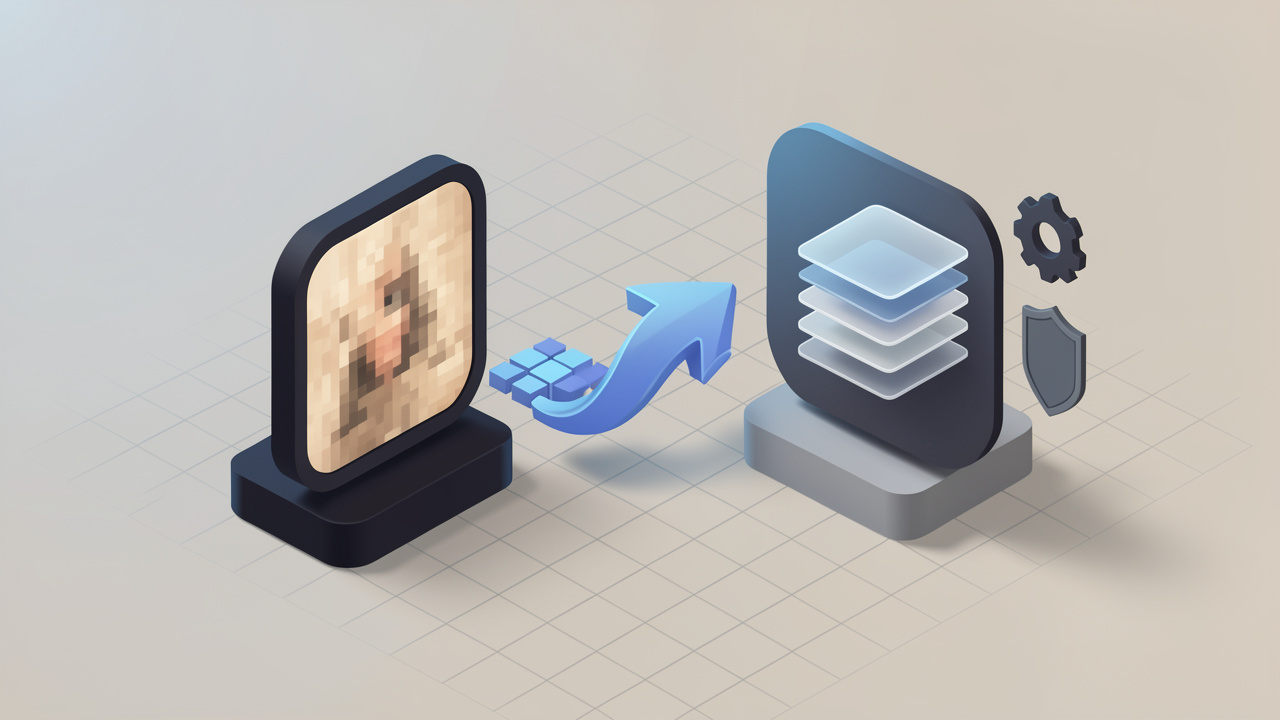
A JPG image can look fine on screen and still be the wrong file for print, archiving, or professional editing. That is why so many people end up searching for the best way to convert a JPG file into a TIFF without wrecking quality, losing metadata, or wasting hours on the wrong tool.
The good news is that converting from JPEG to TIFF is usually straightforward. The tricky part is choosing the right method and settings for your workflow. A designer preparing files for a print shop needs something different from a freelancer batch-processing scanned receipts, and both need something different from a developer automating hundreds of image conversions.
This guide covers the practical side of converting a JPG into a TIFF from every angle. You will learn what changes during conversion, when TIFF actually makes sense, which tools are best, how to preserve quality and metadata, and how to batch-convert files safely.
What Are JPG and TIFF? Key Differences Explained
Before converting anything, it helps to understand what you are changing.
A JPG or JPEG file is built for efficiency. It uses lossy compression, which means it throws away some image data to make the file much smaller. That is why JPEG is so common on websites, in email attachments, and in everyday phone or camera exports. It is compact, widely supported, and fast to share.
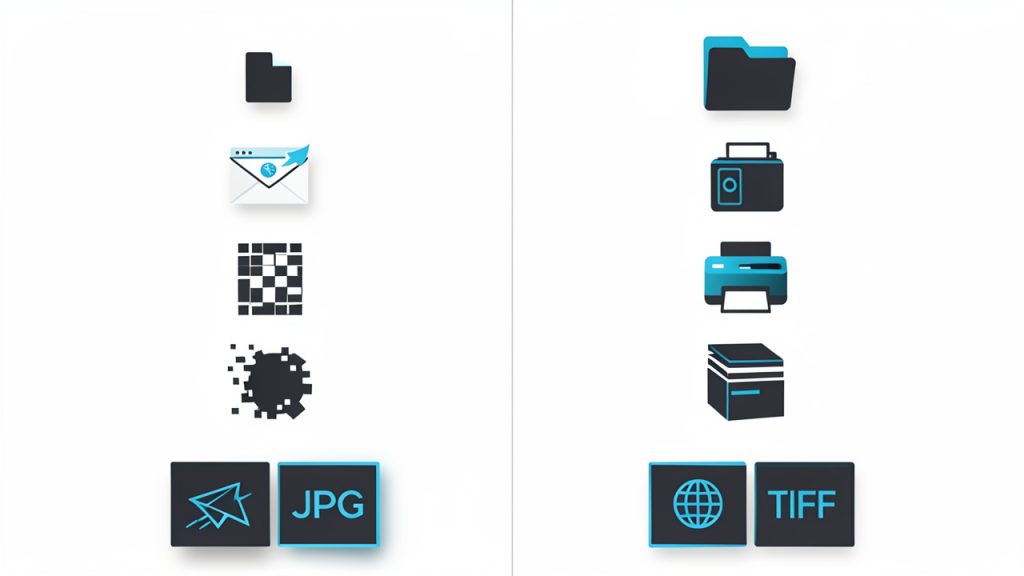
A TIFF file, short for Tagged Image File Format, is built for image fidelity and professional workflows. TIFF can store images with no compression, or with lossless compression such as LZW or ZIP. It also supports richer metadata, higher bit depths, alpha channels in some workflows, and even multi-page documents. That makes it common in scanning, publishing, photography, GIS, prepress, and archival systems.
Compression, quality, and color depth
The biggest difference is compression. JPEG compression is destructive. Every time the image is heavily compressed, some detail is lost. Fine textures, gradients, and edges can show artifacts, especially after repeated saves.
TIFF is different because it can preserve what you already have without introducing additional loss. That point matters. Converting a JPEG into a TIFF does not restore detail that was already removed by JPEG compression. It simply places the existing image into a format that is better suited for editing, printing, storage, or downstream processing.
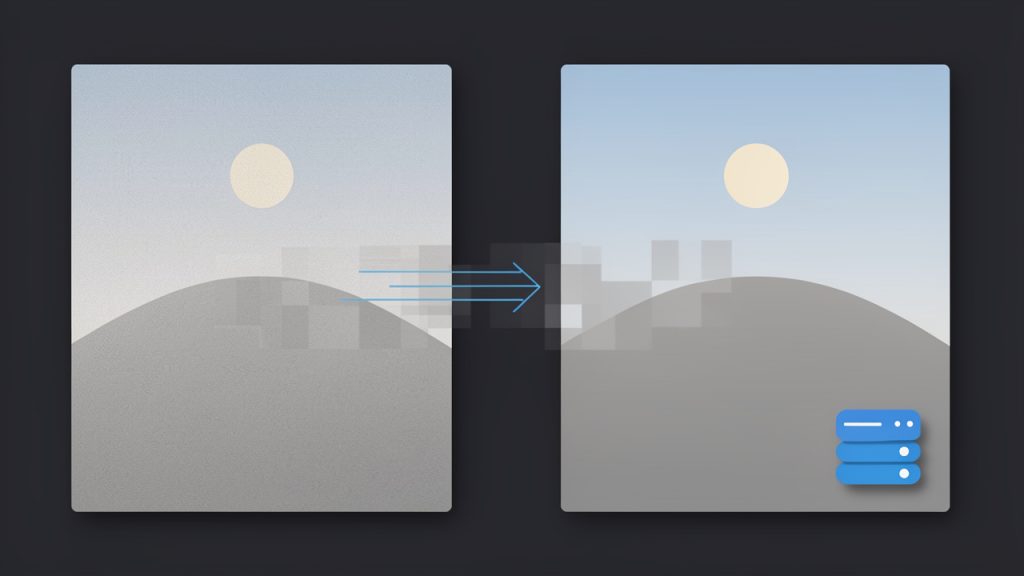
Color depth is another key factor. JPEGs are typically stored as 8-bit per channel images. TIFF can store 8-bit, 16-bit, and in some workflows 32-bit float data. If your source file is only an 8-bit JPEG, converting it to a 16-bit TIFF does not magically create more tonal information. Still, TIFF gives you a better container for professional handling and fewer compatibility problems in print and archival pipelines.
When TIFF is the better choice
TIFF makes sense when file integrity matters more than file size. If you are sending images to a print provider, storing scans for long-term retention, working inside layout software, or preparing images for further retouching, TIFF is often the safer format.
JPEG remains better for web delivery, quick previews, and everyday sharing. TIFF files are usually much larger, slower to upload, and less convenient for casual use. Think of JPEG as a travel backpack and TIFF as a hard-shell archival case. One is built for speed, the other for protection.
Why convert a JPG into a TIFF? Benefits and common scenarios
Many people convert a JPEG into a TIFF because they want to stop future quality loss. Once an image is in TIFF, you can edit, place, or archive it without the extra compression cycle that often comes with repeated JPEG saves. That is especially helpful in design studios, photo retouching, print production, and document management.
Another common reason is workflow compatibility. Some print shops, publishers, scanning systems, GIS applications, and record-management environments prefer or require TIFF. In those cases, the conversion is not just about quality. It is about meeting technical standards.
When conversion helps, and when it does not
Conversion is useful if you need a stable format for editing, long-term storage, or controlled output. It is also useful when you want lossless TIFF compression, embedded metadata, consistent DPI settings, or a multi-page output structure.
What conversion cannot do is repair a poor original. If the JPEG is low-resolution, heavily compressed, or full of artifacts, saving it as TIFF will not improve image detail. The TIFF may be larger and easier to manage in professional software, but the underlying visual information is still the same.
That is the main trade-off: you gain workflow stability, often at the cost of much larger files.
Choose the right conversion method
The best way to convert a JPEG into a TIFF depends on three things: how many files you have, how much control you need, and whether privacy matters.
Online converters are fastest for one-off jobs. Desktop apps are best when you want visual control and reliable color handling. Command-line tools are ideal for batch conversion and automation. For developers or power users, scripting offers the most flexibility.
1. CloudConvert
CloudConvert is a polished online option for converting JPG images into TIFF. It works in the browser and balances ease of use with some output control, which makes it convenient for freelancers and small teams who occasionally need conversions but still want options like batch uploads and cloud integrations.
CloudConvert is easy for beginners and works on any operating system. The main trade-offs are privacy, slower uploads for large files, and less control over advanced TIFF and color settings compared with desktop apps. Pricing depends on usage, with a free tier for light work and paid credits for heavier conversion needs.
Website: https://cloudconvert.com
2. Convertio
Convertio is another simple online converter for turning JPEG files into TIFFs. It is fast and accessible, letting you upload from local storage or cloud drives and download the results in a few clicks. That low friction is appealing for casual conversions.
However, it is not ideal for confidential images or professional print workflows that require precise TIFF options. Free usage caps can be restrictive, and advanced metadata handling is limited compared with desktop tools.
Website: https://convertio.co
3. Adobe Photoshop
Adobe Photoshop is one of the strongest options when image quality, color control, and metadata handling matter. It targets photographers, designers, and prepress professionals, and it lets you define TIFF compression, bit depth, resolution, and ICC profiles with precision.
Photoshop preserves metadata reliably and integrates well with print workflows, making it excellent for final delivery. The drawbacks are the subscription cost, a learning curve for new users, and being overkill for simple one-off conversions.
Website: https://www.adobe.com/products/photoshop.html
4. GIMP
GIMP is the best free desktop alternative when you want a visual editor rather than a browser tool. It is open source, cross-platform, and capable of exporting JPEG images as TIFF for everyday professional tasks.
GIMP gives more control than most online converters while avoiding Photoshop’s cost. The interface feels less polished to some users, and certain advanced workflows may be less streamlined, but its privacy and no-cost nature make it a practical choice.
Website: https://www.gimp.org
5. ImageMagick
ImageMagick is ideal for converting JPEGs into TIFF at scale. This command-line utility can process single images, folders of files, or automated workflows. It lets you set compression, preserve or strip metadata, specify density (DPI), and build repeatable commands that run across platforms.
ImageMagick is powerful, scriptable, and fast, making it excellent for large-scale jobs and servers. The command-line interface has a learning curve, so test commands on samples before processing entire archives.
Website: https://imagemagick.org
6. Pillow
Pillow is a Python imaging library useful for developers building custom JPG-to-TIFF conversion pipelines. It integrates easily into larger automation flows, letting you include resizing, renaming, validation, or uploads as part of the same process.
Pillow is flexible and free, but it requires Python knowledge and is best suited for technical users who need conversion embedded in an application or script.
Website: https://python-pillow.org
Step-by-step: Convert JPG into TIFF using popular methods
ImageMagick
For a single file, a basic command is simple:
magick input.jpg -compress LZW output.tiff
That tells ImageMagick to convert the file and save it as a TIFF using LZW lossless compression. For no compression, replace LZW with None.
For a folder of JPEG files on macOS or Linux, use:
mkdir -p tiff-output
for f in *.jpg; do
  magick "$f" -compress LZW "tiff-output/${f%.*}.tiff"
done
On Windows PowerShell:
New-Item -ItemType Directory -Force -Path .tiff-output | Out-Null
Get-ChildItem -Filter *.jpg | ForEach-Object {
  magick $_.FullName -compress LZW ".tiff-output$($_.BaseName).tiff"
}
If the TIFF is meant for print, set resolution metadata:
magick input.jpg -units PixelsPerInch -density 300 -compress LZW output.tiff
Adobe Photoshop
Open the JPEG in Photoshop, then go to File > Save As and choose TIFF as the format. In the TIFF options dialog, select None, LZW, or ZIP compression. For most users, LZW is a smart default since it is lossless and usually smaller than uncompressed TIFF.
Before saving, check Image Size for the correct resolution and ensure the desired ICC profile is embedded. Avoid export paths or flattening steps that strip metadata if you want to preserve author or camera data.
GIMP
Open the JPEG, choose File > Export As, change the extension to .tif or .tiff, and click Export. GIMP will show TIFF export options where you can pick a lossless compression method and choose whether to preserve color information and metadata.
Online converter workflow
An online converter is the fastest route for a small job: upload the JPEG, choose TIFF as the output, inspect settings, and convert. If the tool offers compression choices, select LZW or ZIP.
The main caution is privacy. If the image contains client work, IDs, medical information, contracts, or unpublished creative assets, use an offline tool instead.
Best settings when converting
The most useful TIFF compression options are None, LZW, and ZIP. Uncompressed TIFF is the simplest and most compatible, but files can become very large. LZW is widely supported and usually the best all-around choice. ZIP is also lossless and can sometimes compress better, though compatibility may vary in older workflows.
For most JPEG-to-TIFF conversions, 8-bit TIFF is sufficient because the source JPEG is already 8-bit in most cases. Saving as 16-bit only makes sense if your workflow requires it for consistency, not because it adds detail back.
Resolution (DPI) affects placed size in print workflows but does not change pixel dimensions. If a print vendor asks for 300 DPI, set that metadata during or after conversion.
Metadata deserves attention. TIFF can carry EXIF, IPTC, and XMP metadata, but not all conversion tools preserve everything by default. If author info, copyright, orientation, timestamps, keywords, or camera data matter, test with a sample file before converting a full batch.
Batch conversion and automation
If you have more than a few files, batch conversion saves time. ImageMagick is the best off-the-shelf solution for most power users, while Pillow is handy for custom workflows.
Here is a simple Python example using Pillow:
from pathlib import Path
from PIL import Image

source = Path("jpgs")
target = Path("tiffs")
target.mkdir(exist_ok=True)

for jpg_file in source.glob("*.jpg"):
    with Image.open(jpg_file) as img:
        rgb = img.convert("RGB")
        out_file = target / f"{jpg_file.stem}.tiff"
        rgb.save(out_file, format="TIFF", compression="tiff_lzw", dpi=(300, 300))
This script converts every JPEG in a folder to a TIFF with LZW compression and 300 DPI metadata. Test it on a handful of files first and verify color, orientation, naming, and metadata before running it on hundreds of images.
Privacy, security, and file integrity considerations
Online conversion is convenient, but it is not always appropriate. If images contain customer data, financial records, legal material, internal product designs, or private photos, uploading them to a third-party server may violate policy or create unnecessary risk.
Offline tools such as Photoshop, GIMP, ImageMagick, and Pillow are safer for confidential work and reduce the risk of retention on third-party systems.
If integrity matters, generate checksums before and after transfer or storage. A simple hash confirms that the TIFF file has not been corrupted or replaced. Built-in hashing tools on most systems are adequate for this verification.
Decide whether metadata should be preserved or removed. For print or archival work, keep it. For privacy-sensitive sharing, strip it deliberately. Photos can contain hidden GPS coordinates, authorship details, timestamps, and device information you may not want to disclose.
Common problems and troubleshooting
File size is the most common surprise. TIFF files can be dramatically larger than JPEGs. If storage or upload speed is a concern, use LZW or ZIP compression and avoid uncompressed TIFF unless required.
Color shifts often come from color management issues. Make sure the correct ICC profile is embedded and that the receiving application is color-managed.
Orientation problems occur when JPEGs rely on EXIF orientation rather than physically rotated pixels. Normalize orientation before batch conversion or use tools that honor EXIF correctly.
Batch script errors usually stem from file paths, permissions, or unexpected filenames. Test on a small sample set first to prevent large-scale mistakes.
Quick comparison table: tools, pros, cons, and best use cases
| Tool | Best For | Strengths | Limitations | Privacy |
|---|---|---|---|---|
| CloudConvert | Quick online conversions | Fast, simple, browser-based | Limited deep control | Lower |
| Convertio | Casual users | Easy workflow, no install | Usage limits, less professional control | Lower |
| Adobe Photoshop | Print and design professionals | Excellent output control, color management | Paid subscription | High |
| GIMP | Free desktop use | No cost, good basic control | Less polished workflow | High |
| ImageMagick | Batch jobs and automation | Powerful, scriptable, fast | Command-line learning curve | High |
| Pillow | Developers | Custom automation and integration | Requires coding | High |
FAQ: Fast answers to common questions
Will converting a JPEG into a TIFF improve image quality?
No. It will not recover lost detail from the original JPEG. What it can do is prevent further loss during later editing and make the image easier to use in professional workflows.
Is TIFF always larger than JPEG?
Usually, yes. TIFF is often much larger, especially without compression. Lossless TIFF compression can reduce size, but it is still typically bigger than a JPEG.
Can I convert multiple JPEGs into a multi-page TIFF?
Yes. Tools like ImageMagick and certain scanning or document apps can combine multiple images into one multi-page TIFF, which is useful for document archives.
Which compression should I choose for archiving?
For most archival workflows, LZW or ZIP are strong choices because they are lossless. If you need maximum simplicity and compatibility, uncompressed TIFF is also valid, though much larger.
Conclusion and recommended workflows
If you only need a quick browser conversion, an online tool is fine for non-sensitive files. If quality control matters, use Photoshop or GIMP. If you are handling batches or building repeatable workflows, ImageMagick or Pillow are the smarter choice.
A safe workflow is simple: keep the original JPEGs, test one sample, choose LZW or ZIP compression, preserve metadata if needed, verify color and orientation, then batch-process the rest. That approach gives you the real benefit of converting a JPG into a TIFF without the usual mistakes.
Leave a Reply